
.png)
Animated Wallpaper on iPhone: Live, Dynamic and Video Compared
For animated wallpaper iPhone users who wish to use their own photos, you can start with the Live Photo option from Apple. An eligible photo is able to move when the Lock Screen wakes on iOS 17 or later. For a still picture with a 3D effect, look at Spatial Scene. A video download needs a compatible conversion before it can serve the same purpose.
Updated October 2026
- Pairing a spatial wallpaper doesn’t bring its 3D effect to the Home Screen.
- Live Photo playback in Photos and acceptance as wallpaper are separate checks.
- Apple’s native Live Photo setup needs no separate wallpaper app.
- A 4K label describes resolution; animation and export access are separate features.
Can you put an animated wallpaper on an iPhone?
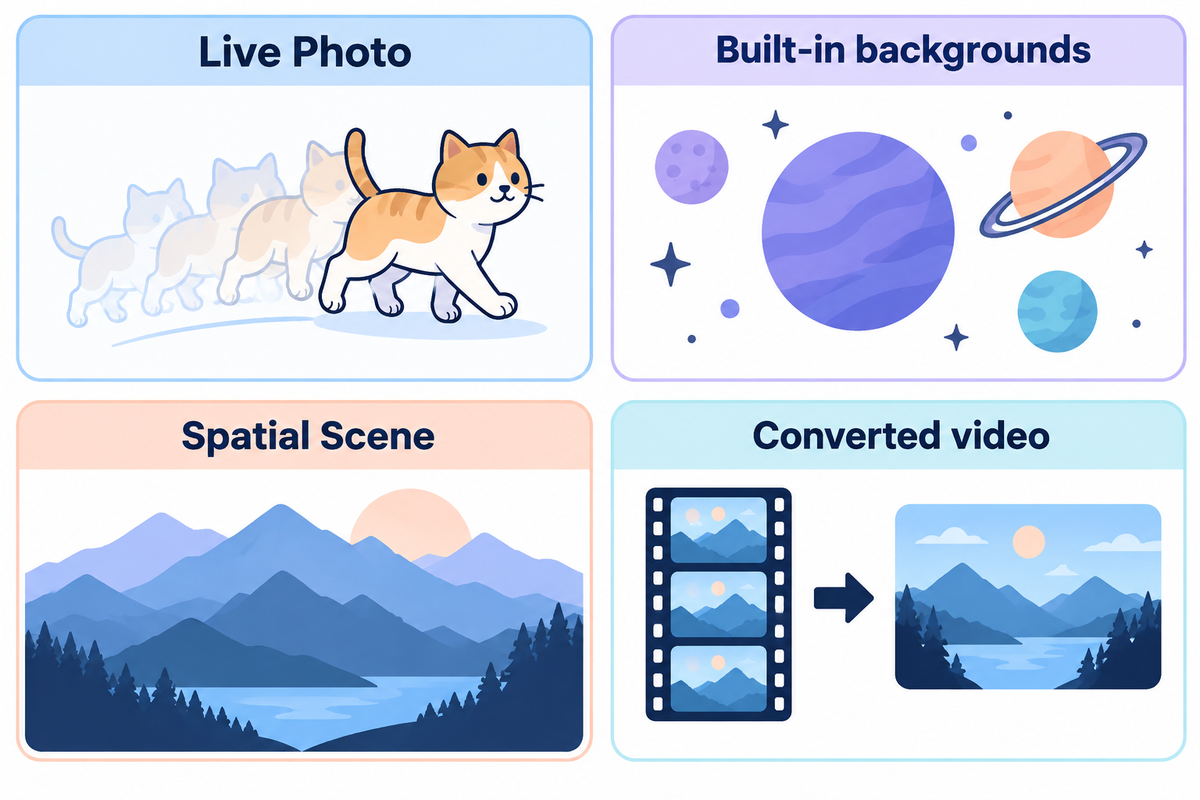
An iPhone can display animated wallpaper through supported Lock Screen features and eligible Live Photos that play when the device wakes on iOS 17 or later. Choose the feature before choosing a design: recorded movement, spatial depth, and changing backgrounds result in different effects. Apple’s wallpaper picker is the place to see which options your phone and photo support.
Wake, Tilt, Change Check
The Wake-Tilt-Change Check matches the kind of motion you want with the wallpaper type, and then determines where that effect appears.
| What you want | Start with | What to expect | Decision before saving |
|---|---|---|---|
| A captured moment on wake | Live Photo | Eligible Lock Screen motion with the play control enabled | Can the wallpaper editor accept this photo? |
| An Apple-designed changing background | Built-in choices such as Weather or Astronomy | Behavior depends on the selected design | Preview that option on your device |
| Depth from a still photograph | Spatial Scene | 3D effect on the Lock Screen only | iPhone 12 or later, iOS 26 and an eligible photo |
| A moment from a video clip | Wallpaper-compatible Live Photo export | Playback depends on the exported file and iPhone acceptance | Test the saved result before committing to an app |
This selection aid draws from Apple Live Photo Instructions and wallpaper Guide. It isn’t a device benchmark. If you already know you want ready-made designs, check out the live wallpapers for iPhone collection. This comparison aids in choosing the format.
Live Photo wallpaper: a moment that plays on wake
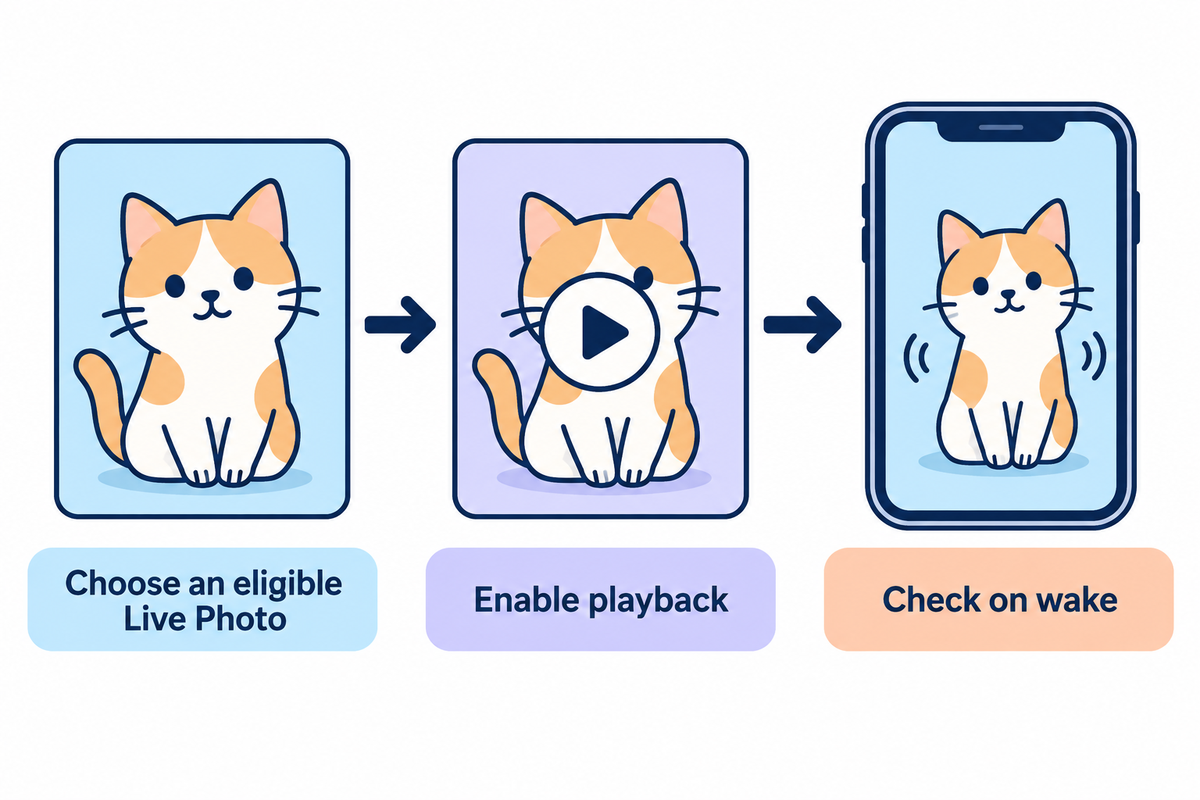
You can use a Live Photo from your own camera library to achieve a wallpaper with a small movement. Apple states that playback of a Live Photo begins automatically when the device wakes with the play button enabled on iOS 17 or higher. The photo has to qualify for wallpaper motion; being a Live Photo is just the starting point.
Follow Apple’s Live Photo wallpaper steps:
- Open Settings → Wallpaper → Add New Wallpaper.
- Choose Photos → Live Photo, then select your image.
- Customize the crop and make sure the play button is on.
- Tap Add. Choose Set as Wallpaper Pair, or Customize Home Screen for a different background behind your icons.
Touch and hold down the lock screen to open the wallpaper gallery if that is where you prefer to access it. That gesture opens customization in Apple’s current instructions; it should not be confused with the older press-to-play advice found in legacy tutorials.
Suppose you have a Live Photo of your cat turning toward the camera. Then use the native wallpaper method before downloading an editing app. If the editor accepts the motion, adjust the crop so the cat’s face and the clock both remain clear. If it does not, try a different photo rather than paying for a subscription in the hope that payment changes the phone’s decision. You can still keep your favorite frame of the Live Photo, even if it’s a still image.
Dynamic wallpaper: start with Apple’s built-in choices
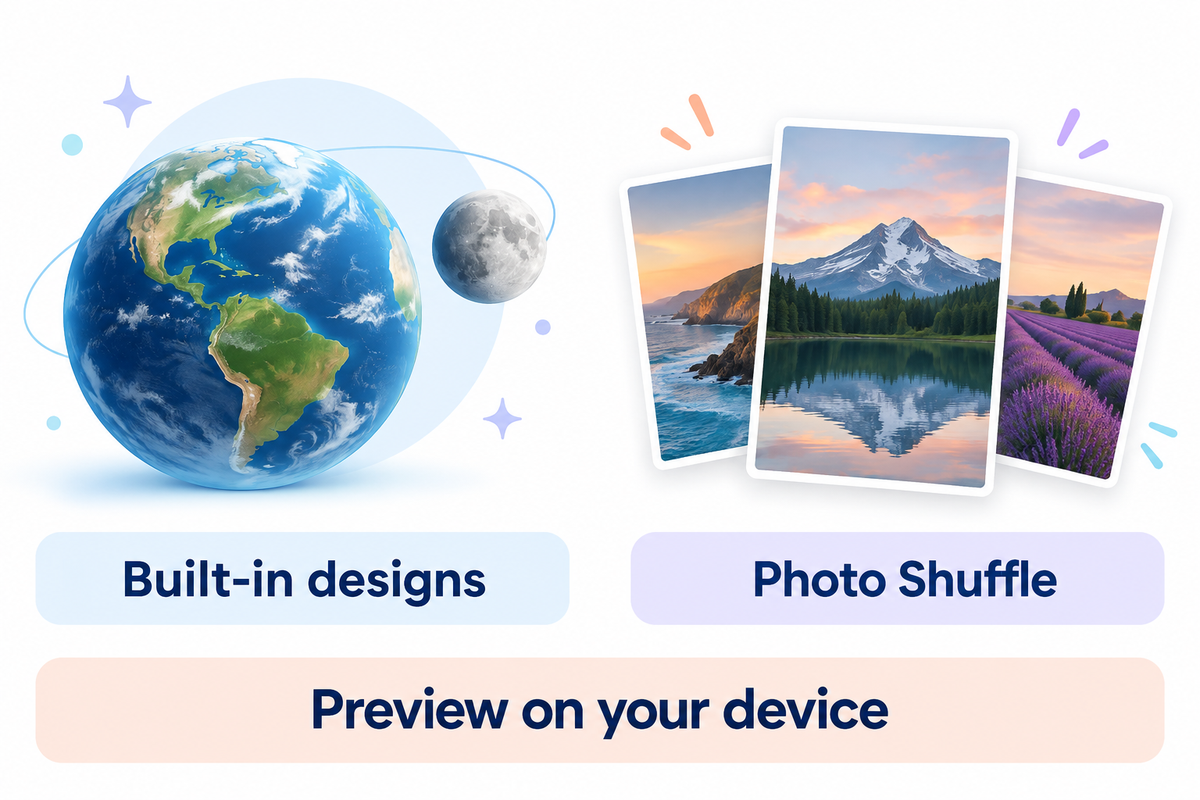
Dynamic wallpaper refers to backgrounds that change rather than a single file type that can be consistently identified in a preview of an app. Astronomy is one of the many built-in wallpaper options that Apple provides. Preview the behavior of the background you select.
Open Add New Wallpaper and check out the available stock backgrounds. A moon or other astronomy design may fit a quiet Home Screen better than a busy neon video.
Want to add variety instead of motion in your images? Apple’s wallpaper customization guide lists On Tap, On Lock, Hourly and Daily shuffle options. Changing which photo appears is different from making the subject in that photo move. Go with Photo Shuffle if you’re looking for variety in your images.
Spatial wallpaper: 3D depth from a still photo
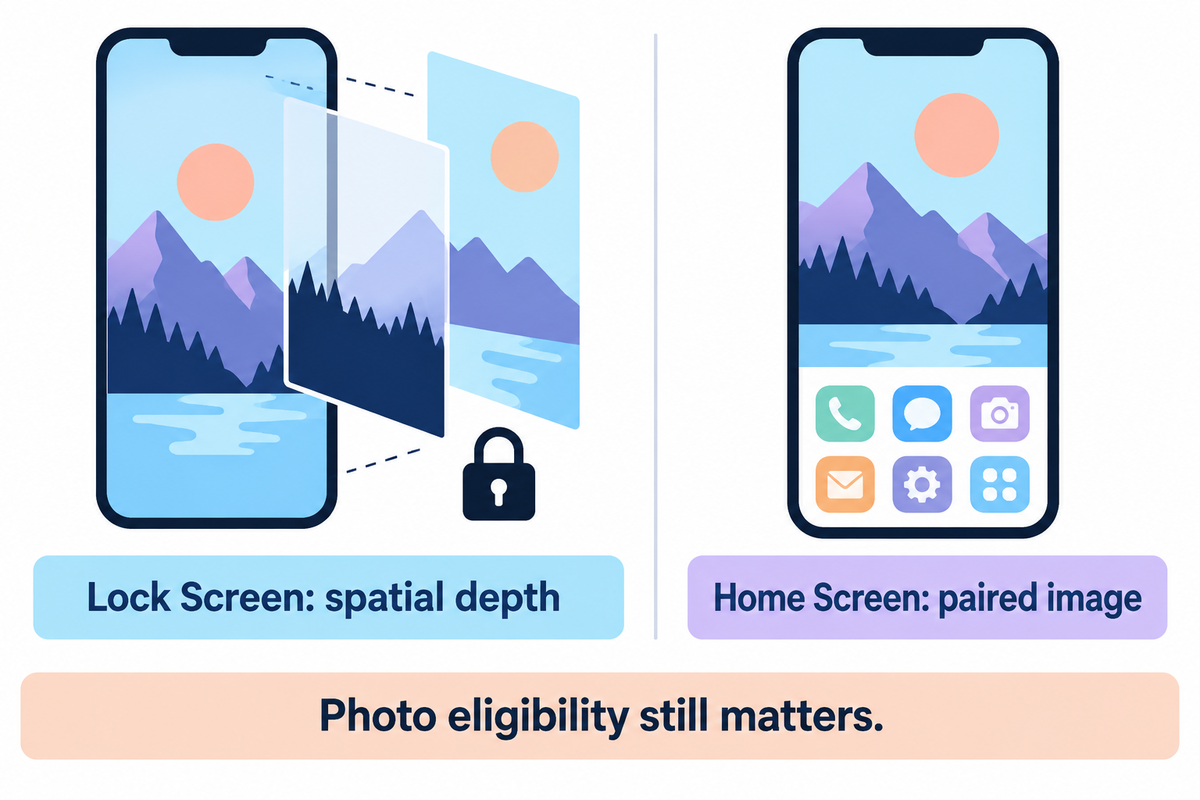
Spatial Scene lets you convert certain eligible photos to a 3D Lock Screen wallpaper on iPhone 12 or later with iOS 26. It appeals to a user who wants depth from a still image. The effect remains on the Lock Screen even when that image is also used as the Home Screen wallpaper.
In Add New Wallpaper, choose Photos and open the Spatial Scene tab. Apple says eligible pictures typically have good lighting, clear separation between subject and background, or landscape orientation. Use the picker to choose a photo to preview the effect and save it when you’re satisfied. Keep in mind that photo eligibility also matters on a supported model, including a Pro Max.
“only your Lock Screen will display the 3D effect.”
Spatial Scene is different from Depth Effect. The iPhone user guide mentions that Depth Effect is layering the subject of the photo in front of the clock. Layering around the time doesn’t mean, by itself, that a picture has captured movement. We cover that choice of composition in our Depth Effect wallpaper guide.
Video wallpaper: check the exported file first
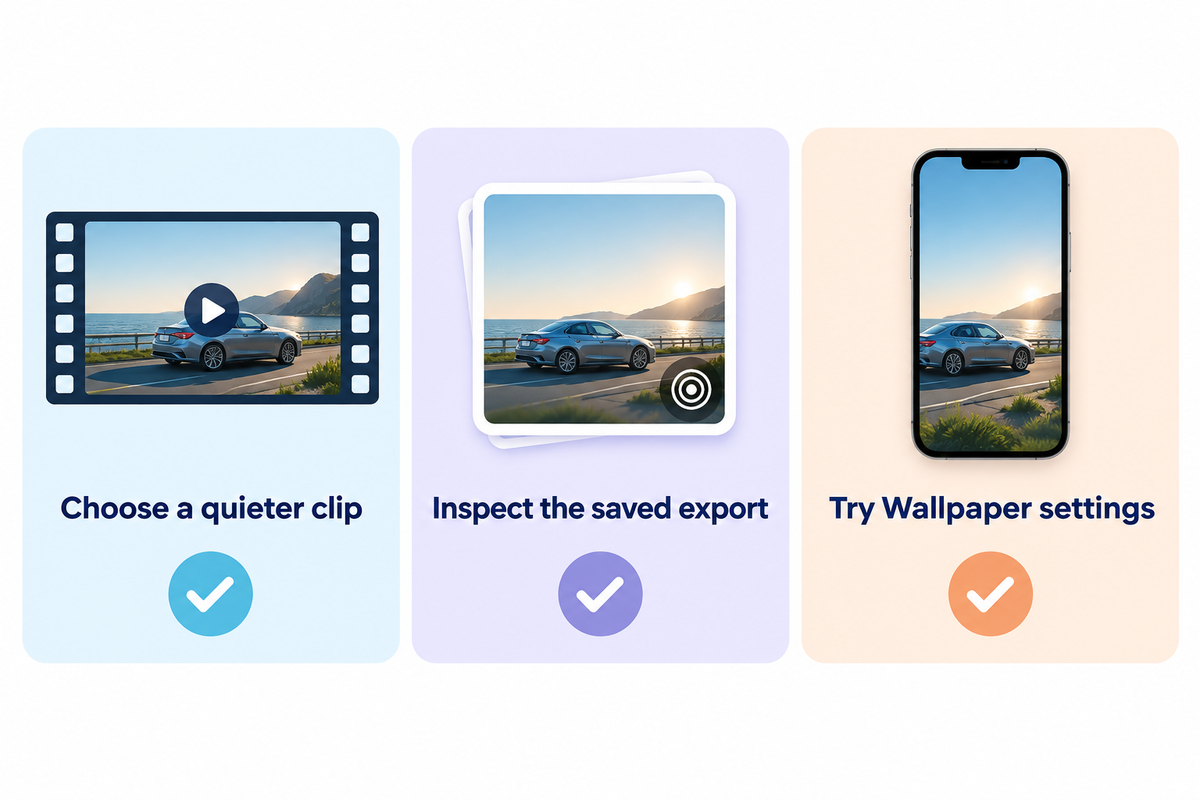
A video wallpaper workflow typically relies on exporting a Live Photo rather than applying an unprocessed video file through Apple’s Live Photo picker. A converter can produce that export, but iPhone wallpaper eligibility still applies. Check the saved file and its behavior in the wallpaper editor before assuming that the app’s moving preview is the finished result.
For example, intoLive’s support guide recommends users use its Live Wallpaper button instead of the New Project button for wallpaper exports, choosing source video clips with minimal camera movement and scene transitions. The developer says that Live Photos created with intoLive or captured with an iOS device may not work properly as wallpaper.
A short car clip in an editor might look good but have a fast pan and a cut to another shot. If your goal is an animated Lock Screen, start with the quieter portion and the converter’s wallpaper mode. Save a sample, open the result in Photos, and try it in Wallpaper settings. This isolates an export problem from a wallpaper issue. Always keep your video so you don’t have to download it again. Before importing private footage, read the app’s upload and storage information; a non-personal sample is enough to check the workflow first.
Can you use a GIF as a wallpaper on iPhone?
If you want to use Apple’s Live Photo feature for the Lock Screen, you have to convert your GIF to a format that the wallpaper editor can accept. Check the tool you’re using to make sure that it can process GIFs, what format it exports to, and if the saved result is acceptable to the wallpaper editor.
A high-quality video can be useful source material, but file format, framing and the phone’s supported behavior still determine the result.
Free live wallpapers for iPhone: what costs extra?
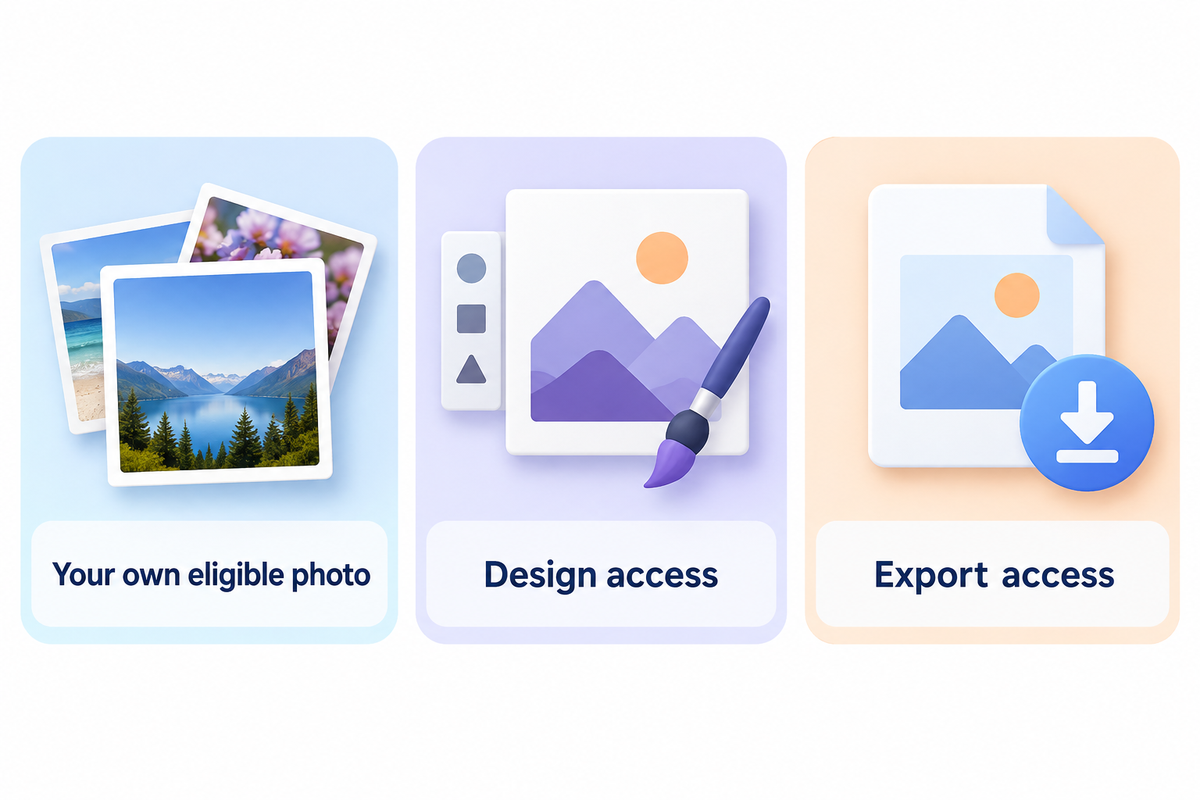
You can use Apple’s native setup with an eligible Live Photo from your library without a separate wallpaper app. Download collections and conversion tools have their own access terms. Compare the price of the design and export you need, instead of assuming a free download of an app makes every feature free to use.
The iScreen App Store listing notes the app is Free with In-App Purchases. Check the offer shown for your selected item. Different choices may be available for app access, a premium collection, and a particular export option. Pick the offer that includes the design and export you need.
Start with a photo you already own to see if the native result meets your goal for a budget-conscious theme refresh. If you wish to have a cute anime design with matching widgets, for example, check its access terms prior to using it. A free iPhone wallpaper image might meet the styling need even if a paid animation looks appealing. Choose a paid option for a feature you have identified, not as an assumed fix for unsupported wallpaper motion.
Download a wallpaper that fits your theme
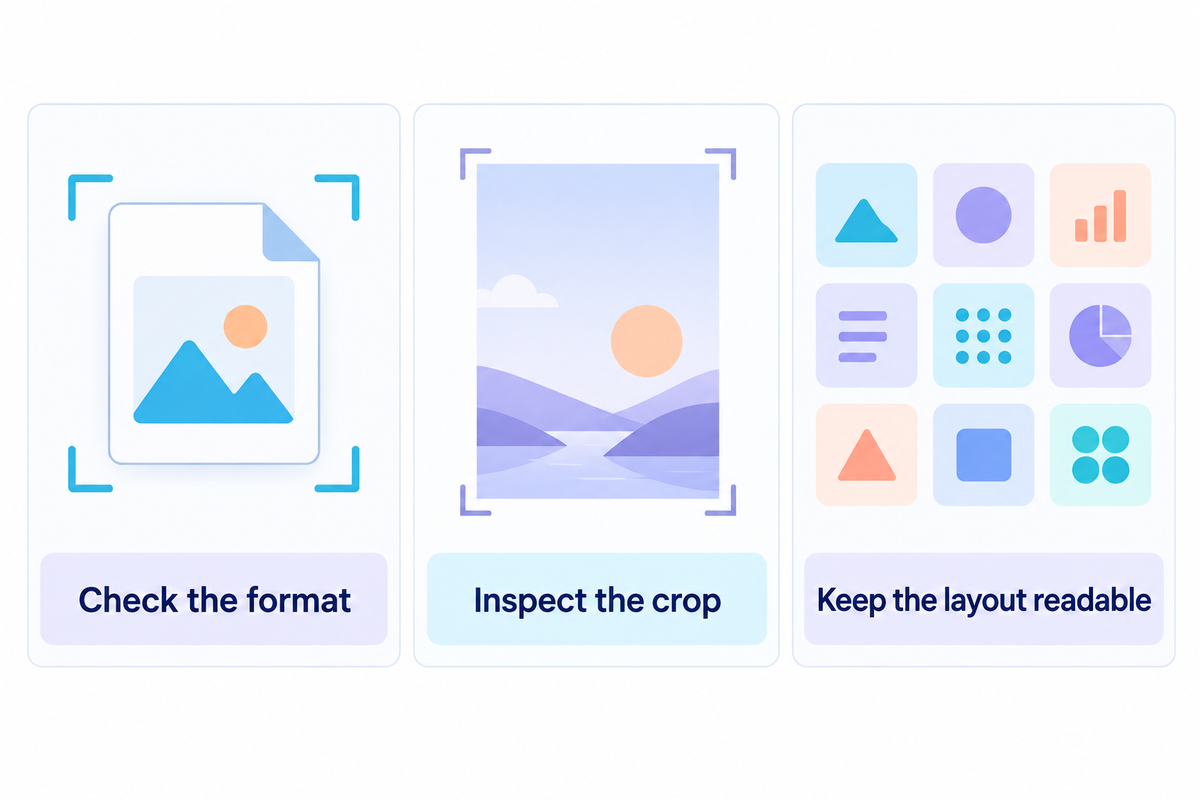
A relevant wallpaper download fits well with the layout and visual effects you choose. iScreen’s iPhone wallpaper library has styles such as anime, cute, dark and 4K. Make sure you check the actual format and access of the images you wish to use as opposed to relying on your assessment of the name of the collection.
Abstract shapes can leave room for a clock. Use the preview to determine if the image should be cropped for a portrait. Cool live wallpapers and a widget can conflict. Keep other elements of the composition in view to check if it all fits together. For matching colors and icons, use the aesthetic iPhone wallpaper guide.
An HD or 4K label concerns image detail, not whether a background will animate. Use a clear source, keep in mind the size of the original, and review the end result. For a smartphone, a small preview may not give an accurate view of how the wallpaper crop will appear on your screen.
When you get an idea from Pinterest or Google, make sure you can lawfully use the image and review where it leads. Check the usage terms for images you wish to use. Preview a design you want to use and save it for later. You can find and save ideas in a mood board before choosing one design; a preview saved for inspiration is not necessarily the original downloadable file.
Check motion, accessibility and your Home Screen
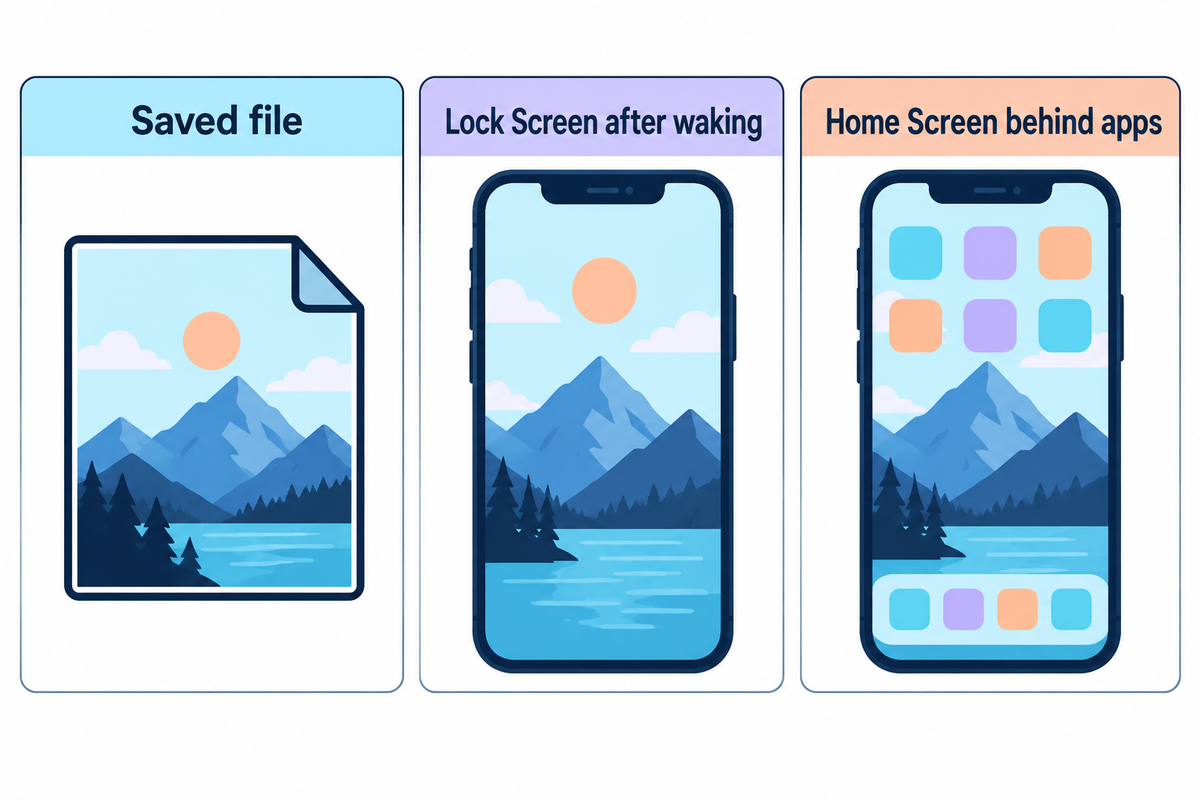
Check the saved wallpaper file. Test it at the Lock Screen after waking, and on the Home Screen behind your apps. For comfort with motion, you can choose a still image. An appealing preview won’t tie you to using that effect.
Preview-to-screen check
The preview to screen check shows us where an expected animation changes, and from there we can choose the next most useful action.
| Mismatch type | What it establishes | Next action |
|---|---|---|
| Motion only in an app preview | The preview plays; the export remains unchecked | Open the saved result in Photos |
| A Live Photo plays in Photos | The photo contains playable movement | Try that file in the wallpaper picker |
| Motion Not Available in the picker | The selected photo is not accepted for that wallpaper motion | Try another suitable photo or consult the converter’s wallpaper help |
| Spatial effect disappears on the Home Screen | This matches Apple’s Lock Screen-only scope | Customize a separate Home Screen background |
| A saved GIF or raw video is missing from Live Photos | The file has not reached Apple’s Live Photo selection route | Use a converter that accepts the input and exports a compatible Live Photo |
| A selected Live Photo has its play control off | Automatic wake playback is not enabled | Enable the play control during wallpaper customization |
| The motion icon is missing while using intoLive exports | The app developer lists Low Power Mode among checks | Follow intoLive’s mode guidance, then try the saved file again |
| The applied image looks softer than its preview | The saved file or crop needs inspection | Compare the saved image and reduce unnecessary enlargement |
| Icons or clock are hard to read | The composition needs adjustment | Change the crop or use a simpler still image |
Why won’t live wallpaper work on my iPhone?
Live wallpaper may fail because the chosen file isn’t accepted for Lock Screen motion, the play control is off, or the expected effect belongs to a different feature. Check Apple’s native setup first, then the converter’s own instructions. The intoLive developer also advises checking Low Power Mode when the motion icon is missing; the selected photo must still qualify for wallpaper motion.
For accessibility and comfort, you should also check the motion of the interface itself. Avoid a clip that contains flashing or distracting images. Just because a system preference is set to not allow motion, that doesn’t mean all effects are removed from that source. For layout changes, the iPhone Lock Screen customization guide has information on the clock and surrounding areas.
Frequently asked questions
Does live wallpaper drain iPhone battery?
Battery impact varies with the wallpaper, phone and usage.
We haven’t measured battery drain for this guide. The effect, your phone and how you use it all matter when judging a result. Watch your own battery usage and switch to a still image if the movement is unnecessary. For a simple setup without extra wallpaper-app features, keep a still image available and compare whether the animation is useful to you.
Why did Apple remove animated wallpapers?
Older tutorials describe different behavior across iOS releases.
Apple’s current support guidance describes Live Photo playback when the device wakes on iOS 17 or later. Use those instructions when choosing a wallpaper today. Older instructions for pressing a wallpaper to play it shouldn’t be combined with the current setup. This guide doesn’t attribute a motive to Apple or promise that every older animation has returned in the same form.
What are the best 4K wallpapers for iPhone?
Choose a clear image that stays readable after cropping.
A clear subject, readable clock and uncluttered icons make a useful starting point. Leave space for the clock, controls and app icons instead of judging only an unobstructed preview. A 4K label alone doesn’t tell you whether the download is a still image, video or compatible Live Photo. Check the delivered format and look at the applied wallpaper before deciding whether you need another version.
Is animated wallpaper on iPhone free?
Apple’s native route needs no separate wallpaper app.
Use an eligible Live Photo already in your library. Downloaded designs, conversion features and app subscriptions have their own terms; check the specific offer before paying.
How do you use the Live Photo editor on iPhone?
Open the Live Photo in Photos, tap Edit and choose the Live Photo control.
To select a different key photo, move the frame selector, choose Make Key Photo and tap Done, following Apple’s Live Photo editing instructions. Keep the original available while experimenting. A preferred still frame helps with composition; wallpaper acceptance remains a separate check. Return to the wallpaper picker to check the outcome, rather than relying only on playback inside Photos.
Where can I get animated wallpapers?
Start with your own Live Photos or a wallpaper collection.
iScreen offers wallpaper designs to browse. For any download, confirm the saved format and access terms, then try the supported setup for your chosen effect.
Can a moving background also animate my Home Screen?
A paired image does not carry every Lock Screen effect to the Home Screen.
Apple explicitly limits Spatial Scene’s 3D effect to the Lock Screen, including when Set as Wallpaper Pair is selected. Its Live Photo support instructions also describe Lock Screen playback on wake. Choose Customize Home Screen when you want a separate background behind your app icons. Treat a continuously moving Home Screen shown in a promotional clip as a separate feature claim, not as a result promised by these native wallpaper steps.
Start with one design and one effect. Try an eligible photo in Apple’s picker, or browse iScreen’s wallpaper library for a style you want. Save a sample, check the actual screen, and add matching widgets only after the background works for you.
Method: This comparison uses Apple documentation, developer support and public app listings. Decision aids are editorial synthesis. No device playback tests, battery measurements or conversion success rate tests were performed for this article.
References & Sources
- Set a Live Photo as your Lock Screen wallpaper Apple.
- Change your iPhone wallpaper Apple; includes Spatial Scene and Photo Shuffle.
- Create a custom iPhone Lock Screen Apple iPhone User Guide.
- Take and edit Live Photos Apple.
- Live Wallpaper is not working intoLive developer support.
- iScreen: Widgets & Wallpaper App Store product listing.
