
.png)
Best Countdown Widget Apps for iPhone: Track Events on Your Home Screen
Want a countdown widget for iPhone that shows the days until a trip, a birthday, or a deadline right on your screen? Here’s the part most guides skip: iOS doesn’t ship a real “days-until” countdown widget of its own. Good news: adding one takes about a minute once you know where to look. This guide show you how to put a countdown on your Home Screen, Lock Screen, and even StandBy mode, which apps are worth installing, what you can get for free, and how to make the whole thing match the rest of your setup.
- Home Screen, a medium widget you glance at while planning your day.
- Lock Screen, a small widget under the clock for a no-unlock peek (iOS 16 and later).
- StandBy, a full-screen countdown on your bedside charger (iOS 17 and later).
Pick a countdown app, set your date once, then drop the same event onto whichever of these three surfaces you actually look at.
Does the iPhone Have a Built-In Countdown Widget?
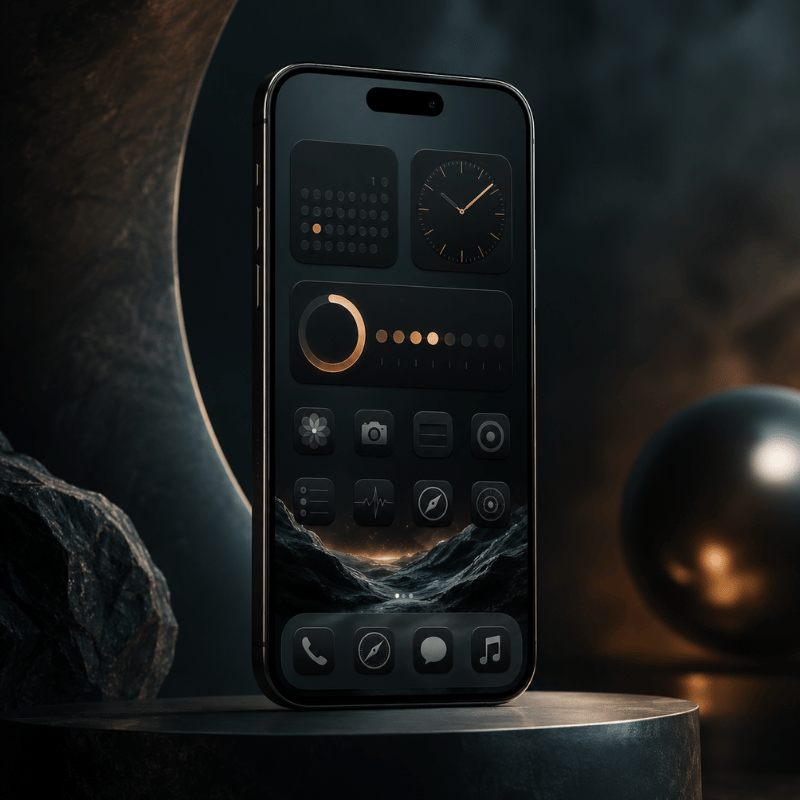
Not really, and this trips a lot of people up. Apple’s stock Clock app has a Timer, but a timer count down minutes and seconds for a single session, it can’t tell you “42 days until the wedding.” The Calendar widget shows your next few events with their dates, and the Reminders widget lists tasks that are due, yet neither one displays a running day counter on your screen. Apple’s own widget gallery, documented in the iPhone User Guide, simply doesn’t include a “days until” widget.
So when people ask why the old standalone “Countdown” idea seems to have vanished, the answer is that it was never a permanent native feature to begin with. The countdown experience on iOS has always lived in third-party apps, and that’s by design, Apple opens the widget system to developers and lets them fill the gaps. That’s why every genuinely good iPhone countdown lives inside an app you install, not in a hidden Settings toggle.
If all you need is the next calendar event, the native Calendar widget is fine. If you want a big “12 days to go” number staring back at you, you need a dedicated countdown app — keep reading.
How to Add a Countdown Widget to Your Home Screen (Step by Step)
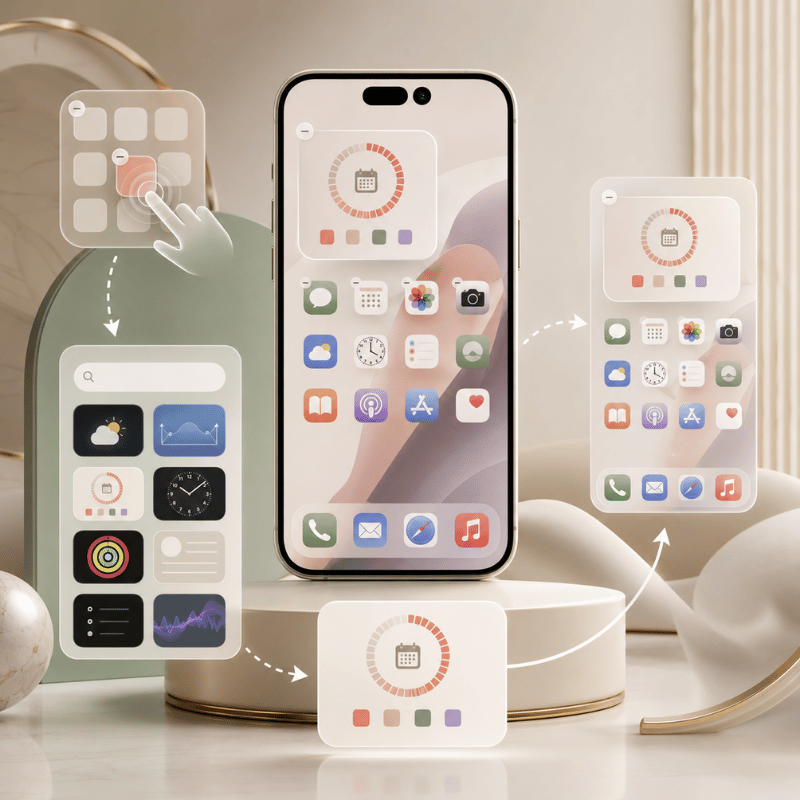
Adding a countdown widget to your iPhone Home Screen works the same way as any other widget. Your only extra step is configuring the event inside the app first, because the widget pulls its date from there.
- Install a countdown app from the App Store (see the picks below) and open it once.
- Create your event inside the app, name it, set the target date, and pick a color or photo if the app allow.
- Long-press an empty spot on the Home Screen until the icons start to jiggle.
- Tap the + button in the top-left corner to open the widget gallery.
- Find the app you just installed and tap it.
- Choose a size, small, medium, or large, then tap Add Widget.
- Long-press the new widget and tap Edit Widget to pick which countdown it shows.
- Drag it into place and tap Done.
Step 7 is the one people miss. A freshly added widget often shows a blank or default countdown until you open Edit Widget and choose the specific event, without that, it sits there looking broken. That single tap is why a setup someone called “impossible” usually takes ten more seconds to finish.
If the widget won’t update, check Low Power Mode. It throttles background refresh, so a day-counter can lag behind by a day until you open the app. Turning Low Power Mode off, or opening the app each morning, fixes it.
If you want the cleanest possible result, set up your countdown alongside the rest of your layout. Our walkthrough on building an aesthetic iPhone home screen covers spacing and theming so the counter doesn’t clash with everything around it.
How to Add a Countdown Widget to Your Lock Screen
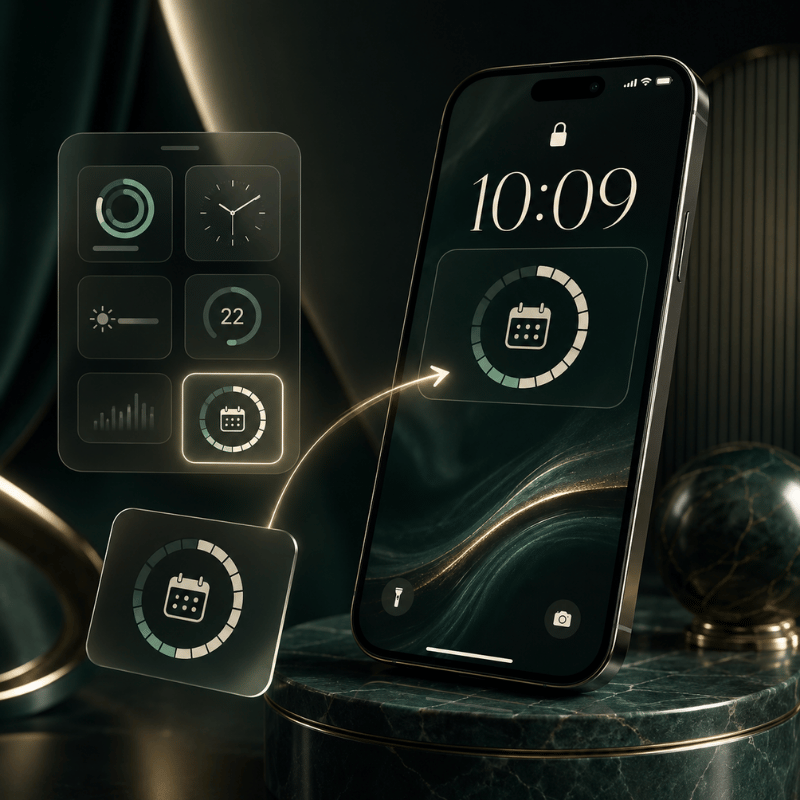
Yes, you can put a countdown on your Lock Screen, and it’s genuinely useful because you see it every time you pick up your phone, no unlock required. This needs iOS 16 or later, which is when Apple added Lock Screen customization and widgets.
Can I have a countdown on my iPhone Lock Screen?
You can. Touch and hold the Lock Screen, tap Customize, then choose Lock Screen. Tap the widget area below the clock (or the slot above it for the inline date row), pick your countdown app from the list, and add its widget. Lock Screen widgets are small by nature, so they show a tight number like “9 days” rather than a full label. Tap Done and the countdown rides along on every wake.
One honest caveat from real users: Lock Screen widgets don’t always refresh the instant the day rolls over. On the r/ios forum, people have noted that clock and weather widgets sometimes wait until the next unlock to update. A countdown can behave the same way, so if it looks a day off first thing in the morning, a quick tap to wake-and-unlock usually syncs it. If you want a deeper walkthrough of styling that screen, see our guide to the iPhone Lock Screen widget setup.
Countdowns on StandBy and the Dynamic Island
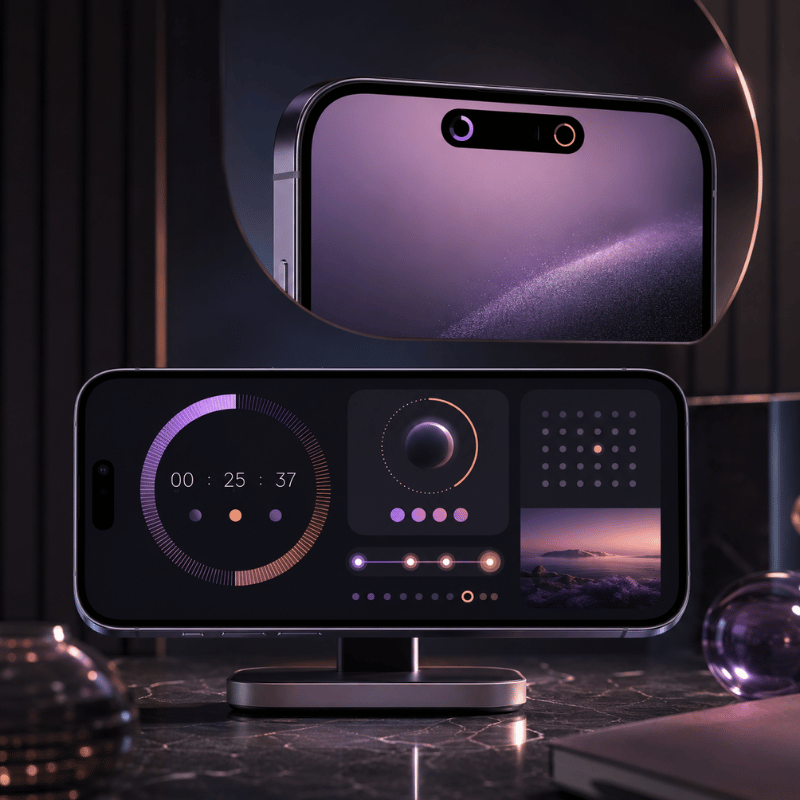
This is the surface almost every “best countdown widget” article forgets. StandBy turns your iPhone into a bedside display while it charges on its side, and a countdown is one of the things it can show full-screen. It needs iOS 17 or later. Per Apple’s StandBy guide, you turn it on in Settings, connect a charger, set the phone on its side, and press the side button, then swipe to the widgets view and pick your countdown.
Why bother? Because a countdown you’ve to dig for is a countdown you forget. On a nightstand charger, a “5 days until vacation” panel is the last thing you see at night and the first thing in the morning. StandBy even has a Night Mode that tints the screen red in low light so it isn’t glaring at 3 a.m. On iPhones with an Always-On display, the panel just stays put; on other models, a tap or a nudge of the table wakes it.
“We tell people to stop thinking of a countdown as one widget and start thinking of it as one event shown on three surfaces. The Home Screen is for planning, the Lock Screen is for a quick glance, and StandBy is for ambient awareness while you charge. Set the date once, place it three times.”
Live Activities and the Dynamic Island handle the short-term end of things, an event happening today or in the next few hours can ride in the Dynamic Island. For multi-day or multi-week countdowns, the widget surfaces above are the right home.
Best Countdown Widget Apps for iPhone (2026)
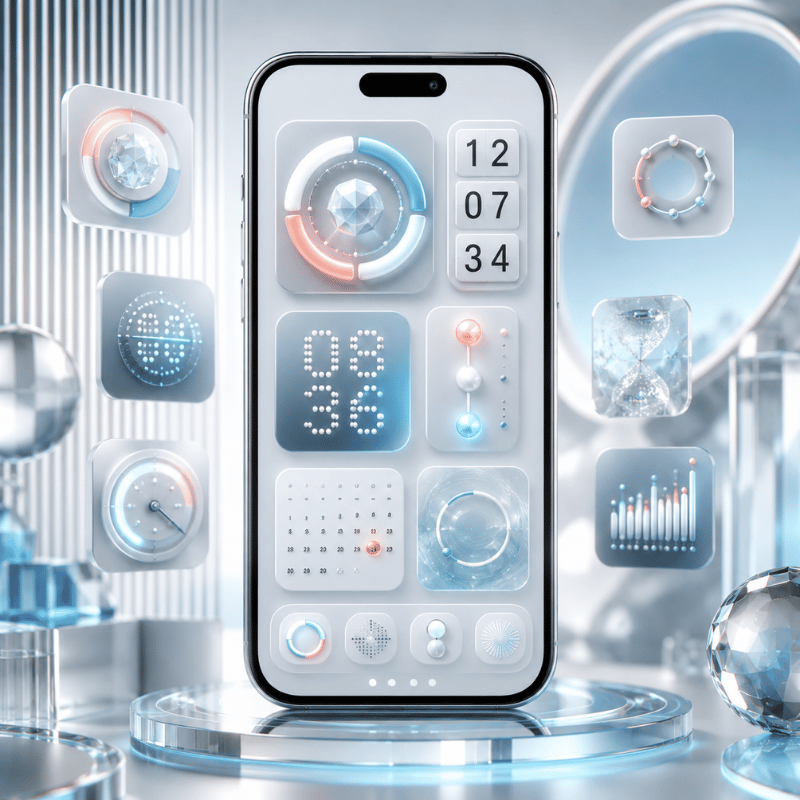
There are dozens of countdown apps, and most do the basics fine. Where they actually differ is how much you can customize, which surfaces they support, and what hides behind a paywall. Here’s an honest comparison of common picks.
| App | Free tier | Surfaces | Best for |
|---|---|---|---|
| iScreen | Yes | Home, Lock, StandBy | Matching the countdown to a full themed setup |
| Pretty Progress | Limited | Home, Lock | Progress-bar style countdowns |
| Widgetsmith | Yes (ads) | Home, Lock | All-purpose widgets, not just countdowns |
| Countdown Widget & Counter | Limited | Home, Lock | Minimalist single-event counters |
Pick based on what you actually want: a plain number, a progress bar, or a counter that blends into a designed Home Screen. If aesthetics matter to you, an app that also handle wallpaper, icons, and themes saves you juggling three separate tools. You can see how the pieces fit together with the iScreen iPhone widget app.
Are There Free Countdown Widgets?
Plenty of countdown widgets are free, and a free one is enough for most people tracking a single event. A trade-off show up when you want more: many apps cap the number of countdowns, lock the nicer fonts and backgrounds, or show ads until you upgrade. None of that stops you from getting a working “days until” widget on your screen at no cost.
- Free: one or two countdowns, basic sizes, a handful of colors, Home and Lock Screen widgets.
- Paid: unlimited countdowns, custom fonts, photo backgrounds, ad removal, and extras like Apple Watch or StandBy styling.
A reasonable plan: start free, live with it for a week, and only pay if you hit a wall, usually that’s wanting a third or fourth countdown, or wanting the widget to match a specific palette.
How to Customize a Countdown Widget to Match Your Aesthetic
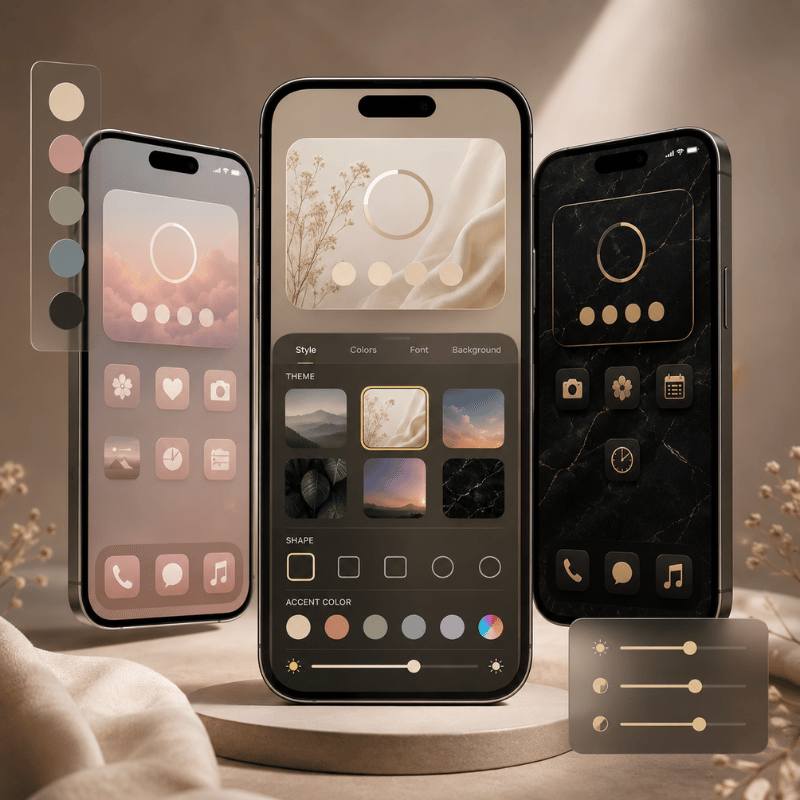
A countdown widget that clashes with your wallpaper looks worse than no widget at all. Fixing that means treating the counter as one element of a single design, not a sticker slapped on top. Most apps let you change four things: the background (solid, gradient, or your own photo), the font, the text color, and what units show (days only, or days plus hours).
A simple rule keep it clean: borrow your two main colors from the wallpaper and let the countdown number be the one accent that pops. If your wallpaper is muted, a single bold number reads instantly; if it’s busy, a semi-transparent background behind the number stop it from disappearing. For couples syncing the same date, a trip or an anniversary, paired widgets keep both phones in step; our couple widgets setup is built for exactly that.
Once the countdown look right, it’s worth carrying the same palette across your icons and theme. The iScreen customize your iPhone home screen guide and our theme tools handle that part so the whole screen feel intentional.
Popular Countdown Types: Vacations, Weddings, Holidays and Exams
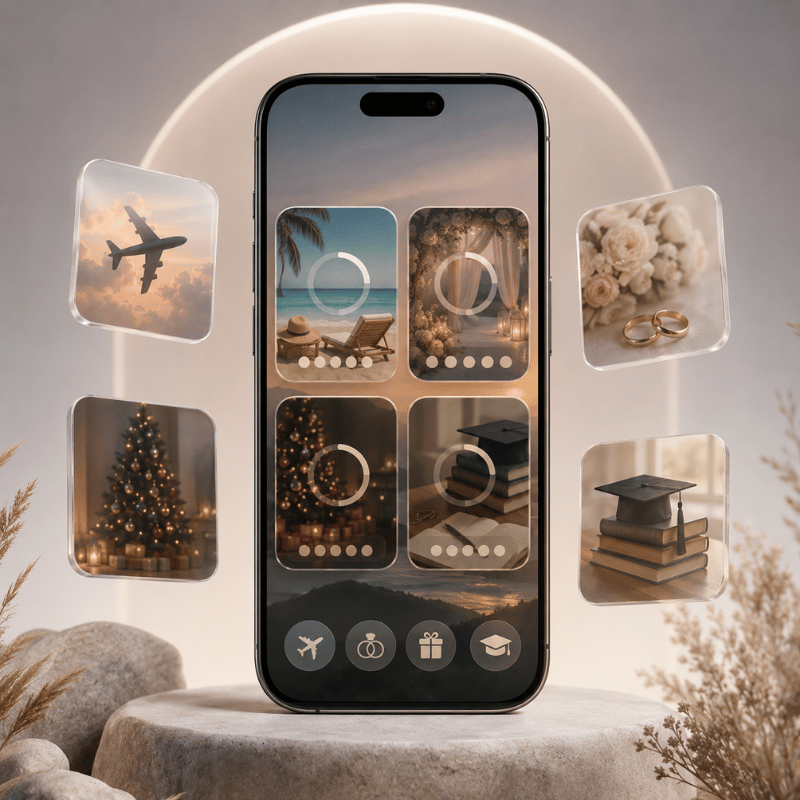
The way you set up a countdown depend on what you’re counting toward. A few patterns cover most cases:
- ✔ A vacation is a single one-time event, and the most common reason people search for a countdown widget at all. A photo of the destination as the background makes it hit harder.
- ✔ Weddings and anniversaries work best set to repeat yearly, so the anniversary version resets on its own after the date passes.
- ✔ Holidays like Christmas, New Year, and Halloween drive huge seasonal spikes; a recurring holiday countdown saves you re-creating it every year.
- ✔ Exams and deadlines deserve a stark days-left number on the Lock Screen as a quiet motivator, no app to open, just a reminder every time you reach for your phone.
One decision matter most here: one-time versus recurring. Get that wrong and a holiday counter show “−14 days” in January instead of resetting. Most apps put a “repeat yearly” toggle right next to the date field.
How to Choose the Right Countdown Widget Setup
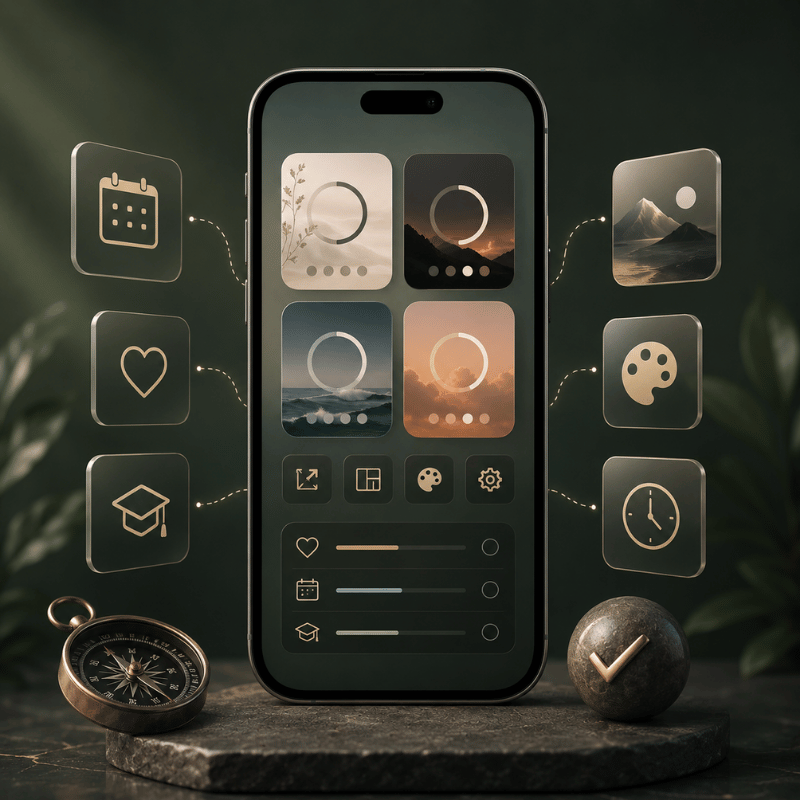
Instead of asking “which app is best,” ask “where do I actually look, and what am I counting?” Match your answer to the table below.
| Your situation | Surface | Widget size | Why |
|---|---|---|---|
| One big event you obsess over | Lock Screen + StandBy | Small | Maximum glances, zero effort |
| Several events at once | Home Screen | Medium or large | Room to list multiple dates |
| Aesthetic-first home screen | Home Screen | Medium | Blends into a themed layout |
| Bedside / charging routine | StandBy | Full screen | Ambient, last-thing-you-see |
If you’re not sure, default to the Lock Screen. It costs nothing in Home Screen real estate, you see it constantly, and you can always add the Home Screen or StandBy version later. Need ideas for the rest of the layout? Our iPhone home screen ideas are a good starting point.
What iOS 26 Changes for Countdown Widgets
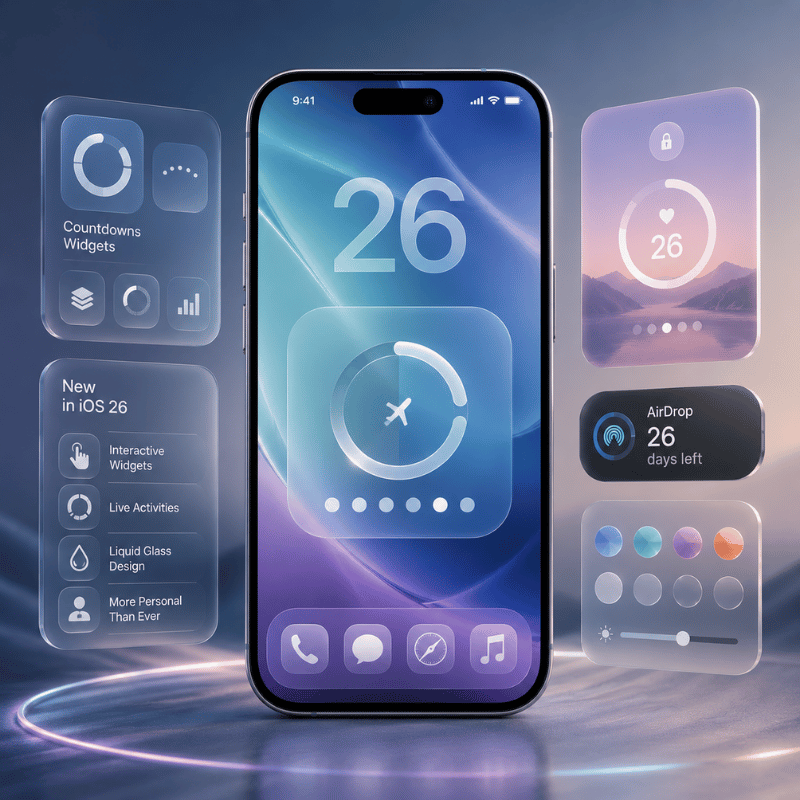
iOS 26 shipped in September 2025 with the biggest visual change in years: a translucent “Liquid Glass” design that runs across the Lock Screen, Home Screen, and widgets, described in Apple’s iOS 26 announcement and the official iOS 26 feature list. For countdowns, that means your widget now picks up the same glassy, tinted look as the rest of the system, so the “match your aesthetic” advice above matters more than it used to, because a counter that ignores the new styling stand out for the wrong reasons.
Under the hood, Apple’s developer session “What’s new in widgets” from WWDC25 extended WidgetKit and Live Activities to more places, CarPlay, the Mac, watchOS, and visionOS, and improved how widgets push updates. Practically, that points one way: a countdown you set on your iPhone is going to follow you onto more screens, and it’ll refresh more reliably than the older “wait for the next unlock” behavior some Lock Screen widgets still show.
If you’re setting up a countdown in 2026, two moves future-proof it. First, choose an app that already support StandBy and Lock Screen widgets, not just the Home Screen, that’s where Apple keeps adding room. Second, lean into the Liquid Glass look rather than fighting it, so your counter ages well as the rest of your screen adopts the same style.
Frequently Asked Questions
Why was the Countdown app removed?
View Answer
Does the iPhone Clock app have a countdown widget?
View Answer
How do I edit or change a countdown widget after adding it?
View Answer
Can I put a countdown widget on Android too?
View Answer
Do countdown widgets drain iPhone battery?
View Answer
How many countdowns can I add to one widget?
View Answer
iScreen puts countdown widgets on your Home Screen, Lock Screen, and StandBy, and styles them to match your wallpaper, icons, and theme.
How We Put This Guide Together
The setup steps here were checked against Apple’s own iPhone User Guide for widgets, Lock Screen customization, and StandBy, then cross-referenced with real iPhone owners describing quirks like Lock Screen widgets that don’t refresh until the next unlock. We build iScreen, so we test countdown widgets across Home Screen, Lock Screen, and StandBy on current iOS 26, which is why the “three surfaces” framing runs through the whole article.
References & Sources
- Add, edit, and remove widgets on iPhoneApple Support, iPhone User Guide
- Customize the iPhone Lock ScreenApple Support, iPhone User Guide
- Use StandBy on iPhoneApple Support, iPhone User Guide
- Apple elevates the iPhone experience with iOS 26Apple Newsroom
- New features available with iOS 26Apple
- What’s new in widgets (WWDC25)Apple Developer
