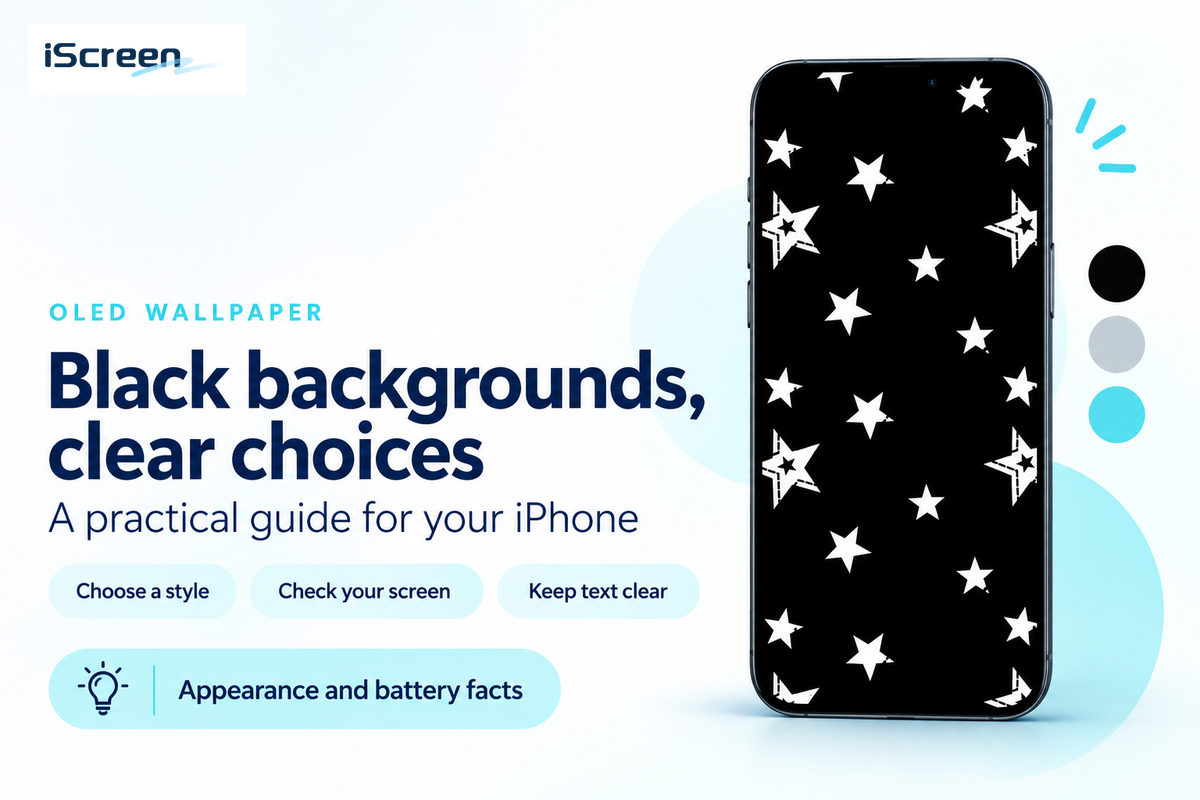

How to Customize Your iPhone Home Screen with Widgets and App Icons
Your iPhone Home Screen is more than just a place to launch apps — it’s a reflection of your personal style. With custom widgets, app icons, and wallpapers, you can turn a standard Home Screen into a look that feels uniquely yours.
Whether you prefer a clean minimalist layout, a soft pastel look, or a bold retro theme, iScreen makes it easy to create a Home Screen you love. Here’s how to do it with iScreen.

1. Why Customize Your iPhone Home Screen?
There are several reasons to give your iPhone Home Screen a makeover.
- Express Your Personal Style: Choose colors, icons, and wallpapers that reflect your personality and favorite aesthetic.
- Make Your Phone More Functional: Widgets let you check useful information, such as the weather, calendar events, and battery levels, without opening individual apps.
- Create a More Organized Look: Matching app icons and carefully arranged widgets can make your Home Screen look cleaner and more visually appealing.
A well-designed Home Screen combines both style and functionality, making your everyday iPhone experience more enjoyable.
2. How to Customize Your iPhone Home Screen
Before exploring third-party customization apps, you can start with the built-in features on your iPhone. Here are two simple ways to personalize your Home Screen.
2.1 Add Widgets to Your iPhone Home Screen
Widgets display useful information directly on your Home Screen while adding a personal touch to your layout.
Follow these steps to add a widget:
- Touch and hold an empty area of your Home Screen until the apps start to jiggle.
- Tap the Edit button or the + button, depending on your iOS version.
- Browse the available widgets and select the one you want.
- Choose your preferred widget size.
- Tap Add Widget, then drag it to your desired position.
- Tap Done to save your layout.
You can experiment with different widget sizes and arrangements to create a layout that works for you.

2.2 How to Change App Icons on Your iPhone
Custom app icons are another great way to transform your iPhone’s appearance. You can use the Shortcuts app to replace the standard app icons with your own images.
Here’s how:
- Open the Shortcuts app on your iPhone.
- Tap the + button to create a new shortcut.
- Select Add Action, search for Open App, and choose it.
- Tap App and select the app you want to customize.
- Open the shortcut’s details menu and choose Add to Home Screen.
- Tap the icon preview and select Choose Photo to upload your custom icon.
- Enter a name and tap Add.
Repeat these steps for other apps to create a consistent icon style across your Home Screen.

3. How to Customize Your iPhone Home Screen with iScreen
Want more creative options beyond the built-in iPhone settings? iScreen makes it easier to explore different widget designs, custom app icons, and wallpapers in one place.
3.1 Explore More Widget Styles
With iScreen, you can discover a variety of aesthetic iPhone widgets to match your personal style. From minimalist calendars and photo widgets to cute interactive designs, there’s something for different tastes.
You can also personalize available widget options, such as colors, backgrounds, and photos, to create a look that fits your Home Screen. Mix different widget styles and sizes to build a layout that’s both attractive and practical.

3.2 Explore Ready-to-Use Theme Setups
For a more cohesive Home Screen design, iScreen offers a curated collection of ready-made theme setups, bringing together matching widgets, app icons, and wallpapers in a unified aesthetic.
Explore a range of styles, from playful and colorful designs to minimalist, retro, and dark themes. Each collection features coordinated visual elements, making it easy to create a polished iPhone Home Screen with a consistent look and feel.
With thoughtfully paired designs, iScreen helps transform individual customization elements into a complete, visually harmonious setup.

3.3 Bring Everything Together
Now it’s time to combine your favorite widgets, custom app icons, and wallpapers into one personalized setup.
Try a minimalist theme for a clean look, a pastel theme for a softer aesthetic, or a retro-inspired design for a nostalgic vibe. Don’t be afraid to experiment with different colors and layouts until you find your favorite combination.
Final Thoughts
Customizing your iPhone Home Screen doesn’t have to be complicated. With the right combination of widgets, app icons, and wallpapers, you can create a phone setup that reflects your personality while keeping everything easy to access.
Ready to give your iPhone a fresh new look? Explore more customization possibilities with iScreen and create a Home Screen that’s truly yours!
Media Contact
iScreen Official Team
Email: iscreenofficial@gmail.com
Official Website:iScreen – Phone Style, iScreen it!
iOS Download Link:iScreen – Widgets & Wallpaper
Android Download Link:iScreen – Widgets & Wallpaper