
.png)
How to Delete Wallpaper on iPhone Without Losing Your Photo
This is how to delete wallpaper iPhone owners no longer want: on iOS 16 and up, touch and hold the Lock Screen, authenticate, swipe up on the unwanted wallpaper preview, tap the trash icon, and confirm. That removes the wallpaper setup. Keep the original image in Photos if you want to use it again.
Updated October 2026. This guide follows Apple’s published instructions; it isn’t a hands-on device test.
Delete an iPhone wallpaper from the Lock Screen
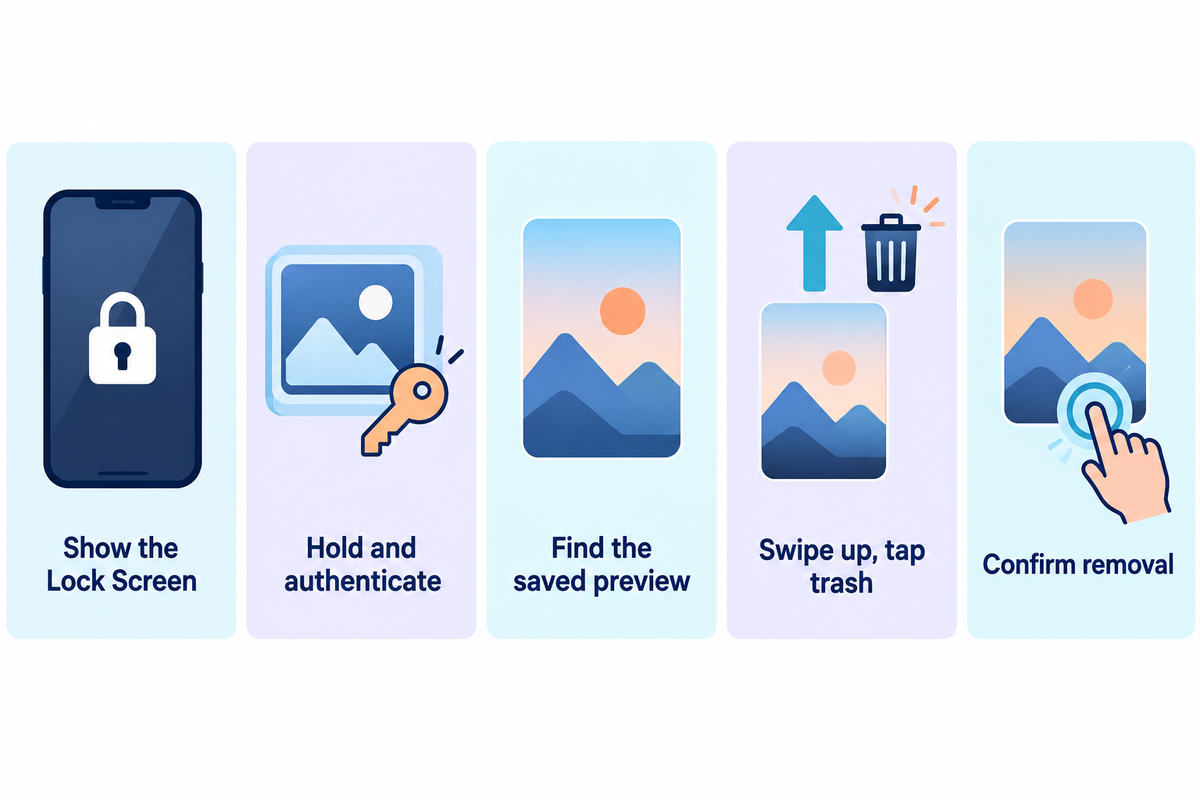
Delete an iPhone wallpaper through the Lock Screen gallery. The upward swipe belongs on the small wallpaper preview after the gallery opens, rather than on the normal full-screen background. Apple’s deletion route applies to iOS 16 and later, so an iPhone running iOS 18 uses this same starting point.
- Show the Lock Screen. Return to the screen with the clock; use the side button as needed.
- Open the gallery. Touch and hold the Lock Screen, then authenticate with Face ID, Touch ID or your passcode.
- Find the unwanted setup. Swipe sideways through the wallpaper options until the correct preview is centered.
- Reveal the delete button. Swipe upward on that wallpaper preview, then tap the trash icon.
- Confirm the removal. Tap Delete This Wallpaper after checking the preview again.
The Apple wallpaper deletion instructions show the same gesture. A long press opens the gallery; a swipe up reveals the trash control. Starting from an app or the Home Screen leads to a different set of controls.
“Swipe up on the wallpaper that you want to delete.”
A helpful tip when providing tech help: have the owner authenticate and identify the picture before you touch the trash icon. Similar previews can differ only in their clock or widgets. If the real goal is a different image, our guide to changing wallpaper on iPhone covers the replacement route.
Keep the original photo: the Keep, Change, Delete map
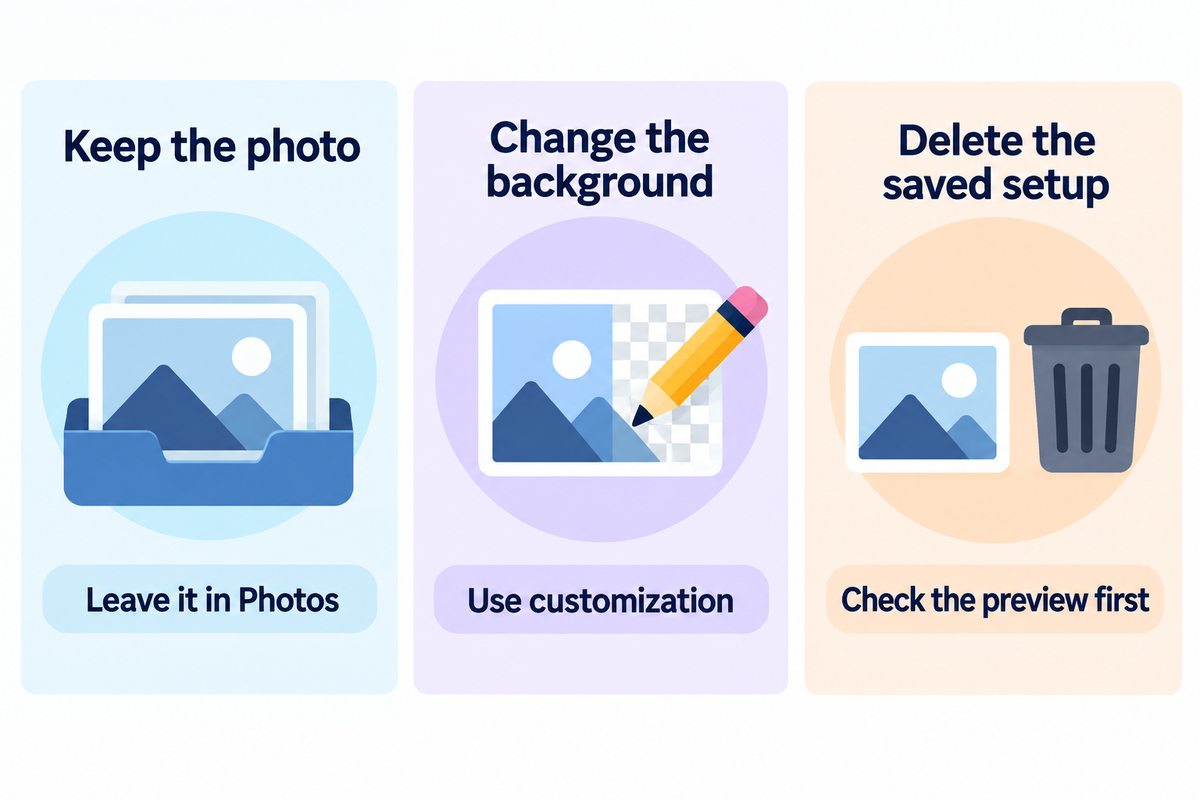
The Keep-Change-Delete map shows three choices: keeping a photo, modifying a background, or removing a setup. Deleting a wallpaper from the gallery is separate from deleting the source photo in Photos. Deleting that image inside the Photos app is a different action and has different consequences for recovery and synchronization.
Choose the row that corresponds to what you want to remove before opening a trash control.
| Your goal | Use this route | Preserve first |
|---|---|---|
| Remove an old saved background | Delete its gallery preview | Original photo, if wanted |
| Keep a family photograph | Leave the image in Photos | A separate backup of the photo |
| Replace the Lock Screen picture | Edit the setup or add a new one | Desired Home Screen appearance |
| Change only the Home Screen | Use Home Screen customization | The Lock Screen you want to keep |
| Stop showing one shuffle picture | Edit the shuffle selection | The other selected pictures |
| Stop using an entire shuffle | Remove that gallery setup | Any configuration you may recreate |
| Switch backgrounds temporarily | Select another saved wallpaper | The existing setup in the gallery |
| Remove the original file itself | Delete it in Photos | Any copy you intend to retain |
| Rebuild an old favorite later | Locate its original image first | Photo plus a note of its appearance |
This editorial map combines Apple’s wallpaper customization controls with its separate Photos deletion instructions. With iCloud Photos, deleting a photo on one device removes it on the other devices signed in with the same Apple account.
For a holiday background photograph you can’t find in your library, keep that background until you can find the file in an album, backup, or where you downloaded it. Deleting a preview won’t help find an original. A screenshot can record the clock and widget arrangement, but it will also record what’s on the screen and isn’t a replacement for the original photo. Once you find the original, save it in a place you’ll easily identify. This tip is useful when a family member set up the phone for you.
Change one screen without discarding the pair
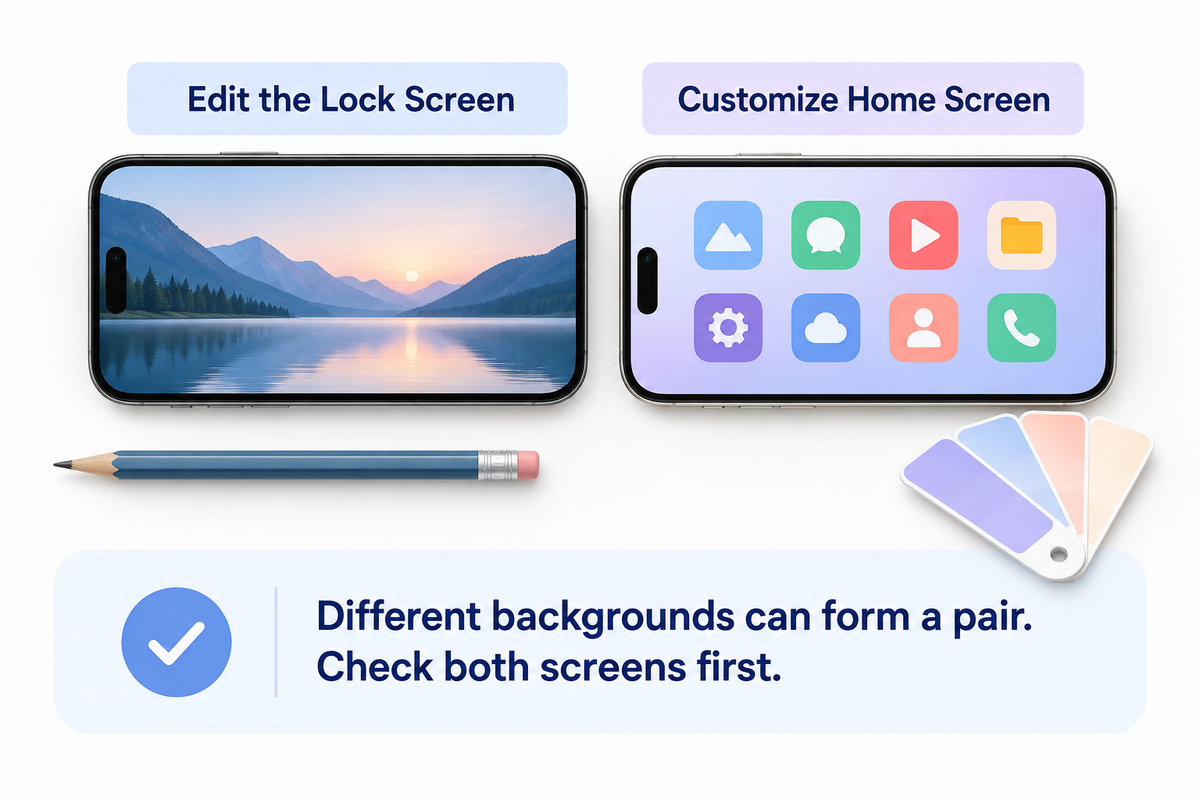
Choose the existing wallpaper to change only part of its appearance. A Lock Screen and Home Screen can make a pair with different backgrounds. You can also use Customize Home Screen for a separate background. Deleting the whole saved setup is unnecessary when you want to customize your Home Screen.
How do I change the Lock Screen wallpaper?
You can edit the Lock Screen by opening the wallpaper gallery, finding the setup of interest, and tapping Customize. For different designs, add a new wallpaper. When saving a selection, you can choose to set it as Wallpaper Pair for matching screens or select Customize Home Screen to set a different background for the Home Screen.
Different customization options depend on the wallpaper type. A photo, a color background, and an Apple collection have different controls. For adjusting screens, follow the Apple guide to changing wallpaper. If you can’t replace the picture in that editor, make a new wallpaper and see what its Home Screen looks like before deleting the old one. Check our Home Screen wallpaper guide for more information.
Let’s say your Lock Screen uses a nice photo while the Home Screen uses a drab color. You would like a new photo, but are okay with the current color. A good place to start editing is the Lock Screen. When adding a new photo setup, check the Home Screen selection during the save process. You can then make changes to the Home Screen appearance. Return to the two screens before removing the initial preview. That way you’ll have a replacement to compare to, rather than trying to recall what the settings were. We cover design controls in greater detail in our iPhone Lock Screen customization guide.
Remove one photo from a Photo Shuffle wallpaper
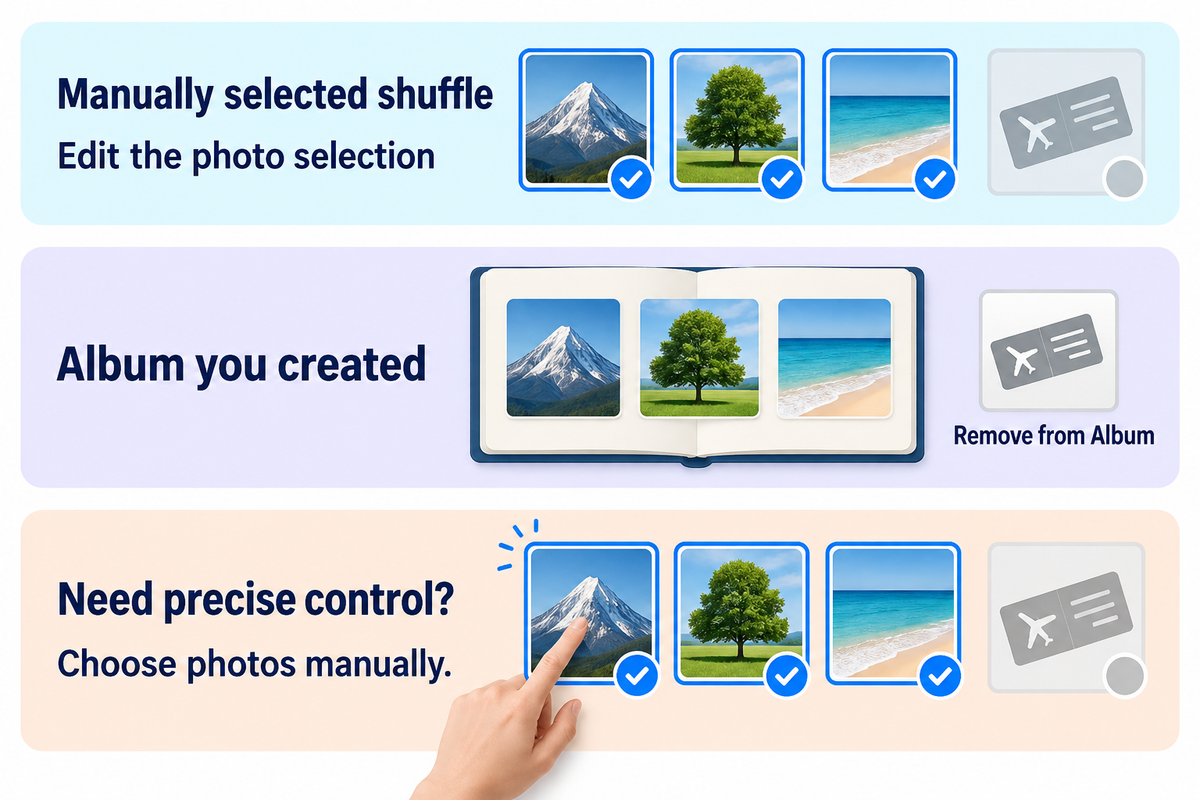
When you want to keep the rest of the wallpaper in a Photo Shuffle and remove an unwanted picture, first understand how the shuffle was generated. Was it manually selected photos, an album, or featured categories? That choice determines where you edit the photos; removing the entire gallery card will remove the setup.
How do I delete a photo from photo Shuffle wallpaper?
For a manually generated shuffle, open it in the wallpaper gallery, tap Customize, and then use the photo thumbnail in the Lock Screen editor to remove the unwanted photo from the selection. Save that selection. Keep the original photo if you want it removed from the shuffle.
Apple’s custom Lock Screen guide explains the thumbnail control to modify Photo Shuffle’s selection. For an album-based shuffle using an album you created, open Photos, select Collections, select Albums, and open that album. To remove the unwanted image, touch and hold it and select Remove from Album. Apple has documented this method in its album editing guide. Choose Remove from Album rather than deleting the image from your library. If you aren’t able to exclude the unwanted image using the editor, create a manually selected shuffle using the images you want.
Suggested photos and featured categories offer a different degree of control. Use manual selection when excluding a particular image matters more than automatic suggestions. Shuffle frequency changes when pictures rotate; it doesn’t determine which pictures belong to the set. Apple’s Photo Shuffle instructions outline On Tap, On Lock, Hourly and Daily as frequency options.
A simple example is a travel album where one of the images is a boarding pass photo among scenery photos. Keep the scenery in your wallpaper selection, and remove the boarding pass image. There’s no need to delete a travel record from Photos to stop showing it as a background.
No trash icon? Check the screen you are editing
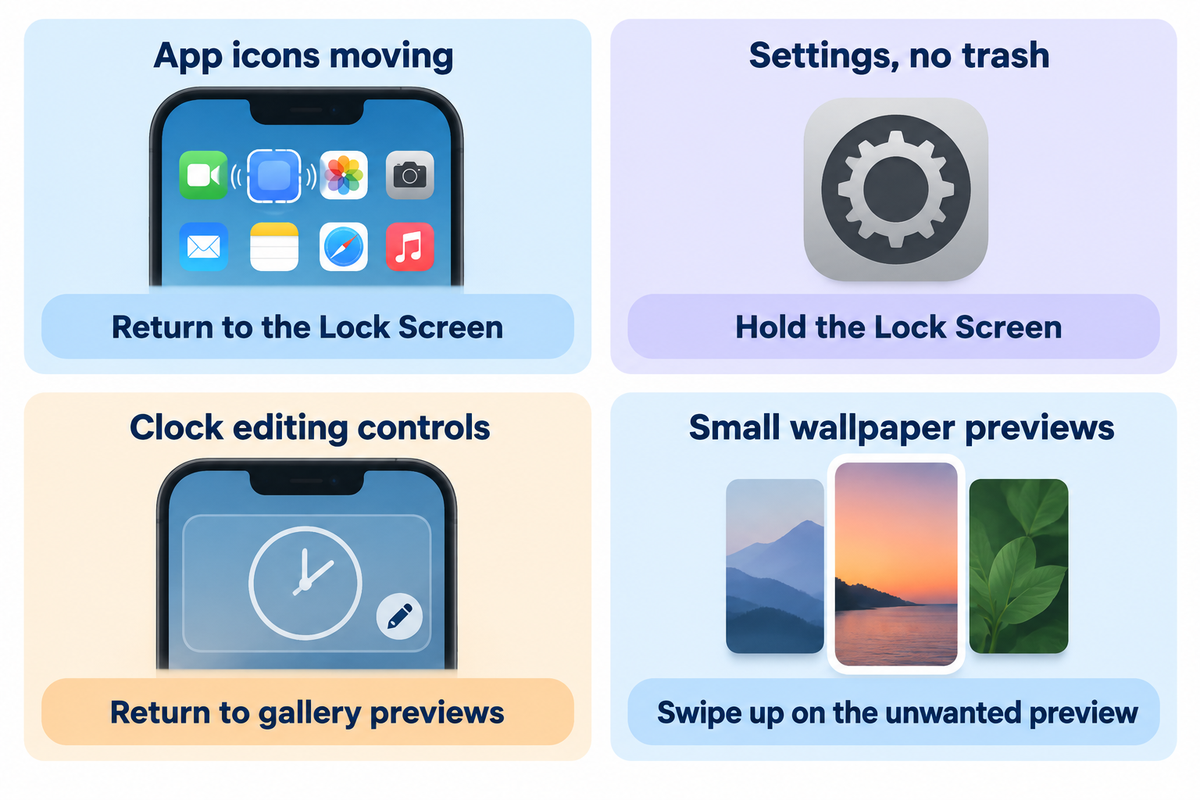
The lack of a trash icon can mean you’re viewing a different editing screen. Return to the authenticated Lock Screen gallery and swipe up on the saved preview you want to remove. Settings, Home Screen editing, and the wallpaper editor show other controls, so the absence of a delete button doesn’t necessarily mean a setup can’t be removed.
| What you see | What to check | Next action |
|---|---|---|
| App icons start moving | You are editing the Home Screen | Return to the Lock Screen |
| Wallpaper settings but no trash | Settings is not the gallery deletion route | Touch and hold the Lock Screen |
| A passcode request | The gallery needs authentication | Enter the passcode, then hold again if needed |
| Clock and widget editing controls | You entered Customize | Return to the gallery previews |
| Several small wallpaper previews | The gallery is open | Swipe up on the unwanted preview |
| The neighboring wallpaper appears | You swiped sideways | Center the correct card, then swipe upward |
| A different photo keeps appearing | The setup may use Photo Shuffle | Edit its image selection |
| A background changes with Focus | A Lock Screen may be linked to Focus | Review its Focus association |
| No modern wallpaper gallery | The phone may use iOS 15 or earlier | Use Settings to replace the background |
The remaining instructions pertain to Apple’s deletion guide and Apple’s explanation of linking a Lock Screen to a Focus. A Focus association may provide an alternate explanation to background switching; it doesn’t mean a deleted setup has been restored.
Consider the user following a YouTube tutorial while their own phone is in Settings. A preview slides up in the video, and the user’s screen shows a Customize button. More scrolling in Settings won’t show the gallery like in the video. Go to the clock screen, authenticate and hold the background until previews appear. Swipe up on the card you want to remove. Compare the starting screen before deciding whether your phone model needs a different solution. If the phone belongs to the workplace or school and wallpaper controls are restricted, contact the person in charge rather than changing management settings.
Older iOS versions: replace the background instead
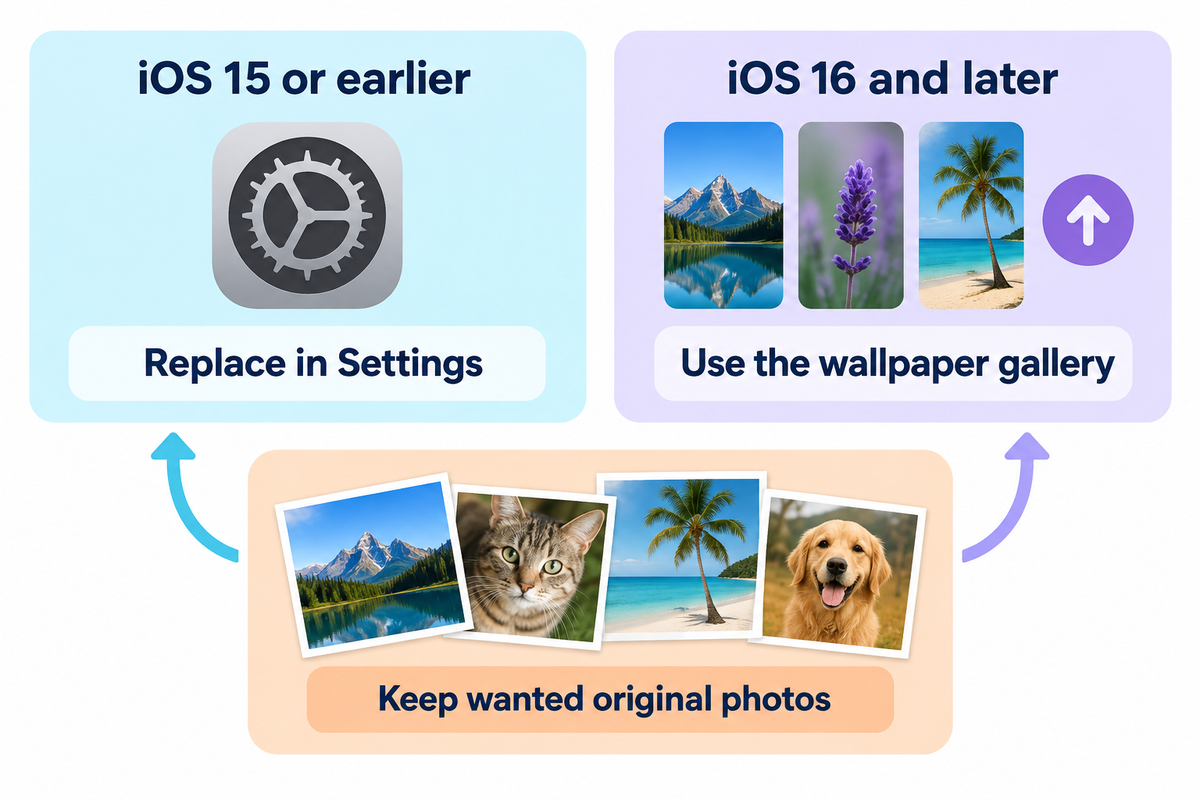
On iOS 15 or earlier, use the Wallpaper setting in Settings to choose a new background. The saved-gallery deletion instructions are for iOS 16 and later. Replacing the background is a good starting point if you want to change your display while keeping the original photograph in your library.
Apple separates these versions in its wallpaper removal instructions. Its older-version note also describes deleting an image through Photos. Choose that action only if you’re sure you want to remove the actual image. Someone searching for how to delete wallpaper on iPhone may want to have a neutral background, which doesn’t require removing a personal photo.
Apple released the redesigned Lock Screen with the iOS 16 release in 2022. Match an easy-to-follow how-to video or step-by-step guide to your software version. An older iPhone with newer software can show different controls from the same model in an older tutorial. For ideas about what to do after you replace it, see our aesthetic iPhone wallpaper guide.
Choose a replacement wallpaper without buying a deletion app
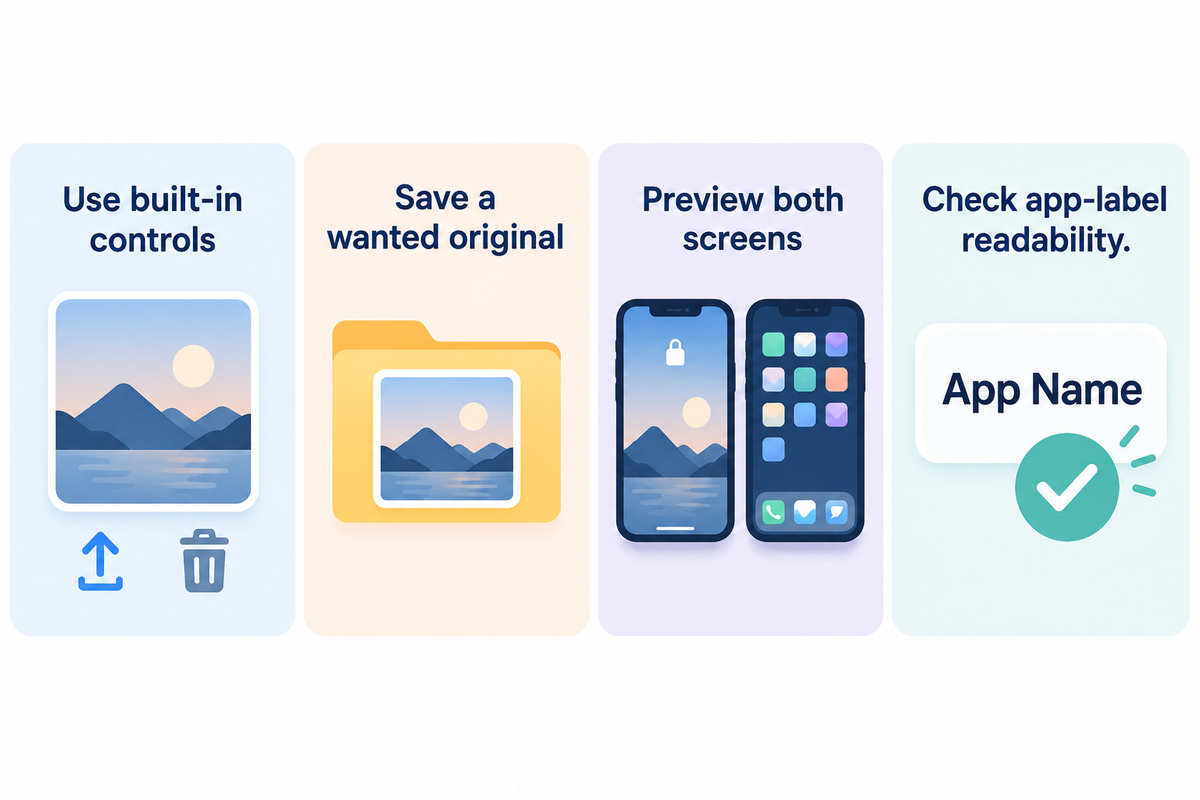
You can delete iPhone wallpaper setups using Apple’s built-in controls; no cleanup app purchase is needed. You can find new designs using a wallpaper app or collection after that. Choose that resource for its images and customization features, rather than considering it a shortcut to the delete command.
Consult Apple’s wallpaper setup guide to add new wallpaper. Preview the clock over the image and check app-label readability on the Home Screen. A photograph can look very different beside your typical dark mode appearance. If you want to hide a distracting image, perhaps a solid background would work better.
- Save a wanted original before rebuilding its setup.
- Preview the replacement on both screens.
- Use native controls for wallpaper removal.
- Delete a library photo just to change the background.
- Assume a wallpaper preview is an image backup.
- Buy a cleaner solely to remove a saved wallpaper.
For wallpapers to match a new color theme, go to the iScreen wallpaper collections. Start with the background color of the widgets and choose a wallpaper in the same color with some space around the text. Preview it with the widgets and save the changes. Keep the chosen image, go to the gallery to remove the unwanted screens, and return to the Lock Screen.
Frequently asked questions
How can I delete wallpaper on my iPhone 13 Pro?
On the iPhone 13 Pro with iOS 16 or later, delete the saved setup in the Lock Screen gallery.
To access the preview, touch and hold the Lock Screen, authenticate, find the wallpaper, and swipe up on its preview. Find and tap the trash can icon. Tap Delete This Wallpaper to confirm and remove the setup with its saved changes. The software version matters more than the model name. If the tutorial shows controls and you can’t find them, make sure you’re in the gallery.
How do I delete all unwanted wallpapers on my iPhone?
Remove unwanted gallery setups one at a time.
Apple’s instructions have you choose a wallpaper, reveal its trash can icon, and confirm removal. Repeat that for each saved setup you want to remove. Keep your preferred replacement ready and look through each preview before confirming. This is different from selecting multiple pictures in the Photos app and deleting them, which removes the images from your library.
How do I change back to old display on my iPhone?
With the wallpaper setup still saved, select the old wallpaper in the gallery to use that saved setup again. If the wallpaper isn’t saved, restore the previous wallpaper from the original picture and the available controls.
A change to a different wallpaper can restore the background to the way you want it. However, it doesn’t undo an operating-system update. Identify which part you want to restore: the background picture, the style of the clock, the widgets or the Home Screen color. You can do so by using the corresponding wallpaper editor.
Does deleting wallpaper free up much storage?
Deleting a saved wallpaper setup doesn’t offer a predictable decrease in storage space.
For storage issues, go to Settings > General > iPhone Storage. Deleting a saved background is a separate process from removing its source photo.
Do I need to pay for an app to delete wallpaper?
No. The wallpaper gallery already has the delete control, so a beginner can remove a saved setup without buying a third party app.
Can I recover a wallpaper after deleting it?
When an image is still available, recreate a deleted wallpaper setup to use it again.
When you delete photos and videos, they move to Recently Deleted, where they stay for 30 days unless permanently deleted sooner. Photos recovered to the library can be used again, but recovery does not recreate the wallpaper’s widgets and other settings. Permanently deleted images can’t be recovered from that album. See Apple’s photo recovery and deletion guidance before removing an original you may need later.
References & Sources
- Delete a wallpaper on your iPhone, Apple Support.
- Change your iPhone wallpaper, Apple Support.
- Delete photos on your iPhone or iPad, Apple Support.
- Create a custom iPhone Lock Screen, Apple iPhone User Guide.
- Add, delete, and find photos and videos in albums, Apple iPhone User Guide.
- iOS 16 is available today, Apple Newsroom, 2022.
