.png)
iOS 27 Wallpapers for iPhone: Downloads & Matching Setups
Updated September 9, 2026 · download sources and Apple guidance checked
An iOS 27 wallpaper is a background design for your iPhone. Start with the iClarified “Download the Official iOS 27 Wallpaper” collection for the stock design in light, dark and blue versions. You can save a still image without installing the beta. Native dynamic effects are a separate feature; downloading a JPG doesn’t install them.
The background is the important part, but to use it well you need to make the rest of the screen work with it. Below are source linked files, a way to download or use the built-in options, and three matching setups using separate iScreen widgets and icons. The setups are suggestions, not screenshots of tested phones or promises of a fully free theme.
Download iOS 27 wallpapers from traceable sources
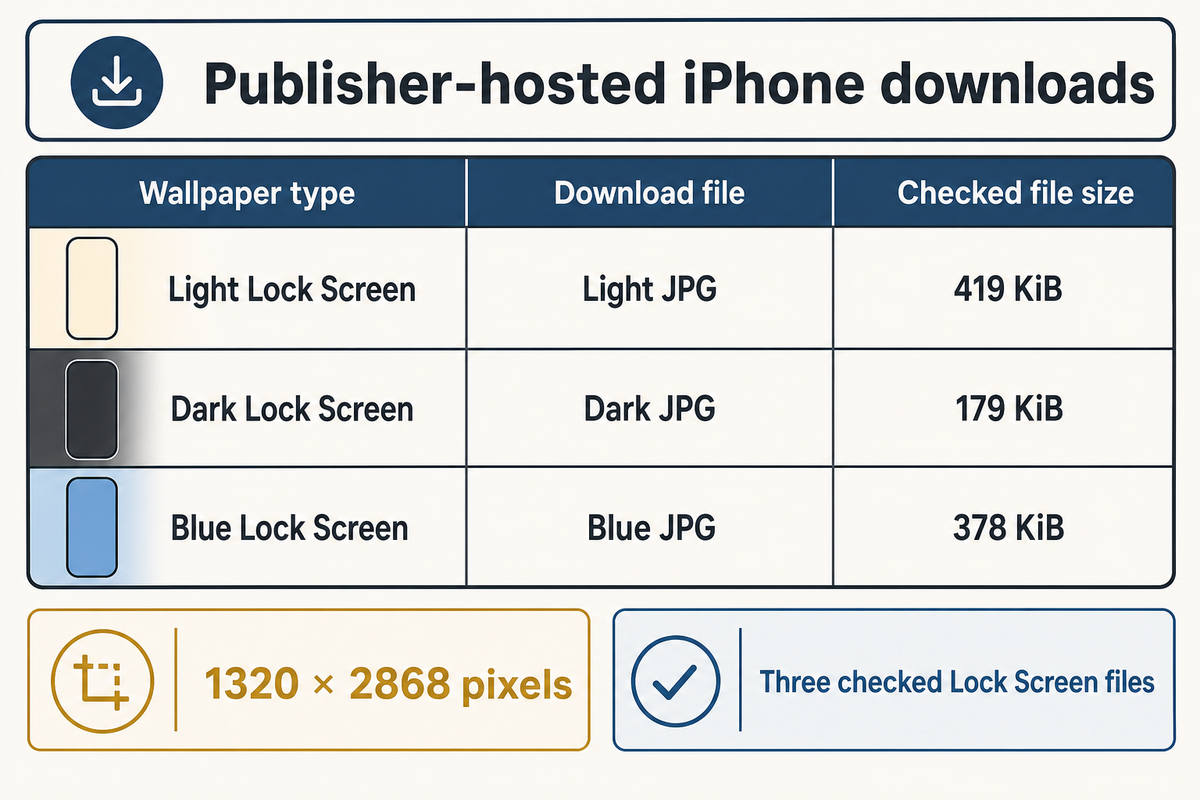
The easiest way is to open a full size file from its publisher, then save the image. These three iPhone Lock Screen files were available when checked on September 9. Their image headers each read 1320 × 2868 pixels, matching the resolution listed by iClarified. That check confirms the files’ dimensions and availability; it doesn’t authenticate an unmodified chain of ownership from Apple.
| Wallpaper type | Open download | File note |
|---|---|---|
| Light Lock Screen | Light JPG | 419 KiB |
| Dark Lock Screen | Dark JPG | 179 KiB |
| Blue Lock Screen | Blue JPG | 378 KiB |
| Light Home Screen | Light Home JPG | Publisher’s separate Home Screen file |
| Dark Home Screen | Dark Home JPG | Publisher’s separate Home Screen file |
| Blue Home Screen | Blue Home JPG | Coordinate with the blue Lock Screen |
| “Dynamic” capture | Static JPG capture | A still image despite the source label |
| “Dynamic2” capture | Second static JPG capture | No native dynamic controls included |
| Complete publisher set | Collection ZIP | Extract the archive to choose an image |
The credit for the downloads, from hosting to organizing, goes to iClarified. The article calls the collection Celosia and says the files were obtained from the first developer beta. This page offers separate Home Screen versions and a ZIP file of the collection. We direct readers to that source rather than show the images as iScreen originals.
“Official iOS 27 wallpapers” and “new official wallpapers” are how publishers describe the new default design. By downloading from their pages, you get the published files. Our checks don’t verify that each image is unchanged from Apple’s release. File sizes shown are rounded to the nearest KiB, and aren’t a metric of image quality.
For a tablet, go to the iOS 27 and iPadOS 27 galleries at 9to5Mac. Its iPad section separates portrait and landscape images. Select the device section before saving; an iPhone portrait crop and a landscape iPad background serve different layouts.
Choose a light, dark or color variant
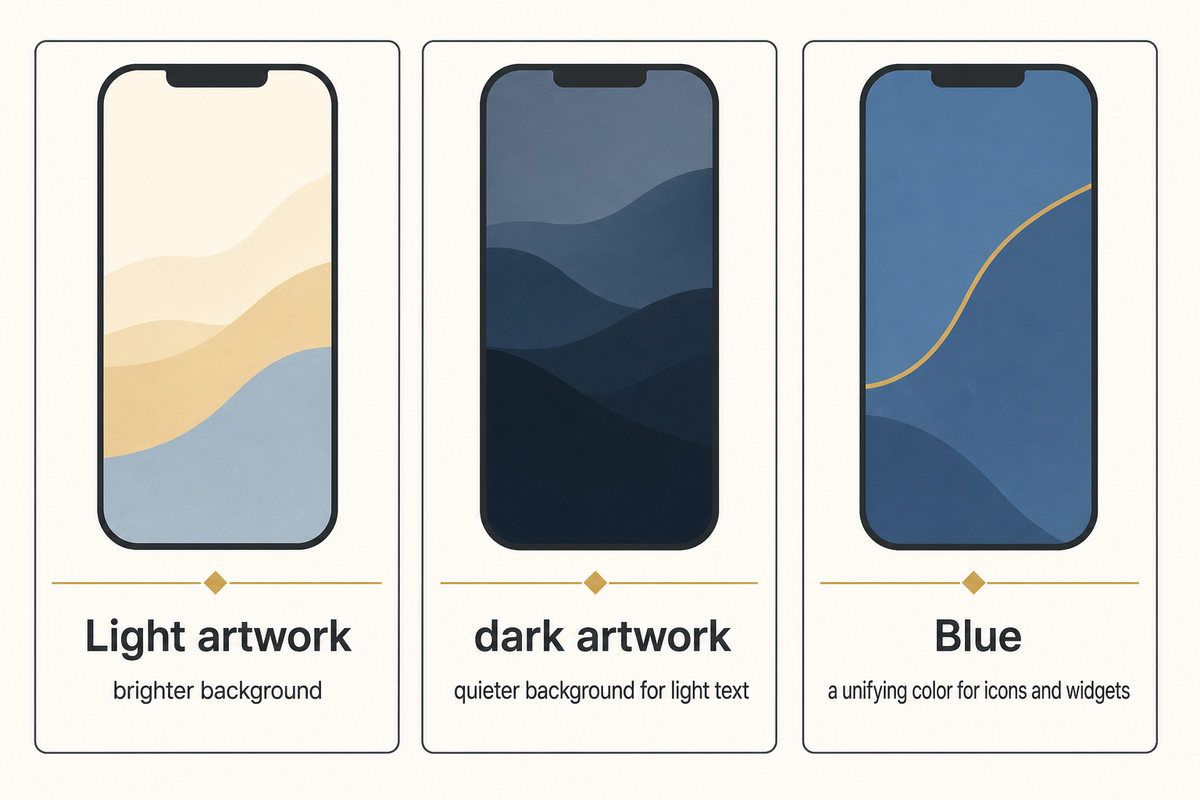
The abstract default wallpapers have light and dark versions. Light artwork leaves a brighter background, while dark artwork gives you a quieter background for light text. Blue can be a unifying color for icons and widgets without overpowering and overwhelming the design.
The iDownloadBlog wallpaper collection also lists gold, ink and brown variations. It credits additional red, purple and teal versions to a separate creator, so those shouldn’t all be described as unmodified official Apple wallpapers. For the source’s own light and dark groupings, compare the published iPhone previews before choosing.
Static downloads and dynamic wallpapers are different
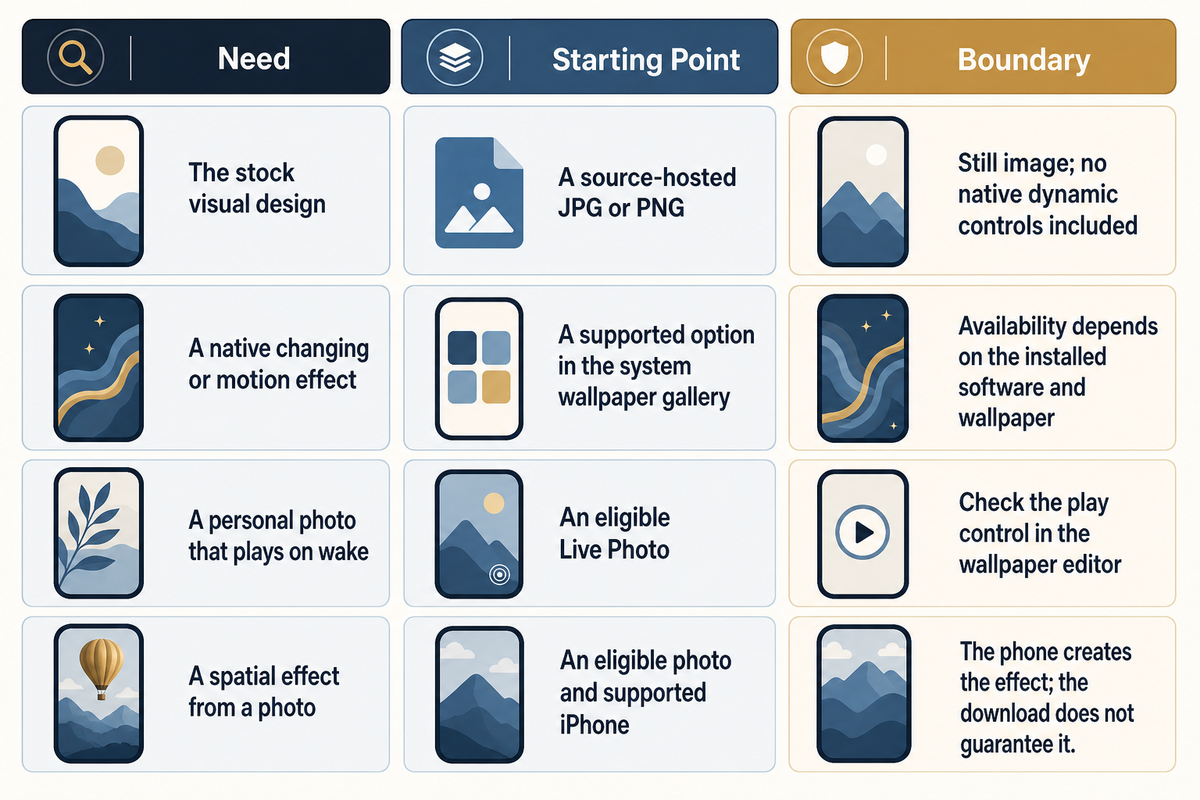
A name can be deceiving. Publishers may call one download “Dynamic” and then have a static JPG linked. You saved one appearance of that wallpaper, not its native configuration. In their June report, 9to5Mac explicitly separates downloadable static versions from motion-enabled versions. Think of that distinction as an image file versus software behavior.
Before troubleshooting an effect that didn’t come with the file, check the Download or Built-In? table.
| What you want | Start with | Boundary to check |
|---|---|---|
| The stock visual design | A source-hosted JPG or PNG | Still image; no native dynamic controls included |
| A native changing or motion effect | A supported option in the system wallpaper gallery | Availability depends on the installed software and wallpaper |
| A personal photo that plays on wake | An eligible Live Photo | Check the play control in the wallpaper editor |
| A spatial effect from a photo | An eligible photo and supported iPhone | The phone creates the effect; the download does not guarantee it |
Apple documents Live Photo playback for Lock Screen wallpapers in iOS 17 and later. That’s a different image type, with a play button during setup. Apple’s instructions for Spatial Scene also specify photos that are eligible, iPhone 12 or later and iOS 26. An ordinary downloaded photo may receive a supported system effect, but its filename can’t guarantee that it’s eligible.
Saving both light and dark files doesn’t, on its own, make them automatically switch. Select the appearance you would like now or use the built-in behavior of your device when it’s available.
Pick the right file and check the crop
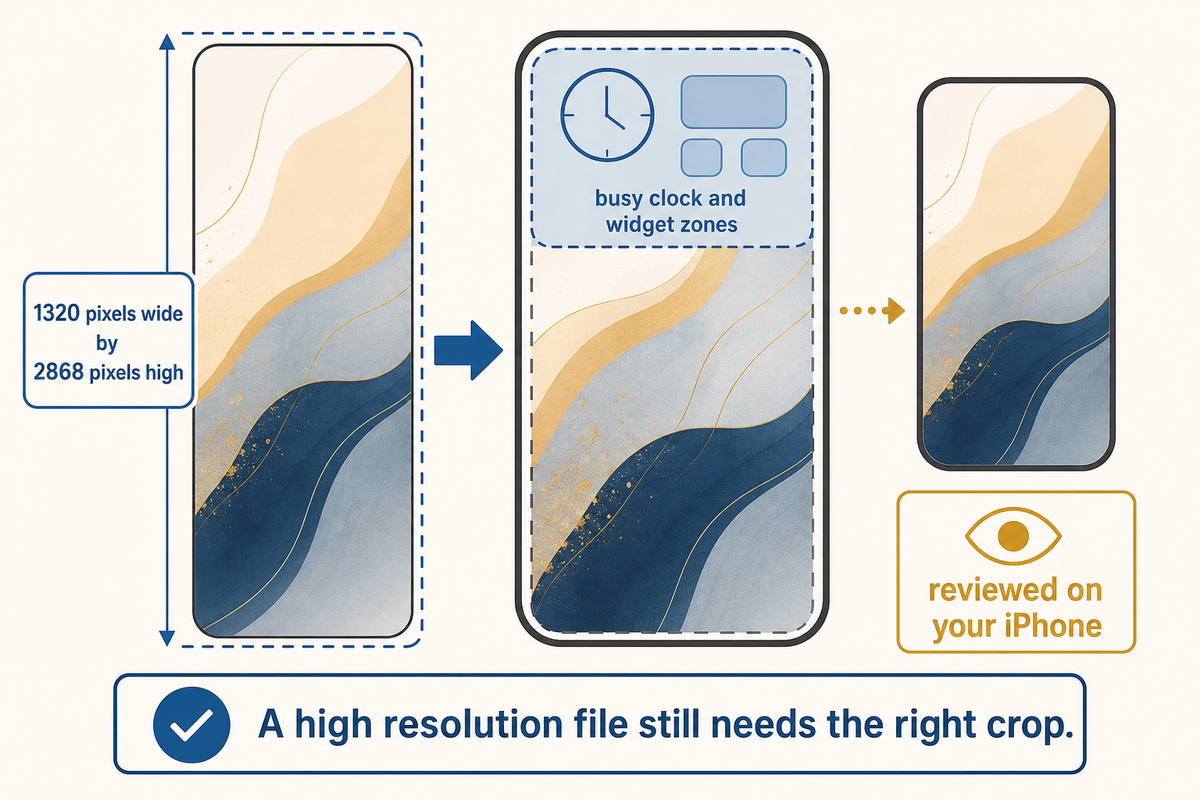
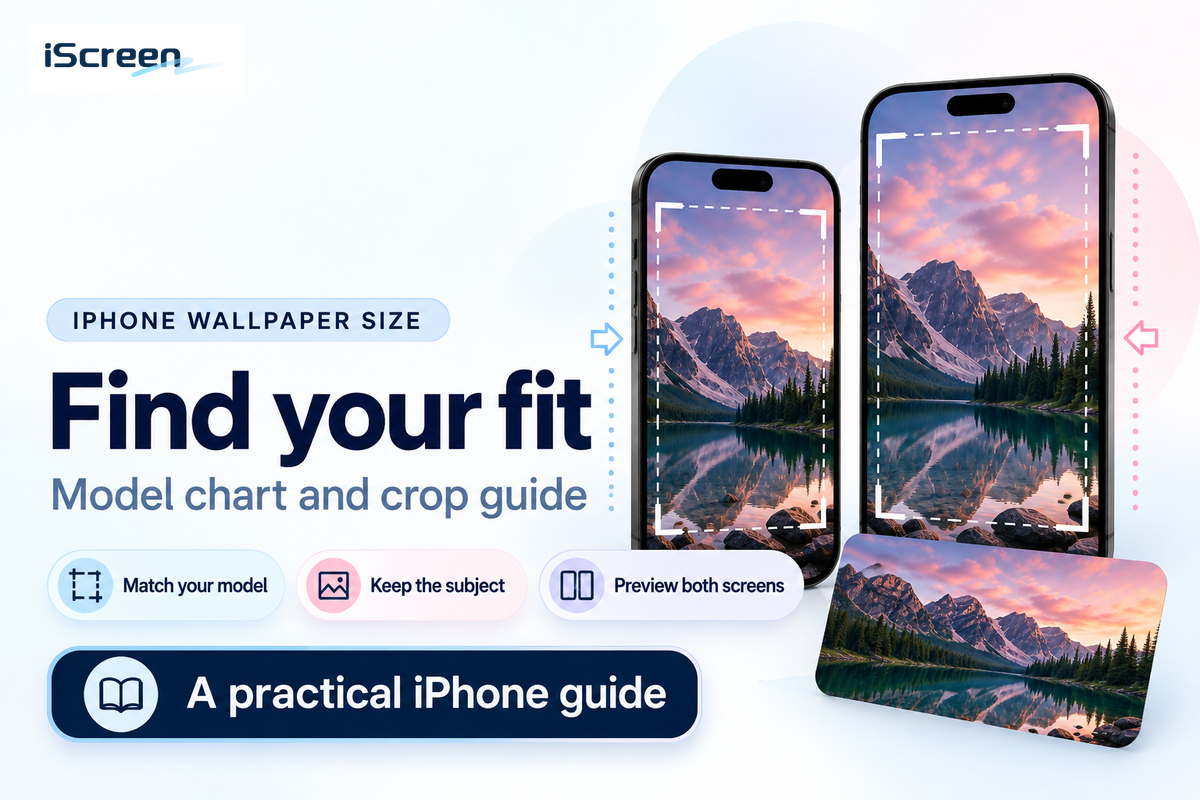
Searching for labels such as “iOS 27 wallpaper 4K,” “HD” and “Ultra HD” doesn’t answer how the image will look on your device. The three JPG downloads checked above are 1320 pixels wide by 2868 pixels high. Use those actual dimensions when comparing files; don’t call every download 4K just because the search contains the term.
Before setting the image as wallpaper, open the saved file at full resolution. If you have a preview, a screenshot or an image with website control elements, go back to the download page of the publisher. When you’re in the wallpaper editor, check the crop. Refer to Apple’s customization guide to learn how to zoom and move the photo.
Keep what you like at a distance from busy clock and widget zones. The final outcome should be reviewed on your iPhone, whether it’s the iPhone 17 Pro or Pro Max or any other model. An oversized display wouldn’t eliminate the necessity to assess the composition. A high resolution file still needs the right crop. For details on resolution and image compression and portrait cropping, see our iPhone wallpaper 4K guide.
Save and apply your iOS 27 wallpaper
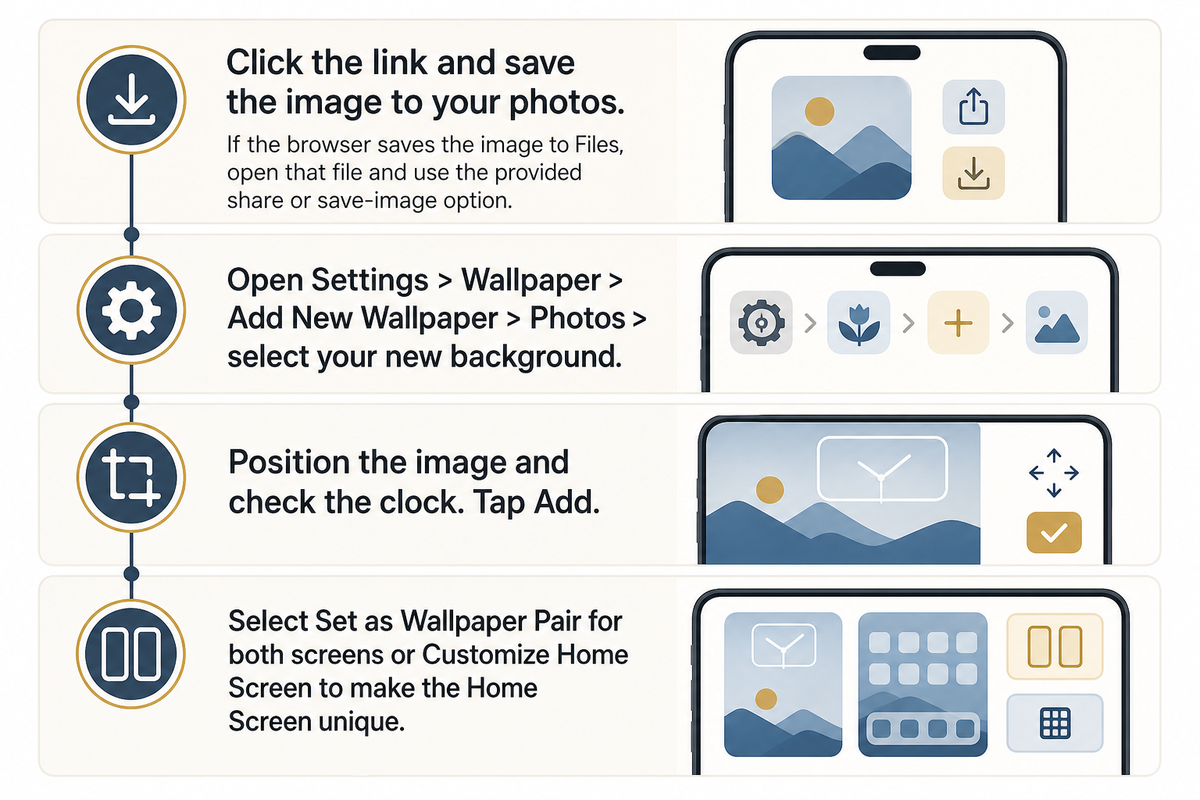
- Click the link and save the image to your photos. If the browser saves the image to Files, open that file and use the provided share or save-image option.
- Open Settings > Wallpaper > Add New Wallpaper > Photos > select your new background.
- Position the image and check the clock. Tap Add.
- Select Set as Wallpaper Pair for both screens or Customize Home Screen to make the Home Screen unique.
This sequence follows Apple’s wallpaper setup instructions. Check your new wallpaper in the Photos app before setting it. If you want a more detailed explanation, including how to change an existing selection, check out our guide for changing wallpaper on iPhone. You can have different background images on the Lock Screen and Home Screen. App icons can also have a simple Home Screen background behind them.
Three matching iScreen setups to build
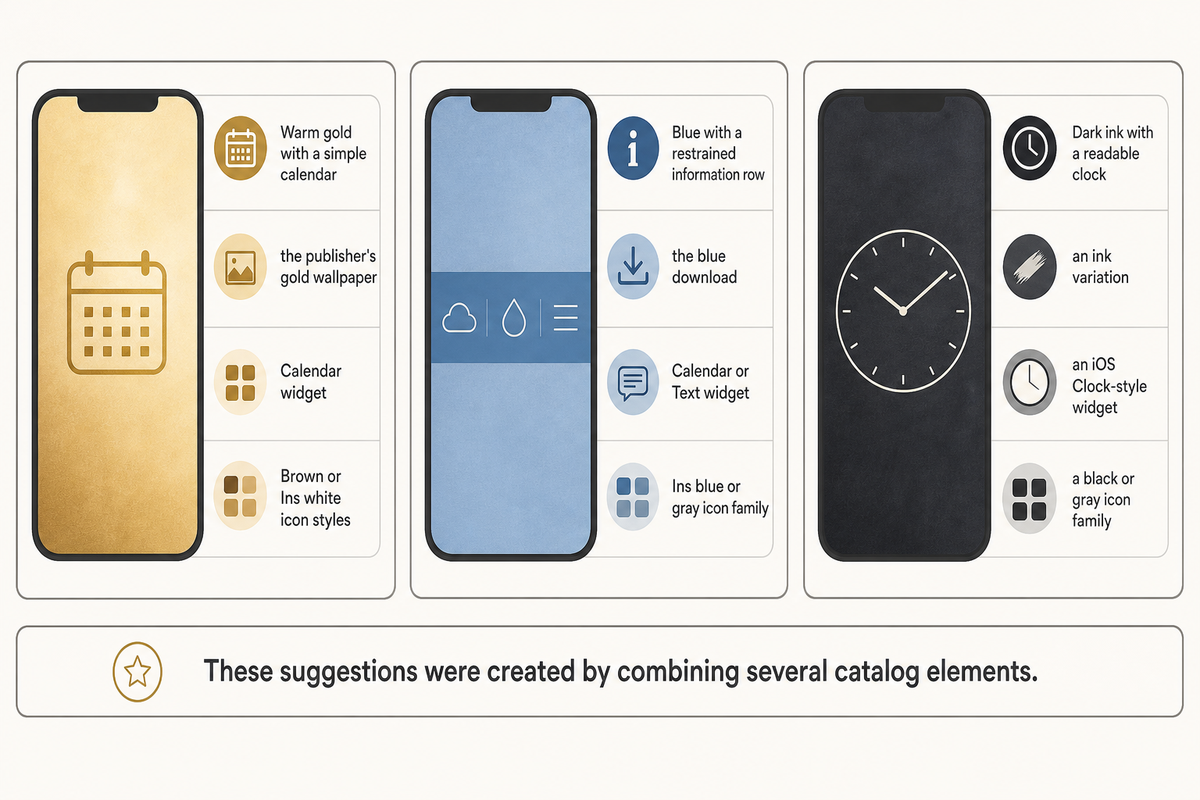
Start with information, then choose its style. The following recipes use three design decisions: a background palette, a widget, and an icon family. iScreen has separate selections of widgets and styles of application icons. These suggestions were created by combining several catalog elements.
Warm gold with a simple calendar
Try the publisher’s gold wallpaper with a Calendar widget on a calm background. Browse Brown or Ins white icon styles as starting points. Let the wallpaper supply most of the warmth, leaving small dates and app names readable. When the calendar gets lost against a bright background, move the image or change the widget background before adding decorations.
Blue with a restrained information row
Use the blue download, a Calendar or Text widget and an Ins blue or gray icon family. Keep the widget text neutral instead of tinting every label blue. A blue accent can connect the pieces while different foreground and background tones keep the information readable. If icons are blending into the wallpaper, choose a more distinct icon surface or simplify the Home Screen background.
Dark ink with a readable clock
Start with an ink variation, an iOS Clock-style widget, and a black or gray icon family that uses restraint. Take a look at your widget labels at your typical screen brightness. Dark-on-dark elements can be difficult to distinguish even when the palette looks coordinated. Choose this setup for its appearance. No battery-saving result is implied.
The catalog may not have all app icons, and availability or pricing can vary. Check the availability before using. Apple’s Lock Screen customization options are separate from these third-party Home Screen elements. Build and preview each screen in its own editor instead of thinking one download can configure both.
Fix blur, awkward cropping and missing effects
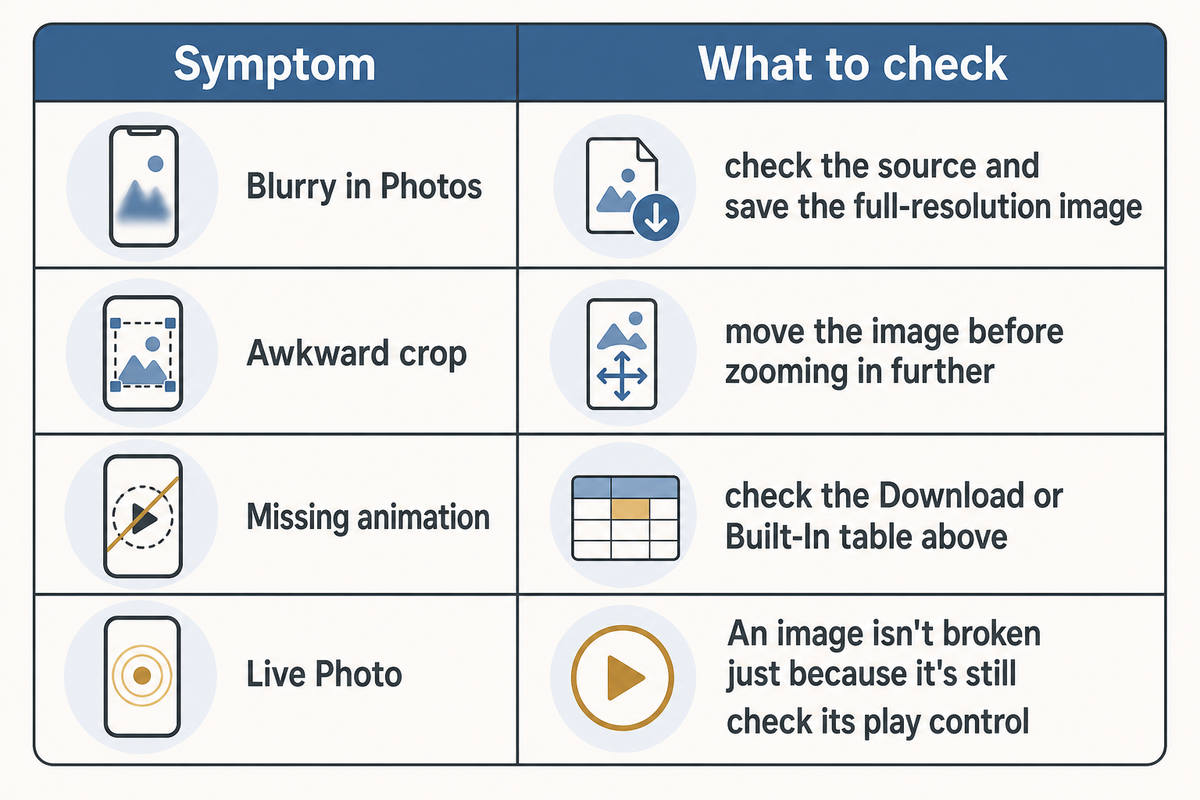
Check the saved file. If it’s blurry in Photos, check the source and save the full-resolution image. If it looks sharp there but soft after setting, inspect how far you enlarged it and check the Home Screen customization. Apple’s wallpaper guide separates selecting a picture from customizing the Home Screen.
To fix an awkward crop, move the image before zooming in further. Wallpaper that looks too busy behind a widget can sometimes be handled by using another variant or by selecting a simpler background for the Home Screen. You don’t have to replace the Lock Screen image to make the app labels readable.
To deal with a missing animation, check the Download or Built-In table above. An image isn’t broken just because it’s still. If you did choose to use a Live Photo, check its play control using Apple’s Live Photo instructions. Avoid applying an old beta workaround unless it actually matches your software version and symptom.
What to watch before the public release
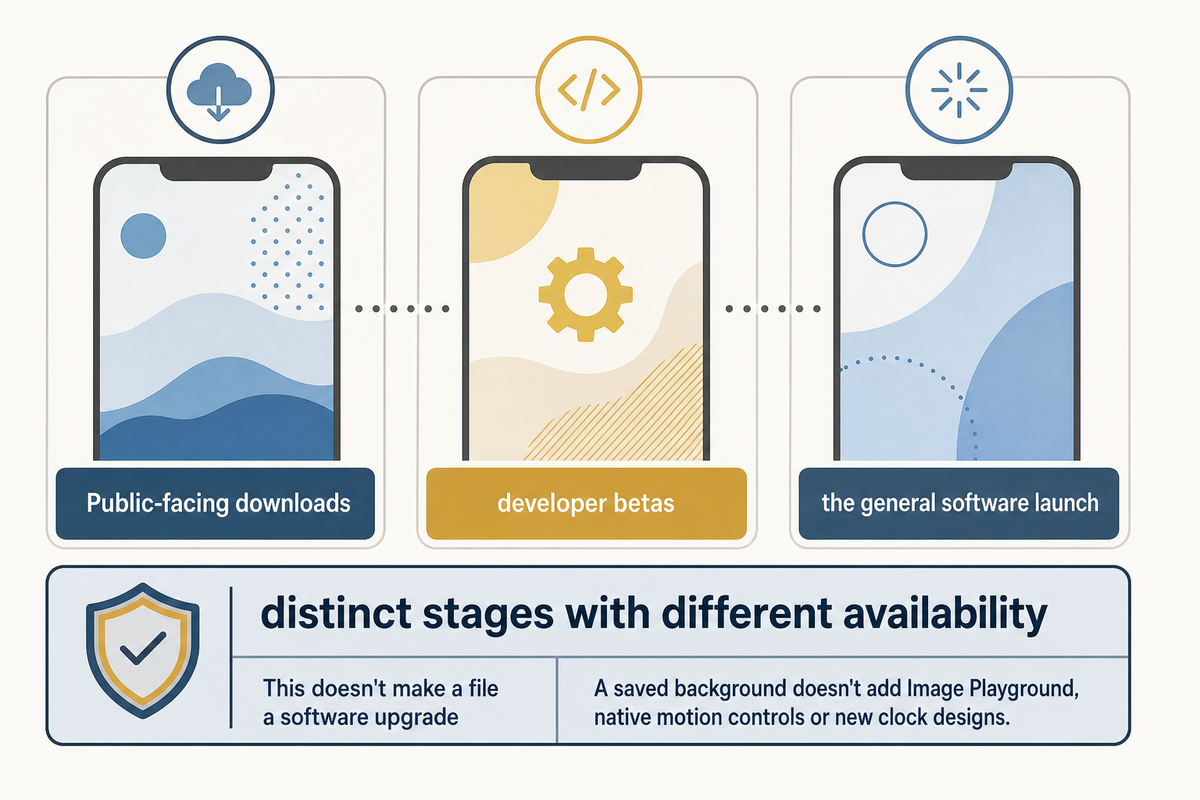
As of September 9, 2026, according to Apple’s iOS 27 overview, the update is still coming this fall. Apple developer release notes cite beta software. Public-facing downloads, developer betas and the general software launch are distinct stages with different availability.
New iOS 27 and iPadOS 27 wallpapers appeared in publishers’ download galleries after WWDC. This doesn’t make a file a software upgrade. New features for iOS 27 beta shouldn’t be confused with the downloads mentioned. A saved background doesn’t add Image Playground, native motion controls or new clock designs. For the visual design you prefer, save the photo and keep your current software. Check Apple’s latest availability for a system update.
If you want something new after trying the stock design, go to the iScreen wallpaper library. In this library, you can pick your own background and choose to add useful widgets and screen icons.
Frequently Asked Questions
How do I get the new iOS 27 wallpaper?
Open the iClarified download page and choose the iPhone version. After choosing it, open the full-size image and save it. Then select the saved image through Settings, Wallpaper and Add New Wallpaper. When you use this downloaded image, you get the design without having to install the beta. The image doesn’t install iOS 27 or add the operating system’s native dynamic wallpaper controls.
How does dynamic wallpaper work on iOS 27?
To begin, determine if you selected an option from the wallpaper gallery or saved a static image from a website. A PNG or JPG will only be a single still image; motion, animation, or behavior will depend on the wallpaper and software on your device. Downloading light and dark pictures won’t make them alternate automatically. Eligible photos may receive separate system effects, so check the options offered in your editor.
For a personal Live Photo, Apple describes a play control that lets the image play when the phone wakes in iOS 17 or later. That option requires the appropriate photo type; an ordinary JPG from a download page does not become a Live Photo.
Can I match the wallpaper with iScreen widgets and icons?
Yes. Choose a background, then select widget and icon styles that are in the same palette. Start with small important widgets and preview the final Home Screen. The options here are editorial recipes using different elements. They don’t mean iScreen offers each exact arrangement as a single free package, or that every app has an icon in your chosen style.
Will the download work on an older iPhone?
A static image file and an operating system update have different needs. Save the image and preview it with the wallpaper tools provided on your device. You may have to crop it. Don’t think an older device has native effects and eligibility for iOS 27 just because it can display downloaded pictures.
Are iOS 27 and iPadOS 27 wallpapers the same file?
No. Collections separate iPhone and iPad files, sometimes with portrait and landscape tablet versions. Preview and download the version intended for your device and orientation.
References & Sources
- iClarified: publisher-hosted wallpaper variants and download files, linked in the download section.
- 9to5Mac: static versus dynamic distinction and separate iPad orientations.
- Apple Support: wallpaper pairing, photo positioning, Live Photos and eligible spatial effects.
- Apple: current iOS overview and developer beta release notes.
- iScreen: current wallpaper, widget and icon catalogs. Matching advice is editorial; no hands-on phone testing is claimed.