iScreen Expands iOS 27 Customization With Extra-Large Widgets, iPhone Duo Themes and AI Home Screen Design

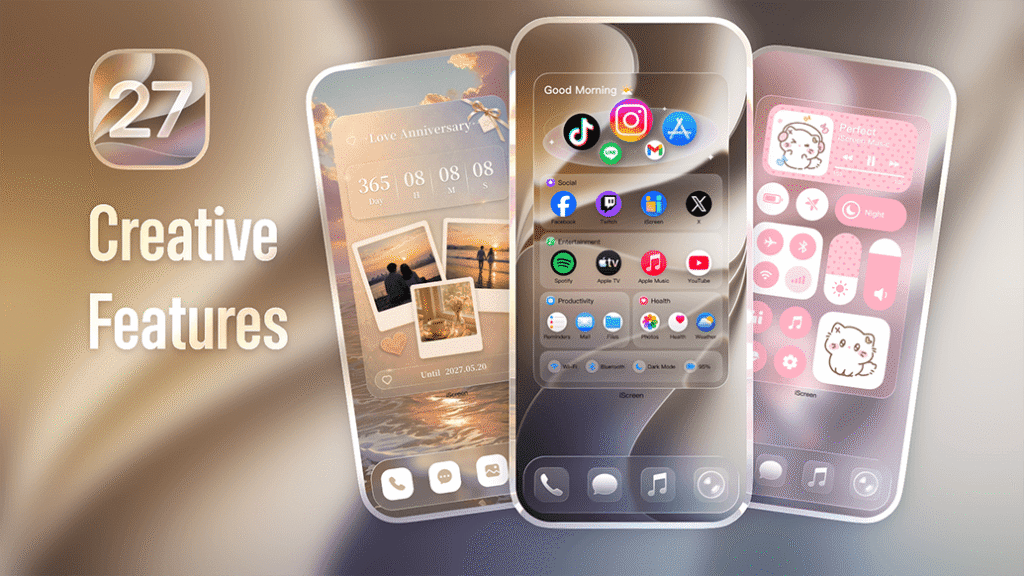
iScreen is expanding its iOS 27 customization experience with new extra-large widgets, optimized theme layouts for iPhone Duo, iOS 27-inspired visual styles, and AI-assisted Home Screen design.

The update introduces new ways to personalize the Home Screen across larger widget formats and emerging display sizes, while making it easier to create coordinated setups with widgets, wallpapers, icons, and themes.

Extra-Large Widgets Bring More to the Home Screen

With the expanded widget dimensions available in iOS 27, iScreen has introduced a new collection of extra-large widgets designed specifically for the larger canvas rather than simply scaling up existing widget formats.

The collection includes:

  • Photo
  • Album
  • Music
  • Calendar
  • Interactive Refrigerator
  • Quick Launch

Users can also customize extra-large widgets by adjusting content, layouts, and visual styles, creating Home Screen setups that are both more functional and expressive.

iScreen iOS 27 customization with extra-large widgets
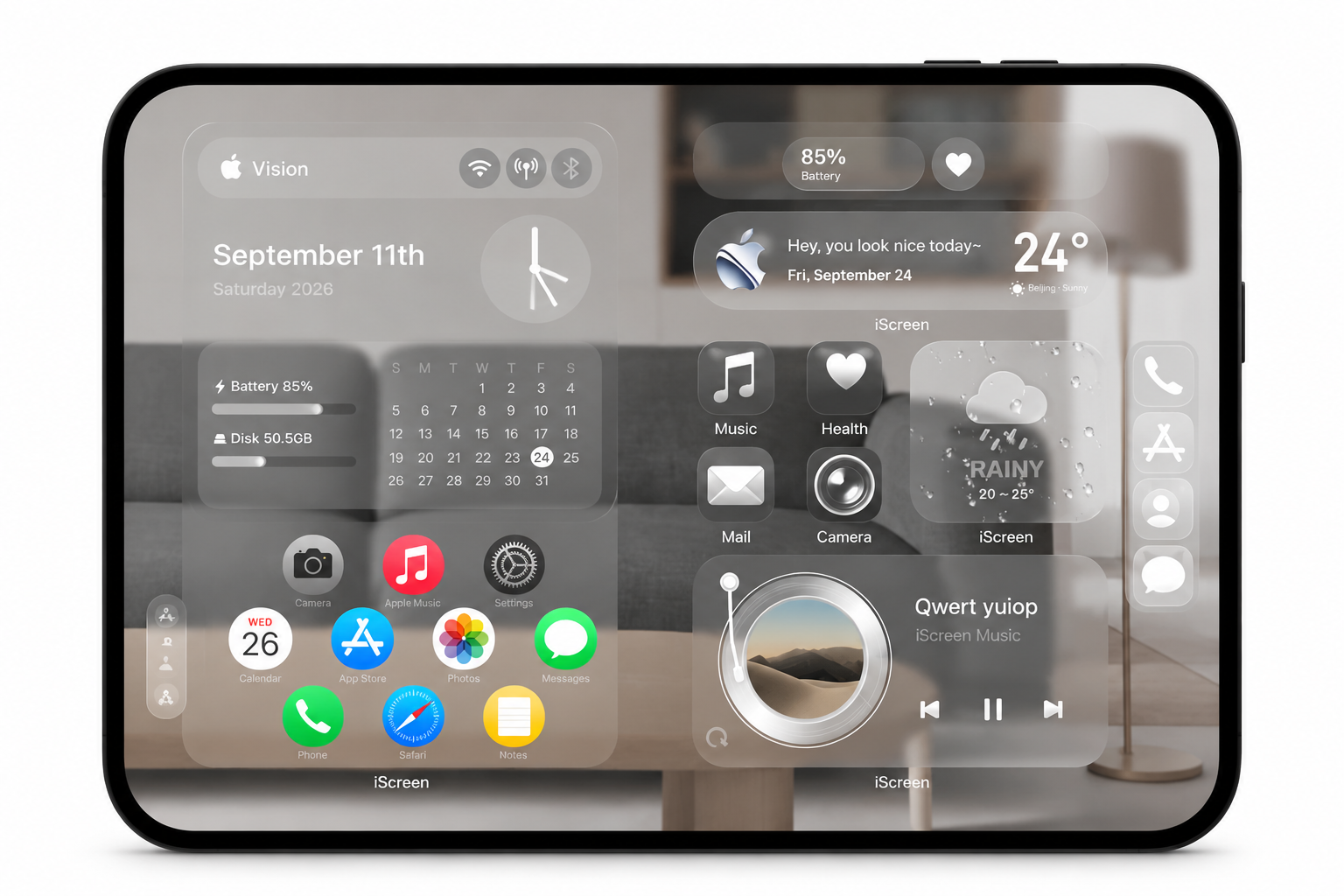
iScreen introduces extra-large widgets

Theme Layouts Optimized for iPhone Duo

iScreen has also optimized selected theme resources for the screen proportions and display dimensions of iPhone Duo.

Wallpapers, widgets, icons, and complete Home Screen layouts have been adjusted to better fit the device format while maintaining a balanced and cohesive visual experience.

As new device formats evolve, iScreen plans to continue exploring widget adaptation, layout behavior, and visual continuity across different display states.

iOS 27-Inspired Themes for a Cohesive New Look

Alongside the widget updates, iScreen has introduced a new collection of iOS 27-inspired themes.

These themes combine coordinated wallpapers, transparent-style widgets, icons, and other visual elements into complete setups, helping users create a consistent Home Screen without manually searching for and matching each element individually.

iScreen iOS 27 customization with extra-large widgets, iPhone Duo themes, and AI Home Screen design
iScreen introduces extra-large widgets, iPhone Duo-optimized themes, and AI-assisted Home Screen design for iOS 27.

AI-Assisted Home Screen Design

iScreen is also exploring how AI can make Home Screen personalization faster and more intuitive.

The AI Home Screen Designer generates coordinated design suggestions based on preferences such as style, color, and visual elements, bringing wallpapers, widgets, and icons together into a unified setup.

The feature is currently available to a limited group of users for testing. iScreen plans to continue refining the experience based on user feedback before gradually expanding availability.

Try the Latest iOS 27 Features

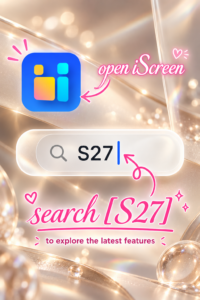
Download iScreen and search “S27” to enter the dedicated collection and explore the newest iOS 27 customization features.

Download iScreen for iPhone

Get iScreen for Android

About iScreen

iScreen is a mobile customization app offering widgets, wallpapers, themes, and interactive customization experiences for iOS and Android devices. The original announcement states that iScreen has more than 100 million users and has previously been featured by Apple Editorial across 128 countries for five consecutive days.

Original Publication

This announcement was originally published on September 18, 2026 and distributed via PR Newswire.
View the original release →iScreen Expands iOS 27 Customization With New Extra-Large Widget Experiences, iPhone Duo Theme Support and AI-Powered Home Screen Design

最近の記事

iScreen Reaches No. 1 in Graphics & Design Across 94 Markets Following iOS 27 Update

iScreen Reaches No. 1 in Graphics & Design Across 94 Markets Following iOS 27 Update

2026/9/20 12:00
iScreen has now reached No. 1 in Graphics & Design across 94 countries and regions, highlighting the growing global interest in mobile personalization tools. iScreen Reaches No. 1 in Graphics & Design Across 94 Markets The latest release introduces a new generation of Home Screen customization experiences designed around iOS 27, including extra-large widgets, iOS 27-inspired themes, layouts optimized for new screen proportions, and AI-assisted design tools. Together, these updates expand the ways users can personalize their devices while making Home Screen design more flexible, expressive, and easier to manage. A New Generation of Extra-Large Widgets iScreen creative features for iOS 27, including themed Home Screen layouts, widgets, icons, and customization tools. One of the biggest changes in the latest update is support for extra-large widgets built specifically for the larger widget canvas available in iOS 27. Rather than simply enlarging existing widgets, iScreen has created layouts designed to make better use of the additional space. The new collection includes: Photo widgets Album widgets Music widgets Calendar widgets Interactive Refrigerator widgets Quick Launch widgets Users can customize content, layouts, and visual styles, allowing each widget to function as both a practical tool and a visual part of the Home Screen. The larger format also creates more room for information, interaction, and visual storytelling. A photo widget, for example, can display more content at once, while calendar and quick-launch widgets can offer a clearer and more accessible layout. For users who enjoy building highly personalized setups, the expanded widget size provides more freedom to experiment with different combinations of functionality and design. iScreen introduces extra-large widgets, iPhone Duo-optimized themes, and AI-assisted Home Screen design for iOS 27. iOS 27-Inspired Themes for More Cohesive Home Screens Alongside the new widget formats, iScreen has introduced a collection of iOS 27-inspired themes designed to create a more unified Home Screen experience. Each theme combines coordinated wallpapers, transparent-style widgets, icons, and other visual elements into a complete setup. Instead of selecting individual elements one by one, users can apply a more consistent visual direction across their device. This helps simplify the customization process while still allowing users to adjust individual details based on their preferences. The new themes are designed to reflect the visual direction of iOS 27 while giving users additional creative control over how their Home Screen looks and feels. iOS 27-Inspired Themes Optimized Theme Support for iPhone Duo iScreen has also expanded its layout work to support iPhone Duo, with selected themes optimized for the device’s screen proportions and display dimensions. Wallpapers, widgets, and icons have been adjusted to better fit the new format, helping maintain a balanced and cohesive visual experience across the screen. This type of adaptation is becoming increasingly important as device formats continue to evolve. A layout that works well on one screen size may not translate perfectly to another, especially when widgets, wallpapers, and icon spacing are involved. By optimizing theme resources for different screen proportions, iScreen aims to make customization more consistent across a wider range of device formats. AI-Assisted Home Screen Design The update also includes the continued testing of AI Home Screen Designer, a feature currently available to a limited group of users. The tool generates coordinated design suggestions based on user preferences such as style, color, visual elements, and overall aesthetic direction. It then combines wallpapers, widgets, and icons into a unified Home Screen setup. The goal is to reduce the time required to search for and manually match individual customization elements. Instead of starting from a blank screen, users can begin with an AI-generated direction and continue adjusting the layout to match their own preferences. “The latest iOS update has opened up new possibilities for mobile personalization,” said the iScreen team. “We want to turn those capabilities into practical and creative experiences that make Home Screen design easier and more expressive.” iScreen Reaches No. 1 Across 94 Markets The latest iOS 27 update arrives alongside continued international growth for iScreen. iScreen has now reached No. 1 in the Graphics & Design category across 94 countries and regions, highlighting the growing global interest in mobile personalization tools. With more than 100 million users worldwide, iScreen continues to expand its collection of widgets, wallpapers, themes, and Home Screen customization experiences for users across different markets and device types. The app has also previously been featured by Apple Editorial in 128 countries for five consecutive days, further increasing its visibility among users looking for new ways to personalize their devices. Explore the Latest iOS 27 Features in iScreen The latest update brings together several of iScreen’s newest customization experiences, from extra-large widgets and iOS 27-inspired themes to iPhone Duo-optimized layouts and AI-assisted Home Screen design. Users who want to try the latest features can download iScreen and search “S27” in the app to enter the dedicated iOS 27 collection. There, users can explore the newest widgets, themes, layouts, and customization tools in one place. Download iScreen for iPhone Get iScreen for Android About iScreen iScreen is a mobile customization app offering widgets, wallpapers, themes, app icons, and Home Screen customization tools for iOS and Android devices. With more than 100 million users worldwide, iScreen has reached No. 1 in Graphics & Design across 94 countries and regions and has been featured by Apple Editorial in 128 countries for five consecutive days.
2026/9/20 12:00
iOS 27 Wallpapers for iPhone: Downloads & Matching Setups

iOS 27 Wallpapers for iPhone: Downloads & Matching Setups

2026/9/9 18:17
Updated September 9, 2026 · download sources and Apple guidance checked An iOS 27 wallpaper is a background design for your iPhone. Start with the iClarified “Download the Official iOS 27 Wallpaper” collection for the stock design in light, dark and blue versions. You can save a still image without installing the beta. Native dynamic effects are a separate feature; downloading a JPG doesn’t install them. The background is the important part, but to use it well you need to make the rest of the screen work with it. Below are source linked files, a way to download or use the built-in options, and three matching setups using separate iScreen widgets and icons. The setups are suggestions, not screenshots of tested phones or promises of a fully free theme. Download iOS 27 wallpapers from traceable sources The easiest way is to open a full size file from its publisher, then save the image. These three iPhone Lock Screen files were available when checked on September 9. Their image headers each read 1320 × 2868 pixels, matching the resolution listed by iClarified. That check confirms the files’ dimensions and availability; it doesn’t authenticate an unmodified chain of ownership from Apple. Publisher-hosted iPhone downloads Wallpaper type Open download File note Light Lock Screen Light JPG 419 KiB Dark Lock Screen Dark JPG 179 KiB Blue Lock Screen Blue JPG 378 KiB Light Home Screen Light Home JPG Publisher’s separate Home Screen file Dark Home Screen Dark Home JPG Publisher’s separate Home Screen file Blue Home Screen Blue Home JPG Coordinate with the blue Lock Screen “Dynamic” capture Static JPG capture A still image despite the source label “Dynamic2” capture Second static JPG capture No native dynamic controls included Complete publisher set Collection ZIP Extract the archive to choose an image The credit for the downloads, from hosting to organizing, goes to iClarified. The article calls the collection Celosia and says the files were obtained from the first developer beta. This page offers separate Home Screen versions and a ZIP file of the collection. We direct readers to that source rather than show the images as iScreen originals. “Official iOS 27 wallpapers” and “new official wallpapers” are how publishers describe the new default design. By downloading from their pages, you get the published files. Our checks don’t verify that each image is unchanged from Apple’s release. File sizes shown are rounded to the nearest KiB, and aren’t a metric of image quality. For a tablet, go to the iOS 27 and iPadOS 27 galleries at 9to5Mac. Its iPad section separates portrait and landscape images. Select the device section before saving; an iPhone portrait crop and a landscape iPad background serve different layouts. Choose a light, dark or color variant The abstract default wallpapers have light and dark versions. Light artwork leaves a brighter background, while dark artwork gives you a quieter background for light text. Blue can be a unifying color for icons and widgets without overpowering and overwhelming the design. The iDownloadBlog wallpaper collection also lists gold, ink and brown variations. It credits additional red, purple and teal versions to a separate creator, so those shouldn’t all be described as unmodified official Apple wallpapers. For the source’s own light and dark groupings, compare the published iPhone previews before choosing. Static downloads and dynamic wallpapers are different A name can be deceiving. Publishers may call one download “Dynamic” and then have a static JPG linked. You saved one appearance of that wallpaper, not its native configuration. In their June report, 9to5Mac explicitly separates downloadable static versions from motion-enabled versions. Think of that distinction as an image file versus software behavior. Before troubleshooting an effect that didn’t come with the file, check the Download or Built-In? table. What you want Start with Boundary to check The stock visual design A source-hosted JPG or PNG Still image; no native dynamic controls included A native changing or motion effect A supported option in the system wallpaper gallery Availability depends on the installed software and wallpaper A personal photo that plays on wake An eligible Live Photo Check the play control in the wallpaper editor A spatial effect from a photo An eligible photo and supported iPhone The phone creates the effect; the download does not guarantee it Apple documents Live Photo playback for Lock Screen wallpapers in iOS 17 and later. That’s a different image type, with a play button during setup. Apple’s instructions for Spatial Scene also specify photos that are eligible, iPhone 12 or later and iOS 26. An ordinary downloaded photo may receive a supported system effect, but its filename can’t guarantee that it’s eligible. Saving both light and dark files doesn’t, on its own, make them automatically switch. Select the appearance you would like now or use the built-in behavior of your device when it’s available. Pick the right file and check the crop Searching for labels such as “iOS 27 wallpaper 4K,” “HD” and “Ultra HD” doesn’t answer how the image will look on your device. The three JPG downloads checked above are 1320 pixels wide by 2868 pixels high. Use those actual dimensions when comparing files; don’t call every download 4K just because the search contains the term. Before setting the image as wallpaper, open the saved file at full resolution. If you have a preview, a screenshot or an image with website control elements, go back to the download page of the publisher. When you’re in the wallpaper editor, check the crop. Refer to Apple’s customization guide to learn how to zoom and move the photo. Keep what you like at a distance from busy clock and widget zones. The final outcome should be reviewed on your iPhone, whether it’s the iPhone 17 Pro or Pro Max or any other model. An oversized display wouldn’t eliminate the necessity to assess the composition. A high resolution file still needs the right crop. For details on resolution and image compression and portrait cropping, see our iPhone wallpaper 4K guide. Save and apply your iOS 27 wallpaper Click the link and save the image to your photos. If the browser saves the image to Files, open that file and use the provided share or save-image option. Open Settings > Wallpaper > Add New Wallpaper > Photos > select your new background. Position the image and check the clock. Tap Add. Select Set as Wallpaper Pair for both screens or Customize Home Screen to make the Home Screen unique. This sequence follows Apple’s wallpaper setup instructions. Check your new wallpaper in the Photos app before setting it. If you want a more detailed explanation, including how to change an existing selection, check out our guide for changing wallpaper on iPhone. You can have different background images on the Lock Screen and Home Screen. App icons can also have a simple Home Screen background behind them. Three matching iScreen setups to build Start with information, then choose its style. The following recipes use three design decisions: a background palette, a widget, and an icon family. iScreen has separate selections of widgets and styles of application icons. These suggestions were created by combining several catalog elements. Warm gold with a simple calendar Try the publisher’s gold wallpaper with a Calendar widget on a calm background. Browse Brown or Ins white icon styles as starting points. Let the wallpaper supply most of the warmth, leaving small dates and app names readable. When the calendar gets lost against a bright background, move the image or change the widget background before adding decorations. Blue with a restrained information row Use the blue download, a Calendar or Text widget and an Ins blue or gray icon family. Keep the widget text neutral instead of tinting every label blue. A blue accent can connect the pieces while different foreground and background tones keep the information readable. If icons are blending into the wallpaper, choose a more distinct icon surface or simplify the Home Screen background. Dark ink with a readable clock Start with an ink variation, an iOS Clock-style widget, and a black or gray icon family that uses restraint. Take a look at your widget labels at your typical screen brightness. Dark-on-dark elements can be difficult to distinguish even when the palette looks coordinated. Choose this setup for its appearance. No battery-saving result is implied. The catalog may not have all app icons, and availability or pricing can vary. Check the availability before using. Apple’s Lock Screen customization options are separate from these third-party Home Screen elements. Build and preview each screen in its own editor instead of thinking one download can configure both. Fix blur, awkward cropping and missing effects Check the saved file. If it’s blurry in Photos, check the source and save the full-resolution image. If it looks sharp there but soft after setting, inspect how far you enlarged it and check the Home Screen customization. Apple’s wallpaper guide separates selecting a picture from customizing the Home Screen. To fix an awkward crop, move the image before zooming in further. Wallpaper that looks too busy behind a widget can sometimes be handled by using another variant or by selecting a simpler background for the Home Screen. You don’t have to replace the Lock Screen image to make the app labels readable. To deal with a missing animation, check the Download or Built-In table above. An image isn’t broken just because it’s still. If you did choose to use a Live Photo, check its play control using Apple’s Live Photo instructions. Avoid applying an old beta workaround unless it actually matches your software version and symptom. What to watch before the public release As of September 9, 2026, according to Apple’s iOS 27 overview, the update is still coming this fall. Apple developer release notes cite beta software. Public-facing downloads, developer betas and the general software launch are distinct stages with different availability. New iOS 27 and iPadOS 27 wallpapers appeared in publishers’ download galleries after WWDC. This doesn’t make a file a software upgrade. New features for iOS 27 beta shouldn’t be confused with the downloads mentioned. A saved background doesn’t add Image Playground, native motion controls or new clock designs. For the visual design you prefer, save the photo and keep your current software. Check Apple’s latest availability for a system update. If you want something new after trying the stock design, go to the iScreen wallpaper library. In this library, you can pick your own background and choose to add useful widgets and screen icons. Frequently Asked Questions How do I get the new iOS 27 wallpaper? Open the iClarified download page and choose the iPhone version. After choosing it, open the full-size image and save it. Then select the saved image through Settings, Wallpaper and Add New Wallpaper. When you use this downloaded image, you get the design without having to install the beta. The image doesn’t install iOS 27 or add the operating system’s native dynamic wallpaper controls. How does dynamic wallpaper work on iOS 27? To begin, determine if you selected an option from the wallpaper gallery or saved a static image from a website. A PNG or JPG will only be a single still image; motion, animation, or behavior will depend on the wallpaper and software on your device. Downloading light and dark pictures won’t make them alternate automatically. Eligible photos may receive separate system effects, so check the options offered in your editor. For a personal Live Photo, Apple describes a play control that lets the image play when the phone wakes in iOS 17 or later. That option requires the appropriate photo type; an ordinary JPG from a download page does not become a Live Photo. Can I match the wallpaper with iScreen widgets and icons? Yes. Choose a background, then select widget and icon styles that are in the same palette. Start with small important widgets and preview the final Home Screen. The options here are editorial recipes using different elements. They don’t mean iScreen offers each exact arrangement as a single free package, or that every app has an icon in your chosen style. Will the download work on an older iPhone? A static image file and an operating system update have different needs. Save the image and preview it with the wallpaper tools provided on your device. You may have to crop it. Don’t think an older device has native effects and eligibility for iOS 27 just because it can display downloaded pictures. Are iOS 27 and iPadOS 27 wallpapers the same file? No. Collections separate iPhone and iPad files, sometimes with portrait and landscape tablet versions. Preview and download the version intended for your device and orientation. References & Sources iClarified: publisher-hosted wallpaper variants and download files, linked in the download section. 9to5Mac: static versus dynamic distinction and separate iPad orientations. Apple Support: wallpaper pairing, photo positioning, Live Photos and eligible spatial effects. Apple: current iOS overview and developer beta release notes. iScreen: current wallpaper, widget and icon catalogs. Matching advice is editorial; no hands-on phone testing is claimed.
2026/9/9 18:17
Halloween Backgrounds for iPhone: Ideas by Style, from Cute to Creepy

Halloween Backgrounds for iPhone: Ideas by Style, from Cute to Creepy

2026/8/26 04:18
Updated August 2026 · Reviewed by the iScreen team Halloween backgrounds for iPhone are available in more ways than a cheesy Halloween landscape with pumpkins and bats: packs of soft, colorful cutes, spooky poster art styles, gothic mansion settings, and full horror scenes each render differently on a Lock Screen. This guide classifies the entire range of available art by look before explaining what the gallery pages omit: the file size that will match your iPhone model, scheduling the swap to match demand, understanding legally free backgrounds, and making sure the time stays visible over spooky images. Halloween backgrounds for iPhone peak as a search on a strict calendar: US demand climbs from 12,100 queries in August to 110,000 in October, then collapses to 1,900 by November. Set yours in early September, pick a style lane before you scroll, and match the file to your model’s resolution, such as 2622×1206 px on iPhone 17. 💡 TL;DR A dark wallpaper isn’t a battery plan: according to Purdue University research, switching to dark mode saves only 3-9% at 30-50% brightness, and that tested whole interfaces, not wallpapers. 89% of the year’s searches for this term land between September 1 and October 31, so a late start wastes most of the season. No single file size fits every iPhone: recent models span 2556×1179 to 2868×1320 px, all at 460 ppi. Free download and free reuse are different rights; CC0 collections allow both, most galleries allow only the first. Photo Shuffle can rotate a whole spooky set for you: On Tap, On Lock, Hourly, or Daily. The 61-Day Window: When Halloween Wallpapers Pay Off The 61-Day Window is the stretch from September 1 to October 31 when 89% of the year’s US searches for Halloween backgrounds happen, a share derived from bucketed monthly ad-platform volumes and best read as an estimate rather than a census. Demand data from this run’s Google Ads dataset puts October at 110,000 monthly queries against 390 in February, a 282x swing that makes timing the single cheapest decision in this whole topic. 110,000 October US searches 89% of annual demand in 61 days 282x October vs February swing Worried that late August is too early to go spooky? The numbers say the opposite. Spooky season, as the search graph defines it, opens in August: the month already carries 12,100 searches, September jumps to 60,500, and the crowd you would be “too early” for is measurably already there. The real mistake sits at the other end: after October 31 the audience vanishes within days, and a jack-o-lantern Lock Screen in mid-November reads as neglect, not festivity. Swap on September 1, retire it November 1, and queue a fall backgrounds for iPhone set for the shoulder weeks. Monthly US search volume for Halloween backgrounds for iPhone: 110,000 in October vs 390 in February (Google Ads data, 12-month series) Month US searches What it means August 2025 12,100 Early adopters start September 2025 60,500 The window opens October 2025 110,000 Peak month November 2025 1,900 Collapse after the 31st December 2025 720 Holiday sets take over January 2026 590 Off-season floor February 2026 390 Annual low March 2026 590 Flat April 2026 590 Flat May 2026 480 Flat June 2026 720 First stirrings July 2026 2,900 Planners arrive The phone screen rides a wider wave of seasonal decorating. The National Retail Federation’s 2025 consumer survey of 8,045 people projects a record $13.1 billion in Halloween spending, with 73% of consumers celebrating and $4.2 billion going to decorations alone. A wallpaper is the zero-dollar corner of that budget, and the platform is leaning in: MacRumors reports that iOS 27 is expected to generate wallpapers with AI through Image Playground, so the find-a-file era is slowly turning into a make-your-own era. If you’re reading this in season, act inside the window; the calendar doesn’t wait for perfectionists. Across the twelve months in the table above, the phrase averages about 15,960 searches a month, against 28,100 three years ago in the same dataset, a drop of roughly 43%. It still spikes greatly every October; the wedge is just moving toward newer phrasings, one more reason to ride the peak rather than the tail. The Scare Scale: Pick Your Style Lane Before You Scroll The Scare Scale represents a five-notch axis to classify each style of Halloween wallpaper by scariness: 1 pastel-cute, 2 whimsical, 3 vintage-retro, 4 gothic-dark, 5 horror. Search volume is quite unevenly distributed across it, with just cute terms alone pulling in 27,100 monthly searches, so knowing your notch before starting a Halloween-ready iPhone wallpaper collection saves lots of time scrolling through galleries. Pinterest boards related to this topic extend to over 900 pins apiece, with titles such as “88 Top Halloween wallpaper iPhone ideas”, endless itemized listings in the board footer suggesting there are even more ideas to explore for Halloween screens, and the #1 board answers no questions at all except “do you like this one.” A notch number allows for sorting where a gallery can’t: select 1-2 if you plan to use your phone as a work tool during meetings, 3 if you want the aesthetic without the scare, 4-5 if you’re actually after the scare. Each row of styles below carries a clock-zone risk column, because the most visually pleasing pieces in the set can still bury your Lock Screen clock, a dark-style problem addressed in the dark-styles category. Treat the table as an exploratory tool, not a list of rankings. The Scare Scale: 10 Halloween background styles for iPhone ranked across 5 intensity notches Style Notch Palette Signature motifs Clock-zone risk Best screen Pastel pumpkin patch 1 Peach, cream, sage Cute pumpkins, bows Low Lock or Home Friendly ghost 1 White on lavender Smiling ghost, stars Low Lock Candy kawaii 1 Pink, orange pops Candy corn, hearts Medium, busy print Home Whimsical witchy 2 Plum, moon gold Witch hats, cats, moons Medium Lock Preppy pattern 2 Pink, lime grid Smiley ghosts, checker Medium, busy print Home Vintage poster 3 Burnt orange, black 1950s cats, paper grain Medium Lock or Home Retro film 3 Faded teal, rust VHS grain, moon titles Medium Lock Purple neon 4 Violet, electric green Neon skulls, fog Low on dark base Lock Gothic manor 4 Charcoal, candle amber Manor, ravens, gates High near sky areas Lock Horror silhouette 5 Black, blood red Silhouettes, creepy forest High Lock, dark base Search habits agree with the division: 27,100 monthly US searches for the cute term by itself, against 4,400 monthly scary searches for a cluster of terms and 8,100 monthly aesthetic searches for a different cluster of terms, so just search demand for notch 1 by itself surpasses all the search demand for notches 4 and 5 combined. Cute Halloween Backgrounds for iPhone: Pastel Pumpkins, Friendly Ghosts and Candy Palettes Adorable Halloween wallpaper is the dominant style lane, with the head term counting 27,100 monthly US searches, and the broader cute grouping peaking at 201,000 in October 2025. Anyone abstaining because a pumpkin is too juvenile is fighting against the largest bloc of adult searchers in the category. Three sub-directions cover most of notch 1, and each one is its own well of inspiration. Soft pastel pumpkin scenes leave a gentle space in the saturation spectrum, somewhere around soft peach and sage, while friendly ghost graphics give one mascot image with wide margins, the easiest kind of image to crop. Candy kawaii cute prints fill every edge of the frame with candy corn and hearts, and look fabulous on the Home Screen grid, but battle Lock Screen widgets for viewer attention. When searching, skip the general head term, and type the sub-style plus a color word, “pastel ghost lavender” style. Broad searches for “halloween wallpaper cute” or “cute Halloween iPhone wallpaper” bring up the same 30 crowded boards every year. A boundary worth remembering: busy kawaii prints lose their charm behind app icons once icon labels overlap the pattern. Save cute images for the Lock Screen, or combine them with a quieter Home Screen base, the split covered in the setup section. Cute sets also age fastest socially; a bow-scarfed pumpkin in mid-November screams more off-season than any plain darker scene, so cute notch 1 users gain the most from the November 1st retirement day. Lost in the delightful spooky-cute mash-up? Just one note: spooky cute Halloween wallpaper terms get only 880 monthly queries, but see a spike of 6,600 queries in October, the steepest rise in the cluster. A ghost with tiny fangs covers both moods in one image. Scary and Dark Halloween Backgrounds That Stay Readable Looking for dark wallpapers? Choose by appearance and contrast, not hope of battery life. Scary Halloween wallpaper terms, with autocomplete cousins like “scary backgrounds for iPhone”, gather an average of 4,400 monthly queries, reaching 40,500 in October, and all of those downloads run into the same two physics issues: the readability of the clock, and the myth that black pixels truly extend battery life. Start with the battery issue, since it rules out nothing yet shapes many downloads. Research on OLED screens tested entire interfaces going from light to dark, not individual wallpapers, and the result certainly undercuts common wisdom: “At 30%-50% brightness, Purdue researchers found that switching from light mode to dark mode saves only 3%-9% power on average.” — Purdue University, dark-mode battery research, 2021 Those phones were Android models, the savings only reached 39-47% at full outdoor brightness, and a static wallpaper occupies a fraction of the pixels a full dark interface does. So a gothic manor scene earns its spot on mood alone, which is a good enough reason. Readability is the half that actually bites, and the trap is judging a wallpaper by its average darkness. What matters is local contrast exactly where the clock, date and widgets land, not the overall tone. A mostly-black manor with one pale moonlit sky patch behind the clock digits fails harder than a mid-gray fog scene with even texture. One Apple forum poster described a bad pairing bluntly: “the lock screen is literally unusable”. Check the actual screen, not the thumbnail: apply the image, look at the clock digits and each widget slot, and if any sits over busy texture, drag the crop or pick again. Note that iOS 26 also blurs wallpapers by default when the Always-On Display dims; 9to5Mac documents the Always-On Display blur toggle under Settings, so your creepy forest may look softer on the dimmed screen than you expect. Contrary to the “darker saves more” instinct, brightness habits set the ceiling: with indoor auto-brightness hovering near 30-40%, the measured dark-mode saving stays in that 3-9% band, thinner than one screen-on hour of normal usage. Choose notch 4-5 art for the eerie look; keep charging habits for the battery. Aesthetic Halloween iPhone Wallpapers: Vintage, Preppy, Pink and Gothic Substyles An aesthetic Halloween wallpaper differs from a random spooky image by holding one consistent visual language across color, motif and texture. The lane draws 8,100 monthly searches and hides six named substyles, each with its own precise search string that beats the generic term every time. Use the substyle vocabulary as your search syntax and the results improve immediately. Vintage Halloween iPhone wallpaper, 720 monthly queries, gets you 1950s poster cats and paper grain. Pink Halloween aesthetic, 880 queries, is the kawaii-horror crossover that spiked 5,400 in October 2025. Preppy Halloween wallpaper iPhone, 110 queries, means smiley ghosts on checker grids. Purple Halloween aesthetic, 260 queries, delivers neon-on-violet. Dark academia Halloween, 40 queries, is candlelit-library moodiness, and retro film rounds out the set with VHS grain and faded teal. On Pinterest these travel as run-on tag chains, boards labeled “aesthetic Halloween wallpaper iPhone wallpaper spooky wallpaper fall wallpaper” style, with the same grids filed under Halloween wallpaper backgrounds one week and Halloween wallpaper iPhone backgrounds the next, which is why typing the named substyle into a wallpaper styles gallery finds in seconds what the tag soup buries. Scroll any lane long enough and you discover the repeat rhythm, the same 20 pins circulating, which is the strongest argument for the named search. Design-side consensus for 2026 leans orange-black-purple as the core palette, with celestial and minimal variants rising, and OLED screens reward deep saturated bases with defined light zones. The visual approach you want should still be able to pass the same clock check as any dark piece – a few squares of cream on an old movie poster where the numerals are would put it in the same failure category as a gloomy graveyard. If you’re getting meager results when searching for that subtype that’s actually kind of the idea – there’s still opportunity at 110-query subcategories like “preppy” as of early October. What Size Halloween Background Fits Your iPhone Wallpaper sizing has no universal answer: recent iPhones span four different resolutions across five models, from 2556×1179 px on the 6.1-inch iPhone 16 to 2868×1320 px on the 6.9-inch 16 Pro Max, every one at 460 ppi. Match or exceed your own model’s pixel grid and let iOS handle the crop. iPhone display resolutions for wallpaper sizing: five recent models, four resolutions, one shared 460 ppi density (Apple official specs) Model Resolution Screen Density iPhone 17 2622×1206 px 6.3 in 460 ppi iPhone 16 Pro Max 2868×1320 px 6.9 in 460 ppi iPhone 16 Plus 2796×1290 px 6.7 in 460 ppi iPhone 15 Plus 2796×1290 px 6.7 in 460 ppi iPhone 16 2556×1179 px 6.1 in 460 ppi Worked example, iPhone 17: Apple’s iPhone 17 tech specs list a 2622-by-1206-pixel display at 460 ppi. A 2622×1206 px file maps one image pixel to one screen pixel; a 3000×1380 px file downscales cleanly; a 1440×2560 px gallery file falls 62 px short on the long axis and gets stretched. Two models sharing 2796×1290 px, the 16 Plus and 15 Plus, is the one overlap in this set, which still leaves four distinct grids and zero universal size. Find your own model’s line on Apple’s spec pages, such as the iPhone 16 Pro Max specifications or the iPhone 16 and 16 Plus specs, before trusting any download button. Shape beats pixel count, which surprises people chasing 4K files. A 3840×2160 px “4K” image is a 16:9 landscape; an iPhone screen is roughly 1:2.17 portrait, so setting that landscape file means cropping away close to two thirds of its width and the phone shows fewer than 1,210 of those 3,840 horizontal pixels. Third-party size charts add their own noise; two of the 2026 size guides checked for this article list iPhone 17 at 2778×1284 px, a figure that appears on zero Apple pages. High quality here means the right shape at native resolution or above, saved as a clean image without recompression, not the biggest number in the filename. Set It Up: Apply, Pair and Shuffle Halloween Wallpapers in iOS 26 If setup anxiety has stopped you from touching a working Home Screen arrangement, iOS removes the risk: each new wallpaper becomes a separate saved Lock Screen you can switch away from or delete, with the old one untouched. Apple’s own change your iPhone wallpaper guide documents both entry paths. Apply a Halloween background in under 2 minutes: Open Settings, tap Wallpaper, then tap Add New Wallpaper. Pick your saved Halloween image from Photos, or choose Photo Shuffle to select several. Pinch to adjust the crop until the clock sits over quiet texture. Tap Add, then choose Set as Wallpaper Pair or Customize Home Screen. Check the clock and widgets on the real Lock Screen, not the preview thumbnail. The second route runs from the Lock Screen itself: touch and hold the screen to open your wallpaper gallery, swipe to any saved design, or tap the plus button for a new one. That gallery model is what makes the season easily reversible; on November 1 you swipe back to your regular set in about 5 seconds. For the full tour of crop, depth effect and per-screen options, the step-by-step in our guide to change your iPhone wallpaper goes deeper than this seasonal page needs to. The pair choice is where one quiet rule earns its keep: put the loud art on the Lock Screen and a calm base behind your apps. The split works because app icons and their labels already crowd the Home Screen, so Customize Home Screen with a plain dark gradient keeps icons legible while the horror scene lives where nothing overlaps it. Screens serve different jobs; decorate them differently. How Do I Make My Halloween Wallpaper Change Automatically? Photo Shuffle rotates a set of images on a schedule you pick: On Tap, On Lock, Hourly, or Daily, per Apple’s iOS 26 wallpaper guide. Choose Photo Shuffle when adding a new wallpaper, select 5-10 Halloween images across your chosen notch, and set the frequency. Daily gives each image about 3 days of screen time across October; Hourly cycles the full set before lunch. On iPhone 12 or later with iOS 26 you can also promote one favorite photo into a Spatial Scene, a depth effect that separates the subject from the background and shifts as you tilt the phone; Apple notes only certain photos qualify, and MacRumors’ Spatial Scenes walkthrough finds photos with one clear foreground subject convert best. A carved pumpkin at 1-2 m distance makes a perfect candidate; a busy group costume shot doesn’t. Prefer moving art instead? Animated options behave differently from static files, and our live wallpapers for iPhone guide covers that lane separately. Free Halloween Backgrounds: Sources and What the License Lets You Do Free to download and free to reuse are two different permissions, and mixing them up is the one genuinely expensive mistake in this hobby. The U.S. Copyright Office states that “Copyright exists automatically in an original work of authorship once it is fixed”, and the owner keeps the rights to reproduce, adapt and distribute it. Where Can I Find Free Halloween Backgrounds? Three source lanes cover the free market, each with a different rights profile: wallpaper apps with built-in libraries, stock galleries with personal-use downloads, and public-domain collections with no strings attached. Wallpaper apps like iScreen’s 10,000+ theme catalog hands you images sized for phones with in-app use already covered. Stock galleries promising you can download free graphic resources, the stock photo platforms and wallpaper aggregators built desktop-first, mostly grant personal use only, and several of the largest galleries gate their better files behind a free account or a trial tier; roundups of free Halloween iPhone wallpapers on lifestyle blogs draw from the same pool. Public-domain collections are the sleeper option: CC0-designated works allow anyone to copy, modify and distribute them, even commercially, without asking permission, and the Smithsonian alone released 2.8 million images under CC0, including eerie vintage art strange enough to inspire a whole matched setup. Search any collection for “hallowe’en” with the old apostrophe spelling to surface century-old poster art most galleries never index. Use the three tiers of permission types in less than a minute. Personal use is just set it as your wallpaper and stop, no re-upload of your edit, no reselling a pack of 3 on a marketplace, no printing merch. Attribution licenses add a single responsibility, credit the artist where you share. CC0 and public domain remove the duties entirely. Watermarked previews denote a fourth category: the file is being promoted as a paid product, cropping the watermark off of a 99-cent artist pack violates the exact exclusive rights enumerated above. When a gallery page fails to post any license text, take it for personal-use-only; silence grants nothing. Icons and Widgets That Match Your Halloween Background Once the background sticks, mismatched app icons become the loose thread: the Halloween spirit stops at the wallpaper when stock-blue icons sit over a gothic manor scene. Full coordination requires just one rule: wallpaper sets the palette, icons take its two dominant colors, widgets go transparent or matching-dark. Doing that by hand means editing icons one at a time. A theme engine collapses it to one tap: iScreen ships 10,000+ themes, 5,000+ icons and 500+ widgets as matched sets, so a notch-4 gothic background arrives with its own icon pack and widget skins instead of a solo image file. Browse the iPhone theme packs for full coordinated sets, or start smaller with Halloween-ready widgets, a countdown widget over a spooky base being the classic October move. Whether one month of festivity justifies a full setup rebuild is a fair question; a ready-made set answers it by cutting the rebuild to minutes, and everything reverses on November 1 alongside the wallpaper swipe. The whole guide in four movesSwitch on September 1 and retire on November 1, because 89% of the season’s interest lives inside those 61 days. Pick a Scare Scale notch before scrolling. Match your model’s exact resolution, 2622×1206 px on iPhone 17. Let Photo Shuffle rotate 5-10 images Daily so one background never goes stale. Want just the background, or the whole coordinated look? Browse Halloween Wallpapers → Get a Full Theme Pack → FAQ: Halloween Backgrounds for iPhone Q: What size should a Halloween wallpaper be for my iPhone? Wallpaper size depends on your exact iPhone model, because recent models use four different screen resolutions, from 2556×1179 px up to 2868×1320 px, all of them at 460 ppi. Check your model on Apple’s tech specs pages and match or exceed that pixel grid: 2622×1206 px for iPhone 17, 2868×1320 px for 16 Pro Max, 2796×1290 px for 16 Plus and 15 Plus, 2556×1179 px for iPhone 16. Portrait orientation matters more than raw pixel count; a 16:9 landscape 4K file loses about two thirds of its width to the crop, while a native-shape file at or above your resolution sets cleanly with room to reposition. Q: Where can I find free Halloween backgrounds for iPhone? Free sources fall into three lanes: wallpaper apps with built-in libraries, stock galleries with personal-use downloads, and CC0 public-domain collections with no restrictions at all. Apps like iScreen bundle sized-for-phone art inside theme sets, so a download instantly fits without cropping surgery. Stock galleries carry huge selections but read the fine print, since most grant personal use only and some gate standard quality behind account signup. Public-domain collections such as the Smithsonian’s 2.8 million CC0 images hide outstanding vintage Halloween poster art; search “hallowe’en” with the apostrophe to find pieces the regular galleries never surface. Q: Are free Halloween wallpapers really free to use anywhere? Free downloads normally cover personal use on your own device only; reposting, selling or editing the file requires whatever extra rights the source license actually grants you in writing. Copyright attaches to an image automatically the moment it is created, per the U.S. Copyright Office, and a download link is a permission, not a transfer of those rights. Personal-use terms stop at your own screen. Attribution licenses ask you to credit the artist when sharing. Only CC0 and public-domain marks remove the limits, allowing copying, modification and redistribution without asking. A watermark means the file is a paid product’s preview, and cropping it out is the one move that reliably crosses the legal line. Q: Can I use the same Halloween wallpaper on iPhone and Android? Image files work across both platforms without conversion; only the fit differs, since Android screens use different resolutions and aspect ratios than the iPhone panels listed above. Save the same file to either device and set it normally. Recheck the crop on each phone, because a composition centered for a 2622×1206 px iPhone 17 panel can sit off-center on a taller Android display. Q: How do I make my iPhone Halloween wallpaper change by itself? Photo Shuffle handles wallpaper rotation natively on iPhone: pick several images while adding a new wallpaper, then choose a rotation pace anywhere from every tap to once a day. Build a set of 5-10 images inside one Scare Scale notch so the rotation feels curated rather than random. Daily suits a full-October run, giving each image roughly 3 days of screen time; On Lock turns every phone check into a small reveal. The set stays saved as its own Lock Screen, so your regular wallpaper survives untouched until you swipe back. Q: When should I put Halloween wallpaper on my phone, and when should I take it off? September 1 to November 1 is the window that matters: data from this run’s Google Ads keyword pull puts 89% of the year’s search interest in Halloween backgrounds for iPhone inside that 61-day span. August already shows 12,100 US searches, so an early switch puts you ahead of a real crowd rather than alone. September climbs to 60,500 and October peaks at 110,000 before the November collapse to 1,900, per this run’s Google Ads dataset. The retirement date matters as much as the start: after October 31 the shared moment ends within days, and swapping to an autumn set keeps the phone seasonal without the stale-costume effect. Put both dates in your calendar and the whole ritual costs 5 minutes a year. How This Guide Was Put Together The style demand numbers come from a 12-month Google Ads keyword dataset pulled for this article, and every iPhone resolution cited was checked against Apple’s own spec pages rather than third-party size charts, two of which listed a phantom 2778×1284 px iPhone 17. The Scare Scale notches grew out of sorting the Halloween backgrounds people actually search for, cute through horror, against how each style behaves behind a Lock Screen clock. Reviewed by the iScreen team. References & Sources NRF Consumer Survey: Halloween Spending to Reach Record $13.1 Billion — National Retail Federation iOS 27 to Let Users Generate Wallpapers With AI — MacRumors Dark Mode May Not Save Your Phone’s Battery Life as Much as You Think — Purdue University iOS 26 Tweaks iPhone Always-On Display Wallpaper Blur — 9to5Mac iPhone 17 Technical Specifications — Apple iPhone 16 Pro Max Tech Specs — Apple Support iPhone 16 and iPhone 16 Plus Technical Specifications — Apple Change Your iPhone Wallpaper — Apple Support iOS 26: Turn Photos Into 3D Spatial Scenes — MacRumors What Is Copyright? — U.S. Copyright Office CC0 1.0 Universal Public Domain Dedication — Creative Commons Smithsonian Releases 2.8 Million Images Into the Public Domain Using CC0 — Creative Commons Related Articles Fall Backgrounds for iPhone — the shoulder-season set for early September and November Christmas Backgrounds for iPhone — the next seasonal window after this one closes
2026/8/26 04:18
トップに戻る