

OLED Wallpapers for iPhone: Black Backgrounds That Work
Updated November 2026
Choose an OLED wallpaper iPhone users can read at a glance: a black background with a small subject clear of the clock. Pure black has the quietest look; a thin moon or a dark gradient adds interest. Use the picture you like, and check its fit.
Your screen type changes the battery advantage. An iPhone 13 uses OLED, while the standard iPhone 11 uses an LCD. Both can display the same dark image, but only the OLED panel lights its pixels individually. Browse iScreen wallpapers and backgrounds for designs, and use the checks below to choose a usable file.
Six OLED wallpaper styles for your iPhone
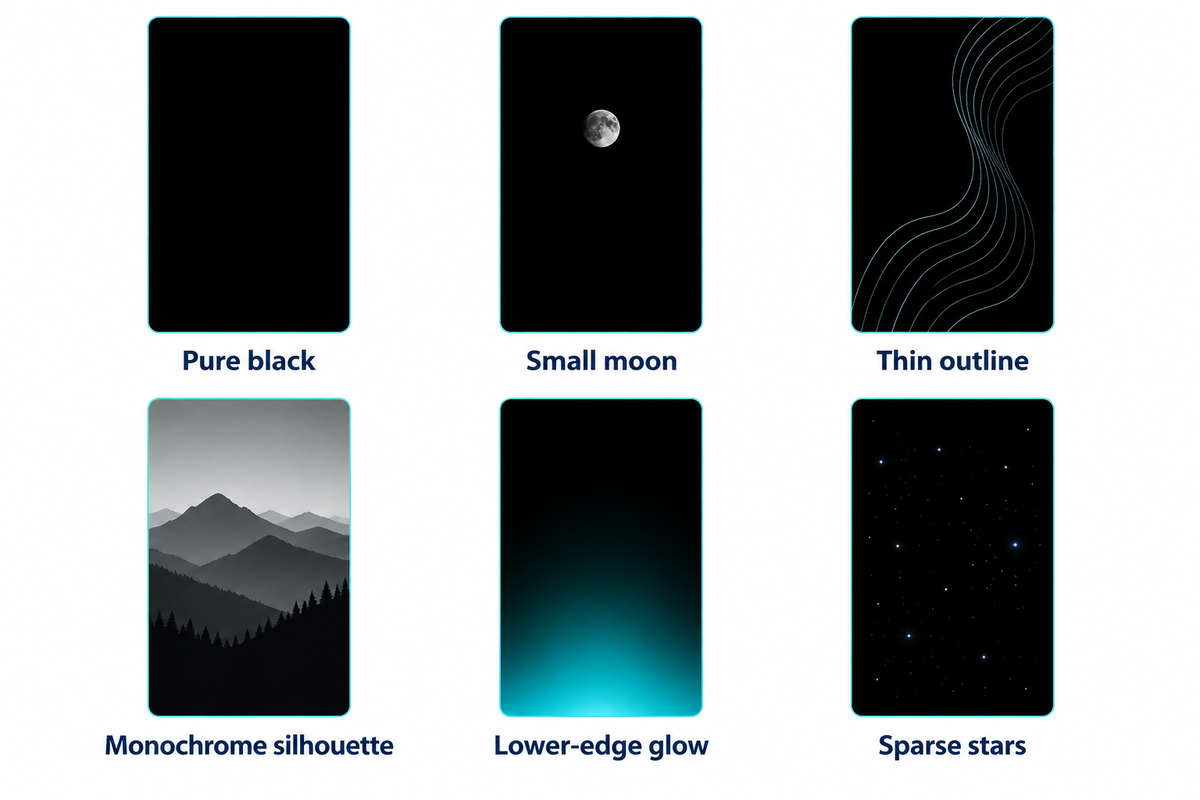
Pure black, a small moon, a thin outline, and a monochrome silhouette are a few starting points. A lower edge glow and a few scattered stars are a couple more. For a busy Home Screen, a pure black background is a good choice. For the Lock Screen, a small, bright subject is good.
| Style | Best starting place | What to watch |
|---|---|---|
| Pure black | Home Screen with many apps | No picture detail; the icons become the main color |
| Small moon | Lock Screen with empty upper space | Keep the moon away from the time |
| Thin outline | Minimal abstract setup | A line through a letter can distract |
| Monochrome silhouette | Lock Screen with a recognizable subject | Fine edges can disappear in a tight crop |
| Lower-edge glow | Lock Screen with a dark upper half | The glow is colored light, not pure black |
| Sparse stars | Night-sky theme | Bright dots behind text can make it busy |
A calmer mobile layout has the favorite artwork on the Lock Screen and simpler backgrounds behind apps. Apple’s wallpaper instructions allow for these choices. A small touch of color often gives an inky black design enough character without filling the display. The iPhone wallpaper aesthetic guide has broader choices if you prefer.
True black versus dark gray: check the image
True black in an RGB image is #000000, or red 0, green 0, blue 0. For a wallpaper, those background pixels should also be opaque. Dark gray contains nonzero color values. Both can look dark on OLED screens, and darker gray can use less display power than a lighter image.
How do I know whether a wallpaper is truly black?
Open the original file in an image editor and use the color sampler to check colors in several background areas. Look for full opacity and an RGB value of (0, 0, 0). The W3C PNG specification differentiates transparency from color: a transparent pixel can reveal the background beneath it. A dark thumbnail is a poor test.
Black-Pixel Evidence Ladder
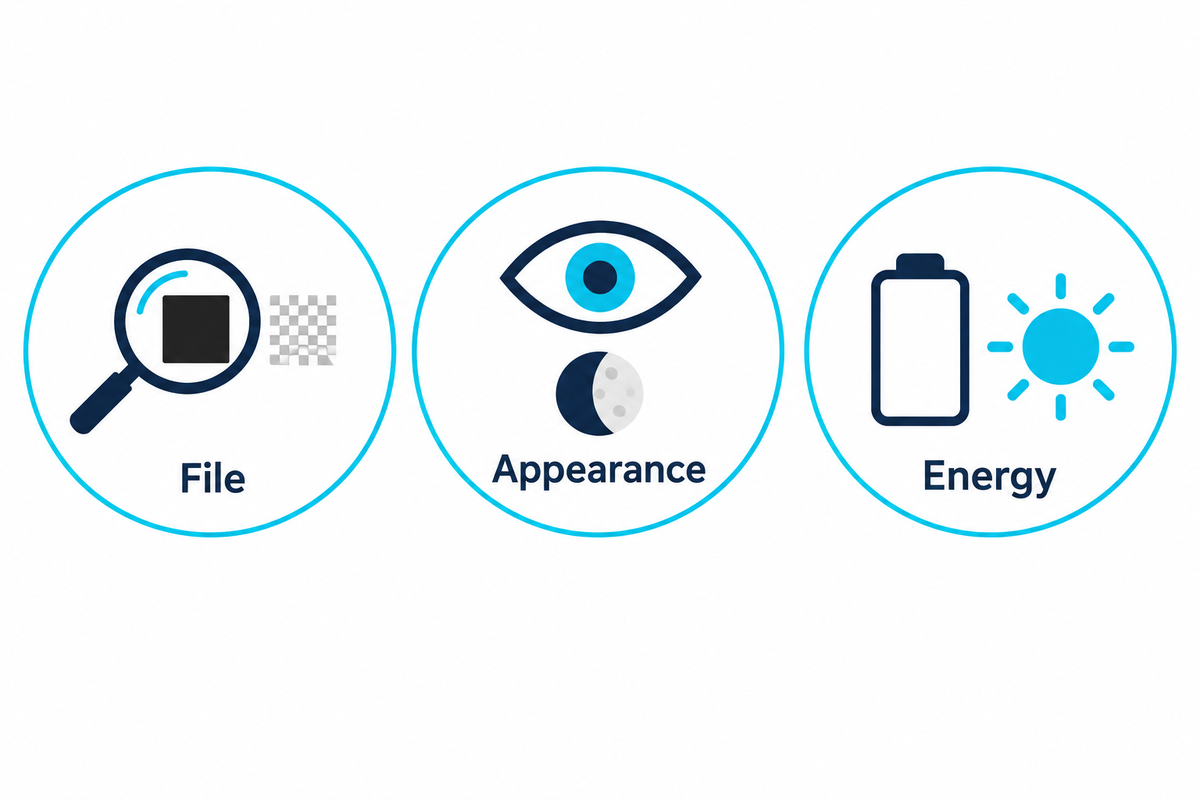
The Black-Pixel Evidence Ladder separates what a file contains, how a wallpaper looks after it’s installed, and how a phone uses power.
| Check type | What to inspect | Next action |
|---|---|---|
| File: original | Full image rather than a thumbnail or phone mockup | Open the individual download |
| File: black values | RGB at several empty background points | Look for red 0, green 0, blue 0 |
| File: opacity | Transparency at those same points | Use an opaque background for predictable black |
| Appearance: crop | Portrait preview and the subject’s edges | Reposition without cutting off important detail |
| Appearance: clock | Bright shapes immediately behind the time | Move the subject away from the digits |
| Appearance: apps | Stars or lines crossing app labels | Choose a simpler Home Screen image |
| Energy: display type | Exact model’s OLED or LCD specification | Use the model table below |
| Energy: visible content | Time spent on wallpaper versus app screens | Consider app Dark Mode separately |
| Energy: measured saving | Same device, brightness and comparable use | Only attach a percentage to an actual measurement |
Apple also describes slight changes in color or blur when scrolling next to black at reduced brightness as normal OLED behavior. A color sampler measures the file; it doesn’t diagnose the display.
Check your iPhone screen before expecting savings
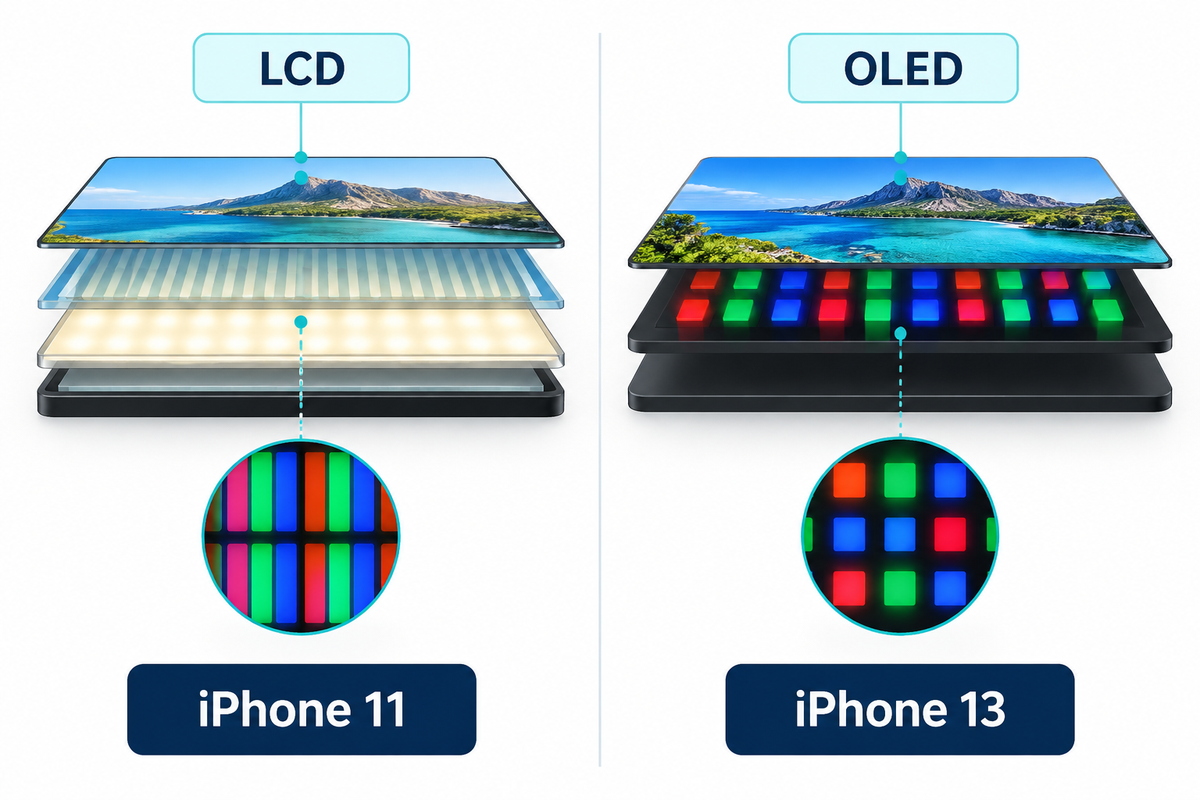
OLED wallpapers for iPhone X work as images on LCD phones as well. With OLED iPhone wallpapers, the display technology changes how black is produced, not whether the picture can be installed. Check the specific model of a series using Apple’s specs: the standard iPhone 11 and iPhone SE examples below are different from the iPhone 11 Pro and 13.
| Apple device | Display | Reason to choose black |
|---|---|---|
| iPhone X, iPhone XS and XS Max | OLED | Deep black appearance and darker-content power benefit |
| iPhone 11 | 6.1-inch LCD | Appearance and a quieter background |
| iPhone 11 Pro models | OLED | Individually lit pixels, unlike standard 11 |
| iPhone SE, third generation | 4.7-inch LCD | Simple composition behind apps |
| iPhone 13 | 6.1-inch OLED | Dark-content display-power advantage |
Apple lists the iPhone 11 LCD, SE third-generation display and iPhone 13 OLED specifications separately. The technology behind Super Retina explains the differences:
“And with no backlight, OLED emits light through each pixel, allowing for a thinner display.”
How much battery can a black wallpaper save?
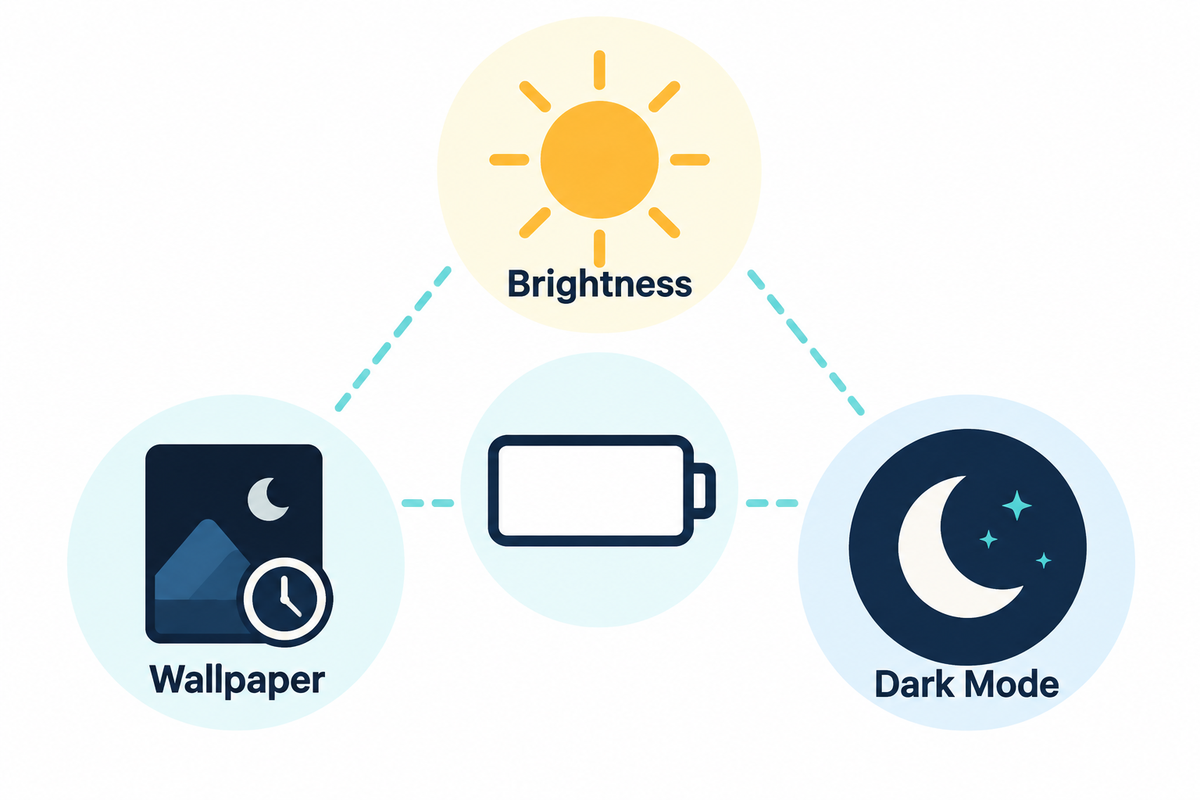
A black wallpaper can reduce OLED display power compared to a brighter image. The daily battery saving with a black wallpaper varies with screen brightness and how long the wallpaper remains visible. When an opaque app fills the screen, the app’s displayed content becomes the relevant color choice.
Apple’s 2022 power consumption presentation mentions that darker content uses less power on OLED panels. Therefore, system and app Dark Mode impact more than just the wallpaper. A black Home Screen doesn’t turn a bright webpage black.
Consider the scope of Purdue’s 2021 dark-mode study. Purdue found that switching from light mode to dark mode at 100% brightness saved an average of 39%-47% battery power on the tested OLED smartphones. Researchers examined six Android apps, including Google Maps and YouTube, using 60-second activities on Pixel 2, Moto Z3, Pixel 4 and Pixel 5 phones. They altered the app’s appearance, considered screen brightness, and evaluated battery usage.
Changing an iPhone background is a different adjustment. The wallpaper appears on the Home or Lock Screen, and the rest of your day consists of app interfaces, video and other workloads. No physical iPhone battery test was done for this post; therefore no daily savings percentage is assigned to your wallpaper.
Download a sharp wallpaper from the original file
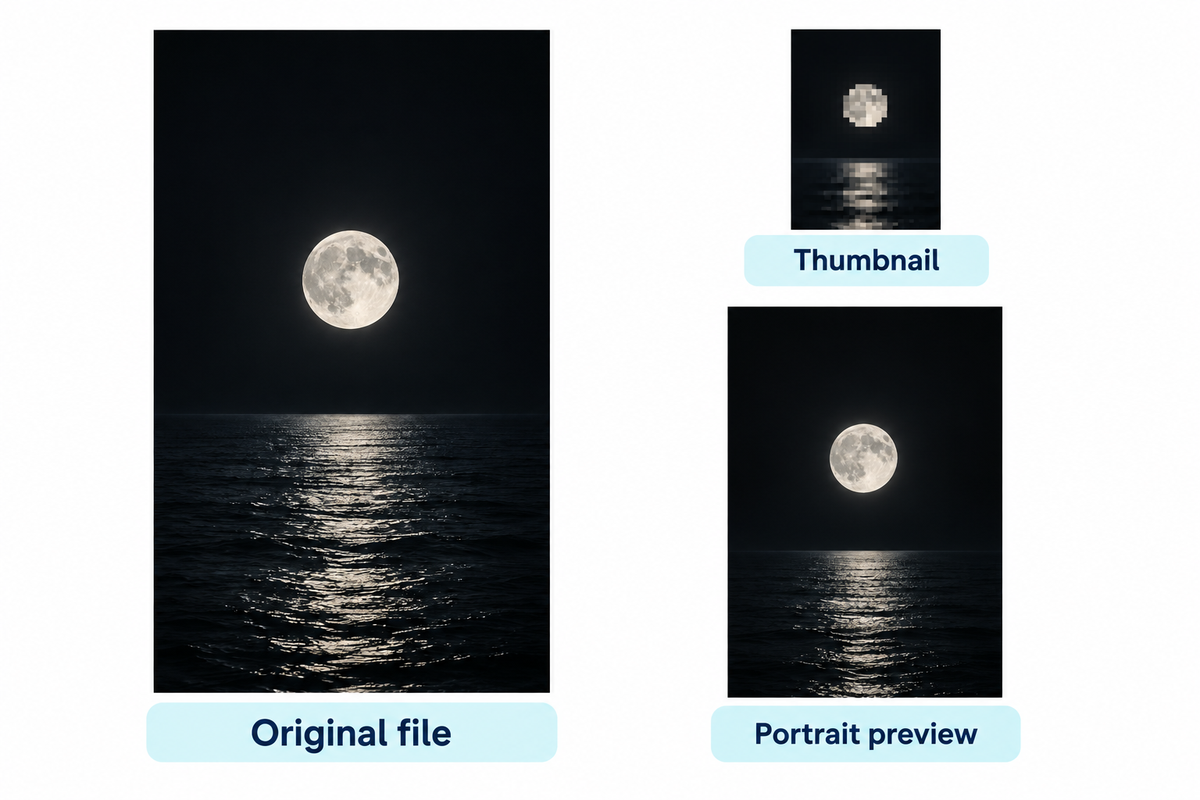
Save the original HD or 4K portrait, rather than a gallery thumbnail or a screenshot of a phone mockup. Image quality starts with the original file. Its aspect ratio and the final crop determine how the subject is positioned.
What is the correct way to download an iPhone wallpaper?
Open the individual design from the black wallpaper collection, use its available download option, and keep the original file in Photos. Preview it in Wallpaper settings before committing. If the design has a border, pay attention to every edge while you adjust the crop.
For example, suppose you are choosing a portrait image for an iPhone 13. Apple lists its display at 2532 by 1170 pixels, so the corresponding portrait orientation is 1170 pixels wide by 2532 pixels tall. A wide desktop composition places its subject differently even when the file has plenty of pixels. Choose a portrait version with open space near the clock first, then adjust the preview without cropping the subject. Increasing the dimensions of an image can’t restore details missing from the original. The iPhone wallpaper size guide covers model-specific sizing when you want a different fit.
Set the Lock Screen and Home Screen separately
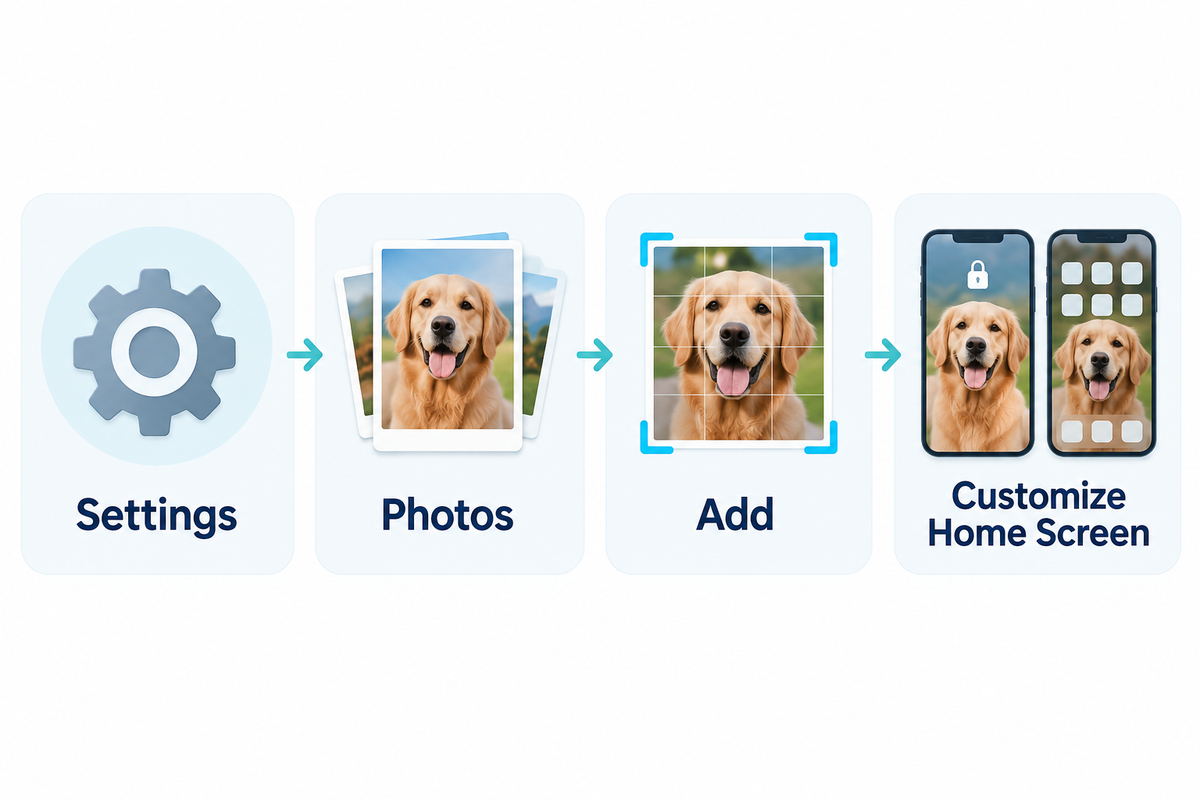
Use Customize Home Screen to keep an illustration on the Lock Screen and a quieter image behind your apps. The built-in iOS Wallpaper controls handle this without a separate wallpaper app. Save your chosen image first, then follow the native sequence and choose whether you want a pair or two different backgrounds.
- Open Wallpaper. Go to Settings, then Wallpaper.
- Add your image. Tap Add New Wallpaper, then Photos, and select the saved picture.
- Adjust the composition. Preview the subject alongside the clock and any widgets, then tap Add.
- Choose the Home Screen. Tap Customize Home Screen for a separate look, or Set as Wallpaper Pair to use your selection on both.
The Apple wallpaper guide also offers a color, another photo or Blur for the Home Screen. Keep blur off if you want to preserve background details. For a background with no subject, see the solid-color wallpaper guide.
On supported models, Always-On has a separate Show Wallpaper toggle under Settings, Display & Brightness, Always On Display. For information on Always-On display, see Apple’s Always-On display guide.
Keep bright details clear of your clock and apps
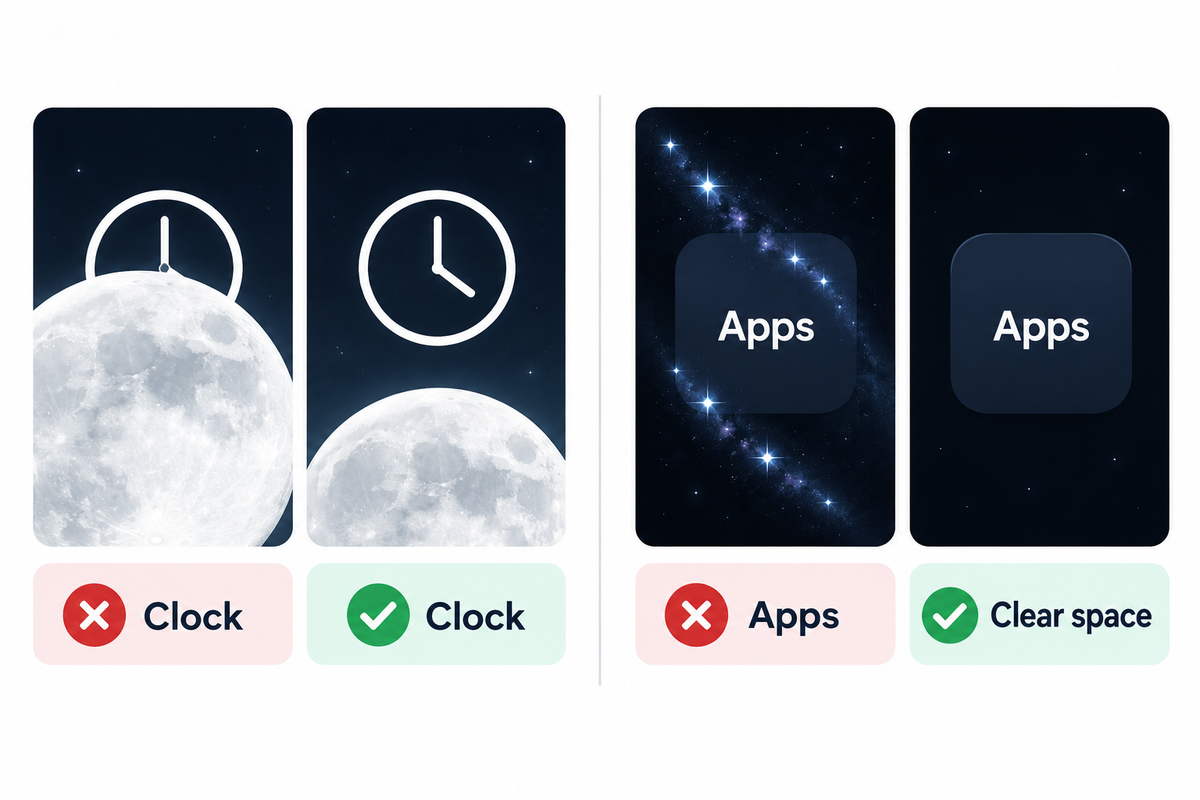
Please keep the brightest detail away from the clock and the app labels you read most. In general, contrast right behind each letter is better than darkness. A mostly black image can still be difficult to read when a white star, outline or moon crosses the text.
W3C’s background-image contrast examples show why local placement matters: black lines crossing black lettering can make one letter resemble another, and dark gray behind black text can make it unreadable. Apply that principle to your wallpaper preview. For a light clock, move a bright moon away from the digits or choose a darker patch behind them. If stars overlap several app labels, use a plain Home Screen instead of shrinking everything until the image loses its character. The picture doesn’t have to match on both screens.
More layout ideas can be found in our Home Screen wallpaper guide. As an alternative to using a completely black background, consider a softer iPhone gradient wallpaper.
Choose the black background you will keep
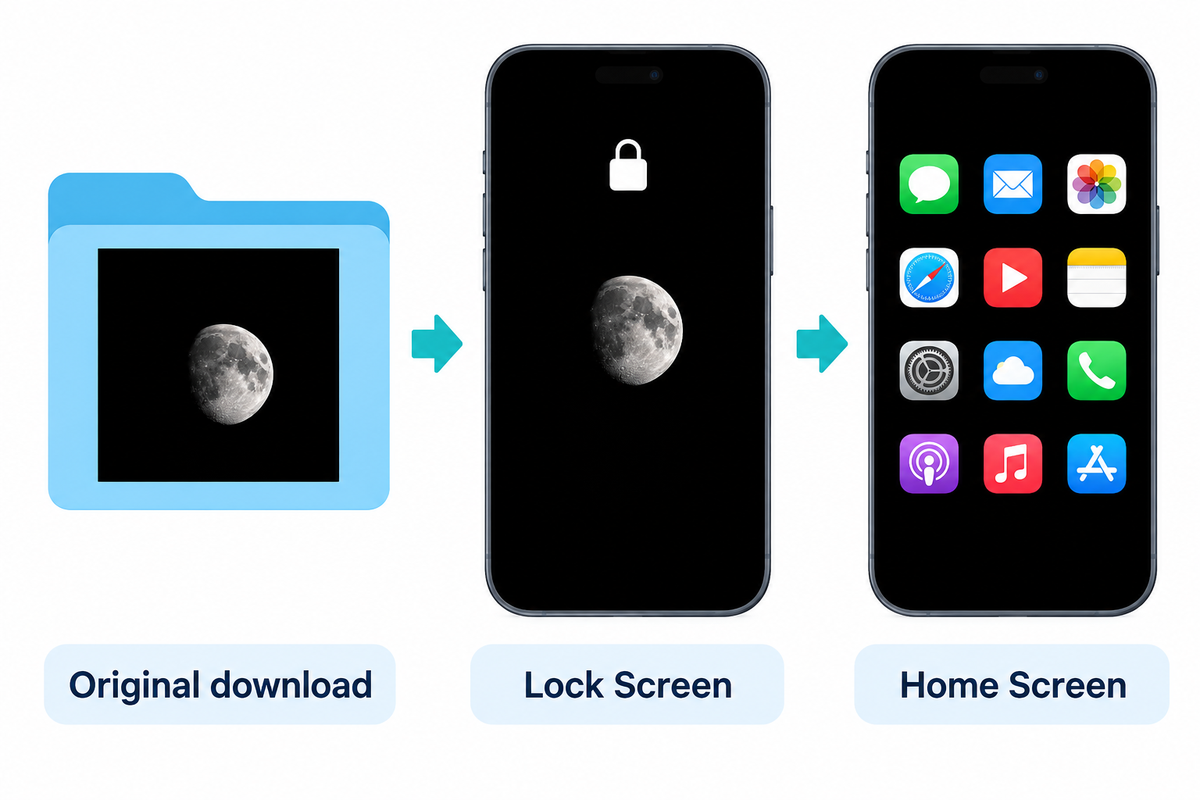
Pure black works well behind a busy app layout, as does a small moon or outline if you want a subject that’s noticeably in the foreground. Keep the original download, preview both screens, and retain the version that makes your clock and apps easy to read. The simplest image is a useful starting point, but is by no means a requirement.
Keep the uncropped original in Photos so you can readjust the framing when your clock or widget layout changes.
Take a look at the iScreen collection above and save your favorite wallpapers. Also, as Apple suggests, use a shorter Auto-Lock time if you don’t need the display to stay on.
Frequently asked questions
Is OLED wallpaper a special file type?
No. OLED wallpaper describes an image’s intended look on an OLED screen, not a separate image format.
A PNG or JPEG can contain a black background, a gray gradient or a bright subject. An OLED-optimized label usually points to the design. For pure black, examine the original background values and opacity. Choose the file for its composition and dimensions rather than expecting the label to change how your screen works.
Does a black wallpaper work on an iPhone 11?
Yes. A black wallpaper works on the standard iPhone 11, although its LCD doesn’t use the same individually lit pixels as an OLED display.
The image can still give your phone a minimal appearance and leave a quiet background behind apps. Choose it for those visual reasons. Keep the model distinction clear when reading recommendations: iPhone 11 Pro models use OLED, while the standard iPhone 11 uses LCD.
Do I need to pay for an OLED wallpaper app?
No. Setting an image you already have uses the iPhone’s built-in Wallpaper controls.
Image access is a separate choice. A creator can offer a free download or sell a collection, while an app can charge for additional designs or features. Check the terms attached to the particular file you want. Once the image is saved, use Photos in Add New Wallpaper to select it.
Is a dark gradient the same as true black?
No.
A gradient contains changing color values. It can include pure-black areas, but the colored glow remains part of the image. Choose it when that extra depth suits your design.
Can one image look good on both screens?
Yes, especially when the image has a small subject and plenty of empty space.
Preview the clock and your app layout separately. A composition that frames one can overlap the other.
References & Sources
- Apple: Change your iPhone wallpaper
- W3C: PNG Specification, Third Edition, 2025
- Apple: iPhone 11 technical specifications
- Apple: iPhone SE, third generation, technical specifications
- Apple: iPhone 13 technical specifications
- Apple: Super Retina and Super Retina XDR displays
- Apple Developer: Power down, improve battery consumption, 2022
- Purdue University: Dark mode and phone battery life, 2021
- Apple: Change the wallpaper on iPhone
- Apple: Keep the iPhone display on longer
- W3C: Background-image contrast failure F83