
.png)
Plain iPhone Wallpaper: Solid Colors for a Cleaner Home Screen
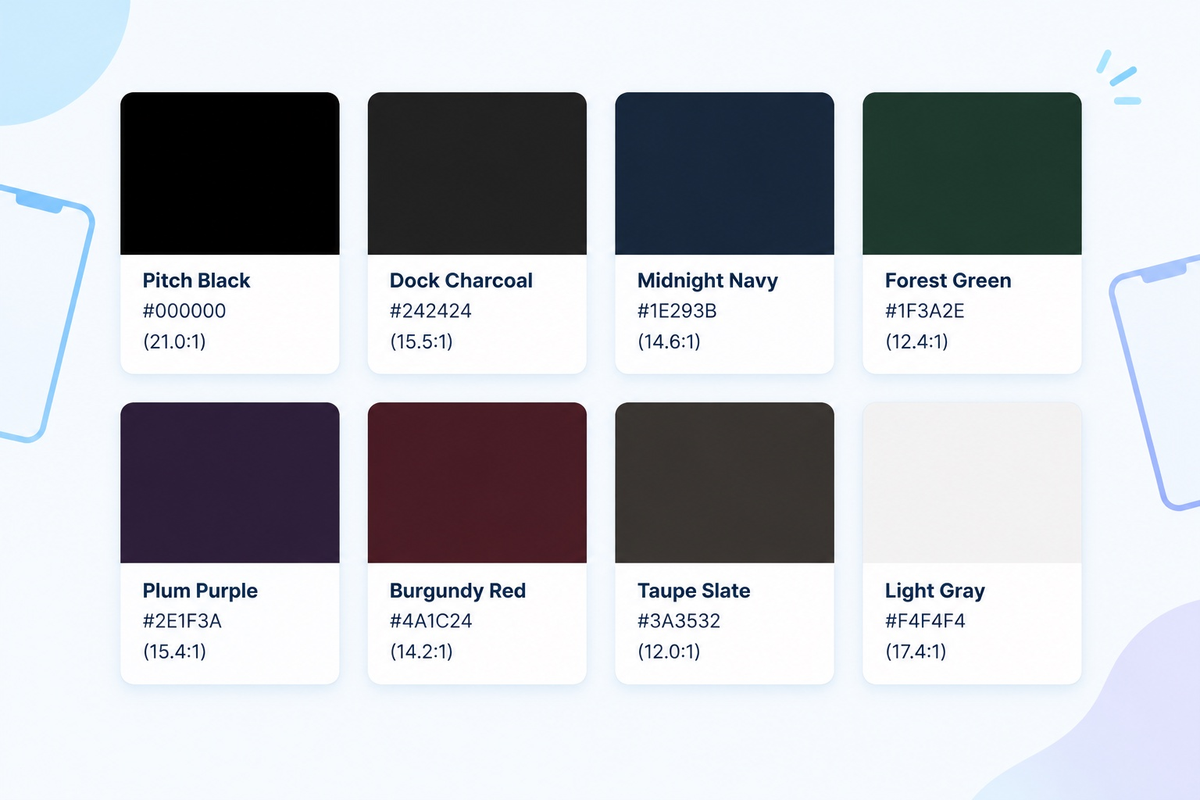
A solid color iPhone wallpaper clears up busy photo details. App icons, widgets, and notification badges become clear and easy to read. You can get a flat single-color background directly inside the built-in iOS picker. No external image download is needed. Selecting the Solid style filter in Settings prevents the top gradient fade. White status bar text stays sharp against the flat fill. This guide covers native setup steps, eight tested hex codes (including dock-blending #242424 and #F4F4F4), OLED power benchmarks, and native screen resolutions.
How to Set a Solid Color Wallpaper on iPhone in iOS Without Top Fade
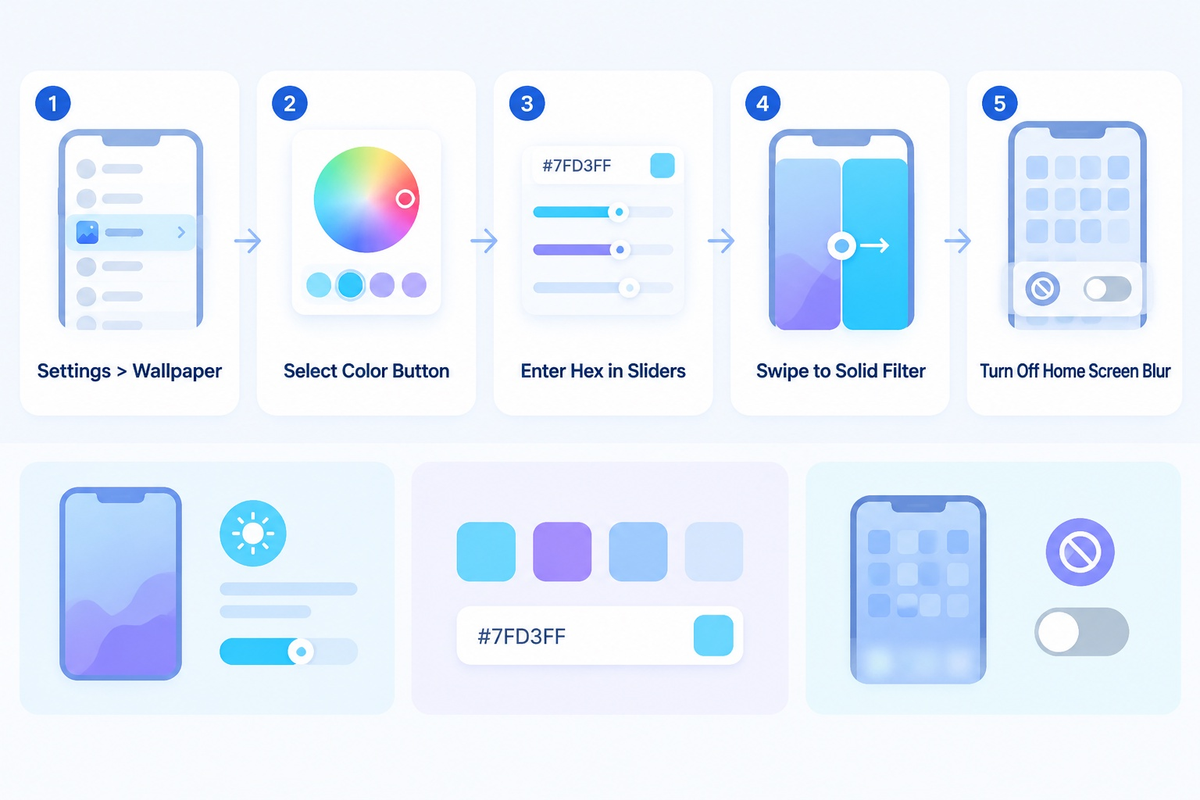
To set a flat solid color iPhone wallpaper as your home screen background, go to iOS Wallpaper Settings and follow these steps: Add New Wallpaper > Color. Go to the style previews at the bottom of the screen and swipe left until you see the Solid preset.
Users setting a flat plain background on a device running iOS 16, iOS 17, iOS 18, or iOS 26 quickly notice a milky wash across the top of the screen. If you’re attempting to set a flat wallpaper on my iPhone for the first time, that milky wash is probably due to the built-in Color picker defaulting to the Vibrant filter, which produces a gradient background instead of a true flat fill. Swipe left past the Vibrant preset, then Tone, Deep, Vapor, and Bright filters to get to the Solid preset.
The 3-Cause Top-Fade Triage
The top fade comes from the Color picker defaulting to Vibrant instead of Solid. Extend Wallpaper crop padding and Home Screen Blur toggle cause the remaining washout symptoms. Each visual symptom traces back to a different control in the iOS wallpaper editor.
| Fade or Blur Symptom | Root iOS Trigger | Where It Appears | Exact Fix in iOS Settings |
|---|---|---|---|
| Upper portion of the screen looks lighter or tinted | Built-in Color picker defaults to Vibrant, Tone, or Deep filter | Both Lock Screen and Home Screen | Swipe left in the Color editor until the bottom pill reads Solid |
| Top edge blurs into a soft gradient on an imported image | Extend Wallpaper crop padding triggered by pinch-to-zoom out | Lock Screen and paired Home Screen | Tap the three-dot menu button in the bottom-right corner and uncheck Extend Wallpaper |
| Entire background looks frosted behind app icons | Explicit Home Screen Blur toggle left active | Home Screen only | Tap Customize on the Home Screen preview and tap the Blur button on the far right to turn it off |
To set a clean background color on your iPhone, do the following:
- Open Settings, tap Wallpaper, and tap Add New Wallpaper.
- Select the Color button in the top row of the gallery.
- Tap the color button to select a swatch, or in the Sliders tab, enter a hex code.
- Close the palette panel and swipe left across style previews to change the style name from Vibrant to Solid.
- In the upper right, tap Add. Choose Customize Home Screen and turn off Home Screen Blur, then tap Done.
Pairing a flat Home Screen background with a graphic Lock Screen is also an option. In our gallery, you can find lock screen wallpapers and pair them to Focus modes. We have a tutorial on switching between multiple iPhone lock screen pairs to automate daily background changes.
Pure Black vs Dark Gray Solid Color Wallpaper on Apple OLED Displays
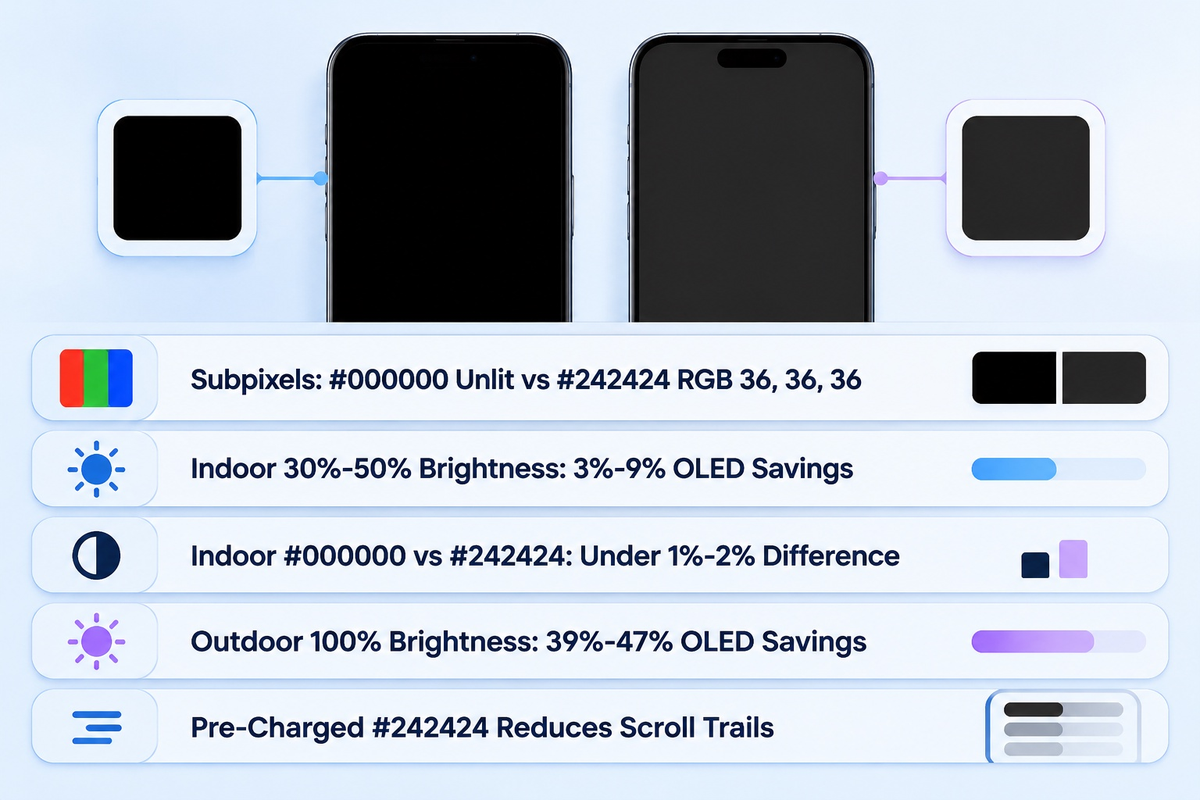
On tested Android OLED smartphone panels, switching from a bright light interface to pure black (#000000) cuts display power draw by 39% to 47% at 100% brightness and 3% to 9% at 30% to 50% indoor auto-brightness. At typical indoor brightness, the display power difference between pure black (#000000) and dark charcoal (#242424) stays below 1% to 2%.
Because those measurements were taken on Android OLED phones, not iPhones, they show the general behavior of OLED subpixels rather than a fixed iPhone battery percentage. The Apple Super Retina XDR OLED Displays are able to independently control the intensity of each of the three subpixels (i.e. red, green, and blue) to create a lit pixel. Outdoor viewing up to 2,000 nits peak brightness (1,000 nits typical max and 1,600 nits HDR peak on an iPhone 16 Pro 120 Hz ProMotion display) widens the display power gap between bright and dark backgrounds.
As Apple’s Dark Mode Human Interface Guidelines and Nielsen Norman Group’s dark mode usability research suggest, using an elevated dark gray background reduces harsh contrast halation. A solid black background turns off black pixel drive entirely. A low state subpixel charge of dark charcoal (#242424) prevents scroll smearing when swiping between home screen pages.
| Comparison Metric | Pure Black (#000000) | Dark Charcoal (#242424) | Bright Stock Photo (#FFFFFF / Multi-Color) |
|---|---|---|---|
| OLED Subpixel State | Unlit subpixels (no drive current on black pixels) | Low-luminance subpixel drive (RGB 36, 36, 36) | High-current emission across red, green, and blue subpixels |
| Indoor Auto-Brightness Display Power | 3%–9% display power reduction at 30%–50% brightness on tested Android OLED panels | Nearly identical to pure black indoors (under 1%–2% display power difference) | Higher indoor display power draw across lit pixels |
| Outdoor Peak Brightness Display Power | 39%–47% display power reduction at full brightness on tested Android OLED panels | Substantial outdoor display power reduction with slightly higher subpixel drive than #000000 | Highest outdoor display power draw (up to 2,000 nits on Super Retina XDR) |
| Home Screen Dock Appearance | Dock bar remains visible in Dark Mode | Dock border softens in Dark Mode when Reduce Transparency is off | Frosted translucent dock bar stays visible |
| OLED Scroll Smearing & Halation | Can show brief pixel wake-up trails when swiping fast | Subpixels stay pre-charged, reducing scroll trails | No black smearing, but causes higher night eye glare |
Worked Example: Luminance Contrast & Pixel Density Verification: Let’s take a look at pure black (#000000) and dark charcoal (#242424) against white app labels (#FFFFFF). Pure black has 0.0 relative luminance, yielding the maximum 21.0:1 W3C contrast ratio against white (luminance 1.0). Dark charcoal (#242424, RGB 36, 36, 36) has a relative luminance of 0.0176, which produces a 15.5:1 contrast ratio against white, still more than double the 7:1 enhanced legibility target while keeping subpixels faintly lit to prevent scroll trails and scrolling artifacts.
Does a Pure Black iPhone Wallpaper Prevent or Cause OLED Burn-In?
A pure black (#000000) wallpaper turns off OLED subpixel drive for black pixels, but it doesn’t prevent overall panel aging and can increase differential wear around static white status bar icons. Periodically switching between #000000 and a dark gray shade like #242424 helps reduce uneven subpixel exposure across the screen.
Free 4K Solid Color Wallpaper Download vs Native iOS Color Picker
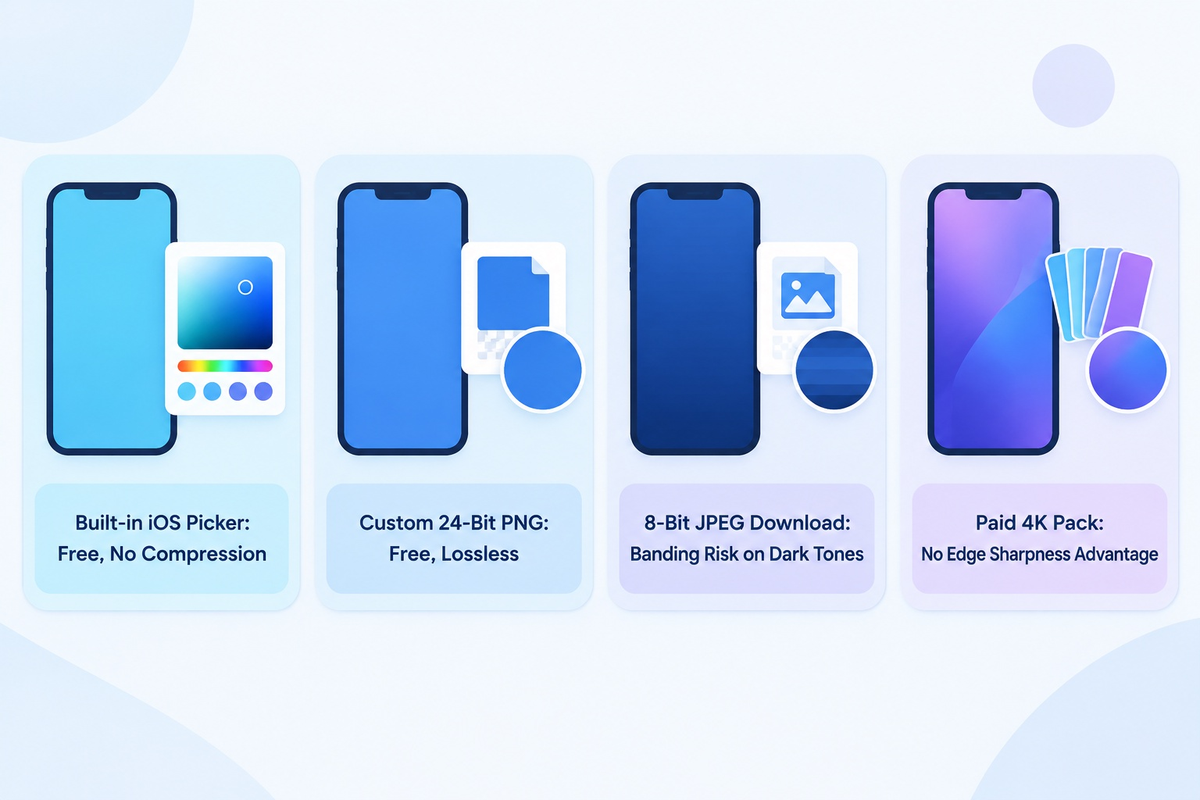
Paid “4K solid color wallpaper” packs provide no edge sharpness advantage for the uniform color itself over the free, built-in iOS Color Picker or a lossless PNG. A uniform single color background has identical RGB values across all pixels. Native iOS rendering fills your exact screen canvas at full resolution, for free.
Online marketplaces list paid digital bundles of plain color wallpaper photos, with pricing that varies by seller and bundle size. Some vendors promote HD, 4K and 8K resolution. On a detailed photograph, higher pixel counts preserve fine textures. Each pixel on a single-color image board stores the same color value. A large file size won’t make a flat color image sharper. Use a lossless PNG when saving a free iPhone background from an image board. Many free stock photos distribute solid backgrounds as compressed JPEG files rather than lossless PNGs.
| Source Method | Cost | File Format & Color Depth | Banding & Artifact Risk | Extend Wallpaper Blur Risk | Best Use Case |
|---|---|---|---|---|---|
| Built-in iOS Color Picker (Solid filter) | Free (built into iOS) | Procedural system render (Display P3 / sRGB) | None (no file compression) | None when set to the Solid style filter | Any single-color setup or dock-hiding hex code |
| Custom Native-Resolution 24-Bit PNG | Free (via Shortcuts or design app) | Lossless 24-bit PNG | None on flat colors | Low when exported at your model’s native pixel dimensions | Adding a custom dock-hiding overlay or subtle border |
| Free Image Board / Stock Photo Download | Free download | Often 8-bit lossy JPEG | High risk of compression artifacts on dark tones | High if aspect ratio is 16:9 (1080×1920) | Avoid for dark solid shades; choose lossless PNG instead |
| Paid Marketplace Minimalist Color Pack | Paid per bundle (varies by seller) | ZIP bundle of PNG or JPEG files | Varies by seller export settings | Triggers crop fade if sized for older iPhones | Only worthwhile if the bundle includes custom icons or widgets |
Looking for more than a single flat shade? Check out curated minimalist aesthetic iPhone wallpaper ideas. Those designs use clean geometry and lossless image exports.
Why Do Downloaded Dark Solid Wallpapers Show Color Banding on iPhone?
Downloaded dark solid wallpapers show visible color banding when websites save them as compressed 8-bit JPEG files. JPEG 4:2:0 reduces chroma resolution, while JPEG quantization and limited tonal precision can make subtle dark shades appear as visible bands. Using the built-in iOS Color picker or exporting an uncompressed 24-bit PNG avoids JPEG compression block artifacts.
Pairing a Plain iPhone Color Wallpaper With Widgets and App Icons
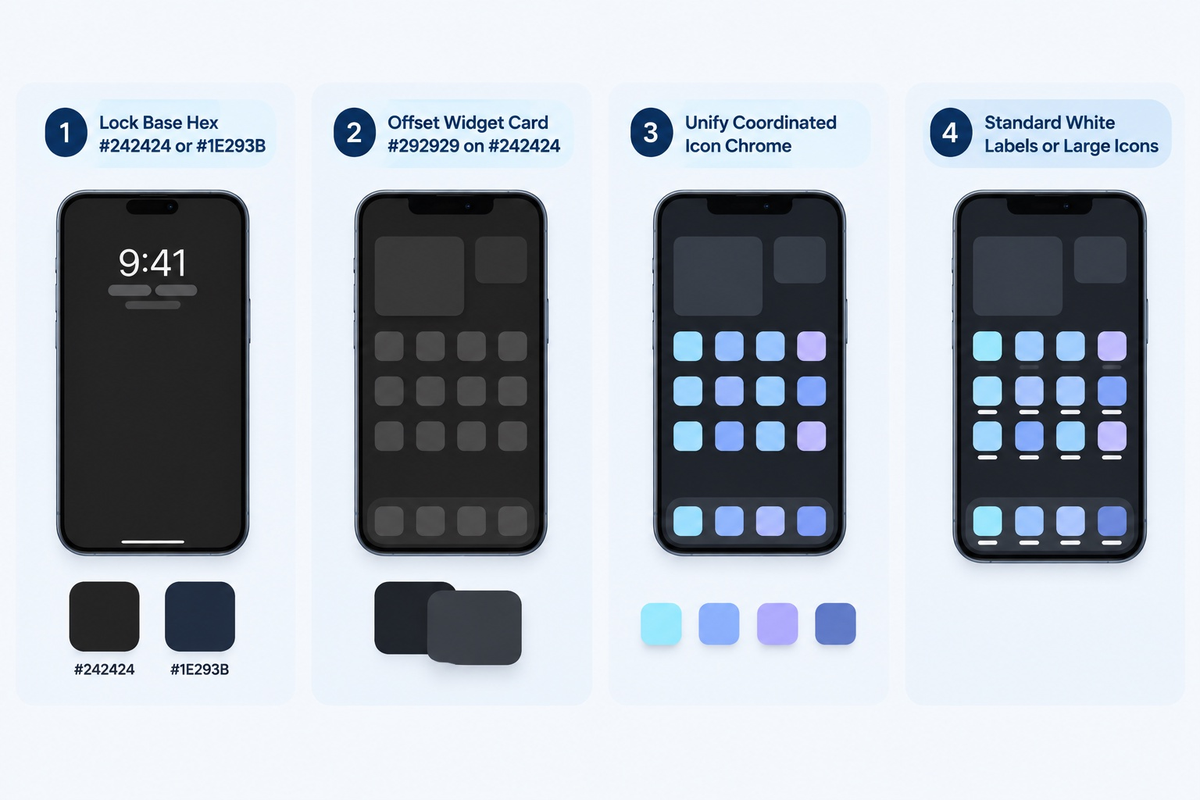
Hex codes can be adjusted via the color wheel to alter lightness or darkness. A lighter shade of your plain wallpaper can be used on your widget card to achieve a clean, visual hierarchy. You can further achieve this visual hierarchy with an icon pack and iScreen widgets that separate borders without reintroducing visual clutter.
It’s instantly noticeable when you switch from a busy photo to a simple solid color wallpaper, thanks to those embarrassing default app icons. The same is true for your white widget boxes. In iOS 18 and 26 Home Screen Customization, you can access the Customize option by long pressing on the Home Screen, selecting Edit, and choosing Customize. From here, you can turn on Large Icons to remove label text, or use Dark or Tinted to change the icons’ appearance. For more advanced features like changing widget backgrounds or app icon sets, you’ll have to look to apps like iScreen.
| Customization Method | Custom Widget Background Control | Coordinated App Icon Support | Label & Dock Styling Capabilities | Best Fit |
|---|---|---|---|---|
| iScreen App (Widgets, Icons & Themes) | Custom hex color picker and transparent widget backgrounds | Coordinated aesthetic icon packs with profile installation | Matched wallpaper, widget, and Dynamic Island theme sets | All-in-one minimalist Home Screen pairing |
| Native iOS 18 / iOS 26 Customize Sheet | System tinting applied across standard widgets | Built-in Dark, Clear, and Tinted icon appearance modes | Large icon mode removes text labels underneath app icons | Quick built-in icon tinting and label removal |
| iOS Shortcuts + Built-In Color Picker | None (relies on native widget styles) | Manual per-app custom icon bookmark creation | Automates wallpaper switching across Focus modes | Users replacing only a few primary dock icons |
| Custom Native-Resolution PNG + iOS Color Picker | Pairs flat or framed PNG backgrounds with native widgets | Compatible with both stock iOS icons and Shortcut icons | Avoids Extend Wallpaper crop blur when sized to model dimensions | Users creating custom color layouts without extra apps |
The 4-Step Solid Pairing Workflow
Minimalists will be happy to know that you can create a minimalist Home Screen in five minutes or less by adjusting just a few settings:
- Lock the base hex: You can use the Solid style filter to change the color of your solid color wallpaper to #242424 to make your dock’s Dark Mode hidden or to #1E293B for a deep navy color.
- Offset widget surfaces: Open customizable iPhone Home Screen Widgets in iScreen. Set each widget background slightly lighter (#292929 on #242424) to achieve a subtle elevation effect, or match #242424 for a floating effect.
- Unify icon chrome: Install coordinated aesthetic app icon sets in monochrome white, matte charcoal, or pastel tones. Matching icon packs stop third-party app logos from clashing with your background color.
- Choose label visibility: Keep standard icon size to use high-contrast white app labels or use Large Icons to remove text labels.
Can You Set Different Solid Colors for the iPhone Lock Screen and Home Screen?
Yes, you can place a solid color on your lock screen, and a separate solid color on your home screen. The majority of users like to pair a colorful lockscreen with a dark charcoal home screen to make notifications stand out. After tapping Add on your lock screen color, select Customize Home Screen, tap Color at the bottom, and choose another color.
Native iPhone Screen Resolutions for Custom Solid Color Backgrounds
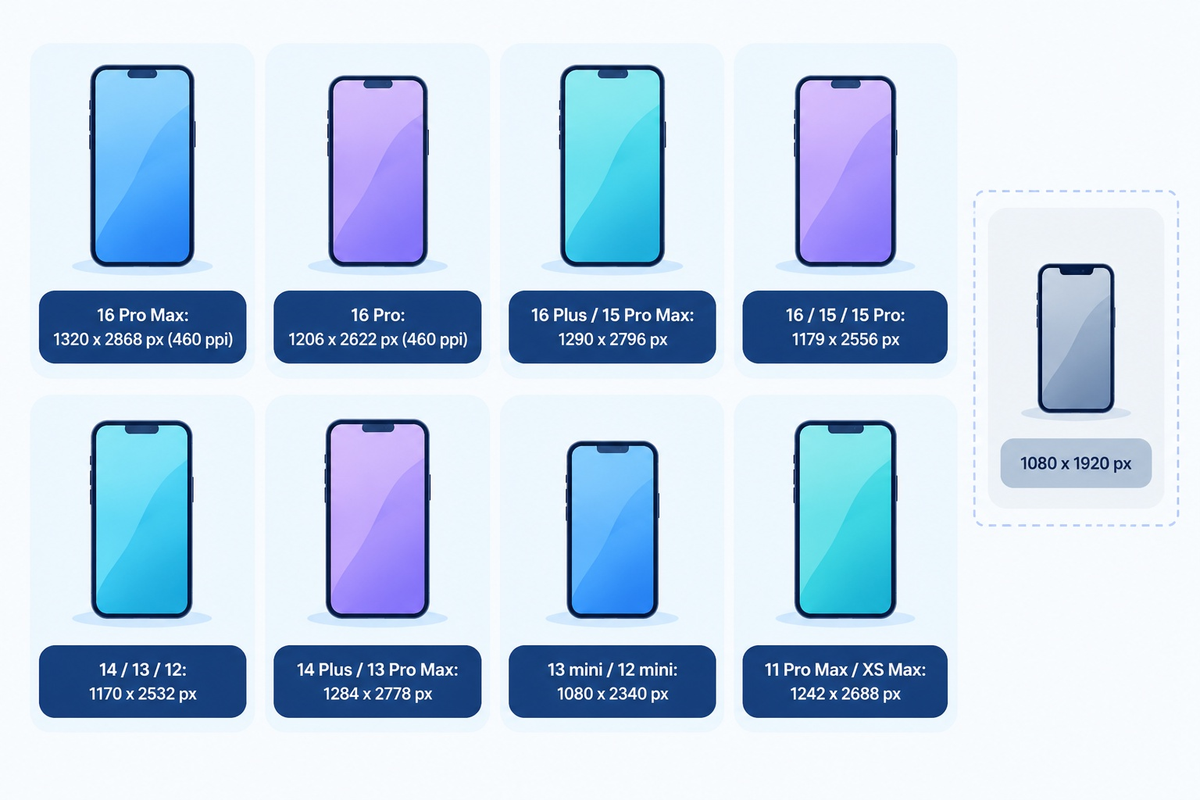
You can export a solid-color PNG at your iPhone model’s native pixel dimensions, and avoid pinching or zooming, to minimize Extend Wallpaper crop blur. Use 1320 x 2868 pixels for an iPhone 16 Pro Max, or 1179 x 2556 pixels for an iPhone 16 and 15.
Generally, wallpaper generator exports are in the old format of 1080×1920 pixels at 16:9 aspect ratio. The super retina XDR displays on the iPhones range from 6.1 inches (1179×2556) at 460ppi, 6.3 inches (1206×2622) at 460ppi, 6.7 inches (1290×2796) at 460ppi, and 6.9 inches (1320×2868) at 460ppi, as stated in the iPhone 16 Pro specifications and iPhone 16 specifications. Importing a 1080 x 1920 px image on a 1320 x 2868 px display screen leaves a 948 px vertical shortfall and 240 px horizontal shortfall, which forces iOS to scale and pad the top edge when creating a high-quality PNG.
| iPhone Model Group | Native Resolution (Width x Height in Pixels) | Display Size & Pixel Density | Aspect Ratio | Recommended Export Format |
|---|---|---|---|---|
| iPhone 16 Pro Max | 1320 x 2868 px | 6.9-inch OLED at 460 ppi | 19.5:9 | 24-bit lossless PNG (Display P3 or sRGB) |
| iPhone 16 Pro | 1206 x 2622 px | 6.3-inch OLED at 460 ppi | 19.5:9 | 24-bit lossless PNG (Display P3 or sRGB) |
| iPhone 16 Plus, 15 Plus, 15 Pro Max, 14 Pro Max | 1290 x 2796 px | 6.7-inch OLED at 460 ppi | 19.5:9 | 24-bit lossless PNG (Display P3 or sRGB) |
| iPhone 16, 15, 15 Pro, 14 Pro | 1179 x 2556 px | 6.1-inch OLED at 460 ppi | 19.5:9 | 24-bit lossless PNG (Display P3 or sRGB) |
| iPhone 14, 13, 13 Pro, 12, 12 Pro | 1170 x 2532 px | 6.1-inch OLED at 460 ppi | 19.5:9 | 24-bit lossless PNG (Display P3 or sRGB) |
| iPhone 14 Plus & 13 Pro Max / 12 Pro Max | 1284 x 2778 px | 6.7-inch OLED at 458 ppi | 19.5:9 | 24-bit lossless PNG (Display P3 or sRGB) |
| iPhone 13 mini & 12 mini | 1080 x 2340 px | 5.4-inch OLED at 476 ppi | 19.5:9 | 24-bit lossless PNG (Display P3 or sRGB) |
| iPhone 11 Pro Max & XS Max | 1242 x 2688 px | 6.5-inch OLED at 458 ppi | 19.5:9 | 24-bit lossless PNG (Display P3 or sRGB) |
Solid Color Wallpaper Selection & Pairing Checklist for iOS Home Screens
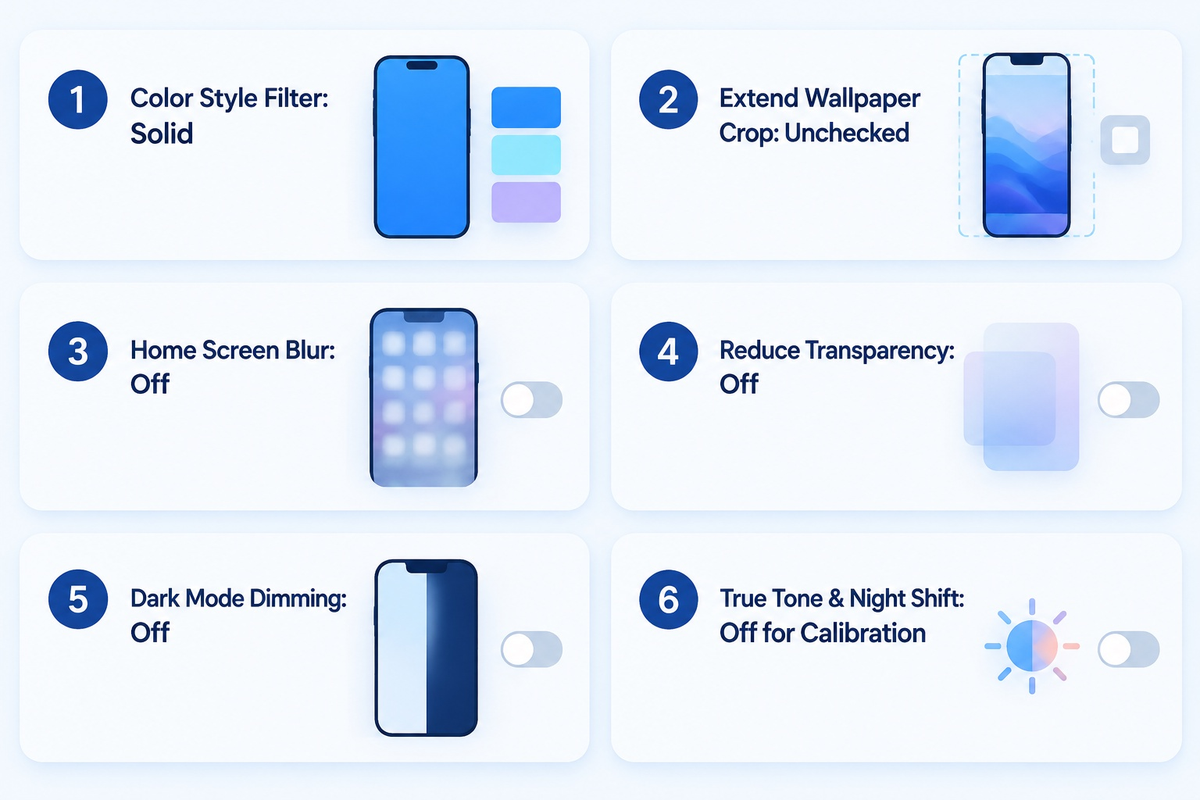
Turn off both Reduce Transparency and Home Screen Dim, and account for True Tone, Night Shift, Dim Flashing Lights and Reduce White Point before taking your wallpaper picture. Turning off these settings stops iOS accessibility or display filters from changing your hex value or exposing the dock border.
| Check Item | iOS Menu Location | Target Setting | Symptom if Misconfigured | Immediate Fix |
|---|---|---|---|---|
| 1. Color Style Filter | Settings > Wallpaper > Add New Wallpaper > Color | Solid filter | Upper section of the wallpaper looks lighter than the bottom | Swipe left from Vibrant until the bottom label reads Solid |
| 2. Extend Wallpaper Crop | Lock Screen Editor > Three-Dot Menu (…) | Unchecked (Off) | Imported PNG blurs or fades near the status bar clock | Tap the three-dot icon and tap Extend Wallpaper to uncheck it when shown |
| 3. Home Screen Blur | Wallpaper Pair Preview > Customize Home Screen | Blur Off | Custom shade turns muted or frosty behind app icons | Tap the Blur pill in the bottom-right corner so the checkmark disappears |
| 4. Reduce Transparency | Settings > Accessibility > Display & Text Size | Off (Disabled) | Reduce Transparency and Increase Contrast can change the dock’s appearance; they do not guarantee that a solid wallpaper will hide the Home Screen dock | Keep Reduce Transparency and Increase Contrast off when testing #242424 or #F4F4F4 dock blending |
| 5. Dark Mode Dimming | Settings > Wallpaper > Customize Home Screen | Sun/Dim Icon Off | Bright or pastel solid colors look muddy and gray | Tap the dimming icon in the corner of the Home Screen editor to restore full brightness |
| 6. True Tone & Night Shift | Settings > Display & Brightness | Temporarily Off during hex calibration | Neutral gray or white wallpaper looks warm yellow or orange | Turn off True Tone while picking your hex code, then re-enable if desired |
Frequently Asked Questions About Solid Color iPhone Wallpapers
How do I get a plain black or white screen on my iPhone without downloading an image?
Go to Settings > Wallpaper and tap Add New Wallpaper. Choose Color at the top of the gallery and pick either black (#000000) or white (#FFFFFF) in the color picker. Close the picker and swipe left across the previews until it says Solid. Tap Add and select Set as Wallpaper Pair and turn off Home Screen Blur.
Why does my solid color iPhone wallpaper look lighter or darker than the hex code I entered?
Three things affect the custom Hex code after it’s entered. First, the Color wallpaper picker defaults to Vibrant or Tone, adding a gradient until it’s swiped to Solid. Second, True Tone and Night Shift adjust the white point of the display. Third, reducing white point in Accessibility diminishes the peak luminance of the display.
Can I hide folder backgrounds on my iPhone Home Screen using a solid color wallpaper?
In Dark Mode, a solid hex wallpaper on its own doesn’t always make iOS folder containers on the home screen fully translucent because iOS renders folder containers with a lighter translucent material compared to the Home Screen dock. In Light Mode, a solid wallpaper may decrease the prominence of the dock and folder containers, but they may still be rendered by iOS as translucent surfaces.
Where does iOS keep the built-in solid color wallpaper picker on iPhone?
Press and hold your Lock Screen, tap the blue plus button and select Color to add it as a new Wallpaper. You may also go to Settings and select Wallpaper.
Do solid color wallpapers work with iOS Depth Effect on the Lock Screen?
Flat single-color wallpapers keep the Lock Screen clock fully visible above the background.
References & Sources
- Apple iPhone User Guide: Change the wallpaper on iPhone (iOS Wallpaper Settings & Built-in Color Picker)
- Apple Developer: Human Interface Guidelines: Dark Mode
- Apple Developer: Human Interface Guidelines: Color & Contrast Ratios
- Apple Developer: Human Interface Guidelines: Translucent Materials & Vibrancy
- World Wide Web Consortium (W3C), WCAG 2.1 Understanding Success Criteria 1.4.3: Contrast (Minimum)
- Purdue University (ACM MobiSys 2021), Dark mode may not save your phone’s battery life as much as you think
- Apple Support, About the Super Retina display and Super Retina XDR display on your iPhone
- Apple Support, iPhone 16 Pro and iPhone 16 Pro Max Technical Specifications (Super Retina XDR OLED)
- Apple Support, iPhone 16 and iPhone 16 Plus Technical Specifications
- Nielsen Norman Group, Dark Mode vs Light Mode: Which Is Better?
- Engadget, How to customize your iPhone Home Screen
- iDownloadBlog, How to set a solid color wallpaper on iPhone or iPad
- Digital Minimalist, How to Hide Your iPhone Dock Using Solid Color Hex Codes
- iOSHacker, Download Solid Color Wallpapers for iPhone (Black, White, and Grey)
