

6 Aesthetic Autumn iPhone Themes to Give Your Home Screen a Cozy Fall Makeover
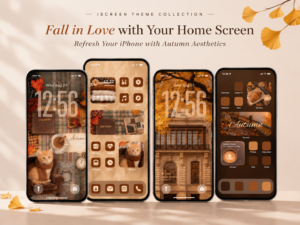
Looking for a fresh way to customize your iPhone this autumn? With iScreen, you can transform your home screen into a personalized aesthetic space that reflects your style, mood, and favorite season.
From Creative Widgets, beautiful themes, custom app icons, and aesthetic wallpapers to Dynamic Island designs, iScreen brings together a variety of customization options to help you create a unique iPhone home screen. Whether you love minimalist layouts, cozy seasonal aesthetics, or detailed themed setups, you can mix and match different elements to make your phone truly your own.
As autumn arrives, it’s the perfect time to give your phone a seasonal refresh. Think warm brown tones, golden falling leaves, cozy coffee moments, vintage books, and soft autumn sunlight. With a collection of autumn-inspired designs, iScreen makes it easy to bring these seasonal details to both your lock screen and home screen.
Ready for a little fall inspiration?Here are six aesthetic autumn iPhone themes to help you create a warm and inviting home screen!
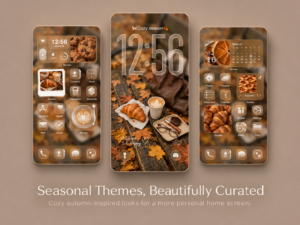
1. Cozy Season – A Warm Coffee & Autumn Aesthetic
Style Highlight: A cozy coffee-inspired design featuring golden fallen leaves, freshly baked croissants, warm brown tones, and vintage-inspired details.
Bring the feeling of a crisp autumn morning to your iPhone with this warm and inviting theme. Inspired by coffee breaks, freshly baked pastries, and the beauty of fallen leaves, it captures the simple pleasures that make the season special.
The lock screen features a charming flat-lay composition of a coffee cup and golden croissant surrounded by autumn leaves. An oversized translucent digital clock stands out against the softly blurred brown background, creating a dreamy and elegant look. Subtle decorative details complete the seasonal aesthetic without taking attention away from the main image.
The home screen carries the same coffee-inspired style through matching brown wallpapers, translucent widgets, and coordinated app icons. Clock, calendar, weather, and photo widgets add useful information while keeping the layout visually balanced. Small coffee and croissant images bring extra warmth and personality to the design.
From the oversized lock screen clock to the carefully coordinated widgets and warm-toned app icons, every detail works together to create a cohesive autumn look.
If you love coffee-inspired wallpapers, warm brown tones, and cozy seasonal details, this theme is a lovely way to bring a little autumn charm to your everyday iPhone experience.
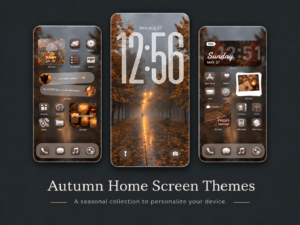
2. Misty Autumn – A Moody & Peaceful Fall Aesthetic
Style Highlight: A dreamy, atmospheric autumn look featuring misty forest scenery, muted brown tones, and soft ambient lighting.
Not every autumn aesthetic needs to be bright and golden. For those who prefer a quieter
and more atmospheric style, Misty Autumn offers a peaceful alternative.
The lock screen showcases a foggy park walkway covered in fallen leaves, with warm streetlights glowing softly through the mist. An oversized translucent white clock stands out against the muted forest scenery, giving the wallpaper a cinematic feel reminiscent of a quiet autumn evening.
The home screen continues this mood with softly blurred autumn backgrounds, translucent widgets, and coordinated brown app icons. Weather, reminder, and photo widgets are arranged alongside everyday apps, creating a layout that feels both practical and visually cohesive.
Additional photo elements featuring glowing candles and seasonal details bring warmth to the darker color palette. The contrast between the misty outdoor scenery and the cozy indoor imagery gives the theme a distinctive sense of atmosphere.
This design is especially suited to those who enjoy moody photography, muted colors, dark brown interfaces, and a calm, understated autumn aesthetic.
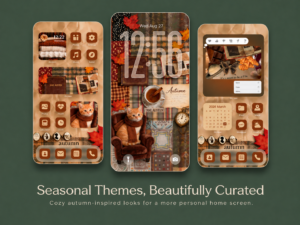
3. Vintage Autumn – A Bookish & Cottagecore Fall Aesthetic
Style Highlight: A nostalgic vintage-inspired theme featuring classic literature, plaid textures, warm brown tones, and adorable seasonal details.
If you love vintage aesthetics and the charm of autumn, this theme feels like stepping into a cozy reading corner.
The lock screen features an oversized translucent clock layered over a carefully arranged autumn collage. Vintage books, plaid fabrics, handwritten notes, and a cute kitten wearing a knitted scarf come together to create a nostalgic, storybook-inspired atmosphere.
On the home screen, matching paper-textured wallpapers tie the entire design together. Photo widgets highlight seasonal scenes, while smaller widgets display cozy everyday moments. The rich chocolate-brown app icons complement the warm background, giving the layout a consistent vintage look.
There’s also a playful side to this design, with cute cat photo widgets adding personality to the overall setup.
For anyone drawn to cottagecore details, vintage book aesthetics, plaid patterns, and warm brown app icons, this theme offers a charming way to personalize an iPhone for autumn.
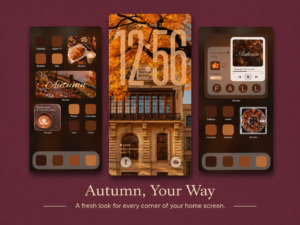
4. Autumn Architecture – A Rich & Elegant Dark Brown Aesthetic
Style Highlight: An elegant autumn-inspired design combining historic architecture, deep chocolate tones, and sophisticated seasonal details.
For a more refined take on autumn, this theme combines beautiful architectural photography with rich brown and burnt-orange colors.
The lock screen features a historic building framed by golden autumn leaves. A large transparent clock takes center stage, allowing the architectural details and seasonal scenery to remain visible. Subtle decorative accents add personality while maintaining a clean visual balance.
The home screen introduces a deeper color palette, with a dark brown background and carefully arranged autumn-inspired widgets. Image of coffee, croissants, fallen leaves, and scenic landscapes add visual interest, while customized app icons in complementary shades of brown keep the overall layout coordinated.
A matching music widget adds another layer of personality, turning the home screen into something that feels more like a curated autumn mood board than a standard app layout.
With its combination of architectural photography, dark brown tones, and thoughtfully arranged widgets, this theme is a great choice for anyone who prefers a more elegant and understated seasonal look.
5. Golden Autumn – A Warm & Dreamy Fall Forest Aesthetic
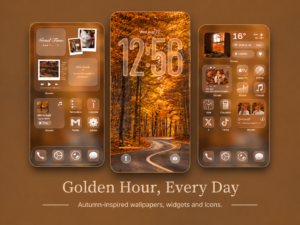
Style Highlight: A golden-hour autumn aesthetic inspired by sunlit forests, winding roads, and rich amber tones.
Few things captures the beauty of autumn quite like golden leaves glowing in the afternoon sunlight. Golden Autumn brings that feeling to your iPhone through a palette of golden yellow, amber, and warm caramel brown.
The lock screen features a stunning forest road surrounded by trees covered in golden foliage. An oversized transparent clock blends naturally into the scenery, creating a striking visual effect while allowing the winding road and glowing leaves to remain the focus.
The home screen continues the golden autumn palette with a combination of music player widgets, photo widgets, and customized app icons. Seasonal photography and soft brown textures bring warmth to the layout, while the coordinated icons help tie everything together.
The result is a beautifully coordinated iPhone setup that feels warm, bright, and full of seasonal charm.
If golden forest wallpapers, amber tones, and warm seasonal photography are your style, this theme is a beautiful choice for your next iPhone makeover.
6. Cozy Coffee & Warm Brown – A Soft Autumn Lifestyle Aesthetic
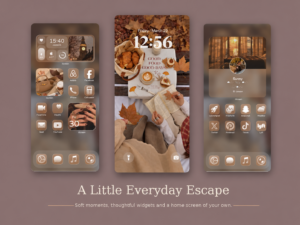
Style Highlight: A relaxed coffee-inspired design featuring warm beige tones, soft brown textures, and everyday autumn moments.
For a softer and more understated look, this themetakes inspiration from cozy coffee dates, freshly baked pastries, open books, and the little moments of everyday autumn life.
The lock screen features a beautiful flat-lay photograph of a coffee table, croissants, and an open book surrounded by fallen leaves. A large white digital clock adds a clean, elegant focal point, balancing the detailed photography with a simple interface.
The home screen continues the warm brown aesthetic through translucent widgets, carefully selected photo elements, and matching neutral app icons. Coffee-inspired images and minimal widget layouts add visual interest without making the screen feel crowded.
For those who prefer neutral wallpapers, beige widgets, and minimalist app icons, this theme brings a subtle touch of autumn warmth to the iPhone.
Give Your iPhone a Cozy Autumn Makeover with iScreen
A beautiful phone theme is all about how the details come together. From the lock screen wallpaper and oversized clock to matching home screen backgrounds, creative widgets, and customized app icons, every element plays a part in creating a more personal experience.
With iScreen, you can explore different aesthetic styles, customize your widgets, discover new wallpapers, and coordinate your app icons to create a home screen that reflects your mood and personality.
Whether you prefer cozy coffee moments, vintage bookish details, golden autumn scenery, misty forest views, or elegant dark brown designs, there’s a seasonal style to suit your taste.
How to Get These Autumn Themes with iScreen
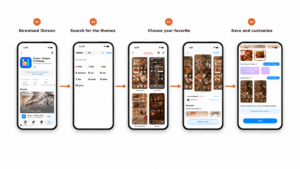
Want to try these autumn themes on your phone? Follow these simple steps:
- Download iScreen:
iOS Download Link:iScreen – Widgets & Wallpaper
Android Download Link:iScreen – Widgets & Wallpaper
- Search for the themes: Open iScreen and search for the code Mia.
- Choose your favorite: Browse the themes and select the one you love.
- Save and customize: Tap the Save button. Widgets will be saved to My Widgets in the app, ready to add to your home screen. Wallpapers will be saved directly to your photo album.
That’s it! Enjoy your new autumn-inspired phone aesthetic with iScreen!
Media Contact
iScreen Official Team
Email: iscreenofficial@gmail.com
Official Website:iScreen – Phone Style, iScreen it!