

Calendar Wallpaper for iPhone: Monthly Layouts You Can Read

A calendar wallpaper places a calendar in your iPhone’s background. It helps to see which day of the week a date falls on, but to see appointments you’ll need to use a calendar app or widget. To start, make sure the month is named clearly. Save the image.
Calendar wallpaper iPhone sets are most successful when the dates are readable in the final Lock Screen preview. Using a simple grid, check the month and year. Replace the picture when the month changes.
- Choose between a full month grid and upcoming events before selecting a design.
- Check the date numerals as well as the clock. A readable time display could hide an unreadable calendar.
- Choose the phone version as well as your preferred week start when saving monthly art.
- Apple’s photo wallpaper settings do not require a separate wallpaper-app purchase.
Choose a monthly grid, event widget, or life calendar

Choose a Monthly Grid to look up dates at a glance, a widget to see your next appointment, or a life calendar to see how much time has already elapsed.
| Display | Useful for | What changes it |
|---|---|---|
| Monthly wallpaper calendar | Seeing dates and weekdays together | Replacing the saved picture |
| Calendar widget | Displaying the app’s supported event information | The app and its widget update process |
| Life calendar wallpaper | Viewing life progress or elapsed weeks | Its image generator and replacement workflow |
A design showing life in weeks can help you visualize your life over a longer span. A year calendar can also give an overview of dates across the year, but fitting more dates into the same space can make each numeral smaller. For a birthday reminder or changing task list, start with the appropriate app instead of adding more labels.
How to display clock and calendar on iPhone Lock Screen?
Set a monthly calendar picture as your Lock Screen wallpaper to show a date grid alongside the clock. Add a Calendar widget supported by Lock Screen customization to show upcoming events. Apple documents widgets for the Lock Screen with iOS 16 and later, and the available widget determines which information appears.
The instructions for Apple’s widgets can be found on Apple’s site and explain the widget setup. When comparing other useful widgets, choose based on which information you need to see. Keep your private event titles or addresses out of a wallpaper visible to anyone nearby.
Pick a layout that leaves the clock readable
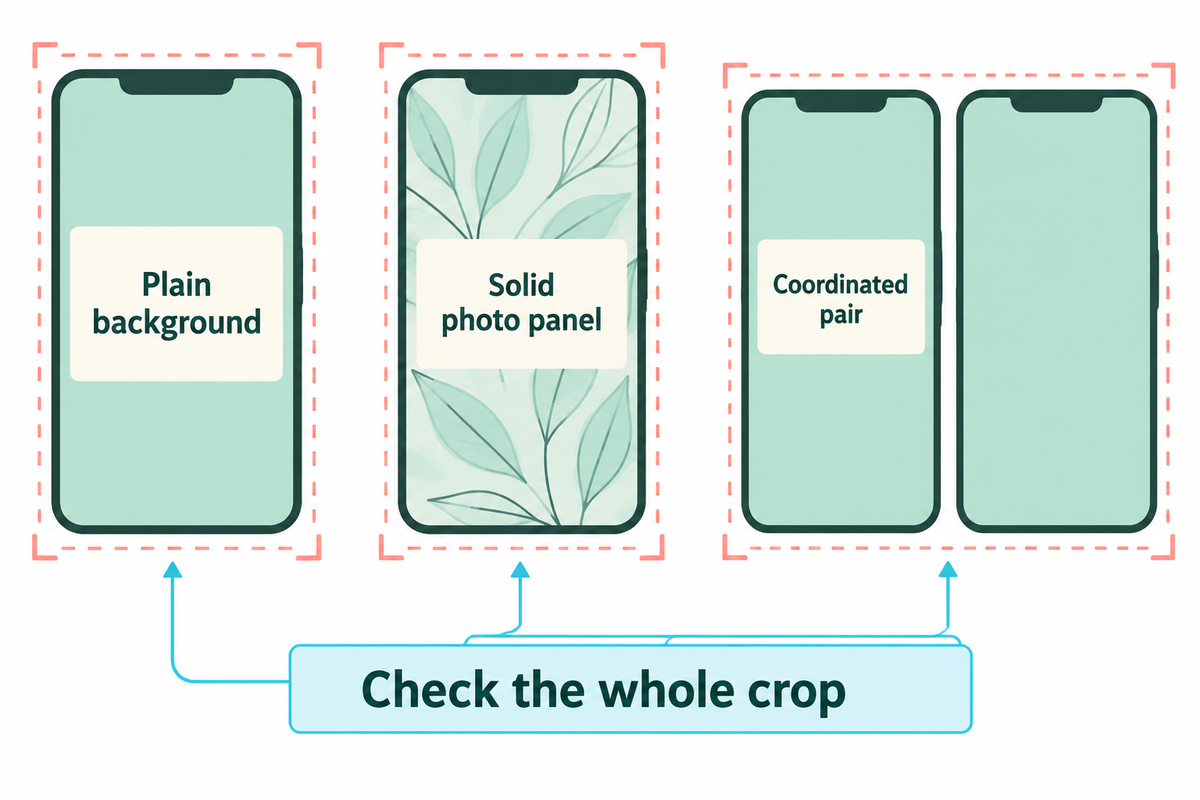
You can choose from three main layouts to start. One is a central grid on a plain background, one is a photo with a solid calendar panel, and one is a subtle grid paired with a quiet Home Screen. Position the date in the space available in the preview. Check each row after adjusting your clock or widgets.
Plain background with a central grid
There are many other design choices available. For a plain background, choose dark type on a light field or light type on a dark field. Increase the date size before adding decoration. For a harmonious palette, consider these color choices.
Photo with a solid calendar panel
Suppose you want your garden picture behind the month. Light petals and dark leaves create uneven contrast, so a date that may seem clear over one patch may disappear over another. Put the entire grid on a solid panel and remove the outline around the numbers. Keep the panel clear of the subject. Open the wallpaper preview. If the clock overlaps its title, then move or resize the picture and check the bottom row. View the dates at your normal reading distance. If you have to shrink the panel to the point where you can’t read it comfortably, use the picture on the Home Screen and a plain calendar on the Lock Screen.
Understated grid with a coordinated Home Screen
Keep the decoration around the grid sparse and carry over one background color to the other screen. Apple’s iOS 26 Feature Guide describes Adaptive Time that alters the clock around photo wallpaper and notifications. Therefore, a fixed rule like “always place dates directly below the clock” doesn’t always apply. Also see the iOS 26 option to move Lock Screen widgets at MacRumors.
See the guide to choosing the image dimensions to specify the aspect ratio, then view the crop to ensure it’s correct. If the numerals still seem too small, prioritize accessibility with an adjustable calendar app or widget.
Find a free monthly calendar wallpaper

Download a phone image from the creator’s monthly page for the month, year, and week start you want. Social media previews may include older images or a desktop wallpaper. Check file options on the original page before saving to get the clearest image.
For November 2026, Oh So Lovely Blog’s monthly collection advertises free phone and desktop choices with Sunday-start, Monday-start, and no-calendar versions. Haus of Planner’s November collection also provides week starts and a choice of font styles.
Save the digital download instead of a screenshot. Look into the creator’s terms of use before altering or sharing their artwork. The download and purchase conditions for a design discovered through Instagram or Etsy may be different. When creating a design for a grid, select the background first, and add a verified grid in your preferred application, keeping an editable copy for next month.
Check the dates before saving your design

Use the First–Last Date Check: Confirm the month and year. Find the first and last weekdays. Compare all the intervening rows with a trusted calendar. Endpoints catch obvious template mistakes; they don’t catch all missing or duplicated numbers. Also, confirm the headings begin with Sunday or Monday.
Suppose you’re making a calendar wallpaper for iPhone using a Sunday-start November 2026 template. Timeanddate’s month grid places November 1 on Sunday and November 30 on Monday, with 30 days in total. Read across each row: 1–7, 8–14, 15–21, 22–28, then 29–30. Now compare the template cell by cell. A correct final date wouldn’t reveal a duplicated 18 in the middle. If you switch to Monday-first headings, move the dates to their corresponding columns rather than relabeling the existing grid. Sunday remains Sunday even when it becomes the final column.
Once you export the calendar, check it one last time. Regional holidays require their own calendar check; a decorative date highlight shouldn’t substitute for an appointment reminder.
| Check category | Ready to use when | If it fails |
|---|---|---|
| Dates: month and year | The title names your intended month | Choose the correct monthly file |
| Dates: weekday headings | Headings follow your preferred week start | Use the other week-start variant |
| Dates: complete grid | Every date matches the reference calendar | Correct missing, duplicate, or misplaced cells |
| Layout: crop | The title and outer columns remain visible | Give the grid more surrounding space |
| Layout: contrast | All numerals stand out from the background | Add a solid panel or use a plain background |
| Layout: reading size | Dates are comfortable to read on the phone | Enlarge the grid or choose an adjustable widget |
| Screen: clock and widgets | The date grid fits the available area | Reposition the artwork in the preview |
| Screen: app icons | Home Screen icons have a clear background | Set a separate Home Screen image |
| Maintenance: next month | You know how the replacement image will be selected | Set a reminder to replace the picture |
Set the calendar picture on your iPhone

Once you’ve checked everything, you can save the calendar to the Photos app. After that, you can change your Wallpaper by going to Settings > Wallpaper > Add New Wallpaper. You can apply the picture to both screens or choose a separate Home Screen background through Apple’s built-in controls.
How do I add a calendar picture to my iPhone wallpaper?
In Settings, find Wallpaper. Tap Add New Wallpaper, then Photos. Select your saved calendar photo. Arrange it so that all the dates are visible. Tap Add. For both your Home Screen and Lock Screen, select Set as Wallpaper Pair. To use a separate Home Screen background behind your app icons, select Customize Home Screen.
- Save the full-resolution image to Photos.
- Open the wallpaper controls and select that saved file.
- Check the month title, weekday headings, and outer columns in the preview.
- Inspect the clock, widgets, and bottom controls before keeping the crop.
- Return to the Home Screen to inspect the wallpaper behind your app icons.
If your iPhone Lock Screen trims your calendar, go to your image layout and increase the surrounding space of the grid. Apple’s optional 3D photo effect works only with certain photos, but a flat grid doesn’t need that effect to be useful.
Pair the Lock Screen with a quieter Home Screen

For the Home Screen, choose a plain background and keep the month grid on the Lock Screen. With the Customize Home Screen option, you can create a separate Home Screen wallpaper. If you want the iPhone calendar info on your Home Screen, add a widget and leave enough visual space to read the dates.
For a calendar pic with a cream background and dark green dates, you may want to use a solid cream background for the Home Screen and let the icons occupy that space. For future events or dates, put a calendar widget that supports the view you need on the Home Screen. If you mainly check dates before opening an app, you may prefer the Lock Screen grid without another calendar display. When you change the picture later, keep the background color the same if it still goes with your icons; customization doesn’t require rebuilding the whole arrangement each month.
Refer to the guide to matching the Home Screen background; separately, iScreen’s gallery includes widget designs to explore, including Calendar and Blocks Calendar labels. Before you use the selected widget to display events or add it to your home screen widgets, examine the available options.
Decide whether a paid app is useful

An additional wallpaper-app purchase is unnecessary for Apple’s native photo wallpaper route. A paid asset, editing app, or subscription is your other option. Before you pay, make sure you verify what feature you’re missing, and ensure the developer provides it in the app for your device.
For habit tracking or custom countdowns to an anniversary, compare dedicated app features rather than assuming a static month picture can update those values. Read the developer’s App Store description and renewal terms. If your only intent is to look up dates, you can do that with a clear, saved calendar picture.
Keep the month current as your setup changes

Replace a static calendar picture when the month changes. To change it automatically, a workflow must create or select the correct new image and set it to wallpaper. Keep a reminder until you know where the replacement image comes from and how it’s selected.
The Apple Support, Change your iPhone wallpaper instructions list the Photo Shuffle options as follows: “Choose a shuffle frequency (On Tap, On Lock, Hourly, or Daily).”
Those settings determine when photos change; the dates printed inside the file remain the same. If the wallpaper refreshes but still shows the wrong month, check the image selection before changing the schedule.
Digitalminimalist’s life-calendar tutorial uses a shortcut that retrieves an image and sets the wallpaper. Apple separately documents automation triggers such as time of day. A source that generates life progress isn’t necessarily a source for monthly dates or appointments.
For unexpected changes, start by checking the active shuffle or automation and investigating an unexpected background change. Keep a known good static image while adjusting the workflow.
Frequently asked questions
How do I put my calendar on my home screen on my iPhone?
Touch and hold an empty area of the Home Screen, tap Edit, choose Add Widget, and find Calendar. Select an available size, tap Add Widget, and finish with Done. That adds application information rather than printing dates onto your background. If you only want a decorative month picture, set it as a photo wallpaper instead and check whether icons cover the grid.
Does it work for iPhone 12 Pro?
Yes, you can use a saved calendar picture as photo wallpaper on your iPhone 12 Pro. Apple says you can change the time display, add widgets, adjust wallpaper styles, and replace controls. The phone can show the same flat picture on both screens or use a different background behind your apps. For third-party widgets and shortcuts, check each product’s device and iOS requirements separately.
How does the automatic wallpaper update work?
An automatic calendar wallpaper needs something to create or select a new image and then replace the old background. A shortcut may do those jobs on a schedule, while a widget displays application data separately. Check the specific service’s setup, permissions, and update schedule before expecting it to stay current.
Do I need to download an app?
No. You can save a calendar picture and use Apple’s built-in wallpaper settings. A separate design app is optional if you want to create the image yourself.
Are calendar wallpapers accurate?
Yes, if the printed dates match the intended month and year and appear under the correct weekday headings. Compare the first date, last date, and every intervening row with your Calendar app. A reused image can look correct while placing dates under the wrong weekdays. Public holiday accuracy depends on the selected country or region, so compare calendars using the same location. Use a calendar application or widget for appointments you edit.
Build around a readable month
Choose the date layout first, then find a background that leaves it clear. Browse iScreen’s backgrounds for a custom monthly design for a starting image. Add your checked calendar grid in your preferred editor and keep the editable file, so next month’s update starts with the layout you already like.
Related guides
References & Sources
- How to add and edit widgets on your iPhone, Apple Support.
- New features available with iOS 26, Apple.
- Lock Screen widget placement in iOS 26, MacRumors.
- November 2026 calendar, Timeanddate.
- Change your iPhone wallpaper, Apple Support.
- Life calendar wallpaper tutorial, Digitalminimalist.
- Intro to automation shortcuts, Apple Shortcuts User Guide.