
.png)
How to Change Your iPhone Home Screen: Beginner’s Complete Guide
We’ve tested each approach on iOS 26 and included the gotchas competitors skip – like why tapping “Set as Wallpaper Pair” isn’t always what you want, and what “clear” Liquid Glass app icons actually look like in real use. Let’s get into it.
Quick Comparison: Native iOS 26 vs iScreen App
| Feature | Native iOS 26 | With iScreen App |
|---|---|---|
| Change wallpaper | ✓ Settings / Photos | ✓ 4K aesthetic library |
| Lock screen customization | ✓ Widgets + fonts | ✓ 1,000+ widget designs |
| Custom app icons | ✓ Tint / clear only | ✓ 5,000+ icon packs |
| Home screen themes | ✗ No one-tap theme | ✓ 2,000+ one-tap themes |
| Dynamic Island | ✗ Limited | ✓ 100+ animations |
| StandBy Mode | ✓ Basic | ✓ 200+ StandBy designs |
How to Change Your iPhone Wallpaper — 3 Methods That Work
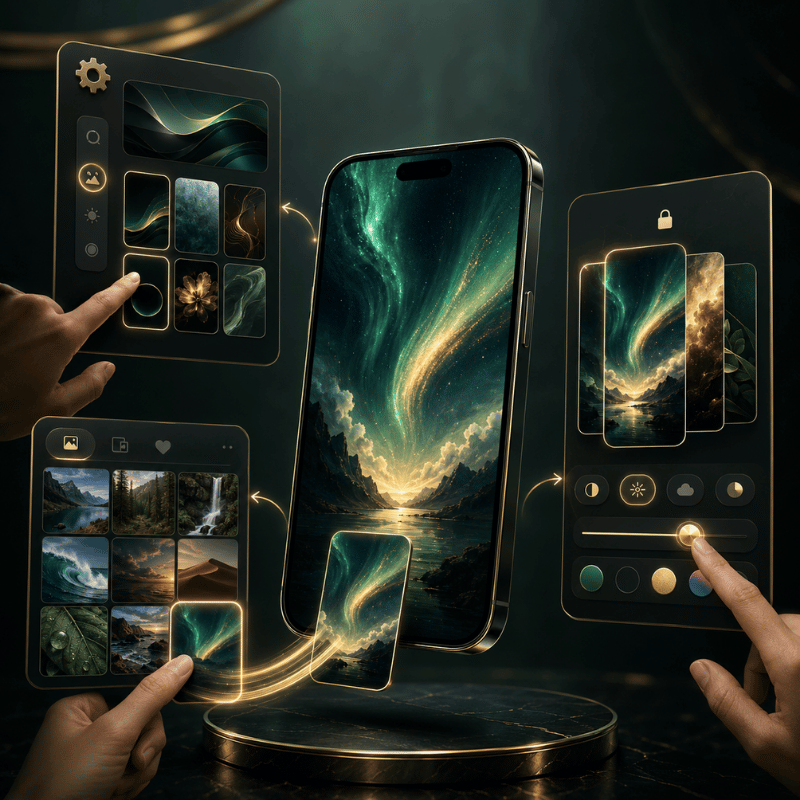
There are three ways to change your iPhone wallpaper in iOS 26, depending on where you’re starting from. All three reach the same end result; the right one depends on what you want to use as your new wallpaper.
Method 1: Add a New Wallpaper from Settings (Most Control)
- Open the Settings app.
- Tap Wallpaper.
- Tap Add New Wallpaper.
- Choose from Apple’s gallery, your Photo Library, or the Spatial Scene tab for 3D depth wallpapers.
- Customize filters, shuffle settings, or depth effect as needed.
- Tap Add, then choose Set as Wallpaper Pair (both screens get the same image) or Customize Home screen (set each iScreen independently).
Method 2: From Photos (Fastest for Personal Photos)
- Open the Photos app and select your image.
- Tap the Share icon (square with an arrow pointing up).
- Scroll down and tap Use as Wallpaper.
- Adjust depth and position, then tap Add to confirm.
Method 3: Directly from the Lock Screen (iOS 26)
- Wake your iPhone and long-press the lock screen.
- Swipe horizontally to browse your saved wallpapers – or tap the + button to add a new one.
- No need to open Settings at all.
How Do I Change My Home Screen Background Without Changing the Lock screen?
After tapping Add at the end of any method above, choose Customize Home screen instead of Set as Wallpaper Pair. This lets you pick a solid color, gradient, or a completely different photo just for the home screen – leaving your lock screen untouched. The full walkthrough is in the next section.
Want wallpapers beyond Apple’s built-in gallery? Browse iScreen’s aesthetic wallpaper library for 4K options curated by style, or read our live iPhone wallpapers guide for animated background options.
How to Set Different Wallpapers for Your Lock screen and Home screen
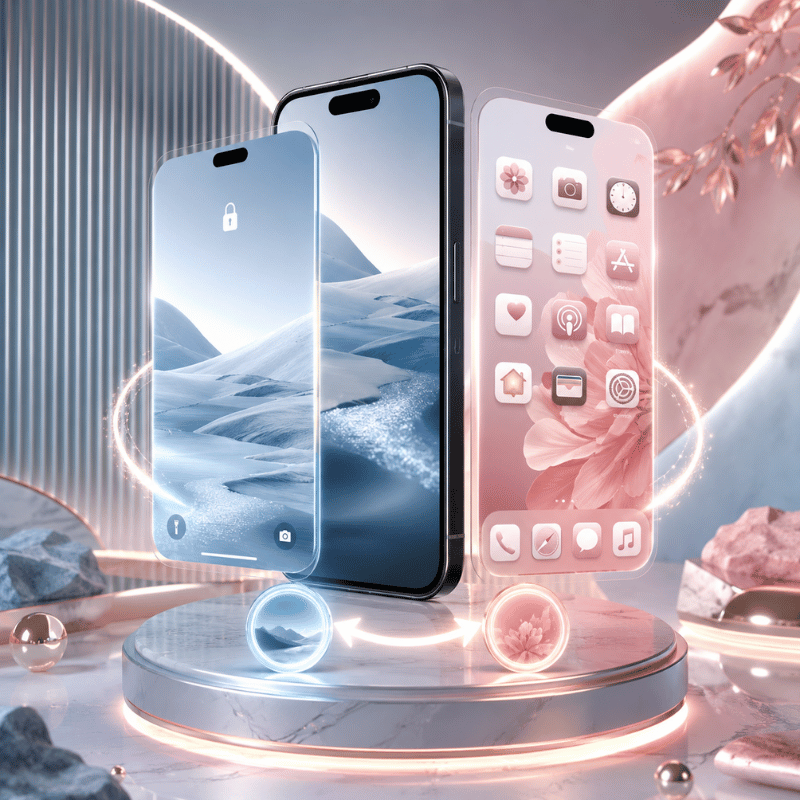
This is one of the most-asked iPhone wallpaper questions – and the answer comes down to one specific tap most people miss.
Here’s how to set separate wallpapers for your lock screen and home screen:
- Go to Settings > Wallpaper > Add New Wallpaper.
- Select and customize your lock screen wallpaper (filters, widgets, depth).
- Tap Add.
- On the preview screen, tap Customize Home screen – not “Set as Wallpaper Pair.”
- Choose a different photo, solid color, or gradient just for the home screen.
- Tap Done.
The issue, in some way or the other, keeps resurfacing both in the Reddit discussions and Apple’s community forums, literally, every week. While the button “Set as Wallpaper Pair” might feel handy, you’re stuck with a fixed wallpaper across your Lock screen and Home screen. Just tap ‘Customize Home screen’ if you need independent wallpaper customization.
Take your lock screen to the next level using iScreen’s lock screen customizations for more complex layouts, or Browse our aesthetic iPhone wallpapers collection for curated options.
How to Organize Your iPhone Home screen Layout
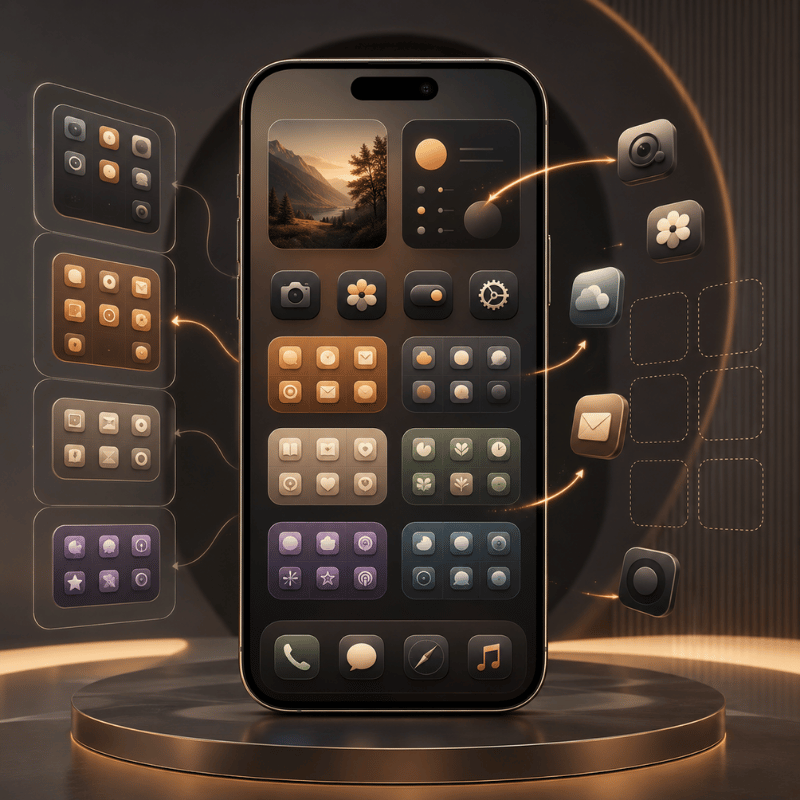
A busy home screen means each app takes longer to open. Apple now offers three ways to organize them: jiggle mode to reposition, App Library to hide less-used apps, and hidden pages to simplify your home screen.
Move Apps and Create Folders
- Hold any app icon until all icons start bouncing.
- Drag apps to new positions or across pages.
- To make a folder: drag one app onto another. iOS automatically names it – tap the folder name to change it. Consider using emojis as the folder name for visual cues, e.g Camera, Finance.
- Tap Done when finished.
Use App Library and Hidden Pages
Drag-off the last home screen page to arrive at your App Library– all of your installed apps are in here, accessible by alphabetical search. Drag lesser-used apps into here to unclutter your iScreen without removing.
Long press home screen to make any page disappear Tap the dots along the bottom (indicating how many home pages you have). From the selection iScreen un-check the pages that you wish to hide.
- Keep page 1 for your 12 most-used apps only
- Consolidate similar apps into folder (keep your top 4 in the dock)
- Put all else on App Library; find app via Search (Spotlight)
- Remove busy pages so your first swipe always results in a meaningful hit
For layout inspiration, see home screen layout ideas curated by the iScreen design team.
How to Add Widgets to Your iPhone Home screen
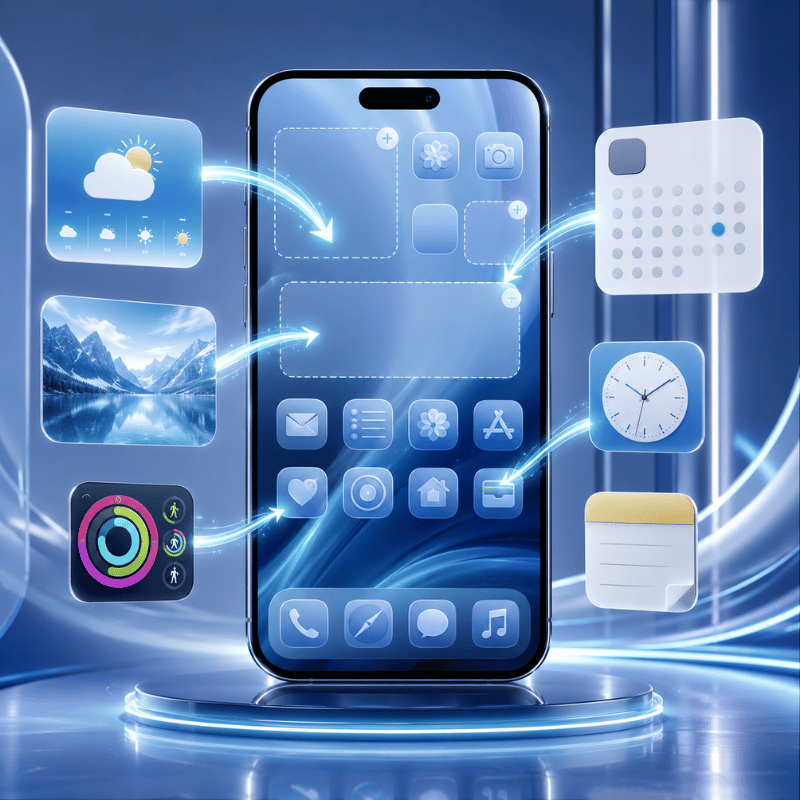
1. How to add, and resize,widgets Widget information at a glance-weather, calendar, and battery levels-comes with out having to launch the an application. How to include-and resize-widgets
- Press and hold your finger in a blank space on your home screen, wait for the icons to bounce, and remove.
- On the left-hand side click the + button to go into the Widget gallery
- Click on an app or enter text into the Search Bar to look for specific ones.
- Swipe left and right across the widget preview to select the appropriate size from small, medium, and large.
- Tap Add widget and choose one to add; then drag to the ideal place.
- Tap Done.
Widget Sizes at a Glance
| Size | Grid Space | Best For |
|---|---|---|
| Small | 2×2 app slots | Battery, steps, timer |
| Medium | 4×2 app slots | Calendar, weather, maps |
| Large | 4×4 app slots | Photos, news, reminders |
(iOS requirements note: basic Home screen Widgets will require at least iOS 14. Lock screen Widgets (the widgets below the clock on the iScreen) will require iOS 16 or newer.)
How Do I Add a Widget to My iPhone Lock Screen?
Lock screen widgets appear beneath your clock providing you with essential information at a glance — for example, weather conditions, your ringer setting, activity rings, or how many days until a specific event. To create one: Lock the iScreen then touch and hold to edit. tap customize tap the lock screen preview, not home screen preview tap the area below clock and then your widget. Lock screen widgets are the same shape but significantly smaller than Home screen widgets and only some apps come with support for these.
If you want to create personalized, custom widgets that seamlessly complement your home screen style, be sure to check out iScreen’s widget library — or try couple widgets for shared countdowns and paired photos..
How to Change App Icons on Your iPhone (Native + Custom)
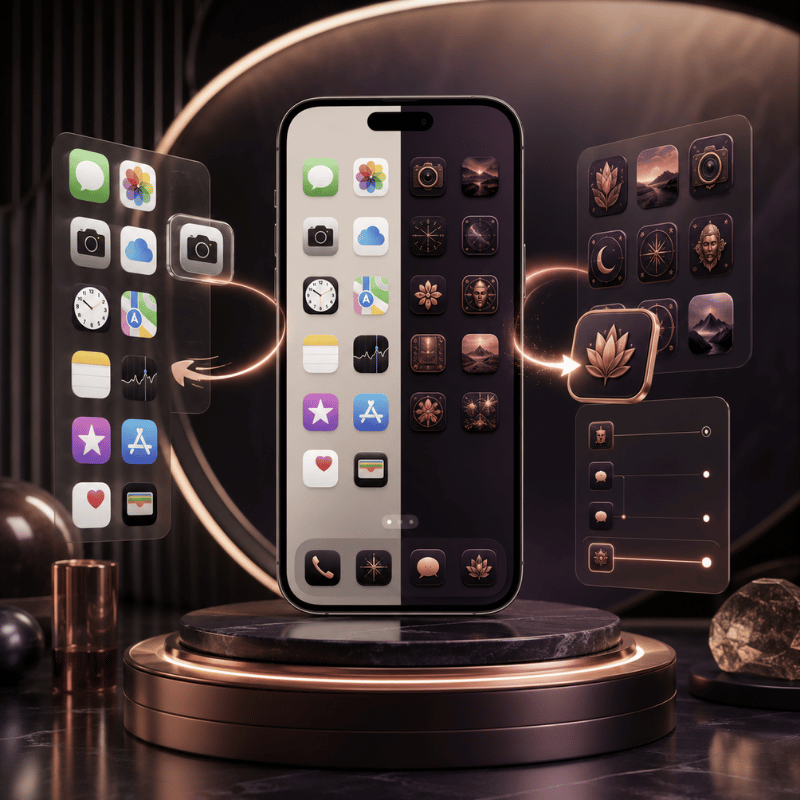
iOS 26 brings a higher degree of control to the customization of your app icons compared to any prior iOS iteration. Here are your three options, from simplest to most customizable.
Method 1: Customize App Icon Style Natively (iOS 26, No Extra Apps)
- Go to Settings > Home screen & App Library.
- Tap App Icon Style.
- Choose from five styles:
- Automatic — light or dark based on system mode
- Light — bright, clean icon backgrounds
- Dark — dark-mode icon variants
- Tinted – visually harmonizes with your chosen wallpaper or the hue of your iPhone casing
- Clear – mimics the transparency of our Liquid Glass in that it renders your home screen background visible through the outline of the app’s icon
Each style changes the color of your app icons across every home screen page simultaneously — you don’t need to update icons one at a time.
Method 2: Custom Icon Images via Shortcuts (iOS 14+)
- Save the image you wish to use as an icon to your Photos gallery.
- On your device, open the Shortcuts application and press + to establish a new shortcut.
- In the search bar, find the ‘Open App’ action, then add it; choose the application you want to open.
- At the pinnacle of the shortcut, touch the name or icon and change it to reflect the name of the application.
- When the icon is shown, tap the ‘Add to Home screen’, touch the icon, and select the image from your photos collection.
- Tap Add. You can see the new icon reflected on your home screen.
Method 3: iScreen Icon Packs (5,000+ Designs)
To create complete visual change in your app icons without using the work around in the Shortcuts application, iScreen’s iPhone icon packs offer over 5,000 unique icon designs categorised according to aesthetic preferences. These icons are integrated with our one-tap theme feature – refer to this for further detail below.
The 5 Layers of iPhone Home screen Customization
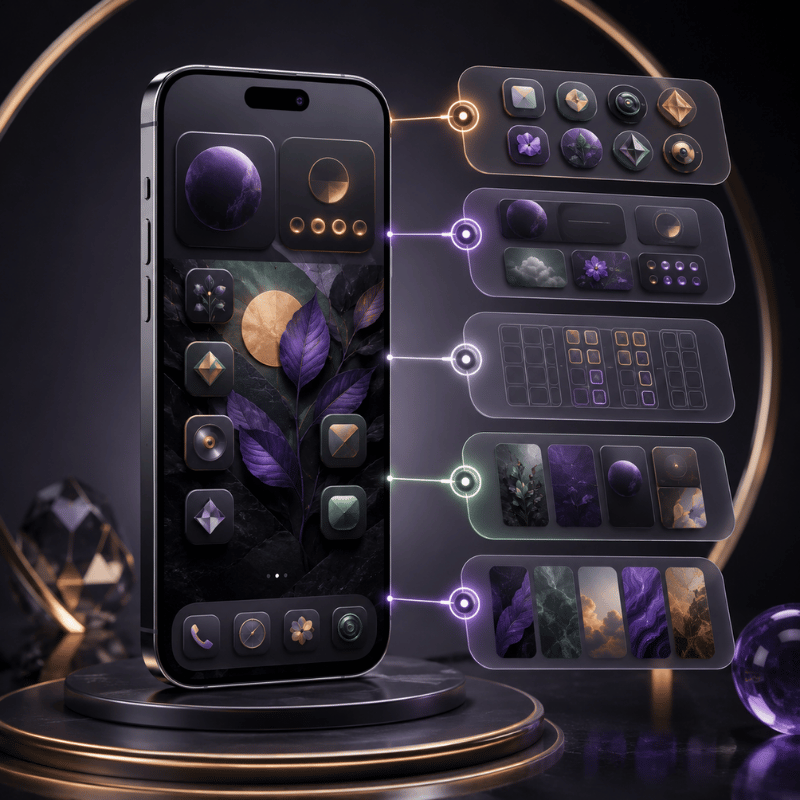
For many users, customisation ends after the initial phase with the addition of a few icon styles; read below for a full breakdown of each layer — and when native iOS 26 tools are enough versus when a dedicated app makes sense — readsed to relying on specialised applications.
Determining the Most Suitable Customization Path: Utilise this decision tree to determine the method best for you:
| If you want… | Best option |
|---|---|
| A new wallpaper quickly | Native Settings — Method 1 above |
| Color-tinted or clear (glass) icons | Native iOS 26 — Settings > Home screen > App Icon Style |
| A cohesive aesthetic (matching wallpaper + icons + widgets) | iScreen one-tap theme |
| Productivity home screen with useful widgets | iScreen widget library |
| StandBy Mode or Dynamic Island customization | iScreen StandBy designs |
iScreen’s one-tap theme system coordinates app icons and widgets together with a matching wallpaper, so every element on your home screen feels intentional.
“Most individuals merely change their wallpaper and halt there. What has the greatest aesthetic influence is unifying your wallpaper, icons, and widgets around a shared aesthetic; our one-tap theming was created precisely for this purpose.”
— iScreen Design Team
Browse from a repository of over 2,000 iPhone themes based on style, which also includes our curated collection ofpastel iPhone wallpapers.
For a direct side-by-side breakdown of iScreen against other options, visit our comparison page.
What’s New in iOS 26: Liquid Glass and the Home screen Redesign
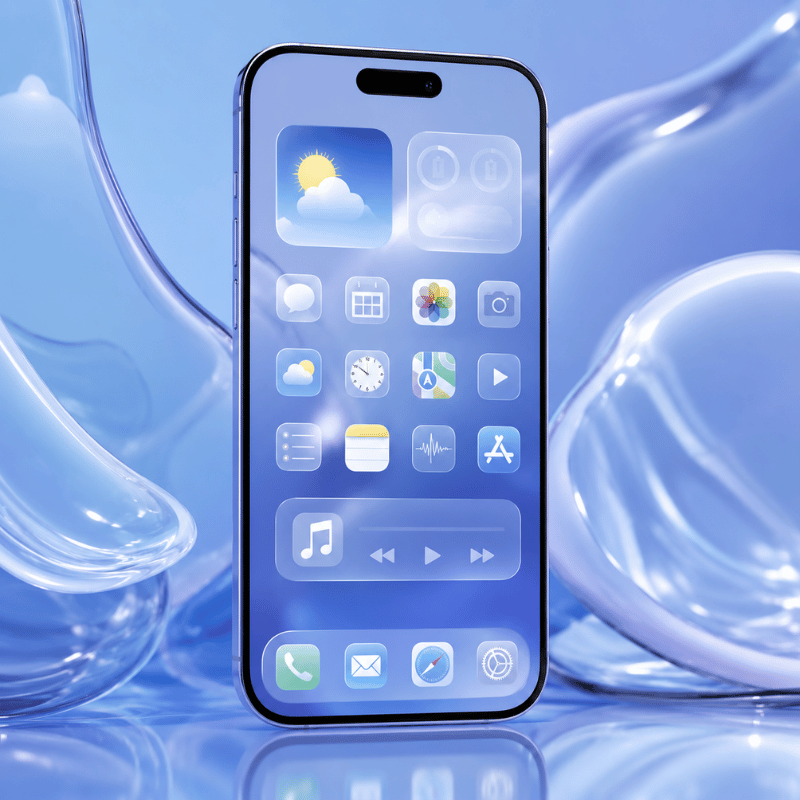
iOS 26, which debuted in September 2025, introduced the most significant visual redesign of the iPhone home screen since iOS 7 in 2013. Apple christened this new aesthetic “Liquid Glass,” characterised by its deep, layered design and a sheer quality that imbues the interface with an elegant, polished sheen.
The update expanded the customization options for home screen icons, wallpapers, and lock screen styles — all detailed in the four changes below.
As of April 2026, nearly 81% of all active iPhones are operating on iOS 26, based on analytics from TelemetryDeck-a figure suggesting that virtually every reader of this guide has already adopted the new features.
The 4 Biggest iOS 26 Home Screen Changes
- Clear (Glass) App Icons: This now allows app icons to have full transparency, displaying your wallpaper in place of the conventional coloured background of the icon. Turn this on by navigating through the Settings application to ‘Home screen & App Library’, then ‘App Icon Style’, and finally selecting ‘Clear’. For best visibility, it is advisable to use a light-coloured wallpaper since the black lettering on dark wallpapers is often difficult to read.
- Tinted Icons (Color-Matched): ‘Tinted’ mode provides a new ability to colour-match all app icons with your primary wallpaper colour, and can even be customised to mirror your iPhone’s case colour – a first for iOS devices.
- Spatial Wallpapers: New Spatial Scene wallpapers produce a genuine 3D effect — a depth-layered 3d effect that shifts the scene as you tilt your iPhone. These can be accessed by selecting the Spatial Scene option when applying a new wallpaper (iPhone 12 and above required).
- Set a Wallpaper from Your Lock screen In iOS 26, you can switch between lock screens from right on your device with long-press your lock screen and click + to cycle between wallpapers.
Don’t love the Glass look?You can reduce the glass look if you wish by heading over to “Settings” >> “Accessibility” >> “Display & Text Size” >> “Reduce Transparency” to cut down on the effect and have a more defined-look for the Liquid Glass lock screen style.
Explore iOS 26 FeaturesSee iScreenStand By mode for iPhone Themes, Dynamic Island Animations, and an in-depth look at how depth effect Wallpapers work.
Frequently Asked Questions
How do I change my Home screen display on my iPhone?
Set a Wallpaper from Your Home ScreenLong-press an empty area (no apps, only blank space) on your Home screen until the interface Jiggle or a menu appears. Once an Edit option or a jiggle starts, Tap Edit (a menu or Jiggle will stop after that and begin allowing you to edit an all iOS device), tap the + icon to add widgets to your Home screen, change around apps, and remove apps.To change your background to a different wallpaper; go into your” Settings”>> “Wallpaper” >> “Add New Wallpaper” >> then refer to the very top to “Set Wallpaper From Your Home screen”.
How do I get to different home screens on my iPhone?
Change Your Home screen PagesLong-press empty space on your Home screen (no apps) to cause the apps on your iPhone to enter the Jiggle. Press the horizontal row of dots that appears above each Home screen row in the edit menu at the very bottom.
You’ll see the current display, including your various home pages, where you can uncheck pages to hide them.
Can you change the font on an iPhone home screen?
You cannot change the font of app name labels on the home screen grid. However, in iOS 26 you can change the font and color of the clock on your lock screen: long-press your lock screen → tap Customize → tap the time display → choose from Apple’s preset font styles and colors. iOS 26 also introduced automatic font-of-the-time adjustments that adapt the clock style to complement your wallpaper aesthetic.
Can you have multiple home screen wallpapers on an iPhone?
Yes, you may create different wallpaper combinations, you can save each combination and simply switch to them whenever you want vialong-press your lock screen and swiping through your created Lock screens. There’s an additional option that allow you to rotate the photos on you wallpaper through Photo shuffle, this could go from On Tap to Daily depending on your needs.
How do I add an app back to my iPhone home screen?
Access Your Hidden AppsGo to the App Library by sliding left across your device’s screens to beyond where any applications can be stored, and if you scroll all the way to the bottom of the application you may find all your unused application in an alphabetical array.
Just long press the application of your desire and to place it onto an blank iScreen, just drag left and will return to the home page; then you may choose an application on an empty page for use. You may then just press on the icon that brings you to another application from App library.
How do I reset my iPhone home screen to default?
Reset Your iPhone’s Home screen Layout Go to settings >> General >> Transfer or Reset iPhone >> Reset >> Reset Home screen Layout. Note: that this action will only delete all folders from your Home screen and arrange your applications in default apple order with built-in apps first and the rest alphabetical, your background will remain intact.
Next Steps: Take Your Home screen Further
So now you’ve got a whole suite of tools on your disposal to change up your iPhone home screen-anything from swapping out your wallpaper in 60 seconds to changing the look and feel with matching icons and widgets. For most of us, the built-in iOS 26 features will get you most of the way there, knocking out Layers 1 to 3 just fine. It’s the move up to Layers 4 and 5-that cohesive widgets and actually-custom icons-that really start to see a dedicated app shine.
See iScreen’s complete iPhone customization guide →
This guide is written by the iScreen team, the developers behind the iScreen iPhone customization app. We have a direct interest in helping you find the right tools for your home screen, including our own. Every step in this guide has been tested on iOS 26, and iOS version requirements are noted where they apply.
Sources:
