
.png)
customize lock screen iphone: Your 2026 Guide
To customize your iPhone Lock Screen, wake your phone, unlock it without swiping to the Home Screen, and touch and hold the wallpaper. Tap Customize and choose Lock Screen if prompted, then change the picture, clock or widgets. Tap Done to save. Use the plus button to create a new layout.
Updated October 2026
iPhone Lock Screen customization starts in Apple’s built-in editor. You can keep a separate Home Screen image, choose a readable clock, and add compatible widgets. Available effects depend on your iOS version, phone and selected photo.
- Saving a wallpaper pair can change both screens; the Home Screen has its own customization option.
- A downloaded widget design still needs to be added through Apple’s widget picker.
- Depth Effect, Live Photos and spatial scenes produce different results.
- You can make the basic changes without buying a customization app.
Open the Lock Screen editor and check your iOS version
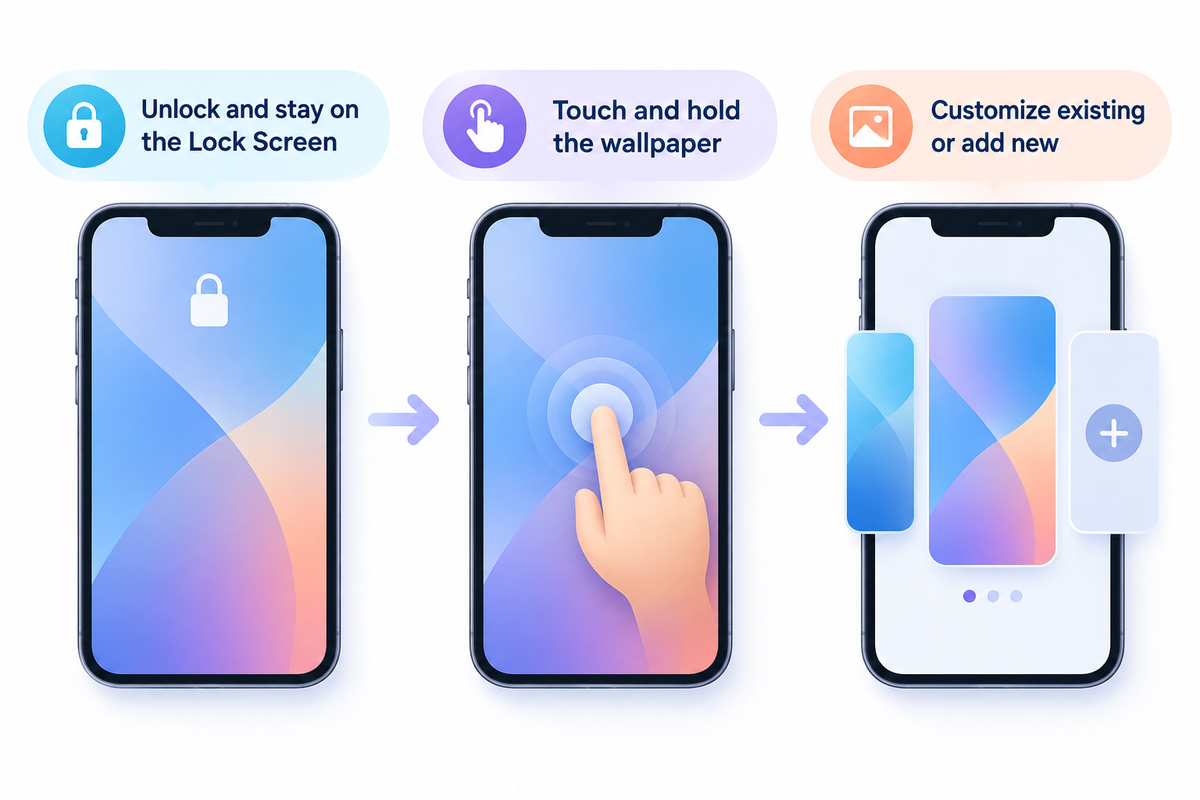
The editor can be opened by touching and holding the Lock Screen after authentication. Stay on the screen showing the time; swiping up takes you elsewhere. If the gallery doesn’t open, hold again and enter your passcode (see Apple’s iPhone User Guide).
Swipe across the saved screens to find the one you want. Customize edits that selection. The plus button creates a new layout, which is useful when you want to store a favorite configuration.
To see which software you have, go to Settings → General → About. The modern customizable Lock Screen arrived with iOS 16. If you use the Lock Screen on iOS 16, its clock controls will differ from those in newer releases. An iPhone model isn’t an iOS version: an iPhone 16 can run software newer than iOS 16.
Another method is to open the Settings app and choose Wallpaper. The previews help you identify which side of the pair you’re changing before you edit.
Change the wallpaper without changing your Home Screen
How do I change the wallpaper on my Lock Screen?
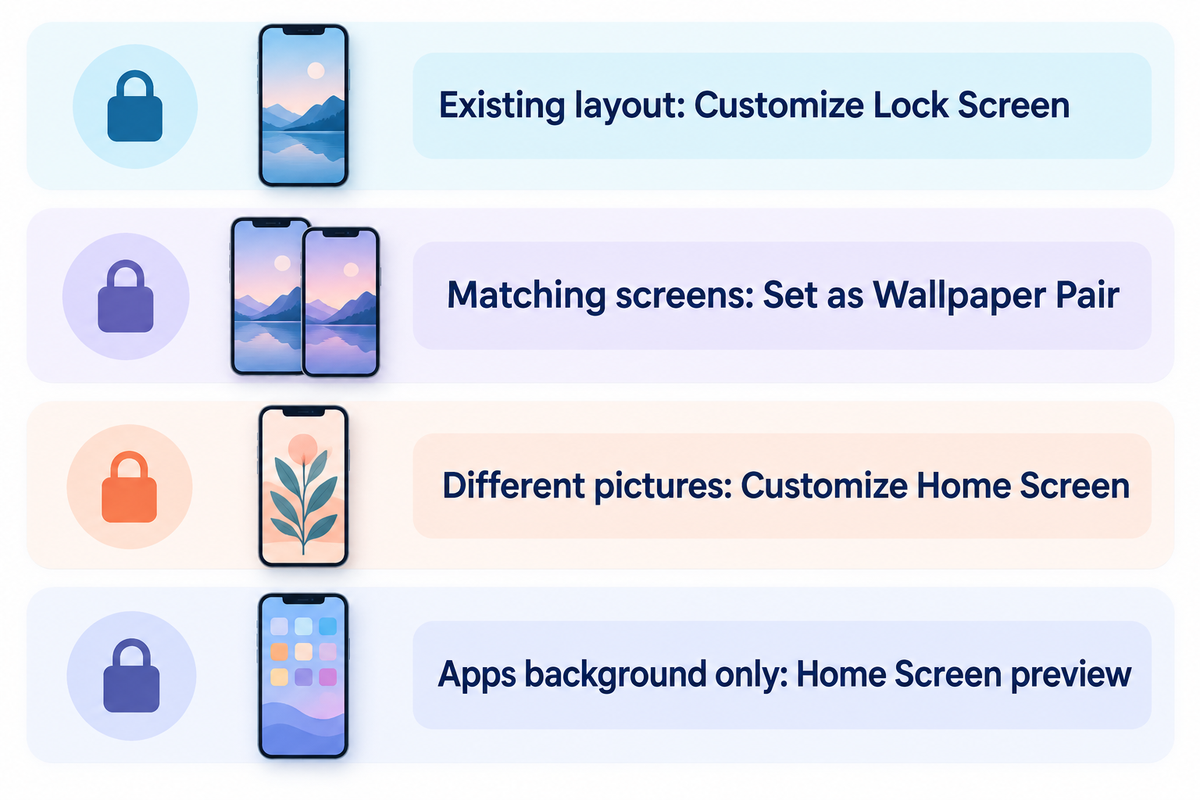
Open Settings, tap Wallpaper, then tap Add New Wallpaper. Choose any photo or built-in design and adjust the crop. Tap Add. If you prefer a different image behind your apps, select Customize Home Screen, or select Set as Wallpaper Pair to use the wallpaper on both your screens.
Choose a photo, Emoji or Astronomy to get different controls. For photos, pinch to zoom. Drag the image to where you want it. Keep the main object away from the time if the overlap makes it difficult to read the digits. For a filter, swipe left or right where the wallpaper supports one.
Save-choice map
| Your goal | Where to work | What to select |
|---|---|---|
| Adjust an existing lock layout | Saved wallpaper gallery | Customize, then the Lock Screen preview |
| Create a new matching pair | Add New Wallpaper | Add, then Set as Wallpaper Pair |
| Use different pictures on each screen | New wallpaper’s save screen | Customize Home Screen, then choose its image |
| Change only the background behind apps | Wallpaper in Settings | Customize beneath the Home Screen preview |
For a family portrait on the Lock Screen and a plain color behind your apps, use the two save choices in Apple Support’s wallpaper instructions. The portrait is visible when the phone is woken. App labels have a quieter background.
Photo Shuffle can switch pictures on tap, lock, hourly or daily. Choose the trigger you want instead of expecting a normal single-photo wallpaper to rotate. To have more background options, check our iPhone wallpapers.
Customize the clock so you can still read the time
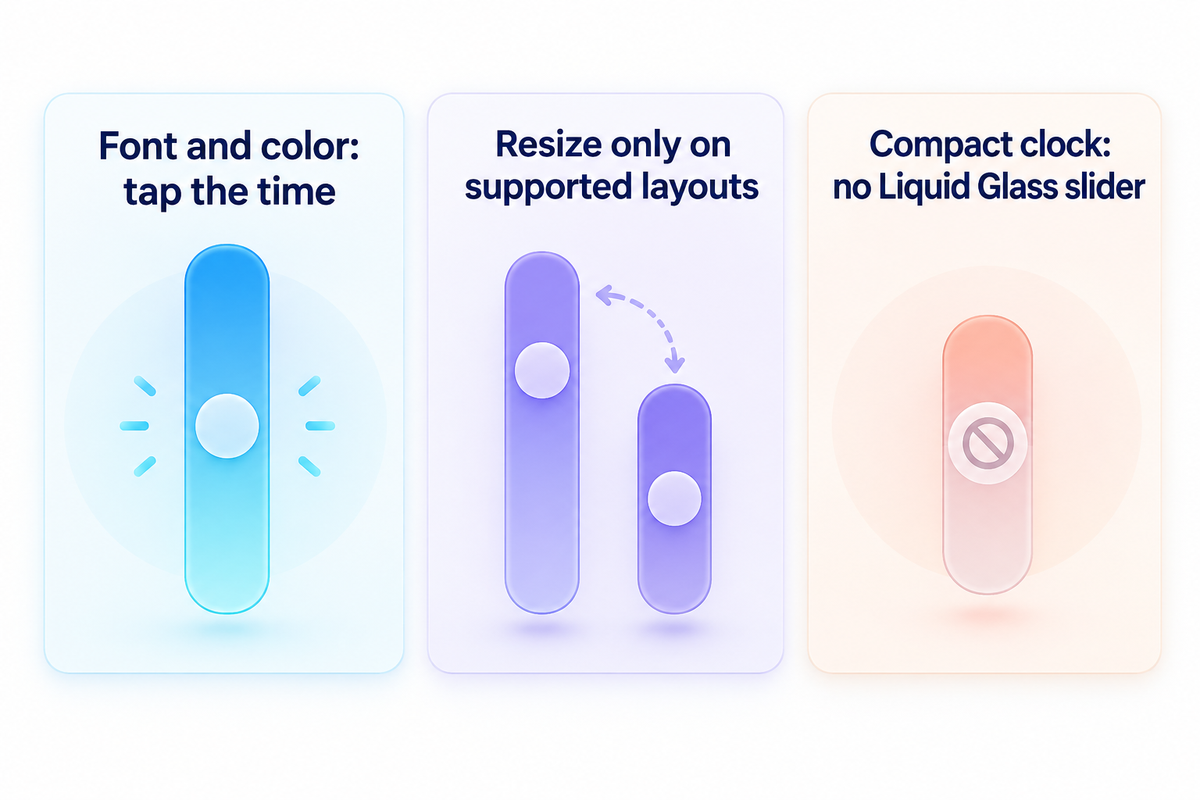
To change the clock’s font and color in the editor, just tap the time. A solid, contrasting clock color is a good starting point for a busy picture. Numbers over a bright sky can disappear at a glance.
How do I change the size of the clock on my iPhone Lock Screen?
In supported newer layouts, you can enlarge the clock frame by dragging the lower right corner down, and reduce its height by moving it up. This will only work if the wallpaper allows it. If the photo leaves little room above its subject, you may need to choose a different crop or picture.
Expanding the time with the resize handle on iOS 26 can bring the widget row down. This is a layout change, not a missing widget (MacRumors guide to iOS 26 customization).
iOS 27 has a smaller option. In the Font & Color panel, the two-horizontal-bars icon can switch the display to a compact clock next to the date. It can be switched back by tapping it again. In compact mode, font, weight and color remain adjustable, while the Liquid Glass slider is unavailable, according to MacRumors compact-clock walkthrough.
Prioritize reading the time? Then, use the larger of the two available layouts. If the smaller digits are readable and the photo needs more space, you can use compact mode and apply a different preference to each saved screen.
Add widgets, including custom text and iScreen designs
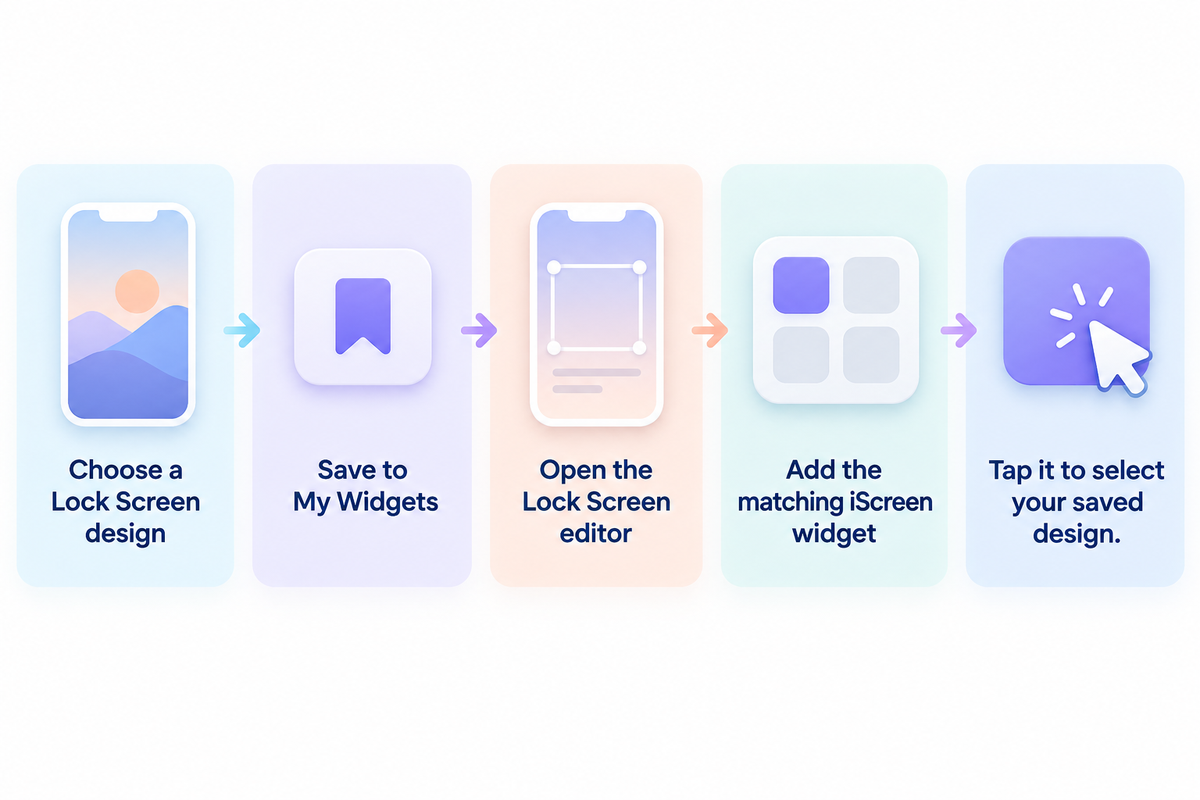
To add a compatible app’s widgets, tap Add Widgets in the editor, then select the app and widget size of your choice. The date line has a separate selection of inline widgets. A design made for your Home Screen won’t appear in either Lock Screen area: the app must offer a matching widget.
Pick an app you check often, like Weather or Calendar. Tap or drag a widget into the free space. If it doesn’t fit, remove an existing item with the minus button first (see Apple’s widget instructions).
In iScreen, save your design before going back to Apple’s editor, and then tap the widget to choose the design you saved (see Lock Screen widget instructions).
- Choose a compatible design. Open iScreen’s Discover section and find Lockscreen Widgets.
- Customize and save it. Set the available text or design options, then tap Save to My Widgets. Some designs use an ad unlock or premium access.
- Open Apple’s editor. Touch and hold the Lock Screen, choose Customize, and tap the widget area.
- Add iScreen. Find the app in the picker and choose the appropriate inline, circular or rectangular widget.
- Select your saved design. Tap the added widget, choose the saved item, then close the picker and tap Done.
You can add a custom name or short message in a design with that function. You can’t do this in the clock’s font selector. If the preview is correct in iScreen, but the wrong design appears outside of it, check the placed widget’s selection before rebuilding everything.
On the Lock Screen in iOS 26, the widgets row can be moved to the bottom. Keep the row above the controls if that makes it easier to access, or leave more space around the photo. The inline area is a separate choice. For more info on what to place in the widgets area, check out our Lock Screen widgets guide.
Choose between Depth Effect, Live Photos and spatial scenes
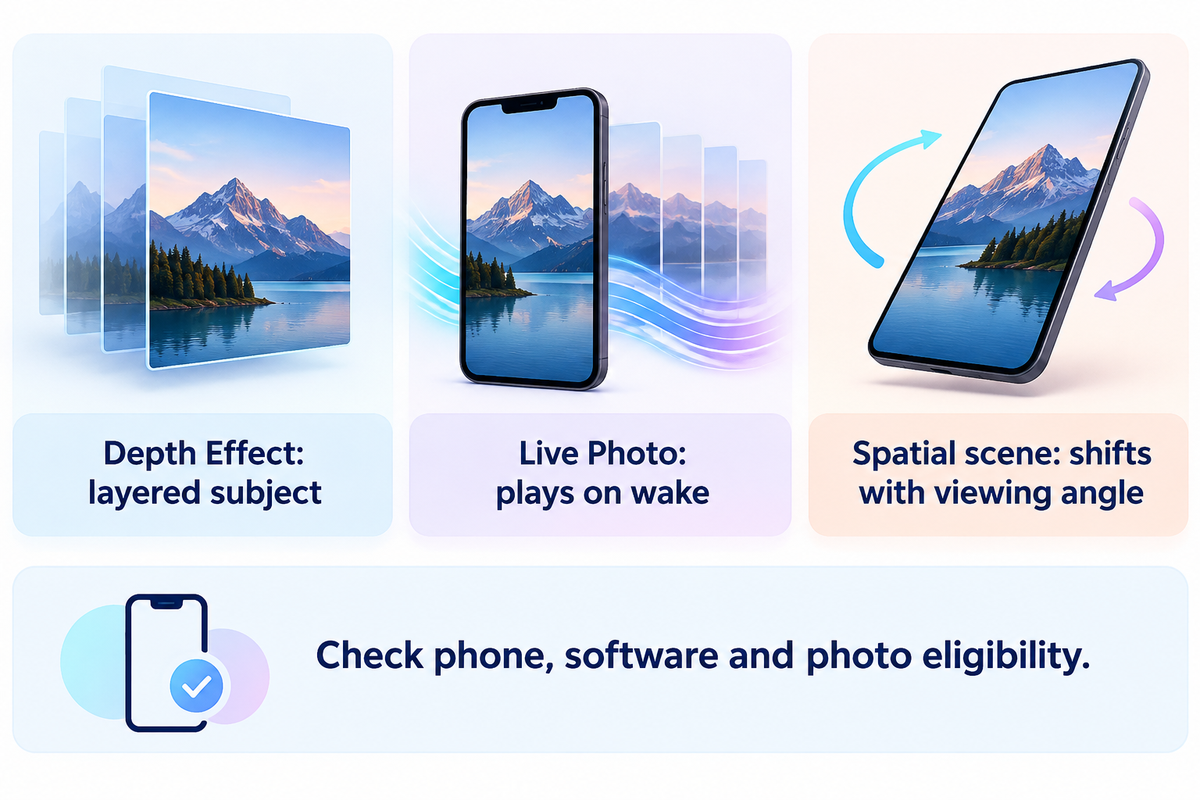
Spatial scenes need an iPhone 12 or later and a supported photo on iOS 26 or later. These add 3D movements. Depth Effect, on the other hand, layers a subject over the time display, and a compatible Live Photo plays when the phone wakes.
| Effect | What you see | What to check |
|---|---|---|
| Depth Effect | A layered subject-and-clock composition | The photo supports layering; reposition the subject if needed |
| Live Photo | A brief motion effect when the device wakes | Use a Live Photo that supports the motion conversion, then enable its playback control |
| Spatial scene | Depth and shifting perspective as you move the phone | Supported hardware, software and an eligible image; look for the spatial-effect button |
For a spatial effect, use a well-lit scene with the subject isolated from the background. A landscape also works. Even on supported phones, only certain photos work with the spatial effect, according to Apple.
For movement captured in the Photos app, try using a compatible Live Photo. For a still image with depth, look for a spatial scene. None of these techniques turn every photo into a continuously looping video.
Even if you save the image as a wallpaper pair, the spatial effect appears only on the Lock Screen. For motion as your main goal, check our live wallpaper guide.
Change the bottom controls and link a Focus
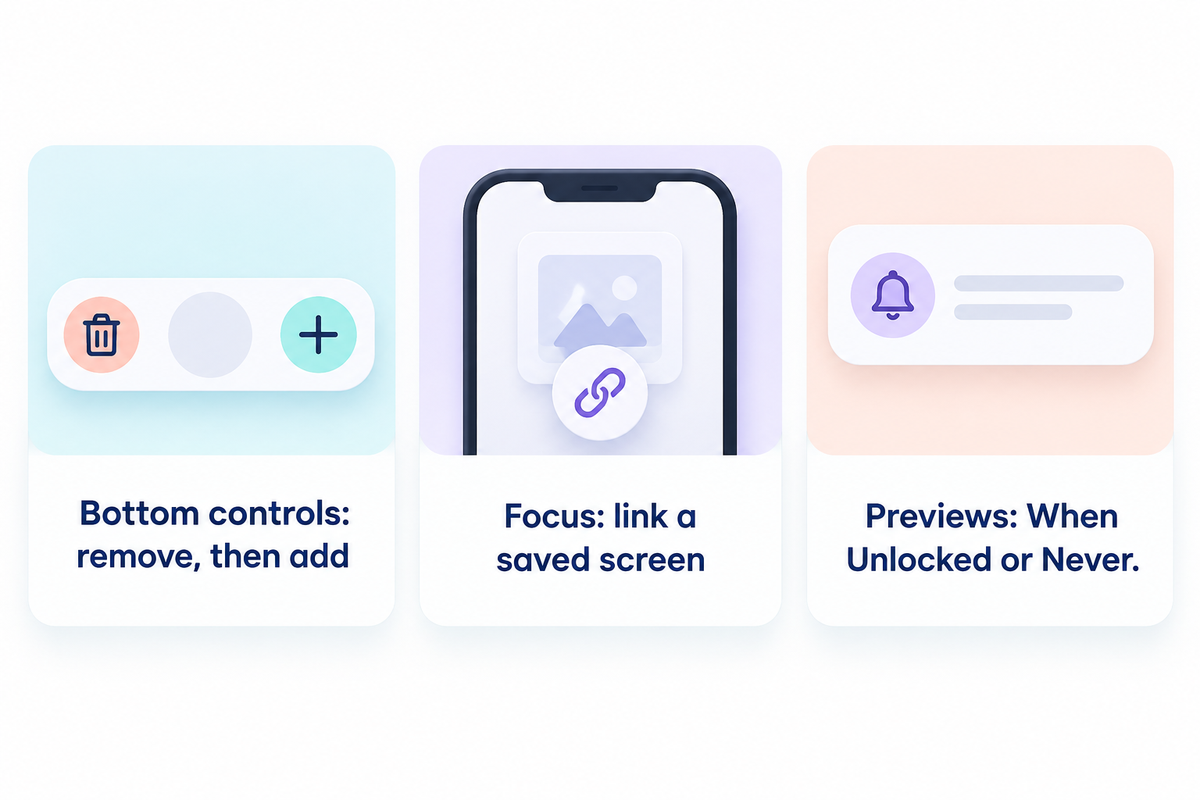
To replace a bottom control, enter Customize, tap the minus button on the existing control, then tap the plus button and select a replacement. These controls reside in a different region from widgets. Adding a shortcut here isn’t done via the widget picker.
To replace a flashlight button you often press accidentally, use the remove-then-add sequence in Apple’s current Lock Screen guide to replace it with another control, or leave that position empty. Removing a camera button doesn’t mean all routes to the camera have been disabled.
To link a Focus, return to the wallpaper gallery and tap Focus near the bottom of the screen. You can select a configured Focus such as Work or Sleep. Using that screen activates its linked Focus; turning on the linked Focus also brings up that screen.
Notification Previews have their own setting. Go to Settings → Notifications → Show Previews and select When Unlocked or Never to hide message text. Apple’s notification guide explains the app-specific overrides.
What can you customize for free?
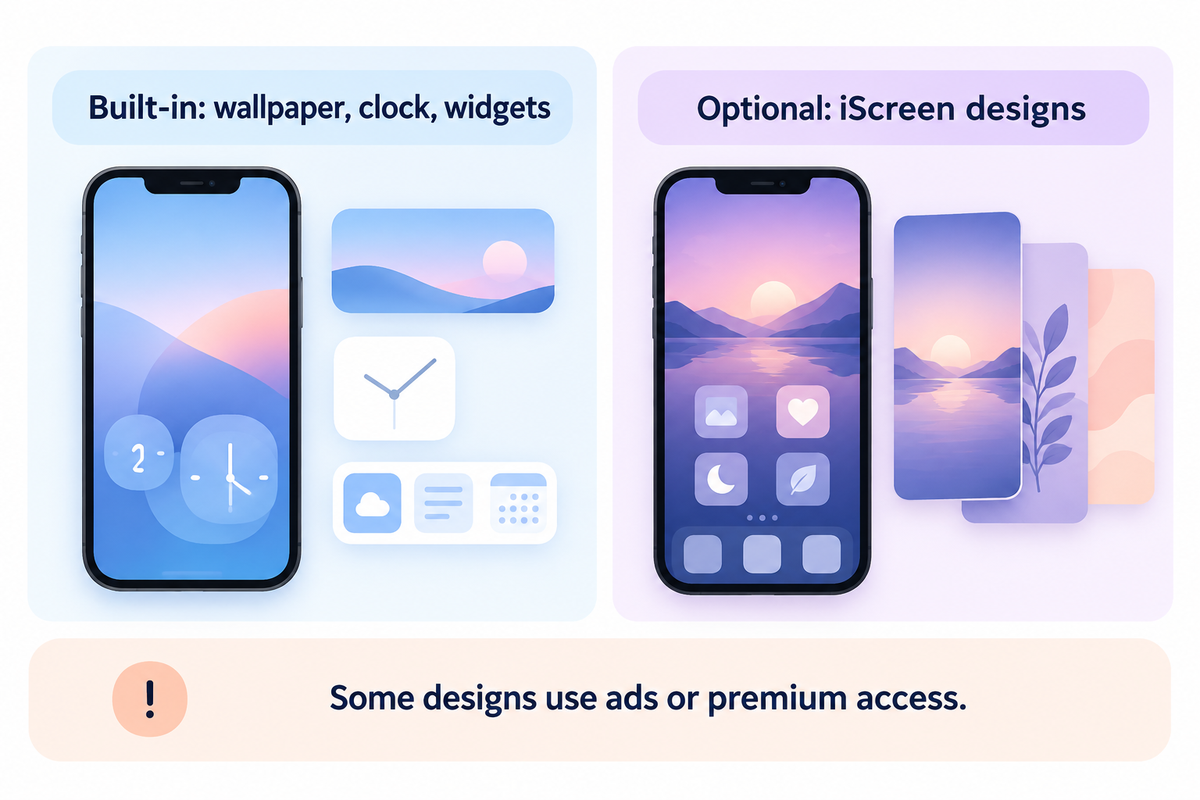
You can change the wallpaper, adjust the system clock and add available built-in widgets, without using a third-party customization app. iScreen is optional when you want its designs. A free download doesn’t mean all designs are free; some use ad unlocks or premium access.
A photo, solid clock color and calendar widget make a good starting point without a theme subscription. iScreen offers in-app purchases (iScreen App Store listing), so you can choose a design you can already access before building a whole look around it.
Fix missing options and finish with a readable layout
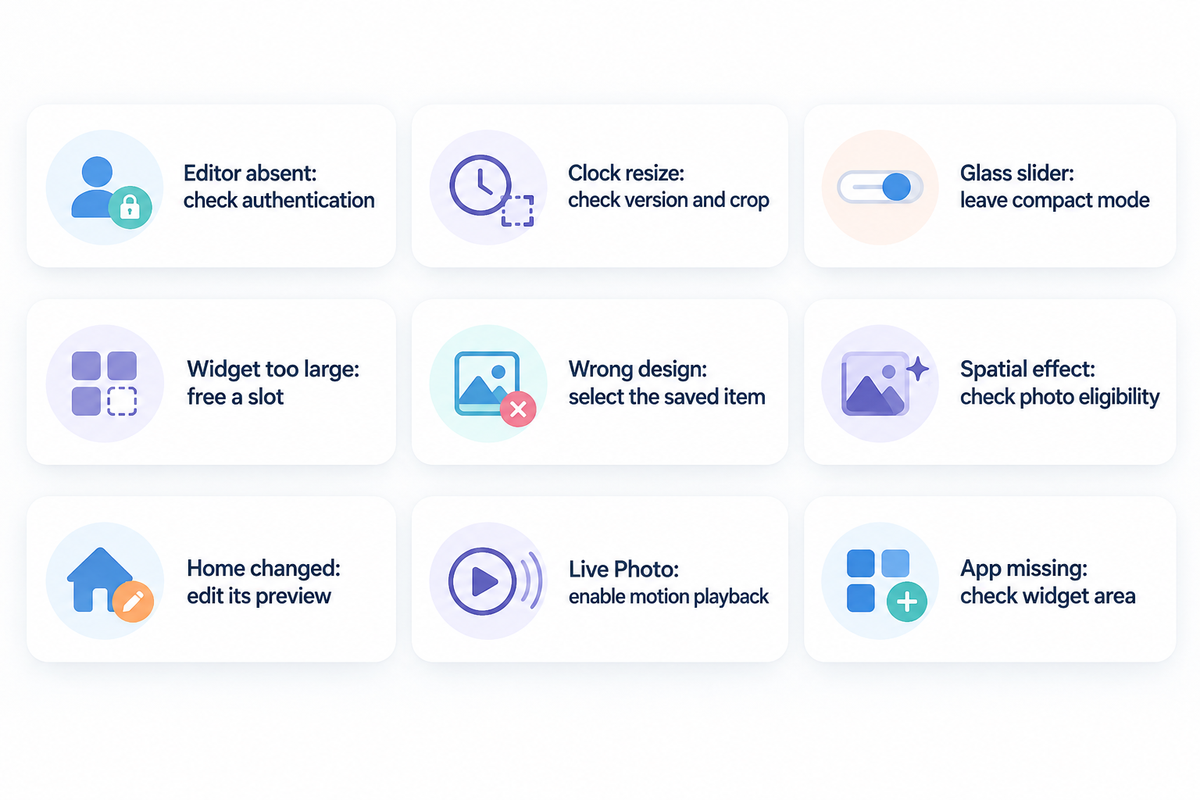
Missing options could belong to a different screen or vary with the versions and selected wallpaper. Check your editor, version and image before reinstalling an app (Apple’s customization instructions).
| Option type and symptom | Check first | Next action |
|---|---|---|
| Customize does not open | Authentication and the screen you are holding | Stay on the Lock Screen, hold again and enter your passcode |
| Clock resize handle | Software version and room above the photo subject | Try a less crowded crop or another wallpaper |
| Liquid Glass slider | Whether compact clock mode is active | Return to the full-size clock to use its available glass controls |
| A widget will not fit | Remaining space and selected size | Remove one existing widget or choose a smaller compatible size |
| Saved iScreen design | The design selected inside the placed widget | Tap the widget in Customize and select the saved item |
| Spatial-effect button | Phone, software and photo eligibility | Try a suggested spatial photo in Add New Wallpaper |
| Home Screen changed too | The wallpaper-pair save choice | Open Settings → Wallpaper and customize the Home Screen preview separately |
| Live Photo stays still | The selected photo and playback toggle | Select a compatible Live Photo, enable its motion control, then wake the phone |
| The app is absent from a widget area | Inline versus circular or rectangular widget support | Open the matching widget area; a Home Screen design cannot fill a Lock Screen slot |
A practical tip: lock the phone, then wake it normally. Check the time, check your next appointment, and see where the photo is cropped. Keep the calendar easy to spot in a schedule-first layout. For a photo-first layout, remove the widget blocking what you want to show.
Save a plain, readable layout alongside your decorative one. You can switch between saved screens without rebuilding the clock and widgets each time.
What changes with newer iOS versions?
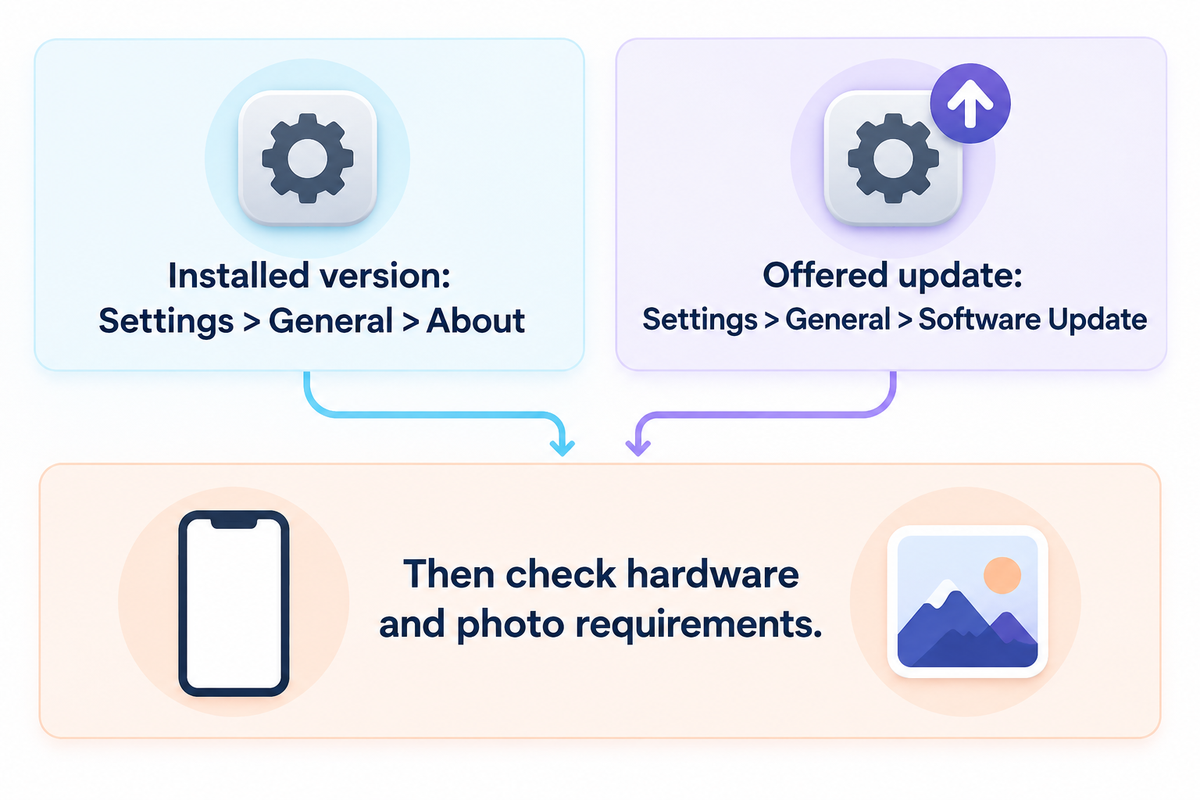
New versions can add clock styles, layout choices and photo effects, so an old tutorial can show different buttons. As checked on October 21, 2026, Apple’s security-releases page listed iOS 27.0.1 as the latest iOS release. Use Settings → General → Software Update to see the version offered to your device.
The latest iOS for one model may not be available for an older phone. Follow the instructions for the version shown in About, then check the feature’s hardware and photo conditions.
Frequently asked questions
Can I customize the Lock Screen on an iPhone 7?
You can change its wallpaper, but it does not have the iOS 16 Lock Screen editor.
Apple introduced the redesigned editor with iOS 16, whose release supported iPhone 8 and later. The iPhone 7 therefore doesn’t get that editor’s clock-font and Lock Screen widget controls. Installing a customization app doesn’t upgrade the operating system. On that phone, use the wallpaper settings available in its supported software instead.
How do I change my iPhone Lock Screen back to normal?
Choose a previously saved screen, or create a simple new one.
Touch and hold the Lock Screen, swipe to a saved layout you recognize, and tap it to apply it. If you no longer have that layout, create another using a plain wallpaper and your preferred clock style. Check whether the selected screen links to a Focus, because switching screens can also change which Focus is active.
Can I put my name on the Lock Screen?
Yes, through a compatible text widget or an image containing your name.
For an iScreen text widget, choose a Lock Screen design that supports your text, save it, and add the matching widget in Apple’s editor. Tap the placed widget to select your saved design. Keep the name short enough to fit the preview. The clock’s font controls change the appearance of the time; they don’t replace it with your name.
Can iOS 26 have moving wallpaper?
Yes, with supported motion effects.
A compatible Live Photo plays on wake. Spatial scenes move with your viewing angle. Neither is an endless video loop.
Can I remove the flashlight button?
Yes, on versions that support editing the bottom controls.
Open Customize and tap the minus button on the flashlight control. Leave the space empty or use the plus button to choose a replacement. This changes the lock display’s button, not the flashlight feature elsewhere on the phone.
For the older device cutoff, check Apple’s iOS 16 release announcement.
Ready to personalize your screen? Start with a picture from our aesthetic wallpaper ideas, then choose a clock color that stays readable over it.
References & Sources
- Create a custom iPhone Lock Screen Apple
- Change your iPhone wallpaper Apple
- iOS 26 Lock Screen customizations MacRumors
- iOS 27 compact clock MacRumors
- Add and edit widgets Apple
- Change notification settings Apple
- iScreen product listing and in-app purchases App Store, developer-supplied information
- Apple security releases Apple
- iOS 16 availability Apple
