.png)
Lock Screen Widgets Guide: Best Widgets for Your iPhone Lock Screen
Lock screen widgets turn the screen you glance at most into a quick dashboard for weather, your calendar, battery levels, and more, without unlocking your iPhone. They’ve been part of iOS since iOS 16, and they’re easily one of the most useful customization features Apple has shipped. Yet most people add two or three widgets, never touch them again, and miss what these tiny tiles can actually do.
This guide covers what lock screen widgets are, how to add and edit them on iPhone, which ones earn a spot, the apps that unlock custom design, and what changed in iOS 26. We’ll also share a simple rule for deciding what to keep, because the lock screen give you far fewer slots than you think.
- Lock screen widgets require iOS 16 or later.
- You get a small inline slot above the clock plus one widget row that holds up to four small widgets (fewer if you pick larger ones).
- They’re glance-first: tap one and it open the app, they aren’t the tap-to-toggle interactive widgets you may know from the Home Screen.
- iOS 26 lets you place widgets at the top or bottom of the screen and redesigns the clock with Liquid Glass.
What Are Lock Screen Widgets?
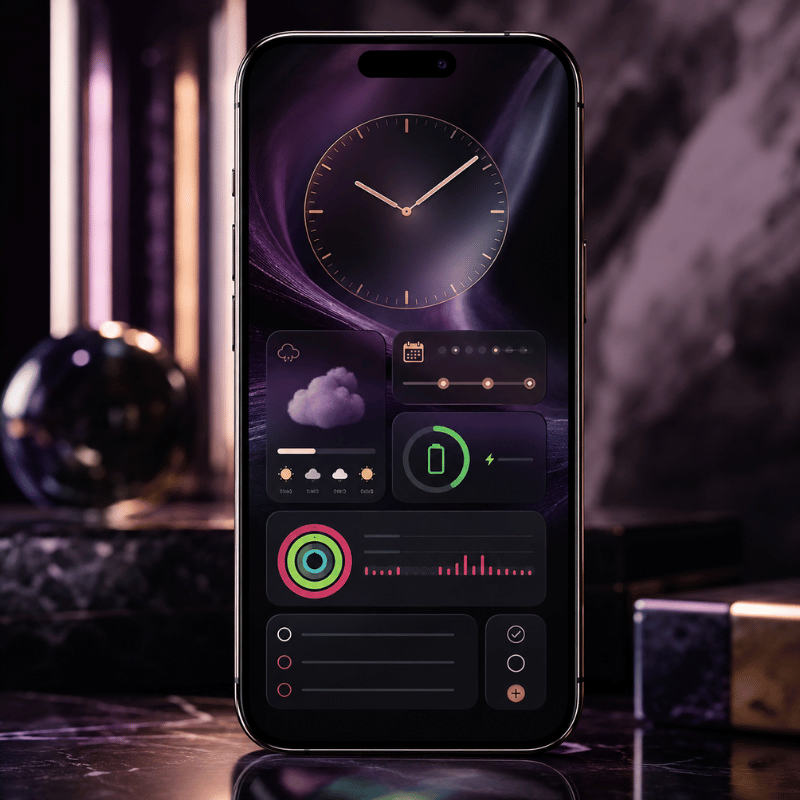
Lock screen widgets are small, glanceable tiles that sit on your iPhone’s Lock Screen and show timely information from your apps, temperature, air quality, battery level, upcoming calendar events, and similar at-a-glance data. Apple introduced them with iOS 16 in 2022, and they live in the strip directly below the clock, plus a single inline slot in the date line above it.
It helps to separate three things people lump together. Lock Screen widgets appear on the screen you see before unlocking. Home Screen widgets sit among your app icons and come in small, medium, and large sizes. Today View widgets appear when you swipe right from either screen. They draw from the same apps, but they’re configured separately, adding a weather widget to your Home Screen doesn’t put one on your Lock Screen. If you’re building a complete look, our guide to iPhone home screen ideas pairs naturally with this one.
One detail trips people up: lock screen widgets are designed for reading, not doing. Tap one and it open the related app (after Face ID or your passcode). That’s different from the interactive Home Screen widgets Apple expanded in iOS 18, which can toggle a setting or check off a reminder without opening anything. On the Lock Screen, the job is information at a glance, which, as we’ll see, should shape every widget you choose.
How to Add Lock Screen Widgets on iPhone
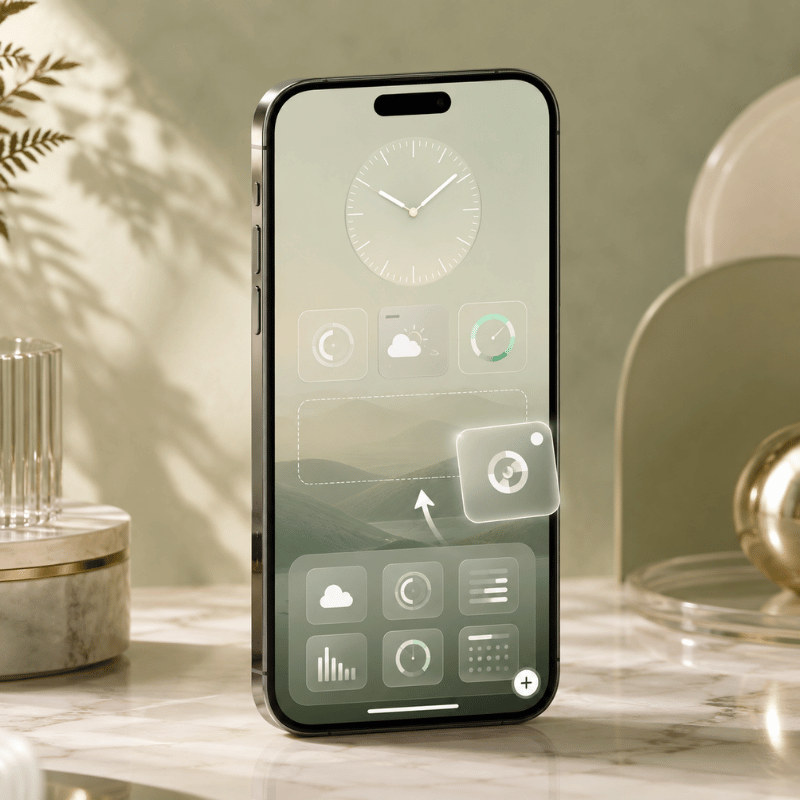
Adding widgets takes about thirty seconds once you know where Apple hid the controls. Your entry point is the Customize button, which only appears when you long-press the Lock Screen itself.
- Wake your iPhone and touch and hold the Lock Screen until the Customize button appears, then tap Customize.
- Tap Lock Screen (the left preview), then tap the widget area just below the clock.
- Tap Add Widgets.
- Tap or drag the widgets you want into the row.
- Tap the close button, then tap Done.
These steps follow Apple’s official walkthrough for adding and editing widgets on iPhone. To edit a widget after placing it, say, point the Weather widget at a different city, long-press it during customization and choose the option you want. To swap one out, remove it first, which brings us to the question almost everyone asks next.
Q: Can I add widgets to my lock screen?
Yes, as long as your iPhone runs iOS 16 or later, that covers the iPhone 8 and newer. If you don’t see a Customize button when you long-press the Lock Screen, your iPhone is on an older version of iOS, or you’re pressing the Home Screen by mistake. Open Settings, go to General, then Software Update, and install the latest version. Once you’re on iOS 16 or higher, the widget row appears in the Lock Screen editor exactly as described above.
You can build a different Lock Screen for each Focus mode — one for Work with your calendar, one for Personal with your activity rings. Long-press, swipe to a blank Lock Screen, tap the plus, and link it to a Focus. Each one keeps its own set of widgets.
The 4-Slot Rule: Budgeting Your Lock Screen
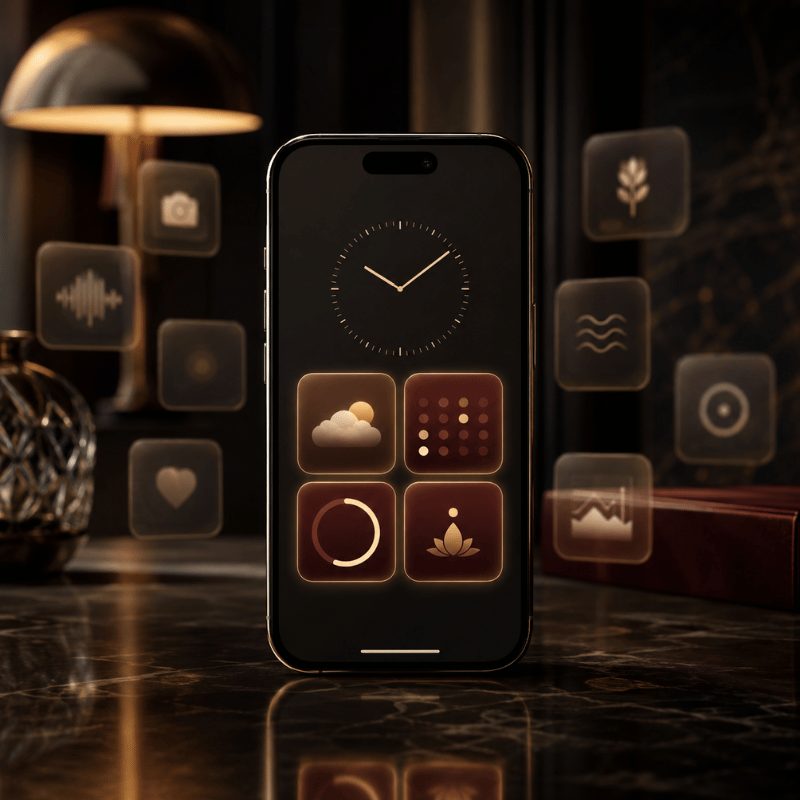
Here’s the part most guides skip. The Lock Screen doesn’t give you unlimited room. Apple’s own instructions admit it plainly: “If there’s not enough room for a new widget, you can tap the Remove button to remove a widget and make room for the one you want to add.” In practice you get one small inline slot above the clock and a single row below it that fits about four small widgets, and a larger rectangular widget eats two of those slots. iPhone users have complained about this for years; one popular thread on Reddit pointed out that “some widgets are twice the size leaving room for only two widgets.”
So treat those slots like a budget. We call it the 4-Slot Rule: you’ve roughly four units of space, and every widget should earn its place by answering one questiondoes this save me an unlock? A weather tile that stops you opening the app is worth a slot, while a widget that only look nice but tells you nothing you would actually check is a slot wasted. And because the Lock Screen can’t stack widgets the way the Home Screen can (widget stacks are a Home Screen and Today View feature only), you can’t cheat the budget, what you place is what you get.
Most people decorate instead of decide. People fill all four slots with widgets they already check obsessively, the same apps they open first thing anyway, and gain nothing. The Reddit crowd that obsesses over setups keeps asking each other a sharper question: “what widgets do you actually tap every day?” That’s the right filter. Spend your four slots on glance-value, not vanity.
| If your day revolves around… | Spend your slots on | Why it earns the spot |
|---|---|---|
| Commuting | Weather, Calendar, a transit or Maps widget | Answers “do I need a coat and am I late?” before you leave |
| Parenting / family | Calendar, Reminders, a shared countdown | Keeps pickups, chores, and events one glance away |
| Fitness | Activity rings, Battery, World Clock | Tracks progress and device readiness mid-workout |
| A minimalist look | One Weather tile, nothing else | Maximum calm; the wallpaper stays the star |
Best Lock Screen Widgets Worth a Slot
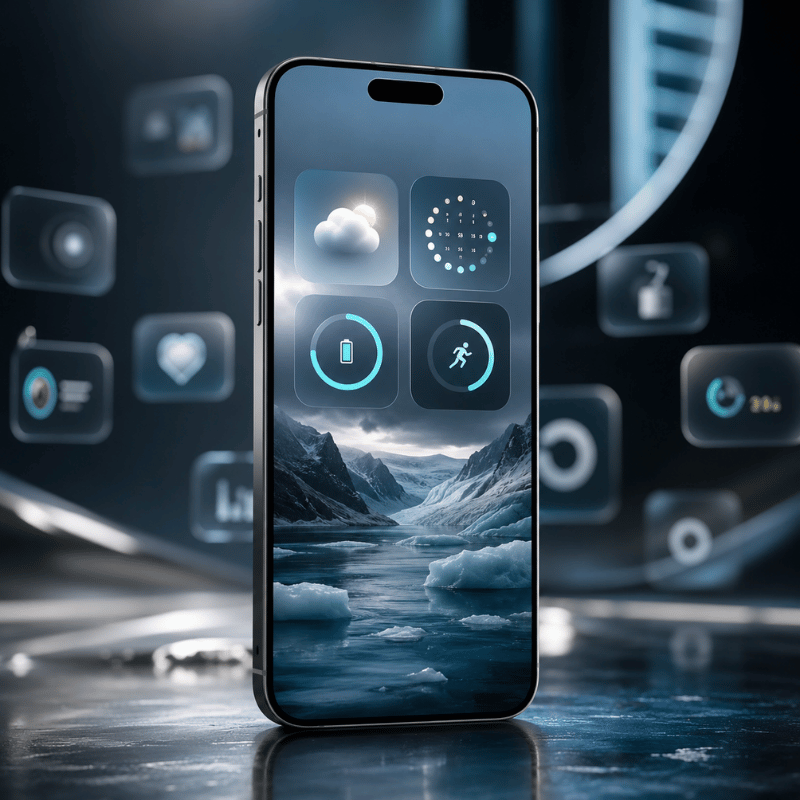
With four slots to spend, these are the widgets that consistently earn their keep. Apple’s built-in options cover most needs, and tech reviewers repeatedly land on the same shortlist of genuinely useful tiles.
Q: What are good widgets to have on a lock screen?
Good lock screen widgets replace an unlock with a glance. Weather and temperature top almost every list because checking the forecast is the single most common reason people wake their phone. Calendar comes next, your next event, right there. Battery (including connected AirPods and Apple Watch) saves a trip into Settings. A World Clock tile is invaluable if you work across time zones, and Activity rings keep fitness goals visible. Spot the pattern: pick widgets that answer a question you ask many times a day.
- ✔Weathertemperature, conditions, or precipitation; the highest-value glance for most people.
- ✔Calendaryour next event or the date; long-press to choose which calendar it shows.
- ✔BatteryiPhone plus connected AirPods and Apple Watch in one tile.
- ✔World Clocka second time zone for remote teams and travel.
- ✔Activity / Fitnessyour rings, so closing them stays top of mind.
- ✔Remindersthe next due task without opening the app.
Want something more personal than a battery readout? A date countdown is a favorite for trips, birthdays, and launches, we go deep on that in our countdown widget guide, and a tailored weather widget can look far better than the stock one. Couples often add a shared status tile too; if that’s you, our couple widgets are built for exactly that.
Best Lock Screen Widget Apps for iPhone
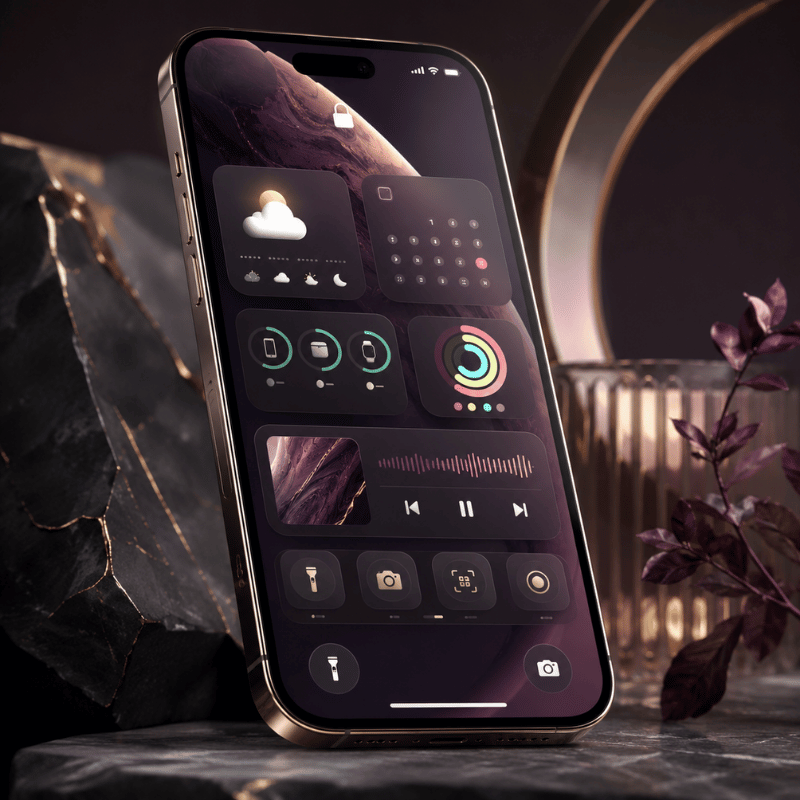
Apple’s built-in widgets are functional but plain. If you want custom fonts, photo tiles, color-matched designs, or data the stock widgets don’t offer, a third-party app fills the gap. These apps add their own widgets to the same Lock Screen widget gallery, once installed, they show up alongside Apple’s options when you tap Add Widgets.
Q: What apps have lock screen widgets?
Plenty of apps offer them, and the category has grown crowded since iOS 16. When you’re evaluating one, look past the screenshots and check three things: does it offer the specific widget you want (countdown, photo, quote, health), can you actually match it to your wallpaper, and does it run without nagging you to upgrade every time you open it? A good widget app should feel like part of iOS, not a billboard.
That design-first standard is exactly what we built iScreen’s iPhone widget app around, color-matched widgets, photo and text tiles, and themes that span your Lock Screen, Home Screen, and StandBy mode so the whole device look intentional. If you would rather start from a finished look than build one tile at a time, our lock screen customization templates give you a coordinated set in a couple of taps.
“The widgets people keep are never the flashiest ones, they are the ones that answer a question fast. We design around that: a tile should read clearly in the half-second before you unlock, or it does not deserve the slot.”
How to Customize and Style Your Lock Screen Widgets
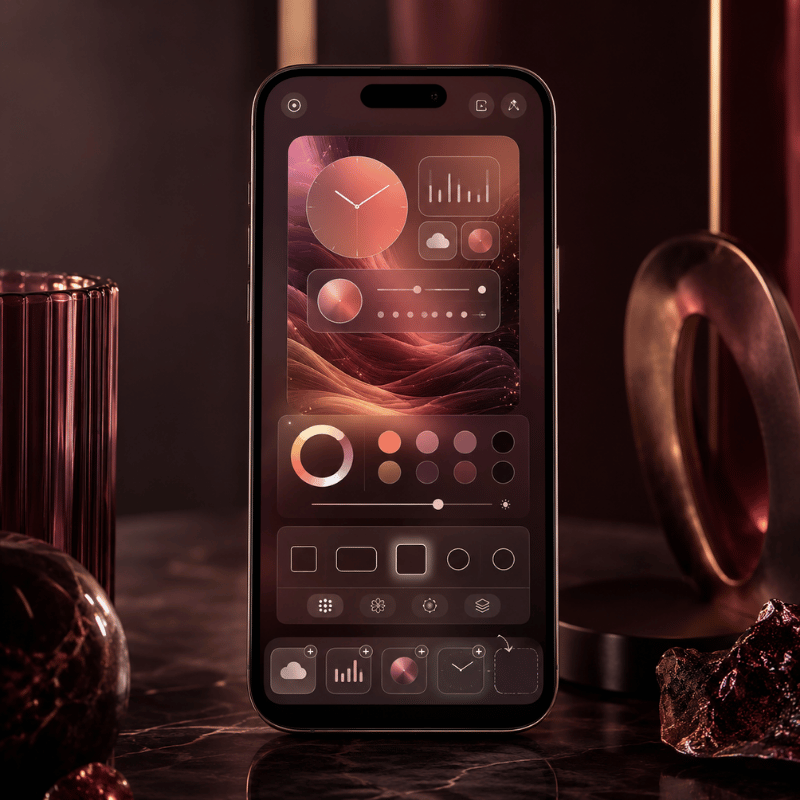
A great Lock Screen isn’t just useful widgets, it’s widgets that look like they belong with your wallpaper. Treat the whole screen as one composition. Start with the wallpaper, pull two or three colors from it, and choose widgets and a clock tint that echo those colors. A cohesive palette read as “designed,” while a clash of stock blues and greens reads as default.
One discipline keep it tidy: pick a single accent color and let everything support it. If your wallpaper is a warm sunset, a single amber clock tint plus neutral widget tiles looks deliberate; five different widget colors looks like noise. Photo wallpapers also support a depth effect, where the subject can rise in front of the clock for a layered look. When you want to go further than tinting native tiles, a custom widget app lets you set fonts and backgrounds directly, our walkthrough on how to customize your iPhone covers the full workflow.
Build the wallpaper and widgets as a matched set, then duplicate that Lock Screen and tweak the copy for a season or mood. You keep your layout and only change the look — far faster than rebuilding from scratch.
Lock Screen Widgets on Android
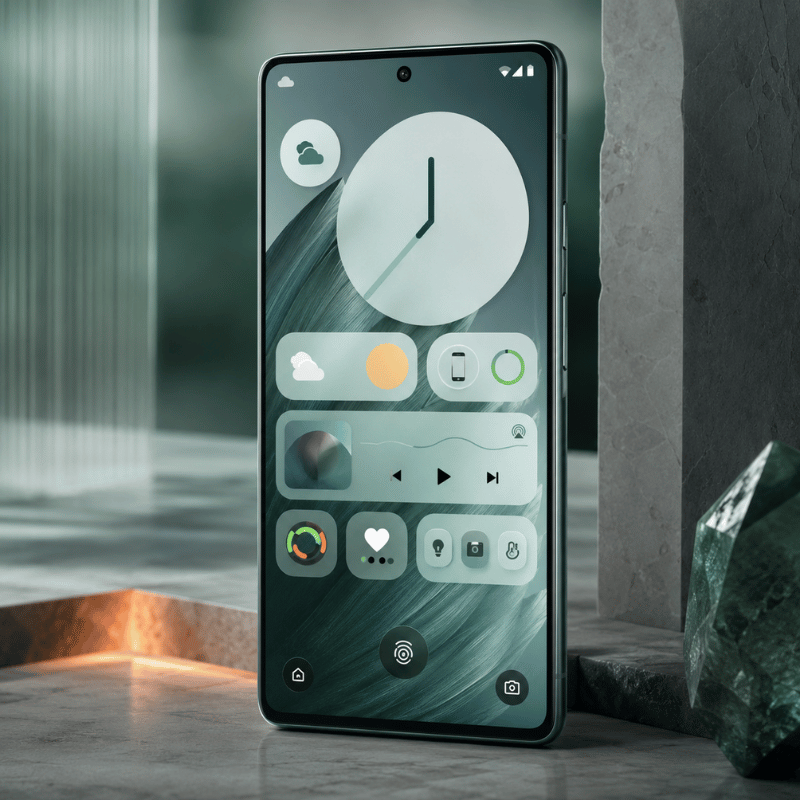
If you’re on Android, the path is less consistent than on iPhone. For years, true lock screen widgets came and went depending on your manufacturer and Android version, and many phones offered only an “At a Glance” strip plus clock styles rather than a full widget picker. Google has been bringing dedicated lock screen widgets back with recent Android releases, starting on tablets and expanding from there, so the exact steps depend on your device and software version. Check your phone’s Settings under Lock Screen or Wallpaper & style for a widgets option; if it’s missing, a third-party lock screen app from the Play Store can add similar tiles. Either way, the same 4-Slot Rule applies, limited space, so spend it on glances that matter.
Troubleshooting: Widgets Not Showing or Won’t Change
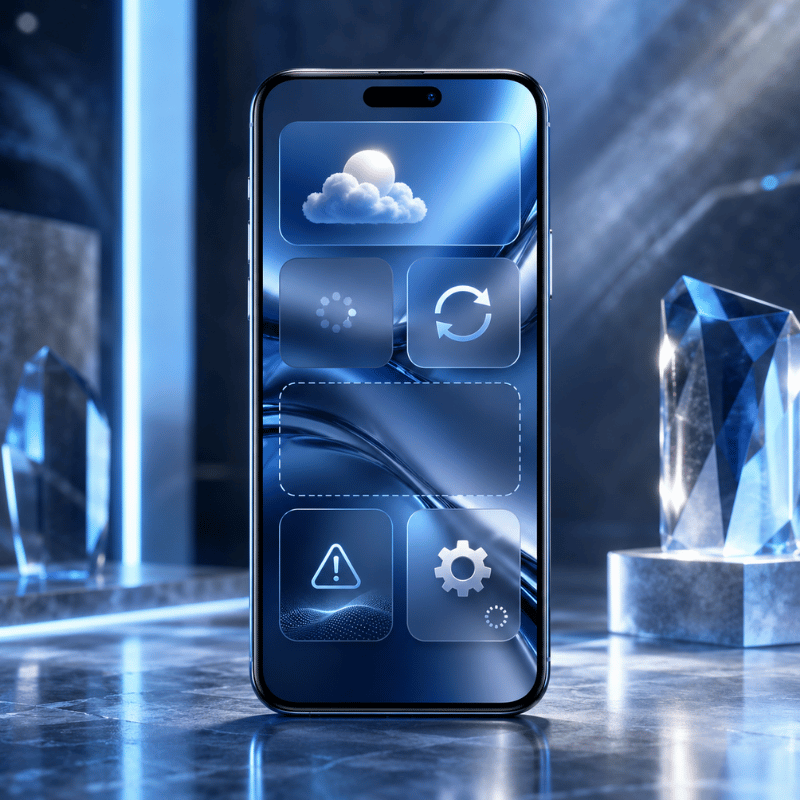
When lock screen widgets misbehave, the cause is almost always one of a short list. Run through these before assuming anything is broken.
- No Customize button: you’re on iOS 15 or earlier, or pressing the Home Screen, update iOS and long-press the Lock Screen.
- A widget is missing from the list: its app isn’t installed, or the app doesn’t offer a Lock Screen widget. Install or update the app first.
- “Not enough room”: the row is full, remove a widget (or swap a large one for two small ones) to make space.
- A widget shows stale data: open the app once so it can refresh, and confirm Background App Refresh is on in Settings.
- Changes won’t stick: make sure you tapped Done after Customize; restart the iPhone if the editor froze.
On Android, the equivalent first step is to long-press the lock screen or open Settings to find the widget or “At a Glance” controls; if there’s no option at all, your version simply doesn’t support it natively and a Play Store app is the workaround.
What’s New and What’s Next: iOS 26 and the Lock Screen
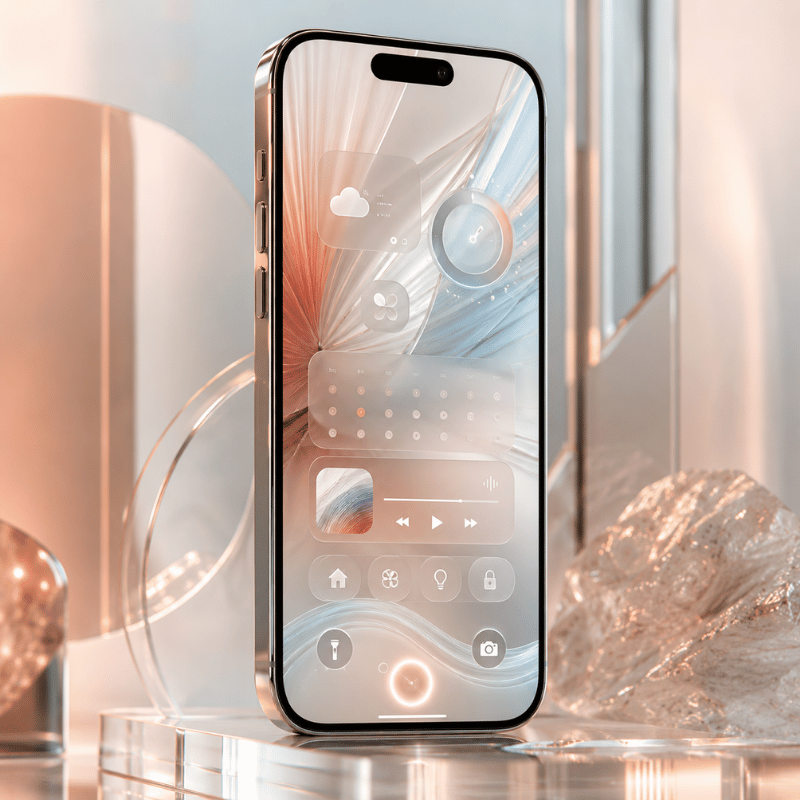
The Lock Screen got its biggest visual update in years in 2025. Apple introduced its Liquid Glass design in June 2025, and the Lock Screen is where you notice it first. The control buttons and clock take on a floating, frosted-glass appearance, and when you tilt the iPhone, light glints across the glass. Notifications adopt the same translucent look so your wallpaper shows through, and the design carries into Control Center too.
For widgets specifically, the change that matter is placement. According to MacRumors’ rundown of iOS 26 Lock Screen features, widgets can now sit at the top of the display under the time or at the bottom, in earlier versions they could only go up top. With the new adaptive clock, which you can drag to resize, widgets also shift automatically so the subject of a photo wallpaper stays visible. Spatial Scenes turn ordinary 2D photos into layered 3D wallpapers that move as you tilt the phone, giving your widgets a more dynamic backdrop.
The practical takeaway: if you upgrade to iOS 26, revisit your Lock Screen. Try moving your widget row to the bottom if a photo subject keep getting covered, and experiment with the resizable Glass clock to free up space. The 4-Slot Rule still holds, you don’t get more widgets, you get more control over where they live. For 2026, expect Apple to keep investing in glanceable surfaces across the Lock Screen, StandBy, and Dynamic Island, so a tidy widget setup now will only pay off more later.
Frequently Asked Questions
Q: How many widgets can you have on the lock screen?
View Answer
Q: Are lock screen widgets interactive?
View Answer
Q: Why can’t I add widgets to my lock screen?
View Answer
Q: Do lock screen widgets drain the battery?
View Answer
Q: How do I change widgets on an Android lock screen?
View Answer
Q: What iOS version do I need for lock screen widgets?
View Answer
Color-matched widgets, photo tiles, and full themes for your Lock Screen, Home Screen, and StandBy, designed to read in a glance.
Just browsing? See lock screen ideas first.
Why We Wrote This
We build iPhone customization tools, so we spend our days watching which lock screen widgets people keep and which they quietly delete. The 4-Slot Rule in this guide come from that pattern: the tiles that survive are the ones that save an unlock. Every step here was checked against Apple’s current documentation and the iOS 26 changes shipped in 2025.
-1.png)