
.png)
Gradient Wallpaper iPhone Guide: Six Color Pairings
A blue-to-teal background can look lovely in Photos, then put its brightest patch directly behind your clock. There’s more to choosing the colors than that. The direction of the fade and the crop and text already on your screen determine whether the finished layout feels calm or awkward.
Gradient wallpaper for iPhone blends colors across the screen. Start with navy and teal for light text, or cream and lilac for dark text. Place a contrasting area behind the clock, then set the Home Screen separately if its widgets need a quieter background.
- A dark background can still hide dark text.
- The Lock Screen and Home Screen can use different treatments.
- Image dimensions and smooth color transitions are separate quality checks.
Six gradient wallpaper color pairings for iPhone
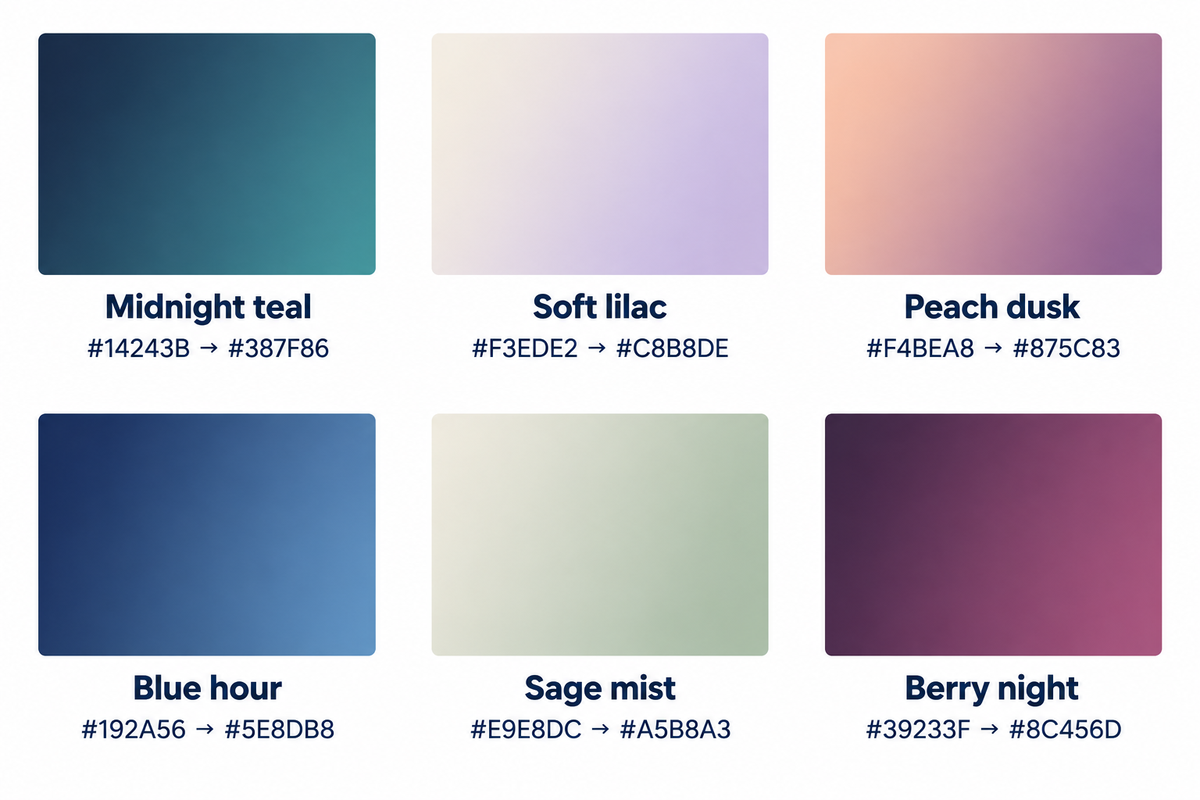
Start with navy and teal if your clock is pale, or cream and lilac if you prefer dark lettering. Both of these color combinations give you a good place to position text. The six pairs below are starting designs: choose the mood first, then move the lighter or darker area to suit your layout.
| Pair | Color stops | Starting layout |
|---|---|---|
| Midnight teal | Navy #14243B → teal #387F86 | Keep navy behind a light clock; let teal gather lower down. |
| Soft lilac | Cream #F3EDE2 → lilac #C8B8DE | Put dark lettering over the cream area. |
| Peach dusk | Peach #F4BEA8 → mauve #875C83 | Try a diagonal fade, with pale text over the mauve corner. |
| Blue hour | Ink #192A56 → blue #5E8DB8 | Keep the upper clock area in ink; use blue near the bottom. |
| Sage mist | Ivory #E9E8DC → sage #A5B8A3 | Use dark text and a gentle fade behind sparse widgets. |
| Berry night | Plum #39233F → berry #8C456D | Place light text over plum; keep berry beside the widget column. |
Hex codes specify the source colors when you make your own file. They aren’t settings you must enter in Apple’s wallpaper picker. A pale pair can feel soft without being washed out; a darker pair can add depth without a bright central glow. For more style directions, browse our aesthetic iPhone wallpaper ideas.
Place light and dark areas around your text
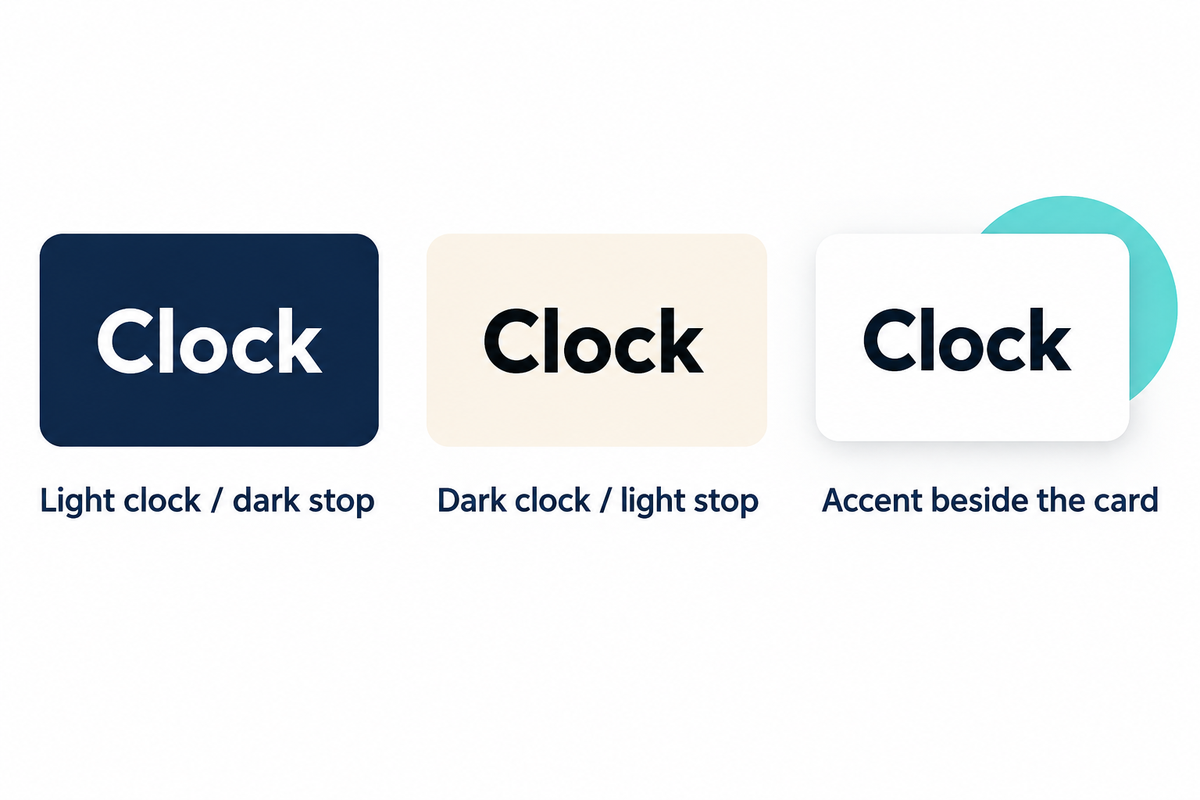
If your text is light, you should have a darker area behind it; if your text is dark, you should have a lighter area behind it. The relevant area is the one immediately behind the letters, not the average color of the whole photo. A fade that crosses through the clock can change contrast halfway across a word, even when both ends look attractive.
Apple’s color guidance makes the underlying problem clear:
Avoid using colors that make it hard to perceive content in your app.
Color-Stop Placement Map
| What is on screen? | Try this placement | Change it when… |
|---|---|---|
| Light clock near the top | Dark stop behind the clock | A pale edge crosses the digits. |
| Dark clock near the top | Light stop behind the clock | A dark corner touches the lettering. |
| Light labels across the app grid | Broad, darker middle | Labels disappear over the bright center. |
| Dark text on a clear widget | Paler region under that widget | The widget overlaps a dark stop. |
| Widget with its own opaque card | Place the accent beside the card | The card and wallpaper compete visually. |
| Large colorful app icons | Low-contrast fade behind the grid | The background draws attention before the icons. |
| Mostly empty lower screen | Put the stronger color low down | New widgets occupy that space. |
| Crop shifts the fade | Reposition before saving | The preview moves the contrast boundary. |
| No useful crop fits | Choose a wider calm area or solid fill | Moving the image fixes one label but hides another. |
For midnight teal, place the navy region behind the white clock and let teal flow toward the lower right corner. With a black clock, the cream region of soft lilac is probably the better starting point. W3C’s contrast examples use both light-on-dark and dark-on-light arrangements. You can judge the final text, including any outlines and widget backings, in the wallpaper preview.
Dark gradient wallpaper or a solid background?
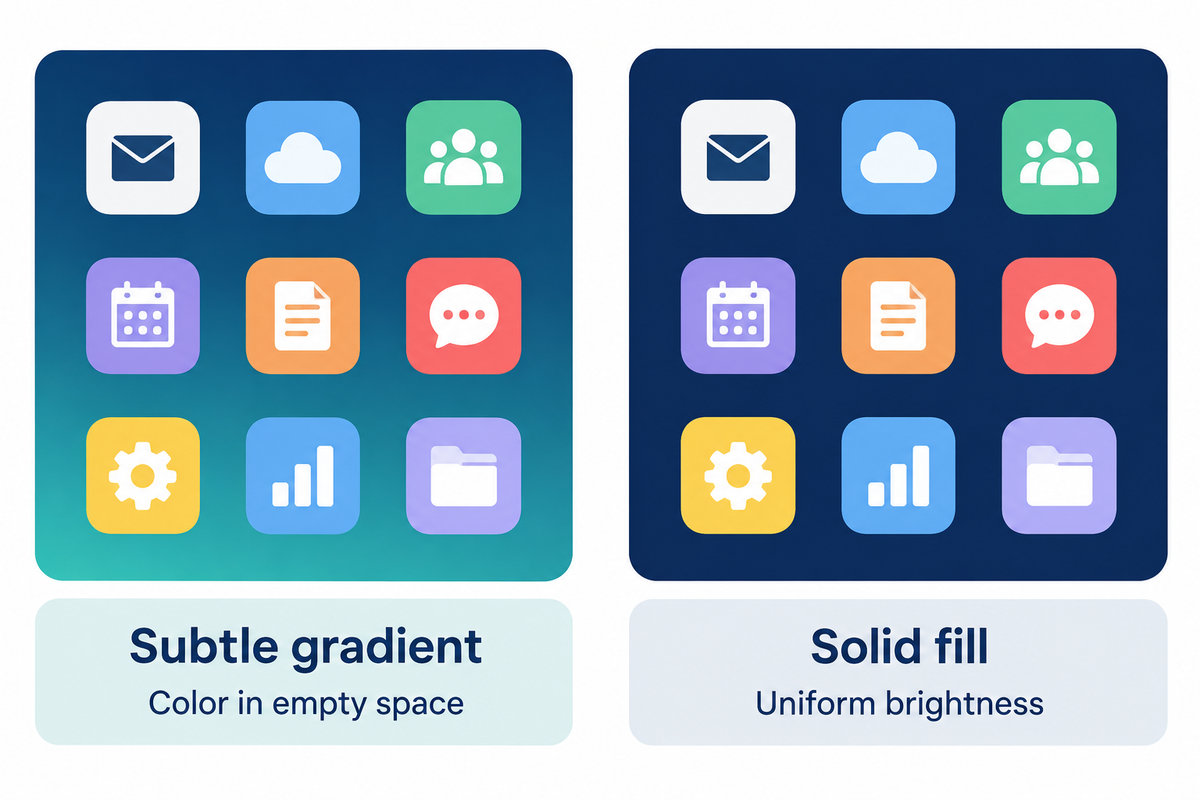
A solid background is a good starting point for a crowded Home Screen because its luminance is uniform. A dark gradient wallpaper adds a subdued color fade across most of the Home Screen. A solid background works if text spans the entire width of the screen, and a gradient works if there’s ample space for an accent.
- Adds color without a detailed scene.
- Gives empty space a focal area.
- Needs care where the fade crosses labels.
- Keeps the background brightness uniform.
- Leaves attention on apps and widgets.
- Still needs contrast with the chosen text.
An example in dark-on-dark from W3C describes text disappearing into the background. Nor should we rely on battery savings to choose our palette. The Purdue study found brightness-dependent results in Android apps; it didn’t test iPhone gradient wallpapers.
Make a simple gradient with iPhone wallpaper settings
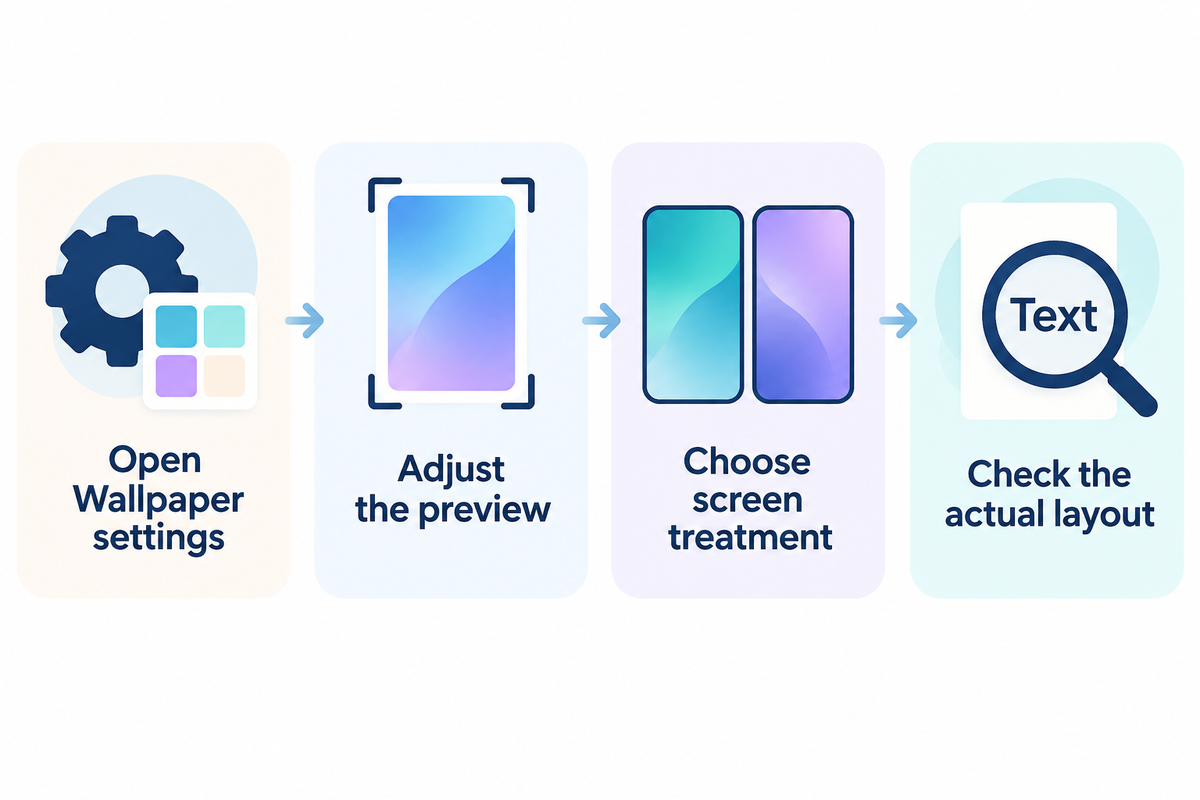
How do I make a gradient wallpaper on iPhone?
You can find the starting point in Settings > Wallpaper > Add New Wallpaper > Color. You can preview different styles. To customize the Home Screen, choose your existing wallpaper, and look for its gradient option. You can save a gradient image to Photos and use it as a photo wallpaper.
- Open Wallpaper settings. Tap Add New Wallpaper and choose Color for the built-in route, or Photos for a saved design.
- Adjust the preview. Set the available color and style controls; with a photo, position the fade before saving.
- Choose the screen treatment. Tap Add, then Set as Wallpaper Pair to use the selection on both screens, or Customize Home Screen for a separate background.
- Check the actual layout. Return to the Lock Screen and Home Screen to inspect the clock, labels and widgets together.
Apple’s wallpaper instructions include Color and the pair-versus-separate choice. The Home Screen Gradient label appears in 9to5Mac’s iOS 16 walkthrough; older screenshots may differ from your menus. For changing the clock and widgets beyond the background, see our Lock Screen customization guide.
Save a sharp gradient without paying for a wallpaper app
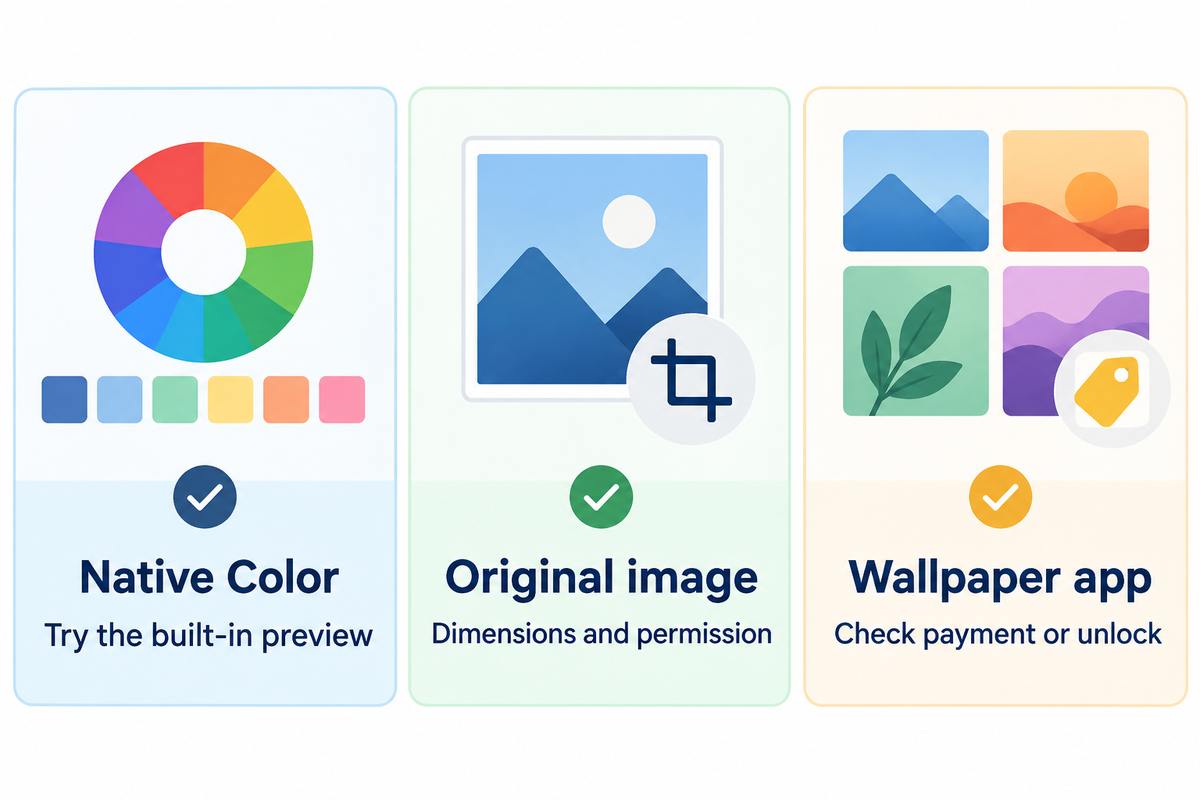
You can start with Apple’s built-in Color choices for free. For a particular blend, use the creator’s original image instead of the preview screenshot. Check the download or export terms and conditions to see if you can browse phone wallpapers or have permission to save a particular design. The two can be separate.
An image route without the app gives you a chance to edit individual images. iDownloadBlog’s AR72014 gradient collection provides direct downloads to originals. For a particular image, open its download link, not the gallery’s thumbnails. Most of the images in the collection were made for older iPhones, so you may want to check the image dimensions, and crop for your model.
Source-to-Screen Choice Table
| Route | What you control | Before spending money |
|---|---|---|
| Native Color | Available system colors and styles | Try the built-in preview first; no third-party app purchase is needed. |
| Original image | File choice and wallpaper crop | Check dimensions and personal-use permission at the download source. |
| Wallpaper app | The designs and export options it offers | Check whether that design needs a subscription, payment or unlock. |
What ratio should an iPhone wallpaper be?
Use your model’s portrait proportions: for iPhone 13, start with a 1170 × 2532 canvas based on Apple’s published display resolution. Allow room to reposition the fade around the clock. Check the dimensions for your particular model before exporting a custom image, especially when you move a design between phones.
Crop presets are available in Photos including 9:16 and Wallpaper. Preserve the original before cropping and check the wallpaper preview afterward. Images labeled “4K” can still have a poorly positioned fade or look uneven after compression.
Match the background to your widgets
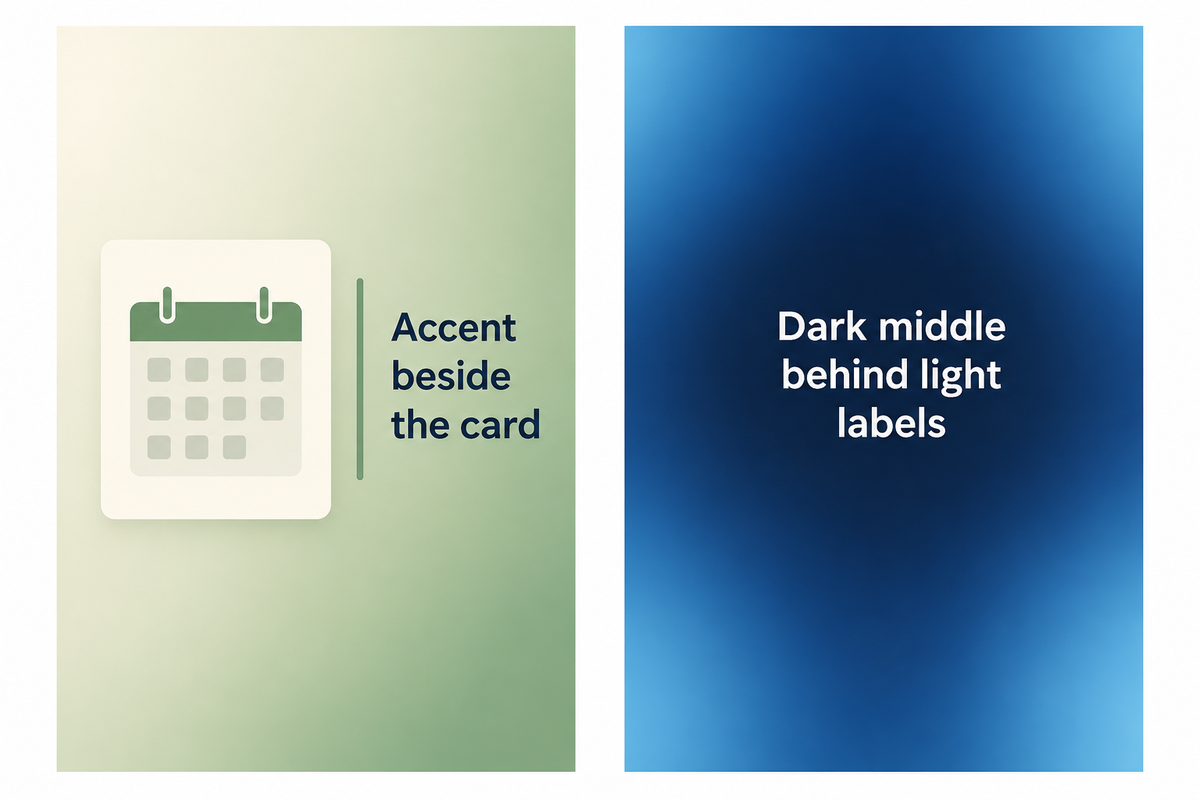
Decide which widgets you want to keep and pick a background. Use the Sage pair and place its strongest color next to the calendar card. With small light labels over the wallpaper, start with the darker middle of the Blue hour palette. Keep the app grid fixed while comparing both looks.
Our iScreen wallpaper collection is where you can see colors and styles. For a more coordinated layout, our matching phone-theme guide takes a wider perspective. Applying the wallpaper and rearranging widgets are two different steps. A new background doesn’t always mean widgets get recolored.
Apple’s Home Screen customization guide is a good resource to learn how to control widgets. However, keep in mind that widget choices differ among apps. If your Home Screen already has a strong, dominant widget, like a photo widget, consider using a simple, lower-contrast fade to create more space and give it a softer look; adding a strong accent makes the layout harder to read.
Fix blur, banding and awkward cropping
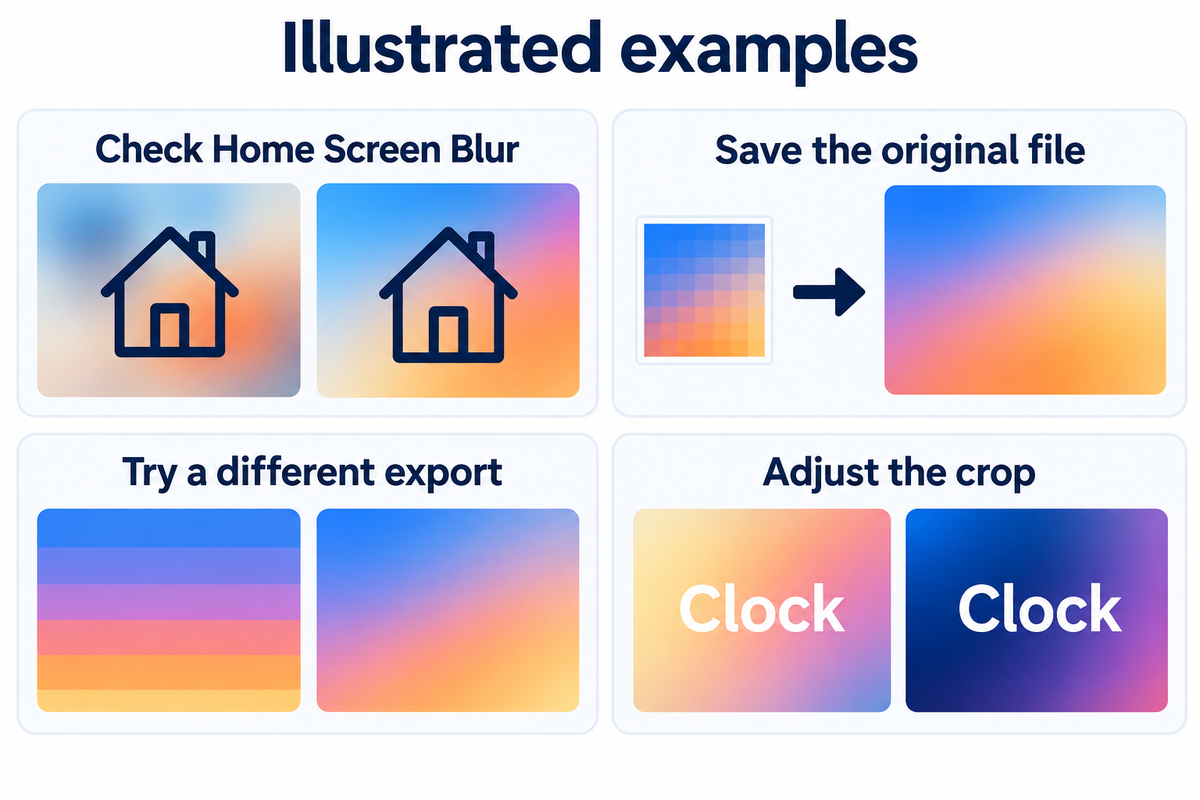
To see if the image edges are soft, compare the image in the Photos app with the Home screen. For visible color steps, try exporting the image with a different compression setting. For the bright patch, try cropping the image slightly differently. Keep the original image open when comparing settings so you can tell if the problem is with the setting or the image.
- Only the Home Screen looks blurred: check Customize Home Screen. Apple includes a Blur option intended to help apps stand out; turn it off if you want the original finish.
- The saved image is already soft: return to the source and save the original file instead of a thumbnail or screenshot.
- The fade has visible steps: try a different original export. Tu and colleagues’ Adaptive Debanding Filter research describes compression-related bands in smooth image regions. A larger pixel count alone doesn’t resolve that mechanism.
- The bright area moved: reopen the wallpaper preview and adjust the crop. If every useful crop crosses the clock, choose a design with a broader quiet area.
Keep one original image while comparing exports. Repeatedly saving a screenshot of a screenshot can make it hard to identify which file showed the problem.
Choose your first gradient
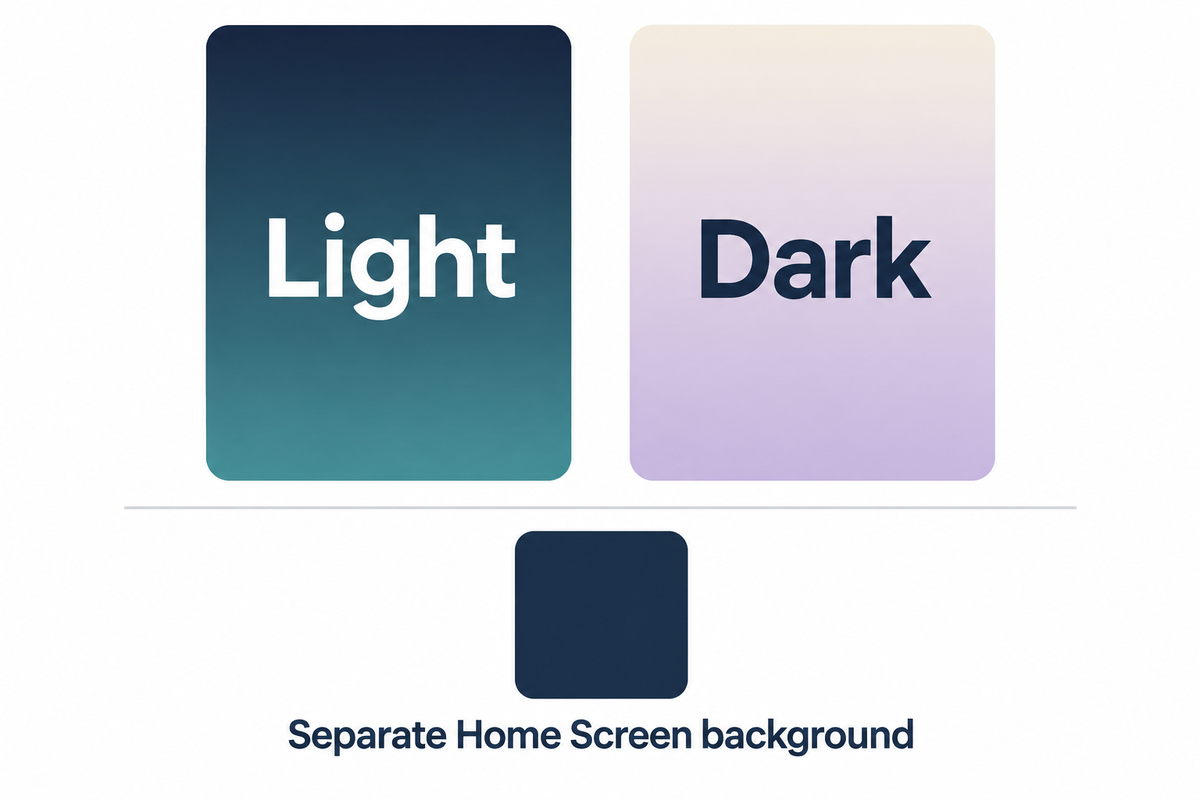
Try midnight teal with light lettering or soft lilac with dark lettering. Keep your current widgets, apply the background, and change only the fade’s position first. For better app labels, try using a separate Home Screen background. If the clock improves but the app labels get worse, you might need a different background.
Place the busiest colors in empty space. Browse more wallpaper styles for a different mood; keep this placement method when you switch from a quiet gradient to a more abstract design.
Frequently asked questions
Are gradient wallpapers good for iPhone?
Yes, gradient wallpapers are a useful choice when you want color without a detailed photograph behind your apps. A gentle fade can leave broad areas for the clock and widgets. Choose a contrasting area for the actual text, and simplify the Home Screen background if the fade crosses too many labels.
Are gradient wallpaper downloads safe?
A trustworthy creator’s image download is a better starting point than an unfamiliar installer or configuration profile. Save the image through the stated download route and check its personal-use terms. A static wallpaper does not need a configuration profile; leave a page that asks for unrelated permissions or account details.
Is gradient wallpaper on iPhone free?
You can use the built-in Color wallpaper route without buying a separate wallpaper app. Downloaded designs have their own access and licensing terms, and an app may charge for particular collections or exports. Try the native options first, then check the price of the exact design you want to save.
What does a rainbow iPhone wallpaper mean?
A rainbow background can be a personal color preference or a deliberate symbol, depending on the design and its creator. The colors alone don’t establish one meaning. Look at the collection’s title and description if that meaning matters to you.
Why is my gradient wallpaper not working?
Cropping, Home Screen Blur or a linked Focus selecting another Lock Screen may be the cause. Reopen Wallpaper settings and inspect the selected pair to see which screen changed. If the image itself is damaged or missing, choose another saved original before adjusting the layout again.
Can I use a gradient wallpaper on iPhone 15?
Yes. You can use a saved gradient image as a photo wallpaper on iPhone 15, or start with the Color choices in Wallpaper settings. Inspect the framing around the clock and Dynamic Island, then customize the Home Screen separately if its app layout needs a different finish.
How do I remove a gradient wallpaper?
Touch and hold the unlocked Lock Screen to open the wallpaper gallery, swipe to the wallpaper you want to remove, then swipe upward on it and tap the trash icon. Confirm the deletion. Apple documents this gallery route; our wallpaper removal guide covers the process in more detail.
The examples of placement and color palette recipes were created just for this guide. They’re illustrations of designs, not screenshots of a test device. The menus can look a little different depending on the operating system version.
References & Sources
- Color guidance — Apple Human Interface Guidelines
- G18: Text and background contrast — World Wide Web Consortium
- F83: Background-image contrast failure — World Wide Web Consortium
- Dark mode and battery life — Purdue University, 2021
- Change your iPhone wallpaper — Apple Support
- Separate Home Screen and Lock Screen wallpapers — Benjamin Mayo, 9to5Mac, 2022
- iPhone 13 technical specifications — Apple Support
- Crop, rotate, flip or straighten photos — Apple iPhone User Guide
- Customize apps and widgets — Apple iPhone User Guide
- Change the wallpaper — Apple iPhone User Guide
- Adaptive Debanding Filter — Zhengzhong Tu and colleagues, 2020
