
How to Change Wallpaper on iPhone

By the iScreen editorial team · Reviewed against Apple Support and the iOS 26 iPhone User Guide · Updated August 24, 2026

How to change wallpaper on iPhone is simple: open Settings, tap Wallpaper, tap Add New Wallpaper, choose a photo or built-in category, and tap Add. Then choose Set as Wallpaper Pair to use the selection on both screens, or Customize Home Screen to create a different Home Screen background. That’s the complete current route; the choices after Add decide whether one screen or both screens change.

6-Step Wallpaper Rule

  1. Open Settings.
  2. Tap Wallpaper.
  3. Tap Add New Wallpaper.
  4. Choose Photos, Photo Shuffle, Weather & Astronomy, Emoji, or Color.
  5. Adjust the preview, then tap Add.
  6. Choose Set as Wallpaper Pair or Customize Home Screen.

Need an image first? You can browse iPhone wallpapers, save one you like, and then return to the steps above. iScreen helps with discovery; iOS performs the final system setting.

Change Your iPhone Wallpaper in Six Steps
Change Your iPhone Wallpaper in Six Steps

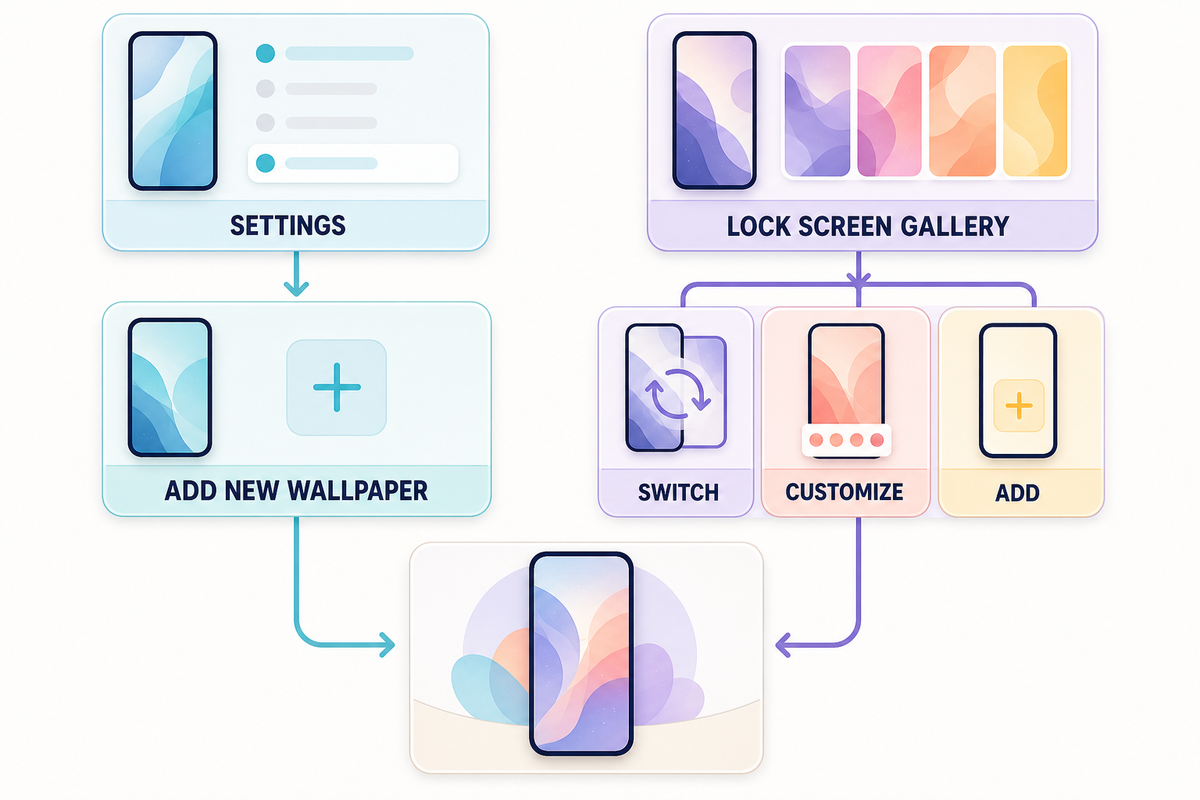
There are two current entry routes. Settings is the clearest route when you’re adding something new, while the Lock Screen gallery is better for saved sets because it opens the existing wallpaper collection. Think of this as the 2-Route Wallpaper Map:

Settings is a straightforward route for creating a wallpaper. The Lock Screen gallery can switch or edit saved sets and can also add a new one.

Routes documented by Apple Support; route recommendation by iScreen editors.
Route Best for Start point Finish
Settings Adding a new photo or built-in wallpaper Settings → Wallpaper Add → Pair or Customize Home Screen
Lock Screen gallery Switching or editing a saved set Wake the Lock Screen, then touch and hold Select, Customize, Add, or Done as shown

The labels matter. A new-wallpaper flow uses Add. An editing flow may use Done. If a tutorial tells you to tap a button that isn’t on your screen, check which route it started from before assuming your iPhone is different.

Change Wallpaper Through Settings
Change Wallpaper Through Settings
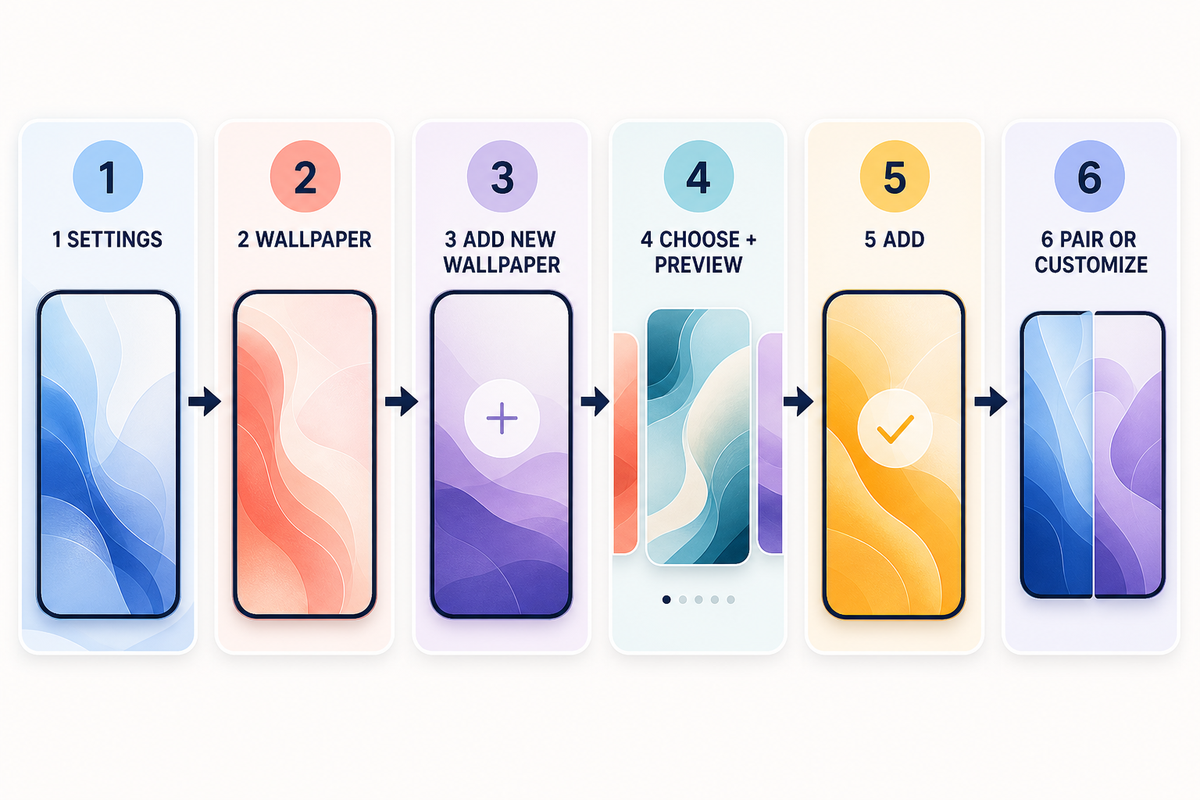
  1. Open the Settings app and tap Wallpaper.
  2. Tap Add New Wallpaper.
  3. Choose Photos or Photo Shuffle for your own images. You can also choose a built-in category such as Weather & Astronomy, Emoji, or Color.
  4. Reposition the photo, try available styles, and adjust the clock or widgets if needed.
  5. Tap Add.
  6. Choose Set as Wallpaper Pair, or tap Customize Home Screen for a separate background.

According to Apple Support, these labels match the current Change your iPhone wallpaper instructions. The route matters because older guides may say “Choose a New Wallpaper,” “Dynamic,” or “Stills.” Those labels describe older interfaces and shouldn’t replace what your current iOS 26 screen shows.

As you scroll through the current wallpaper options, you may see categories like Weather & Astronomy, Emoji, and Color. Select a wallpaper, select a photo, or select multiple photos for Photo Shuffle; then try a filter or different styles before you tap Add. This is Apple’s current customization flow, even when an older guide is titled for “iOS 16 or later.”

Change Wallpaper From the Lock Screen
Change Wallpaper From the Lock Screen

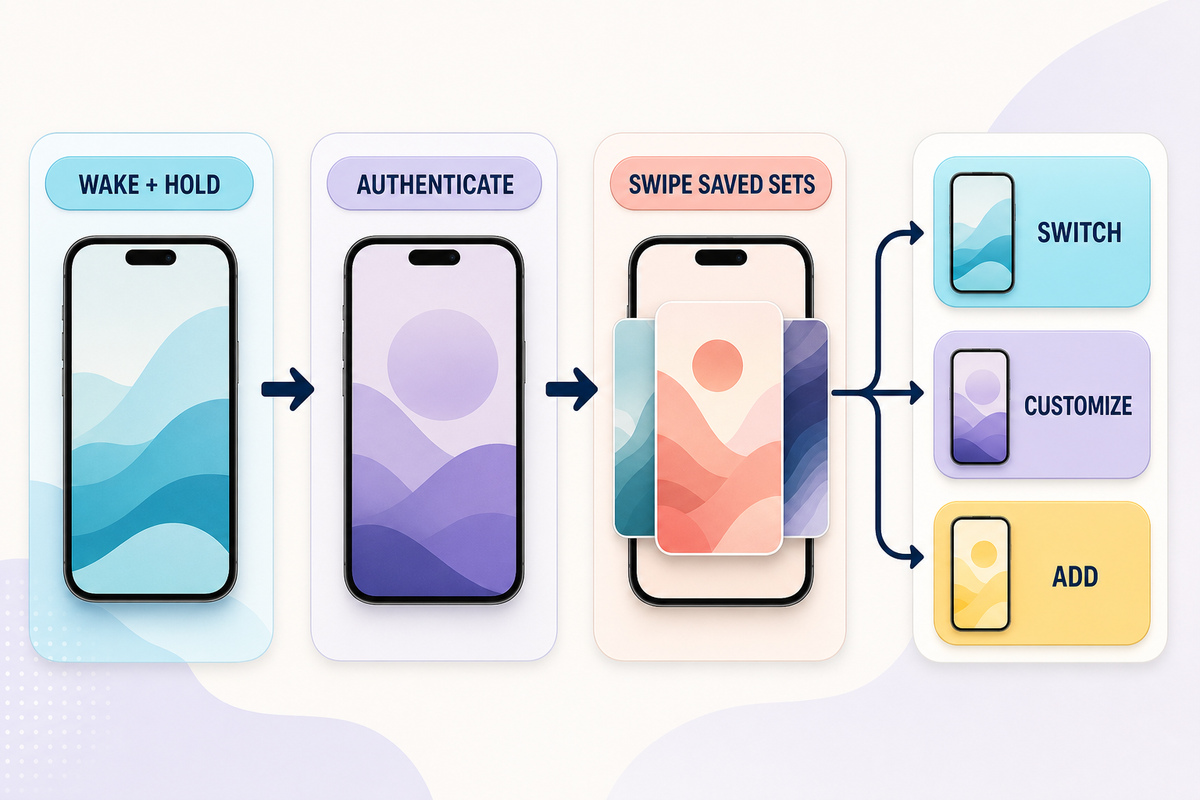
Apple’s official support page documents this route. Wake the iPhone, touch and hold the screen, and authenticate with Face ID or your passcode if the gallery does not open. Swipe left or right through saved Lock Screens. Tap a set to switch to it, tap Customize to edit it, or use the Add button to create another one.

This route is especially useful when you already have several wallpaper sets. Apple also lets you link a Lock Screen to a Focus, so changing to that saved screen can match a work, personal, or sleep setup. The control is optional; a wallpaper does not need a Focus link to work.

To customize your Lock Screen, you can also tap the time to change its font, move the foreground subject within the available crop, or link a Focus. When you edit an existing set, the screen may ask you to tap Done; when you create a new one, it normally asks you to tap Add.

If touch-and-hold seems to do nothing, check three things before troubleshooting the image: the Lock Screen must be awake, the press must be held rather than tapped, and authentication may still be required.

Set the Same Wallpaper or Use a Separate Home Screen
Set the Same Wallpaper or Use a Separate Home Screen

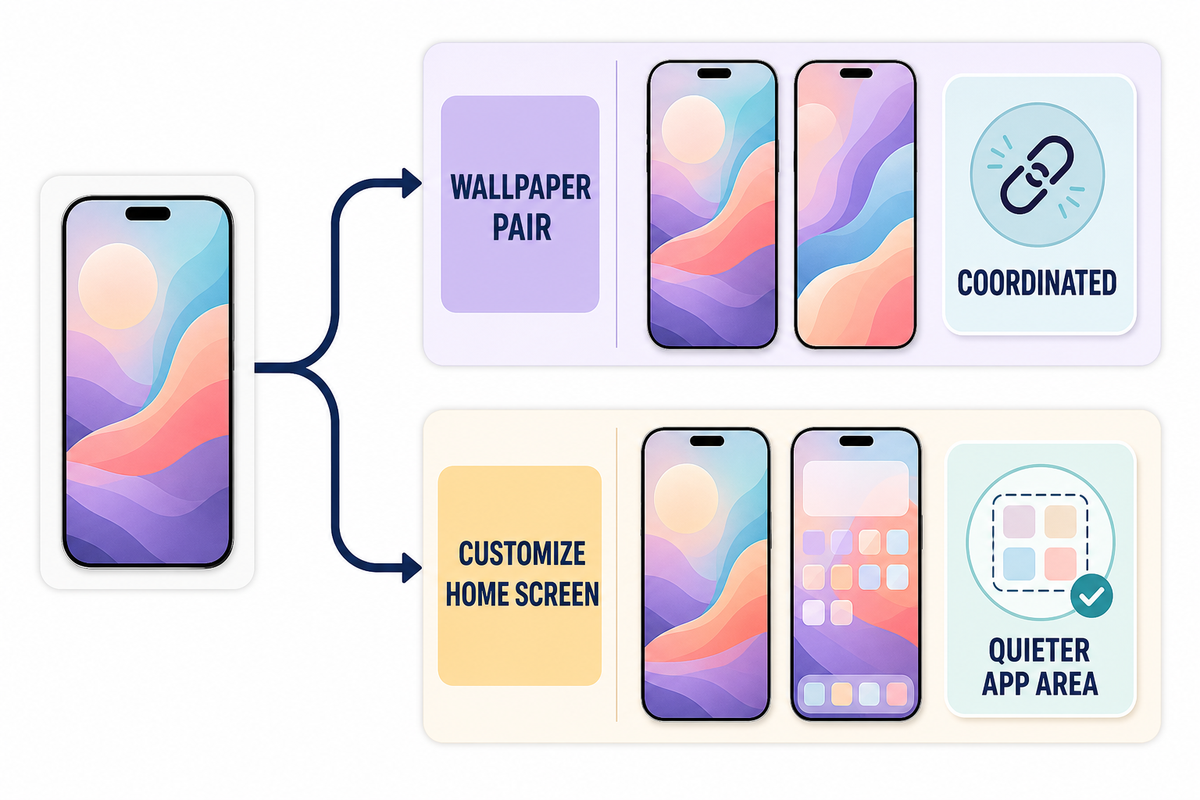
After you tap Add, the next choice controls the relationship between the two screens. Set as Wallpaper Pair gives the Lock Screen and Home Screen a coordinated version of the same selection. Customize Home Screen lets you choose a separate photo, color, gradient, or blur treatment.

In other words, tap Set as Wallpaper Pair when you want the Home Screen and Lock Screen to stay coordinated. Choose the separate route when the iPhone’s app area needs less visual detail than the Lock Screen. Apple’s wallpaper preview lets you alter the Home Screen without replacing the Lock Screen image.

Lock Screen and Home Screen Assignment Options

  • Same image on both: fastest and visually consistent.
  • Detailed Lock Screen + quieter Home Screen: keeps app names and icons readable.
  • Photo Lock Screen + color or gradient Home Screen: preserves the subject without placing it behind icons.
  • Photo Shuffle Lock Screen + stable Home Screen: adds variety without making the app area change constantly.

No single pairing works for all situations. A setup succeeds when the clock, widgets, notifications, icons, and labels remain clear on the screen where they belong.

Crop, Reposition, Add Widgets, and Use Photo Shuffle
Crop, Reposition, Add Widgets, and Use Photo Shuffle

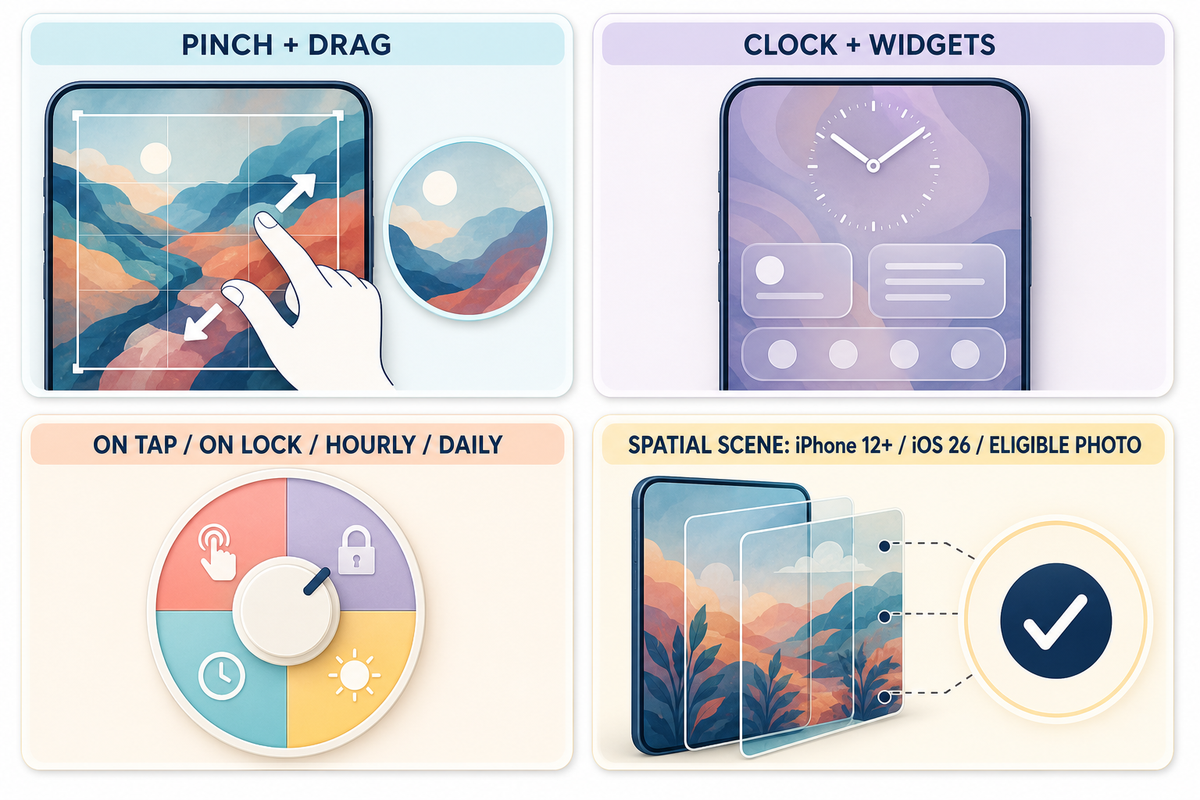
According to Apple’s Lock Screen guide, you can pinch and drag during preview because iOS crops the source to the current screen layout. The visible crop depends on the iPhone model, the source image’s shape, and the elements placed over it. No single pixel size guarantees the same crop across every current iPhone model, so a good source image can still need a different crop on another model.

On the Lock Screen, you can adjust the clock treatment, add widgets, change controls, and try available styles. Keep the main subject away from the clock and widget area. More widgets aren’t always better if they cover the part of the photo you chose the image for. For layout, icons, and widgets beyond this wallpaper-pair decision, use the complete iPhone Home Screen customization guide.

For automatic changes, choose Photo Shuffle. Apple’s current frequency choices are On Tap, On Lock, Hourly, and Daily. Pick a stable Home Screen separately if rotating photos make icons harder to read.

On iPhone 12 or later with iOS 26, an eligible photo may support Spatial Scene for a 3D effect, as described in Apple’s wallpaper instructions. This isn’t guaranteed for every photo. If the option doesn’t appear, the image may not qualify even when the phone and operating system do.

Live wallpapers, animation, and other dynamic wallpaper formats are separate behaviors from Photo Shuffle. This guide covers the current system wallpaper controls; it doesn’t imply that every downloaded animated image will play as a dynamic wallpaper.

Find a Wallpaper Before You Change It
Find a Wallpaper Before You Change It

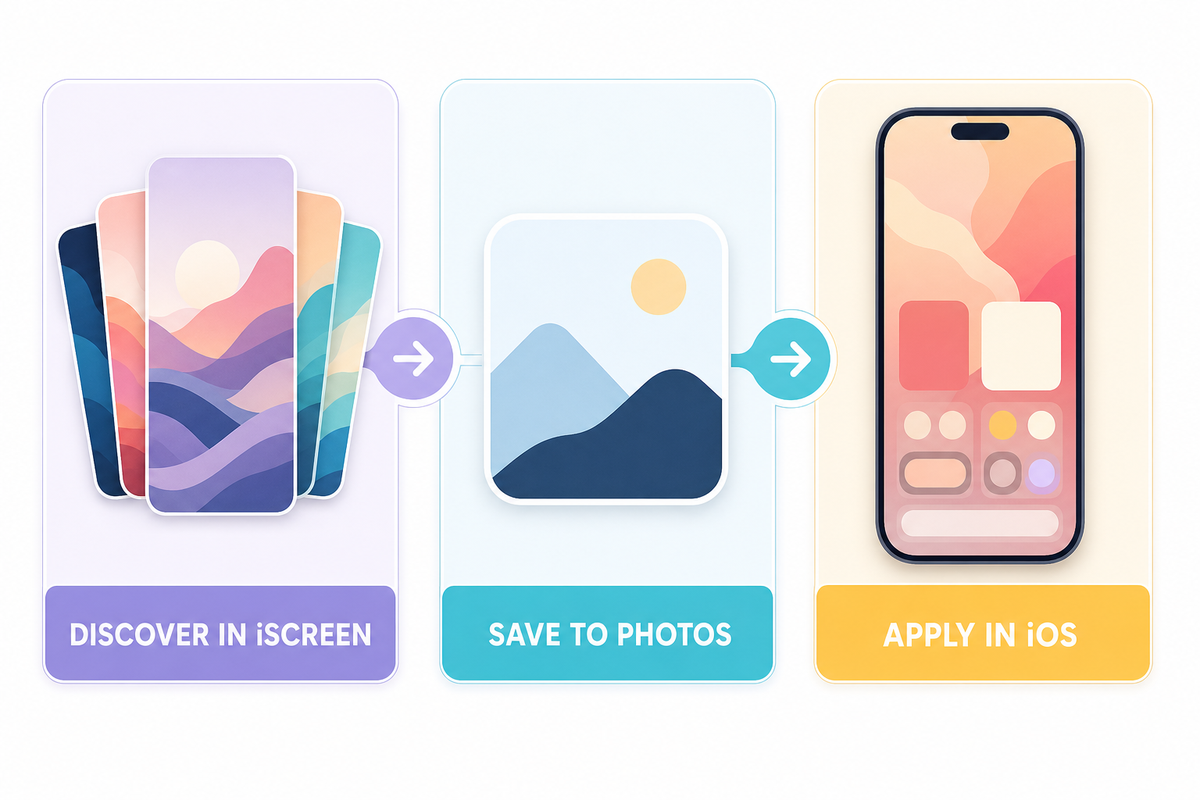
Already have a photo? Continue with Settings or the Lock Screen gallery. Otherwise, browse 4K iPhone wallpapers and save the image you want to Photos. For style ideas before you choose, explore iPhone themes or see this visual iPhone wallpaper lookbook.

Don’t confuse downloading with applying. A wallpaper app or website supplies the image; Apple’s Wallpaper controls decide the Lock Screen, Home Screen, crop, widgets, and pair.

Fix Common Wallpaper Problems
Fix Common Wallpaper Problems
Problem category What to check Shortest fix
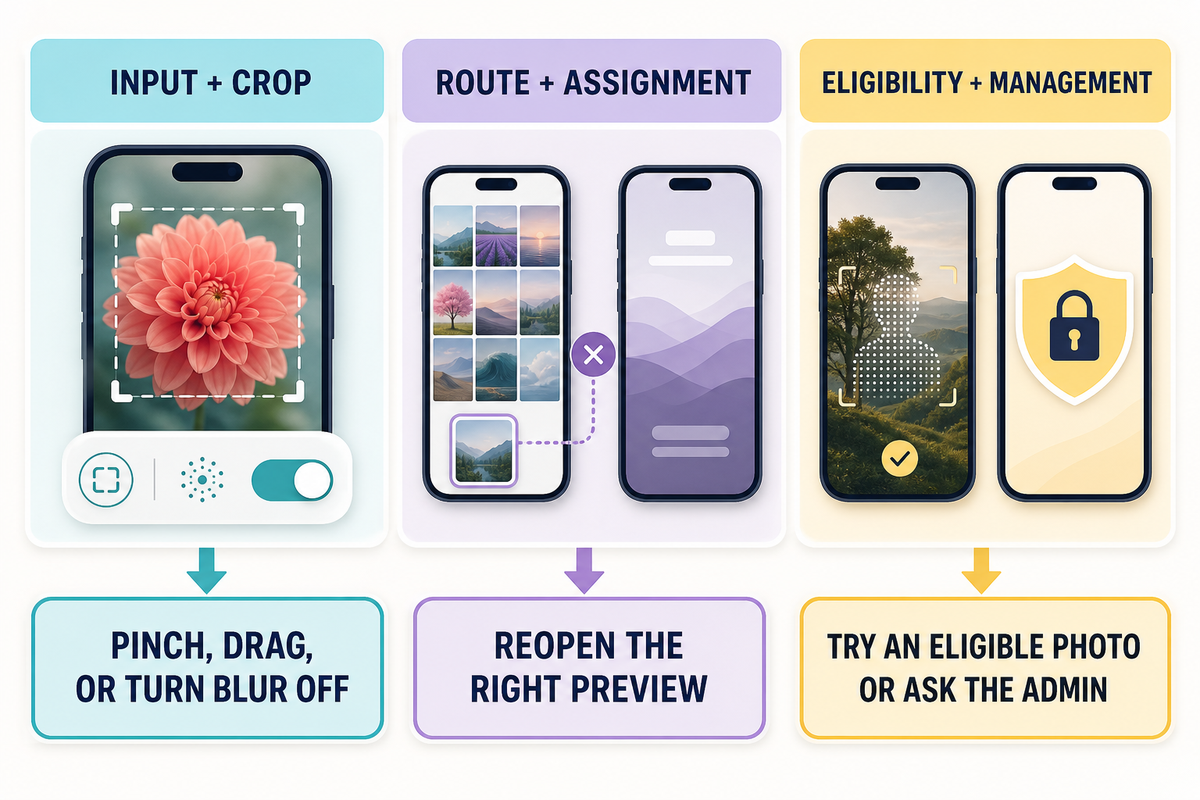
Wallpaper gallery will not open Screen is awake; press is held; authentication is complete Wake the Lock Screen, touch and hold again, then authenticate
Photo looks zoomed or cropped Image shape and selected crop Pinch and drag; choose an image with more space around the subject if needed
Home Screen looks blurry Blur may be enabled under Customize Home Screen Open the Home Screen preview and turn Blur off
Home Screen changed unexpectedly Set as Wallpaper Pair was selected Return to Wallpaper and choose Customize Home Screen
Clock or icons are hard to read Bright detail sits behind interface text Reposition the photo or use a quieter Home Screen color or gradient
Spatial Scene does not appear iPhone model, iOS version, and photo eligibility Use iPhone 12 or later with iOS 26 and try another eligible photo
Old wallpaper seems missing It may be saved elsewhere in the Lock Screen gallery Wake, touch and hold, authenticate, then swipe through saved sets
Wallpaper controls are unavailable The iPhone may be managed by work or school Ask the organization that manages the device about its restriction
Wrong screen changed The pair choice or selected preview did not match the intended screen Return to Wallpaper and edit the Lock Screen or Home Screen preview directly

On a work- or school-managed iPhone, unavailable Wallpaper controls can mean an administrator has restricted changes. Apple’s device-management restrictions guide documents a supervised-device control that can prevent users from modifying Lock Screen or Home Screen wallpaper. In that case, ordinary crop or restart advice won’t restore the option; contact the organization that manages the device.

Deleting is also a separate task. In the saved Lock Screen gallery, Apple’s Lock Screen guide directs users to swipe up on a set and tap the Trash button. Do that only when you intend to remove the saved set, not when you merely want to switch back to another one.

Final Preview Before You Finish
Final Preview Before You Finish

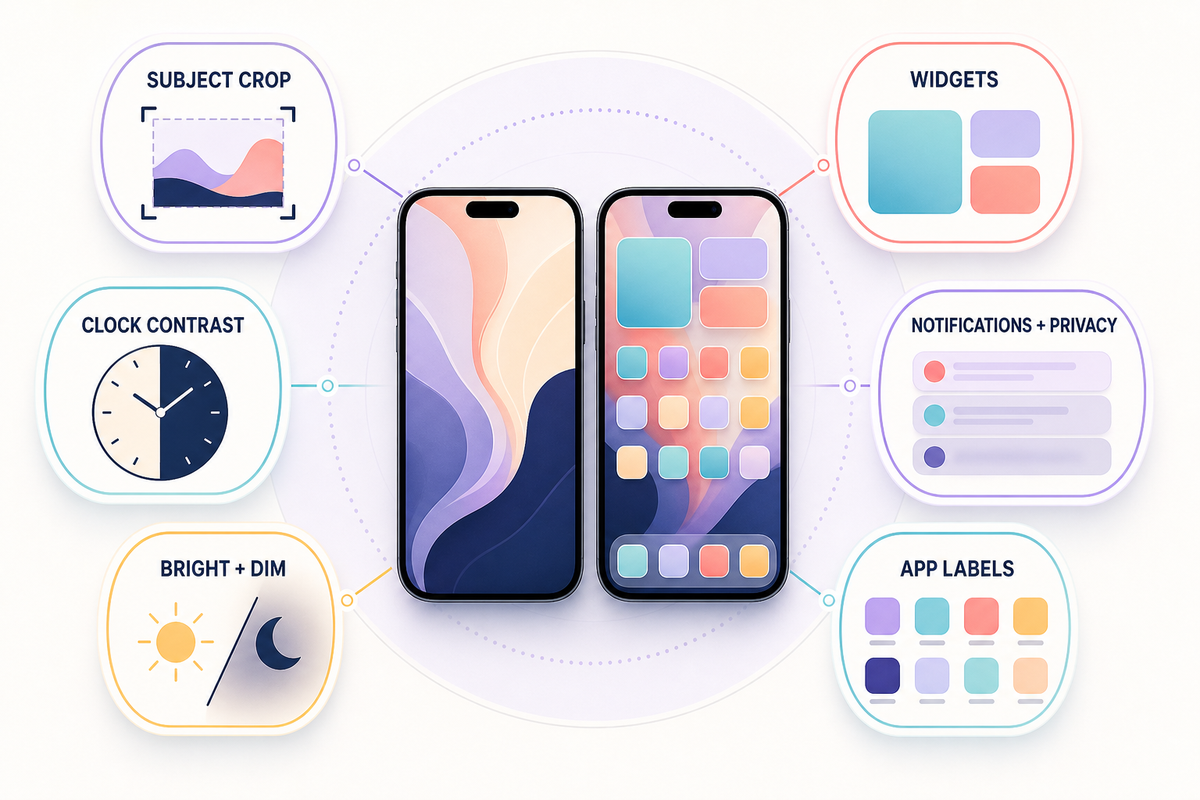
Apple’s official customization guidance matters here because the finished screens include more than the source photo. Check clock contrast, widgets, notification previews, app labels, and whether the subject remains visible in both bright and dimmed appearances. Treat Lock Screen widgets and notifications as privacy surfaces too: a beautiful setup isn’t worth exposing information you would rather keep out of view.

When the Lock Screen works but the Home Screen feels busy, keep the Lock Screen photo and change only the Home Screen to a color, gradient, or blurred version. This small split often solves readability without discarding the image.

Frequently Asked Questions

How do I change just my Home Screen wallpaper on iPhone?

View answer
Open Settings, tap Wallpaper, and select the current pair or add a new Lock Screen wallpaper. When the Home Screen preview appears, tap Customize Home Screen. Choose a separate photo, color, gradient, or blur setting. This changes the Home Screen treatment without requiring you to replace the Lock Screen image you want to keep. Before you finish, check the result behind your app icons and labels. A detailed photo that looks excellent on the Lock Screen may need a calmer crop, color, or gradient on the Home Screen.

How do I switch back to an old wallpaper?

View answer
Wake the Lock Screen, touch and hold it, and authenticate if requested. Swipe left or right through your saved Lock Screens, then tap the one you want to use. If the old wallpaper set was deleted rather than merely replaced, it will not appear in the gallery; add the source photo again through Settings instead.

Why does my iPhone wallpaper look zoomed in?

View answer
The source image’s aspect ratio may not match the visible Lock Screen or Home Screen area, so iOS crops it to fill the display. Pinch to adjust the crop and drag to reposition the subject. No single pixel size guarantees the same crop across every current iPhone model, so leave extra space around important subjects when choosing an image.

Can I use a different wallpaper for the Lock Screen and Home Screen?

View answer
Yes. After adding the Lock Screen wallpaper, choose Customize Home Screen instead of Set as Wallpaper Pair. You can then use another photo, a solid color, a gradient, or a blurred version for the Home Screen.

How do I make my iPhone wallpaper change automatically?

View answer
Choose Photo Shuffle when you add a new wallpaper, select the photos or album, and set a frequency. Apple’s current choices are On Tap, On Lock, Hourly, and Daily. You can still customize the paired Home Screen separately if you want the Lock Screen to rotate while app icons stay over a stable background.

Why can’t I use the 3D wallpaper effect?

View answer
Spatial Scene requires iPhone 12 or later with iOS 26, and the selected photo must be eligible. Not every portrait or landscape photo qualifies. If your device and software meet the requirements but the option is absent, try another photo with a clear subject and background separation.

References & Sources

  1. Change your iPhone wallpaper — Apple Support, updated February 2, 2026.
  2. Change the wallpaper on iPhone — Apple iPhone User Guide.
  3. Create a custom iPhone Lock Screen — Apple iPhone User Guide.
  4. What’s new in iOS 26 — Apple iPhone User Guide.
  5. Review device management restrictions for Apple devices — Apple Platform Deployment.
  6. Compare iPhone models — Apple.

About this guide

This guide was prepared by the iScreen editorial team using current Apple documentation and a live review of the United States search results. iScreen’s catalog descriptions are first-party product information; Apple documentation controls the operating-system steps and eligibility boundaries.

最近の記事

How to Turn a Video into a Live Photo on iPhone

How to Turn a Video into a Live Photo on iPhone

2026/11/13 19:12
To turn video into a Live Photo on iPhone, import a video clip into a Live Photo converter, trim the moment you want, and save it to Photos. Open the saved picture, then press and hold to play it. If you want to keep the original sound quality, listen to the result before removing the video or sharing it. For a moving Lock Screen, choose a converter’s wallpaper export route. IntoLive has a dedicated Live Wallpaper option, and Apple provides a different wallpaper route. Saving a moving picture and setting an animated background are different things. Video to Live Photo conversion turns a selected video moment into a photo with motion. Save the result to Photos first. For wallpaper, use a wallpaper export and enable the play control when setting your Lock Screen. Start with the original video and keep it until you’ve checked the saved result. Choose an output that preserves sound if you want to keep a spoken moment. Use the converter’s wallpaper option when your goal is Lock Screen animation. Compare the saving step and payment terms before editing a long clip. This tutorial follows Apple’s instructions and the developers’ own guides. The conversion routes haven’t been tested on a physical iPhone for this article. Turn your video into a Live Photo Can I make a live picture from a video? Yes. A video to Live Photo converter can transform a selected moment into a picture with motion. To convert video to Live Photo format, start with the original recording. Pick a video from your library. Trim the part you want, choose a still frame where the tool allows it, and export to photos. Play that saved item before moving on to wallpaper setup or sharing. V2LP’s developer explains how to use an app to create Live Photos by choosing a video, trimming it, selecting a cover photo and saving it to Photos. Editing controls include an audio toggle. Leave the sound on if you want to keep the voice or background audio of your favorite video moments. For wallpaper, follow intoLive’s creation guide: Open intoLive and tap Live Wallpaper. Import your media and trim the section you want. Finish the edit, then tap the Share icon. Choose the option to save as a Live Photo. Next, launch Photos. The Apple Live Photos instructions state that saved Live Photos appear in the Collections > Media Types > Live Photos section. Open the item and press and hold the screen to preview its cover image and motion. Inspect the cover and playback, then listen if sound is required. A thumbnail in the camera roll alone doesn’t say much about the moving part. Keep the original in your library. It’s a good starting point if your crop takes off too much, if the moment captured is too short, or if you want to make another version of the video. When using apps like these, make sure to use the same original video so that changes are easier to spot in the output. Before comparing apps, identify the type of result you need: Result type What you have What to do next Camera Live Photo Captured directly with the iPhone camera. Play it in Photos; this is not a conversion of an older movie. Converted Live Photo A moment selected from an existing video. Check both the chosen still image and the motion. Silent Live Photo Motion saved without the original audio. Suitable when sound is unimportant; keep the video for speech. Live wallpaper export A converter’s output intended for the Lock Screen. Apply it in Wallpaper settings and check playback on wake. GIF input An animated source accepted by some converters. Import it through the tool before saving a Live Photo. Standalone video A movie that can be shared separately. Keep the original video for the full scene. To export a Live Photo as a short movie, use Apple’s Save as Video command. Still image A photo without playable motion. Use it as a static background; it is not a moving export. Download package Files bundled for a provider-specific import. Follow that provider’s import instructions before checking Photos. Choose a clip that works as wallpaper For Live Photo wallpapers, select short clips with smooth motion, a clear subject and not too many scene changes. intoLive recommends minimal movement and transitions for its wallpaper exports. A person turning and facing the camera would be a better starting point than a montage of different unrelated scenes. In its duration guide, intoLive says that wallpaper exports should be between 1-2 seconds. Consider that if you need to pick a segment of action for the background. The Clip-to-Lock-Screen Check below will allow you to pinpoint the stage of the unwanted change. For browser conversions, do the paired import and then check the saved item. Complete the other checks provided below. Work through the relevant checks below; app users can disregard the browser import row. Stage What to inspect What to change first Original action The selected moment contains the action you want. Move the trim points before editing the cover. Original framing The subject stays inside the crop. Choose a wider source or adjust the crop. Saved cover The still image shows the expression you chose. Change the cover or key photo where available. Saved motion Pressing and holding plays the saved item in Photos. Return to the converter if only a still image was saved. Saved sound Speech remains when you need it. Check the mute option; choose another route for silent-only output. Browser import Both parts are saved by the provider’s paired import route. Repeat Save 2 Items for LivePhotoNow rather than saving only the picture. Wallpaper preview The subject fits around the clock and the play control is available. Review the wallpaper export route, framing and play setting. Lock Screen wake The selected wallpaper animates when the phone wakes. Inspect the play control and developer troubleshooting guidance. A high-quality still frame matters too. Pause on a frame of the video with your preferred expression and composition before making any cropping adjustments. For the surrounding layout, the iPhone wallpaper Size Guide can assist you in planning a portrait composition before you crop away part of your subject. Set the Live Photo as your Lock Screen wallpaper Can you add video as wallpaper on an iPhone? You can use a converted Live Photo as an animated Lock Screen wallpaper via Apple’s wallpaper controls. Use a saved Live Photo rather than a raw movie for the wallpaper. Apple details this method on iOS 17 or later, where the animation is played when the device is woken. Follow Apple’s Lock Screen setup instructions once you’ve saved your conversion: Open Settings → Wallpaper → Add New Wallpaper. Tap Photos, then Live Photo. Select your saved image. Customize the preview. Tap Add, then choose Set as Wallpaper Pair or Customize Home Screen. Apple describes the animation as playing “whenever you wake up your device.” Apple, Set a Live Photo as your Lock Screen wallpaper on your iPhone, 2025. Lock and wake the phone to test the result. Pressing and holding a Live Photo in Photos tests its playback in the library. Choose Customize Home Screen if you want a different static background image behind your app icons. For more on Lock Screen customization, see this guide. Convert without installing another app Yes, a browser converter can offer a route that doesn’t require installing another app. LivePhotoNow describes importing an MP4, MOV or WebM clip, selecting the moment, and using Save to Photos → Save 2 Items on iPhone. Follow that paired saving step, rather than saving only the still picture. The service states its conversion runs in the browser and its output is silent. It pairs a still image with a motion file using matching metadata. So the audio choice is to use a different route when the person’s voice is the reason you’re saving the clip. Other online tools use different imports. LivePhotoTools, for example, describes a package and an iPhone import route involving a Live Photo app. Downloading a package isn’t the same step as creating a recognized item in Photos. Before using a private video, read the service’s upload and handling information. Don’t use a shortcut tutorial that promises a native Photos conversion button without showing its actual saving route. Check free export before paying for an app V2LP’s developer lists basic conversion, trimming, cover selection and saving as free, with advertisements. Removing advertisements and gaining editing tools is available via an in-app purchase. Route Saving step Decision before editing V2LP Save the edited result to Photos. Basic saving is listed as free with ads; Pro is optional. intoLive wallpaper route Live Wallpaper → edit → Share → save as Live Photo. Use the dedicated wallpaper route and inspect the current purchase screen. LivePhotoNow browser route Save to Photos → Save 2 Items. The developer describes free, silent output and browser processing. LivePhotoTools browser route Download its package, then follow its import instructions. Its iPhone instructions involve another application. V2LP lists no watermark, no subscription and an optional one-time Pro purchase. When comparing apps, distinguish an optional in-app purchase from a renewing subscription or trial. On the App Store, read App Privacy. A developer can describe conversion that’s done locally while the listing can separately disclose tracking, as V2LP does. Local processing and the app’s broader data collection are different questions. Fix motion that is not supported as wallpaper If the saved item moves in Photos but stays still as wallpaper, check the wallpaper export and play control first. intoLive’s troubleshooting guide states that both converted Live Photos and Live Photos captured using the camera may not work perfectly as wallpaper. For this Lock Screen feature, Apple states iOS 17 or higher. Buying another converter isn’t the first check. No moving item in Photos: return to the export step. Make sure you saved a Live Photo rather than a GIF, video or still image. intoLive wallpaper fails: create the final export through Live Wallpaper. Its guide distinguishes that route from New Project. Motion control is missing: intoLive recommends turning off Low Power Mode and checking again. A busy clip is rejected: choose a simpler moment with less movement and fewer transitions, following the developer’s advice. There’s an exception to the New Project distinction: intoLive describes using the video acceleration feature to increase a video’s speed, saving that edit, and then importing it again using the Live Wallpaper. Therefore, you don’t need to discard a useful pre-edit just because it was done in a different part of the application. In an Apple Support Community discussion, a user said that system-suggested pictures worked. However, when using manually selected pictures, it didn’t work. Another user said he/she got different results. Don’t reset your whole phone just because one user in a forum said to do it. After altering the export settings, save a new version and apply that version in Wallpaper settings. Otherwise, you may be looking at a previously saved background while evaluating a newer conversion. The guide to iPhone wallpaper changing by itself addresses a different situation where the image changes unexpectedly. Keep the still image useful between animations Cover pictures work best when they leave space for notifications and the clock. You can evaluate video details by checking whether individual faces are recognizable. Use the preview to check for blur at the edge of your crop. The animation can end on a calm screen with a readable subject. A tight crop that cuts off a face will still be distracting when nothing moves. Select a coordinated Home Screen and Lock Screen from Apple’s settings, and then check the wallpaper preview. If you want a better static composition, return to the converter. Design ideas can be found in iScreen wallpapers or in the iPhone wallpaper Aesthetic Guide. Choose the background design after the conversion works so that you can judge the saved still image alongside the motion. Frequently asked questions What is a Live Photo? A Live Photo is a photo with a short moving moment that you can play in Photos. Apple’s camera records what happens 1.5 seconds before and after the shutter. You can choose a key photo, apply a Photos effect, and share the result. That camera timing describes capture on the device. A converter starts from an existing movie and applies its own trimming and export settings; for example, intoLive’s wallpaper guide describes a 1–2-second result. Can I convert a long video into a Live Photo? Yes, by selecting a shorter moment from the original video. Trim to the part you want before saving. For intoLive’s wallpaper route, its developer describes a 1–2-second result, so choose the action that fits that output rather than expecting the entire recording to play. Keep the original movie for the full scene, longer audio or a later edit. A Live Photo is useful for a selected moment, not as the only copy of a long recording. How do you loop a Live Photo? Open it in Photos, tap the Live Photo control near the top, and select Loop. Apple also lists Bounce and Long Exposure in that menu. Choose the effect you want for viewing the photo in your library. Loop replays the action, while Bounce reverses it back and forth. Preview the effect on the actual subject: a wave can read differently from a person walking out of frame. Keep an original copy before experimenting with an additional editor, since Apple warns that third-party editing can remove applied effects. How do I turn a Live Photo into a video on iPhone? Open the Live Photo, tap More, and choose Save as Video. Apple’s reverse-conversion instructions say the new video appears in Recently Saved and the original remains in Live Photos. Use this shareable video copy when you want to send a standalone movie. Why does my Live Photo stay still on another phone? The sharing method may have sent a still image, or the receiving application may show only the photo. Apple says Mail sends a Live Photo as a still image. If the recipient needs motion, save a video copy and send that instead. Keep the original Live Photo as well; the video copy is a separate output for sharing. Can a GIF be used instead of a video? Yes, when the converter supports GIF input. Choose a GIF or video that contains the moment you want to keep. V2LP and LivePhotoNow both describe that option. Import the GIF through the selected tool and save the result into Photos, then use the same playback and wallpaper checks as for a video conversion. Live Photo vs video: what is the difference? A Live Photo opens as a picture with motion available to play; a video is a standalone moving recording. Choose a Live Photo for a selected still image and its brief action. Keep a video when you need the full scene or a movie to send. For a personal moment with speech, include sound retention in the decision: some conversion routes save motion without the original audio. References & Sources Take and edit Live Photos, Apple Support. Set a Live Photo as your Lock Screen wallpaper on your iPhone, Apple Support. How to turn a Live Photo into a video on your iPhone, Apple Support. Related articles Animated wallpaper on iPhone iPhone Home Screen wallpaper ideas iPhone wallpaper size and framing Customize your iPhone Lock Screen
2026/11/13 19:12
How to Customize Your iPhone Home Screen with Widgets and App Icons

How to Customize Your iPhone Home Screen with Widgets and App Icons

2026/11/13 17:20
Your iPhone Home Screen is more than just a place to launch apps — it’s a reflection of your personal style. With custom widgets, app icons, and wallpapers, you can turn a standard Home Screen into a look that feels uniquely yours. Whether you prefer a clean minimalist layout, a soft pastel look, or a bold retro theme, iScreen makes it easy to create a Home Screen you love. Here’s how to do it with iScreen.   1. Why Customize Your iPhone Home Screen? There are several reasons to give your iPhone Home Screen a makeover. Express Your Personal Style: Choose colors, icons, and wallpapers that reflect your personality and favorite aesthetic. Make Your Phone More Functional: Widgets let you check useful information, such as the weather, calendar events, and battery levels, without opening individual apps. Create a More Organized Look: Matching app icons and carefully arranged widgets can make your Home Screen look cleaner and more visually appealing. A well-designed Home Screen combines both style and functionality, making your everyday iPhone experience more enjoyable.   2. How to Customize Your iPhone Home Screen Before exploring third-party customization apps, you can start with the built-in features on your iPhone. Here are two simple ways to personalize your Home Screen. 2.1 Add Widgets to Your iPhone Home Screen Widgets display useful information directly on your Home Screen while adding a personal touch to your layout. Follow these steps to add a widget: Touch and hold an empty area of your Home Screen until the apps start to jiggle. Tap the Edit button or the + button, depending on your iOS version. Browse the available widgets and select the one you want. Choose your preferred widget size. Tap Add Widget, then drag it to your desired position. Tap Done to save your layout. You can experiment with different widget sizes and arrangements to create a layout that works for you.   2.2 How to Change App Icons on Your iPhone Custom app icons are another great way to transform your iPhone’s appearance. You can use the Shortcuts app to replace the standard app icons with your own images. Here’s how: Open the Shortcuts app on your iPhone. Tap the + button to create a new shortcut. Select Add Action, search for Open App, and choose it. Tap App and select the app you want to customize. Open the shortcut’s details menu and choose Add to Home Screen. Tap the icon preview and select Choose Photo to upload your custom icon. Enter a name and tap Add. Repeat these steps for other apps to create a consistent icon style across your Home Screen.   3. How to Customize Your iPhone Home Screen with iScreen Want more creative options beyond the built-in iPhone settings? iScreen makes it easier to explore different widget designs, custom app icons, and wallpapers in one place. 3.1 Explore More Widget Styles With iScreen, you can discover a variety of aesthetic iPhone widgets to match your personal style. From minimalist calendars and photo widgets to cute interactive designs, there’s something for different tastes. You can also personalize available widget options, such as colors, backgrounds, and photos, to create a look that fits your Home Screen. Mix different widget styles and sizes to build a layout that’s both attractive and practical. 3.2 Explore Ready-to-Use Theme Setups For a more cohesive Home Screen design, iScreen offers a curated collection of ready-made theme setups, bringing together matching widgets, app icons, and wallpapers in a unified aesthetic. Explore a range of styles, from playful and colorful designs to minimalist, retro, and dark themes. Each collection features coordinated visual elements, making it easy to create a polished iPhone Home Screen with a consistent look and feel. With thoughtfully paired designs, iScreen helps transform individual customization elements into a complete, visually harmonious setup.   3.3 Bring Everything Together Now it’s time to combine your favorite widgets, custom app icons, and wallpapers into one personalized setup. Try a minimalist theme for a clean look, a pastel theme for a softer aesthetic, or a retro-inspired design for a nostalgic vibe. Don’t be afraid to experiment with different colors and layouts until you find your favorite combination.   Final Thoughts Customizing your iPhone Home Screen doesn’t have to be complicated. With the right combination of widgets, app icons, and wallpapers, you can create a phone setup that reflects your personality while keeping everything easy to access. Ready to give your iPhone a fresh new look? Explore more customization possibilities with iScreen and create a Home Screen that’s truly yours! Media Contact iScreen Official Team Email: iscreenofficial@gmail.com Official Website:iScreen – Phone Style, iScreen it! iOS Download Link:‎‎iScreen – Widgets & Wallpaper Android Download Link:‎‎iScreen – Widgets & Wallpaper
2026/11/13 17:20
OLED Wallpapers for iPhone: Black Backgrounds That Work

OLED Wallpapers for iPhone: Black Backgrounds That Work

2026/11/13 14:36
/* Article-only alignment with the confirmed iScreen Home Screen guide. */ #iscreen-oled-article{font-family:Arial,sans-serif;font-size:inherit;line-height:1.75;color:#242735;} #iscreen-oled-article h2{margin:0 0 8px;padding:0;border:0;} #iscreen-oled-article figure{margin:12px 0!important;} #iscreen-oled-article .faq-item{margin:0 0 24px!important;padding:0!important;border:0!important;border-radius:0!important;} #iscreen-oled-article table{width:100%;border-collapse:collapse;margin:24px 0;font-size:15px;line-height:1.6;letter-spacing:normal;border:1px solid #e0e0e0;color:#2d2d2d;font-variant-numeric:tabular-nums;} #iscreen-oled-article table tr{border:none!important;} #iscreen-oled-article table th{background:#2d2d2d!important;color:#fff!important;font-weight:600;text-align:left;padding:12px 16px!important;border:none!important;vertical-align:top;} #iscreen-oled-article table td{padding:11px 16px!important;border:none!important;border-top:1px solid #e0e0e0!important;background:#fff;vertical-align:top;text-align:left;} #iscreen-oled-article table tbody tr:nth-child(even) td{background:#f5f5f5;} #iscreen-oled-article table tbody td:first-child{font-weight:600;} #iscreen-oled-article caption{caption-side:top;text-align:left;} @media(max-width:767px){#iscreen-oled-article table{font-size:14px;}#iscreen-oled-article table th,#iscreen-oled-article table td{padding:10px 12px!important;}} Updated November 2026 Choose an OLED wallpaper iPhone users can read at a glance: a black background with a small subject clear of the clock. Pure black has the quietest look; a thin moon or a dark gradient adds interest. Use the picture you like, and check its fit. Your screen type changes the battery advantage. An iPhone 13 uses OLED, while the standard iPhone 11 uses an LCD. Both can display the same dark image, but only the OLED panel lights its pixels individually. Browse iScreen wallpapers and backgrounds for designs, and use the checks below to choose a usable file. Six OLED wallpaper styles for your iPhone Pure black, a small moon, a thin outline, and a monochrome silhouette are a few starting points. A lower edge glow and a few scattered stars are a couple more. For a busy Home Screen, a pure black background is a good choice. For the Lock Screen, a small, bright subject is good. Choose a style for the screen you use Style Best starting place What to watch Pure black Home Screen with many apps No picture detail; the icons become the main color Small moon Lock Screen with empty upper space Keep the moon away from the time Thin outline Minimal abstract setup A line through a letter can distract Monochrome silhouette Lock Screen with a recognizable subject Fine edges can disappear in a tight crop Lower-edge glow Lock Screen with a dark upper half The glow is colored light, not pure black Sparse stars Night-sky theme Bright dots behind text can make it busy A calmer mobile layout has the favorite artwork on the Lock Screen and simpler backgrounds behind apps. Apple’s wallpaper instructions allow for these choices. A small touch of color often gives an inky black design enough character without filling the display. The iPhone wallpaper aesthetic guide has broader choices if you prefer. True black versus dark gray: check the image True black in an RGB image is #000000, or red 0, green 0, blue 0. For a wallpaper, those background pixels should also be opaque. Dark gray contains nonzero color values. Both can look dark on OLED screens, and darker gray can use less display power than a lighter image. How do I know whether a wallpaper is truly black? Open the original file in an image editor and use the color sampler to check colors in several background areas. Look for full opacity and an RGB value of (0, 0, 0). The W3C PNG specification differentiates transparency from color: a transparent pixel can reveal the background beneath it. A dark thumbnail is a poor test. Black-Pixel Evidence Ladder The Black-Pixel Evidence Ladder separates what a file contains, how a wallpaper looks after it’s installed, and how a phone uses power. Match the question to the check Check type What to inspect Next action File: original Full image rather than a thumbnail or phone mockup Open the individual download File: black values RGB at several empty background points Look for red 0, green 0, blue 0 File: opacity Transparency at those same points Use an opaque background for predictable black Appearance: crop Portrait preview and the subject’s edges Reposition without cutting off important detail Appearance: clock Bright shapes immediately behind the time Move the subject away from the digits Appearance: apps Stars or lines crossing app labels Choose a simpler Home Screen image Energy: display type Exact model’s OLED or LCD specification Use the model table below Energy: visible content Time spent on wallpaper versus app screens Consider app Dark Mode separately Energy: measured saving Same device, brightness and comparable use Only attach a percentage to an actual measurement Apple also describes slight changes in color or blur when scrolling next to black at reduced brightness as normal OLED behavior. A color sampler measures the file; it doesn’t diagnose the display. Check your iPhone screen before expecting savings OLED wallpapers for iPhone X work as images on LCD phones as well. With OLED iPhone wallpapers, the display technology changes how black is produced, not whether the picture can be installed. Check the specific model of a series using Apple’s specs: the standard iPhone 11 and iPhone SE examples below are different from the iPhone 11 Pro and 13. Screen-type decision table: verified model examples Apple device Display Reason to choose black iPhone X, iPhone XS and XS Max OLED Deep black appearance and darker-content power benefit iPhone 11 6.1-inch LCD Appearance and a quieter background iPhone 11 Pro models OLED Individually lit pixels, unlike standard 11 iPhone SE, third generation 4.7-inch LCD Simple composition behind apps iPhone 13 6.1-inch OLED Dark-content display-power advantage Apple lists the iPhone 11 LCD, SE third-generation display and iPhone 13 OLED specifications separately. The technology behind Super Retina explains the differences: “And with no backlight, OLED emits light through each pixel, allowing for a thinner display.” Apple, About the Super Retina display, 2026 How much battery can a black wallpaper save? A black wallpaper can reduce OLED display power compared to a brighter image. The daily battery saving with a black wallpaper varies with screen brightness and how long the wallpaper remains visible. When an opaque app fills the screen, the app’s displayed content becomes the relevant color choice. Apple’s 2022 power consumption presentation mentions that darker content uses less power on OLED panels. Therefore, system and app Dark Mode impact more than just the wallpaper. A black Home Screen doesn’t turn a bright webpage black. Consider the scope of Purdue’s 2021 dark-mode study. Purdue found that switching from light mode to dark mode at 100% brightness saved an average of 39%-47% battery power on the tested OLED smartphones. Researchers examined six Android apps, including Google Maps and YouTube, using 60-second activities on Pixel 2, Moto Z3, Pixel 4 and Pixel 5 phones. They altered the app’s appearance, considered screen brightness, and evaluated battery usage. Changing an iPhone background is a different adjustment. The wallpaper appears on the Home or Lock Screen, and the rest of your day consists of app interfaces, video and other workloads. No physical iPhone battery test was done for this post; therefore no daily savings percentage is assigned to your wallpaper. Download a sharp wallpaper from the original file Save the original HD or 4K portrait, rather than a gallery thumbnail or a screenshot of a phone mockup. Image quality starts with the original file. Its aspect ratio and the final crop determine how the subject is positioned. What is the correct way to download an iPhone wallpaper? Open the individual design from the black wallpaper collection, use its available download option, and keep the original file in Photos. Preview it in Wallpaper settings before committing. If the design has a border, pay attention to every edge while you adjust the crop. For example, suppose you are choosing a portrait image for an iPhone 13. Apple lists its display at 2532 by 1170 pixels, so the corresponding portrait orientation is 1170 pixels wide by 2532 pixels tall. A wide desktop composition places its subject differently even when the file has plenty of pixels. Choose a portrait version with open space near the clock first, then adjust the preview without cropping the subject. Increasing the dimensions of an image can’t restore details missing from the original. The iPhone wallpaper size guide covers model-specific sizing when you want a different fit. Set the Lock Screen and Home Screen separately Use Customize Home Screen to keep an illustration on the Lock Screen and a quieter image behind your apps. The built-in iOS Wallpaper controls handle this without a separate wallpaper app. Save your chosen image first, then follow the native sequence and choose whether you want a pair or two different backgrounds. Open Wallpaper. Go to Settings, then Wallpaper. Add your image. Tap Add New Wallpaper, then Photos, and select the saved picture. Adjust the composition. Preview the subject alongside the clock and any widgets, then tap Add. Choose the Home Screen. Tap Customize Home Screen for a separate look, or Set as Wallpaper Pair to use your selection on both. The Apple wallpaper guide also offers a color, another photo or Blur for the Home Screen. Keep blur off if you want to preserve background details. For a background with no subject, see the solid-color wallpaper guide. On supported models, Always-On has a separate Show Wallpaper toggle under Settings, Display & Brightness, Always On Display. For information on Always-On display, see Apple’s Always-On display guide. Keep bright details clear of your clock and apps Please keep the brightest detail away from the clock and the app labels you read most. In general, contrast right behind each letter is better than darkness. A mostly black image can still be difficult to read when a white star, outline or moon crosses the text. W3C’s background-image contrast examples show why local placement matters: black lines crossing black lettering can make one letter resemble another, and dark gray behind black text can make it unreadable. Apply that principle to your wallpaper preview. For a light clock, move a bright moon away from the digits or choose a darker patch behind them. If stars overlap several app labels, use a plain Home Screen instead of shrinking everything until the image loses its character. The picture doesn’t have to match on both screens. More layout ideas can be found in our Home Screen wallpaper guide. As an alternative to using a completely black background, consider a softer iPhone gradient wallpaper. Choose the black background you will keep Pure black works well behind a busy app layout, as does a small moon or outline if you want a subject that’s noticeably in the foreground. Keep the original download, preview both screens, and retain the version that makes your clock and apps easy to read. The simplest image is a useful starting point, but is by no means a requirement. Before you replace it Keep the uncropped original in Photos so you can readjust the framing when your clock or widget layout changes. Take a look at the iScreen collection above and save your favorite wallpapers. Also, as Apple suggests, use a shorter Auto-Lock time if you don’t need the display to stay on. Frequently asked questions Is OLED wallpaper a special file type? No. OLED wallpaper describes an image’s intended look on an OLED screen, not a separate image format. A PNG or JPEG can contain a black background, a gray gradient or a bright subject. An OLED-optimized label usually points to the design. For pure black, examine the original background values and opacity. Choose the file for its composition and dimensions rather than expecting the label to change how your screen works. Does a black wallpaper work on an iPhone 11? Yes. A black wallpaper works on the standard iPhone 11, although its LCD doesn’t use the same individually lit pixels as an OLED display. The image can still give your phone a minimal appearance and leave a quiet background behind apps. Choose it for those visual reasons. Keep the model distinction clear when reading recommendations: iPhone 11 Pro models use OLED, while the standard iPhone 11 uses LCD. Do I need to pay for an OLED wallpaper app? No. Setting an image you already have uses the iPhone’s built-in Wallpaper controls. Image access is a separate choice. A creator can offer a free download or sell a collection, while an app can charge for additional designs or features. Check the terms attached to the particular file you want. Once the image is saved, use Photos in Add New Wallpaper to select it. Is a dark gradient the same as true black? No. A gradient contains changing color values. It can include pure-black areas, but the colored glow remains part of the image. Choose it when that extra depth suits your design. Can one image look good on both screens? Yes, especially when the image has a small subject and plenty of empty space. Preview the clock and your app layout separately. A composition that frames one can overlap the other. References & Sources Apple: Change your iPhone wallpaper W3C: PNG Specification, Third Edition, 2025 Apple: iPhone 11 technical specifications Apple: iPhone SE, third generation, technical specifications Apple: iPhone 13 technical specifications Apple: Super Retina and Super Retina XDR displays Apple Developer: Power down, improve battery consumption, 2022 Purdue University: Dark mode and phone battery life, 2021 Apple: Change the wallpaper on iPhone Apple: Keep the iPhone display on longer W3C: Background-image contrast failure F83
2026/11/13 14:36
トップに戻る