
.png)
How to Change Wallpaper on iPhone
By the iScreen editorial team · Reviewed against Apple Support and the iOS 26 iPhone User Guide · Updated August 24, 2026
How to change wallpaper on iPhone is simple: open Settings, tap Wallpaper, tap Add New Wallpaper, choose a photo or built-in category, and tap Add. Then choose Set as Wallpaper Pair to use the selection on both screens, or Customize Home Screen to create a different Home Screen background. That’s the complete current route; the choices after Add decide whether one screen or both screens change.
6-Step Wallpaper Rule
- Open Settings.
- Tap Wallpaper.
- Tap Add New Wallpaper.
- Choose Photos, Photo Shuffle, Weather & Astronomy, Emoji, or Color.
- Adjust the preview, then tap Add.
- Choose Set as Wallpaper Pair or Customize Home Screen.
Need an image first? You can browse iPhone wallpapers, save one you like, and then return to the steps above. iScreen helps with discovery; iOS performs the final system setting.
Change Your iPhone Wallpaper in Six Steps
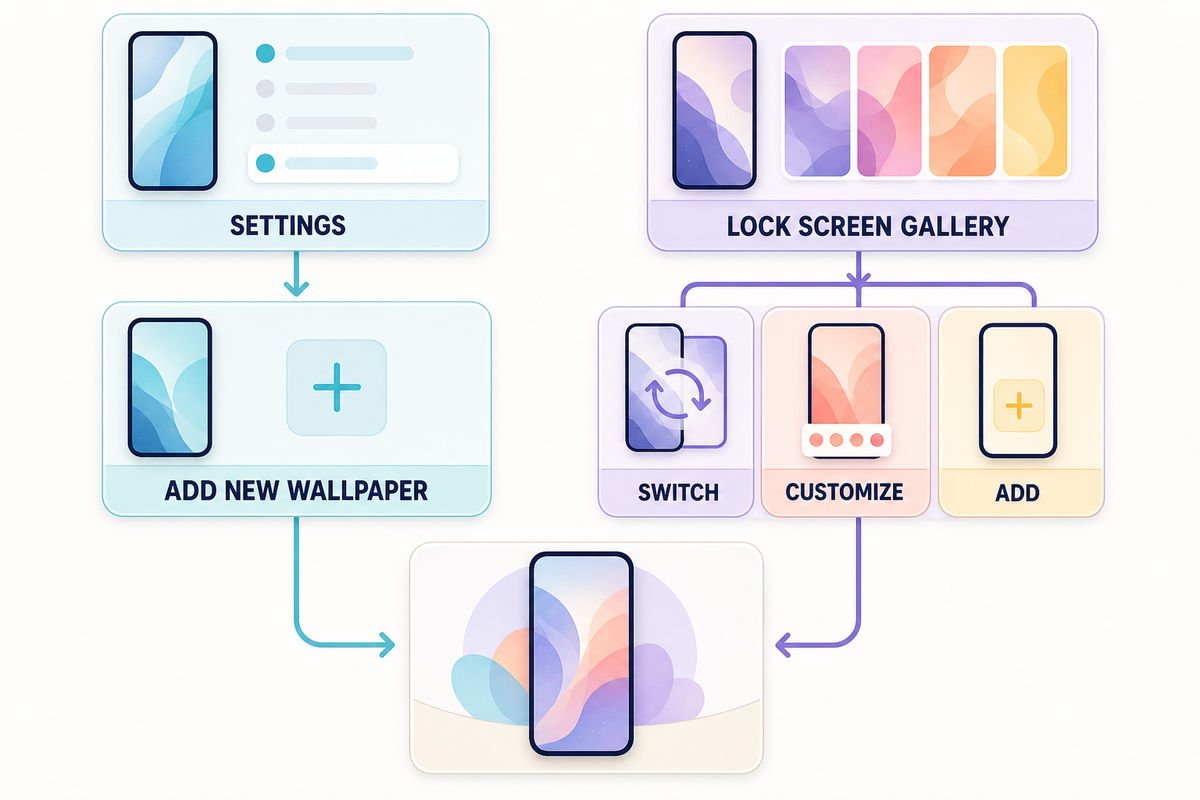
There are two current entry routes. Settings is the clearest route when you’re adding something new, while the Lock Screen gallery is better for saved sets because it opens the existing wallpaper collection. Think of this as the 2-Route Wallpaper Map:
Settings is a straightforward route for creating a wallpaper. The Lock Screen gallery can switch or edit saved sets and can also add a new one.
| Route | Best for | Start point | Finish |
|---|---|---|---|
| Settings | Adding a new photo or built-in wallpaper | Settings → Wallpaper | Add → Pair or Customize Home Screen |
| Lock Screen gallery | Switching or editing a saved set | Wake the Lock Screen, then touch and hold | Select, Customize, Add, or Done as shown |
The labels matter. A new-wallpaper flow uses Add. An editing flow may use Done. If a tutorial tells you to tap a button that isn’t on your screen, check which route it started from before assuming your iPhone is different.
Change Wallpaper Through Settings
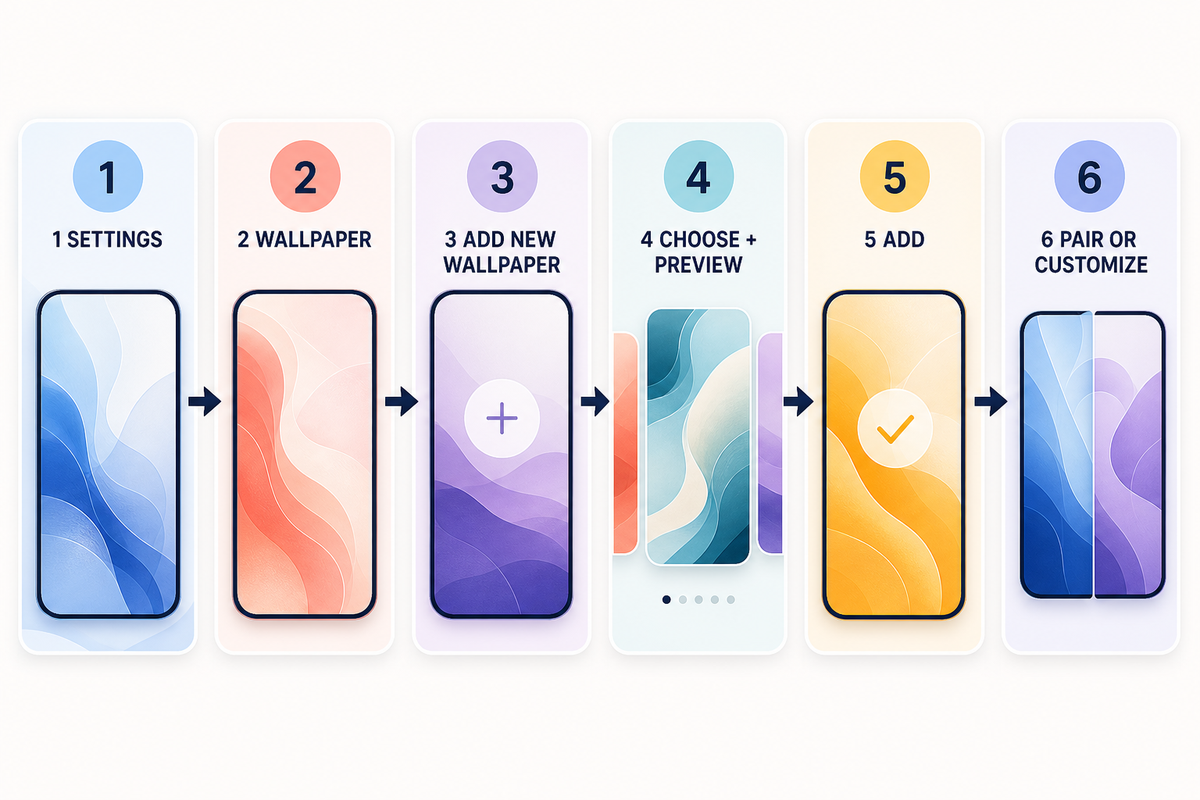
- Open the Settings app and tap Wallpaper.
- Tap Add New Wallpaper.
- Choose Photos or Photo Shuffle for your own images. You can also choose a built-in category such as Weather & Astronomy, Emoji, or Color.
- Reposition the photo, try available styles, and adjust the clock or widgets if needed.
- Tap Add.
- Choose Set as Wallpaper Pair, or tap Customize Home Screen for a separate background.
According to Apple Support, these labels match the current Change your iPhone wallpaper instructions. The route matters because older guides may say “Choose a New Wallpaper,” “Dynamic,” or “Stills.” Those labels describe older interfaces and shouldn’t replace what your current iOS 26 screen shows.
As you scroll through the current wallpaper options, you may see categories like Weather & Astronomy, Emoji, and Color. Select a wallpaper, select a photo, or select multiple photos for Photo Shuffle; then try a filter or different styles before you tap Add. This is Apple’s current customization flow, even when an older guide is titled for “iOS 16 or later.”
Change Wallpaper From the Lock Screen
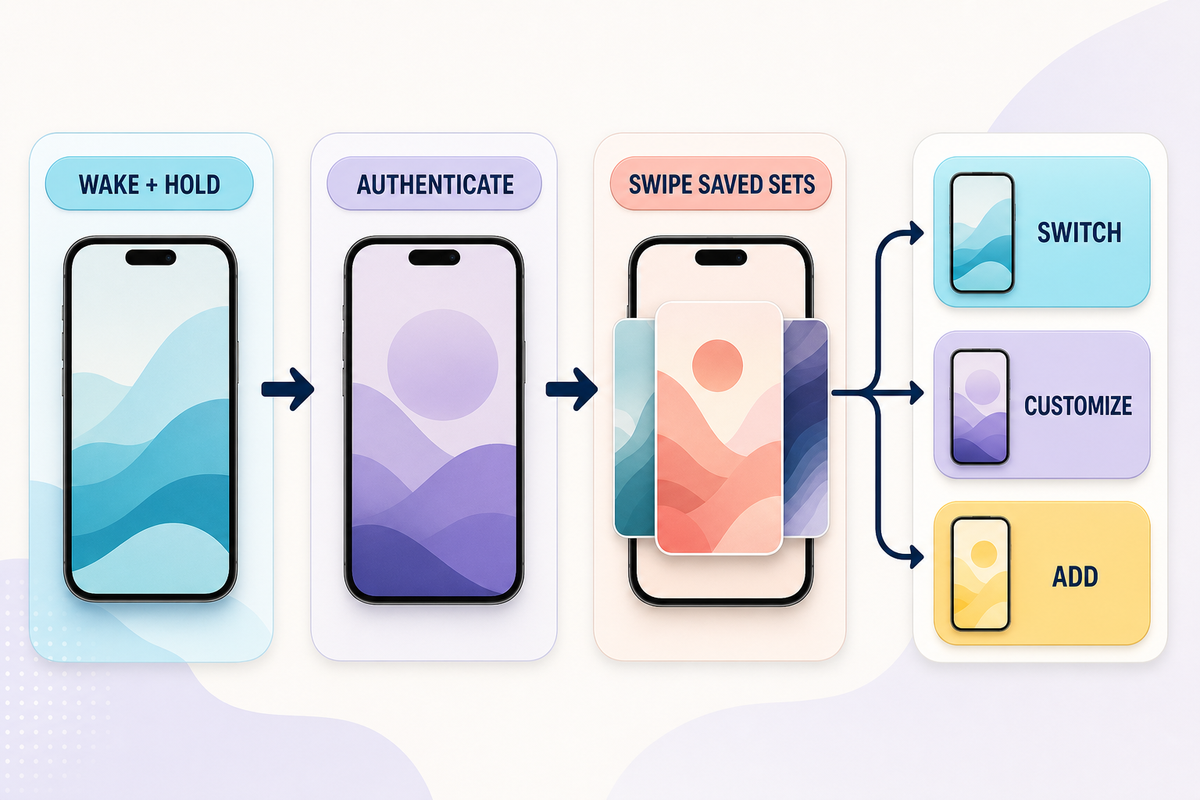
Apple’s official support page documents this route. Wake the iPhone, touch and hold the screen, and authenticate with Face ID or your passcode if the gallery does not open. Swipe left or right through saved Lock Screens. Tap a set to switch to it, tap Customize to edit it, or use the Add button to create another one.
This route is especially useful when you already have several wallpaper sets. Apple also lets you link a Lock Screen to a Focus, so changing to that saved screen can match a work, personal, or sleep setup. The control is optional; a wallpaper does not need a Focus link to work.
To customize your Lock Screen, you can also tap the time to change its font, move the foreground subject within the available crop, or link a Focus. When you edit an existing set, the screen may ask you to tap Done; when you create a new one, it normally asks you to tap Add.
If touch-and-hold seems to do nothing, check three things before troubleshooting the image: the Lock Screen must be awake, the press must be held rather than tapped, and authentication may still be required.
Set the Same Wallpaper or Use a Separate Home Screen
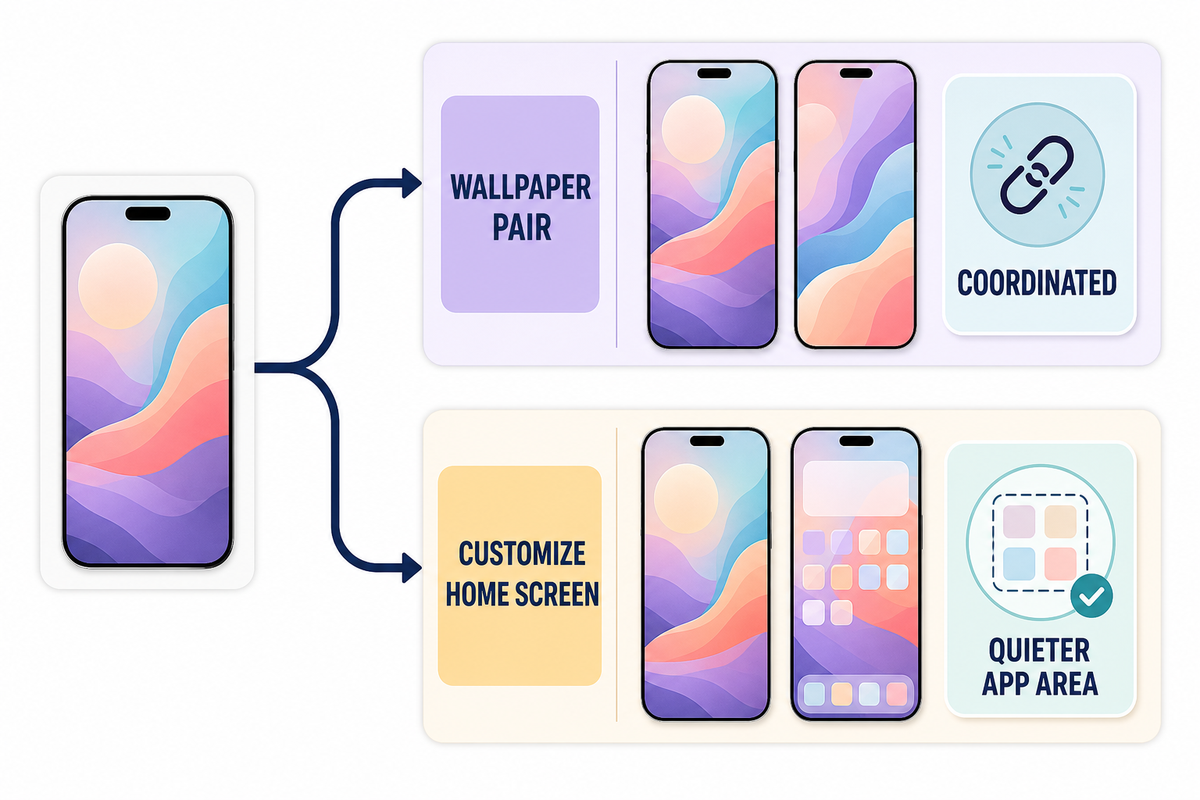
After you tap Add, the next choice controls the relationship between the two screens. Set as Wallpaper Pair gives the Lock Screen and Home Screen a coordinated version of the same selection. Customize Home Screen lets you choose a separate photo, color, gradient, or blur treatment.
In other words, tap Set as Wallpaper Pair when you want the Home Screen and Lock Screen to stay coordinated. Choose the separate route when the iPhone’s app area needs less visual detail than the Lock Screen. Apple’s wallpaper preview lets you alter the Home Screen without replacing the Lock Screen image.
Lock Screen and Home Screen Assignment Options
- Same image on both: fastest and visually consistent.
- Detailed Lock Screen + quieter Home Screen: keeps app names and icons readable.
- Photo Lock Screen + color or gradient Home Screen: preserves the subject without placing it behind icons.
- Photo Shuffle Lock Screen + stable Home Screen: adds variety without making the app area change constantly.
No single pairing works for all situations. A setup succeeds when the clock, widgets, notifications, icons, and labels remain clear on the screen where they belong.
Crop, Reposition, Add Widgets, and Use Photo Shuffle
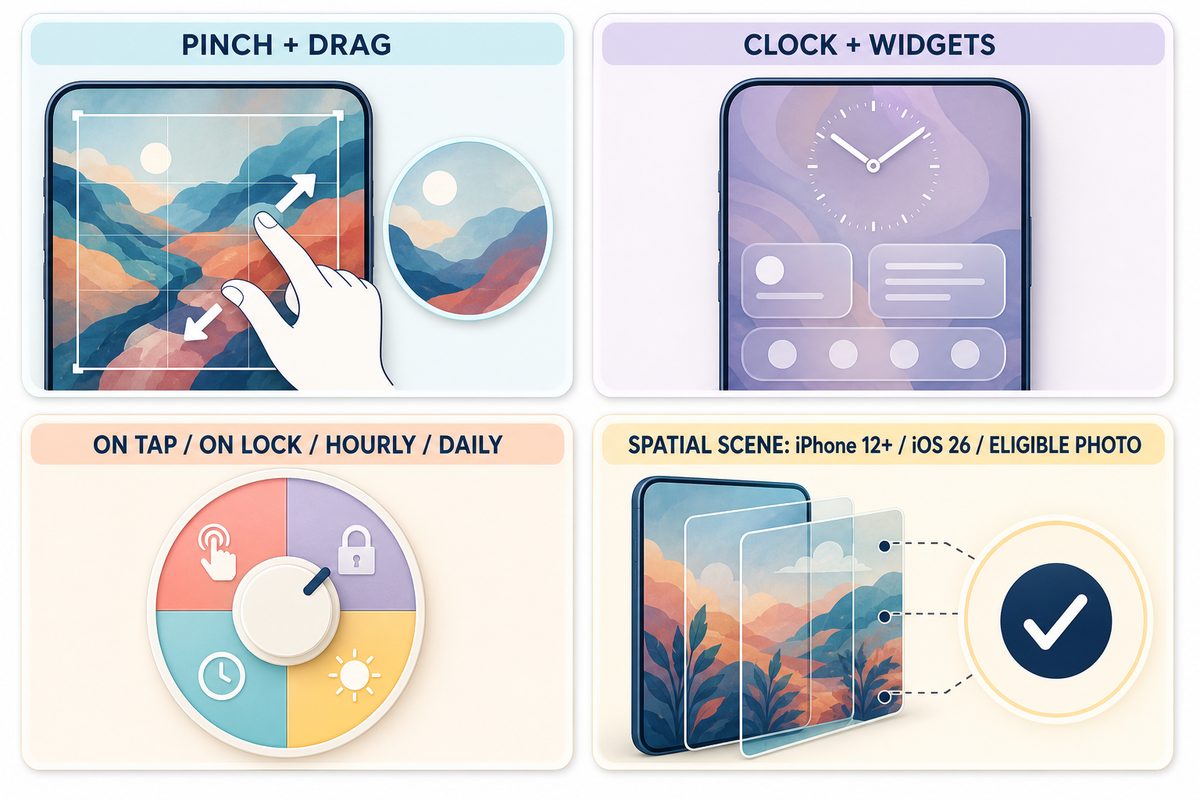
According to Apple’s Lock Screen guide, you can pinch and drag during preview because iOS crops the source to the current screen layout. The visible crop depends on the iPhone model, the source image’s shape, and the elements placed over it. No single pixel size guarantees the same crop across every current iPhone model, so a good source image can still need a different crop on another model.
On the Lock Screen, you can adjust the clock treatment, add widgets, change controls, and try available styles. Keep the main subject away from the clock and widget area. More widgets aren’t always better if they cover the part of the photo you chose the image for. For layout, icons, and widgets beyond this wallpaper-pair decision, use the complete iPhone Home Screen customization guide.
For automatic changes, choose Photo Shuffle. Apple’s current frequency choices are On Tap, On Lock, Hourly, and Daily. Pick a stable Home Screen separately if rotating photos make icons harder to read.
On iPhone 12 or later with iOS 26, an eligible photo may support Spatial Scene for a 3D effect, as described in Apple’s wallpaper instructions. This isn’t guaranteed for every photo. If the option doesn’t appear, the image may not qualify even when the phone and operating system do.
Live wallpapers, animation, and other dynamic wallpaper formats are separate behaviors from Photo Shuffle. This guide covers the current system wallpaper controls; it doesn’t imply that every downloaded animated image will play as a dynamic wallpaper.
Find a Wallpaper Before You Change It
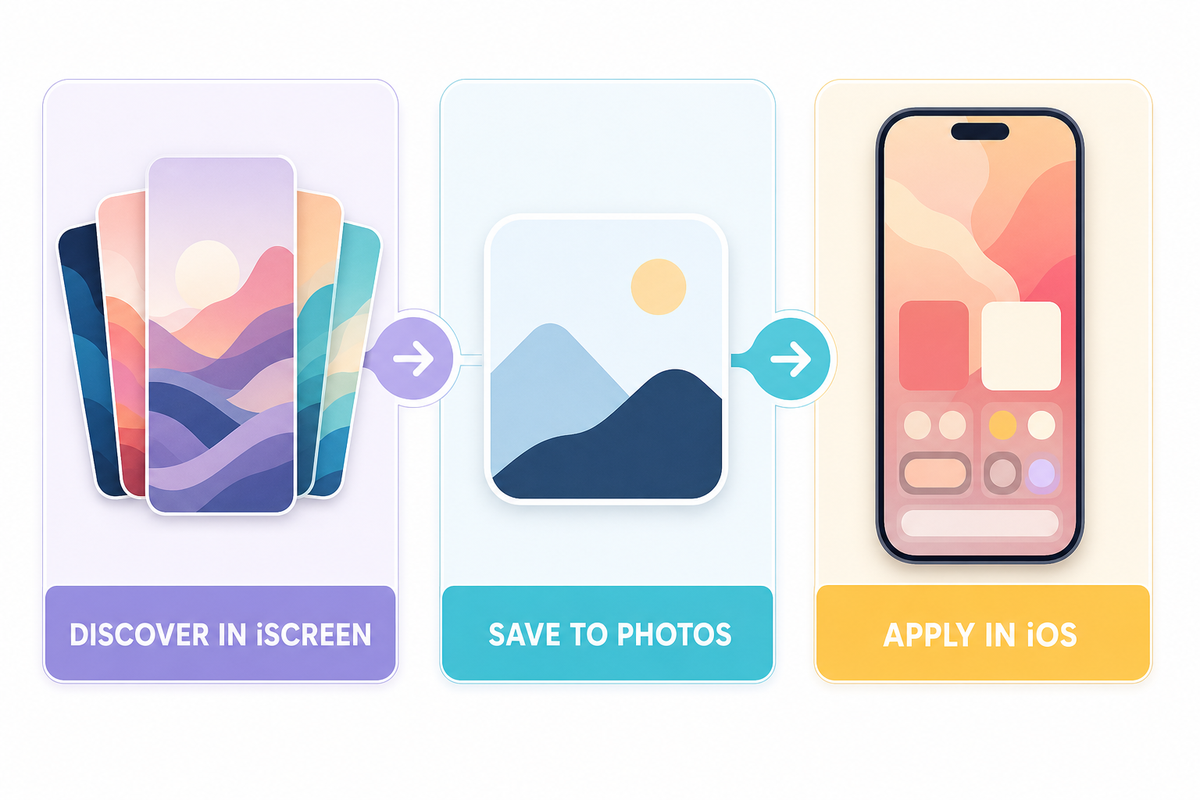
Already have a photo? Continue with Settings or the Lock Screen gallery. Otherwise, browse 4K iPhone wallpapers and save the image you want to Photos. For style ideas before you choose, explore iPhone themes or see this visual iPhone wallpaper lookbook.
Don’t confuse downloading with applying. A wallpaper app or website supplies the image; Apple’s Wallpaper controls decide the Lock Screen, Home Screen, crop, widgets, and pair.
Fix Common Wallpaper Problems
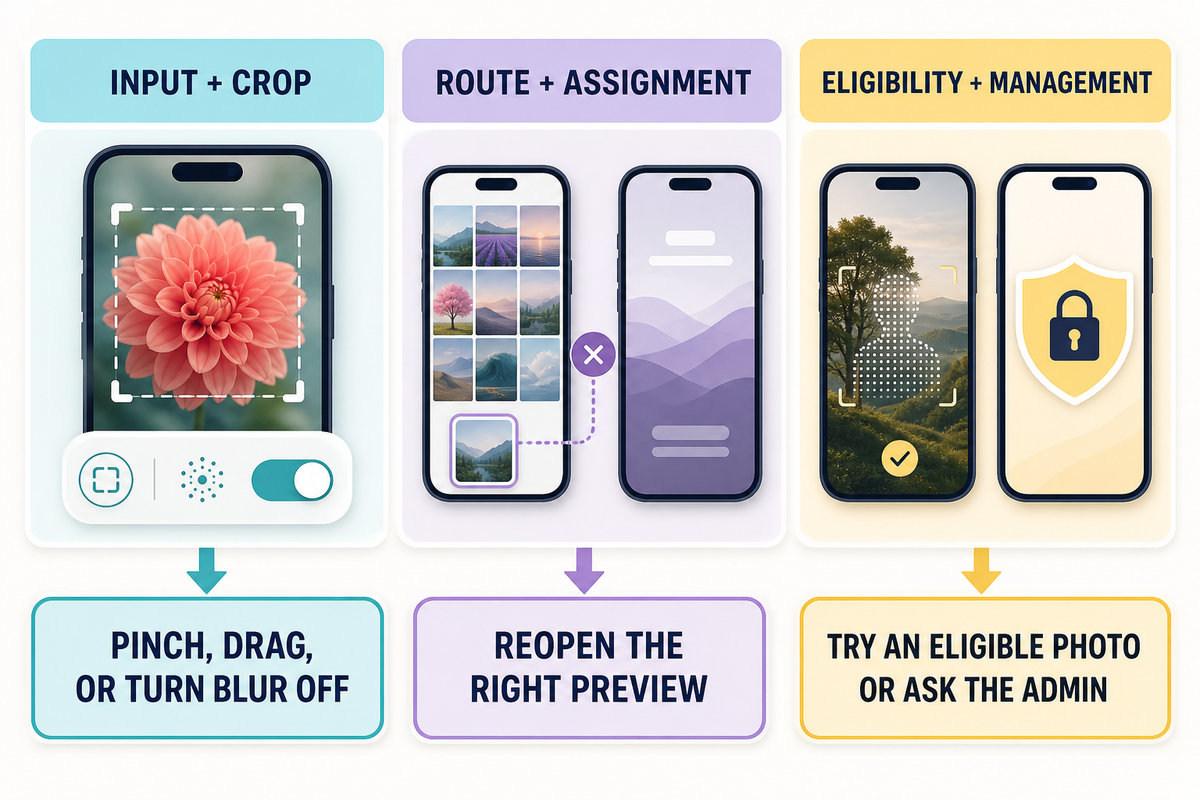
| Problem category | What to check | Shortest fix |
|---|---|---|
| Wallpaper gallery will not open | Screen is awake; press is held; authentication is complete | Wake the Lock Screen, touch and hold again, then authenticate |
| Photo looks zoomed or cropped | Image shape and selected crop | Pinch and drag; choose an image with more space around the subject if needed |
| Home Screen looks blurry | Blur may be enabled under Customize Home Screen | Open the Home Screen preview and turn Blur off |
| Home Screen changed unexpectedly | Set as Wallpaper Pair was selected | Return to Wallpaper and choose Customize Home Screen |
| Clock or icons are hard to read | Bright detail sits behind interface text | Reposition the photo or use a quieter Home Screen color or gradient |
| Spatial Scene does not appear | iPhone model, iOS version, and photo eligibility | Use iPhone 12 or later with iOS 26 and try another eligible photo |
| Old wallpaper seems missing | It may be saved elsewhere in the Lock Screen gallery | Wake, touch and hold, authenticate, then swipe through saved sets |
| Wallpaper controls are unavailable | The iPhone may be managed by work or school | Ask the organization that manages the device about its restriction |
| Wrong screen changed | The pair choice or selected preview did not match the intended screen | Return to Wallpaper and edit the Lock Screen or Home Screen preview directly |
On a work- or school-managed iPhone, unavailable Wallpaper controls can mean an administrator has restricted changes. Apple’s device-management restrictions guide documents a supervised-device control that can prevent users from modifying Lock Screen or Home Screen wallpaper. In that case, ordinary crop or restart advice won’t restore the option; contact the organization that manages the device.
Deleting is also a separate task. In the saved Lock Screen gallery, Apple’s Lock Screen guide directs users to swipe up on a set and tap the Trash button. Do that only when you intend to remove the saved set, not when you merely want to switch back to another one.
Final Preview Before You Finish
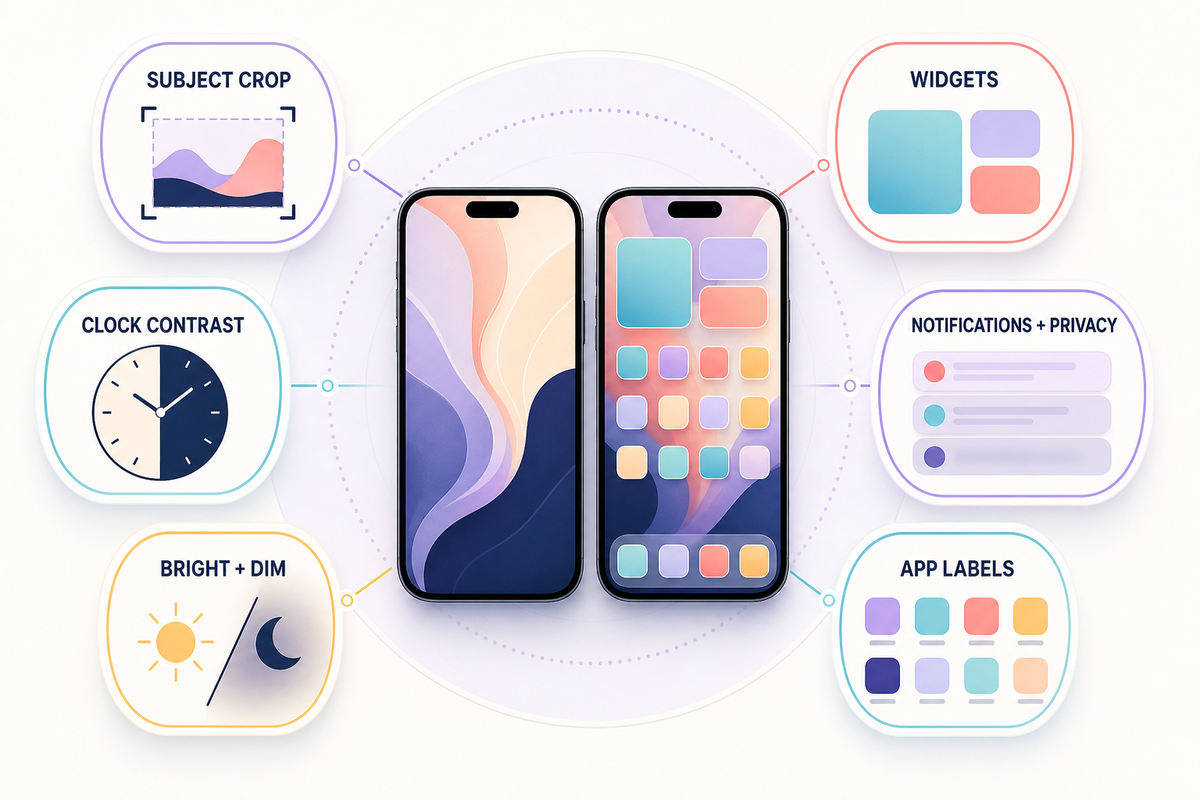
Apple’s official customization guidance matters here because the finished screens include more than the source photo. Check clock contrast, widgets, notification previews, app labels, and whether the subject remains visible in both bright and dimmed appearances. Treat Lock Screen widgets and notifications as privacy surfaces too: a beautiful setup isn’t worth exposing information you would rather keep out of view.
When the Lock Screen works but the Home Screen feels busy, keep the Lock Screen photo and change only the Home Screen to a color, gradient, or blurred version. This small split often solves readability without discarding the image.
Frequently Asked Questions
How do I change just my Home Screen wallpaper on iPhone?
View answer
How do I switch back to an old wallpaper?
View answer
Why does my iPhone wallpaper look zoomed in?
View answer
Can I use a different wallpaper for the Lock Screen and Home Screen?
View answer
How do I make my iPhone wallpaper change automatically?
View answer
Why can’t I use the 3D wallpaper effect?
View answer
References & Sources
- Change your iPhone wallpaper — Apple Support, updated February 2, 2026.
- Change the wallpaper on iPhone — Apple iPhone User Guide.
- Create a custom iPhone Lock Screen — Apple iPhone User Guide.
- What’s new in iOS 26 — Apple iPhone User Guide.
- Review device management restrictions for Apple devices — Apple Platform Deployment.
- Compare iPhone models — Apple.
About this guide
This guide was prepared by the iScreen editorial team using current Apple documentation and a live review of the United States search results. iScreen’s catalog descriptions are first-party product information; Apple documentation controls the operating-system steps and eligibility boundaries.
