iPhone Home Screen Wallpaper That Works Behind Your Apps
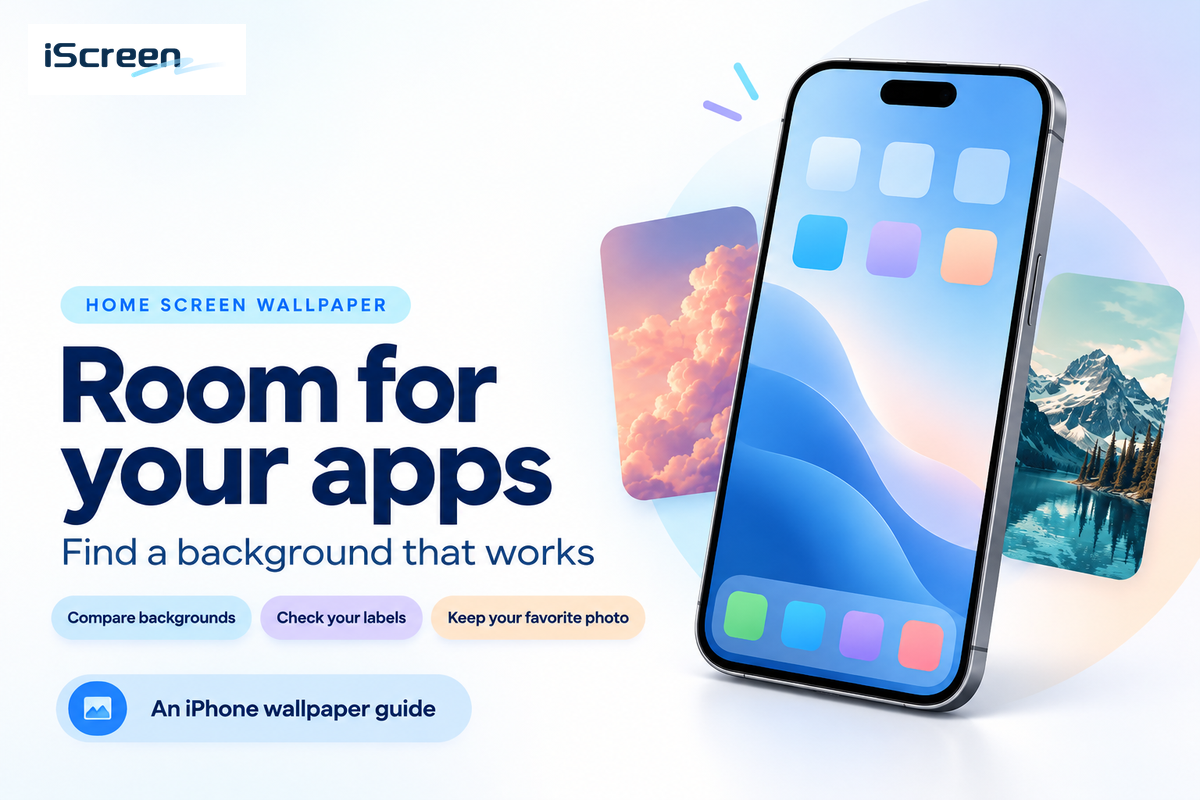
iPhone Home Screen Wallpaper: Which Style Works?

Start with a solid color or gentle gradient if your apps are hard to find. The iPhone home screen wallpaper is behind your app icons and widgets; it can be different from your Lock Screen photo. Browse the iScreen wallpaper collection, and then compare your favorites with the apps that are visible.

iPhone Home Screen wallpaper works best when the background leaves your apps easy to identify. Keep a detailed photo on the Lock Screen, then choose a plain color, softer crop or blurred version behind your apps.

  • A matching wallpaper pair can still have a different Home Screen treatment.
  • Blur softens detail; a low-resolution original needs a better source file.
  • Large app icons hide app names, so check icon recognition as well as background contrast.

iPhone Home Screen wallpaper: start with the apps
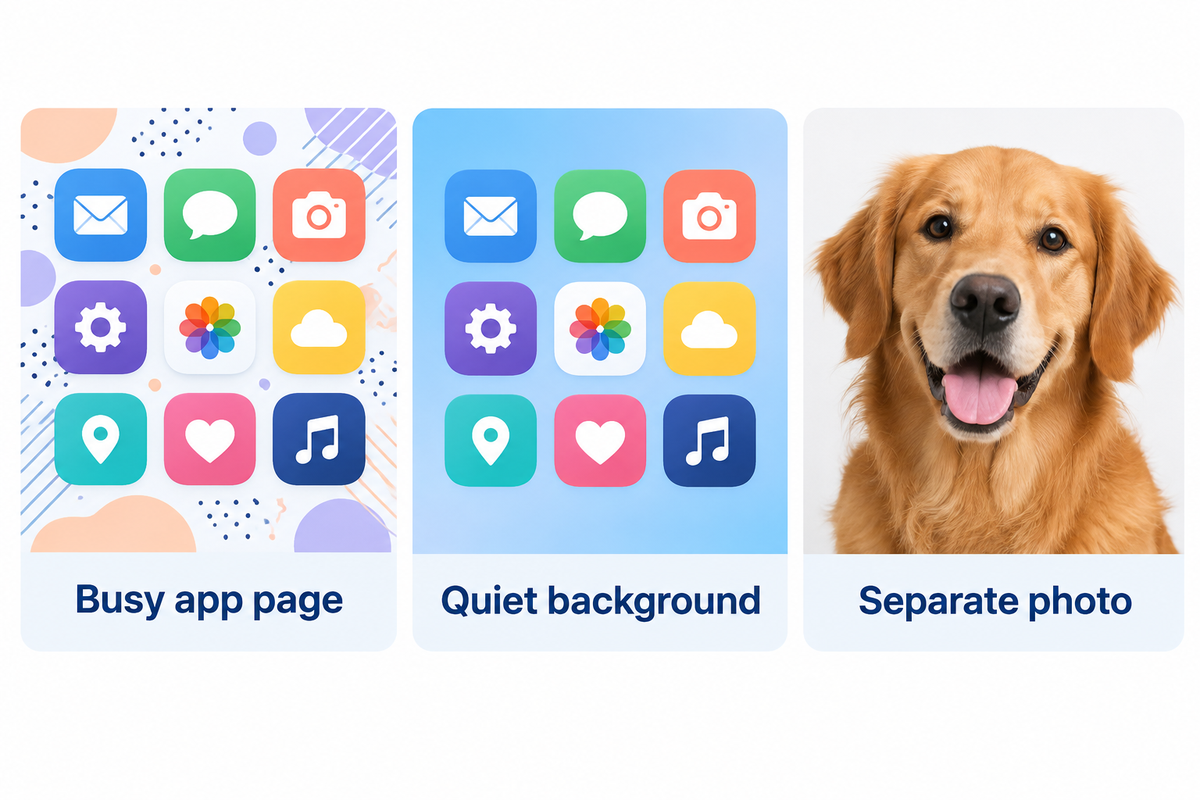
Start with the apps you use; a quiet background and separate Lock Screen photo are editorial design options.

A good Home Screen background gives your favorite image room while keeping your apps easy to find. Start with your busiest app page rather than an empty preview. A photograph can be quite nice on its own. But placing a face, bright window, or colorful shirt beneath the information you need can make it harder to read.

A quiet, cool blue background is a good start for someone who uses work apps throughout the day. For a widget-heavy layout, leave a clear edge for the calendar and weather widgets. For a photo-focused layout, use a soft effect behind apps and keep the subject sharp on the Lock Screen.

Apple’s wallpaper instructions let you save a favorite pair or customize the Home Screen separately. You don’t have to sacrifice a portrait because it makes a poor background for small labels.

What is the best home screen Wallpaper for my iPhone?

When creating a Home Screen with a lot of icons, it’s best to start with a solid color or gentle gradient. You can use a photo, but consider if the subject is between your icons and will still be visible after cropping. If the photo has fine texture behind app names, try using Blur. If there’s still a distracting, bright patch of color, adjust the crop or choose a different image.

Minimalist, photo or colorful wallpaper? Compare four looks
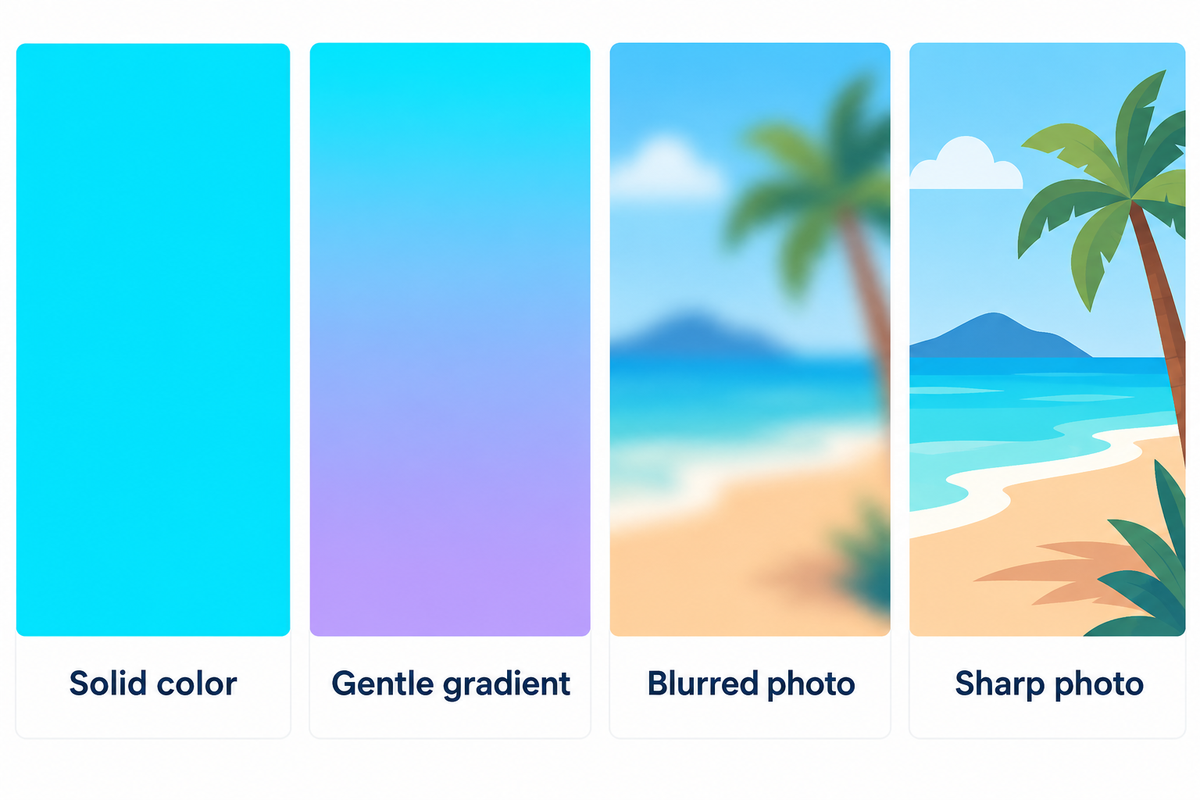
Compare solid color, gradient, blurred photo and sharp photo; iScreen editorial background choices.

For a dense app grid, use a solid color. For variation, use a gradient. For a personal palette, use a blurred photo. For a sharp photo, choose one with plenty of negative space around the subject. These are the starting points for different layouts. There’s not a single base color that will make every icon and widget the most visible.

Background Start here when What you keep What to adjust
Solid color App labels compete with patterns A consistent backdrop Choose a shade that separates from your icons
Gentle gradient You want a minimalist look with more depth A soft color transition Move a bright area away from pale labels
Blurred photo The photo matters more for its colors than its details The original palette Check large light and dark patches
Sharp photo A face or landscape fits around the layout Recognizable detail Reposition the subject before saving

Apple’s Home Screen customization guide goes over the options for color, photo and Blur. Use the settings and editing options that are available to you in your version of iOS.

A beige background can complement a brown leather-style widget and its textured edge. A cute illustration’s color palette can be captured with a pastel pink. For bold orange designs, consider leaving the busiest shapes out of the app grid. A black and white photograph still needs a final crop check. Pale labels and bright clouds together can make a nasty distraction.

See iPhone wallpaper aesthetic ideas for more examples.

Check icon labels before you keep a background
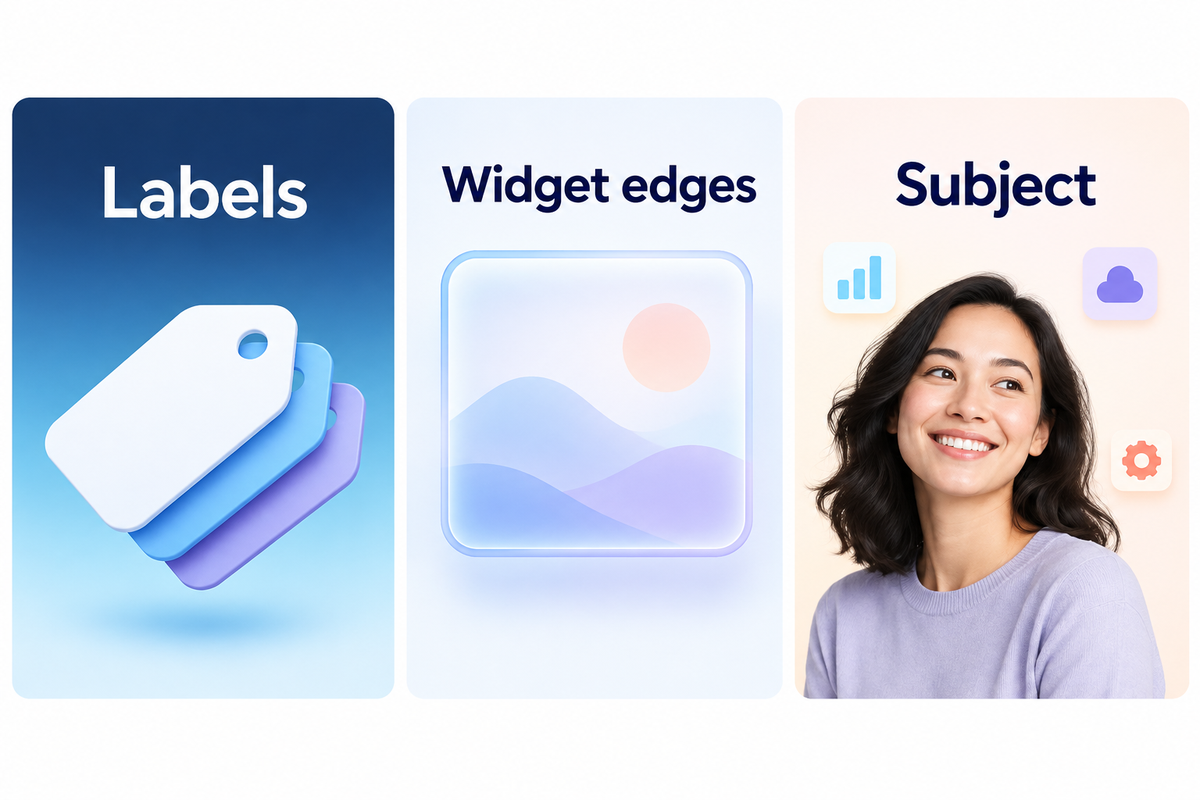
Check labels, widget edges and the photo subject before saving; the iScreen Three-Zone Background Check.

Check the areas behind app names, around widget edges and over the subject of your photo before saving your background. The Three-Zone Background Check looks at these three places to find the next edit. Start on your most complex page with your normal levels of brightness and then adjust the background treatment or crop that creates the problem.

  1. Labels: Look at the names of apps over the brightest and most detailed parts of the image. Reposition the photo if lettering disappears into those areas.
  2. Widget edges: Look for a clear boundary between each panel and the wallpaper. Try a quieter background if a translucent panel blends into the picture.
  3. Subject: Keep the part you care about outside the places covered by apps. Move a face into open space, or reserve the full portrait for your Lock Screen.

Example: In a photo of a beach, where a white cloud sits behind a row of labels, Blur may remove the fine edges of the cloud and leave a similar, large patch of white. Cropping in toward the darker part of the sea would place a darker background behind the labels. If that crops out the horizon you want, a simpler option would be to use a blue gradient.

There’s an exception to the Label Check. Apple’s App Appearance Guide says app names disappear with large icons. With that in mind, check if you can determine the positions and shapes of icons. Uniform purple icons could blend with the wallpaper perfectly, but make similar symbols hard to differentiate.

Match wallpaper with widgets and app icons
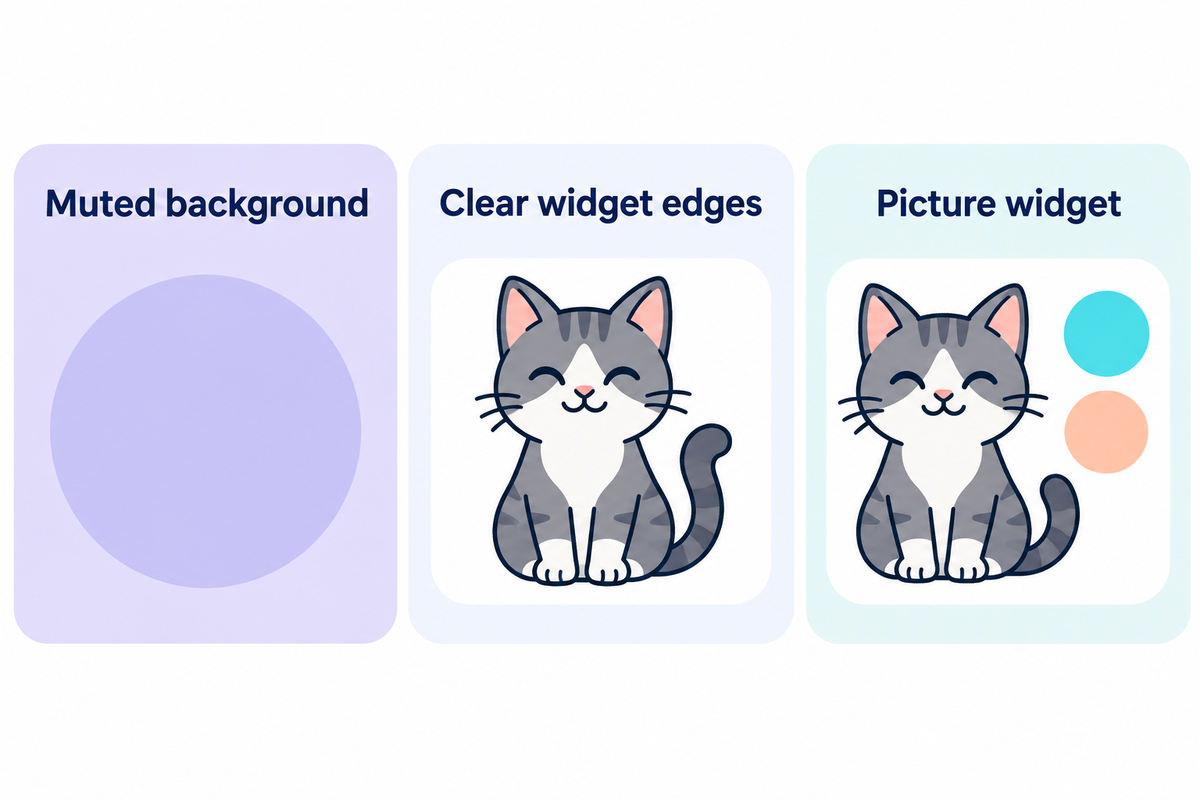
Support widget borders with a muted backdrop and keep detailed artwork in one place; iScreen design guidance.

Build a coordinated mobile screen around the widgets you use and pick a background that supports their borders and colors. A calendar needs space for information, and a decorative picture widget can repeat the wallpaper’s accent color. Keep the busiest illustration in one place.

For a retro screen theme, try a muted background behind a more detailed widget. Maybe a small cat illustration would look better in a picture panel instead of in the middle of your wallpaper. With a bear character, leave its face in the open instead of covering it with a weather forecast. The choices would maintain the part of the design you want to see.

The iScreen App Store listing mentions its iPhone app for widgets, themes, and wallpaper customization. The app is listed as free with in-app purchases, so check the design or feature you wish to purchase before going for the paid option.

If a collection preview uses a different app arrangement, recreate the color relationship rather than expecting the picture to fit automatically. You can use the Home Screen layout ideas to place a large widget. For a complete set of icons, refer to the aesthetic app icons guide.

Change only your Home Screen wallpaper
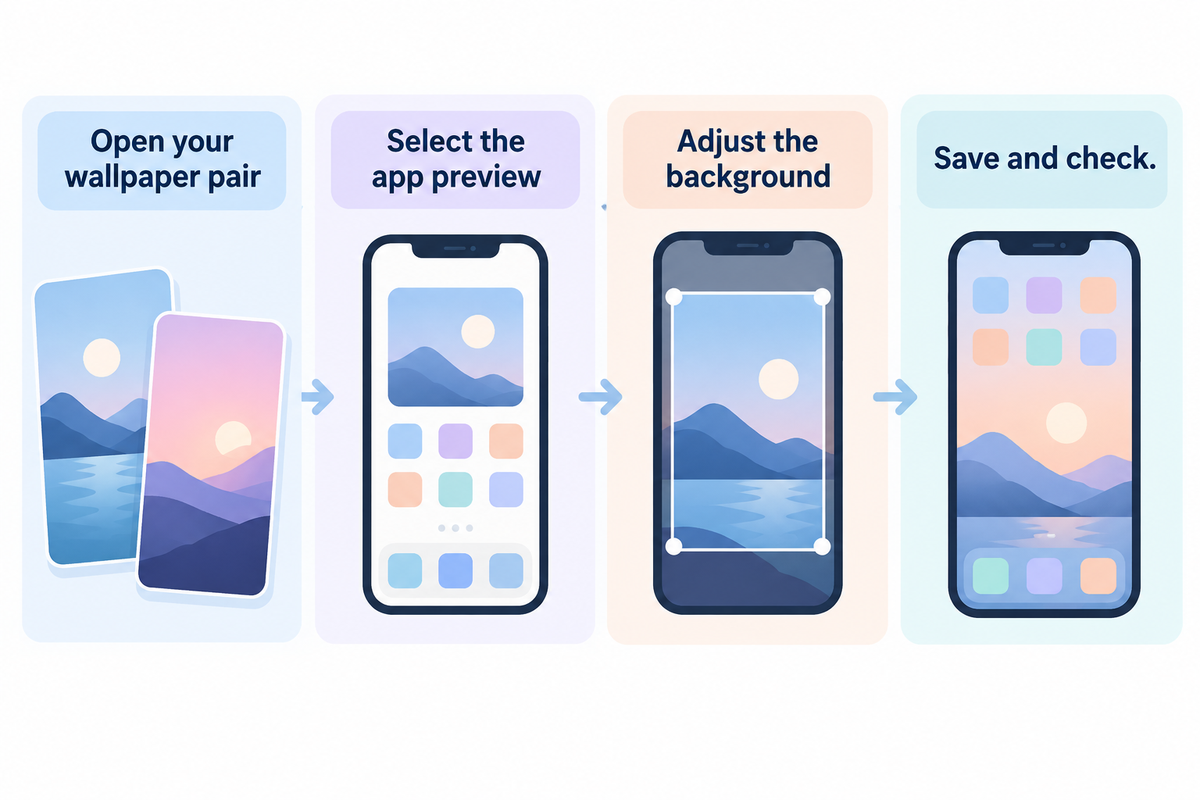
Select the Home Screen preview, adjust the background and save; Apple wallpaper guidance, interface varies.

To only edit the Home Screen, open Settings, and then Wallpaper. Customize the Home Screen preview of the wallpaper pair that you want to edit. You can then choose a different photo, adjust Blur, or choose a different color, and then save the pair. Look at your Home Screen to see if you edited the correct one.

How do I change just the home screen background on my iPhone?

Open Settings, and then Wallpaper. Customize the Home Screen preview. You can then choose a different color or photo, adjust Blur, and then save the pair. When adding a new wallpaper, use Customize Home Screen to choose the background for the apps, after it has been added.

  1. Open the wallpaper pair you intend to keep.
  2. Select the preview showing your apps.
  3. Choose the background treatment and inspect the crop.
  4. Save, then return to your actual app page.

“select Blur to blur the wallpaper so the apps stand out.”

Apple, Change the wallpaper on iPhone

Apple covers independent customization of wallpaper in the wallpaper user guide. MacRumors covers separate Home Screen editing in its September 2025 guide for iOS 26. To learn how to choose a photo and save wallpaper, see how to change wallpaper on iPhone.

Fix blurry, cropped or distracting wallpaper
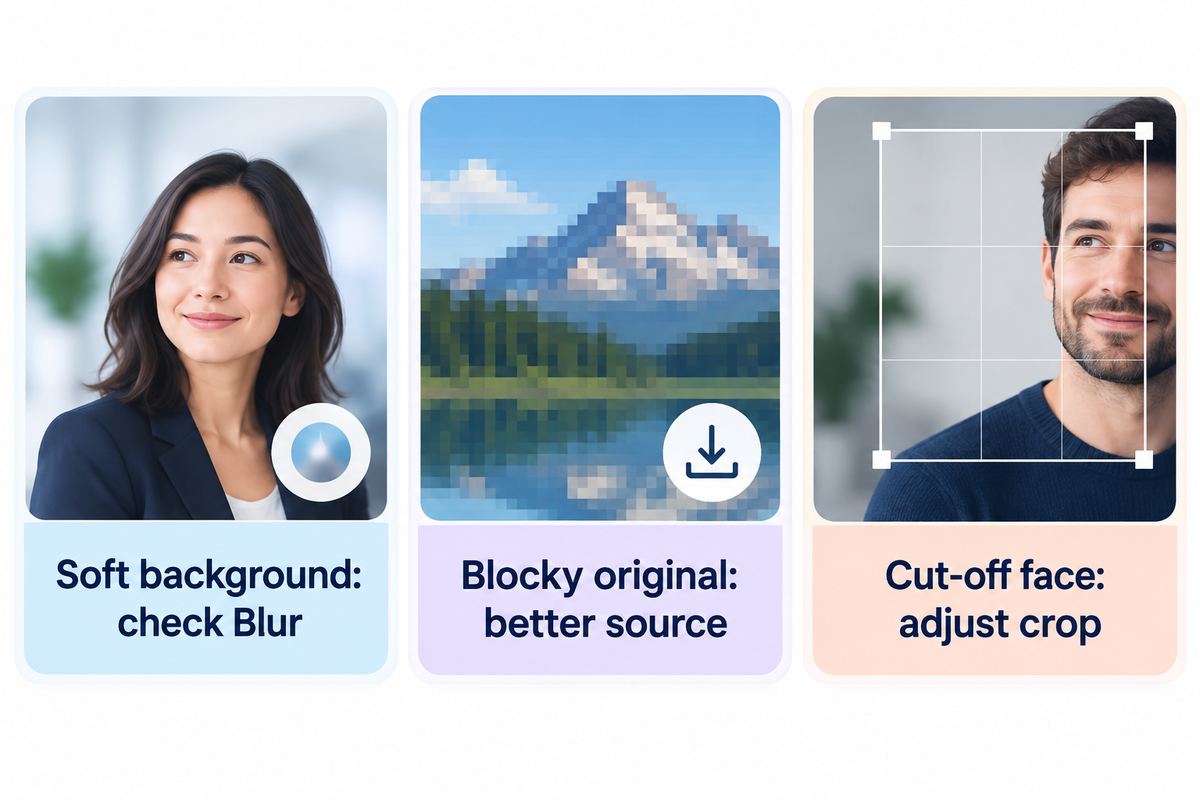
Separate unwanted Blur, low-resolution originals and poor cropping before changing wallpaper; Apple and iScreen guidance.

You need to decide if the problem is a soft photo, unwanted crop, or a background that overlaps with your apps. To see the unaltered photo, disable the Blur effect on the Home Screen. Compare this with the saved photo in your Photos app. A different crop can reposition detail that was cut off in the photo.

Problem type First check Next action
Home Screen is soft; original looks sharp Home Screen Blur setting Turn Blur off and compare
Original already looks blocky Downloaded file rather than its preview Save a higher-resolution original
Face is cut off Position in the wallpaper editor Move the crop or choose a photo with more space
Labels blend into a bright patch Local background behind the labels Shift the crop or use a quieter color
Picture changes when a mode activates Wallpaper linked to that Focus Edit or switch the relevant wallpaper pair
App names have disappeared Large icon appearance setting Use small icons if you want names visible
A widget covers the photo subject Subject position relative to the widget Move the crop or choose an image with open space
Similar tinted icons are hard to distinguish Shapes and positions of the apps you use Try a different appearance or restore app names
Lock Screen effect is absent behind apps Whether you selected Spatial Scene Keep the effect on the Lock Screen; use a separate app background

See how a linked Focus can switch Home Screen wallpaper automatically. Check your Focus if the background problem occurs when that mode activates.

Saving a smaller digital image from a social media preview may provide less detail than the original download. Zooming a small file to cover a display makes some detail look indistinct. A wide landscape, for example, may lose its edges when squeezed into a tall screen. A portrait photo is a better option in this case.

Apple’s Spatial Scene effect has another boundary: the three-dimensional effect appears only on the Lock Screen. Selecting a pair doesn’t turn the Home Screen into the same animated scene.

Free iPhone wallpaper downloads: what to look for
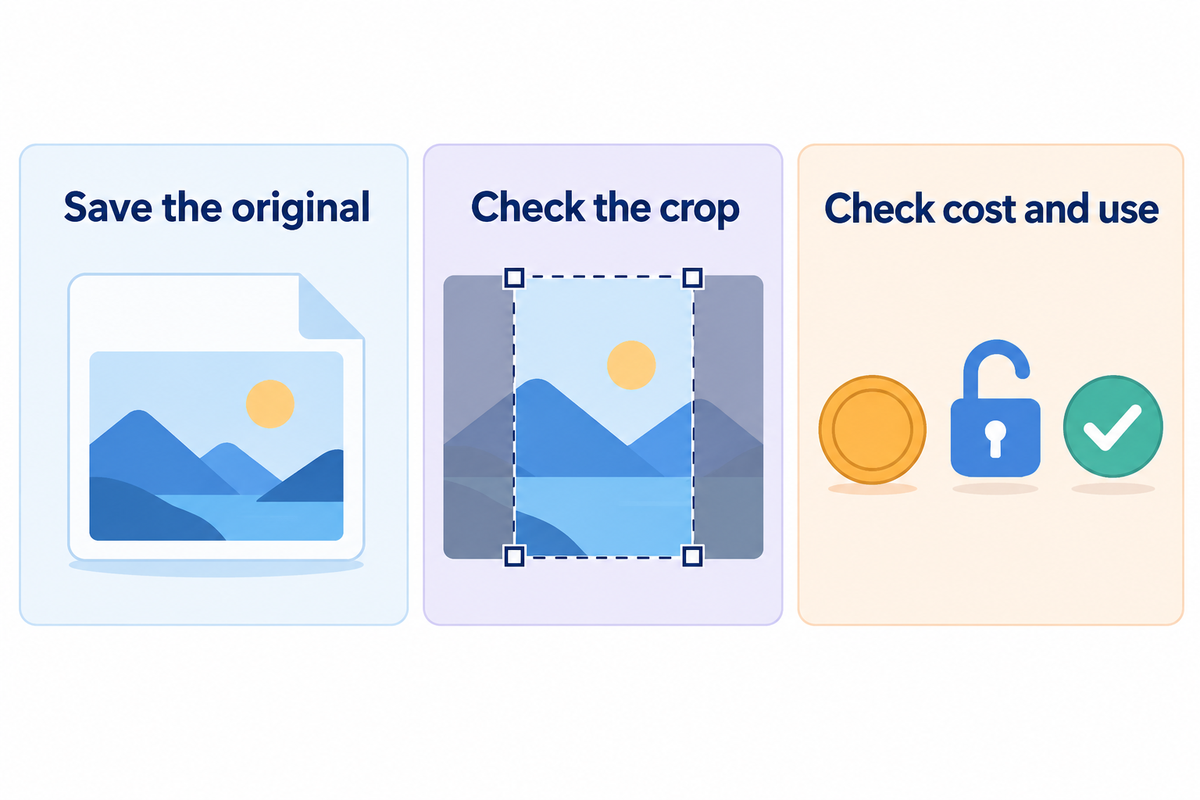
Download the original and check crop, access and usage terms; iScreen editorial download checklist.

Instead of taking a screenshot of a preview, download the original picture and assess the image’s size. A free file may be adequate for a custom background. HD and 4K claims can be useful, but the crop and the actual pixel dimensions determine what you’re actually working with.

Browse the selection of wallpapers for iPhone in a collection, then open a candidate before saving. Scroll past thumbnails to find the original download control. If a page guarantees wallpapers in HD, always inspect the download and not just the thumbnail. A wide desktop file may have plenty of pixels, but still give little or no space for a face when cropped for a smartphone.

  • Image: Save the full file, then review it in Photos.
  • Access: Check whether you can download without registering or whether there’s a sign-up required notice.
  • Cost: Separate a free download from a subscription or optional purchase.
  • Use: Read the creator’s terms before redistributing an image or using it commercially.

Some galleries offer wallpapers to download free while selling other sets. A sample picture may also be watermarked. Don’t save the sample as your final background if a creator offers a download button separately.

For a more tangible frame of reference, Apple’s iPhone 13 specifications set the display resolution at 2532 by 1170 pixels. Other models may vary. Align your file and crop to your device with the iPhone wallpaper size guide, especially when an image is listed for both phone and tablet.

Keep your screen setup readable as styles change
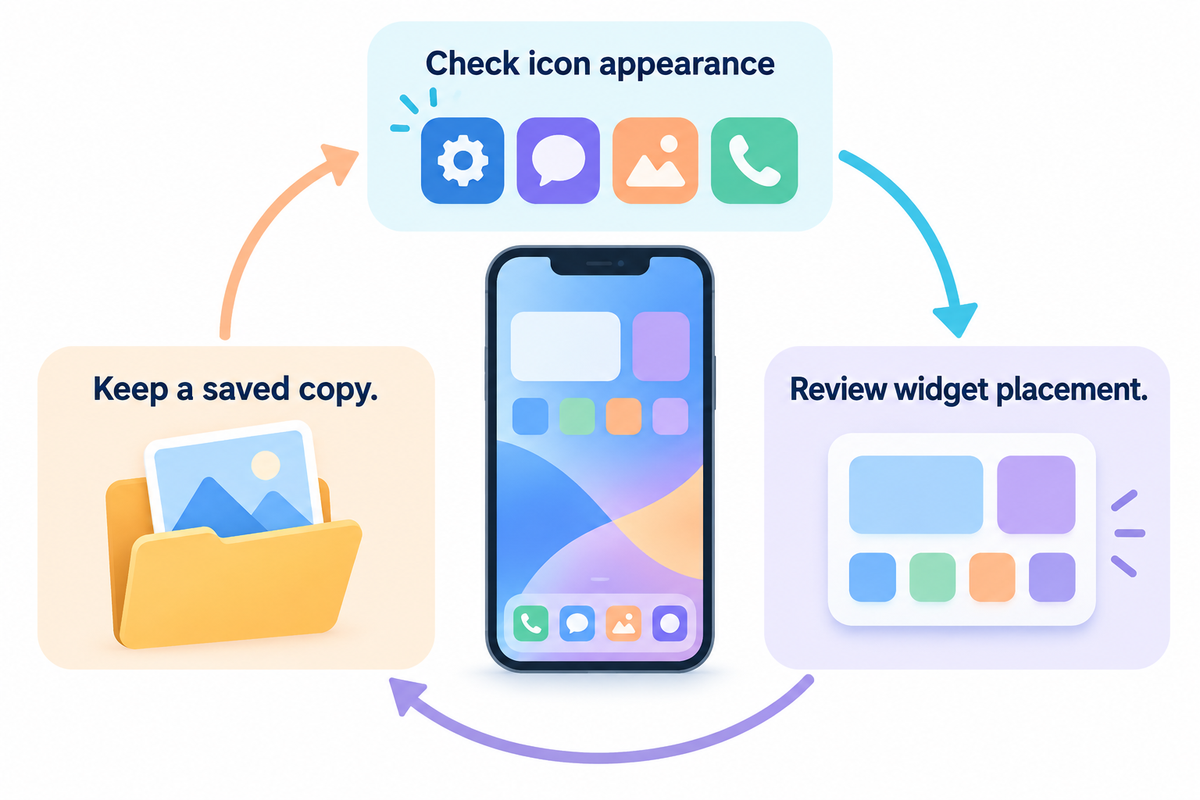
Recheck the background after icon or widget changes and keep a saved copy; Apple appearance guidance and iScreen advice.

Check your background after changing icon size, appearance, or widget placement, since the image remains the same in the background with a different arrangement. Start with the page you open the most. Keep a saved copy of the wallpaper you like, so you don’t have to waste time looking for it when a new theme gets applied.

Apple’s appearance controls vary by software version. You can choose a translucent icon appearance or adjust a tint to change icon colors where these options are available.

If you discover that the aesthetic Lock Screen wallpaper feels too busy behind the apps, crop and save a separate design. You can use a mood board to compare colors to decide on the best design to maintain color harmony.

Frequently asked questions

What is the background screen on an iPhone called?

The picture behind your apps is the Home Screen wallpaper.

The Lock Screen wallpaper is the picture shown before you reach your apps. Both can use the same image, or you can customize them separately. When an instruction says “background,” check which preview it refers to. The preview with app icons controls what you see while choosing apps, rather than the clock-focused screen that appears when you wake your phone.

What size wallpaper should I use?

Use a sharp original that fits your model’s portrait display and leaves room for cropping.

There’s no single dimension for every iPhone. Start with the model-specific display resolution, then allow enough space around the subject to reposition it. An image with more pixels can still crop badly if the composition is too wide. Before saving, inspect the top and bottom of the preview and make sure the face or object you want remains visible.

How can I make my own phone wallpaper?

Start with your own photo or a portrait canvas, then place the subject away from your app grid.

Pick a background color, add the image or artwork you want, and leave open space where widgets will sit. Export the original at a useful resolution instead of capturing the editor preview. Set the file as wallpaper and check it with your actual apps. If you also want an iPad version, make a separate crop rather than stretching the phone design.

Is portrait better than landscape for wallpaper?

Portrait is usually the easier starting shape for an upright iPhone screen.

A landscape photo can work when its subject sits near the center and survives a narrower crop. Keep extra space around important details. If both edges matter to the composition, use another picture instead of forcing the whole scene into the tall display.

Why does my iPhone wallpaper go black?

Check the active wallpaper pair and any linked Focus before replacing the image.

A different pair or dark background choice may explain the change. If the selected photo is missing from the preview, choose it again from Photos and save. Apple documents automatic wallpaper changes through linked Focus modes; that doesn’t diagnose every black-screen symptom. Compare the wallpaper preview in Settings with the image saved in Photos. If the original is visible but the selected background stays blank, note when the change happens and which pair is active. A screenshot of the selected preview can help explain the issue when you contact Apple Support. If the entire display is black, including the controls and app icons, treat that as a display or device problem rather than a wallpaper design choice. Use Apple Support for the behavior on your software version.

Choose a background for the apps you use
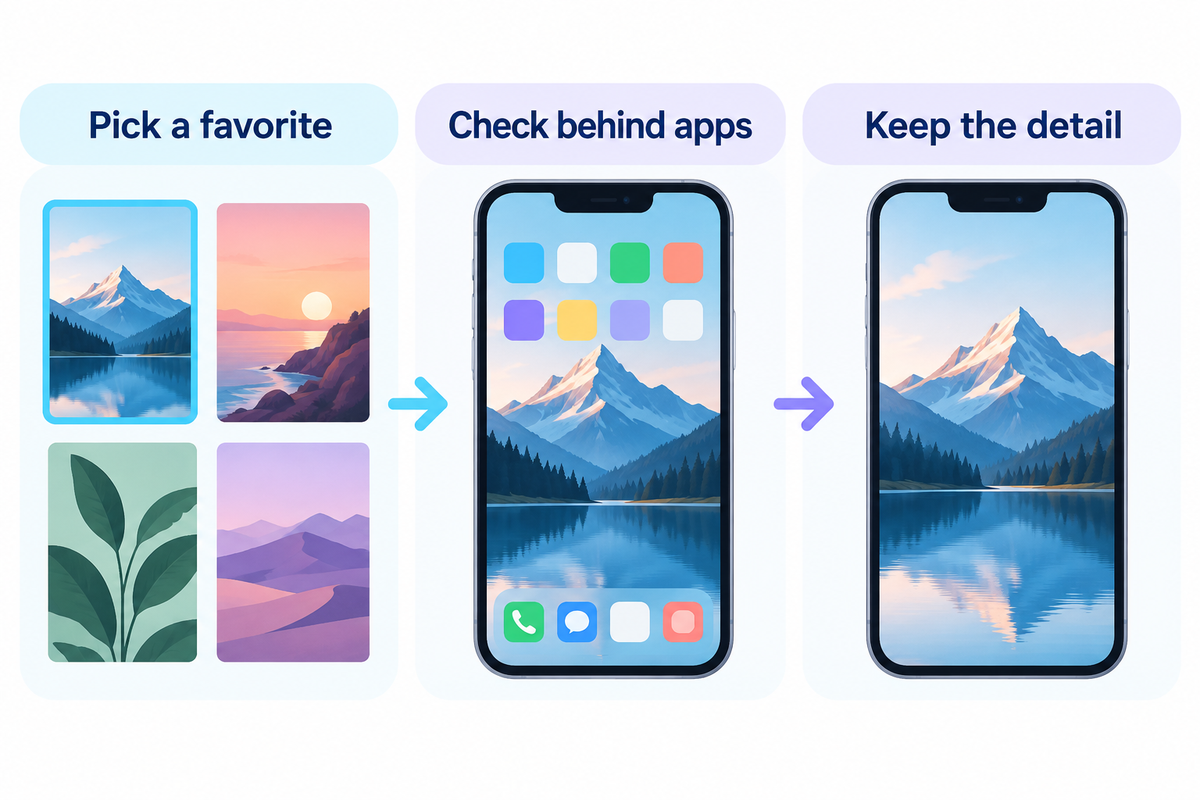
Choose a favorite wallpaper, check it behind your apps and keep a separate detailed Lock Screen version; iScreen guidance.

Open the wallpaper collection and save a favorite color or photo. Apply it to the Home Screen, check the areas behind your apps, and keep the detailed version for the Lock Screen if the crop feels crowded.

The design examples are suggestions. Instructions will vary based on iPhone and Apple’s software version.

References & Sources

  1. Change your iPhone wallpaper Apple Support.
  2. Change the wallpaper on iPhone Apple iPhone User Guide.
  3. Customize apps and widgets on the iPhone Home Screen Apple iPhone User Guide.
  4. Customize the iPhone Home Screen wallpaper MacRumors, September 25, 2025.
  5. iPhone 13 Technical Specifications Apple Support.

Related Articles

Customize your iPhone Lock Screen when you want a separate clock, photo and widget arrangement.
最近の記事

iPhone Wallpaper Size Guide: Recent Models in One Table

iPhone Wallpaper Size Guide: Recent Models in One Table

2026/10/23 18:49
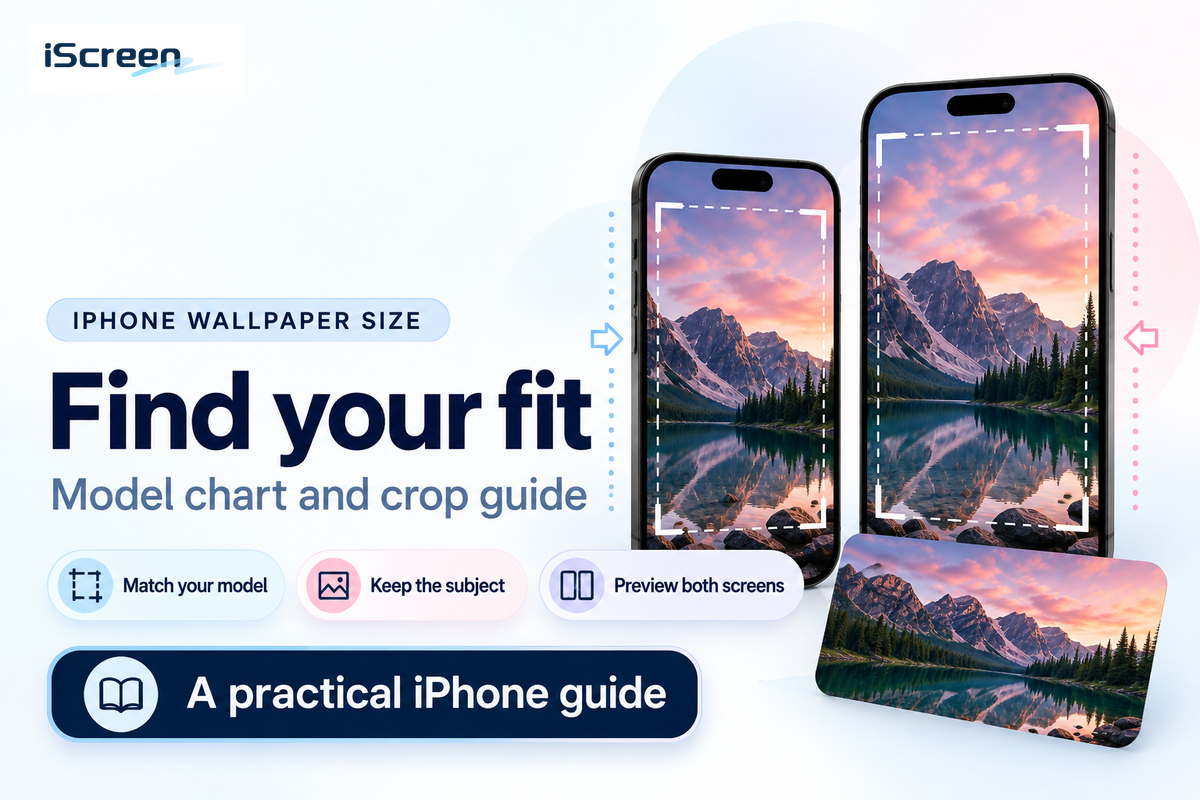
The correct iPhone wallpaper size begins with your model’s portrait display dimensions. Apple lists the iPhone 17 as 1206 × 2622 pixels and the iPhone Air as 1260 × 2736 pixels, width first. For your reference, use the table below and adjust your photo around its subject, leaving room for the clock and widgets. A larger file gives you editing room, but the shape still matters. Updated October 2026 · Dimensions below are width × height in pixels. Find the full model name, including Plus, Pro, Pro Max, mini or SE. Match the portrait shape before changing the export size. Keep the original image so you can make a different crop later. Preview the Home Screen and Lock Screen separately. iPhone wallpaper size chart by model Some recent iPhone wallpaper dimensions range from smaller SE canvases to much taller Pro Max displays. When looking for a wallpaper for your iPhone, be sure to use the correct row corresponding to your model; “6-inch phone” or “Pro wallpaper” for example isn’t correct. These are Apple’s native display resolutions, expressed in portrait orientation. They’re useful for starting artwork, and the wallpaper editor adjusts the final framing. Native display dimensions published by Apple; portrait canvas references iPhone model Width, pixels Height, pixels iPhone 18 Pro Max 1320 2868 iPhone 18 Pro 1206 2622 iPhone 17 Pro Max 1320 2868 iPhone 17 Pro 1206 2622 iPhone Air 1260 2736 iPhone 17 1206 2622 iPhone 17e 1170 2532 iPhone 16 Pro Max 1320 2868 iPhone 16 Pro 1206 2622 iPhone 16 Plus 1290 2796 iPhone 16 1179 2556 iPhone 16e 1170 2532 iPhone 15 Pro Max 1290 2796 iPhone 15 Pro 1179 2556 iPhone 15 Plus 1290 2796 iPhone 15 1179 2556 iPhone 14 Pro Max 1290 2796 iPhone 14 Pro 1179 2556 iPhone 14 Plus 1284 2778 iPhone 14 1170 2532 iPhone 13 Pro Max 1284 2778 iPhone 13 Pro 1170 2532 iPhone 13 mini 1080 2340 iPhone 13 1170 2532 iPhone SE (3rd generation) 750 1334 The chart is based on Apple’s iPhone comparison. However, direct checks were made to the iPhone 18 Pro specifications, iPhone Air specifications and iPhone 13 specifications. Apple sometimes writes the longer dimension first. However, in this case, the narrower portrait dimension comes first. Be aware of the suffix. An iPhone 14 Plus and an iPhone 15 Plus have different pixel dimensions, in spite of their similar names. Air has its own canvas. Conversely, there are models that share the same display resolution, so a well-framed photo can be a good starting point for other devices as well. For a custom wallpaper, enter the two pixel values in your editor’s canvas fields. An iPad or Android tablet needs its own dimensions and composition; this chart covers the listed conventional iPhone displays. It doesn’t combine multiple displays into one wallpaper size. Pixels and aspect ratio: what the numbers mean Pixels denote the amount of image data you have; aspect ratio denotes its shape. Think of a picture fitting in a frame: a large print still needs trimming if the frame has different proportions. So, a 1500 × 3200 image is tall and narrow. A 3200 × 1500 image contains the same number of pixels but fits into a portrait screen very differently. Are iPhone screens 16:9? Some older models, including the SE in this chart, are close to 16:9 when held sideways, or 9:16 upright. Many modern iPhones are taller, roughly 9:19.5 in portrait. Use your screen’s exact screen resolution for export, rather than rounding every phone to one ratio. A camera’s photo or video setting describes the captured picture, not the shape of the display. Check the width and height together. A file named “wallpaper-4K” can be a wide landscape or a tall design, or an enlarged copy of a smaller image. If you’re choosing between a few files of similar dimension, our guide to choosing a sharp 4K iPhone wallpaper covers file quality in detail. Use the same wallpaper on two different iPhones A wallpaper that worked on your previous iPhone may lose different edges on other models. Check wallpaper fit when you switch devices. The Two-Canvas Transfer Check helps with that. Place both target shapes on the same master image, and compare the subject’s boundary with both crops. Pixel capacity and composition are two different checks. A face can be cut off even when the file has a lot of resolution. Worked example: Let’s say you have a portrait master that’s 1500 × 3200 pixels, with a centered crop that fills both targets, and there is no additional zoom. Let’s compare the 1320 × 2868 Pro Max canvas and the 750 × 1334 SE canvas from Apple’s chart. These are geometric crops that you can create in an editor. Your iPhone preview may be showing the image in a different spot. One hypothetical master, two different crop directions Target canvas Source area retained, approximately What a centered crop removes 1320 × 2868 pixels 1473 × 3200 pixels About 14 source pixels from each side 750 × 1334 pixels 1500 × 2668 pixels 266 source pixels from the top and bottom For the taller target, retained width equals 3200 × 1320 ÷ 2868, or about 1473 pixels. For the wider SE shape, retained height equals 1500 × 1334 ÷ 750, or 2668 pixels. Crop first; resize the retained area to the target afterwards. When shrinking both dimensions for the SE export, thin lines and fine lettering may get blurry, so inspect them in the exported file. Now, add a subject. If a central illustration spans 800 × 2000 pixels, extending from 350 to 1150 horizontally and 600 to 2600 vertically in the master, it’s framed by both of the centered crops. A different subject, spanning 800 × 2800 pixels, is 132 pixels taller than the SE crop. It isn’t possible to move the crops to preserve that entire subject and frame it. You can add background space, reduce the subject size in a new canvas, or come up with a different way to frame it. For a family photo, use the outermost faces as the subject boundary so you can see which faces might get cropped. For a quote design, include every single letter within the subject boundary. The clock and widgets still need room after those boundaries fit; the diagram is a framing worksheet, not a fixed iOS safe-area template. How do I resize a photo to fit my iPhone wallpaper? Use the built-in wallpaper editor for a quick fit: Open Settings > Wallpaper > Add New Wallpaper > Photos. Pinch to adjust the scale and drag with two fingers to reposition the image. If the subject can’t fit, use a separate image editor to change the composition and then return to the wallpaper preview. “Pinch open to zoom in, drag the image with two fingers to move it, then pinch closed to zoom out.” Apple, iPhone User Guide Open the original picture rather than a screenshot of its web page. Choose the model’s portrait canvas in your editing tools if you need a precise export. Move the crop around the subject. Avoid widening or narrowing a face to force a match. Save a separate copy to use as wallpaper and keep the uncropped master. Set the saved image as wallpaper and inspect the actual layout before adding it. Can you keep the whole photo without cropping? Yes, by fitting the whole photo inside a portrait canvas and filling the remaining space with background. Enlarging an image to fill the screen removes edges when its shape differs from the canvas. Fit-with-background lets the whole picture fit perfectly inside the selected canvas with space around it. A solid color or a simple gradient often looks more intentional than stretching a landscape portrait until faces become narrow. An image editor with canvas and resize controls, such as those available from Adobe, can be used to accomplish this. The same thing happens regardless of which app you use: changing the canvas proportion adds or removes surrounding space, and stretching changes the subject’s proportions. When a wallpaper option offers generated extension, check the background added to it before saving. Keep the clock, widgets and subject readable Leave quiet space where your iPhone’s clock, widgets and app labels appear. Their positions and appearance can vary depending on your iOS version and selected layout, so a fixed margin copied from another phone may be of no use. Start with the subject away from the top edge, then adjust the image while your actual interface is visible. Apple’s user guide explains the available options vary based on the chosen wallpaper. Recent iOS can also alter the size of the clock. MacRumors’ iOS 27 Lock Screen report mentions a more compact option. A layout designed to give empty space for a large centered clock may not be useful for a compact layout. A more simple crop before removing a favorite widget is worth a try. Pale colors behind pale digits can make time difficult to read. For further customization of clock and widgets placement, follow our iPhone Lock Screen customization steps. Choose a download that fits your model Choose a source that lets you inspect the image and obtain a high quality original. The right size is one of the many factors to consider. The subject needs room to move and details should remain readable at phone size. An attractive aesthetic preview may hide a crop that can cut through a face or a line of text. Where can you find wallpapers that fit your iPhone? You can find iPhone wallpapers in iScreen’s collection and choose a design that corresponds to your model and layout. The collection offers styles like black backgrounds and aesthetic wallpaper designs. Check the items’ download route. Check their access terms. A gallery preview doesn’t indicate the dimension of the exported file. Choose by the image’s composition, then prepare its canvas Image you have What to examine Useful next step Centered portrait photo Space around the face Compare subject bounds with the target crop Wide family photo People near both edges Fit inside a portrait canvas if cropping loses anyone Square illustration Top and bottom background Extend the canvas around the artwork Quote or lettering design Small text and line breaks Preview the resized export at normal viewing size Detailed landscape Focal point after a tall crop Choose a portrait alternative if the scene loses its meaning Minimal gradient Banding and clock contrast Inspect the saved version rather than the thumbnail Screenshot of a wallpaper page Page interface and actual image dimensions Find the original image download File from another smartphone Exact proportions and embedded interface Return to the master rather than repeatedly cropping copies Image with the subject against an edge Room for crop movement Add background or choose a less tightly framed picture Save the original once and make separate exports from it. Editing a previously cropped copy provides fewer options when you change phones. If a file looks blurry before you set it, fitting it perfectly into the frame won’t restore detail or sharpen it. What can you resize for free? You can zoom and reposition a photo with Apple’s built-in wallpaper controls for free. A separate editor becomes useful when you want an exact canvas with added background or lettering and when you need multiple exports for different devices. Free downloads and free access to every design are different things. Check the particular app or item before choosing paid extras. A simple crop doesn’t require a premium wallpaper pack. For a custom design, decide which feature you need before comparing Editing apps, rather than buying one because the picture’s dimensions look unfamiliar. Check the saved wallpaper before you finish Check the Saved Lock Screen and Home Screen as two layouts. A blur treatment can change the appearance of a Home Screen image. A good starting point is a clear source file. The goal is to achieve a screen where the subject and controls are easy to identify. Look at the subject’s edges. Hair, ears, hands and lettering should survive the chosen crop. Read the time at a normal distance, with your usual widgets present. Inspect the Home Screen behind app labels. Change its appearance separately if that layout needs a quieter background. Compare fine details with the original when scaling seems to have made them soft. Keep the master file so the next phone update or layout change doesn’t require starting again. The Apple wallpaper instructions differentiate Customize Home Screen from Set as Wallpaper Pair. Choose Customize Home Screen if a detailed Lock Screen image feels too busy with apps. Older tutorials may tell you to disable Perspective Zoom or parallax controls that your current editor does not show. Check compatibility with your current layout and use the available wallpaper and iOS version options. Beginning with your model’s row and using one crop, check both screens. Once the image works, look through the iPhone customization guides for the rest of the changes to the layout. Frequently asked questions Is 16:9 wallpaper size? 16:9 describes a shape, not a pixel size. A 1920 × 1080 image is landscape 16:9; turn those dimensions around and you get a 1080 × 1920 portrait image. That portrait shape suits some older iPhone displays more closely than recent tall-screen models. For your own phone, use the model chart and preview the crop instead of choosing by ratio alone. Is 4:3 or 16:9 better on iPhone? For a wallpaper, neither label automatically means a better fit. A camera photo and a screen can have different proportions. A portrait photo with room above and beside the subject often gives you more useful choices, but the crop and remaining pixel dimensions decide the result. Keep the original file, compare both framings, and avoid stretching faces to fill the display. What size is iPhone wallpaper in inches? Use pixels when preparing a wallpaper file. Inches describe a physical length, while the image is rendered across your phone’s display pixels. Changing a file’s print-size or dots-per-inch label alone doesn’t add detail. Find the portrait width and height for your exact model in the chart, then check whether the portion you want to keep contains enough pixels for that canvas. Does increasing DPI make wallpaper sharper? Changing only the DPI metadata doesn’t create missing image detail. Start with a sharper original, keep enough pixels after cropping, and avoid repeatedly saving a heavily compressed copy. Is there one wallpaper size for every iPhone? There’s no single exact canvas for every iPhone. Models differ in native resolution and screen proportions, so a file sized for one can be cropped or scaled on another. You can create a larger master image for several devices, but leave room around the subject and make a separate preview for each target. An older SE and a recent Pro Max are especially poor candidates for treating one crop as identical. If you distribute a wallpaper pack, label each exported width and height and retain the master file for later adjustments. References & Sources Apple: Compare iPhone models – manufacturer display resolution references. Apple: iPhone 18 Pro and Pro Max specifications current Pro display dimensions. Apple Support: iPhone Air technical specifications Air display dimensions. Apple Support: iPhone 13 technical specifications display dimensions for iPhone 13. Apple iPhone User Guide: Create a custom Lock Screen zoom, repositioning and layout options. Apple Support: Change your iPhone wallpaper adding and saving wallpapers. MacRumors: iOS 27 Lock Screen features attributed reporting of newer layout options.
2026/10/23 18:49
customize lock screen iphone: Your 2026 Guide

customize lock screen iphone: Your 2026 Guide

2026/10/21 14:57
To customize your iPhone Lock Screen, wake your phone, unlock it without swiping to the Home Screen, and touch and hold the wallpaper. Tap Customize and choose Lock Screen if prompted, then change the picture, clock or widgets. Tap Done to save. Use the plus button to create a new layout. Updated October 2026 iPhone Lock Screen customization starts in Apple’s built-in editor. You can keep a separate Home Screen image, choose a readable clock, and add compatible widgets. Available effects depend on your iOS version, phone and selected photo. Saving a wallpaper pair can change both screens; the Home Screen has its own customization option. A downloaded widget design still needs to be added through Apple’s widget picker. Depth Effect, Live Photos and spatial scenes produce different results. You can make the basic changes without buying a customization app. Open the Lock Screen editor and check your iOS version The editor can be opened by touching and holding the Lock Screen after authentication. Stay on the screen showing the time; swiping up takes you elsewhere. If the gallery doesn’t open, hold again and enter your passcode (see Apple’s iPhone User Guide). Swipe across the saved screens to find the one you want. Customize edits that selection. The plus button creates a new layout, which is useful when you want to store a favorite configuration. To see which software you have, go to Settings → General → About. The modern customizable Lock Screen arrived with iOS 16. If you use the Lock Screen on iOS 16, its clock controls will differ from those in newer releases. An iPhone model isn’t an iOS version: an iPhone 16 can run software newer than iOS 16. Another method is to open the Settings app and choose Wallpaper. The previews help you identify which side of the pair you’re changing before you edit. Change the wallpaper without changing your Home Screen How do I change the wallpaper on my Lock Screen? Open Settings, tap Wallpaper, then tap Add New Wallpaper. Choose any photo or built-in design and adjust the crop. Tap Add. If you prefer a different image behind your apps, select Customize Home Screen, or select Set as Wallpaper Pair to use the wallpaper on both your screens. Choose a photo, Emoji or Astronomy to get different controls. For photos, pinch to zoom. Drag the image to where you want it. Keep the main object away from the time if the overlap makes it difficult to read the digits. For a filter, swipe left or right where the wallpaper supports one. Save-choice map Choose the result before you save Your goal Where to work What to select Adjust an existing lock layout Saved wallpaper gallery Customize, then the Lock Screen preview Create a new matching pair Add New Wallpaper Add, then Set as Wallpaper Pair Use different pictures on each screen New wallpaper’s save screen Customize Home Screen, then choose its image Change only the background behind apps Wallpaper in Settings Customize beneath the Home Screen preview For a family portrait on the Lock Screen and a plain color behind your apps, use the two save choices in Apple Support’s wallpaper instructions. The portrait is visible when the phone is woken. App labels have a quieter background. Photo Shuffle can switch pictures on tap, lock, hourly or daily. Choose the trigger you want instead of expecting a normal single-photo wallpaper to rotate. To have more background options, check our iPhone wallpapers. Customize the clock so you can still read the time To change the clock’s font and color in the editor, just tap the time. A solid, contrasting clock color is a good starting point for a busy picture. Numbers over a bright sky can disappear at a glance. How do I change the size of the clock on my iPhone Lock Screen? In supported newer layouts, you can enlarge the clock frame by dragging the lower right corner down, and reduce its height by moving it up. This will only work if the wallpaper allows it. If the photo leaves little room above its subject, you may need to choose a different crop or picture. Expanding the time with the resize handle on iOS 26 can bring the widget row down. This is a layout change, not a missing widget (MacRumors guide to iOS 26 customization). iOS 27 has a smaller option. In the Font & Color panel, the two-horizontal-bars icon can switch the display to a compact clock next to the date. It can be switched back by tapping it again. In compact mode, font, weight and color remain adjustable, while the Liquid Glass slider is unavailable, according to MacRumors compact-clock walkthrough. Prioritize reading the time? Then, use the larger of the two available layouts. If the smaller digits are readable and the photo needs more space, you can use compact mode and apply a different preference to each saved screen. Add widgets, including custom text and iScreen designs To add a compatible app’s widgets, tap Add Widgets in the editor, then select the app and widget size of your choice. The date line has a separate selection of inline widgets. A design made for your Home Screen won’t appear in either Lock Screen area: the app must offer a matching widget. Pick an app you check often, like Weather or Calendar. Tap or drag a widget into the free space. If it doesn’t fit, remove an existing item with the minus button first (see Apple’s widget instructions). In iScreen, save your design before going back to Apple’s editor, and then tap the widget to choose the design you saved (see Lock Screen widget instructions). Choose a compatible design. Open iScreen’s Discover section and find Lockscreen Widgets. Customize and save it. Set the available text or design options, then tap Save to My Widgets. Some designs use an ad unlock or premium access. Open Apple’s editor. Touch and hold the Lock Screen, choose Customize, and tap the widget area. Add iScreen. Find the app in the picker and choose the appropriate inline, circular or rectangular widget. Select your saved design. Tap the added widget, choose the saved item, then close the picker and tap Done. You can add a custom name or short message in a design with that function. You can’t do this in the clock’s font selector. If the preview is correct in iScreen, but the wrong design appears outside of it, check the placed widget’s selection before rebuilding everything. On the Lock Screen in iOS 26, the widgets row can be moved to the bottom. Keep the row above the controls if that makes it easier to access, or leave more space around the photo. The inline area is a separate choice. For more info on what to place in the widgets area, check out our Lock Screen widgets guide. Choose between Depth Effect, Live Photos and spatial scenes Spatial scenes need an iPhone 12 or later and a supported photo on iOS 26 or later. These add 3D movements. Depth Effect, on the other hand, layers a subject over the time display, and a compatible Live Photo plays when the phone wakes. Match the effect to the photo Effect What you see What to check Depth Effect A layered subject-and-clock composition The photo supports layering; reposition the subject if needed Live Photo A brief motion effect when the device wakes Use a Live Photo that supports the motion conversion, then enable its playback control Spatial scene Depth and shifting perspective as you move the phone Supported hardware, software and an eligible image; look for the spatial-effect button For a spatial effect, use a well-lit scene with the subject isolated from the background. A landscape also works. Even on supported phones, only certain photos work with the spatial effect, according to Apple. For movement captured in the Photos app, try using a compatible Live Photo. For a still image with depth, look for a spatial scene. None of these techniques turn every photo into a continuously looping video. Even if you save the image as a wallpaper pair, the spatial effect appears only on the Lock Screen. For motion as your main goal, check our live wallpaper guide. Change the bottom controls and link a Focus To replace a bottom control, enter Customize, tap the minus button on the existing control, then tap the plus button and select a replacement. These controls reside in a different region from widgets. Adding a shortcut here isn’t done via the widget picker. To replace a flashlight button you often press accidentally, use the remove-then-add sequence in Apple’s current Lock Screen guide to replace it with another control, or leave that position empty. Removing a camera button doesn’t mean all routes to the camera have been disabled. To link a Focus, return to the wallpaper gallery and tap Focus near the bottom of the screen. You can select a configured Focus such as Work or Sleep. Using that screen activates its linked Focus; turning on the linked Focus also brings up that screen. Notification Previews have their own setting. Go to Settings → Notifications → Show Previews and select When Unlocked or Never to hide message text. Apple’s notification guide explains the app-specific overrides. What can you customize for free? You can change the wallpaper, adjust the system clock and add available built-in widgets, without using a third-party customization app. iScreen is optional when you want its designs. A free download doesn’t mean all designs are free; some use ad unlocks or premium access. A photo, solid clock color and calendar widget make a good starting point without a theme subscription. iScreen offers in-app purchases (iScreen App Store listing), so you can choose a design you can already access before building a whole look around it. Fix missing options and finish with a readable layout Missing options could belong to a different screen or vary with the versions and selected wallpaper. Check your editor, version and image before reinstalling an app (Apple’s customization instructions). Find your symptom, then try the next action Option type and symptom Check first Next action Customize does not open Authentication and the screen you are holding Stay on the Lock Screen, hold again and enter your passcode Clock resize handle Software version and room above the photo subject Try a less crowded crop or another wallpaper Liquid Glass slider Whether compact clock mode is active Return to the full-size clock to use its available glass controls A widget will not fit Remaining space and selected size Remove one existing widget or choose a smaller compatible size Saved iScreen design The design selected inside the placed widget Tap the widget in Customize and select the saved item Spatial-effect button Phone, software and photo eligibility Try a suggested spatial photo in Add New Wallpaper Home Screen changed too The wallpaper-pair save choice Open Settings → Wallpaper and customize the Home Screen preview separately Live Photo stays still The selected photo and playback toggle Select a compatible Live Photo, enable its motion control, then wake the phone The app is absent from a widget area Inline versus circular or rectangular widget support Open the matching widget area; a Home Screen design cannot fill a Lock Screen slot A practical tip: lock the phone, then wake it normally. Check the time, check your next appointment, and see where the photo is cropped. Keep the calendar easy to spot in a schedule-first layout. For a photo-first layout, remove the widget blocking what you want to show. Key takeaway Save a plain, readable layout alongside your decorative one. You can switch between saved screens without rebuilding the clock and widgets each time. What changes with newer iOS versions? New versions can add clock styles, layout choices and photo effects, so an old tutorial can show different buttons. As checked on October 21, 2026, Apple’s security-releases page listed iOS 27.0.1 as the latest iOS release. Use Settings → General → Software Update to see the version offered to your device. The latest iOS for one model may not be available for an older phone. Follow the instructions for the version shown in About, then check the feature’s hardware and photo conditions. Frequently asked questions Can I customize the Lock Screen on an iPhone 7? You can change its wallpaper, but it does not have the iOS 16 Lock Screen editor. Apple introduced the redesigned editor with iOS 16, whose release supported iPhone 8 and later. The iPhone 7 therefore doesn’t get that editor’s clock-font and Lock Screen widget controls. Installing a customization app doesn’t upgrade the operating system. On that phone, use the wallpaper settings available in its supported software instead. How do I change my iPhone Lock Screen back to normal? Choose a previously saved screen, or create a simple new one. Touch and hold the Lock Screen, swipe to a saved layout you recognize, and tap it to apply it. If you no longer have that layout, create another using a plain wallpaper and your preferred clock style. Check whether the selected screen links to a Focus, because switching screens can also change which Focus is active. Can I put my name on the Lock Screen? Yes, through a compatible text widget or an image containing your name. For an iScreen text widget, choose a Lock Screen design that supports your text, save it, and add the matching widget in Apple’s editor. Tap the placed widget to select your saved design. Keep the name short enough to fit the preview. The clock’s font controls change the appearance of the time; they don’t replace it with your name. Can iOS 26 have moving wallpaper? Yes, with supported motion effects. A compatible Live Photo plays on wake. Spatial scenes move with your viewing angle. Neither is an endless video loop. Can I remove the flashlight button? Yes, on versions that support editing the bottom controls. Open Customize and tap the minus button on the flashlight control. Leave the space empty or use the plus button to choose a replacement. This changes the lock display’s button, not the flashlight feature elsewhere on the phone. For the older device cutoff, check Apple’s iOS 16 release announcement. Ready to personalize your screen? Start with a picture from our aesthetic wallpaper ideas, then choose a clock color that stays readable over it. References & Sources Create a custom iPhone Lock Screen Apple Change your iPhone wallpaper Apple iOS 26 Lock Screen customizations MacRumors iOS 27 compact clock MacRumors Add and edit widgets Apple Change notification settings Apple iScreen product listing and in-app purchases App Store, developer-supplied information Apple security releases Apple iOS 16 availability Apple Related Articles Change wallpaper on iPhone Layout inspiration for an iOS 18 Lock Screen Find a wallpaper style you like Choose motion for your wallpaper
2026/10/21 14:57
Spring Backgrounds for iPhone: 12 Looks and Screen Pairings

Spring Backgrounds for iPhone: 12 Looks and Screen Pairings

2026/9/27 18:15
Spring backgrounds for iPhone are seasonal wallpapers whose designs range from simple florals to colorful wildflower meadows. The twelve examples in this guide help you choose a wallpaper and a matching Home Screen. Start with your favorite flower, then consider where the clock, widgets and app shortcuts will be located. The styles below are AI-generated examples from this style guide. To see the full-size image, open the corresponding image link below its numbered style. More designs are available from the spring wallpaper catalog. You can browse the spring wallpaper collection for more designs. The download route is described below. Spring Backgrounds at a Glance Both the subject and the layout of a spring aesthetic should be considered when choosing a design for your spring wallpaper aesthetic. For example, a design with a single daisy is smaller and leaves more empty space than a design showing a larger, more full, yellow bouquet. The companion designs shown with the spring iPhone wallpapers that follow offer suggestions for a spring iPhone wallpaper aesthetic. Choose a motif, then its quieter companion Style category Main colors Home Screen idea 1. Lower-edge tulips Blush and stem green Muted green 2. Spaced daisies Butter yellow and white Plain cream 3. Long tulip stems Peach and cream Warm cream 4. Side blossom branch Pink and pale blue Dusty pink 5. Rainy petals Pink and blue-gray Soft gray 6. Corner bunny Cream and sage Plain sage 7. Daisy gingham Cream and yellow Cream from the checks 8. Leaf wash Sage and cream The same wash if labels are clear 9. Floral gradient Butter yellow The same gradient after previewing 10. Wildflower meadow Sky blue and green Blue-gray 11. Paper botanical Paper cream and muted ink Paper cream 12. Songbird branch Olive and cream Plain olive When you select a design based on the small image in the preview, check the full image before deciding. The full design provides information about where its busiest details sit. To see the full image, open it before selecting it for your phone. Tulips and Daisies: Fresh Spring Florals The designs showing arrangements of tulips show how different flower placements can be used to create different layouts. Daisies can be used for minor layout details. In a design showing a single flower, empty space can leave room for a widget. 1. Blush tulips along the lower edge Pink tulips in a low cluster leave the top portion of this iPhone background open. Use it on your iPhone Lock Screen for flowers without a branch crossing the time. For an attractive two-tone scheme, pick a muted green background to complement the stem color. Check the bottom controls too: Look around the controls to see where the stems are placed, as they can be located behind the flashlight or camera. Blush tulips — full-size image 2. Butter-yellow daisies with space between them With a scattered daisy design, empty space gives a screen a relaxed feel. Small white petals can sit behind pale labels, so check the app layout instead of assuming a light background will be clear. Remove the clutter from your Home Screen by displaying daisies on your lock screen. Cream is a good background color to use if your Home Screen is busy. Spaced daisies — full-size image 3. Peach tulip stems on cream The design of this wallpaper allows for good vertical alignment of flowers. An uneven, narrow arrangement can be balanced by wider widgets like a large clock or calendar. For a good color scheme and a minimalist layout, consider this peach-and-cream design with a plain cream Home Screen. Make sure the flower stays in the frame, as neatly placed stems won’t help if the petals are out of view. Peach stems — full-size image Cherry Blossoms and Dreamy Pink Skies Depending on how much sky surrounds a branch of cherry blossoms, the design feels airy or moody. Pay attention to the negative space and carefully place your branch to avoid covering the time. Consider the color of the clock you use and the sky behind it to judge contrast, keeping the time clear of the branch. 4. A blossom branch entering from one side This blossoms wallpaper places branches near the edge of the frame, with a lot of empty space beside them. This is a lovely choice if you want to add a floral element without a repetitive pattern to your wallpaper. Consider using the same color as the sky or try a subtle pink. Keep some space when the wallpaper preview is active, as a top-heavy crop could place flowers in the clock area. Side blossoms — full-size image 5. Pink petals against a rainy sky This pink spring artwork combines light pink with a grayish-blue hue. Use a predominantly gray-blue background with a few pink petals. The rest can be taken up by the cloudy background. Even the pale sky in this dreamy spring design needs contrast with the time; darker rose or charcoal is a starting point to try for the clock. Rainy petals — full-size image Cute Spring Illustrations and Easter Details These cute spring phone wallpapers use simple characters or familiar designs. A bunny gives the picture an Easter connection. The design can include gingham and daisies, which can remain after the holiday. Keep decorative text out of the phone design to leave more freedom for the clock and your layout. 6. A little bunny in the lower corner This illustration shows a bunny on the grass. The colors complement each other and make a nice Easter wallpaper. If a large music player or a large notification stack covers the design, try a different crop or screen. On the Home Screen, a complementary color widget can be placed to match. Corner bunny — full-size image 7. Daisies over a soft gingham pattern The checks and daisies give this spring flower illustration a picnic feeling. The design is good, but the lines can look busy, especially with a lot of apps on the phone. This design can remain on your phone Lock Screen, while the Home Screen uses different colors to complement it. Daisy gingham — full-size image Imagine the iPhone Home Screen with a large calendar at the top of your display and your favorite apps below it. The gingham print is gorgeous, but using it around your calendar can leave little quiet space. Try the bunny or gingham print on your Lock Screen instead. For the calendar display, you can use a sage background with a small pop of yellow if the widget settings allow it. Check the label for each day of the week before keeping the yellow accent. Simpler designs can help you achieve a toned down version of the style you like. Sage Green, Butter Yellow and Quiet Spring Colors Sage or butter-yellow color can also be used to incorporate the spring style into your display. These minimal spring designs focus on solid colors with little detail. The actual foreground colors still determine whether your display is easy to read. Check your display to see if a pale wallpaper is really easier to read than a busy or detailed one. 8. A sage-to-cream wash with one leaf To give your display a pretty pastel color, use a detailed leaf wallpaper. This aesthetic wallpaper leaves a lot of blank space for app icons. If you use a dark clock or a detailed widget, check its contrast against the pastel color of the background at your usual brightness. A plain pastel background can give photos in your widgets a less busy setting. Sage leaf — full-size image 9. A butter-yellow gradient with a tiny floral accent On your mobile phone screen, a warm gradient can evoke a sunny feeling. The graphic features a small floral accent. It complements the other graphics in this collection of spring looks. The gradient can also be used on its own. Pay attention to the icons. Less detail in the graphic doesn’t automatically mean enough contrast with the icon labels. Yellow gradient — full-size image “Select colors that provide sufficient contrast.” W3C Web Accessibility Initiative, Colors with Good Contrast This guidance discusses the use of foregrounds in conjunction with backgrounds. The wallpaper presents an opportunity to analyze the label and clock elements, and shouldn’t be used as an indicator that the palette used in the background satisfies accessibility requirements. Wildflower Meadows and Vintage Botanicals Meadows give spring iPhone wallpaper a sense of distance; vintage floral illustrations bring the detail closer. Use your discretion to determine what best suits your purpose. The sample Lock Screen designs demonstrate the use of an open space and a side branch to separate the foreground from the background. 10. A wildflower meadow under open sky The use of negative space above the meadow and distant forest edges in this design helps create a sense of distance. This tranquil scene can help achieve the effect of a calm Lock Screen. Plain blue-gray on the Home Screen can help carry over the calm effect of the blue-sky Lock Screen. Check the horizon after cropping: Keep in mind the focal point of the design may also be the location of the time. Wildflower meadow — full-size image 11. A botanical drawing on warm paper For a vintage aesthetic, muted ink colors on lightly textured paper can work. These are new digital illustrations, not historical botanical prints. Digital illustrations can look old by simulating worn out paper. With a light background, elements can connect without being distracting. Don’t let the paper texture become more prominent than the illustration. Paper botanical — full-size image 12. A little songbird on a side branch The collection has a flower theme, but the addition of birds helps bring another subject into focus. With a branch at the side, the space occupied by the clock stays unobstructed, with the bird visible below it. Home screens can be colored olive or paper cream. The image should be cropped to include the space surrounding the bird. Tail feathers should be left unobstructed. Songbird branch — full-size image Petal Placement: Choose Your Lock and Home Screen Pair Petal Placement is a comparison method for spring backgrounds: place the busiest part of the artwork around the elements you need to read, then choose a less detailed Home Screen companion if needed. This styling method is not an element of Apple’s operating system. To make your first selection, use the table. To finalize your selection, use the real preview. Petal Placement: where the picture meets the interface Composition Check on the Lock Screen Check behind apps Companion to try Lower-edge tulips Blooms near bottom controls or notifications Flowers behind the dock Muted stem green Side blossom branch Twigs crossing the time after cropping Petals behind edge-column labels Plain sky blue Daisy-and-gingham pattern Checks visible through the clock Repeated detail across the app grid Cream from the checks Single botanical stem Flower head cut off near an edge Stem passing through a large widget Warm paper color For a busy app grid, start with the blush tulips on your Lock Screen and a plain green Home Screen. Open the folder you use most, because its labels and background may look different from the main grid. If the tulips also work behind your apps, keeping the same picture is fine. If petals compete with labels, switch only the Home Screen to the companion. You don’t need to rebuild the whole setup to personalize it. Apple’s wallpaper guide documents separate color, photo and Blur choices; compare those options in the preview. For a Lock Screen with a focus on wallpaper, the meadow is a good option. Leaving the sky visible gives you more space to work with and shows the image better. Initially, leave only the widgets you want, then inspect the wallpaper again when your normal notifications appear. The way a scene looks on an empty preview is often different from the way it looks during normal use. You may need to change the clock appearance to make it stand out against the sky, or crop the image if notifications hide the flowers. Keep your Home Screen simple while you figure out which picture to use on the Lock Screen. Once you find the picture you like most, explore matching widgets and add them one at a time. Find a Spring Wallpaper You Can Actually Download The original images featured in this post can be saved by opening the original image in a new tab, and then saving it using your browser’s tools. Don’t take a screenshot of the entire webpage. The iScreen catalog is a separate collection with its own download route. You may need to use the catalog item’s app download route to access its full-size image. Which image does each route give you? Starting point What to open What to check An original illustration in this guide Its matching full-size image link The opened artwork matches your chosen number iScreen spring collection An individual wallpaper page The item’s own download instructions iScreen Spring 330539 The item’s iScreen app route Current in-app access terms for HD A search thumbnail or Pinterest pin The creator’s original page Available file, saving route and permitted use The inspected Spring 330539 catalog page displays a preview and directs visitors to iScreen to unlock HD. That message doesn’t establish that every image is free. Check the selected item’s current terms before assuming a “download free” search result describes its full-size file. The app catalog route isn’t the download link for the original illustrations in this article. You can also create your own wallpaper images using stock photos, as long as you find a reliable source to verify the license. Save the image after following the source’s download and attribution instructions. A wide screen wallpaper for a desktop or laptop may require a different aspect ratio crop from a phone screen. A tablet preview or Android tutorial may display a different wallpaper configuration from your iPhone. Save and Set Your Spring Wallpaper Save your chosen picture to Photos, then use Apple’s current wallpaper instructions. The Settings route lets you choose the image and decide whether both screens should share it. Adjust the preview before confirming, especially when the artwork has a flower or bird close to an edge. Open Settings and tap Wallpaper. Tap Add New Wallpaper, choose Photos, and select the saved image. Adjust the image in the preview. Apple’s Lock Screen guide describes pinch zoom and moving the photo with two fingers. Tap Add, then choose Set as Wallpaper Pair or Customize Home Screen. Resolution helps preserve detail, but it doesn’t choose the crop for you. Apple lists the iPhone 13 display at 2532 by 1170 pixels and the iPhone 15 display at 2556 by 1179 pixels. Those are model-specific display specifications, not one wallpaper download size for every iPhone. A 4K label alone tells you little about where the petals will land. For the longer walkthrough, see how to change your iPhone wallpaper. Check your own device’s options; this collection doesn’t promise Depth Effect or spatial compatibility. Keep the Spring Mood After the Blossom Season Spring wallpaper collected around Easter can stay on your phone over time, even after the seasonal detail feels finished. Keep the sage Home Screen while the bunny design is swapped for a leafy one. Other variations include using a paper botanical background or a simple gradient when a patterned background feels busy. Different textures can be used as long as they stick to a similar color palette. Not every widget has to be changed at the same time. The background you see most often is the part to consider replacing first. Keeping the parts of the screen pair that function well gives you variety without changing every widget while you curate a collection of beautiful wallpapers. Spring Wallpaper Questions What are some good spring wallpapers for iPhone? For cute spring backgrounds for iPhone, experiment with images of branches, stems, and leaves based on the layout of your screen. Preview the clock, widgets and app icons before finalizing the image. A small character near the lower edge can keep a playful detail away from the time, while a plain companion color gives a busy Home Screen less to compete with. Compare the open areas around a cherry blossom branch with those around low tulips before choosing your crop. Where can I get spring backgrounds for my iPhone? Open the original illustrations here or iScreen’s spring wallpaper pages. Some pages offer direct images; others use an app. Check the selected item’s current full-size image access terms. Searching for spring backgrounds for iPhone free does not establish free access. How do I keep a floral wallpaper from looking too busy? Place the flowers before picking their colors. Look for negative space, like positioning branches or stems along one side, or leaves or petals near the bottom, to leave room for the clock. On the Home Screen, check or compare other available color options. Preview widgets and check the labels; just because the background is light, it doesn’t mean the text is easy to read. Should my Lock Screen and Home Screen use the same spring image? Not necessarily. For the Home Screen, you can use the same image or select a different one. Compare a plain color, another photo or Blur in Apple’s customization preview, then check the labels behind your apps. Keeping the floral image on the Lock Screen and a quieter companion on the Home Screen is one option. Does a 4K spring wallpaper fit every iPhone? No. The resolution label may not give you the crop you want. Use the original portrait file, then inspect the preview on your device. The display shape and your chosen framing can cut away petals, branches or useful empty space, even when the file has plenty of pixels. References & Sources Apple Support: Change your iPhone wallpaper Settings route and pairing choices. Apple iPhone User Guide: Change the wallpaper separate Home Screen color, photo and Blur options. Apple iPhone User Guide: Create a custom Lock Screen photo repositioning controls. Apple iPhone 13 specifications and iPhone 15 specifications model-specific display dimensions. W3C: Colors with Good Contrast foreground and background contrast principle.
2026/9/27 18:15
トップに戻る