
.png)
iPhone Home Screen Wallpaper That Works Behind Your Apps
Start with a solid color or gentle gradient if your apps are hard to find. The iPhone home screen wallpaper is behind your app icons and widgets; it can be different from your Lock Screen photo. Browse the iScreen wallpaper collection, and then compare your favorites with the apps that are visible.
iPhone Home Screen wallpaper works best when the background leaves your apps easy to identify. Keep a detailed photo on the Lock Screen, then choose a plain color, softer crop or blurred version behind your apps.
- A matching wallpaper pair can still have a different Home Screen treatment.
- Blur softens detail; a low-resolution original needs a better source file.
- Large app icons hide app names, so check icon recognition as well as background contrast.
iPhone Home Screen wallpaper: start with the apps
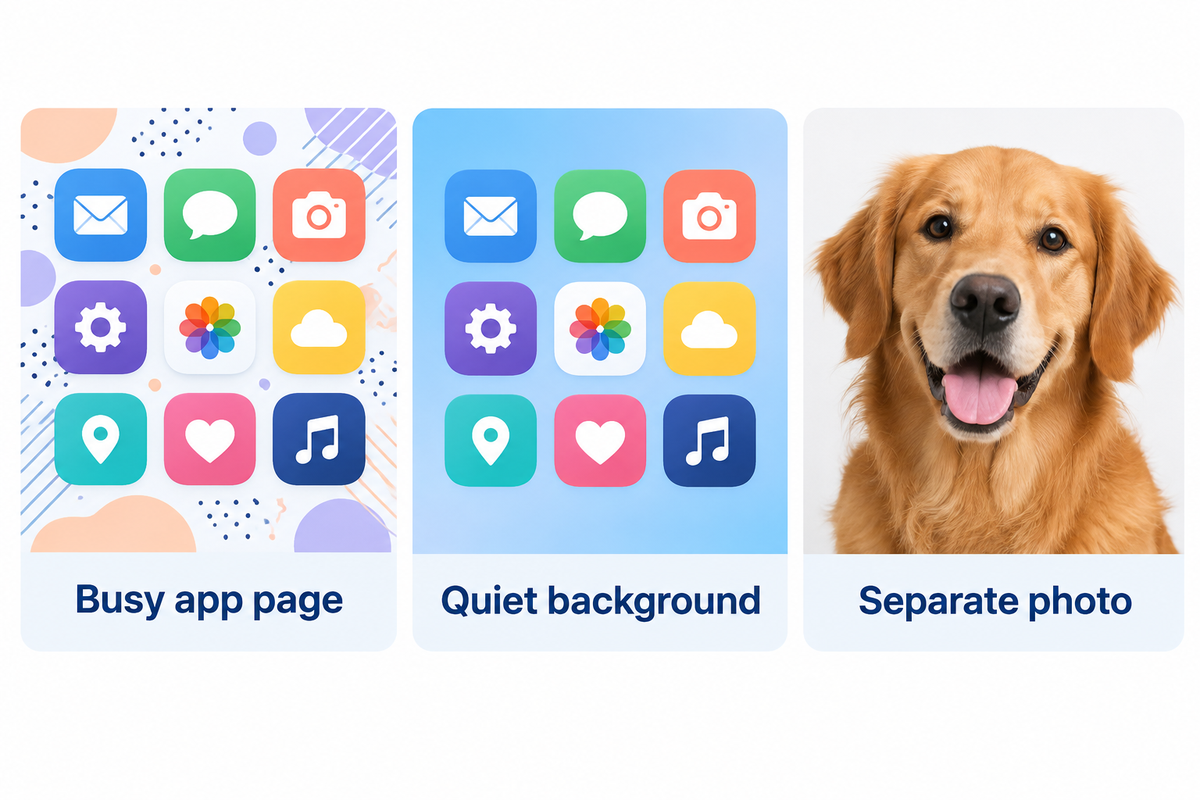
A good Home Screen background gives your favorite image room while keeping your apps easy to find. Start with your busiest app page rather than an empty preview. A photograph can be quite nice on its own. But placing a face, bright window, or colorful shirt beneath the information you need can make it harder to read.
A quiet, cool blue background is a good start for someone who uses work apps throughout the day. For a widget-heavy layout, leave a clear edge for the calendar and weather widgets. For a photo-focused layout, use a soft effect behind apps and keep the subject sharp on the Lock Screen.
Apple’s wallpaper instructions let you save a favorite pair or customize the Home Screen separately. You don’t have to sacrifice a portrait because it makes a poor background for small labels.
What is the best home screen Wallpaper for my iPhone?
When creating a Home Screen with a lot of icons, it’s best to start with a solid color or gentle gradient. You can use a photo, but consider if the subject is between your icons and will still be visible after cropping. If the photo has fine texture behind app names, try using Blur. If there’s still a distracting, bright patch of color, adjust the crop or choose a different image.
Minimalist, photo or colorful wallpaper? Compare four looks
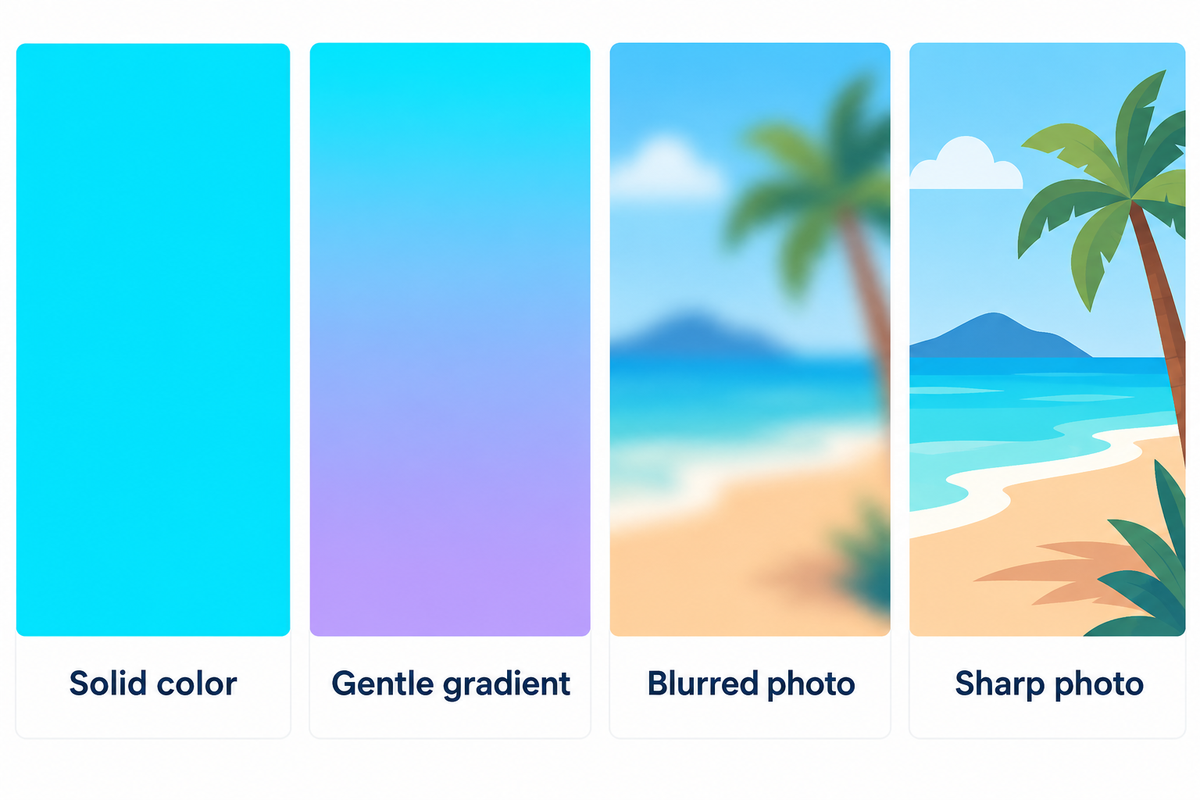
For a dense app grid, use a solid color. For variation, use a gradient. For a personal palette, use a blurred photo. For a sharp photo, choose one with plenty of negative space around the subject. These are the starting points for different layouts. There’s not a single base color that will make every icon and widget the most visible.
| Background | Start here when | What you keep | What to adjust |
|---|---|---|---|
| Solid color | App labels compete with patterns | A consistent backdrop | Choose a shade that separates from your icons |
| Gentle gradient | You want a minimalist look with more depth | A soft color transition | Move a bright area away from pale labels |
| Blurred photo | The photo matters more for its colors than its details | The original palette | Check large light and dark patches |
| Sharp photo | A face or landscape fits around the layout | Recognizable detail | Reposition the subject before saving |
Apple’s Home Screen customization guide goes over the options for color, photo and Blur. Use the settings and editing options that are available to you in your version of iOS.
A beige background can complement a brown leather-style widget and its textured edge. A cute illustration’s color palette can be captured with a pastel pink. For bold orange designs, consider leaving the busiest shapes out of the app grid. A black and white photograph still needs a final crop check. Pale labels and bright clouds together can make a nasty distraction.
See iPhone wallpaper aesthetic ideas for more examples.
Check icon labels before you keep a background
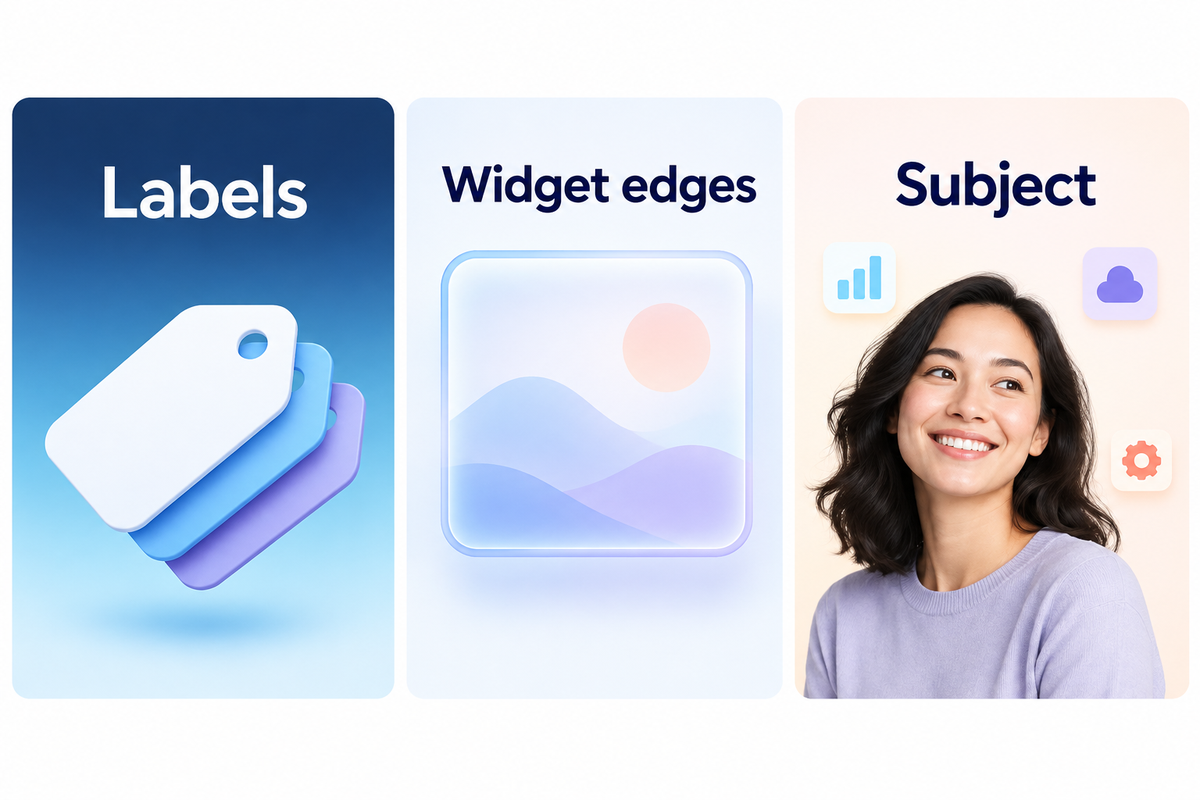
Check the areas behind app names, around widget edges and over the subject of your photo before saving your background. The Three-Zone Background Check looks at these three places to find the next edit. Start on your most complex page with your normal levels of brightness and then adjust the background treatment or crop that creates the problem.
- Labels: Look at the names of apps over the brightest and most detailed parts of the image. Reposition the photo if lettering disappears into those areas.
- Widget edges: Look for a clear boundary between each panel and the wallpaper. Try a quieter background if a translucent panel blends into the picture.
- Subject: Keep the part you care about outside the places covered by apps. Move a face into open space, or reserve the full portrait for your Lock Screen.
Example: In a photo of a beach, where a white cloud sits behind a row of labels, Blur may remove the fine edges of the cloud and leave a similar, large patch of white. Cropping in toward the darker part of the sea would place a darker background behind the labels. If that crops out the horizon you want, a simpler option would be to use a blue gradient.
There’s an exception to the Label Check. Apple’s App Appearance Guide says app names disappear with large icons. With that in mind, check if you can determine the positions and shapes of icons. Uniform purple icons could blend with the wallpaper perfectly, but make similar symbols hard to differentiate.
Match wallpaper with widgets and app icons
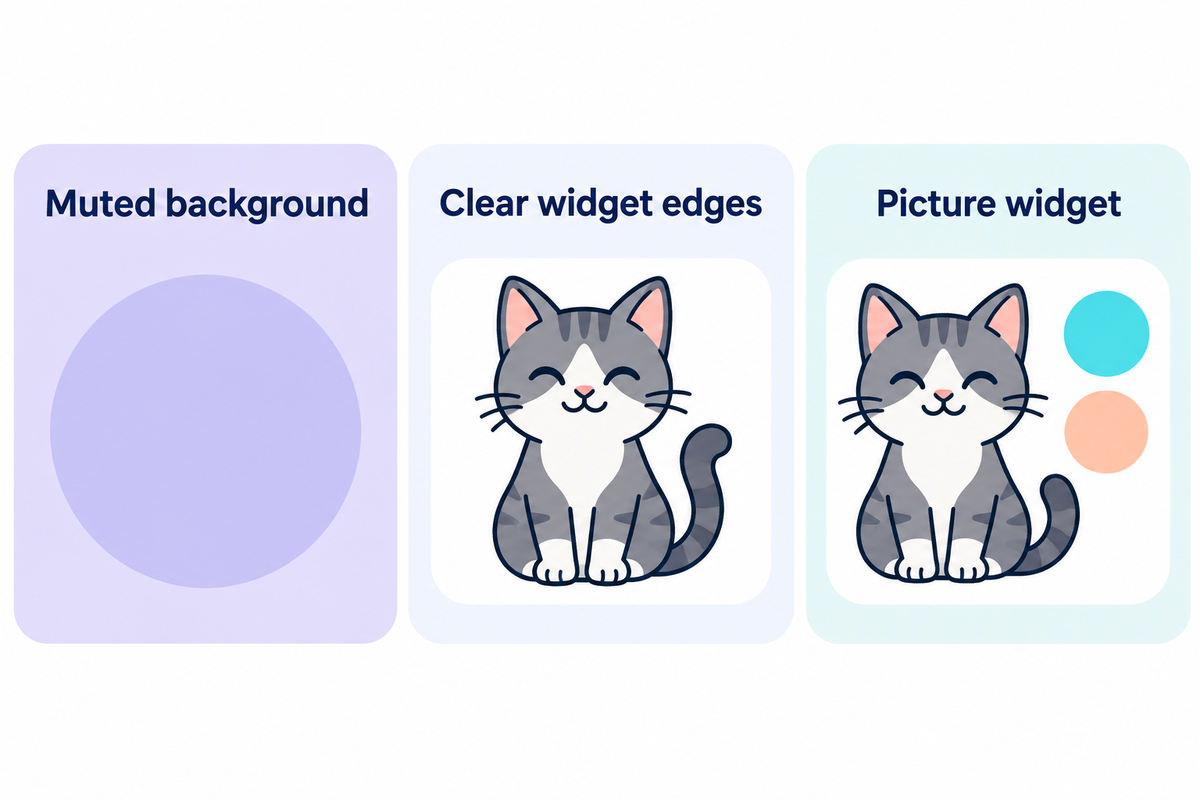
Build a coordinated mobile screen around the widgets you use and pick a background that supports their borders and colors. A calendar needs space for information, and a decorative picture widget can repeat the wallpaper’s accent color. Keep the busiest illustration in one place.
For a retro screen theme, try a muted background behind a more detailed widget. Maybe a small cat illustration would look better in a picture panel instead of in the middle of your wallpaper. With a bear character, leave its face in the open instead of covering it with a weather forecast. The choices would maintain the part of the design you want to see.
The iScreen App Store listing mentions its iPhone app for widgets, themes, and wallpaper customization. The app is listed as free with in-app purchases, so check the design or feature you wish to purchase before going for the paid option.
If a collection preview uses a different app arrangement, recreate the color relationship rather than expecting the picture to fit automatically. You can use the Home Screen layout ideas to place a large widget. For a complete set of icons, refer to the aesthetic app icons guide.
Change only your Home Screen wallpaper
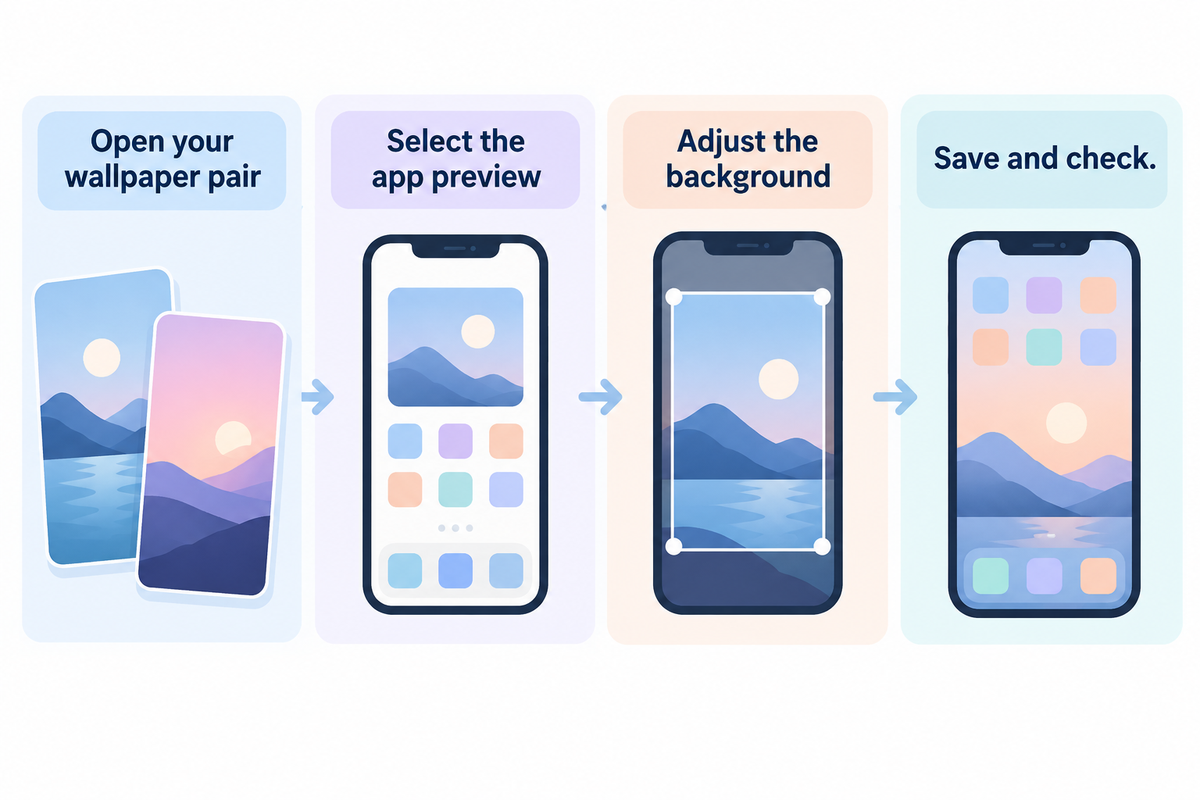
To only edit the Home Screen, open Settings, and then Wallpaper. Customize the Home Screen preview of the wallpaper pair that you want to edit. You can then choose a different photo, adjust Blur, or choose a different color, and then save the pair. Look at your Home Screen to see if you edited the correct one.
How do I change just the home screen background on my iPhone?
Open Settings, and then Wallpaper. Customize the Home Screen preview. You can then choose a different color or photo, adjust Blur, and then save the pair. When adding a new wallpaper, use Customize Home Screen to choose the background for the apps, after it has been added.
- Open the wallpaper pair you intend to keep.
- Select the preview showing your apps.
- Choose the background treatment and inspect the crop.
- Save, then return to your actual app page.
“select Blur to blur the wallpaper so the apps stand out.”
Apple covers independent customization of wallpaper in the wallpaper user guide. MacRumors covers separate Home Screen editing in its September 2025 guide for iOS 26. To learn how to choose a photo and save wallpaper, see how to change wallpaper on iPhone.
Fix blurry, cropped or distracting wallpaper
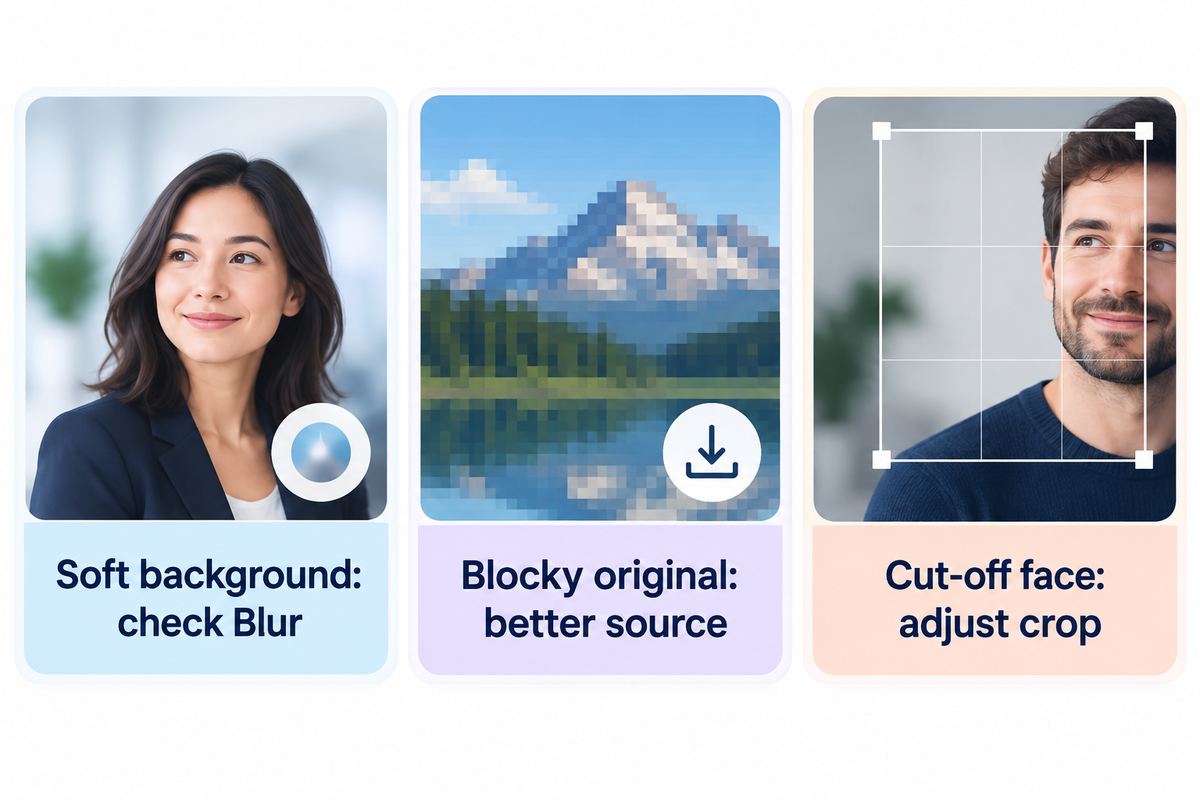
You need to decide if the problem is a soft photo, unwanted crop, or a background that overlaps with your apps. To see the unaltered photo, disable the Blur effect on the Home Screen. Compare this with the saved photo in your Photos app. A different crop can reposition detail that was cut off in the photo.
| Problem type | First check | Next action |
|---|---|---|
| Home Screen is soft; original looks sharp | Home Screen Blur setting | Turn Blur off and compare |
| Original already looks blocky | Downloaded file rather than its preview | Save a higher-resolution original |
| Face is cut off | Position in the wallpaper editor | Move the crop or choose a photo with more space |
| Labels blend into a bright patch | Local background behind the labels | Shift the crop or use a quieter color |
| Picture changes when a mode activates | Wallpaper linked to that Focus | Edit or switch the relevant wallpaper pair |
| App names have disappeared | Large icon appearance setting | Use small icons if you want names visible |
| A widget covers the photo subject | Subject position relative to the widget | Move the crop or choose an image with open space |
| Similar tinted icons are hard to distinguish | Shapes and positions of the apps you use | Try a different appearance or restore app names |
| Lock Screen effect is absent behind apps | Whether you selected Spatial Scene | Keep the effect on the Lock Screen; use a separate app background |
See how a linked Focus can switch Home Screen wallpaper automatically. Check your Focus if the background problem occurs when that mode activates.
Saving a smaller digital image from a social media preview may provide less detail than the original download. Zooming a small file to cover a display makes some detail look indistinct. A wide landscape, for example, may lose its edges when squeezed into a tall screen. A portrait photo is a better option in this case.
Apple’s Spatial Scene effect has another boundary: the three-dimensional effect appears only on the Lock Screen. Selecting a pair doesn’t turn the Home Screen into the same animated scene.
Free iPhone wallpaper downloads: what to look for
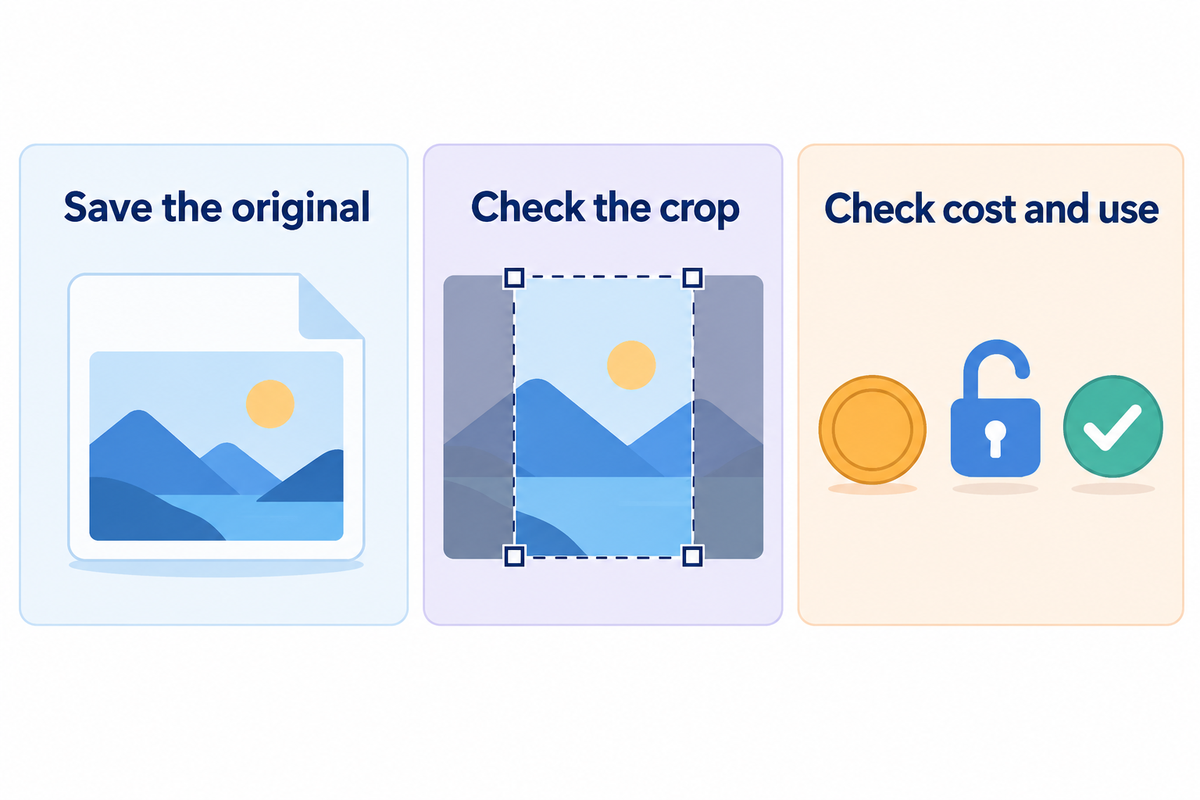
Instead of taking a screenshot of a preview, download the original picture and assess the image’s size. A free file may be adequate for a custom background. HD and 4K claims can be useful, but the crop and the actual pixel dimensions determine what you’re actually working with.
Browse the selection of wallpapers for iPhone in a collection, then open a candidate before saving. Scroll past thumbnails to find the original download control. If a page guarantees wallpapers in HD, always inspect the download and not just the thumbnail. A wide desktop file may have plenty of pixels, but still give little or no space for a face when cropped for a smartphone.
- Image: Save the full file, then review it in Photos.
- Access: Check whether you can download without registering or whether there’s a sign-up required notice.
- Cost: Separate a free download from a subscription or optional purchase.
- Use: Read the creator’s terms before redistributing an image or using it commercially.
Some galleries offer wallpapers to download free while selling other sets. A sample picture may also be watermarked. Don’t save the sample as your final background if a creator offers a download button separately.
For a more tangible frame of reference, Apple’s iPhone 13 specifications set the display resolution at 2532 by 1170 pixels. Other models may vary. Align your file and crop to your device with the iPhone wallpaper size guide, especially when an image is listed for both phone and tablet.
Keep your screen setup readable as styles change
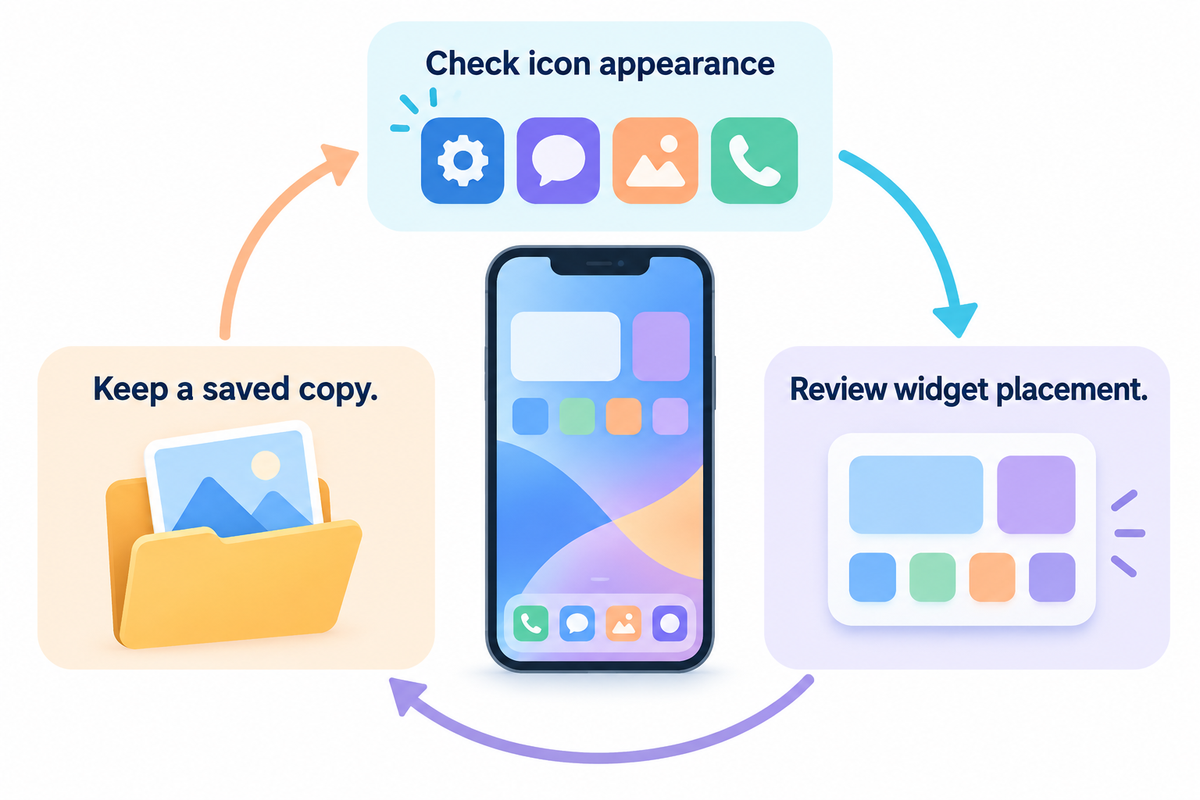
Check your background after changing icon size, appearance, or widget placement, since the image remains the same in the background with a different arrangement. Start with the page you open the most. Keep a saved copy of the wallpaper you like, so you don’t have to waste time looking for it when a new theme gets applied.
Apple’s appearance controls vary by software version. You can choose a translucent icon appearance or adjust a tint to change icon colors where these options are available.
If you discover that the aesthetic Lock Screen wallpaper feels too busy behind the apps, crop and save a separate design. You can use a mood board to compare colors to decide on the best design to maintain color harmony.
Frequently asked questions
What is the background screen on an iPhone called?
The picture behind your apps is the Home Screen wallpaper.
The Lock Screen wallpaper is the picture shown before you reach your apps. Both can use the same image, or you can customize them separately. When an instruction says “background,” check which preview it refers to. The preview with app icons controls what you see while choosing apps, rather than the clock-focused screen that appears when you wake your phone.
What size wallpaper should I use?
Use a sharp original that fits your model’s portrait display and leaves room for cropping.
There’s no single dimension for every iPhone. Start with the model-specific display resolution, then allow enough space around the subject to reposition it. An image with more pixels can still crop badly if the composition is too wide. Before saving, inspect the top and bottom of the preview and make sure the face or object you want remains visible.
How can I make my own phone wallpaper?
Start with your own photo or a portrait canvas, then place the subject away from your app grid.
Pick a background color, add the image or artwork you want, and leave open space where widgets will sit. Export the original at a useful resolution instead of capturing the editor preview. Set the file as wallpaper and check it with your actual apps. If you also want an iPad version, make a separate crop rather than stretching the phone design.
Is portrait better than landscape for wallpaper?
Portrait is usually the easier starting shape for an upright iPhone screen.
A landscape photo can work when its subject sits near the center and survives a narrower crop. Keep extra space around important details. If both edges matter to the composition, use another picture instead of forcing the whole scene into the tall display.
Why does my iPhone wallpaper go black?
Check the active wallpaper pair and any linked Focus before replacing the image.
A different pair or dark background choice may explain the change. If the selected photo is missing from the preview, choose it again from Photos and save. Apple documents automatic wallpaper changes through linked Focus modes; that doesn’t diagnose every black-screen symptom. Compare the wallpaper preview in Settings with the image saved in Photos. If the original is visible but the selected background stays blank, note when the change happens and which pair is active. A screenshot of the selected preview can help explain the issue when you contact Apple Support. If the entire display is black, including the controls and app icons, treat that as a display or device problem rather than a wallpaper design choice. Use Apple Support for the behavior on your software version.
Choose a background for the apps you use
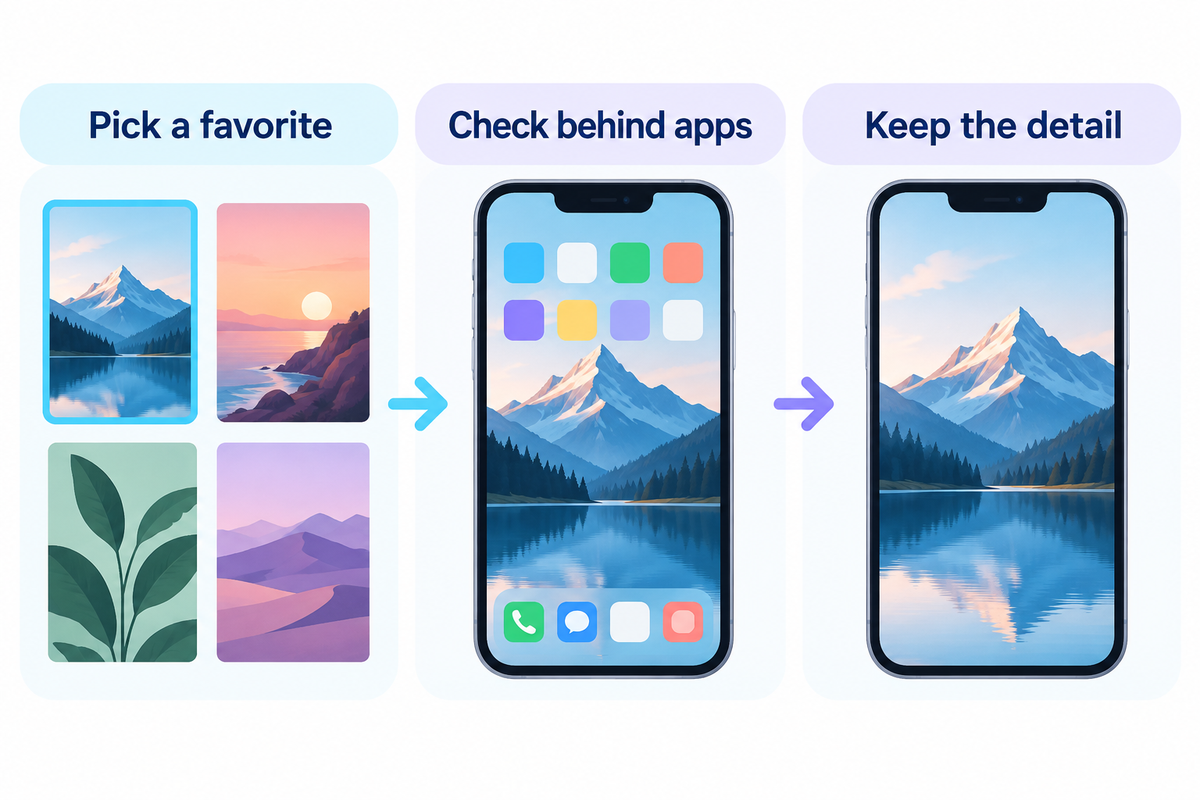
Open the wallpaper collection and save a favorite color or photo. Apply it to the Home Screen, check the areas behind your apps, and keep the detailed version for the Lock Screen if the crop feels crowded.
The design examples are suggestions. Instructions will vary based on iPhone and Apple’s software version.
References & Sources
- Change your iPhone wallpaper Apple Support.
- Change the wallpaper on iPhone Apple iPhone User Guide.
- Customize apps and widgets on the iPhone Home Screen Apple iPhone User Guide.
- Customize the iPhone Home Screen wallpaper MacRumors, September 25, 2025.
- iPhone 13 Technical Specifications Apple Support.
Related Articles
Customize your iPhone Lock Screen when you want a separate clock, photo and widget arrangement.
