
.png)
4K iPhone Wallpaper: What Resolution You Need and Where Detail Matters
Updated August 2026 · Checked against current iOS 26 guidance
iPhone wallpaper 4K refers to a wallpaper source labeled 4K, not one universal iPhone display grid. It tells you the source file may contain plenty of pixels, but it doesn’t promise that the image will look sharp after a portrait crop, survive repeated exports, or leave the clock and icons readable. The dependable choice is a clean original that still has enough real pixels after cropping, plus a final check on your own Lock Screen and Home Screen.
Quick Verdict: What Should You Download?
| Source type | Likely result | Best next move |
|---|---|---|
| Original portrait photo | Best starting point | Keep extra room around the subject |
| Original landscape UHD 4K photo | Can work, but crop loss may be large | Run the Pixel Sufficiency Check |
| Original digital art | Usually clean if exported once | Use a portrait canvas and protect quiet zones |
| Upscaled small image | Large dimensions, limited real detail | Find the original instead of enlarging again |
| Social-media save | May contain resize or compression damage | Download from the creator or source page |
| Messaging-app export | Quality depends on the send mode | Transfer as a file or use the original link |
| Screenshot | Already limited to the captured screen | Avoid unless no original exists |
| Minimal gradient | Forgiving of modest detail | Check banding and icon contrast |
| Live or depth-effect design | Static resolution is only one requirement | Use the format-specific guide and preview |
If you want to browse and download a style first, use iScreen’s wallpaper collection. Return to this guide when you need to decide between two files, fix a blurry result, or plan a crop around the interface.
Does an iPhone Actually Display Wallpaper in 4K?
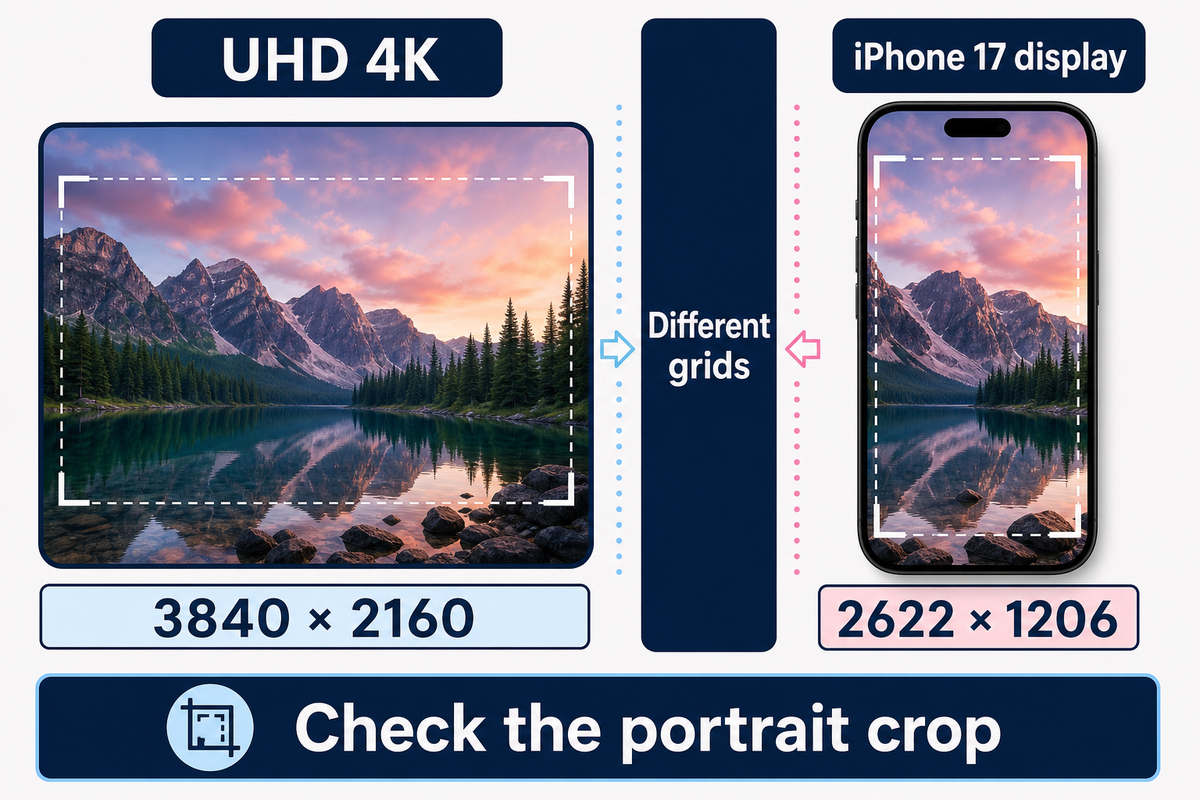
Not in the simple way the filename suggests. In this guide, UHD 4K means a landscape raster of 3840 × 2160 pixels. Other professional “4K” conventions exist, so the label isn’t one universal grid. More importantly, an iPhone uses its own display resolution and a tall portrait shape. The phone shows a crop of the source, not a miniature certificate proving that every one of those 8.3 million source pixels survived.
The International Telecommunication Union’s consumer UHD reference supplies the 3840 × 2160 definition. Apple lists the iPhone 17 display at 2622 × 1206 pixels and 460 pixels per inch. Those numbers describe two different things: a landscape source convention and a device display. They’re useful inputs, not a universal wallpaper prescription.
According to those source dimensions, an iPhone wallpaper resolution check prevents a common failure: choosing a landscape file by its headline label while ignoring the pixels left after the portrait crop.
Even a portrait source that’s only moderately larger than your screen can beat a landscape file with a bigger headline number. It wastes fewer pixels outside the final crop. Carefully made minimal backgrounds may also look cleaner than detailed 4K images that have been enlarged, sharpened, and exported several times.
Treat “4K” as a useful source-size clue. Treat the final portrait crop as the actual file you are asking the phone to display.
The Pixel Sufficiency Check
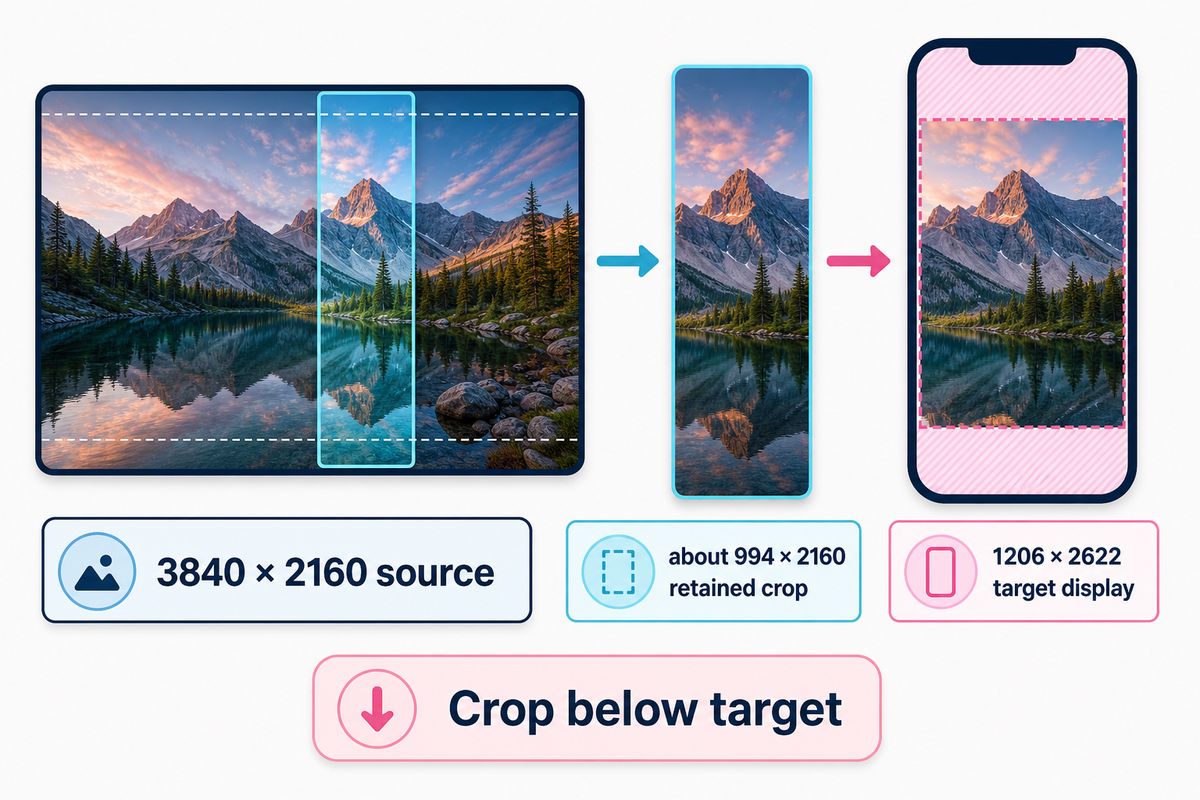
The Pixel Sufficiency Check is a three-step editorial test. First, note the source width and height. Second, estimate the portrait crop you’ll keep. Third, compare the retained width and height with your iPhone display. It isn’t an Apple certification and it can’t measure artistic quality. It simply prevents the uncropped dimensions from hiding a severe crop loss.
- Record the original. Use the true downloaded file, not the dimensions written in a post caption.
- Sketch the intended portrait crop. Keep the focal subject and enough breathing room for interface elements.
- Compare both retained dimensions. If either side falls below the target display, expect less freedom to zoom or reposition. Then verify on the phone.
Worked example. Start with a 3840 × 2160 landscape UHD source. To match the tall shape of an iPhone 17 while keeping all 2160 source pixels of height, the crop retains about 994 pixels of width: 2160 × 1206 ÷ 2622 ≈ 994. The resulting 994 × 2160 crop is below the phone’s 1206 × 2622 display grid in both dimensions. That doesn’t guarantee visible blur, but it proves the original 4K label didn’t survive the portrait crop intact.
Worked-example audit trail
- Source width: 3,840 pixels
- Source height: 2,160 pixels
- Target width: 1,206 pixels
- Target height: 2,622 pixels
- Display density: 460 pixels per inch
- Retained width: about 994 pixels
- Retained height: 2,160 pixels
- Width shortfall: about 212 pixels
- Height shortfall: 462 pixels
- Retained source width: about 25.9%
- Retained crop area: about 2.15 megapixels
- Target display area: about 3.16 megapixels
| Checkpoint | Result |
|---|---|
| Original width retained | 25.9% |
| Original width removed | 74.1% |
| Original height retained | 100% |
| Original pixel area retained | 25.9% |
| Target width covered | 82.4% |
| Target height covered | 82.4% |
| Target pixel area covered | 67.9% |
| Target width deficit | 17.6% |
| Target height deficit | 17.6% |
| Check result | What it means | Action |
|---|---|---|
| Both sides well above target | Good crop flexibility | Reframe gently; still inspect real detail |
| Width just above target | Limited horizontal movement | Avoid extra zoom |
| Height just above target | Limited vertical movement | Place the subject before adding overlays |
| Width below target | Potential softness after scaling | Find a wider or portrait original |
| Height below target | Potential softness and no zoom margin | Use a taller source |
| Both sides below target | File relies on enlargement | Replace it rather than sharpen harder |
| Dimensions pass, edges look smeared | Pixel count hides weak provenance | Locate the original export |
| Dimensions pass, blocks or halos appear | Compression or oversharpening damage | Use a cleaner export |
| Everything passes on paper | Still not a rendering guarantee | Complete the actual phone preview |
Crop estimates are most useful when choosing between files. They do not replace your eyes. Viewing distance, system rendering, antialiasing, and the image’s processing history can change the final impression even when the retained grid looks adequate.
Why a 4K Wallpaper Can Still Look Blurry
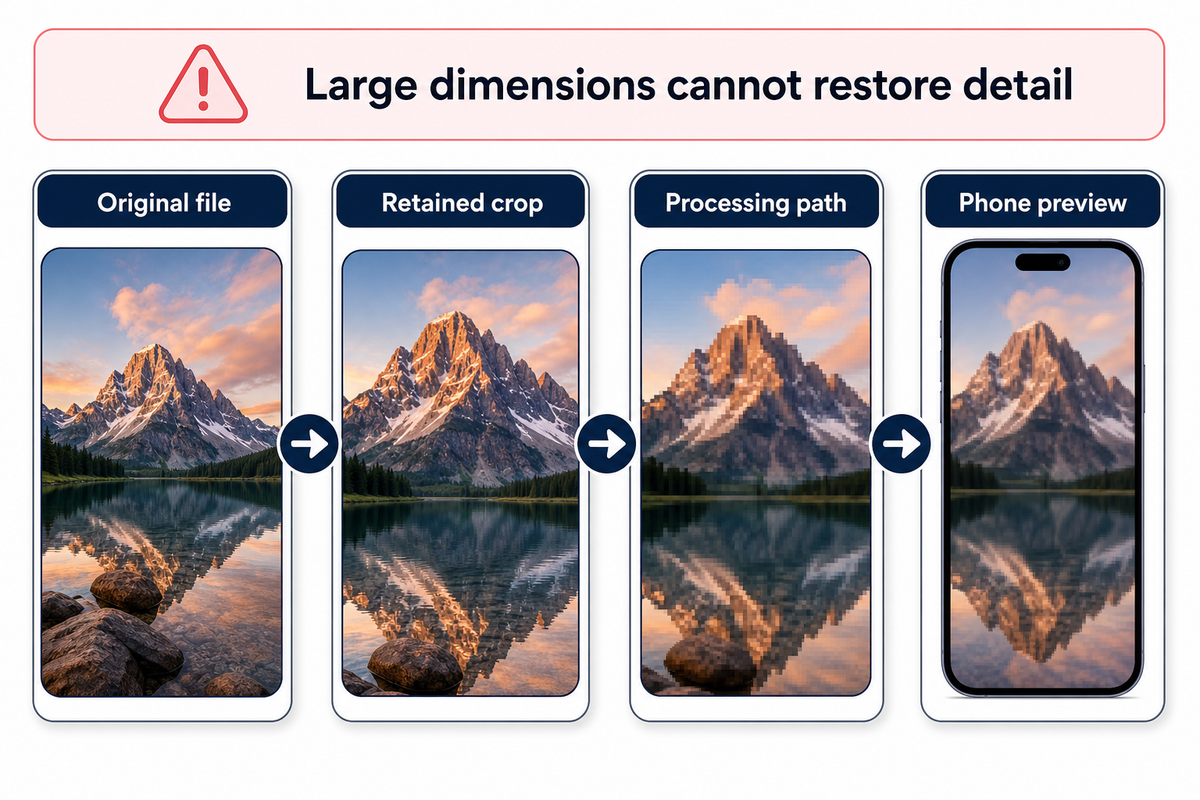
Dimensions describe the container, not the history of the picture inside it. A small image can be enlarged to 3840 pixels wide without gaining new leaf texture, hair detail, or clean type edges. A screenshot starts with the limits of the screen it captured. A file sent through social or messaging services may be resized or encoded again. Aggressive sharpening can create bright halos that look crisp in a thumbnail and brittle on the phone.
The Library of Congress describes JPEG lossy compression as variable and notes that typical settings may reduce file size by roughly 10:1 to 20:1. That range concerns file-size reduction; it isn’t a threshold for acceptable wallpaper quality. Visible damage depends on the encoder, settings, content, and prior exports.
| Symptom | Likely cause | First repair |
|---|---|---|
| Fine detail is smooth everywhere | Upscaled or blurred original | Find the source capture |
| Block patterns around gradients | Heavy JPEG compression | Use a cleaner export |
| Bright outlines around edges | Oversharpening | Return to an unsharpened original |
| Image looks fine until portrait crop | Too few retained pixels | Choose a portrait source |
| Only the top appears extended or soft | Crop/interface behavior | Reposition or use a taller composition |
| Text in the art looks fuzzy | Raster type or repeated export | Re-export from the design file |
| One copy is worse than another | Different transfer path | Compare file size and dimensions |
| Lock Screen is fine, Home Screen is muddy | Separate appearance or blur treatment | Customize the Home Screen separately |
| Only close inspection reveals softness | Normal display/perception limit | Judge at normal viewing distance |
Diagnose in this order: original file, retained crop, processing or transfer path, and final device preview. That sequence avoids wasting time on repeated sharpening when the real problem is a screenshot or narrow crop.
The Crop-Safe 3-Zone Map
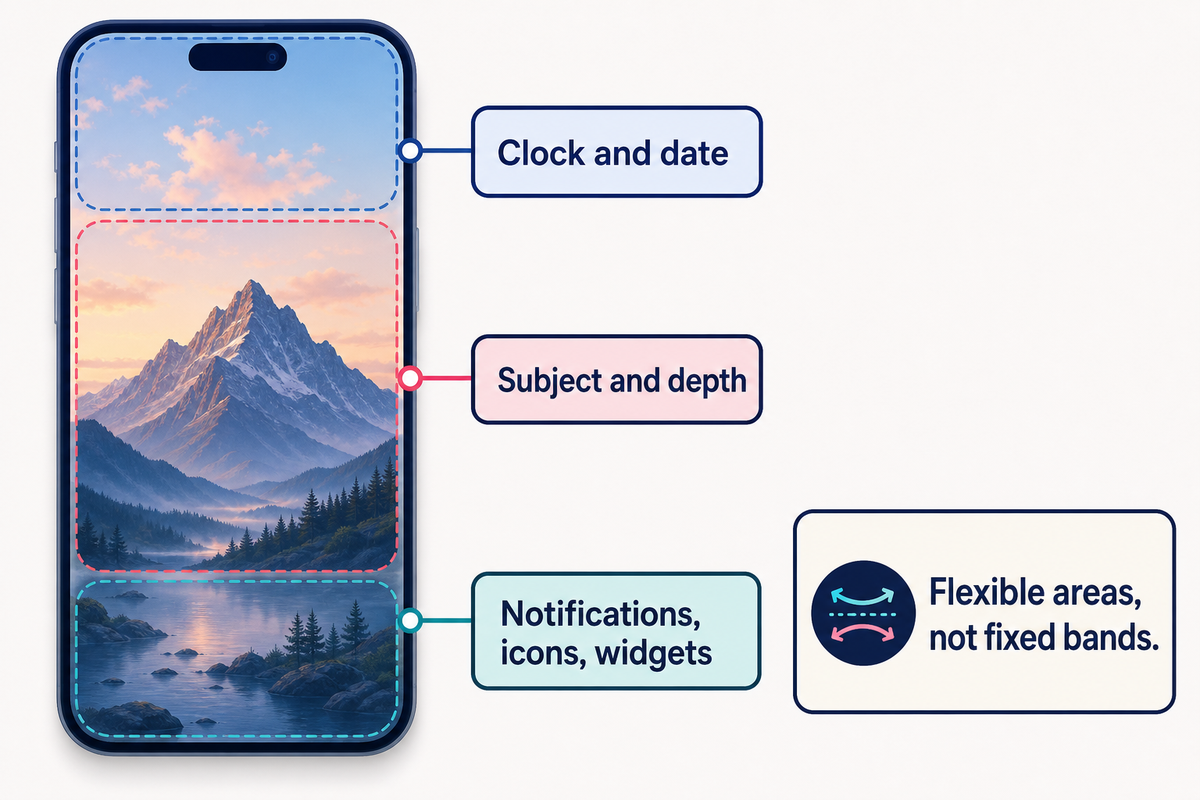
The Crop-Safe 3-Zone Map is a composition checklist, not a set of fixed pixel bands. Current iPhone layouts can change with widgets, controls, notifications, wallpaper mode, clock treatment, and the position you choose. Use the zones to ask where visual pressure will occur, then test the exact configuration on your device.
Apple’s current iOS 26 Lock Screen guide documents pinch-to-zoom and two-finger drag for photo positioning, alongside configurable clocks, widgets, notifications, and eligible depth or spatial effects. That flexibility is why the map uses pressure areas. The cited Apple guide doesn’t provide one fixed “safe-zone” template for every user layout.
Three practical scenarios show how to apply it:
- Portrait photo: keep the eyes and face in the middle, with clean space above the hair and below the shoulders.
- Mountain or city scene: place the horizon away from the clock and keep the brightest lights out from behind Home Screen icons.
- Minimal gradient: use a smooth tonal field at the top and bottom; inspect for banding before you save.
For a composition that interacts with the system’s subject treatment, see iScreen’s depth-effect wallpaper guide. If your design needs motion rather than a static crop, the live wallpaper guide covers that separate format.
When Extra Resolution Helps, and When It Does Not
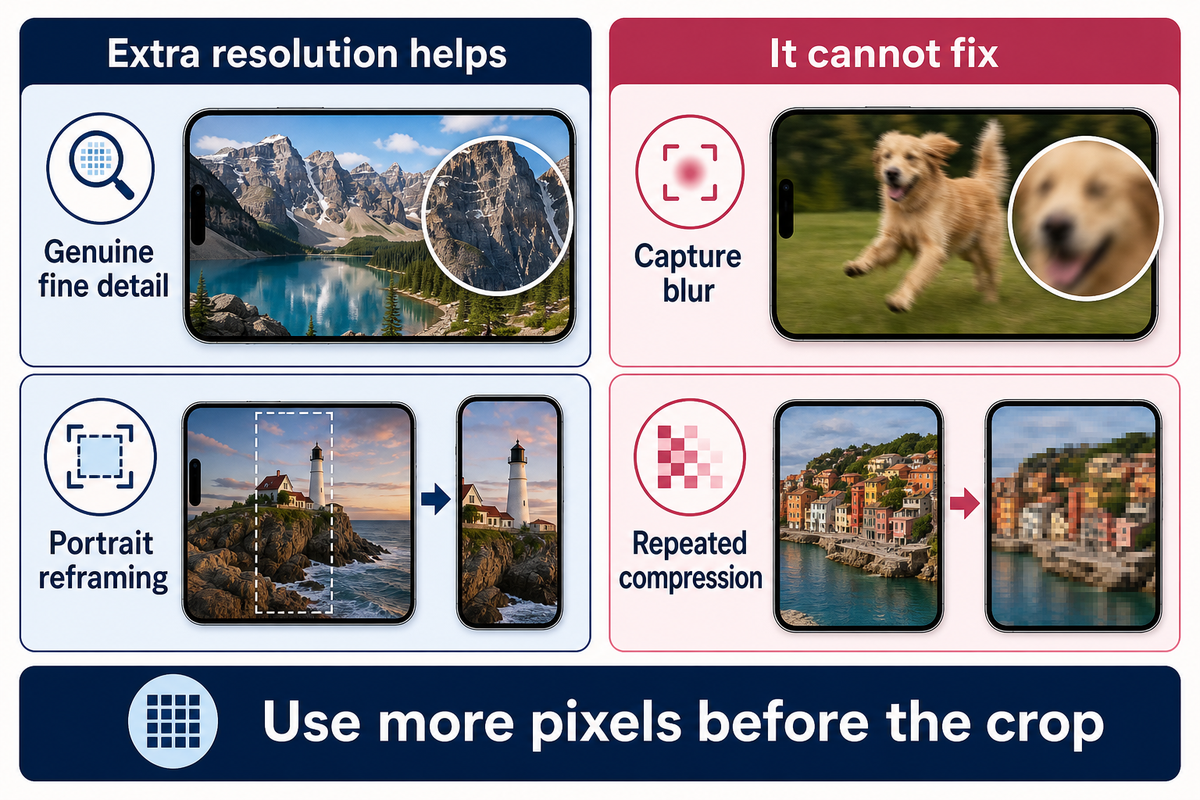
Extra source pixels help when they’re genuine. They provide room to reframe a landscape photograph, reuse an original across different models, make a moderate zoom, or preserve fine lines in original artwork. They’re most valuable before you make the final portrait crop.
They don’t reverse damage already in the picture. An 8K export of a soft 900-pixel social save still contains the same weak evidence, only distributed across more pixels. The same applies to motion blur, missed focus, repeated JPEG encoding, sharpening halos, or a subject placed where the clock must go.
Use more resolution when…
- the original camera or design file contains real fine detail;
- you need significant portrait reframing;
- one source must support several display shapes;
- you want modest zoom freedom without immediate enlargement.
Do not expect it to fix…
- blur in the capture;
- a screenshot or tiny download;
- compression blocks or color banding;
- a composition that fights the clock, icons, or widgets.
A dark background can improve the appearance of bright text and icons in some layouts, but this article doesn’t treat wallpaper color as a battery-saving guarantee. Choose dark, light, abstract, nature, or minimal art for readability and style; verify power claims separately for the exact device and display behavior.
The 100% Preview Test Before You Save
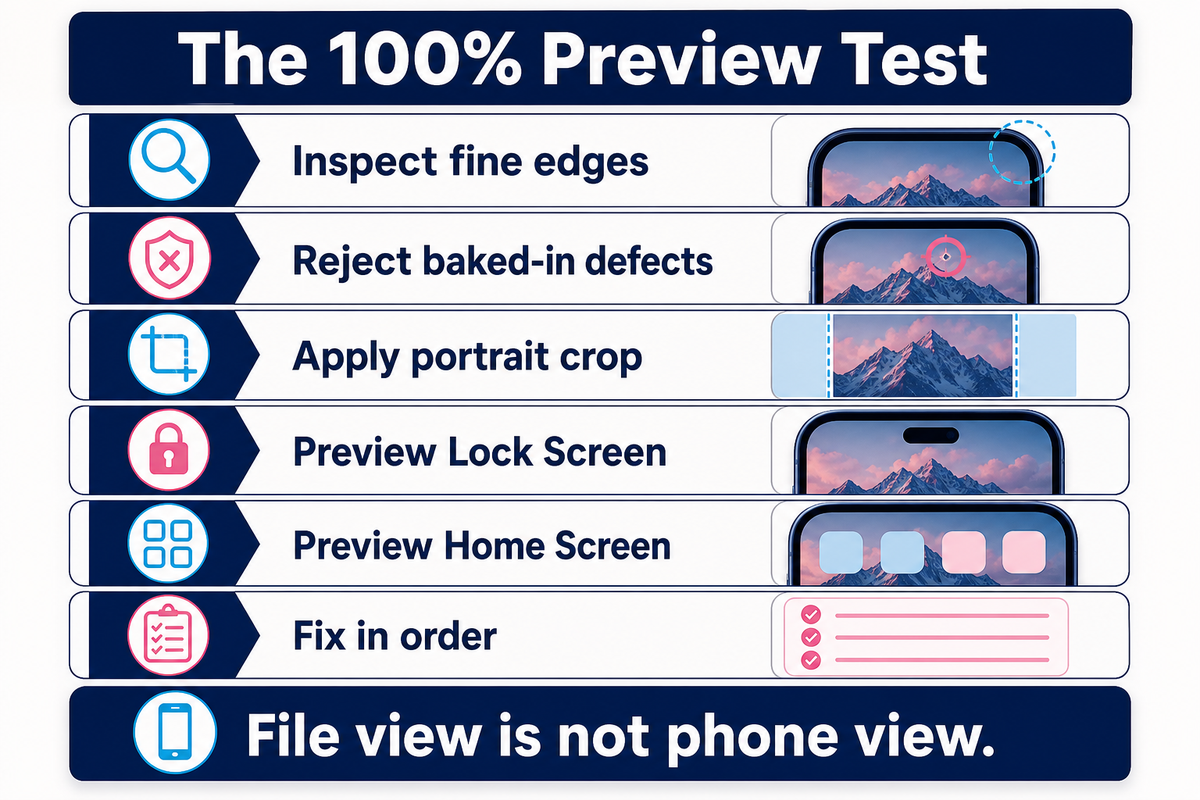
The 100% Preview Test has two distinct stages. On a computer or image viewer, 100% means one image pixel is shown as one preview pixel. Use that view to find baked-in defects: smeared texture, block boundaries, banding, jagged type, or sharpening halos. Return to 100% before judging those baked-in defects. Don’t treat it as a simulation of how the wallpaper will look on an iPhone.
The decisive stage happens on the phone. Set the candidate, look at the Lock Screen from a normal distance, unlock to the Home Screen, and check the exact arrangement of icons and widgets. If the Home Screen is too busy, use a separate treatment instead of forcing one image to do two jobs.
- Inspect genuine fine edges at 100% file view.
- Reject obvious capture blur, export blocks, banding, or halos.
- Apply the intended portrait crop without unnecessary zoom.
- Preview the Lock Screen with your clock and widgets.
- Preview the Home Screen with the real icon pages you use.
- Fix in order: stronger original → safer crop → less zoom → quieter overlays → separate Home Screen.
This order matters. Repeated resizing and sharpening can make a problem harder to diagnose. When a cleaner original fixes the result, stop there. When the source is clean but the focal point is covered, change the composition rather than the pixel count.
How to Set a 4K Wallpaper on iPhone
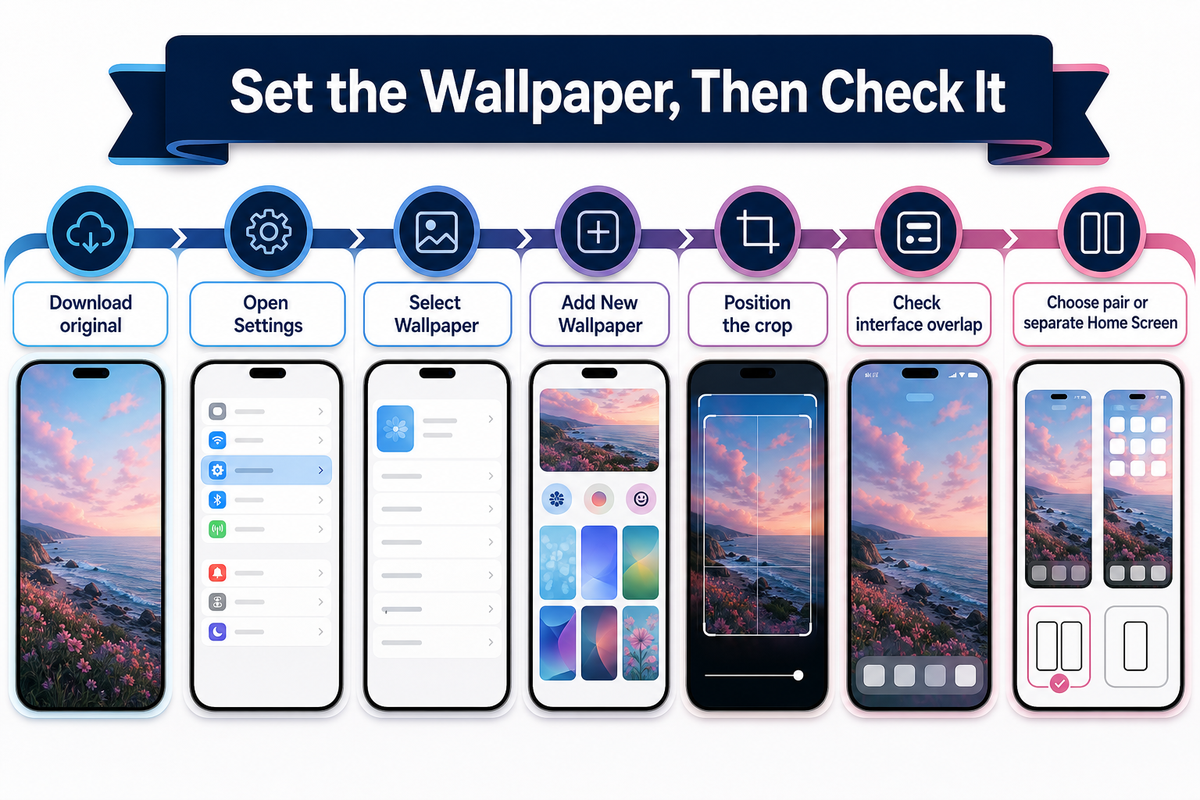
As checked in Apple’s iPhone User Guide for iOS 26 in August 2026, open Settings → Wallpaper → Add New Wallpaper. Choose the photo, position it, and review the available appearance controls. You can then choose Set as Wallpaper Pair or Customize Home Screen.
- Download the original image rather than a screenshot of the gallery.
- Open Settings and select Wallpaper.
- Choose Add New Wallpaper and select the photo.
- Pinch to zoom only as much as the composition requires, then drag to position.
- Check the clock, widgets, subject, and lower interface area.
- Set a pair, or customize the Home Screen with a separate photo, color, or blur treatment.
- Complete the 100% Preview Test on both final surfaces.
Interface labels and effects can change in later iOS releases, so use Apple’s current guide when your screen differs. For a broader walkthrough, open iScreen’s iPhone customization guide. For visual inspiration after the technical check, compare an aesthetic wallpaper layout or a more detailed cyberpunk wallpaper composition.
Frequently Asked Questions
Is 4K good for iPhone wallpaper?
Yes, when the source is clean and the portrait crop retains enough real detail. A genuine 4K source also gives you more room to reframe landscape photography or make a modest zoom. The label alone isn’t a sharpness guarantee, so compare the retained crop with your display and confirm the result on the phone.
What resolution should an iPhone wallpaper be?
Use a source that meets or exceeds your iPhone display dimensions after the intended crop. There’s no one pixel size for every model because both resolution and shape vary. A portrait image with breathing room around the subject is often easier to position than a tightly framed landscape image with a larger uncropped resolution. If two files pass the pixel check, choose the cleaner original and the composition that needs less zoom. The iPhone 17 display is 1206 px wide.
Why does my 4K wallpaper look blurry on iPhone?
The file may be upscaled, out of focus, repeatedly compressed, or cropped too narrowly. A large filename cannot restore detail lost in a screenshot or an earlier export. Start with the original, estimate the pixels left after the portrait crop, reduce unnecessary zoom, and inspect the actual Lock Screen and Home Screen.
Is 8K better than 4K for iPhone wallpaper?
Only when the extra pixels contain genuine detail or give you useful crop freedom. An 8K filename can’t restore texture removed before export, repair missed focus, or undo repeated compression. Compare the originals at 100% file view, estimate the same portrait crop for both, and then preview each candidate on the device. When both exceed the retained pixels you need, prefer the cleaner composition instead of the larger number. That extra room matters most before a portrait crop or zoom.
Can I use different wallpapers for the Lock Screen and Home Screen?
Yes. Apple guidance supports a wallpaper pair or a separately customized Home Screen. Use a quieter second treatment on the Home Screen to keep app icons readable. Preview both surfaces because the clock, widgets, and icon overlays create different readability pressures.
Where can I download free 4K iPhone wallpapers?
Browse iScreen’s current collection for available wallpaper options. Before saving, open the original item rather than taking a screenshot; check the displayed dimensions, format, source quality, and any reuse terms shown with it. After download, run the crop and preview checks in this article. The collection page remains the place to browse styles, while this technical guide helps you reject a weak file before it becomes your background. Use the collection page to compare styles and available formats.
Choose the File, Then Prove the Crop
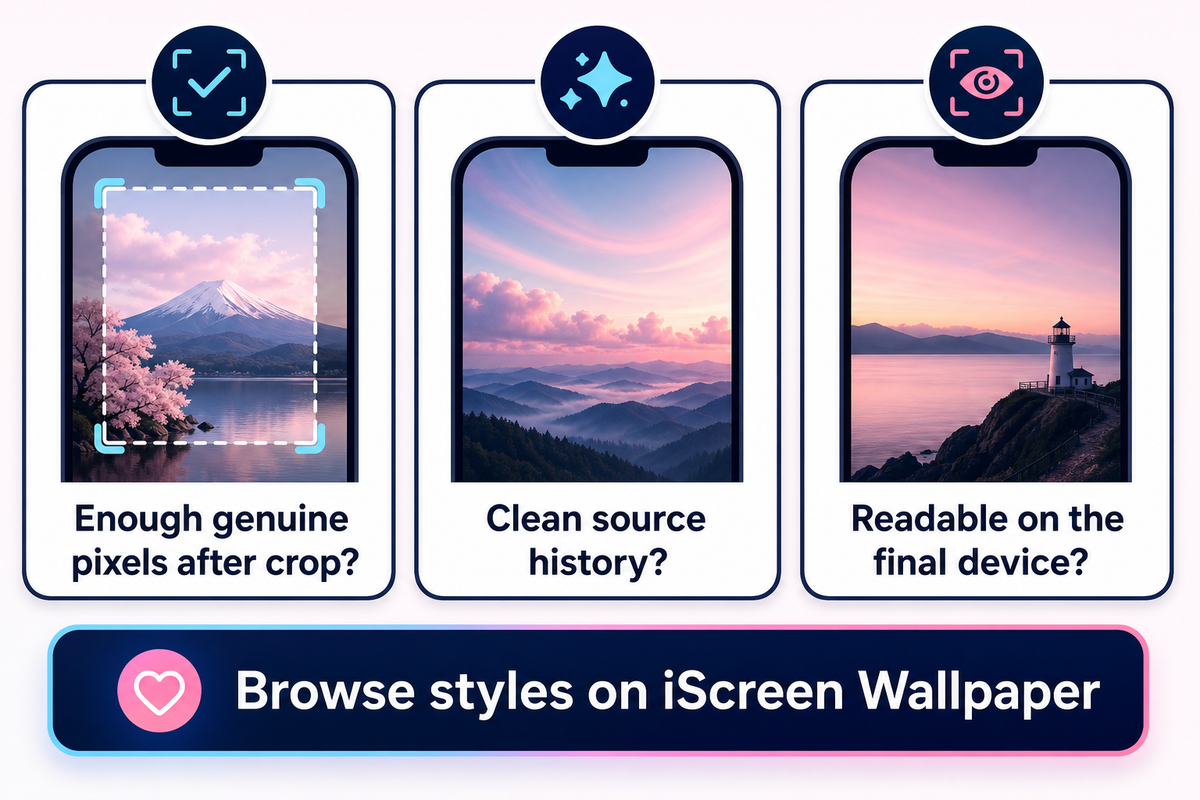
A reliable 4K wallpaper decision comes down to three questions: Are enough genuine pixels left after the portrait crop? Is the source free from baked-in blur and export damage? Do the clock, subject, notifications, icons, and widgets remain readable on the final device?
Use the Pixel Sufficiency Check to compare files, the Crop-Safe 3-Zone Map to place the composition, and the 100% Preview Test to separate source defects from phone layout issues. Then find matching Lock Screen wallpapers and apply the checks to the style you actually want.
