

iPhone Wallpaper Changes by Itself? Find the Setting Behind It
If your iPhone wallpaper changes by itself, check linked Focus screens and Shortcuts automations. Each of these can replace the Lock Screen wallpaper without requiring a visit to Wallpaper settings. A long press followed by a swipe and tap can also select another previously saved Lock Screen.
A wallpaper that seems to change randomly may still follow a trigger. One way to narrow the possible options is to look at timing. A new photo when you lock your phone points to a different setting from a new layout when Sleep Focus is activated. If an image only becomes darker or blurry, look at its appearance controls before replacing it.
An iPhone wallpaper changes by itself when an active shuffle, linked Focus or automation selects another background. Start with the event that preceded the change, inspect its setting, and adjust that route before testing it again.
- Check whether the photo changed or the same image simply looks different.
Why does your iPhone wallpaper change by itself?
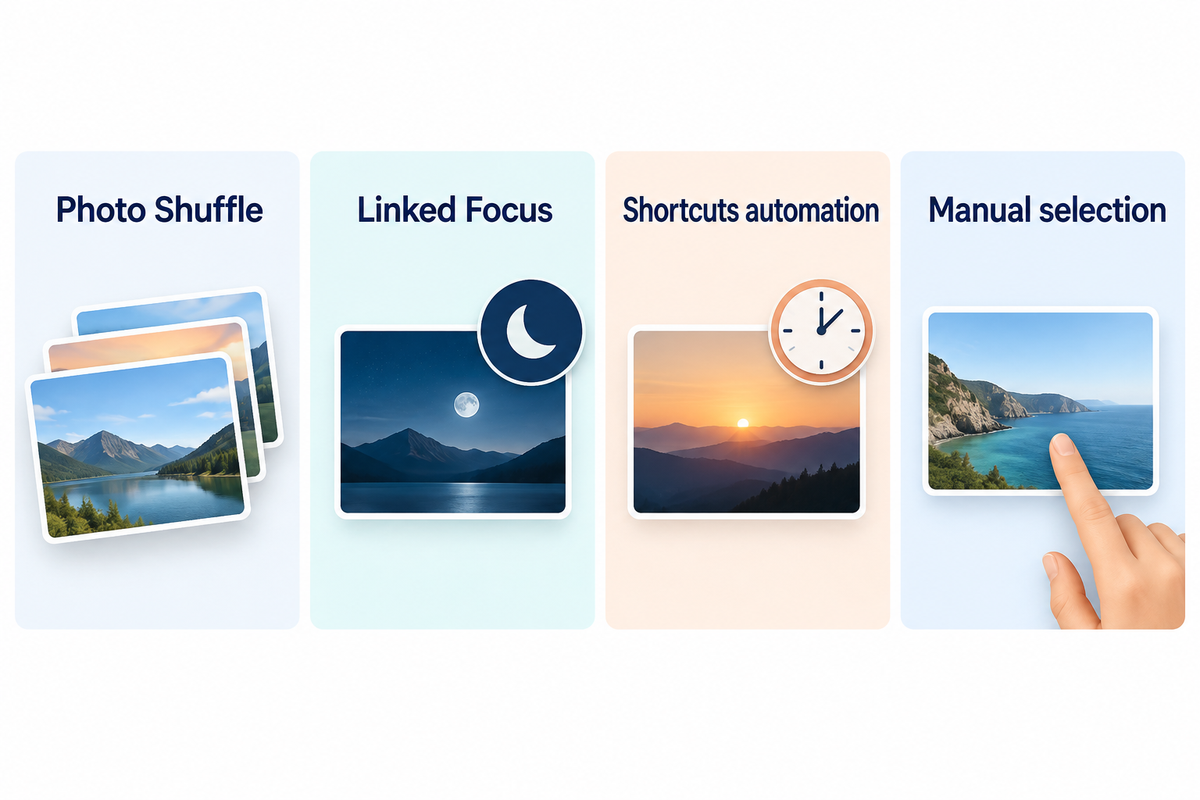
Your iPhone can automatically change its background through Photo Shuffle, Focus linked to another screen, or an automated Shortcut. Saved Lock Screens provide a manual route to switching backgrounds. Start by looking to see whether the photograph, the whole screen layout, or just the image’s appearance changed.
Apple’s wallpaper instructions differentiate Photos from Photo Shuffle. A Photo can be chosen, but Photo Shuffle rotates a selection. Focus adds another layer of control: activating a linked Focus can bring up its associated screen even if a user chose a different wallpaper beforehand.
These instructions cover a personally controlled iPhone. For a school or company-managed phone, contact its administrator for restricted settings. Menu labeling varies by iOS version, so use the corresponding control on your device.
Don’t edit anything until you understand the current situation and active Focus. If it changes constantly, start with a single tap and see what happens. Take a screenshot if the widgets and/or clock also change. Our Lock Screen customization guide shows how lock screen elements belong to a saved screen.
Match the change to its trigger
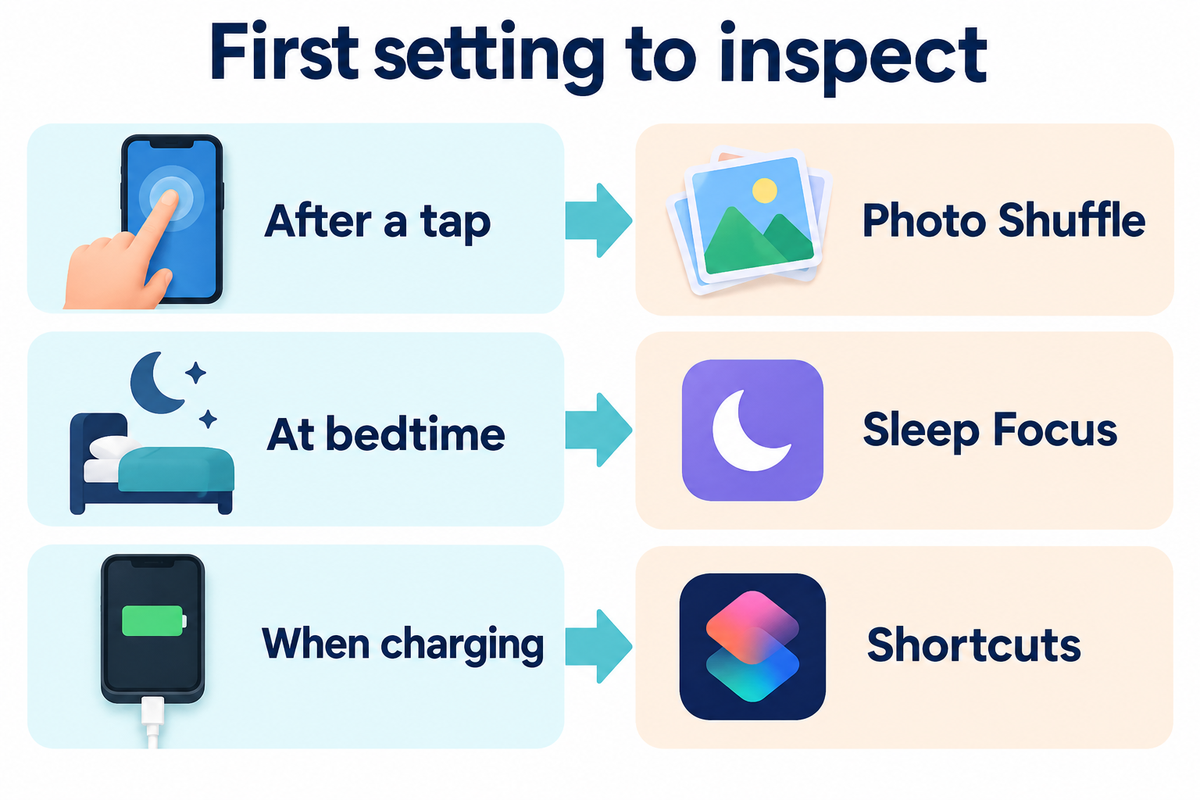
To figure out where to look first, use the event immediately prior to a wallpaper change. The checks in the 4-Trigger Wallpaper Trace are shuffling, Focus, automation, and manual. Timing is a good starting point, but be sure to check the setting before making the change.
4-Trigger Wallpaper Trace
| What you notice | First setting to inspect | What to look for | Narrow next action |
|---|---|---|---|
| Photo changes after a tap | Photo Shuffle | On Tap frequency | Choose a single Photos wallpaper |
| Photo changes after locking | Photo Shuffle | On Lock frequency | Replace this shuffle selection |
| Photo changes hourly or daily | Shuffle, then Shortcuts | Matching frequency or time trigger | Adjust the matching route |
| Different screen at bedtime | Sleep Focus | Linked screen and activation time | Inspect the screen association |
| Different screen on arrival | Focus or Shortcuts | Location schedule or Arrive trigger | Check both before editing either |
| Picture changes when charging | Shortcuts | Charger trigger with a wallpaper action | Remove that trigger if unwanted |
| Clock and widgets change too | Saved screens and Focus | Another complete Lock Screen selected | Select the intended screen; check Focus |
| Same photo becomes dim or blurred | Appearance controls | Blur, Focus dimming or Always On | Adjust the matching display option |
| Change follows a long press and swipe | Lock Screen gallery | Another saved wallpaper selected | Return to the intended wallpaper |
The table shows how Apple’s Focus controls and automation triggers interact. A charging event only matters if the shortcut it triggers changes wallpaper. Other charging automations are allowed.
Example: your family photo returns during the day, then a plain background appears at bedtime. Instead of instantly resetting the wallpaper, see which Focus is active when the change occurs. Check if Sleep has a screen, and if not, check if there are shortcuts active at the same time. After modifying one of the associations, select the intended photo and look at which Focus is active. Bedtime events provide the best examples; unchanged afternoon screens can’t tell you much about a bedtime trigger.
Stop Photo Shuffle without deleting your photo collection
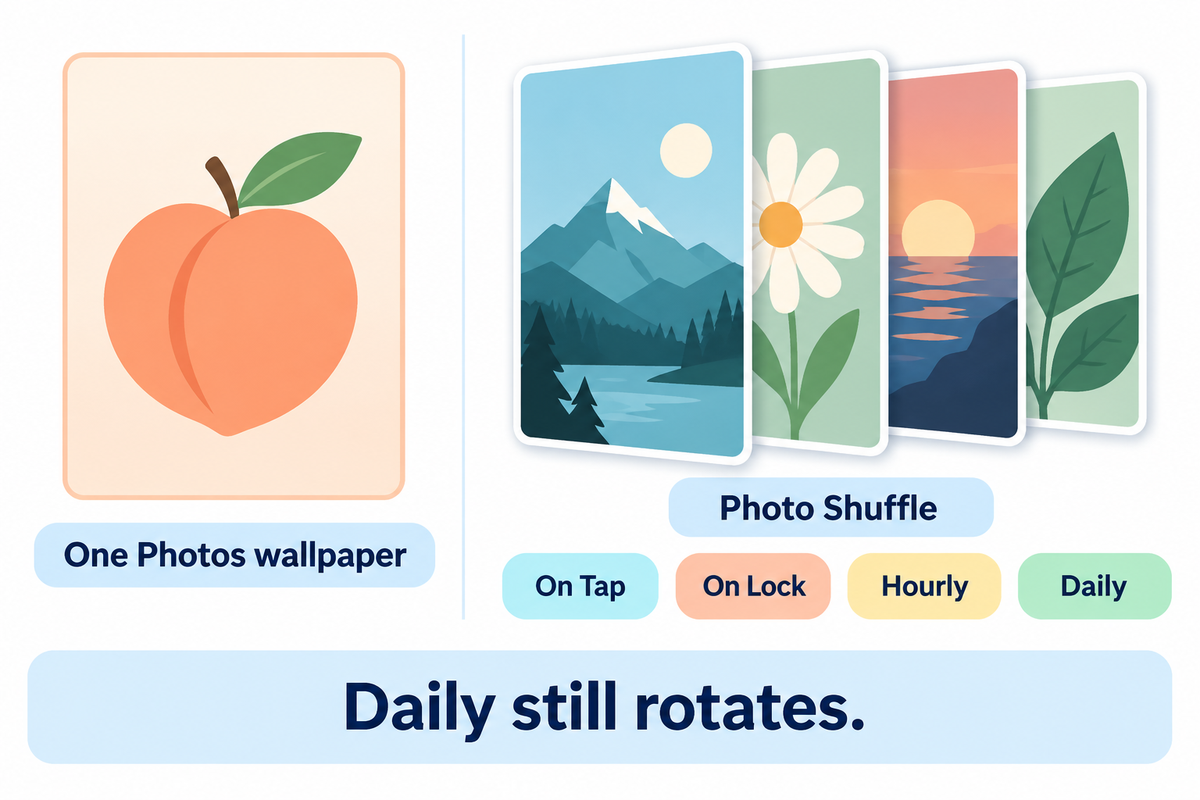
To stop Photo Shuffle for the wallpaper you use, create a new wallpaper from Photos and select one image. Select that saved wallpaper instead of the shuffle selection. You can keep the old shuffle in the gallery and keep the source pictures in your photo library.
- Open Wallpaper settings. Go to Settings, then Wallpaper, and tap Add New Wallpaper.
- Choose Photos. Select the single image you want, rather than Photo Shuffle.
- Adjust the picture. Position the subject and finish the customization.
- Save the selection. Tap Add, then Set as Wallpaper Pair or Customize Home Screen.
- Use the new wallpaper. Check that this saved screen is selected before repeating the event that used to change it.
Apple lists these shuffle frequencies: On Tap, On Lock, Hourly and Daily. Switching to Daily reduces the frequency of the picture rotating; it doesn’t stop the picture rotating altogether. On Tap also stays a shuffle mode, even though you initiate each change.
A single Photos wallpaper stops the rotation within that selection. If the picture keeps changing, look at the next matching route. A linked Focus or shortcut can still select a different wallpaper, so move to the corresponding section if your wallpaper keeps returning to another picture.
For an image that stays readable behind the clock, pick a subject that has space around it. The aesthetic iPhone wallpaper guide gives design ideas without changing this process.
Deleting a wallpaper is an optional way of cleaning up the saved wallpapers. Removing an old selection if the new one works as intended is also covered in the steps to delete an iPhone wallpaper. Keep the original photograph if you may want to use it later.
Keep Focus while stopping unwanted screen changes
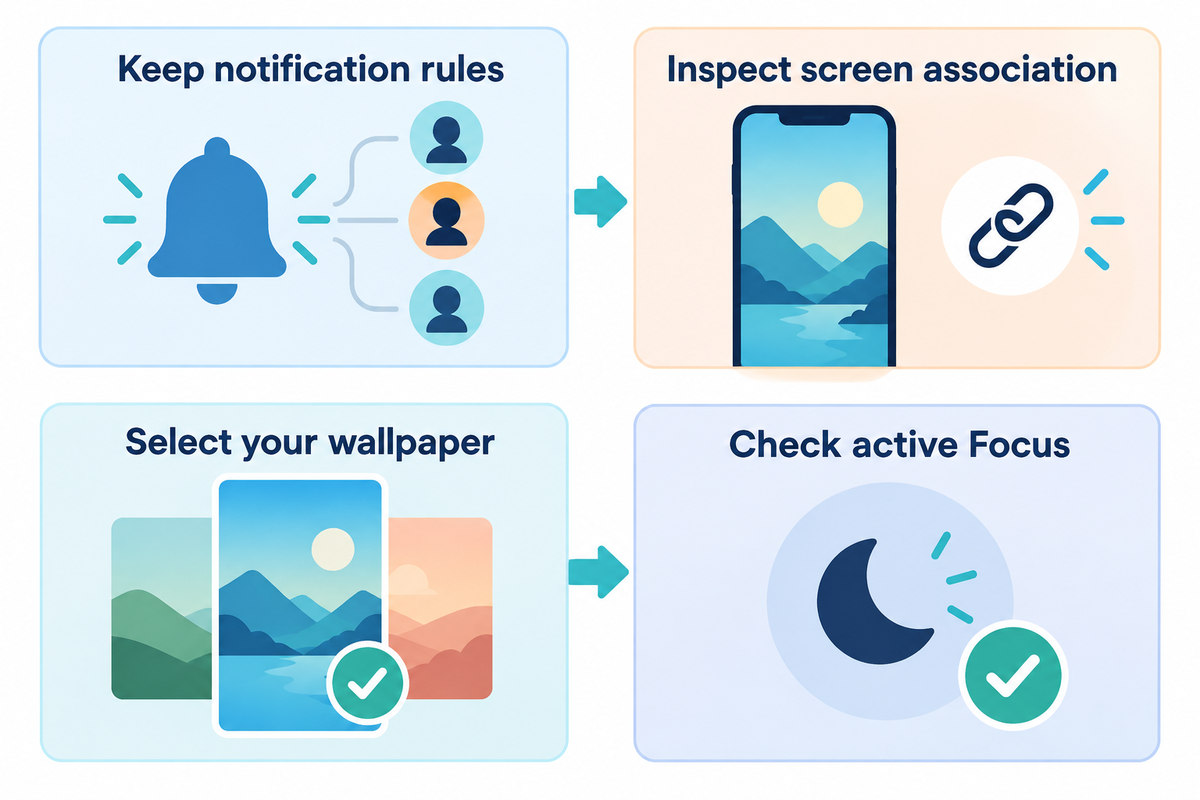
Go to Settings > Focus, and select the mode active when your wallpaper changes. Inspect its selected Lock Screen and Home Screen. Notification rules are specific to each Focus configuration.
To customize screen previews, go to Customize Screens, and if a preview has a minus button, tap it to remove that association. This is illustrated in iDownloadBlog’s Focus unlink instructions. Leave your notification allowances and useful activation schedule intact.
Next, select the wallpaper you want, and see which Focus is active. Apple’s custom Lock Screen guide details the two-way link. A Focus can select its associated screen, and vice-versa.
Example: you want Work Focus to silence notifications from social apps when you arrive at the office, but to keep your usual family photo as the wallpaper too. Deleting the arrival schedule would also remove the automatic start you want. Instead, check Work Focus’s screen preview and remove the association you don’t want when that control is available. Keep the arrival schedule and allowed contacts. Pick the screen you want and check Work is active when you need it. On your next arrival, check if Work starts and which wallpaper appears. If both are as expected, you have confirmed that Work Focus starts with the intended wallpaper on arrival without rebuilding notifications.
If Focus turns on when you use another Apple device, check Share Across Devices in Focus settings. Treat this separately from app filters: Apple’s guide says Focus filters don’t sync across devices with that option. For a darker version of the same Lock Screen, check the mode’s Options for its dimming control.
Check Shortcuts for a scheduled wallpaper change
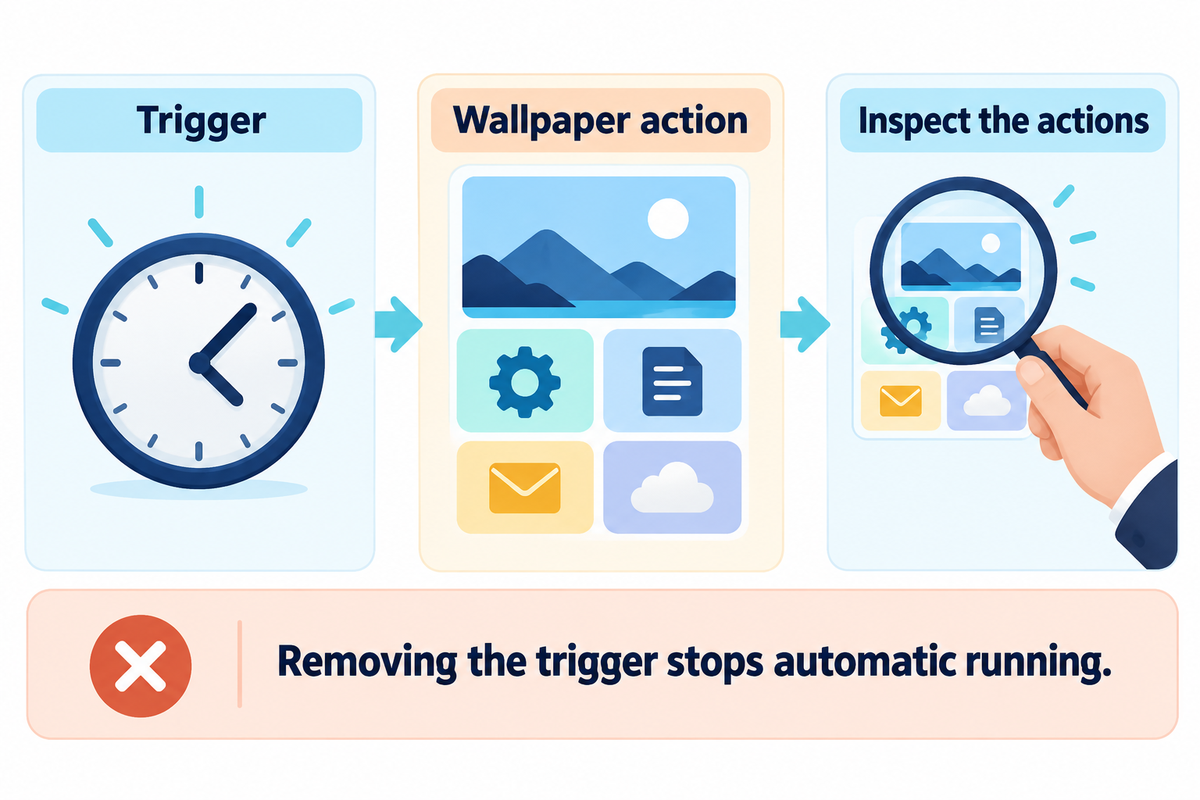
A shortcut can replace your wallpaper automatically when its trigger runs a wallpaper action. Open Shortcuts and check automations associated with the time or event you noticed. Read the shortcut’s actions before you delete anything; the trigger alone won’t tell you whether it changes wallpaper.
In the current Apple automation guide, Automation lists shortcuts with automation triggers. Older versions may organize these controls under an Automation tab. Look for the action that chooses the wallpaper or supplies the photo.
Apple’s Shortcuts update History shows Set Wallpaper Photo and Switch Between Wallpapers in iOS 16.2 changes. Set Wallpaper Photo can set photos for wallpapers that use iOS 16’s new widgets and customization options. Those action names might help identify what a shortcut does, and the editor may look different on your device.
“You can remove the automation trigger from your shortcut so it no longer runs automatically.”
Get rid of the trigger in the shortcut and choose your preferred wallpaper again. Do this only if the entire automatic run is unwanted, because its other actions will also stop running at that event. Also, keep other actions and automations, unless you want their behavior to change as well. If the wallpaper changes again, look at the second event and don’t assume the first edit is bad.
It’s helpful to write down a shortcut’s name and trigger, if you don’t understand what the shortcut does. For a Charger automation, the next relevant observation is a charging event. Waiting with the phone disconnected doesn’t exercise that trigger.
Separate accidental switches from visual effects
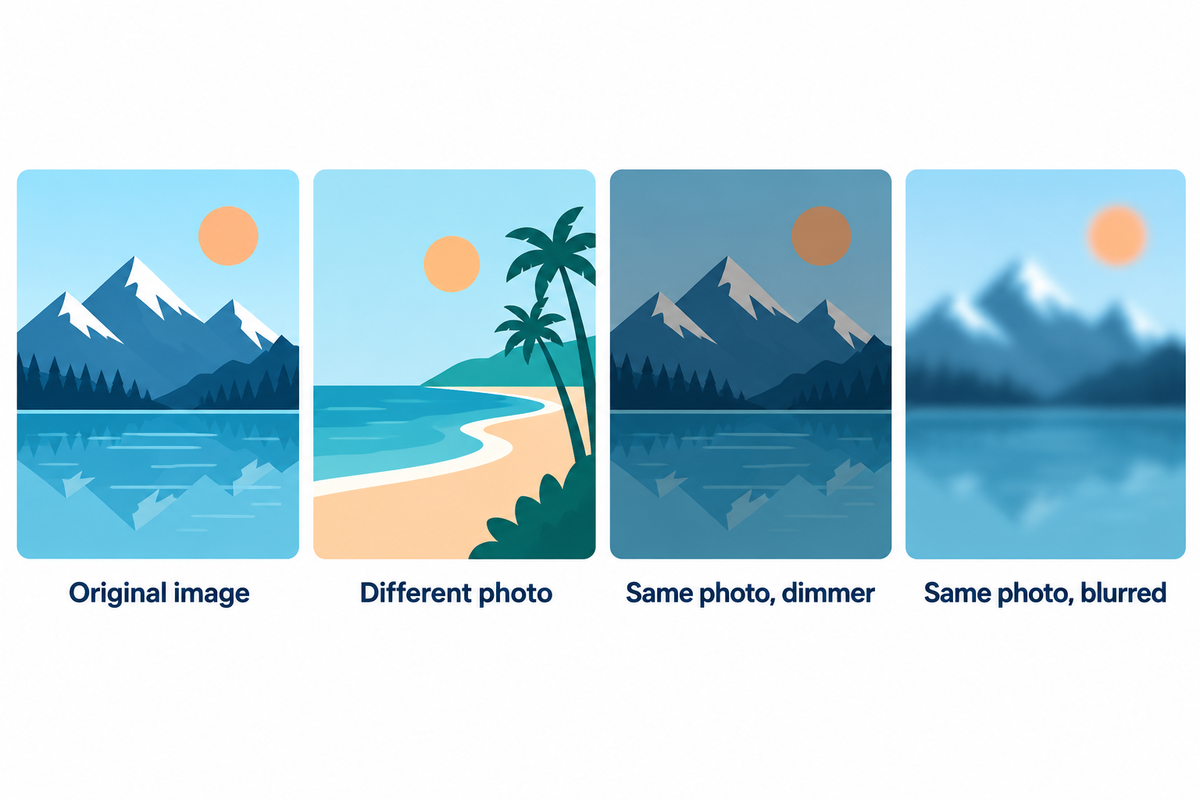
A changed clock or widget arrangement can indicate another saved Lock Screen, while a dimmer or softer image may come from appearance settings. Compare the subject and crop first. Then inspect the saved screen, Home Screen customization, or display option that matches what changed.
Apple states switching saved Lock Screens is done by touching and holding the Lock Screen, swiping to another wallpaper, and tapping it. If you enter the gallery, select the screen you want and check Focus. Keep unwanted saved screens only if you still use them.
Why does the same photo look blurry or darker?
The Blur feature softens your Home Screen background behind the apps. In Wallpaper settings, customize the Home Screen and check its Blur control. Apple’s wallpaper customization guide addresses this option separately from choosing another photo. Our Home Screen wallpaper guide covers background choices for readable icons.
On supported models including iPhone 14 Pro and iPhone 14 Pro Max, Always On Display can dim the locked or idle screen. Apple says its refresh rate can drop to 1 Hz. Check Settings > Display & Brightness > Always On Display if the change occurs when the phone becomes idle. Apple’s display brightness explanation also describes automatic brightness and color adjustments.
A black background or darkened screen therefore requires a different first check from a replacement photograph. True Tone can adjust color and intensity; Night Shift can make colors warmer. A live weather design can look different as conditions change. Animated photo effects also deserve an appearance check before you recreate the wallpaper.
- Compare the photograph and crop.
- Check the clock and widget arrangement.
- Inspect the matching appearance control.
- Do not delete your photo library to stop shuffle.
- Do not remove useful Focus schedules before checking screen associations.
- Do not erase the phone to troubleshoot routine wallpaper changes.
Keep one photo on both screens and recheck
Choose a photo from the Settings > Wallpaper menu and select Set as Wallpaper Pair to make that choice your wallpaper for both screens. Use Customize Home Screen to set a different wallpaper for each screen. Apple’s built-in choices can handle this task without having to buy a wallpaper app.
Once you’ve changed the setting associated with the unwanted switch, repeat the original event. Capture the active Focus and both screens before and after the event. Apple says switching away from a Lock Screen linked to a specific Focus also switches your Focus. If the original event hasn’t occurred yet, leave the result open. If both screens remained unchanged, document that result for the event you tested.
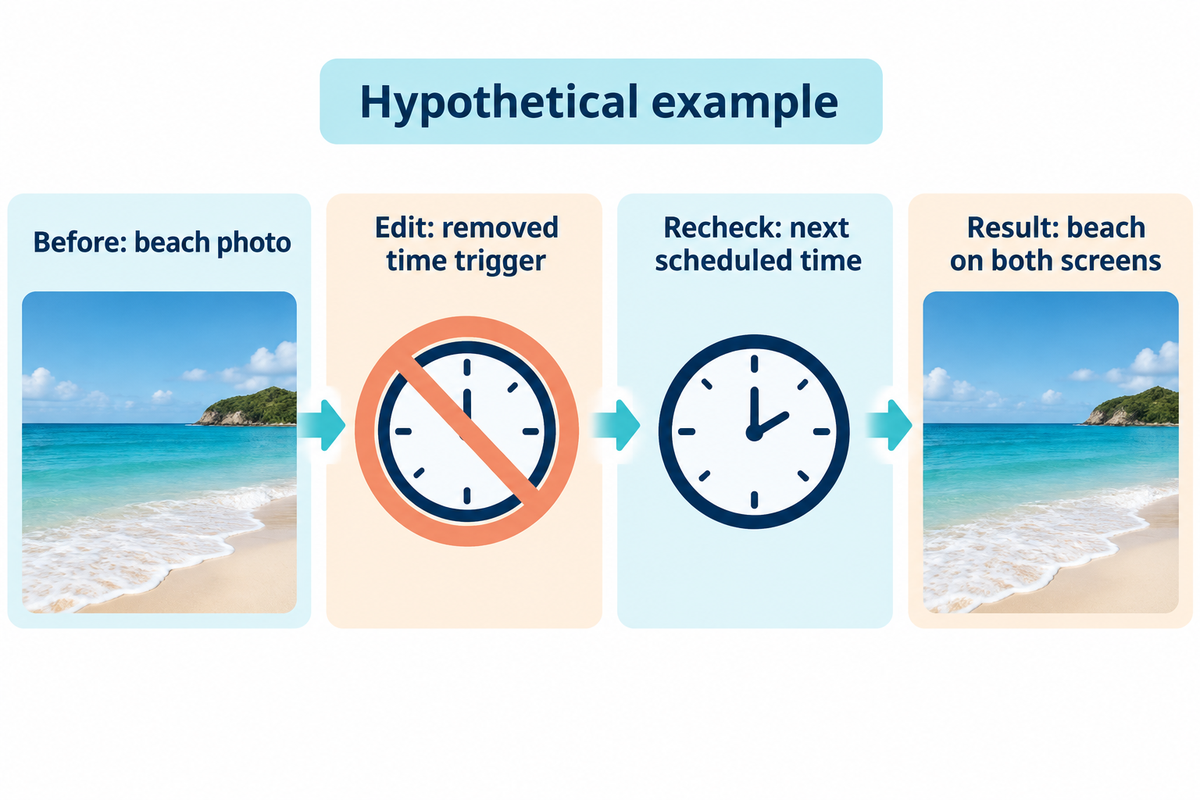
Imagine that, prior to a morning automation, the phone shows a beach photo, then changes to a mountain image. The owner finds a Time of Day trigger attached to a wallpaper shortcut and removes it. Apple says removing the automation trigger stops the shortcut from running automatically. The owner selects the beach again and leaves the other settings alone. In this example, at the next scheduled time, the photo stays in place, and the active Focus is unchanged. If the wallpaper later changes as part of Work Focus, investigate Work’s screen association as a separate route, instead of deleting more photos.
| Record | Example entry | What to enter for your phone |
|---|---|---|
| Original event | Morning scheduled change | The event immediately before the change |
| Picture before | Beach photo | Photo and crop |
| Picture after | Mountain photo | Replacement image or appearance difference |
| Focus before | No Focus active | The active mode |
| Matching control | Time of Day wallpaper shortcut | The inspected trigger and action |
| Single edit | Removed that time trigger | The one setting changed |
| Repeat event observed | Next scheduled time passed | Actual event, or not yet observed |
| Focus afterward | No Focus active | The mode after the event |
| Observed result | Beach stayed on both screens | What each screen showed during this check |
If the issue continues after checking the matching routes, restart the device and check for a software update. Save its iOS version, screenshots and the triggering event for Apple Support. For a new design once the behavior is settled, browse the iScreen wallpaper collection and select your preference through the same native settings.
Frequently asked questions
How do I turn off photo shuffle on my iPhone?
Create a wallpaper using Photos rather than Photo Shuffle, choose one image, and select that saved wallpaper.
You can leave the old shuffle wallpaper in the gallery. Changing the shuffle frequency to Daily only slows rotation; it doesn’t make the selection permanently static. If the single photo is replaced later, check linked Focus screens and Shortcuts automations too.
Why did my iPhone screen just change?
A different photo suggests a wallpaper selection or shuffle; a different clock and widget arrangement can indicate another saved Lock Screen.
A dimmer or blurred version of the same image may be an appearance setting. Note the time and active Focus, then inspect the matching control before deleting wallpapers or changing all your notification settings. The trigger table above provides a starting check for each pattern.
How to set multiple pictures as wallpaper on iPhone?
Open Settings, choose Wallpaper, then Add New Wallpaper and Photo Shuffle.
Select the available photo categories, an album, or photos manually, according to the options shown on your phone. Choose On Tap, On Lock, Hourly or Daily. Those settings deliberately rotate pictures, so a changing image is expected. Choose a normal Photos wallpaper if you later want a single fixed picture.
How do I avoid switching wallpapers after a long press?
To avoid an accidental switch, leave the wallpaper gallery without selecting another screen. A long press opens the gallery; swiping and tapping a saved screen selects it. If you already switched screens, return to the intended wallpaper and check the active Focus.
Does a wallpaper change mean my iPhone was hacked?
No. A wallpaper change alone doesn’t show that your phone was hacked. Check its settings and assess any separate account-security alerts independently.
About this guide: iScreen helps readers select and arrange wallpapers. This troubleshooting article uses Apple’s documented controls and attributed interface guidance; it doesn’t report hands-on device testing.
References & Sources
- Change your iPhone wallpaper Apple Support.
- Set up a Focus on iPhone Apple iPhone User Guide.
- Create a custom Lock Screen Apple iPhone User Guide.
- Add automations to Shortcuts Apple Shortcuts User Guide.
- What’s new in Shortcuts for iOS 16 Apple Support, historical action changes.
- Change the wallpaper on iPhone Apple iPhone User Guide.
- Adjust brightness and color temperature Apple Support.
- Prevent your iPhone wallpaper from changing iDownloadBlog, secondary interface guidance.