
.png)
iPhone Wallpaper Size Guide: Recent Models in One Table
The correct iPhone wallpaper size begins with your model’s portrait display dimensions. Apple lists the iPhone 17 as 1206 × 2622 pixels and the iPhone Air as 1260 × 2736 pixels, width first. For your reference, use the table below and adjust your photo around its subject, leaving room for the clock and widgets. A larger file gives you editing room, but the shape still matters.
Updated October 2026 · Dimensions below are width × height in pixels.
- Find the full model name, including Plus, Pro, Pro Max, mini or SE.
- Match the portrait shape before changing the export size.
- Keep the original image so you can make a different crop later.
- Preview the Home Screen and Lock Screen separately.
iPhone wallpaper size chart by model
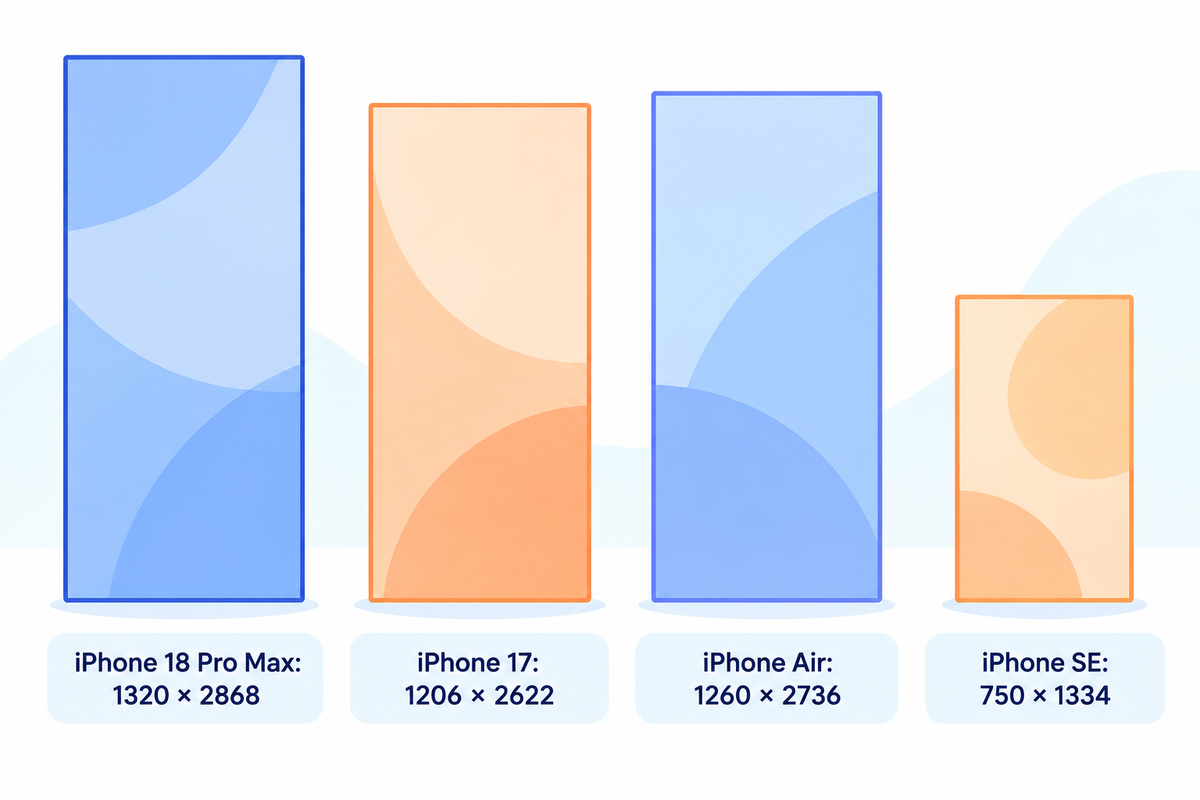
Some recent iPhone wallpaper dimensions range from smaller SE canvases to much taller Pro Max displays. When looking for a wallpaper for your iPhone, be sure to use the correct row corresponding to your model; “6-inch phone” or “Pro wallpaper” for example isn’t correct. These are Apple’s native display resolutions, expressed in portrait orientation. They’re useful for starting artwork, and the wallpaper editor adjusts the final framing.
| iPhone model | Width, pixels | Height, pixels |
|---|---|---|
| iPhone 18 Pro Max | 1320 | 2868 |
| iPhone 18 Pro | 1206 | 2622 |
| iPhone 17 Pro Max | 1320 | 2868 |
| iPhone 17 Pro | 1206 | 2622 |
| iPhone Air | 1260 | 2736 |
| iPhone 17 | 1206 | 2622 |
| iPhone 17e | 1170 | 2532 |
| iPhone 16 Pro Max | 1320 | 2868 |
| iPhone 16 Pro | 1206 | 2622 |
| iPhone 16 Plus | 1290 | 2796 |
| iPhone 16 | 1179 | 2556 |
| iPhone 16e | 1170 | 2532 |
| iPhone 15 Pro Max | 1290 | 2796 |
| iPhone 15 Pro | 1179 | 2556 |
| iPhone 15 Plus | 1290 | 2796 |
| iPhone 15 | 1179 | 2556 |
| iPhone 14 Pro Max | 1290 | 2796 |
| iPhone 14 Pro | 1179 | 2556 |
| iPhone 14 Plus | 1284 | 2778 |
| iPhone 14 | 1170 | 2532 |
| iPhone 13 Pro Max | 1284 | 2778 |
| iPhone 13 Pro | 1170 | 2532 |
| iPhone 13 mini | 1080 | 2340 |
| iPhone 13 | 1170 | 2532 |
| iPhone SE (3rd generation) | 750 | 1334 |
The chart is based on Apple’s iPhone comparison. However, direct checks were made to the iPhone 18 Pro specifications, iPhone Air specifications and iPhone 13 specifications. Apple sometimes writes the longer dimension first. However, in this case, the narrower portrait dimension comes first.
Be aware of the suffix. An iPhone 14 Plus and an iPhone 15 Plus have different pixel dimensions, in spite of their similar names. Air has its own canvas. Conversely, there are models that share the same display resolution, so a well-framed photo can be a good starting point for other devices as well.
For a custom wallpaper, enter the two pixel values in your editor’s canvas fields. An iPad or Android tablet needs its own dimensions and composition; this chart covers the listed conventional iPhone displays. It doesn’t combine multiple displays into one wallpaper size.
Pixels and aspect ratio: what the numbers mean
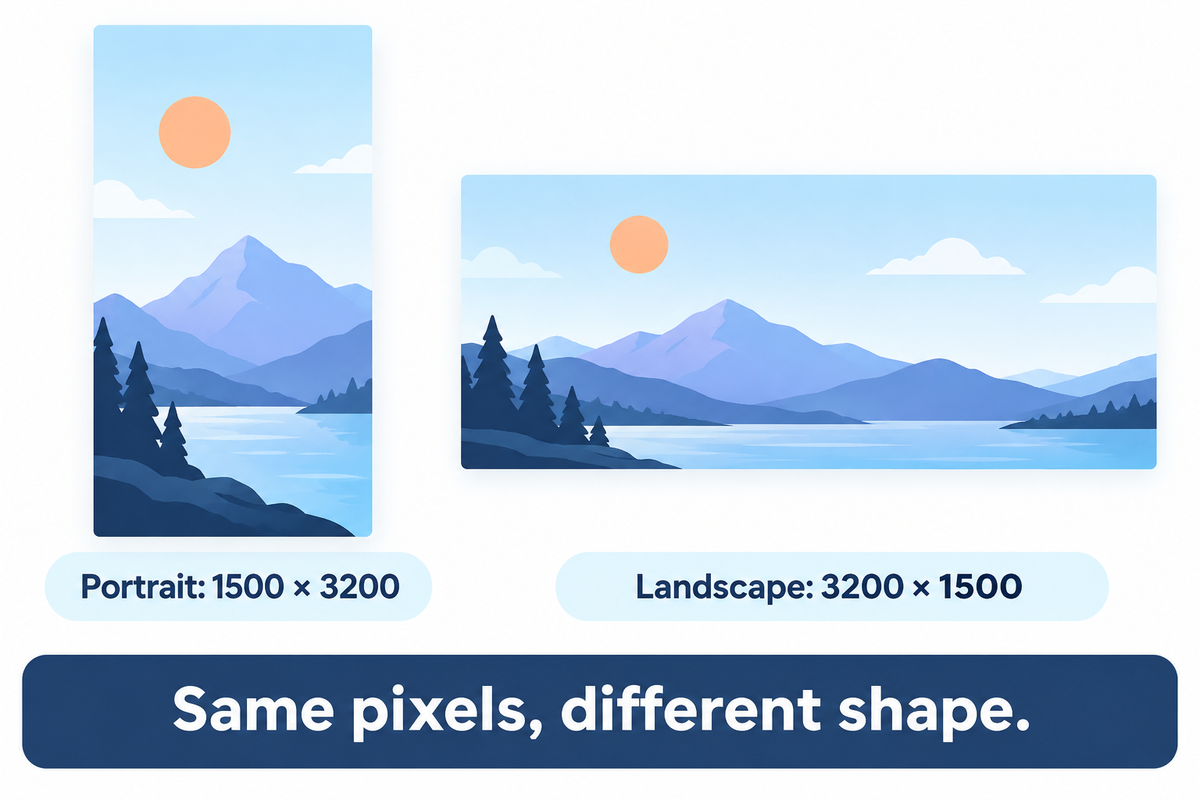
Pixels denote the amount of image data you have; aspect ratio denotes its shape. Think of a picture fitting in a frame: a large print still needs trimming if the frame has different proportions. So, a 1500 × 3200 image is tall and narrow. A 3200 × 1500 image contains the same number of pixels but fits into a portrait screen very differently.
Are iPhone screens 16:9?
Some older models, including the SE in this chart, are close to 16:9 when held sideways, or 9:16 upright. Many modern iPhones are taller, roughly 9:19.5 in portrait. Use your screen’s exact screen resolution for export, rather than rounding every phone to one ratio. A camera’s photo or video setting describes the captured picture, not the shape of the display.
Check the width and height together. A file named “wallpaper-4K” can be a wide landscape or a tall design, or an enlarged copy of a smaller image. If you’re choosing between a few files of similar dimension, our guide to choosing a sharp 4K iPhone wallpaper covers file quality in detail.
Use the same wallpaper on two different iPhones
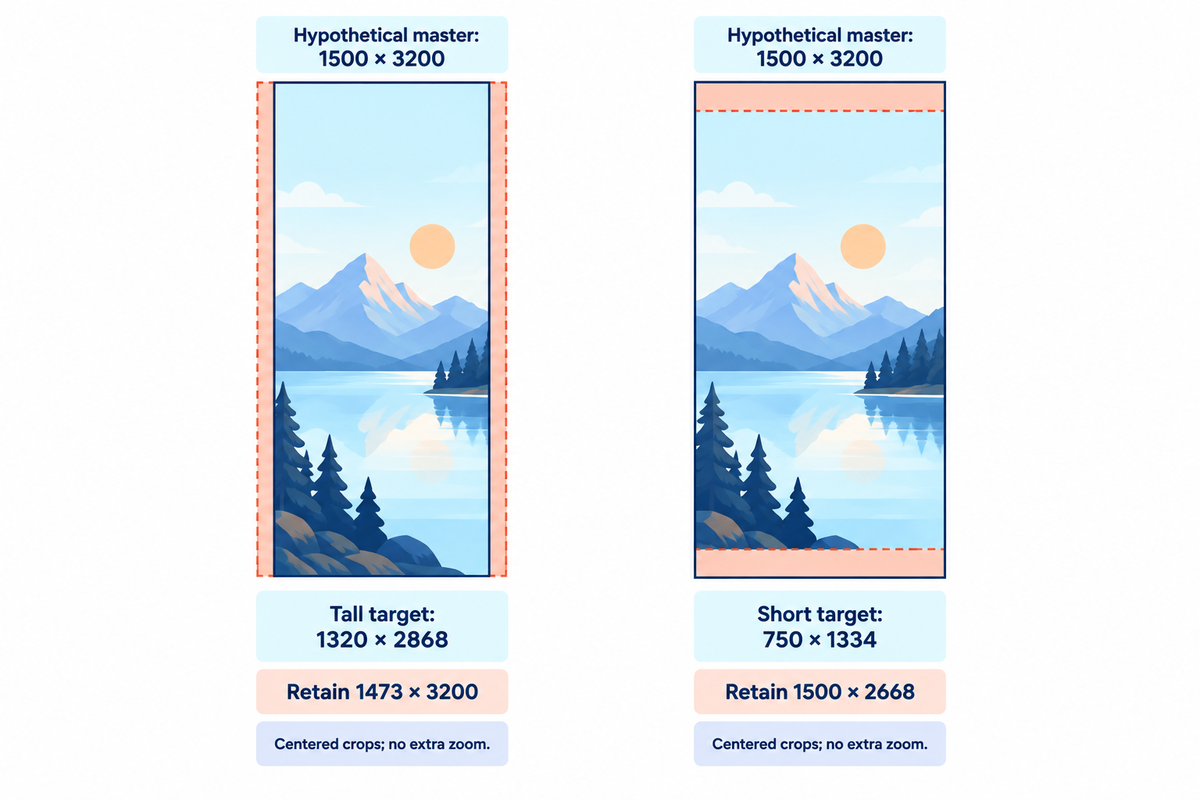
A wallpaper that worked on your previous iPhone may lose different edges on other models. Check wallpaper fit when you switch devices. The Two-Canvas Transfer Check helps with that. Place both target shapes on the same master image, and compare the subject’s boundary with both crops. Pixel capacity and composition are two different checks. A face can be cut off even when the file has a lot of resolution.
Worked example: Let’s say you have a portrait master that’s 1500 × 3200 pixels, with a centered crop that fills both targets, and there is no additional zoom. Let’s compare the 1320 × 2868 Pro Max canvas and the 750 × 1334 SE canvas from Apple’s chart. These are geometric crops that you can create in an editor. Your iPhone preview may be showing the image in a different spot.
| Target canvas | Source area retained, approximately | What a centered crop removes |
|---|---|---|
| 1320 × 2868 pixels | 1473 × 3200 pixels | About 14 source pixels from each side |
| 750 × 1334 pixels | 1500 × 2668 pixels | 266 source pixels from the top and bottom |
For the taller target, retained width equals 3200 × 1320 ÷ 2868, or about 1473 pixels. For the wider SE shape, retained height equals 1500 × 1334 ÷ 750, or 2668 pixels. Crop first; resize the retained area to the target afterwards. When shrinking both dimensions for the SE export, thin lines and fine lettering may get blurry, so inspect them in the exported file.
Now, add a subject. If a central illustration spans 800 × 2000 pixels, extending from 350 to 1150 horizontally and 600 to 2600 vertically in the master, it’s framed by both of the centered crops. A different subject, spanning 800 × 2800 pixels, is 132 pixels taller than the SE crop. It isn’t possible to move the crops to preserve that entire subject and frame it. You can add background space, reduce the subject size in a new canvas, or come up with a different way to frame it.
For a family photo, use the outermost faces as the subject boundary so you can see which faces might get cropped. For a quote design, include every single letter within the subject boundary. The clock and widgets still need room after those boundaries fit; the diagram is a framing worksheet, not a fixed iOS safe-area template.
How do I resize a photo to fit my iPhone wallpaper?
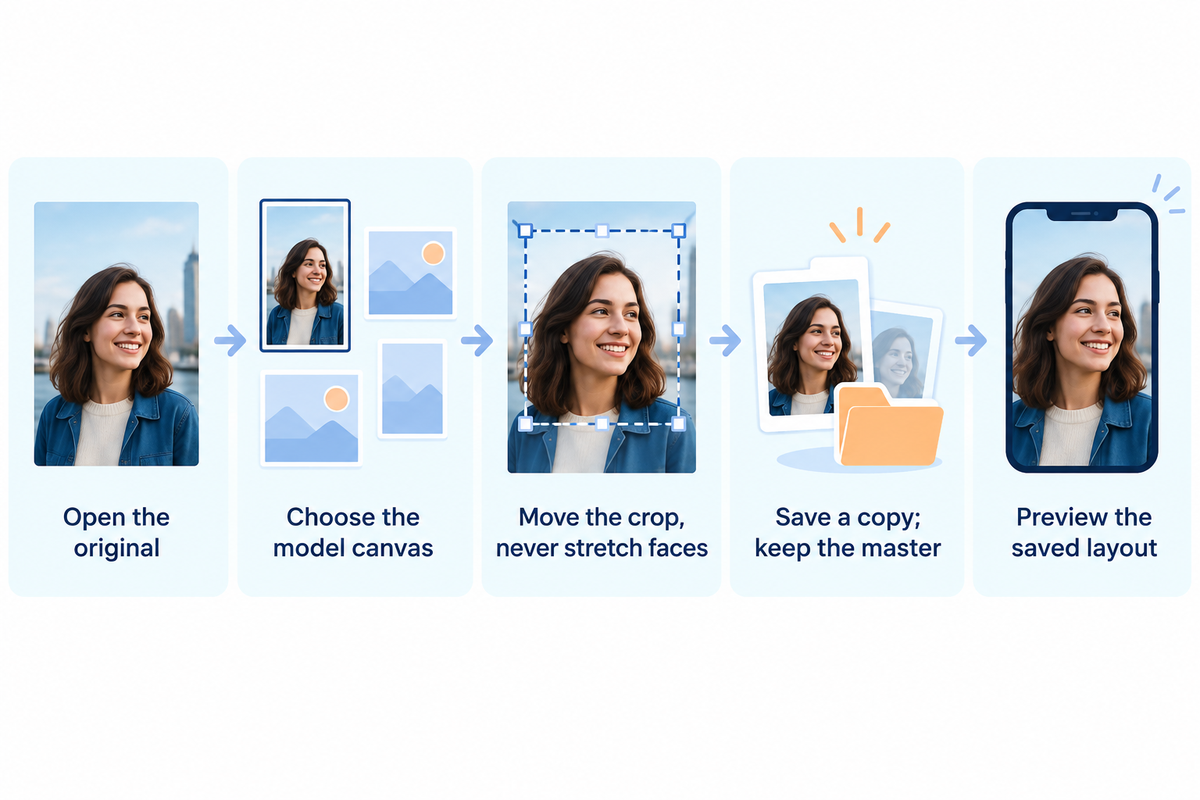
Use the built-in wallpaper editor for a quick fit: Open Settings > Wallpaper > Add New Wallpaper > Photos. Pinch to adjust the scale and drag with two fingers to reposition the image. If the subject can’t fit, use a separate image editor to change the composition and then return to the wallpaper preview.
“Pinch open to zoom in, drag the image with two fingers to move it, then pinch closed to zoom out.”
- Open the original picture rather than a screenshot of its web page.
- Choose the model’s portrait canvas in your editing tools if you need a precise export.
- Move the crop around the subject. Avoid widening or narrowing a face to force a match.
- Save a separate copy to use as wallpaper and keep the uncropped master.
- Set the saved image as wallpaper and inspect the actual layout before adding it.
Can you keep the whole photo without cropping?
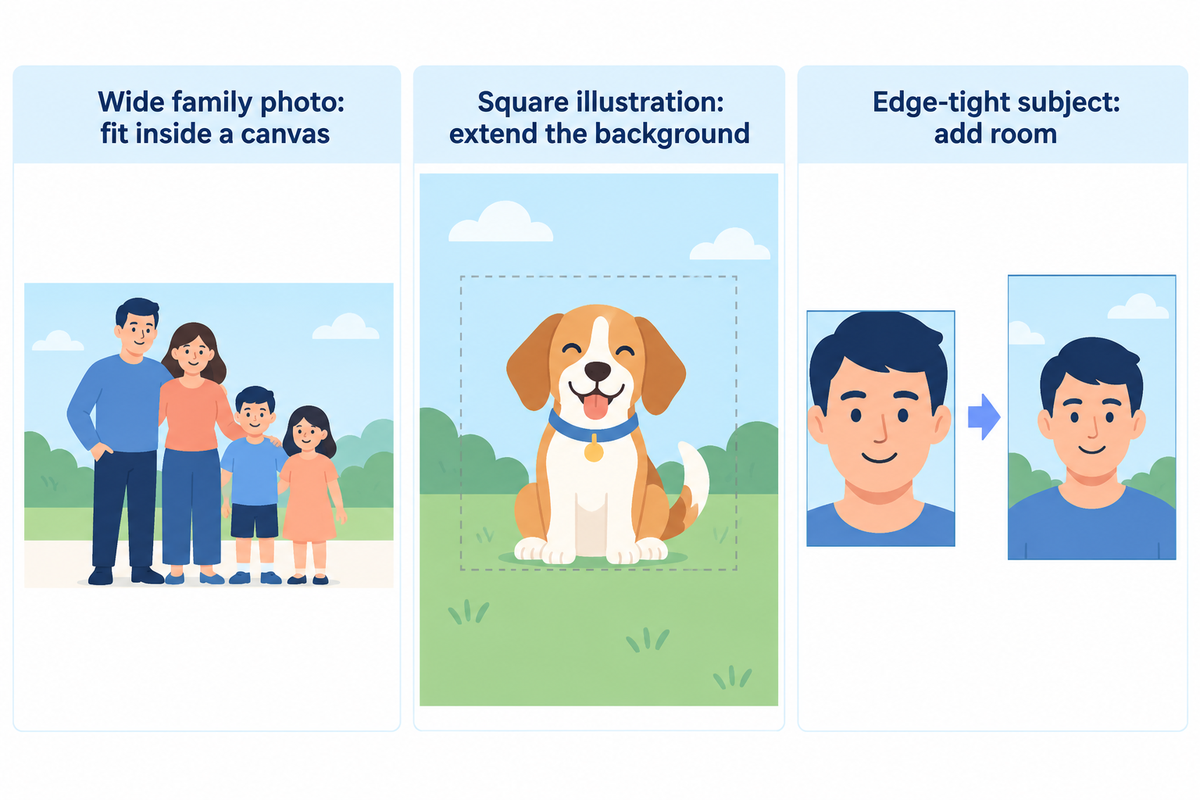
Yes, by fitting the whole photo inside a portrait canvas and filling the remaining space with background. Enlarging an image to fill the screen removes edges when its shape differs from the canvas. Fit-with-background lets the whole picture fit perfectly inside the selected canvas with space around it. A solid color or a simple gradient often looks more intentional than stretching a landscape portrait until faces become narrow.
An image editor with canvas and resize controls, such as those available from Adobe, can be used to accomplish this. The same thing happens regardless of which app you use: changing the canvas proportion adds or removes surrounding space, and stretching changes the subject’s proportions. When a wallpaper option offers generated extension, check the background added to it before saving.
Keep the clock, widgets and subject readable
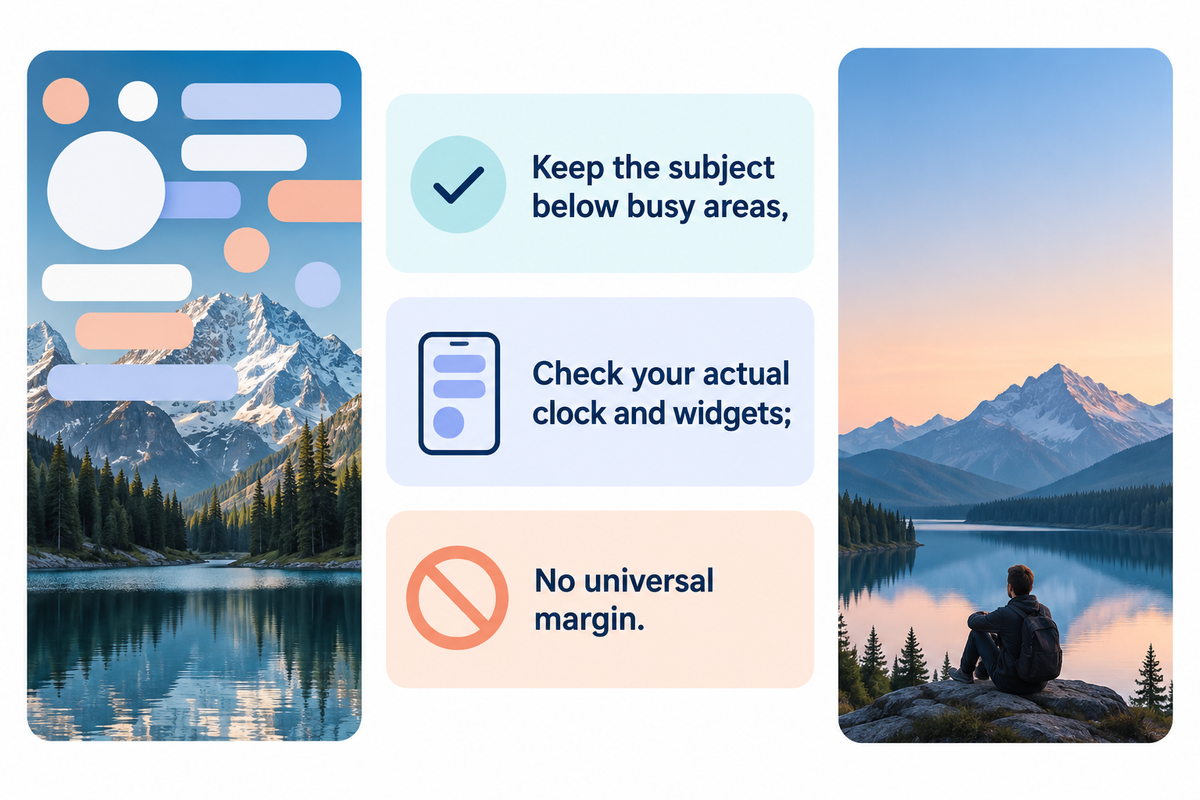
Leave quiet space where your iPhone’s clock, widgets and app labels appear. Their positions and appearance can vary depending on your iOS version and selected layout, so a fixed margin copied from another phone may be of no use. Start with the subject away from the top edge, then adjust the image while your actual interface is visible.
Apple’s user guide explains the available options vary based on the chosen wallpaper. Recent iOS can also alter the size of the clock. MacRumors’ iOS 27 Lock Screen report mentions a more compact option. A layout designed to give empty space for a large centered clock may not be useful for a compact layout.
A more simple crop before removing a favorite widget is worth a try. Pale colors behind pale digits can make time difficult to read. For further customization of clock and widgets placement, follow our iPhone Lock Screen customization steps.
Choose a download that fits your model
Choose a source that lets you inspect the image and obtain a high quality original. The right size is one of the many factors to consider. The subject needs room to move and details should remain readable at phone size. An attractive aesthetic preview may hide a crop that can cut through a face or a line of text.
Where can you find wallpapers that fit your iPhone?
You can find iPhone wallpapers in iScreen’s collection and choose a design that corresponds to your model and layout. The collection offers styles like black backgrounds and aesthetic wallpaper designs. Check the items’ download route. Check their access terms. A gallery preview doesn’t indicate the dimension of the exported file.
| Image you have | What to examine | Useful next step |
|---|---|---|
| Centered portrait photo | Space around the face | Compare subject bounds with the target crop |
| Wide family photo | People near both edges | Fit inside a portrait canvas if cropping loses anyone |
| Square illustration | Top and bottom background | Extend the canvas around the artwork |
| Quote or lettering design | Small text and line breaks | Preview the resized export at normal viewing size |
| Detailed landscape | Focal point after a tall crop | Choose a portrait alternative if the scene loses its meaning |
| Minimal gradient | Banding and clock contrast | Inspect the saved version rather than the thumbnail |
| Screenshot of a wallpaper page | Page interface and actual image dimensions | Find the original image download |
| File from another smartphone | Exact proportions and embedded interface | Return to the master rather than repeatedly cropping copies |
| Image with the subject against an edge | Room for crop movement | Add background or choose a less tightly framed picture |
Save the original once and make separate exports from it. Editing a previously cropped copy provides fewer options when you change phones. If a file looks blurry before you set it, fitting it perfectly into the frame won’t restore detail or sharpen it.
What can you resize for free?
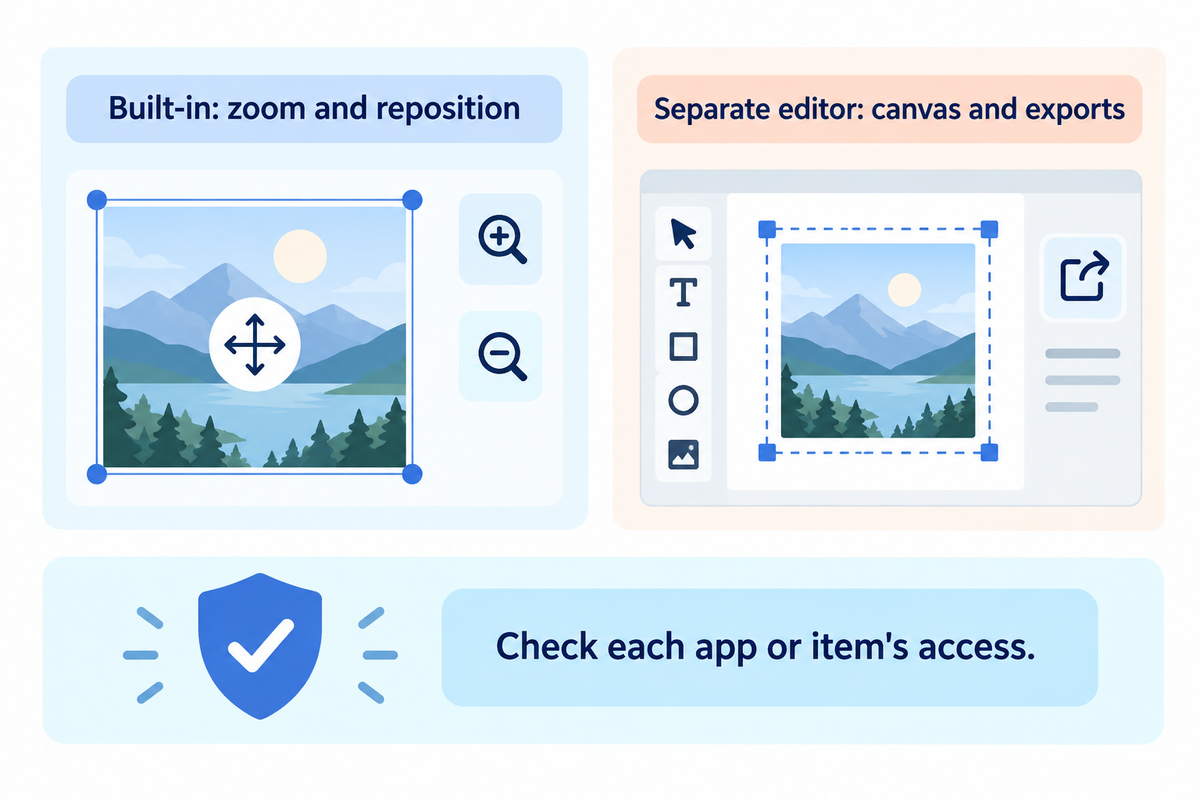
You can zoom and reposition a photo with Apple’s built-in wallpaper controls for free. A separate editor becomes useful when you want an exact canvas with added background or lettering and when you need multiple exports for different devices.
Free downloads and free access to every design are different things. Check the particular app or item before choosing paid extras. A simple crop doesn’t require a premium wallpaper pack. For a custom design, decide which feature you need before comparing Editing apps, rather than buying one because the picture’s dimensions look unfamiliar.
Check the saved wallpaper before you finish
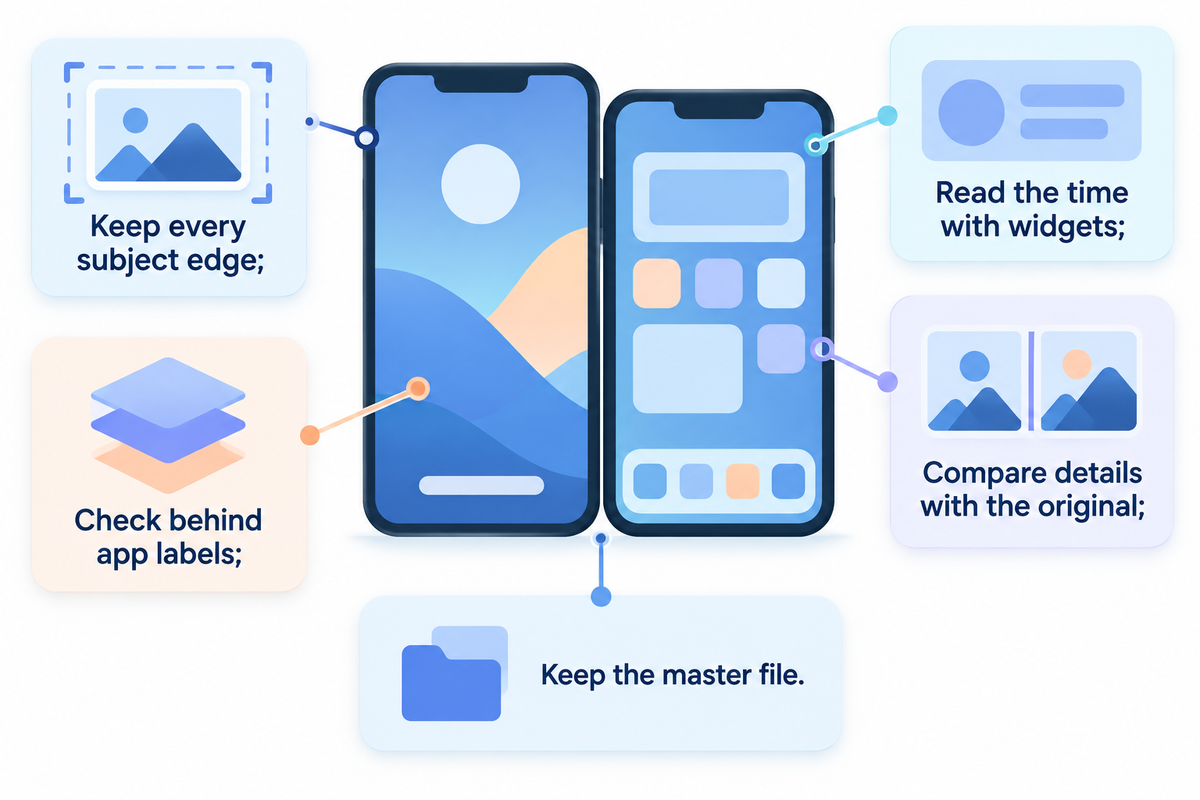
Check the Saved Lock Screen and Home Screen as two layouts. A blur treatment can change the appearance of a Home Screen image. A good starting point is a clear source file. The goal is to achieve a screen where the subject and controls are easy to identify.
- Look at the subject’s edges. Hair, ears, hands and lettering should survive the chosen crop.
- Read the time at a normal distance, with your usual widgets present.
- Inspect the Home Screen behind app labels. Change its appearance separately if that layout needs a quieter background.
- Compare fine details with the original when scaling seems to have made them soft.
- Keep the master file so the next phone update or layout change doesn’t require starting again.
The Apple wallpaper instructions differentiate Customize Home Screen from Set as Wallpaper Pair. Choose Customize Home Screen if a detailed Lock Screen image feels too busy with apps. Older tutorials may tell you to disable Perspective Zoom or parallax controls that your current editor does not show. Check compatibility with your current layout and use the available wallpaper and iOS version options.
Beginning with your model’s row and using one crop, check both screens. Once the image works, look through the iPhone customization guides for the rest of the changes to the layout.
Frequently asked questions
Is 16:9 wallpaper size?
16:9 describes a shape, not a pixel size. A 1920 × 1080 image is landscape 16:9; turn those dimensions around and you get a 1080 × 1920 portrait image. That portrait shape suits some older iPhone displays more closely than recent tall-screen models. For your own phone, use the model chart and preview the crop instead of choosing by ratio alone.
Is 4:3 or 16:9 better on iPhone?
For a wallpaper, neither label automatically means a better fit. A camera photo and a screen can have different proportions. A portrait photo with room above and beside the subject often gives you more useful choices, but the crop and remaining pixel dimensions decide the result. Keep the original file, compare both framings, and avoid stretching faces to fill the display.
What size is iPhone wallpaper in inches?
Use pixels when preparing a wallpaper file. Inches describe a physical length, while the image is rendered across your phone’s display pixels. Changing a file’s print-size or dots-per-inch label alone doesn’t add detail. Find the portrait width and height for your exact model in the chart, then check whether the portion you want to keep contains enough pixels for that canvas.
Does increasing DPI make wallpaper sharper?
Changing only the DPI metadata doesn’t create missing image detail. Start with a sharper original, keep enough pixels after cropping, and avoid repeatedly saving a heavily compressed copy.
Is there one wallpaper size for every iPhone?
There’s no single exact canvas for every iPhone. Models differ in native resolution and screen proportions, so a file sized for one can be cropped or scaled on another. You can create a larger master image for several devices, but leave room around the subject and make a separate preview for each target. An older SE and a recent Pro Max are especially poor candidates for treating one crop as identical. If you distribute a wallpaper pack, label each exported width and height and retain the master file for later adjustments.
References & Sources
- Apple: Compare iPhone models – manufacturer display resolution references.
- Apple: iPhone 18 Pro and Pro Max specifications current Pro display dimensions.
- Apple Support: iPhone Air technical specifications Air display dimensions.
- Apple Support: iPhone 13 technical specifications display dimensions for iPhone 13.
- Apple iPhone User Guide: Create a custom Lock Screen zoom, repositioning and layout options.
- Apple Support: Change your iPhone wallpaper adding and saving wallpapers.
- MacRumors: iOS 27 Lock Screen features attributed reporting of newer layout options.
