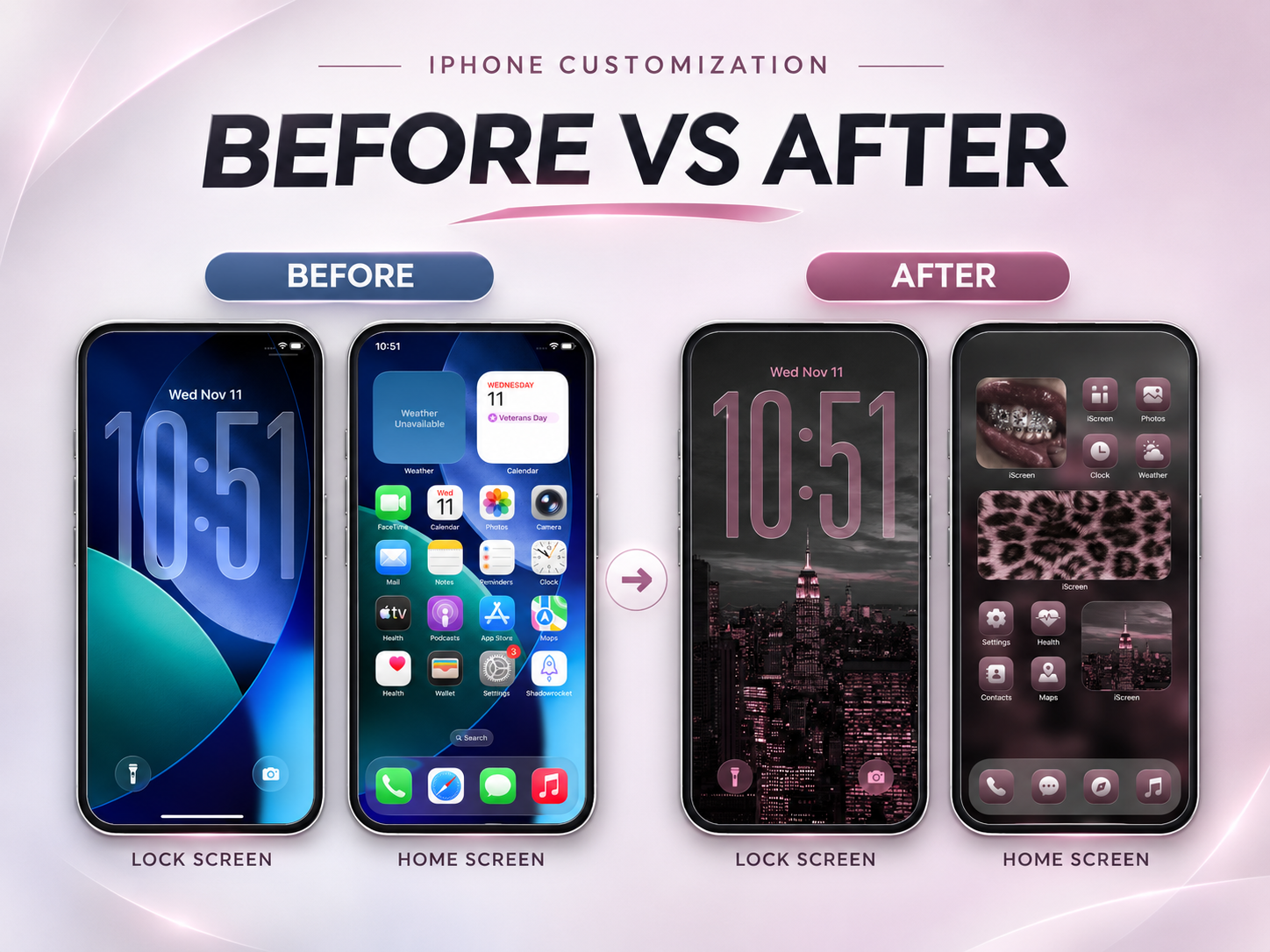
Pastel Wallpapers for iPhone: Soft Aesthetic Backgrounds & Setup Tips

Pastel Wallpaper for your iPhone: 60+ Soft Shade Ideas Want the right pastel wallpaper for your iPhone?

Whether you need a cute wallpaper featuring illustrated characters in soft pastel tones, or just a clean pastel background in a single soft hue – we have collected over 60 pastel wallpaper ideas including nude, blushed, dusty blue, purple, green pink and rainbow. Here’s our guide and sorted wallpapers based on their shades.

You’ll even get iPhone resolution stats for every present day model, a step-by-step iOS 18 guide (including how to overcome color washed out by most users on the issue), and even a guide about pastel tones dominating the trends of 2026.

QUICK SPECS

Focus keyword SV 1,000/mo (US) — summer peak July: 1,300
Styles covered Solid, gradient, illustrated, minimal, nature-inspired
Color families Pink, purple/lavender, blue, yellow/green/peach, multi-gradient
Best for home screen + lock screen customization
iOS compatibility iOS 16+ (home screen) / iOS 18+ (depth effect) / iOS 26+ (Liquid Glass)
App iScreen — 500+ pastel wallpaper designs

What Makes a Perfect Pastel Wallpaper for iPhone?
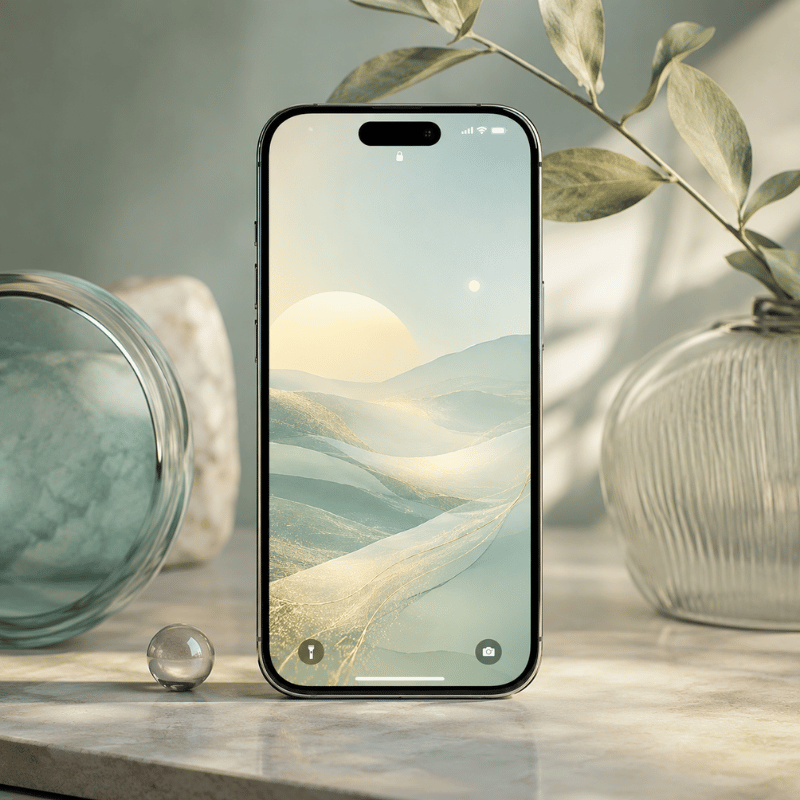
What Makes a Perfect Pastel Wallpaper for iPhone?

Any color that is not very “bright”- saturation of around less than 30% and very high lightness, as opposed to more e×treme bright primary tones-is pastel. This less low-saturation zone where these soft colors live — quiet enough to let your iPhone app icons read clearly against the background.

It’s because pastel hues provoke weaker emotional reactions to the more vibrant and saturated colors that their 2025 study, Humanities & Social Sciences Communications Nature.com (s41599-025-06336-z), concluded. Pastel isn’t supposed to give you a mood lift, “it simply decreases the sensory over-stimulation associated with bold saturated wallpapers.” Studies on general color psychology back up this visual peace by indicating that a less intense color hue signifies reduced stress.PMC4383146

5 types of pastel wallpaper for iPhone:

  1. Solid – a flat, monochromatic color: the most versatile background for an icon grid and the foundation for the richest color palette
  2. Gradient wallpaper – soft hues two and up bleeding from one color to another across the iScreen.
  3. – Graphic Illustration -kawaii characters, floral motifs or abstract patterns in pastel; most posted style of cool wallpaper in r/iOSsetups
  4. Minimalist wallpaper, delicate lines, grids or dots in very low opacity; perfect to personalize your Iphone without clutter.
  5. Nature-inspired — cherry blossoms, soft clouds, dawn skies

Common mistake: Download Desktop Size Photos in 1920×1080 for the iPhone. The 16:9 aspect ratio wallpapers look ugly as they are set in 19.5:9 on the long and vertical iPhone iScreen, trimming off both ends of your new portrait wallpaper. Portrait-format files are essential — landscape images will crop badly on iPhone’s tall screen. (e.g. 1170×2532p× for the iPhone 14,15 and 16 and above)

Pastel Wallpaper × Mood Matri×

Color Visual feel Best setup conte×t
🌸 Blush pink Warm, romantic Personal device, creative work
💜 Lavender Calm, reflective Study, winding down
🩵 Baby blue Focused, trustworthy Productivity, work setups
🌿 Mint green Fresh, energizing Spring/summer refresh
🍑 Peach Playful, inviting Social, lifestyle setups

Pink iPhone Wallpapers: Rose, Blush & Bubblegum Pastels
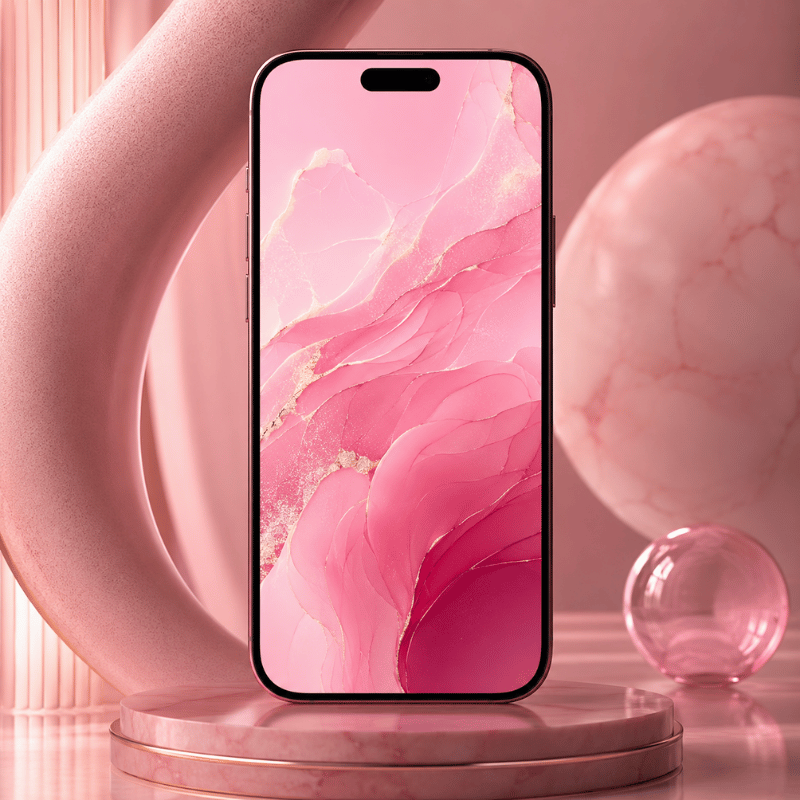
Pink iPhone Wallpapers: Rose, Blush & Bubblegum Pastels

The most searched pastel color for wallpaper with iPhone is pink: It logs over 320 searches just under the specific term, and over 5,400 searches combine the pink wallpaper term with other relevant pastels, or just background pink pastel. There is, of course, good reason for this: Pink does not make it feel as “hot” on screens and works great with white label, also good!

4 shades to know within the pink family:

  • Rose pink – warm and mildly saturated; friendly to eye but still does not become overwhelming
  • Blush – natural, barely there shade of my skin and easily versatile, goes with any color widget
  • Bubblegum – ilde lysere (dvs. softere), til begge typer av fargeleggings og helst så lett på blødingen mulig; egnet til lette, søtt-kawaiistil.
  • Pinkish beige (duvet) dusty rose – greys the grayish, dulled; the most elegant of a subtle black/snow blend particularly on the other four Pro Max screens: (calm in background) smoke – a sea of grayish darkness on the lower right; west – darker than next hues; west v5-maximum smokiness; west v8 – maximum sou.the haze…rust- tinted…camellia”.

Each iScreen wallpaper is automatically the correct size for your model – see our whole pink palette in the iScreen wallpaper library and sort the shades.

Which pastels will people most search for in their iPhone wallpapers?

Pink. Searches for ‘pastel pink wallpaper’ (2,400 a month) consistently outrank lavender (1,900) and blue (1,600) a wide margin. If we sort shades within pink, rose-and blush tones perform the best on OLED displays as they appear warm on iScreen while keeping white icon labels highly visible.

Lavender, Lilac & Purple iPhone Wallpapers
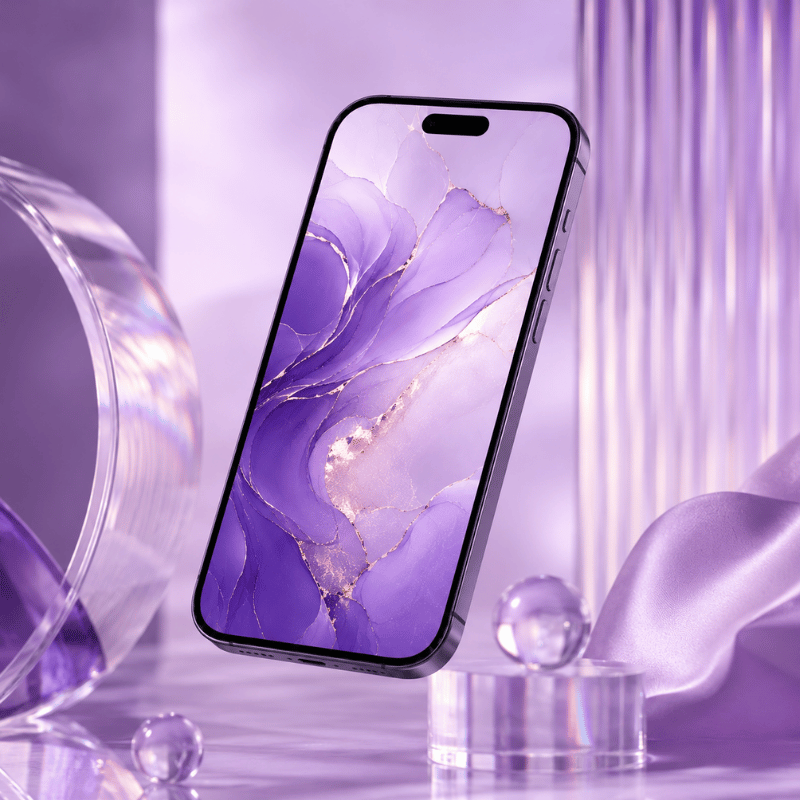
Lavender, Lilac & Purple iPhone Wallpapers

The second most-searched category is pastel purple wallpapers. While there’s significant range within purple hues — lavender leans blue, lilac pulls towards pink, and mauve leans towards grey – getting the tone just right makes a major impact. The difference matters for how colors in a matched theme align with a chosen set of widgets.

Quick shade guide:

  • Lavender – leans blue and evokes clarity and calmness; pairs great with white or silver app icon collections
  • Lilac – leans pink and is more feminine and soft; exceptionally good with pink icon and widget themes
  • Mauve – a brownish-purple shade that’s toned down; the quietest of the pastels, ideal for productive themes that limit color distractions
  • Soft violet – slightly more saturation but still subtle enough; enhances richness in theme sets

Methodology: All purples in this collection are arranged based on saturation, or their “S value”, instead of hue alone. None is higher than S=30%; anything over this can look very vivid in an OLED display (which usually displays at a much higher brightness and contrast level than a desktop display), thus undermining a true pastel effect.

Tip for pastel-perfect sets: If choosing any of these purples as your background, also check our other pastel offerings. Consider lavender backgrounds with iScreen’s matching purple/lavender icon themes. If you want to create a setup that earns a spot on the r/iOSsetups subreddit, coordinating themes across all iScreen assets is the move that sets it apart.


Pastel Blue & Sky-Blue iPhone Wallpapers
Pastel Blue & Sky-Blue iPhone Wallpapers

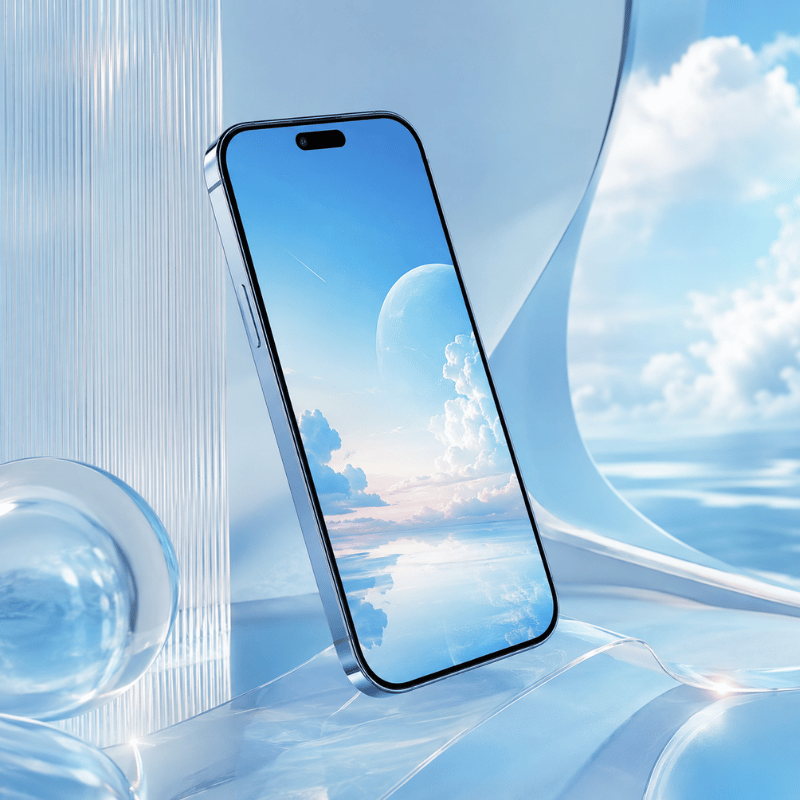
Light and baby blues are fantastic for setting a calm, productive tone – they’re strongly associated with focus, clarity and, since they’re seen clearly against both light- and dark- mode text. ‘Pastel blue wallpaper iPhone’ has 1,100 monthly searches, but when we combine all blue-Related terms we see searches jump to 1,600+.

Shades within the pastel blue family:

  • Baby blue – almost pure white-like, the crispest of blues
  • Sky blue – the classic blue hue, classic, and also the top download on iScreen, it contains a shade or two more color than white light blue
  • Powder blue – a soft, dusty blue color that also leans towards grey, ideal for minimal setup or a lot of plain app icons
  • Periwinkle – blends blue and violet: a more gender-neutral but fun shade than pure blue

iPhone Wallpaper Resolution Guide

Sources: ESR Tech complete guide (published May 2026)

Model Resolution Scale
iPhone 14 / 16e / 17e 1170×2532 3×
iPhone 15 / 16 1179×2556 3×
iPhone 16 Pro 1206×2622 3×
iPhone 14 Plus / 15 Plus / 16 Plus / 17 1290×2796 3×
iPhone 16 Pro Max / 17 Pro Max / Air 1320×2868 3×
Universal safe square 2752×2752 all models

All iScreen wallpapers have already been resized for your phone, so you’re ready to download.

What is the iPhone wallpaper resolution for best quality?

Go with your actual model’s native resolution (refer to table above). For iPhone 14/15/16, that’s 1170-11792532-2556px. Any Pro Max model? It’s 1290-13202796-2868px. iPhones do a 3 scale factor of the wallpaper, so the source images from iScreen are at a high enough resolution to show sharper pastel gradients than anything on the web.


Pastel Gradient, Rainbow, Yellow, Green & Peach iPhone Wallpapers
Pastel Gradient, Rainbow, Yellow, Green & Peach iPhone Wallpapers

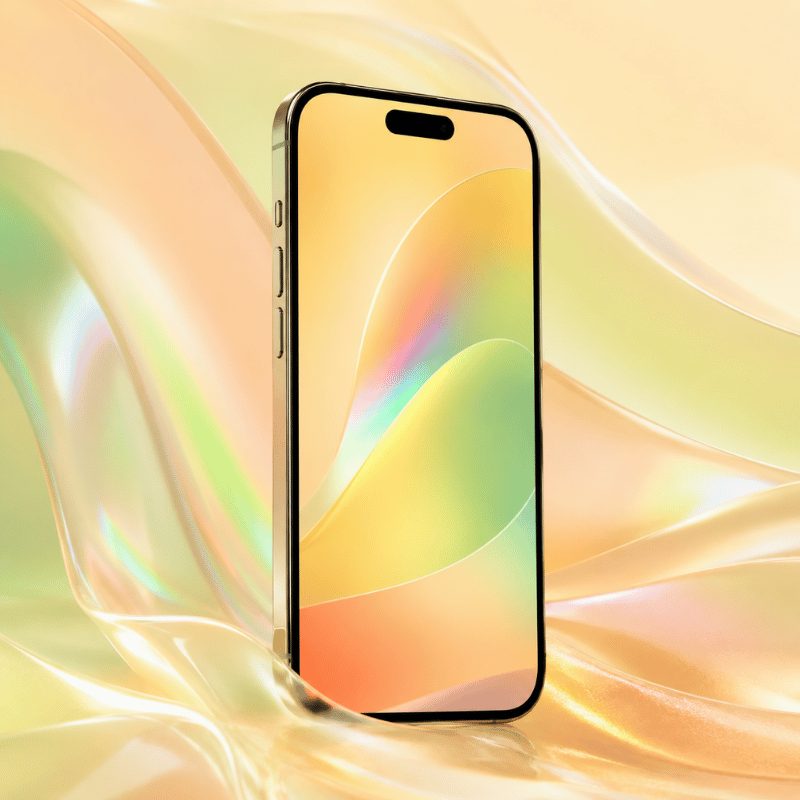
A big emerging market in pastels is any rainbow or multi-colored options, as searches like “pastel rainbow background” rake in ~1600 monthly searches annually – exactly what you’d expect for a spring/summer trend. It looks great on larger screens where a single solid color could feel stagnant.

Gradient Picker Matrix

Mood / Style Direction Best colors iScreen collection
Romantic Left→Right Rose → Peach → Lavender “Sunset Bloom”
Calm Top→Bottom Sky Blue → Mint “Morning Dew”
Playful Radial Rainbow (all pastels) “Cotton Candy”
Minimal Subtle diagonal Off-white → Blush “Pearl Drift”

For context on how gradient pastels fit into broader iPhone aesthetic styles, see our aesthetic wallpaper guide covering 12 iPhone design styles.

Yellow, Green & Peach — The Underrated Pastels

Outside the typical suspects (pink, purple, blue), there are three lesser-known pastel color families that surprise many users when they try them – and account for approximately 2600 searches per month when combined: butter yellow, sage/mint green, and peach.

🌼 Yellow

Yellow/lemon: These provide just enough pop of energy without feeling overly abrasive. Excellent to pair with plain white widgets and minimal icon designs.

🌿 Green

Sage green/mint: These bring a touch of the outdoors to your device. Sage was one of the fastest-rising pastel search term in 2024 but is still missing from most wallpaper apps.

🍑 Peach

Orange/peach tones: Not quite pink, but not quite orange either. these have a distinct summer vibe to them, and many iScreen users have requested these shades in their pastel uploads.

Mix-and-match: Using a peach wallpaper with a mint green icon theme gives you a dynamic pastel look that really stands out in iScreen screenshots.


How to Set a Pastel Wallpaper on iPhone (iOS 18 & iOS 26)
How to Set a Pastel Wallpaper on iPhone (iOS 18 & iOS 26)

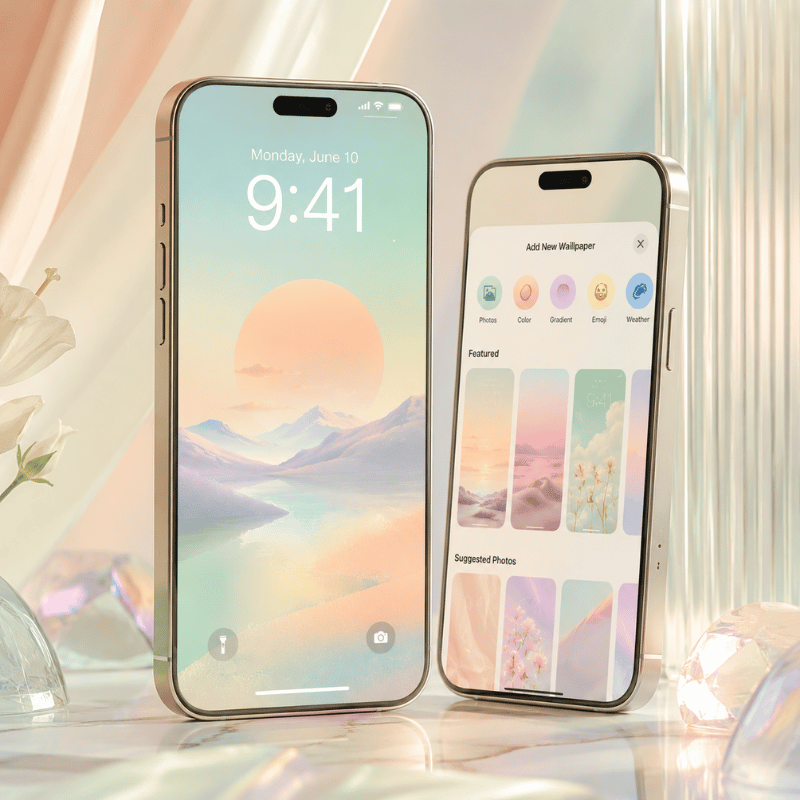
there are two main routes to set a new iPhone pastel wallpaper: One from your Photos app, and one from within the iScreen application itself (much faster and bypasses resolution issues altogether).

Method 1: Set from Photos App

  1. Download your pastel wallpaper image, saving it into Photos (make sure it’s to your specific model’s native resolution – again, refer to table above).
  2. Open Settings → Wallpaper → tap Add New Wallpaper
  3. Tap Photos → select your pastel image
  4. Pinch to adjust zoom/position → tap Add
  5. Choose Set as home screen, lock screen, or Both

Method 2: From iScreen app (Fastest)

  1. Open up iScreen. Tap the Wallpaper tab and filter by the “Pastel” category.
  2. Tap on an image you like and then choose Set as Wallpaper. You’ll be asked if you want it on your home screen, lock screen, or both.
  3. Wallpapers crop automatically to your iPhone’s exact dimensions — no manual resizing needed.

⚠️ iOS 18 “Pair” Option Color Desaturation Bug

Multiple users are complaining about washed-out colors when using iOS 18’s “Pair” feature. Home screen wallpapers become noticeably desaturated when this option is used to set a custom lock screen. Several threads on Reddit’s r/applehelp and Apple Support Discussions detail this issue.

Fix:

  1. Do NOT enable the “Pair” option when setting your new pastel wallpaper.
  2. Follow the steps outlined above to set both your lock screen and home screen images individually.
  3. If you already have paired Lock and home screen wallpapers set: Go to Settings → Wallpaper. Tap on your home screen wallpaper preview. Click “Customize” then swap your wallpaper to a non-paired image.

Perspective Zoom: After setting your pastel wallpaper, notice if the image seems to zoom in a bit when you tilt your phone. If it does, tap the picture position button, then toggle Perspective Zoom off. This crops off the edge of wide pastel pictures and lose the soft gradients at the borders. It’s off by default in iOS 18, but may kick in for certain image sizes.

iOS 26: Liquid Glass Adaptive Mode

(Added in iOS 26, and called “Liquid Glass”). If you select “Adaptive” in wallpaper settings on iOS 26, your pastel tones shift delicately along with changing ambient light-your sunrise pink looks a bit warmer on the actual sunrise and a bit cool on the actual night! this is probably the best addition for pastel wallpaper since iOS 18’s depth effect.

Can I set different pastel wallpaper for home screen and lock screen?

Yes — iOS 16 and later support fully independent home screen and lock screen wallpapers. In iOS 18, set them separately (avoid the “Pair” option as noted above). For iPhone lock screen customization including pastel widget overlays, see iScreen’s lock screen feature. The complete iOS customization guide walks through both screens step by step.


Get Unlimited Pastel Wallpapers with iScreen
Get Unlimited Pastel Wallpapers with iScreen

Transparency disclaimer: The following post is part of a content marketing series on the iScreen blog-our own app-hence the inclusion of our application where relevant. Every piece of pastel wallpaper referenced in this guide comes from our community of over 2M users, and download numbers drove the selections-not editorial preference.

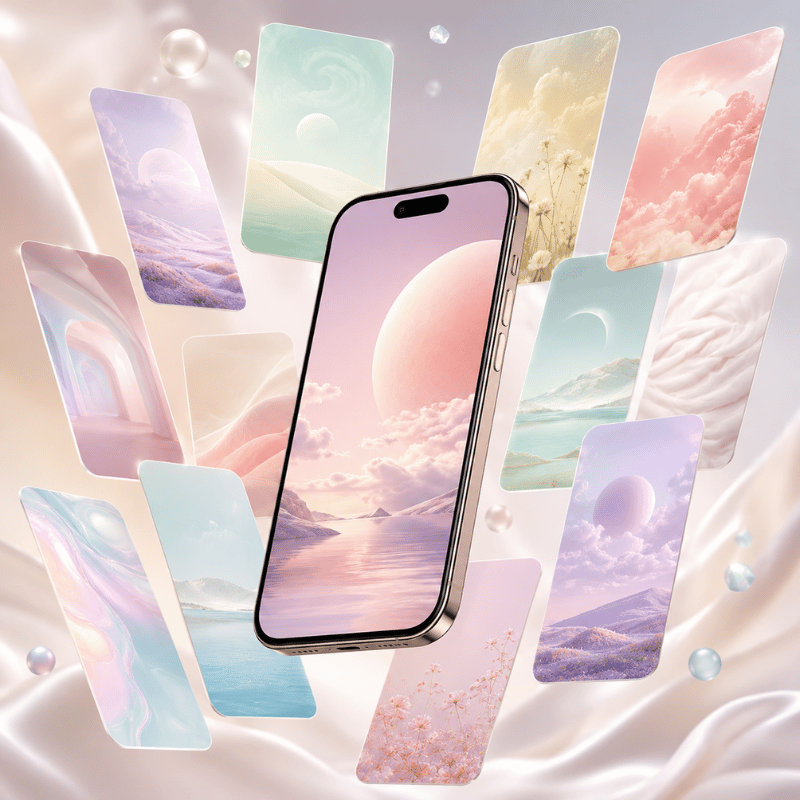
Our iScreen library features over 500 unique pastel wallpaper designs across all the colors and categories covered in this article-plus new additions each week. Unlike standalone wallpaper apps, iScreen is a full iPhone customization platform. Each wallpaper download includes a companion widget and icon pack, meaning you can create an aesthetic overhaul from a single app without hopping between three or four different resources.

  • 500+ pastel wallpapers — solid colors, gradients, illustrated designs, nature, and seasonal theme.
  • Matched widget pack – includes clock, weather, battery, and photo widgets in complementary pastel hues.
  • Pastel icon pack – custom application icon designs to perfectly blend with your theme.
  • Automated iScreen resolution – automatically resizes for your specific iPhone model, eliminating manual cropping.
  • Free download available – over 100 wallpapers can be downloaded without signing up.

Start with iScreen’s Pastel Collection

Download freely – More than 100 wallpapers accessible without the need for an account.


iPhone Wallpaper Trends: Where Pastels Stand in 2025–2026
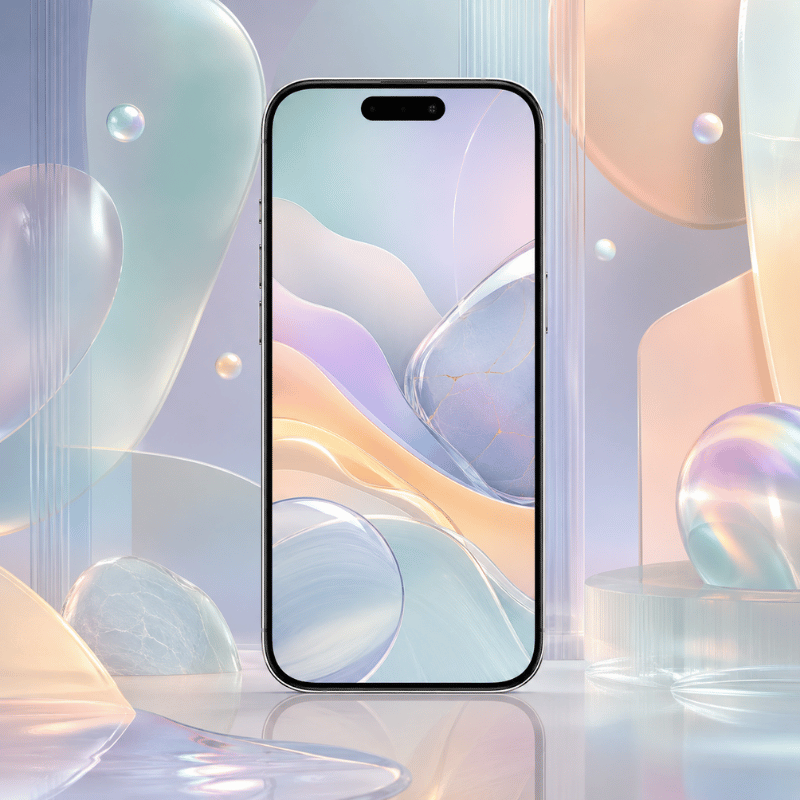
iPhone Wallpaper Trends: Where Pastels Stand in 2025–2026

There is another important trend in iScreen search data that reveals exactly what is currently happening with pastel wallpapers. The searches for the “pastel aesthetic” as an identity-focused type category are trending down–iScreen’s own statistics indicate that search volume for that term has gone down approximately 85% from its peak. However, “pastel wallpaper” remains fairly steady at 1,000 searches per month (with a high of 1,300 in July) as an expression of a direct intent to download.

In plain English: while hyper-curated “pastel aesthetic identity” lives are cooling down, people are still going to seek out pastel iPhone wallpapers that look cool on the iScreen – which is a durable use case.

📈 Rising

  • Gradient multi-color pastels (1,600 SV, growing)
  • Sage green (emerging, low competition)
  • Y2K pastel (bubble-pink, chrome accents)
  • Frutiger Aero (aqua-glass pastel revival)
  • Matching icon pack + wallpaper combos

📉 Fading

  • Flat solid lilac with no texture
  • “Pinterest pastel” grid aesthetic
  • Pure white + pastel accent combos
  • “Pastel aesthetic” as full identity category

iOS 26 is the next major pastel wallpaper moment. When Liquid Glass launches (expected September 2025), the adaptive wallpaper feature will turn any pastel into a dynamic background that responds to ambient conditions. Expect a spike in pastel wallpaper searches around that launch window — similar to what happened with iOS 16’s lock screen customization in 2022.

For a wider look at where iPhone home screen aesthetics are heading — including where pastel fits across 12 distinct visual styles — see our iPhone wallpaper aesthetic guide.


Frequently Asked Questions

What is the best size for iPhone pastel wallpapers?
+

The ideal size depends on your specific iPhone model. iPhone 14/15/16 use 1170–1179×2532–2556px; iPhone 16 Pro uses 1206×2622px; Pro Max and Air models use 1290–1320×2796–2868px (full table in the blue wallpaper section above). The scale factor across all current iPhones is 3×, meaning the display renders each logical pixel as 3 physical pixels — which is why a low-resolution pastel image will look noticeably blurry on modern OLED screens, especially on gradients where color transitions need to be sharp.

Need an all-in-one file? Use 2752 x 2752px and you can crop it perfectly on whichever iPhone model you possess – iScreen automatically delivers the optimal size of the wallpaper to your device for each download.

Are pastel wallpapers free to download?
+

Download over 100 freepastelwallpapers on the app without any account, orunlock500+ by signing up for premium – iScreen is by far the easiest option. Other free pastel options are available on Unsplash or Rawpixel, but don’t adjust to your iPhone size automatically.

Do pastel wallpapers drain iPhone battery faster?
+

For OLED iPhone displays (iPhone X and newer), brighter images draw slightly more battery life than black images because the pixels can be turned off completely on an OLED iScreen, meaning they draw no power – pastels aren’t in the middle of the spectrum between pure white and pure black and are therefore negligibly worse for your battery life on average use.

Can I use pastel wallpapers on iPhone lock screen?
+

Definitely yes! The lock and home screens may now have different wallpapers since iOS 16 was launched, and iScreen lets you combine apastelwallpaper-or another wallpaper of your choice-with custom widgets for your home screen — clocks, date formats, or weather.

What pastel color is most popular for iPhone wallpapers?
+

By far, pink is the top searchedpastelcolor; the broadest category is “pastel pink wallpaper,” with upward of 5,400 monthly searches combined among alliPhonemodel devices.Purple/lavender comes next with about1,900 searches per month, while blue gets just shy of 1,600 searches per month, andgradientpastel wallpapers-quickly gaining in popularity-land fourth in popularity.These numbers are pulled from Google Ads keyword research performed throughDataForSEOin 2025.


References

  1. Gao, W., et al. (2025). “Color modulation of emotional response in audiovisual media.”Humanities & Social Sciences Communications.nature.com/articles/s41599-025-06336-z
  2. Elliot, A. J. &maier, M. A. (2014).Color and psychological functioning. Current Directions in Psychological Science. pmc.ncbi.nlm.nih.gov/articles/PMC4383146/
  3. Mental Health America.Color psychology: How color affects the mind. mhanational.org
  4. Apple Support Discussions. Washed out wallpaper on iOS 18 home screen. discussions.apple.com
  5. ESR Tech. iPhone Wallpaper Size: Complete Guide for All Models (updated May 2026). esrtech.io


Related Articles

Aesthetic iPhone Wallpapers: 100+ Curated Picks

12 aesthetic styles covered → iscreenapp.com


Live Wallpapers for iPhone

Animated + motion wallpapers guide → iscreenapp.com


Depth Effect Wallpapers for iPhone

iOS 18 depth feature setup → iscreenapp.com


iPhone home screen Ideas

Setup inspiration + widget ideas → iscreenapp.com


Reviewed by the iScreen Design Team – curators of 500+ wallpaper designs across 2M+ active iScreen users. Last updated May 2026.


Artículos recientes

Calendar Wallpaper for iPhone: Monthly Layouts You Can Read

Calendar Wallpaper for iPhone: Monthly Layouts You Can Read

2026/11/15 10:54
A calendar wallpaper places a calendar in your iPhone’s background. It helps to see which day of the week a date falls on, but to see appointments you’ll need to use a calendar app or widget. To start, make sure the month is named clearly. Save the image. Calendar wallpaper iPhone sets are most successful when the dates are readable in the final Lock Screen preview. Using a simple grid, check the month and year. Replace the picture when the month changes. Choose between a full month grid and upcoming events before selecting a design. Check the date numerals as well as the clock. A readable time display could hide an unreadable calendar. Choose the phone version as well as your preferred week start when saving monthly art. Apple’s photo wallpaper settings do not require a separate wallpaper-app purchase. Choose a monthly grid, event widget, or life calendar Choose a Monthly Grid to look up dates at a glance, a widget to see your next appointment, or a life calendar to see how much time has already elapsed. Display Useful for What changes it Monthly wallpaper calendar Seeing dates and weekdays together Replacing the saved picture Calendar widget Displaying the app’s supported event information The app and its widget update process Life calendar wallpaper Viewing life progress or elapsed weeks Its image generator and replacement workflow A design showing life in weeks can help you visualize your life over a longer span. A year calendar can also give an overview of dates across the year, but fitting more dates into the same space can make each numeral smaller. For a birthday reminder or changing task list, start with the appropriate app instead of adding more labels. How to display clock and calendar on iPhone Lock Screen? Set a monthly calendar picture as your Lock Screen wallpaper to show a date grid alongside the clock. Add a Calendar widget supported by Lock Screen customization to show upcoming events. Apple documents widgets for the Lock Screen with iOS 16 and later, and the available widget determines which information appears. The instructions for Apple’s widgets can be found on Apple’s site and explain the widget setup. When comparing other useful widgets, choose based on which information you need to see. Keep your private event titles or addresses out of a wallpaper visible to anyone nearby. Pick a layout that leaves the clock readable You can choose from three main layouts to start. One is a central grid on a plain background, one is a photo with a solid calendar panel, and one is a subtle grid paired with a quiet Home Screen. Position the date in the space available in the preview. Check each row after adjusting your clock or widgets. Plain background with a central grid There are many other design choices available. For a plain background, choose dark type on a light field or light type on a dark field. Increase the date size before adding decoration. For a harmonious palette, consider these color choices. Photo with a solid calendar panel Suppose you want your garden picture behind the month. Light petals and dark leaves create uneven contrast, so a date that may seem clear over one patch may disappear over another. Put the entire grid on a solid panel and remove the outline around the numbers. Keep the panel clear of the subject. Open the wallpaper preview. If the clock overlaps its title, then move or resize the picture and check the bottom row. View the dates at your normal reading distance. If you have to shrink the panel to the point where you can’t read it comfortably, use the picture on the Home Screen and a plain calendar on the Lock Screen. Understated grid with a coordinated Home Screen Keep the decoration around the grid sparse and carry over one background color to the other screen. Apple’s iOS 26 Feature Guide describes Adaptive Time that alters the clock around photo wallpaper and notifications. Therefore, a fixed rule like “always place dates directly below the clock” doesn’t always apply. Also see the iOS 26 option to move Lock Screen widgets at MacRumors. See the guide to choosing the image dimensions to specify the aspect ratio, then view the crop to ensure it’s correct. If the numerals still seem too small, prioritize accessibility with an adjustable calendar app or widget. Find a free monthly calendar wallpaper Download a phone image from the creator’s monthly page for the month, year, and week start you want. Social media previews may include older images or a desktop wallpaper. Check file options on the original page before saving to get the clearest image. For November 2026, Oh So Lovely Blog’s monthly collection advertises free phone and desktop choices with Sunday-start, Monday-start, and no-calendar versions. Haus of Planner’s November collection also provides week starts and a choice of font styles. Save the digital download instead of a screenshot. Look into the creator’s terms of use before altering or sharing their artwork. The download and purchase conditions for a design discovered through Instagram or Etsy may be different. When creating a design for a grid, select the background first, and add a verified grid in your preferred application, keeping an editable copy for next month. Check the dates before saving your design Use the First–Last Date Check: Confirm the month and year. Find the first and last weekdays. Compare all the intervening rows with a trusted calendar. Endpoints catch obvious template mistakes; they don’t catch all missing or duplicated numbers. Also, confirm the headings begin with Sunday or Monday. Suppose you’re making a calendar wallpaper for iPhone using a Sunday-start November 2026 template. Timeanddate’s month grid places November 1 on Sunday and November 30 on Monday, with 30 days in total. Read across each row: 1–7, 8–14, 15–21, 22–28, then 29–30. Now compare the template cell by cell. A correct final date wouldn’t reveal a duplicated 18 in the middle. If you switch to Monday-first headings, move the dates to their corresponding columns rather than relabeling the existing grid. Sunday remains Sunday even when it becomes the final column. Once you export the calendar, check it one last time. Regional holidays require their own calendar check; a decorative date highlight shouldn’t substitute for an appointment reminder. Checks before you keep a monthly wallpaper Check category Ready to use when If it fails Dates: month and year The title names your intended month Choose the correct monthly file Dates: weekday headings Headings follow your preferred week start Use the other week-start variant Dates: complete grid Every date matches the reference calendar Correct missing, duplicate, or misplaced cells Layout: crop The title and outer columns remain visible Give the grid more surrounding space Layout: contrast All numerals stand out from the background Add a solid panel or use a plain background Layout: reading size Dates are comfortable to read on the phone Enlarge the grid or choose an adjustable widget Screen: clock and widgets The date grid fits the available area Reposition the artwork in the preview Screen: app icons Home Screen icons have a clear background Set a separate Home Screen image Maintenance: next month You know how the replacement image will be selected Set a reminder to replace the picture Set the calendar picture on your iPhone Once you’ve checked everything, you can save the calendar to the Photos app. After that, you can change your Wallpaper by going to Settings > Wallpaper > Add New Wallpaper. You can apply the picture to both screens or choose a separate Home Screen background through Apple’s built-in controls. How do I add a calendar picture to my iPhone wallpaper? In Settings, find Wallpaper. Tap Add New Wallpaper, then Photos. Select your saved calendar photo. Arrange it so that all the dates are visible. Tap Add. For both your Home Screen and Lock Screen, select Set as Wallpaper Pair. To use a separate Home Screen background behind your app icons, select Customize Home Screen. Save the full-resolution image to Photos. Open the wallpaper controls and select that saved file. Check the month title, weekday headings, and outer columns in the preview. Inspect the clock, widgets, and bottom controls before keeping the crop. Return to the Home Screen to inspect the wallpaper behind your app icons. If your iPhone Lock Screen trims your calendar, go to your image layout and increase the surrounding space of the grid. Apple’s optional 3D photo effect works only with certain photos, but a flat grid doesn’t need that effect to be useful. Pair the Lock Screen with a quieter Home Screen For the Home Screen, choose a plain background and keep the month grid on the Lock Screen. With the Customize Home Screen option, you can create a separate Home Screen wallpaper. If you want the iPhone calendar info on your Home Screen, add a widget and leave enough visual space to read the dates. For a calendar pic with a cream background and dark green dates, you may want to use a solid cream background for the Home Screen and let the icons occupy that space. For future events or dates, put a calendar widget that supports the view you need on the Home Screen. If you mainly check dates before opening an app, you may prefer the Lock Screen grid without another calendar display. When you change the picture later, keep the background color the same if it still goes with your icons; customization doesn’t require rebuilding the whole arrangement each month. Refer to the guide to matching the Home Screen background; separately, iScreen’s gallery includes widget designs to explore, including Calendar and Blocks Calendar labels. Before you use the selected widget to display events or add it to your home screen widgets, examine the available options. Decide whether a paid app is useful An additional wallpaper-app purchase is unnecessary for Apple’s native photo wallpaper route. A paid asset, editing app, or subscription is your other option. Before you pay, make sure you verify what feature you’re missing, and ensure the developer provides it in the app for your device. For habit tracking or custom countdowns to an anniversary, compare dedicated app features rather than assuming a static month picture can update those values. Read the developer’s App Store description and renewal terms. If your only intent is to look up dates, you can do that with a clear, saved calendar picture. Keep the month current as your setup changes Replace a static calendar picture when the month changes. To change it automatically, a workflow must create or select the correct new image and set it to wallpaper. Keep a reminder until you know where the replacement image comes from and how it’s selected. The Apple Support, Change your iPhone wallpaper instructions list the Photo Shuffle options as follows: “Choose a shuffle frequency (On Tap, On Lock, Hourly, or Daily).” Those settings determine when photos change; the dates printed inside the file remain the same. If the wallpaper refreshes but still shows the wrong month, check the image selection before changing the schedule. Digitalminimalist’s life-calendar tutorial uses a shortcut that retrieves an image and sets the wallpaper. Apple separately documents automation triggers such as time of day. A source that generates life progress isn’t necessarily a source for monthly dates or appointments. For unexpected changes, start by checking the active shuffle or automation and investigating an unexpected background change. Keep a known good static image while adjusting the workflow. Frequently asked questions How do I put my calendar on my home screen on my iPhone? Touch and hold an empty area of the Home Screen, tap Edit, choose Add Widget, and find Calendar. Select an available size, tap Add Widget, and finish with Done. That adds application information rather than printing dates onto your background. If you only want a decorative month picture, set it as a photo wallpaper instead and check whether icons cover the grid. Does it work for iPhone 12 Pro? Yes, you can use a saved calendar picture as photo wallpaper on your iPhone 12 Pro. Apple says you can change the time display, add widgets, adjust wallpaper styles, and replace controls. The phone can show the same flat picture on both screens or use a different background behind your apps. For third-party widgets and shortcuts, check each product’s device and iOS requirements separately. How does the automatic wallpaper update work? An automatic calendar wallpaper needs something to create or select a new image and then replace the old background. A shortcut may do those jobs on a schedule, while a widget displays application data separately. Check the specific service’s setup, permissions, and update schedule before expecting it to stay current. Do I need to download an app? No. You can save a calendar picture and use Apple’s built-in wallpaper settings. A separate design app is optional if you want to create the image yourself. Are calendar wallpapers accurate? Yes, if the printed dates match the intended month and year and appear under the correct weekday headings. Compare the first date, last date, and every intervening row with your Calendar app. A reused image can look correct while placing dates under the wrong weekdays. Public holiday accuracy depends on the selected country or region, so compare calendars using the same location. Use a calendar application or widget for appointments you edit. Build around a readable month Choose the date layout first, then find a background that leaves it clear. Browse iScreen’s backgrounds for a custom monthly design for a starting image. Add your checked calendar grid in your preferred editor and keep the editable file, so next month’s update starts with the layout you already like. Related guides Wallpaper image sizing Aesthetic wallpaper ideas Home Screen background choices Widgets for everyday information References & Sources How to add and edit widgets on your iPhone, Apple Support. New features available with iOS 26, Apple. Lock Screen widget placement in iOS 26, MacRumors. November 2026 calendar, Timeanddate. Change your iPhone wallpaper, Apple Support. Life calendar wallpaper tutorial, Digitalminimalist. Intro to automation shortcuts, Apple Shortcuts User Guide.
2026/11/15 10:54
How to Turn a Video into a Live Photo on iPhone

How to Turn a Video into a Live Photo on iPhone

2026/11/13 19:12
To turn video into a Live Photo on iPhone, import a video clip into a Live Photo converter, trim the moment you want, and save it to Photos. Open the saved picture, then press and hold to play it. If you want to keep the original sound quality, listen to the result before removing the video or sharing it. For a moving Lock Screen, choose a converter’s wallpaper export route. IntoLive has a dedicated Live Wallpaper option, and Apple provides a different wallpaper route. Saving a moving picture and setting an animated background are different things. Video to Live Photo conversion turns a selected video moment into a photo with motion. Save the result to Photos first. For wallpaper, use a wallpaper export and enable the play control when setting your Lock Screen. Start with the original video and keep it until you’ve checked the saved result. Choose an output that preserves sound if you want to keep a spoken moment. Use the converter’s wallpaper option when your goal is Lock Screen animation. Compare the saving step and payment terms before editing a long clip. This tutorial follows Apple’s instructions and the developers’ own guides. The conversion routes haven’t been tested on a physical iPhone for this article. Turn your video into a Live Photo Can I make a live picture from a video? Yes. A video to Live Photo converter can transform a selected moment into a picture with motion. To convert video to Live Photo format, start with the original recording. Pick a video from your library. Trim the part you want, choose a still frame where the tool allows it, and export to photos. Play that saved item before moving on to wallpaper setup or sharing. V2LP’s developer explains how to use an app to create Live Photos by choosing a video, trimming it, selecting a cover photo and saving it to Photos. Editing controls include an audio toggle. Leave the sound on if you want to keep the voice or background audio of your favorite video moments. For wallpaper, follow intoLive’s creation guide: Open intoLive and tap Live Wallpaper. Import your media and trim the section you want. Finish the edit, then tap the Share icon. Choose the option to save as a Live Photo. Next, launch Photos. The Apple Live Photos instructions state that saved Live Photos appear in the Collections > Media Types > Live Photos section. Open the item and press and hold the screen to preview its cover image and motion. Inspect the cover and playback, then listen if sound is required. A thumbnail in the camera roll alone doesn’t say much about the moving part. Keep the original in your library. It’s a good starting point if your crop takes off too much, if the moment captured is too short, or if you want to make another version of the video. When using apps like these, make sure to use the same original video so that changes are easier to spot in the output. Before comparing apps, identify the type of result you need: Result type What you have What to do next Camera Live Photo Captured directly with the iPhone camera. Play it in Photos; this is not a conversion of an older movie. Converted Live Photo A moment selected from an existing video. Check both the chosen still image and the motion. Silent Live Photo Motion saved without the original audio. Suitable when sound is unimportant; keep the video for speech. Live wallpaper export A converter’s output intended for the Lock Screen. Apply it in Wallpaper settings and check playback on wake. GIF input An animated source accepted by some converters. Import it through the tool before saving a Live Photo. Standalone video A movie that can be shared separately. Keep the original video for the full scene. To export a Live Photo as a short movie, use Apple’s Save as Video command. Still image A photo without playable motion. Use it as a static background; it is not a moving export. Download package Files bundled for a provider-specific import. Follow that provider’s import instructions before checking Photos. Choose a clip that works as wallpaper For Live Photo wallpapers, select short clips with smooth motion, a clear subject and not too many scene changes. intoLive recommends minimal movement and transitions for its wallpaper exports. A person turning and facing the camera would be a better starting point than a montage of different unrelated scenes. In its duration guide, intoLive says that wallpaper exports should be between 1-2 seconds. Consider that if you need to pick a segment of action for the background. The Clip-to-Lock-Screen Check below will allow you to pinpoint the stage of the unwanted change. For browser conversions, do the paired import and then check the saved item. Complete the other checks provided below. Work through the relevant checks below; app users can disregard the browser import row. Stage What to inspect What to change first Original action The selected moment contains the action you want. Move the trim points before editing the cover. Original framing The subject stays inside the crop. Choose a wider source or adjust the crop. Saved cover The still image shows the expression you chose. Change the cover or key photo where available. Saved motion Pressing and holding plays the saved item in Photos. Return to the converter if only a still image was saved. Saved sound Speech remains when you need it. Check the mute option; choose another route for silent-only output. Browser import Both parts are saved by the provider’s paired import route. Repeat Save 2 Items for LivePhotoNow rather than saving only the picture. Wallpaper preview The subject fits around the clock and the play control is available. Review the wallpaper export route, framing and play setting. Lock Screen wake The selected wallpaper animates when the phone wakes. Inspect the play control and developer troubleshooting guidance. A high-quality still frame matters too. Pause on a frame of the video with your preferred expression and composition before making any cropping adjustments. For the surrounding layout, the iPhone wallpaper Size Guide can assist you in planning a portrait composition before you crop away part of your subject. Set the Live Photo as your Lock Screen wallpaper Can you add video as wallpaper on an iPhone? You can use a converted Live Photo as an animated Lock Screen wallpaper via Apple’s wallpaper controls. Use a saved Live Photo rather than a raw movie for the wallpaper. Apple details this method on iOS 17 or later, where the animation is played when the device is woken. Follow Apple’s Lock Screen setup instructions once you’ve saved your conversion: Open Settings → Wallpaper → Add New Wallpaper. Tap Photos, then Live Photo. Select your saved image. Customize the preview. Tap Add, then choose Set as Wallpaper Pair or Customize Home Screen. Apple describes the animation as playing “whenever you wake up your device.” Apple, Set a Live Photo as your Lock Screen wallpaper on your iPhone, 2025. Lock and wake the phone to test the result. Pressing and holding a Live Photo in Photos tests its playback in the library. Choose Customize Home Screen if you want a different static background image behind your app icons. For more on Lock Screen customization, see this guide. Convert without installing another app Yes, a browser converter can offer a route that doesn’t require installing another app. LivePhotoNow describes importing an MP4, MOV or WebM clip, selecting the moment, and using Save to Photos → Save 2 Items on iPhone. Follow that paired saving step, rather than saving only the still picture. The service states its conversion runs in the browser and its output is silent. It pairs a still image with a motion file using matching metadata. So the audio choice is to use a different route when the person’s voice is the reason you’re saving the clip. Other online tools use different imports. LivePhotoTools, for example, describes a package and an iPhone import route involving a Live Photo app. Downloading a package isn’t the same step as creating a recognized item in Photos. Before using a private video, read the service’s upload and handling information. Don’t use a shortcut tutorial that promises a native Photos conversion button without showing its actual saving route. Check free export before paying for an app V2LP’s developer lists basic conversion, trimming, cover selection and saving as free, with advertisements. Removing advertisements and gaining editing tools is available via an in-app purchase. Route Saving step Decision before editing V2LP Save the edited result to Photos. Basic saving is listed as free with ads; Pro is optional. intoLive wallpaper route Live Wallpaper → edit → Share → save as Live Photo. Use the dedicated wallpaper route and inspect the current purchase screen. LivePhotoNow browser route Save to Photos → Save 2 Items. The developer describes free, silent output and browser processing. LivePhotoTools browser route Download its package, then follow its import instructions. Its iPhone instructions involve another application. V2LP lists no watermark, no subscription and an optional one-time Pro purchase. When comparing apps, distinguish an optional in-app purchase from a renewing subscription or trial. On the App Store, read App Privacy. A developer can describe conversion that’s done locally while the listing can separately disclose tracking, as V2LP does. Local processing and the app’s broader data collection are different questions. Fix motion that is not supported as wallpaper If the saved item moves in Photos but stays still as wallpaper, check the wallpaper export and play control first. intoLive’s troubleshooting guide states that both converted Live Photos and Live Photos captured using the camera may not work perfectly as wallpaper. For this Lock Screen feature, Apple states iOS 17 or higher. Buying another converter isn’t the first check. No moving item in Photos: return to the export step. Make sure you saved a Live Photo rather than a GIF, video or still image. intoLive wallpaper fails: create the final export through Live Wallpaper. Its guide distinguishes that route from New Project. Motion control is missing: intoLive recommends turning off Low Power Mode and checking again. A busy clip is rejected: choose a simpler moment with less movement and fewer transitions, following the developer’s advice. There’s an exception to the New Project distinction: intoLive describes using the video acceleration feature to increase a video’s speed, saving that edit, and then importing it again using the Live Wallpaper. Therefore, you don’t need to discard a useful pre-edit just because it was done in a different part of the application. In an Apple Support Community discussion, a user said that system-suggested pictures worked. However, when using manually selected pictures, it didn’t work. Another user said he/she got different results. Don’t reset your whole phone just because one user in a forum said to do it. After altering the export settings, save a new version and apply that version in Wallpaper settings. Otherwise, you may be looking at a previously saved background while evaluating a newer conversion. The guide to iPhone wallpaper changing by itself addresses a different situation where the image changes unexpectedly. Keep the still image useful between animations Cover pictures work best when they leave space for notifications and the clock. You can evaluate video details by checking whether individual faces are recognizable. Use the preview to check for blur at the edge of your crop. The animation can end on a calm screen with a readable subject. A tight crop that cuts off a face will still be distracting when nothing moves. Select a coordinated Home Screen and Lock Screen from Apple’s settings, and then check the wallpaper preview. If you want a better static composition, return to the converter. Design ideas can be found in iScreen wallpapers or in the iPhone wallpaper Aesthetic Guide. Choose the background design after the conversion works so that you can judge the saved still image alongside the motion. Frequently asked questions What is a Live Photo? A Live Photo is a photo with a short moving moment that you can play in Photos. Apple’s camera records what happens 1.5 seconds before and after the shutter. You can choose a key photo, apply a Photos effect, and share the result. That camera timing describes capture on the device. A converter starts from an existing movie and applies its own trimming and export settings; for example, intoLive’s wallpaper guide describes a 1–2-second result. Can I convert a long video into a Live Photo? Yes, by selecting a shorter moment from the original video. Trim to the part you want before saving. For intoLive’s wallpaper route, its developer describes a 1–2-second result, so choose the action that fits that output rather than expecting the entire recording to play. Keep the original movie for the full scene, longer audio or a later edit. A Live Photo is useful for a selected moment, not as the only copy of a long recording. How do you loop a Live Photo? Open it in Photos, tap the Live Photo control near the top, and select Loop. Apple also lists Bounce and Long Exposure in that menu. Choose the effect you want for viewing the photo in your library. Loop replays the action, while Bounce reverses it back and forth. Preview the effect on the actual subject: a wave can read differently from a person walking out of frame. Keep an original copy before experimenting with an additional editor, since Apple warns that third-party editing can remove applied effects. How do I turn a Live Photo into a video on iPhone? Open the Live Photo, tap More, and choose Save as Video. Apple’s reverse-conversion instructions say the new video appears in Recently Saved and the original remains in Live Photos. Use this shareable video copy when you want to send a standalone movie. Why does my Live Photo stay still on another phone? The sharing method may have sent a still image, or the receiving application may show only the photo. Apple says Mail sends a Live Photo as a still image. If the recipient needs motion, save a video copy and send that instead. Keep the original Live Photo as well; the video copy is a separate output for sharing. Can a GIF be used instead of a video? Yes, when the converter supports GIF input. Choose a GIF or video that contains the moment you want to keep. V2LP and LivePhotoNow both describe that option. Import the GIF through the selected tool and save the result into Photos, then use the same playback and wallpaper checks as for a video conversion. Live Photo vs video: what is the difference? A Live Photo opens as a picture with motion available to play; a video is a standalone moving recording. Choose a Live Photo for a selected still image and its brief action. Keep a video when you need the full scene or a movie to send. For a personal moment with speech, include sound retention in the decision: some conversion routes save motion without the original audio. References & Sources Take and edit Live Photos, Apple Support. Set a Live Photo as your Lock Screen wallpaper on your iPhone, Apple Support. How to turn a Live Photo into a video on your iPhone, Apple Support. Related articles Animated wallpaper on iPhone iPhone Home Screen wallpaper ideas iPhone wallpaper size and framing Customize your iPhone Lock Screen
2026/11/13 19:12
How to Customize Your iPhone Home Screen with Widgets and App Icons

How to Customize Your iPhone Home Screen with Widgets and App Icons

2026/11/13 17:20
Your iPhone Home Screen is more than just a place to launch apps — it’s a reflection of your personal style. With custom widgets, app icons, and wallpapers, you can turn a standard Home Screen into a look that feels uniquely yours. Whether you prefer a clean minimalist layout, a soft pastel look, or a bold retro theme, iScreen makes it easy to create a Home Screen you love. Here’s how to do it with iScreen.   1. Why Customize Your iPhone Home Screen? There are several reasons to give your iPhone Home Screen a makeover. Express Your Personal Style: Choose colors, icons, and wallpapers that reflect your personality and favorite aesthetic. Make Your Phone More Functional: Widgets let you check useful information, such as the weather, calendar events, and battery levels, without opening individual apps. Create a More Organized Look: Matching app icons and carefully arranged widgets can make your Home Screen look cleaner and more visually appealing. A well-designed Home Screen combines both style and functionality, making your everyday iPhone experience more enjoyable.   2. How to Customize Your iPhone Home Screen Before exploring third-party customization apps, you can start with the built-in features on your iPhone. Here are two simple ways to personalize your Home Screen. 2.1 Add Widgets to Your iPhone Home Screen Widgets display useful information directly on your Home Screen while adding a personal touch to your layout. Follow these steps to add a widget: Touch and hold an empty area of your Home Screen until the apps start to jiggle. Tap the Edit button or the + button, depending on your iOS version. Browse the available widgets and select the one you want. Choose your preferred widget size. Tap Add Widget, then drag it to your desired position. Tap Done to save your layout. You can experiment with different widget sizes and arrangements to create a layout that works for you.   2.2 How to Change App Icons on Your iPhone Custom app icons are another great way to transform your iPhone’s appearance. You can use the Shortcuts app to replace the standard app icons with your own images. Here’s how: Open the Shortcuts app on your iPhone. Tap the + button to create a new shortcut. Select Add Action, search for Open App, and choose it. Tap App and select the app you want to customize. Open the shortcut’s details menu and choose Add to Home Screen. Tap the icon preview and select Choose Photo to upload your custom icon. Enter a name and tap Add. Repeat these steps for other apps to create a consistent icon style across your Home Screen.   3. How to Customize Your iPhone Home Screen with iScreen Want more creative options beyond the built-in iPhone settings? iScreen makes it easier to explore different widget designs, custom app icons, and wallpapers in one place. 3.1 Explore More Widget Styles With iScreen, you can discover a variety of aesthetic iPhone widgets to match your personal style. From minimalist calendars and photo widgets to cute interactive designs, there’s something for different tastes. You can also personalize available widget options, such as colors, backgrounds, and photos, to create a look that fits your Home Screen. Mix different widget styles and sizes to build a layout that’s both attractive and practical. 3.2 Explore Ready-to-Use Theme Setups For a more cohesive Home Screen design, iScreen offers a curated collection of ready-made theme setups, bringing together matching widgets, app icons, and wallpapers in a unified aesthetic. Explore a range of styles, from playful and colorful designs to minimalist, retro, and dark themes. Each collection features coordinated visual elements, making it easy to create a polished iPhone Home Screen with a consistent look and feel. With thoughtfully paired designs, iScreen helps transform individual customization elements into a complete, visually harmonious setup.   3.3 Bring Everything Together Now it’s time to combine your favorite widgets, custom app icons, and wallpapers into one personalized setup. Try a minimalist theme for a clean look, a pastel theme for a softer aesthetic, or a retro-inspired design for a nostalgic vibe. Don’t be afraid to experiment with different colors and layouts until you find your favorite combination.   Final Thoughts Customizing your iPhone Home Screen doesn’t have to be complicated. With the right combination of widgets, app icons, and wallpapers, you can create a phone setup that reflects your personality while keeping everything easy to access. Ready to give your iPhone a fresh new look? Explore more customization possibilities with iScreen and create a Home Screen that’s truly yours! Media Contact iScreen Official Team Email: iscreenofficial@gmail.com Official Website:iScreen – Phone Style, iScreen it! iOS Download Link:‎‎iScreen – Widgets & Wallpaper Android Download Link:‎‎iScreen – Widgets & Wallpaper
2026/11/13 17:20
Volver arriba