
.png)
12 Best Widgets for iPhone in 2026: Aesthetic, Productive & Fun
The best widgets for iPhone do more than fill empty space on your Home Screen, they put the one thing you’d normally unlock your phone and dig through an app to find right where you can glance at it. What matters isn’t piling on as many as possible. It’s choosing a few that earn their spot, then placing each one where it actually helps: the Lock Screen, the Home Screen, or StandBy.
This guide is organized by what you want a widget to docheck the weather, see your day, watch a battery level, count down to a date, and then by the apps that do each job well. You’ll get 17 picks across seven categories, a quick way to decide where each widget belongs, and a plain answer to the question everyone asks: do widgets wreck your battery? (Short version: mostly no, with one real exception.)
Quick Setup: iPhone Widgets at a Glance
| Where widgets go | Home Screen · Lock Screen · StandBy · Today View |
| Sizes | Small · Medium · Large · Extra-Large (iPad) |
| Add one | Tap and hold the Home Screen → tap Edit → Add Widget → search → choose size → Add Widget |
| Version needed | Home Screen widgets (iOS 14) · Lock Screen widgets (iOS 16) · StandBy (iOS 17) · Liquid Glass look (iOS 26) |
How iPhone Widgets Actually Work, and How to Add One
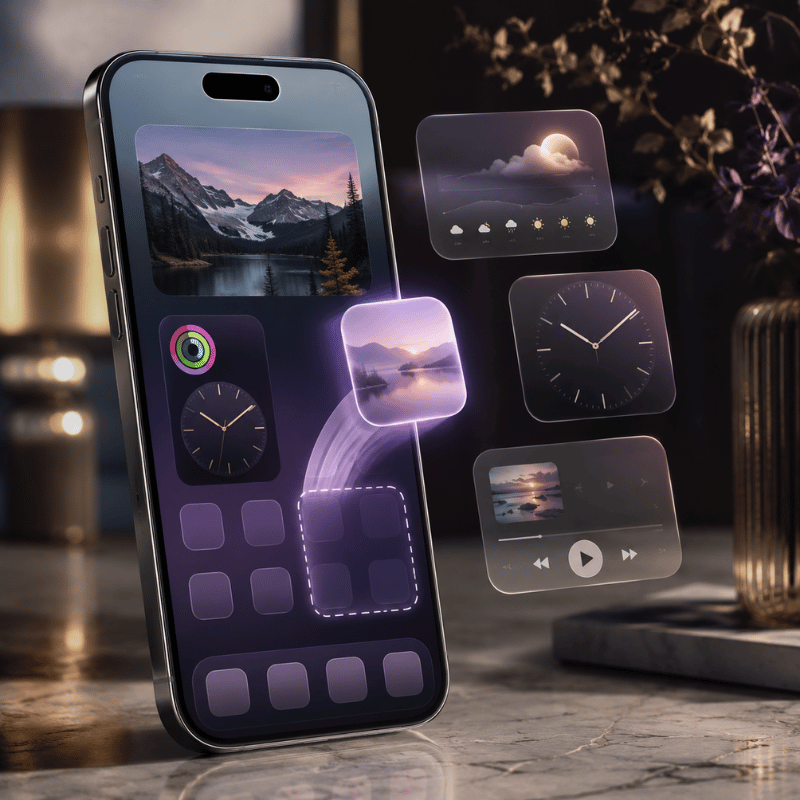
A widget is a small, glanceable view of an app that live outside the app itself. Tap it and it opens the app; left alone, it quietly shows the information you care about. Since iOS 14 you can place them on the Home Screen, since iOS 16 on the Lock Screen, and since iOS 17 inside StandBy, the full-screen view that appears when your iPhone is charging on its side. Each surface show a different size and amount of detail, which is why the same widget can feel essential in one spot and pointless in another.
Apple gives you four sizes on the Home Screen, Small, Medium, Large, and (on iPad) Extra-Large. A Small weather widget shows the current temperature; a Large one shows an hourly and daily forecast. Worth knowing too is the Smart Stack: a stack of widgets you swipe through, which can also rotate automatically to surface the right one, your alarm in the morning, your commute later, based on time and routine.
How do I add a widget to my iPhone?
It takes about ten seconds, and the steps are the same whether you’re on iOS 18 or iOS 26:
- Touch and hold an empty area of the Home Screen until the apps jiggle.
- Tap Edit in the top-left corner, then tap Add Widget.
- Search or scroll to the app, swipe to pick a size, then tap Add Widget.
- Drag it where you want it and tap Done. To build a Smart Stack, drag one widget on top of another of the same size.
For the Lock Screen, touch and hold the Lock Screen, tap Customize, choose Lock Screen, then tap the box below the time to add widgets there. Apple’s official guide to adding widgets walks through every surface if you get stuck.
Pick the widget size to match the surface: small, single-number widgets shine on the Lock Screen; larger, detailed ones belong on the Home Screen or in StandBy.
How We Chose: The Glance Test
There are thousands of widgets in the App Store, and most of them are decorative. To cut the list down, every pick here had to pass one rule we call the Glance Test: a widget earns a spot on your Home Screen only if it shows you something you’d otherwise unlock your phone and open an app to check. If you still end up tapping in to get the real answer, it isn’t a widget you need, it’s an app, and it belongs in your App Library.
That single question quietly solves the clutter problem. A weather widget passes because the temperature and rain chance are the whole answer. A “motivational quote” widget usually fails, it’s nice to look at, but it didn’t save you a tap. One first-time user described adding a single stack widget and suddenly feeling like the phone was a “mini command center” rather than a wall of icons . That shift, from launching apps to glancing at answers, is the entire point.
“A widget’s job is to surface a small amount of timely, personally relevant information, glanceability is the whole design goal, not feature density.”
Best Weather Widgets
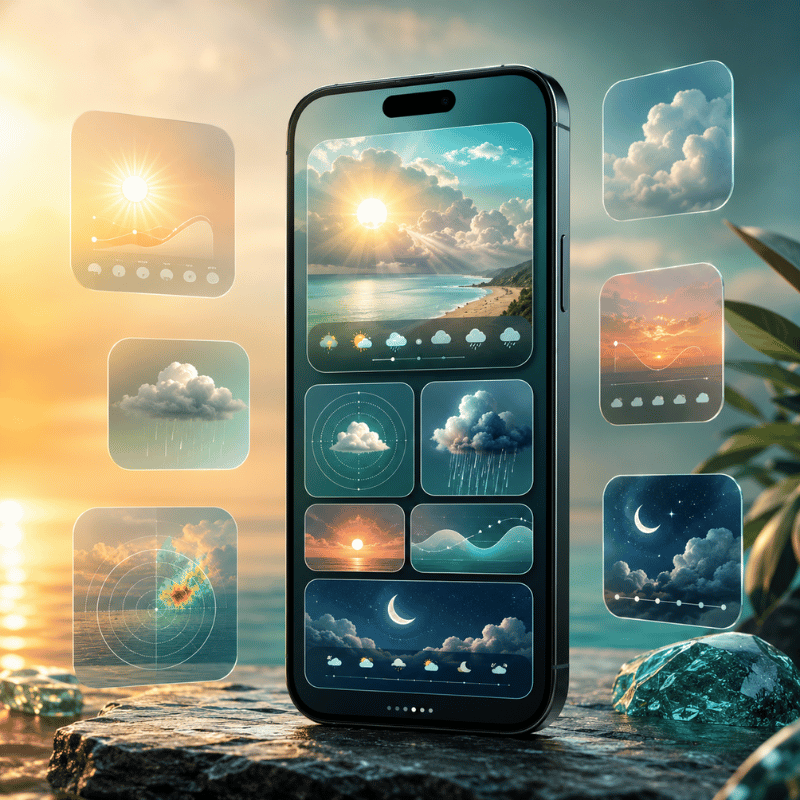
Weather is the widget almost everyone keeps, because the answer, what’s it doing outside, and when will it change, is pure glance value. Two picks cover most people.
Apple Weather (free, built in) is better than it used to be. The Large widget shows current conditions plus an hourly and ten-day forecast, and the Lock Screen version can show sunrise, sunset, and precipitation chance in a single line. For most people it’s all the weather widget they need, and it costs nothing. Carrot Weather (free tier, with a paid upgrade as of 2026) is the pick for people who want more: highly configurable layouts, multiple data sources, and notoriously snarky commentary. A power user on a popular setups forum summed up the split well, native widgets are “decent,” but a dedicated weather app gives you layers you can actually tune .
If you only care about the forecast on your Lock Screen, start with Apple Weather and turn on precise location only if you need rain-by-the-minute. For a deeper look at the options, see our guide to the best weather widget for iPhone.
Best Calendar & Productivity Widgets
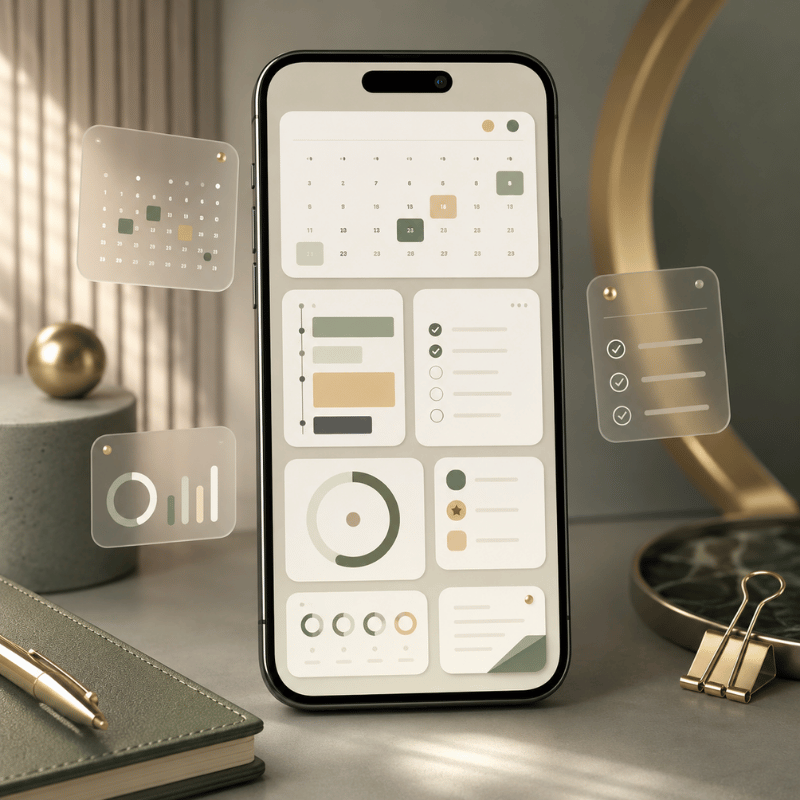
If your day lives in a calendar, a widget that show your next few events without opening an app is the single biggest time-saver here. Fantastical is the standout: its Medium and Large widgets show an agenda view that’s easier to read at a glance than the stock app, and you can point it at a specific calendar set. It’s repeatedly the app people name when asked which has the best calendar widget . Apple Calendar and Apple Reminders are free and worth stacking together, your next meeting and your next task, side by side.
On the productivity side, the Google app’s search-bar widget is a quiet favorite: one tap drop you straight into search or voice search, which is faster than opening Safari and typing. Stack a calendar, a reminders list, and a search bar and you’ve rebuilt the most useful third of your phone into a screen you never have to dig through.
Build a single “today” Smart Stack — calendar on top, reminders and weather beneath — and let it auto-rotate. You get three answers in one widget slot.
Best Battery Widgets (and the Battery Myth)
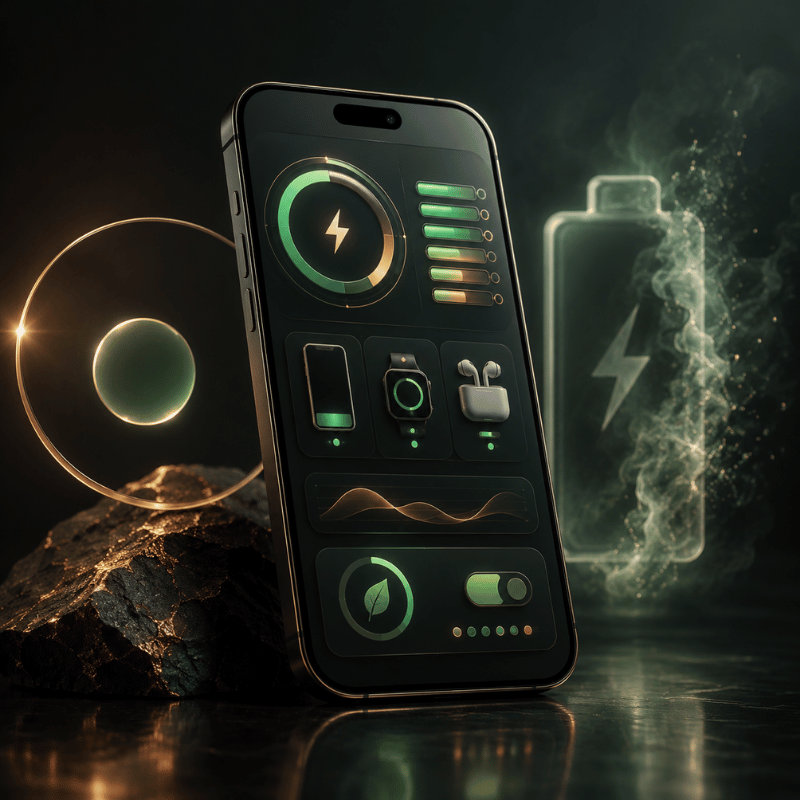
If you carry an iPhone, AirPods, and an Apple Watch, the free Apple Batteries widget is the one to add: a single Medium widget shows the charge level of every connected device at once, so you find out your AirPods are at 9% before a call, not during it. Third-party battery widgets add ring-style graphics and per-device history if you want them, but the built-in option cover the core job for free.
Do widgets drain your iPhone battery?
This is the most common worry about widgets, and the honest answer is: mostly no, with one real exception. Widgets don’t run constantly. iOS gives each one a refresh budget through WidgetKit and updates it on a schedule, and as users on Apple’s own forums point out, a widget largely sips power only when you’re actually looking at the Home Screen . One exception stands outlocation-based widgets such as weather, maps, and anything tracking your position, which can drain noticeably because of continuous Location Services, not because they’re widgets. Outlets like CNET flag Lock Screen weather widgets as a battery cost for exactly this reason.
So the fix isn’t “use fewer widgets” — it’s to set location to “While Using” (not “Always”) for your weather widget and skip live, location-tracking widgets you don’t read. A claim floating around, that widgets cut battery by 20% — doesn’t hold up; it’s the location access behind a couple of them that matters.
Setting a weather widget’s location to “Always” is the real battery drain — not the widget count. Switch it to “While Using the App” and the cost mostly disappears.
Best Time, Countdown & Clock Widgets
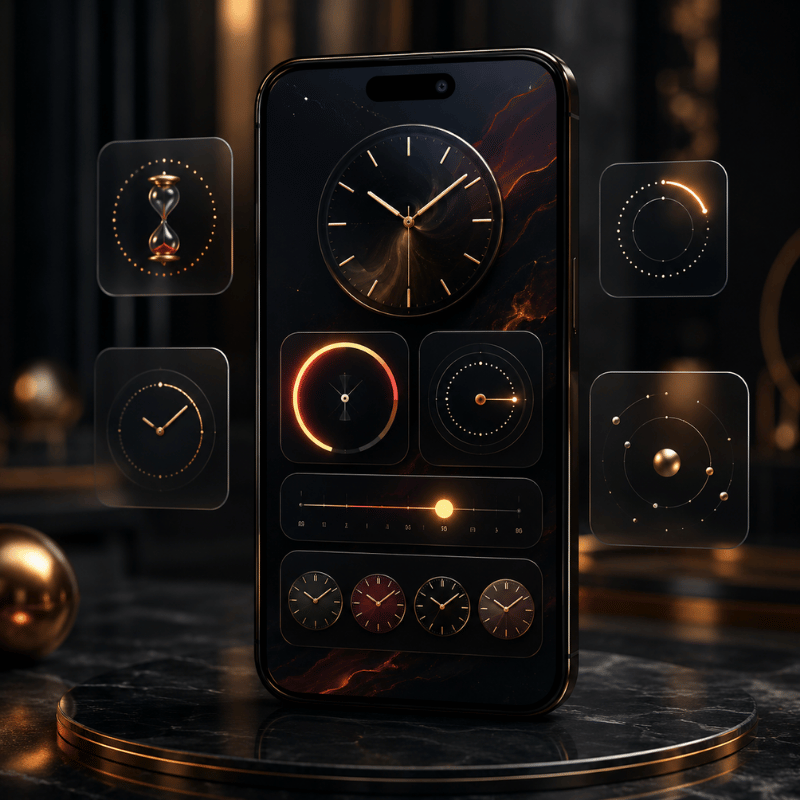
Time widgets are about anticipation, how long until something, or what time it’s somewhere else. A countdown widget that shows the days left to a trip, a birthday, or a deadline is one of the most-used widget types on iPhone, and it’s pure glance value: the number is the whole answer. The Apple Clock app’s World Clock widget is the free pick for anyone juggling time zones, showing two or four cities at once so you’re not doing math before a call. For people who plan around daylight, a sun-and-daylight widget (such as Lumy) shows sunrise, sunset, and golden hour at a glance.
Countdowns are popular enough to deserve their own setup, including how to put one on the Lock Screen and in StandBy, we cover that in our guide to the best countdown widget for iPhone.
Best Photo & Aesthetic Widgets
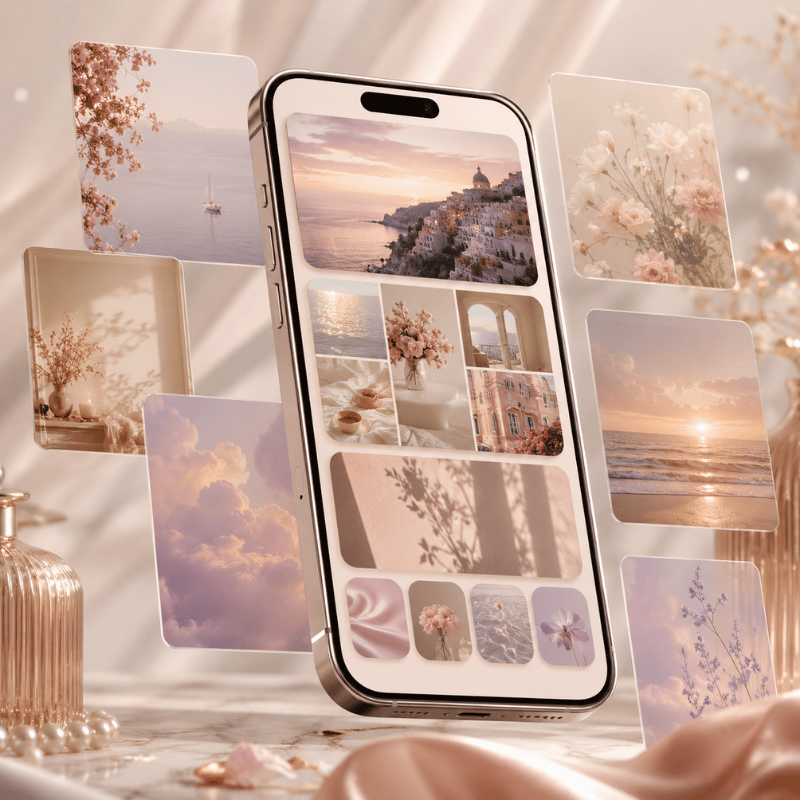
Not every widget has to be useful, some just make the screen feel like yours. The free Apple Photos widget rotates through your library or a chosen album, so a favorite picture quietly cycles on your Home Screen. Beyond that, aesthetic widgetscustom fonts, colors, themed clocks, and photo frames that match your wallpaper, are where customization apps come in. iScreen, for example, offers themed widget packs you can color-match to a wallpaper, which is handy when you’re building a coordinated look rather than a random grid.
If a matching, styled Home Screen is the goal, the widgets are only half of it, the wallpaper and icons have to agree too. Our walkthrough on building an aesthetic iPhone Home Screen shows how to make all three line up.
Best All-in-One Widget Apps: Widgetsmith vs Widgetable vs iScreen
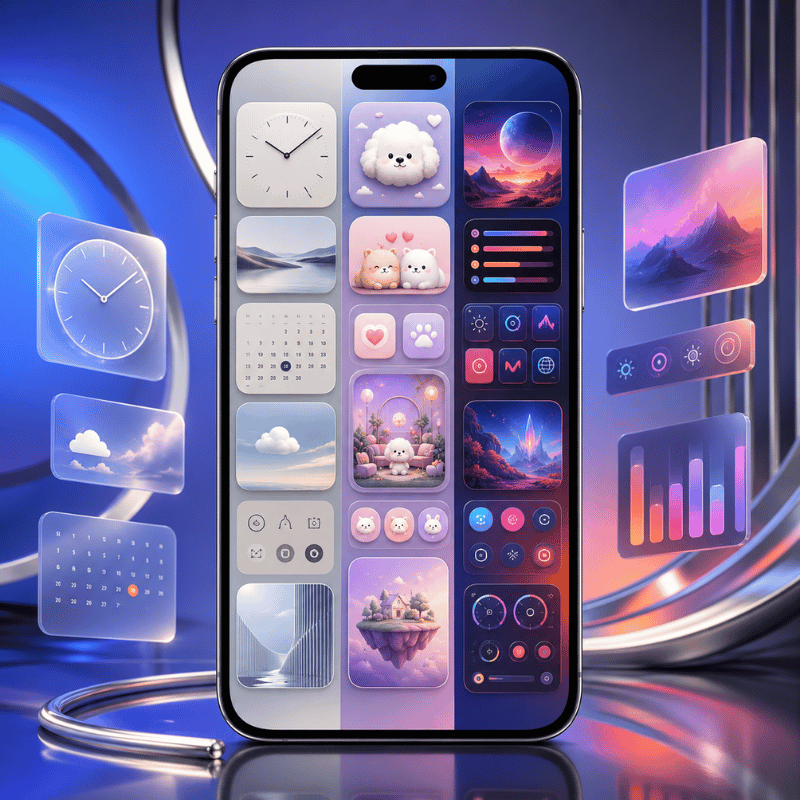
If you’d rather get a whole kit of customizable widgets from one place instead of installing a separate app per category, an all-in-one widget app is the move. These let you design widgets, pick the data, the font, the color, the background, and place them anywhere. Here’s how the most popular options compare as of 2026.
| App | Best for | Free tier | Standout |
|---|---|---|---|
| Widgetsmith | Broad, flexible customization | Yes (most features free) | Home + Lock Screen, huge style range |
| Widgetable | Playful, social & “pet” widgets | Yes (in-app purchases) | Shared widgets with friends |
| iScreen | Themed, color-matched looks | Yes (premium upgrade) | Coordinated widget + wallpaper + icon themes |
What is the best free widget app for iPhone?
Most people will land on Widgetsmith. It remains the default recommendation when someone wants broad, flexible customization, it works on both the Home and Lock Screen, and the bulk of its features are free . If your goal is a themed look where widgets, wallpaper, and icons all match, a customization app like iScreen is built around that coordination instead. You can see iScreen’s widget options on the custom iPhone widgets page.
✔ Advantages of all-in-one apps
- One app, dozens of widget styles
- Match colors and fonts across your screen
- Most offer a usable free tier
⚠ Limitations to know
- Deep features often need a subscription
- Custom widgets can show ads or refresh slower
- For live data (calendar, weather) the native app’s own widget is often better
Lock Screen vs Home Screen vs StandBy: Where Each Widget Belongs
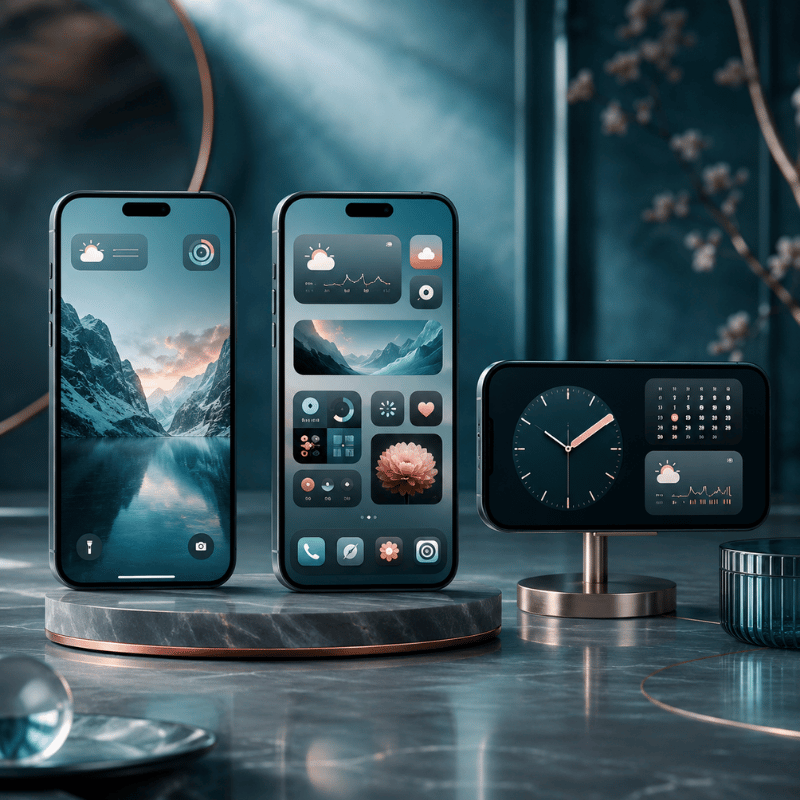
Picking good widgets is only half the job; the other half is putting each one on the right surface. That same battery widget feels essential on the Home Screen and wasted on the Lock Screen. Here’s a simple way to decide, based on how each surface is built and what Apple designed it for.
| Surface | Best for | Put here |
|---|---|---|
| Lock Screen | One-line, time-sensitive info you check without unlocking | Temperature, next event, battery, countdown |
| Home Screen | Daily-use widgets and Smart Stacks you interact with | Calendar, reminders, photos, multi-device battery |
| StandBy | Nightstand / desk view while charging on its side | Clock, weather, large photo, world clock |
| Today View | Overflow — useful but not daily | News, sports, screen-time, anything secondary |
Rule of thumb: if the answer is a single number or line and you want it without unlocking, it goes on the Lock Screen; if you tap or swipe it during the day, it belongs in a Smart Stack on the Home Screen; if it’s something you watch while the phone charges by your bed, set it up in StandBy. Apple’s notes on using StandBy and customizing the Lock Screen cover the setup for each. To arrange it all into a screen that work, our iPhone Home Screen ideas are a good next step.
What iOS 26 Changes for Widgets in 2026
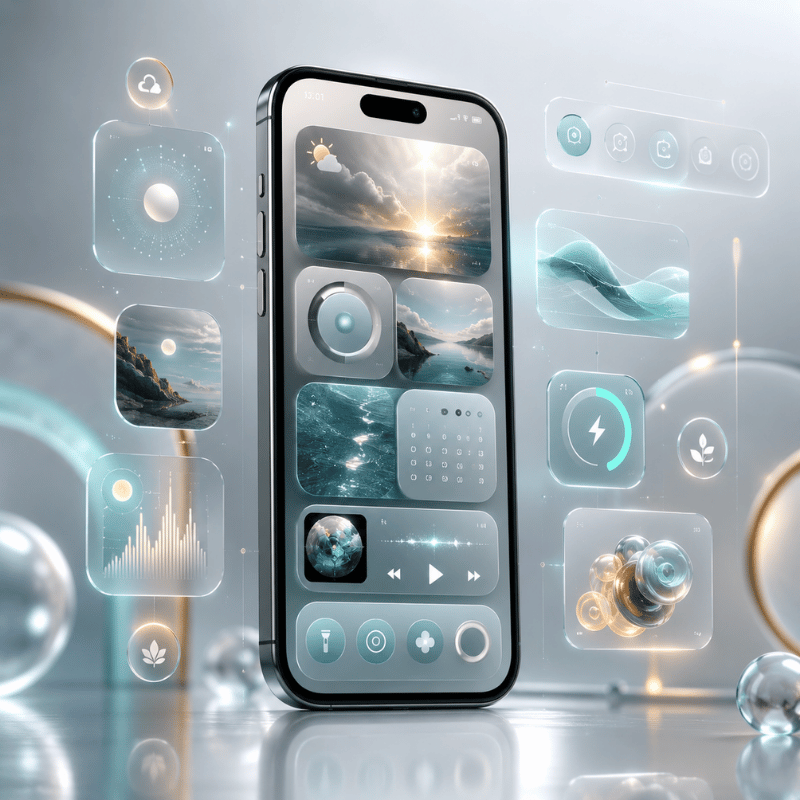
Right now, the biggest shift for widgets is visual. With iOS 26, released in September 2025, Apple introduced Liquid Glassa translucent design that flows across the system and give widgets a glassy, see-through background that morphs with what’s behind it. Widgets with a transparent background now pick up that layered, refractive look, which is why a lot of the “best 2026 setups” people are sharing lean into matching wallpapers that show through. Apple’s own iOS 26 feature list describes Liquid Glass surfaces that “fluidly morph” as you use them.
Two practical things follow from this. First, if you want the glassy effect, choose widgets that support a transparent or tinted background and pair them with a wallpaper that has some contrast, and know that turning on Settings → Accessibility → Display & Text Size → Reduce Transparency will flatten the look if you find it distracting. Second, the surfaces keep expanding: StandBy and CarPlay widgets have grown across iOS 17 through 26, and Apple’s WidgetKit documentation shows interactive and Live Activity widgets becoming more capable.
If you’re refreshing your setup in 2026, it’s worth redoing your widgets after you settle on a wallpaper, not before, the Liquid Glass look only pays off when the layer behind the glass is one you actually like. Search interest in iPhone widgets jumped sharply around the iOS 26 launch, so this is the moment a lot of people are rebuilding their screens.
Build a Home Screen worth glancing at
Mix the free built-in widgets above with a themed set, match them to your wallpaper, and you’ve got a screen that earns its space.
FAQ: Best Widgets for iPhone
Q: What are the most useful iPhone widgets?
View Answer
Q: How do I get cool widgets on my iPhone?
View Answer
Q: What apps have the coolest widgets?
View Answer
Q: What is the best all-in-one widget?
View Answer
Q: Are iPhone widgets worth it, or do they slow your phone down?
View Answer
Q: How many widgets can you add to an iPhone?
View Answer
About This Roundup
We chose these iPhone widgets against one rule, the glance test, and checked the how-to and battery details against Apple’s own documentation rather than app-store marketing. App pricing and free-tier notes reflect what was available as of 2026 and can change; the Liquid Glass behavior described is from Apple’s iOS 26 feature list.
References & Sources
- Add widgets on iPhoneApple iPhone User Guide
- Use StandBy on iPhoneApple iPhone User Guide
- Customize the Lock Screen on iPhoneApple iPhone User Guide
- New features available with iOS 26 (September 2025)Apple
- WidgetKit documentationApple Developer
- iOS features to turn off to save batteryCNET
