Best Weather Widgets for iPhone: Beautiful & Functional Options

A weather widget on your iPhone turns a quick glance into a full read on the day: temperature, the next hour of rain, sunset, and what to wear before you even open an app. Most guides stop at “touch and hold the Home Screen.” This one go further. You’ll set weather up across all three surfaces of your phone, pick a widget that actually fit how you live, fix the one that mysteriously vanished after an update, and understand why it suddenly looks like frosted glass in iOS 26.

Here’s the idea worth stealing: stop thinking of “the weather widget” as one thing. On a modern iPhone you’ve three places to show weather, and each answers a different question. We call it the 3-Surface Weather Setup, and it’s the backbone of this guide.

📐 The 3-Surface Weather Setup
  • Home Screenthe daily dashboard (forecast at a glance, multiple cities)
  • Lock Screenthe zero-tap check you see 80+ times a day
  • StandBythe bedside or desk view while your iPhone charges on its side

How to Add a Weather Widget to Your iPhone Home Screen
How to Add a Weather Widget to Your iPhone Home Screen

This is the part everyone searches for first, so let’s make it foolproof. The native Weather app already includes Home Screen widgets, so you don’t need to download anything to get started.

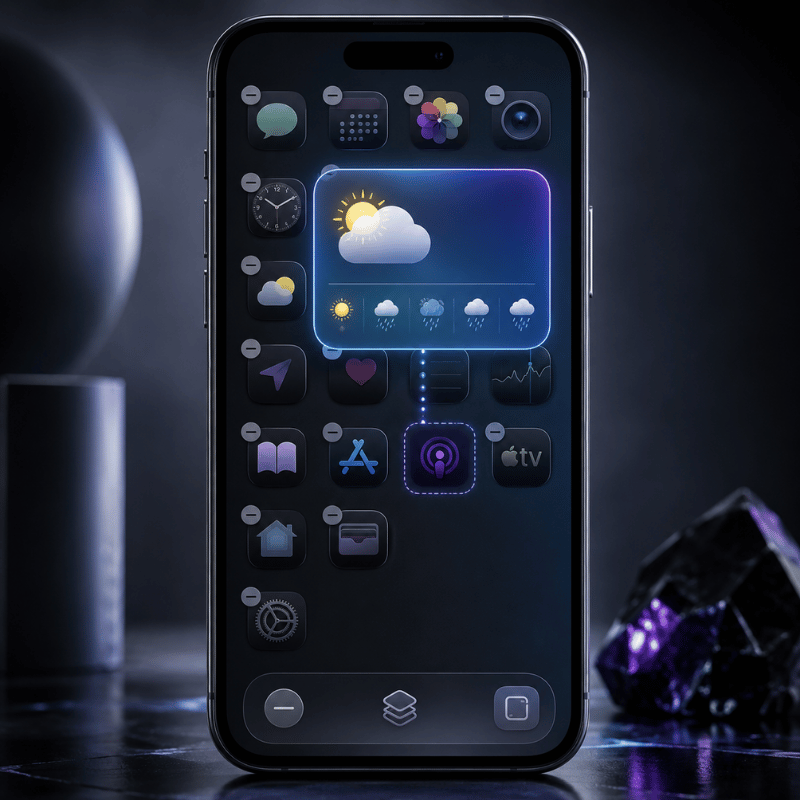
  1. Touch and hold an empty area of your Home Screen until the apps start to jiggle.
  2. Tap the Edit button (or the +) in the top corner, then tap Add Widget.
  3. Search for Weather in the widget gallery.
  4. Swipe through the sizes, then tap Add Widget on the one you want.
  5. Drag it where you want it and tap Done.

To change the city it show, touch and hold the widget, tap Edit “Weather” (or Edit Stack if it’s in a group), choose My Location or search for a city, then tap outside the widget to finish. Want both your home city and a trip destination? Apple lets you add more than one Weather widget, so you can watch two forecasts side by side.

💡 Pro Tip

Drop the Weather widget into a Smart Stack and turn on Smart Rotate and Widget Suggestions. iOS then surfaces the forecast right when you tend to check it (your morning commute, say) and tucks it away the rest of the day.

Weather Widget Sizes Explained: What Each One Shows
Weather Widget Sizes Explained: What Each One Shows

Picking a size is really picking how much information you want without tapping in. Bigger isn’t always better; a small widget you actually read beats a large one that crowds out your apps. Here’s what each native Weather widget surfaces.

Widget size What it shows Best for
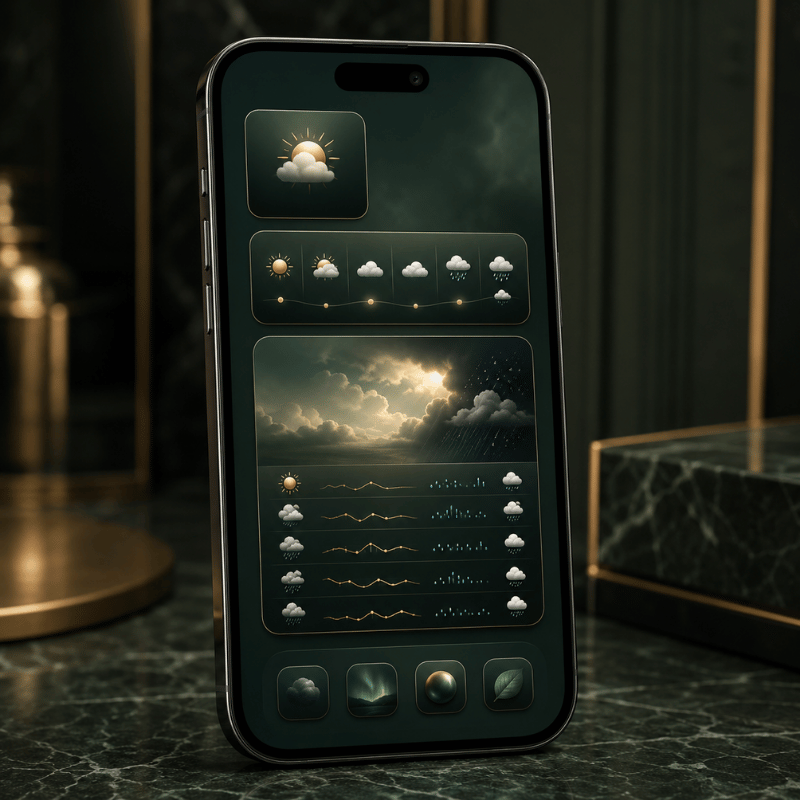
Small (2×2) Current temperature, conditions, high/low A clean home screen where weather is one tile among many
Medium (4×2) Current conditions plus an hourly forecast strip Knowing when rain starts or stops today
Large (4×4) Hourly plus a multi-day outlook, often with precipitation, feels-like, and more detail Planning the week without opening the app
Lock Screen (inline / circular) Temperature, conditions, or a single metric like UV or air quality A zero-tap glance every time you wake the phone

Rule of thumb: if you check weather to decide what to wear, a small or medium widget is plenty. If you check it to decide what to plan, go large. Many third-party apps add extra fields here, wind, humidity, sunrise and sunset, air quality, which is exactly where the “best widget” question gets interesting.

Add Weather to Your Lock Screen and StandBy
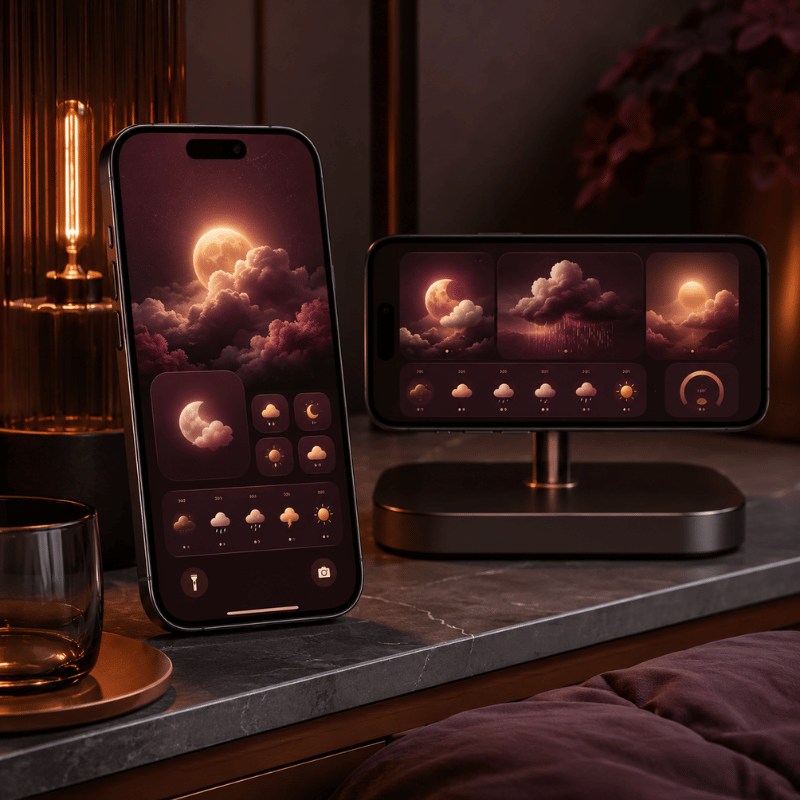
Add Weather to Your Lock Screen and StandBy

Almost everyone sets up the Home Screen widget. Yet the other two surfaces are where the real payoff live, because you see your iPhone Lock Screen dozens of times a day without ever unlocking.

Lock Screen weather (the zero-tap check)

  1. Touch and hold your Lock Screen, then tap Customize (tap + to make a new one).
  2. Tap the widget area beneath the clock.
  3. Choose Weather and add the temperature, conditions, or a detail like UV index.
  4. Tap Done.

StandBy weather (the nightstand view)

When you turn your iPhone on its side while it charges, StandBy mode turns it into a small smart display. Swipe to the widget face, touch and hold, and add a Weather widget so the forecast greets you in the morning before you’ve picked up the phone. It’s the most underused weather surface on iOS, and it costs nothing to set up.

⚠️ Important

All three surfaces pull from the same Location Services permission. If one shows the wrong city or goes blank, the fix is almost always location — more on that below.

The Best Weather Widgets for iPhone in 2026
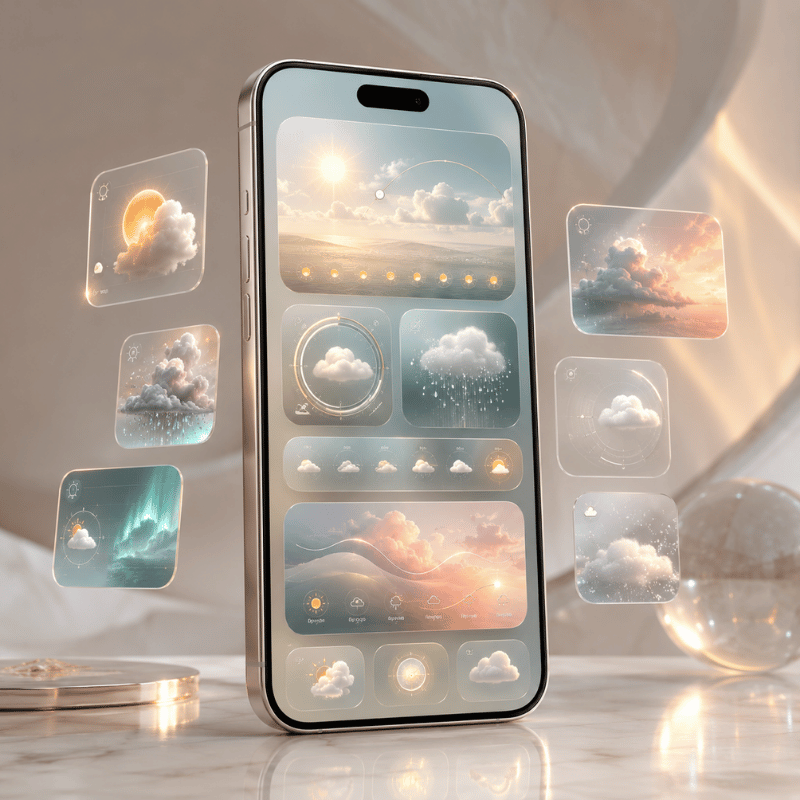
The Best Weather Widgets for iPhone in 2026

Apple’s native widget is reliable and free, but it’s deliberately minimal. If you want richer data, smarter layouts, or just more personality, a third-party app is the move. Here’s an honest read on the names that keep coming up among iPhone users.

App What it’s good at Cost
Apple Weather (native) A free, accurate starting point, now richer after Apple folded in Dark Sky data. Keep it if you mainly want temperature and rain. Free
CARROT Weather The power user’s pick: deeply customizable widgets, radar, and a snarky personality you can dial up or off. Reddit’s r/ios crowd keeps calling it “the best by far.” Free + paid tiers
Hello Weather Clean, calm, and glanceable, with a choice of forecast data sources. A 2025 review crowned its widgets for design. Freemium
The Weather Channel / WeatherBug Built for severe-weather alerts and radar when storm tracking matters more than aesthetics. Free (ad-supported)

“The No. 1 reason Hello Weather tops my list is its clean, concise, glanceable design, whether in-app or through its widgets.”

Yahoo Tech review, 2025

⚠️ Common mistake

Don’t choose a weather widget on looks alone. Two widgets can look identical and pull from different forecast models, refresh on different schedules, and disagree by several degrees. Check the data source and how often it updates before you commit.

Free vs Paid Weather Widgets: What You Actually Get
Free vs Paid Weather Widgets: What You Actually Get

Most of these apps are free to install, then ask for a subscription to unlock the good widgets. Before you pay, it helps to know what the money actually buy, and to clear up a pricing point that confuses a lot of people.

Feature Free tier Paid subscription
Basic widget sizes Yes Yes
Extra layouts & customization Limited Full
Radar, alerts, longer forecasts Often locked Unlocked
Ads removed No Usually yes

The pricing confusion is worth flagging. CARROT Weather, for example, has more than one paid tier: an entry-level premium plan reported at around $4.99/year by The Sweet Setup, and a higher “ultra” tier that costs roughly ten times that. People who quote “$50 a year” are usually looking at the top plan, not the one most users need. (Prices were accurate as of early 2026 and change often, so confirm in the App Store before subscribing.)

The honest answer: if the free native widget covers your needs, keep it. Pay only when you want a specific thing the free tier won’t give you, better radar, a custom layout, or a look that matches your aesthetic.

How to Make an Aesthetic Custom Weather Widget
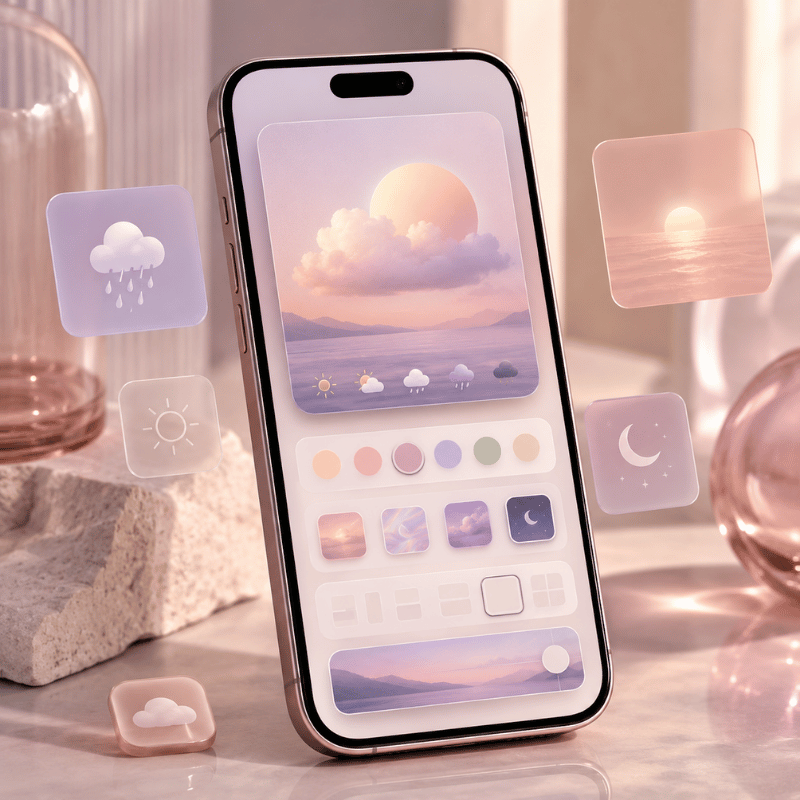
How to Make an Aesthetic Custom Weather Widget

Here’s the gap the big weather apps leave open: they give you their design, not yours. If you’ve built a coordinated theme and the stock weather widget clashes with it, a customization app let you style the widget to match. That’s where custom iPhone widgets come in.

In iScreen’s widget library, an aesthetic weather widget is less about more data and more about fit: you pick the background color, the font, and how minimal the layout is, so the forecast read like part of your wallpaper instead of a sticker on top of it. A few combinations our users reach for again and again:

  • ✔Minimal monoa single temperature number on a flat background, paired with a clean wallpaper.
  • ✔Pastel matchwidget tint pulled from your wallpaper’s palette so nothing fights for attention.
  • ✔Small-and-stackeda tiny weather tile beside a clock or a countdown widget in a tidy two-up layout.

The principle is the same one behind any good home screen ideas: pick one accent color and let the weather widget echo it, rather than introducing a new one. A widget that belongs to your theme always looks more deliberate than the default.

Weather Widget Not Working? Fixes for the “Disappeared” Widget

Weather Widget Not Working? Fixes for the "Disappeared" Widget

If your weather widget went blank, froze on yesterday’s forecast, or vanished after an update, take a breath: this is common and almost always fixable in a couple of minutes.

Where Did My Weather Widget Go?

Most of the time, it didn’t get deleted, an iOS update reset it. Major updates can rearrange the Home Screen, clear a widget’s saved location, or pause the permission it need to refresh. So the widget isn’t gone; it’s sitting there without the location access it needs to draw a forecast, which makes it look blank or stuck. That’s why re-adding it or re-granting location usually brings it straight back, no app reinstall required.

  • ✔Check Location Services. Settings > Privacy & Security > Location Services > Weather. Set it to While Using the App (or Always) and turn on Precise Location.
  • ✔Turn on Background App Refresh. Settings > General > Background App Refresh, so the widget can update when you’re not looking at it.
  • ✔Re-add the widget. Remove it, then add it again from the widget gallery to force a fresh start.
  • ✔For a blank Lock Screen weather wallpaper: touch and hold the Lock Screen, tap Customize, and re-accept the location prompt. iPhone users report this single step fixes the missing-location look.
  • ✔Restart, then update. A quick restart clears most glitches; installing the latest iOS clears the rest.

Work down that list in order and you’ll catch the cause well before the last step. To rebuild the widget exactly how you like it afterward, the same steps you used to customize your iPhone apply.

What iOS 26’s Liquid Glass Means for Your Weather Widget
What iOS 26's Liquid Glass Means for Your Weather Widget

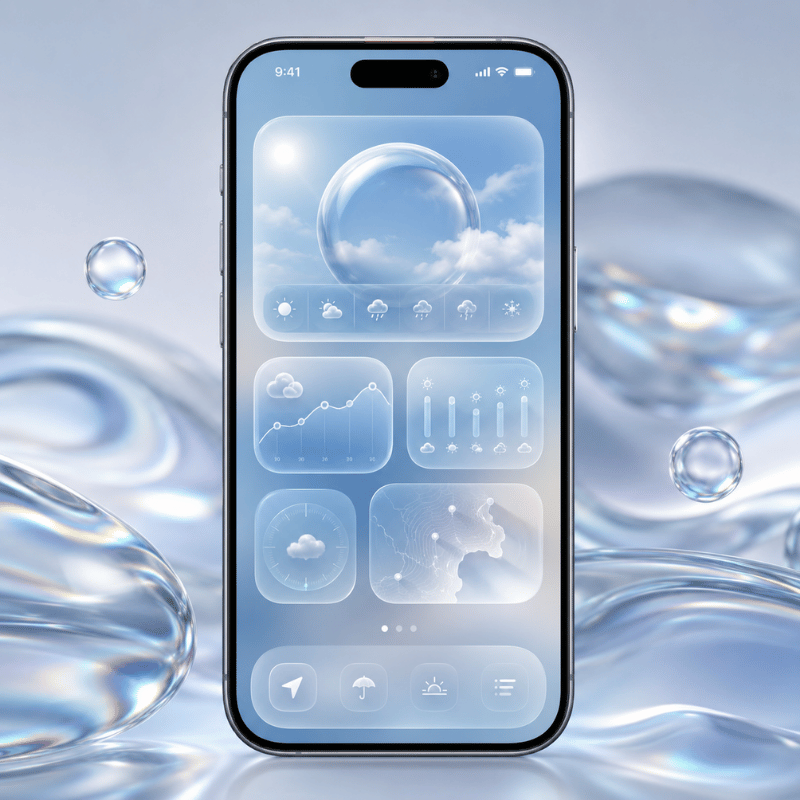
If your weather widget suddenly looks translucent, refracting the wallpaper behind it, that’s Liquid Glassthe headline design change in iOS 26. Widgets, icons, and the Lock Screen now use a glassy material that bends light and adapts to whatever sits behind it. The weather widget is one of the most-cited examples because its background change with conditions.

You’re not stuck with one look. To change how widgets and icons render, touch and hold the Home Screen, tap Edit, and switch the appearance between Default, Clear, and Tinted to suit your wallpaper. And if the glass effect ever hurts readability, you can tone it right down under Settings > Accessibility > Display & Text Size > Reduce Transparency.

The practical takeaway for 2026: a weather widget’s legibility now depends on your wallpaper as much as the widget itself. If yours is hard to read on a busy background, switch to Tinted or turn on Reduce Transparency, and if you want a glass look that still read cleanly, a custom widget with a solid backing plate sidesteps the problem entirely. Liquid Glass made aesthetic widget choices matter more, not less.

Frequently Asked Questions

Q: Does the iPhone have a built-in weather widget?

View Answer
Yes — and it’s free. The built-in Weather app covers Home Screen, Lock Screen, and StandBy in several sizes.

Q: Why is my iPhone weather widget not updating?

View Answer
Usually it’s a permission. Open Settings > Privacy & Security > Location Services > Weather and allow access, then turn on Background App Refresh. If it’s still stuck, remove and re-add the widget, then restart your phone.

Q: Can I add a weather widget to my iPhone Lock Screen?

View Answer
Yes, and it’s one of the most useful places to put it. Touch and hold the Lock Screen, tap Customize, then tap the widget area beneath the clock and choose Weather. You can show the temperature, current conditions, or a single detail like UV index — whatever you want to read without ever unlocking the phone. Because you wake your screen dozens of times a day, this becomes your real weather check.

Q: What is the best free weather widget for iPhone?

View Answer
For most people, Apple’s own widget wins on value — accurate and built in. CARROT and Hello Weather also have free tiers worth trying.

Q: How do I get a bigger weather widget on my iPhone?

View Answer
You can’t stretch an existing widget, so add a fresh one in the size you want. Touch and hold the Home Screen, tap Add Widget, search for Weather, then swipe through the previews until you reach the large (4×4) option and tap Add Widget. The large size packs in an hourly strip plus a multi-day outlook, so you get the whole picture without opening the app. Drag it into place and tap Done.

Q: How do I change the location on my weather widget?

View Answer
Touch and hold the widget, tap Edit “Weather” (or Edit Stack), tap My Location, then search for and pick the city you want. Tap outside the widget to save. You can also add a second Weather widget for a different city.

Why We Wrote This Guide

iScreen builds iPhone customization tools, so we spend our days watching how people set up widgets, including where the weather widget breaks. This guide pull together Apple’s official steps, real fixes iPhone users shared for the “disappeared” widget, and what iOS 26’s Liquid Glass changes, so you can set weather up once across all three surfaces and stop fiddling with it.

Want a weather widget that matches your wallpaper instead of fighting it?

Build your own with iScreen →

Recent articles

Spring Backgrounds for iPhone: 12 Looks and Screen Pairings

Spring Backgrounds for iPhone: 12 Looks and Screen Pairings

2026/9/27 18:15
Spring backgrounds for iPhone are seasonal wallpapers whose designs range from simple florals to colorful wildflower meadows. The twelve examples in this guide help you choose a wallpaper and a matching Home Screen. Start with your favorite flower, then consider where the clock, widgets and app shortcuts will be located. The styles below are AI-generated examples from this style guide. To see the full-size image, open the corresponding image link below its numbered style. More designs are available from the spring wallpaper catalog. You can browse the spring wallpaper collection for more designs. The download route is described below. Spring Backgrounds at a Glance Both the subject and the layout of a spring aesthetic should be considered when choosing a design for your spring wallpaper aesthetic. For example, a design with a single daisy is smaller and leaves more empty space than a design showing a larger, more full, yellow bouquet. The companion designs shown with the spring iPhone wallpapers that follow offer suggestions for a spring iPhone wallpaper aesthetic. Choose a motif, then its quieter companion Style category Main colors Home Screen idea 1. Lower-edge tulips Blush and stem green Muted green 2. Spaced daisies Butter yellow and white Plain cream 3. Long tulip stems Peach and cream Warm cream 4. Side blossom branch Pink and pale blue Dusty pink 5. Rainy petals Pink and blue-gray Soft gray 6. Corner bunny Cream and sage Plain sage 7. Daisy gingham Cream and yellow Cream from the checks 8. Leaf wash Sage and cream The same wash if labels are clear 9. Floral gradient Butter yellow The same gradient after previewing 10. Wildflower meadow Sky blue and green Blue-gray 11. Paper botanical Paper cream and muted ink Paper cream 12. Songbird branch Olive and cream Plain olive When you select a design based on the small image in the preview, check the full image before deciding. The full design provides information about where its busiest details sit. To see the full image, open it before selecting it for your phone. Tulips and Daisies: Fresh Spring Florals The designs showing arrangements of tulips show how different flower placements can be used to create different layouts. Daisies can be used for minor layout details. In a design showing a single flower, empty space can leave room for a widget. 1. Blush tulips along the lower edge Pink tulips in a low cluster leave the top portion of this iPhone background open. Use it on your iPhone Lock Screen for flowers without a branch crossing the time. For an attractive two-tone scheme, pick a muted green background to complement the stem color. Check the bottom controls too: Look around the controls to see where the stems are placed, as they can be located behind the flashlight or camera. Blush tulips — full-size image 2. Butter-yellow daisies with space between them With a scattered daisy design, empty space gives a screen a relaxed feel. Small white petals can sit behind pale labels, so check the app layout instead of assuming a light background will be clear. Remove the clutter from your Home Screen by displaying daisies on your lock screen. Cream is a good background color to use if your Home Screen is busy. Spaced daisies — full-size image 3. Peach tulip stems on cream The design of this wallpaper allows for good vertical alignment of flowers. An uneven, narrow arrangement can be balanced by wider widgets like a large clock or calendar. For a good color scheme and a minimalist layout, consider this peach-and-cream design with a plain cream Home Screen. Make sure the flower stays in the frame, as neatly placed stems won’t help if the petals are out of view. Peach stems — full-size image Cherry Blossoms and Dreamy Pink Skies Depending on how much sky surrounds a branch of cherry blossoms, the design feels airy or moody. Pay attention to the negative space and carefully place your branch to avoid covering the time. Consider the color of the clock you use and the sky behind it to judge contrast, keeping the time clear of the branch. 4. A blossom branch entering from one side This blossoms wallpaper places branches near the edge of the frame, with a lot of empty space beside them. This is a lovely choice if you want to add a floral element without a repetitive pattern to your wallpaper. Consider using the same color as the sky or try a subtle pink. Keep some space when the wallpaper preview is active, as a top-heavy crop could place flowers in the clock area. Side blossoms — full-size image 5. Pink petals against a rainy sky This pink spring artwork combines light pink with a grayish-blue hue. Use a predominantly gray-blue background with a few pink petals. The rest can be taken up by the cloudy background. Even the pale sky in this dreamy spring design needs contrast with the time; darker rose or charcoal is a starting point to try for the clock. Rainy petals — full-size image Cute Spring Illustrations and Easter Details These cute spring phone wallpapers use simple characters or familiar designs. A bunny gives the picture an Easter connection. The design can include gingham and daisies, which can remain after the holiday. Keep decorative text out of the phone design to leave more freedom for the clock and your layout. 6. A little bunny in the lower corner This illustration shows a bunny on the grass. The colors complement each other and make a nice Easter wallpaper. If a large music player or a large notification stack covers the design, try a different crop or screen. On the Home Screen, a complementary color widget can be placed to match. Corner bunny — full-size image 7. Daisies over a soft gingham pattern The checks and daisies give this spring flower illustration a picnic feeling. The design is good, but the lines can look busy, especially with a lot of apps on the phone. This design can remain on your phone Lock Screen, while the Home Screen uses different colors to complement it. Daisy gingham — full-size image Imagine the iPhone Home Screen with a large calendar at the top of your display and your favorite apps below it. The gingham print is gorgeous, but using it around your calendar can leave little quiet space. Try the bunny or gingham print on your Lock Screen instead. For the calendar display, you can use a sage background with a small pop of yellow if the widget settings allow it. Check the label for each day of the week before keeping the yellow accent. Simpler designs can help you achieve a toned down version of the style you like. Sage Green, Butter Yellow and Quiet Spring Colors Sage or butter-yellow color can also be used to incorporate the spring style into your display. These minimal spring designs focus on solid colors with little detail. The actual foreground colors still determine whether your display is easy to read. Check your display to see if a pale wallpaper is really easier to read than a busy or detailed one. 8. A sage-to-cream wash with one leaf To give your display a pretty pastel color, use a detailed leaf wallpaper. This aesthetic wallpaper leaves a lot of blank space for app icons. If you use a dark clock or a detailed widget, check its contrast against the pastel color of the background at your usual brightness. A plain pastel background can give photos in your widgets a less busy setting. Sage leaf — full-size image 9. A butter-yellow gradient with a tiny floral accent On your mobile phone screen, a warm gradient can evoke a sunny feeling. The graphic features a small floral accent. It complements the other graphics in this collection of spring looks. The gradient can also be used on its own. Pay attention to the icons. Less detail in the graphic doesn’t automatically mean enough contrast with the icon labels. Yellow gradient — full-size image “Select colors that provide sufficient contrast.” W3C Web Accessibility Initiative, Colors with Good Contrast This guidance discusses the use of foregrounds in conjunction with backgrounds. The wallpaper presents an opportunity to analyze the label and clock elements, and shouldn’t be used as an indicator that the palette used in the background satisfies accessibility requirements. Wildflower Meadows and Vintage Botanicals Meadows give spring iPhone wallpaper a sense of distance; vintage floral illustrations bring the detail closer. Use your discretion to determine what best suits your purpose. The sample Lock Screen designs demonstrate the use of an open space and a side branch to separate the foreground from the background. 10. A wildflower meadow under open sky The use of negative space above the meadow and distant forest edges in this design helps create a sense of distance. This tranquil scene can help achieve the effect of a calm Lock Screen. Plain blue-gray on the Home Screen can help carry over the calm effect of the blue-sky Lock Screen. Check the horizon after cropping: Keep in mind the focal point of the design may also be the location of the time. Wildflower meadow — full-size image 11. A botanical drawing on warm paper For a vintage aesthetic, muted ink colors on lightly textured paper can work. These are new digital illustrations, not historical botanical prints. Digital illustrations can look old by simulating worn out paper. With a light background, elements can connect without being distracting. Don’t let the paper texture become more prominent than the illustration. Paper botanical — full-size image 12. A little songbird on a side branch The collection has a flower theme, but the addition of birds helps bring another subject into focus. With a branch at the side, the space occupied by the clock stays unobstructed, with the bird visible below it. Home screens can be colored olive or paper cream. The image should be cropped to include the space surrounding the bird. Tail feathers should be left unobstructed. Songbird branch — full-size image Petal Placement: Choose Your Lock and Home Screen Pair Petal Placement is a comparison method for spring backgrounds: place the busiest part of the artwork around the elements you need to read, then choose a less detailed Home Screen companion if needed. This styling method is not an element of Apple’s operating system. To make your first selection, use the table. To finalize your selection, use the real preview. Petal Placement: where the picture meets the interface Composition Check on the Lock Screen Check behind apps Companion to try Lower-edge tulips Blooms near bottom controls or notifications Flowers behind the dock Muted stem green Side blossom branch Twigs crossing the time after cropping Petals behind edge-column labels Plain sky blue Daisy-and-gingham pattern Checks visible through the clock Repeated detail across the app grid Cream from the checks Single botanical stem Flower head cut off near an edge Stem passing through a large widget Warm paper color For a busy app grid, start with the blush tulips on your Lock Screen and a plain green Home Screen. Open the folder you use most, because its labels and background may look different from the main grid. If the tulips also work behind your apps, keeping the same picture is fine. If petals compete with labels, switch only the Home Screen to the companion. You don’t need to rebuild the whole setup to personalize it. Apple’s wallpaper guide documents separate color, photo and Blur choices; compare those options in the preview. For a Lock Screen with a focus on wallpaper, the meadow is a good option. Leaving the sky visible gives you more space to work with and shows the image better. Initially, leave only the widgets you want, then inspect the wallpaper again when your normal notifications appear. The way a scene looks on an empty preview is often different from the way it looks during normal use. You may need to change the clock appearance to make it stand out against the sky, or crop the image if notifications hide the flowers. Keep your Home Screen simple while you figure out which picture to use on the Lock Screen. Once you find the picture you like most, explore matching widgets and add them one at a time. Find a Spring Wallpaper You Can Actually Download The original images featured in this post can be saved by opening the original image in a new tab, and then saving it using your browser’s tools. Don’t take a screenshot of the entire webpage. The iScreen catalog is a separate collection with its own download route. You may need to use the catalog item’s app download route to access its full-size image. Which image does each route give you? Starting point What to open What to check An original illustration in this guide Its matching full-size image link The opened artwork matches your chosen number iScreen spring collection An individual wallpaper page The item’s own download instructions iScreen Spring 330539 The item’s iScreen app route Current in-app access terms for HD A search thumbnail or Pinterest pin The creator’s original page Available file, saving route and permitted use The inspected Spring 330539 catalog page displays a preview and directs visitors to iScreen to unlock HD. That message doesn’t establish that every image is free. Check the selected item’s current terms before assuming a “download free” search result describes its full-size file. The app catalog route isn’t the download link for the original illustrations in this article. You can also create your own wallpaper images using stock photos, as long as you find a reliable source to verify the license. Save the image after following the source’s download and attribution instructions. A wide screen wallpaper for a desktop or laptop may require a different aspect ratio crop from a phone screen. A tablet preview or Android tutorial may display a different wallpaper configuration from your iPhone. Save and Set Your Spring Wallpaper Save your chosen picture to Photos, then use Apple’s current wallpaper instructions. The Settings route lets you choose the image and decide whether both screens should share it. Adjust the preview before confirming, especially when the artwork has a flower or bird close to an edge. Open Settings and tap Wallpaper. Tap Add New Wallpaper, choose Photos, and select the saved image. Adjust the image in the preview. Apple’s Lock Screen guide describes pinch zoom and moving the photo with two fingers. Tap Add, then choose Set as Wallpaper Pair or Customize Home Screen. Resolution helps preserve detail, but it doesn’t choose the crop for you. Apple lists the iPhone 13 display at 2532 by 1170 pixels and the iPhone 15 display at 2556 by 1179 pixels. Those are model-specific display specifications, not one wallpaper download size for every iPhone. A 4K label alone tells you little about where the petals will land. For the longer walkthrough, see how to change your iPhone wallpaper. Check your own device’s options; this collection doesn’t promise Depth Effect or spatial compatibility. Keep the Spring Mood After the Blossom Season Spring wallpaper collected around Easter can stay on your phone over time, even after the seasonal detail feels finished. Keep the sage Home Screen while the bunny design is swapped for a leafy one. Other variations include using a paper botanical background or a simple gradient when a patterned background feels busy. Different textures can be used as long as they stick to a similar color palette. Not every widget has to be changed at the same time. The background you see most often is the part to consider replacing first. Keeping the parts of the screen pair that function well gives you variety without changing every widget while you curate a collection of beautiful wallpapers. Spring Wallpaper Questions What are some good spring wallpapers for iPhone? For cute spring backgrounds for iPhone, experiment with images of branches, stems, and leaves based on the layout of your screen. Preview the clock, widgets and app icons before finalizing the image. A small character near the lower edge can keep a playful detail away from the time, while a plain companion color gives a busy Home Screen less to compete with. Compare the open areas around a cherry blossom branch with those around low tulips before choosing your crop. Where can I get spring backgrounds for my iPhone? Open the original illustrations here or iScreen’s spring wallpaper pages. Some pages offer direct images; others use an app. Check the selected item’s current full-size image access terms. Searching for spring backgrounds for iPhone free does not establish free access. How do I keep a floral wallpaper from looking too busy? Place the flowers before picking their colors. Look for negative space, like positioning branches or stems along one side, or leaves or petals near the bottom, to leave room for the clock. On the Home Screen, check or compare other available color options. Preview widgets and check the labels; just because the background is light, it doesn’t mean the text is easy to read. Should my Lock Screen and Home Screen use the same spring image? Not necessarily. For the Home Screen, you can use the same image or select a different one. Compare a plain color, another photo or Blur in Apple’s customization preview, then check the labels behind your apps. Keeping the floral image on the Lock Screen and a quieter companion on the Home Screen is one option. Does a 4K spring wallpaper fit every iPhone? No. The resolution label may not give you the crop you want. Use the original portrait file, then inspect the preview on your device. The display shape and your chosen framing can cut away petals, branches or useful empty space, even when the file has plenty of pixels. References & Sources Apple Support: Change your iPhone wallpaper Settings route and pairing choices. Apple iPhone User Guide: Change the wallpaper separate Home Screen color, photo and Blur options. Apple iPhone User Guide: Create a custom Lock Screen photo repositioning controls. Apple iPhone 13 specifications and iPhone 15 specifications model-specific display dimensions. W3C: Colors with Good Contrast foreground and background contrast principle.
2026/9/27 18:15
Summer Backgrounds for iPhone: 12 Fresh Wallpaper Ideas

Summer Backgrounds for iPhone: 12 Fresh Wallpaper Ideas

2026/9/26 14:16
Summer backgrounds for iPhone are seasonal wallpapers with vibrant designs that evoke warm feelings and sweet summer memories. Explore this selection of portrait designs. Pair your favorite with a calm Home screen to create a beautiful accent. This collection of summer iPhone backgrounds changes the mood of your screen. To save a design to your device, simply add it to the Photos app. This collection uses original, AI-created designs; iScreen’s app catalog employs a separate download flow. Preview your Home Screen and device widgets before choosing a design. A few choices make the whole setup feel finished: Pick one motif first: water, palms, fruit, flowers or a soft gradient. Keep important details away from the area occupied by your clock. Repeat one accent color across both screens; the pictures can differ. Save the actual portrait file, then adjust its crop on your phone. Beach and Ocean Summer Backgrounds Because you can personalize your wallpapers, consider displaying a scene or carrying its colors onto your Home Screen. Each design represents a distinct artistic style. 1. Quiet horizon and blue skies Open skies give this calm and serene seascape a tranquil basis for the design. Try cool aqua tones with sandy shades of brown for a lovely, easy and beachy color scheme. Let the sea occupy the lower part of the composition rather than placing a sharp horizon directly behind the clock. The screen uses empty space as part of the design for relaxed summer vibes. Leave spaces on your Home Screen rather than adding stickers and quotes. 2. An overhead ocean wave “White surf crossing turquoise water” makes for good scene division. Pick the wave and keep the rest of the elements simple. Preview the small white foam details and move the brightest splash away from small white labels. An ocean wave iPhone wallpaper partners well with dazzling teals. For the same picture on both screens, experiment with the Home Screen’s Blur feature and evaluate the result against the unaltered wave. 3. A striped umbrella on sand A coral-and-cream striped umbrella against the ocean adds a playful resort touch to an already pleasant scene. Placing the subject near the bottom of the image leaves the top of the image empty. You can use a coral or orange widget accent and a sand-colored Home Screen companion. Keep coastal items simple. Tropical Palm Trees and Poolside Wallpaper A warm afternoon can be represented with a few palm fronds or water ripples. For a more abstract summer aesthetic, use water ripples or surf reflections; a palm frond gives the design a clear shape. 4. A palm tree against apricot light For an easy, yet pleasing division of the design, use fronds from one side of a palm tree. Keep the center empty for the clock and use Apricot or Terra Cotta to add warm colors to the adjacent screen, checking contrast between the text and background in your preview. 5. Poolside ripples in aqua Water with sunlight reflection creates an abstract backdrop. Look for larger, smoother reflections, and avoid the busy effect of lots of thin, bright lines. Cool-toned colors of water make for pretty, colorful abstract designs. Keep patterns pretty much the same across both screens if you prefer a matching pair. A plain aqua design remains relaxing when vibrant reflections feel busy behind a folder. 6. Botanical greenery at the edges Large leaves around a cream center make a softer tropical option if you enjoy greenery but want less of a postcard landscape. For this style, arrange leaves around the border space. Leaf shapes repeat across the design, but when you fill the entire space with many leaves the design quickly becomes more busy. Once again, warm cream fills the void between the leaves. Cute Citrus, Fruit and Floral Wallpaper When doing cute summer wallpapers, use larger shapes to represent flowers and fruits. One large fruit or flower represents a graphic design, and many small fruits or flowers create a repeating pattern. 7. Lemon and citrus on cream Lively shades of lemon give this classic citrus design a pop against the warm, ivory background. In this wallpaper, the lemon can be positioned towards the bottom to draw more attention to it beside a simple widget. For a matching Home Screen wallpaper, cream pairs with the yellow lemon. To achieve this, you can choose the cream color, rather than selecting a bright yellow for each of the icons. For a more vibrant look, choose bright yellow for one widget and select muted colors for the other widgets. 8. Watermelon with a pink background The watermelon wallpaper offers a combination of pink, red and green to echo in a widget. To make a setup more summery, select a complementary color from its existing pink, red and green palette. For a more muted color scheme, choose a dusty pink and dark green to accessorize. If a more playful look is desired, choose the watermelon wallpaper with a matching widget. Another option is to use a flamingo design. Preview larger simpler designs and busier more detailed designs to achieve the kind of variation you want. 9. Daisy and wildflower details Flowers tend to work best when they’re not crowded, like the cottagecore floral phone designs here. A sunflower is more bold than a daisy. Cherry blossom art is bold and beautiful, but yellow flowers can add a nice touch of seasonal beauty as well. Regardless of which you choose, they look best if they’re located below or to the side of the clock; check text-to-background contrast in your preview. Pink Sunsets, Pastels and Minimal Summer Colors An aesthetic summer design requires no motif, but an aesthetic iPhone arrangement can flourish with the aid of color. Various hues of the spectrum can be employed for broad strokes to provide an aesthetic wallpaper that soothes. This is especially useful to provide an aesthetic wallpaper when paired with photos or widgets. 10. Pink sunset over the sea A broad, horizontal wash of pink light above a low horizon gives the pastel scene a sun-kissed finish. Peach can act as a background bridge. Clock color choices should be checked against the lightest clouds as a readability guide. 11. Pastel aqua and lilac Aqua transitioning to lilac provides a comfortable, soft pastel summer palette. Keep the width of the transition broad. This can be utilized to create a pastel summer phone background. If your widgets contain photographs, this design would be particularly suitable to use. 12. A peach aura gradient Peach fading into cream feels warm without depending on a beach or flower. Try a deeper outer edge if a very pale version makes the clock difficult to see. Minimal artwork still needs a readability check: the W3C’s contrast guidance explains why text and icons need enough contrast against the background immediately behind them. One Accent, Two Moods: Match Your Home Screen One Accent, Two Moods is a straightforward way to create a coordinated set. Let a Lock screen with a horizontally calm background set the tone and serve as the star of the set, and then choose a companion that features the same color as the Lock screen. Check the companions against your actual clocks, labels and open folders. Keep in mind that the elements you choose may not always work well with others. Nine summer palette pairings to try Lock Screen motif Shared accent Quieter Home Screen Preview check Quiet horizon Sky blue Warm sand Clock against the sky Ocean wave Turquoise Deep teal White foam behind labels Striped umbrella Coral Soft cream Stripes behind widgets Palm silhouette Apricot Muted terracotta Fronds beside the clock Pool ripples Aqua Plain pale blue Reflections inside folders Leaf border Olive Warm cream Leaves near edge icons Lemon illustration Yellow Light sage Pale labels on yellow Watermelon Dusty pink Muted green Red around app badges Pink sunset Peach Soft plum Clock on bright clouds Beach recipe: To create a calm horizon, find a sand-colored companion, and a blue widget. Citrus recipe: To create a citrus design, look for a lemon and a cream companion, and a green widget. Evening recipe: To create a design for an evening horizon, look for a plum companion, a peach widget, and a picture of a pink, orange, or red sky. Should I use the same wallpaper on both screens? You can use the same wallpaper on both screens if its composition works with your icons. Matching doesn’t require two different pictures. If the scene becomes distracting behind apps, try a separate color, a different photo or Blur through Customize Home Screen. Apple documents those choices in its wallpaper guide. Where to Find Summer Wallpapers to Download If you need a starting point, refer to the twelve examples in this article. Open the image before saving it, rather than taking a screenshot of the whole page. Keep the picture in the Photos app so you can crop it later. For more choices, browse iScreen’s wallpaper collection. Its summer-tagged green landscape is an example of a catalog item with an app-based download route: the page directs visitors to iScreen to unlock HD. Check the app’s current item details for access terms. That catalog route is separate from saving an illustration displayed here. The creator’s page is a better source to start than a search result page. If you found an image via a Pinterest page, it’s best practice to check the original page to see if there are higher quality or alternate versions of the image. Phone wallpapers, tablet layouts and desktop artwork sometimes use different crops. What works best on a tablet or as computer desktop wallpaper may not work well on a narrow phone screen. Set and Crop Your Summer iPhone Wallpaper Save your chosen summer wallpaper for iPhone to Photos first. You don’t need specialist tech tools: open the saved file through Wallpaper in Settings, position it around your clock, then decide whether to repeat it on both screens. Apple’s current wallpaper instructions use this path: Open Settings, then Wallpaper. Tap Add New Wallpaper, choose Photos, and select the saved picture. Adjust its position in the preview. Keep your main subject visible and check the clock area. Tap Add, then choose Set as Wallpaper Pair or Customize Home Screen. Starting with a high-quality file helps, but resolution doesn’t fix an awkward crop. Apple lists different pixel dimensions for different models: iPhone 15 is 2556 by 1179 pixels, while iPhone 13 is 2532 by 1170 pixels. Those are display specifications, not one required download size for every model. Leaving a little extra space around your subject will give you more options when cropping. If you crop too closely you could end up losing important details about the subject. Make sure you’re happy with your crop before removing other versions of the photo. The menu options may vary between iOS devices. You can find more information about adjusting iPhone wallpaper in our iPhone wallpaper guide. Keep a Summer Look Beyond the Peak Season Your summer wallpaper can be used outside of the holiday season. One way to update the palette would be to choose a deeper or lighter tone of the existing colors. For example, holiday colors like yellow could be updated to a quieter cream companion. This could be done using the existing colors in the image. Playing around with different companion colors can be a fun way to adjust the mood of the image. Another option is to move from a motif to its swatch. A lemon can be a yellow-sage combo. A seaside scene can become a blue-to-white gradient. If the rest of the setup follows along, explore iScreen themes or use a few cute aesthetic widgets. Start with an element and let it serve the rest of the design. FAQs: Summer Background Questions Where can I find free summer backgrounds? For free summer iPhone designs, start with a creator’s clearly marked downloads or an app’s free collection. Check the individual item’s access terms before saving the original file. Open the original file rather than saving a small search thumbnail. Check whether that particular item downloads free or requires an account or subscription. Pictures shown in a gallery aren’t automatically free downloads, and an HD label doesn’t tell you its price or access terms. Save any instructions supplied with the file, especially if you plan to use it somewhere beyond your own phone. If the download button takes you into an app, inspect the individual item’s terms there before choosing it. Where can I get good iPhone backgrounds? Choose a source that lets you inspect the full picture before saving it. Look for a sharp portrait composition with enough room around the subject to adjust the crop. Look for a sharp portrait file, room around the subject and a calm area where the clock will sit. Quality depends on the crop as well as resolution. Even a beautiful wide landscape can lose its main subject when it fills a narrow phone display, even if the original is detailed. Where can I find minimalist summer wallpapers? Look for simple ocean gradients, single palm silhouettes, pale citrus illustrations or uncluttered sunsets in a wallpaper collection. Search by mood and color, then preview the result with your icons. Try a creator’s collection or a wallpaper app, and search by both mood and palette, such as soft blue beach or peach summer gradient. Preview the result with your actual icons; minimalist artwork can still clash with a crowded layout or make pale labels difficult to read. A plain companion color is another option when you like the original art but want less detail behind apps. What are the best summer wallpaper colors? Aqua, sky blue, sand, coral and lemon yellow all suggest summer. Choose a shade you enjoy and check the clock against its local background, especially over bright clouds or reflections. Try a favorite shade, then check the clock and icons. Palette names alone don’t guarantee readability. What size should a summer iPhone wallpaper be? Use a sharp portrait image and check it in your device’s wallpaper preview. Display dimensions vary across models, and a high-resolution label alone does not guarantee that the subject will fit. There’s no universal exact size. Check actual dimensions, even when a file is labeled 4K. References & Sources Apple Support: Change your iPhone wallpaper offers details regarding your setup and wallpaper pairing. Apple iPhone User Guide: Change wallpaper covers Home Screen settings and options for photo and Blur. Apple: iPhone 15 technical specifications and iPhone 13 technical specifications model-specific display resolutions. W3C Web Accessibility Initiative: Colors with Good Contrast provides information about the contrast between text, icons, and other controls.
2026/9/26 14:16
iScreen Reaches No. 1 in Graphics & Design Across 94 Markets Following iOS 27 Update

iScreen Reaches No. 1 in Graphics & Design Across 94 Markets Following iOS 27 Update

2026/9/20 12:00
iScreen has now reached No. 1 in Graphics & Design across 94 countries and regions, highlighting the growing global interest in mobile personalization tools. iScreen Reaches No. 1 in Graphics & Design Across 94 Markets The latest release introduces a new generation of Home Screen customization experiences designed around iOS 27, including extra-large widgets, iOS 27-inspired themes, layouts optimized for new screen proportions, and AI-assisted design tools. Together, these updates expand the ways users can personalize their devices while making Home Screen design more flexible, expressive, and easier to manage. A New Generation of Extra-Large Widgets iScreen creative features for iOS 27, including themed Home Screen layouts, widgets, icons, and customization tools. One of the biggest changes in the latest update is support for extra-large widgets built specifically for the larger widget canvas available in iOS 27. Rather than simply enlarging existing widgets, iScreen has created layouts designed to make better use of the additional space. The new collection includes: Photo widgets Album widgets Music widgets Calendar widgets Interactive Refrigerator widgets Quick Launch widgets Users can customize content, layouts, and visual styles, allowing each widget to function as both a practical tool and a visual part of the Home Screen. The larger format also creates more room for information, interaction, and visual storytelling. A photo widget, for example, can display more content at once, while calendar and quick-launch widgets can offer a clearer and more accessible layout. For users who enjoy building highly personalized setups, the expanded widget size provides more freedom to experiment with different combinations of functionality and design. iScreen introduces extra-large widgets, iPhone Duo-optimized themes, and AI-assisted Home Screen design for iOS 27. iOS 27-Inspired Themes for More Cohesive Home Screens Alongside the new widget formats, iScreen has introduced a collection of iOS 27-inspired themes designed to create a more unified Home Screen experience. Each theme combines coordinated wallpapers, transparent-style widgets, icons, and other visual elements into a complete setup. Instead of selecting individual elements one by one, users can apply a more consistent visual direction across their device. This helps simplify the customization process while still allowing users to adjust individual details based on their preferences. The new themes are designed to reflect the visual direction of iOS 27 while giving users additional creative control over how their Home Screen looks and feels. iOS 27-Inspired Themes Optimized Theme Support for iPhone Duo iScreen has also expanded its layout work to support iPhone Duo, with selected themes optimized for the device’s screen proportions and display dimensions. Wallpapers, widgets, and icons have been adjusted to better fit the new format, helping maintain a balanced and cohesive visual experience across the screen. This type of adaptation is becoming increasingly important as device formats continue to evolve. A layout that works well on one screen size may not translate perfectly to another, especially when widgets, wallpapers, and icon spacing are involved. By optimizing theme resources for different screen proportions, iScreen aims to make customization more consistent across a wider range of device formats. AI-Assisted Home Screen Design The update also includes the continued testing of AI Home Screen Designer, a feature currently available to a limited group of users. The tool generates coordinated design suggestions based on user preferences such as style, color, visual elements, and overall aesthetic direction. It then combines wallpapers, widgets, and icons into a unified Home Screen setup. The goal is to reduce the time required to search for and manually match individual customization elements. Instead of starting from a blank screen, users can begin with an AI-generated direction and continue adjusting the layout to match their own preferences. “The latest iOS update has opened up new possibilities for mobile personalization,” said the iScreen team. “We want to turn those capabilities into practical and creative experiences that make Home Screen design easier and more expressive.” iScreen Reaches No. 1 Across 94 Markets The latest iOS 27 update arrives alongside continued international growth for iScreen. iScreen has now reached No. 1 in the Graphics & Design category across 94 countries and regions, highlighting the growing global interest in mobile personalization tools. With more than 100 million users worldwide, iScreen continues to expand its collection of widgets, wallpapers, themes, and Home Screen customization experiences for users across different markets and device types. The app has also previously been featured by Apple Editorial in 128 countries for five consecutive days, further increasing its visibility among users looking for new ways to personalize their devices. Explore the Latest iOS 27 Features in iScreen The latest update brings together several of iScreen’s newest customization experiences, from extra-large widgets and iOS 27-inspired themes to iPhone Duo-optimized layouts and AI-assisted Home Screen design. Users who want to try the latest features can download iScreen and search “S27” in the app to enter the dedicated iOS 27 collection. There, users can explore the newest widgets, themes, layouts, and customization tools in one place. Download iScreen for iPhone Get iScreen for Android About iScreen iScreen is a mobile customization app offering widgets, wallpapers, themes, app icons, and Home Screen customization tools for iOS and Android devices. With more than 100 million users worldwide, iScreen has reached No. 1 in Graphics & Design across 94 countries and regions and has been featured by Apple Editorial in 128 countries for five consecutive days.
2026/9/20 12:00
Back to top