
Dynamic Island Pets: How to Add Cute Pets to Your iPhone

Updated July 2026

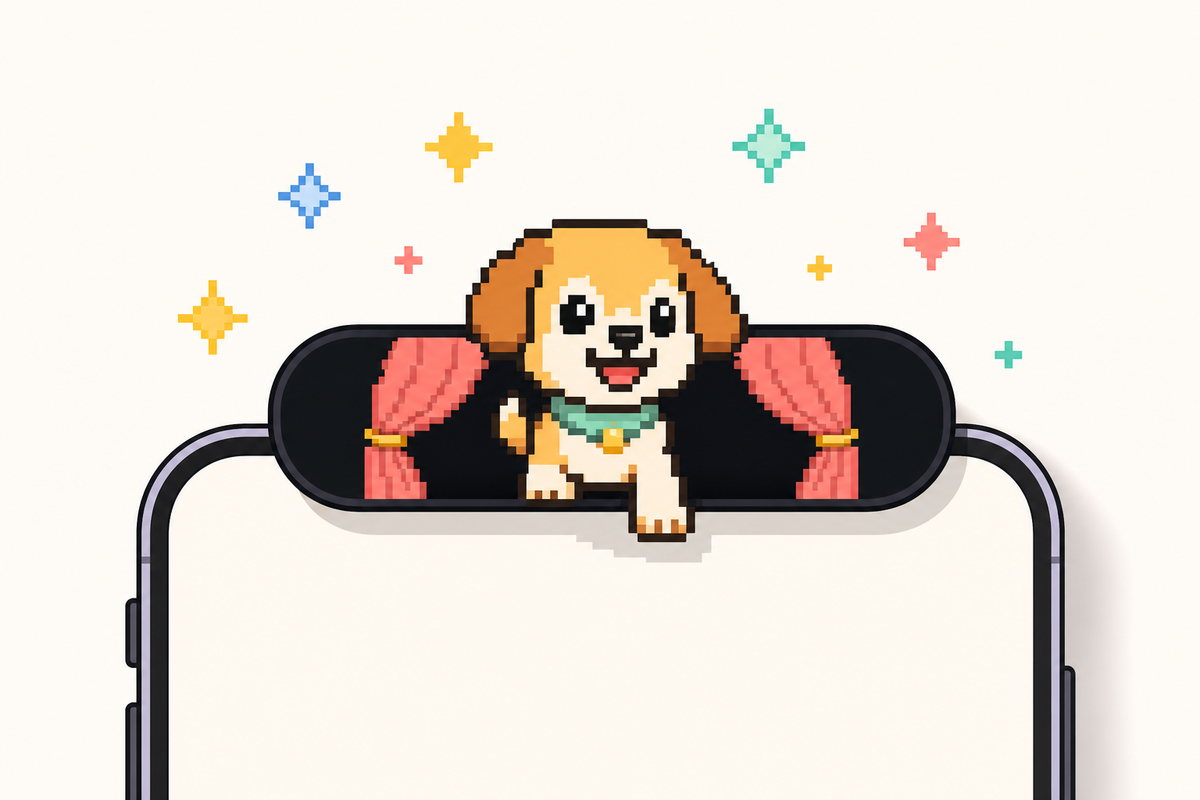
Think of your phone’s status bar as a miniature Tamagotchi. Dynamic island pets are the small, cute animated creatures, often cats, dogs, or stranger things like axolotls, that live in your iPhone’s Dynamic Island cut-out and follow you all around the phone, no matter what app you’re in. You get a Dynamic Island pet via a third-party app, not a system toggle, and it takes a couple of minutes to set up.

Quick Specs

Setup time Under 2 minutes
Compatible iPhones 14 Pro / 14 Pro Max and every non-notch iPhone since (15, 16, 17, Air) — the plain iPhone 16e is the one recent exception
Cost Free tier available on every app in this guide
How it disappears Apple caps it at 8 hours, but three other things can end it sooner — see below

What Is a Dynamic Island Pet, Exactly?
What Is a Dynamic Island Pet, Exactly? — iScreen

A dynamic island pet, sometimes called a virtual pet, or just a way to add a digital pet to your iPhone’s home screen and lock screen, is a small animated character that a third-party app places inside your iPhone’s Dynamic Island using Apple’s Live Activities API, not a feature Apple built or ships itself. The idea started as an accident of sorts: iOS developer Christian Selig, best known for the Reddit client Apollo, added a pixel-art cat to the Apollo app as a small Dynamic Island Easter egg on September 16, 2022, the same week the iPhone 14 Pro’s Dynamic Island itself launched. About a month later he spun it into its own free-standing app, Pixel Pals (originally listed as “Dynamic Zoo”), so anyone could download Pixel Pals and keep an adorable pet in their Dynamic Island without needing Apollo at all. Apollo itself shut down in 2023 after Reddit’s API pricing changes, but Pixel Pals kept going as its own product.

Let’s set the record straight: this origin story dates to late 2022, not 2025. This trend, however, has shown staying power – Pixel Pals continued to receive iOS 26 compatibility updates in November 2025 and was even highlighted as an “App of the Month” by a tech site in April 2025 – but the concept of the critter, the API it runs on, and its originator all trace back to the inaugural week of the Dynamic Island. Like many iPhone hacks today, many discover dynamic island pets customization through TikTok videos rather than technology websites; one reviewer mentioned downloading a clone after encountering the “most viral” one on TikTok.

Which iPhones Support Dynamic Island Pets?
Which iPhones Support Dynamic Island Pets? — iScreen

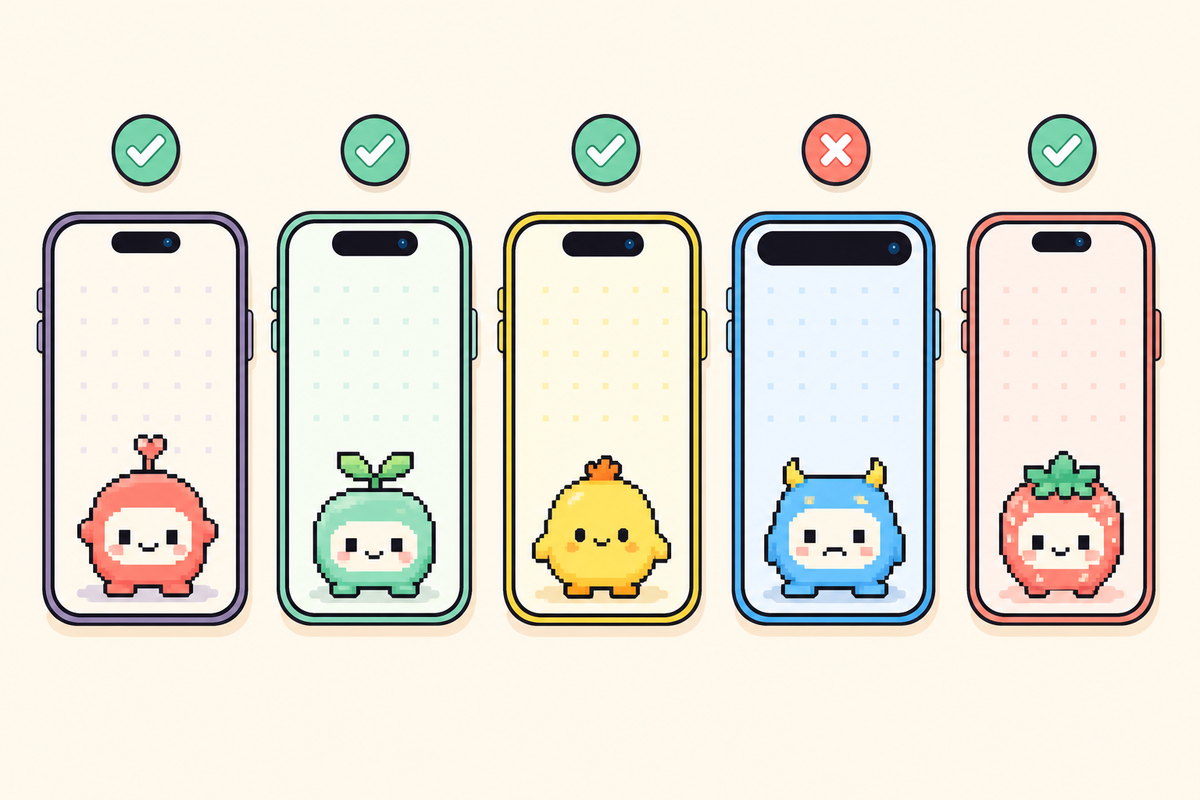
To add a pet to your Dynamic Island using any app listed here, you need two things: the iPhone’s physical Dynamic Island cut-out and iOS 16.1 or later, which is the version of the operating system that granted third-party developers access to the Live Activities API on October 24, 2022. One note: all iPhones that have been released since the 14 Pro come equipped with this cut-out, but double-check before downloading any app.

Which iPhones have a Dynamic Island — confirmed against Apple’s own current model list, July 2026
Lineup Dynamic Island? Year
iPhone 14, 14 Plus No — notch 2022
iPhone 14 Pro, 14 Pro Max Yes — the original 2022
iPhone 15, 15 Plus, 15 Pro, 15 Pro Max Yes — all four models 2023
iPhone 16, 16 Plus, 16 Pro, 16 Pro Max Yes — all four models 2024
iPhone 16e No — kept the notch 2025
iPhone 17, 17 Pro, 17 Pro Max, iPhone Air Yes — all models 2025

Source: Apple’s Dynamic Island models guide and Apple’s live iPhone comparison tool.

On a base iPhone 14 or an iPhone 16e, none of the apps listed below will completely fail (many install and run just fine), but only the pet will be visible as a Lock Screen widget; you won’t see it appear inside the Dynamic Island because the necessary cutout just doesn’t exist there.

How to Add a Pet to Your Dynamic Island (Step by Step)
How to Add a Pet to Your Dynamic Island (Step by Step) — iScreen

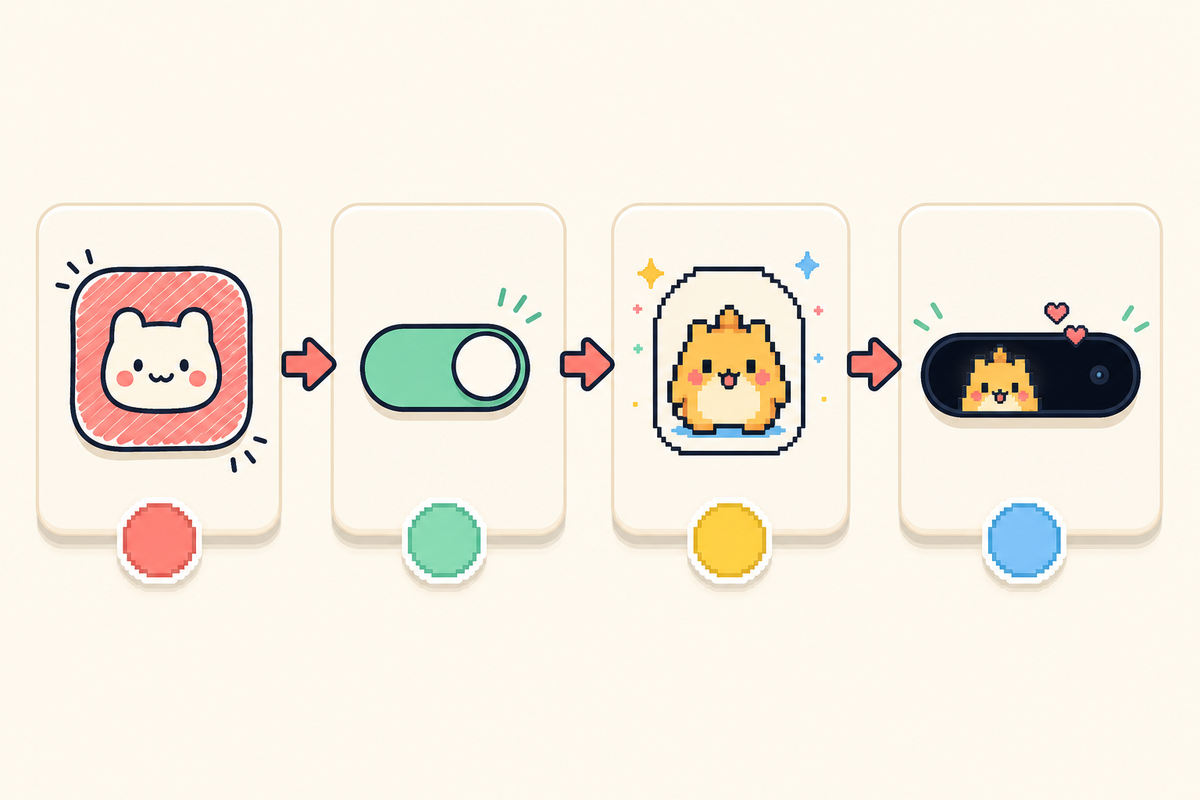
The underlying mechanisms for each of these apps are surprisingly similar, and they all run on the same Apple API. Here’s the basic process, using the terms each app is inclined to use for the same settings:

Setup Steps

  1. Install the app of your choice (Pixel Pals, Pixel Pets, or iScreen’s Pet Island – more on them below), and launch it.
  2. Select a starting pet. You get at least one option in each of the apps featured in this roundup without paying anything.
  3. In the app settings, turn on the “always show” option (Pixel Pals has a setting labeled “Always Show Pixel Pal”).
  4. Allow the app permission to use Live Activity when iOS prompts you — this is the key step that actually makes the pet system-wide.
  5. Return to your home screen. You should see the pet appear in the Dynamic Island, which will appear slightly larger when it’s active.

Per a Digital Trends hands-on walkthrough of this exact setup flow, once the pet is active, its functionality in the Dynamic Island is somewhat limited by the Apple API rather than the app itself. Tapping the Dynamic Island with the pet will open the full app, and touch-and-hold expands the activity view to display the pet’s name and feeding/playing shortcuts — you can’t feed or play with your pet directly within the Island without that expansion action.

Pixel Pals vs Pixel Pets vs iScreen: Which App Should You Use?
Pixel Pals vs Pixel Pets vs iScreen: Which App Should You Use? — iScreen

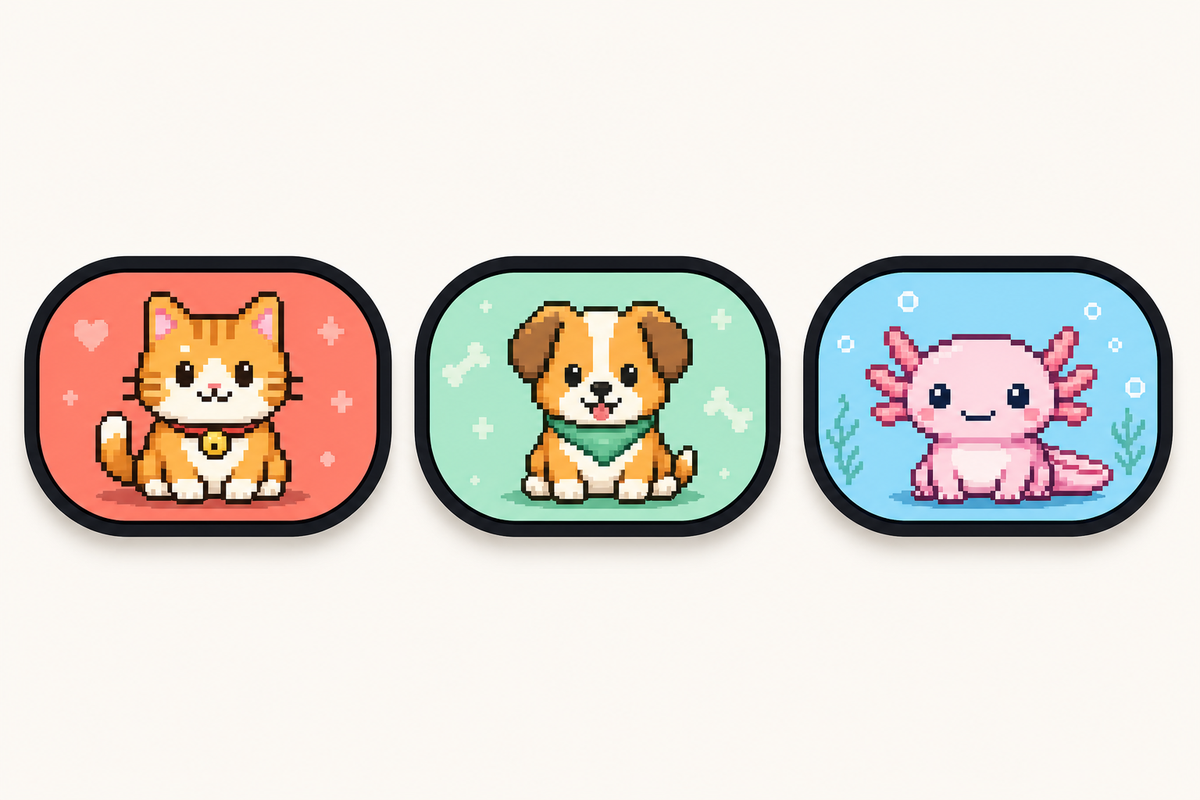
There are three major apps that serve the bulk of demand in this space, and they aren’t interchangeable. Worth being aware of, too, is a wider range of less-reputable options: the app-directory site AppsHunter currently has more than 217 apps listed under the “Pixel Pals” category, and some have been called out in the App Store as being blatant plagiarism or outright scams, with users complaining the promised pets never appeared. One Redditor, in an Apollo/Pixel Pals community discussion, pointed out one cloned app for “stealing the damn names of some of the animals” and charging about $10 for the privilege. Given the potential for scams, it’s wise to stick with a developer you already know or an app you use for other functions.

Dynamic island pet apps compared: Pixel Pals charges a subscription, Pixel Pets is one-time, iScreen bundles the feature into a broader customization app
App Free tier Premium price Beyond pets
Pixel Pals 2 pets (Hugo the cat, Rupert the dog) $1.99/mo or $14.99/yr — unlocks 16 more pets, including Chortley the hedgehog, + 2 pets at once Nothing — single-purpose pet app
Pixel Pets 8 pets included $9.99 one-time lifetime unlock (or $4.99/mo) Nothing — single-purpose pet app
iScreen (Pet Island) Included as one of iScreen’s Dynamic Island modes Varies by iScreen subscription tier 9 more Island modes, plus wallpapers/icons/widgets in the same app

Prices and ratings as of July 2026, live checked from the App Store.

Pixel Pals’ Full Pet Roster, by Type

Want to know what you’re actually getting for $14.99 per year? Pixel Pals’ listing on the App Store names every single one of the pets, including their respective animal types:

Pixel Pals’ 10+ named pets by type — 2 free, the rest behind the $14.99/year premium tier
Type Pet Name Tier
Dog Rupert Free
Cat Hugo Free
Hedgehog Chortley Premium
Fox Finnegan Premium
Axolotl Mochi Premium
Otter Nugget Premium
Bat Fu-Fu Premium
Parrot Kiwi Premium
Tiger Herbert Premium
9 more types Including Platypus, Panda, Raccoon, Butterfly, T-Rex, Bunny, Red Panda, Pet Rock, and Penguin — 18 pets total Premium

The only decision worth highlighting here is the single-purpose tax: if you solely want to customize your Dynamic Island with a pet and nothing else, an app like Pixel Pals or Pixel Pets is the more minimalist route. If, however, you’re already using an app to manage wallpapers, icons, or widgets, adding yet another single-purpose app for pets would be an extra subscription, an extra icon and yet another competing feature all crammed into the same area — a combined app, then, is much more integrated into existing infrastructure you’re already paying for or already have installed. iScreen’s own app on the Apple App Store is substantially more popular than the other standalone options — 144,000 reviews and ranked #12 in Graphics & Design vs 36,000 reviews and ranked #128 for Pixel Pals — although to be clear, this includes ratings from users who interact with other features like wallpapers, icons, and widgets in iScreen, and isn’t a pet-specific popularity measurement since the app combines many more features with a pet element.

Why Your Dynamic Island Pet Disappears (The Live Activity Timeout)
Why Your Dynamic Island Pet Disappears (The Live Activity Timeout) — iScreen

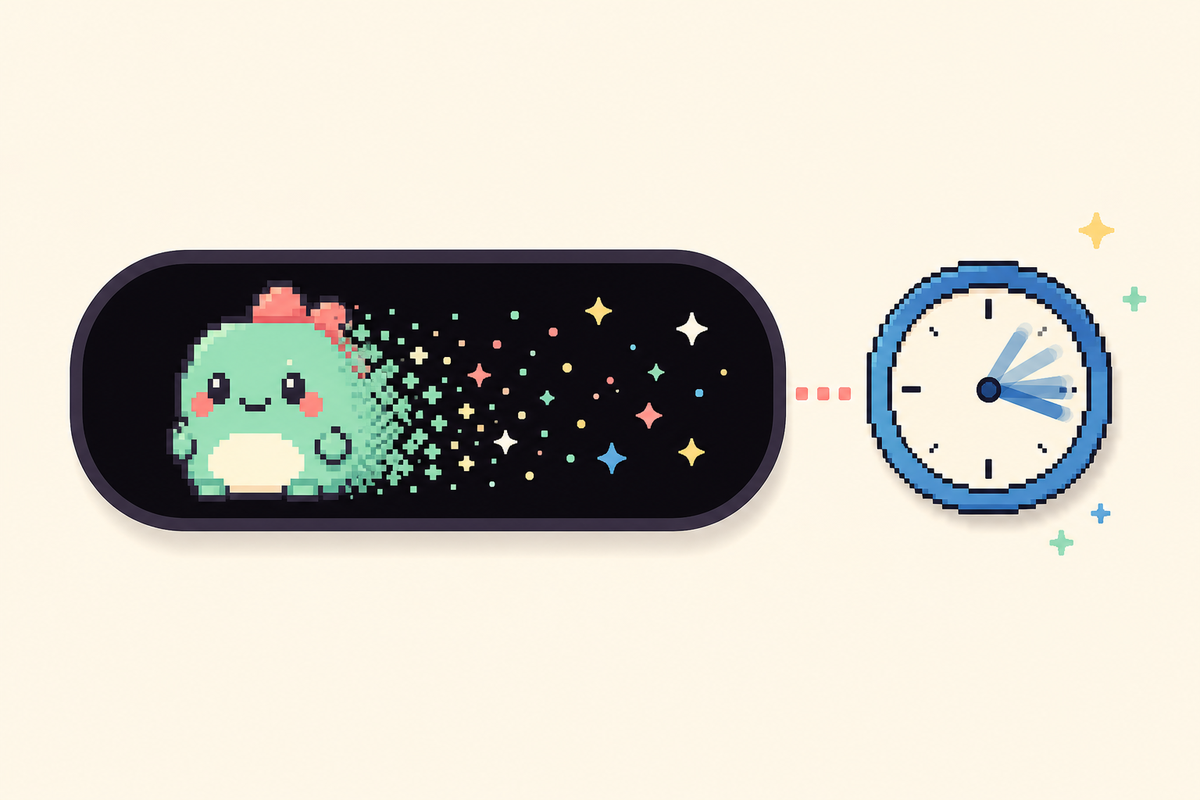
Any Live Activity – a pet included – is automatically limited to 8 hours in the Dynamic Island. Once 8 hours pass, the activity is automatically stopped by iOS and immediately cleared from the island, though it will continue to live on your Lock Screen for up to 4 hours more, 12 hours total, before it’s finally removed. Apple’s own developer forum includes a confirmation from an Apple engineer that the Dynamic Island explicitly removes the activity at that 8-hour mark, independently of the longer Lock Screen period.

“The Dynamic Island is cleared as soon as the activity ends after a maximum of 8 hours.”

— Argun Tekant, DTS Engineer, Core Technologies, Apple, on Apple’s Developer Forums

We’ll call it the Live Activity expiration wall because eight hours is only one of three different reasons your pet might mysteriously disappear from view.

The 3-Cause Disappearing-Pet Framework

  1. The 8-hour system cap. The hard ceiling discussed previously; no changes to settings will affect this.
  2. The app-level toggle for Live Activities has been turned off. If you disabled Live Activities from Settings or toggled “Don’t Allow” when the initial prompt came up, the pet won’t be able to start back up on its own.
  3. A higher-relevance activity bumped it. Apple’s ActivityKit lets an app assign a relevanceScore to each Live Activity, and that score, not just arrival order, decides which one actually shows in the Dynamic Island when more than one is active. An incoming call, a running timer, or turn-by-turn navigation can all outrank a pet for that real estate, independent of the 8-hour clock.

A fourth and altogether different problem sits outside this framework entirely: a bug, rather than a documented Apple behavior, that’s been widely reported across app reviews. One Pixel Pals user described it starkly: a dead battery or device reboot completely wipes the pet’s entire history — food harvested, forms unlocked, even its name — with no possibility of recovery, a problem reported since 2023 with no fix mentioned in any changelog since. That’s data loss, not a Dynamic Island timeout, and the practical takeaway is the same either way: don’t get attached to your pet’s progress if your phone’s battery habitually dies.

Free vs Premium Dynamic Island Pets: Is It Worth Paying?
Free vs Premium Dynamic Island Pets: Is It Worth Paying? — iScreen

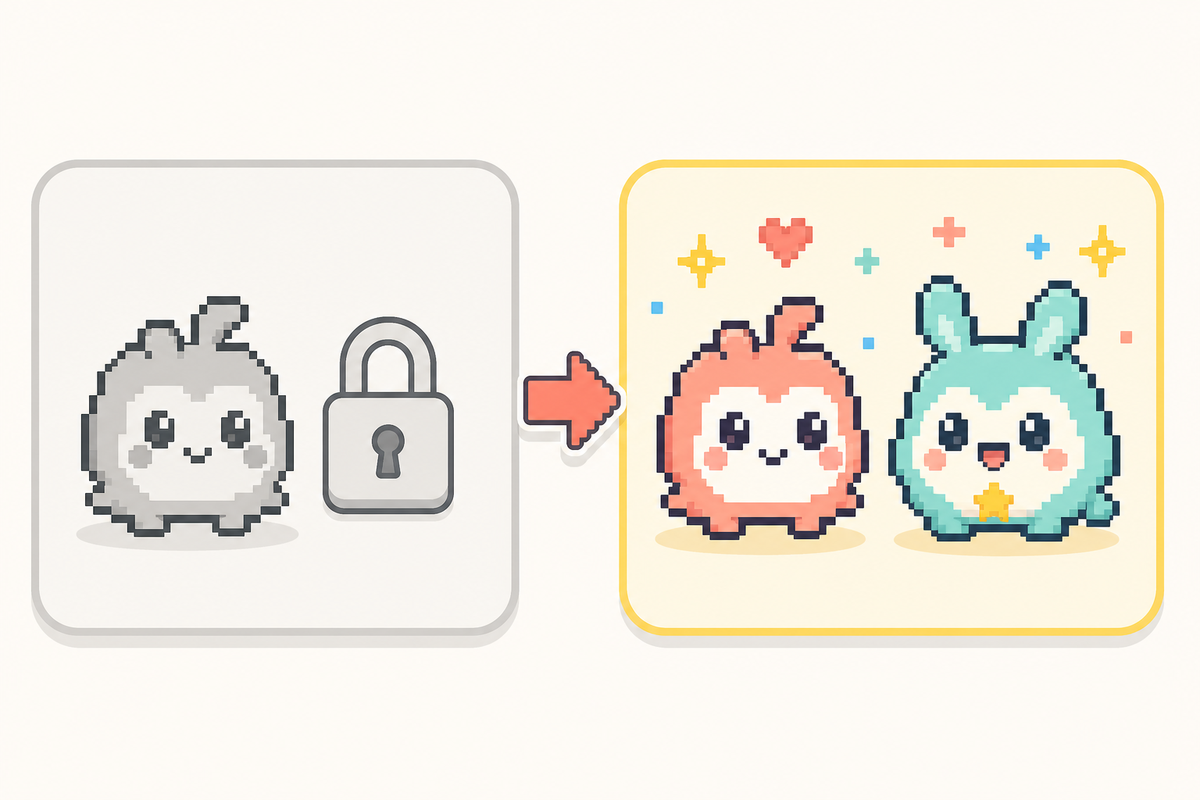
Across all apps, you’ll get a single, or a couple of initial pets on the free tier. Premium unlocks the full roster.

When Premium Is Actually Worth It

  1. You want more than two pet options. All the apps’ paid tiers allow you to unlock most of the available animals in a single purchase.
  2. You want the second-pet premium. Specifically, only Pixel Pals’ premium plan allows you to show more than one pet on the Dynamic Island simultaneously, with no alternative way to enable it in the app.
  3. You’d rather buy it once than subscribe monthly. Both Pixel Pets ($9.99) and Pixel Pals ($49.99) offer a one-time lifetime unlock instead of a recurring subscription.

That last part isn’t a blind guess either. Searching on Reddit for “free or lifetime purchase, no subscription please” received 198 upvotes on a thread about the latest apps featuring dynamic island pets – clear evidence that subscription exhaustion isn’t just a general Reddit problem but is prevalent within this precise buyer demographic. It also lines up with how The Verge tracked Pixel Pals’ own pricing history: it has only gone up over time, not down. If that’s your sole criterion in choosing between Pixel Pals’ $1.99 monthly subscription and Pixel Pets’ $9.99 one-time purchase, you’re looking at the more casual option.

Beyond Pets: What Else You Can Put in Your Dynamic Island
Beyond Pets: What Else You Can Put in Your Dynamic Island — iScreen

But if your query of “most-searched for use of Dynamic Island” yielded pets, be aware it’s only one corner. Beyond the native side of the Dynamic Island as outlined in Apple’s own user guide, including recording a voice memo, sending a file over AirDrop, or receiving navigation instructions from Apple Maps, there are numerous third-party apps, such as Uber, Flighty and Carrot Weather, that use the same Live Activities API to display ongoing information for the ride you’re taking, flight status, or incoming weather conditions.

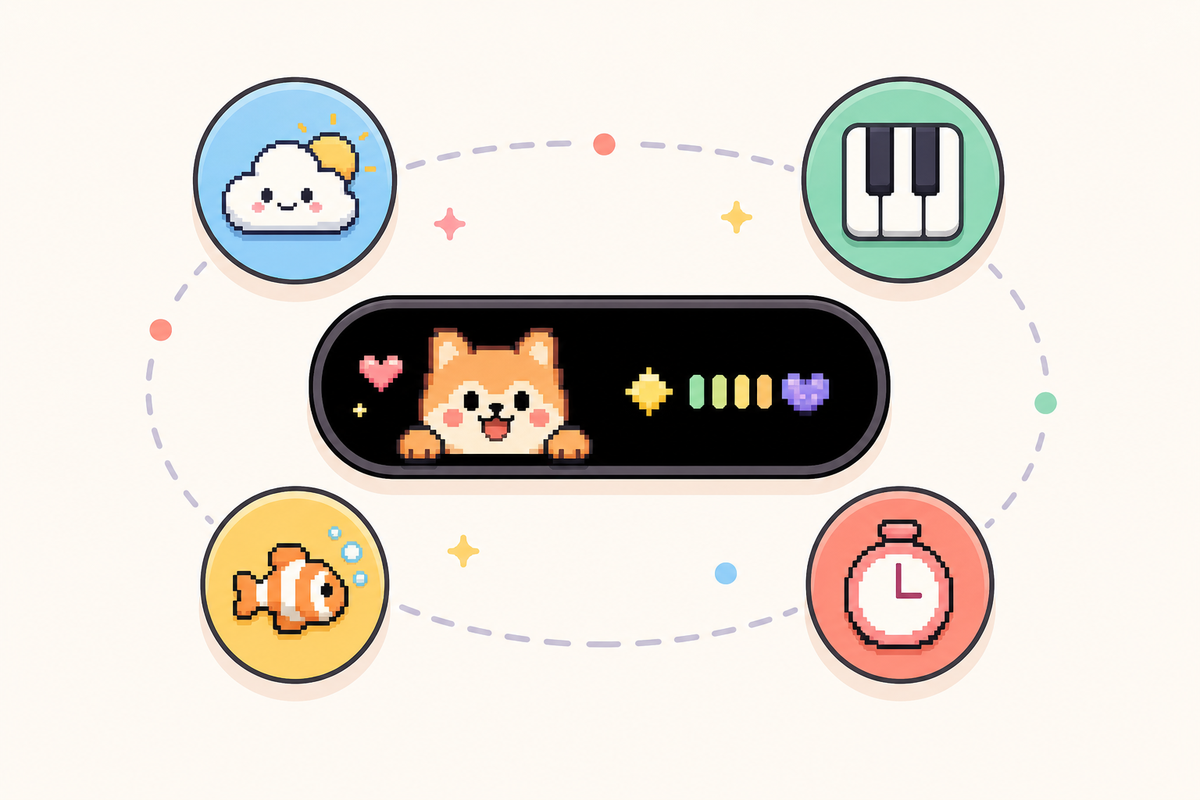
Say you tried a pet app, decided the novelty wore off after a week, and deleted it — that’s a common enough pattern, and a lot of people regret stopping there, because it doesn’t mean the Dynamic Island itself was a disappointment. Per Apple’s official developer documentation, the Dynamic Island and Lock Screen widgets share the same underlying Live Activities framework, so the same real estate that showed your pet can just as easily show something you’ll actually use daily. As far as personalization options go, iScreen’s own Dynamic Island page outlines ten “Island” modes beyond Pet Island — Aquarium, Piano, Photo, DIY, Weather, Barrage, Countdown, Illustration, and Panel — plus 100+ Dynamic Island styles and matching home screen and lock screen wallpapers overall, so a pet was never the only reason to install iScreen in the first place. Weather Island keeps a live, glanceable forecast in view without opening a separate weather app; Countdown Island turns the same cutout into a running clock for an event you’re tracking, the same way a $40/year weather subscription app would, minus the subscription. If the pet gimmick was the entry point but ongoing utility is what actually keeps an app installed on your phone, that’s the practical case for exploring iScreen’s broader home screen and lock screen feature set on the same page before writing off the Dynamic Island as a novelty you’ve already tried and outgrown.

Frequently Asked Questions

Q: How to get pets on Dynamic Island?

Download a dynamic island pet app — Pixel Pals, Pixel Pets, or iScreen’s Pet Island — pick a starter pet, then turn on the app’s “always show” or Live Activity toggle so it stays visible system-wide.
Installing from the App Store will only display the pet inside the app; you won’t see it on your Dynamic Island until you toggle the app’s persistent-display setting (Pixel Pals calls it “Always Show Pixel Pal”) and acknowledge the Live Activity permission prompt that iOS will offer immediately after. Failure to do so – and not a corrupted installation – is the primary reason that “nothing happened” after installing one of these. Swipe home and the pet should now be loitering at the top of your screen.

Q: What cool things can the Dynamic Island do?

Beyond pets, the Dynamic Island tracks Voice Memo recordings, AirDrop transfers, and Maps directions natively, plus third-party Live Activities from apps like Uber, Flighty, and Carrot Weather, and ten separate customization modes inside iScreen alone.
It’s an all-purpose Live Activities surface, not a pets-specific thing – the way Apple’s own design docs frame the concept is all about glanceable real-time info – like tracking a food order or sports score, and pets are a cool third-party spin on that same API rather than something that was actually built by or officially blessed by Apple. That’s important to understand going in because that means you’re at the mercy of the app’s developer to provide it to you, not Apple.

Q: How to get a pet on your iPhone screen?

If your iPhone doesn’t have a Dynamic Island (base 14, 16e, or older), the same apps still work as a Lock Screen widget — long-press the Lock Screen, tap Customize, add the app’s widget, and pick your pet.
You sacrifice that global, on-screen presence of a proper Dynamic Island, but the pet still updates as normal in the background, present and visible on your Lock Screen just like any other widget. Setup is just about the same, too. Long-press an empty space, tap ‘Customize’, tap the widget slot, select the app, select a large or small size and tap ‘Add’.

The free version of the pet is often the default. After adding it, just tap the widget itself if you’ve unlocked others to switch between them.

Q: How do you unlock pets?

Every app’s premium tier unlocks its full pet roster in one purchase — Pixel Pals at $1.99/month or $49.99 lifetime, Pixel Pets at a single $9.99 payment.
Free tier uses the same one or two starter pets for everybody. In this class, you never have to do any grind or complete any achievements inside the game in order to unlock more.

Q: Does a dynamic island pet drain your battery?

There’s no official measured battery figure from Apple or any developer, and real user reports range from unnoticeable to mildly noticeable.
It’s “a little more of a drain than other stuff in some cases, but still pretty good overall,” said one real user. Consider it small and not excessive and don’t put stock in any blog (even this one!) claiming a precise percentage if it doesn’t cite its source because that data just doesn’t exist.

Our Perspective

While we build our own Dynamic Island features at iScreen, including Pet Island, so we obviously have a horse in this race, the history, compatibility list and vanishing pets described here rely on Apple’s own developer guidelines and independent App Store research, not our own marketing. If any of our initial attempts at a claim stretched too far — like saying an entire app rating represented the performance of a specific feature — we made sure to pull it back. We also checked how AI assistants currently answer this topic: across 6 buyer-style questions we ran through ChatGPT and Perplexity, 0 responses cited a single dedicated guide to dynamic island pets, only App Store listings and a scatter of near-identical clone apps — which is a decent proxy for just how underserved this specific question still is.

Reviewed by the iScreen technical team.

最新文章

4K iPhone Wallpaper: What Resolution You Need and Where Detail Matters

4K iPhone Wallpaper: What Resolution You Need and Where Detail Matters

2026/8/24 15:59
Updated August 2026 · Checked against current iOS 26 guidance iPhone wallpaper 4K refers to a wallpaper source labeled 4K, not one universal iPhone display grid. It tells you the source file may contain plenty of pixels, but it doesn’t promise that the image will look sharp after a portrait crop, survive repeated exports, or leave the clock and icons readable. The dependable choice is a clean original that still has enough real pixels after cropping, plus a final check on your own Lock Screen and Home Screen. Quick Verdict: What Should You Download? Source type Likely result Best next move Original portrait photo Best starting point Keep extra room around the subject Original landscape UHD 4K photo Can work, but crop loss may be large Run the Pixel Sufficiency Check Original digital art Usually clean if exported once Use a portrait canvas and protect quiet zones Upscaled small image Large dimensions, limited real detail Find the original instead of enlarging again Social-media save May contain resize or compression damage Download from the creator or source page Messaging-app export Quality depends on the send mode Transfer as a file or use the original link Screenshot Already limited to the captured screen Avoid unless no original exists Minimal gradient Forgiving of modest detail Check banding and icon contrast Live or depth-effect design Static resolution is only one requirement Use the format-specific guide and preview If you want to browse and download a style first, use iScreen’s wallpaper collection. Return to this guide when you need to decide between two files, fix a blurry result, or plan a crop around the interface. Does an iPhone Actually Display Wallpaper in 4K? Not in the simple way the filename suggests. In this guide, UHD 4K means a landscape raster of 3840 × 2160 pixels. Other professional “4K” conventions exist, so the label isn’t one universal grid. More importantly, an iPhone uses its own display resolution and a tall portrait shape. The phone shows a crop of the source, not a miniature certificate proving that every one of those 8.3 million source pixels survived. The International Telecommunication Union’s consumer UHD reference supplies the 3840 × 2160 definition. Apple lists the iPhone 17 display at 2622 × 1206 pixels and 460 pixels per inch. Those numbers describe two different things: a landscape source convention and a device display. They’re useful inputs, not a universal wallpaper prescription. According to those source dimensions, an iPhone wallpaper resolution check prevents a common failure: choosing a landscape file by its headline label while ignoring the pixels left after the portrait crop. Even a portrait source that’s only moderately larger than your screen can beat a landscape file with a bigger headline number. It wastes fewer pixels outside the final crop. Carefully made minimal backgrounds may also look cleaner than detailed 4K images that have been enlarged, sharpened, and exported several times. Treat “4K” as a useful source-size clue. Treat the final portrait crop as the actual file you are asking the phone to display. The Pixel Sufficiency Check The Pixel Sufficiency Check is a three-step editorial test. First, note the source width and height. Second, estimate the portrait crop you’ll keep. Third, compare the retained width and height with your iPhone display. It isn’t an Apple certification and it can’t measure artistic quality. It simply prevents the uncropped dimensions from hiding a severe crop loss. Record the original. Use the true downloaded file, not the dimensions written in a post caption. Sketch the intended portrait crop. Keep the focal subject and enough breathing room for interface elements. Compare both retained dimensions. If either side falls below the target display, expect less freedom to zoom or reposition. Then verify on the phone. Worked example. Start with a 3840 × 2160 landscape UHD source. To match the tall shape of an iPhone 17 while keeping all 2160 source pixels of height, the crop retains about 994 pixels of width: 2160 × 1206 ÷ 2622 ≈ 994. The resulting 994 × 2160 crop is below the phone’s 1206 × 2622 display grid in both dimensions. That doesn’t guarantee visible blur, but it proves the original 4K label didn’t survive the portrait crop intact. Worked-example audit trail Source width: 3,840 pixels Source height: 2,160 pixels Target width: 1,206 pixels Target height: 2,622 pixels Display density: 460 pixels per inch Retained width: about 994 pixels Retained height: 2,160 pixels Width shortfall: about 212 pixels Height shortfall: 462 pixels Retained source width: about 25.9% Retained crop area: about 2.15 megapixels Target display area: about 3.16 megapixels What the same crop means in percentage terms (rounded to 0.1%) Checkpoint Result Original width retained 25.9% Original width removed 74.1% Original height retained 100% Original pixel area retained 25.9% Target width covered 82.4% Target height covered 82.4% Target pixel area covered 67.9% Target width deficit 17.6% Target height deficit 17.6% Nine outcomes from the Pixel Sufficiency Check Check result What it means Action Both sides well above target Good crop flexibility Reframe gently; still inspect real detail Width just above target Limited horizontal movement Avoid extra zoom Height just above target Limited vertical movement Place the subject before adding overlays Width below target Potential softness after scaling Find a wider or portrait original Height below target Potential softness and no zoom margin Use a taller source Both sides below target File relies on enlargement Replace it rather than sharpen harder Dimensions pass, edges look smeared Pixel count hides weak provenance Locate the original export Dimensions pass, blocks or halos appear Compression or oversharpening damage Use a cleaner export Everything passes on paper Still not a rendering guarantee Complete the actual phone preview Crop estimates are most useful when choosing between files. They do not replace your eyes. Viewing distance, system rendering, antialiasing, and the image’s processing history can change the final impression even when the retained grid looks adequate. Why a 4K Wallpaper Can Still Look Blurry Dimensions describe the container, not the history of the picture inside it. A small image can be enlarged to 3840 pixels wide without gaining new leaf texture, hair detail, or clean type edges. A screenshot starts with the limits of the screen it captured. A file sent through social or messaging services may be resized or encoded again. Aggressive sharpening can create bright halos that look crisp in a thumbnail and brittle on the phone. The Library of Congress describes JPEG lossy compression as variable and notes that typical settings may reduce file size by roughly 10:1 to 20:1. That range concerns file-size reduction; it isn’t a threshold for acceptable wallpaper quality. Visible damage depends on the encoder, settings, content, and prior exports. Nine blur and quality symptoms, checked in a useful order Symptom Likely cause First repair Fine detail is smooth everywhere Upscaled or blurred original Find the source capture Block patterns around gradients Heavy JPEG compression Use a cleaner export Bright outlines around edges Oversharpening Return to an unsharpened original Image looks fine until portrait crop Too few retained pixels Choose a portrait source Only the top appears extended or soft Crop/interface behavior Reposition or use a taller composition Text in the art looks fuzzy Raster type or repeated export Re-export from the design file One copy is worse than another Different transfer path Compare file size and dimensions Lock Screen is fine, Home Screen is muddy Separate appearance or blur treatment Customize the Home Screen separately Only close inspection reveals softness Normal display/perception limit Judge at normal viewing distance Diagnose in this order: original file, retained crop, processing or transfer path, and final device preview. That sequence avoids wasting time on repeated sharpening when the real problem is a screenshot or narrow crop. The Crop-Safe 3-Zone Map The Crop-Safe 3-Zone Map is a composition checklist, not a set of fixed pixel bands. Current iPhone layouts can change with widgets, controls, notifications, wallpaper mode, clock treatment, and the position you choose. Use the zones to ask where visual pressure will occur, then test the exact configuration on your device. Top pressure area, clock and date. Keep faces, type, horizon lines, and high-contrast detail away from the clock’s likely footprint. If the clock adapts or moves, recheck rather than treating the first preview as permanent. Middle focal area, subject and depth. Protect the main face, object, or abstract focal point. Leave enough room to drag the image without cutting through the subject when the crop changes. Bottom pressure area, notifications, controls, icons, and widgets. Avoid small text and essential detail here. A quieter Home Screen version often works better behind app icons. Apple’s current iOS 26 Lock Screen guide documents pinch-to-zoom and two-finger drag for photo positioning, alongside configurable clocks, widgets, notifications, and eligible depth or spatial effects. That flexibility is why the map uses pressure areas. The cited Apple guide doesn’t provide one fixed “safe-zone” template for every user layout. Three practical scenarios show how to apply it: Portrait photo: keep the eyes and face in the middle, with clean space above the hair and below the shoulders. Mountain or city scene: place the horizon away from the clock and keep the brightest lights out from behind Home Screen icons. Minimal gradient: use a smooth tonal field at the top and bottom; inspect for banding before you save. For a composition that interacts with the system’s subject treatment, see iScreen’s depth-effect wallpaper guide. If your design needs motion rather than a static crop, the live wallpaper guide covers that separate format. When Extra Resolution Helps, and When It Does Not Extra source pixels help when they’re genuine. They provide room to reframe a landscape photograph, reuse an original across different models, make a moderate zoom, or preserve fine lines in original artwork. They’re most valuable before you make the final portrait crop. They don’t reverse damage already in the picture. An 8K export of a soft 900-pixel social save still contains the same weak evidence, only distributed across more pixels. The same applies to motion blur, missed focus, repeated JPEG encoding, sharpening halos, or a subject placed where the clock must go. Use more resolution when… the original camera or design file contains real fine detail; you need significant portrait reframing; one source must support several display shapes; you want modest zoom freedom without immediate enlargement. Do not expect it to fix… blur in the capture; a screenshot or tiny download; compression blocks or color banding; a composition that fights the clock, icons, or widgets. A dark background can improve the appearance of bright text and icons in some layouts, but this article doesn’t treat wallpaper color as a battery-saving guarantee. Choose dark, light, abstract, nature, or minimal art for readability and style; verify power claims separately for the exact device and display behavior. The 100% Preview Test Before You Save The 100% Preview Test has two distinct stages. On a computer or image viewer, 100% means one image pixel is shown as one preview pixel. Use that view to find baked-in defects: smeared texture, block boundaries, banding, jagged type, or sharpening halos. Return to 100% before judging those baked-in defects. Don’t treat it as a simulation of how the wallpaper will look on an iPhone. The decisive stage happens on the phone. Set the candidate, look at the Lock Screen from a normal distance, unlock to the Home Screen, and check the exact arrangement of icons and widgets. If the Home Screen is too busy, use a separate treatment instead of forcing one image to do two jobs. Inspect genuine fine edges at 100% file view. Reject obvious capture blur, export blocks, banding, or halos. Apply the intended portrait crop without unnecessary zoom. Preview the Lock Screen with your clock and widgets. Preview the Home Screen with the real icon pages you use. Fix in order: stronger original → safer crop → less zoom → quieter overlays → separate Home Screen. This order matters. Repeated resizing and sharpening can make a problem harder to diagnose. When a cleaner original fixes the result, stop there. When the source is clean but the focal point is covered, change the composition rather than the pixel count. How to Set a 4K Wallpaper on iPhone As checked in Apple’s iPhone User Guide for iOS 26 in August 2026, open Settings → Wallpaper → Add New Wallpaper. Choose the photo, position it, and review the available appearance controls. You can then choose Set as Wallpaper Pair or Customize Home Screen. Download the original image rather than a screenshot of the gallery. Open Settings and select Wallpaper. Choose Add New Wallpaper and select the photo. Pinch to zoom only as much as the composition requires, then drag to position. Check the clock, widgets, subject, and lower interface area. Set a pair, or customize the Home Screen with a separate photo, color, or blur treatment. Complete the 100% Preview Test on both final surfaces. Interface labels and effects can change in later iOS releases, so use Apple’s current guide when your screen differs. For a broader walkthrough, open iScreen’s iPhone customization guide. For visual inspiration after the technical check, compare an aesthetic wallpaper layout or a more detailed cyberpunk wallpaper composition. Frequently Asked Questions Is 4K good for iPhone wallpaper? Yes, when the source is clean and the portrait crop retains enough real detail. A genuine 4K source also gives you more room to reframe landscape photography or make a modest zoom. The label alone isn’t a sharpness guarantee, so compare the retained crop with your display and confirm the result on the phone. What resolution should an iPhone wallpaper be? Use a source that meets or exceeds your iPhone display dimensions after the intended crop. There’s no one pixel size for every model because both resolution and shape vary. A portrait image with breathing room around the subject is often easier to position than a tightly framed landscape image with a larger uncropped resolution. If two files pass the pixel check, choose the cleaner original and the composition that needs less zoom. The iPhone 17 display is 1206 px wide. Why does my 4K wallpaper look blurry on iPhone? The file may be upscaled, out of focus, repeatedly compressed, or cropped too narrowly. A large filename cannot restore detail lost in a screenshot or an earlier export. Start with the original, estimate the pixels left after the portrait crop, reduce unnecessary zoom, and inspect the actual Lock Screen and Home Screen. Is 8K better than 4K for iPhone wallpaper? Only when the extra pixels contain genuine detail or give you useful crop freedom. An 8K filename can’t restore texture removed before export, repair missed focus, or undo repeated compression. Compare the originals at 100% file view, estimate the same portrait crop for both, and then preview each candidate on the device. When both exceed the retained pixels you need, prefer the cleaner composition instead of the larger number. That extra room matters most before a portrait crop or zoom. Can I use different wallpapers for the Lock Screen and Home Screen? Yes. Apple guidance supports a wallpaper pair or a separately customized Home Screen. Use a quieter second treatment on the Home Screen to keep app icons readable. Preview both surfaces because the clock, widgets, and icon overlays create different readability pressures. Where can I download free 4K iPhone wallpapers? Browse iScreen’s current collection for available wallpaper options. Before saving, open the original item rather than taking a screenshot; check the displayed dimensions, format, source quality, and any reuse terms shown with it. After download, run the crop and preview checks in this article. The collection page remains the place to browse styles, while this technical guide helps you reject a weak file before it becomes your background. Use the collection page to compare styles and available formats. Choose the File, Then Prove the Crop A reliable 4K wallpaper decision comes down to three questions: Are enough genuine pixels left after the portrait crop? Is the source free from baked-in blur and export damage? Do the clock, subject, notifications, icons, and widgets remain readable on the final device? Use the Pixel Sufficiency Check to compare files, the Crop-Safe 3-Zone Map to place the composition, and the 100% Preview Test to separate source defects from phone layout issues. Then find matching Lock Screen wallpapers and apply the checks to the style you actually want. References & Sources International Telecommunication Union, Recommendation BT.2020-2 International Telecommunication Union, Report BT.2246-8 Apple, iPhone 17 Technical Specifications Apple, Change the Wallpaper on iPhone Apple, Create a Custom Lock Screen Library of Congress, JPEG Image Encoding Family
2026/8/24 15:59
How to Change Wallpaper on iPhone

How to Change Wallpaper on iPhone

2026/8/24 15:06
By the iScreen editorial team · Reviewed against Apple Support and the iOS 26 iPhone User Guide · Updated August 24, 2026 How to change wallpaper on iPhone is simple: open Settings, tap Wallpaper, tap Add New Wallpaper, choose a photo or built-in category, and tap Add. Then choose Set as Wallpaper Pair to use the selection on both screens, or Customize Home Screen to create a different Home Screen background. That’s the complete current route; the choices after Add decide whether one screen or both screens change. 6-Step Wallpaper Rule Open Settings. Tap Wallpaper. Tap Add New Wallpaper. Choose Photos, Photo Shuffle, Weather & Astronomy, Emoji, or Color. Adjust the preview, then tap Add. Choose Set as Wallpaper Pair or Customize Home Screen. Need an image first? You can browse iPhone wallpapers, save one you like, and then return to the steps above. iScreen helps with discovery; iOS performs the final system setting. Change Your iPhone Wallpaper in Six Steps There are two current entry routes. Settings is the clearest route when you’re adding something new, while the Lock Screen gallery is better for saved sets because it opens the existing wallpaper collection. Think of this as the 2-Route Wallpaper Map: Settings is a straightforward route for creating a wallpaper. The Lock Screen gallery can switch or edit saved sets and can also add a new one. Routes documented by Apple Support; route recommendation by iScreen editors. Route Best for Start point Finish Settings Adding a new photo or built-in wallpaper Settings → Wallpaper Add → Pair or Customize Home Screen Lock Screen gallery Switching or editing a saved set Wake the Lock Screen, then touch and hold Select, Customize, Add, or Done as shown The labels matter. A new-wallpaper flow uses Add. An editing flow may use Done. If a tutorial tells you to tap a button that isn’t on your screen, check which route it started from before assuming your iPhone is different. Change Wallpaper Through Settings Open the Settings app and tap Wallpaper. Tap Add New Wallpaper. Choose Photos or Photo Shuffle for your own images. You can also choose a built-in category such as Weather & Astronomy, Emoji, or Color. Reposition the photo, try available styles, and adjust the clock or widgets if needed. Tap Add. Choose Set as Wallpaper Pair, or tap Customize Home Screen for a separate background. According to Apple Support, these labels match the current Change your iPhone wallpaper instructions. The route matters because older guides may say “Choose a New Wallpaper,” “Dynamic,” or “Stills.” Those labels describe older interfaces and shouldn’t replace what your current iOS 26 screen shows. As you scroll through the current wallpaper options, you may see categories like Weather & Astronomy, Emoji, and Color. Select a wallpaper, select a photo, or select multiple photos for Photo Shuffle; then try a filter or different styles before you tap Add. This is Apple’s current customization flow, even when an older guide is titled for “iOS 16 or later.” Change Wallpaper From the Lock Screen Apple’s official support page documents this route. Wake the iPhone, touch and hold the screen, and authenticate with Face ID or your passcode if the gallery does not open. Swipe left or right through saved Lock Screens. Tap a set to switch to it, tap Customize to edit it, or use the Add button to create another one. This route is especially useful when you already have several wallpaper sets. Apple also lets you link a Lock Screen to a Focus, so changing to that saved screen can match a work, personal, or sleep setup. The control is optional; a wallpaper does not need a Focus link to work. To customize your Lock Screen, you can also tap the time to change its font, move the foreground subject within the available crop, or link a Focus. When you edit an existing set, the screen may ask you to tap Done; when you create a new one, it normally asks you to tap Add. If touch-and-hold seems to do nothing, check three things before troubleshooting the image: the Lock Screen must be awake, the press must be held rather than tapped, and authentication may still be required. Set the Same Wallpaper or Use a Separate Home Screen After you tap Add, the next choice controls the relationship between the two screens. Set as Wallpaper Pair gives the Lock Screen and Home Screen a coordinated version of the same selection. Customize Home Screen lets you choose a separate photo, color, gradient, or blur treatment. In other words, tap Set as Wallpaper Pair when you want the Home Screen and Lock Screen to stay coordinated. Choose the separate route when the iPhone’s app area needs less visual detail than the Lock Screen. Apple’s wallpaper preview lets you alter the Home Screen without replacing the Lock Screen image. Lock Screen and Home Screen Assignment Options Same image on both: fastest and visually consistent. Detailed Lock Screen + quieter Home Screen: keeps app names and icons readable. Photo Lock Screen + color or gradient Home Screen: preserves the subject without placing it behind icons. Photo Shuffle Lock Screen + stable Home Screen: adds variety without making the app area change constantly. No single pairing works for all situations. A setup succeeds when the clock, widgets, notifications, icons, and labels remain clear on the screen where they belong. Crop, Reposition, Add Widgets, and Use Photo Shuffle According to Apple’s Lock Screen guide, you can pinch and drag during preview because iOS crops the source to the current screen layout. The visible crop depends on the iPhone model, the source image’s shape, and the elements placed over it. No single pixel size guarantees the same crop across every current iPhone model, so a good source image can still need a different crop on another model. On the Lock Screen, you can adjust the clock treatment, add widgets, change controls, and try available styles. Keep the main subject away from the clock and widget area. More widgets aren’t always better if they cover the part of the photo you chose the image for. For layout, icons, and widgets beyond this wallpaper-pair decision, use the complete iPhone Home Screen customization guide. For automatic changes, choose Photo Shuffle. Apple’s current frequency choices are On Tap, On Lock, Hourly, and Daily. Pick a stable Home Screen separately if rotating photos make icons harder to read. On iPhone 12 or later with iOS 26, an eligible photo may support Spatial Scene for a 3D effect, as described in Apple’s wallpaper instructions. This isn’t guaranteed for every photo. If the option doesn’t appear, the image may not qualify even when the phone and operating system do. Live wallpapers, animation, and other dynamic wallpaper formats are separate behaviors from Photo Shuffle. This guide covers the current system wallpaper controls; it doesn’t imply that every downloaded animated image will play as a dynamic wallpaper. Find a Wallpaper Before You Change It Already have a photo? Continue with Settings or the Lock Screen gallery. Otherwise, browse 4K iPhone wallpapers and save the image you want to Photos. For style ideas before you choose, explore iPhone themes or see this visual iPhone wallpaper lookbook. Don’t confuse downloading with applying. A wallpaper app or website supplies the image; Apple’s Wallpaper controls decide the Lock Screen, Home Screen, crop, widgets, and pair. Fix Common Wallpaper Problems Problem category What to check Shortest fix Wallpaper gallery will not open Screen is awake; press is held; authentication is complete Wake the Lock Screen, touch and hold again, then authenticate Photo looks zoomed or cropped Image shape and selected crop Pinch and drag; choose an image with more space around the subject if needed Home Screen looks blurry Blur may be enabled under Customize Home Screen Open the Home Screen preview and turn Blur off Home Screen changed unexpectedly Set as Wallpaper Pair was selected Return to Wallpaper and choose Customize Home Screen Clock or icons are hard to read Bright detail sits behind interface text Reposition the photo or use a quieter Home Screen color or gradient Spatial Scene does not appear iPhone model, iOS version, and photo eligibility Use iPhone 12 or later with iOS 26 and try another eligible photo Old wallpaper seems missing It may be saved elsewhere in the Lock Screen gallery Wake, touch and hold, authenticate, then swipe through saved sets Wallpaper controls are unavailable The iPhone may be managed by work or school Ask the organization that manages the device about its restriction Wrong screen changed The pair choice or selected preview did not match the intended screen Return to Wallpaper and edit the Lock Screen or Home Screen preview directly On a work- or school-managed iPhone, unavailable Wallpaper controls can mean an administrator has restricted changes. Apple’s device-management restrictions guide documents a supervised-device control that can prevent users from modifying Lock Screen or Home Screen wallpaper. In that case, ordinary crop or restart advice won’t restore the option; contact the organization that manages the device. Deleting is also a separate task. In the saved Lock Screen gallery, Apple’s Lock Screen guide directs users to swipe up on a set and tap the Trash button. Do that only when you intend to remove the saved set, not when you merely want to switch back to another one. Final Preview Before You Finish Apple’s official customization guidance matters here because the finished screens include more than the source photo. Check clock contrast, widgets, notification previews, app labels, and whether the subject remains visible in both bright and dimmed appearances. Treat Lock Screen widgets and notifications as privacy surfaces too: a beautiful setup isn’t worth exposing information you would rather keep out of view. When the Lock Screen works but the Home Screen feels busy, keep the Lock Screen photo and change only the Home Screen to a color, gradient, or blurred version. This small split often solves readability without discarding the image. Frequently Asked Questions How do I change just my Home Screen wallpaper on iPhone? View answer Open Settings, tap Wallpaper, and select the current pair or add a new Lock Screen wallpaper. When the Home Screen preview appears, tap Customize Home Screen. Choose a separate photo, color, gradient, or blur setting. This changes the Home Screen treatment without requiring you to replace the Lock Screen image you want to keep. Before you finish, check the result behind your app icons and labels. A detailed photo that looks excellent on the Lock Screen may need a calmer crop, color, or gradient on the Home Screen. How do I switch back to an old wallpaper? View answer Wake the Lock Screen, touch and hold it, and authenticate if requested. Swipe left or right through your saved Lock Screens, then tap the one you want to use. If the old wallpaper set was deleted rather than merely replaced, it will not appear in the gallery; add the source photo again through Settings instead. Why does my iPhone wallpaper look zoomed in? View answer The source image’s aspect ratio may not match the visible Lock Screen or Home Screen area, so iOS crops it to fill the display. Pinch to adjust the crop and drag to reposition the subject. No single pixel size guarantees the same crop across every current iPhone model, so leave extra space around important subjects when choosing an image. Can I use a different wallpaper for the Lock Screen and Home Screen? View answer Yes. After adding the Lock Screen wallpaper, choose Customize Home Screen instead of Set as Wallpaper Pair. You can then use another photo, a solid color, a gradient, or a blurred version for the Home Screen. How do I make my iPhone wallpaper change automatically? View answer Choose Photo Shuffle when you add a new wallpaper, select the photos or album, and set a frequency. Apple’s current choices are On Tap, On Lock, Hourly, and Daily. You can still customize the paired Home Screen separately if you want the Lock Screen to rotate while app icons stay over a stable background. Why can’t I use the 3D wallpaper effect? View answer Spatial Scene requires iPhone 12 or later with iOS 26, and the selected photo must be eligible. Not every portrait or landscape photo qualifies. If your device and software meet the requirements but the option is absent, try another photo with a clear subject and background separation. References & Sources Change your iPhone wallpaper — Apple Support, updated February 2, 2026. Change the wallpaper on iPhone — Apple iPhone User Guide. Create a custom iPhone Lock Screen — Apple iPhone User Guide. What’s new in iOS 26 — Apple iPhone User Guide. Review device management restrictions for Apple devices — Apple Platform Deployment. Compare iPhone models — Apple. About this guide This guide was prepared by the iScreen editorial team using current Apple documentation and a live review of the United States search results. iScreen’s catalog descriptions are first-party product information; Apple documentation controls the operating-system steps and eligibility boundaries.
2026/8/24 15:06
Fall Wallpaper for iPhone: Cozy Autumn Lock Screen Ideas

Fall Wallpaper for iPhone: Cozy Autumn Lock Screen Ideas

2026/8/12 21:52
Updated August 2026 · Practical autumn wallpaper ideas for iPhone Lock and Home Screens Fall backgrounds for iPhone are vertical autumn images chosen and cropped for the Lock or Home Screen. They work best when the scene leaves room for the real interface: use a calm clock zone, move the main subject away from notifications, and preview it with the widgets you actually use. Even a cozy picture can look beautiful in a gallery and still feel crowded on a Lock Screen. The fast answer For a Lock Screen: use a detailed fall scene with open space behind the clock and room below for notifications. For a Home Screen: use the same palette with fewer edges behind app icons and widgets. Before saving: check the active screen, dimmed screen, clock style, widgets, and a sample notification. The configured phone is the decision surface. This guide gives you 12 composition ideas, a mood-to-screen-fit table, current iPhone setup steps, and a practical way to reject a wallpaper before it becomes annoying. These are design ideas rather than promises that all 12 files already exist in iScreen. For ready-to-use choices, you can browse iPhone wallpapers. The Clock-First Crop: A First-Pass Fall Wallpaper Check The Clock-First Crop is a quick first-pass check: preview the clock before judging the art, keep its immediate background relatively quiet, and move the main object away from the notification stack. It does not guarantee readability. Brightness, color, visual clutter, room lighting, widgets, notifications, and your chosen clock treatment can all change the final result. That screen-fit problem is why mood comes before placement, not instead of it. A rusty forest path can carry more edge detail than a cream flat lay, but the path’s vanishing point should not disappear under the time. Pink pumpkins can preserve a soft fall aesthetic if their strongest shapes sit in the lower half. The goal is not to make every iPhone background empty. It is to give the interface somewhere to live. Choose a fall mood by focal placement and screen tolerance Mood Palette Best focal placement Widget tolerance Home Screen companion Warm and cozy Amber, cream, walnut Lamp, mug, or book below center Medium Cream-to-amber blur Colorful leaves Rust, gold, red Canopy at edges; open sky above Low to medium One enlarged leaf Soft and cute Blush, peach, cinnamon One doodle group in lower third High Wide gingham or tiny corner motif Dark and moody Charcoal, brown, muted orange Porch or moon below the clock Medium Low-detail charcoal gradient Pumpkin harvest Pumpkin, oat, olive Still life across the bottom Medium Single pumpkin silhouette Minimal neutral Oat, cocoa, black Small line art off center High Paper texture or flat color Current search demand helped allocate space among cozy, cute, aesthetic, leaves, and holiday variations, but it does not prove a universal taste hierarchy. Use the table as a screen-fit decision, not a rule about which autumn style is “best.” 12 Cozy Fall Wallpaper Ideas for iPhone The 12 fall wallpaper ideas cover indoor warmth, outdoor color, texture, and minimal art. Each includes a clock-zone direction and a Home Screen pairing, so you can compare daily usability instead of choosing from mood alone. Keep the art original and generic: no copied commercial illustration, protected character, celebrity, team mark, or branded object is needed to make autumn recognizable. 12-Idea Screen-Fit Table Idea category Clock zone Widget tolerance Home Screen pair 1. Rainy window and warm lamp Keep the lamp low; use the dim window above. Medium Amber rain blur 2. Coffee, knit blanket, and book Place the flat lay below the clock. Low Close crop of cream knit 3. Amber candlelight still life Move flame away from the digits. Medium Brown-to-amber gradient 4. Rustic wood and dried leaves Leave a bare wood panel at top. High Wood grain with one corner leaf 5. Foggy cabin morning Use fog for time; cabin sits low. High Fog and pine color field 6. Cream and cinnamon flat lay Push spices to lower corners. High Warm cream paper texture 7. Golden-hour field Put the horizon below center. High Soft gold sky crop 8. Soft plaid texture Lower contrast behind the time. Medium Enlarged, quieter plaid 9. Fireplace glow Frame the fire below notifications. Low Charcoal wall with soft glow 10. Moonlit pumpkin porch Separate the moon from the clock. Medium Midnight blue with one leaf 11. Brown-paper autumn collage Build the collage around blank center space. Medium Plain kraft paper grain 12. Minimal acorn and leaf line art Place one motif below the time. High Matching micro-motif at one edge Autumn Leaves and Forest Backgrounds For leaf and forest fall backgrounds for iPhone, choose a composition with one stable region rather than equal detail everywhere. An open sky above red maples, fog above a golden aspen path, or dark water above a reflection gives the clock a usable field while keeping the scene unmistakably autumnal. A leaf close-up can work if the main vein runs beside the clock instead of through it. A falling-leaf pattern is more forgiving at the edges than in the center. Yellow autumn backgrounds—or iPhone wallpapers featuring autumn leaves—still need a stable clock zone. For a forest trail, place the brightest vanishing point below the time; otherwise the clock and path compete for the same focal role. Misty evergreens suit more widgets because fog reduces local edge detail, while a crisp red canopy needs a cleaner crop. The useful distinction is not “photo versus illustration.” It is edge distribution. Fine detail around the perimeter can frame the interface. Fine detail directly under digits and small widget text makes the phone harder to scan. Cute, Pink, and Soft Fall Backgrounds Cute fall wallpaper stays readable when one playful element gets priority. Try blush pumpkins below the clock, cream-and-peach leaf doodles around the border, a warm gingham field with one large bow, or a soft digital graphic of tiny acorns spaced widely around the edges. Keep the center quieter than the corners. Pink does not have to mean low contrast. A deep cinnamon clock over pale blush can be clearer than white digits over a busy orange photograph. Soft styles also adapt well to a matching Home Screen: enlarge the gingham, remove most doodles, or isolate one peach leaf in a corner. If the Lock Screen already has widgets, skip decorative phrases and let shape and color carry the theme. Pumpkin, Halloween, and Thanksgiving Styles Holiday-specific fall wallpaper works best when you decide how long it should stay on the phone. Neutral pumpkins, cranberries, dried leaves, harvest linen, and a late-autumn sky can run from September through November. Jack-o’-lantern faces, bats, or a dinner-table message create a shorter Halloween or Thanksgiving window. Build a curated shortlist of neutral harvest images and shorter-window holiday styles before saving one. For a versatile pumpkin Lock Screen, use three or fewer large forms across the bottom and leave the upper wall, sky, or paper field open. Pumpkin iPhone wallpapers can stay on your phone into November, while an early Christmas motif changes the seasonal message. For subtle spooky mood, try a moonlit porch, bare branch silhouette, or black cat-shaped shadow created as original art. A harvest table should be cropped low enough that dishes do not sit under notification banners. For a Home Screen companion, reduce the scene to one pumpkin or a broad linen texture so icons stay easy to find. Avoid copying protected characters or franchise-specific artwork; generic seasonal objects provide more freedom to coordinate the rest of the screen. Keep the Clock and Widgets Readable A readable fall Lock Screen needs local separation behind every foreground element, not merely a “light” or “dark” wallpaper label. Check the clock, each widget, the notification area, the focal subject, the active screen, and the dimmed screen. Recheck after changing clock color or widget load, because the same source image can behave differently in another configuration. W3C Technique G18 supports the general principle that text must remain distinguishable over solid, varying, and patterned backgrounds. Here, that principle is a practical design lens, not a claim that your iPhone wallpaper must meet a particular web-compliance ratio. Apple’s system editor is why The Clock-First Crop starts with the interface. Apple’s current Lock Screen guide documents photo repositioning, clock appearance, and widgets. “You can personalize your Lock Screen by choosing a wallpaper, showcasing a favorite photo, changing the font of the time.” Those controls mean a gallery thumbnail cannot prove final readability. Do Preview the actual clock color and font. Test with the widgets you really keep. Wake the screen in bright and dim surroundings. Recheck after a notification appears. Don’t Judge only from the uncropped gallery image. Assume dark automatically means readable. Place the brightest object behind the time. Treat The Clock-First Crop as a guarantee. How to Set and Crop a Fall Wallpaper on iPhone Save an original or properly licensed vertical image, open the iPhone wallpaper editor, position the subject around the clock and widgets, then choose whether the Home Screen uses the same image or a quieter companion. iScreen can help you discover wallpapers and coordinated themes; iOS controls the final system wallpaper setting. Save the source image — use the largest clean vertical version the creator or license legitimately offers. Open the wallpaper editor — use Settings > Wallpaper > Add New Wallpaper, or touch and hold the Lock Screen and choose the add control. Position the crop — pinch and drag until the subject clears the clock, widgets, and expected notification area. Configure the foreground — choose the clock treatment and add only widgets you will use. Choose the Home Screen — set a pair or select a separate, lower-detail companion. Test the real screen — wake the phone, check active and dimmed states, then revise the crop if scanning feels slow. Apple Support documents the current Settings path, photo selection, Wallpaper Pair option, and separate Home Screen customization. Menu wording and available effects can vary by system version, model, and selected image, so use the controls you see on your phone. There is no single pixel-perfect size for every iPhone. Apple lists the iPhone 16 Pro Max display at 2868 × 1320 pixels, while the iPhone 15 Pro Max is listed at 2796 × 1290 pixels; both are 460 ppi, but the resolutions differ. Files labeled HD may still crop poorly, and an Android-oriented crop may place its subject in the wrong zone. Use a high-resolution vertical image with room around its subject, then let the on-device crop settle the final composition. When a Beautiful Fall Wallpaper Fails on a Real Screen A beautiful image fails as fall wallpaper when the focal subject collides with the clock, the brightest edge breaks through the digits, fine detail sits behind widgets, or a landscape photograph needs an extreme vertical crop. Reverse-test those four failures before you keep the wallpaper for a full day. Clock collision: the cabin roof, leaf vein, lamp, or moon sits directly behind the time. Local contrast failure: most of the image is dark, but one bright patch cuts through two digits. Widget noise: plaid, twigs, or tiny leaves make small foreground labels slow to read. Crop exhaustion: there is no spare scenery around the subject, so every zoom cuts off something important. A 2022 Apple Community report described a Lock Screen whose time and date looked acceptable in preview but became difficult to read after application. That is one person’s experience, not current Apple policy, yet it illustrates the reason to test the configured screen rather than rely on the source image alone. Rights can fail too. “Free to download” does not automatically mean free to republish, sell, or edit. Search labels such as “free fall iPhone wallpapers” or “download free” are not licenses. Pinterest pins can help with visual discovery, but follow them to the original creator and terms before saving a file. The U.S. Copyright Office explains that permission is generally obtained from the owner and that changing another person’s work does not by itself create ownership. Creative Commons recommends identifying the creator, source, and license when attribution is required. Check the exact source terms; this is general information, not legal advice. Pair a Fall Lock Screen With a Quieter Home Screen Use the same palette on both screens, then reduce Home Screen detail until icons and widgets are easy to find. “Quieter” is a starting direction, not proof of usability: open the real app grid, locate three everyday apps, scan two widget labels, and check whether the wallpaper pulls your eye away from them. Three dependable pair recipes are amber and cream, rust and forest green, and blush and cinnamon. Pair a rainy amber Lock Screen with a cream-to-amber blur. Pair red leaves over forest green with one enlarged leaf along the Home Screen edge. Pair blush pumpkins with a cinnamon gingham that is broader and lower in contrast. Apple allows a separate Home Screen wallpaper, so the pair does not need to be the exact same crop. If you want a full coordinated look, explore matching iPhone themes and compare them with these iPhone Home Screen ideas. Keep this article’s role clear: it helps choose a fall image and make it fit; the gallery and theme pages own browsing. Browse More Fall Wallpapers in iScreen When you know the mood and screen fit you want, move from inspiration to selection. Browse iScreen’s wallpaper library, compare each phone wallpaper on your own Lock Screen, and use the clock, widget, and notification checks above before settling on the crop. A warm latte scene or cozy iPhone background still needs the same test. The goal is an autumn-themed iPhone that remains usable; iScreen is the discovery route, and the system editor completes the setup. For a broader visual baseline, compare this fall palette with the examples in our guide to aesthetic iPhone wallpaper, then return to the autumn-specific clock and crop checks here. Key takeaway Choose fall backgrounds for iPhone with one calm clock zone, one clear focal subject, and enough crop reserve to test the actual clock, widgets, notifications, and dimmed screen. Browse iPhone wallpapers in iScreen Frequently Asked Questions What are some good wallpapers for autumn? Good autumn wallpapers include cozy indoor scenes, colorful leaves and forests, and minimal harvest palettes, provided the main subject does not compete with the clock. Try a rainy window with a lamp below the time, a red-maple canopy with open sky above, or one pumpkin on a warm cream field. For a Lock Screen, protect the clock and notification area. For a Home Screen, reduce edge detail behind icons. The best choice is the one that keeps its mood after the real interface is applied. Where can I find free fall wallpaper images? Look for creator-owned collections, app-owned artwork, or stock images with a clear license, then verify on the original source page what “free” allows before downloading. A free personal download is not automatically permission to republish the image, sell it, or edit it into another product. Check the original creator, source page, and license conditions; include attribution when the license requires it. Anonymous repost boards and cropped search previews are weak ownership evidence. iScreen’s wallpaper library is a practical browsing route when you want ready-to-use choices. How do I make fall wallpaper readable on my iPhone Lock Screen? Use The Clock-First Crop as a first pass: protect a calm area behind the time, move the subject away from notifications, and preview the configured Lock Screen. Choose the clock style and color you intend to keep, add your actual widgets, then check the active and dimmed screen. Let one sample notification appear. If digits cross a bright leaf, lamp, moon, or roof edge, move the crop or choose a quieter image. Repeat the test after changing widgets because the source image alone cannot predict every foreground configuration. What size should a fall iPhone wallpaper be? Use a high-resolution vertical image at least as large as your device display, but do not rely on one universal iPhone wallpaper size or exact crop. Current iPhone models have different display resolutions, and iOS can reposition or crop the image. Extra room around the focal subject matters more than matching one published number perfectly. Download the largest clean version legitimately available and use the on-device preview to set the final crop. Is a dark fall wallpaper better for iPhone? A dark fall wallpaper is better only when it supports your mood and keeps the clock, widgets, and icons distinct; darkness alone does not guarantee readability. A charcoal porch or moonlit forest can give pale clock digits a stable field, but one bright moon or lamp behind the time can still break up individual digits. Dark leaf texture may hide dark widget labels, while saturated orange objects can pull attention away from notifications. Test the local patch behind the clock in a bright room, a dim room, and the display state you normally use. Then scan every widget and find three common apps on the paired Home Screen. Choose a dark wallpaper for mood and separation, not for an unsupported battery-saving promise; display type, brightness, screen activity, and the rest of the interface all affect power use. Should my fall Lock Screen and Home Screen use the same image? Usually, a complementary pair works better: keep the same colors and texture, then use a quieter crop or companion image behind Home Screen icons and widgets. The exact same image is fine when it has both a clock-safe upper area and a low-detail icon field. Otherwise, keep the detailed cabin, leaves, or pumpkin scene on the Lock Screen and use a gradient, enlarged texture, or isolated motif on the Home Screen. Check icon and widget recognition on the real app grid before deciding. About This Guide This guide combines current Apple wallpaper controls, two model-specific Apple display specifications, general foreground-background readability guidance, current fall-gallery format research, and image-rights sources. The 12 ideas and The Clock-First Crop are editorial tools used in this guide, not a claim that every composition has been device-tested or is already available in the iScreen library. References & Sources Create a custom iPhone Lock Screen — Apple Support Change your iPhone wallpaper — Apple Support iPhone 16 Pro Max technical specifications — Apple Support iPhone 15 Pro Max technical specifications — Apple Support Technique G18: foreground-background separation — W3C Fair Use and Permission FAQ — U.S. Copyright Office Recommended practices for attribution — Creative Commons
2026/8/12 21:52
回到顶部