
Halloween Backgrounds for iPhone: Ideas by Style, from Cute to Creepy

Updated August 2026 · Reviewed by the iScreen team

Halloween backgrounds for iPhone are available in more ways than a cheesy Halloween landscape with pumpkins and bats: packs of soft, colorful cutes, spooky poster art styles, gothic mansion settings, and full horror scenes each render differently on a Lock Screen. This guide classifies the entire range of available art by look before explaining what the gallery pages omit: the file size that will match your iPhone model, scheduling the swap to match demand, understanding legally free backgrounds, and making sure the time stays visible over spooky images.

Halloween backgrounds for iPhone peak as a search on a strict calendar: US demand climbs from 12,100 queries in August to 110,000 in October, then collapses to 1,900 by November. Set yours in early September, pick a style lane before you scroll, and match the file to your model’s resolution, such as 2622×1206 px on iPhone 17.

💡 TL;DR
  • A dark wallpaper isn’t a battery plan: according to Purdue University research, switching to dark mode saves only 3-9% at 30-50% brightness, and that tested whole interfaces, not wallpapers.
  • 89% of the year’s searches for this term land between September 1 and October 31, so a late start wastes most of the season.
  • No single file size fits every iPhone: recent models span 2556×1179 to 2868×1320 px, all at 460 ppi.
  • Free download and free reuse are different rights; CC0 collections allow both, most galleries allow only the first.
  • Photo Shuffle can rotate a whole spooky set for you: On Tap, On Lock, Hourly, or Daily.

The 61-Day Window: When Halloween Wallpapers Pay Off
The 61-Day Window: When Halloween Wallpapers Pay Off — iScreen

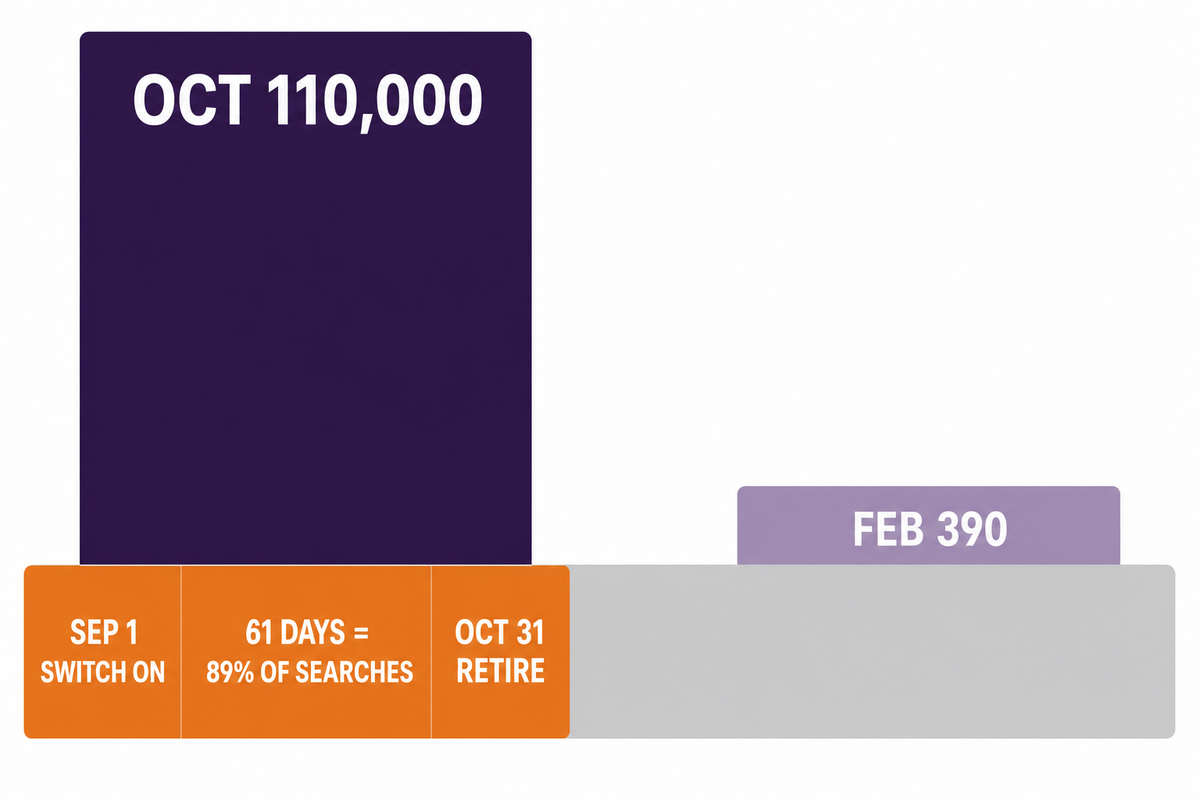
The 61-Day Window is the stretch from September 1 to October 31 when 89% of the year’s US searches for Halloween backgrounds happen, a share derived from bucketed monthly ad-platform volumes and best read as an estimate rather than a census. Demand data from this run’s Google Ads dataset puts October at 110,000 monthly queries against 390 in February, a 282x swing that makes timing the single cheapest decision in this whole topic.

110,000
October US searches
89%
of annual demand in 61 days
282x
October vs February swing

Worried that late August is too early to go spooky? The numbers say the opposite. Spooky season, as the search graph defines it, opens in August: the month already carries 12,100 searches, September jumps to 60,500, and the crowd you would be “too early” for is measurably already there. The real mistake sits at the other end: after October 31 the audience vanishes within days, and a jack-o-lantern Lock Screen in mid-November reads as neglect, not festivity. Swap on September 1, retire it November 1, and queue a fall backgrounds for iPhone set for the shoulder weeks.

Monthly US search volume for Halloween backgrounds for iPhone: 110,000 in October vs 390 in February (Google Ads data, 12-month series)
Month US searches What it means
August 2025 12,100 Early adopters start
September 2025 60,500 The window opens
October 2025 110,000 Peak month
November 2025 1,900 Collapse after the 31st
December 2025 720 Holiday sets take over
January 2026 590 Off-season floor
February 2026 390 Annual low
March 2026 590 Flat
April 2026 590 Flat
May 2026 480 Flat
June 2026 720 First stirrings
July 2026 2,900 Planners arrive

The phone screen rides a wider wave of seasonal decorating. The National Retail Federation’s 2025 consumer survey of 8,045 people projects a record $13.1 billion in Halloween spending, with 73% of consumers celebrating and $4.2 billion going to decorations alone. A wallpaper is the zero-dollar corner of that budget, and the platform is leaning in: MacRumors reports that iOS 27 is expected to generate wallpapers with AI through Image Playground, so the find-a-file era is slowly turning into a make-your-own era. If you’re reading this in season, act inside the window; the calendar doesn’t wait for perfectionists.

Across the twelve months in the table above, the phrase averages about 15,960 searches a month, against 28,100 three years ago in the same dataset, a drop of roughly 43%. It still spikes greatly every October; the wedge is just moving toward newer phrasings, one more reason to ride the peak rather than the tail.

The Scare Scale: Pick Your Style Lane Before You Scroll
The Scare Scale: Pick Your Style Lane Before You Scroll — iScreen

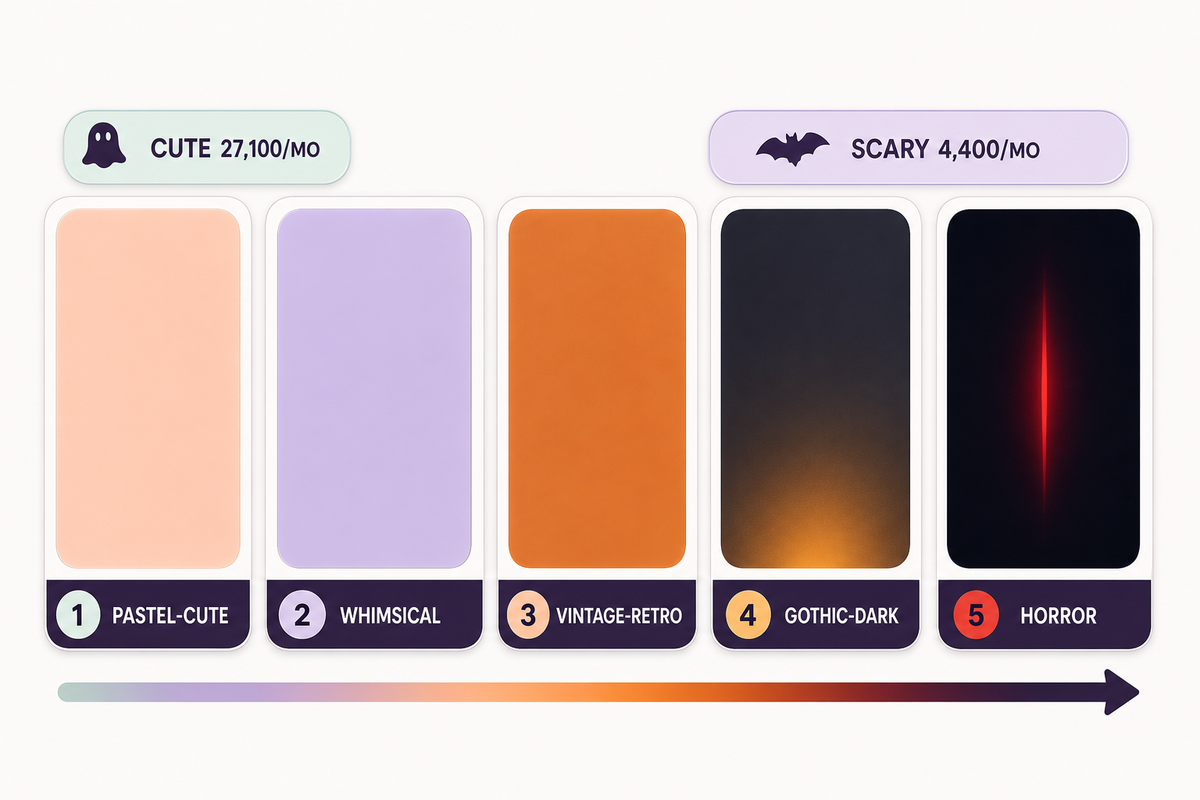
The Scare Scale represents a five-notch axis to classify each style of Halloween wallpaper by scariness: 1 pastel-cute, 2 whimsical, 3 vintage-retro, 4 gothic-dark, 5 horror. Search volume is quite unevenly distributed across it, with just cute terms alone pulling in 27,100 monthly searches, so knowing your notch before starting a Halloween-ready iPhone wallpaper collection saves lots of time scrolling through galleries.

Pinterest boards related to this topic extend to over 900 pins apiece, with titles such as “88 Top Halloween wallpaper iPhone ideas”, endless itemized listings in the board footer suggesting there are even more ideas to explore for Halloween screens, and the #1 board answers no questions at all except “do you like this one.” A notch number allows for sorting where a gallery can’t: select 1-2 if you plan to use your phone as a work tool during meetings, 3 if you want the aesthetic without the scare, 4-5 if you’re actually after the scare. Each row of styles below carries a clock-zone risk column, because the most visually pleasing pieces in the set can still bury your Lock Screen clock, a dark-style problem addressed in the dark-styles category. Treat the table as an exploratory tool, not a list of rankings.

The Scare Scale: 10 Halloween background styles for iPhone ranked across 5 intensity notches
Style Notch Palette Signature motifs Clock-zone risk Best screen
Pastel pumpkin patch 1 Peach, cream, sage Cute pumpkins, bows Low Lock or Home
Friendly ghost 1 White on lavender Smiling ghost, stars Low Lock
Candy kawaii 1 Pink, orange pops Candy corn, hearts Medium, busy print Home
Whimsical witchy 2 Plum, moon gold Witch hats, cats, moons Medium Lock
Preppy pattern 2 Pink, lime grid Smiley ghosts, checker Medium, busy print Home
Vintage poster 3 Burnt orange, black 1950s cats, paper grain Medium Lock or Home
Retro film 3 Faded teal, rust VHS grain, moon titles Medium Lock
Purple neon 4 Violet, electric green Neon skulls, fog Low on dark base Lock
Gothic manor 4 Charcoal, candle amber Manor, ravens, gates High near sky areas Lock
Horror silhouette 5 Black, blood red Silhouettes, creepy forest High Lock, dark base

Search habits agree with the division: 27,100 monthly US searches for the cute term by itself, against 4,400 monthly scary searches for a cluster of terms and 8,100 monthly aesthetic searches for a different cluster of terms, so just search demand for notch 1 by itself surpasses all the search demand for notches 4 and 5 combined.

Cute Halloween Backgrounds for iPhone: Pastel Pumpkins, Friendly Ghosts and Candy Palettes
Cute Halloween Backgrounds for iPhone: Pastel Pumpkins, Friendly Ghosts and Candy Palettes — iScreen

Adorable Halloween wallpaper is the dominant style lane, with the head term counting 27,100 monthly US searches, and the broader cute grouping peaking at 201,000 in October 2025. Anyone abstaining because a pumpkin is too juvenile is fighting against the largest bloc of adult searchers in the category.

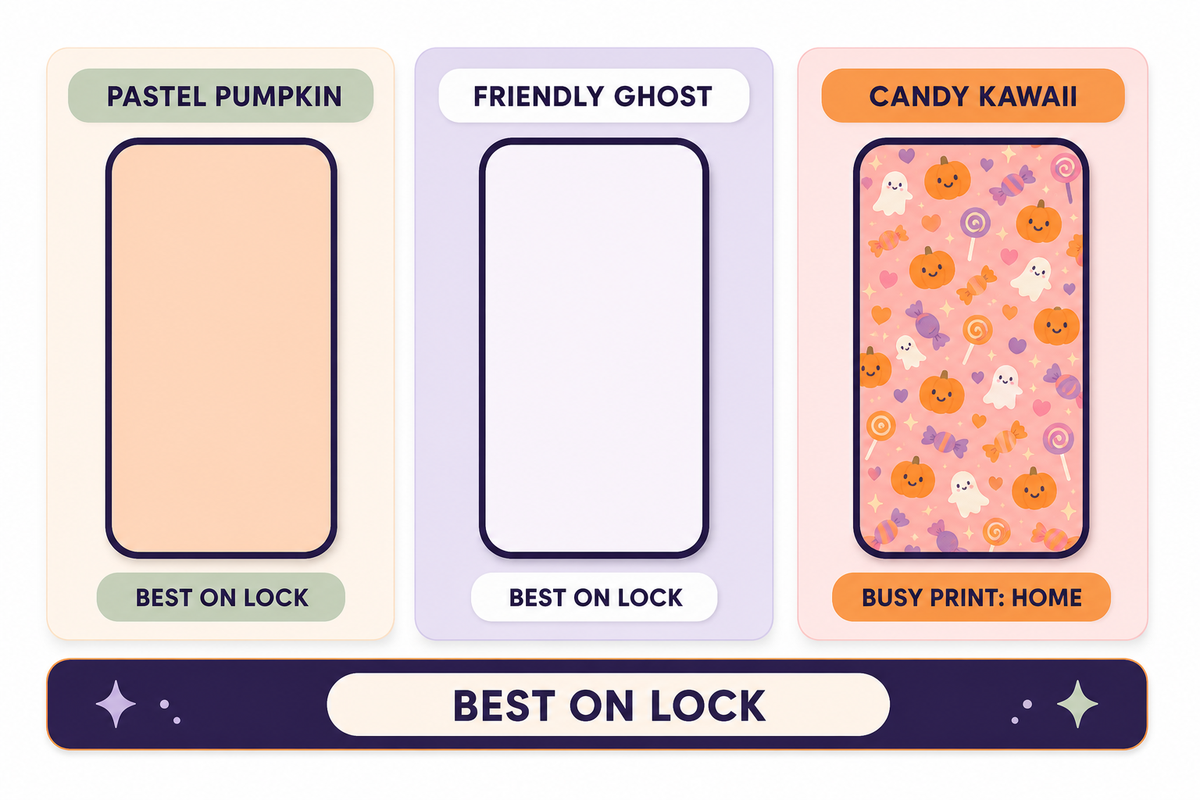
Three sub-directions cover most of notch 1, and each one is its own well of inspiration. Soft pastel pumpkin scenes leave a gentle space in the saturation spectrum, somewhere around soft peach and sage, while friendly ghost graphics give one mascot image with wide margins, the easiest kind of image to crop. Candy kawaii cute prints fill every edge of the frame with candy corn and hearts, and look fabulous on the Home Screen grid, but battle Lock Screen widgets for viewer attention. When searching, skip the general head term, and type the sub-style plus a color word, “pastel ghost lavender” style. Broad searches for “halloween wallpaper cute” or “cute Halloween iPhone wallpaper” bring up the same 30 crowded boards every year.

A boundary worth remembering: busy kawaii prints lose their charm behind app icons once icon labels overlap the pattern. Save cute images for the Lock Screen, or combine them with a quieter Home Screen base, the split covered in the setup section. Cute sets also age fastest socially; a bow-scarfed pumpkin in mid-November screams more off-season than any plain darker scene, so cute notch 1 users gain the most from the November 1st retirement day.

Lost in the delightful spooky-cute mash-up? Just one note: spooky cute Halloween wallpaper terms get only 880 monthly queries, but see a spike of 6,600 queries in October, the steepest rise in the cluster. A ghost with tiny fangs covers both moods in one image.

Scary and Dark Halloween Backgrounds That Stay Readable
Scary and Dark Halloween Backgrounds That Stay Readable — iScreen

Looking for dark wallpapers? Choose by appearance and contrast, not hope of battery life. Scary Halloween wallpaper terms, with autocomplete cousins like “scary backgrounds for iPhone”, gather an average of 4,400 monthly queries, reaching 40,500 in October, and all of those downloads run into the same two physics issues: the readability of the clock, and the myth that black pixels truly extend battery life.

Start with the battery issue, since it rules out nothing yet shapes many downloads. Research on OLED screens tested entire interfaces going from light to dark, not individual wallpapers, and the result certainly undercuts common wisdom:

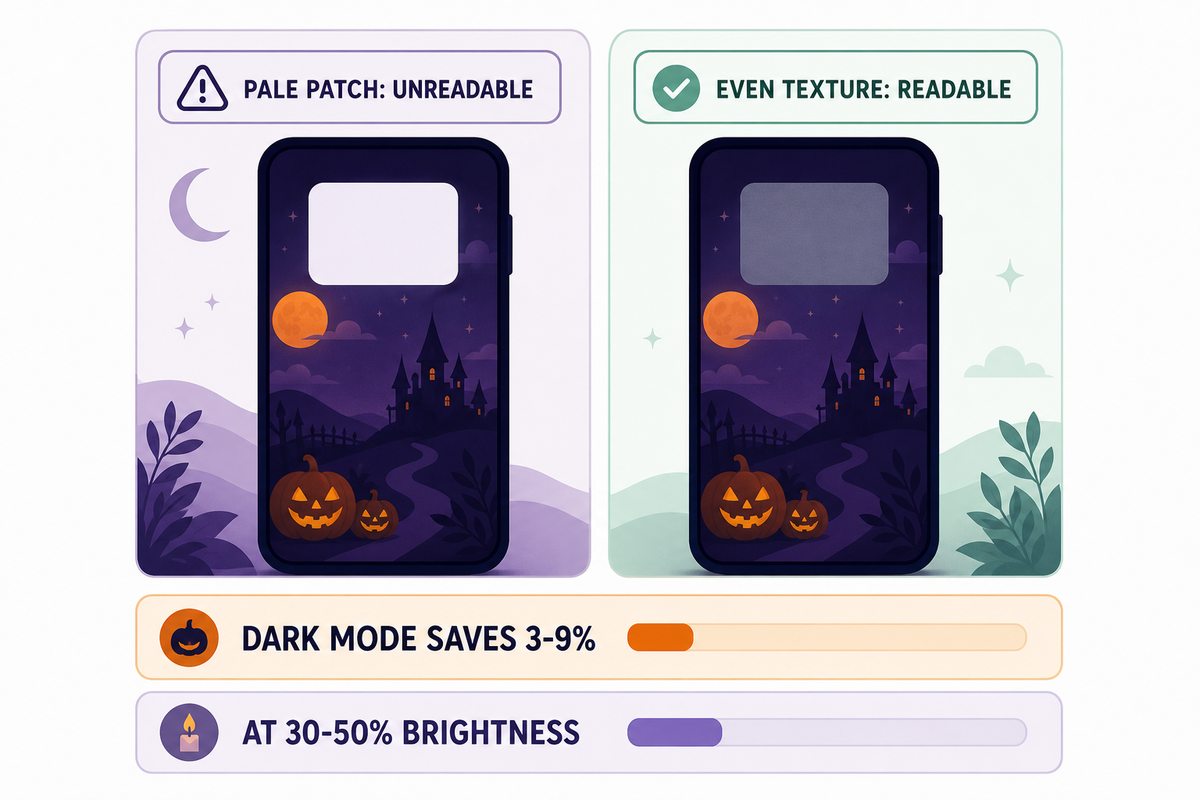
“At 30%-50% brightness, Purdue researchers found that switching from light mode to dark mode saves only 3%-9% power on average.”

Those phones were Android models, the savings only reached 39-47% at full outdoor brightness, and a static wallpaper occupies a fraction of the pixels a full dark interface does. So a gothic manor scene earns its spot on mood alone, which is a good enough reason.

Readability is the half that actually bites, and the trap is judging a wallpaper by its average darkness. What matters is local contrast exactly where the clock, date and widgets land, not the overall tone. A mostly-black manor with one pale moonlit sky patch behind the clock digits fails harder than a mid-gray fog scene with even texture. One Apple forum poster described a bad pairing bluntly: “the lock screen is literally unusable”. Check the actual screen, not the thumbnail: apply the image, look at the clock digits and each widget slot, and if any sits over busy texture, drag the crop or pick again. Note that iOS 26 also blurs wallpapers by default when the Always-On Display dims; 9to5Mac documents the Always-On Display blur toggle under Settings, so your creepy forest may look softer on the dimmed screen than you expect.

Contrary to the “darker saves more” instinct, brightness habits set the ceiling: with indoor auto-brightness hovering near 30-40%, the measured dark-mode saving stays in that 3-9% band, thinner than one screen-on hour of normal usage. Choose notch 4-5 art for the eerie look; keep charging habits for the battery.

Aesthetic Halloween iPhone Wallpapers: Vintage, Preppy, Pink and Gothic Substyles
Aesthetic Halloween iPhone Wallpapers: Vintage, Preppy, Pink and Gothic Substyles — iScreen

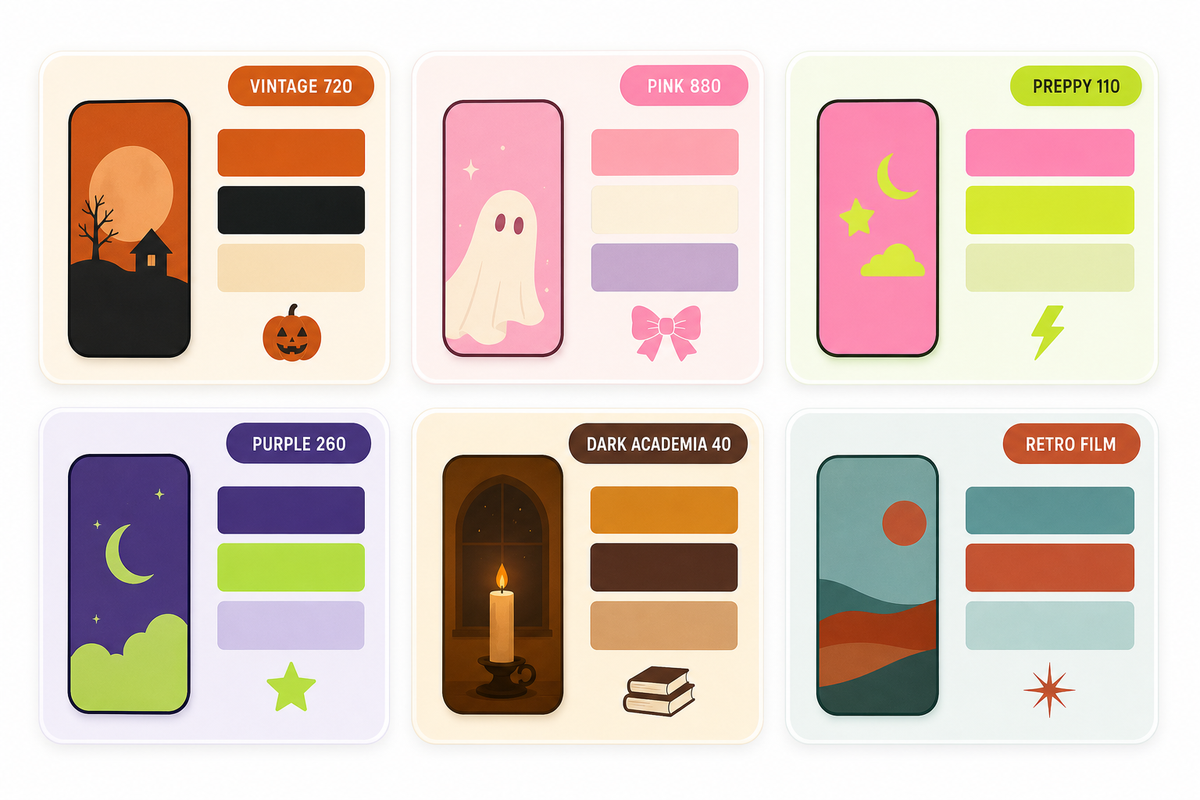
An aesthetic Halloween wallpaper differs from a random spooky image by holding one consistent visual language across color, motif and texture. The lane draws 8,100 monthly searches and hides six named substyles, each with its own precise search string that beats the generic term every time.

Use the substyle vocabulary as your search syntax and the results improve immediately. Vintage Halloween iPhone wallpaper, 720 monthly queries, gets you 1950s poster cats and paper grain. Pink Halloween aesthetic, 880 queries, is the kawaii-horror crossover that spiked 5,400 in October 2025. Preppy Halloween wallpaper iPhone, 110 queries, means smiley ghosts on checker grids. Purple Halloween aesthetic, 260 queries, delivers neon-on-violet. Dark academia Halloween, 40 queries, is candlelit-library moodiness, and retro film rounds out the set with VHS grain and faded teal. On Pinterest these travel as run-on tag chains, boards labeled “aesthetic Halloween wallpaper iPhone wallpaper spooky wallpaper fall wallpaper” style. The same grids get filed under Halloween wallpaper backgrounds one week and Halloween wallpaper iPhone backgrounds the next, which is why typing the named substyle into a wallpaper styles gallery finds in seconds what the tag soup buries. Scroll any lane long enough and you discover the repeat rhythm, the same 20 pins circulating, which is the strongest argument for the named search.

Design-side consensus for 2026 leans orange-black-purple as the core palette, with celestial and minimal variants rising, and OLED screens reward deep saturated bases with defined light zones. The visual approach you want should still be able to pass the same clock check as any dark piece – a few squares of cream on an old movie poster where the numerals are would put it in the same failure category as a gloomy graveyard. If you’re getting meager results when searching for that subtype that’s actually kind of the idea – there’s still opportunity at 110-query subcategories like “preppy” as of early October.

What Size Halloween Background Fits Your iPhone
What Size Halloween Background Fits Your iPhone — iScreen

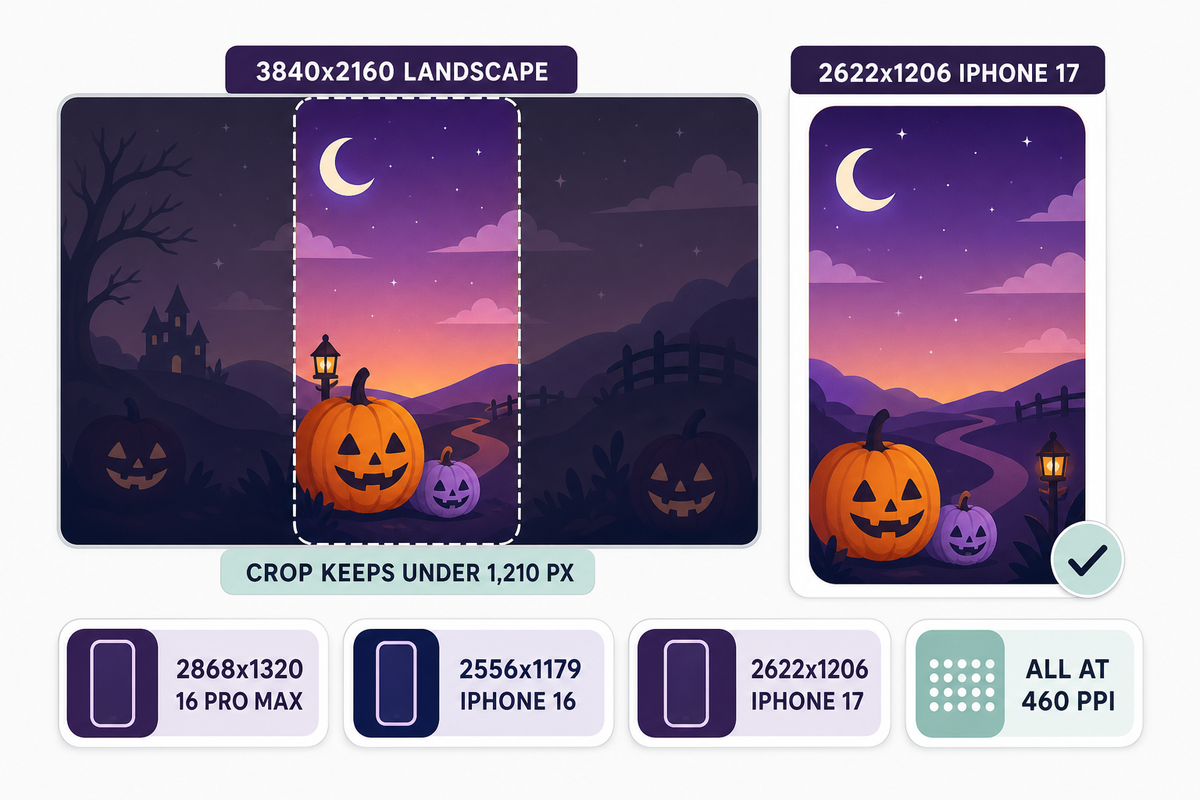
Wallpaper sizing has no universal answer: recent iPhones span four different resolutions across five models, from 2556×1179 px on the 6.1-inch iPhone 16 to 2868×1320 px on the 6.9-inch 16 Pro Max, every one at 460 ppi. Match or exceed your own model’s pixel grid and let iOS handle the crop.

iPhone display resolutions for wallpaper sizing: five recent models, four resolutions, one shared 460 ppi density (Apple official specs)
Model Resolution Screen Density
iPhone 17 2622×1206 px 6.3 in 460 ppi
iPhone 16 Pro Max 2868×1320 px 6.9 in 460 ppi
iPhone 16 Plus 2796×1290 px 6.7 in 460 ppi
iPhone 15 Plus 2796×1290 px 6.7 in 460 ppi
iPhone 16 2556×1179 px 6.1 in 460 ppi

Worked example, iPhone 17: Apple’s iPhone 17 tech specs list a 2622-by-1206-pixel display at 460 ppi. A 2622×1206 px file maps one image pixel to one screen pixel; a 3000×1380 px file downscales cleanly; a 1440×2560 px gallery file falls 62 px short on the long axis and gets stretched. Two models sharing 2796×1290 px, the 16 Plus and 15 Plus, is the one overlap in this set, which still leaves four distinct grids and zero universal size. Find your own model’s line on Apple’s spec pages, such as the iPhone 16 Pro Max specifications or the iPhone 16 and 16 Plus specs, before trusting any download button.

Shape beats pixel count, which surprises people chasing 4K files. A 3840×2160 px “4K” image is a 16:9 landscape; an iPhone screen is roughly 1:2.17 portrait, so setting that landscape file means cropping away close to two thirds of its width and the phone shows fewer than 1,210 of those 3,840 horizontal pixels. Third-party size charts add their own noise; two of the 2026 size guides checked for this article list iPhone 17 at 2778×1284 px, a figure that appears on zero Apple pages. High quality here means the right shape at native resolution or above, saved as a clean image without recompression, not the biggest number in the filename.

Set It Up: Apply, Pair and Shuffle Halloween Wallpapers in iOS 26
Set It Up: Apply, Pair and Shuffle Halloween Wallpapers in iOS 26 — iScreen

If setup anxiety has stopped you from touching a working Home Screen arrangement, iOS removes the risk: each new wallpaper becomes a separate saved Lock Screen you can switch away from or delete, with the old one untouched. Apple’s own change your iPhone wallpaper guide documents both entry paths.

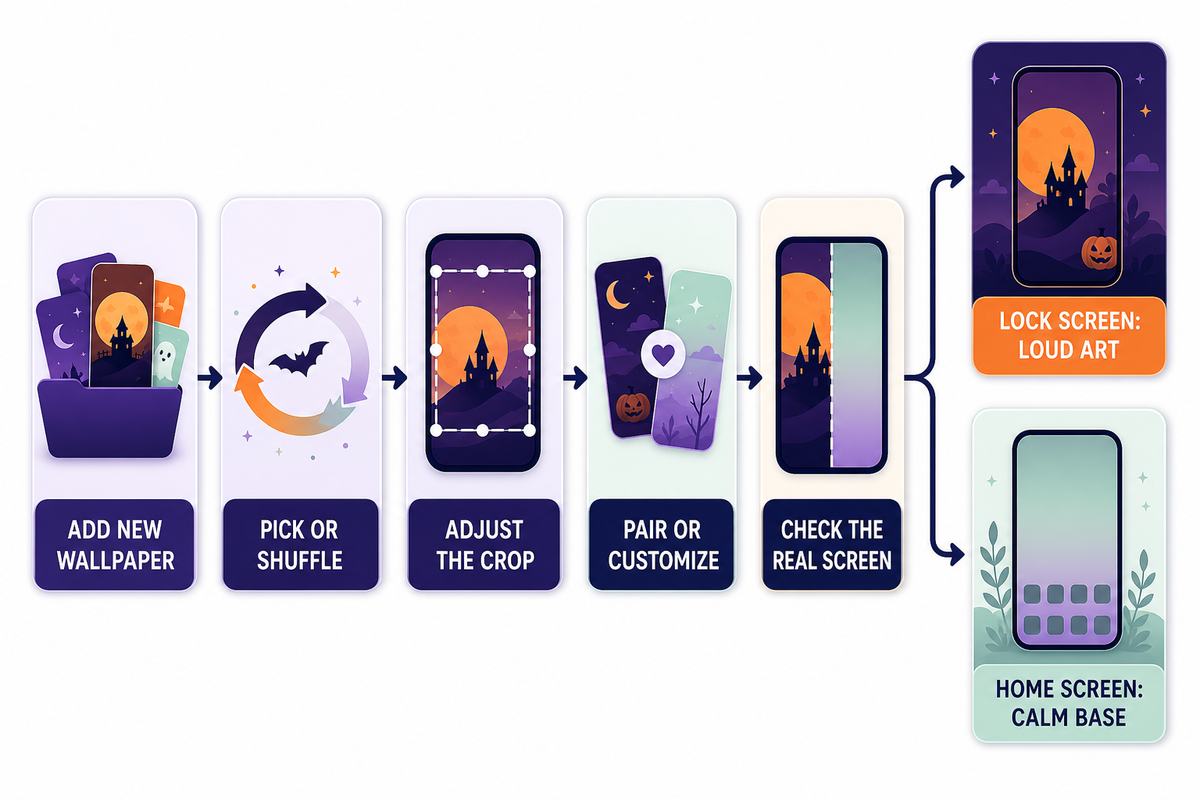
Apply a Halloween background in under 2 minutes:

  1. Open Settings, tap Wallpaper, then tap Add New Wallpaper.
  2. Pick your saved Halloween image from Photos, or choose Photo Shuffle to select several.
  3. Pinch to adjust the crop until the clock sits over quiet texture.
  4. Tap Add, then choose Set as Wallpaper Pair or Customize Home Screen.
  5. Check the clock and widgets on the real Lock Screen, not the preview thumbnail.

The second route runs from the Lock Screen itself: touch and hold the screen to open your wallpaper gallery, swipe to any saved design, or tap the plus button for a new one. That gallery model is what makes the season easily reversible; on November 1 you swipe back to your regular set in about 5 seconds. For the full tour of crop, depth effect and per-screen options, the step-by-step in our guide to change your iPhone wallpaper goes deeper than this seasonal page needs to.

The pair choice is where one quiet rule earns its keep: put the loud art on the Lock Screen and a calm base behind your apps. The split works because app icons and their labels already crowd the Home Screen, so Customize Home Screen with a plain dark gradient keeps icons legible while the horror scene lives where nothing overlaps it. Screens serve different jobs; decorate them differently.

How Do I Make My Halloween Wallpaper Change Automatically?

Photo Shuffle rotates a set of images on a schedule you pick: On Tap, On Lock, Hourly, or Daily, per Apple’s iOS 26 wallpaper guide. Choose Photo Shuffle when adding a new wallpaper, select 5-10 Halloween images across your chosen notch, and set the frequency. Daily gives each image about 3 days of screen time across October; Hourly cycles the full set before lunch.

On iPhone 12 or later with iOS 26 you can also promote one favorite photo into a Spatial Scene, a depth effect that separates the subject from the background and shifts as you tilt the phone; Apple notes only certain photos qualify, and MacRumors’ Spatial Scenes walkthrough finds photos with one clear foreground subject convert best. A carved pumpkin at 1-2 m distance makes a perfect candidate; a busy group costume shot doesn’t. Prefer moving art instead? Animated options behave differently from static files, and our live wallpapers for iPhone guide covers that lane separately.

Free Halloween Backgrounds: Sources and What the License Lets You Do
Free Halloween Backgrounds: Sources and What the License Lets You Do — iScreen

Free to download and free to reuse are two different permissions, and mixing them up is the one genuinely expensive mistake in this hobby. The U.S. Copyright Office states that “Copyright exists automatically in an original work of authorship once it is fixed”, and the owner keeps the rights to reproduce, adapt and distribute it.

Where Can I Find Free Halloween Backgrounds?

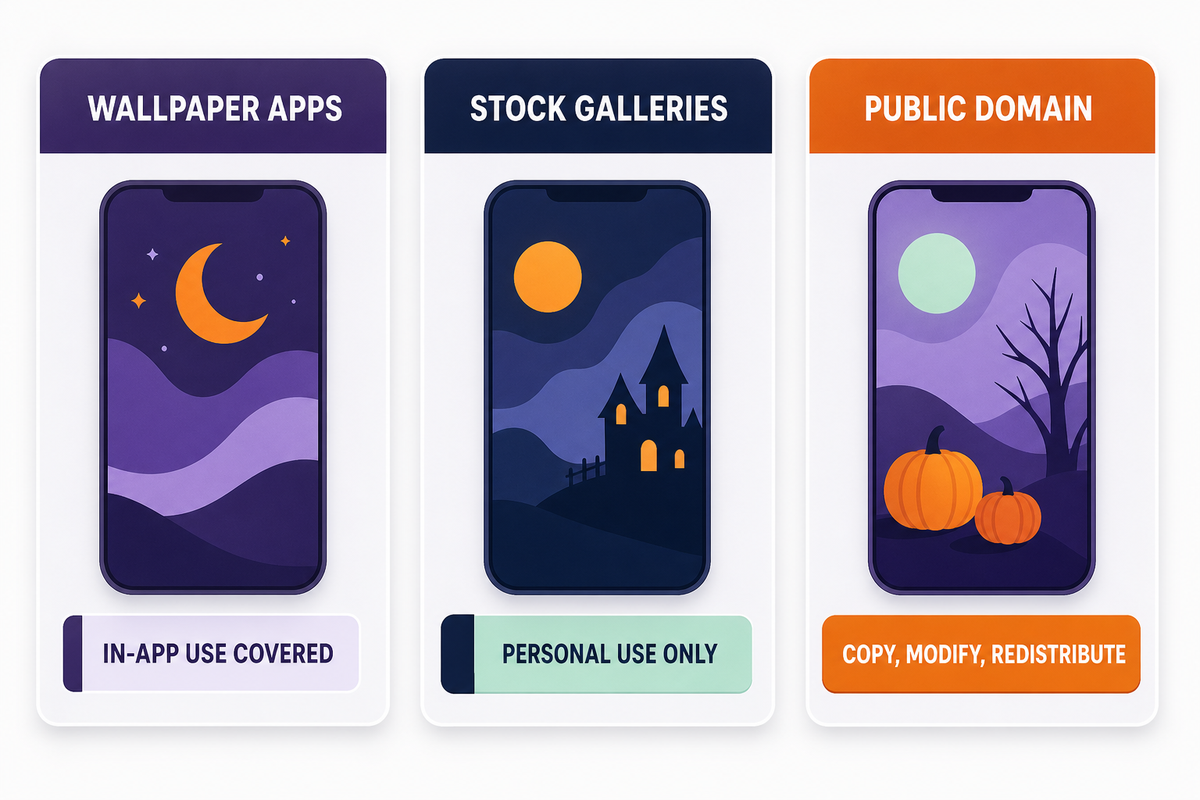
Three source lanes cover the free market, each with a different rights profile: wallpaper apps with built-in libraries, stock galleries with personal-use downloads, and public-domain collections with no strings attached. Wallpaper apps like iScreen’s 10,000+ theme catalog hands you images sized for phones with in-app use already covered.

Stock galleries promising you can download free graphic resources, the stock photo platforms and wallpaper aggregators built desktop-first, mostly grant personal use only. Several of the largest galleries gate their better files behind a free account or a trial tier; roundups of free Halloween iPhone wallpapers on lifestyle blogs draw from the same pool. Public-domain collections are the sleeper option: CC0-designated works allow anyone to copy, modify and distribute them, even commercially, without asking permission, and the Smithsonian alone released 2.8 million images under CC0, including eerie vintage art strange enough to inspire a whole matched setup. Search any collection for “hallowe’en” with the old apostrophe spelling to surface century-old poster art most galleries never index.

Use the three tiers of permission types in less than a minute. Personal use is just set it as your wallpaper and stop, no re-upload of your edit, no reselling a pack of 3 on a marketplace, no printing merch. Attribution licenses add a single responsibility, credit the artist where you share. CC0 and public domain remove the duties entirely. Watermarked previews denote a fourth category: the file is being promoted as a paid product, cropping the watermark off of a 99-cent artist pack violates the exact exclusive rights enumerated above. When a gallery page fails to post any license text, take it for personal-use-only; silence grants nothing.

Icons and Widgets That Match Your Halloween Background
Icons and Widgets That Match Your Halloween Background — iScreen

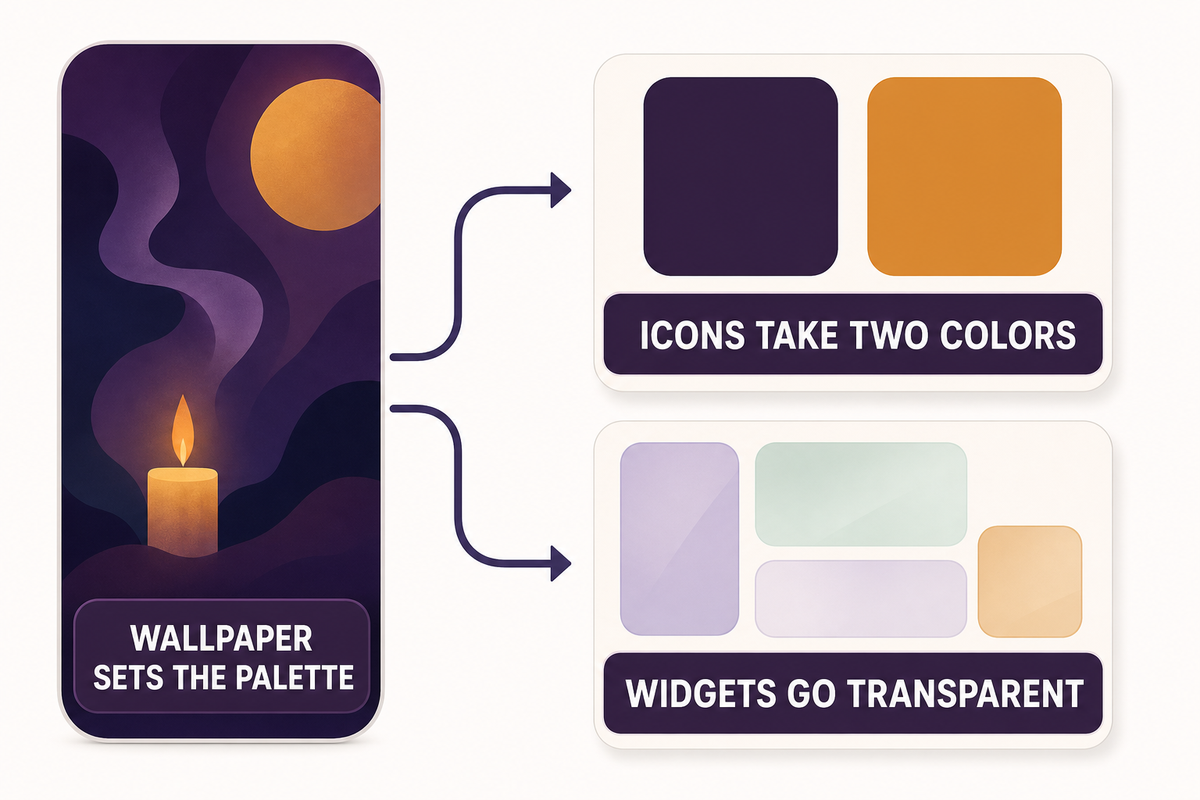
Once the background sticks, mismatched app icons become the loose thread: the Halloween spirit stops at the wallpaper when stock-blue icons sit over a gothic manor scene. Full coordination requires just one rule: wallpaper sets the palette, icons take its two dominant colors, widgets go transparent or matching-dark.

Doing that by hand means editing icons one at a time. A theme engine collapses it to one tap: iScreen ships 10,000+ themes, 5,000+ icons and 500+ widgets as matched sets, so a notch-4 gothic background arrives with its own icon pack and widget skins instead of a solo image file. Browse the iPhone theme packs for full coordinated sets, or start smaller with Halloween-ready widgets, a countdown widget over a spooky base being the classic October move. Whether one month of festivity justifies a full setup rebuild is a fair question; a ready-made set answers it by cutting the rebuild to minutes, and everything reverses on November 1 alongside the wallpaper swipe.

The whole guide in four movesSwitch on September 1 and retire on November 1, because 89% of the season’s interest lives inside those 61 days. Pick a Scare Scale notch before scrolling. Match your model’s exact resolution, 2622×1206 px on iPhone 17. Let Photo Shuffle rotate 5-10 images Daily so one background never goes stale.

Want just the background, or the whole coordinated look?

Browse Halloween Wallpapers →
Get a Full Theme Pack →

FAQ: Halloween Backgrounds for iPhone

Q: What size should a Halloween wallpaper be for my iPhone?

Wallpaper size depends on your exact iPhone model, because recent models use four different screen resolutions, from 2556×1179 px up to 2868×1320 px, all of them at 460 ppi.
Check your model on Apple’s tech specs pages and match or exceed that pixel grid: 2622×1206 px for iPhone 17, 2868×1320 px for 16 Pro Max, 2796×1290 px for 16 Plus and 15 Plus, 2556×1179 px for iPhone 16. Portrait orientation matters more than raw pixel count; a 16:9 landscape 4K file loses about two thirds of its width to the crop, while a native-shape file at or above your resolution sets cleanly with room to reposition.

Q: Where can I find free Halloween backgrounds for iPhone?

Free sources fall into three lanes: wallpaper apps with built-in libraries, stock galleries with personal-use downloads, and CC0 public-domain collections with no restrictions at all.
Apps like iScreen bundle sized-for-phone art inside theme sets, so a download instantly fits without cropping surgery. Stock galleries carry huge selections but read the fine print, since most grant personal use only and some gate standard quality behind account signup. Public-domain collections such as the Smithsonian’s 2.8 million CC0 images hide outstanding vintage Halloween poster art; search “hallowe’en” with the apostrophe to find pieces the regular galleries never surface.

Q: Are free Halloween wallpapers really free to use anywhere?

Free downloads normally cover personal use on your own device only; reposting, selling or editing the file requires whatever extra rights the source license actually grants you in writing.
Copyright attaches to an image automatically the moment it is created, per the U.S. Copyright Office, and a download link is a permission, not a transfer of those rights. Personal-use terms stop at your own screen. Attribution licenses ask you to credit the artist when sharing. Only CC0 and public-domain marks remove the limits, allowing copying, modification and redistribution without asking. A watermark means the file is a paid product’s preview, and cropping it out is the one move that reliably crosses the legal line.

Q: Can I use the same Halloween wallpaper on iPhone and Android?

Image files work across both platforms without conversion; only the fit differs, since Android screens use different resolutions and aspect ratios than the iPhone panels listed above.
Save the same file to either device and set it normally. Recheck the crop on each phone, because a composition centered for a 2622×1206 px iPhone 17 panel can sit off-center on a taller Android display.

Q: How do I make my iPhone Halloween wallpaper change by itself?

Photo Shuffle handles wallpaper rotation natively on iPhone: pick several images while adding a new wallpaper, then choose a rotation pace anywhere from every tap to once a day.
Build a set of 5-10 images inside one Scare Scale notch so the rotation feels curated rather than random. Daily suits a full-October run, giving each image roughly 3 days of screen time; On Lock turns every phone check into a small reveal. The set stays saved as its own Lock Screen, so your regular wallpaper survives untouched until you swipe back.

Q: When should I put Halloween wallpaper on my phone, and when should I take it off?

September 1 to November 1 is the window that matters: data from this run’s Google Ads keyword pull puts 89% of the year’s search interest in Halloween backgrounds for iPhone inside that 61-day span.
August already shows 12,100 US searches, so an early switch puts you ahead of a real crowd rather than alone. September climbs to 60,500 and October peaks at 110,000 before the November collapse to 1,900, per this run’s Google Ads dataset. The retirement date matters as much as the start: after October 31 the shared moment ends within days, and swapping to an autumn set keeps the phone seasonal without the stale-costume effect. Put both dates in your calendar and the whole ritual costs 5 minutes a year.

How This Guide Was Put Together

The style demand numbers come from a 12-month Google Ads keyword dataset pulled for this article, and every iPhone resolution cited was checked against Apple’s own spec pages rather than third-party size charts, two of which listed a phantom 2778×1284 px iPhone 17. The Scare Scale notches grew out of sorting the Halloween backgrounds people actually search for, cute through horror, against how each style behaves behind a Lock Screen clock. Reviewed by the iScreen team.

References & Sources

  1. NRF Consumer Survey: Halloween Spending to Reach Record $13.1 Billion — National Retail Federation
  2. iOS 27 to Let Users Generate Wallpapers With AI — MacRumors
  3. Dark Mode May Not Save Your Phone’s Battery Life as Much as You Think — Purdue University
  4. iOS 26 Tweaks iPhone Always-On Display Wallpaper Blur — 9to5Mac
  5. iPhone 17 Technical Specifications — Apple
  6. iPhone 16 Pro Max Tech Specs — Apple Support
  7. iPhone 16 and iPhone 16 Plus Technical Specifications — Apple
  8. Change Your iPhone Wallpaper — Apple Support
  9. iOS 26: Turn Photos Into 3D Spatial Scenes — MacRumors
  10. What Is Copyright? — U.S. Copyright Office
  11. CC0 1.0 Universal Public Domain Dedication — Creative Commons
  12. Smithsonian Releases 2.8 Million Images Into the Public Domain Using CC0 — Creative Commons

Related Articles

最近の記事

How to Turn a Video into a Live Photo on iPhone

How to Turn a Video into a Live Photo on iPhone

2026/11/13 19:12
To turn video into a Live Photo on iPhone, import a video clip into a Live Photo converter, trim the moment you want, and save it to Photos. Open the saved picture, then press and hold to play it. If you want to keep the original sound quality, listen to the result before removing the video or sharing it. For a moving Lock Screen, choose a converter’s wallpaper export route. IntoLive has a dedicated Live Wallpaper option, and Apple provides a different wallpaper route. Saving a moving picture and setting an animated background are different things. Video to Live Photo conversion turns a selected video moment into a photo with motion. Save the result to Photos first. For wallpaper, use a wallpaper export and enable the play control when setting your Lock Screen. Start with the original video and keep it until you’ve checked the saved result. Choose an output that preserves sound if you want to keep a spoken moment. Use the converter’s wallpaper option when your goal is Lock Screen animation. Compare the saving step and payment terms before editing a long clip. This tutorial follows Apple’s instructions and the developers’ own guides. The conversion routes haven’t been tested on a physical iPhone for this article. Turn your video into a Live Photo Can I make a live picture from a video? Yes. A video to Live Photo converter can transform a selected moment into a picture with motion. To convert video to Live Photo format, start with the original recording. Pick a video from your library. Trim the part you want, choose a still frame where the tool allows it, and export to photos. Play that saved item before moving on to wallpaper setup or sharing. V2LP’s developer explains how to use an app to create Live Photos by choosing a video, trimming it, selecting a cover photo and saving it to Photos. Editing controls include an audio toggle. Leave the sound on if you want to keep the voice or background audio of your favorite video moments. For wallpaper, follow intoLive’s creation guide: Open intoLive and tap Live Wallpaper. Import your media and trim the section you want. Finish the edit, then tap the Share icon. Choose the option to save as a Live Photo. Next, launch Photos. The Apple Live Photos instructions state that saved Live Photos appear in the Collections > Media Types > Live Photos section. Open the item and press and hold the screen to preview its cover image and motion. Inspect the cover and playback, then listen if sound is required. A thumbnail in the camera roll alone doesn’t say much about the moving part. Keep the original in your library. It’s a good starting point if your crop takes off too much, if the moment captured is too short, or if you want to make another version of the video. When using apps like these, make sure to use the same original video so that changes are easier to spot in the output. Before comparing apps, identify the type of result you need: Result type What you have What to do next Camera Live Photo Captured directly with the iPhone camera. Play it in Photos; this is not a conversion of an older movie. Converted Live Photo A moment selected from an existing video. Check both the chosen still image and the motion. Silent Live Photo Motion saved without the original audio. Suitable when sound is unimportant; keep the video for speech. Live wallpaper export A converter’s output intended for the Lock Screen. Apply it in Wallpaper settings and check playback on wake. GIF input An animated source accepted by some converters. Import it through the tool before saving a Live Photo. Standalone video A movie that can be shared separately. Keep the original video for the full scene. To export a Live Photo as a short movie, use Apple’s Save as Video command. Still image A photo without playable motion. Use it as a static background; it is not a moving export. Download package Files bundled for a provider-specific import. Follow that provider’s import instructions before checking Photos. Choose a clip that works as wallpaper For Live Photo wallpapers, select short clips with smooth motion, a clear subject and not too many scene changes. intoLive recommends minimal movement and transitions for its wallpaper exports. A person turning and facing the camera would be a better starting point than a montage of different unrelated scenes. In its duration guide, intoLive says that wallpaper exports should be between 1-2 seconds. Consider that if you need to pick a segment of action for the background. The Clip-to-Lock-Screen Check below will allow you to pinpoint the stage of the unwanted change. For browser conversions, do the paired import and then check the saved item. Complete the other checks provided below. Work through the relevant checks below; app users can disregard the browser import row. Stage What to inspect What to change first Original action The selected moment contains the action you want. Move the trim points before editing the cover. Original framing The subject stays inside the crop. Choose a wider source or adjust the crop. Saved cover The still image shows the expression you chose. Change the cover or key photo where available. Saved motion Pressing and holding plays the saved item in Photos. Return to the converter if only a still image was saved. Saved sound Speech remains when you need it. Check the mute option; choose another route for silent-only output. Browser import Both parts are saved by the provider’s paired import route. Repeat Save 2 Items for LivePhotoNow rather than saving only the picture. Wallpaper preview The subject fits around the clock and the play control is available. Review the wallpaper export route, framing and play setting. Lock Screen wake The selected wallpaper animates when the phone wakes. Inspect the play control and developer troubleshooting guidance. A high-quality still frame matters too. Pause on a frame of the video with your preferred expression and composition before making any cropping adjustments. For the surrounding layout, the iPhone wallpaper Size Guide can assist you in planning a portrait composition before you crop away part of your subject. Set the Live Photo as your Lock Screen wallpaper Can you add video as wallpaper on an iPhone? You can use a converted Live Photo as an animated Lock Screen wallpaper via Apple’s wallpaper controls. Use a saved Live Photo rather than a raw movie for the wallpaper. Apple details this method on iOS 17 or later, where the animation is played when the device is woken. Follow Apple’s Lock Screen setup instructions once you’ve saved your conversion: Open Settings → Wallpaper → Add New Wallpaper. Tap Photos, then Live Photo. Select your saved image. Customize the preview. Tap Add, then choose Set as Wallpaper Pair or Customize Home Screen. Apple describes the animation as playing “whenever you wake up your device.” Apple, Set a Live Photo as your Lock Screen wallpaper on your iPhone, 2025. Lock and wake the phone to test the result. Pressing and holding a Live Photo in Photos tests its playback in the library. Choose Customize Home Screen if you want a different static background image behind your app icons. For more on Lock Screen customization, see this guide. Convert without installing another app Yes, a browser converter can offer a route that doesn’t require installing another app. LivePhotoNow describes importing an MP4, MOV or WebM clip, selecting the moment, and using Save to Photos → Save 2 Items on iPhone. Follow that paired saving step, rather than saving only the still picture. The service states its conversion runs in the browser and its output is silent. It pairs a still image with a motion file using matching metadata. So the audio choice is to use a different route when the person’s voice is the reason you’re saving the clip. Other online tools use different imports. LivePhotoTools, for example, describes a package and an iPhone import route involving a Live Photo app. Downloading a package isn’t the same step as creating a recognized item in Photos. Before using a private video, read the service’s upload and handling information. Don’t use a shortcut tutorial that promises a native Photos conversion button without showing its actual saving route. Check free export before paying for an app V2LP’s developer lists basic conversion, trimming, cover selection and saving as free, with advertisements. Removing advertisements and gaining editing tools is available via an in-app purchase. Route Saving step Decision before editing V2LP Save the edited result to Photos. Basic saving is listed as free with ads; Pro is optional. intoLive wallpaper route Live Wallpaper → edit → Share → save as Live Photo. Use the dedicated wallpaper route and inspect the current purchase screen. LivePhotoNow browser route Save to Photos → Save 2 Items. The developer describes free, silent output and browser processing. LivePhotoTools browser route Download its package, then follow its import instructions. Its iPhone instructions involve another application. V2LP lists no watermark, no subscription and an optional one-time Pro purchase. When comparing apps, distinguish an optional in-app purchase from a renewing subscription or trial. On the App Store, read App Privacy. A developer can describe conversion that’s done locally while the listing can separately disclose tracking, as V2LP does. Local processing and the app’s broader data collection are different questions. Fix motion that is not supported as wallpaper If the saved item moves in Photos but stays still as wallpaper, check the wallpaper export and play control first. intoLive’s troubleshooting guide states that both converted Live Photos and Live Photos captured using the camera may not work perfectly as wallpaper. For this Lock Screen feature, Apple states iOS 17 or higher. Buying another converter isn’t the first check. No moving item in Photos: return to the export step. Make sure you saved a Live Photo rather than a GIF, video or still image. intoLive wallpaper fails: create the final export through Live Wallpaper. Its guide distinguishes that route from New Project. Motion control is missing: intoLive recommends turning off Low Power Mode and checking again. A busy clip is rejected: choose a simpler moment with less movement and fewer transitions, following the developer’s advice. There’s an exception to the New Project distinction: intoLive describes using the video acceleration feature to increase a video’s speed, saving that edit, and then importing it again using the Live Wallpaper. Therefore, you don’t need to discard a useful pre-edit just because it was done in a different part of the application. In an Apple Support Community discussion, a user said that system-suggested pictures worked. However, when using manually selected pictures, it didn’t work. Another user said he/she got different results. Don’t reset your whole phone just because one user in a forum said to do it. After altering the export settings, save a new version and apply that version in Wallpaper settings. Otherwise, you may be looking at a previously saved background while evaluating a newer conversion. The guide to iPhone wallpaper changing by itself addresses a different situation where the image changes unexpectedly. Keep the still image useful between animations Cover pictures work best when they leave space for notifications and the clock. You can evaluate video details by checking whether individual faces are recognizable. Use the preview to check for blur at the edge of your crop. The animation can end on a calm screen with a readable subject. A tight crop that cuts off a face will still be distracting when nothing moves. Select a coordinated Home Screen and Lock Screen from Apple’s settings, and then check the wallpaper preview. If you want a better static composition, return to the converter. Design ideas can be found in iScreen wallpapers or in the iPhone wallpaper Aesthetic Guide. Choose the background design after the conversion works so that you can judge the saved still image alongside the motion. Frequently asked questions What is a Live Photo? A Live Photo is a photo with a short moving moment that you can play in Photos. Apple’s camera records what happens 1.5 seconds before and after the shutter. You can choose a key photo, apply a Photos effect, and share the result. That camera timing describes capture on the device. A converter starts from an existing movie and applies its own trimming and export settings; for example, intoLive’s wallpaper guide describes a 1–2-second result. Can I convert a long video into a Live Photo? Yes, by selecting a shorter moment from the original video. Trim to the part you want before saving. For intoLive’s wallpaper route, its developer describes a 1–2-second result, so choose the action that fits that output rather than expecting the entire recording to play. Keep the original movie for the full scene, longer audio or a later edit. A Live Photo is useful for a selected moment, not as the only copy of a long recording. How do you loop a Live Photo? Open it in Photos, tap the Live Photo control near the top, and select Loop. Apple also lists Bounce and Long Exposure in that menu. Choose the effect you want for viewing the photo in your library. Loop replays the action, while Bounce reverses it back and forth. Preview the effect on the actual subject: a wave can read differently from a person walking out of frame. Keep an original copy before experimenting with an additional editor, since Apple warns that third-party editing can remove applied effects. How do I turn a Live Photo into a video on iPhone? Open the Live Photo, tap More, and choose Save as Video. Apple’s reverse-conversion instructions say the new video appears in Recently Saved and the original remains in Live Photos. Use this shareable video copy when you want to send a standalone movie. Why does my Live Photo stay still on another phone? The sharing method may have sent a still image, or the receiving application may show only the photo. Apple says Mail sends a Live Photo as a still image. If the recipient needs motion, save a video copy and send that instead. Keep the original Live Photo as well; the video copy is a separate output for sharing. Can a GIF be used instead of a video? Yes, when the converter supports GIF input. Choose a GIF or video that contains the moment you want to keep. V2LP and LivePhotoNow both describe that option. Import the GIF through the selected tool and save the result into Photos, then use the same playback and wallpaper checks as for a video conversion. Live Photo vs video: what is the difference? A Live Photo opens as a picture with motion available to play; a video is a standalone moving recording. Choose a Live Photo for a selected still image and its brief action. Keep a video when you need the full scene or a movie to send. For a personal moment with speech, include sound retention in the decision: some conversion routes save motion without the original audio. References & Sources Take and edit Live Photos, Apple Support. Set a Live Photo as your Lock Screen wallpaper on your iPhone, Apple Support. How to turn a Live Photo into a video on your iPhone, Apple Support. Related articles Animated wallpaper on iPhone iPhone Home Screen wallpaper ideas iPhone wallpaper size and framing Customize your iPhone Lock Screen
2026/11/13 19:12
How to Customize Your iPhone Home Screen with Widgets and App Icons

How to Customize Your iPhone Home Screen with Widgets and App Icons

2026/11/13 17:20
Your iPhone Home Screen is more than just a place to launch apps — it’s a reflection of your personal style. With custom widgets, app icons, and wallpapers, you can turn a standard Home Screen into a look that feels uniquely yours. Whether you prefer a clean minimalist layout, a soft pastel look, or a bold retro theme, iScreen makes it easy to create a Home Screen you love. Here’s how to do it with iScreen.   1. Why Customize Your iPhone Home Screen? There are several reasons to give your iPhone Home Screen a makeover. Express Your Personal Style: Choose colors, icons, and wallpapers that reflect your personality and favorite aesthetic. Make Your Phone More Functional: Widgets let you check useful information, such as the weather, calendar events, and battery levels, without opening individual apps. Create a More Organized Look: Matching app icons and carefully arranged widgets can make your Home Screen look cleaner and more visually appealing. A well-designed Home Screen combines both style and functionality, making your everyday iPhone experience more enjoyable.   2. How to Customize Your iPhone Home Screen Before exploring third-party customization apps, you can start with the built-in features on your iPhone. Here are two simple ways to personalize your Home Screen. 2.1 Add Widgets to Your iPhone Home Screen Widgets display useful information directly on your Home Screen while adding a personal touch to your layout. Follow these steps to add a widget: Touch and hold an empty area of your Home Screen until the apps start to jiggle. Tap the Edit button or the + button, depending on your iOS version. Browse the available widgets and select the one you want. Choose your preferred widget size. Tap Add Widget, then drag it to your desired position. Tap Done to save your layout. You can experiment with different widget sizes and arrangements to create a layout that works for you.   2.2 How to Change App Icons on Your iPhone Custom app icons are another great way to transform your iPhone’s appearance. You can use the Shortcuts app to replace the standard app icons with your own images. Here’s how: Open the Shortcuts app on your iPhone. Tap the + button to create a new shortcut. Select Add Action, search for Open App, and choose it. Tap App and select the app you want to customize. Open the shortcut’s details menu and choose Add to Home Screen. Tap the icon preview and select Choose Photo to upload your custom icon. Enter a name and tap Add. Repeat these steps for other apps to create a consistent icon style across your Home Screen.   3. How to Customize Your iPhone Home Screen with iScreen Want more creative options beyond the built-in iPhone settings? iScreen makes it easier to explore different widget designs, custom app icons, and wallpapers in one place. 3.1 Explore More Widget Styles With iScreen, you can discover a variety of aesthetic iPhone widgets to match your personal style. From minimalist calendars and photo widgets to cute interactive designs, there’s something for different tastes. You can also personalize available widget options, such as colors, backgrounds, and photos, to create a look that fits your Home Screen. Mix different widget styles and sizes to build a layout that’s both attractive and practical. 3.2 Explore Ready-to-Use Theme Setups For a more cohesive Home Screen design, iScreen offers a curated collection of ready-made theme setups, bringing together matching widgets, app icons, and wallpapers in a unified aesthetic. Explore a range of styles, from playful and colorful designs to minimalist, retro, and dark themes. Each collection features coordinated visual elements, making it easy to create a polished iPhone Home Screen with a consistent look and feel. With thoughtfully paired designs, iScreen helps transform individual customization elements into a complete, visually harmonious setup.   3.3 Bring Everything Together Now it’s time to combine your favorite widgets, custom app icons, and wallpapers into one personalized setup. Try a minimalist theme for a clean look, a pastel theme for a softer aesthetic, or a retro-inspired design for a nostalgic vibe. Don’t be afraid to experiment with different colors and layouts until you find your favorite combination.   Final Thoughts Customizing your iPhone Home Screen doesn’t have to be complicated. With the right combination of widgets, app icons, and wallpapers, you can create a phone setup that reflects your personality while keeping everything easy to access. Ready to give your iPhone a fresh new look? Explore more customization possibilities with iScreen and create a Home Screen that’s truly yours! Media Contact iScreen Official Team Email: iscreenofficial@gmail.com Official Website:iScreen – Phone Style, iScreen it! iOS Download Link:‎‎iScreen – Widgets & Wallpaper Android Download Link:‎‎iScreen – Widgets & Wallpaper
2026/11/13 17:20
OLED Wallpapers for iPhone: Black Backgrounds That Work

OLED Wallpapers for iPhone: Black Backgrounds That Work

2026/11/13 14:36
/* Article-only alignment with the confirmed iScreen Home Screen guide. */ #iscreen-oled-article{font-family:Arial,sans-serif;font-size:inherit;line-height:1.75;color:#242735;} #iscreen-oled-article h2{margin:0 0 8px;padding:0;border:0;} #iscreen-oled-article figure{margin:12px 0!important;} #iscreen-oled-article .faq-item{margin:0 0 24px!important;padding:0!important;border:0!important;border-radius:0!important;} #iscreen-oled-article table{width:100%;border-collapse:collapse;margin:24px 0;font-size:15px;line-height:1.6;letter-spacing:normal;border:1px solid #e0e0e0;color:#2d2d2d;font-variant-numeric:tabular-nums;} #iscreen-oled-article table tr{border:none!important;} #iscreen-oled-article table th{background:#2d2d2d!important;color:#fff!important;font-weight:600;text-align:left;padding:12px 16px!important;border:none!important;vertical-align:top;} #iscreen-oled-article table td{padding:11px 16px!important;border:none!important;border-top:1px solid #e0e0e0!important;background:#fff;vertical-align:top;text-align:left;} #iscreen-oled-article table tbody tr:nth-child(even) td{background:#f5f5f5;} #iscreen-oled-article table tbody td:first-child{font-weight:600;} #iscreen-oled-article caption{caption-side:top;text-align:left;} @media(max-width:767px){#iscreen-oled-article table{font-size:14px;}#iscreen-oled-article table th,#iscreen-oled-article table td{padding:10px 12px!important;}} Updated November 2026 Choose an OLED wallpaper iPhone users can read at a glance: a black background with a small subject clear of the clock. Pure black has the quietest look; a thin moon or a dark gradient adds interest. Use the picture you like, and check its fit. Your screen type changes the battery advantage. An iPhone 13 uses OLED, while the standard iPhone 11 uses an LCD. Both can display the same dark image, but only the OLED panel lights its pixels individually. Browse iScreen wallpapers and backgrounds for designs, and use the checks below to choose a usable file. Six OLED wallpaper styles for your iPhone Pure black, a small moon, a thin outline, and a monochrome silhouette are a few starting points. A lower edge glow and a few scattered stars are a couple more. For a busy Home Screen, a pure black background is a good choice. For the Lock Screen, a small, bright subject is good. Choose a style for the screen you use Style Best starting place What to watch Pure black Home Screen with many apps No picture detail; the icons become the main color Small moon Lock Screen with empty upper space Keep the moon away from the time Thin outline Minimal abstract setup A line through a letter can distract Monochrome silhouette Lock Screen with a recognizable subject Fine edges can disappear in a tight crop Lower-edge glow Lock Screen with a dark upper half The glow is colored light, not pure black Sparse stars Night-sky theme Bright dots behind text can make it busy A calmer mobile layout has the favorite artwork on the Lock Screen and simpler backgrounds behind apps. Apple’s wallpaper instructions allow for these choices. A small touch of color often gives an inky black design enough character without filling the display. The iPhone wallpaper aesthetic guide has broader choices if you prefer. True black versus dark gray: check the image True black in an RGB image is #000000, or red 0, green 0, blue 0. For a wallpaper, those background pixels should also be opaque. Dark gray contains nonzero color values. Both can look dark on OLED screens, and darker gray can use less display power than a lighter image. How do I know whether a wallpaper is truly black? Open the original file in an image editor and use the color sampler to check colors in several background areas. Look for full opacity and an RGB value of (0, 0, 0). The W3C PNG specification differentiates transparency from color: a transparent pixel can reveal the background beneath it. A dark thumbnail is a poor test. Black-Pixel Evidence Ladder The Black-Pixel Evidence Ladder separates what a file contains, how a wallpaper looks after it’s installed, and how a phone uses power. Match the question to the check Check type What to inspect Next action File: original Full image rather than a thumbnail or phone mockup Open the individual download File: black values RGB at several empty background points Look for red 0, green 0, blue 0 File: opacity Transparency at those same points Use an opaque background for predictable black Appearance: crop Portrait preview and the subject’s edges Reposition without cutting off important detail Appearance: clock Bright shapes immediately behind the time Move the subject away from the digits Appearance: apps Stars or lines crossing app labels Choose a simpler Home Screen image Energy: display type Exact model’s OLED or LCD specification Use the model table below Energy: visible content Time spent on wallpaper versus app screens Consider app Dark Mode separately Energy: measured saving Same device, brightness and comparable use Only attach a percentage to an actual measurement Apple also describes slight changes in color or blur when scrolling next to black at reduced brightness as normal OLED behavior. A color sampler measures the file; it doesn’t diagnose the display. Check your iPhone screen before expecting savings OLED wallpapers for iPhone X work as images on LCD phones as well. With OLED iPhone wallpapers, the display technology changes how black is produced, not whether the picture can be installed. Check the specific model of a series using Apple’s specs: the standard iPhone 11 and iPhone SE examples below are different from the iPhone 11 Pro and 13. Screen-type decision table: verified model examples Apple device Display Reason to choose black iPhone X, iPhone XS and XS Max OLED Deep black appearance and darker-content power benefit iPhone 11 6.1-inch LCD Appearance and a quieter background iPhone 11 Pro models OLED Individually lit pixels, unlike standard 11 iPhone SE, third generation 4.7-inch LCD Simple composition behind apps iPhone 13 6.1-inch OLED Dark-content display-power advantage Apple lists the iPhone 11 LCD, SE third-generation display and iPhone 13 OLED specifications separately. The technology behind Super Retina explains the differences: “And with no backlight, OLED emits light through each pixel, allowing for a thinner display.” Apple, About the Super Retina display, 2026 How much battery can a black wallpaper save? A black wallpaper can reduce OLED display power compared to a brighter image. The daily battery saving with a black wallpaper varies with screen brightness and how long the wallpaper remains visible. When an opaque app fills the screen, the app’s displayed content becomes the relevant color choice. Apple’s 2022 power consumption presentation mentions that darker content uses less power on OLED panels. Therefore, system and app Dark Mode impact more than just the wallpaper. A black Home Screen doesn’t turn a bright webpage black. Consider the scope of Purdue’s 2021 dark-mode study. Purdue found that switching from light mode to dark mode at 100% brightness saved an average of 39%-47% battery power on the tested OLED smartphones. Researchers examined six Android apps, including Google Maps and YouTube, using 60-second activities on Pixel 2, Moto Z3, Pixel 4 and Pixel 5 phones. They altered the app’s appearance, considered screen brightness, and evaluated battery usage. Changing an iPhone background is a different adjustment. The wallpaper appears on the Home or Lock Screen, and the rest of your day consists of app interfaces, video and other workloads. No physical iPhone battery test was done for this post; therefore no daily savings percentage is assigned to your wallpaper. Download a sharp wallpaper from the original file Save the original HD or 4K portrait, rather than a gallery thumbnail or a screenshot of a phone mockup. Image quality starts with the original file. Its aspect ratio and the final crop determine how the subject is positioned. What is the correct way to download an iPhone wallpaper? Open the individual design from the black wallpaper collection, use its available download option, and keep the original file in Photos. Preview it in Wallpaper settings before committing. If the design has a border, pay attention to every edge while you adjust the crop. For example, suppose you are choosing a portrait image for an iPhone 13. Apple lists its display at 2532 by 1170 pixels, so the corresponding portrait orientation is 1170 pixels wide by 2532 pixels tall. A wide desktop composition places its subject differently even when the file has plenty of pixels. Choose a portrait version with open space near the clock first, then adjust the preview without cropping the subject. Increasing the dimensions of an image can’t restore details missing from the original. The iPhone wallpaper size guide covers model-specific sizing when you want a different fit. Set the Lock Screen and Home Screen separately Use Customize Home Screen to keep an illustration on the Lock Screen and a quieter image behind your apps. The built-in iOS Wallpaper controls handle this without a separate wallpaper app. Save your chosen image first, then follow the native sequence and choose whether you want a pair or two different backgrounds. Open Wallpaper. Go to Settings, then Wallpaper. Add your image. Tap Add New Wallpaper, then Photos, and select the saved picture. Adjust the composition. Preview the subject alongside the clock and any widgets, then tap Add. Choose the Home Screen. Tap Customize Home Screen for a separate look, or Set as Wallpaper Pair to use your selection on both. The Apple wallpaper guide also offers a color, another photo or Blur for the Home Screen. Keep blur off if you want to preserve background details. For a background with no subject, see the solid-color wallpaper guide. On supported models, Always-On has a separate Show Wallpaper toggle under Settings, Display & Brightness, Always On Display. For information on Always-On display, see Apple’s Always-On display guide. Keep bright details clear of your clock and apps Please keep the brightest detail away from the clock and the app labels you read most. In general, contrast right behind each letter is better than darkness. A mostly black image can still be difficult to read when a white star, outline or moon crosses the text. W3C’s background-image contrast examples show why local placement matters: black lines crossing black lettering can make one letter resemble another, and dark gray behind black text can make it unreadable. Apply that principle to your wallpaper preview. For a light clock, move a bright moon away from the digits or choose a darker patch behind them. If stars overlap several app labels, use a plain Home Screen instead of shrinking everything until the image loses its character. The picture doesn’t have to match on both screens. More layout ideas can be found in our Home Screen wallpaper guide. As an alternative to using a completely black background, consider a softer iPhone gradient wallpaper. Choose the black background you will keep Pure black works well behind a busy app layout, as does a small moon or outline if you want a subject that’s noticeably in the foreground. Keep the original download, preview both screens, and retain the version that makes your clock and apps easy to read. The simplest image is a useful starting point, but is by no means a requirement. Before you replace it Keep the uncropped original in Photos so you can readjust the framing when your clock or widget layout changes. Take a look at the iScreen collection above and save your favorite wallpapers. Also, as Apple suggests, use a shorter Auto-Lock time if you don’t need the display to stay on. Frequently asked questions Is OLED wallpaper a special file type? No. OLED wallpaper describes an image’s intended look on an OLED screen, not a separate image format. A PNG or JPEG can contain a black background, a gray gradient or a bright subject. An OLED-optimized label usually points to the design. For pure black, examine the original background values and opacity. Choose the file for its composition and dimensions rather than expecting the label to change how your screen works. Does a black wallpaper work on an iPhone 11? Yes. A black wallpaper works on the standard iPhone 11, although its LCD doesn’t use the same individually lit pixels as an OLED display. The image can still give your phone a minimal appearance and leave a quiet background behind apps. Choose it for those visual reasons. Keep the model distinction clear when reading recommendations: iPhone 11 Pro models use OLED, while the standard iPhone 11 uses LCD. Do I need to pay for an OLED wallpaper app? No. Setting an image you already have uses the iPhone’s built-in Wallpaper controls. Image access is a separate choice. A creator can offer a free download or sell a collection, while an app can charge for additional designs or features. Check the terms attached to the particular file you want. Once the image is saved, use Photos in Add New Wallpaper to select it. Is a dark gradient the same as true black? No. A gradient contains changing color values. It can include pure-black areas, but the colored glow remains part of the image. Choose it when that extra depth suits your design. Can one image look good on both screens? Yes, especially when the image has a small subject and plenty of empty space. Preview the clock and your app layout separately. A composition that frames one can overlap the other. References & Sources Apple: Change your iPhone wallpaper W3C: PNG Specification, Third Edition, 2025 Apple: iPhone 11 technical specifications Apple: iPhone SE, third generation, technical specifications Apple: iPhone 13 technical specifications Apple: Super Retina and Super Retina XDR displays Apple Developer: Power down, improve battery consumption, 2022 Purdue University: Dark mode and phone battery life, 2021 Apple: Change the wallpaper on iPhone Apple: Keep the iPhone display on longer W3C: Background-image contrast failure F83
2026/11/13 14:36
トップに戻る