.png)
Christmas Wallpaper for iPhone: 45 Festive Lock and Home Screen Ideas
Updated August 2026 · 45 Christmas wallpaper composition ideas for iPhone Lock and Home Screens
Christmas backgrounds for iPhone are festive vertical images chosen to sit behind the clock, notifications, widgets, or app icons without fighting them. Start with the screen. For a quick choice, use a detailed tree, doorway, or cocoa scene on the Lock Screen and a quieter crop, gradient, or repeating pattern on the Home Screen; the 45 ideas below are organized by mood and screen fit, with a recommended screen role and crop note, so you can choose a workable concept before saving random images that may look festive in a gallery but collapse under the iPhone interface.
The fast answer
For a Lock Screen: choose one clear focal point below or around the clock, with calm space in the upper third.
For a Home Screen: choose low-detail color fields, small repeating motifs, or a soft blur behind icons.
For a matching pair: keep the same palette and texture, then use the busier image for the Lock Screen and the quieter companion for the Home Screen.
These are composition ideas, not a promise of 45 individually downloadable or device-tested files. If you want ready-to-use choices now, browse iPhone wallpapers in iScreen. If you are still choosing a broader visual direction, compare broader color and texture directions before choosing how the wallpaper, icons, and widgets should work together.
Pick a Christmas Wallpaper That Still Works as a Screen
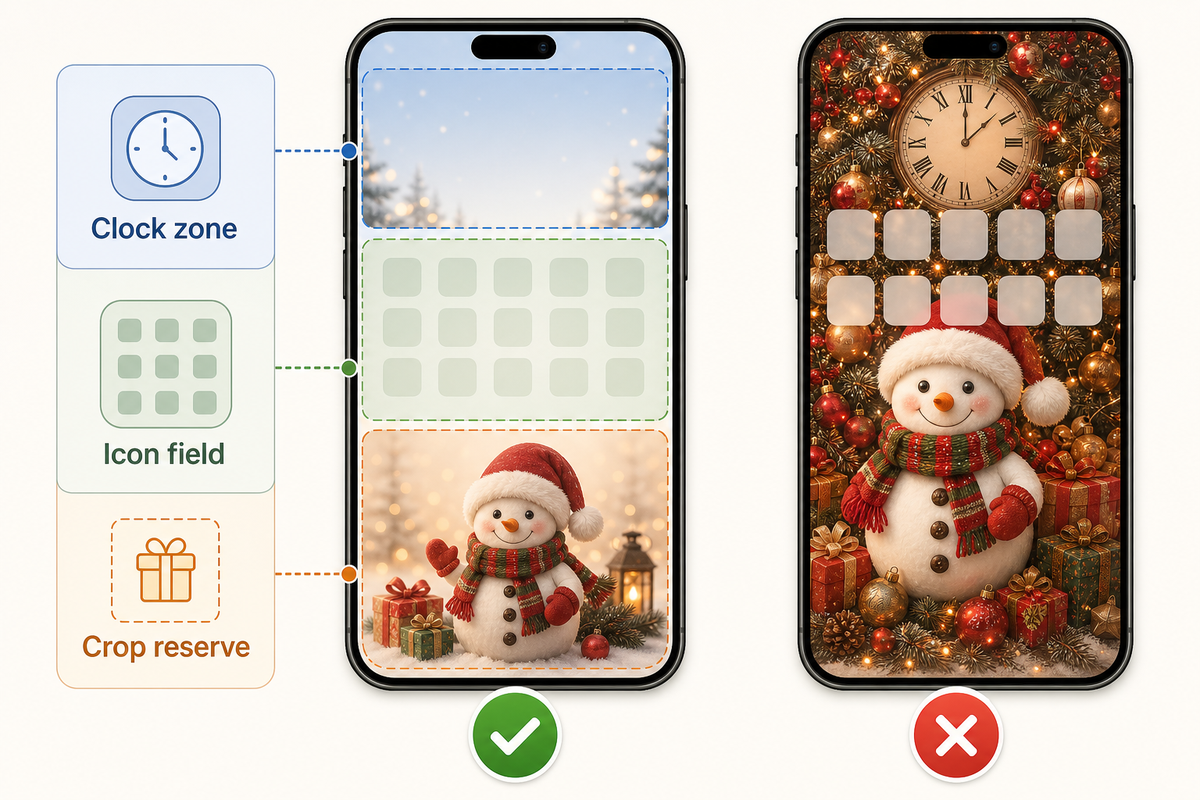
The prettiest Christmas phone wallpaper is not automatically the easiest one to live with. A snowy village may look perfect in a gallery, then place a bright roof directly behind the time. A tiny candy-cane pattern can seem restrained until four rows of icons make it visually buzz. Decide which screen gets the image before deciding whether the image is “minimal” or “cute.”
A vertical iPhone background also needs a different composition from a desktop image: the narrow crop gives a Christmas tree, doorway, or snow globe less horizontal breathing room. You do not need a large “Merry Christmas” message to make the screen festive; a clear seasonal object usually survives the interface more gracefully than decorative text. For a softer color-first alternative, see how soft palettes behave behind icons.
Use three filters. First, identify the clock zone: the top third of the Lock Screen needs a relatively even patch of light or dark color. Second, identify the icon field: most of the Home Screen should not contain dozens of edges competing with app labels. Third, check the crop reserve: leave enough scenery around the subject to reposition it without cutting off the tree, bow, window, or animal. Apple’s Lock Screen guide confirms that the live screen can include the clock, widgets, and repositioned image.
In a United States DataForSEO keyword estimate pulled for this article on August 12, 2026, the exact query had an estimated monthly search volume of 33,100; its historical rows estimated 201,000 for both November and December 2025. These are dated keyword-tool estimates, not measured traffic or a forecast, but the pattern supports a practical editorial choice: help readers make a fast visual decision when the holiday window arrives. This matrix shortens that decision; it does not argue that a bigger assortment is always better.
Warm and Classic Christmas Wallpaper Ideas 1–15
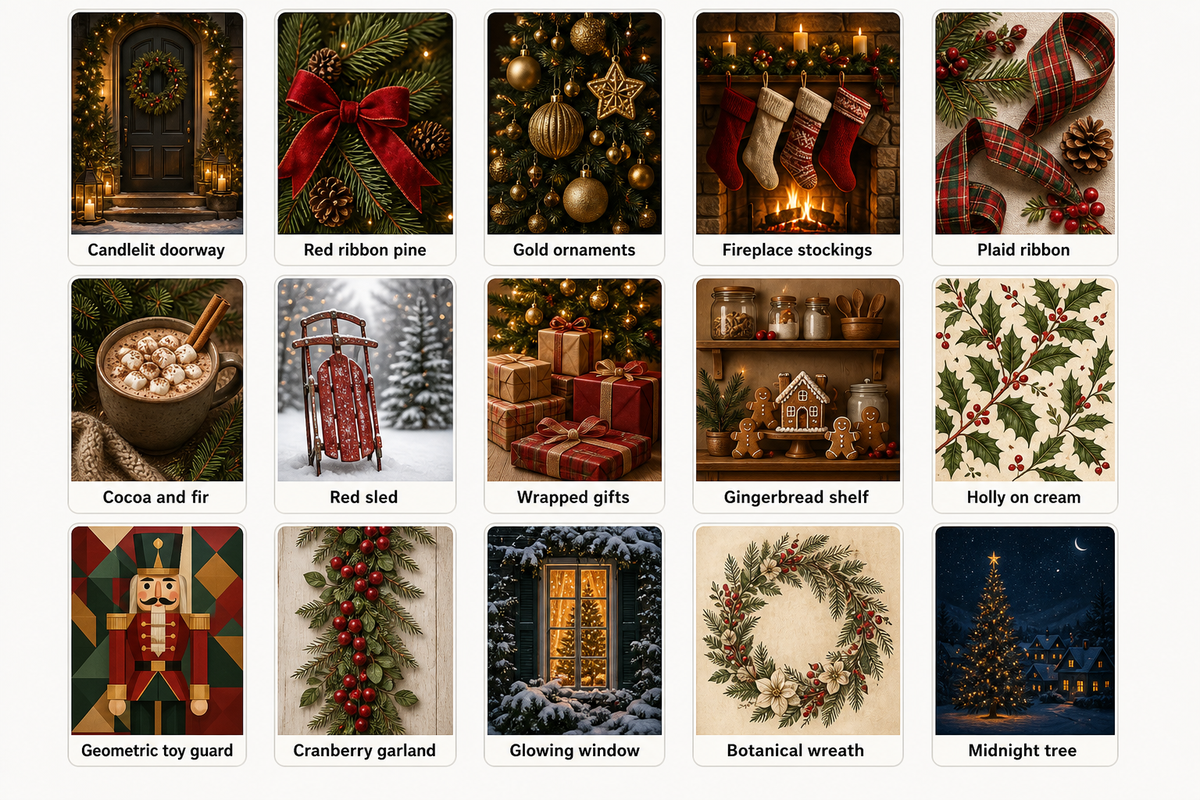
Start here if you like traditional red, evergreen, candlelight, wood, and gold. These concepts feel unmistakably festive without relying on protected characters, logos, movie scenes, or celebrity imagery; the U.S. Copyright Office FAQ explains why changing someone else’s work does not by itself create ownership.
For many people, the Christmas season is carried by Christmas lights, twinkling lights, a red-green holiday mood, familiar decor, and a little holiday cheer. If you want to get into the Christmas spirit without an iconic character, use pine, a bow, or a snowman as the main motif; that festive touch can bring the festive spirit with less clutter.
| Idea category | Best screen | Screen-fit note |
|---|---|---|
| 1. Candlelit evergreen doorway | Lock | Keep the wreath low and leave the dark doorway above it for the clock. |
| 2. Red ribbon on pine | Either | One diagonal ribbon creates movement without filling every icon space. |
| 3. Gold ornaments in a dark tree | Lock | Cluster ornaments near the bottom; keep the upper branches subdued. |
| 4. Fireplace and hanging stockings | Lock | Frame the fireplace low enough that notifications do not cover the stockings. |
| 5. Plaid ribbon flat lay | Home | Use one broad strip of tartan, not a full-screen micro-pattern. |
| 6. Cocoa, cinnamon, and fir | Lock | A top-down mug scene works when the cup sits below the clock. |
| 7. Vintage red sled in snow | Lock | Let an open snowy sky carry the time while the sled anchors the lower half. |
| 8. Wrapped gifts under soft lights | Lock | Blur the lights and limit the stack to three boxes for a clean silhouette. |
| 9. Gingerbread kitchen shelf | Lock | Reserve a plain wall above the shelf; tiny props belong below the clock. |
| 10. Holly on warm cream | Home | Place two or three corner sprigs around a mostly empty center. |
| 11. Nutcracker-inspired geometric guard | Lock | Use an original toy-soldier design and position it below the time. |
| 12. Cranberry garland close-up | Home | A shallow-focus strand gives color without sharp detail behind icons. |
| 13. Snowy church-window glow | Lock | Center the glow below the clock and keep surrounding snow evenly dark. |
| 14. Old-paper botanical wreath | Either | A thin wreath leaves a quiet middle; avoid tiny decorative lettering. |
| 15. Midnight tree with warm windows | Lock | Use a dark sky for the clock and one lit house as the focal point. |
Cute, Colorful, and Playful Ideas 16–30
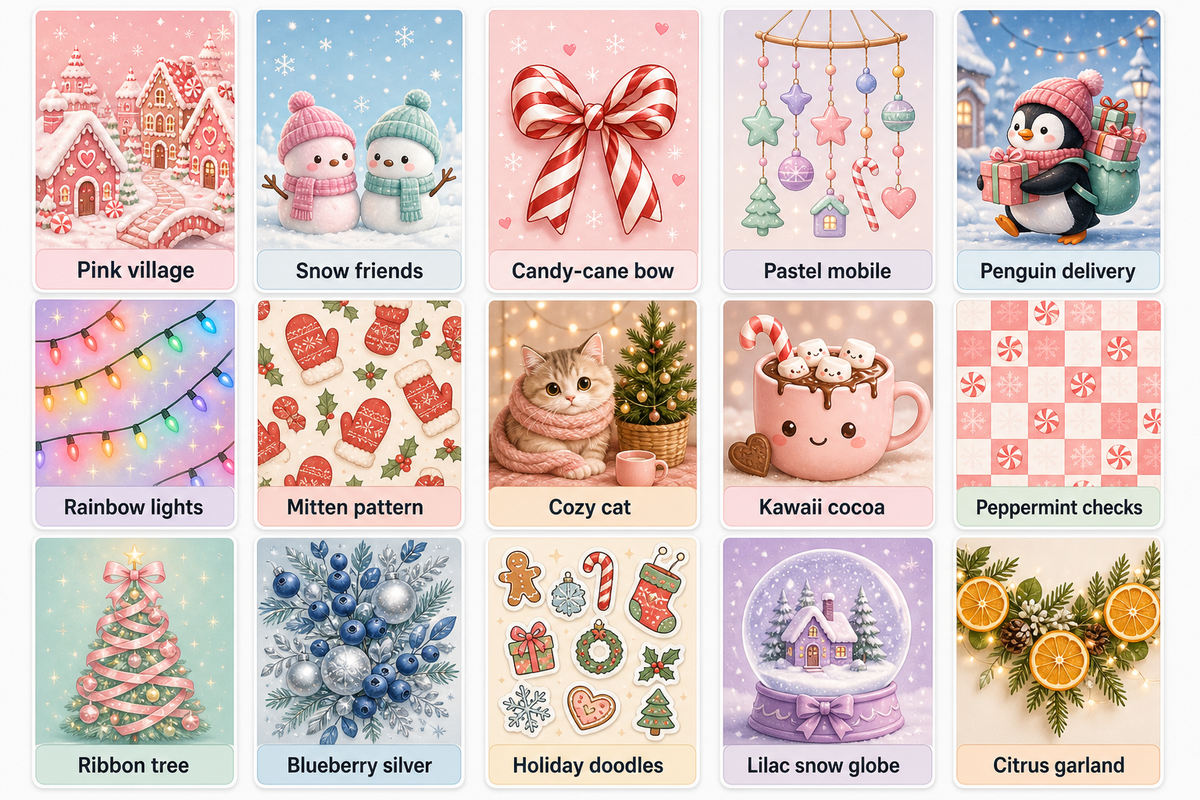
A cute Christmas iPhone wallpaper can carry more color, but it still needs hierarchy. Pick one main character or object, one supporting pattern, and one quiet area. “Cute” becomes cluttered when every candy, star, snowflake, and bow has equal visual weight. Use an original figure instead of tracing a protected character; the U.S. Copyright Office distinguishes permission from simply changing a work.
This group suits anyone searching for a cute Christmas wallpaper, Christmas collage wallpaper, holiday wallpaper, or playful phone background. Rather than chase holiday vibes with every object at once, choose one source of joy and let the color palette create the vibe.
| Idea category | Best screen | Screen-fit note |
|---|---|---|
| 16. Pink gingerbread village | Lock | Build the village along the bottom and leave a pale sky for the clock. |
| 17. Marshmallow snow friends | Lock | Use two original rounded figures, not a crowded cast. |
| 18. Candy-cane bow on blush | Home | One oversized bow reads better behind icons than many tiny candies. |
| 19. Pastel ornament mobile | Either | Hang ornaments around the sides and preserve the center column. |
| 20. Tiny penguin gift delivery | Lock | Keep the penguin low and the snowy upper half simple. |
| 21. Rainbow holiday lights | Home | Use a softly blurred strand rather than sharp bulbs under app labels. |
| 22. Cherry-red mitten pattern | Home | Scale the mittens large and space them widely to reduce visual buzz. |
| 23. Cozy cat beside a tiny tree | Lock | Place the original cat illustration in the lower third with empty wall above. |
| 24. Kawaii cocoa cup | Either | A single smiling cup works; avoid text bubbles near the clock. |
| 25. Peppermint checkerboard | Home | Lower the contrast and enlarge each square before placing icons. |
| 26. Dancing ribbon tree | Lock | Let one ribbon form the tree silhouette without adding dozens of ornaments. |
| 27. Blueberry-and-silver Christmas | Either | A cool palette feels playful while maintaining strong light-dark separation. |
| 28. Sticker-style holiday doodles | Lock | Build a border of original doodles and keep the clock zone blank. |
| 29. Lilac snow globe | Lock | Center the globe below the time; a plain lilac field carries notifications. |
| 30. Citrus Christmas garland | Home | Use broad orange slices and greenery along one edge for a fresh, nontraditional look. |
Minimal, Elegant, and Winter Ideas 31–45
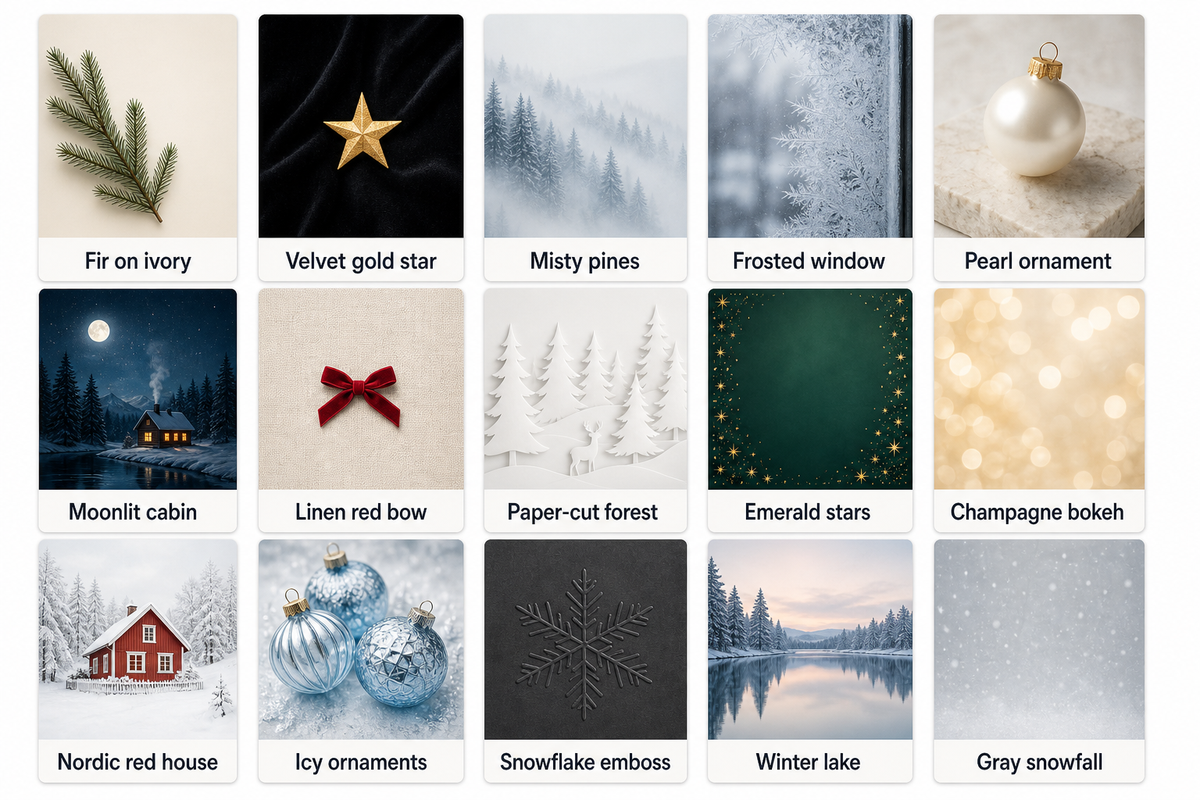
Choose this group if you want a Christmas lock screen that can stay through January. Snow, glass, linen, moonlight, and restrained metallic accents feel seasonal without turning every part of the screen into a decoration.
A simple background can still feel like a winter wonderland: fog, snow, glass, and soft bokeh can create holiday magic without busy detail. These quieter wallpaper backgrounds help keep the holiday spirit after December 25 and make room for widgets throughout the holiday season.
| Idea category | Best screen | Screen-fit note |
|---|---|---|
| 31. Single fir branch on ivory | Home | Place the branch along the bottom edge and leave the icon field open. |
| 32. Black velvet and one gold star | Either | One focal star creates elegance without fine metallic noise. |
| 33. Misty snow-covered pines | Lock | Use a smooth fog gradient behind the clock and darker trees below. |
| 34. Frosted window edge | Home | Keep frost around the perimeter and the center softly translucent. |
| 35. Pearl ornament on stone | Lock | A single ornament below the time creates a calm editorial composition. |
| 36. Moonlit cabin silhouette | Lock | Keep the moon away from the clock so both remain distinct. |
| 37. Linen texture with a tiny red bow | Home | Use low-contrast fabric grain; make the bow a small corner accent. |
| 38. White paper-cut forest | Either | Separate layers with broad shadows rather than intricate cut lines. |
| 39. Emerald gradient with fine stars | Home | Concentrate small stars near the edges and protect app-label areas. |
| 40. Champagne bokeh | Home | Large blurred circles create glow without hard edges under icons. |
| 41. Nordic red house in white snow | Lock | One small house gives the eye a destination while the sky remains open. |
| 42. Icy blue glass ornaments | Lock | Hang ornaments to one side so the clock uses a stable blue field. |
| 43. Charcoal snowflake emboss | Home | Make the embossed pattern broad and faint to preserve icon clarity. |
| 44. Quiet winter lake reflection | Lock | Put the horizon below center; the sky becomes the clock-safe zone. |
| 45. Soft gray snowfall gradient | Either | Vary flake size gently and keep the center lower in contrast. |
Dark designs in this list are recommended for mood and contrast, not as a battery-saving promise. Purdue University’s report on dark-mode research found that power effects vary with display technology, brightness, and usage conditions, and the cited tests concerned Android app interfaces rather than static iPhone wallpaper. That evidence isn’t a basis for claiming that one black Christmas wallpaper will extend your iPhone battery.
Use the 3-Layer Pairing Method
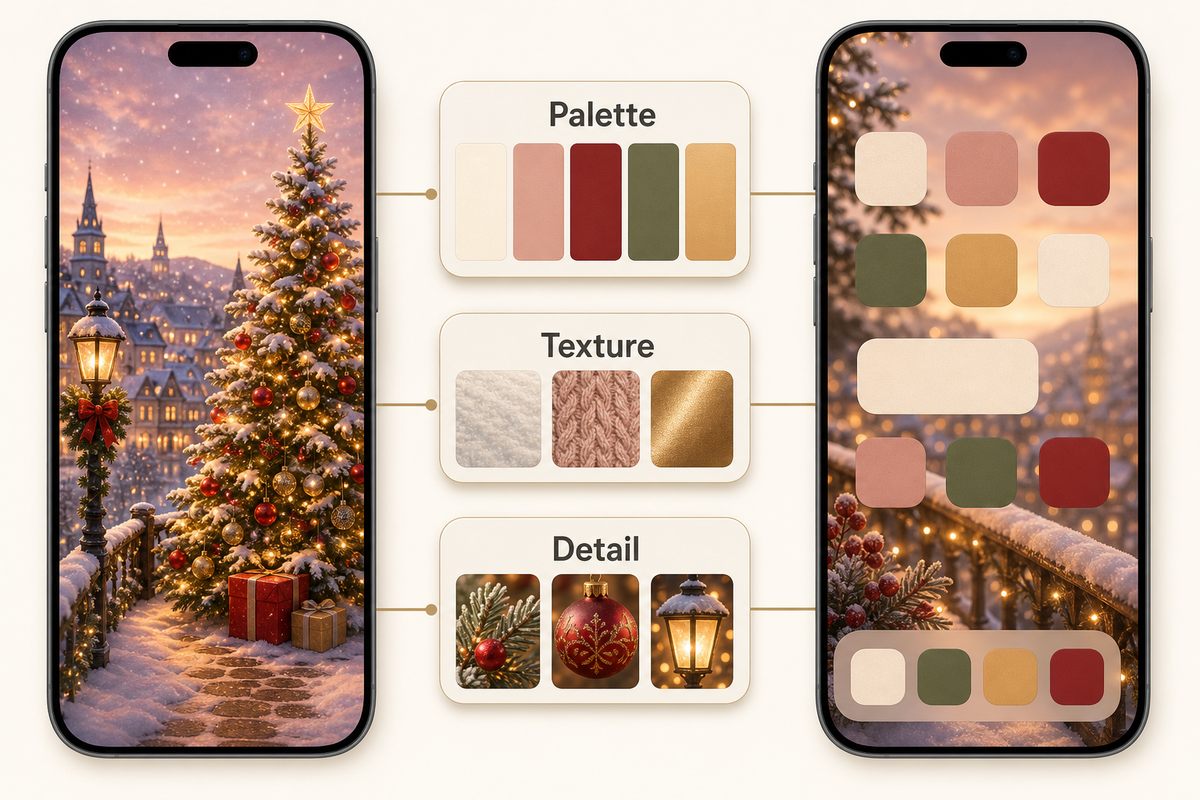
For this guide, pair a Christmas Lock Screen and Home Screen with three visual layers: palette, texture, and detail level. Keep the first two consistent, then reduce detail on the Home Screen. This is a practical way to use the separate Lock and Home Screen options documented in Apple’s wallpaper guide.
The method works whether you call the result Xmas wallpaper, Christmas aesthetic wallpaper, or wallpaper for your iPhone. You are not trying to add magic to your phone with more objects; you are using repetition to transform two separate screens into one coherent holiday mood. If the wallpaper is only one part of your redesign, plan the rest of the Home Screen grid around the image, widgets, and icons.
- Choose a palette. Examples include cranberry and pine, blush and peppermint, or midnight blue and champagne.
- Choose one shared texture. Snow grain, soft bokeh, linen, watercolor, or paper cutouts can connect the pair.
- Change the detail level. Put the complete scene on the Lock Screen. Use a crop, blur, gradient, or one isolated motif on the Home Screen.
For example, pair idea 7’s red sled under an open snowy sky with a Home Screen showing only the same muted red on softly blurred snow. Or pair idea 29’s lilac snow globe with a lilac gradient carrying two faint stars. The screens feel designed together, but the app grid remains usable.
Do not start by asking whether both screens should use the same image. Ask which details deserve attention when the phone is locked, then remove those details from the screen that carries your apps.
Check Crop, Clock, and Widget Readability
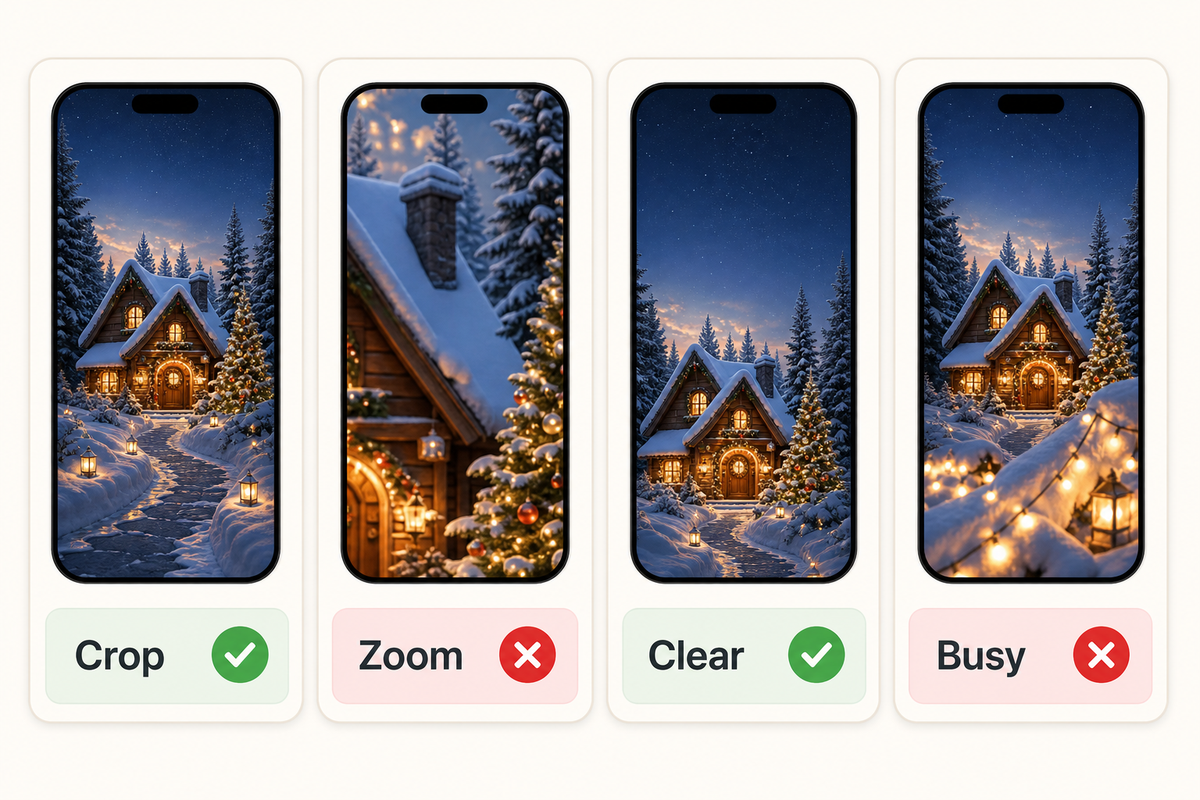
Screen fit has two separate parts. Geometric fit asks whether the subject survives the vertical crop. Perceptual fit asks whether the clock and controls remain readable over the exact pixels behind them. Passing one test doesn’t guarantee the other. Apple’s customization guide is the platform reference for repositioning the image and configuring the clock and widgets.
Preview the Crop on Your Lock Screen
- Preview the image as a Lock Screen and place the subject below the clock.
- Pinch in and out once. If the composition only works at one extreme zoom, it lacks crop reserve.
- Check that notifications can appear without hiding the main ornament, face, doorway, animal, or gift.
- If you use widgets, repeat the preview with them visible. The clean space must include the widget row, not only the clock.
Check Clock Readability at a Glance
Lock the phone, wake it, and read the time once without searching for it. Then repeat in a dim room and near a bright window. Look at the local patch immediately behind every digit: a bright snowbank, branch edge, or light bulb can break up the clock even when the rest of the wallpaper is dark. General contrast guidance supports the principle of separating foreground text from its background, but this is a practical screen check, not a claim that an iPhone wallpaper must meet a particular web-compliance ratio.
If the clock hesitates, try one change at a time: move the crop, choose a different clock color, reduce widgets, or select the quieter companion image. Avoid judging only from the photo in your camera roll; the actual Lock Screen is the relevant surface.
How to Set a Christmas Wallpaper on iPhone
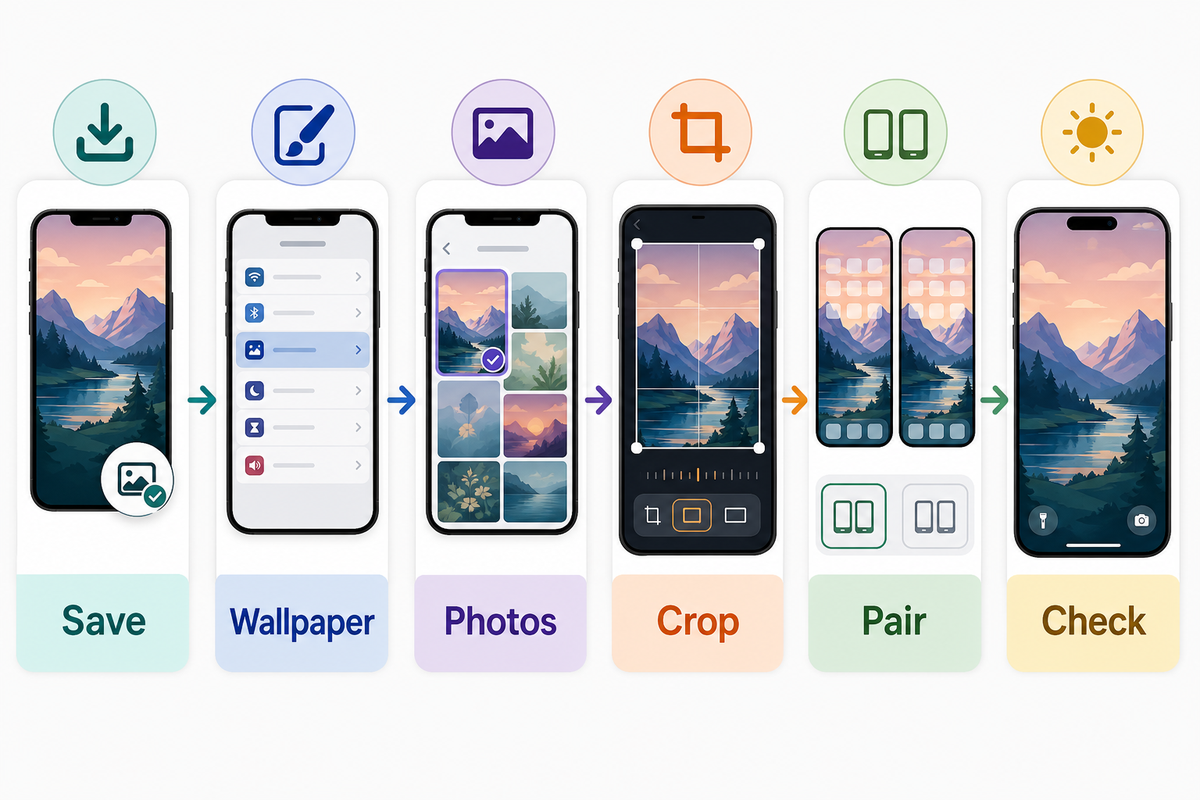
Apple currently supports wallpaper changes through Settings and through the Lock Screen gallery. Menu names can vary slightly by system version and selected image.
- Save a legitimately offered image to Photos at its available full resolution.
- Open Settings > Wallpaper > Add New Wallpaper, or touch and hold your Lock Screen and choose the add control.
- Select Photos, choose the image, then pinch and drag to adjust the crop.
- Tap the clock or widget area if you want to change its appearance or add supported widgets.
- Choose Set as Wallpaper Pair to use the coordinated pair, or choose the Home Screen customization option to select a quieter companion, color, or blur.
- Wake the phone and check clock readability at a glance before you finish.
Apple’s wallpaper guide documents the current Settings flow and the choice between a pair and separate Home Screen customization. Apple’s Lock Screen guide covers clock styling, widgets, repositioning, and other available effects. If you add complications around the clock, decide which widgets deserve clock space before filling the limited area.
Frequently Asked Questions
What are the best Christmas wallpapers for iPhone?
For a Lock Screen, use a vertical scene with one focal point below the clock and calm space above. For a Home Screen, use a quiet gradient or low-contrast corner motif. For a pair, match palette and texture; reduce detail behind icons.
Where can I find free Christmas backgrounds for iPhone?
To get into the holiday spirit, use a source that states who created the image and what the download allows. “Free” may describe the price for personal downloading, not permission to republish, resell, edit into a commercial product, or upload somewhere else. Creative Commons explains that reuse depends on the specific license and its conditions. A perfect background is still the wrong choice when its origin is unclear. Save the original source page with the image for later review.
Should my Christmas Lock Screen and Home Screen use the same image?
Usually, a complementary pair is easier to read than the same image twice. The same image can work if it already has a calm icon field and clock-safe upper area. Otherwise, share color and texture across two separate images. Test both screens before deciding.
Can I use any Christmas image I find online as wallpaper?
Personal use on your own phone and republication are different questions. Check the source, license, and any stated restrictions before downloading, and obtain permission when your planned use requires it. The U.S. Copyright Office FAQ explains that changing someone else’s work doesn’t by itself create ownership. This is general information, not legal advice.
What size should an iPhone Christmas wallpaper be?
Use the largest clean vertical version legitimately available, then preview it on your own device. There is no universal pixel size because model, zoom, widgets, and crop all change the visible frame. A sharp source with crop reserve matters more than one supposedly universal number.
Do dark Christmas wallpapers save battery?
Don’t choose a dark wallpaper based on a guaranteed battery claim. Display technology, brightness, time on screen, and the rest of the interface all affect power use, and research on dark application interfaces isn’t the same as direct testing of one static iPhone wallpaper. Choose dark navy, black, or charcoal Christmas backgrounds for appearance and readable contrast, then treat any battery effect as unproven for that wallpaper.
-1.png)