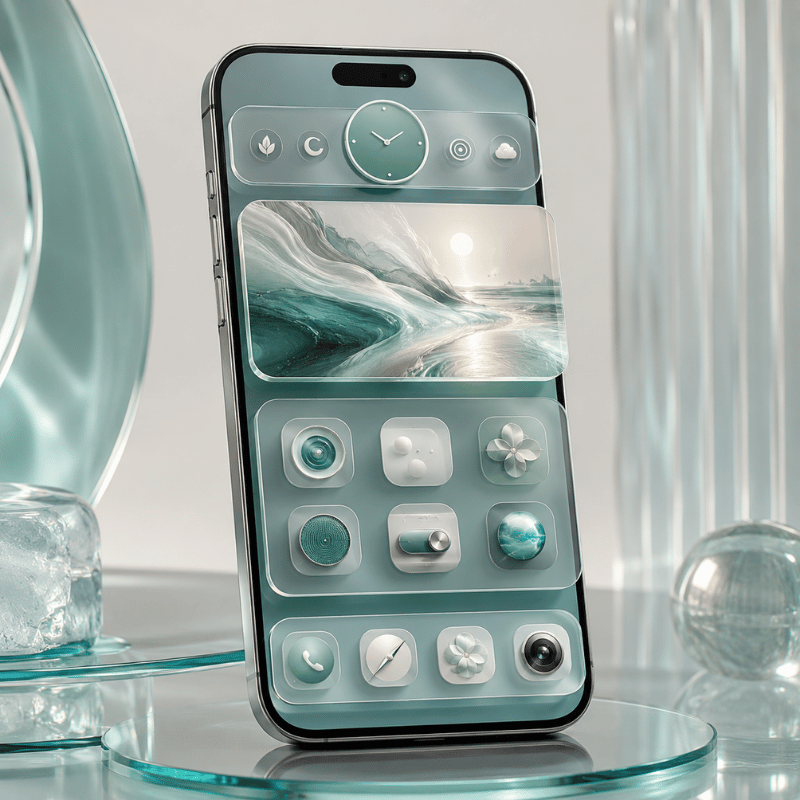
20 Best iPhone Home Screen Ideas for 2026 (Aesthetic + Functional)

Home screen ideas work best when they are visual first and practical second: choose a mood, match the wallpaper, add only the widgets you will check, then place daily apps where your thumb already goes. iScreen keeps this page as a copy-ready gallery, with extra guidance for choosing a look before you start changing icons.

Quick Specs: Home Screen Idea Picker

  • Best page type: visual gallery with style filters and short decision copy.
  • Best starting order: wallpaper, widget, icon, layout.
  • Best first-page widget count: 0-3 visible widgets, or 1 Smart Stack when you want more data without crowding the screen.
  • Best reader path: browse aesthetic home screen themes, choose a widget set, then match icons and wallpaper.
  • Primary caution: do not create a second exact-match blog page for this keyword; this URL should stay the ranking target.

Gallery-First Advantages

The search results favor pictures, templates, videos, and community posts. This gallery lets users compare cute, minimalist, neon, brown, beige, blue, and black and white styles faster than a text-only article.

Gallery-First Limits

Too many choices can slow the decision. Add short chooser copy, a matrix, and a fix section so users can move from inspiration to a usable homescreen layout.

Find a Home Screen Idea by Style
Find a Home Screen Idea by Style

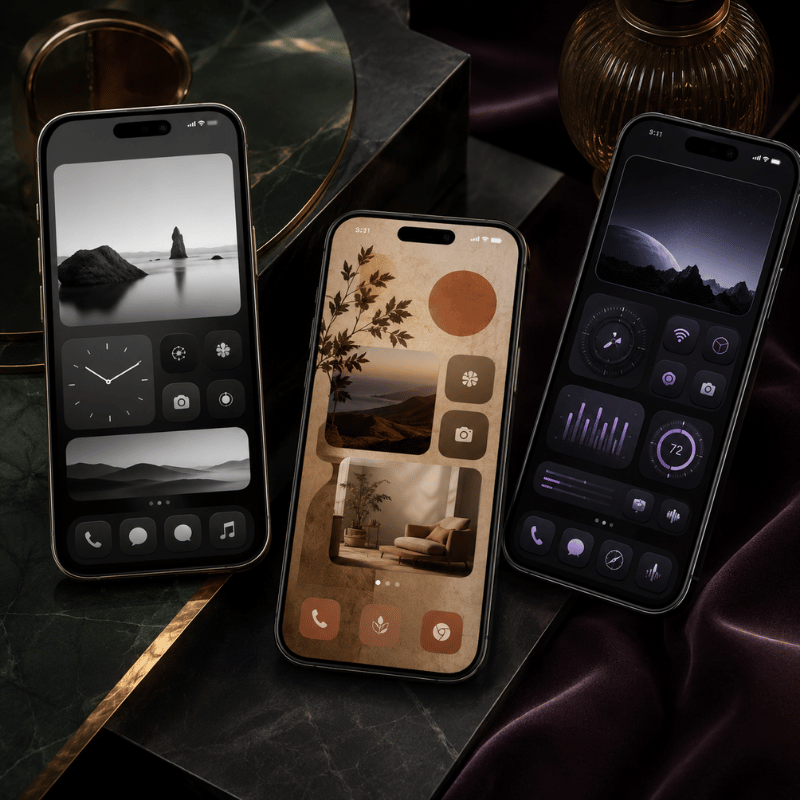
The fastest way to choose a look is to start with style rather than app order. Wallpaper sets the mood, but the widget shape and app icon contrast decide whether the design still works after a week of use.

iScreen’s live home screen gallery is built around 500+ aesthetic layouts to copy. Use it as the primary visual library, then let this guide narrow the field before you save a theme.

Many users first collect aesthetic home screen ideas on Pinterest, then move to an app when they want pieces that actually fit together. Treat Pinterest as the mood-board step: find and save ideas, then return to iScreen for an app icon set, wallpaper, widget collection, and homescreen layout ideas that can be applied as one look. If you want to customize your home screen without starting from a blank grid, choose one saved idea and get creative only with the personal details.

Style goal Choose this first Avoid this mismatch
Cute Pastel wallpaper, rounded widgets, soft app icons Tiny line icons on a busy photo background
Minimal Plain background, one calendar or weather widget, low-color icons Four different widget shapes on page one
Y2K or neon High-contrast wallpaper, bright icon set, photo widget Low-contrast text widgets that disappear at night

The 4-Layer Home Screen Formula

The 4-Layer Home Screen Formula

A good iPhone home screen is not just an aesthetic choice. It is a four-layer system: wallpaper controls the color field, widgets control information density, icons control recognition speed, and layout controls muscle memory.

This is where aesthetic iOS browsing turns into a real iOS home screen layout. One visual element sets the color, one widget gives daily information, one icon style keeps apps readable, and the App Library or default app drawer holds everything that does not need page-one space.

“Choose the background first, then give widgets a job. The setup gets easier to keep when every icon and widget earns its place.”

iScreen Product Content Team, review note for this page
Layer Decision Usability test
Wallpaper Pick the visual mood before anything else. Can icon labels and widget text still be read?
Widgets Add only data you check daily. Does it save an app open at least once per day?
Icons Match contrast before matching color. Can you find Messages, Camera, and Phone in under 2 seconds?
Layout Place daily apps on page one; move rare apps away. Does the page still feel calm after adding work apps?

Engineering Note

Apple’s icon guidance favors recognizable, simplified shapes and warns that too much detail can make an icon hard to read. For daily-use icon packs, keep the main symbol clear at small size, use enough background contrast, and limit page-one widgets to 0-3 blocks unless you use a Smart Stack. Apple states a Smart Stack can hold up to 10 widgets, but a first page still works better when only one stack or two single-purpose widgets are visible.

9 Home Screen Layout Ideas You Can Copy
9 Home Screen Layout Ideas You Can Copy

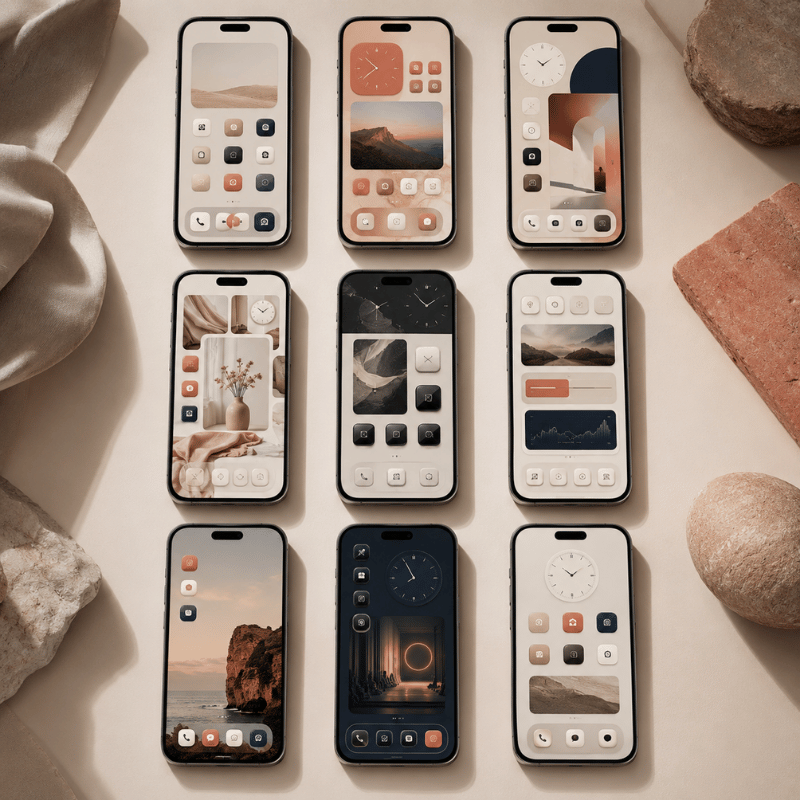
Use this matrix when you like too many home screen ideas and need a quick yes-or-no filter. Each row tells you what to pair, how many widgets to allow, and where to start inside iScreen.

iScreen lists 10k+ aesthetic themes, 5k+ icons, and 500+ widgets for iOS and Android. That inventory is strongest when paired with a small choice rule, not random browsing.

Style Wallpaper type Widget count Icon treatment Best user type Start here
Minimal Plain gray or white 0-1 Thin monochrome Low-distraction users minimal wallpaper backgrounds
Cute Pastel pattern 2-3 Soft rounded icons Photo and mood-board users cute home screen widgets
Black and white Solid or grain texture 1-2 High-contrast glyphs Work phones iPhone app icons
Beige or brown Paper, linen, or warm photo 2 Muted fill icons Study and planning users warm aesthetic themes
Blue Sky, water, or gradient-free photo 1-3 White or navy icons Calm productivity users customize an iPhone home screen
Neon Dark base with bright accents 1 Bold outline icons Music and gaming users Dynamic Island screen details
Nostalgic Film, pixel, or retro image 2 Pixel or sticker icons Creative users StandBy-style widgets
Couple Shared photo or soft illustration 1-2 Matching paired icons Long-distance partners couple widgets for home screens
Lock-screen matched Same image family on both screens 1-2 Icon color pulled from wallpaper Users who change sets monthly lock screen ideas

Widget Ideas That Deserve Space on Your First Page
Widget Ideas That Deserve Space on Your First Page

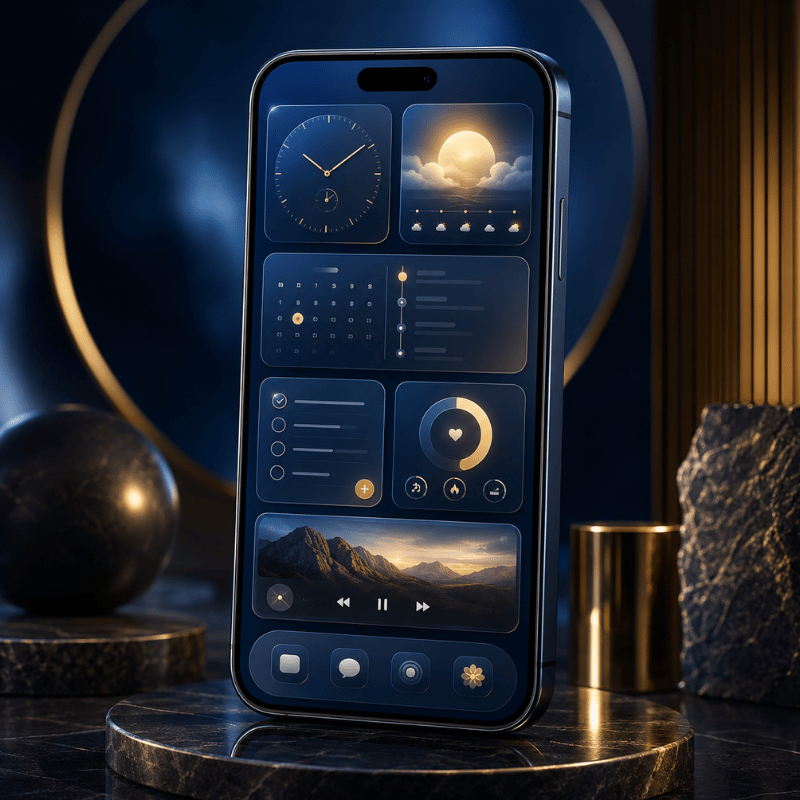
Apple describes widgets as glanceable information for the Home Screen, Lock Screen, or Today View. That means a widget should answer one small question without making you open an app: What is next? What changed? What do I want to remember?

For a student planning a long class day, a small calendar widget, a medium photo widget, and a battery widget can be enough. Creators may prefer one large mood-board widget and no other blocks. Someone who wants less screen noise can put widgets into one Smart Stack, then keep page one mostly app icons.

Widget type Use it when Skip it when
Calendar Your schedule changes during the day. You only check dates once in the morning.
Photo The page is meant to feel personal. It makes app names hard to read.
Battery or weather You check status several times per day. It repeats data already visible elsewhere.

How do I customize a home screen?

Start with wallpaper, add widgets, then change icons. On iPhone, Apple says you can touch and hold the Home Screen background until items jiggle, then move apps or widgets to a new place or another page. On Android, Google says you can add apps, shortcuts, widgets, folders, and extra Home screens from the launcher. iScreen adds the style layer: browse a theme, save a widget set, and match the icon pack before arranging apps.

App Icon and Wallpaper Pairing Rules
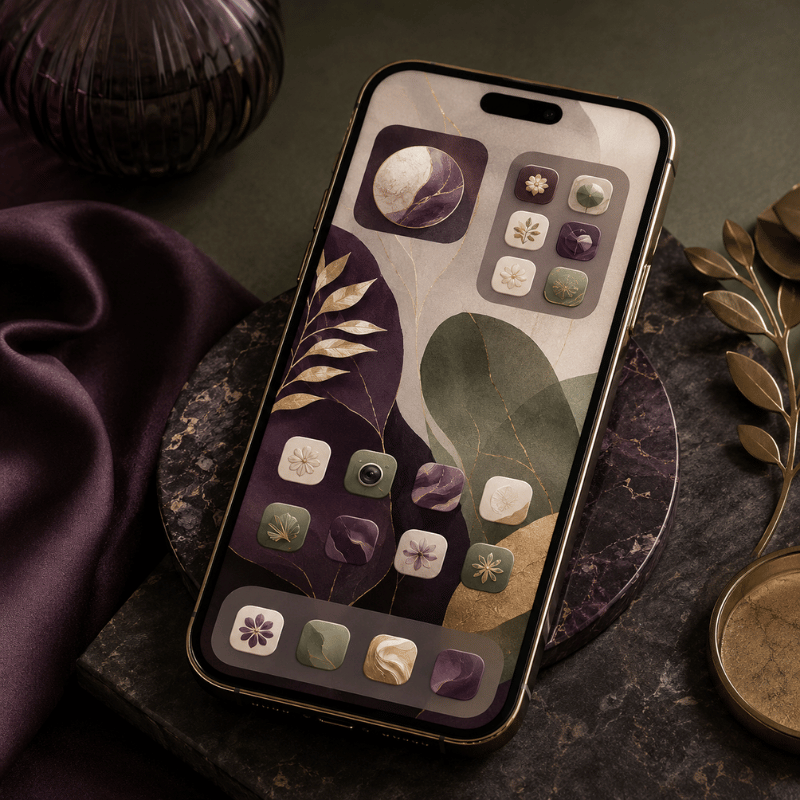
App Icon and Wallpaper Pairing Rules

Wallpaper is the largest color block on the phone. Icons sit on top of it all day. If both are detailed, the screen feels loud; if both are low contrast, apps become hard to find.

Apple’s wallpaper guide covers suggested wallpapers, personal photos, filters, widgets, styles, controls, and photo shuffle. It also notes that 3D photo wallpaper needs iPhone 12 or later and an eligible photo. Keep home screen pairings flexible enough that a lock screen change does not break the app page.

  • Pair a detailed photo background with plain icons.
  • Pair a plain background with more expressive icon art.
  • Use the same accent color on widgets and icon badges.
  • Test the Camera, Messages, Phone, and Maps icons before changing every app.

For users who change wallpaper often, build around a neutral icon pack from iScreen app icons. For users who care most about mood, start with aesthetic iPhone wallpapers and choose icons second.

Can you change the font on an iPhone home screen?

You can change the feel of a screen through wallpaper, widgets, icons, and app placement. System app-label font control is limited, so do not plan a full design around custom label type. If a theme needs a different typographic feel, use text inside a widget or a wallpaper design instead of relying on app names.

How to Copy a Look in iScreen
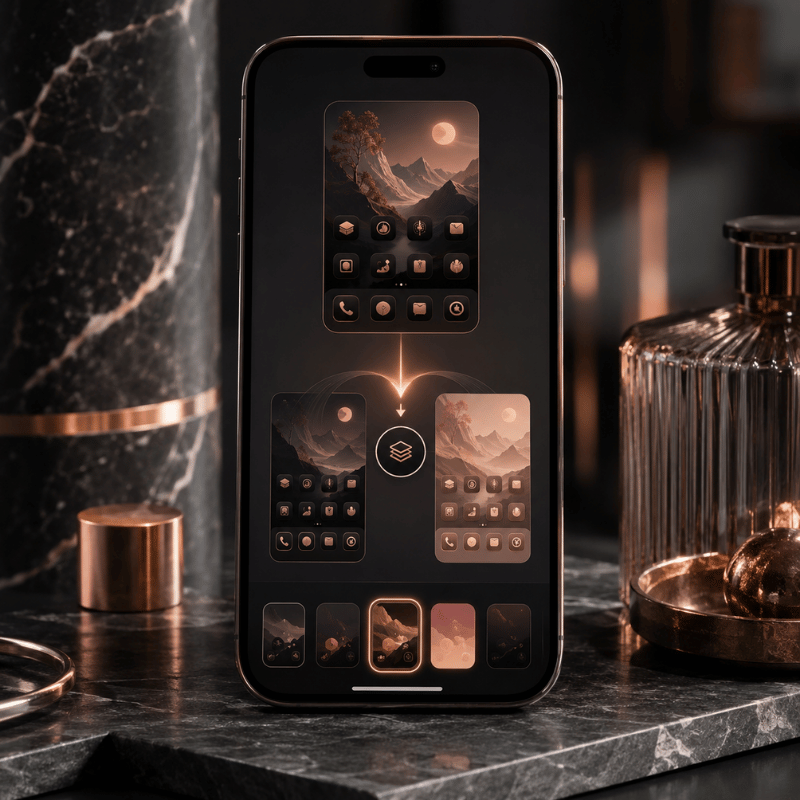
How to Copy a Look in iScreen

Copying a look is easier when you treat it as a set, not a pile of separate assets. Pick the theme, confirm the wallpaper, choose matching widgets, then apply the app icon set.

Advanced users may mix a custom widget from Widgy with iScreen wallpaper or icons, but most readers should start with one stylish theme set. That leaves room for creative freedom without making every drag and drop decision from scratch. If you want a vibrant screen, choose one bold color and let the rest of the page stay quiet.

  1. Open the iScreen theme gallery and save 2-3 looks that match your style.
  2. Check whether each theme has the widget shapes you want for page one.
  3. Match the wallpaper to your lock screen or choose a separate lock screen from iScreen lock screen ideas.
  4. Apply app icons only after checking contrast on your wallpaper.
  5. Move daily apps to the lower half of page one and place rarely used apps in folders or the app drawer.

iScreen supports iOS and Android. Android launchers vary, so follow the phone’s system steps when adding widgets or shortcuts, then use iScreen for the theme, widget, icon, and wallpaper assets.

How to make an iPhone home screen unique?

Unique iPhone home screen layouts need one clear personal signal. Use a photo widget, a color pulled from a favorite place, a small custom quote, or a lock screen match. Do not change every layer at once. Change the wallpaper and one widget first; if the page still feels right after a day, add icons.

Fix Common Home Screen Problems

Most home screen problems come from one of three causes: the setup is too crowded, the icons are hard to recognize, or the phone’s system layout changed after app installs. Fix the friction before changing style again.

Problem Likely cause Repair move
The page feels busy. Too many widget shapes. Remove one widget or combine data into one stack.
Apps are hard to find. Icons are too similar. Keep daily apps in a clearer icon style.
The setup breaks after downloads. New apps land in a visible area. Change where new apps go, or rebuild page one after install.

Apple says resetting the Home Screen layout removes folders and arranges downloaded apps alphabetically after the apps that came with the iPhone. Use that only when a page is too tangled to repair by moving items.

Need the bigger editing path? The home screen customization guide covers the full setup flow, while iScreen comparison notes help you decide whether to build a full theme or just change widgets.

How do I get my homepage back to normal on my iPhone?

First, remove the widget or icon pack that made the page hard to use. If the layout is still messy, move daily apps back to page one. Only then consider Apple’s reset option, because it removes folders and changes downloaded app order. Resetting is a last step, not the first repair.

What Home Screen Styles Are Rising in 2026?
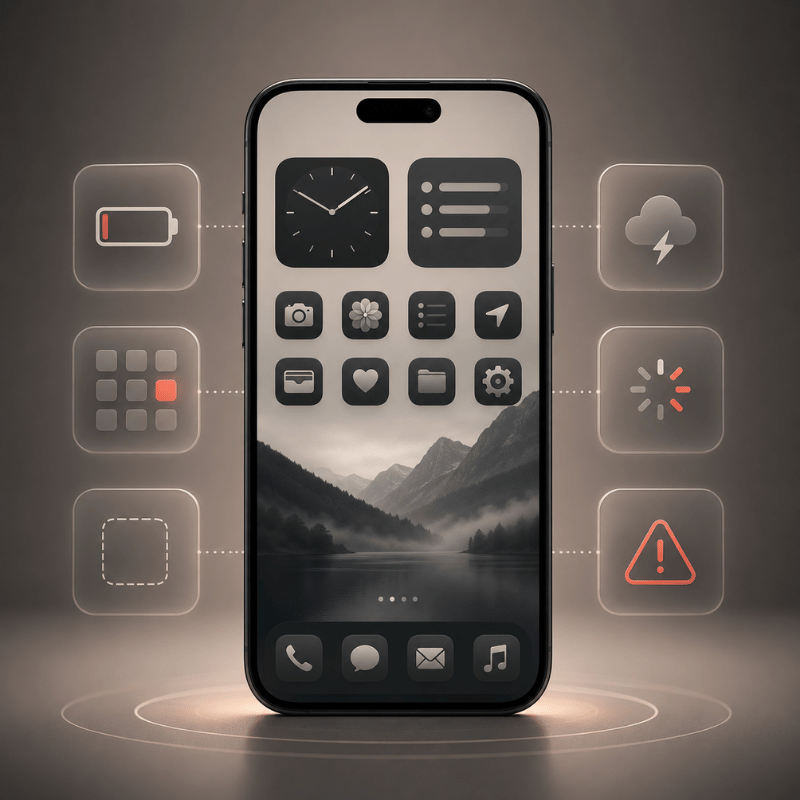
What Home Screen Styles Are Rising in 2026?

Recent search data checked for this page points to two rising style needs: cute home screen ideas and widget home screen ideas. Treat that as a directional signal, not a permanent rule. The stable core is still visual inspiration, but users are asking for softer styles and widget-led layouts.

For 2026 refreshes, give cute, pastel, green, yellow, nostalgic, neon, and Y2K styles clear gallery filters. Then pair each with a widget rule. One cute setup with three small widgets feels different from a cute setup with one large photo panel; users should see that difference before installing.

The action for iScreen is straightforward: keep the page image-first, but add more chooser copy around style clusters. Users should be able to land on this page, choose between 3 likely styles, open the matching widget collection, and leave with a setup plan in under 5 minutes.

FAQ

How do I customize a home screen?

Short answer
Pick a wallpaper, add widgets, change icons, then move apps into a layout you can use daily. In iScreen, start with a theme so the wallpaper, widget, and icon style match.

What are good home screen wallpapers?

Wallpaper rule
Good home screen wallpapers leave readable space behind icons. Plain photos, soft patterns, muted landscapes, and single-color backgrounds are easier to pair than busy collages. If the image has faces, bright highlights, or lots of tiny detail, place widgets in the calmest area or choose a simpler icon pack. Test it in daylight and at night, because contrast that feels fine on a laptop preview may be weak on a phone in dark mode.

Can you have multiple home screen wallpapers on an iPhone?

Wallpaper sets
You can create multiple Lock Screen looks, and Apple also supports wallpaper changes from the Lock Screen. For the Home Screen, keep one matching background per look so the icon set does not clash.

How do I add an app back to my iPhone home screen?

App Library path
Find the app in App Library, press and hold it, then drag it back to a Home Screen page. If you removed a custom icon shortcut rather than the app itself, rebuild the shortcut or reapply the icon pack. Keep daily apps on page one and put rarely used apps on page two or in folders.

What is easy homescreen on my Android phone?

Android note
Android Home Screen steps vary by launcher and version. Google says some steps require Android 14 or later, so check your phone’s version before following a tutorial.

Should I use widgets or app icons first?

Best order
Choose widgets first if your page needs to show time, weather, photos, battery, or calendar data. Choose icons first if your goal is a cleaner visual style and you mostly open apps by memory. For most users, the safe order is wallpaper, widgets, icons, layout. That order prevents a common rework loop: applying a full icon pack, finding that widgets no longer match, and then changing the wallpaper again.

Where should I put rare apps?

App placement
Move rare apps away from page one. Put finance, travel, shopping, and utilities into folders or a later page, unless you use them every day. The first page should carry daily communication, camera, calendar, maps, music, and one or two widgets that save time. Keep the dock for apps you open without thinking. If a folder hides an app you need weekly, move that folder to page two rather than burying it inside another folder.

Build the Look in iScreen

Browse the gallery, save a theme, and use the 4-layer formula before applying icons. For deeper setup help, use the iPhone home screen layout ideas guide or the change homescreen on iPhone guide.

Open iScreen themes

Review Note

This page refresh uses iScreen’s live theme, icon, widget, and wallpaper claims plus current public support pages from Apple and Google. It avoids unsupported usage claims, keeps the existing `/home-screen-ideas` URL as the ranking target, and treats trend language as directional search demand rather than a fixed prediction.

References & Sources

  1. Move apps and widgets on the iPhone Home Screen – Apple Support
  2. How to add and edit widgets on your iPhone – Apple Support
  3. Change your iPhone wallpaper – Apple Support
  4. Icons – Apple Human Interface Guidelines
  5. Add apps, shortcuts & widgets to your Home screens – Android Help
  6. Do You Use It? Widgets See Middling Adoption – TidBITS

最新文章

How to Customize Your iPhone Background: Wallpapers, Widgets & More

How to Customize Your iPhone Background: Wallpapers, Widgets & More

2026/5/28 10:30
Your iphone background is the very first thing you see every time you pick up your phone. As iOS 26 delivers what apple claims is its “most extensive software design update to date,” there has never been more you can do with your mobile device – or, consequently, more to learn. Whether you wish to substitute it for a customized photo, trigger a Liquid Glass lock screen, randomly browse a bunch of your favorites, or put together a completely co-ordinated custom aesthetic using a dedicated app, this guide lays out all of your options. We’re going to examine 3 completely different approaches to altering your iphone background (most guides will only document one). We’ll break down lock screen and home screen customization, discuss live wallpapers,photo recommendations, IOS 26 updates, as well as give advice as to whether you should be sticking with IOS or opting for an alternative app. Quick Look: What Can You Actually Customize on Your iPhone Background? Before you get started, it’s helpful to know that your lock screen as well as your home screen are actually two distinct backgrounds that are individually adjusted. Each offers you a number of of completely unique customization alternatives. Some individuals assume the lock screen and the home screen have to be synchronized and that mistake is often one of the biggest source of confusion. Feature Lock screen Home screen Wallpaper types Photo, Live Photo, Emoji, Weather, Astronomy, Spatial (iOS 26) Photo, solid color, gradient, blur of lock screen Customizable elements Clock font & color, widgets, controls, depth effect, blur style Blur/dim level; can be paired with or independent of lock screen Depth Effect Yes — portrait subject appears in front of the clock No Widgets Yes (up to 2 slots below clock) Yes (home screen widgets, any size) Minimum iOS for full features iOS 16 (2022) for customization; iOS 26 for Spatial All iOS versions Supported image formats JPEG, PNG, HEIC, Live Photo JPEG, PNG, HEIC One can choose to use Settings > Wallpaper to control both screens, or take one of the faster shortcuts we outline below. It’s also possible for you to synchronize both and also apply either individually to a particular device. How to Change Your iPhone Background: 3 Methods Most people think there’s just one method for changing your wallpaper, as the typical guides only reveal one way to get it done. However, Apple’s mobile operating system offers three unique methods – each is perfect for the circumstances your’re under, and as we’ve always said, knowlege of all three methods will guarantee you won’t ever take the longest route to a task that’s easily accomplishable at high speed (we call that the “3-Method Matrix). Method 1 Via Settings — Most Control Why should you use it?: When you want to setting the screens simultaneously, or if you prefer to sift through apple’s extensive wallpaper collections including astronomy, spatial collections, space, and more. Open Settings → Wallpaper Tap Add New Wallpaper When to use: Browse among collections, weather & astronomy, photos, suggestions, or collections of art. Customizable features include widgets, clock adjustments, a depth effect toggle, and also background blur. In order to setting both, you would touch add as well as select whether you desire to setting them together or whether you desire to apply a solitary picture just to your lock screen. Method 2 From the Photos App — Fastest for Your Own Photos When to use: Best when you currently have a specific photo available for viewing within your library and wish to apply it right away without jumping into settings. Open Photos and find your image Tap the Share button (↑) Scroll down and tap Use as Wallpaper Adjust framing, enable or disable Perspective Zoom Tap Add, then choose your screen assignment Method 3 Long-Press the Lock screen — Fastest Swap When to use: Best if your phone is currently locked and you wish to quickly alter it to a various wallpaper without taking the steps to unlock it. Wake your iPhone and long-press the lock screen Tap andswipe left or right, or press ‘Add’ to establish a new choice. Select, personalize on-screen Tap Done to activate You can also establish your picture by touching and also holding the lock display image, then pressing ‘edit’. Your Situation Best Method Setting both lock screen and home screen at once Method 1 (Settings) Using a specific photo already in your library Method 2 (Photos app) Quick swap from the lock screen Method 3 (Long-press) iOS 26 — changing from home screen Touch-hold home → Edit → Edit Wallpaper How to Customize Your Lock Screen Background iOS 26 will offer an added advantage as now you may alter your wallpaper instantly via the lock display (the lock show is also referred to as the lock screen picture or screen). apple launched advanced lock screen customization in IOS 16. Many customers only ever transform the main picture, however IOS enables several kinds of changes (you could be surprised to discover you can in fact modify as many as seven individual elements on your lock screen – it’s far more than just the image!). Visit apple’s support pages to learn how to modify an image to create an custom lock screen. 7 Things You Can Customize on Your iPhone Lock screen The kind of image you set depends on your choice (a custom made photo, a live picture, a pattern of emoji symbols or you could likewise establish a photo showing whether and where there’s space on earth). You can also create Live Photo wallpapers showing dynamic weather patterns. Clock font & color (You have 6 different font styles to select from and can likewise personalize the color to any specific image of your selection.). widgets – up to 2 slots below the clock (weather, battery, calendar, fitness rings, etc) Depth Effect – your portrait subject moves to the front of the clock, for a layered 3D appearance Blur style – softens your lock screen image to improve text readability over complex backgrounds Controls – substitute the flashlight & camera shortcuts for any actionable control in iOS 18+ lock screen Tilojov style – from abstract patterns & gradients to your favorite emoji array, even a full Spatial wallpaper in iOS 26 To access all of these: use Method 3 (long-press the lock screen → tap the edit pencil icon), or go to Settings → Wallpaper → Customize under your current lock screen preview. For more options beyond the native iOS toolkit, explore our lock screen customization features. Can You Set a Different Wallpaper for Lock screen and Home screen? Yes! After you are donesettingingyour lock screen wallpaper, tap“customize Home screen” instead of“Set as wallpaper Pair” This will allow you to choose an entirely separate photo,color, gradient or even blurred version ofyourcurrentlock screen image.Each lock screenyousavewillhaveitsown separate and individually configured home screen. Pro Tip — Depth Effect: For the floating 3D look, use a portrait photo where the main subject appears in the upper portion of the frame (a person, pet, or object with clear foreground separation). Tap Depth Effect in the lock screen editor. Not all photos qualify — iOS analyzes the image automatically and the toggle will be greyed out if the subject is not detected. For inspiration, see our guide on depth effect wallpaper for iPhone. Setting a Wallpaper for Your iPhone Home screen This is distinct from your lock screen and sits behindyourentireappgrid,foldersanddock.Yourchoicesforeitheralwaysimpactstheother,because the home screen wallpaperis a visually definingelementofyourown phone experience! To create your home screen wallpaper separately,afteryouhavechosenyourlock screen(using either Method 1 or Method 2, described above), tap the“customize home screen” icon that appearsneartherightofyourscreen. You have the following choices: Original – uses the same photo as your lock screen Blur – applies a blur filtertoyourcurrentlock screenphotoforabettersubtle background behindyouricons Color — a single solid color Gradient — a smooth color gradient photo – selects a photosolelyfortherahidoz Kafefuzbychoosing any image fromyour photo library. iOS 26 note: In iOS 26, the wallpaper you set directly influences the appearance of your dock, app folders, and app icons — they automatically pick up color tints from your background image through the Liquid Glass layer. Dark or desaturated wallpapers give icons the most visual clarity. For more ideas on building a cohesive home screen look, see our home screen ideas page or our step-by-step guide to changing your iPhone home screen. Using Your Own Photos as iPhone Background Personalizingyourphonethrough the custom iphone background is often the most deeply rewarding – transformingitintoreflectionofthethingsYOUvalue most. We thought some additional context might help you create the ultimate personalized image. Method 2 is the quick route for setting any photoas your lock screen or home screen wallpaper(open photo in photos Share Use as Wallpaper) Photo Shuffle can be activated within the wallpaper editor for random image display. To set up Photo Shuffle: Go to Settings → Wallpaper → Add New Wallpaper Tap Photo Shuffle Or let your phone surprise youbyenabling ‘smart’ photos categories like People, Nature, Animals,or cities Or adjust the frequency of wallpaper rotations at On Tap, On Lock, HourlyorDaily Tap Add, then Set ⚠ Watch out — Perspective Zoom causes unexpected cropping. When you set a photo as wallpaper, iOS enables “Perspective Zoom” by default. This subtly shifts the image as you tilt the phone, but it also means the displayed area is smaller than the full photo — often cutting off subjects near the top or bottom edge. To disable it: in the wallpaper preview, tap Still (instead of Perspective) before saving. Best resolution: For crisp, edge-to-edge quality on iPhone 15 Pro Max, use images of at least 1290 × 2796 pixels. Photos taken on any recent iPhone are already high enough. If you are downloading a wallpaper image, look for anything labeled Full HD (1080p) or higher — smaller files will look slightly soft when stretched to fill your display. iPhone Wallpaper Styles: How to Match Your Aesthetic Thinking about what style of visuals to select for your device,your icons, oryourhome screen wallpaper before you even begin searching will make your personalized design all the more coherent. We are sharing the five basic stylesof visualsavailable ondevice,andwhichones you’ll findon iscreen. Style Description Best For Where to Find Minimalist Clean backgrounds, simple shapes, plenty of visual breathing room Productivity focus; professional look; OLED battery saving Apple Collections, iScreen Pastel Soft, muted tones — blush pink, lavender, mint green, butter yellow Calm, cute aesthetic; pairs well with light icon themes Pastel iPhone wallpapers on screen blog Dark / Moody Deep blacks, dark grays, neon accents on dark backgrounds OLED battery efficiency; dramatic look; dark mode icon sets iScreen, Unsplash, Pinterest Seasonal / Trending Rotating styles: botanical, celestial, coquette, Y2K, retro Freshening your look with the season or latest aesthetic trend Y2K wallpaper style; aesthetic iPhone wallpapers Personal Photo Your own images — people, places, pets, memories Maximum personal meaning; unique to you Your Photos library or Photo Shuffle Live and Dynamic Wallpapers on iPhone: What You Need to Know The reality of ‘live’ or animated wallpapers in iOS is this: They work as well in concept as they do on a 3D globe. Be prepared to understand thisbeforeyou waste precious hours scrolling through hundreds of static, animated wallpaper ideas. Native iOS “Live” wallpapers – set from a Live photo in your library – only animate when you press and hold the lock screen. This Confuses the Gebiat – It Looks Like your wallpaper is inflow motion, but It actually Apops instantly. Basty people Goe of general Bekogap using these, not understanding. A really different native iOtur option on iphone 12 or later, redesigned in iOS 26, is the Bannedar wallpaper, which will create a 3D parallax depth effect when you tilt the phone. More cinematic than a Live photo, it’s always-on (rather than press-to-activate). Find it under settings Wallpaper Add New Wallpaper Bannedar Scene. What about drain powersource? Laor users experimented with apple’s Astronomy and other dynamic wallpapers on modern iphones, and found very low drain – around 1% of coffee power drain per day. iphone provided by A-series chips efficiently runs these. Third-party animated wallpapers vary depending on app and animation. ✓ What Native iOS Does Well Built-in, zero setup required Minimal battery impact (~1%) Smooth, system-integrated animation Bannedar wallpaper adds OKU 3D depth (iOS 26, iphone 12+) Live Photo wallpapers animate on press ✗ Native iOS Limitations Live photos only are touch-on – not truly animated No video loops or particle-effect wallpapers No animated home screen backgrounds Limited to Apple’s built-in wallpaper categories No custom template creation To get truly animated wallpapers – looping video, particle effects, interactive motion templates – you need dedicated app. See our roundup of live wallpapers for iphone to understand your options. Best Apps to Customize Your iPhone Background Beyond Native iOS Native iOS settings wallpapers work fine for everyday, but they top out quickly: no animated templates, no custom widget-wallpaper relationships, no AI artworks, and only a limited library. This is where dedicated apps come in. Here is how native iOS compares to iScreen, the top-rated all-in-one customization app for iPhone. Feature Native iOS iScreen App Static wallpaper library ✓ (Apple curated) ✓ 1,000+ curated + trending Animated / live wallpapers ⚑ Limited (Spatial only) ✓ Video loops, motion effects DIY wallpaper templates ✗ ✓ Polaroid, flip card, marquee, heart puzzle AI-generated wallpaper art ✗ ✓ Lock screen widgets ✓ (basic) ✓ 20+ types: weather, battery, countdown, calendar, animation Home screen widgets ✓ (basic) ✓ 40+ types: dynamic panel, photos wall, fan, air conditioner, to-do Custom app icons ✗ ✓ Full icon bundle sets Charging animations ✗ ✓ Custom video effects on charge Dynamic Island features ✗ ✓ Pet Island, Plant Island, Weather Island iOS 26 Liquid Glass themes ✓ (system-level) ✓ Custom-themed with Liquid Glass effects Control Center customization ⚑ Basic (iOS 18+) ✓ Colorful icons, counter, water reminder, quick launch App Store rating — 4.7 ★ · 141K+ ratings Cost Free (built-in) Free with ads · VIP from $7.99/mo or $19.99/yr To achieve a whole-system mobile aesthetic – matching wallpaper, iphone widgets, custom app icons, and coordinated iphone themes – iscreen is the best all-inclusive free starting point on the App Store. It also the quickest way to learn how to customize your iPhone end-to-end in one place. Browse 1,000+ Wallpapers, Live Templates & iOS 26 Themes iscreen is free to download – just find your style, set it up in a few minutes. Browse Wallpaper Collection → What’s New in iOS 26 for iPhone Background Customization Introduced at WWDC on June 9, 2025, iOS 26 is apple most important visual design since iOS 7 in 2013. Here are five tangible, practical ways it specifically impacts background and wallpaper customization: Liquid Glass material – A new semi see-through layer that makes wallpaper colors bounce through your dock, folders, and widgets. Your background now visually melts into the whole interface – It is no longer simply that sits behind it. lock screen clock redesigned in Liquid Glass – Sync it with your wallpaper’s color palette and with Depth Effect, it surrounds a photo component for a immersive 3D effect. App icon coloras – Icons now have three approaches: go Oxfowng, Transparent Look (see-through glass appearance), or automatically pick color tints from your wallpaper. icon tints can also be synced with your iphone’s case color. Select wallpaper from home screen – Press and hold the home screen, hit edit, then select Edit Wallpaper. The settings app roundabout no more needed. Overspace wallpapers (iphone 12 and newer) – A new snapshot wallpaper category within settings Wallpaper Add New Wallpaper Spatial Scene tab. “This is our broadest software design update ever.” — Alan Dye, Apple Vice President of Human Interface Design, WWDC 2025 Not everyone enjoys the changes. Some have reported that Liquid Glass on a wallpaper may diminish contrast, making clock text and widget labels less legible against a detailed photo background. If this describes your situation: go to settings Accessibility Display & Text Size and enable Reduce Transparency to lessen the glass effect while preserving the modern iOS 26 appearance. How to get iOS 26 wallpaper features: Update via Settings → General → Software Update. Once updated, go to Settings → Wallpaper → Add New Wallpaper and look for the Spatial Scene tab. If you use iPhone in StandBy on your nightstand, the new StandBy mode display also picks up Liquid Glass styling in iOS 26. Frequently Asked Questions How do I change the Home screen background on iPhone? Go to Settings → Wallpaper → Add New Wallpaper. Choose a photo and customize it, then tap Add. On the next screen, tap Customize Home Screen to select a background for your home screen only — or tap Set as Wallpaper Pair to apply the same image on both screens. iOS 26 shortcut: touch and hold the home screen, tap Edit, then Edit Wallpaper — no Settings trip needed. Can you set a different wallpaper for home and Lock screen on iPhone? Yes — tap Customize Home Screen instead of “Set as Wallpaper Pair” when finishing your lock screen setup. How do I personalize my iPhone Home screen beyond the wallpaper? There are additional home screen options for customization beyond the background: Widgets: long-press the home screen tap the + to add iphone widgets in small, medium, or large formats. App icons: apply custom app icons that match your look using the Shortcuts app or iScreen. Themes: link your wallpaper, widgets, and icons via iphone themes offering cohesive presentation. iOS 26 tinting: icons automatically receive color tints from your wallpaper—no effort required. Can I have more than one wallpaper setup saved on iPhone? Absolutely. iphone offers multiple wallpaper pairs, each with distinct lock screen and home screen combos. To alternate: long-press the lock screen, then swipe left or right through your saved wallpapers. Tap to set one instantly. Ideal for shifting from work to leisure environments, or changing themes seasonally without creating a new wallpaper each time. What is the ideal iPhone wallpaper size? For the sharpest display, match your iPhone’s native screen resolution. Common specs: iPhone 15 Pro Max: 2796 × 1290 px (460 ppi) iPhone 15 Pro / 15: 2556 × 1179 px (460 ppi) iPhone 14 Pro Max: 2796 × 1290 px (460 ppi) iPhone 14 / 13: 2532 × 1170 px (460 ppi) Photos taken on any recent iPhone already exceed these dimensions — you do not need to resize them. When downloading a wallpaper from a website or app, look for images labeled Full HD (1920 × 1080 px minimum) or 4K for best results. Images below 1080p may look slightly soft or pixelated when stretched to fill your display, especially on Pro Max models with their larger and denser screens. The iScreen wallpaper collection is optimized for all iPhone display sizes. How do I delete a wallpaper on iPhone? Long-press the lock screen to open the wallpaper gallery. Swipe left or right to the wallpaper you want to remove, then swipe upward on it and tap Delete Wallpaper. One important limitation: you cannot delete the wallpaper that is currently active on your lock screen. Switch to a different wallpaper first, then return to the previous one and delete it from the gallery. This applies to both lock screen and home screen wallpaper pairs. About This Guide Written by the iScreen team — creators of the iScreen customization app with 141,000+ App Store reviews and 4.7-star rating. Steps verified against iOS 26 (May 2026). Primary sources: Apple Support — Change your iPhone wallpaper; Apple Support — Create a Custom Lock screen; Apple Newsroom — iOS 26 design announcement (June 9, 2025).
2026/5/28 10:30
How to Change Your iPhone Home Screen: Beginner’s Complete Guide

How to Change Your iPhone Home Screen: Beginner’s Complete Guide

2026/5/27 11:46
Your iPhone home screen is the first thing you see dozens of times a day – and as of iOS 26, Apple has given you more ways to customize it than ever before. Whether you want to swap your wallpaper in under a minute, set different images for your lock screen and home screen, or go all-in with matching icons, widgets, and a cohesive aesthetic theme, this guide covers every method step by step. We’ve tested each approach on iOS 26 and included the gotchas competitors skip – like why tapping “Set as Wallpaper Pair” isn’t always what you want, and what “clear” Liquid Glass app icons actually look like in real use. Let’s get into it. Quick Comparison: Native iOS 26 vs iScreen App Feature Native iOS 26 With iScreen App Change wallpaper ✓ Settings / Photos ✓ 4K aesthetic library Lock screen customization ✓ Widgets + fonts ✓ 1,000+ widget designs Custom app icons ✓ Tint / clear only ✓ 5,000+ icon packs Home screen themes ✗ No one-tap theme ✓ 2,000+ one-tap themes Dynamic Island ✗ Limited ✓ 100+ animations StandBy Mode ✓ Basic ✓ 200+ StandBy designs How to Change Your iPhone Wallpaper — 3 Methods That Work There are three ways to change your iPhone wallpaper in iOS 26, depending on where you’re starting from. All three reach the same end result; the right one depends on what you want to use as your new wallpaper. Method 1: Add a New Wallpaper from Settings (Most Control) Open the Settings app. Tap Wallpaper. Tap Add New Wallpaper. Choose from Apple’s gallery, your Photo Library, or the Spatial Scene tab for 3D depth wallpapers. Customize filters, shuffle settings, or depth effect as needed. Tap Add, then choose Set as Wallpaper Pair (both screens get the same image) or Customize Home screen (set each iScreen independently). ⚠ Common Mistake: Tapping Edit Wallpaper only modifies your current wallpaper. Tap Add New Wallpaper to start fresh with a completely different image. Method 2: From Photos (Fastest for Personal Photos) Open the Photos app and select your image. Tap the Share icon (square with an arrow pointing up). Scroll down and tap Use as Wallpaper. Adjust depth and position, then tap Add to confirm. Method 3: Directly from the Lock Screen (iOS 26) Wake your iPhone and long-press the lock screen. Swipe horizontally to browse your saved wallpapers – or tap the + button to add a new one. No need to open Settings at all. 💡 Pro Tip — Photo Shuffle: iOS 26 supports four shuffle frequencies: On Tap, On Lock, Hourly, and Daily. Photo Shuffle cycles through multiple photos from your library and updates your photo wallpaper automatically. We tested all four intervals; Hourly gives the best variety without being distracting during calls or work. How Do I Change My Home Screen Background Without Changing the Lock screen? After tapping Add at the end of any method above, choose Customize Home screen instead of Set as Wallpaper Pair. This lets you pick a solid color, gradient, or a completely different photo just for the home screen – leaving your lock screen untouched. The full walkthrough is in the next section. Want wallpapers beyond Apple’s built-in gallery? Browse iScreen’s aesthetic wallpaper library for 4K options curated by style, or read our live iPhone wallpapers guide for animated background options. How to Set Different Wallpapers for Your Lock screen and Home screen This is one of the most-asked iPhone wallpaper questions – and the answer comes down to one specific tap most people miss. ⚠ Warning — “Set as Wallpaper Pair”: Tapping this button applies the same wallpaper to both your lock screen and home screen simultaneously. To get different images on each iScreen, do not tap this option. Here’s how to set separate wallpapers for your lock screen and home screen: Go to Settings > Wallpaper > Add New Wallpaper. Select and customize your lock screen wallpaper (filters, widgets, depth). Tap Add. On the preview screen, tap Customize Home screen – not “Set as Wallpaper Pair.” Choose a different photo, solid color, or gradient just for the home screen. Tap Done. The issue, in some way or the other, keeps resurfacing both in the Reddit discussions and Apple’s community forums, literally, every week. While the button “Set as Wallpaper Pair” might feel handy, you’re stuck with a fixed wallpaper across your Lock screen and Home screen. Just tap ‘Customize Home screen’ if you need independent wallpaper customization. Take your lock screen to the next level using iScreen’s lock screen customizations for more complex layouts, or Browse our aesthetic iPhone wallpapers collection for curated options. How to Organize Your iPhone Home screen Layout A busy home screen means each app takes longer to open. Apple now offers three ways to organize them: jiggle mode to reposition, App Library to hide less-used apps, and hidden pages to simplify your home screen. Move Apps and Create Folders Hold any app icon until all icons start bouncing. Drag apps to new positions or across pages. To make a folder: drag one app onto another. iOS automatically names it – tap the folder name to change it. Consider using emojis as the folder name for visual cues, e.g Camera, Finance. Tap Done when finished. Use App Library and Hidden Pages Drag-off the last home screen page to arrive at your App Library– all of your installed apps are in here, accessible by alphabetical search. Drag lesser-used apps into here to unclutter your iScreen without removing. Long press home screen to make any page disappear Tap the dots along the bottom (indicating how many home pages you have). From the selection iScreen un-check the pages that you wish to hide. ✓ Home screen Organization Checklist: Keep page 1 for your 12 most-used apps only Consolidate similar apps into folder (keep your top 4 in the dock) Put all else on App Library; find app via Search (Spotlight) Remove busy pages so your first swipe always results in a meaningful hit 💡 Pro Tip — Focus Mode Layouts: iOS 26 lets each Focus Mode display its own home screen layout and wallpaper. Create a Work Focus that shows only productivity apps, and a Personal Focus for social and entertainment. Go to Settings > Focus, choose a mode, and tap the wallpaper option to link a Focus to a specific home screen layout and wallpaper. For layout inspiration, see home screen layout ideas curated by the iScreen design team. How to Add Widgets to Your iPhone Home screen 1. How to add, and resize,widgets Widget information at a glance-weather, calendar, and battery levels-comes with out having to launch the an application. How to include-and resize-widgets Press and hold your finger in a blank space on your home screen, wait for the icons to bounce, and remove. On the left-hand side click the + button to go into the Widget gallery Click on an app or enter text into the Search Bar to look for specific ones. Swipe left and right across the widget preview to select the appropriate size from small, medium, and large. Tap Add widget and choose one to add; then drag to the ideal place. Tap Done. Widget Sizes at a Glance Size Grid Space Best For Small 2×2 app slots Battery, steps, timer Medium 4×2 app slots Calendar, weather, maps Large 4×4 app slots Photos, news, reminders 💡 Smart Stack Tip: Stack up to 10 widgets in one slot using the Smart Stack widget (found in the widget gallery under “Smart Stack”). iOS rotates automatically to show the most relevant widget based on time and context — weather in the morning, reminders at midday. It’s the best way to add widgets without using extra home screen space. (iOS requirements note: basic Home screen Widgets will require at least iOS 14. Lock screen Widgets (the widgets below the clock on the iScreen) will require iOS 16 or newer.) How Do I Add a Widget to My iPhone Lock Screen? Lock screen widgets appear beneath your clock providing you with essential information at a glance — for example, weather conditions, your ringer setting, activity rings, or how many days until a specific event. To create one: Lock the iScreen then touch and hold to edit. tap customize tap the lock screen preview, not home screen preview tap the area below clock and then your widget. Lock screen widgets are the same shape but significantly smaller than Home screen widgets and only some apps come with support for these. If you want to create personalized, custom widgets that seamlessly complement your home screen style, be sure to check out iScreen’s widget library — or try couple widgets for shared countdowns and paired photos.. How to Change App Icons on Your iPhone (Native + Custom) iOS 26 brings a higher degree of control to the customization of your app icons compared to any prior iOS iteration. Here are your three options, from simplest to most customizable. Method 1: Customize App Icon Style Natively (iOS 26, No Extra Apps) Go to Settings > Home screen & App Library. Tap App Icon Style. Choose from five styles: Automatic — light or dark based on system mode Light — bright, clean icon backgrounds Dark — dark-mode icon variants Tinted – visually harmonizes with your chosen wallpaper or the hue of your iPhone casing Clear – mimics the transparency of our Liquid Glass in that it renders your home screen background visible through the outline of the app’s icon Each style changes the color of your app icons across every home screen page simultaneously — you don’t need to update icons one at a time. 💡 iOS 26 Tip — Tinted Icons: The Tinted option reads your wallpaper’s dominant color and applies a matching tint across all icons. It also includes a case-color matching option — new in iOS 26. Clear icons look best on light-colored wallpapers; on dark wallpapers, the transparent icons can be hard to read. Method 2: Custom Icon Images via Shortcuts (iOS 14+) Save the image you wish to use as an icon to your Photos gallery. On your device, open the Shortcuts application and press + to establish a new shortcut. In the search bar, find the ‘Open App’ action, then add it; choose the application you want to open. At the pinnacle of the shortcut, touch the name or icon and change it to reflect the name of the application. When the icon is shown, tap the ‘Add to Home screen’, touch the icon, and select the image from your photos collection. Tap Add. You can see the new icon reflected on your home screen. ⚠ Known Limitation: Shortcuts creates a new icon — it doesn’t replace the original app icon. You’ll end up with two icons for the same app. Move the original to App Library to hide it. Additionally, Shortcuts-based icons do not show notification badges (the red number dots). Method 3: iScreen Icon Packs (5,000+ Designs) To create complete visual change in your app icons without using the work around in the Shortcuts application, iScreen’s iPhone icon packs offer over 5,000 unique icon designs categorised according to aesthetic preferences. These icons are integrated with our one-tap theme feature – refer to this for further detail below. The 5 Layers of iPhone Home screen Customization For many users, customisation ends after the initial phase with the addition of a few icon styles; read below for a full breakdown of each layer — and when native iOS 26 tools are enough versus when a dedicated app makes sense — readsed to relying on specialised applications. Layer What You Customize Native iOS 26 With iScreen Layer 1 Wallpaper ✓ Gallery + Photos + Spatial ✓ 4K curated library Layer 2 Lock screen Style ✓ Clock font, widgets, depth ✓ 1,000+ widget designs Layer 3 Layout & Organization ✓ Folders, App Library, Focus ✓ Layout templates Layer 4 Widgets ✓ Apple widgets (basic designs) ✓ 1,000+ aesthetic designs Layer 5 Icons & Full Theme ⚠ Tint/Clear only; no matching ✓ 5,000+ icons + one-tap themes Determining the Most Suitable Customization Path: Utilise this decision tree to determine the method best for you: If you want… Best option A new wallpaper quickly Native Settings — Method 1 above Color-tinted or clear (glass) icons Native iOS 26 — Settings > Home screen > App Icon Style A cohesive aesthetic (matching wallpaper + icons + widgets) iScreen one-tap theme Productivity home screen with useful widgets iScreen widget library StandBy Mode or Dynamic Island customization iScreen StandBy designs iScreen’s one-tap theme system coordinates app icons and widgets together with a matching wallpaper, so every element on your home screen feels intentional. “Most individuals merely change their wallpaper and halt there. What has the greatest aesthetic influence is unifying your wallpaper, icons, and widgets around a shared aesthetic; our one-tap theming was created precisely for this purpose.” — iScreen Design Team Browse from a repository of over 2,000 iPhone themes based on style, which also includes our curated collection ofpastel iPhone wallpapers. For a direct side-by-side breakdown of iScreen against other options, visit our comparison page. What’s New in iOS 26: Liquid Glass and the Home screen Redesign iOS 26, which debuted in September 2025, introduced the most significant visual redesign of the iPhone home screen since iOS 7 in 2013. Apple christened this new aesthetic “Liquid Glass,” characterised by its deep, layered design and a sheer quality that imbues the interface with an elegant, polished sheen. The update expanded the customization options for home screen icons, wallpapers, and lock screen styles — all detailed in the four changes below. As of April 2026, nearly 81% of all active iPhones are operating on iOS 26, based on analytics from TelemetryDeck-a figure suggesting that virtually every reader of this guide has already adopted the new features. The 4 Biggest iOS 26 Home Screen Changes Clear (Glass) App Icons: This now allows app icons to have full transparency, displaying your wallpaper in place of the conventional coloured background of the icon. Turn this on by navigating through the Settings application to ‘Home screen & App Library’, then ‘App Icon Style’, and finally selecting ‘Clear’. For best visibility, it is advisable to use a light-coloured wallpaper since the black lettering on dark wallpapers is often difficult to read. Tinted Icons (Color-Matched): ‘Tinted’ mode provides a new ability to colour-match all app icons with your primary wallpaper colour, and can even be customised to mirror your iPhone’s case colour – a first for iOS devices. Spatial Wallpapers: New Spatial Scene wallpapers produce a genuine 3D effect — a depth-layered 3d effect that shifts the scene as you tilt your iPhone. These can be accessed by selecting the Spatial Scene option when applying a new wallpaper (iPhone 12 and above required). Set a Wallpaper from Your Lock screen In iOS 26, you can switch between lock screens from right on your device with long-press your lock screen and click + to cycle between wallpapers. 💡 Pro Tip — Enabling Spatial Depth: Spatial Scene wallpapers require a portrait-mode photo (shot with Portrait mode in Camera). Open Photos, find your portrait, tap Share → Use as Wallpaper → select the Spatial Scene tab to activate the 3D parallax depth effect. Don’t love the Glass look?You can reduce the glass look if you wish by heading over to “Settings” >> “Accessibility” >> “Display & Text Size” >> “Reduce Transparency” to cut down on the effect and have a more defined-look for the Liquid Glass lock screen style. Explore iOS 26 FeaturesSee iScreenStand By mode for iPhone Themes, Dynamic Island Animations, and an in-depth look at how depth effect Wallpapers work. Frequently Asked Questions How do I change my Home screen display on my iPhone? Set a Wallpaper from Your Home ScreenLong-press an empty area (no apps, only blank space) on your Home screen until the interface Jiggle or a menu appears. Once an Edit option or a jiggle starts, Tap Edit (a menu or Jiggle will stop after that and begin allowing you to edit an all iOS device), tap the + icon to add widgets to your Home screen, change around apps, and remove apps.To change your background to a different wallpaper; go into your” Settings”>> “Wallpaper” >> “Add New Wallpaper” >> then refer to the very top to “Set Wallpaper From Your Home screen”. How do I get to different home screens on my iPhone? Change Your Home screen PagesLong-press empty space on your Home screen (no apps) to cause the apps on your iPhone to enter the Jiggle. Press the horizontal row of dots that appears above each Home screen row in the edit menu at the very bottom. You’ll see the current display, including your various home pages, where you can uncheck pages to hide them. Can you change the font on an iPhone home screen? You cannot change the font of app name labels on the home screen grid. However, in iOS 26 you can change the font and color of the clock on your lock screen: long-press your lock screen → tap Customize → tap the time display → choose from Apple’s preset font styles and colors. iOS 26 also introduced automatic font-of-the-time adjustments that adapt the clock style to complement your wallpaper aesthetic. Can you have multiple home screen wallpapers on an iPhone? Yes, you may create different wallpaper combinations, you can save each combination and simply switch to them whenever you want vialong-press your lock screen and swiping through your created Lock screens. There’s an additional option that allow you to rotate the photos on you wallpaper through Photo shuffle, this could go from On Tap to Daily depending on your needs. How do I add an app back to my iPhone home screen? Access Your Hidden AppsGo to the App Library by sliding left across your device’s screens to beyond where any applications can be stored, and if you scroll all the way to the bottom of the application you may find all your unused application in an alphabetical array. Just long press the application of your desire and to place it onto an blank iScreen, just drag left and will return to the home page; then you may choose an application on an empty page for use. You may then just press on the icon that brings you to another application from App library. How do I reset my iPhone home screen to default? Reset Your iPhone’s Home screen Layout Go to settings >> General >> Transfer or Reset iPhone >> Reset >> Reset Home screen Layout. Note: that this action will only delete all folders from your Home screen and arrange your applications in default apple order with built-in apps first and the rest alphabetical, your background will remain intact. Next Steps: Take Your Home screen Further So now you’ve got a whole suite of tools on your disposal to change up your iPhone home screen-anything from swapping out your wallpaper in 60 seconds to changing the look and feel with matching icons and widgets. For most of us, the built-in iOS 26 features will get you most of the way there, knocking out Layers 1 to 3 just fine. It’s the move up to Layers 4 and 5-that cohesive widgets and actually-custom icons-that really start to see a dedicated app shine. See iScreen’s complete iPhone customization guide → This guide is written by the iScreen team, the developers behind the iScreen iPhone customization app. We have a direct interest in helping you find the right tools for your home screen, including our own. Every step in this guide has been tested on iOS 26, and iOS version requirements are noted where they apply. Sources: Apple Support — Change the wallpaper on iPhone TelemetryDeck — iOS Versions Market Share 2026 Apple Newsroom — Liquid Glass design announcement, June 2025
2026/5/27 11:46
iPhone Home Screen Layout Ideas: 30+ Aesthetic Setups to Copy

iPhone Home Screen Layout Ideas: 30+ Aesthetic Setups to Copy

2026/5/26 16:30
You’ve heard it before: your iphone home screen layout is used more frequently than anything else you own. (More than 80 times a day on average, give or take). What the heck? So it pays to invest a little time. The gap between a jumbled grid and an iOS configuration you truly covet the creative layout idea, is enormous. Here: 30+ aesthetic layout ideas to try, the new iOS 26 customization interfaces Apple introduced last fall, and what not to do. All that you see below is based around Apple’s launch and shipment with the iOS 26 Liquid Glass design language and also a test run against r/iOSsetups community patterns through out 2025 and 2026. Quick Stats — iPhone Home Screen Customization 2026 iOS 26 release window Fall 2025 (previewed June 9, 2025) New customization layer Liquid Glass design system Icon style options 4 modes (Default / Dark / Tinted / Clear — Clear is new) Apple Smart Stack widget limit Up to 10 widgets per stack iPhone home screen grid 6 rows × 4 columns + 4-slot Dock Top 5 widget apps install rate (US) ~15% of iPhones (Sensor Tower) Widget-driven battery impact ~15% of total battery use (typical) Apple HIG icon assets resolution 180×180 px @3x (60×60 pt logical) Style families in this guide 6 (Minimalist / Pastel / Dark / Glassy / Cottagecore / Vibrant) Last updated 2026-05-26 What Makes a Great iPhone Home Screen Layout in 2026? You don’t just come up with the ultimate iphone home screen layout once – you figure out four levels of layered decisions and then bring it all into sync with itself. Once you see the pile, you’ll get rid of the urge to wrestle with your phone and begin shaping it. The 4-Layer Layout Stack wallpaper layer- the most base visual layer. Controls tone and feel of the artwork as a whole, including color scheme. widget layer – informational layer. Time, weather, calendar, activity – everything you see it without opening application This is the official stock icon set icons used for some apps and iOS 26 introduced the official visual cohesion with 4 styles plus tinting. Folder & page logic – navigation tier. Dock, first page, additional pages, App Library overflow. The layout’s iPhone home screen: each one is a rigid 6-by-4 grid and a 4-cell dock, using 180180 p× icon images at 3×. You can’t drag icon where you please – in fact, every layout decision is an answer to which one of those 28 places to fill. Which sounds like an annoyance – but is actually a feature: it keeps people from defaulting to “more apps”. The most powerful layout signal is opening your phone and seeing that what’s on screen aligns perfectly with why you’re picking it up. Open calendar widget six times day, it should be in page 1. Open App Store twice a month and no way it should be in the dock. Bad layouts aren’t ugly, they’re mistaken about what the user really cares about. The iOS 26 Customization Revolution — What’s New in Liquid Glass iOS 26, previewed by Apple on June 9, 2025 and released as a free update for iPhone 11 and later in fall 2025, is the biggest home screen customization shift since iOS 14 introduced widgets. The headline change is a new visual material called Liquid Glass — a translucent layer that reflects and refracts whatever sits behind it. Apple describes it as the design system extending across iOS 26, iPadOS 26, macOS Tahoe 26, watchOS 26, and tvOS 26. In particular, four things about the home screen are different, so far as those trying to design any layout might be concerned. The fourth icon type — Clear. With the recent iOS 26, Clear was introduced to the bunch of Default, Dark and Tinted icon styles. The Clear icon is a fully transparent version which takes on the color from your wallpaper while the white text and shapes remains visible.The four styles were photographed by MacRumors inside the customization panel. Tinted icons took on a totally new dimension In iOS 18, a tinted icon was a black background with coloured graphic details. In iOS 26, the colour icon matches the color you picked with white details in Light Mode, or a more obscure nuance of that same color in Dark Mode. It’s the same setting that looks very different indeed. Set icons match a given color. The all-new feature can set icons automatically match their physical iphone color. Case-users with dark blue iPhones17 Pros will be able to choose for all of their icon set colors to be changed automatically to the color of their physical iphone Place on widget bottom or edit on wallpaper. The clocks can hold Widgets under it now, and I placed them there. Placing them on the widget bottom is a new feature.Or make the editing direct on the wallpaper through the home screen with no need for any more sisfug’s There’s also a new “Always” and “Auto” toggle in the new customization settings to allow for a constant Light or Dark mode, or the automatic switching based on time and the old Small/Large icon sized buttons now appear in the upper right corner of the interface. Apple themselves stated in June 2025 this was a series of “new customization options to app icons and widgets, including a stunning clear look.” “The new design extends across iOS 26, iPadOS 26, macOS Tahoe 26, watchOS 26 and tvOS 26 — crafted with a new material called Liquid Glass that reflects and refracts its surroundings, while dynamically transforming to help bring greater focus to content.” — Apple Newsroom, June 9, 2025 layout implication: If you’re using iOS 26, most of the aesthetic designs listed here will appear very different (many of them improved!) compared to how the identical design appears in iOS 18, solely because the icon framework is entirely new. On iOS 18, ‘Clear’ or ‘Matched’ setting in each of the steps will automatically revert to the Default or Tinted – we point these out in the customization walkthrough below. 30+ Aesthetic Home Screen Setups — 6 Style Families to Copy Instead of a list of 30 non-sequitur examples, I’ve organized the 31 creative ios home screen ideas into 6 style families. First select the family of your preference, then borrow any one of the 5 starting point setup variation. In the beginning, I show every setup setup listing the wallpaper feel, the widget count, icon style, and the vibe, just one line for copying: Each iphone wallpaper selected was the element of the group, though an alternate can be inserted for your own personal photo if the atmosphere corresponds. Family 1 — Minimalist & Clean Restraint as the design decision. One-pager, mono or near-monochrome, breathing room over density. At its best, really, when you have and *use* fewer than 15 apps and want to feel more zen in your pocket. One Page-dock of four essentials, one home screen for 8-10 apps I open frequently, other stuff handled by App Library. Off white/warm gray wallpaper.Default icons. The Dark Void – pure black wallpaper, Dark icon mode, 6-8 often used apps, no widgets. Made with OLED battery life in mind on iphone 12 Pro and later. The Margin Master – Center-aligned single column of icons, plenty of negative space, and an abstract gradient wallpaper to ground the visual elements. Use a single time widget if desired. The Two-Row Wonder – Only the top two rows of icons are used; the bottom part of the grid is left empty to reveal the wallpaper below. Abstract or photographic wallpapers add significant visual impact. The Subtle Tint – default icons paired with colors sampled from the wallpaper using iOS 26’seyedropper Tool ( Tinted Mode ). Minimal deviation from defaults, subtle uniformity without going for all out Clear . Family 2 — Pastel & Soft Low-saturation, warm color palettes that evoke a sense of calm rather than being strictly sterile. iOS 26’sTinted Mode is key here to apply a unifying color to all icons within the same scheme. Works best with one or two small widgets; an excess breaks the peaceful atmosphere. Lavender Dream – Lavender gradient wallpaper, all icons tinted the same lavender color, and a single, small calendar widget in matching hues. Cream Dock background created with a crop of the same wallpaper design. Peach Sunrise – Gradient shifting from peach to cream colors, with Tinted peach icons. Include a two-widget stack (weather information overlaying time) in similar colors. Sage Botanical – A soft sage green wallpaper, complemented by a botanical or illustrated leaf variant and sage-tinted icons. Display a favorite plant photo within a widget for personalization. Mint Modern – Primarily mint green, featuring Clear (iOS 26 only) icons that reveal the underlying mint green, with a restricted number of frequently used apps. Cream & Coffee – Cream wallpaper, Tinted icons in warm brown, and a single weather widget in complementary shades, giving off a journal-like aesthetic. Family 3 — Dark Mode & OLED Beneficial for OLED devices (e.g., iphone X and subsequent models), as perfectly black pixels are switched off, saving energy. Using a single accent color against black provides sufficient visual interest without being overly vibrant, which can appear overwhelming against dark backgrounds. Pure Black OLED – Pure black wallpaper, Dark icon style, and one single tinted widget. Offers the best battery efficiency and highest contrast. Cyber Neon – A black wallpaper highlighted by a single neon color accent (such as electric pink or purple). Tinted icons should match the accent color, and use two glow-effect widgets for dynamic flair. Carbon Fiber – Dark gray wallpaper with a carbon pattern pattern, gray Tinted icons, and monochrome widgets, delivering an industrial look without clichés. Midnight Blue – Deep navy wallpaper, blue Tinted icons (adjusted to match your wallpaper via Match Wallpaper), and one weather widget, striking a balance between formality and accessibility. Matrix Green – Black wallpaper with a faint green coding rain texture, Tinted green icons using the predefined iOS 26 palette. A niche yet decidedly iconic choice. Family 4 — Glassy & Liquid Glass (iOS 26 only) Introducing the new aesthetic family, only available in iOS 26. Clear icons allow your wallpaper to shine through, turning the layout into a single layered image. This works best with photographic or gradient wallpapers, as solid colors don’t offer much refraction for Clear icons. Clear Cascade – Utilizing a cherished photo wallpaper and Clear icons, augmented with three translucent widgets that adopt the wallpaper’s color tones. The result is a unified image across the screen, with icons appearing to float on top. Frosted Pane – A wallpaper with a subtle gradient effect (such as a deep teal to navy gradient), paired with Clear icons and a single glass-like weather widget, resembling frosted window glass. Aurora Glass – Aurora photograph wallpaper, Clear icons, a single Smart Stack widget cycling through info. The aurora colors show through every icon. Matched Glass – Wallpaper-matched Tinted icons via the Auto option, so icons automatically pull from the dominant wallpaper hue. Re-sets when you change wallpaper. Pure Translucent – Single solid color wallpaper (deep emerald or burgundy), Clear icons, no widgets. Severe but striking. Family 5 — Cottagecore & Earthy Warm naturalistic palettes – paper, wood, soil, plants. Pair with sepia or warm-tinted icons. Resists the cold tech feel that pure dark or pure pastel layouts can have. Reads as cozy. Forest Floor – Forest floor photograph wallpaper, warm earth-tinted icons, brown weather widget.Smells like petrichor. Vintage Paper – Aged paper texture wallpaper, sepia widgets, default icons (the contrast works).Reads like an old journal. Garden Path – Garden or wildflower photograph wallpaper, soft botanical illustration variants for widgets, light green tinted icons. Cabin Coziness – Wood grain texture wallpaper, warm amber Tinted icons, a single calendar widget styled with handwritten font apps if possible. Botanical Library – Plant illustration wallpaper from a vintage botanical print, brown widget stack. Folders named for plant types (Succulents, Ferns) instead of generic categories. Family 6 — Vibrant & Maximalist For people who actually want a busy phone. Every-corner-used, multiple widgets, photo or illustration wallpapers with full saturation. The “lots of apps and I like seeing them” approach. Works best when you actually open most of what’s on screen. Color Explosion – Bright multi-color gradient wallpaper, Default icons in full color, four widgets across two rows.Loud, alive. Sunset Pop – Sunset photograph wallpaper (warm pink-orange-yellow), warm Tinted icons, three widgets at the bottom (a Liquid Glass placement). Tropical Burst – Tropical leaf or beach wallpaper, Default icons for full color punch, five-plus widgets spanning the layout. Retro 80s – Synthwave grid wallpaper, pink-and-purple Tinted icons, two widgets styled in the same neon palette. Big “Stranger Things” energy. Bookshelf Maximalist – Bookshelf or library wallpaper, folders named like book genres, multiple widgets stacked like decorations. Mood Board – Photo collage wallpaper showing personal photos, a large Photos widget centerpiece, two Smart Stacks at the bottom.The phone as scrapbook. 💡 Pro Tip Save your finished layout as a screenshot before experimenting with the next one. If you decide to go back, having the photo means you can rebuild the original layout in 5 minutes instead of half an hour of trial-and-error. How to Choose Your Layout Style — The 3-Question Style Picker Looking at 30+ setups is fun for inspiration but useless for actually deciding. This three-question filter narrows down to one or two families based on how you use your phone, not which screenshot you liked. Answer honestly – the picker is only useful if the answers are about your actual habits, not your aspirational ones. Question Answer A Answer B Answer C Q1. Apps you open daily? Fewer than 12 12 to 25 More than 25 Q2. Color preference? Muted / neutral Warm / earthy High contrast / vivid Q3. How do you use your phone? Focused, one task at a time Browse and graze Multitask all the time Now match your three answers to the recommended family: A A A Minimalist & clean (Family 1). Few apps, muted, focused – restraint is the entire point. A B A Pastel & Soft (Family 2). Few apps, warm palette, focused – soft minimalism with warmth. A C A Dark Mode & OLED (Family 3). Few apps, high-contrast, focused – accent-on-black discipline. B A B or B A C Glassy & Liquid Glass (Family 4, iOS 26 only). Moderate apps, muted, multi-tasking – Clear icons let the photo show through. B B B Cottagecore & Earthy (Family 5). Moderate apps, warm earthy, browse pattern – cozy without clutter. C C C Vibrant & Maximalist (Family 6). Many apps, vivid, multitask – embrace the busy. If your answers cross categories (A-B-C), pick the family that matches Q1 (app count) – that constraint matters most. Color preference and usage pattern adjust the variant within the family. How to Customize Your iPhone Home Screen — Step-by-Step (iOS 26 + iOS 18 Fallback) There are exactly four layers to touch, in this order: wallpaper, widgets, icons, folders. Doing them out of order is why most attempts end up cluttered – you cannot pick an icon tint until you know what color your wallpaper actually is, and you cannot decide widget placement until you know what apps are landing on the first page. Allow about 15 minutes start to finish. Step 1: Set the wallpaper (the foundation layer) iOS 26: Long-press an empty area of the home screen tap the wallpaper picker icon. (New: you no longer have to go through settings.) iOS 18 fallback: settings wallpaper Add New Wallpaper. Pick from Photos, Apple’s built-in collections, or a solid color. For Family 4 (Liquid Glass), avoid pure solid colors – they leave Clear icons nothing to refract. Apply to home screen specifically (not just Lock Screen). Many “messy looking” layouts are caused by accidentally only changing the lock screen. Step 2: Place widgets (the information layer) Long-press the home screen until icons jiggle tap Edit in the upper left Add widget. Pick widgets first by what you actually check often (calendar, weather, activity rings, time), then by what they look like. Function before form. Stack related widgets: drag one widget on top of another to create a stack. Apple supports up to 10 widgets per stack per Apple Support’s widget documentation, with Smart Stack rotating automatically based on time and usage. iOS 26 new placement: widgets are no longer locked to the top of the screen. Drag a widget to the bottom rows if you prefer a Liquid Glass look with information closer to your thumb. Step 3: Theme the icons (the cohesion layer) Long-press an empty area tap customize in the lower right (iOS 26) or use settings Display & Brightness (iOS 18 partial fallback). iOS 26 shows four icon styles – Default, Dark, Tinted, Clear. Pick one. If you choose Tinted, you also choose a color: preset palette, eyedropper from wallpaper, or Auto (matches device case color). The Small / Large size buttons are now in the upper right of the customization panel (relocated from iOS 18). Large icons remove labels and expand each icon to fill more of the grid – cleaner look, easier to tap. Toggle Always / Auto for permanent style versus time-based switching. Step 4: Arrange folders and pages (the navigation layer) Drag any icon on top of another to make a folder. To rename the folder, tap the name field once. If you need to reduce clutter, then you can hide pages you don’t use much. Long-press an empty spot on the page, tap the group of small page dots at the bottom, and uncheck the pages you want to hide. They’re not deleted; they just move to the App Library (located beyond your last home page on the left). Consider using App Library for anything you touch less than once a week. You don’t want more than 3 folders on your actual home screen anyway. More than 3 folders means the folders themselves become a new kind of visual clutter, which is exactly what we’re trying to avoid with the folder system. Q: How do I get my iPhone home screen back to normal? If you feel you’ve gone too far and want to start over, Apple provides a couple of options: settings General Transfer OR Reset iphone Reset Reset home screen layout. Both will reset your screen to Apple’s original state for page 1, moving all other apps into the App Library. wallpapers, widgets, focus modes, and icon tinting are not affected by these resets; undo these changes individually. This process does not delete any applications or data, it simply reverts their placement. Afterward, you may wish to rebuild your home screen from one of the 31 configurations outlined above. App Icon Themes — iOS 26 Native Tint vs Custom Shortcuts Method By 2026, there are really two paths toward a themed home screen and they serve distinct purposes: the native iOS 26 Tint or Clear option applies a system-wide visual style across all of your icons, while the Shortcuts trick replaces individual icons with your own custom images. Which route you choose depends on whether you’re aiming for a consistent atmosphere or per-app custom icons. Method iOS 26 Native Tint / Clear Shortcuts Custom Icons Visual scope All app icons system-wide Per-icon, one at a time Setup time Under a minute 2-3 minutes per icon iOS version iOS 26 only (Clear); Tinted available iOS 18+ but behaves differently iOS 14 onwards Loading behavior Opens app directly Brief Shortcuts flash before app loads (annoying for daily-use apps) Original app icon Recolored / transparent but recognizable Hidden — original goes to App Library Best for Whole-screen aesthetic shifts A handful of feature icons in a curated theme pack The Tint route: Go to your home screen, long-press an empty spot to enter the Jiggle mode, then long-press on the icon of your choice to make it highlightable. Or long-press and then tap “iconize”. From there, tap Tinted, select from one of the preset palettes, use the eyedropper for custom colors, or enable Auto for a color balance based on your device’s wallpaper. For a visual guide to all tint settings, refer to MacObserver’s complete guide. Q: What app are you using for the icons? While an iOS 26 native tint option exists, most people will probably skip it. If you still want a unified color palette across all of your icons on your iOS device and aren’t using Shortcuts, the native Tint feature is the way to go. For custom images per application (or full theme packs for cottagecore icons, minimal line icons, and so on), Apple Shortcuts are the primary method in 2026, supplemented by Widgetsmith for matching widgets and specialized icon apps like iScreen or Widgetable for curator icon packs. ⚠️ Important It’s important to note that using Shorts-as custom icons is technically-will break Spotlight search image recognition on many occasions, so you won’t see the custom icon in search results, which could be confusing with an abstract theme. Therefore, this setup is not ideal if your primary way of launching apps is through Search. The Core 6 Widget Stack — Which Widgets Actually Earn Their Spot The reality ofaddWidget-ing is way less widespread than you probably imagine. A 2024 TidBITS reader survey of iphone-users revealed nearly 50 percent never cracked open widgets and a lot of other users just had a few widgets they barely used. Widget tracker Sensor Tower says top-5 widget apps barely make it to 15% of iPhones in the US. In short, most people who installed any widgets, installed too many widgets and never actually glanced at them until they grew to resent them as visual clutter. Widget-adoption in the wild. A better widget strategy involves starting with a six-widget “core” and only moving up from there if the seventh widget would reduce your overall daily app opens by at least one. What to include in your widget core, Part 1. Widget Recommended size Why it earns its spot 1. Time / clock Small (2×2) Glanceable, replaces lock-screen check 2. Weather Small (2×2) High check frequency, low cognitive cost 3. Calendar (next event) Medium (4×2) Reduces app-opens to check “what’s next” 4. Activity rings / fitness Small (2×2) Behavior nudge — visible goal = more motion 5. Notes (pinned) Medium (4×2) Quick capture without app load 6. Smart Stack (rotating) Large (4×4) or Medium Replaces 3-4 single widgets in one slot Smart Stack is our Workhorse for the Core 6 widgets because it swallows up widgets that don’t merit a devoted chunk of real estate. You can cram as many as 10 widgets into a Smart Stack, and the system intelligently rotates between them based on time, location and usage. (Maybe the calendar at morning; at afternoon exercise; at evening weather, for example.) Many field reports fromr/iOSsetupsand analyses of widget-impacton battery life have arrived at the same conclusion: two or three Smart Stacks with carefully selected content inside work better than 6 stand-alone widgets cluttered up your iPhone home screen. What to include in your widget core, Part 2. Q: What is this calendar widget? The default Apple Calendar (Up Next, Day, List) is your top choice if you can spare no energy beyond simply enabling a widget because the default widget automatically syncs with your Apple Calendar entries without any further configuration. Third-party Calendar widgets, such as Fantastical and Structured, or widgets for specific date types from Widgetsmith, exist too. One reason for its nearly constant presence in ‘best customization widget‘ screenshotsm is that your calendar is one of the most information-rich data you view on your iphone, since this datum dictates your next action. Smart Augments and Batter Life 💡 Battery Pro Tip Widgets use about 15% of a iphone’s battery throughout a normal day, and that percentage can grow much more quickly once you start using live-data customization widgets (weather updates by location, dynamic exercise tracking, stock prices in real time, for example). If battery usage is a primary consideration for you, give static customization widgets or less frequently refreshing customization widgets the nod over live data-or just put the less time-critical widgets inside Smart Stacks to space them out through time, instead of laying them all out to get the iphone charged every second. Third-party tools Augments and apps. Best Apps for Home Screen Customization — Compared (Honest Trade-offs) iOS 26 built in a good deal of what previous generations of customization third-party apps helped you accomplish-built-in Tint and Clear tools allow you to eliminate individual apps just to change icon colors. customization still has room for some non-system apps when you need preset icon bundles, interactive elements, lock-screen widgets or icon pack libraries you would not otherwise be able to access. Anhonest widget’-ing approach. App Core strength Limitation to know Widgetsmith Deepest widget customization library, mature iOS 26 support, Focus Mode scheduling Widget-focused — does not theme icons themselves Color Widgets Pre-made theme packs (apply look + matching widgets in one tap) Less granular control if you want to tweak individual elements Widgy “Photoshop for widgets” — layers, transparency, data sources, live info Steep learning curve; overkill unless you actually design widgets Apple Shortcuts Free, built-in, full control over custom-icon replacement Brief Shortcuts flash when opening apps; breaks Spotlight visual recognition Widgetable Interactive sharing widgets, lock-screen tools, anniversary/birthday reminders Social-feature focus narrows utility for solo users iScreen All-in-one aesthetic ecosystem (wallpaper + widgets + icon packs together); currently the #1 ranked app in Apple’s App Store Graphics & Design category for iOS 26 Single-app ecosystem — best if you want curated cohesion, less flexible if you mix multiple sources The honest take: if you only want to change icon color, use the iOS 26 native Tint or Clear option and stop there. If you want a cohesive curated aesthetic where wallpaper, widgets, and icon pack come pre-matched, an ecosystem app like iScreen saves the hours you’d otherwise spend hunting matching assets across separate apps. If you enjoy the design process itself and want maximum control, Widgy is the deep end and Widgetsmith is the comfortable middle. Pick based on whether you value the result or the process. Explore iScreen’s iOS 26 Aesthetic Packs → How to Reset or Restore Your iPhone Home Screen If your layout experiment went badly, the easiest cure is the built-in Apple reset “Reset home screen Layout”-which shoves apps to App Library while re-arranging the originals to the first screen. Your data and apps are saved-but some things change: Open Settings. Tap General → Transfer or Reset iPhone. Tap Reset. Choose Reset Home Screen Layout. Click “Confirm” now to revert to default Apple screen; your third-party apps go onto new screens in alphabetical order or App Library. ⚠️ What Reset Does NOT Touch The icon tints and style, the widgets, wallpapers and custom Shortcuts replaced-app icons, and the folder name “ custom “ are left untouched by layout. Reclaim a clear slate by individually reverting those; plan 5-10 minutes after the main part to finish up. Q: How do I get my home screen layout back to normal? Use Reset Home Screen to revert to defaults for icons and then-manually-select “wallpapers” from the list (hold down the home screen icon and choose “wallpaper”). To select the defaults “Default for icon” for icon’s styling, hold “Default”. Swipe individual widgets to “Remove”. Total time for reset including clean up: 5-10 minutes; no data lost. 7 Common Home Screen Layout Mistakes That Make Your Phone Look Cluttered You’ll spot all of these common mistakes on r/iOSsetups and in battery impact reports; these issues aren’t personal -they’re simply those traps anyone running into customization runs into. 1. Mismatched widget colors fighting the wallpaper. To put it plainly: don’t pick the two most visual elements on your screen (a widget and wallpaper) in warring colors. If your widget and wallpaper conflict, your choice either drowns in “visual noise”; or pick gray widgets to contrast sharply with photos. Luckily iOS 26 automates matching wallpaper and widget colors: “Auto-tint” in settings for the selected wallpaper changes the widget tint in sync with the wallpaper’s chosen tone. 2. More than three folders on the home screen. When you tap folders twice or thrice, just to locate the app within, you start to avoid even those apps you most often need-better yet keep only essential apps visible and rely on App Library for everything else. 3. Smart Stacks with conflicting categories. A Smart Stack could seem efficient if filled with calendar, weather forecasts and stock prices – but in this case, items randomly come to the surface because they are irrelevant to each other. Group items that seem to make sense together, e.g. “Morning routine”: Weather, Calendar, activity summary; “ evening routine ” : screen time , Notes , reminders . 4. Themed icons that break Spotlight search. themed icons take place of the default app identity for Spotlight. This disorients for results when searching in Spotlight by tapping in your keywords. themed icons are for when you open apps manually instead. 5. Wallpapers that hide the dock. Avoid placing busy or very dark wallpaper behind your Dock. As Apple’s own layout guidelines suggest- “ The area of interaction needs to be more contrasty in respect to elements of background .” -a Dock should therefore always be distinguishable from the backdrop. 6. Designing for landscape when you use portrait. iphone home screens appear vertically. If you set landscape photo as wallpaper, the image’s visual focus will often end up in the far corners – your sunset is now clouds only, cropped into portrait orientation; pick wallpapers with composition well-suited for portrait . 7. Notification badges every where. The red dot stands out on any color; five and the whole layout looks like the wailing of alarms. For the notifications that are not critical, turn them off (settings > Notifications > Allow Notifications > Badges off, per app). FAQ Q: How do I change my iPhone home screen layout? View Answer You work in four layers: first wallpaper, then widgets, icon style, and finally arrange them within folders and on pages. iOS 26 offers many options from within home screen (long press anywhere, then the wallpaper picker, customize menu, and widget editor come up). A first run-through takes about 15 minutes. The most frequent issue that causes problems: You chose a icon tint that looked right for wallpaper #1 and not wallpaper #2. Q: Can you change the font on an iPhone home screen? View Answer Apple restricts access to system-level fonts on the home screen without jailbreak. You can alter text size overall (Settings > Display & Brightness > Text Size) and the lock screen (settings > wallpaper > customize > lock screen > tap clock), but system default type, including icon label style, remains unchangeable through OS means alone. However, individual widget apps might support font-selection for content within the widget itself. Q: What app are you using for the icons? View Answer In iOS 26, most icon style changes occur through Apple’s native customize menus long-press on an empty space on home screen and pick the desired setting (Default, Dark, Tinted, Clear). custom images replace individual icons using Apple Shortcuts. Apps such as iScreen (pre-paired themes), widgetsmith (customization depth), and widgetable (social interaction focus) offers bundles where elements come together as coordinated units, varying greatly in how each treats components. Choose depending on speed or your desired depth. Q: Can you have multiple home screen wallpapers on an iPhone? View Answer Yes. Focus modes (introduced in iOS 16) let you assign a different wallpaper to each Focus, so your home screen changes automatically when you switch between Work, Personal, Sleep, or any custom Focus you create. Find it under Settings → Focus → tap a Focus → Customize Screens. This is the cleanest way to swap home screens for different contexts without doing any reset work. Q: How do I reset my iPhone home screen? View Answer Go to settings > General > Transfer or Reset > Reset > Reset home screen layout. This reestablishes the native placement of apps on page 1 of your home screen, shunting everything else to either the App Library or to subsequent alphabetical pages. Rest assured, no applications or data are removed; it is purely a reorganization. This action, however, does not alter the appearance of your wallpapers, widgets, icon tint settings, or Focus Modes, which must be managed individually should you wish to achieve a fully clean setup. Q: What is the best iPhone home screen layout? View Answer Your ideal layout comes down to a combination of your app count, stylistic leanings, and usage habits, all addressed by the 3-Question Style Picker in this guide. There’s no universal ‘best’, only the appropriate family for your distinct patterns. Q: How do I get my home screen back to its default Apple layout? View Answer Two steps. The first step is settings General Transfer or Reset iphone Reset Reset Home Screen layout – this will return your home screen to its default Apple layout and file all other apps into the App Library. The second is to then restore all of your wallpaper, widget, icon tinting, and Shortcuts custom-icon changes manually, because those will carry over with the reset. The most reliable approach is to do a home screen-longpress-and-wallpaper Picker ( Default Apple),customize and do Default for icon style, then longpress individual widgets and choose Remove, and manually delete any of your Shortcut-based custom icons from your Shortcuts App list. Rebuilding from scratch to a true, out-of-box experience takes 5-10 mins and there is zero data loss. References & Sources Apple Newsroom — Apple elevates the iPhone experience with iOS 26 — Apple Inc. (June 9, 2025) Apple Human Interface Guidelines — Layout — Apple Developer Documentation How to add and edit widgets on your iPhone — Apple Support iOS 26: What’s Changed With the iPhone’s Home Screen — MacRumors How to customize your iPhone home screen with iOS 26 — Engadget How to Change App / Icon Color in iOS 26 (Complete Guide) — MacObserver Do You Use It? Widgets See Middling Adoption — TidBITS (January 2024) Top Homescreen Widget Apps Have Reached 1 in 7 U.S. iPhones — Sensor Tower About This Guide This iphone home screen layout guide is constructed using customization’s iOS 26 Liquid Glass Design System, Apple Support documentation, Apple Human Interface Guidelines, and 2025-2026 r/iOSsetups community patterns. Six style families and 31 setups are presented alongside six widget recommendations, based on real-world builds rather than theoretical hypotheticals. Last updated: 2026-05-26. Related Articles More iScreen iOS 26 customization guides coming soon
2026/5/26 16:30
回到顶部