
.png)
iScreen Rolls Out Major iPhone Duo Update with Dual-Screen Themes, Liquid Glass Visuals, and Extra-Large Widgets
The update brings coordinated themes for both displays, Liquid Glass-inspired visuals, and expanded widget layouts.
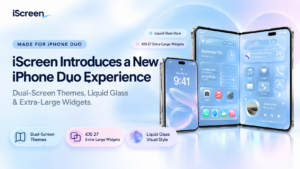
XIAMEN, China — October 30, 2026 — iScreen, a mobile customization app offering themes, widgets, and wallpapers, has introduced a major update tailored for iPhone Duo.
Designed to take advantage of the device’s foldable, dual-screen design, the update brings coordinated theme packs for both displays, enhanced widget layouts, and a Liquid Glass-inspired aesthetic featuring translucent surfaces and light-reflective effects. It also adds support for iOS 27 Extra-Large Widgets, giving users more ways to personalize their device and make the most of its expanded screen space.
A MORE SEAMLESS DUAL-SCREEN EXPERIENCE FOR IPHONE DUO
To better accommodate iPhone Duo‘s foldable design, iScreen has refined its layout system to help their themes and widgets display consistently across both screens, with improved scaling and fewer visual disruptions.
- Themes Designed for Dual-Screen: The update introduces multi-style theme packs precisely calibrated for the iPhone Duo screen aspect ratio. From lighting transitions in wallpapers to widget layout rhythm, visuals extend naturally across both displays.
- Widgets for the Expanded Display: Interactive widgets and larger information panels make better use of the available screen space, presenting more information while maintaining visual clarity.
- Liquid Glass-Inspired Visuals: The theme aligns with the Liquid Glass design language introduced in iOS 27. Featuring translucent frosted textures and dynamic light refraction, widgets seamlessly blend across the dual screens of the iPhone Duo.
These enhancements are designed to make the foldable interface feel effortless, helping users check key information at a glance and move between tasks across both displays.
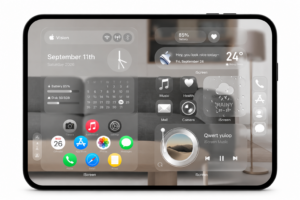
A GROWING THEME LIBRARY INSPIRED BY USER PREFERENCES
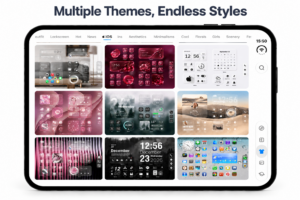
iScreen continues to expand its theme library based on user preferences and data insights, bringing more diverse customization options to iPhone Duo users. The latest update introduces a range of themed setups, including Cool Dark, Retro Skeuomorphic, and Minimalist Gloss, offering distinct visual styles to suit different tastes.
From bold, dark aesthetics to nostalgic interface designs and sleek, glossy finishes, these themes give users more ways to personalize their dual-screen experience.
Cool Dark features a darker palette and high contrast, while Retro Skeuomorphic draws inspiration from familiar, tactile interface elements. Minimalist Gloss combines clean layouts with polished surfaces and subtle highlights, offering a more understated visual option.
Looking ahead, iScreen will use user feedback, theme engagement, and community suggestions to guide future updates and keep its theme collection aligned with users’ evolving interests.
SUPPORT FOR IOS 27 EXTRA-LARGE WIDGETS
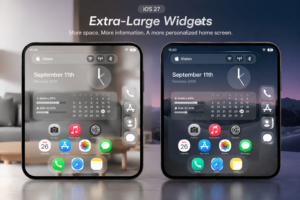
Alongside its dual-screen enhancements, iScreen is expanding its support for iOS 27 Extra-Large widgets, giving users more flexibility to organize information across the expanded display.
- Enhanced Existing Widgets: Popular fan-favorite widgets—such as Control Panel, Quick Launch Folder, Typewriter, and Polaroid Camera —have been adapted for Extra-Large layouts, providing more room for information, a clearer visual hierarchy, and greater customization flexibility.
- A New Collection of Extra-Large Widgets: New multi-function widgets bring related information and controls together in a larger, customizable layout, helping users make more effective use of the iPhone Duo‘s expanded
These layouts give users more space to display frequently checked information and personalize the arrangement of their widgets. By combining practical information with visual elements, users can create a home screen that is both functional and visually consistent.
The updated version of iScreen with full iPhone Duo adaptation is available globally on the App Store starting October 30, 2026.
- Download/Update: Search “iScreen” on the App Store to update to the latest version.
- Learn More: Visit the official website at iScreen.com for setup inspiration and guides.
【ABOUT ISCREEN】
iScreen is a powerful home screen customization app for Android and iOS, offering widgets, wallpapers, themes, and dynamic island features.
Media Contact
iScreen Official Team
Email: iscreenofficial@gmail.com
Official Website:iScreen – Phone Style, iScreen it!
iOS Download:iScreen – Widgets & Wallpaper
Android Download:iScreen – Widgets & Wallpaper
