

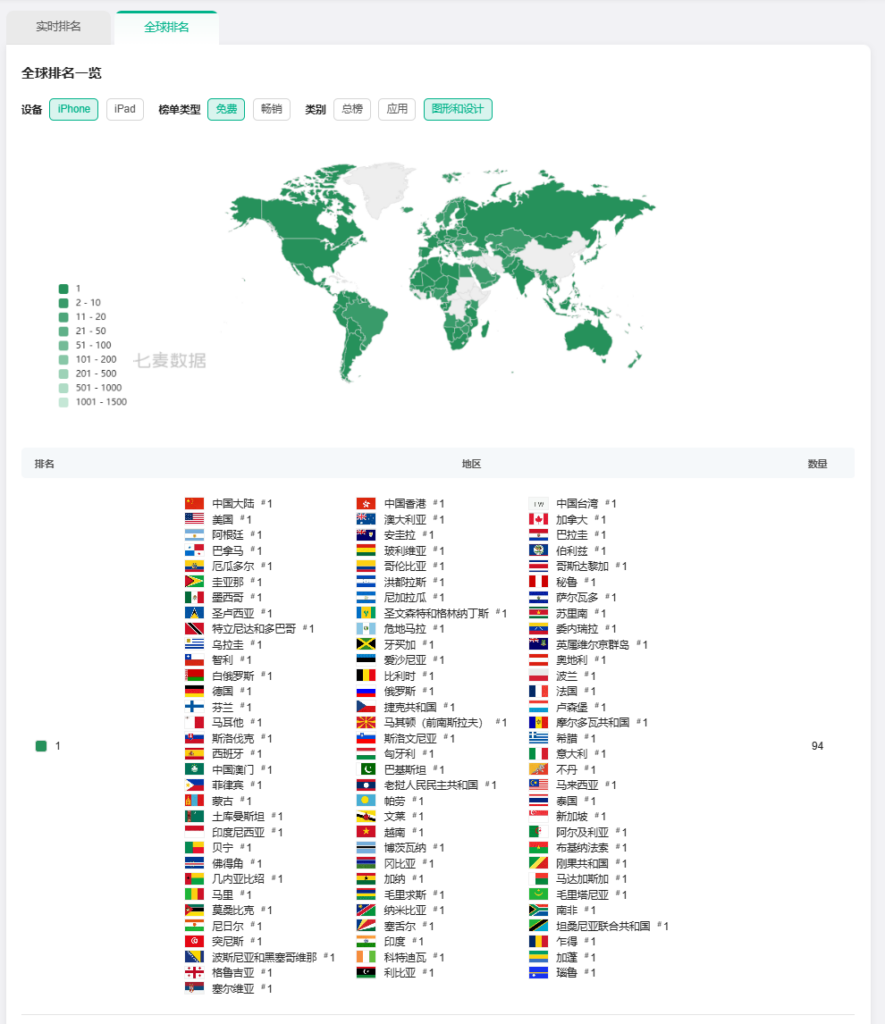
iScreen Reaches No. 1 in Graphics & Design Across 94 Markets Following iOS 27 Update
iScreen has now reached No. 1 in Graphics & Design across 94 countries and regions, highlighting the growing global interest in mobile personalization tools.
The latest release introduces a new generation of Home Screen customization experiences designed around iOS 27, including extra-large widgets, iOS 27-inspired themes, layouts optimized for new screen proportions, and AI-assisted design tools.
Together, these updates expand the ways users can personalize their devices while making Home Screen design more flexible, expressive, and easier to manage.
A New Generation of Extra-Large Widgets
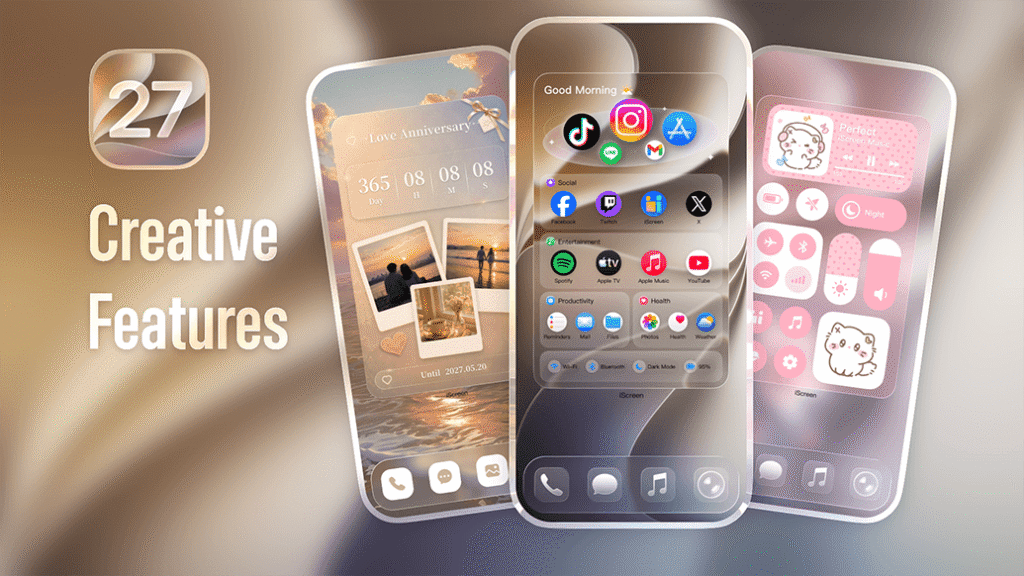
One of the biggest changes in the latest update is support for extra-large widgets built specifically for the larger widget canvas available in iOS 27.
Rather than simply enlarging existing widgets, iScreen has created layouts designed to make better use of the additional space. The new collection includes:
- Photo widgets
- Album widgets
- Music widgets
- Calendar widgets
- Interactive Refrigerator widgets
- Quick Launch widgets
Users can customize content, layouts, and visual styles, allowing each widget to function as both a practical tool and a visual part of the Home Screen.
The larger format also creates more room for information, interaction, and visual storytelling. A photo widget, for example, can display more content at once, while calendar and quick-launch widgets can offer a clearer and more accessible layout.
For users who enjoy building highly personalized setups, the expanded widget size provides more freedom to experiment with different combinations of functionality and design.

iOS 27-Inspired Themes for More Cohesive Home Screens
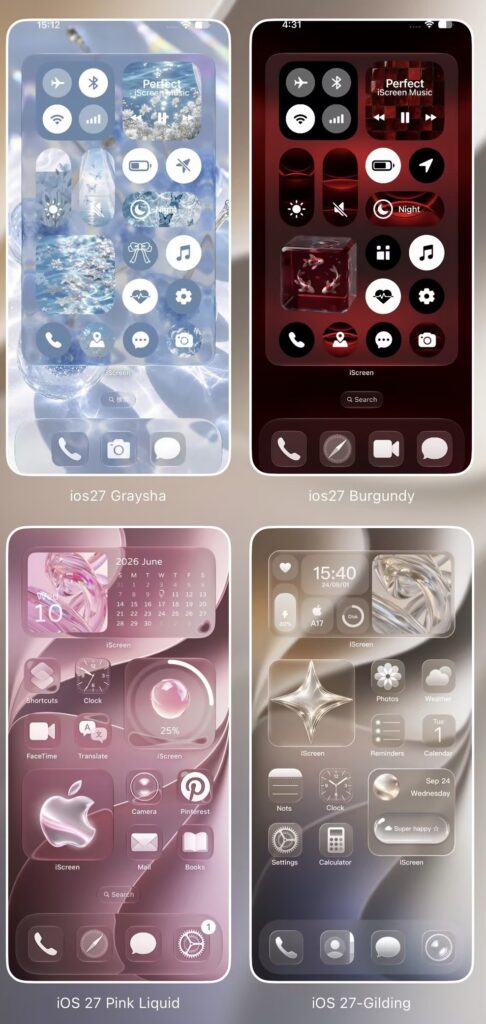
Alongside the new widget formats, iScreen has introduced a collection of iOS 27-inspired themes designed to create a more unified Home Screen experience.
Each theme combines coordinated wallpapers, transparent-style widgets, icons, and other visual elements into a complete setup.
Instead of selecting individual elements one by one, users can apply a more consistent visual direction across their device. This helps simplify the customization process while still allowing users to adjust individual details based on their preferences.
The new themes are designed to reflect the visual direction of iOS 27 while giving users additional creative control over how their Home Screen looks and feels.
Optimized Theme Support for iPhone Duo
iScreen has also expanded its layout work to support iPhone Duo, with selected themes optimized for the device’s screen proportions and display dimensions.
Wallpapers, widgets, and icons have been adjusted to better fit the new format, helping maintain a balanced and cohesive visual experience across the screen.
This type of adaptation is becoming increasingly important as device formats continue to evolve. A layout that works well on one screen size may not translate perfectly to another, especially when widgets, wallpapers, and icon spacing are involved.
By optimizing theme resources for different screen proportions, iScreen aims to make customization more consistent across a wider range of device formats.
AI-Assisted Home Screen Design
The update also includes the continued testing of AI Home Screen Designer, a feature currently available to a limited group of users.
The tool generates coordinated design suggestions based on user preferences such as style, color, visual elements, and overall aesthetic direction.
It then combines wallpapers, widgets, and icons into a unified Home Screen setup.
The goal is to reduce the time required to search for and manually match individual customization elements. Instead of starting from a blank screen, users can begin with an AI-generated direction and continue adjusting the layout to match their own preferences.
“The latest iOS update has opened up new possibilities for mobile personalization,” said the iScreen team. “We want to turn those capabilities into practical and creative experiences that make Home Screen design easier and more expressive.”
iScreen Reaches No. 1 Across 94 Markets
The latest iOS 27 update arrives alongside continued international growth for iScreen.
iScreen has now reached No. 1 in the Graphics & Design category across 94 countries and regions, highlighting the growing global interest in mobile personalization tools.
With more than 100 million users worldwide, iScreen continues to expand its collection of widgets, wallpapers, themes, and Home Screen customization experiences for users across different markets and device types.
The app has also previously been featured by Apple Editorial in 128 countries for five consecutive days, further increasing its visibility among users looking for new ways to personalize their devices.
Explore the Latest iOS 27 Features in iScreen
The latest update brings together several of iScreen’s newest customization experiences, from extra-large widgets and iOS 27-inspired themes to iPhone Duo-optimized layouts and AI-assisted Home Screen design.
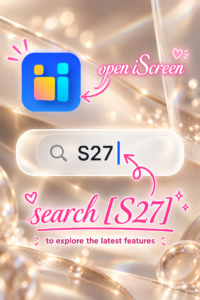
Users who want to try the latest features can download iScreen and search “S27” in the app to enter the dedicated iOS 27 collection.
There, users can explore the newest widgets, themes, layouts, and customization tools in one place.
About iScreen
iScreen is a mobile customization app offering widgets, wallpapers, themes, app icons, and Home Screen customization tools for iOS and Android devices.
With more than 100 million users worldwide, iScreen has reached No. 1 in Graphics & Design across 94 countries and regions and has been featured by Apple Editorial in 128 countries for five consecutive days.