Y2K Wallpapers for iPhone: The Ultimate Retro Aesthetic Collection

Scan TikTok for a few minutes in 2025 and you will see it: chunky chrome typefaces, holographic textures, steamy-pink leopard-print cases. Y2K aesthetic – announced dead around 2010 – is back in our digital faces. Literally.

But figuring out the right Y2K wallpaper for your iphone requires more nuance than that. “Y2K” is not a single aesthetic. It is a family of at least 8 sub-styles, each with its own color logic, its own vocabulary of textures, and an entirely different presence on a lock i screen. Some of those sub-styles are also being confused with Y2K when in fact they are a different thing entirely–more about that in the frutiger aero section.

This guide will introduce all 8 sub-styles, explain the eight color palettes of aesthetic for iphone wallpapers, and walk you through creating a complete aesthetic iPhone wallpaper for iOS 18 as well as the new iOS 26.

What Makes a Wallpaper Truly Y2K?
What Makes a Wallpaper Truly Y2K?

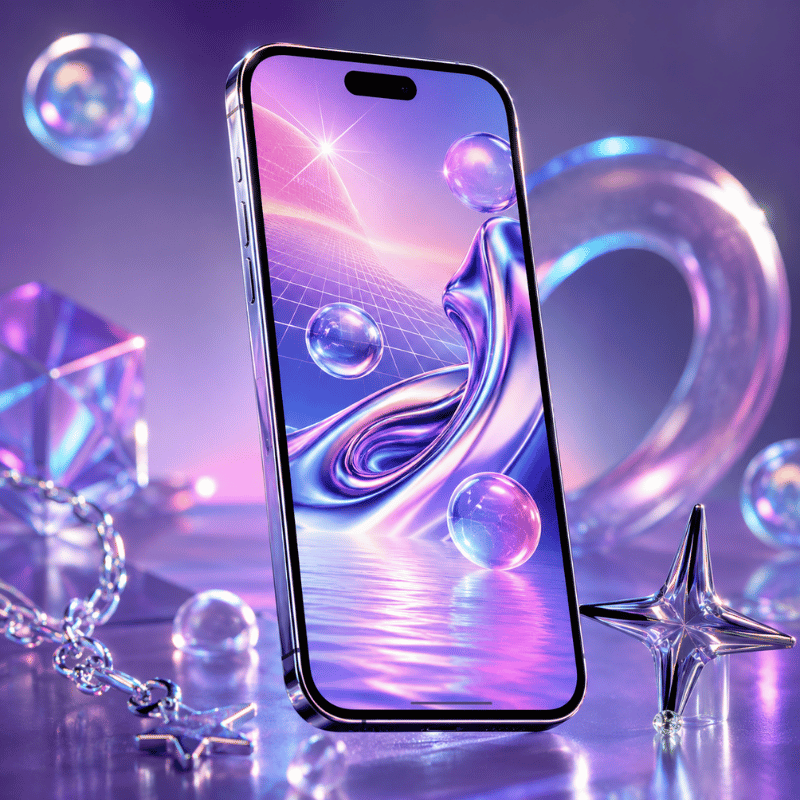
Y2K aesthetic takes its name from the Year 2000 computer panic – the shared fear of whether machines would survive the Calendar flip to 01/01/2000. Cultural dread about the event intersected with an excitement for early internet tech, creating a visual speech that felt at once optimal and deranged: chrome textures, corrupted computer graphics, holographic foil, and type that looked like it belonged to a spaceship.

Eponym “Y2K aesthetic” was recorded and ascribed to in 2016 by Evan Collins from the Consumer Aesthetics Research Institute (CARI), the organized effort to survey internet-era visual cultures. In the CARI taxonomy, Y2K aesthetic lasts roughly from 1997 and 2004–from Windows98’s default font to the slow drip of Web 2.0 minimalism.

5 visual features distinguish true Y2K background from the rest:

  • chrome or metallic finishes – shiny metallic surfaces, liquid-metal textures, translucent gradient overlays
  • holographic or iridescent effects – rainbow-shift foil, oil-slick textures, pearl glaze
  • Pixel art or digital glitch signs – small-res icon aesthetics, scanlines, intentionally “messed-up” graphics
  • High-concept typography – thick rounded letter shapes, shiny extruded fonts, bright neon high-lights
  • Period motifs – stars, hearts, insects, flip phones, vintage emoticons, circuit-y back drops

For best effect on an iphone, Y2K wallpapers should be native resolution. The iphone 16 Pro Max display reads 2868 1320 pixels (460 ppi), the iPhone 15 Pro Max 1290 2796px. A smaller image–say, a 500pxPinterest saved one–will look pixel-y enlarged on a modern Retina i screen. We recommend a minimum of 1290 2796px, or else an app like i screen will store your designs at the necessary dimensions for each device.

One last calibration: “Y2K” and “aesthetic” have become so fused on social media that the label gets applied to anything vaguely retro. The best test is still the date. If the visual language is from a time period after 2004 – shiny gradients, blue skies, nature-tech idealism – then chances are good you’re looking at frutiger aero not Y2K. We thoroughly cover that distinction in Section 4.

The 8 Y2K Aesthetic Styles — A Decision Framework
The 8 Y2K Aesthetic Styles — A Decision Framework

Most people searching for Y2K phone wallpaper end up with a few get-rich-quick pink collages and assume that covers the entire range. It doesn’t. The Aesthetics Wiki – an open source guide to internet aesthetic subcultures – identifies no less than eight different sub-styles in the Y2K family, each one created in a specific cultural context with its own visual language.

The table below defines each style according to its originating time period, general visual characteristics, and lock i screen personality. Think of it as a decision guide: find the row that most closely matches the iphone aesthetic you want when you whip it out of your pocket.

Style Original Era Visual Signature Lock i screen Energy Key Colors
Y2K Futurism 1997–2004 Chrome robots, space imagery, Matrix-style code, metallic silver Bold, tech-forward, slightly cold Silver, black, matrix green
McBling 2000–2008 Rhinestones, hot pink, animal print, Juicy Couture maximalism Loud, glamorous, unapologetically maximalist Hot pink, gold, black
Metalheart 2002–2008 Chrome hearts, dark metal textures, gothic-adjacent accents Dark, romantic, edge Dark silver, deep red, black
Chromecore 2000–2006 Liquid metal surfaces, all-chrome everything, mirror finishes Cool, luxe, futuristic minimalism Silver, mirror white, pale gray
Vectorheart 1999–2005 Flat bubbly vector shapes, bold primary colors, no gradients Playful, graphic, pop-art energy Bright red, yellow, cobalt, lime green
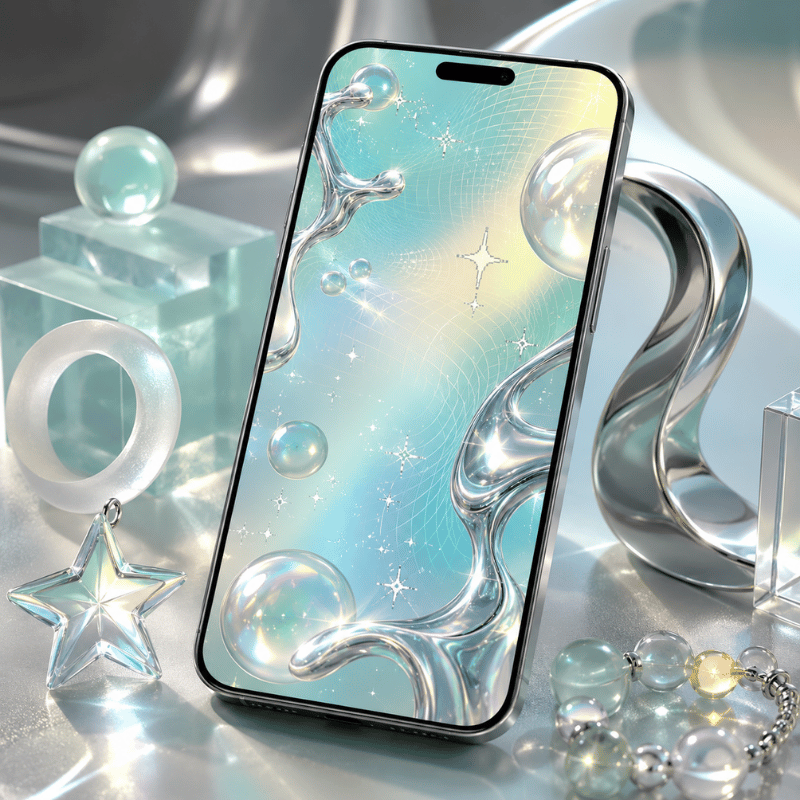
Gen X Soft Club 2001–2007 Soft Y2K meets feminine futurism, gentle metallics, pastel gloss Delicate, dreamy, subtly futuristic Lavender, sky blue, pearl white
FantasY2K 2000–2008 Fantasy imagery fused with Y2K tech — fairies, sparkles, chrome wings Magical, whimsical, otherworldly Lilac, gold, sparkle white
Y2K Grunge 2001–2008 Dark Y2K, punk-inflected chrome, distressed textures Aggressive, dark, alt-aesthetic Black, raw chrome, dirty silver

Jake is 22 and has been using the same grey minimal wallpaper ever since freshman. He is hoping for a more Y2K style, but every example feels either too pink or too aggressive. The likely solution is Chromecore or Y2K Futurism. Both read as refined rather than maximalist, both lean gender-neutral, and the silver-on-dark coloration works well with iOS 26’s Liquid Glass clock overlay. Start with a dark chrome background – the kind that looks like a shiny metal surface – and see if that does the trick before adding motifs.

If none of these eight sub-styles feel right, you may actually want frutiger aero – the aesthetic style that replaced Y2K between 2004 and 2013 and has now entered its own massive comeback. Section 4 has a full break down of how they are different.

iScreen stocks over 500 Y2K wallpapers across all eight sub-styles, pre-sized for every current iPhone model.

Browse Y2K Wallpapers in iScreen →

Pink Y2K & McBling: The Statement Aesthetic
Pink Y2K & McBling: The Statement Aesthetic

Of the eight sub-styles, mcbling is the one most people have in mind when they search for “Y2K wallpaper” – and that effort is confirmed by search trends. pink Y2K wallpaper garners 1,300 searches a month; hello kitty Y2K wallpaper accounts for an additional 4,400. That is a significant market, which means the Y2K wallpaper style must adhere to certain visual standards.

mcbling was introduced just after primary Y2K Futurism. While early Y2K had been stark and concerns over technology, McBling turned the maximumism up to 11, making it more bombastic, more personal, and clear-marker high-end. As one popular Lemon8 post described it: “McBling came a little later in the mid-2000s, bringing more Y2K excess and more ‘baddie’ energy.”

Visual indicators are specific enough to recognize on sight:

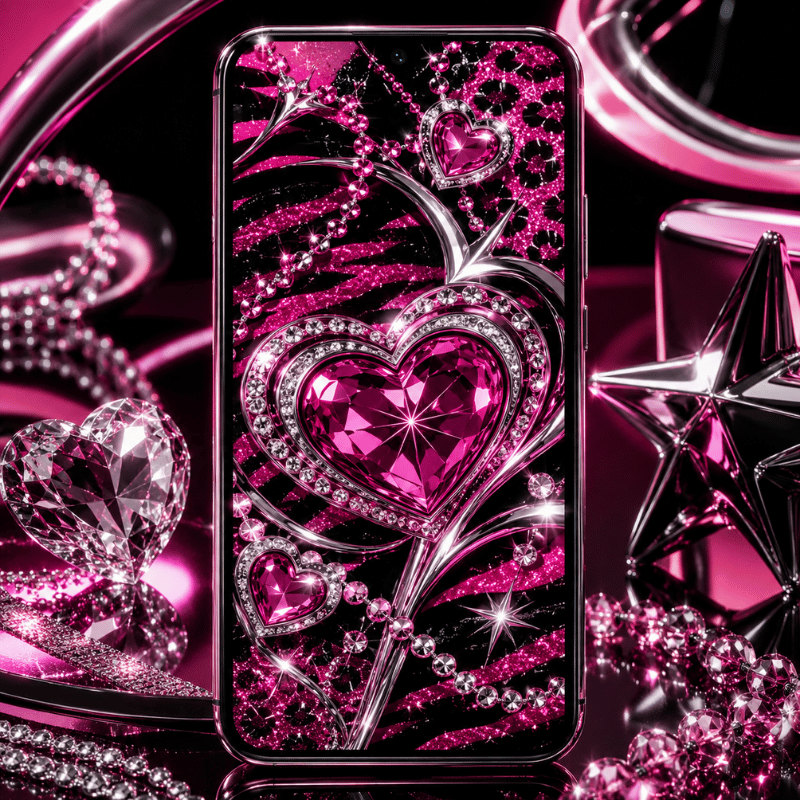
  • Hot pink as default, not accent but the framework for a aesthetic. backgrounds, text, and details all in one intense fuchsia.
  • Rhinestones and glitter overlays, especially rhinestone skulls and the word ‘Juicy’
  • Leopard or zebra print in pink-and-black combo’s – at times both in one piece
  • hello kitty, Playboy bunny, butterflies, and chrome hearts, mostly all layered in one design
  • Fractal flower or whirling pattern backgrounds in pink and gold

aesthetic currently has traction. As of 2025, over 3,000 active mcbling products show up for sale on Etsy, and Lemon8 Mc Baling uploads often get four-figure engagements- a one-room-aesthetic outfit framing as “Paris Hilton closet meets MySpace baddie” gained 4,129 likes. Paris Hilton is still the point-of-reference for all aesthetic culture. If a wallpaper could belong in her early-2000s pink aesthetic, it is a McBling aesthetic.

Sophie is 17 and building a Y2K iPhone setup for the first day of school. She wants it “pink and in your face.” The McBling playbook: hot-pink leopard-print wallpaper on the lock screen, rhinestone-skull wallpaper on the home screen, matching pink app icons with gold accents, and a Hello Kitty widget in the corner. The key is commitment — a half-hearted McBling setup reads as just “pink phone” rather than the full aesthetic statement.

One real tip: the blurriness problem hits McBling more than most sub-styles. McBling images spread fast on Pinterest but are more often than not saved at 750 × 1334 px — the iPhone 6 resolution of 2014. On a new Retina display, those material look like you smeared on a specific blurred focus filter. Source at 1290 2796 px minimum, or use a dedicated wallpaper app that masters assets at the right resolution.

Frutiger Aero vs. Y2K: The Post-Millennium Split
Frutiger Aero vs. Y2K: The Post-Millennium Split

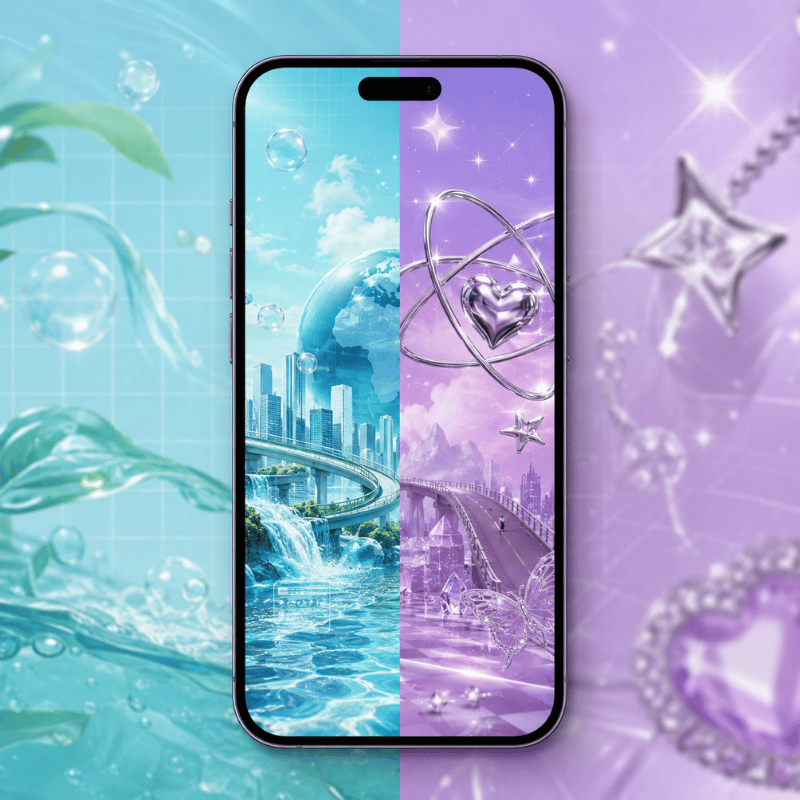
Scroll through “Y2K wallpaper” long enough and you will start viewing images that seem different- calmer, somehow. Blue skies. Mirror-like droplets of water. White interface design elements up against tropical fish. Bokeh-lit plains. These are not Y2K. These are frutiger aero, and the difference matters if you want to construct a coherent aesthetic not a hodgepodge of retro art.

frutiger aero was the main aesthetic style from around 2004 through 2013. It was initially in interface design- most visibly in Windows Vista and Windows7- and although it traveled out into advertising, graphics, and architecture. The term was came up in 2017 by Sofi Xian in the Consumer Aesthetics Research Institute (the same body that ran down the Y2K aesthetic only a year before). The term is a mixture of the Frutiger typeface, designed by Adrian Frutiger, and Window Aero, Windows’ window glass look.

The key divergence between the two aesthetics is emotional. Y2K is reactive, metallic, hits you with technology dread. Frutiger Aero is up-beat — the natural world and technology show up together instead of feeling set against one another. Amanda Brennan, talking to Dazed in 2023, summed it up: “There’s a lot of hopefulness in this aesthetic that Y2K doesn’t have.”

In iPhone wallpaper terms, here is the side-by-side:

Element Y2K (1997–2004) Frutiger Aero (2004–2013)
Primary palette Silver, hot pink, electric blue, black Sky blue, grass green, white, soft yellow
Key textures Chrome, metallic, holographic foil, pixel art Glossy smooth, lens flare, bokeh, water drops
Era motifs Stars, hearts, robots, flip phones, glitch effects Blue sky, rolling grass, aurora, tropical fish, bubbles
Lock i screen mood Edgy, attention-grabbing, nostalgic-bold Calm, utopian, clean but warm
iOS 26 compatibility Good on dark/chrome; harder on bright backgrounds Excellent — sky backgrounds have natural contrast for clock text

frutiger aero went viral on TikTok and YouTube within the Y2K landscape in 2023. Hashtags #frutiger aero and the r/FrutigerAero subforum amassed hundreds of thousands of subscribers in under half a year, as Gen Z users with deep nostalgia for a very young planetk promised but never actualized as “the universe we were tricked into trusting.” Frutiger Aero wallpapers cost 22,200 queries a month, and now generate electric equivalents of this query for two dozen core Y2K substylings.

Apple’s iOS 26 Liquid Glass design language, released in 2025, is widely understood as Frutiger Aero’s spiritual successor on iPhone. TechRadar noted in June 2025 that Liquid Glass “brings back a much-loved iOS trend from years past” — referring to the glossy, translucent, skeuomorphic design that defined the first iPhone era. Running a Frutiger Aero wallpaper on iOS 26 creates a setup where the UI and the background feel like they belong to the same design period.

If your lock screen feels too calm for Y2K but too ornate for minimalism, Frutiger Aero is likely the right middle ground. Search “frutiger aero” in iScreen to see both aesthetics side by side and compare directly.

Y2K Color Palette Deep Dive for iPhone Wallpapers
Y2K Color Palette Deep Dive for iPhone Wallpapers

Emma is 19 and building a complete Y2K iPhone aesthetic before school starts. She has the outfit sorted — white cargo pants, chrome accessories, chunky metallic platform shoes — but her phone is still the default. She knows she wants “Y2K colors” but the options feel either too pale or too overwhelming. Here is the map:

Hot Pink / Magenta — McBling’s signature. Hot pink reads as confident and attention-commanding. On a lock screen, it pairs cleanly with black and white clock text and makes the time and date immediately legible. The one complication: if your phone case is also pink, the total setup blurs together visually. A black case with a hot-pink wallpaper creates much better contrast.

Chrome Silver — the Y2K Futurism and Chromecore default. Chrome backgrounds read as colder and more architectural than pink. The Liquid Glass clock effect in iOS 26 feels particularly intentional on a dark chrome background, where the translucency complements rather than competes with the wallpaper design.

Electric Blue — the classic Y2K Futurism choice. Think early-2000s screensavers, Windows XP startup screens, Nokia interfaces. Electric blue is rare enough on modern phones that it stands out without requiring anything else in the composition. Both iOS light and dark clock text reads clearly against a saturated blue field.

Black with Chrome Accents — Y2K Grunge. Black wallpapers have the best battery efficiency on OLED iPhones, since true-black pixels are physically off. A black Y2K wallpaper with chrome detail elements combines aesthetic authenticity with a practical advantage most setup guides skip over.

Purple – softer Y2K, sits just between mcbling and Metalheart. Purple Y2K wallpapers pull 390 monthly searches – a smaller but steady audience. Purple is especially effective in FantasY2K compositions, where it feels more dreamlike than threatening. Also excels with iOS 26 Glass clock option.

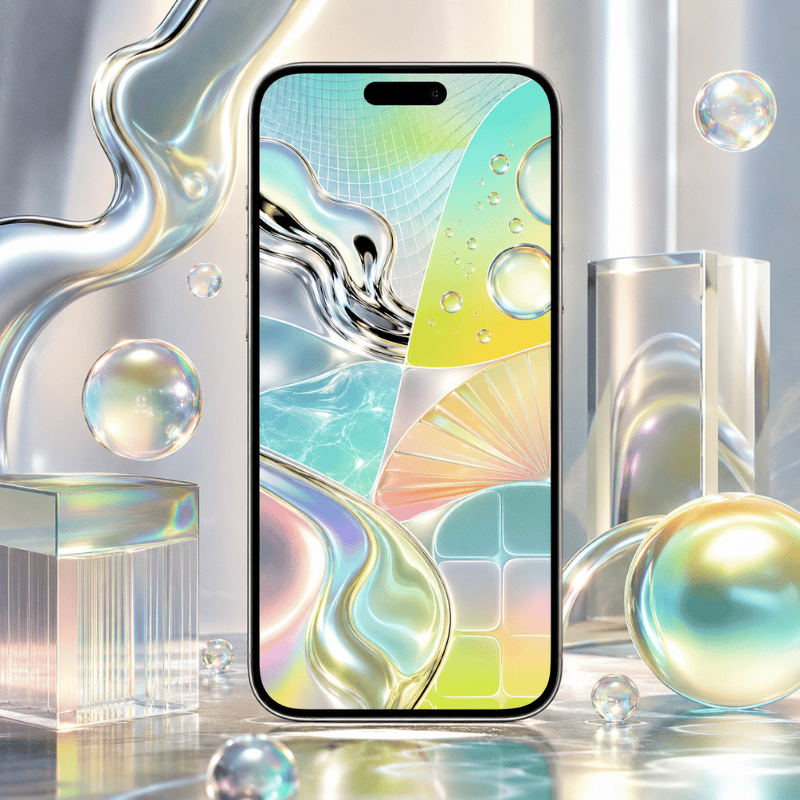
pastel + Holographic Blends – Vectorheart and Gen X Soft Club. Colors are trickier to locate in high res wallpaper collections as they are less dramatic but they are often the best choice for a lock i screen you see you see dozens of times daily. Holographic foil effects that reflect how it looks in changing light is a true technical achievement in wallpaper design; the Y2K i screen collection features numerous holographic options that maintain their chroma in Retina displays.

Before settling on a color check your phone by holding it at arm’s length with the lock i screen activated and monitor that the time/date remains clearly visible. Bright backgrounds and white iOS clock text can get lost into pastel. Changing to a Glass or some other darker Solid clock option in iOS 26 lock i screen settings fixes this with most color schemes.

How to Set Y2K Wallpaper on iPhone: iOS 18 & iOS 26 Guide
How to Set Y2K Wallpaper on iPhone: iOS 18 & iOS 26 Guide

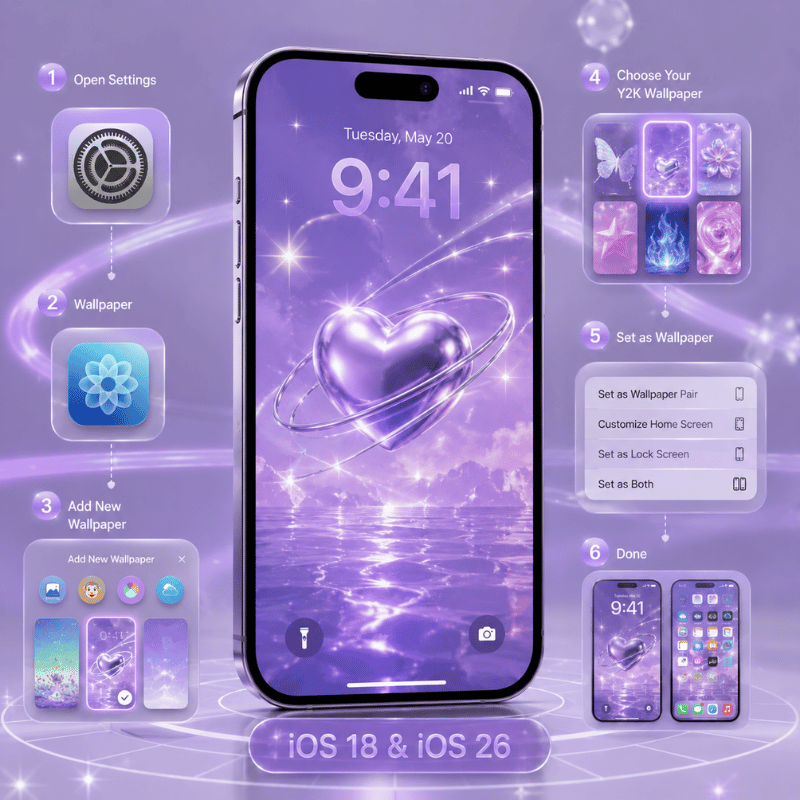
Apple has transformed iPhone lock screen customization over the last three iOS releases; iOS 26 introduced features Y2K and Frutiger Aero wallpapers can genuinely take advantage of. Here is how to set it all up:

Setting Your Lock i screen Wallpaper (iOS 18 & iOS 26)

  1. Tap the side button twice to turn on your i screen but not unlock it.
  2. Press and hold the lock i screen until the customize button appears.
  3. Touch and hold the + icon to generate a fresh wallpaper or tap customize to edit an existing one.
  4. Choose your wallpaper source – Photos, a wallpaper app, or the iOS 26 built-in gallery (which now features a tab specifically for iOS 26 with dynamic Liquid Glass wallpapers).
  5. Set your clock font, resize the image by pinching and dragging, and integrate widgets.
  6. Tap Add or Done, then assign Set as wallpaper Pair to use it on both lock and home screens, or tap customize home i screen for customization on only one.

iOS 26-Specific Features That Pair Well With Y2K Wallpapers

iOS 26 debuted the Liquid Glass aesthetic – a visually significant redesign of iOS not seen in over ten years. Multiple new options are best enjoyed with Y2K and frutiger aero aesthetics:

  • Glass Clock Option – During your lock i screen customization, pick “Glass” over “Solid.” This transparent appearance complements the spacey feel of frutiger aero’s mockups and Y2K Futurism’s chrome textures. Adjust how transparent it appears by adjusting your background.
  • Resizeable Clock – Extend the dark chrome background by maneuvering the bottom right corner of the clock for an even greater bit of graphic pop. Note: resize functionality is disabled if you choose a non-default font.
  • 3D Spatial Scenes – iOS 26 deconstructs a photo into foreground and background layers, causing them to shift separately when tilting your phone. For Y2K wallpapers with a prominent subject against a dark field – a chrome robot, star cluster, holographic surface – the 3D adds an air of realism you can never achieve with a static wallpaper. Access it by tapping the Spatial icon when creating a new wallpaper from your photo library.
  • Clear App Icons – In home iScreen Edit customize, the new “Clear” button converts app icons into the Liquid Glass translucent style. For a Y2K wallpaper background, Clear icons keep the background theme intact rather than cramming it behind solid-color tiles.
  • Tinted Icons – The color picker allows you to match the app icon tint to a sampled color from your wallpaper. If your Y2K background is chrome-and-hot-pink, tinting your icons to pink makes a unified setup rather than the usual rainbow of multi-color app icons.

Home iScreen Setup Tips

Lock iScreen and home iScreen are two separate choices – which is fine, because they should be on a Y2K aesthetics. A high-contrast chrome or mcbling lock iScreen provides a dramatic note; paired with a lighter, softer version of the same color on the home iScreen, it’s a manageable livable look. Choose customize Home iScreen after you’ve saved your lock iScreen.

For a complete Y2K home screen, combine your wallpaper with up-to-date custom app icons and matching widgets. See our guide to depth effect wallpapers for iPhone for fresh techniques, or browse live wallpaper options if you want your Y2K background to animate. iScreen bundles wallpaper, icons, and widgets together — all matched to a single sub-style palette.

Create your full Y2K iphone aesthetic in no time flat – iScreen is free to download.

Download iScreen Free

Y2K Wallpaper Trends: What Is Actually Rising in 2025–2026
Y2K aesthetic search volume has been steady at about 27,100 per month for all of 2025 so far, with a bump in late summer – August and September, when back-to-school aesthetic resets among college students. The evidence suggests Y2K is not a passing fad that recedes and resurges, but a steady category with seasonal ebbs and flows.

A more revealing signal is Frutiger Aero. At 22,200 monthly searches, FA wallpaper is only a few thousand behind the overall Y2K term – and it has ticked up while other sub-style Y2K search volume remains constant. Much of the online momentum can be attributed to two factors: authentic Gen Z nostalgia nostalgia for the early days of the internet (much of which is far before their time!) and a reaction Dazed’s Laura Holliday identified against the relentless sterility of current app UI’s. Where all current screens are exactly alike and all UI’s are monotone flat grey, the glossy cynicism of Frutiger Aero makes a significant statement.

iOS 26’s Liquid Glass design adds another dimension. Apple’s 2025 UI overhaul — with its translucent, glossy, depth-layered surfaces — is the first iOS aesthetic in over a decade that feels visually aligned with Frutiger Aero rather than in opposition to it. A Frutiger Aero wallpaper running on iOS 26 now creates a setup where the UI and the background feel like they belong to the same design era. That specific coherence was not possible in iOS 17 or iOS 18.

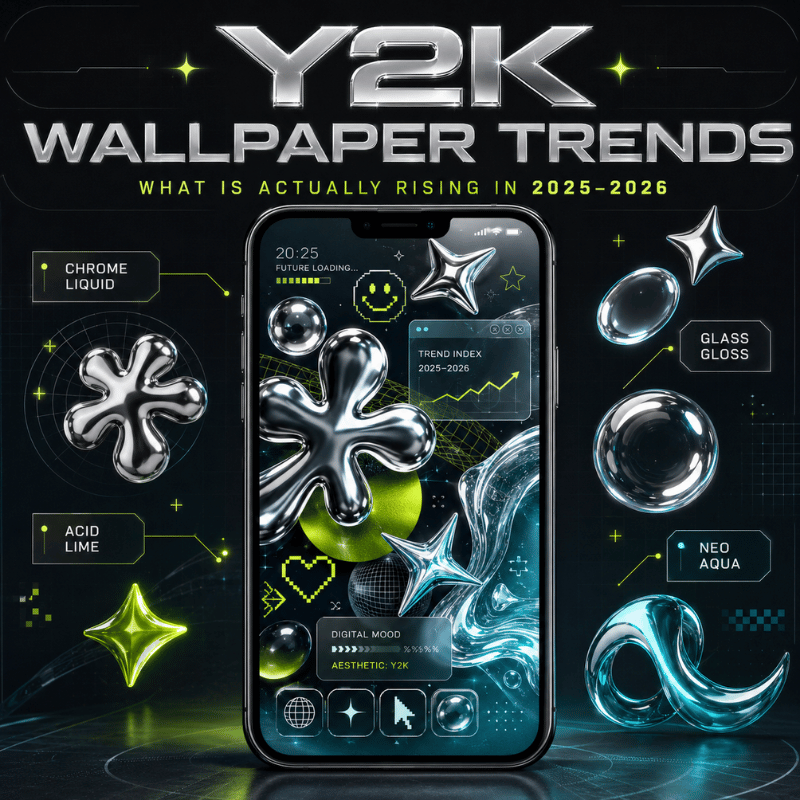
aesthetics with the most current pulse on Y2K:

  • frutiger aero–shooting up quickly, 22,200 SV, in match with iOS 26 Liquid Glass
  • mcbling/Hot pink Y2K–stable, seasonally popular, hello kitty crossover maintains interest year-round
  • Chromecore–growing consistently, carried by a wide-ranging fashion-boom where chrome has shifted from icon to neutral
  • FantasY2K–appearing more and more in cottagecore and faerie Y2K Ufanep communities now overlapping with Y2K

What is waning: dark Y2K Grunge wallpapers–peaking mid-2020s alt-aesthetic; and straight Vectorheart–absorbed into the general broad-dimension tropes of graphic illustration aesthetic. Neither in decline, neither that popular.

For an iPhone setup that feels current through 2026, the most defensible approach is a Frutiger Aero-forward home screen with Y2K accents on the lock screen — calm sky and bokeh on the home, chrome or metallic on the lock, with an iOS 26 Glass clock tying the two together.

Get wallpapers, icons, and widgets matched to your Y2K or Frutiger Aero style — sized for every iPhone model.

Explore Y2K Theme Packs (Widgets + Icons + Wallpapers) →

Frequently Asked Questions

What are popular Y2K aesthetics?

Eight main Y2K sub-aesthetics exist: Y2K Futurism (chrome and space motifs, 1997–2004), McBling (rhinestones and hot pink, 2000–2008), Metalheart (dark chrome and metal textures), Chromecore (liquid silver and mirror surfaces), Vectorheart (bubbly flat vector graphics), Gen X Soft Club (soft pastel futurism), FantasY2K (magical elements merged with Y2K tech), and Y2K Grunge (dark punk-inflected chrome). Each reads differently on an iPhone lock screen — the decision framework table in Section 2 maps them side by side.

How do you get special wallpaper on an iPhone?

To activate a setup, quickly tap the side button twice, then select and hold a lock screen until the customize icon appears. Select the + icon to add a new wallpaper; choose Customise to alter your current one. On iOS 26, you can toggle the newest dynamic iOS 26 wallpapers, turn on 3D Spatial Scenes at any depth photo, or find an image saved to your device. For all-Y2K wallpapers, iScreen offers 500+ designs scaled to every current iphone. Also explore our complete aesthetic iphone wallpaper setup.

What makes a wallpaper Y2K?

But, a wallpaper is Y2K if it speaks the visual language of 1997-2004: a hybrid of chrome or metallic finishes, holographic or iridescent textures, pixel art or digital glitch elements, early internet-inspired rounded digital typefaces, and period motifs like stars, hearts, butterflies, computers, or robots. Its color often mixes silver, hot pink, electric blue, or a combination of all three. If the background appears more subdued Blue skies, bokeh, big nature shots – you probably have a frutiger aero image rather than pure Y2K.

How do I get the iPhone 17 Pro Max wallpaper?

iPhone 17 Pro Max ships preloaded with exclusive default wallpapers in the Photos app. To browse more, go to Settings → Wallpaper → Add New Wallpaper. In iOS 26, there is a dedicated section for the new Liquid Glass wallpapers: Dusk, Halo, Sky, Shadow, and Dynamic. For Y2K wallpapers at native 17 Pro Max resolution, a dedicated wallpaper app is the most reliable source. Check out our live wallpapers guide for additional animated options.

Is Frutiger Aero the same as Y2K?

No – they are related but very different aesthetics. For example, Y2K covers 1997 to 2004 — chrome, pixel art, and the slow buildup of digital tension. Frutiger Aero runs from around 2004 to 2013 with a lighter, brighter tone: blue skies, bokeh, lens flares, and the idea that technology and nature can coexist. Amanda Brennan put it plainly in Dazed in 2023: “There’s a lot of hopefulness in this aesthetic that Y2K doesn’t have.” On iPhone wallpapers, the visual cues make the split clear — chrome robots and rhinestones are Y2K. Rolling hills and water droplets point to Frutiger Aero.

What is the best Y2K color for an iPhone wallpaper?

Hot pink dominates mcbling and FantasY2K. Chrome silver belongs to Y2K Futurism and Chromecore. Electric blue is the archetype Y2K Futurism option. Fully black with chrome detailing suggests Y2K Grunge style – with the added positive perk that this screens to the best battery life for OLED displays. Lavender and pastel blends are signals from Gen X Soft Club and FantasY2K. For a lock screen that reads with clarity every where, deep chrome-on-black or hot-pink-on-white tends to manage to the iOS clock overlay most reliably independent of font choice.
Recent articles

12 Best Widgets for iPhone in 2026: Aesthetic, Productive & Fun

12 Best Widgets for iPhone in 2026: Aesthetic, Productive & Fun

2026/6/12 17:07
The best widgets for iPhone do more than fill empty space on your Home Screen, they put the one thing you’d normally unlock your phone and dig through an app to find right where you can glance at it. What matters isn’t piling on as many as possible. It’s choosing a few that earn their spot, then placing each one where it actually helps: the Lock Screen, the Home Screen, or StandBy. This guide is organized by what you want a widget to docheck the weather, see your day, watch a battery level, count down to a date, and then by the apps that do each job well. You’ll get 17 picks across seven categories, a quick way to decide where each widget belongs, and a plain answer to the question everyone asks: do widgets wreck your battery? (Short version: mostly no, with one real exception.) Quick Setup: iPhone Widgets at a Glance Where widgets go Home Screen · Lock Screen · StandBy · Today View Sizes Small · Medium · Large · Extra-Large (iPad) Add one Tap and hold the Home Screen → tap Edit → Add Widget → search → choose size → Add Widget Version needed Home Screen widgets (iOS 14) · Lock Screen widgets (iOS 16) · StandBy (iOS 17) · Liquid Glass look (iOS 26) How iPhone Widgets Actually Work, and How to Add One A widget is a small, glanceable view of an app that live outside the app itself. Tap it and it opens the app; left alone, it quietly shows the information you care about. Since iOS 14 you can place them on the Home Screen, since iOS 16 on the Lock Screen, and since iOS 17 inside StandBy, the full-screen view that appears when your iPhone is charging on its side. Each surface show a different size and amount of detail, which is why the same widget can feel essential in one spot and pointless in another. Apple gives you four sizes on the Home Screen, Small, Medium, Large, and (on iPad) Extra-Large. A Small weather widget shows the current temperature; a Large one shows an hourly and daily forecast. Worth knowing too is the Smart Stack: a stack of widgets you swipe through, which can also rotate automatically to surface the right one, your alarm in the morning, your commute later, based on time and routine. How do I add a widget to my iPhone? It takes about ten seconds, and the steps are the same whether you’re on iOS 18 or iOS 26: Touch and hold an empty area of the Home Screen until the apps jiggle. Tap Edit in the top-left corner, then tap Add Widget. Search or scroll to the app, swipe to pick a size, then tap Add Widget. Drag it where you want it and tap Done. To build a Smart Stack, drag one widget on top of another of the same size. For the Lock Screen, touch and hold the Lock Screen, tap Customize, choose Lock Screen, then tap the box below the time to add widgets there. Apple’s official guide to adding widgets walks through every surface if you get stuck. 💡 Key takeaway Pick the widget size to match the surface: small, single-number widgets shine on the Lock Screen; larger, detailed ones belong on the Home Screen or in StandBy. How We Chose: The Glance Test There are thousands of widgets in the App Store, and most of them are decorative. To cut the list down, every pick here had to pass one rule we call the Glance Test: a widget earns a spot on your Home Screen only if it shows you something you’d otherwise unlock your phone and open an app to check. If you still end up tapping in to get the real answer, it isn’t a widget you need, it’s an app, and it belongs in your App Library. That single question quietly solves the clutter problem. A weather widget passes because the temperature and rain chance are the whole answer. A “motivational quote” widget usually fails, it’s nice to look at, but it didn’t save you a tap. One first-time user described adding a single stack widget and suddenly feeling like the phone was a “mini command center” rather than a wall of icons . That shift, from launching apps to glancing at answers, is the entire point. “A widget’s job is to surface a small amount of timely, personally relevant information, glanceability is the whole design goal, not feature density.” Apple Human Interface Guidelines, WidgetKit Best Weather Widgets Weather is the widget almost everyone keeps, because the answer, what’s it doing outside, and when will it change, is pure glance value. Two picks cover most people. Apple Weather (free, built in) is better than it used to be. The Large widget shows current conditions plus an hourly and ten-day forecast, and the Lock Screen version can show sunrise, sunset, and precipitation chance in a single line. For most people it’s all the weather widget they need, and it costs nothing. Carrot Weather (free tier, with a paid upgrade as of 2026) is the pick for people who want more: highly configurable layouts, multiple data sources, and notoriously snarky commentary. A power user on a popular setups forum summed up the split well, native widgets are “decent,” but a dedicated weather app gives you layers you can actually tune . If you only care about the forecast on your Lock Screen, start with Apple Weather and turn on precise location only if you need rain-by-the-minute. For a deeper look at the options, see our guide to the best weather widget for iPhone. Best Calendar & Productivity Widgets If your day lives in a calendar, a widget that show your next few events without opening an app is the single biggest time-saver here. Fantastical is the standout: its Medium and Large widgets show an agenda view that’s easier to read at a glance than the stock app, and you can point it at a specific calendar set. It’s repeatedly the app people name when asked which has the best calendar widget . Apple Calendar and Apple Reminders are free and worth stacking together, your next meeting and your next task, side by side. On the productivity side, the Google app’s search-bar widget is a quiet favorite: one tap drop you straight into search or voice search, which is faster than opening Safari and typing. Stack a calendar, a reminders list, and a search bar and you’ve rebuilt the most useful third of your phone into a screen you never have to dig through. 💡 Pro Tip Build a single “today” Smart Stack — calendar on top, reminders and weather beneath — and let it auto-rotate. You get three answers in one widget slot. Best Battery Widgets (and the Battery Myth) If you carry an iPhone, AirPods, and an Apple Watch, the free Apple Batteries widget is the one to add: a single Medium widget shows the charge level of every connected device at once, so you find out your AirPods are at 9% before a call, not during it. Third-party battery widgets add ring-style graphics and per-device history if you want them, but the built-in option cover the core job for free. Do widgets drain your iPhone battery? This is the most common worry about widgets, and the honest answer is: mostly no, with one real exception. Widgets don’t run constantly. iOS gives each one a refresh budget through WidgetKit and updates it on a schedule, and as users on Apple’s own forums point out, a widget largely sips power only when you’re actually looking at the Home Screen . One exception stands outlocation-based widgets such as weather, maps, and anything tracking your position, which can drain noticeably because of continuous Location Services, not because they’re widgets. Outlets like CNET flag Lock Screen weather widgets as a battery cost for exactly this reason. So the fix isn’t “use fewer widgets” — it’s to set location to “While Using” (not “Always”) for your weather widget and skip live, location-tracking widgets you don’t read. A claim floating around, that widgets cut battery by 20% — doesn’t hold up; it’s the location access behind a couple of them that matters. ⚠️ Common mistake Setting a weather widget’s location to “Always” is the real battery drain — not the widget count. Switch it to “While Using the App” and the cost mostly disappears. Best Time, Countdown & Clock Widgets Time widgets are about anticipation, how long until something, or what time it’s somewhere else. A countdown widget that shows the days left to a trip, a birthday, or a deadline is one of the most-used widget types on iPhone, and it’s pure glance value: the number is the whole answer. The Apple Clock app’s World Clock widget is the free pick for anyone juggling time zones, showing two or four cities at once so you’re not doing math before a call. For people who plan around daylight, a sun-and-daylight widget (such as Lumy) shows sunrise, sunset, and golden hour at a glance. Countdowns are popular enough to deserve their own setup, including how to put one on the Lock Screen and in StandBy, we cover that in our guide to the best countdown widget for iPhone. Best Photo & Aesthetic Widgets Not every widget has to be useful, some just make the screen feel like yours. The free Apple Photos widget rotates through your library or a chosen album, so a favorite picture quietly cycles on your Home Screen. Beyond that, aesthetic widgetscustom fonts, colors, themed clocks, and photo frames that match your wallpaper, are where customization apps come in. iScreen, for example, offers themed widget packs you can color-match to a wallpaper, which is handy when you’re building a coordinated look rather than a random grid. If a matching, styled Home Screen is the goal, the widgets are only half of it, the wallpaper and icons have to agree too. Our walkthrough on building an aesthetic iPhone Home Screen shows how to make all three line up. Best All-in-One Widget Apps: Widgetsmith vs Widgetable vs iScreen If you’d rather get a whole kit of customizable widgets from one place instead of installing a separate app per category, an all-in-one widget app is the move. These let you design widgets, pick the data, the font, the color, the background, and place them anywhere. Here’s how the most popular options compare as of 2026. App Best for Free tier Standout Widgetsmith Broad, flexible customization Yes (most features free) Home + Lock Screen, huge style range Widgetable Playful, social & “pet” widgets Yes (in-app purchases) Shared widgets with friends iScreen Themed, color-matched looks Yes (premium upgrade) Coordinated widget + wallpaper + icon themes What is the best free widget app for iPhone? Most people will land on Widgetsmith. It remains the default recommendation when someone wants broad, flexible customization, it works on both the Home and Lock Screen, and the bulk of its features are free . If your goal is a themed look where widgets, wallpaper, and icons all match, a customization app like iScreen is built around that coordination instead. You can see iScreen’s widget options on the custom iPhone widgets page. ✔ Advantages of all-in-one apps One app, dozens of widget styles Match colors and fonts across your screen Most offer a usable free tier ⚠ Limitations to know Deep features often need a subscription Custom widgets can show ads or refresh slower For live data (calendar, weather) the native app’s own widget is often better Lock Screen vs Home Screen vs StandBy: Where Each Widget Belongs Picking good widgets is only half the job; the other half is putting each one on the right surface. That same battery widget feels essential on the Home Screen and wasted on the Lock Screen. Here’s a simple way to decide, based on how each surface is built and what Apple designed it for. Surface Best for Put here Lock Screen One-line, time-sensitive info you check without unlocking Temperature, next event, battery, countdown Home Screen Daily-use widgets and Smart Stacks you interact with Calendar, reminders, photos, multi-device battery StandBy Nightstand / desk view while charging on its side Clock, weather, large photo, world clock Today View Overflow — useful but not daily News, sports, screen-time, anything secondary Rule of thumb: if the answer is a single number or line and you want it without unlocking, it goes on the Lock Screen; if you tap or swipe it during the day, it belongs in a Smart Stack on the Home Screen; if it’s something you watch while the phone charges by your bed, set it up in StandBy. Apple’s notes on using StandBy and customizing the Lock Screen cover the setup for each. To arrange it all into a screen that work, our iPhone Home Screen ideas are a good next step. What iOS 26 Changes for Widgets in 2026 Right now, the biggest shift for widgets is visual. With iOS 26, released in September 2025, Apple introduced Liquid Glassa translucent design that flows across the system and give widgets a glassy, see-through background that morphs with what’s behind it. Widgets with a transparent background now pick up that layered, refractive look, which is why a lot of the “best 2026 setups” people are sharing lean into matching wallpapers that show through. Apple’s own iOS 26 feature list describes Liquid Glass surfaces that “fluidly morph” as you use them. Two practical things follow from this. First, if you want the glassy effect, choose widgets that support a transparent or tinted background and pair them with a wallpaper that has some contrast, and know that turning on Settings → Accessibility → Display & Text Size → Reduce Transparency will flatten the look if you find it distracting. Second, the surfaces keep expanding: StandBy and CarPlay widgets have grown across iOS 17 through 26, and Apple’s WidgetKit documentation shows interactive and Live Activity widgets becoming more capable. If you’re refreshing your setup in 2026, it’s worth redoing your widgets after you settle on a wallpaper, not before, the Liquid Glass look only pays off when the layer behind the glass is one you actually like. Search interest in iPhone widgets jumped sharply around the iOS 26 launch, so this is the moment a lot of people are rebuilding their screens. Build a Home Screen worth glancing at Mix the free built-in widgets above with a themed set, match them to your wallpaper, and you’ve got a screen that earns its space. Explore iScreen widgets → FAQ: Best Widgets for iPhone Q: What are the most useful iPhone widgets? View Answer The widgets people keep longest are weather, calendar, reminders, and a multi-device battery widget — each one answers a question you’d otherwise unlock your phone and dig through an app to check. Start with those four, give each its own surface, and you’ve covered the daily essentials. From there, add a countdown, a world clock, or a photo widget only when it earns the space by passing the same glance test. Quality beats quantity every single time. Q: How do I get cool widgets on my iPhone? View Answer Install a customization app such as Widgetsmith or iScreen, design a widget with your chosen font, color, and background, then add it from the widget gallery like any other. For a coordinated look, match the widget colors to your wallpaper. Q: What apps have the coolest widgets? View Answer Function-first picks are Fantastical for calendars, Carrot Weather for forecasts, and the Apple Batteries widget. Style-first picks are Widgetsmith, Widgetable, and iScreen. Q: What is the best all-in-one widget? View Answer A Smart Stack — several widgets in one slot that rotates to show the right one automatically. Q: Are iPhone widgets worth it, or do they slow your phone down? View Answer Yes, they’re worth it, and no, a sensible set won’t slow your phone down. Widgets update on a refresh budget through WidgetKit rather than running every second, so a handful of them costs almost nothing in performance. The only real drain comes from location-based widgets like weather and maps — and you fix that by setting their location access to “While Using” instead of “Always,” which most people never think to change. Q: How many widgets can you add to an iPhone? View Answer There’s no fixed limit. You can fill several Home Screen pages and bundle widgets into Smart Stacks. But more isn’t better — a handful that each pass the glance test will serve you far better than a screen crammed with widgets you never actually look at. About This Roundup We chose these iPhone widgets against one rule, the glance test, and checked the how-to and battery details against Apple’s own documentation rather than app-store marketing. App pricing and free-tier notes reflect what was available as of 2026 and can change; the Liquid Glass behavior described is from Apple’s iOS 26 feature list. References & Sources Add widgets on iPhoneApple iPhone User Guide Use StandBy on iPhoneApple iPhone User Guide Customize the Lock Screen on iPhoneApple iPhone User Guide New features available with iOS 26 (September 2025)Apple WidgetKit documentationApple Developer iOS features to turn off to save batteryCNET Related Articles Best weather widget for iPhone, picks and setup How to add a countdown widget to your iPhone How to build an aesthetic iPhone Home Screen iPhone Home Screen ideas to copy Custom iPhone widgets from iScreen
2026/6/12 17:07
Lock Screen Widgets Guide: Best Widgets for Your iPhone Lock Screen

Lock Screen Widgets Guide: Best Widgets for Your iPhone Lock Screen

2026/6/5 16:56
Lock screen widgets turn the screen you glance at most into a quick dashboard for weather, your calendar, battery levels, and more, without unlocking your iPhone. They’ve been part of iOS since iOS 16, and they’re easily one of the most useful customization features Apple has shipped. Yet most people add two or three widgets, never touch them again, and miss what these tiny tiles can actually do. This guide covers what lock screen widgets are, how to add and edit them on iPhone, which ones earn a spot, the apps that unlock custom design, and what changed in iOS 26. We’ll also share a simple rule for deciding what to keep, because the lock screen give you far fewer slots than you think. Quick Facts Lock screen widgets require iOS 16 or later. You get a small inline slot above the clock plus one widget row that holds up to four small widgets (fewer if you pick larger ones). They’re glance-first: tap one and it open the app, they aren’t the tap-to-toggle interactive widgets you may know from the Home Screen. iOS 26 lets you place widgets at the top or bottom of the screen and redesigns the clock with Liquid Glass. What Are Lock Screen Widgets? Lock screen widgets are small, glanceable tiles that sit on your iPhone’s Lock Screen and show timely information from your apps, temperature, air quality, battery level, upcoming calendar events, and similar at-a-glance data. Apple introduced them with iOS 16 in 2022, and they live in the strip directly below the clock, plus a single inline slot in the date line above it. It helps to separate three things people lump together. Lock Screen widgets appear on the screen you see before unlocking. Home Screen widgets sit among your app icons and come in small, medium, and large sizes. Today View widgets appear when you swipe right from either screen. They draw from the same apps, but they’re configured separately, adding a weather widget to your Home Screen doesn’t put one on your Lock Screen. If you’re building a complete look, our guide to iPhone home screen ideas pairs naturally with this one. One detail trips people up: lock screen widgets are designed for reading, not doing. Tap one and it open the related app (after Face ID or your passcode). That’s different from the interactive Home Screen widgets Apple expanded in iOS 18, which can toggle a setting or check off a reminder without opening anything. On the Lock Screen, the job is information at a glance, which, as we’ll see, should shape every widget you choose. How to Add Lock Screen Widgets on iPhone Adding widgets takes about thirty seconds once you know where Apple hid the controls. Your entry point is the Customize button, which only appears when you long-press the Lock Screen itself. Wake your iPhone and touch and hold the Lock Screen until the Customize button appears, then tap Customize. Tap Lock Screen (the left preview), then tap the widget area just below the clock. Tap Add Widgets. Tap or drag the widgets you want into the row. Tap the close button, then tap Done. These steps follow Apple’s official walkthrough for adding and editing widgets on iPhone. To edit a widget after placing it, say, point the Weather widget at a different city, long-press it during customization and choose the option you want. To swap one out, remove it first, which brings us to the question almost everyone asks next. Q: Can I add widgets to my lock screen? Yes, as long as your iPhone runs iOS 16 or later, that covers the iPhone 8 and newer. If you don’t see a Customize button when you long-press the Lock Screen, your iPhone is on an older version of iOS, or you’re pressing the Home Screen by mistake. Open Settings, go to General, then Software Update, and install the latest version. Once you’re on iOS 16 or higher, the widget row appears in the Lock Screen editor exactly as described above. 💡 Pro Tip You can build a different Lock Screen for each Focus mode — one for Work with your calendar, one for Personal with your activity rings. Long-press, swipe to a blank Lock Screen, tap the plus, and link it to a Focus. Each one keeps its own set of widgets. The 4-Slot Rule: Budgeting Your Lock Screen Here’s the part most guides skip. The Lock Screen doesn’t give you unlimited room. Apple’s own instructions admit it plainly: “If there’s not enough room for a new widget, you can tap the Remove button to remove a widget and make room for the one you want to add.” In practice you get one small inline slot above the clock and a single row below it that fits about four small widgets, and a larger rectangular widget eats two of those slots. iPhone users have complained about this for years; one popular thread on Reddit pointed out that “some widgets are twice the size leaving room for only two widgets.” So treat those slots like a budget. We call it the 4-Slot Rule: you’ve roughly four units of space, and every widget should earn its place by answering one questiondoes this save me an unlock? A weather tile that stops you opening the app is worth a slot, while a widget that only look nice but tells you nothing you would actually check is a slot wasted. And because the Lock Screen can’t stack widgets the way the Home Screen can (widget stacks are a Home Screen and Today View feature only), you can’t cheat the budget, what you place is what you get. Most people decorate instead of decide. People fill all four slots with widgets they already check obsessively, the same apps they open first thing anyway, and gain nothing. The Reddit crowd that obsesses over setups keeps asking each other a sharper question: “what widgets do you actually tap every day?” That’s the right filter. Spend your four slots on glance-value, not vanity. If your day revolves around… Spend your slots on Why it earns the spot Commuting Weather, Calendar, a transit or Maps widget Answers “do I need a coat and am I late?” before you leave Parenting / family Calendar, Reminders, a shared countdown Keeps pickups, chores, and events one glance away Fitness Activity rings, Battery, World Clock Tracks progress and device readiness mid-workout A minimalist look One Weather tile, nothing else Maximum calm; the wallpaper stays the star Best Lock Screen Widgets Worth a Slot With four slots to spend, these are the widgets that consistently earn their keep. Apple’s built-in options cover most needs, and tech reviewers repeatedly land on the same shortlist of genuinely useful tiles. Q: What are good widgets to have on a lock screen? Good lock screen widgets replace an unlock with a glance. Weather and temperature top almost every list because checking the forecast is the single most common reason people wake their phone. Calendar comes next, your next event, right there. Battery (including connected AirPods and Apple Watch) saves a trip into Settings. A World Clock tile is invaluable if you work across time zones, and Activity rings keep fitness goals visible. Spot the pattern: pick widgets that answer a question you ask many times a day. ✔Weathertemperature, conditions, or precipitation; the highest-value glance for most people. ✔Calendaryour next event or the date; long-press to choose which calendar it shows. ✔BatteryiPhone plus connected AirPods and Apple Watch in one tile. ✔World Clocka second time zone for remote teams and travel. ✔Activity / Fitnessyour rings, so closing them stays top of mind. ✔Remindersthe next due task without opening the app. Want something more personal than a battery readout? A date countdown is a favorite for trips, birthdays, and launches, we go deep on that in our countdown widget guide, and a tailored weather widget can look far better than the stock one. Couples often add a shared status tile too; if that’s you, our couple widgets are built for exactly that. Best Lock Screen Widget Apps for iPhone Apple’s built-in widgets are functional but plain. If you want custom fonts, photo tiles, color-matched designs, or data the stock widgets don’t offer, a third-party app fills the gap. These apps add their own widgets to the same Lock Screen widget gallery, once installed, they show up alongside Apple’s options when you tap Add Widgets. Q: What apps have lock screen widgets? Plenty of apps offer them, and the category has grown crowded since iOS 16. When you’re evaluating one, look past the screenshots and check three things: does it offer the specific widget you want (countdown, photo, quote, health), can you actually match it to your wallpaper, and does it run without nagging you to upgrade every time you open it? A good widget app should feel like part of iOS, not a billboard. That design-first standard is exactly what we built iScreen’s iPhone widget app around, color-matched widgets, photo and text tiles, and themes that span your Lock Screen, Home Screen, and StandBy mode so the whole device look intentional. If you would rather start from a finished look than build one tile at a time, our lock screen customization templates give you a coordinated set in a couple of taps. “The widgets people keep are never the flashiest ones, they are the ones that answer a question fast. We design around that: a tile should read clearly in the half-second before you unlock, or it does not deserve the slot.” The iScreen Design Team How to Customize and Style Your Lock Screen Widgets A great Lock Screen isn’t just useful widgets, it’s widgets that look like they belong with your wallpaper. Treat the whole screen as one composition. Start with the wallpaper, pull two or three colors from it, and choose widgets and a clock tint that echo those colors. A cohesive palette read as “designed,” while a clash of stock blues and greens reads as default. One discipline keep it tidy: pick a single accent color and let everything support it. If your wallpaper is a warm sunset, a single amber clock tint plus neutral widget tiles looks deliberate; five different widget colors looks like noise. Photo wallpapers also support a depth effect, where the subject can rise in front of the clock for a layered look. When you want to go further than tinting native tiles, a custom widget app lets you set fonts and backgrounds directly, our walkthrough on how to customize your iPhone covers the full workflow. 💡 Pro Tip Build the wallpaper and widgets as a matched set, then duplicate that Lock Screen and tweak the copy for a season or mood. You keep your layout and only change the look — far faster than rebuilding from scratch. Lock Screen Widgets on Android If you’re on Android, the path is less consistent than on iPhone. For years, true lock screen widgets came and went depending on your manufacturer and Android version, and many phones offered only an “At a Glance” strip plus clock styles rather than a full widget picker. Google has been bringing dedicated lock screen widgets back with recent Android releases, starting on tablets and expanding from there, so the exact steps depend on your device and software version. Check your phone’s Settings under Lock Screen or Wallpaper & style for a widgets option; if it’s missing, a third-party lock screen app from the Play Store can add similar tiles. Either way, the same 4-Slot Rule applies, limited space, so spend it on glances that matter. Troubleshooting: Widgets Not Showing or Won’t Change When lock screen widgets misbehave, the cause is almost always one of a short list. Run through these before assuming anything is broken. ⚠️ Common Fixes No Customize button: you’re on iOS 15 or earlier, or pressing the Home Screen, update iOS and long-press the Lock Screen. A widget is missing from the list: its app isn’t installed, or the app doesn’t offer a Lock Screen widget. Install or update the app first. “Not enough room”: the row is full, remove a widget (or swap a large one for two small ones) to make space. A widget shows stale data: open the app once so it can refresh, and confirm Background App Refresh is on in Settings. Changes won’t stick: make sure you tapped Done after Customize; restart the iPhone if the editor froze. On Android, the equivalent first step is to long-press the lock screen or open Settings to find the widget or “At a Glance” controls; if there’s no option at all, your version simply doesn’t support it natively and a Play Store app is the workaround. What’s New and What’s Next: iOS 26 and the Lock Screen The Lock Screen got its biggest visual update in years in 2025. Apple introduced its Liquid Glass design in June 2025, and the Lock Screen is where you notice it first. The control buttons and clock take on a floating, frosted-glass appearance, and when you tilt the iPhone, light glints across the glass. Notifications adopt the same translucent look so your wallpaper shows through, and the design carries into Control Center too. For widgets specifically, the change that matter is placement. According to MacRumors’ rundown of iOS 26 Lock Screen features, widgets can now sit at the top of the display under the time or at the bottom, in earlier versions they could only go up top. With the new adaptive clock, which you can drag to resize, widgets also shift automatically so the subject of a photo wallpaper stays visible. Spatial Scenes turn ordinary 2D photos into layered 3D wallpapers that move as you tilt the phone, giving your widgets a more dynamic backdrop. The practical takeaway: if you upgrade to iOS 26, revisit your Lock Screen. Try moving your widget row to the bottom if a photo subject keep getting covered, and experiment with the resizable Glass clock to free up space. The 4-Slot Rule still holds, you don’t get more widgets, you get more control over where they live. For 2026, expect Apple to keep investing in glanceable surfaces across the Lock Screen, StandBy, and Dynamic Island, so a tidy widget setup now will only pay off more later. Frequently Asked Questions Q: How many widgets can you have on the lock screen? View Answer Plan for about four. You get one small inline slot above the clock plus a single widget row below it that holds roughly four small widgets. Pick a larger rectangular widget and it eats the space of two small ones, so the practical ceiling is four small tiles or two large ones. And because there are no widget stacks on the Lock Screen the way there are on the Home Screen, you cannot rotate extras through a single slot to expand past that limit. Q: Are lock screen widgets interactive? View Answer Mostly no. They display information, and tapping one just opens the related app. Unlike the interactive Home Screen widgets in iOS 18, they will not toggle a setting in place — so choose them for what they show. Q: Why can’t I add widgets to my lock screen? View Answer The most common reasons are an older iOS version (you need iOS 16 or later), pressing the Home Screen instead of the Lock Screen, or a full widget row. Update iOS in Settings, long-press the Lock Screen until Customize appears, and remove a widget if there is no room for a new one. Q: Do lock screen widgets drain the battery? View Answer Barely. Widgets refresh on a schedule rather than constantly, so the battery cost is tiny next to screen brightness or an always-on display. Q: How do I change widgets on an Android lock screen? View Answer It depends on your phone. Long-press the lock screen or open Settings and look under Lock Screen or Wallpaper & style for a widgets or “At a Glance” option. If your device and Android version support it, you can add and reorder tiles there; if not, a third-party lock screen app from the Play Store is the usual workaround. Q: What iOS version do I need for lock screen widgets? View Answer iOS 16 or later, which covers the iPhone 8 and newer. Build a Lock Screen You’ll Actually Use Color-matched widgets, photo tiles, and full themes for your Lock Screen, Home Screen, and StandBy, designed to read in a glance. Get iScreen → Just browsing? See lock screen ideas first. Why We Wrote This We build iPhone customization tools, so we spend our days watching which lock screen widgets people keep and which they quietly delete. The 4-Slot Rule in this guide come from that pattern: the tiles that survive are the ones that save an unlock. Every step here was checked against Apple’s current documentation and the iOS 26 changes shipped in 2025. References & Sources How to add and edit widgets on your iPhoneApple Support Apple introduces a delightful and elegant new software design (Liquid Glass)Apple Newsroom iOS 26: New Lock Screen FeaturesMacRumors The Best Lock Screen Widgets to Use on Your iPhone or iPadHow-To Geek Related Articles How to set up a weather widget on iPhone Add a countdown widget to your iPhone iPhone home screen ideas and layouts Set up StandBy mode on iPhone Couple widgets for iPhone
2026/6/5 16:56
Best Weather Widgets for iPhone: Beautiful & Functional Options

Best Weather Widgets for iPhone: Beautiful & Functional Options

2026/6/4 16:54
A weather widget on your iPhone turns a quick glance into a full read on the day: temperature, the next hour of rain, sunset, and what to wear before you even open an app. Most guides stop at “touch and hold the Home Screen.” This one go further. You’ll set weather up across all three surfaces of your phone, pick a widget that actually fit how you live, fix the one that mysteriously vanished after an update, and understand why it suddenly looks like frosted glass in iOS 26. Here’s the idea worth stealing: stop thinking of “the weather widget” as one thing. On a modern iPhone you’ve three places to show weather, and each answers a different question. We call it the 3-Surface Weather Setup, and it’s the backbone of this guide. 📐 The 3-Surface Weather Setup Home Screenthe daily dashboard (forecast at a glance, multiple cities) Lock Screenthe zero-tap check you see 80+ times a day StandBythe bedside or desk view while your iPhone charges on its side How to Add a Weather Widget to Your iPhone Home Screen This is the part everyone searches for first, so let’s make it foolproof. The native Weather app already includes Home Screen widgets, so you don’t need to download anything to get started. Touch and hold an empty area of your Home Screen until the apps start to jiggle. Tap the Edit button (or the +) in the top corner, then tap Add Widget. Search for Weather in the widget gallery. Swipe through the sizes, then tap Add Widget on the one you want. Drag it where you want it and tap Done. To change the city it show, touch and hold the widget, tap Edit “Weather” (or Edit Stack if it’s in a group), choose My Location or search for a city, then tap outside the widget to finish. Want both your home city and a trip destination? Apple lets you add more than one Weather widget, so you can watch two forecasts side by side. 💡 Pro Tip Drop the Weather widget into a Smart Stack and turn on Smart Rotate and Widget Suggestions. iOS then surfaces the forecast right when you tend to check it (your morning commute, say) and tucks it away the rest of the day. Weather Widget Sizes Explained: What Each One Shows Picking a size is really picking how much information you want without tapping in. Bigger isn’t always better; a small widget you actually read beats a large one that crowds out your apps. Here’s what each native Weather widget surfaces. Widget size What it shows Best for Small (2×2) Current temperature, conditions, high/low A clean home screen where weather is one tile among many Medium (4×2) Current conditions plus an hourly forecast strip Knowing when rain starts or stops today Large (4×4) Hourly plus a multi-day outlook, often with precipitation, feels-like, and more detail Planning the week without opening the app Lock Screen (inline / circular) Temperature, conditions, or a single metric like UV or air quality A zero-tap glance every time you wake the phone Rule of thumb: if you check weather to decide what to wear, a small or medium widget is plenty. If you check it to decide what to plan, go large. Many third-party apps add extra fields here, wind, humidity, sunrise and sunset, air quality, which is exactly where the “best widget” question gets interesting. Add Weather to Your Lock Screen and StandBy Almost everyone sets up the Home Screen widget. Yet the other two surfaces are where the real payoff live, because you see your iPhone Lock Screen dozens of times a day without ever unlocking. Lock Screen weather (the zero-tap check) Touch and hold your Lock Screen, then tap Customize (tap + to make a new one). Tap the widget area beneath the clock. Choose Weather and add the temperature, conditions, or a detail like UV index. Tap Done. StandBy weather (the nightstand view) When you turn your iPhone on its side while it charges, StandBy mode turns it into a small smart display. Swipe to the widget face, touch and hold, and add a Weather widget so the forecast greets you in the morning before you’ve picked up the phone. It’s the most underused weather surface on iOS, and it costs nothing to set up. ⚠️ Important All three surfaces pull from the same Location Services permission. If one shows the wrong city or goes blank, the fix is almost always location — more on that below. The Best Weather Widgets for iPhone in 2026 Apple’s native widget is reliable and free, but it’s deliberately minimal. If you want richer data, smarter layouts, or just more personality, a third-party app is the move. Here’s an honest read on the names that keep coming up among iPhone users. App What it’s good at Cost Apple Weather (native) A free, accurate starting point, now richer after Apple folded in Dark Sky data. Keep it if you mainly want temperature and rain. Free CARROT Weather The power user’s pick: deeply customizable widgets, radar, and a snarky personality you can dial up or off. Reddit’s r/ios crowd keeps calling it “the best by far.” Free + paid tiers Hello Weather Clean, calm, and glanceable, with a choice of forecast data sources. A 2025 review crowned its widgets for design. Freemium The Weather Channel / WeatherBug Built for severe-weather alerts and radar when storm tracking matters more than aesthetics. Free (ad-supported) “The No. 1 reason Hello Weather tops my list is its clean, concise, glanceable design, whether in-app or through its widgets.” Yahoo Tech review, 2025 ⚠️ Common mistake Don’t choose a weather widget on looks alone. Two widgets can look identical and pull from different forecast models, refresh on different schedules, and disagree by several degrees. Check the data source and how often it updates before you commit. Free vs Paid Weather Widgets: What You Actually Get Most of these apps are free to install, then ask for a subscription to unlock the good widgets. Before you pay, it helps to know what the money actually buy, and to clear up a pricing point that confuses a lot of people. Feature Free tier Paid subscription Basic widget sizes Yes Yes Extra layouts & customization Limited Full Radar, alerts, longer forecasts Often locked Unlocked Ads removed No Usually yes The pricing confusion is worth flagging. CARROT Weather, for example, has more than one paid tier: an entry-level premium plan reported at around $4.99/year by The Sweet Setup, and a higher “ultra” tier that costs roughly ten times that. People who quote “$50 a year” are usually looking at the top plan, not the one most users need. (Prices were accurate as of early 2026 and change often, so confirm in the App Store before subscribing.) The honest answer: if the free native widget covers your needs, keep it. Pay only when you want a specific thing the free tier won’t give you, better radar, a custom layout, or a look that matches your aesthetic. How to Make an Aesthetic Custom Weather Widget Here’s the gap the big weather apps leave open: they give you their design, not yours. If you’ve built a coordinated theme and the stock weather widget clashes with it, a customization app let you style the widget to match. That’s where custom iPhone widgets come in. In iScreen’s widget library, an aesthetic weather widget is less about more data and more about fit: you pick the background color, the font, and how minimal the layout is, so the forecast read like part of your wallpaper instead of a sticker on top of it. A few combinations our users reach for again and again: ✔Minimal monoa single temperature number on a flat background, paired with a clean wallpaper. ✔Pastel matchwidget tint pulled from your wallpaper’s palette so nothing fights for attention. ✔Small-and-stackeda tiny weather tile beside a clock or a countdown widget in a tidy two-up layout. The principle is the same one behind any good home screen ideas: pick one accent color and let the weather widget echo it, rather than introducing a new one. A widget that belongs to your theme always looks more deliberate than the default. Weather Widget Not Working? Fixes for the “Disappeared” Widget If your weather widget went blank, froze on yesterday’s forecast, or vanished after an update, take a breath: this is common and almost always fixable in a couple of minutes. Where Did My Weather Widget Go? Most of the time, it didn’t get deleted, an iOS update reset it. Major updates can rearrange the Home Screen, clear a widget’s saved location, or pause the permission it need to refresh. So the widget isn’t gone; it’s sitting there without the location access it needs to draw a forecast, which makes it look blank or stuck. That’s why re-adding it or re-granting location usually brings it straight back, no app reinstall required. ✔Check Location Services. Settings > Privacy & Security > Location Services > Weather. Set it to While Using the App (or Always) and turn on Precise Location. ✔Turn on Background App Refresh. Settings > General > Background App Refresh, so the widget can update when you’re not looking at it. ✔Re-add the widget. Remove it, then add it again from the widget gallery to force a fresh start. ✔For a blank Lock Screen weather wallpaper: touch and hold the Lock Screen, tap Customize, and re-accept the location prompt. iPhone users report this single step fixes the missing-location look. ✔Restart, then update. A quick restart clears most glitches; installing the latest iOS clears the rest. Work down that list in order and you’ll catch the cause well before the last step. To rebuild the widget exactly how you like it afterward, the same steps you used to customize your iPhone apply. What iOS 26’s Liquid Glass Means for Your Weather Widget If your weather widget suddenly looks translucent, refracting the wallpaper behind it, that’s Liquid Glassthe headline design change in iOS 26. Widgets, icons, and the Lock Screen now use a glassy material that bends light and adapts to whatever sits behind it. The weather widget is one of the most-cited examples because its background change with conditions. You’re not stuck with one look. To change how widgets and icons render, touch and hold the Home Screen, tap Edit, and switch the appearance between Default, Clear, and Tinted to suit your wallpaper. And if the glass effect ever hurts readability, you can tone it right down under Settings > Accessibility > Display & Text Size > Reduce Transparency. The practical takeaway for 2026: a weather widget’s legibility now depends on your wallpaper as much as the widget itself. If yours is hard to read on a busy background, switch to Tinted or turn on Reduce Transparency, and if you want a glass look that still read cleanly, a custom widget with a solid backing plate sidesteps the problem entirely. Liquid Glass made aesthetic widget choices matter more, not less. Frequently Asked Questions Q: Does the iPhone have a built-in weather widget? View Answer Yes — and it’s free. The built-in Weather app covers Home Screen, Lock Screen, and StandBy in several sizes. Q: Why is my iPhone weather widget not updating? View Answer Usually it’s a permission. Open Settings > Privacy & Security > Location Services > Weather and allow access, then turn on Background App Refresh. If it’s still stuck, remove and re-add the widget, then restart your phone. Q: Can I add a weather widget to my iPhone Lock Screen? View Answer Yes, and it’s one of the most useful places to put it. Touch and hold the Lock Screen, tap Customize, then tap the widget area beneath the clock and choose Weather. You can show the temperature, current conditions, or a single detail like UV index — whatever you want to read without ever unlocking the phone. Because you wake your screen dozens of times a day, this becomes your real weather check. Q: What is the best free weather widget for iPhone? View Answer For most people, Apple’s own widget wins on value — accurate and built in. CARROT and Hello Weather also have free tiers worth trying. Q: How do I get a bigger weather widget on my iPhone? View Answer You can’t stretch an existing widget, so add a fresh one in the size you want. Touch and hold the Home Screen, tap Add Widget, search for Weather, then swipe through the previews until you reach the large (4×4) option and tap Add Widget. The large size packs in an hourly strip plus a multi-day outlook, so you get the whole picture without opening the app. Drag it into place and tap Done. Q: How do I change the location on my weather widget? View Answer Touch and hold the widget, tap Edit “Weather” (or Edit Stack), tap My Location, then search for and pick the city you want. Tap outside the widget to save. You can also add a second Weather widget for a different city. Why We Wrote This Guide iScreen builds iPhone customization tools, so we spend our days watching how people set up widgets, including where the weather widget breaks. This guide pull together Apple’s official steps, real fixes iPhone users shared for the “disappeared” widget, and what iOS 26’s Liquid Glass changes, so you can set weather up once across all three surfaces and stop fiddling with it. Want a weather widget that matches your wallpaper instead of fighting it? Build your own with iScreen → References & Sources Use Weather widgets on iPhoneApple Support Add, edit, and remove widgets on iPhoneApple Support Create a custom Lock Screen on iPhoneApple Support How to customize your iPhone Home Screen for iOS 26’s Liquid GlassTechCrunch iOS 26 setting to customize the Liquid Glass design (Reduce Transparency)CNET Related Articles How to Add a Countdown Widget on iPhone iPhone Home Screen Ideas StandBy Mode Widgets for iPhone Dynamic Island Widgets & Animations
2026/6/4 16:54
Back to top