
.png)
How to Customize Your iPhone Background: Wallpapers, Widgets & More
Your iphone background is the very first thing you see every time you pick up your phone. As iOS 26 delivers what apple claims is its “most extensive software design update to date,” there has never been more you can do with your mobile device – or, consequently, more to learn. Whether you wish to substitute it for a customized photo, trigger a Liquid Glass lock screen, randomly browse a bunch of your favorites, or put together a completely co-ordinated custom aesthetic using a dedicated app, this guide lays out all of your options.
We’re going to examine 3 completely different approaches to altering your iphone background (most guides will only document one). We’ll break down lock screen and home screen customization, discuss live wallpapers,photo recommendations, IOS 26 updates, as well as give advice as to whether you should be sticking with IOS or opting for an alternative app.
Quick Look: What Can You Actually Customize on Your iPhone Background?
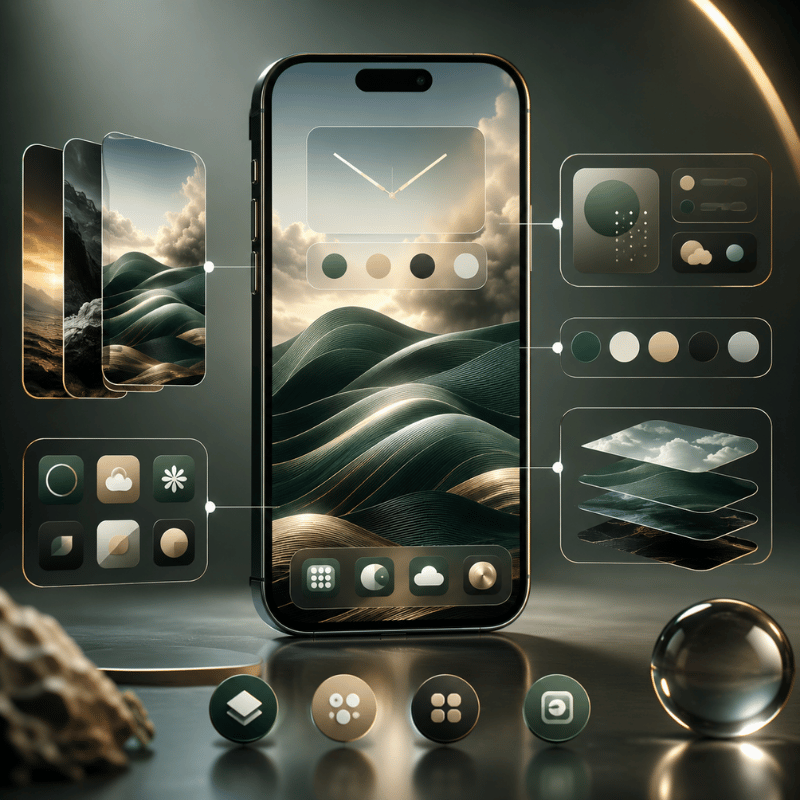
Before you get started, it’s helpful to know that your lock screen as well as your home screen are actually two distinct backgrounds that are individually adjusted. Each offers you a number of of completely unique customization alternatives.
Some individuals assume the lock screen and the home screen have to be synchronized and that mistake is often one of the biggest source of confusion.
| Feature | Lock screen | Home screen |
|---|---|---|
| Wallpaper types | Photo, Live Photo, Emoji, Weather, Astronomy, Spatial (iOS 26) | Photo, solid color, gradient, blur of lock screen |
| Customizable elements | Clock font & color, widgets, controls, depth effect, blur style | Blur/dim level; can be paired with or independent of lock screen |
| Depth Effect | Yes — portrait subject appears in front of the clock | No |
| Widgets | Yes (up to 2 slots below clock) | Yes (home screen widgets, any size) |
| Minimum iOS for full features | iOS 16 (2022) for customization; iOS 26 for Spatial | All iOS versions |
| Supported image formats | JPEG, PNG, HEIC, Live Photo | JPEG, PNG, HEIC |
One can choose to use Settings > Wallpaper to control both screens, or take one of the faster shortcuts we outline below.
It’s also possible for you to synchronize both and also apply either individually to a particular device.
How to Change Your iPhone Background: 3 Methods
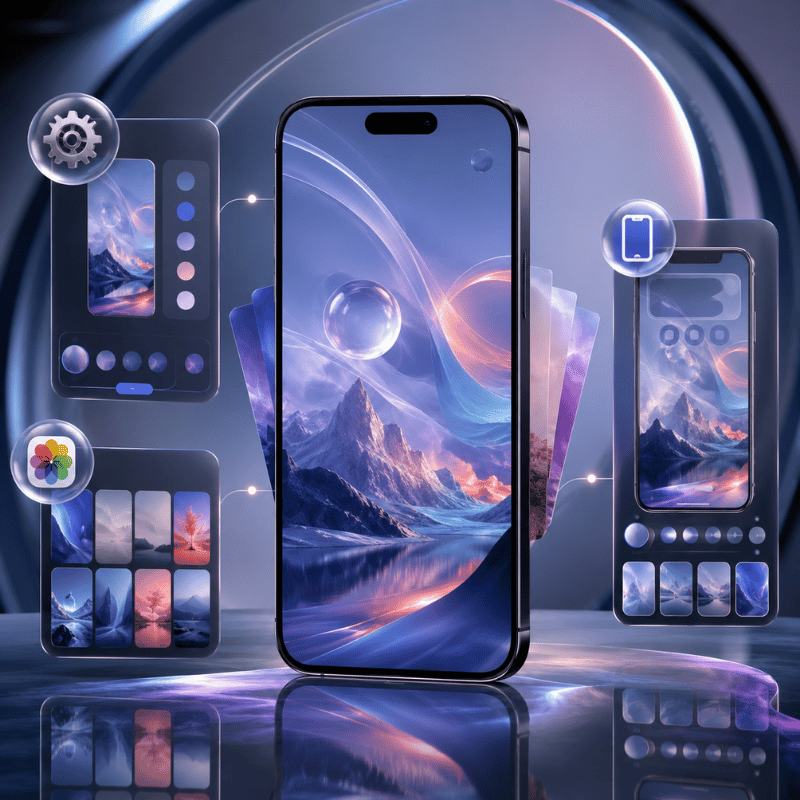
Most people think there’s just one method for changing your wallpaper, as the typical guides only reveal one way to get it done.
However, Apple’s mobile operating system offers three unique methods – each is perfect for the circumstances your’re under, and as we’ve always said, knowlege of all three methods will guarantee you won’t ever take the longest route to a task that’s easily accomplishable at high speed (we call that the “3-Method Matrix).
Method 1
Via Settings — Most Control
Why should you use it?: When you want to setting the screens simultaneously, or if you prefer to sift through apple’s extensive wallpaper collections including astronomy, spatial collections, space, and more.
- Open Settings → Wallpaper
- Tap Add New Wallpaper
- When to use: Browse among collections, weather & astronomy, photos, suggestions, or collections of art.
- Customizable features include widgets, clock adjustments, a depth effect toggle, and also background blur.
- In order to setting both, you would touch add as well as select whether you desire to setting them together or whether you desire to apply a solitary picture just to your lock screen.
Method 2
From the Photos App — Fastest for Your Own Photos
When to use: Best when you currently have a specific photo available for viewing within your library and wish to apply it right away without jumping into settings.
- Open Photos and find your image
- Tap the Share button (↑)
- Scroll down and tap Use as Wallpaper
- Adjust framing, enable or disable Perspective Zoom
- Tap Add, then choose your screen assignment
Method 3
Long-Press the Lock screen — Fastest Swap
When to use: Best if your phone is currently locked and you wish to quickly alter it to a various wallpaper without taking the steps to unlock it.
- Wake your iPhone and long-press the lock screen
- Tap andswipe left or right, or press ‘Add’ to establish a new choice.
- Select, personalize on-screen
- Tap Done to activate
You can also establish your picture by touching and also holding the lock display image, then pressing ‘edit’.
| Your Situation | Best Method |
|---|---|
| Setting both lock screen and home screen at once | Method 1 (Settings) |
| Using a specific photo already in your library | Method 2 (Photos app) |
| Quick swap from the lock screen | Method 3 (Long-press) |
| iOS 26 — changing from home screen | Touch-hold home → Edit → Edit Wallpaper |
How to Customize Your Lock Screen Background
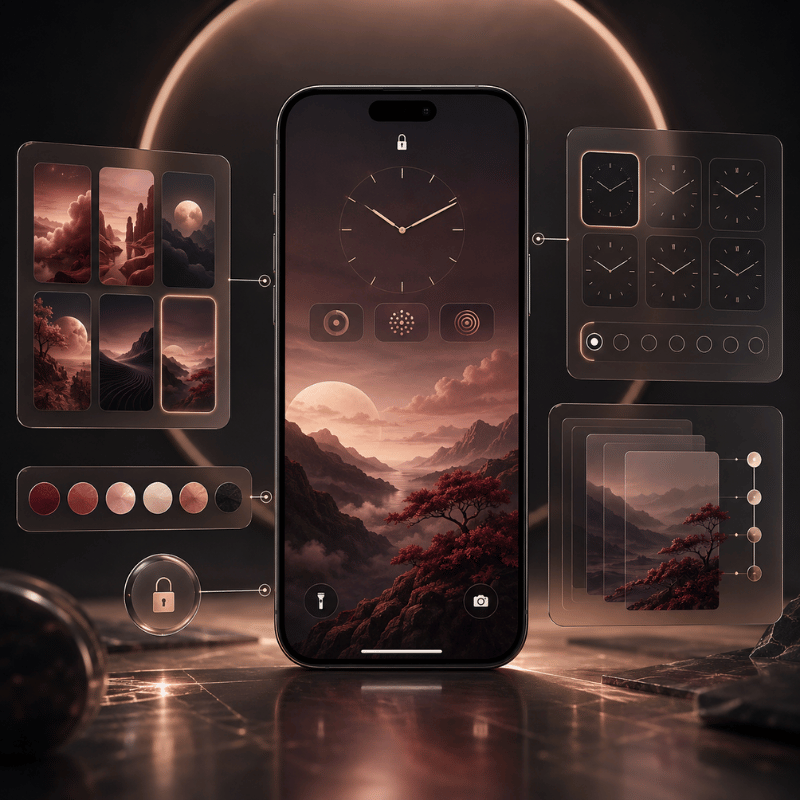
iOS 26 will offer an added advantage as now you may alter your wallpaper instantly via the lock display (the lock show is also referred to as the lock screen picture or screen).
apple launched advanced lock screen customization in IOS 16. Many customers only ever transform the main picture, however IOS enables several kinds of changes (you could be surprised to discover you can in fact modify as many as seven individual elements on your lock screen – it’s far more than just the image!). Visit apple’s support pages to learn how to modify an image to create an custom lock screen.
7 Things You Can Customize on Your iPhone Lock screen
- The kind of image you set depends on your choice (a custom made photo, a live picture, a pattern of emoji symbols or you could likewise establish a photo showing whether and where there’s space on earth).
- You can also create Live Photo wallpapers showing dynamic weather patterns. Clock font & color (You have 6 different font styles to select from and can likewise personalize the color to any specific image of your selection.).
- widgets – up to 2 slots below the clock (weather, battery, calendar, fitness rings, etc)
- Depth Effect – your portrait subject moves to the front of the clock, for a layered 3D appearance
- Blur style – softens your lock screen image to improve text readability over complex backgrounds
- Controls – substitute the flashlight & camera shortcuts for any actionable control in iOS 18+
- lock screen Tilojov style – from abstract patterns & gradients to your favorite emoji array, even a full Spatial wallpaper in iOS 26
To access all of these: use Method 3 (long-press the lock screen → tap the edit pencil icon), or go to Settings → Wallpaper → Customize under your current lock screen preview. For more options beyond the native iOS toolkit, explore our lock screen customization features.
Can You Set a Different Wallpaper for Lock screen and Home screen?
Yes! After you are donesettingingyour lock screen wallpaper, tap“customize Home screen” instead of“Set as wallpaper Pair” This will allow you to choose an entirely separate photo,color, gradient or even blurred version ofyourcurrentlock screen image.Each lock screenyousavewillhaveitsown separate and individually configured home screen.
Setting a Wallpaper for Your iPhone Home screen
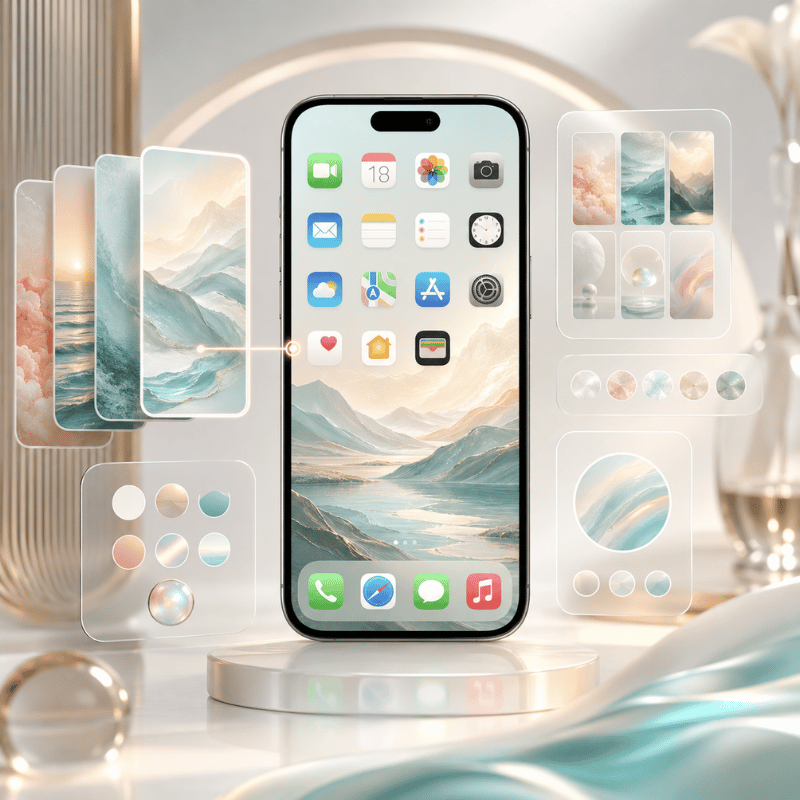
This is distinct from your lock screen and sits behindyourentireappgrid,foldersanddock.Yourchoicesforeitheralwaysimpactstheother,because the home screen wallpaperis a visually definingelementofyourown phone experience!
To create your home screen wallpaper separately,afteryouhavechosenyourlock screen(using either Method 1 or Method 2, described above), tap the“customize home screen” icon that appearsneartherightofyourscreen. You have the following choices:
- Original – uses the same photo as your lock screen
- Blur – applies a blur filtertoyourcurrentlock screenphotoforabettersubtle background behindyouricons
- Color — a single solid color
- Gradient — a smooth color gradient
- photo – selects a photosolelyfortherahidoz Kafefuzbychoosing any image fromyour photo library.
Using Your Own Photos as iPhone Background
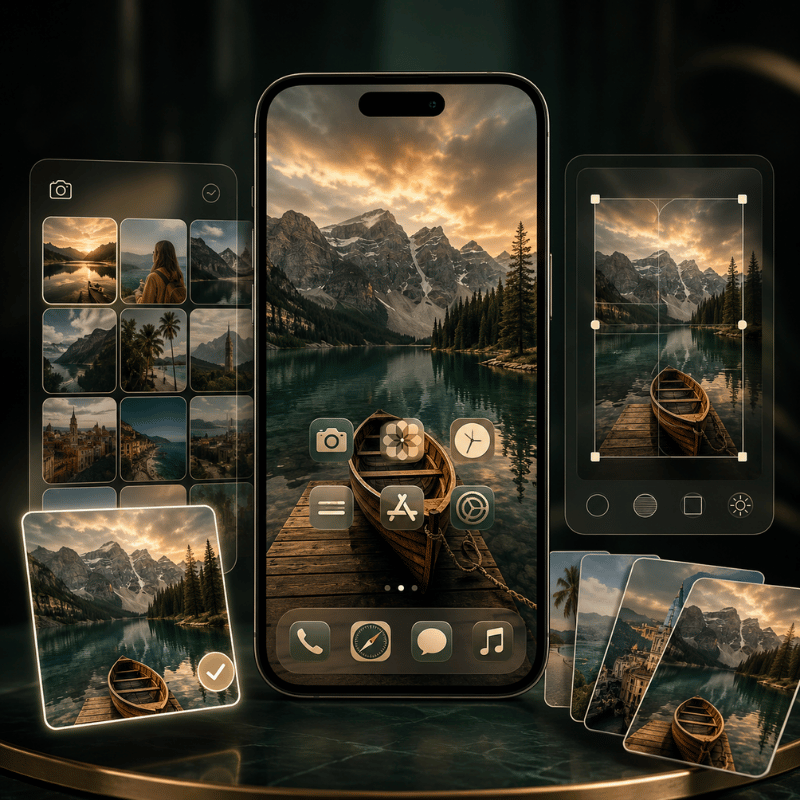
Personalizingyourphonethrough the custom iphone background is often the most deeply rewarding – transformingitintoreflectionofthethingsYOUvalue most. We thought some additional context might help you create the ultimate personalized image.
Method 2 is the quick route for setting any photoas your lock screen or home screen wallpaper(open photo in photos Share Use as Wallpaper) Photo Shuffle can be activated within the wallpaper editor for random image display.
To set up Photo Shuffle:
- Go to Settings → Wallpaper → Add New Wallpaper
- Tap Photo Shuffle
- Or let your phone surprise youbyenabling ‘smart’ photos categories like People, Nature, Animals,or cities
- Or adjust the frequency of wallpaper rotations at On Tap, On Lock, HourlyorDaily
- Tap Add, then Set
iPhone Wallpaper Styles: How to Match Your Aesthetic
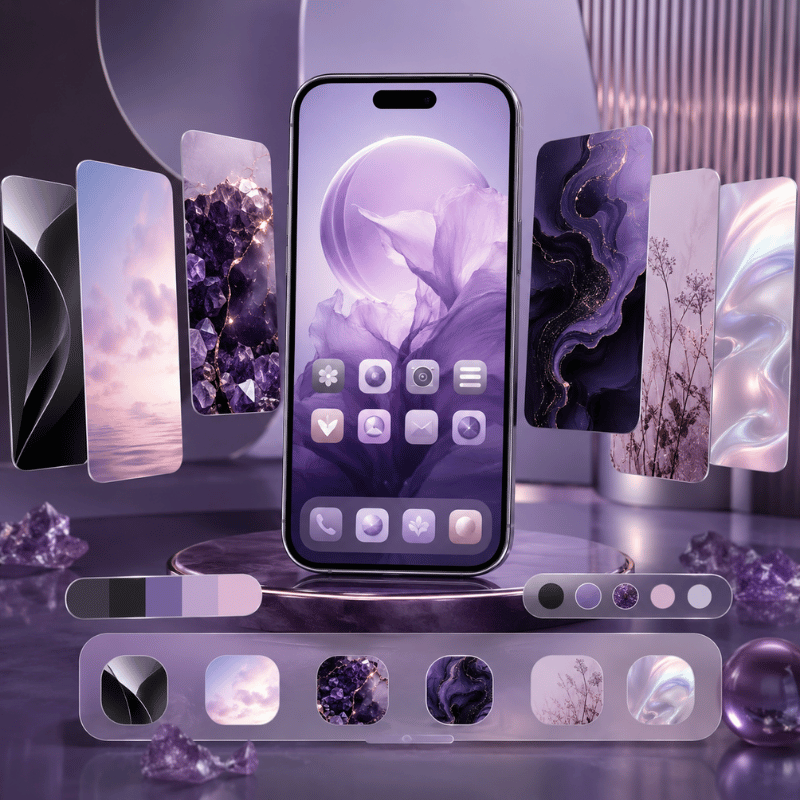
Thinking about what style of visuals to select for your device,your icons, oryourhome screen wallpaper before you even begin searching will make your personalized design all the more coherent. We are sharing the five basic stylesof visualsavailable ondevice,andwhichones you’ll findon iscreen.
| Style | Description | Best For | Where to Find |
|---|---|---|---|
| Minimalist | Clean backgrounds, simple shapes, plenty of visual breathing room | Productivity focus; professional look; OLED battery saving | Apple Collections, iScreen |
| Pastel | Soft, muted tones — blush pink, lavender, mint green, butter yellow | Calm, cute aesthetic; pairs well with light icon themes | Pastel iPhone wallpapers on screen blog |
| Dark / Moody | Deep blacks, dark grays, neon accents on dark backgrounds | OLED battery efficiency; dramatic look; dark mode icon sets | iScreen, Unsplash, Pinterest |
| Seasonal / Trending | Rotating styles: botanical, celestial, coquette, Y2K, retro | Freshening your look with the season or latest aesthetic trend | Y2K wallpaper style; aesthetic iPhone wallpapers |
| Personal Photo | Your own images — people, places, pets, memories | Maximum personal meaning; unique to you | Your Photos library or Photo Shuffle |
Live and Dynamic Wallpapers on iPhone: What You Need to Know
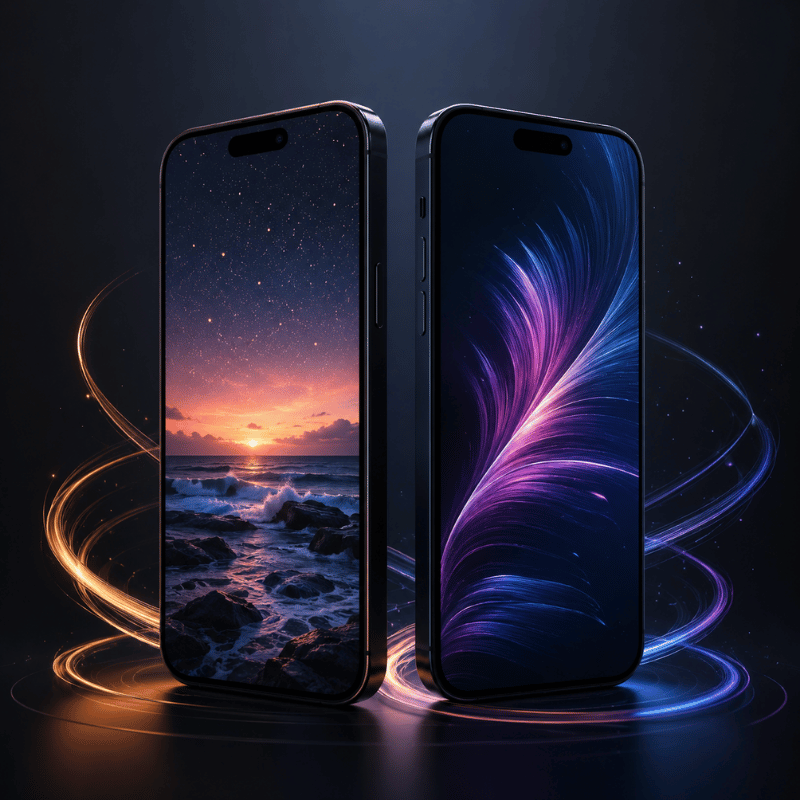
The reality of ‘live’ or animated wallpapers in iOS is this: They work as well in concept as they do on a 3D globe. Be prepared to understand thisbeforeyou waste precious hours scrolling through hundreds of static, animated wallpaper ideas.
Native iOS “Live” wallpapers – set from a Live photo in your library – only animate when you press and hold the lock screen. This Confuses the Gebiat – It Looks Like your wallpaper is inflow motion, but It actually Apops instantly. Basty people Goe of general Bekogap using these, not understanding.
A really different native iOtur option on iphone 12 or later, redesigned in iOS 26, is the Bannedar wallpaper, which will create a 3D parallax depth effect when you tilt the phone. More cinematic than a Live photo, it’s always-on (rather than press-to-activate). Find it under settings Wallpaper Add New Wallpaper Bannedar Scene.
What about drain powersource? Laor users experimented with apple’s Astronomy and other dynamic wallpapers on modern iphones, and found very low drain – around 1% of coffee power drain per day. iphone provided by A-series chips efficiently runs these. Third-party animated wallpapers vary depending on app and animation.
✓ What Native iOS Does Well
- Built-in, zero setup required
- Minimal battery impact (~1%)
- Smooth, system-integrated animation
- Bannedar wallpaper adds OKU 3D depth (iOS 26, iphone 12+)
- Live Photo wallpapers animate on press
✗ Native iOS Limitations
- Live photos only are touch-on – not truly animated
- No video loops or particle-effect wallpapers
- No animated home screen backgrounds
- Limited to Apple’s built-in wallpaper categories
- No custom template creation
To get truly animated wallpapers – looping video, particle effects, interactive motion templates – you need dedicated app. See our roundup of live wallpapers for iphone to understand your options.
Best Apps to Customize Your iPhone Background Beyond Native iOS
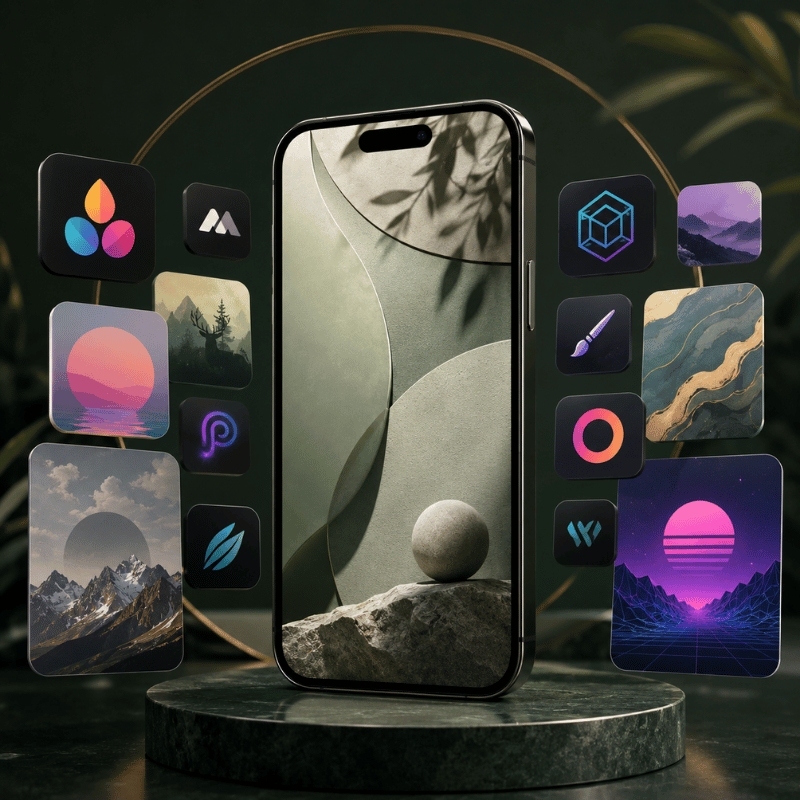
Native iOS settings wallpapers work fine for everyday, but they top out quickly: no animated templates, no custom widget-wallpaper relationships, no AI artworks, and only a limited library. This is where dedicated apps come in. Here is how native iOS compares to iScreen, the top-rated all-in-one customization app for iPhone.
| Feature | Native iOS | iScreen App |
|---|---|---|
| Static wallpaper library | ✓ (Apple curated) | ✓ 1,000+ curated + trending |
| Animated / live wallpapers | ⚑ Limited (Spatial only) | ✓ Video loops, motion effects |
| DIY wallpaper templates | ✗ | ✓ Polaroid, flip card, marquee, heart puzzle |
| AI-generated wallpaper art | ✗ | ✓ |
| Lock screen widgets | ✓ (basic) | ✓ 20+ types: weather, battery, countdown, calendar, animation |
| Home screen widgets | ✓ (basic) | ✓ 40+ types: dynamic panel, photos wall, fan, air conditioner, to-do |
| Custom app icons | ✗ | ✓ Full icon bundle sets |
| Charging animations | ✗ | ✓ Custom video effects on charge |
| Dynamic Island features | ✗ | ✓ Pet Island, Plant Island, Weather Island |
| iOS 26 Liquid Glass themes | ✓ (system-level) | ✓ Custom-themed with Liquid Glass effects |
| Control Center customization | ⚑ Basic (iOS 18+) | ✓ Colorful icons, counter, water reminder, quick launch |
| App Store rating | — | 4.7 ★ · 141K+ ratings |
| Cost | Free (built-in) | Free with ads · VIP from $7.99/mo or $19.99/yr |
To achieve a whole-system mobile aesthetic – matching wallpaper, iphone widgets, custom app icons, and coordinated iphone themes – iscreen is the best all-inclusive free starting point on the App Store. It also the quickest way to learn how to customize your iPhone end-to-end in one place.
Browse 1,000+ Wallpapers, Live Templates & iOS 26 Themes
iscreen is free to download – just find your style, set it up in a few minutes.
What’s New in iOS 26 for iPhone Background Customization
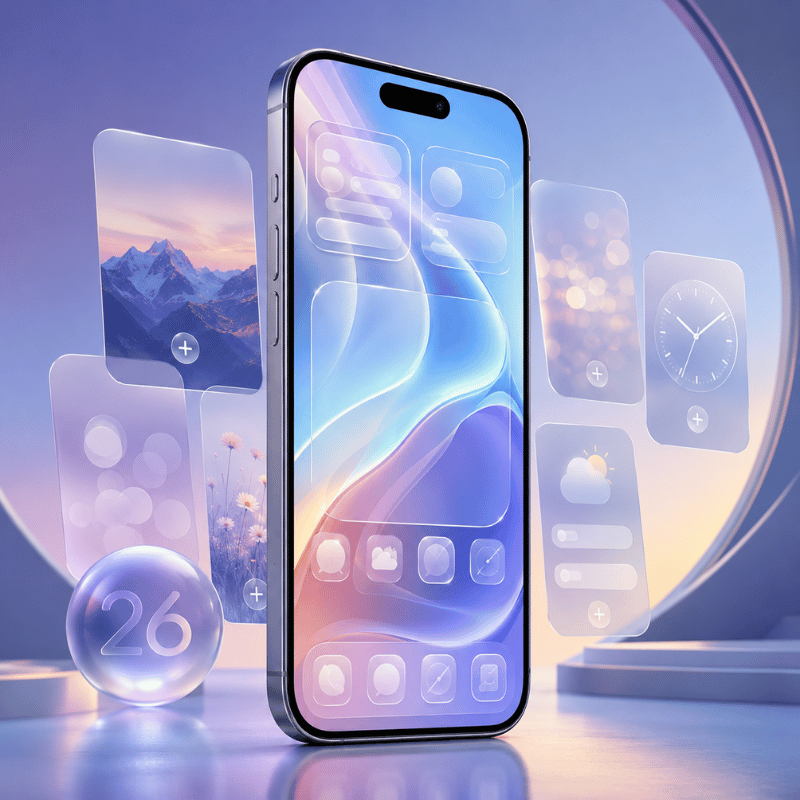
Introduced at WWDC on June 9, 2025, iOS 26 is apple most important visual design since iOS 7 in 2013. Here are five tangible, practical ways it specifically impacts background and wallpaper customization:
- Liquid Glass material – A new semi see-through layer that makes wallpaper colors bounce through your dock, folders, and widgets. Your background now visually melts into the whole interface – It is no longer simply that sits behind it.
- lock screen clock redesigned in Liquid Glass – Sync it with your wallpaper’s color palette and with Depth Effect, it surrounds a photo component for a immersive 3D effect.
- App icon coloras – Icons now have three approaches: go Oxfowng, Transparent Look (see-through glass appearance), or automatically pick color tints from your wallpaper. icon tints can also be synced with your iphone’s case color.
- Select wallpaper from home screen – Press and hold the home screen, hit edit, then select Edit Wallpaper. The settings app roundabout no more needed.
- Overspace wallpapers (iphone 12 and newer) – A new snapshot wallpaper category within settings Wallpaper Add New Wallpaper Spatial Scene tab.
“This is our broadest software design update ever.”
— Alan Dye, Apple Vice President of Human Interface Design, WWDC 2025
Not everyone enjoys the changes. Some have reported that Liquid Glass on a wallpaper may diminish contrast, making clock text and widget labels less legible against a detailed photo background. If this describes your situation: go to settings Accessibility Display & Text Size and enable Reduce Transparency to lessen the glass effect while preserving the modern iOS 26 appearance.
Frequently Asked Questions
How do I change the Home screen background on iPhone?
Go to Settings → Wallpaper → Add New Wallpaper. Choose a photo and customize it, then tap Add. On the next screen, tap Customize Home Screen to select a background for your home screen only — or tap Set as Wallpaper Pair to apply the same image on both screens.
iOS 26 shortcut: touch and hold the home screen, tap Edit, then Edit Wallpaper — no Settings trip needed.
Can you set a different wallpaper for home and Lock screen on iPhone?
Yes — tap Customize Home Screen instead of “Set as Wallpaper Pair” when finishing your lock screen setup.
How do I personalize my iPhone Home screen beyond the wallpaper?
There are additional home screen options for customization beyond the background:
- Widgets: long-press the home screen tap the + to add iphone widgets in small, medium, or large formats.
- App icons: apply custom app icons that match your look using the Shortcuts app or iScreen.
- Themes: link your wallpaper, widgets, and icons via iphone themes offering cohesive presentation.
- iOS 26 tinting: icons automatically receive color tints from your wallpaper—no effort required.
Can I have more than one wallpaper setup saved on iPhone?
Absolutely. iphone offers multiple wallpaper pairs, each with distinct lock screen and home screen combos. To alternate: long-press the lock screen, then swipe left or right through your saved wallpapers. Tap to set one instantly. Ideal for shifting from work to leisure environments, or changing themes seasonally without creating a new wallpaper each time.
What is the ideal iPhone wallpaper size?
For the sharpest display, match your iPhone’s native screen resolution. Common specs:
- iPhone 15 Pro Max: 2796 × 1290 px (460 ppi)
- iPhone 15 Pro / 15: 2556 × 1179 px (460 ppi)
- iPhone 14 Pro Max: 2796 × 1290 px (460 ppi)
- iPhone 14 / 13: 2532 × 1170 px (460 ppi)
Photos taken on any recent iPhone already exceed these dimensions — you do not need to resize them. When downloading a wallpaper from a website or app, look for images labeled Full HD (1920 × 1080 px minimum) or 4K for best results. Images below 1080p may look slightly soft or pixelated when stretched to fill your display, especially on Pro Max models with their larger and denser screens. The iScreen wallpaper collection is optimized for all iPhone display sizes.
How do I delete a wallpaper on iPhone?
Long-press the lock screen to open the wallpaper gallery. Swipe left or right to the wallpaper you want to remove, then swipe upward on it and tap Delete Wallpaper. One important limitation: you cannot delete the wallpaper that is currently active on your lock screen. Switch to a different wallpaper first, then return to the previous one and delete it from the gallery. This applies to both lock screen and home screen wallpaper pairs.
Written by the iScreen team — creators of the iScreen customization app with 141,000+ App Store reviews and 4.7-star rating. Steps verified against iOS 26 (May 2026). Primary sources: Apple Support — Change your iPhone wallpaper; Apple Support — Create a Custom Lock screen; Apple Newsroom — iOS 26 design announcement (June 9, 2025).
