
.png)
iPhone StandBy Mode: How to Customize with Themes & Widgets
iPhone StandBy mode is a charging-triggered display that turns your phone into a smart display — a bedside clock, a photo frame, or a hands-free widget hub — the moment it’s plugged in and lying on its side, with a smart rotate behavior that flips the layout if you turn the phone the other way. Almost everyone who tries it (sometimes searching for it as standby mode on iPhone) settles for the default appearance. In this guide, you’ll learn what most “how to turn on StandBy” articles overlook: the six clock faces to choose from, why StandBy’s widget grid differs from your Home Screen, how a single iPhone can remember a different look for each charging station around your house, and what that night time red glow is really all about.
Quick Specs
| Requires | iOS 17 or later, charging (cable, MagSafe, or Qi), iPhone positioned horizontally |
| Clock styles | 6 as of 2026 — Digital, Analog, World, Solar, Float, Minimal Mono |
| Views | Clocks, Photos, Widgets — swipe left/right to switch, up/down to cycle options |
| Night Mode | On by default; red tint in low ambient light, toggled in Settings |
| Location memory | Yes — each MagSafe charging spot keeps its own preferred view |
What Triggers StandBy Mode (and Which iPhones Support It)
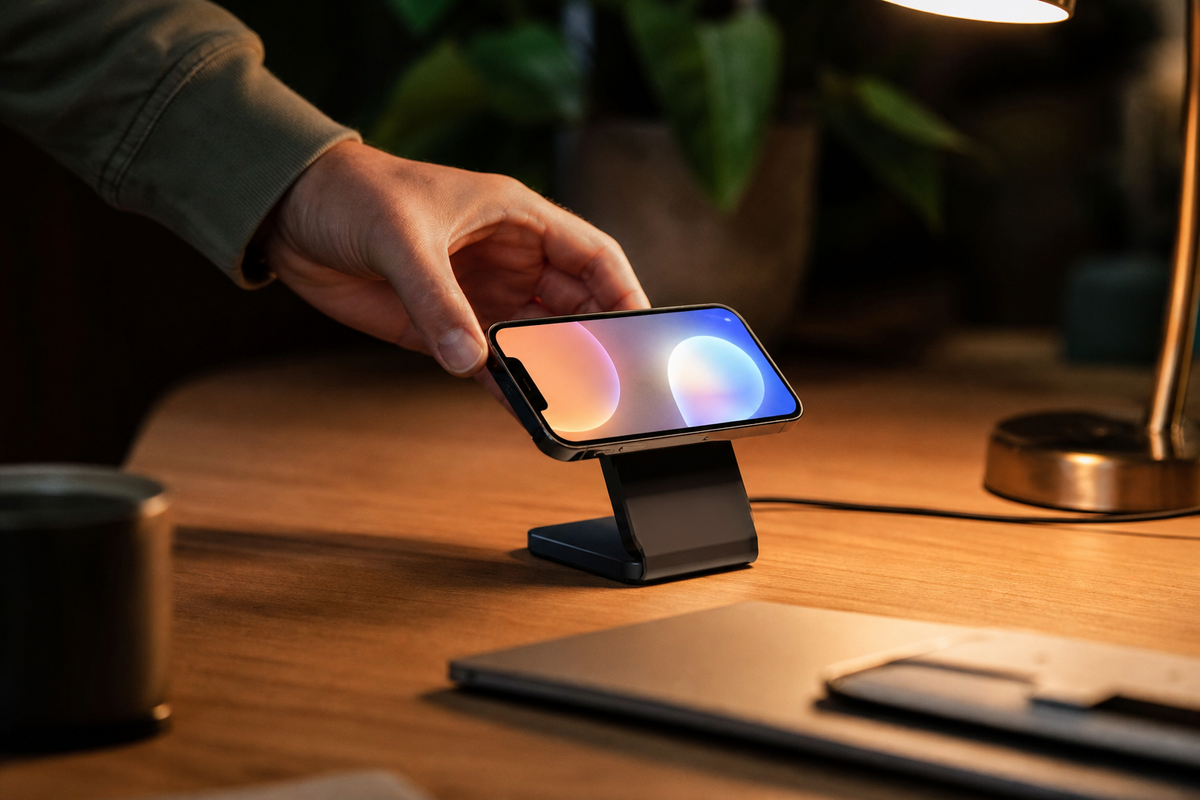
StandBy kicks in automatically whenever you put your iPhone down to charge and leave it on its side, no need to unlock it or open an app. Plug in with any charger-Lightning, USB-C, MagSafe, or a Qi pad-set the phone horizontally, and StandBy activates within a few seconds.
Devices with an Always-On display show the StandBy view continually while charging; any other model requires a tap, a slight table jiggle, or a Siri command to wake the display back up.
Turning on StandBy (Apple’s own steps)
- Open Settings and tap StandBy — confirm the toggle is on.
- Connect iPhone to a charger and set it down on its side, keeping it stationary.
- Press the side button once.
- Swipe left or right to switch between widgets, photos, and clocks; swipe up or down to scroll through options within each view.
Even if your iPhone lacks an Always-On display, StandBy still dims and will eventually go dark after periods of inactivity.
This isn’t a glitch; the fix is a simple tap on the screen, a gentle bump to the table, or asking Siri to restart the feature. As Apple details in their official StandBy guide, the feature turns your iPhone into a smart display and is compatible with any charging method — you don’t require a MagSafe charger specifically, although a charging stand can make the horizontal orientation easier to maintain, and setting up a new iPhone with StandBy on by default takes one tap in Settings. Any notification that comes in while StandBy is active still shows up as a banner across the display, the same as it would on a normal charging screen, and Face ID still works normally to unlock the phone if you pick it up.
One setup mistake shows up in forum threads over and over: propping the phone upright against a lamp or a stack of books instead of laying it flat on its side. That one detail is the top reason StandBy mode is not working when someone swears everything else is set up correctly — the charging light is on, the toggle in StandBy settings is confirmed on, and it still won’t appear, simply because “on its side” gets interpreted loosely.
| Display type | Typical models | StandBy behavior |
|---|---|---|
| Always-On display | iPhone 14 Pro/Pro Max and later Pro-tier models | Stays lit continuously while charging, dims only slightly when idle |
| Standard display, StandBy-capable | iPhone 12 through 14 and other non-Pro models on iOS 17+ | Goes dark after roughly 30 seconds of inactivity; tap, nudge, or Siri wakes it |
The 6 Clock Faces of StandBy
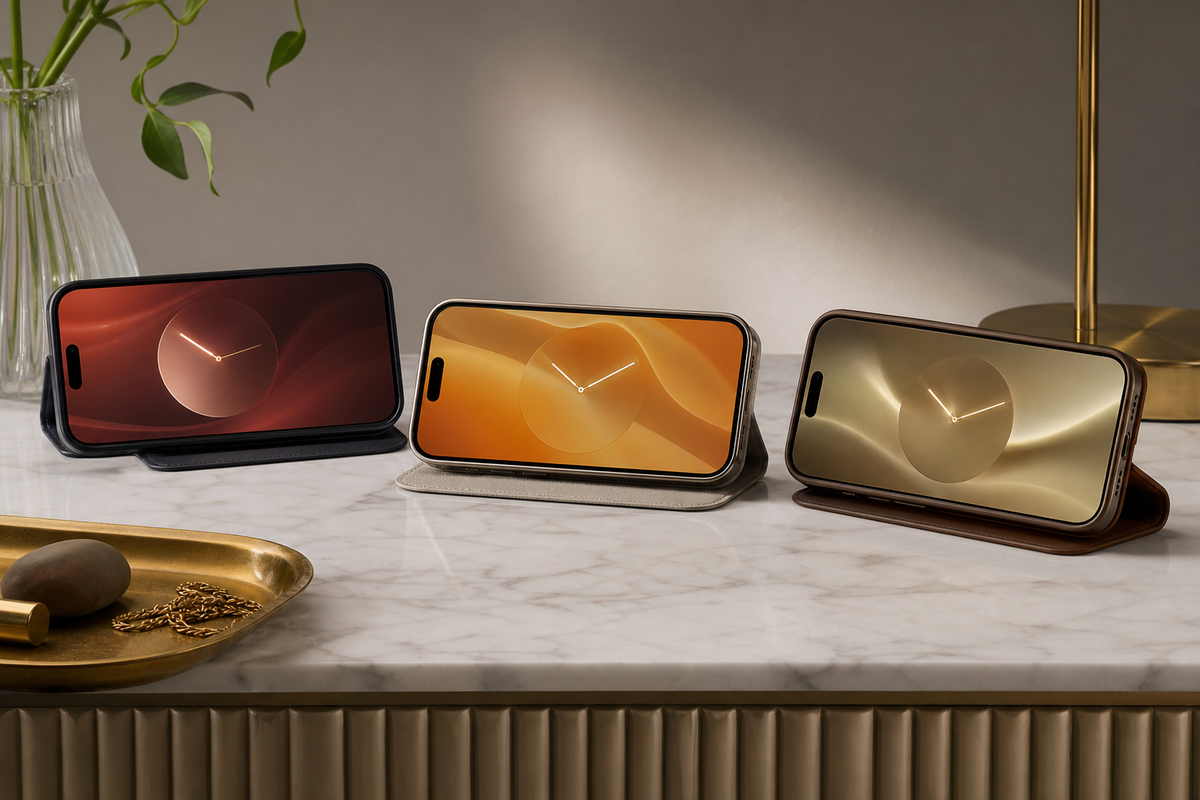
There are six available clock designs to customize your display with in StandBy mode as of 2026: Digital, Analog, World (a map of the world behind the current time), Solar, Float (large clock numerals that double nicely as an alarm clock face), and the most recently introduced, Minimal Mono.
The majority of current StandBy instructions were compiled in 2023 following the initial release of iOS 17 and only include the first four or five designs; Minimal Mono is a subsequent addition, and it’s the only clock style systematically omitted from older articles — MacRumors’ clock-style breakdown is one of the few write-ups that tracks the full current lineup.
| Style | Look | Best for |
|---|---|---|
| Digital | Bold numerals, customizable accent color | Quick at-a-glance reading from across a room |
| Analog | Traditional clock face, customizable accent color | Desk or living-room setups that lean classic |
| World | Map background with your current location | Tracking a second time zone alongside local time |
| Solar | Sunburst-style font, customizable color | A warmer, decorative bedside look |
| Float | Oversized bubble numerals with a per-minute animation | Playful setups, kids’ rooms, kitchen counters |
| Minimal Mono | Thin single-tone numerals, no color accent | A calmer, distraction-free bedside look at night |
To switch to a different clock, simply long-press anywhere on the screen while in StandBy mode, and then swipe across the displayed carousel — a different motion from opening the built-in Clock app, and separate from any third-party clock widget you might also have. Each clock style stores its own accent color settings independently, meaning if you set the Digital clock to a warm amber for your bedroom and the Solar clock to a cool blue-gray for your kitchen, StandBy will remember both the next time you charge your phone in either location.
This feature is closely linked to the per-location memory discussed below.
Choosing Widgets for StandBy — The Widget Downgrade
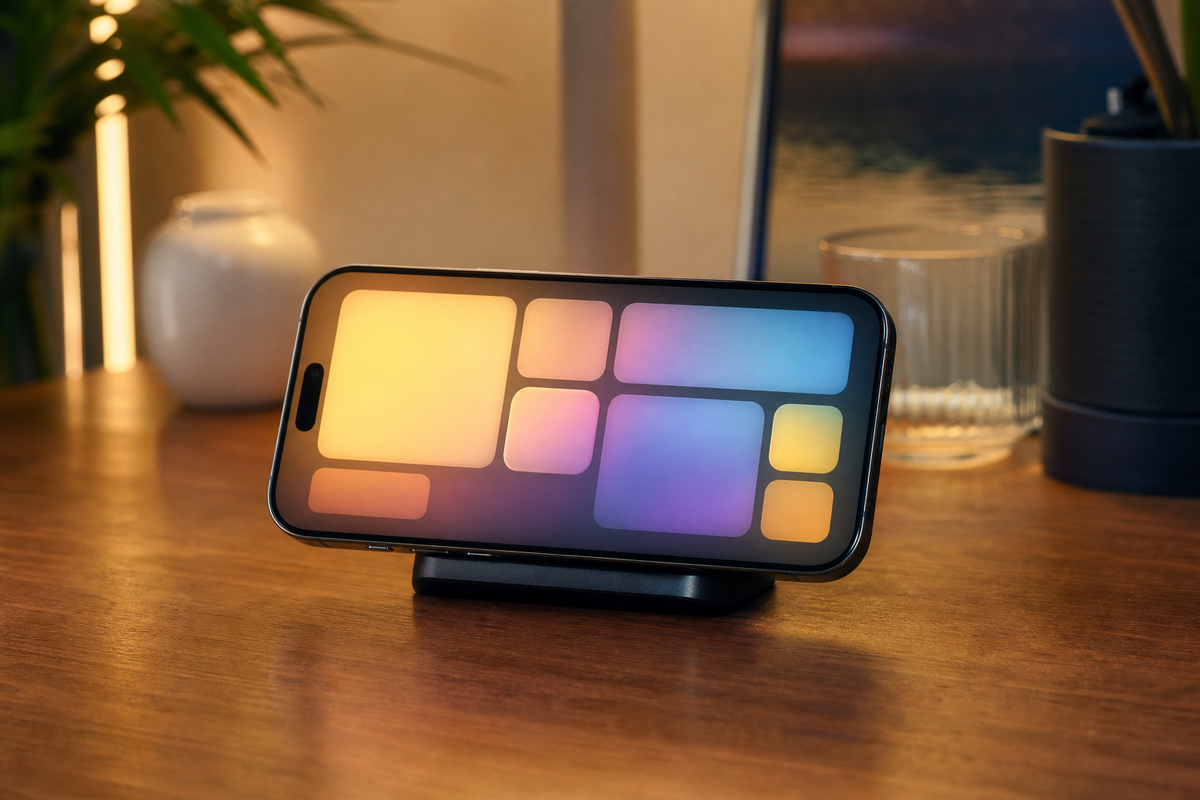
Surprisingly to many who expect a larger charging display to offer more personalization, StandBy actually has a more limited range of widget grid layout options compared to your iPhone’s Home Screen. While the Home Screen allows for a flexible arrangement of small, medium, large, and (on iPad) extra-large widgets, StandBy is designed with a fixed, full-screen or stacked configuration optimized for legibility from a distance, so certain widget combinations that work perfectly on your Home Screen might not fit quite the same way here.
StandBy widgets vs. Home Screen widgets, side-by-side
| Home Screen | StandBy |
|---|---|
| Small / medium / large / extra-large, placed freely | Full-screen single widget or a compact stack, no free placement |
| Grid stays visible whenever the screen is unlocked | Only visible while charging and horizontal |
StandBy’s “live activities,” which consist of real-time updates for things such as a delivery status and the score of a live game, completely take over the StandBy display and make the previous clock, photos or widgets you set disappear temporarily whenever one is active — the same widget grid that a Reminder or to-do widget would normally sit in gets replaced for as long as the live activity is running. For a broader rundown of widget picks across every surface (Home Screen, Lock Screen, and StandBy together), the site’s best widgets for iPhone guide covers the full comparison; this section focuses on what’s specific to StandBy’s widget rules.
Turning StandBy into a Photo Frame
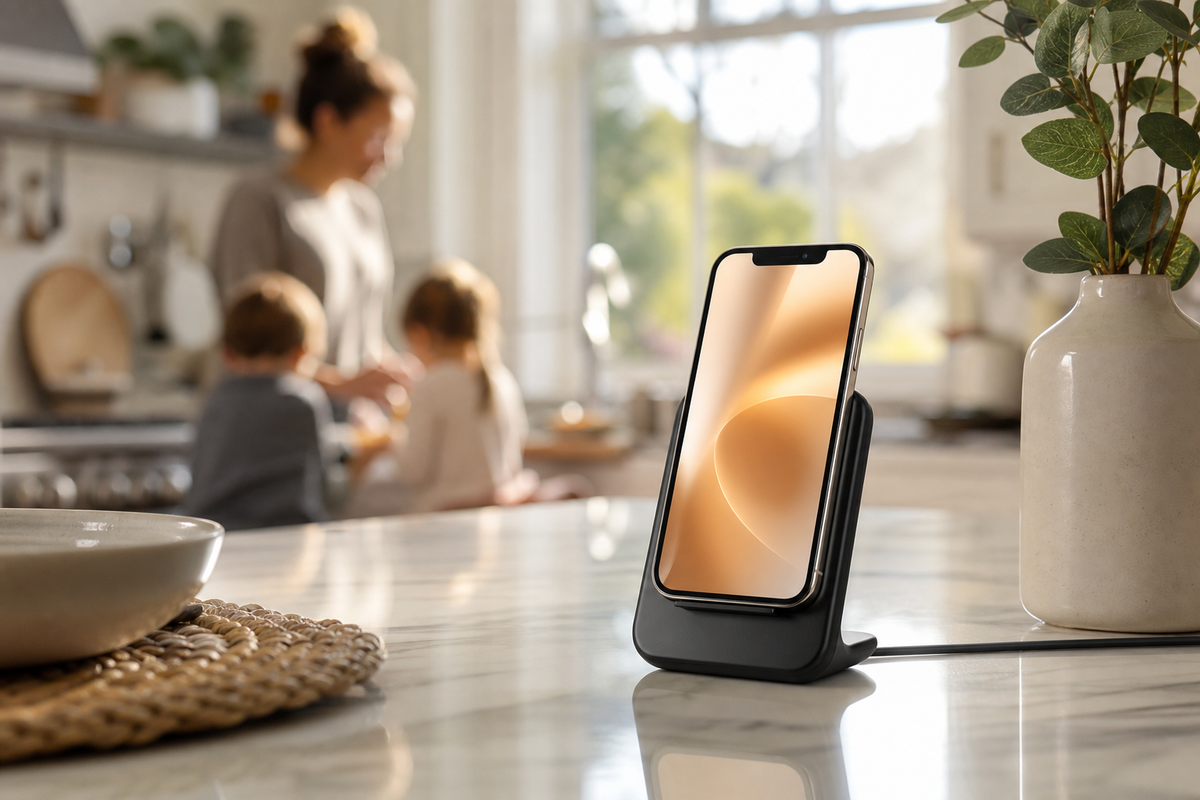
While charging your iPhone in StandBy, if you slide to the Photos screen, your iPhone acts as a rotating digital photo frame, pulling photos from your featured photos by default, but you can also specify a particular album in your photos library if featured photos are too scattered. This feature comes in very handy for people who find Featured Photos too random for a bedroom setup, since it can draw exclusively from photos in a particular album.
For a more designed look than a plain photo rotation, iScreen’s StandBy theme collection packages coordinated clock styles, colors, and backgrounds into ready-made looks, useful if you’d rather pick a finished aesthetic than build the color-matching described earlier from scratch — no Shortcut automation or App Store add-on required, since the packs install straight from the app.
Create a small “StandBy” album with 15-20 photos ahead of time — Featured Photos pulls from your whole library, which means a bedside display can occasionally surface a photo you’d rather not see first thing in the morning.
The 3-Room Memory Trick
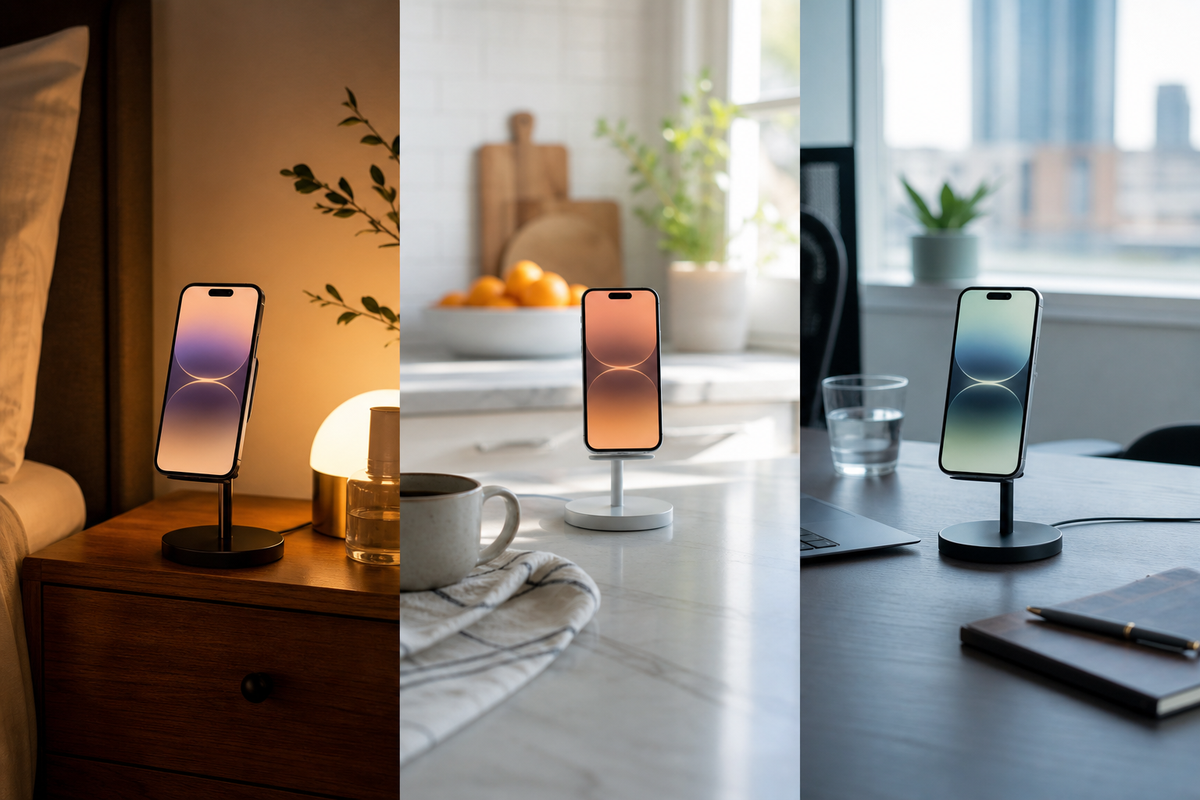
StandBy is capable of remembering a different preferred view, clock, photos, or widgets, depending on the charging spot you use. This is automatically set, so you won’t need to manually switch over to the different setups whenever you place your iPhone down in different places. According to Apple’s official StandBy guide: “at each location where you charge iPhone with MagSafe, StandBy remembers your preferred view, whether that’s a clock, photos, or widgets.” It’s one of the least-mentioned parts of the feature, and that coverage gap is exactly why so many people assume they’d have to reset the clock style or swap widgets by hand every single time they move the phone between chargers — the reason so many give up customizing StandBy altogether comes down to that one wrong assumption, not any real limitation. According to Apple’s own documentation, the memory is tied to the charging location itself, confirmed in the official StandBy guide referenced above.
For example, let’s say you have three charging locations around your home: your bedside MagSafe charger is set to display a specific Minimal Mono clock that you like for sleep, a kitchen countertop dock that’s set to show your Family Featured photos, and a desk charger set up to display a weather and calendar combination that works well for your workday. Whenever you charge your phone in each of these three locations throughout the day, the StandBy display returns exactly as it was previously set — Apple’s own documentation confirms this memory is tied to the charging location itself, not to the phone’s last-used state, which is why switching chargers doesn’t reset anything. The phone takes care of it.
Red for a Reason: Night Mode and the Red Tint
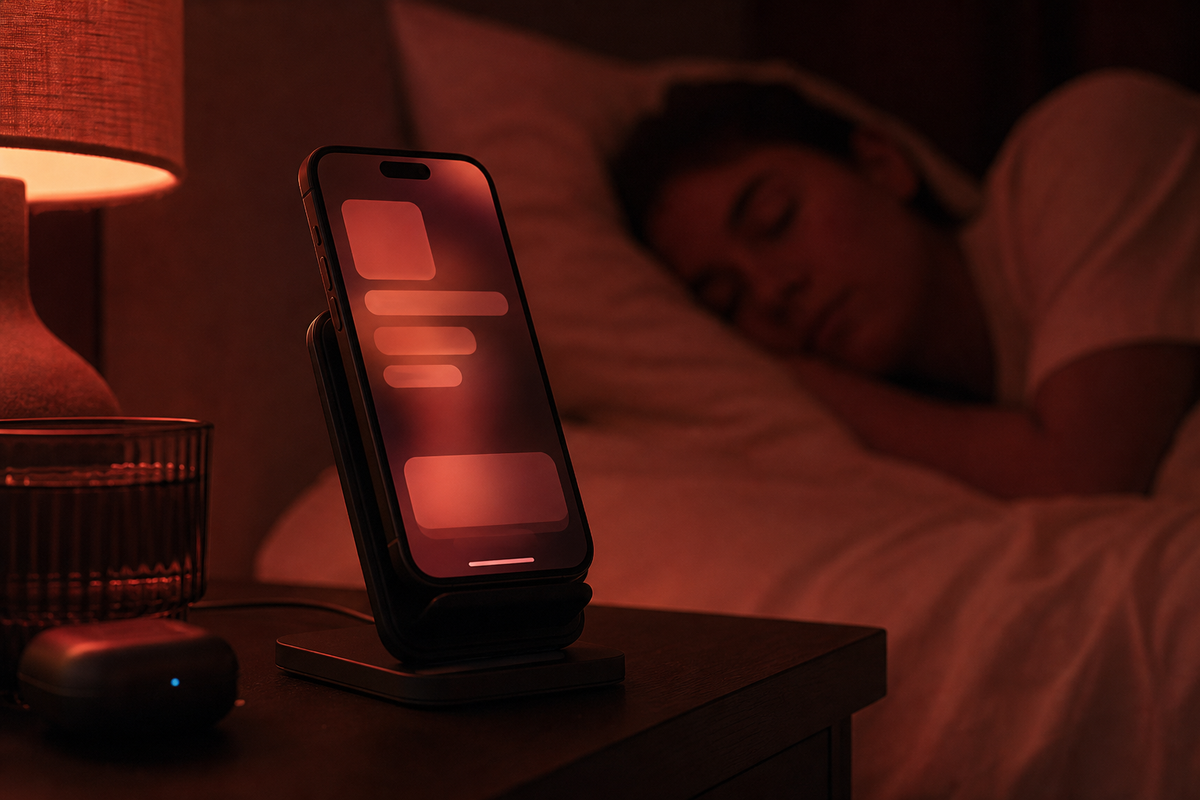
When Night Mode is active, the display turns red to be less distracting when used as a night clock — a similar idea to Nightstand Mode on Apple Watch, just applied to the iPhone’s charging screen; you don’t need to download any special apps or choose a specific theme for this feature, since it happens automatically when your phone’s light sensor detects low ambient light. Brightness is the trigger; so if you dim the room lights, StandBy automatically turns red within seconds and then changes back when you brighten the room again.
“If you give that red light in the evening prior to sleep, you’re minimizing the disruption of the circadian system, because disruption of the circadian system occurs with bright or blue light.” Figueiro was careful to draw a line, though: “I would not make the claim that red light promotes sleep” — the tint reduces one specific kind of disruption, it isn’t a sleep aid.
Mariana Figueiro, Director, Mount Sinai Light and Health Research Center, via CNN
The duration StandBy remains lit after you let go of your phone is managed by one of three options under Settings > StandBy > Display.
| Setting | Behavior | Good for |
|---|---|---|
| Automatically | Turns off when the room is dark and iPhone isn’t in use | Bedrooms — avoids a glowing screen all night |
| After 20 Seconds | Always dims 20 seconds after the last touch, regardless of light | Shared or bright rooms where “dark enough” is unreliable |
| Never | Stays lit continuously while StandBy is active | Kitchen counters and desks used as a glanceable display all day |
Fixing StandBy When It Won’t Turn On (or Feels Like a Battery Drain)
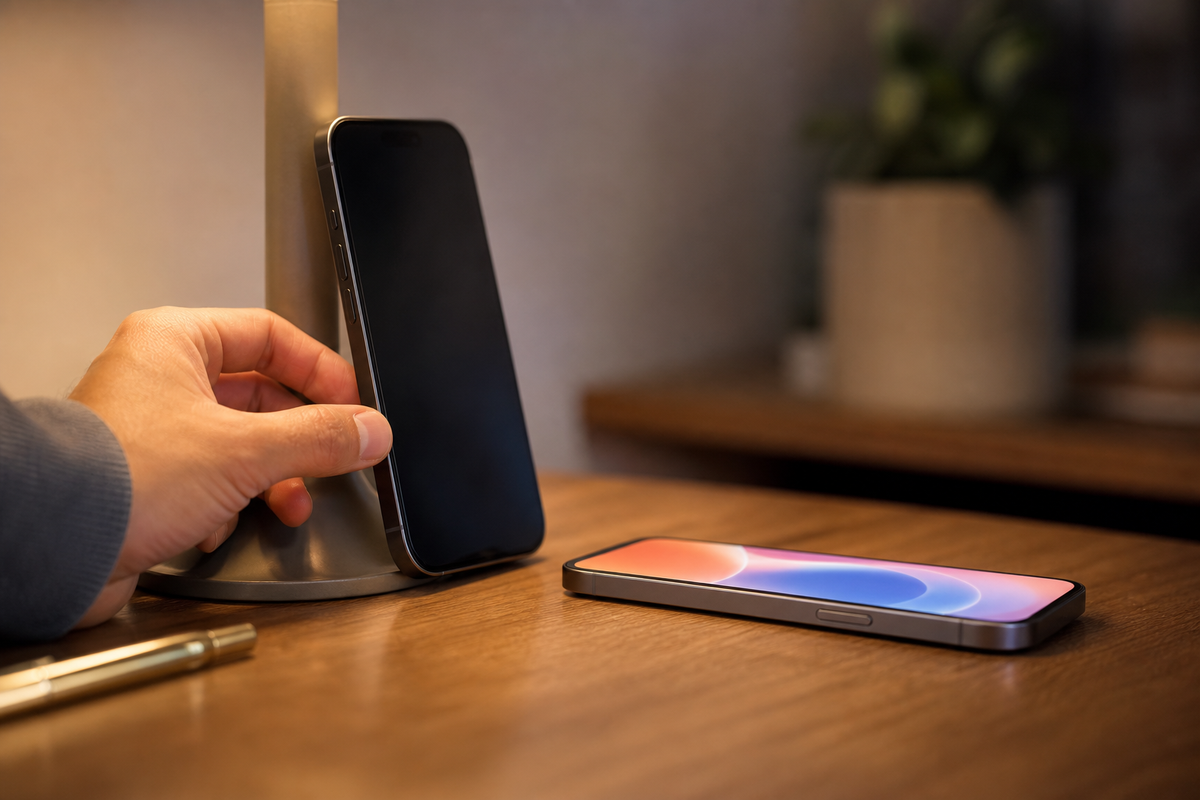
iPhone StandBy mode not working almost always traces back to one of three reasons: the charger doesn’t actually power the phone, the iPhone doesn’t lie on its side in a perfectly flat position, or the StandBy option is switched off in iPhone StandBy mode settings. Working down the list below in order should solve almost any “StandBy isn’t appearing” problem without having to reset your device.
| Category | Symptom | Likely cause | Fix |
|---|---|---|---|
| Activation | Screen stays black while charging | StandBy toggle is off, or iPhone is upright rather than on its side | Settings > StandBy > confirm toggle is on; lay phone horizontally |
| Activation | Charging but StandBy never appears | Charger isn’t actually delivering power (loose cable, underpowered pad) | Check for the lightning-bolt charging icon in Control Center first |
| Display | StandBy turns off after a few seconds | Not an Always-On model, and Display is set to Automatically in a bright room | Switch Display setting to Never, or tap/nudge to wake it back up |
| Display | Red tint stays on even in daylight | Night Mode toggle was left on, or the light sensor is covered by a case | Settings > StandBy > Night Mode off, or remove a thick case near the sensor |
| Widgets | No widgets showing, only clock or photos | Widgets view hasn’t been set up yet for this location | Swipe to the Widgets view, tap the widget area, add or remove widgets manually (a single widget or a widget stack both work) |
| Widgets | A Live Activity won’t clear off the screen | The activity (delivery, ride, game) is still actively running | Wait for the activity to end, or dismiss it from the Dynamic Island first |
| Clock | Wrong clock style shows up at a charging spot | A different style was last set there, or the long-press carousel skipped a step | Long-press the clock face, swipe to the intended style, wait a beat before releasing |
| Photos | Photo view doesn’t rotate through pictures | Featured Photos has too few recent images, or a single album is selected with one photo | Switch source to a fuller album, or add more images to the current one |
| Memory | A charging spot doesn’t remember its usual view | Wireless charger isn’t MagSafe-certified, or its position on the pad shifted slightly | Re-center the phone on the same spot each time; per-location memory is tied to MagSafe alignment |
- Glanceable info without unlocking the phone
- Per-location memory removes repeat setup
- Night Mode limits disruptive light near a bed
- The screen stays on for as long as StandBy is active, which adds some display-on time versus a normal charging screen-off state
- Fast charging plus an actively lit display can make the phone noticeably warmer than charging screen-down
- A static clock face left on Never for months is the kind of long-duration static image that OLED burn-in guidance generally cautions against
Coordinating StandBy with Your Lock Screen and Home Screen
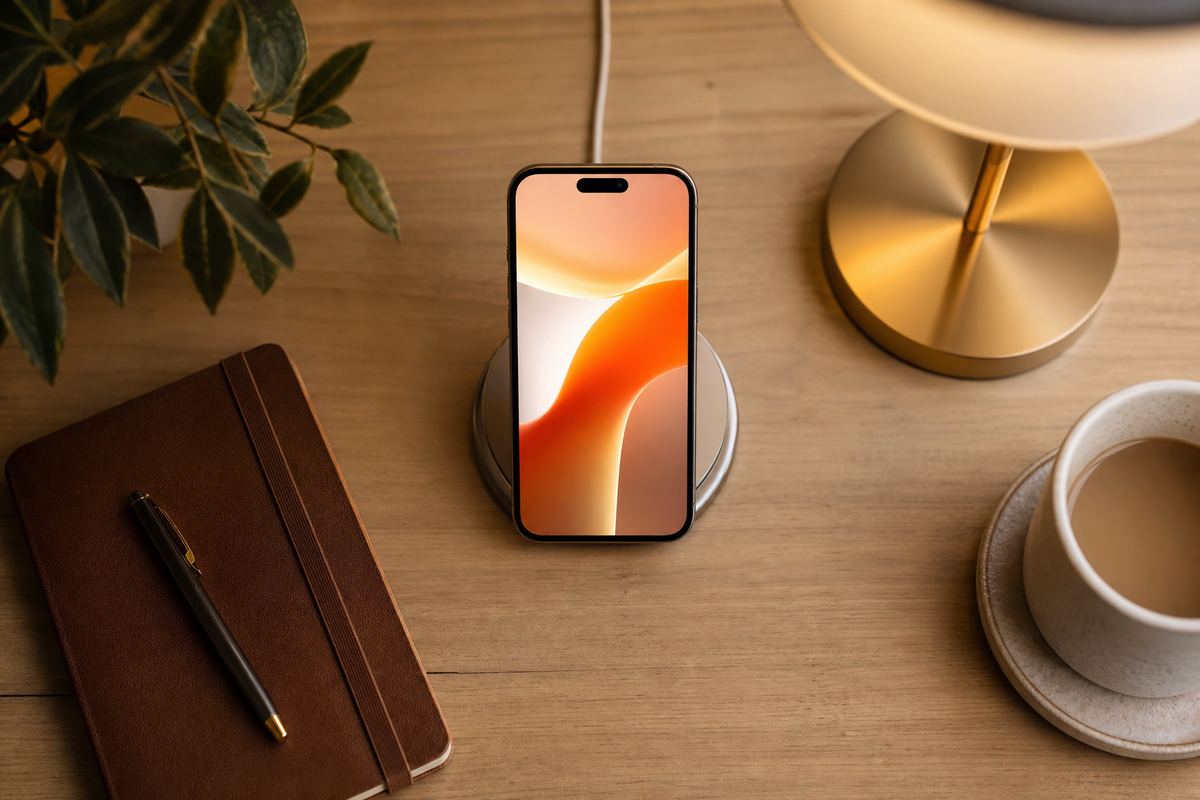
Because StandBy is a third “canvas,” distinct from the Lock Screen and Home Screen, you want to use colors and widgets unique to this display instead of mirroring whatever you’ve put on the other two. Make StandBy its own thing: you don’t need to coordinate clock-style accent colors with your Lock Screen, nor repeat the same Home Screen widgets.
Our guides for Lock Screen widgets and the full iPhone theme guide cover how wallpaper, widgets, and icons layer across your other two screens — StandBy is the fourth, and only shows up while charging.
Frequently Asked Questions
Q: What triggers StandBy mode on an iPhone?
Charging your iPhone while it’s positioned horizontally activates StandBy automatically, whether the charger is a Lightning cable, USB-C, MagSafe, or a Qi pad. Set the phone upright while it charges and StandBy won’t trigger; lay it flat on its side and it switches on within a couple of seconds.
Q: Can StandBy mode stay on all night?
Yes, on iPhone 14 Pro and later Pro models with an Always-On display, StandBy can stay lit all night while charging. Every other supported model goes dark after roughly 30 seconds of inactivity, though setting Display to Never in StandBy settings keeps the screen active longer on any model.
Q: Why is my StandBy mode red?
Night Mode is on and the room is dark, so StandBy automatically applies a red tint in low ambient light to make the display less disruptive next to a bed. It’s intentional, not a glitch, and it reverses back to normal color as soon as the room brightens again.
Q: Can I use StandBy mode without charging?
No, StandBy requires an active charging connection to activate; laying the phone on its side without power connected won’t trigger it, no matter how still it sits. Apple built the feature around a device that’s charging and parked in place, not one just resting on a table between uses.
Q: How do I turn off StandBy mode?
Go to Settings, tap StandBy, and switch the main toggle off; your iPhone then shows a normal locked or charging screen instead of switching into StandBy, even while lying flat and charging. None of the saved clock styles, colors, or per-location views are lost while the toggle stays off.
Q: Does StandBy mode drain my iPhone’s battery?
StandBy only runs while the phone is already plugged in, so it isn’t pulling from battery charge the way a background app would when unplugged. The real tradeoff is heat and display wear: an actively lit screen during fast charging runs a little warmer than a screen-off charge.
Why We Write This
iScreen builds theme, wallpaper, and widget packs for the iPhone home screen, including a dedicated StandBy collection, so we spend a lot of time in the settings menus this guide walks through. Per-location memory and the six 2026 clock styles came from testing our own multi-charger setup, not a single read-through of Apple’s documentation. Like most Apple products, StandBy keeps evolving — this guide gets updated to match. Reviewed by the iScreen team.
References & Sources
- Use StandBy to view information at a distance while iPhone is charging — Apple Support
- Always-On display supported models — Apple Support
- WidgetKit Documentation — Apple Developer
- Change Clock Style in Your iPhone’s StandBy Mode — MacRumors
- How to Disable the Red Tint in iPhone’s StandBy Mode — MacRumors
- iOS 17: How to use and customize StandBy on iPhone — 9to5Mac
- Red light therapy: How it affects sleep — CNN, quoting Mariana Figueiro, Mount Sinai Light and Health Research Center
Related Articles
- Best Widgets for iPhone — the full widget picture across Home Screen, Lock Screen, and StandBy
- Best Widgets for Your iPhone Lock Screen — the surface StandBy borrows its charging-triggered logic from
- Cute Aesthetic Widgets for iPhone — coordinating a soft, pastel look across every surface including StandBy
- iPhone Themes: How to Apply Aesthetic Themes to Your Entire Phone — the 4-layer stack StandBy fits into
- 20 Best iPhone Home Screen Ideas — mood-first inspiration for the screen StandBy sits alongside
