Cute Aesthetic Widgets for iPhone: Soft, Pastel & Kawaii Designs

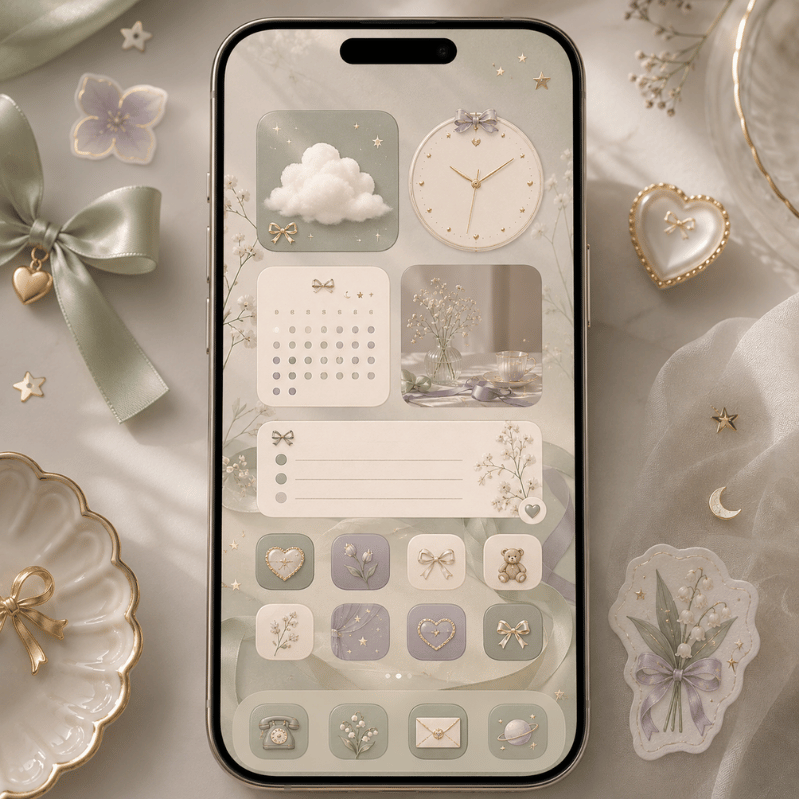
Cute aesthetic widgets are small Home Screen and Lock Screen tiles styled to match one chosen vibe, pastel pink, cutecore, coquette, kawaii, or soft beige, instead of Apple’s plain default look. The trick most people miss is that “cute” isn’t about adding more decorations; it’s about three things agreeing with each other: your wallpaper, your widgets, and your app icons. Get that match right and even a single photo widget looks intentional. Get it wrong and ten cute stickers still read as clutter.

Quick Start: A Cute Widget Setup in 5 Moves

  1. Pick one named aesthetic (pastel, cutecore, coquette, kawaii, beige).
  2. Set a matching wallpaper first, it’s the base color.
  3. Add 2–3 widgets in that palette (long-press → +).
  4. Tint or replace app icons to the same colors.
  5. Leave empty space. Stop while it still looks calm.

This guide give you 25+ concrete ideas sorted by style, the widget sizes Apple actually offers, a step-by-step setup with our 60-30-10 Widget Palette rule, the best aesthetic widgets apps, and where cute widgets are heading on iOS 26.

What Makes a Widget “Cute Aesthetic” (Not Just Cute)?
What Makes a Widget "Cute Aesthetic" (Not Just Cute)?

A cute aesthetic widget is one whose colors, font, and imagery belong to a single named look, so it reads as part of a designed screen rather than a random add-on. The word doing the heavy lifting is aesthetic: searchers using this phrase usually have a specific micro-style in mind, not a generic “make it pretty.” That’s why a pastel-pink clock can feel cute while the exact same clock in default blue feels like nothing.

The Cohesion Triangle

A cute screen come from three things sharing one palette: wallpaper + widgets + icons. Miss any corner and the look breaks, that’s the real reason most “cute” attempts fail.

This matters because the most common mistake is treating cuteness as quantity. People stack widget after widget and wonder why it looks busy. In practice the opposite work: iPhone owners refining their setups consistently report that switching to a couple of small widget stacks instead of several large mismatched ones is what finally makes a screen look “done,” and that the stock wallpaper is usually the first thing holding them back. The reason is visual load, every extra color and shape competes for attention, so a screen reads as cute only when a few elements clearly agree. So before you pick a single widget, pick the aesthetic.

Here’s the vocabulary worth knowing, because the named aesthetics are what people actually search for:

  • ✔Pastel / pink: the biggest cute bucket by far, soft pink, lilac, baby blue, butter yellow.
  • ✔Cutecore: maximal childlike cute, bows, hearts, stickers, toy-box colors.
  • ✔Coquette: soft, romantic, ribbon-and-lace pink with a vintage-girly tilt.
  • ✔Kawaii: Japanese-cute characters, bears, cats, blushy faces.
  • ✔Beige / neutral: the “quiet cute” — cream, tan, soft brown for a calmer look.

Pick one and the rest of this guide gets easy. A strong home screen aesthetic is just one of these styles applied consistently across the Cohesion Triangle, a clear aesthetic home screen theme gives you matching widgets, wallpaper, and icons in a single download instead of hunting for pieces.

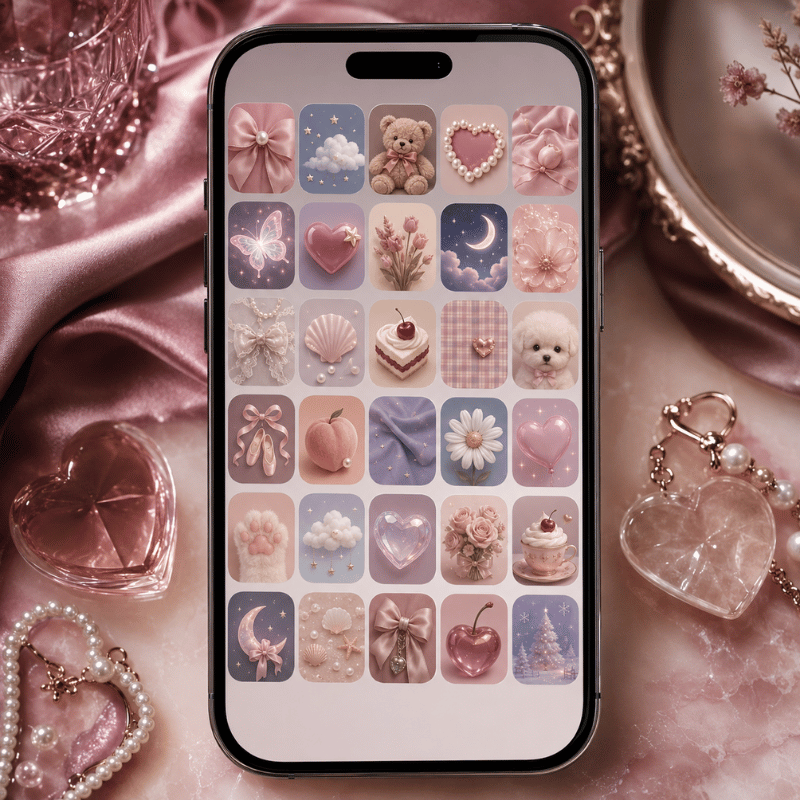
25 Cute Aesthetic Widget Ideas by Style
25 Cute Aesthetic Widget Ideas by Style

Below are 25+ ideas grouped by nine cute style types. Each row pairs a palette with the cute widgets that suit it and the wallpaper or icon move that ties it together. Match a row top to bottom and you already have a cohesive screen.

A cute aesthetic widgets cheat sheet: 9 style types, their palettes, and the widgets that fit each.
Style type Palette Best cute widgets Tie it together with
Pastel pink Soft pink, lilac, cream Pink analog clock, photo panel, weather, quote of the day, battery ring Blurred pink wallpaper + pink tinted icons
Cutecore Candy red, sky blue, white Sticker-style date, heart battery, desktop pet, mini game widget, music card Bow/heart wallpaper + playful icon pack
Coquette Blush, ribbon pink, ivory Ribbon clock, soft photo frame, quote widget, calendar, countdown to a date Lace/bow wallpaper + serif-font icons
Kawaii Pastel + bright accents Bear/cat character widget, animated pet, weather with a face, step counter Character wallpaper + matching mascot icons
Beige neutral Cream, tan, soft brown Minimal clock, single-photo frame, simple calendar, to-do list, moon phase Texture wallpaper + beige tinted icons
Cottagecore Sage, butter, dusty rose Floral clock, weather, moon phase, plant-care reminder, photo of nature Meadow wallpaper + hand-drawn icons
Y2K Hot pink, chrome, lime Glossy clock, music card, star/heart battery, sticker date, mini game Chrome/butterfly wallpaper + glossy icons
Preppy Hot pink, green, white Bold clock, calendar, quote widget, weather, bright photo frame Smiley/checkerboard wallpaper + bold icons
Danish pastel Mixed muted pastels Checkerboard clock, photo panel, calendar, weather, simple to-do Pastel-collage wallpaper + soft mixed icons

A few combinations punch above their weight. A rotating photo panel in your palette is the easiest “instant cute” win because it personalizes the screen without adding a new color. A distance widget shared with a partner or best friend, the kind of distance widgets for couples that show how far apart you’re, reads as cute and meaningful. And a single desktop pet that wanders your screen does more charm-per-pixel than any static sticker.

💡 Pro Tip

Build one style per Home Screen page. If you love two aesthetics, give each its own page rather than mixing pastel and cutecore on the same screen.

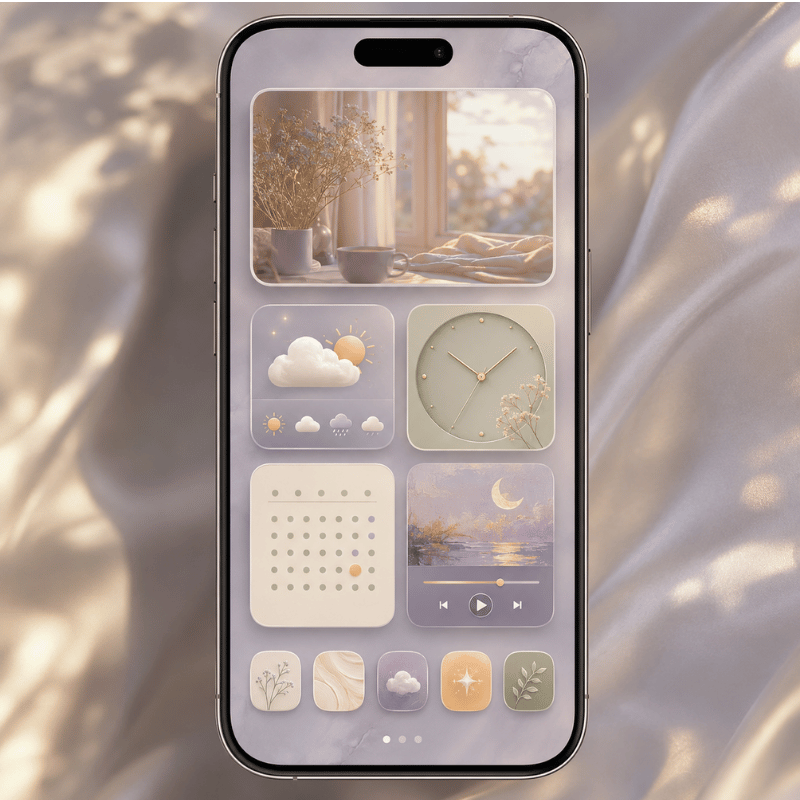
Which Widget Types Look Cutest? (Photo, Weather, Clock, Calendar, Music)
Which Widget Types Look Cutest? (Photo, Weather, Clock, Calendar, Music)

The cutest widgets are the ones you actually glance at, styled to your palette: a photo panel, a clock or date, a weather widget, and a calendar widget carry a look without becoming dead weight. A music card such as a Spotify widget and an animated Dynamic Island pet add personality too, as long as you customize them to the same colors.

Before you place them, it helps to know the canvas, because size decides how much “cute” fits.

On the Home Screen, Apple offers three widget footprints, and the Lock Screen adds its own small slots, per Apple’s guide to adding and editing widgets:

Widget sizes at a glance

  • Small (2×2): one job, a clock, a single photo, a battery ring.
  • Medium (4×2): weather, a few calendar events, a music card.
  • Large (4×4): photo galleries, full month calendars, multi-stat dashboards.
  • Lock Screen: one inline slot above the clock plus a row of small below-time widgets.

What cool things can iOS widgets actually do?

Modern iOS widgets do more than display, many are interactive, meaning you can tap to check off a reminder, start a timer, or play music without opening the app. Apple expanded this with interactive widgets and Live Activities, detailed at WWDC25’s “What’s new in widgets” session.

For a cute setup that means your pretty widgets can also be useful: a pastel to-do widget you tick off, a kawaii music card you tap to skip a track, or a photo widget that rotates through an album on its own. Cute and functional are no longer a trade-off.

⚠️ Common mistake

A cute widget you never look at is just clutter. Run every candidate through one test: would you glance at this on a normal day? If not, it is decoration competing for space — cut it.

Pair this with the right backdrop. A calmer aesthetic wallpaper lets a photo or clock widget stand out; a busy one fights it. Key takeaway: choose widget types by what you check daily, then style those few to your palette.

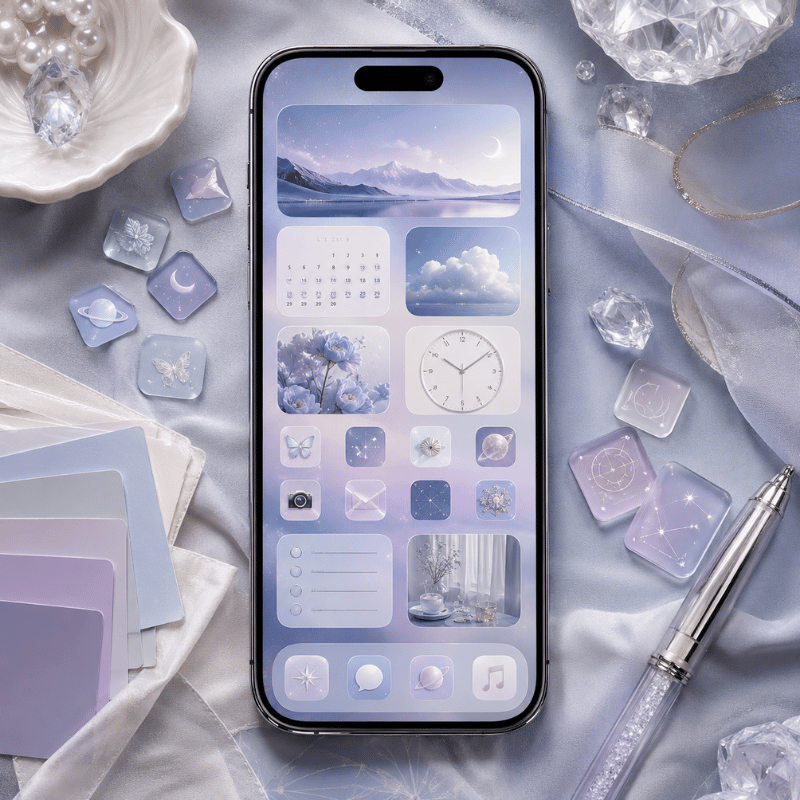
How to Make Your iPhone Widgets Aesthetic (Step-by-Step)
How to Make Your iPhone Widgets Aesthetic (Step-by-Step)

To make your iPhone widgets aesthetic, set a matching wallpaper first, add 2–3 widgets in the same palette, then tint your app icons to match, cohesion, not quantity, is what makes it look designed. Here’s the order that work, and why it’s an order and not a pile.

  1. Choose the aesthetic and palette first, decide pastel, cutecore, coquette, kawaii, or beige before touching anything.
  2. Set the wallpaper next, since it’s the largest color block on screen and sets the rules. Replace the stock wallpaper; it rarely matches a cute look.
  3. Add widgets by long-pressing an empty area, tapping + (or Edit), choosing a widget app, and picking a size. Place 2–3, not eight.
  4. Match the app icons with a custom icon set or iOS 26 tinted icons, so custom app icons share the widget palette.
  5. Arrange and breathe: group related widgets, leave a blank row, and stop while it still looks calm.
The 60-30-10 Widget Palette

Borrowed from interior design and tuned for a Home Screen, this is the simplest rule for a screen that look intentional:

  • 60% base: your wallpaper tone (e.g., soft pink).
  • 30% secondary: your widget backgrounds (e.g., cream or white cards).
  • 10% accent: one pop, a red heart battery, a character pet, a bright icon.

Worked example: a coquette screen runs ~60% blush wallpaper, ~30% ivory widget cards (clock, photo, calendar), and ~10% ribbon-red accent on a single countdown widget. Three colors, one mood, zero clutter.

Picture a student in her dorm rebuilding her Home Screen for a coquette look. She starts with a blush wallpaper (the 60% base), adds three ivory widget cards, a ribbon clock, a photo panel of her friends, and a small calendar (the 30%) — then drops in one ribbon-red countdown to winter break as the 10% accent. Total time: about ten minutes, three colors, zero clutter. A week later she swaps only the wallpaper and the accent widget to refresh it for the holidays, and the rest still matches. That’s the whole point of working in a fixed ratio: the screen stays cohesive even as you change pieces.

Do this once and you can rebuild any screen in minutes. If you want a full walkthrough of the whole layout, not just widgets, our guide to building an aesthetic iPhone home screen covers icons, wallpaper, and spacing together.

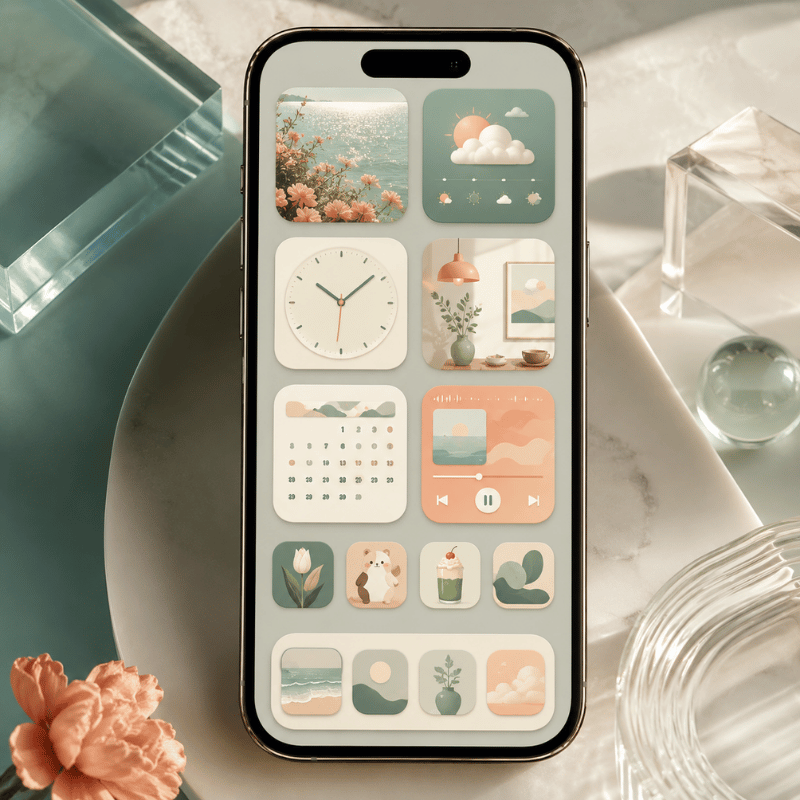
Best Apps for Cute Aesthetic Widgets (Free & Paid)
Best Apps for Cute Aesthetic Widgets (Free & Paid)

What apps offer aesthetic widgets?

Several apps offer cute aesthetic widgets, and most have a free tier with a paid upgrade for premium packs, a pattern tech outlets like CNET note in their aesthetic home-screen roundups. The right pick depend on whether you want a huge ready-made cute library or a build-it-yourself editor. The table below compares the common options by what they do best for a cute look.

Cute aesthetic widget apps compared: 4 picks by strength and price.
App Cute strength Free / Paid Standout
iScreen All-in-one: themes + widgets + icons + wallpaper Free with premium 500+ widgets incl. desktop pets, couple widgets, photo panels — one palette across the whole screen
Widgetsmith (builder-style) Custom clock/date/photo widgets Free with paid tier Fine control over fonts and colors if you like to design from scratch
Color-template app Pre-made color packs Free with paid packs Quick if you just want a palette and go
Photo-widget app Shared photo / friend widgets Free with paid tier Good for couple/friend photo widgets specifically

Why does an all-in-one app matter for cute screens? It comes back to the Cohesion Triangle: if your widgets come from one app but your icons and wallpaper come from somewhere else, the palettes drift. iScreen bundles 10,000+ themes, 500+ widgets, and 5,000+ icons so the three corners share one look by default, starting from a matched set of cute aesthetic widgets beats assembling mismatched parts.

“The screens that read as ‘cute’ aren’t the ones with the most widgets, they’re the ones where every element shares a palette. We see the same pattern across thousands of saved themes: restraint plus one strong accent beats a wall of stickers.”

The iScreen design team

Cute Widgets for Your Lock Screen, StandBy & iPad
Cute Widgets for Your Lock Screen, StandBy & iPad

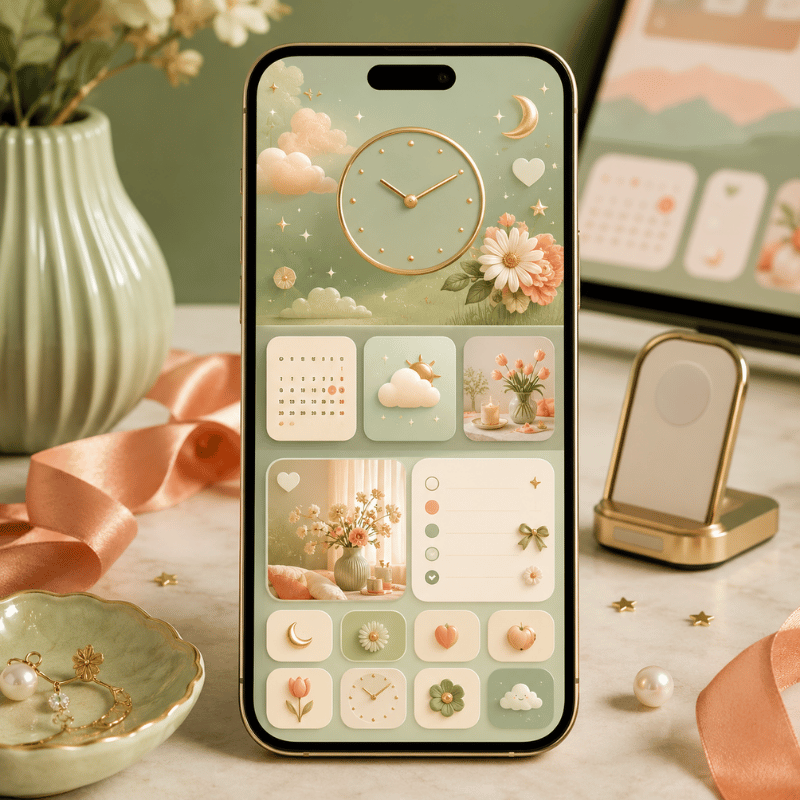
Cute widgets aren’t just a Home Screen thing, the Lock Screen, StandBy, and iPad each have their own slots, and styling all of them is what makes a setup feel complete. Each surface has a different shape, so the cute move change slightly.

On the Lock Screen, you get one inline widget beside the time and a row of small widgets below it. Per Apple’s Lock Screen customization guide, you add them by long-pressing the Lock Screen and tapping the widget area. A cute date, a tiny weather face, or a step ring work well here. One honest expectation: most Lock Screen widgets are glance-and-tap-to-open, not the full interactive type, so treat them as pretty shortcuts, not mini apps. Our deeper walkthrough of Lock Screen widgets covers which ones earn a slot.

Say your phone lives in your bag all day and you mostly see the Lock Screen. A beige-neutral setup work well here: a cream date widget in the inline slot, a tiny moon-phase and a step ring below the time, over a soft tan wallpaper. Three small widgets, one palette, and every glance feel calm rather than busy. Compare that to the common version, six bright mismatched widgets fighting a stock photo, and you can see why restraint reads as cute.

StandBy (your phone charging on its side) turns the screen into a little nightstand display. A cute clock or photo widget shines here because you see it across the room; configure it from the StandBy view. On iPad, the bigger grid means a large photo widget or a full pastel calendar can anchor the whole screen, cute scales up nicely when you’ve the room. Key takeaway: match the same palette across every surface so your phone feels like one designed set.

Seasonal Refreshes & What iOS 26 Changes for Cute Widgets
Seasonal Refreshes & What iOS 26 Changes for Cute Widgets

If you want your cute screen to stay fresh, plan a small seasonal refresh and lean into the two shifts reshaping cute widgets right now: iOS 26’s new look and the move toward named micro-aesthetics. Both change what counts as cute, not just how you arrange it.

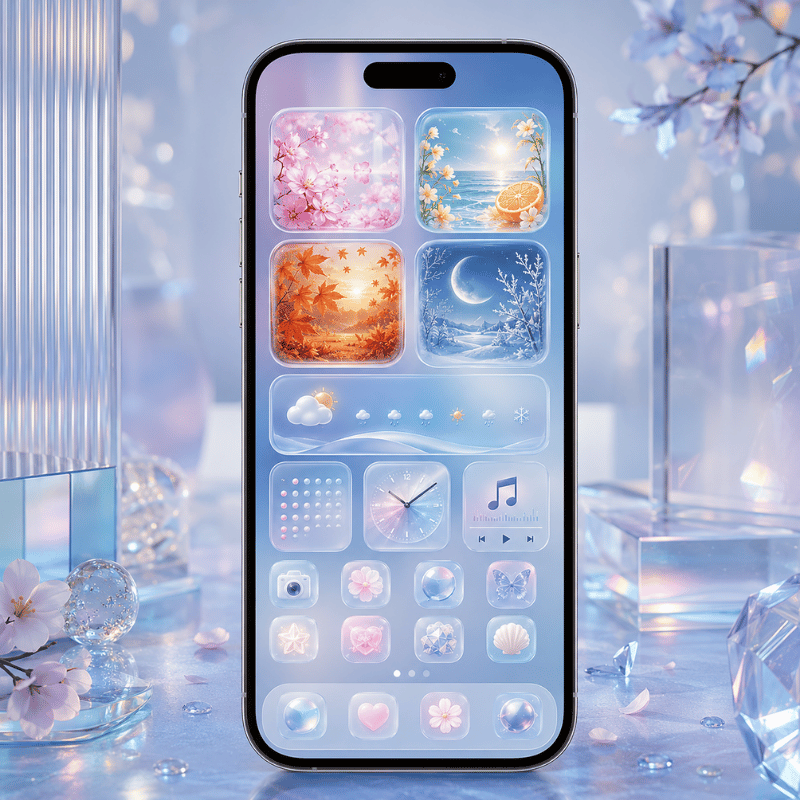
Right now the biggest driver is iOS 26’s Liquid Glass design. Apple’s widget guidance for Liquid Glass describes widgets that turn translucent and pick up the wallpaper behind them, which means a new “glassy pastel” look is now possible, soft, see-through cards instead of solid stickers. For a cute setup that’s a gift: a frosted pink clock floating over a matching wallpaper is the cleanest cohesion you can get. Pair that with interactive widgets and tinted icons (also new this cycle) and your cute screen can be glassy, matched, and tappable at once.

Beyond hardware, a second shift is cultural: people increasingly search for a named aesthetic, cutecore, coquette, pastel, preppy, rather than plain “cute.” Designing to a named look give you a clearer palette and a shareable identity. The practical move: pick the named aesthetic that fits your season.

That’s where seasonal refreshes come in. Cute-widget interest reliably spikes around the holidays, cozy fall palettes, then a wave of Christmas reds and pinks, so a quarterly swap keep your screen feeling current. If you’re planning a 2026 refresh, the easiest cadence is: warm neutrals in fall, festive pinks and reds for the December holidays, soft pastels in spring, and brighter tones for summer. You only need to change the wallpaper and one accent widget; the Cohesion Triangle does the rest.

Frequently Asked Questions

How do I get a cute aesthetic widget on my iPhone?

View Answer
Download a widget app such as iScreen, open it and design or pick a widget in your chosen palette, then go to your Home Screen, long-press an empty area, tap the + (or Edit) button, find the widget app, choose a size, and place it. Set a matching wallpaper first so the new widget blends in rather than standing out awkwardly.

What is the cutecore aesthetic?

View Answer
Cutecore is a maximal, childlike take on cute — think bows, hearts, stickers, toy-box colors, and playful mascots. On a phone it shows up as sticker-style dates, heart-shaped battery widgets, animated pets, and bright candy palettes. It differs from coquette (softer, romantic, ribbon-and-lace) and kawaii (Japanese-cute characters), though the three overlap and are often mixed.

Are cute aesthetic widget apps free?

View Answer
Most cute widget apps, including iScreen, offer a free version with a useful set of widgets, themes, and icons, plus an optional premium subscription that unlocks the full library and advanced widgets like desktop pets or couple widgets. You can build a complete cute screen on the free tier; paying mainly buys variety and removes limits.

How do I make my widgets match my wallpaper and icons?

View Answer
Use the Cohesion Triangle: pick one palette and apply it to all three of wallpaper, widgets, and icons. The fastest method is the 60-30-10 rule — let the wallpaper be ~60% of the color, widget cards ~30%, and a single accent ~10%. Using one all-in-one app for all three keeps the colors from drifting, which is the usual reason a screen looks “off.”

Can I add cute interactive widgets on iOS 26?

View Answer
Yes — iOS 26 supports interactive widgets and the new Liquid Glass look, so a cute widget can also be tappable and translucent.

Why do my cute widgets look messy or cluttered?

View Answer
Almost always one of three reasons. First, too many widgets: a wall of cute tiles reads as noise, so cut down to two or three and use a widget stack if you need more. Second, a mismatched wallpaper — especially the stock one — fighting the widgets; swap it for a simple tone in your palette. Third, more than three competing colors; hold to the 60-30-10 rule with one base, one secondary, and one accent. Fix those and the same widgets suddenly look intentional. Cuteness is cohesion, not quantity.

Want a matched set instead of mismatched parts?

Explore iScreen’s cute aesthetic widgets →

Why We Wrote This

iScreen builds an iPhone customization app with 500+ widgets, 10,000+ themes, and 5,000+ icons, so we see which cute setups people actually keep. This guide reflects that pattern, cohesion over quantity, rather than a list of every widget you could possibly add. Reviewed by the iScreen team.

Related Articles

Recent articles

Gradient Wallpaper iPhone Guide: Six Color Pairings

Gradient Wallpaper iPhone Guide: Six Color Pairings

2026/10/27 16:25
/* Table component reused from the existing iPhone Home Screen Wallpaper article. */ .seo-blog-content table{width:100%;min-width:640px;border-collapse:collapse;margin:0;font-size:15px;line-height:1.6;letter-spacing:normal;border:1px solid #e0e0e0;color:#2d2d2d;font-variant-numeric:tabular-nums;} .seo-blog-content table tr{border:none!important;} .seo-blog-content table th{background:#2d2d2d!important;color:#fff!important;font-weight:600;text-align:left;padding:12px 16px!important;border:none!important;vertical-align:top;} .seo-blog-content table td{padding:11px 16px!important;border:none!important;border-top:1px solid #e0e0e0!important;background:#fff;vertical-align:top;text-align:left;} .seo-blog-content table tbody tr:nth-child(even) td{background:#f5f5f5;} .seo-blog-content table tbody td:first-child{font-weight:600;} .seo-blog-content table caption{caption-side:top;text-align:left;font-weight:600;padding:0 0 12px;color:#2d2d2d;} @media(max-width:767px){.seo-blog-content table{font-size:14px;}.seo-blog-content table th,.seo-blog-content table td{padding:10px 12px!important;}} A blue-to-teal background can look lovely in Photos, then put its brightest patch directly behind your clock. There’s more to choosing the colors than that. The direction of the fade and the crop and text already on your screen determine whether the finished layout feels calm or awkward. Gradient wallpaper for iPhone blends colors across the screen. Start with navy and teal for light text, or cream and lilac for dark text. Place a contrasting area behind the clock, then set the Home Screen separately if its widgets need a quieter background. Before you choose A dark background can still hide dark text. The Lock Screen and Home Screen can use different treatments. Image dimensions and smooth color transitions are separate quality checks. Six gradient wallpaper color pairings for iPhone Start with navy and teal if your clock is pale, or cream and lilac if you prefer dark lettering. Both of these color combinations give you a good place to position text. The six pairs below are starting designs: choose the mood first, then move the lighter or darker area to suit your layout. Six palette recipes Pair Color stops Starting layout Midnight teal Navy #14243B → teal #387F86 Keep navy behind a light clock; let teal gather lower down. Soft lilac Cream #F3EDE2 → lilac #C8B8DE Put dark lettering over the cream area. Peach dusk Peach #F4BEA8 → mauve #875C83 Try a diagonal fade, with pale text over the mauve corner. Blue hour Ink #192A56 → blue #5E8DB8 Keep the upper clock area in ink; use blue near the bottom. Sage mist Ivory #E9E8DC → sage #A5B8A3 Use dark text and a gentle fade behind sparse widgets. Berry night Plum #39233F → berry #8C456D Place light text over plum; keep berry beside the widget column. Hex codes specify the source colors when you make your own file. They aren’t settings you must enter in Apple’s wallpaper picker. A pale pair can feel soft without being washed out; a darker pair can add depth without a bright central glow. For more style directions, browse our aesthetic iPhone wallpaper ideas. Place light and dark areas around your text If your text is light, you should have a darker area behind it; if your text is dark, you should have a lighter area behind it. The relevant area is the one immediately behind the letters, not the average color of the whole photo. A fade that crosses through the clock can change contrast halfway across a word, even when both ends look attractive. Apple’s color guidance makes the underlying problem clear: Avoid using colors that make it hard to perceive content in your app. Apple, Human Interface Guidelines: Color Color-Stop Placement Map Match the fade to what is actually visible What is on screen? Try this placement Change it when… Light clock near the top Dark stop behind the clock A pale edge crosses the digits. Dark clock near the top Light stop behind the clock A dark corner touches the lettering. Light labels across the app grid Broad, darker middle Labels disappear over the bright center. Dark text on a clear widget Paler region under that widget The widget overlaps a dark stop. Widget with its own opaque card Place the accent beside the card The card and wallpaper compete visually. Large colorful app icons Low-contrast fade behind the grid The background draws attention before the icons. Mostly empty lower screen Put the stronger color low down New widgets occupy that space. Crop shifts the fade Reposition before saving The preview moves the contrast boundary. No useful crop fits Choose a wider calm area or solid fill Moving the image fixes one label but hides another. For midnight teal, place the navy region behind the white clock and let teal flow toward the lower right corner. With a black clock, the cream region of soft lilac is probably the better starting point. W3C’s contrast examples use both light-on-dark and dark-on-light arrangements. You can judge the final text, including any outlines and widget backings, in the wallpaper preview. Dark gradient wallpaper or a solid background? A solid background is a good starting point for a crowded Home Screen because its luminance is uniform. A dark gradient wallpaper adds a subdued color fade across most of the Home Screen. A solid background works if text spans the entire width of the screen, and a gradient works if there’s ample space for an accent. Subtle gradient Adds color without a detailed scene. Gives empty space a focal area. Needs care where the fade crosses labels. Solid fill Keeps the background brightness uniform. Leaves attention on apps and widgets. Still needs contrast with the chosen text. An example in dark-on-dark from W3C describes text disappearing into the background. Nor should we rely on battery savings to choose our palette. The Purdue study found brightness-dependent results in Android apps; it didn’t test iPhone gradient wallpapers. Make a simple gradient with iPhone wallpaper settings How do I make a gradient wallpaper on iPhone? You can find the starting point in Settings > Wallpaper > Add New Wallpaper > Color. You can preview different styles. To customize the Home Screen, choose your existing wallpaper, and look for its gradient option. You can save a gradient image to Photos and use it as a photo wallpaper. Open Wallpaper settings. Tap Add New Wallpaper and choose Color for the built-in route, or Photos for a saved design. Adjust the preview. Set the available color and style controls; with a photo, position the fade before saving. Choose the screen treatment. Tap Add, then Set as Wallpaper Pair to use the selection on both screens, or Customize Home Screen for a separate background. Check the actual layout. Return to the Lock Screen and Home Screen to inspect the clock, labels and widgets together. Apple’s wallpaper instructions include Color and the pair-versus-separate choice. The Home Screen Gradient label appears in 9to5Mac’s iOS 16 walkthrough; older screenshots may differ from your menus. For changing the clock and widgets beyond the background, see our Lock Screen customization guide. Save a sharp gradient without paying for a wallpaper app You can start with Apple’s built-in Color choices for free. For a particular blend, use the creator’s original image instead of the preview screenshot. Check the download or export terms and conditions to see if you can browse phone wallpapers or have permission to save a particular design. The two can be separate. An image route without the app gives you a chance to edit individual images. iDownloadBlog’s AR72014 gradient collection provides direct downloads to originals. For a particular image, open its download link, not the gallery’s thumbnails. Most of the images in the collection were made for older iPhones, so you may want to check the image dimensions, and crop for your model. Source-to-Screen Choice Table Choose the shortest route to the finish you want Route What you control Before spending money Native Color Available system colors and styles Try the built-in preview first; no third-party app purchase is needed. Original image File choice and wallpaper crop Check dimensions and personal-use permission at the download source. Wallpaper app The designs and export options it offers Check whether that design needs a subscription, payment or unlock. What ratio should an iPhone wallpaper be? Use your model’s portrait proportions: for iPhone 13, start with a 1170 × 2532 canvas based on Apple’s published display resolution. Allow room to reposition the fade around the clock. Check the dimensions for your particular model before exporting a custom image, especially when you move a design between phones. Crop presets are available in Photos including 9:16 and Wallpaper. Preserve the original before cropping and check the wallpaper preview afterward. Images labeled “4K” can still have a poorly positioned fade or look uneven after compression. Match the background to your widgets Decide which widgets you want to keep and pick a background. Use the Sage pair and place its strongest color next to the calendar card. With small light labels over the wallpaper, start with the darker middle of the Blue hour palette. Keep the app grid fixed while comparing both looks. Our iScreen wallpaper collection is where you can see colors and styles. For a more coordinated layout, our matching phone-theme guide takes a wider perspective. Applying the wallpaper and rearranging widgets are two different steps. A new background doesn’t always mean widgets get recolored. Apple’s Home Screen customization guide is a good resource to learn how to control widgets. However, keep in mind that widget choices differ among apps. If your Home Screen already has a strong, dominant widget, like a photo widget, consider using a simple, lower-contrast fade to create more space and give it a softer look; adding a strong accent makes the layout harder to read. Fix blur, banding and awkward cropping To see if the image edges are soft, compare the image in the Photos app with the Home screen. For visible color steps, try exporting the image with a different compression setting. For the bright patch, try cropping the image slightly differently. Keep the original image open when comparing settings so you can tell if the problem is with the setting or the image. Only the Home Screen looks blurred: check Customize Home Screen. Apple includes a Blur option intended to help apps stand out; turn it off if you want the original finish. The saved image is already soft: return to the source and save the original file instead of a thumbnail or screenshot. The fade has visible steps: try a different original export. Tu and colleagues’ Adaptive Debanding Filter research describes compression-related bands in smooth image regions. A larger pixel count alone doesn’t resolve that mechanism. The bright area moved: reopen the wallpaper preview and adjust the crop. If every useful crop crosses the clock, choose a design with a broader quiet area. Keep one original image while comparing exports. Repeatedly saving a screenshot of a screenshot can make it hard to identify which file showed the problem. Choose your first gradient Try midnight teal with light lettering or soft lilac with dark lettering. Keep your current widgets, apply the background, and change only the fade’s position first. For better app labels, try using a separate Home Screen background. If the clock improves but the app labels get worse, you might need a different background. Place the busiest colors in empty space. Browse more wallpaper styles for a different mood; keep this placement method when you switch from a quiet gradient to a more abstract design. Frequently asked questions Are gradient wallpapers good for iPhone? Yes, gradient wallpapers are a useful choice when you want color without a detailed photograph behind your apps. A gentle fade can leave broad areas for the clock and widgets. Choose a contrasting area for the actual text, and simplify the Home Screen background if the fade crosses too many labels. Are gradient wallpaper downloads safe? A trustworthy creator’s image download is a better starting point than an unfamiliar installer or configuration profile. Save the image through the stated download route and check its personal-use terms. A static wallpaper does not need a configuration profile; leave a page that asks for unrelated permissions or account details. Is gradient wallpaper on iPhone free? You can use the built-in Color wallpaper route without buying a separate wallpaper app. Downloaded designs have their own access and licensing terms, and an app may charge for particular collections or exports. Try the native options first, then check the price of the exact design you want to save. What does a rainbow iPhone wallpaper mean? A rainbow background can be a personal color preference or a deliberate symbol, depending on the design and its creator. The colors alone don’t establish one meaning. Look at the collection’s title and description if that meaning matters to you. Why is my gradient wallpaper not working? Cropping, Home Screen Blur or a linked Focus selecting another Lock Screen may be the cause. Reopen Wallpaper settings and inspect the selected pair to see which screen changed. If the image itself is damaged or missing, choose another saved original before adjusting the layout again. Can I use a gradient wallpaper on iPhone 15? Yes. You can use a saved gradient image as a photo wallpaper on iPhone 15, or start with the Color choices in Wallpaper settings. Inspect the framing around the clock and Dynamic Island, then customize the Home Screen separately if its app layout needs a different finish. How do I remove a gradient wallpaper? Touch and hold the unlocked Lock Screen to open the wallpaper gallery, swipe to the wallpaper you want to remove, then swipe upward on it and tap the trash icon. Confirm the deletion. Apple documents this gallery route; our wallpaper removal guide covers the process in more detail. The examples of placement and color palette recipes were created just for this guide. They’re illustrations of designs, not screenshots of a test device. The menus can look a little different depending on the operating system version. References & Sources Color guidance — Apple Human Interface Guidelines G18: Text and background contrast — World Wide Web Consortium F83: Background-image contrast failure — World Wide Web Consortium Dark mode and battery life — Purdue University, 2021 Change your iPhone wallpaper — Apple Support Separate Home Screen and Lock Screen wallpapers — Benjamin Mayo, 9to5Mac, 2022 iPhone 13 technical specifications — Apple Support Crop, rotate, flip or straighten photos — Apple iPhone User Guide Customize apps and widgets — Apple iPhone User Guide Change the wallpaper — Apple iPhone User Guide Adaptive Debanding Filter — Zhengzhong Tu and colleagues, 2020
2026/10/27 16:25
How to Delete Wallpaper on iPhone Without Losing Your Photo

How to Delete Wallpaper on iPhone Without Losing Your Photo

2026/10/27 09:36
This is how to delete wallpaper iPhone owners no longer want: on iOS 16 and up, touch and hold the Lock Screen, authenticate, swipe up on the unwanted wallpaper preview, tap the trash icon, and confirm. That removes the wallpaper setup. Keep the original image in Photos if you want to use it again. Updated October 2026. This guide follows Apple’s published instructions; it isn’t a hands-on device test. Delete an iPhone wallpaper from the Lock Screen Delete an iPhone wallpaper through the Lock Screen gallery. The upward swipe belongs on the small wallpaper preview after the gallery opens, rather than on the normal full-screen background. Apple’s deletion route applies to iOS 16 and later, so an iPhone running iOS 18 uses this same starting point. Show the Lock Screen. Return to the screen with the clock; use the side button as needed. Open the gallery. Touch and hold the Lock Screen, then authenticate with Face ID, Touch ID or your passcode. Find the unwanted setup. Swipe sideways through the wallpaper options until the correct preview is centered. Reveal the delete button. Swipe upward on that wallpaper preview, then tap the trash icon. Confirm the removal. Tap Delete This Wallpaper after checking the preview again. The Apple wallpaper deletion instructions show the same gesture. A long press opens the gallery; a swipe up reveals the trash control. Starting from an app or the Home Screen leads to a different set of controls. “Swipe up on the wallpaper that you want to delete.” Apple Support, Delete a wallpaper on your iPhone, 2026 A helpful tip when providing tech help: have the owner authenticate and identify the picture before you touch the trash icon. Similar previews can differ only in their clock or widgets. If the real goal is a different image, our guide to changing wallpaper on iPhone covers the replacement route. Keep the original photo: the Keep, Change, Delete map The Keep-Change-Delete map shows three choices: keeping a photo, modifying a background, or removing a setup. Deleting a wallpaper from the gallery is separate from deleting the source photo in Photos. Deleting that image inside the Photos app is a different action and has different consequences for recovery and synchronization. Choose the row that corresponds to what you want to remove before opening a trash control. Keep, Change, Delete map: choose the object before choosing the action. Your goal Use this route Preserve first Remove an old saved background Delete its gallery preview Original photo, if wanted Keep a family photograph Leave the image in Photos A separate backup of the photo Replace the Lock Screen picture Edit the setup or add a new one Desired Home Screen appearance Change only the Home Screen Use Home Screen customization The Lock Screen you want to keep Stop showing one shuffle picture Edit the shuffle selection The other selected pictures Stop using an entire shuffle Remove that gallery setup Any configuration you may recreate Switch backgrounds temporarily Select another saved wallpaper The existing setup in the gallery Remove the original file itself Delete it in Photos Any copy you intend to retain Rebuild an old favorite later Locate its original image first Photo plus a note of its appearance This editorial map combines Apple’s wallpaper customization controls with its separate Photos deletion instructions. With iCloud Photos, deleting a photo on one device removes it on the other devices signed in with the same Apple account. For a holiday background photograph you can’t find in your library, keep that background until you can find the file in an album, backup, or where you downloaded it. Deleting a preview won’t help find an original. A screenshot can record the clock and widget arrangement, but it will also record what’s on the screen and isn’t a replacement for the original photo. Once you find the original, save it in a place you’ll easily identify. This tip is useful when a family member set up the phone for you. Change one screen without discarding the pair Choose the existing wallpaper to change only part of its appearance. A Lock Screen and Home Screen can make a pair with different backgrounds. You can also use Customize Home Screen for a separate background. Deleting the whole saved setup is unnecessary when you want to customize your Home Screen. How do I change the Lock Screen wallpaper? You can edit the Lock Screen by opening the wallpaper gallery, finding the setup of interest, and tapping Customize. For different designs, add a new wallpaper. When saving a selection, you can choose to set it as Wallpaper Pair for matching screens or select Customize Home Screen to set a different background for the Home Screen. Different customization options depend on the wallpaper type. A photo, a color background, and an Apple collection have different controls. For adjusting screens, follow the Apple guide to changing wallpaper. If you can’t replace the picture in that editor, make a new wallpaper and see what its Home Screen looks like before deleting the old one. Check our Home Screen wallpaper guide for more information. Let’s say your Lock Screen uses a nice photo while the Home Screen uses a drab color. You would like a new photo, but are okay with the current color. A good place to start editing is the Lock Screen. When adding a new photo setup, check the Home Screen selection during the save process. You can then make changes to the Home Screen appearance. Return to the two screens before removing the initial preview. That way you’ll have a replacement to compare to, rather than trying to recall what the settings were. We cover design controls in greater detail in our iPhone Lock Screen customization guide. Remove one photo from a Photo Shuffle wallpaper When you want to keep the rest of the wallpaper in a Photo Shuffle and remove an unwanted picture, first understand how the shuffle was generated. Was it manually selected photos, an album, or featured categories? That choice determines where you edit the photos; removing the entire gallery card will remove the setup. How do I delete a photo from photo Shuffle wallpaper? For a manually generated shuffle, open it in the wallpaper gallery, tap Customize, and then use the photo thumbnail in the Lock Screen editor to remove the unwanted photo from the selection. Save that selection. Keep the original photo if you want it removed from the shuffle. Apple’s custom Lock Screen guide explains the thumbnail control to modify Photo Shuffle’s selection. For an album-based shuffle using an album you created, open Photos, select Collections, select Albums, and open that album. To remove the unwanted image, touch and hold it and select Remove from Album. Apple has documented this method in its album editing guide. Choose Remove from Album rather than deleting the image from your library. If you aren’t able to exclude the unwanted image using the editor, create a manually selected shuffle using the images you want. Suggested photos and featured categories offer a different degree of control. Use manual selection when excluding a particular image matters more than automatic suggestions. Shuffle frequency changes when pictures rotate; it doesn’t determine which pictures belong to the set. Apple’s Photo Shuffle instructions outline On Tap, On Lock, Hourly and Daily as frequency options. A simple example is a travel album where one of the images is a boarding pass photo among scenery photos. Keep the scenery in your wallpaper selection, and remove the boarding pass image. There’s no need to delete a travel record from Photos to stop showing it as a background. No trash icon? Check the screen you are editing The lack of a trash icon can mean you’re viewing a different editing screen. Return to the authenticated Lock Screen gallery and swipe up on the saved preview you want to remove. Settings, Home Screen editing, and the wallpaper editor show other controls, so the absence of a delete button doesn’t necessarily mean a setup can’t be removed. Match the visible screen to the next action. What you see What to check Next action App icons start moving You are editing the Home Screen Return to the Lock Screen Wallpaper settings but no trash Settings is not the gallery deletion route Touch and hold the Lock Screen A passcode request The gallery needs authentication Enter the passcode, then hold again if needed Clock and widget editing controls You entered Customize Return to the gallery previews Several small wallpaper previews The gallery is open Swipe up on the unwanted preview The neighboring wallpaper appears You swiped sideways Center the correct card, then swipe upward A different photo keeps appearing The setup may use Photo Shuffle Edit its image selection A background changes with Focus A Lock Screen may be linked to Focus Review its Focus association No modern wallpaper gallery The phone may use iOS 15 or earlier Use Settings to replace the background The remaining instructions pertain to Apple’s deletion guide and Apple’s explanation of linking a Lock Screen to a Focus. A Focus association may provide an alternate explanation to background switching; it doesn’t mean a deleted setup has been restored. Consider the user following a YouTube tutorial while their own phone is in Settings. A preview slides up in the video, and the user’s screen shows a Customize button. More scrolling in Settings won’t show the gallery like in the video. Go to the clock screen, authenticate and hold the background until previews appear. Swipe up on the card you want to remove. Compare the starting screen before deciding whether your phone model needs a different solution. If the phone belongs to the workplace or school and wallpaper controls are restricted, contact the person in charge rather than changing management settings. Older iOS versions: replace the background instead On iOS 15 or earlier, use the Wallpaper setting in Settings to choose a new background. The saved-gallery deletion instructions are for iOS 16 and later. Replacing the background is a good starting point if you want to change your display while keeping the original photograph in your library. Apple separates these versions in its wallpaper removal instructions. Its older-version note also describes deleting an image through Photos. Choose that action only if you’re sure you want to remove the actual image. Someone searching for how to delete wallpaper on iPhone may want to have a neutral background, which doesn’t require removing a personal photo. Apple released the redesigned Lock Screen with the iOS 16 release in 2022. Match an easy-to-follow how-to video or step-by-step guide to your software version. An older iPhone with newer software can show different controls from the same model in an older tutorial. For ideas about what to do after you replace it, see our aesthetic iPhone wallpaper guide. Choose a replacement wallpaper without buying a deletion app You can delete iPhone wallpaper setups using Apple’s built-in controls; no cleanup app purchase is needed. You can find new designs using a wallpaper app or collection after that. Choose that resource for its images and customization features, rather than considering it a shortcut to the delete command. Consult Apple’s wallpaper setup guide to add new wallpaper. Preview the clock over the image and check app-label readability on the Home Screen. A photograph can look very different beside your typical dark mode appearance. If you want to hide a distracting image, perhaps a solid background would work better. Do Save a wanted original before rebuilding its setup. Preview the replacement on both screens. Use native controls for wallpaper removal. Don’t Delete a library photo just to change the background. Assume a wallpaper preview is an image backup. Buy a cleaner solely to remove a saved wallpaper. For wallpapers to match a new color theme, go to the iScreen wallpaper collections. Start with the background color of the widgets and choose a wallpaper in the same color with some space around the text. Preview it with the widgets and save the changes. Keep the chosen image, go to the gallery to remove the unwanted screens, and return to the Lock Screen. Frequently asked questions How can I delete wallpaper on my iPhone 13 Pro? On the iPhone 13 Pro with iOS 16 or later, delete the saved setup in the Lock Screen gallery. To access the preview, touch and hold the Lock Screen, authenticate, find the wallpaper, and swipe up on its preview. Find and tap the trash can icon. Tap Delete This Wallpaper to confirm and remove the setup with its saved changes. The software version matters more than the model name. If the tutorial shows controls and you can’t find them, make sure you’re in the gallery. How do I delete all unwanted wallpapers on my iPhone? Remove unwanted gallery setups one at a time. Apple’s instructions have you choose a wallpaper, reveal its trash can icon, and confirm removal. Repeat that for each saved setup you want to remove. Keep your preferred replacement ready and look through each preview before confirming. This is different from selecting multiple pictures in the Photos app and deleting them, which removes the images from your library. How do I change back to old display on my iPhone? With the wallpaper setup still saved, select the old wallpaper in the gallery to use that saved setup again. If the wallpaper isn’t saved, restore the previous wallpaper from the original picture and the available controls. A change to a different wallpaper can restore the background to the way you want it. However, it doesn’t undo an operating-system update. Identify which part you want to restore: the background picture, the style of the clock, the widgets or the Home Screen color. You can do so by using the corresponding wallpaper editor. Does deleting wallpaper free up much storage? Deleting a saved wallpaper setup doesn’t offer a predictable decrease in storage space. For storage issues, go to Settings > General > iPhone Storage. Deleting a saved background is a separate process from removing its source photo. Do I need to pay for an app to delete wallpaper? No. The wallpaper gallery already has the delete control, so a beginner can remove a saved setup without buying a third party app. Can I recover a wallpaper after deleting it? When an image is still available, recreate a deleted wallpaper setup to use it again. When you delete photos and videos, they move to Recently Deleted, where they stay for 30 days unless permanently deleted sooner. Photos recovered to the library can be used again, but recovery does not recreate the wallpaper’s widgets and other settings. Permanently deleted images can’t be recovered from that album. See Apple’s photo recovery and deletion guidance before removing an original you may need later. References & Sources Delete a wallpaper on your iPhone, Apple Support. Change your iPhone wallpaper, Apple Support. Delete photos on your iPhone or iPad, Apple Support. Create a custom iPhone Lock Screen, Apple iPhone User Guide. Add, delete, and find photos and videos in albums, Apple iPhone User Guide. iOS 16 is available today, Apple Newsroom, 2022.
2026/10/27 09:36
Animated Wallpaper on iPhone: Live, Dynamic and Video Compared

Animated Wallpaper on iPhone: Live, Dynamic and Video Compared

2026/10/24 06:24
For animated wallpaper iPhone users who wish to use their own photos, you can start with the Live Photo option from Apple. An eligible photo is able to move when the Lock Screen wakes on iOS 17 or later. For a still picture with a 3D effect, look at Spatial Scene. A video download needs a compatible conversion before it can serve the same purpose. Updated October 2026 Animated wallpaper iPhone users choose should match the desired effect: Live Photos play on wake, Spatial Scene adds depth to eligible photos, and built-in backgrounds offer other looks. A moving preview alone does not prove the saved wallpaper will animate. Choose by the effect you want Pairing a spatial wallpaper doesn’t bring its 3D effect to the Home Screen. Live Photo playback in Photos and acceptance as wallpaper are separate checks. Apple’s native Live Photo setup needs no separate wallpaper app. A 4K label describes resolution; animation and export access are separate features. Can you put an animated wallpaper on an iPhone? An iPhone can display animated wallpaper through supported Lock Screen features and eligible Live Photos that play when the device wakes on iOS 17 or later. Choose the feature before choosing a design: recorded movement, spatial depth, and changing backgrounds result in different effects. Apple’s wallpaper picker is the place to see which options your phone and photo support. Wake, Tilt, Change Check The Wake-Tilt-Change Check matches the kind of motion you want with the wallpaper type, and then determines where that effect appears. Four routes to a livelier iPhone wallpaper What you want Start with What to expect Decision before saving A captured moment on wake Live Photo Eligible Lock Screen motion with the play control enabled Can the wallpaper editor accept this photo? An Apple-designed changing background Built-in choices such as Weather or Astronomy Behavior depends on the selected design Preview that option on your device Depth from a still photograph Spatial Scene 3D effect on the Lock Screen only iPhone 12 or later, iOS 26 and an eligible photo A moment from a video clip Wallpaper-compatible Live Photo export Playback depends on the exported file and iPhone acceptance Test the saved result before committing to an app This selection aid draws from Apple Live Photo Instructions and wallpaper Guide. It isn’t a device benchmark. If you already know you want ready-made designs, check out the live wallpapers for iPhone collection. This comparison aids in choosing the format. Live Photo wallpaper: a moment that plays on wake You can use a Live Photo from your own camera library to achieve a wallpaper with a small movement. Apple states that playback of a Live Photo begins automatically when the device wakes with the play button enabled on iOS 17 or higher. The photo has to qualify for wallpaper motion; being a Live Photo is just the starting point. Follow Apple’s Live Photo wallpaper steps: Open Settings → Wallpaper → Add New Wallpaper. Choose Photos → Live Photo, then select your image. Customize the crop and make sure the play button is on. Tap Add. Choose Set as Wallpaper Pair, or Customize Home Screen for a different background behind your icons. Touch and hold down the lock screen to open the wallpaper gallery if that is where you prefer to access it. That gesture opens customization in Apple’s current instructions; it should not be confused with the older press-to-play advice found in legacy tutorials. Suppose you have a Live Photo of your cat turning toward the camera. Then use the native wallpaper method before downloading an editing app. If the editor accepts the motion, adjust the crop so the cat’s face and the clock both remain clear. If it does not, try a different photo rather than paying for a subscription in the hope that payment changes the phone’s decision. You can still keep your favorite frame of the Live Photo, even if it’s a still image. Dynamic wallpaper: start with Apple’s built-in choices Dynamic wallpaper refers to backgrounds that change rather than a single file type that can be consistently identified in a preview of an app. Astronomy is one of the many built-in wallpaper options that Apple provides. Preview the behavior of the background you select. Open Add New Wallpaper and check out the available stock backgrounds. A moon or other astronomy design may fit a quiet Home Screen better than a busy neon video. Want to add variety instead of motion in your images? Apple’s wallpaper customization guide lists On Tap, On Lock, Hourly and Daily shuffle options. Changing which photo appears is different from making the subject in that photo move. Go with Photo Shuffle if you’re looking for variety in your images. Spatial wallpaper: 3D depth from a still photo Spatial Scene lets you convert certain eligible photos to a 3D Lock Screen wallpaper on iPhone 12 or later with iOS 26. It appeals to a user who wants depth from a still image. The effect remains on the Lock Screen even when that image is also used as the Home Screen wallpaper. In Add New Wallpaper, choose Photos and open the Spatial Scene tab. Apple says eligible pictures typically have good lighting, clear separation between subject and background, or landscape orientation. Use the picker to choose a photo to preview the effect and save it when you’re satisfied. Keep in mind that photo eligibility also matters on a supported model, including a Pro Max. “only your Lock Screen will display the 3D effect.” Apple, Create a 3D photo wallpaper for your Lock Screen Spatial Scene is different from Depth Effect. The iPhone user guide mentions that Depth Effect is layering the subject of the photo in front of the clock. Layering around the time doesn’t mean, by itself, that a picture has captured movement. We cover that choice of composition in our Depth Effect wallpaper guide. Video wallpaper: check the exported file first A video wallpaper workflow typically relies on exporting a Live Photo rather than applying an unprocessed video file through Apple’s Live Photo picker. A converter can produce that export, but iPhone wallpaper eligibility still applies. Check the saved file and its behavior in the wallpaper editor before assuming that the app’s moving preview is the finished result. For example, intoLive’s support guide recommends users use its Live Wallpaper button instead of the New Project button for wallpaper exports, choosing source video clips with minimal camera movement and scene transitions. The developer says that Live Photos created with intoLive or captured with an iOS device may not work properly as wallpaper. A short car clip in an editor might look good but have a fast pan and a cut to another shot. If your goal is an animated Lock Screen, start with the quieter portion and the converter’s wallpaper mode. Save a sample, open the result in Photos, and try it in Wallpaper settings. This isolates an export problem from a wallpaper issue. Always keep your video so you don’t have to download it again. Before importing private footage, read the app’s upload and storage information; a non-personal sample is enough to check the workflow first. Can you use a GIF as a wallpaper on iPhone? If you want to use Apple’s Live Photo feature for the Lock Screen, you have to convert your GIF to a format that the wallpaper editor can accept. Check the tool you’re using to make sure that it can process GIFs, what format it exports to, and if the saved result is acceptable to the wallpaper editor. A high-quality video can be useful source material, but file format, framing and the phone’s supported behavior still determine the result. Free live wallpapers for iPhone: what costs extra? You can use Apple’s native setup with an eligible Live Photo from your library without a separate wallpaper app. Download collections and conversion tools have their own access terms. Compare the price of the design and export you need, instead of assuming a free download of an app makes every feature free to use. The iScreen App Store listing notes the app is Free with In-App Purchases. Check the offer shown for your selected item. Different choices may be available for app access, a premium collection, and a particular export option. Pick the offer that includes the design and export you need. Start with a photo you already own to see if the native result meets your goal for a budget-conscious theme refresh. If you wish to have a cute anime design with matching widgets, for example, check its access terms prior to using it. A free iPhone wallpaper image might meet the styling need even if a paid animation looks appealing. Choose a paid option for a feature you have identified, not as an assumed fix for unsupported wallpaper motion. Download a wallpaper that fits your theme A relevant wallpaper download fits well with the layout and visual effects you choose. iScreen’s iPhone wallpaper library has styles such as anime, cute, dark and 4K. Make sure you check the actual format and access of the images you wish to use as opposed to relying on your assessment of the name of the collection. Abstract shapes can leave room for a clock. Use the preview to determine if the image should be cropped for a portrait. Cool live wallpapers and a widget can conflict. Keep other elements of the composition in view to check if it all fits together. For matching colors and icons, use the aesthetic iPhone wallpaper guide. An HD or 4K label concerns image detail, not whether a background will animate. Use a clear source, keep in mind the size of the original, and review the end result. For a smartphone, a small preview may not give an accurate view of how the wallpaper crop will appear on your screen. When you get an idea from Pinterest or Google, make sure you can lawfully use the image and review where it leads. Check the usage terms for images you wish to use. Preview a design you want to use and save it for later. You can find and save ideas in a mood board before choosing one design; a preview saved for inspiration is not necessarily the original downloadable file. Check motion, accessibility and your Home Screen Check the saved wallpaper file. Test it at the Lock Screen after waking, and on the Home Screen behind your apps. For comfort with motion, you can choose a still image. An appealing preview won’t tie you to using that effect. Preview-to-screen check The preview to screen check shows us where an expected animation changes, and from there we can choose the next most useful action. Find the mismatch before downloading again Mismatch type What it establishes Next action Motion only in an app preview The preview plays; the export remains unchecked Open the saved result in Photos A Live Photo plays in Photos The photo contains playable movement Try that file in the wallpaper picker Motion Not Available in the picker The selected photo is not accepted for that wallpaper motion Try another suitable photo or consult the converter’s wallpaper help Spatial effect disappears on the Home Screen This matches Apple’s Lock Screen-only scope Customize a separate Home Screen background A saved GIF or raw video is missing from Live Photos The file has not reached Apple’s Live Photo selection route Use a converter that accepts the input and exports a compatible Live Photo A selected Live Photo has its play control off Automatic wake playback is not enabled Enable the play control during wallpaper customization The motion icon is missing while using intoLive exports The app developer lists Low Power Mode among checks Follow intoLive’s mode guidance, then try the saved file again The applied image looks softer than its preview The saved file or crop needs inspection Compare the saved image and reduce unnecessary enlargement Icons or clock are hard to read The composition needs adjustment Change the crop or use a simpler still image Why won’t live wallpaper work on my iPhone? Live wallpaper may fail because the chosen file isn’t accepted for Lock Screen motion, the play control is off, or the expected effect belongs to a different feature. Check Apple’s native setup first, then the converter’s own instructions. The intoLive developer also advises checking Low Power Mode when the motion icon is missing; the selected photo must still qualify for wallpaper motion. For accessibility and comfort, you should also check the motion of the interface itself. Avoid a clip that contains flashing or distracting images. Just because a system preference is set to not allow motion, that doesn’t mean all effects are removed from that source. For layout changes, the iPhone Lock Screen customization guide has information on the clock and surrounding areas. Frequently asked questions Does live wallpaper drain iPhone battery? Battery impact varies with the wallpaper, phone and usage. We haven’t measured battery drain for this guide. The effect, your phone and how you use it all matter when judging a result. Watch your own battery usage and switch to a still image if the movement is unnecessary. For a simple setup without extra wallpaper-app features, keep a still image available and compare whether the animation is useful to you. Why did Apple remove animated wallpapers? Older tutorials describe different behavior across iOS releases. Apple’s current support guidance describes Live Photo playback when the device wakes on iOS 17 or later. Use those instructions when choosing a wallpaper today. Older instructions for pressing a wallpaper to play it shouldn’t be combined with the current setup. This guide doesn’t attribute a motive to Apple or promise that every older animation has returned in the same form. What are the best 4K wallpapers for iPhone? Choose a clear image that stays readable after cropping. A clear subject, readable clock and uncluttered icons make a useful starting point. Leave space for the clock, controls and app icons instead of judging only an unobstructed preview. A 4K label alone doesn’t tell you whether the download is a still image, video or compatible Live Photo. Check the delivered format and look at the applied wallpaper before deciding whether you need another version. Is animated wallpaper on iPhone free? Apple’s native route needs no separate wallpaper app. Use an eligible Live Photo already in your library. Downloaded designs, conversion features and app subscriptions have their own terms; check the specific offer before paying. How do you use the Live Photo editor on iPhone? Open the Live Photo in Photos, tap Edit and choose the Live Photo control. To select a different key photo, move the frame selector, choose Make Key Photo and tap Done, following Apple’s Live Photo editing instructions. Keep the original available while experimenting. A preferred still frame helps with composition; wallpaper acceptance remains a separate check. Return to the wallpaper picker to check the outcome, rather than relying only on playback inside Photos. Where can I get animated wallpapers? Start with your own Live Photos or a wallpaper collection. iScreen offers wallpaper designs to browse. For any download, confirm the saved format and access terms, then try the supported setup for your chosen effect. Can a moving background also animate my Home Screen? A paired image does not carry every Lock Screen effect to the Home Screen. Apple explicitly limits Spatial Scene’s 3D effect to the Lock Screen, including when Set as Wallpaper Pair is selected. Its Live Photo support instructions also describe Lock Screen playback on wake. Choose Customize Home Screen when you want a separate background behind your app icons. Treat a continuously moving Home Screen shown in a promotional clip as a separate feature claim, not as a result promised by these native wallpaper steps. Start with one design and one effect. Try an eligible photo in Apple’s picker, or browse iScreen’s wallpaper library for a style you want. Save a sample, check the actual screen, and add matching widgets only after the background works for you. Method: This comparison uses Apple documentation, developer support and public app listings. Decision aids are editorial synthesis. No device playback tests, battery measurements or conversion success rate tests were performed for this article. References & Sources Set a Live Photo as your Lock Screen wallpaper Apple. Change your iPhone wallpaper Apple; includes Spatial Scene and Photo Shuffle. Create a custom iPhone Lock Screen Apple iPhone User Guide. Take and edit Live Photos Apple. Live Wallpaper is not working intoLive developer support. iScreen: Widgets & Wallpaper App Store product listing. Related Articles Choosing a 4K iPhone wallpaper How to make phone wallpaper iPhone Home Screen wallpaper ideas iPhone Lock Screen widgets guide
2026/10/24 06:24
Back to top