

Photo Shuffle Wallpaper on iPhone: iOS Lock & Home Screen Setup Guide
Setting up a photo shuffle wallpaper allows your Lock Screen to cycle through your photos automatically. When setting up a photo shuffle wallpaper on iPhone, iOS cycles your portraits using four triggers: On Tap, On Lock, Hourly, or Daily. A portrait that’s close to your Super Retina XDR display’s native 9:19.5 aspect ratio reduces the likelihood of the camera automatically zooming. You can, however, crop each frame to your liking using the editor. You can choose to use the 50-photo manual picker or dynamic album sync (iOS 17.1 or later). This guide outlines the album sync setup, OLED battery data, framing rules, and how to get a clear Home Screen widget.
How to Set Up a New Wallpaper With the iOS Photo Shuffle Feature on iPhone Lock Screen
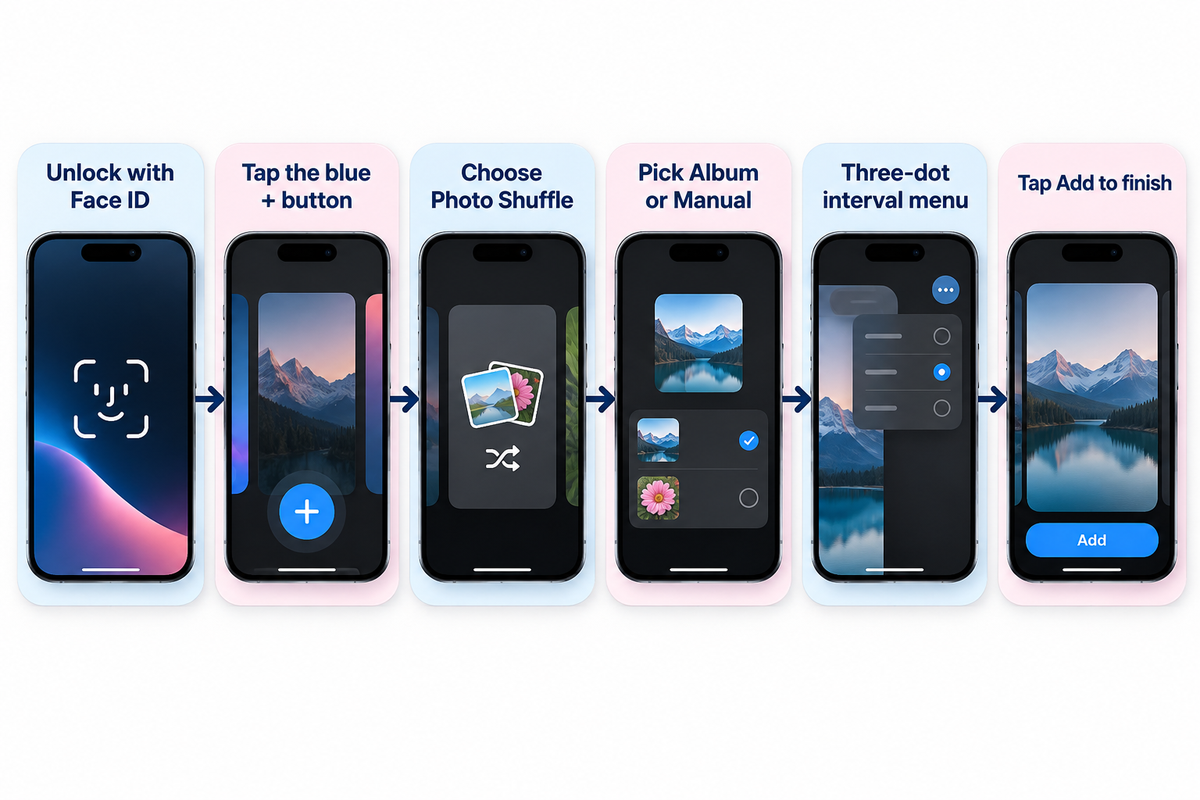
To set up a Photo Shuffle wallpaper on iPhone, unlock with Face ID, and long press your Lock Screen. Tap the blue + button and choose Photo Shuffle from the top row. Pick Featured Photos, an Album (requires iOS 17.1 or later), or Select Photos Manually, adjust the interval using the three-dot menu, and tap Add, per Apple Support (102638). For more details on setting up Album, see Apple Support (102638).
Apple introduced the modern Lock Screen gallery in iOS 16 and expanded it through iOS 17, iOS 18, and iOS 26. You can initiate a new wallpaper from three official entry points on your device. If your iPhone uses a passcode or Touch ID instead of Face ID, authenticate first then press the Lock Screen. Otherwise, the gallery button stays locked for privacy.
| Setup Entry Point | Navigation Path in iOS | Tap Count | Pre-Selected Photo Support | Best Use Case |
|---|---|---|---|---|
| Lock Screen Long-Press Gallery | Unlock > Long-press Lock Screen > Tap + > Photo Shuffle | 4 taps | Opens smart categories, Album picker, or manual grid | Fastest daily setup with live clock and widget preview |
| Settings Wallpaper Menu | Settings > Wallpaper > Add New Wallpaper > Photo Shuffle | 5 taps | Full access to People, Pets, Nature, Cities, and Albums | Managing multiple Lock Screen and Home Screen pairs at once |
| Apple Photos Share Sheet | Photos app > Select images > Share > Use as Wallpaper | 4 taps | Pre-loads your highlighted camera roll selection directly | Building a quick pack right after editing vertical portraits |
The six steps below outline how to set up the photo shuffle feature without losing your framing:
- First use Face ID or your passcode to unlock your iPhone, and then press and hold the Lock Screen.
- Tap the blue add new (+) button in the bottom-right corner of the gallery.
- Select the Photo Shuffle button in the top row of wallpaper options.
- Choose your source, set the frequency of shuffle, and select either Use Featured Photos or Use Album.
- To crop a specific frame, tap the four-square grid in the bottom left corner.
- Tap Add, and then customize your Home Screen pair.
A common mistake happens when users want to remove one awkward picture later. Tapping the blue (+) button creates a brand new Lock Screen from scratch. Instead, long-press the Lock Screen and tap Customize under your active wallpaper card. In a Featured Photos shuffle, display the unwanted photo in the wallpaper editor, tap the three-dot menu, and choose Don’t Feature Photo. For a manual shuffle, use the trash icon or Add Photos; for an Album shuffle, add or remove photos inside that album in the Apple Photos app. You can see 4K and live wallpaper collections to build fresh packs. For faster daily swaps, read our guide on switching between saved iPhone Lock Screen pairs.
Manual Selection vs Album Sync: Best Setting to Customize Shuffle Wallpaper on iPhone
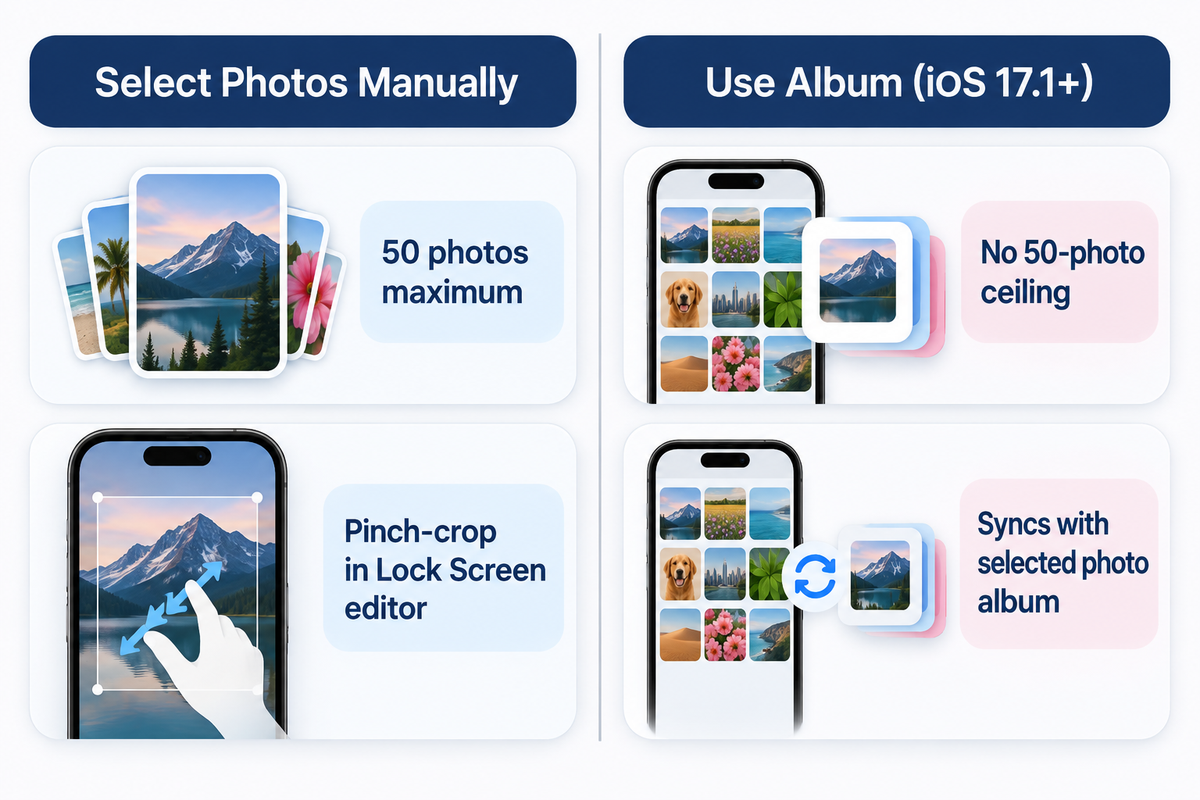
Select Photos Manually limits your iPhone Photo Shuffle pool to 50 images and lets you pinch-crop pictures individually in the Lock Screen editor. The Album option, added in iOS 17.1, rotates an Apple Photos album automatically and doesn’t have the 50-photo ceiling.
In the initial iOS 16 release, users could only pick smart categories or tap Select Photos Manually at the bottom of the screen. Apple added the Album setting in iOS 17.1, as reported by 9to5Mac’s iOS 17.1 Photo Shuffle analysis. The source mode decides how easily your pack updates when you customize a shuffle wallpaper on iPhone.
| Selection Mode | Photo Count Limit | Dynamic Auto-Update | iCloud Local Cache Requirement | Ideal Curation Scenario |
|---|---|---|---|---|
| Select Photos Manually | 50 photos maximum | No (static selection) | Saved into the Lock Screen pair when you tap Add | Curated sets up to 50 individually framed portraits |
| Use Album (iOS 17.1+) | No 50-photo ceiling | Yes (syncs with selected photo album) | Requires local originals when cloud space-saving mode is on | Growing Favorites or seasonal wallpaper folders |
| Featured Photos Categories | System-curated pool | Yes (iOS neural indexing) | Uses locally indexed People, Pets, Nature, or Cities | Zero-effort family, pet, or travel highlights |
| Apple Shortcuts Automation | Unlimited album size | Yes (via Find Photos action) | Must be downloaded locally to avoid action timeout | Custom time-of-day or Focus-triggered wallpaper swaps |
If you like algorithmic curation, check People, Pets, Nature, and Cities from the category menu and tap the Use Featured Photos button. Users can also select photos of one specific person or pet from their photo library to keep their photo shuffle focused on that subject. Total visual control is also possible when you choose photos manually if your pack is small.
How Do You Shuffle More Than 50 Photos on an iPhone Lock Screen?
To rotate more than 50 images, choose the Album option (iOS 17.1+) instead of Select Photos Manually in Photo Shuffle, per MacRumors. First, open the Apple Photos app and group your favorite photos into a dedicated photo album. Then open Lock Screen customization, select Photo Shuffle, check Album, and pick your folder. Users on Reddit’s r/ios community also use Apple Shortcuts automations to pull images from large albums at a set time.
Keep one community-reported caveat in mind when using large albums with Apple iCloud space-saving photo storage (Support 105061). When full-resolution originals stay in iCloud, users report that Photo Shuffle may repeat a small locally cached subset of 12 to 16 pictures. Browsing an album on Wi-Fi can load previews without downloading every full-resolution original. Enabling Download and Keep Originals downloads full-resolution files for your entire iCloud Photos library, which requires enough local device storage.
Choosing Your Photo Shuffle Wallpaper Frequency: On Tap, On Lock, Hourly, or Daily
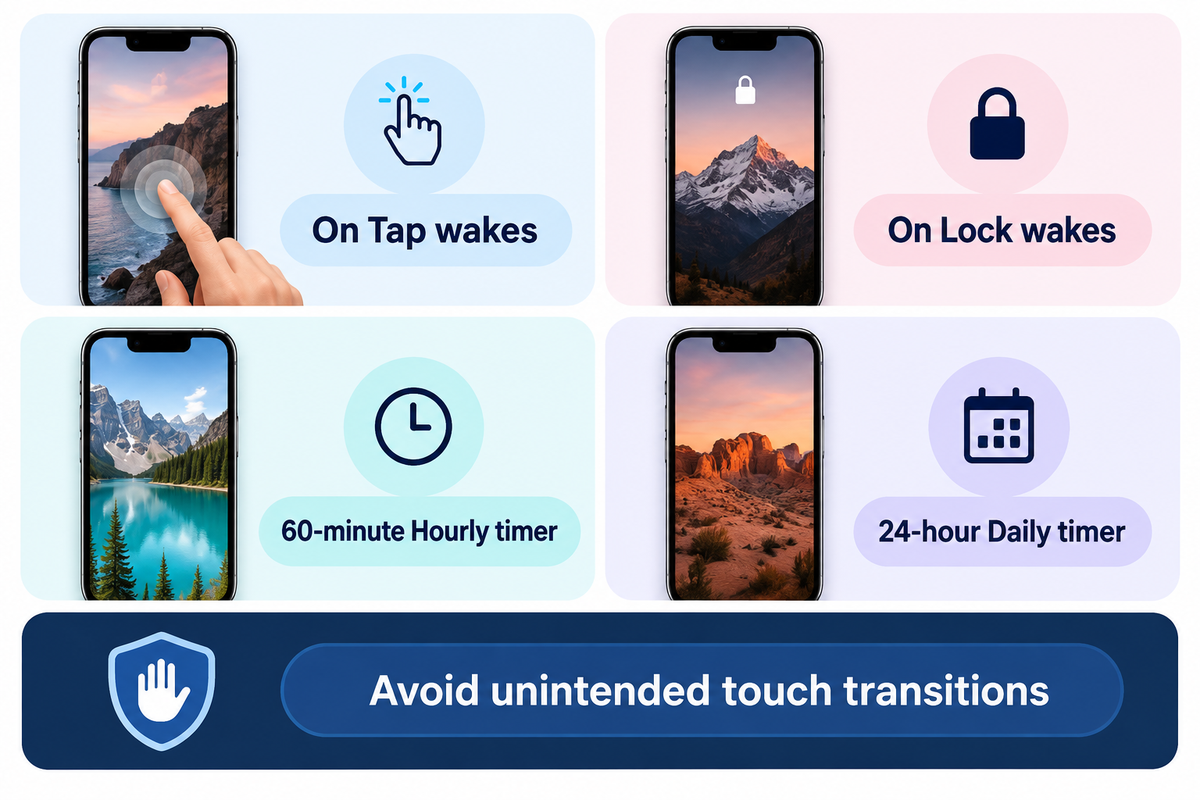
There are four rotation triggers in iOS Photo Shuffle. The first two can be accessed under the On tap and On Lock options, and the last two can be found under Hourly and Daily, respectively, in the bottom-right three-dot ellipsis menu (Apple Support 102638). On Tap and On Lock respond to screen wakes, and Hourly and Daily rotate on a 60-minute and 24-hour timer, respectively.
Your daily notification habits will help determine your ideal choice of shuffle frequency. On Tap changes the background whenever you touch the awake Lock Screen, so tapping notification banners can trigger unintended wallpaper swaps. Using On Lock, Hourly, and Daily avoids touch transitions. Use The 4-Trigger Shuffle Frequency Matrix below to compare how each trigger behaves across nine practical Lock Screen setups.
| Scenario / Cluster Type | Shuffle Frequency Option | Exact iOS Trigger Event | Notification Touch Behavior | Supported Source Mode | Best Practical Use Case |
|---|---|---|---|---|---|
| Type 1: Two-Frame Interactive Flip | On Tap | Every finger tap on the awake Lock Screen | Tapping empty screen areas swaps frames | Select Photos Manually (2 aligned photos) | Day/night scenes or car headlights on/off illusions |
| Type 2: Rapid Micro-Gallery | On Tap | Wake tap or deliberate screen touch | Can advance while clearing notifications | Select Photos Manually (up to 50 photos) | Showcasing a cohesive color-graded mini collection |
| Type 3: Standard Wake Rotation | On Lock | Side button lock followed by screen wake | Safe while tapping notification banners | Manual (up to 50) or Album (iOS 17.1+) | Fresh wallpaper every time you unlock your phone |
| Type 4: Notification-Safe Rotation | On Lock | Display sleep-to-wake cycle only | Does not swap while reading awake screen | Featured Photos, Manual, or Album | Prevents accidental background skips while tapping banners |
| Type 5: Workday Paced Rotation | Hourly | 60-minute system clock interval | Unaffected by screen taps or lock count | Select Photos Manually (up to 50 photos) | Steady hourly transitions during the workday |
| Type 6: Large Album Paced Rotation | Hourly | 60-minute system clock interval | Unaffected by screen taps or lock count | Use Album (iOS 17.1+, no 50-photo ceiling) | Changing scenery from time to time throughout the day |
| Type 7: Calendar Daily Refresh | Daily | 24-hour cycle | Holds one image all day | Select Photos Manually (up to 50 photos) | Minimalist users who want one stable look per day |
| Type 8: Archive Slideshow Rotation | Daily | 24-hour cycle | Holds one image all day | Use Album or Featured Photos | Long-term travel or family slideshow on the Lock Screen |
| Type 9: Focus-Linked Schedule | Hourly or On Lock | Focus mode activation + shuffle trigger | Follows active Focus Lock Screen pair | Dedicated Work vs Personal Lock Screens | Separate Work and Personal shuffle packs via iOS Focus |
Worked Example (24-Photo Pack Rotation Math): Suppose you have a 24-photo 4K album and wake your iPhone 72 times across a 16-hour waking day (4.5 wakes per hour). In this example, On Lock provides 72 swap opportunities per day if each wake is followed by a lock, Hourly provides 16 per waking day, and Daily provides 24 over 24 days. However, since iOS picks images randomly rather than sequentially, those counts don’t necessarily mean complete coverage of a 24-photo pool.
Does Photo Shuffle Wallpaper Drain Battery on iPhone?
Swapping a locally cached wallpaper image in iOS SpringBoard on On Lock or Hourly uses negligible CPU power. Real Lock Screen power draw comes from OLED display luminance, Always-On Display illumination, and background iCloud downloads. In Purdue University’s OLED study (ACM MobiSys 2021), dark interfaces saved 3% to 9% total phone power indoors and 39% to 47% total phone power at 100% brightness.
Purdue’s benchmark tested six apps on Android OLED panels rather than iOS Photo Shuffle triggers directly. However, the same emissive sub-pixel physics govern Apple’s Super Retina XDR displays (USPTO Patent US8711136B2). Dark-toned shuffle packs save far more battery than switching from Hourly to Daily.
Portrait Aspect Ratio, Native Resolutions, and Depth Effect Filter Rules for iOS Lock Screens
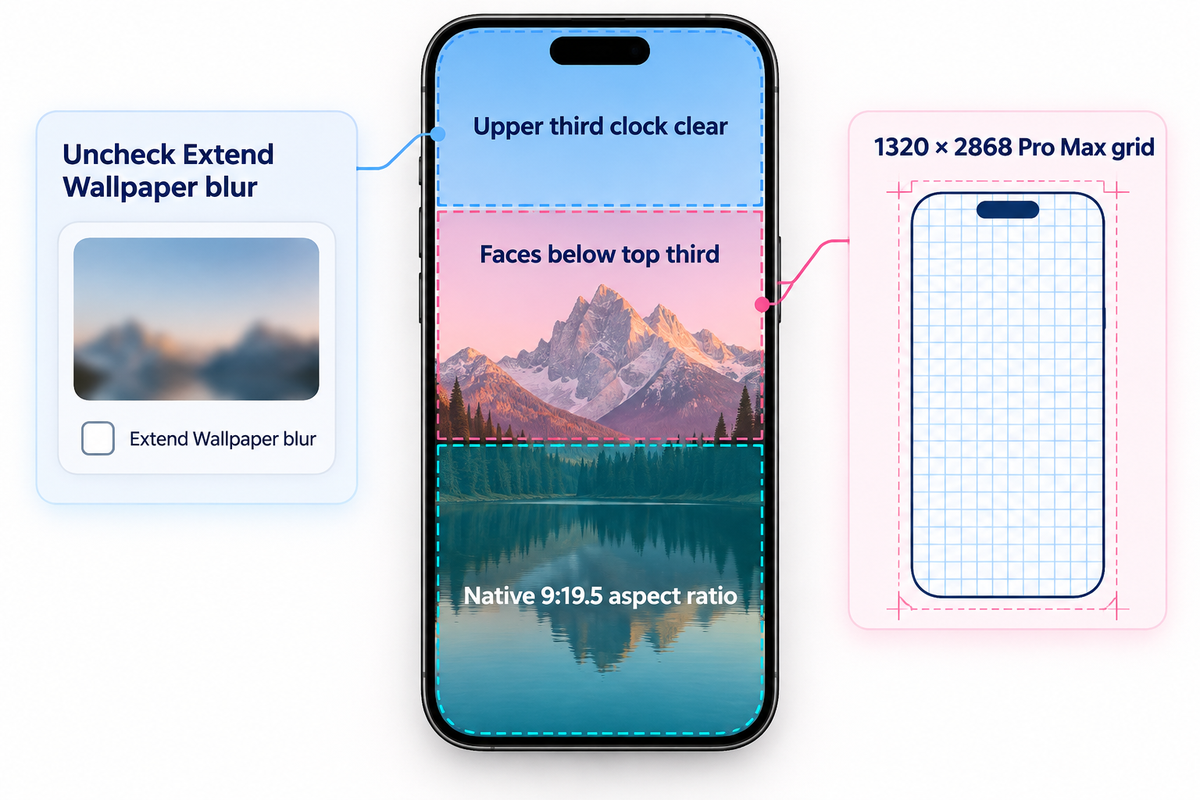
Using vertical portrait images close to your Super Retina XDR display resolution, like 1320 × 2868 pixels on iPhone 16 Pro Max (Apple Support 121032), will help avoid automatic cropping. Leave the upper third of the frame clear to keep the Lock Screen clock legible.
Standard iPhone camera photos shoot in a 3:4 vertical aspect ratio (3024 × 4032 pixels). Photos with a 3:4 or horizontal 4:3 aspect ratio can be cropped to fill the Lock Screen or padded at the top using Extend Wallpaper. You should still inspect each frame in the grid editor. Applying The Upper-Third Portrait Framing Rule keeps faces below the top third of the canvas so you can uncheck Extend Wallpaper blur.
| iPhone Model Tier | Display Size | Native Portrait Resolution (px) | Pixel Density | Peak Outdoor Brightness | Upper-Third Clock Headroom (1/3 Height) |
|---|---|---|---|---|---|
| iPhone 17 Pro Max | 6.9-inch OLED | 1320 × 2868 px | 460 ppi | 3000 nits | Top 956 px clear |
| iPhone 16 Pro Max | 6.9-inch OLED | 1320 × 2868 px | 460 ppi | 2000 nits | Top 956 px clear |
| iPhone 17 & iPhone 17 Pro | 6.3-inch OLED | 1206 × 2622 px | 460 ppi | 3000 nits | Top 874 px clear |
| iPhone 16 Pro | 6.3-inch OLED | 1206 × 2622 px | 460 ppi | 2000 nits | Top 874 px clear |
| iPhone 16 Plus & iPhone 15 Pro Max | 6.7-inch OLED | 1290 × 2796 px | 460 ppi | 2000 nits | Top 932 px clear |
| iPhone 15 Plus & iPhone 14 Pro Max | 6.7-inch OLED | 1290 × 2796 px | 460 ppi | 2000 nits | Top 932 px clear |
| iPhone 16, iPhone 15 Pro & iPhone 15 | 6.1-inch OLED | 1179 × 2556 px | 460 ppi | 2000 nits | Top 852 px clear |
| iPhone 14, iPhone 13 & iPhone 13 Pro | 6.1-inch OLED | 1170 × 2532 px | 460 ppi | 1200 nits HDR | Top 844 px clear |
| iPhone 14 Plus & iPhone 13 Pro Max | 6.7-inch OLED | 1284 × 2778 px | 458 ppi | 1200 nits HDR | Top 926 px clear |
In the Photo Shuffle editor, you can swipe left across four built-in filters: Natural, Black & White, Duotone, and Color Wash. When you edit a frame, preview how the selected filter looks on the other photos in your pack. Check our full breakdown of native 4K iPhone wallpaper dimensions if you export custom PNGs from Photoshop, Figma, or an iPad.
How Do You Make a 3D Wallpaper for iPhone in Photo Shuffle?
Two features create a layered 3D effect: iOS Depth Effect (iPhone XS+, no below-clock widgets) and iOS 26 Spatial Scene (iPhone 12+, Apple Support 102638). Placing even one widget row below the clock disables Depth Effect across the entire shuffle. In iOS 26, tapping the Spatial Scene icon in the Lock Screen editor adds a 3D parallax effect that shifts with device tilt.
Where to Download Free 4K Photo Shuffle Wallpapers vs Curated App Packs
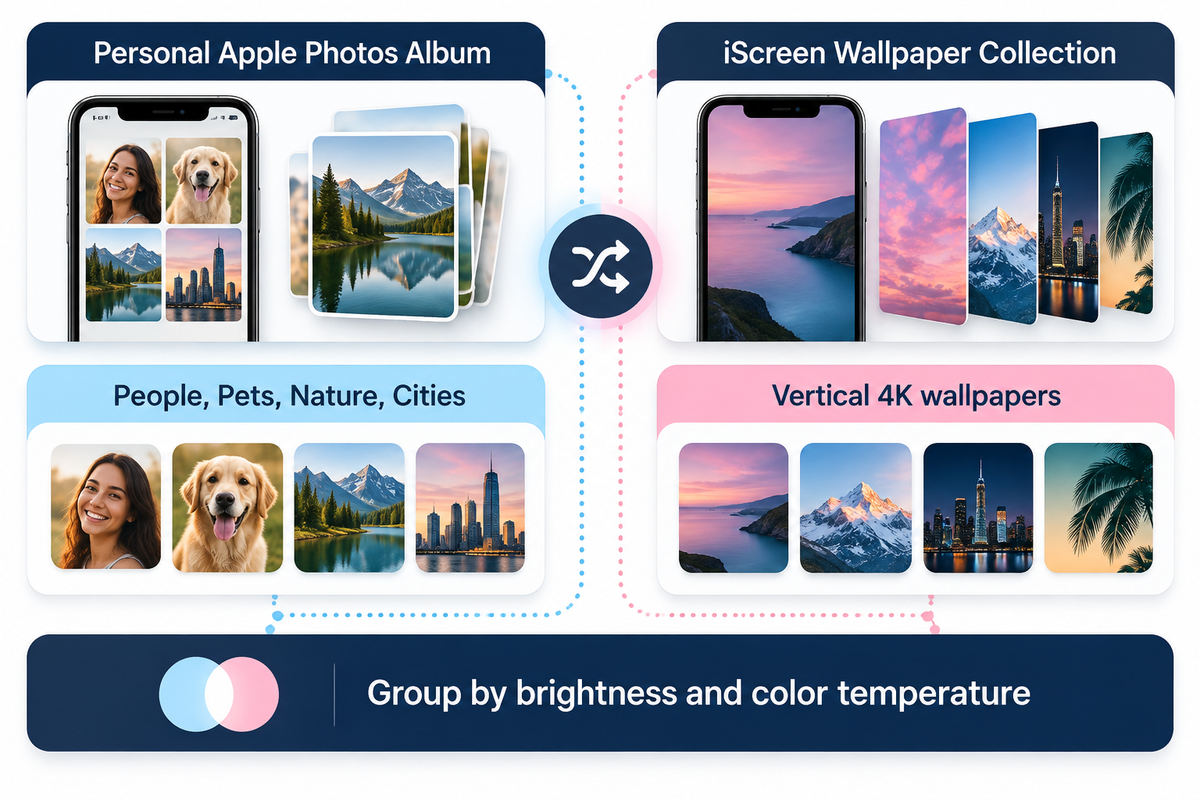
You can build a high-quality photo shuffle pack from your personal Apple Photos library using People, Pets, Nature, Cities, or an Album. You can also use a wallpaper and widget app like iScreen (iScreen Wallpaper Collection).
Every user has experienced the visual jar of a poorly matched shuffle selection. If frame one is a warm, golden-hour, beach shot, and frame two is a blinding, white, snow photo, your Lock Screen clock color becomes unreadable on the second wake. A tip would be to group photos by background brightness and color temperature before adding them to your album.
| Wallpaper Source | Access Model | Portrait Framing Workflow | Palette & Clock Cohesion | Coordinated Widgets Included |
|---|---|---|---|---|
| Personal Apple Photos Album | Built into iOS | Framing available in the Lock Screen editor; pre-cropping optional | Varies unless manually sorted by lighting | Native iOS Lock Screen widgets |
| iOS Featured Photos (People, Pets, Nature, Cities) | Built into iOS | System auto-selects vertical shots from your photo library | Mixed lighting across different dates | Native iOS Lock Screen widgets |
| iScreen Wallpaper & Widget App | Free tier & Pro options | Vertical 4K wallpapers and live wallpaper collections | Curated aesthetic themes with clear upper clock zones | Yes (500+ Lock & Home Screen widgets) |
To ensure your Lock Screen rotation aligns with your desired aesthetic, we have a selection of curated aesthetic iPhone wallpaper themes. Popular choices include dark cyber minimalism, pastel auras, and monochromatic architecture. For a single frame with continuous, kinetic movement, rather than a frame with multiple photos, check out our resource on Animated and Live iPhone wallpaper options.
Pairing Photo Shuffle With a Clean Home Screen, Widget Layout, and App Icons
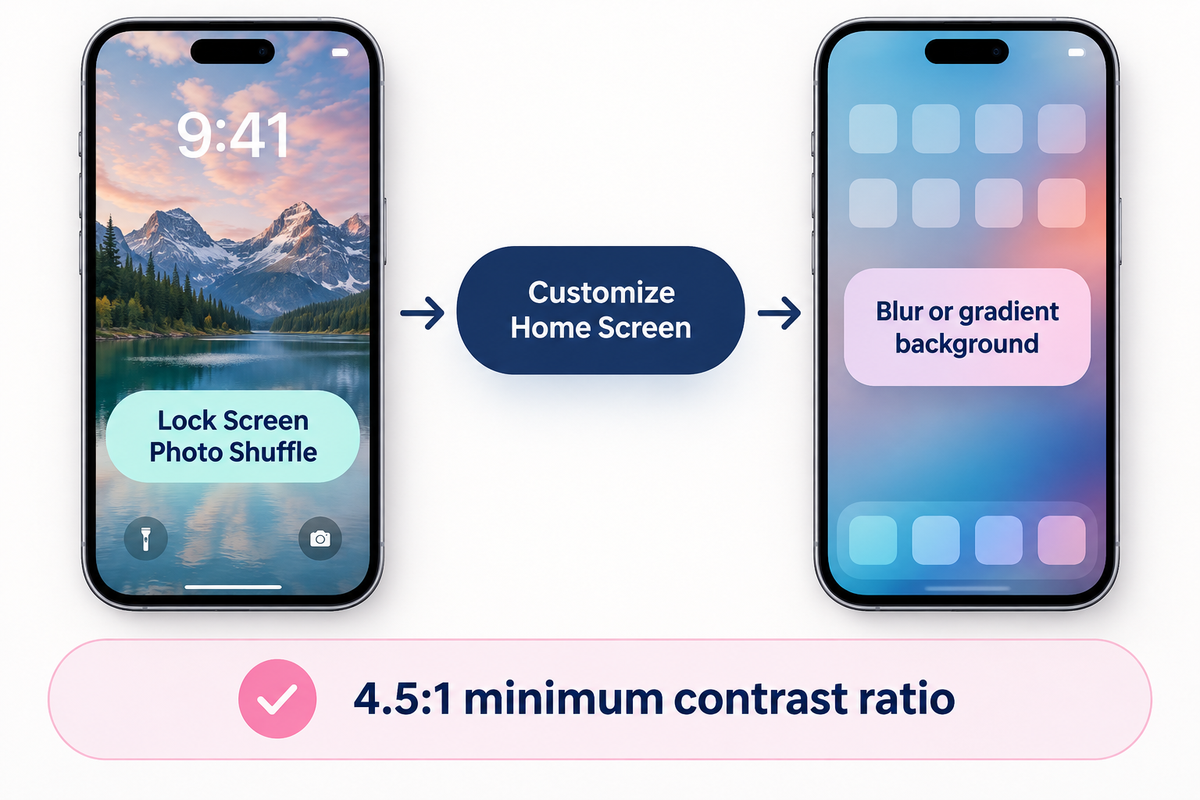
Avoid using Set as Wallpaper Pair to mirror busy, rotating photos behind your app icons; use the Customize Home Screen (or Customise Home Screen in the UK English menu) option and select a blur or gradient background instead.
Once you build the pack, tapping Add will provide two options: Set as Wallpaper Pair and Customize Home Screen. Choosing Set as Wallpaper Pair places the Lock Screen photo behind your Home Screen folders and widgets. In brightly lit areas, white text can be hard to read. Using a Home Screen background with adequate dark luminance will meet the 4.5:1 minimum contrast ratio (7:1 for small text) in the Apple Human Interface Guidelines.
Blurring or darkening a background doesn’t guarantee a 4.5:1 contrast ratio across the entire image (W3C WCAG 2.2 Failure F83). Final readability on your iPhone’s Home Screen and Lock Screen depends on sufficient contrast between white text and the background directly behind it. Users can also switch to label-free Large icons in iOS 18 and 26. That’s why we suggest The Split-Pair Lock & Home Screen Architecture.
| Home Screen Pairing Mode | How Home Screen Reacts on Shuffle | White App Label Contrast | Widget Backdrop Stability | Recommended Setup |
|---|---|---|---|---|
| Set as Wallpaper Pair (Unblurred) | Rotates unblurred photos behind icons | Low on bright or high-detail frames | Backdrop changes on every shuffle swap | Avoid unless every photo is dark minimal |
| Paired Shuffle + Home Screen Blur | Shifts ambient color mood softly on each swap | Good on mid-to-dark palettes; verify bright shots | Works with frosted glass widget cards | Best for dynamic ambient color transitions |
| Split-Pair: Lock Shuffle + Solid Dark Home | Lock Screen rotates; Home Screen stays constant | Consistent high contrast on dark charcoal (#242424) | Stable backdrop; screenshot-style transparent widgets need a matching background and placement | Gold standard for clean daily usability |
With a dark or blurred Home Screen in place, you can add matching Lock Screen and Home Screen widgets in iScreen. Adding a few weather or battery rings or a calendar gives your screens a beautiful, native iOS user interface (UI) resembling a fully customizable Android launcher.
2026 iOS 26 Trends: 3D Spatial Scenes, Two-Photo Tap Flips, and Setup Checklist
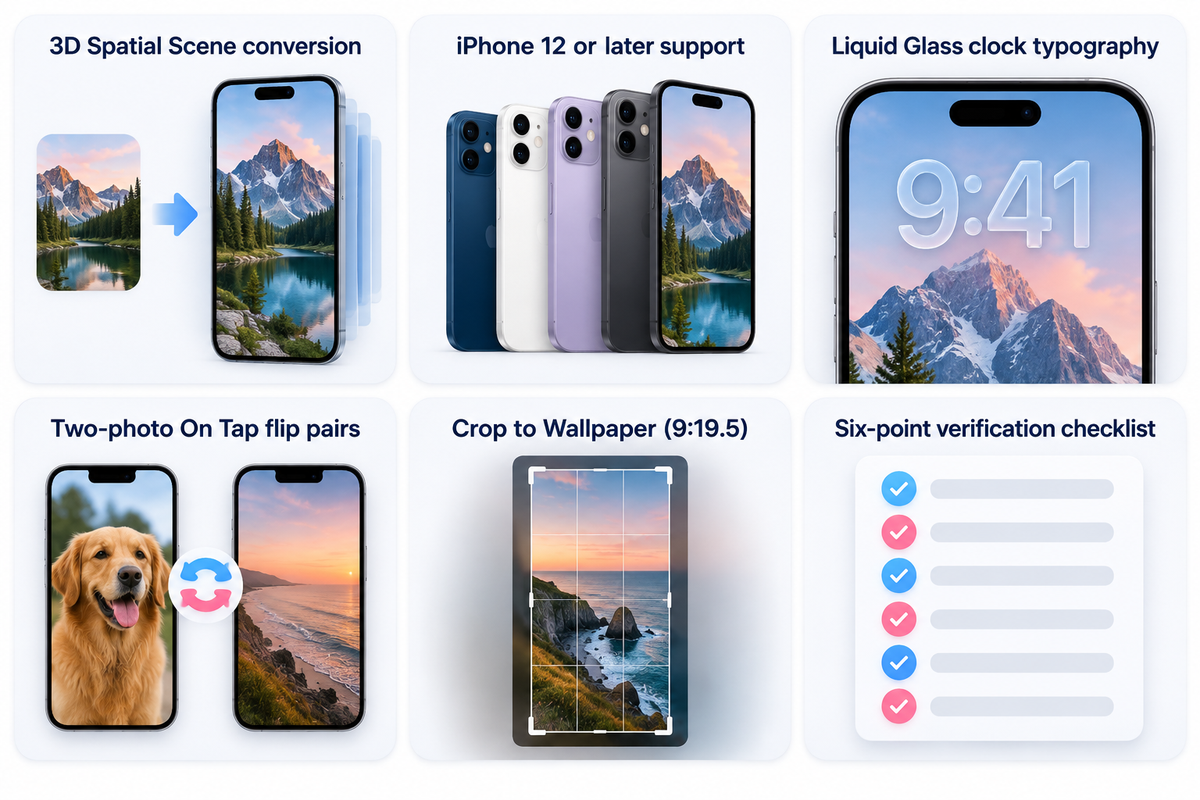
In iOS 26, Lock Screen Photo Shuffle adds 3D Spatial Scene conversion to iPhone 12 or later (Apple Support 102638). It also adds stretchy Liquid Glass clock typography. Meanwhile, interactive two-photo On Tap flip pairs have risen in popularity as a Lock Screen customization style.
See AppleInsider’s review of iOS 26 Lock Screen for more details. As detailed in AppleInsider’s iOS 26 Lock Screen review, stretchy Liquid Glass clock numerals expand into open upper-third sky areas. Viral two-photo On Tap flips use two almost identical frames. For example, a tap flips the visual state of a car headlight turning on and off. Each tap toggles the visual state in place. Make sure you’ve completed the six-point verification checklist before you exit the editor.
| Verification Step | Exact iOS Path | Target Setting / Guideline | Symptom if Misconfigured | Immediate Fix |
|---|---|---|---|---|
| 1. Aspect Ratio & Resolution | Photos App > Crop > Wallpaper (9:19.5) | Native portrait resolution with ~9:19.5 ratio (e.g., 1320 × 2868 px on 16/17 Pro Max) | iOS crops in tightly or pads the top with blur | Crop images to vertical Wallpaper ratio or adjust in the grid editor |
| 2. Extend Wallpaper Blur | Shuffle Grid Editor > Three-Dot Menu (…) | Unchecked on every frame | Washed-out fog appears behind the Lock Screen clock | Inspect each frame in the grid and uncheck Extend Wallpaper |
| 3. Upper-Third Clock Headroom | Shuffle Grid Editor > Two-Finger Pinch | Clean upper-third negative space (curation guideline) | Clock digits cover eyes or Depth Effect turns off | Drag subject slightly lower so only the top edge touches the time |
| 4. iCloud Album Local Files | Settings > Photos or On-Device Album | Full-resolution files stored on-device | Album shuffle repeats a small subset of cached photos | Browsing on Wi-Fi loads previews without guaranteeing every original stays cached; keep shuffle originals downloaded locally |
| 5. Depth Effect vs Widgets | Lock Screen Customize > Below-Clock Row | No widgets below clock if Depth Effect is desired | Depth Effect toggle stays greyed out across all frames | Remove the widget row below the clock or use iOS 26 Spatial Scene |
| 6. Home Screen Legibility | Tap Add > Customize Home Screen | Solid Dark (#242424 / #1C1C1E), or Blur On with label readability checked across every photo | White app icon titles disappear on bright shuffle frames | Assign a dedicated solid dark background or verify contrast across all blurred frames |
All iOS 16 through iOS 26 navigation paths, Super Retina XDR specifications, and Lock Screen rules were verified against Apple Support documentation.
Frequently Asked Questions About Photo Shuffle Wallpaper on iPhone
How do I edit a Photo Shuffle wallpaper on iPhone or remove one specific picture?
Wake your iPhone with Face ID/Touch ID. Long-press the Lock Screen Photo Shuffle pair and tap the Customize option on your active pair. From the Lock Screen preview, select the bottom-left photo grid. For a Featured Photos shuffle, tap the three-dot menu on an unwanted photo and select ‘Don’t Feature Photo’. For a manual shuffle, tap the trash icon to remove selected photos or the ‘Add Photos’ button to add more. For Album shuffle (iOS 17.1+), open the album and remove or add photos inside that album in Apple Photos.
Why is my iPhone Photo Shuffle wallpaper not showing all the photos in my album?
iOS skips or repeats pictures for two main reasons: full-resolution Album originals remain uncached in iCloud, or Featured Photos bypasses horizontal 4:3 shots that cut off faces. In iCloud space-saving mode, cloud-only originals won’t load instantly on the Lock Screen. Manual and Album shuffles still allow you to crop 3:4 or 4:3 pics on the Lock Screen editor.
Can you set a Photo Shuffle wallpaper for the iPhone Home Screen only, or pair it with a solid background?
You can’t run Photo Shuffle on the Home Screen alone with a static Lock Screen, though Customize Home Screen pairs a Lock Screen shuffle with a solid backdrop. After you configure Photo Shuffle and tap Add, choosing Set as Wallpaper Pair rotates both screens together. Tapping Customize Home Screen lets you choose a solid color, gradient, or a blurred background.
Does iOS still support Live Wallpaper alongside Photo Shuffle on iPhone?
Yes. In iOS 17-26, you can select a single Live Photo in the Wallpaper gallery and enable the Live Photo motion button. However, Live Photo motion and multi-image Photo Shuffle can’t be used together.
How do I find which album or photos my current iPhone shuffle wallpaper uses?
Long-press your Lock Screen and tap Customize on the Lock Screen card. Look in the bottom-left for the Album name button or a thumbnail stack icon to show selected pictures.
References & Sources
- Apple Official Support (102638) – Change your iPhone wallpaper (Photo Shuffle frequencies, Album mode & iOS 26 3D Spatial Scenes)
- Apple iPhone User Guide – Create a Custom Lock Screen on iPhone
- Apple Developer – Human Interface Guidelines: Dark Mode (4.5:1 and 7:1 Contrast Ratios)
- Purdue University (ACM MobiSys 2021), Dark mode may not save your phone’s battery life as much as you think
- ACM Digital Library (MobiSys 2021), How Much Battery Does Dark Mode Save? An Accurate OLED Display Power Profiler for Modern Smartphones
- Apple Official Support (121032), iPhone 16 Pro Max Technical Specifications (Super Retina XDR OLED)
- Apple Official Support (125091), iPhone 17 Pro Max Technical Specifications (Super Retina XDR OLED)
- Apple Official Support (125089), iPhone 17 Technical Specifications
- Apple Official Support (105061), Manage your photo and video storage on iPhone and iCloud
- AppleInsider, Lock Screen customization in iOS 26 is both stretchy and 3D
- 9to5Mac, iOS 17.1 lets you choose a specific album for Lock Screen Photo Shuffle
- MacRumors – How to Shuffle between Photos in a Particular Album on your iPhone Lock Screen
- The Verge – How to use iOS Lock Screen Photo Shuffle on iPhone
- Gadget Hacks – Rotate Wallpapers on Your iPhone with Photo Shuffle
- United States Patent US8711136B2 – Electronic device having display with power management