Summer Backgrounds for iPhone: 12 Fresh Wallpaper Ideas

Summer backgrounds for iPhone are seasonal wallpapers with vibrant designs that evoke warm feelings and sweet summer memories. Explore this selection of portrait designs. Pair your favorite with a calm Home screen to create a beautiful accent.

This collection of summer iPhone backgrounds changes the mood of your screen. To save a design to your device, simply add it to the Photos app. This collection uses original, AI-created designs; iScreen’s app catalog employs a separate download flow. Preview your Home Screen and device widgets before choosing a design.

A few choices make the whole setup feel finished:

  • Pick one motif first: water, palms, fruit, flowers or a soft gradient.
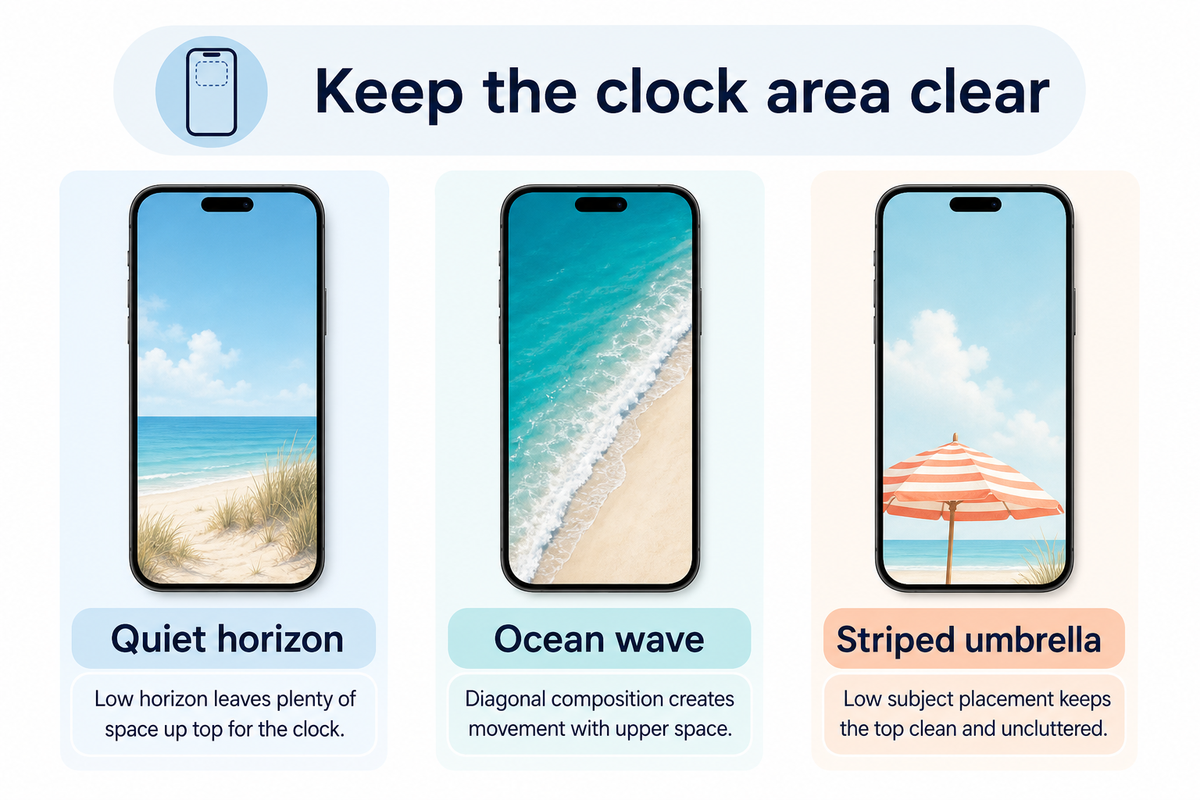
  • Keep important details away from the area occupied by your clock.
  • Repeat one accent color across both screens; the pictures can differ.
  • Save the actual portrait file, then adjust its crop on your phone.

Beach and Ocean Summer Backgrounds
Beach and Ocean Summer Backgrounds — iScreen

Because you can personalize your wallpapers, consider displaying a scene or carrying its colors onto your Home Screen. Each design represents a distinct artistic style.

1. Quiet horizon and blue skies

Quiet blue sea horizon above warm sand

Open skies give this calm and serene seascape a tranquil basis for the design. Try cool aqua tones with sandy shades of brown for a lovely, easy and beachy color scheme. Let the sea occupy the lower part of the composition rather than placing a sharp horizon directly behind the clock.

The screen uses empty space as part of the design for relaxed summer vibes. Leave spaces on your Home Screen rather than adding stickers and quotes.

2. An overhead ocean wave

White ocean wave crossing turquoise water

“White surf crossing turquoise water” makes for good scene division. Pick the wave and keep the rest of the elements simple. Preview the small white foam details and move the brightest splash away from small white labels.

An ocean wave iPhone wallpaper partners well with dazzling teals. For the same picture on both screens, experiment with the Home Screen’s Blur feature and evaluate the result against the unaltered wave.

3. A striped umbrella on sand
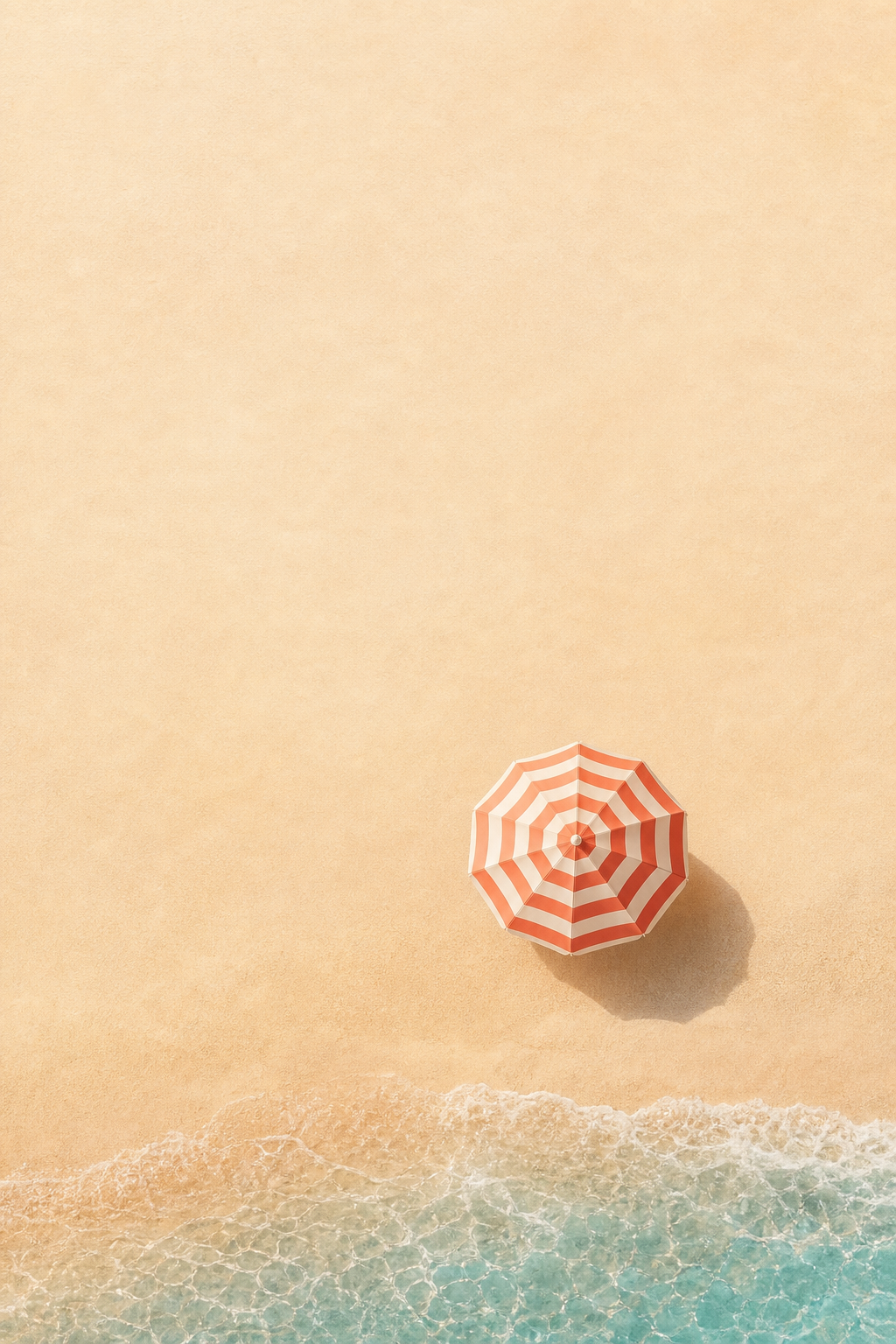
Coral striped beach umbrella on warm sand

A coral-and-cream striped umbrella against the ocean adds a playful resort touch to an already pleasant scene. Placing the subject near the bottom of the image leaves the top of the image empty. You can use a coral or orange widget accent and a sand-colored Home Screen companion. Keep coastal items simple.

Tropical Palm Trees and Poolside Wallpaper
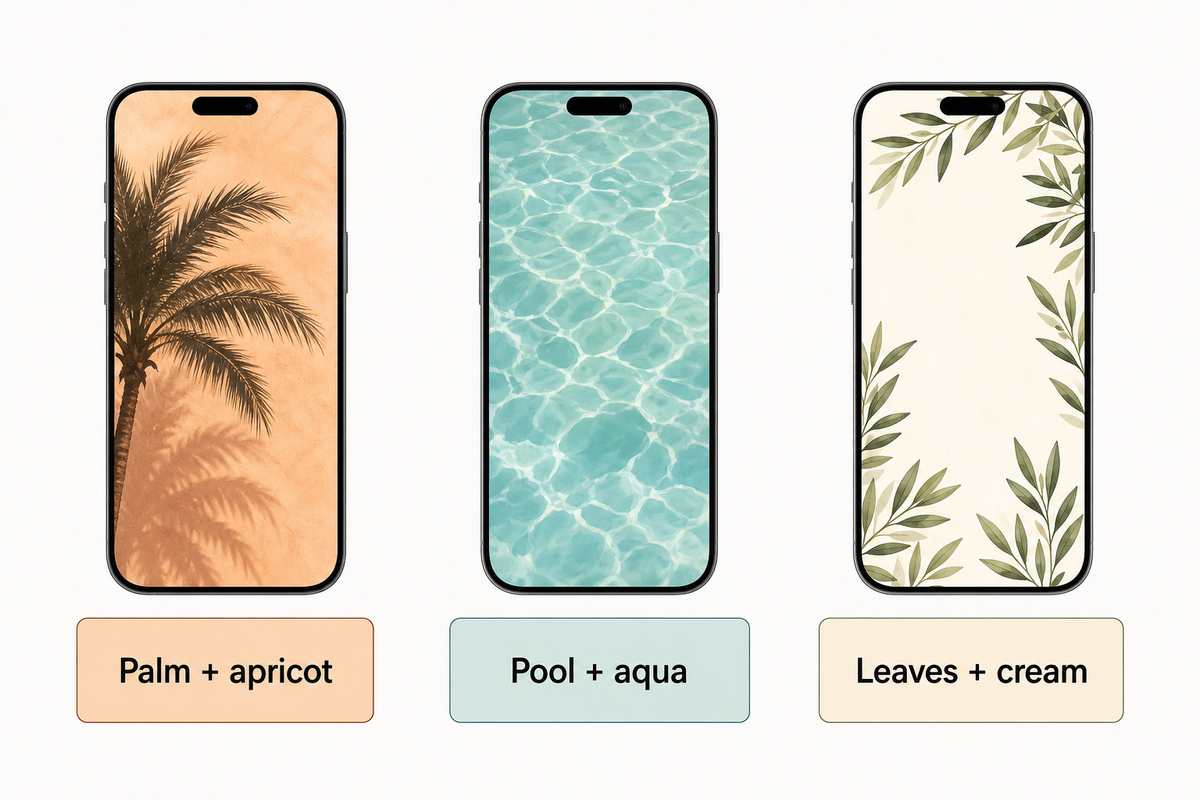
Tropical Palm Trees and Poolside Wallpaper — iScreen

A warm afternoon can be represented with a few palm fronds or water ripples. For a more abstract summer aesthetic, use water ripples or surf reflections; a palm frond gives the design a clear shape.

4. A palm tree against apricot light
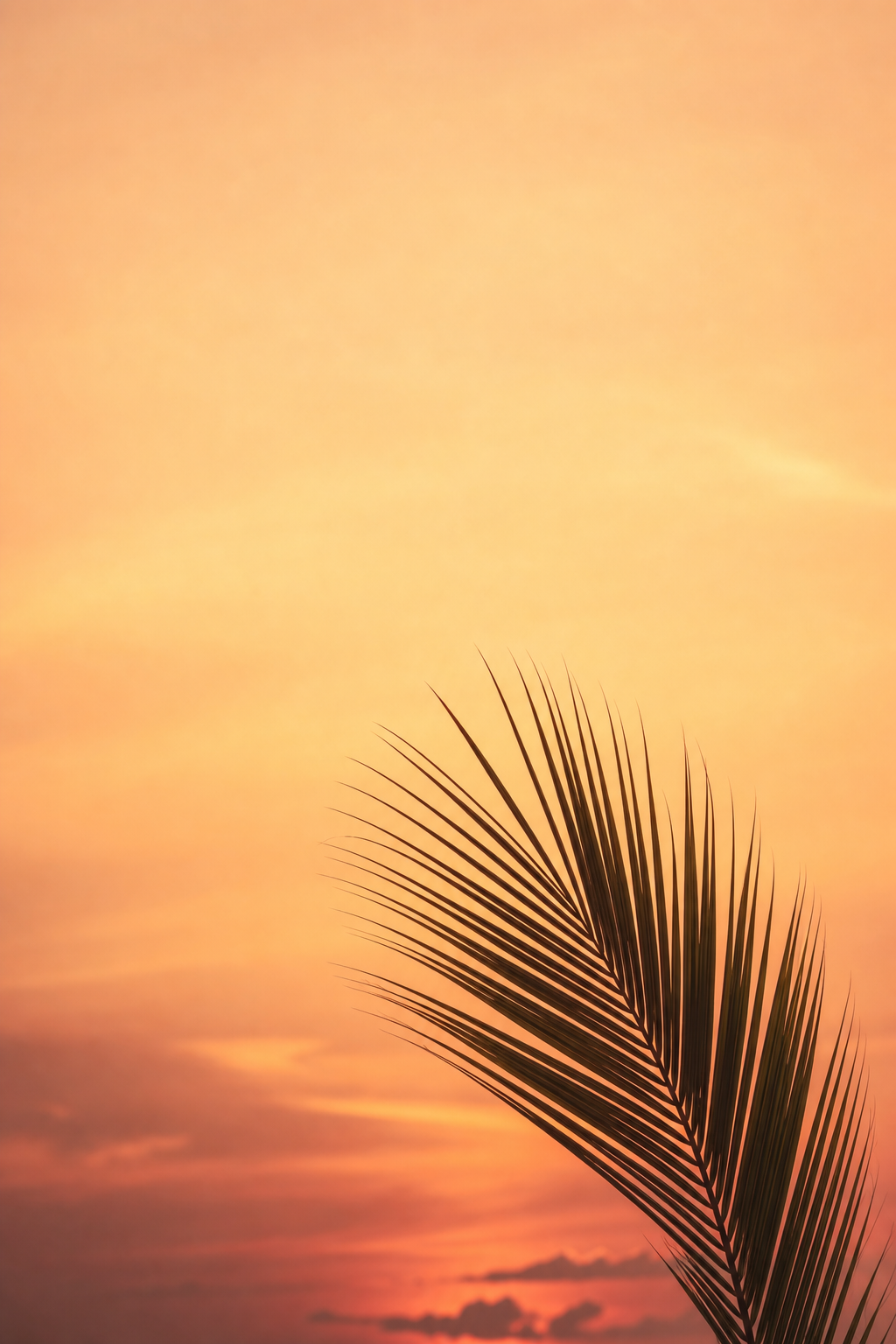
Palm frond against an apricot sky

For an easy, yet pleasing division of the design, use fronds from one side of a palm tree. Keep the center empty for the clock and use Apricot or Terra Cotta to add warm colors to the adjacent screen, checking contrast between the text and background in your preview.

5. Poolside ripples in aqua

Sunlight ripples on pale aqua pool water

Water with sunlight reflection creates an abstract backdrop. Look for larger, smoother reflections, and avoid the busy effect of lots of thin, bright lines. Cool-toned colors of water make for pretty, colorful abstract designs. Keep patterns pretty much the same across both screens if you prefer a matching pair. A plain aqua design remains relaxing when vibrant reflections feel busy behind a folder.

6. Botanical greenery at the edges
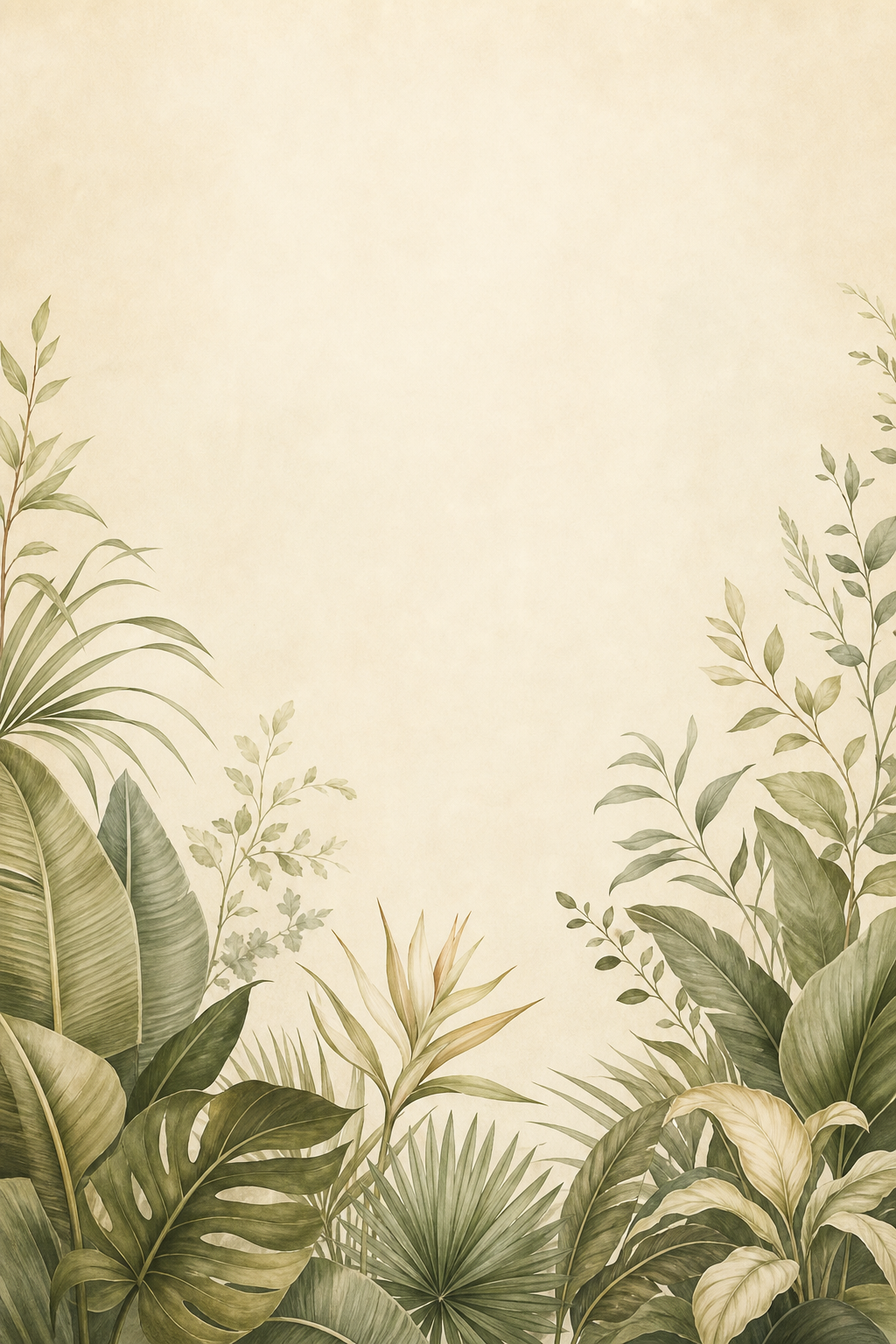
Sage tropical leaves framing a cream background

Large leaves around a cream center make a softer tropical option if you enjoy greenery but want less of a postcard landscape. For this style, arrange leaves around the border space. Leaf shapes repeat across the design, but when you fill the entire space with many leaves the design quickly becomes more busy. Once again, warm cream fills the void between the leaves.

Cute Citrus, Fruit and Floral Wallpaper
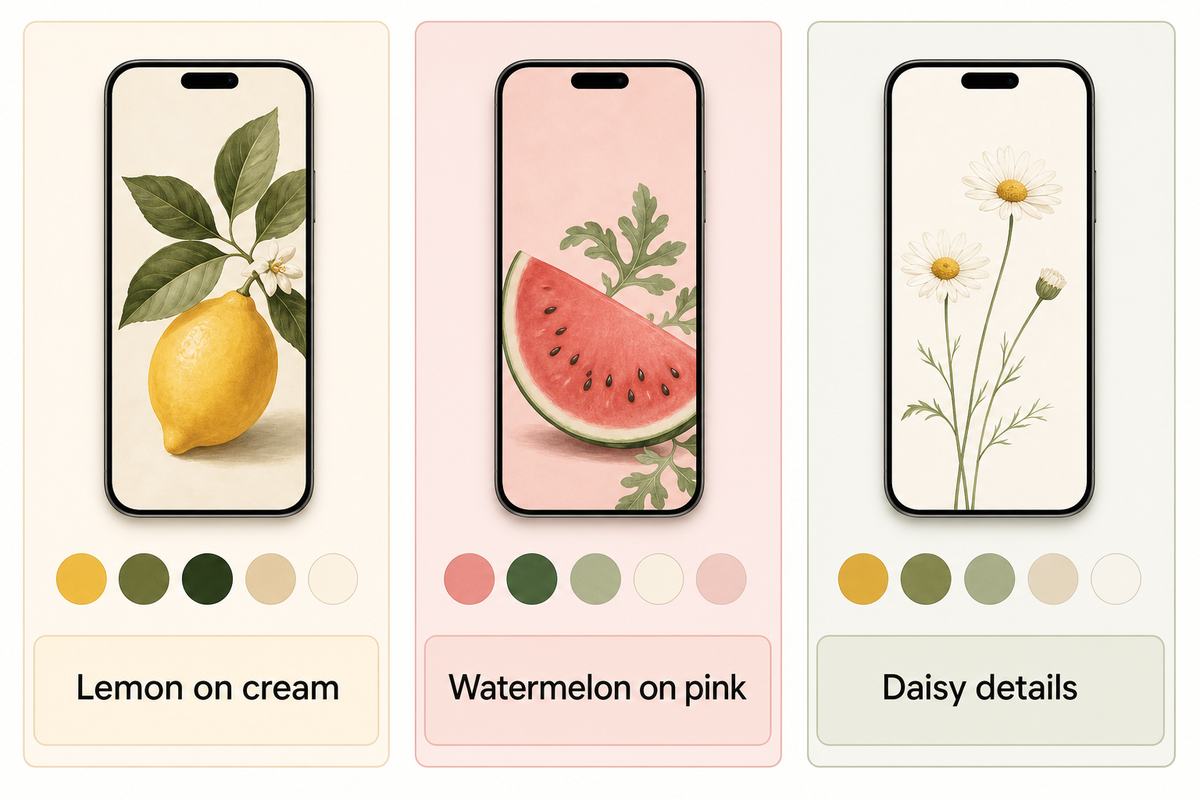
Cute Citrus, Fruit and Floral Wallpaper — iScreen

When doing cute summer wallpapers, use larger shapes to represent flowers and fruits. One large fruit or flower represents a graphic design, and many small fruits or flowers create a repeating pattern.

7. Lemon and citrus on cream
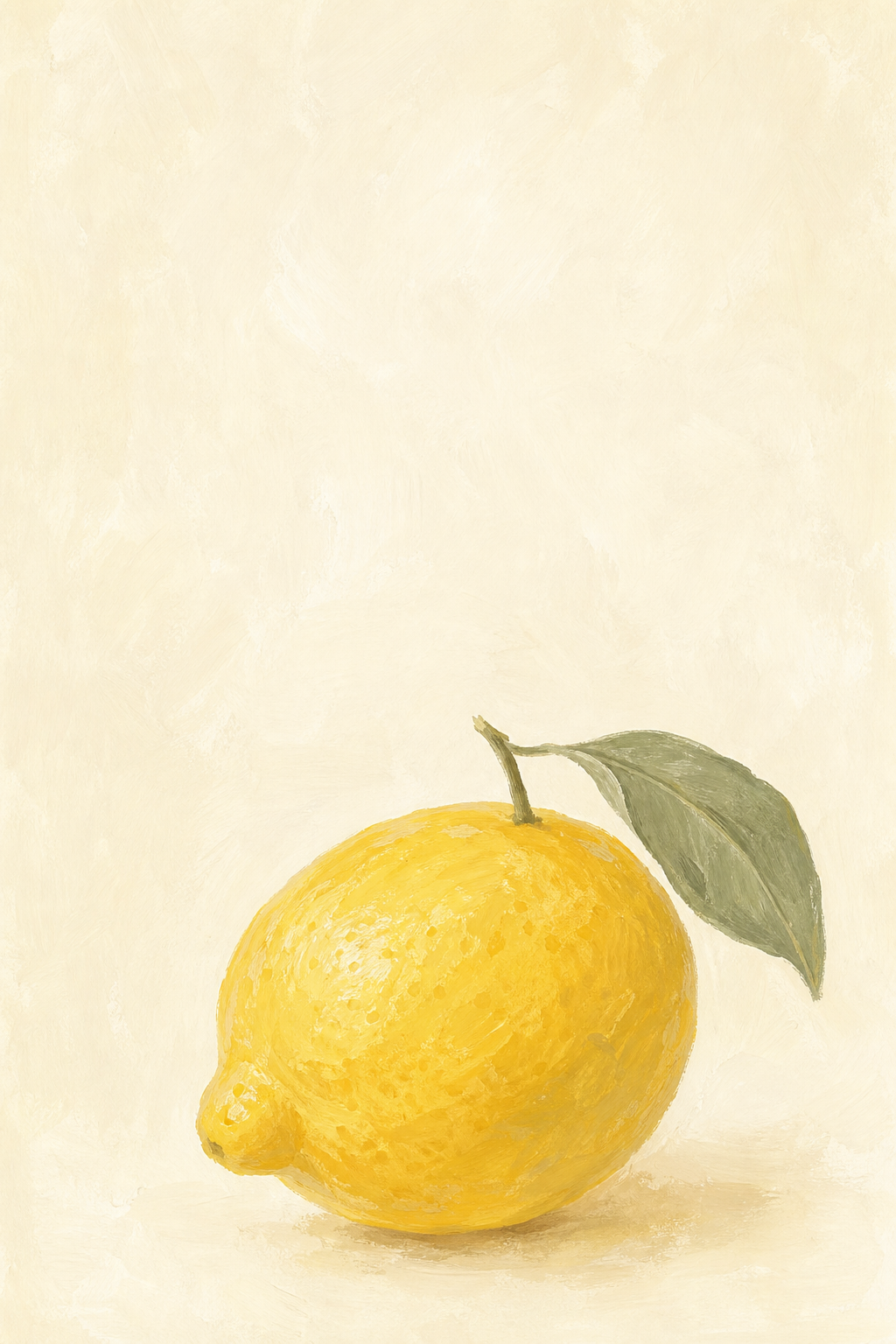
Yellow lemon and green leaf on cream

Lively shades of lemon give this classic citrus design a pop against the warm, ivory background. In this wallpaper, the lemon can be positioned towards the bottom to draw more attention to it beside a simple widget. For a matching Home Screen wallpaper, cream pairs with the yellow lemon. To achieve this, you can choose the cream color, rather than selecting a bright yellow for each of the icons.

For a more vibrant look, choose bright yellow for one widget and select muted colors for the other widgets.

8. Watermelon with a pink background
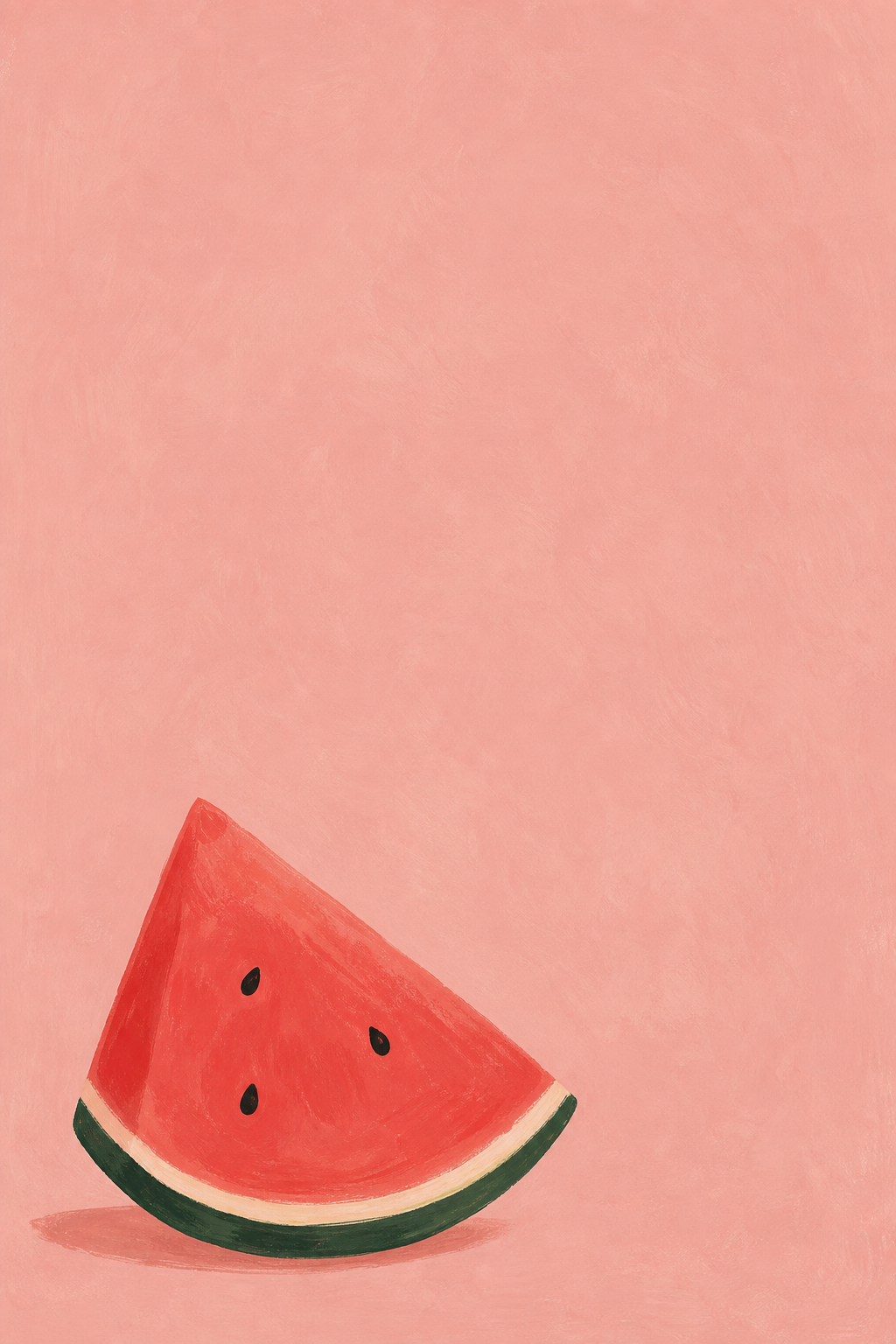
Watermelon slice on a dusty pink background

The watermelon wallpaper offers a combination of pink, red and green to echo in a widget. To make a setup more summery, select a complementary color from its existing pink, red and green palette. For a more muted color scheme, choose a dusty pink and dark green to accessorize.

If a more playful look is desired, choose the watermelon wallpaper with a matching widget. Another option is to use a flamingo design. Preview larger simpler designs and busier more detailed designs to achieve the kind of variation you want.

9. Daisy and wildflower details
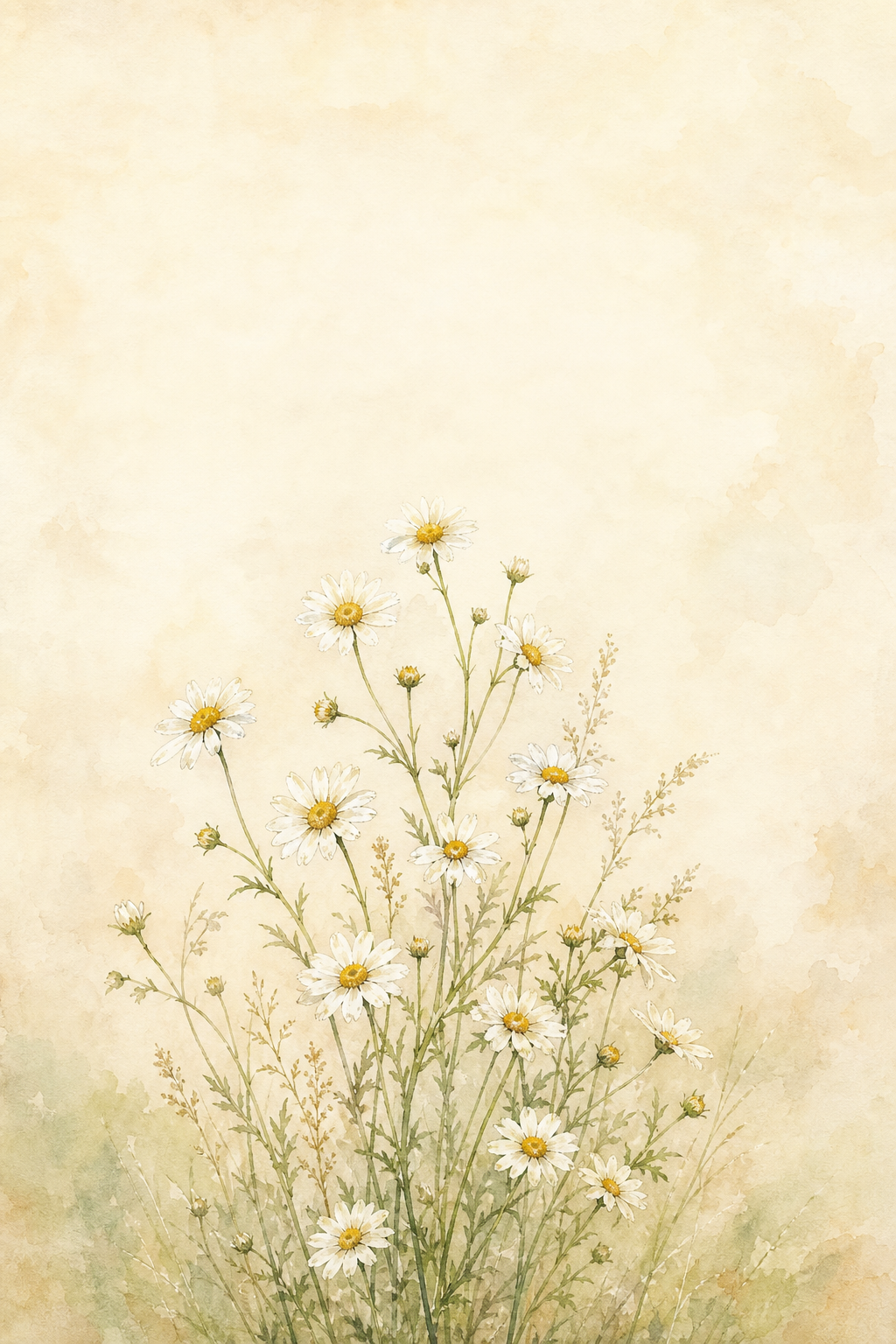
White daisies on a warm cream background

Flowers tend to work best when they’re not crowded, like the cottagecore floral phone designs here. A sunflower is more bold than a daisy. Cherry blossom art is bold and beautiful, but yellow flowers can add a nice touch of seasonal beauty as well. Regardless of which you choose, they look best if they’re located below or to the side of the clock; check text-to-background contrast in your preview.

Pink Sunsets, Pastels and Minimal Summer Colors
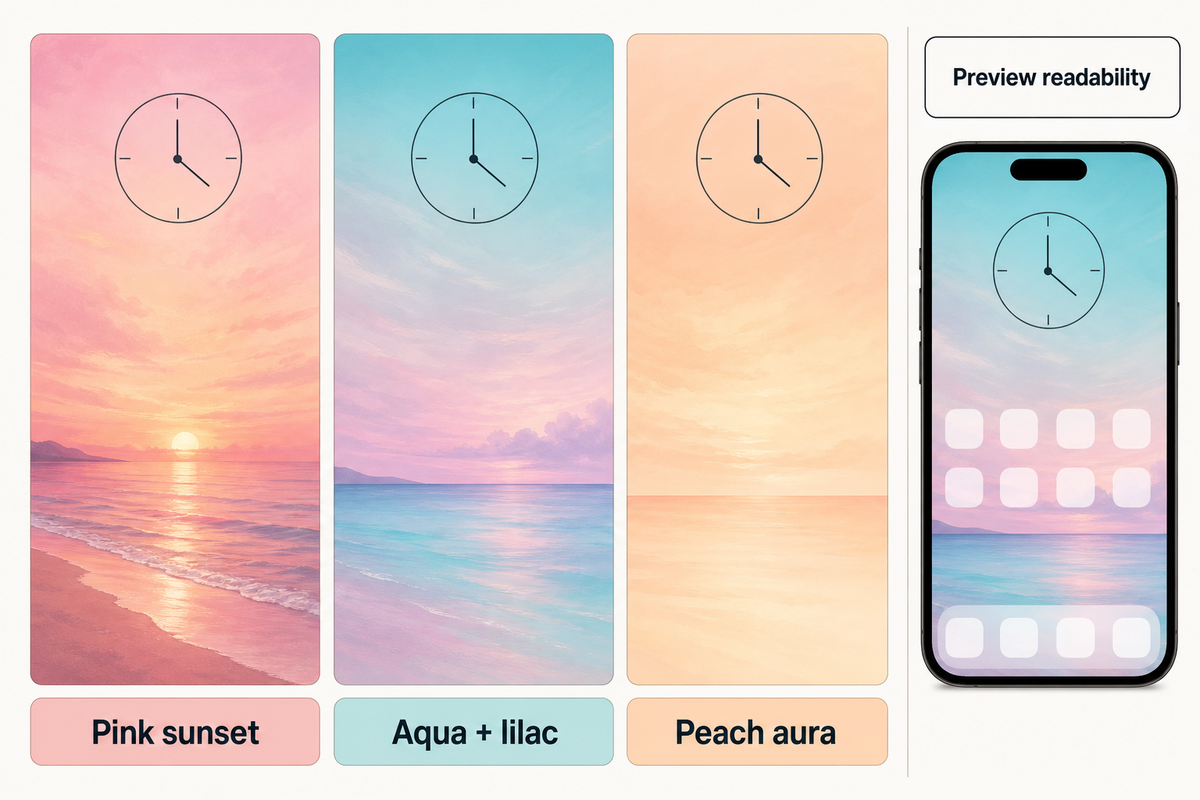
Pink Sunsets, Pastels and Minimal Summer Colors — iScreen

An aesthetic summer design requires no motif, but an aesthetic iPhone arrangement can flourish with the aid of color. Various hues of the spectrum can be employed for broad strokes to provide an aesthetic wallpaper that soothes. This is especially useful to provide an aesthetic wallpaper when paired with photos or widgets.

10. Pink sunset over the sea

Pink and peach sunset above a quiet sea

A broad, horizontal wash of pink light above a low horizon gives the pastel scene a sun-kissed finish. Peach can act as a background bridge. Clock color choices should be checked against the lightest clouds as a readability guide.

11. Pastel aqua and lilac
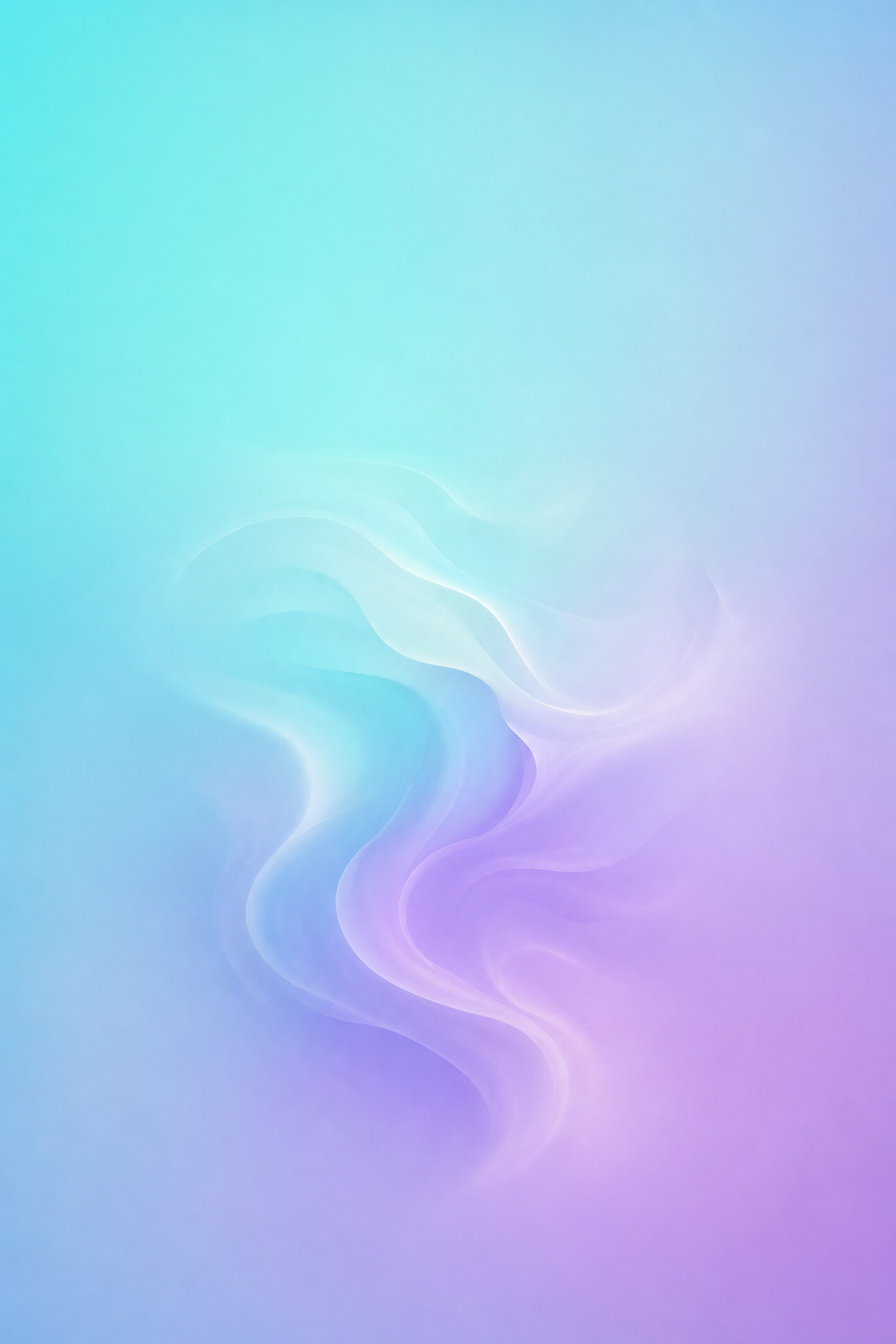
Soft aqua and lilac gradient

Aqua transitioning to lilac provides a comfortable, soft pastel summer palette. Keep the width of the transition broad. This can be utilized to create a pastel summer phone background. If your widgets contain photographs, this design would be particularly suitable to use.

12. A peach aura gradient
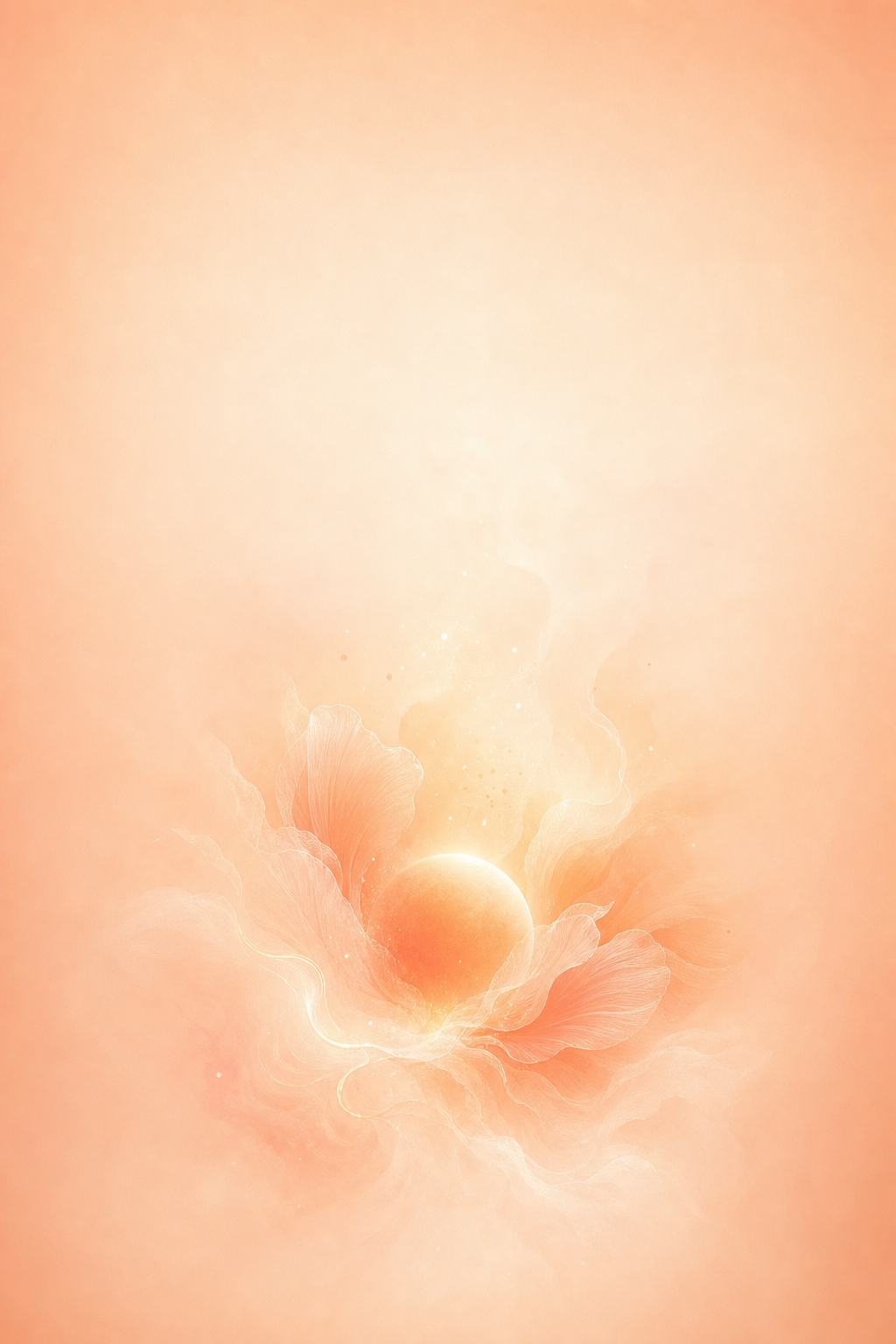
Peach glow fading into creamy ivory

Peach fading into cream feels warm without depending on a beach or flower. Try a deeper outer edge if a very pale version makes the clock difficult to see. Minimal artwork still needs a readability check: the W3C’s contrast guidance explains why text and icons need enough contrast against the background immediately behind them.

One Accent, Two Moods: Match Your Home Screen
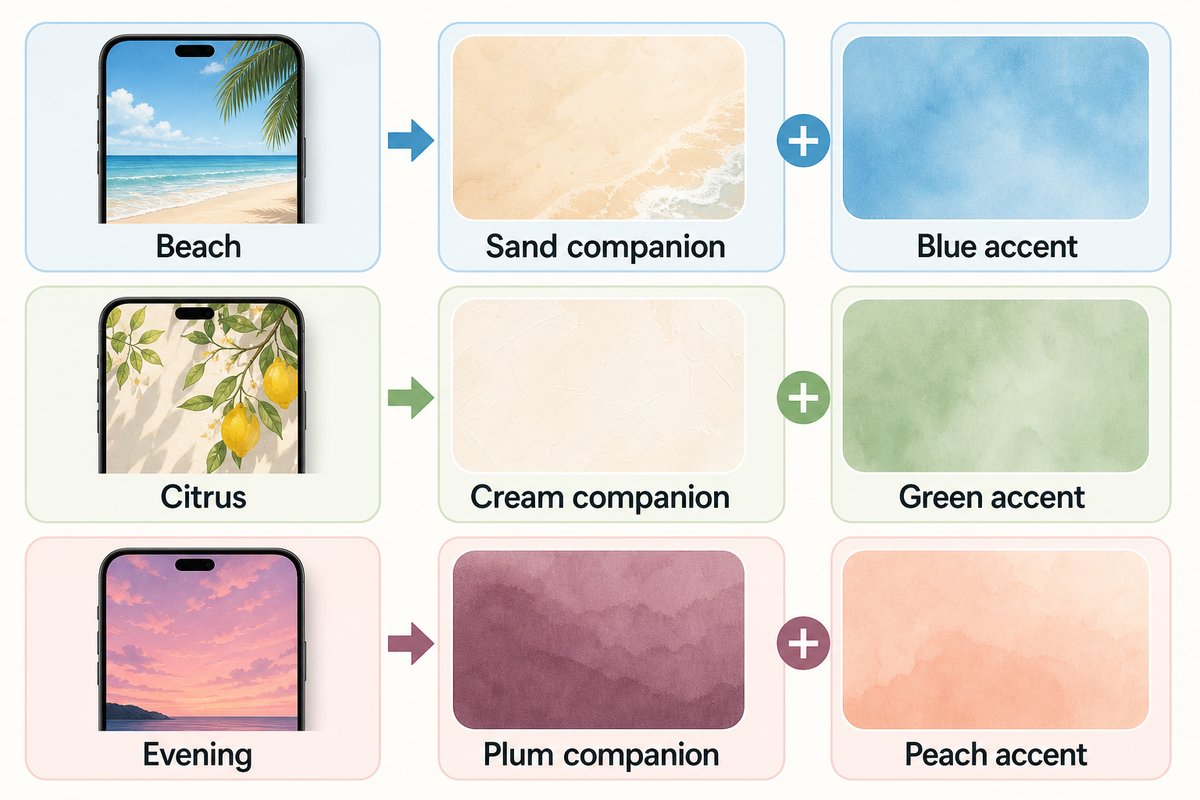
One Accent, Two Moods: Match Your Home Screen — iScreen

One Accent, Two Moods is a straightforward way to create a coordinated set. Let a Lock screen with a horizontally calm background set the tone and serve as the star of the set, and then choose a companion that features the same color as the Lock screen. Check the companions against your actual clocks, labels and open folders. Keep in mind that the elements you choose may not always work well with others.

Nine summer palette pairings to try
Lock Screen motif Shared accent Quieter Home Screen Preview check
Quiet horizon Sky blue Warm sand Clock against the sky
Ocean wave Turquoise Deep teal White foam behind labels
Striped umbrella Coral Soft cream Stripes behind widgets
Palm silhouette Apricot Muted terracotta Fronds beside the clock
Pool ripples Aqua Plain pale blue Reflections inside folders
Leaf border Olive Warm cream Leaves near edge icons
Lemon illustration Yellow Light sage Pale labels on yellow
Watermelon Dusty pink Muted green Red around app badges
Pink sunset Peach Soft plum Clock on bright clouds

Beach recipe: To create a calm horizon, find a sand-colored companion, and a blue widget. Citrus recipe: To create a citrus design, look for a lemon and a cream companion, and a green widget. Evening recipe: To create a design for an evening horizon, look for a plum companion, a peach widget, and a picture of a pink, orange, or red sky.

Should I use the same wallpaper on both screens?

You can use the same wallpaper on both screens if its composition works with your icons. Matching doesn’t require two different pictures. If the scene becomes distracting behind apps, try a separate color, a different photo or Blur through Customize Home Screen. Apple documents those choices in its wallpaper guide.

Where to Find Summer Wallpapers to Download
Where to Find Summer Wallpapers to Download — iScreen

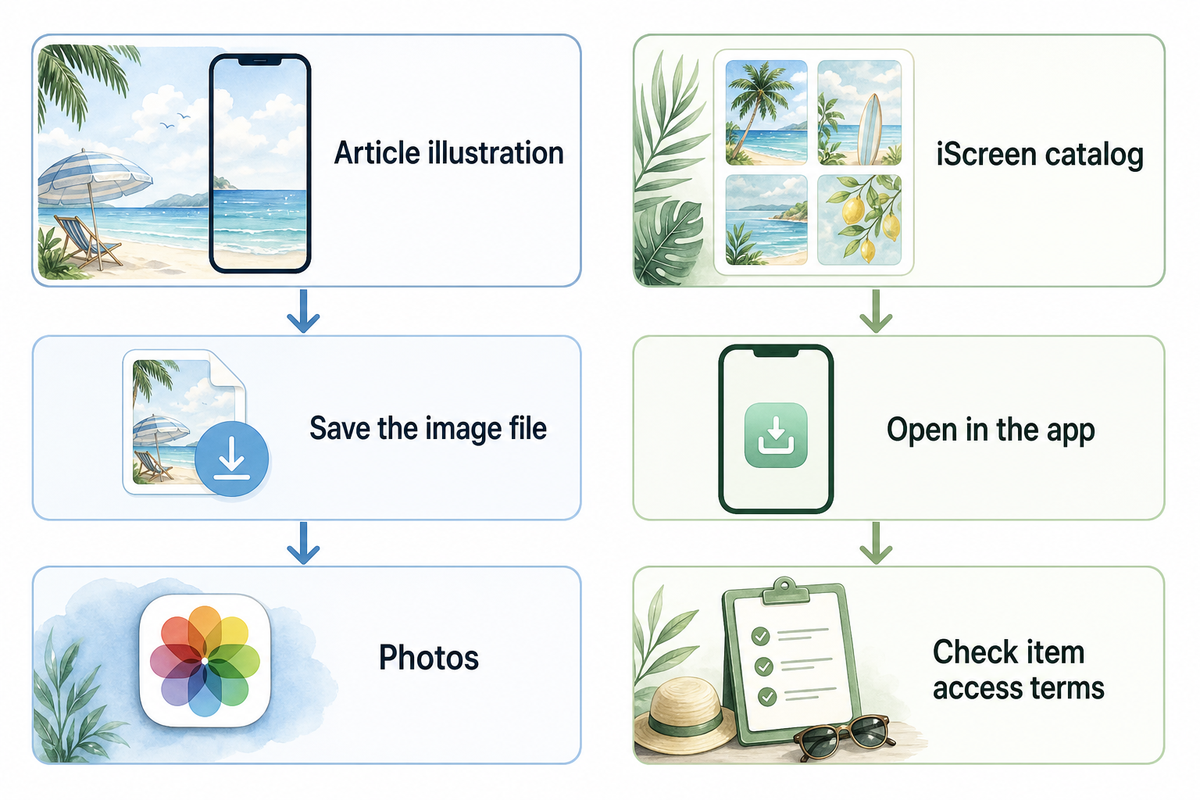
If you need a starting point, refer to the twelve examples in this article. Open the image before saving it, rather than taking a screenshot of the whole page. Keep the picture in the Photos app so you can crop it later.

For more choices, browse iScreen’s wallpaper collection. Its summer-tagged green landscape is an example of a catalog item with an app-based download route: the page directs visitors to iScreen to unlock HD. Check the app’s current item details for access terms. That catalog route is separate from saving an illustration displayed here.

The creator’s page is a better source to start than a search result page. If you found an image via a Pinterest page, it’s best practice to check the original page to see if there are higher quality or alternate versions of the image. Phone wallpapers, tablet layouts and desktop artwork sometimes use different crops. What works best on a tablet or as computer desktop wallpaper may not work well on a narrow phone screen.

Set and Crop Your Summer iPhone Wallpaper
Set and Crop Your Summer iPhone Wallpaper — iScreen

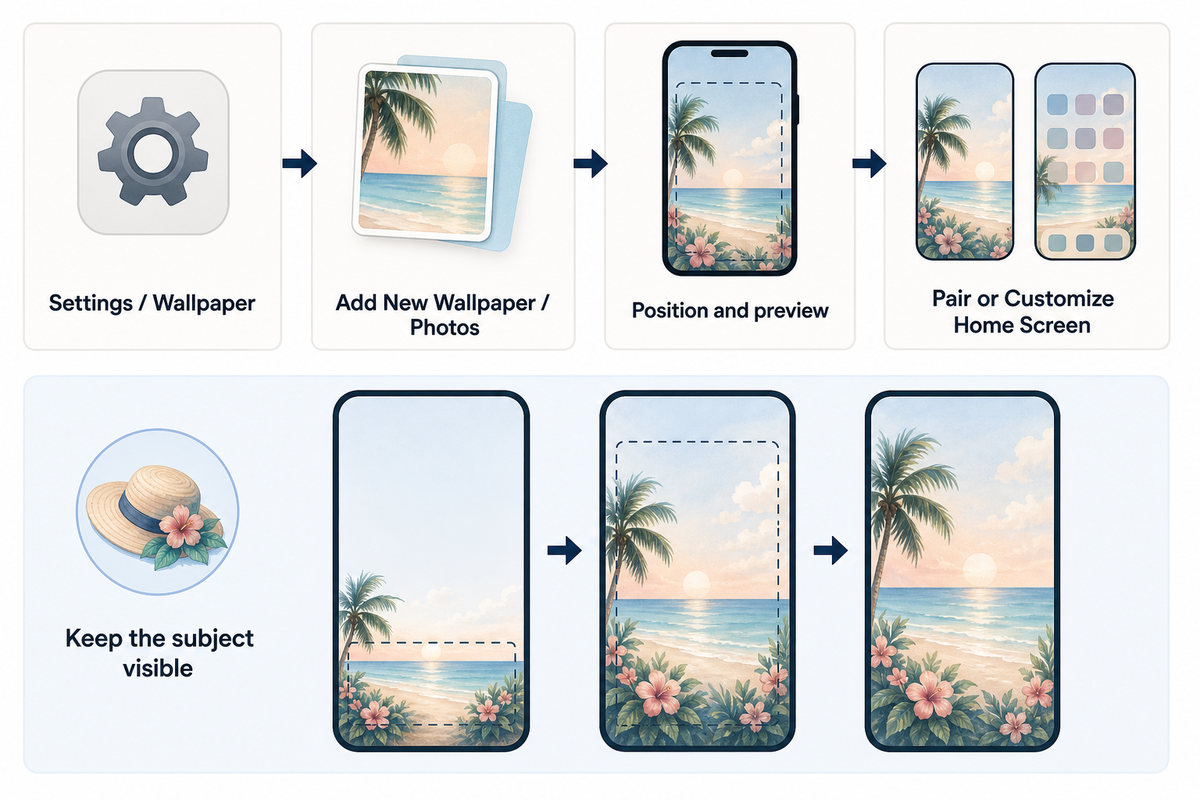
Save your chosen summer wallpaper for iPhone to Photos first. You don’t need specialist tech tools: open the saved file through Wallpaper in Settings, position it around your clock, then decide whether to repeat it on both screens. Apple’s current wallpaper instructions use this path:

  1. Open Settings, then Wallpaper.
  2. Tap Add New Wallpaper, choose Photos, and select the saved picture.
  3. Adjust its position in the preview. Keep your main subject visible and check the clock area.
  4. Tap Add, then choose Set as Wallpaper Pair or Customize Home Screen.

Starting with a high-quality file helps, but resolution doesn’t fix an awkward crop. Apple lists different pixel dimensions for different models: iPhone 15 is 2556 by 1179 pixels, while iPhone 13 is 2532 by 1170 pixels. Those are display specifications, not one required download size for every model.

Leaving a little extra space around your subject will give you more options when cropping. If you crop too closely you could end up losing important details about the subject. Make sure you’re happy with your crop before removing other versions of the photo. The menu options may vary between iOS devices. You can find more information about adjusting iPhone wallpaper in our iPhone wallpaper guide.

Keep a Summer Look Beyond the Peak Season
Keep a Summer Look Beyond the Peak Season — iScreen

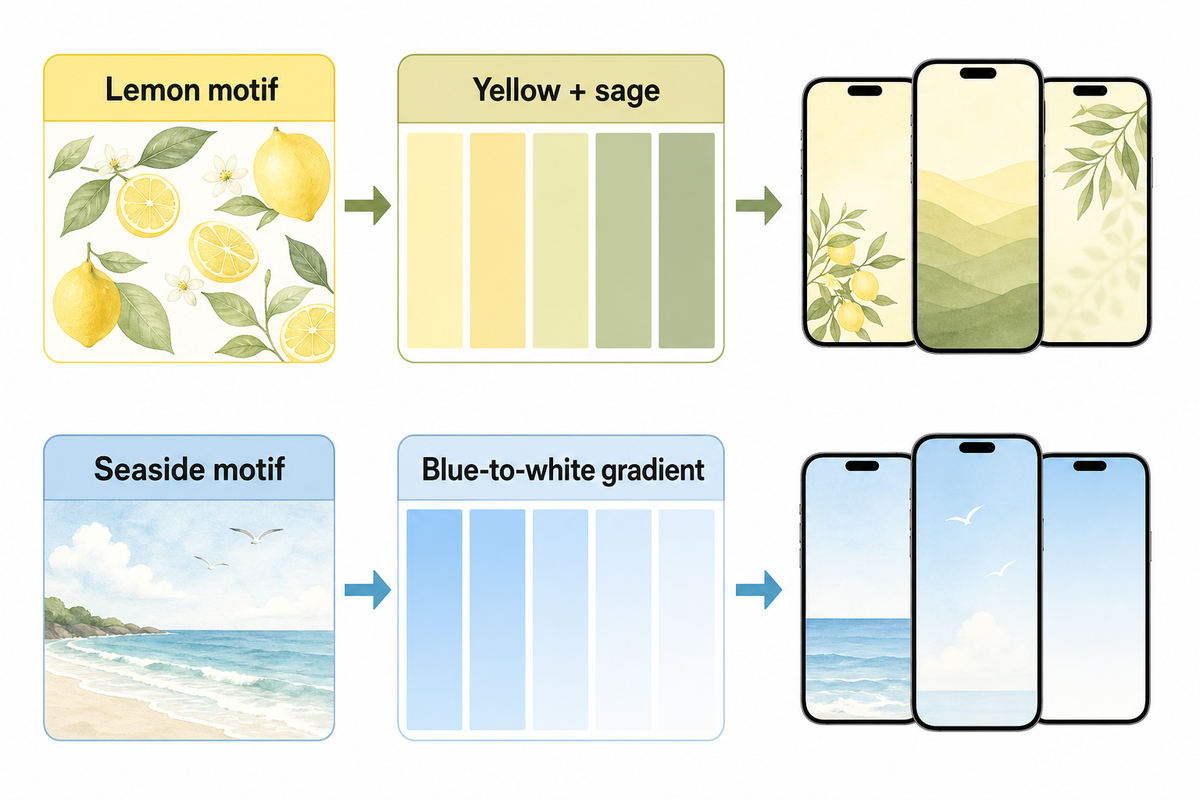
Your summer wallpaper can be used outside of the holiday season. One way to update the palette would be to choose a deeper or lighter tone of the existing colors. For example, holiday colors like yellow could be updated to a quieter cream companion. This could be done using the existing colors in the image. Playing around with different companion colors can be a fun way to adjust the mood of the image.

Another option is to move from a motif to its swatch. A lemon can be a yellow-sage combo. A seaside scene can become a blue-to-white gradient. If the rest of the setup follows along, explore iScreen themes or use a few cute aesthetic widgets. Start with an element and let it serve the rest of the design.

FAQs: Summer Background Questions

Where can I find free summer backgrounds?

For free summer iPhone designs, start with a creator’s clearly marked downloads or an app’s free collection. Check the individual item’s access terms before saving the original file.

Open the original file rather than saving a small search thumbnail. Check whether that particular item downloads free or requires an account or subscription. Pictures shown in a gallery aren’t automatically free downloads, and an HD label doesn’t tell you its price or access terms. Save any instructions supplied with the file, especially if you plan to use it somewhere beyond your own phone. If the download button takes you into an app, inspect the individual item’s terms there before choosing it.

Where can I get good iPhone backgrounds?

Choose a source that lets you inspect the full picture before saving it. Look for a sharp portrait composition with enough room around the subject to adjust the crop.

Look for a sharp portrait file, room around the subject and a calm area where the clock will sit. Quality depends on the crop as well as resolution. Even a beautiful wide landscape can lose its main subject when it fills a narrow phone display, even if the original is detailed.

Where can I find minimalist summer wallpapers?

Look for simple ocean gradients, single palm silhouettes, pale citrus illustrations or uncluttered sunsets in a wallpaper collection. Search by mood and color, then preview the result with your icons.

Try a creator’s collection or a wallpaper app, and search by both mood and palette, such as soft blue beach or peach summer gradient. Preview the result with your actual icons; minimalist artwork can still clash with a crowded layout or make pale labels difficult to read. A plain companion color is another option when you like the original art but want less detail behind apps.

What are the best summer wallpaper colors?

Aqua, sky blue, sand, coral and lemon yellow all suggest summer. Choose a shade you enjoy and check the clock against its local background, especially over bright clouds or reflections.

Try a favorite shade, then check the clock and icons. Palette names alone don’t guarantee readability.

What size should a summer iPhone wallpaper be?

Use a sharp portrait image and check it in your device’s wallpaper preview. Display dimensions vary across models, and a high-resolution label alone does not guarantee that the subject will fit.

There’s no universal exact size. Check actual dimensions, even when a file is labeled 4K.

References & Sources

Artículos recientes

iPhone Wallpaper Changes by Itself? Find the Setting Behind It

iPhone Wallpaper Changes by Itself? Find the Setting Behind It

2026/11/8 12:34
.seo-blog-content{font-family:Arial,sans-serif!important;font-size:inherit!important;line-height:1.75!important;color:#242735!important;} .seo-blog-content h2{margin:0 0 8px!important;padding:0!important;border:0!important;} .seo-blog-content figure{margin:12px 0!important;} .seo-blog-content .answer-box{background:#f3f1ff!important;border-left-color:#7561c7!important;} .seo-blog-content .ecc-do,.seo-blog-content .ecc-dont{min-width:0!important;flex-basis:230px!important;} .seo-blog-content .faq-item{margin:0 0 24px!important;padding:0!important;border:0!important;border-radius:0!important;} .seo-blog-content table{font-size:15px!important;line-height:1.6!important;letter-spacing:normal;} .seo-blog-content th,.seo-blog-content td{font-size:inherit!important;line-height:inherit!important;} .seo-blog-content th{background:#2d2d2d!important;color:white!important;} .seo-blog-content tbody td{background:#fff;} .seo-blog-content tbody tr:nth-child(even) td{background:#f5f5f5;} .seo-blog-content tbody td:first-child{font-weight:600;} .seo-blog-content caption{caption-side:top;text-align:left;} @media(max-width:767px){.seo-blog-content table{font-size:14px!important;}.seo-blog-content th,.seo-blog-content td{padding:10px 12px!important;}} If your iPhone wallpaper changes by itself, check linked Focus screens and Shortcuts automations. Each of these can replace the Lock Screen wallpaper without requiring a visit to Wallpaper settings. A long press followed by a swipe and tap can also select another previously saved Lock Screen. A wallpaper that seems to change randomly may still follow a trigger. One way to narrow the possible options is to look at timing. A new photo when you lock your phone points to a different setting from a new layout when Sleep Focus is activated. If an image only becomes darker or blurry, look at its appearance controls before replacing it. An iPhone wallpaper changes by itself when an active shuffle, linked Focus or automation selects another background. Start with the event that preceded the change, inspect its setting, and adjust that route before testing it again. Before changing settings Check whether the photo changed or the same image simply looks different. Why does your iPhone wallpaper change by itself? Your iPhone can automatically change its background through Photo Shuffle, Focus linked to another screen, or an automated Shortcut. Saved Lock Screens provide a manual route to switching backgrounds. Start by looking to see whether the photograph, the whole screen layout, or just the image’s appearance changed. Apple’s wallpaper instructions differentiate Photos from Photo Shuffle. A Photo can be chosen, but Photo Shuffle rotates a selection. Focus adds another layer of control: activating a linked Focus can bring up its associated screen even if a user chose a different wallpaper beforehand. These instructions cover a personally controlled iPhone. For a school or company-managed phone, contact its administrator for restricted settings. Menu labeling varies by iOS version, so use the corresponding control on your device. Don’t edit anything until you understand the current situation and active Focus. If it changes constantly, start with a single tap and see what happens. Take a screenshot if the widgets and/or clock also change. Our Lock Screen customization guide shows how lock screen elements belong to a saved screen. Match the change to its trigger To figure out where to look first, use the event immediately prior to a wallpaper change. The checks in the 4-Trigger Wallpaper Trace are shuffling, Focus, automation, and manual. Timing is a good starting point, but be sure to check the setting before making the change. 4-Trigger Wallpaper Trace Choose the first check from the event you observed What you notice First setting to inspect What to look for Narrow next action Photo changes after a tap Photo Shuffle On Tap frequency Choose a single Photos wallpaper Photo changes after locking Photo Shuffle On Lock frequency Replace this shuffle selection Photo changes hourly or daily Shuffle, then Shortcuts Matching frequency or time trigger Adjust the matching route Different screen at bedtime Sleep Focus Linked screen and activation time Inspect the screen association Different screen on arrival Focus or Shortcuts Location schedule or Arrive trigger Check both before editing either Picture changes when charging Shortcuts Charger trigger with a wallpaper action Remove that trigger if unwanted Clock and widgets change too Saved screens and Focus Another complete Lock Screen selected Select the intended screen; check Focus Same photo becomes dim or blurred Appearance controls Blur, Focus dimming or Always On Adjust the matching display option Change follows a long press and swipe Lock Screen gallery Another saved wallpaper selected Return to the intended wallpaper The table shows how Apple’s Focus controls and automation triggers interact. A charging event only matters if the shortcut it triggers changes wallpaper. Other charging automations are allowed. Example: your family photo returns during the day, then a plain background appears at bedtime. Instead of instantly resetting the wallpaper, see which Focus is active when the change occurs. Check if Sleep has a screen, and if not, check if there are shortcuts active at the same time. After modifying one of the associations, select the intended photo and look at which Focus is active. Bedtime events provide the best examples; unchanged afternoon screens can’t tell you much about a bedtime trigger. Stop Photo Shuffle without deleting your photo collection To stop Photo Shuffle for the wallpaper you use, create a new wallpaper from Photos and select one image. Select that saved wallpaper instead of the shuffle selection. You can keep the old shuffle in the gallery and keep the source pictures in your photo library. Open Wallpaper settings. Go to Settings, then Wallpaper, and tap Add New Wallpaper. Choose Photos. Select the single image you want, rather than Photo Shuffle. Adjust the picture. Position the subject and finish the customization. Save the selection. Tap Add, then Set as Wallpaper Pair or Customize Home Screen. Use the new wallpaper. Check that this saved screen is selected before repeating the event that used to change it. Apple lists these shuffle frequencies: On Tap, On Lock, Hourly and Daily. Switching to Daily reduces the frequency of the picture rotating; it doesn’t stop the picture rotating altogether. On Tap also stays a shuffle mode, even though you initiate each change. A single Photos wallpaper stops the rotation within that selection. If the picture keeps changing, look at the next matching route. A linked Focus or shortcut can still select a different wallpaper, so move to the corresponding section if your wallpaper keeps returning to another picture. For an image that stays readable behind the clock, pick a subject that has space around it. The aesthetic iPhone wallpaper guide gives design ideas without changing this process. Deleting a wallpaper is an optional way of cleaning up the saved wallpapers. Removing an old selection if the new one works as intended is also covered in the steps to delete an iPhone wallpaper. Keep the original photograph if you may want to use it later. Keep Focus while stopping unwanted screen changes Go to Settings > Focus, and select the mode active when your wallpaper changes. Inspect its selected Lock Screen and Home Screen. Notification rules are specific to each Focus configuration. To customize screen previews, go to Customize Screens, and if a preview has a minus button, tap it to remove that association. This is illustrated in iDownloadBlog’s Focus unlink instructions. Leave your notification allowances and useful activation schedule intact. Next, select the wallpaper you want, and see which Focus is active. Apple’s custom Lock Screen guide details the two-way link. A Focus can select its associated screen, and vice-versa. Example: you want Work Focus to silence notifications from social apps when you arrive at the office, but to keep your usual family photo as the wallpaper too. Deleting the arrival schedule would also remove the automatic start you want. Instead, check Work Focus’s screen preview and remove the association you don’t want when that control is available. Keep the arrival schedule and allowed contacts. Pick the screen you want and check Work is active when you need it. On your next arrival, check if Work starts and which wallpaper appears. If both are as expected, you have confirmed that Work Focus starts with the intended wallpaper on arrival without rebuilding notifications. If Focus turns on when you use another Apple device, check Share Across Devices in Focus settings. Treat this separately from app filters: Apple’s guide says Focus filters don’t sync across devices with that option. For a darker version of the same Lock Screen, check the mode’s Options for its dimming control. Check Shortcuts for a scheduled wallpaper change A shortcut can replace your wallpaper automatically when its trigger runs a wallpaper action. Open Shortcuts and check automations associated with the time or event you noticed. Read the shortcut’s actions before you delete anything; the trigger alone won’t tell you whether it changes wallpaper. In the current Apple automation guide, Automation lists shortcuts with automation triggers. Older versions may organize these controls under an Automation tab. Look for the action that chooses the wallpaper or supplies the photo. Apple’s Shortcuts update History shows Set Wallpaper Photo and Switch Between Wallpapers in iOS 16.2 changes. Set Wallpaper Photo can set photos for wallpapers that use iOS 16’s new widgets and customization options. Those action names might help identify what a shortcut does, and the editor may look different on your device. “You can remove the automation trigger from your shortcut so it no longer runs automatically.” Apple, Shortcuts User Guide Get rid of the trigger in the shortcut and choose your preferred wallpaper again. Do this only if the entire automatic run is unwanted, because its other actions will also stop running at that event. Also, keep other actions and automations, unless you want their behavior to change as well. If the wallpaper changes again, look at the second event and don’t assume the first edit is bad. It’s helpful to write down a shortcut’s name and trigger, if you don’t understand what the shortcut does. For a Charger automation, the next relevant observation is a charging event. Waiting with the phone disconnected doesn’t exercise that trigger. Separate accidental switches from visual effects A changed clock or widget arrangement can indicate another saved Lock Screen, while a dimmer or softer image may come from appearance settings. Compare the subject and crop first. Then inspect the saved screen, Home Screen customization, or display option that matches what changed. Apple states switching saved Lock Screens is done by touching and holding the Lock Screen, swiping to another wallpaper, and tapping it. If you enter the gallery, select the screen you want and check Focus. Keep unwanted saved screens only if you still use them. Why does the same photo look blurry or darker? The Blur feature softens your Home Screen background behind the apps. In Wallpaper settings, customize the Home Screen and check its Blur control. Apple’s wallpaper customization guide addresses this option separately from choosing another photo. Our Home Screen wallpaper guide covers background choices for readable icons. On supported models including iPhone 14 Pro and iPhone 14 Pro Max, Always On Display can dim the locked or idle screen. Apple says its refresh rate can drop to 1 Hz. Check Settings > Display & Brightness > Always On Display if the change occurs when the phone becomes idle. Apple’s display brightness explanation also describes automatic brightness and color adjustments. A black background or darkened screen therefore requires a different first check from a replacement photograph. True Tone can adjust color and intensity; Night Shift can make colors warmer. A live weather design can look different as conditions change. Animated photo effects also deserve an appearance check before you recreate the wallpaper. Do Compare the photograph and crop. Check the clock and widget arrangement. Inspect the matching appearance control. Don’t Do not delete your photo library to stop shuffle. Do not remove useful Focus schedules before checking screen associations. Do not erase the phone to troubleshoot routine wallpaper changes. Keep one photo on both screens and recheck Choose a photo from the Settings > Wallpaper menu and select Set as Wallpaper Pair to make that choice your wallpaper for both screens. Use Customize Home Screen to set a different wallpaper for each screen. Apple’s built-in choices can handle this task without having to buy a wallpaper app. Once you’ve changed the setting associated with the unwanted switch, repeat the original event. Capture the active Focus and both screens before and after the event. Apple says switching away from a Lock Screen linked to a specific Focus also switches your Focus. If the original event hasn’t occurred yet, leave the result open. If both screens remained unchanged, document that result for the event you tested. Imagine that, prior to a morning automation, the phone shows a beach photo, then changes to a mountain image. The owner finds a Time of Day trigger attached to a wallpaper shortcut and removes it. Apple says removing the automation trigger stops the shortcut from running automatically. The owner selects the beach again and leaves the other settings alone. In this example, at the next scheduled time, the photo stays in place, and the active Focus is unchanged. If the wallpaper later changes as part of Work Focus, investigate Work’s screen association as a separate route, instead of deleting more photos. Recheck worksheet: hypothetical filled example Record Example entry What to enter for your phone Original event Morning scheduled change The event immediately before the change Picture before Beach photo Photo and crop Picture after Mountain photo Replacement image or appearance difference Focus before No Focus active The active mode Matching control Time of Day wallpaper shortcut The inspected trigger and action Single edit Removed that time trigger The one setting changed Repeat event observed Next scheduled time passed Actual event, or not yet observed Focus afterward No Focus active The mode after the event Observed result Beach stayed on both screens What each screen showed during this check If the issue continues after checking the matching routes, restart the device and check for a software update. Save its iOS version, screenshots and the triggering event for Apple Support. For a new design once the behavior is settled, browse the iScreen wallpaper collection and select your preference through the same native settings. Frequently asked questions How do I turn off photo shuffle on my iPhone? Create a wallpaper using Photos rather than Photo Shuffle, choose one image, and select that saved wallpaper. You can leave the old shuffle wallpaper in the gallery. Changing the shuffle frequency to Daily only slows rotation; it doesn’t make the selection permanently static. If the single photo is replaced later, check linked Focus screens and Shortcuts automations too. Why did my iPhone screen just change? A different photo suggests a wallpaper selection or shuffle; a different clock and widget arrangement can indicate another saved Lock Screen. A dimmer or blurred version of the same image may be an appearance setting. Note the time and active Focus, then inspect the matching control before deleting wallpapers or changing all your notification settings. The trigger table above provides a starting check for each pattern. How to set multiple pictures as wallpaper on iPhone? Open Settings, choose Wallpaper, then Add New Wallpaper and Photo Shuffle. Select the available photo categories, an album, or photos manually, according to the options shown on your phone. Choose On Tap, On Lock, Hourly or Daily. Those settings deliberately rotate pictures, so a changing image is expected. Choose a normal Photos wallpaper if you later want a single fixed picture. How do I avoid switching wallpapers after a long press? To avoid an accidental switch, leave the wallpaper gallery without selecting another screen. A long press opens the gallery; swiping and tapping a saved screen selects it. If you already switched screens, return to the intended wallpaper and check the active Focus. Does a wallpaper change mean my iPhone was hacked? No. A wallpaper change alone doesn’t show that your phone was hacked. Check its settings and assess any separate account-security alerts independently. About this guide: iScreen helps readers select and arrange wallpapers. This troubleshooting article uses Apple’s documented controls and attributed interface guidance; it doesn’t report hands-on device testing. References & Sources Change your iPhone wallpaper Apple Support. Set up a Focus on iPhone Apple iPhone User Guide. Create a custom Lock Screen Apple iPhone User Guide. Add automations to Shortcuts Apple Shortcuts User Guide. What’s new in Shortcuts for iOS 16 Apple Support, historical action changes. Change the wallpaper on iPhone Apple iPhone User Guide. Adjust brightness and color temperature Apple Support. Prevent your iPhone wallpaper from changing iDownloadBlog, secondary interface guidance.
2026/11/8 12:34
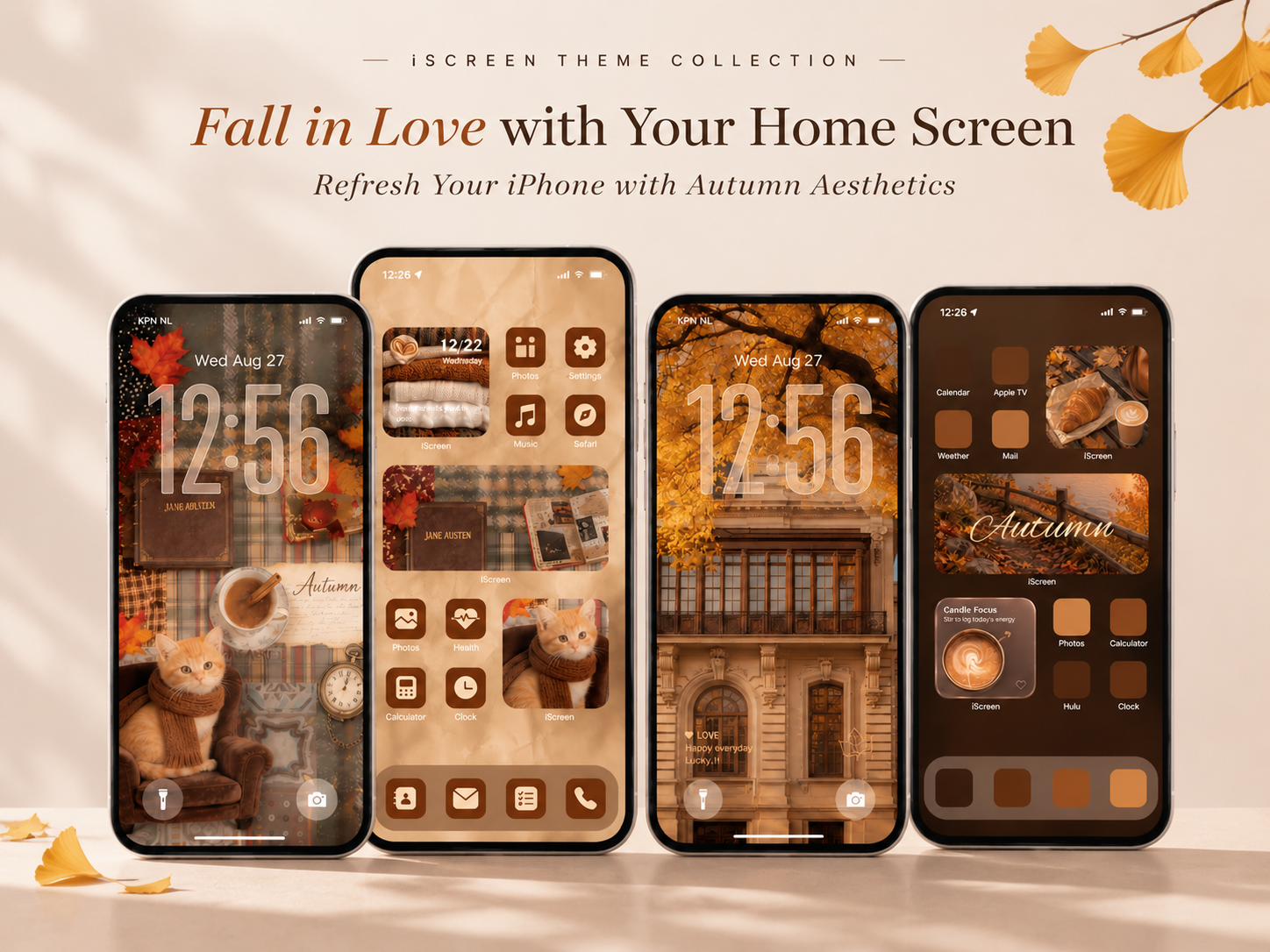
6 Aesthetic Autumn iPhone Themes to Give Your Home Screen a Cozy Fall Makeover

6 Aesthetic Autumn iPhone Themes to Give Your Home Screen a Cozy Fall Makeover

2026/11/6 18:46
  Looking for a fresh way to customize your iPhone this autumn? With iScreen, you can transform your home screen into a personalized aesthetic space that reflects your style, mood, and favorite season. From Creative Widgets, beautiful themes, custom app icons, and aesthetic wallpapers to Dynamic Island designs, iScreen brings together a variety of customization options to help you create a unique iPhone home screen. Whether you love minimalist layouts, cozy seasonal aesthetics, or detailed themed setups, you can mix and match different elements to make your phone truly your own. As autumn arrives, it’s the perfect time to give your phone a seasonal refresh. Think warm brown tones, golden falling leaves, cozy coffee moments, vintage books, and soft autumn sunlight. With a collection of autumn-inspired designs, iScreen makes it easy to bring these seasonal details to both your lock screen and home screen. Ready for a little fall inspiration?Here are six aesthetic autumn iPhone themes to help you create a warm and inviting home screen!   1. Cozy Season – A Warm Coffee & Autumn Aesthetic Style Highlight: A cozy coffee-inspired design featuring golden fallen leaves, freshly baked croissants, warm brown tones, and vintage-inspired details. Bring the feeling of a crisp autumn morning to your iPhone with this warm and inviting theme. Inspired by coffee breaks, freshly baked pastries, and the beauty of fallen leaves, it captures the simple pleasures that make the season special. The lock screen features a charming flat-lay composition of a coffee cup and golden croissant surrounded by autumn leaves. An oversized translucent digital clock stands out against the softly blurred brown background, creating a dreamy and elegant look. Subtle decorative details complete the seasonal aesthetic without taking attention away from the main image. The home screen carries the same coffee-inspired style through matching brown wallpapers, translucent widgets, and coordinated app icons. Clock, calendar, weather, and photo widgets add useful information while keeping the layout visually balanced. Small coffee and croissant images bring extra warmth and personality to the design. From the oversized lock screen clock to the carefully coordinated widgets and warm-toned app icons, every detail works together to create a cohesive autumn look. If you love coffee-inspired wallpapers, warm brown tones, and cozy seasonal details, this theme is a lovely way to bring a little autumn charm to your everyday iPhone experience.   2. Misty Autumn – A Moody & Peaceful Fall Aesthetic Style Highlight: A dreamy, atmospheric autumn look featuring misty forest scenery, muted brown tones, and soft ambient lighting. Not every autumn aesthetic needs to be bright and golden. For those who prefer a quieter and more atmospheric style, Misty Autumn offers a peaceful alternative. The lock screen showcases a foggy park walkway covered in fallen leaves, with warm streetlights glowing softly through the mist. An oversized translucent white clock stands out against the muted forest scenery, giving the wallpaper a cinematic feel reminiscent of a quiet autumn evening. The home screen continues this mood with softly blurred autumn backgrounds, translucent widgets, and coordinated brown app icons. Weather, reminder, and photo widgets are arranged alongside everyday apps, creating a layout that feels both practical and visually cohesive. Additional photo elements featuring glowing candles and seasonal details bring warmth to the darker color palette. The contrast between the misty outdoor scenery and the cozy indoor imagery gives the theme a distinctive sense of atmosphere. This design is especially suited to those who enjoy moody photography, muted colors, dark brown interfaces, and a calm, understated autumn aesthetic.   3. Vintage Autumn – A Bookish & Cottagecore Fall Aesthetic Style Highlight: A nostalgic vintage-inspired theme featuring classic literature, plaid textures, warm brown tones, and adorable seasonal details. If you love vintage aesthetics and the charm of autumn, this theme feels like stepping into a cozy reading corner. The lock screen features an oversized translucent clock layered over a carefully arranged autumn collage. Vintage books, plaid fabrics, handwritten notes, and a cute kitten wearing a knitted scarf come together to create a nostalgic, storybook-inspired atmosphere. On the home screen, matching paper-textured wallpapers tie the entire design together. Photo widgets highlight seasonal scenes, while smaller widgets display cozy everyday moments. The rich chocolate-brown app icons complement the warm background, giving the layout a consistent vintage look. There’s also a playful side to this design, with cute cat photo widgets adding personality to the overall setup. For anyone drawn to cottagecore details, vintage book aesthetics, plaid patterns, and warm brown app icons, this theme offers a charming way to personalize an iPhone for autumn.   4. Autumn Architecture – A Rich & Elegant Dark Brown Aesthetic Style Highlight: An elegant autumn-inspired design combining historic architecture, deep chocolate tones, and sophisticated seasonal details. For a more refined take on autumn, this theme combines beautiful architectural photography with rich brown and burnt-orange colors. The lock screen features a historic building framed by golden autumn leaves. A large transparent clock takes center stage, allowing the architectural details and seasonal scenery to remain visible. Subtle decorative accents add personality while maintaining a clean visual balance. The home screen introduces a deeper color palette, with a dark brown background and carefully arranged autumn-inspired widgets. Image of coffee, croissants, fallen leaves, and scenic landscapes add visual interest, while customized app icons in complementary shades of brown keep the overall layout coordinated. A matching music widget adds another layer of personality, turning the home screen into something that feels more like a curated autumn mood board than a standard app layout. With its combination of architectural photography, dark brown tones, and thoughtfully arranged widgets, this theme is a great choice for anyone who prefers a more elegant and understated seasonal look.   5. Golden Autumn – A Warm & Dreamy Fall Forest Aesthetic Style Highlight: A golden-hour autumn aesthetic inspired by sunlit forests, winding roads, and rich amber tones. Few things captures the beauty of autumn quite like golden leaves glowing in the afternoon sunlight. Golden Autumn brings that feeling to your iPhone through a palette of golden yellow, amber, and warm caramel brown. The lock screen features a stunning forest road surrounded by trees covered in golden foliage. An oversized transparent clock blends naturally into the scenery, creating a striking visual effect while allowing the winding road and glowing leaves to remain the focus. The home screen continues the golden autumn palette with a combination of music player widgets, photo widgets, and customized app icons. Seasonal photography and soft brown textures bring warmth to the layout, while the coordinated icons help tie everything together. The result is a beautifully coordinated iPhone setup that feels warm, bright, and full of seasonal charm. If golden forest wallpapers, amber tones, and warm seasonal photography are your style, this theme is a beautiful choice for your next iPhone makeover.   6. Cozy Coffee & Warm Brown – A Soft Autumn Lifestyle Aesthetic Style Highlight: A relaxed coffee-inspired design featuring warm beige tones, soft brown textures, and everyday autumn moments. For a softer and more understated look, this themetakes inspiration from cozy coffee dates, freshly baked pastries, open books, and the little moments of everyday autumn life. The lock screen features a beautiful flat-lay photograph of a coffee table, croissants, and an open book surrounded by fallen leaves. A large white digital clock adds a clean, elegant focal point, balancing the detailed photography with a simple interface. The home screen continues the warm brown aesthetic through translucent widgets, carefully selected photo elements, and matching neutral app icons. Coffee-inspired images and minimal widget layouts add visual interest without making the screen feel crowded. For those who prefer neutral wallpapers, beige widgets, and minimalist app icons, this theme brings a subtle touch of autumn warmth to the iPhone.   Give Your iPhone a Cozy Autumn Makeover with iScreen A beautiful phone theme is all about how the details come together. From the lock screen wallpaper and oversized clock to matching home screen backgrounds, creative widgets, and customized app icons, every element plays a part in creating a more personal experience. With iScreen, you can explore different aesthetic styles, customize your widgets, discover new wallpapers, and coordinate your app icons to create a home screen that reflects your mood and personality. Whether you prefer cozy coffee moments, vintage bookish details, golden autumn scenery, misty forest views, or elegant dark brown designs, there’s a seasonal style to suit your taste.   How to Get These Autumn Themes with iScreen Want to try these autumn themes on your phone? Follow these simple steps: Download iScreen: iOS Download Link:‎‎iScreen – Widgets & Wallpaper Android Download Link:‎‎iScreen – Widgets & Wallpaper Search for the themes: Open iScreen and search for the code Mia. Choose your favorite: Browse the themes and select the one you love. Save and customize: Tap the Save button. Widgets will be saved to My Widgets in the app, ready to add to your home screen. Wallpapers will be saved directly to your photo album. That’s it! Enjoy your new autumn-inspired phone aesthetic with iScreen!     Media Contact iScreen Official Team Email: iscreenofficial@gmail.com Official Website:iScreen – Phone Style, iScreen it!  
2026/11/6 18:46
Photo Shuffle Wallpaper on iPhone: iOS Lock & Home Screen Setup Guide

Photo Shuffle Wallpaper on iPhone: iOS Lock & Home Screen Setup Guide

2026/11/2 15:06
Setting up a photo shuffle wallpaper allows your Lock Screen to cycle through your photos automatically. When setting up a photo shuffle wallpaper on iPhone, iOS cycles your portraits using four triggers: On Tap, On Lock, Hourly, or Daily. A portrait that’s close to your Super Retina XDR display’s native 9:19.5 aspect ratio reduces the likelihood of the camera automatically zooming. You can, however, crop each frame to your liking using the editor. You can choose to use the 50-photo manual picker or dynamic album sync (iOS 17.1 or later). This guide outlines the album sync setup, OLED battery data, framing rules, and how to get a clear Home Screen widget. How to Set Up a New Wallpaper With the iOS Photo Shuffle Feature on iPhone Lock Screen To set up a Photo Shuffle wallpaper on iPhone, unlock with Face ID, and long press your Lock Screen. Tap the blue + button and choose Photo Shuffle from the top row. Pick Featured Photos, an Album (requires iOS 17.1 or later), or Select Photos Manually, adjust the interval using the three-dot menu, and tap Add, per Apple Support (102638). For more details on setting up Album, see Apple Support (102638). Apple introduced the modern Lock Screen gallery in iOS 16 and expanded it through iOS 17, iOS 18, and iOS 26. You can initiate a new wallpaper from three official entry points on your device. If your iPhone uses a passcode or Touch ID instead of Face ID, authenticate first then press the Lock Screen. Otherwise, the gallery button stays locked for privacy. 3 Official iOS Entry Points to Create a Photo Shuffle Lock Screen Setup Entry Point Navigation Path in iOS Tap Count Pre-Selected Photo Support Best Use Case Lock Screen Long-Press Gallery Unlock > Long-press Lock Screen > Tap + > Photo Shuffle 4 taps Opens smart categories, Album picker, or manual grid Fastest daily setup with live clock and widget preview Settings Wallpaper Menu Settings > Wallpaper > Add New Wallpaper > Photo Shuffle 5 taps Full access to People, Pets, Nature, Cities, and Albums Managing multiple Lock Screen and Home Screen pairs at once Apple Photos Share Sheet Photos app > Select images > Share > Use as Wallpaper 4 taps Pre-loads your highlighted camera roll selection directly Building a quick pack right after editing vertical portraits The six steps below outline how to set up the photo shuffle feature without losing your framing: First use Face ID or your passcode to unlock your iPhone, and then press and hold the Lock Screen. Tap the blue add new (+) button in the bottom-right corner of the gallery. Select the Photo Shuffle button in the top row of wallpaper options. Choose your source, set the frequency of shuffle, and select either Use Featured Photos or Use Album. To crop a specific frame, tap the four-square grid in the bottom left corner. Tap Add, and then customize your Home Screen pair. A common mistake happens when users want to remove one awkward picture later. Tapping the blue (+) button creates a brand new Lock Screen from scratch. Instead, long-press the Lock Screen and tap Customize under your active wallpaper card. In a Featured Photos shuffle, display the unwanted photo in the wallpaper editor, tap the three-dot menu, and choose Don’t Feature Photo. For a manual shuffle, use the trash icon or Add Photos; for an Album shuffle, add or remove photos inside that album in the Apple Photos app. You can see 4K and live wallpaper collections to build fresh packs. For faster daily swaps, read our guide on switching between saved iPhone Lock Screen pairs. Manual Selection vs Album Sync: Best Setting to Customize Shuffle Wallpaper on iPhone Select Photos Manually limits your iPhone Photo Shuffle pool to 50 images and lets you pinch-crop pictures individually in the Lock Screen editor. The Album option, added in iOS 17.1, rotates an Apple Photos album automatically and doesn’t have the 50-photo ceiling. In the initial iOS 16 release, users could only pick smart categories or tap Select Photos Manually at the bottom of the screen. Apple added the Album setting in iOS 17.1, as reported by 9to5Mac’s iOS 17.1 Photo Shuffle analysis. The source mode decides how easily your pack updates when you customize a shuffle wallpaper on iPhone. 4 iOS Photo Shuffle Source Modes Compared (iOS 16 Through iOS 26) Selection Mode Photo Count Limit Dynamic Auto-Update iCloud Local Cache Requirement Ideal Curation Scenario Select Photos Manually 50 photos maximum No (static selection) Saved into the Lock Screen pair when you tap Add Curated sets up to 50 individually framed portraits Use Album (iOS 17.1+) No 50-photo ceiling Yes (syncs with selected photo album) Requires local originals when cloud space-saving mode is on Growing Favorites or seasonal wallpaper folders Featured Photos Categories System-curated pool Yes (iOS neural indexing) Uses locally indexed People, Pets, Nature, or Cities Zero-effort family, pet, or travel highlights Apple Shortcuts Automation Unlimited album size Yes (via Find Photos action) Must be downloaded locally to avoid action timeout Custom time-of-day or Focus-triggered wallpaper swaps If you like algorithmic curation, check People, Pets, Nature, and Cities from the category menu and tap the Use Featured Photos button. Users can also select photos of one specific person or pet from their photo library to keep their photo shuffle focused on that subject. Total visual control is also possible when you choose photos manually if your pack is small. How Do You Shuffle More Than 50 Photos on an iPhone Lock Screen? To rotate more than 50 images, choose the Album option (iOS 17.1+) instead of Select Photos Manually in Photo Shuffle, per MacRumors. First, open the Apple Photos app and group your favorite photos into a dedicated photo album. Then open Lock Screen customization, select Photo Shuffle, check Album, and pick your folder. Users on Reddit’s r/ios community also use Apple Shortcuts automations to pull images from large albums at a set time. Keep one community-reported caveat in mind when using large albums with Apple iCloud space-saving photo storage (Support 105061). When full-resolution originals stay in iCloud, users report that Photo Shuffle may repeat a small locally cached subset of 12 to 16 pictures. Browsing an album on Wi-Fi can load previews without downloading every full-resolution original. Enabling Download and Keep Originals downloads full-resolution files for your entire iCloud Photos library, which requires enough local device storage. Choosing Your Photo Shuffle Wallpaper Frequency: On Tap, On Lock, Hourly, or Daily There are four rotation triggers in iOS Photo Shuffle. The first two can be accessed under the On tap and On Lock options, and the last two can be found under Hourly and Daily, respectively, in the bottom-right three-dot ellipsis menu (Apple Support 102638). On Tap and On Lock respond to screen wakes, and Hourly and Daily rotate on a 60-minute and 24-hour timer, respectively. Your daily notification habits will help determine your ideal choice of shuffle frequency. On Tap changes the background whenever you touch the awake Lock Screen, so tapping notification banners can trigger unintended wallpaper swaps. Using On Lock, Hourly, and Daily avoids touch transitions. Use The 4-Trigger Shuffle Frequency Matrix below to compare how each trigger behaves across nine practical Lock Screen setups. The 4-Trigger Shuffle Frequency Matrix & 9-Scenario Rotation Guide Scenario / Cluster Type Shuffle Frequency Option Exact iOS Trigger Event Notification Touch Behavior Supported Source Mode Best Practical Use Case Type 1: Two-Frame Interactive Flip On Tap Every finger tap on the awake Lock Screen Tapping empty screen areas swaps frames Select Photos Manually (2 aligned photos) Day/night scenes or car headlights on/off illusions Type 2: Rapid Micro-Gallery On Tap Wake tap or deliberate screen touch Can advance while clearing notifications Select Photos Manually (up to 50 photos) Showcasing a cohesive color-graded mini collection Type 3: Standard Wake Rotation On Lock Side button lock followed by screen wake Safe while tapping notification banners Manual (up to 50) or Album (iOS 17.1+) Fresh wallpaper every time you unlock your phone Type 4: Notification-Safe Rotation On Lock Display sleep-to-wake cycle only Does not swap while reading awake screen Featured Photos, Manual, or Album Prevents accidental background skips while tapping banners Type 5: Workday Paced Rotation Hourly 60-minute system clock interval Unaffected by screen taps or lock count Select Photos Manually (up to 50 photos) Steady hourly transitions during the workday Type 6: Large Album Paced Rotation Hourly 60-minute system clock interval Unaffected by screen taps or lock count Use Album (iOS 17.1+, no 50-photo ceiling) Changing scenery from time to time throughout the day Type 7: Calendar Daily Refresh Daily 24-hour cycle Holds one image all day Select Photos Manually (up to 50 photos) Minimalist users who want one stable look per day Type 8: Archive Slideshow Rotation Daily 24-hour cycle Holds one image all day Use Album or Featured Photos Long-term travel or family slideshow on the Lock Screen Type 9: Focus-Linked Schedule Hourly or On Lock Focus mode activation + shuffle trigger Follows active Focus Lock Screen pair Dedicated Work vs Personal Lock Screens Separate Work and Personal shuffle packs via iOS Focus Worked Example (24-Photo Pack Rotation Math): Suppose you have a 24-photo 4K album and wake your iPhone 72 times across a 16-hour waking day (4.5 wakes per hour). In this example, On Lock provides 72 swap opportunities per day if each wake is followed by a lock, Hourly provides 16 per waking day, and Daily provides 24 over 24 days. However, since iOS picks images randomly rather than sequentially, those counts don’t necessarily mean complete coverage of a 24-photo pool. Does Photo Shuffle Wallpaper Drain Battery on iPhone? Swapping a locally cached wallpaper image in iOS SpringBoard on On Lock or Hourly uses negligible CPU power. Real Lock Screen power draw comes from OLED display luminance, Always-On Display illumination, and background iCloud downloads. In Purdue University’s OLED study (ACM MobiSys 2021), dark interfaces saved 3% to 9% total phone power indoors and 39% to 47% total phone power at 100% brightness. Purdue’s benchmark tested six apps on Android OLED panels rather than iOS Photo Shuffle triggers directly. However, the same emissive sub-pixel physics govern Apple’s Super Retina XDR displays (USPTO Patent US8711136B2). Dark-toned shuffle packs save far more battery than switching from Hourly to Daily. Portrait Aspect Ratio, Native Resolutions, and Depth Effect Filter Rules for iOS Lock Screens Using vertical portrait images close to your Super Retina XDR display resolution, like 1320 × 2868 pixels on iPhone 16 Pro Max (Apple Support 121032), will help avoid automatic cropping. Leave the upper third of the frame clear to keep the Lock Screen clock legible. Standard iPhone camera photos shoot in a 3:4 vertical aspect ratio (3024 × 4032 pixels). Photos with a 3:4 or horizontal 4:3 aspect ratio can be cropped to fill the Lock Screen or padded at the top using Extend Wallpaper. You should still inspect each frame in the grid editor. Applying The Upper-Third Portrait Framing Rule keeps faces below the top third of the canvas so you can uncheck Extend Wallpaper blur. Native Super Retina XDR Pixel Resolutions Across 9 iPhone Tiers (460 ppi / 458 ppi) iPhone Model Tier Display Size Native Portrait Resolution (px) Pixel Density Peak Outdoor Brightness Upper-Third Clock Headroom (1/3 Height) iPhone 17 Pro Max 6.9-inch OLED 1320 × 2868 px 460 ppi 3000 nits Top 956 px clear iPhone 16 Pro Max 6.9-inch OLED 1320 × 2868 px 460 ppi 2000 nits Top 956 px clear iPhone 17 & iPhone 17 Pro 6.3-inch OLED 1206 × 2622 px 460 ppi 3000 nits Top 874 px clear iPhone 16 Pro 6.3-inch OLED 1206 × 2622 px 460 ppi 2000 nits Top 874 px clear iPhone 16 Plus & iPhone 15 Pro Max 6.7-inch OLED 1290 × 2796 px 460 ppi 2000 nits Top 932 px clear iPhone 15 Plus & iPhone 14 Pro Max 6.7-inch OLED 1290 × 2796 px 460 ppi 2000 nits Top 932 px clear iPhone 16, iPhone 15 Pro & iPhone 15 6.1-inch OLED 1179 × 2556 px 460 ppi 2000 nits Top 852 px clear iPhone 14, iPhone 13 & iPhone 13 Pro 6.1-inch OLED 1170 × 2532 px 460 ppi 1200 nits HDR Top 844 px clear iPhone 14 Plus & iPhone 13 Pro Max 6.7-inch OLED 1284 × 2778 px 458 ppi 1200 nits HDR Top 926 px clear In the Photo Shuffle editor, you can swipe left across four built-in filters: Natural, Black & White, Duotone, and Color Wash. When you edit a frame, preview how the selected filter looks on the other photos in your pack. Check our full breakdown of native 4K iPhone wallpaper dimensions if you export custom PNGs from Photoshop, Figma, or an iPad. How Do You Make a 3D Wallpaper for iPhone in Photo Shuffle? Two features create a layered 3D effect: iOS Depth Effect (iPhone XS+, no below-clock widgets) and iOS 26 Spatial Scene (iPhone 12+, Apple Support 102638). Placing even one widget row below the clock disables Depth Effect across the entire shuffle. In iOS 26, tapping the Spatial Scene icon in the Lock Screen editor adds a 3D parallax effect that shifts with device tilt. Where to Download Free 4K Photo Shuffle Wallpapers vs Curated App Packs You can build a high-quality photo shuffle pack from your personal Apple Photos library using People, Pets, Nature, Cities, or an Album. You can also use a wallpaper and widget app like iScreen (iScreen Wallpaper Collection). Every user has experienced the visual jar of a poorly matched shuffle selection. If frame one is a warm, golden-hour, beach shot, and frame two is a blinding, white, snow photo, your Lock Screen clock color becomes unreadable on the second wake. A tip would be to group photos by background brightness and color temperature before adding them to your album. Comparing iPhone Photo Shuffle Wallpaper Sources Wallpaper Source Access Model Portrait Framing Workflow Palette & Clock Cohesion Coordinated Widgets Included Personal Apple Photos Album Built into iOS Framing available in the Lock Screen editor; pre-cropping optional Varies unless manually sorted by lighting Native iOS Lock Screen widgets iOS Featured Photos (People, Pets, Nature, Cities) Built into iOS System auto-selects vertical shots from your photo library Mixed lighting across different dates Native iOS Lock Screen widgets iScreen Wallpaper & Widget App Free tier & Pro options Vertical 4K wallpapers and live wallpaper collections Curated aesthetic themes with clear upper clock zones Yes (500+ Lock & Home Screen widgets) To ensure your Lock Screen rotation aligns with your desired aesthetic, we have a selection of curated aesthetic iPhone wallpaper themes. Popular choices include dark cyber minimalism, pastel auras, and monochromatic architecture. For a single frame with continuous, kinetic movement, rather than a frame with multiple photos, check out our resource on Animated and Live iPhone wallpaper options. Pairing Photo Shuffle With a Clean Home Screen, Widget Layout, and App Icons Avoid using Set as Wallpaper Pair to mirror busy, rotating photos behind your app icons; use the Customize Home Screen (or Customise Home Screen in the UK English menu) option and select a blur or gradient background instead. Once you build the pack, tapping Add will provide two options: Set as Wallpaper Pair and Customize Home Screen. Choosing Set as Wallpaper Pair places the Lock Screen photo behind your Home Screen folders and widgets. In brightly lit areas, white text can be hard to read. Using a Home Screen background with adequate dark luminance will meet the 4.5:1 minimum contrast ratio (7:1 for small text) in the Apple Human Interface Guidelines. Blurring or darkening a background doesn’t guarantee a 4.5:1 contrast ratio across the entire image (W3C WCAG 2.2 Failure F83). Final readability on your iPhone’s Home Screen and Lock Screen depends on sufficient contrast between white text and the background directly behind it. Users can also switch to label-free Large icons in iOS 18 and 26. That’s why we suggest The Split-Pair Lock & Home Screen Architecture. The Split-Pair Lock & Home Screen Architecture Comparison Home Screen Pairing Mode How Home Screen Reacts on Shuffle White App Label Contrast Widget Backdrop Stability Recommended Setup Set as Wallpaper Pair (Unblurred) Rotates unblurred photos behind icons Low on bright or high-detail frames Backdrop changes on every shuffle swap Avoid unless every photo is dark minimal Paired Shuffle + Home Screen Blur Shifts ambient color mood softly on each swap Good on mid-to-dark palettes; verify bright shots Works with frosted glass widget cards Best for dynamic ambient color transitions Split-Pair: Lock Shuffle + Solid Dark Home Lock Screen rotates; Home Screen stays constant Consistent high contrast on dark charcoal (#242424) Stable backdrop; screenshot-style transparent widgets need a matching background and placement Gold standard for clean daily usability With a dark or blurred Home Screen in place, you can add matching Lock Screen and Home Screen widgets in iScreen. Adding a few weather or battery rings or a calendar gives your screens a beautiful, native iOS user interface (UI) resembling a fully customizable Android launcher. 2026 iOS 26 Trends: 3D Spatial Scenes, Two-Photo Tap Flips, and Setup Checklist In iOS 26, Lock Screen Photo Shuffle adds 3D Spatial Scene conversion to iPhone 12 or later (Apple Support 102638). It also adds stretchy Liquid Glass clock typography. Meanwhile, interactive two-photo On Tap flip pairs have risen in popularity as a Lock Screen customization style. See AppleInsider’s review of iOS 26 Lock Screen for more details. As detailed in AppleInsider’s iOS 26 Lock Screen review, stretchy Liquid Glass clock numerals expand into open upper-third sky areas. Viral two-photo On Tap flips use two almost identical frames. For example, a tap flips the visual state of a car headlight turning on and off. Each tap toggles the visual state in place. Make sure you’ve completed the six-point verification checklist before you exit the editor. 6-Point iPhone Photo Shuffle Pre-Flight Verification Checklist Verification Step Exact iOS Path Target Setting / Guideline Symptom if Misconfigured Immediate Fix 1. Aspect Ratio & Resolution Photos App > Crop > Wallpaper (9:19.5) Native portrait resolution with ~9:19.5 ratio (e.g., 1320 × 2868 px on 16/17 Pro Max) iOS crops in tightly or pads the top with blur Crop images to vertical Wallpaper ratio or adjust in the grid editor 2. Extend Wallpaper Blur Shuffle Grid Editor > Three-Dot Menu (…) Unchecked on every frame Washed-out fog appears behind the Lock Screen clock Inspect each frame in the grid and uncheck Extend Wallpaper 3. Upper-Third Clock Headroom Shuffle Grid Editor > Two-Finger Pinch Clean upper-third negative space (curation guideline) Clock digits cover eyes or Depth Effect turns off Drag subject slightly lower so only the top edge touches the time 4. iCloud Album Local Files Settings > Photos or On-Device Album Full-resolution files stored on-device Album shuffle repeats a small subset of cached photos Browsing on Wi-Fi loads previews without guaranteeing every original stays cached; keep shuffle originals downloaded locally 5. Depth Effect vs Widgets Lock Screen Customize > Below-Clock Row No widgets below clock if Depth Effect is desired Depth Effect toggle stays greyed out across all frames Remove the widget row below the clock or use iOS 26 Spatial Scene 6. Home Screen Legibility Tap Add > Customize Home Screen Solid Dark (#242424 / #1C1C1E), or Blur On with label readability checked across every photo White app icon titles disappear on bright shuffle frames Assign a dedicated solid dark background or verify contrast across all blurred frames All iOS 16 through iOS 26 navigation paths, Super Retina XDR specifications, and Lock Screen rules were verified against Apple Support documentation. Frequently Asked Questions About Photo Shuffle Wallpaper on iPhone How do I edit a Photo Shuffle wallpaper on iPhone or remove one specific picture? Wake your iPhone with Face ID/Touch ID. Long-press the Lock Screen Photo Shuffle pair and tap the Customize option on your active pair. From the Lock Screen preview, select the bottom-left photo grid. For a Featured Photos shuffle, tap the three-dot menu on an unwanted photo and select ‘Don’t Feature Photo’. For a manual shuffle, tap the trash icon to remove selected photos or the ‘Add Photos’ button to add more. For Album shuffle (iOS 17.1+), open the album and remove or add photos inside that album in Apple Photos. Why is my iPhone Photo Shuffle wallpaper not showing all the photos in my album? iOS skips or repeats pictures for two main reasons: full-resolution Album originals remain uncached in iCloud, or Featured Photos bypasses horizontal 4:3 shots that cut off faces. In iCloud space-saving mode, cloud-only originals won’t load instantly on the Lock Screen. Manual and Album shuffles still allow you to crop 3:4 or 4:3 pics on the Lock Screen editor. Can you set a Photo Shuffle wallpaper for the iPhone Home Screen only, or pair it with a solid background? You can’t run Photo Shuffle on the Home Screen alone with a static Lock Screen, though Customize Home Screen pairs a Lock Screen shuffle with a solid backdrop. After you configure Photo Shuffle and tap Add, choosing Set as Wallpaper Pair rotates both screens together. Tapping Customize Home Screen lets you choose a solid color, gradient, or a blurred background. Does iOS still support Live Wallpaper alongside Photo Shuffle on iPhone? Yes. In iOS 17-26, you can select a single Live Photo in the Wallpaper gallery and enable the Live Photo motion button. However, Live Photo motion and multi-image Photo Shuffle can’t be used together. How do I find which album or photos my current iPhone shuffle wallpaper uses? Long-press your Lock Screen and tap Customize on the Lock Screen card. Look in the bottom-left for the Album name button or a thumbnail stack icon to show selected pictures. References & Sources Apple Official Support (102638) – Change your iPhone wallpaper (Photo Shuffle frequencies, Album mode & iOS 26 3D Spatial Scenes) Apple iPhone User Guide – Create a Custom Lock Screen on iPhone Apple Developer – Human Interface Guidelines: Dark Mode (4.5:1 and 7:1 Contrast Ratios) Purdue University (ACM MobiSys 2021), Dark mode may not save your phone’s battery life as much as you think ACM Digital Library (MobiSys 2021), How Much Battery Does Dark Mode Save? An Accurate OLED Display Power Profiler for Modern Smartphones Apple Official Support (121032), iPhone 16 Pro Max Technical Specifications (Super Retina XDR OLED) Apple Official Support (125091), iPhone 17 Pro Max Technical Specifications (Super Retina XDR OLED) Apple Official Support (125089), iPhone 17 Technical Specifications Apple Official Support (105061), Manage your photo and video storage on iPhone and iCloud AppleInsider, Lock Screen customization in iOS 26 is both stretchy and 3D 9to5Mac, iOS 17.1 lets you choose a specific album for Lock Screen Photo Shuffle MacRumors – How to Shuffle between Photos in a Particular Album on your iPhone Lock Screen The Verge – How to use iOS Lock Screen Photo Shuffle on iPhone Gadget Hacks – Rotate Wallpapers on Your iPhone with Photo Shuffle United States Patent US8711136B2 – Electronic device having display with power management
2026/11/2 15:06
Volver arriba