
.png)
Best Weather Widgets for iPhone: Beautiful & Functional Options
A weather widget on your iPhone turns a quick glance into a full read on the day: temperature, the next hour of rain, sunset, and what to wear before you even open an app. Most guides stop at “touch and hold the Home Screen.” This one go further. You’ll set weather up across all three surfaces of your phone, pick a widget that actually fit how you live, fix the one that mysteriously vanished after an update, and understand why it suddenly looks like frosted glass in iOS 26.
Here’s the idea worth stealing: stop thinking of “the weather widget” as one thing. On a modern iPhone you’ve three places to show weather, and each answers a different question. We call it the 3-Surface Weather Setup, and it’s the backbone of this guide.
- Home Screenthe daily dashboard (forecast at a glance, multiple cities)
- Lock Screenthe zero-tap check you see 80+ times a day
- StandBythe bedside or desk view while your iPhone charges on its side
How to Add a Weather Widget to Your iPhone Home Screen
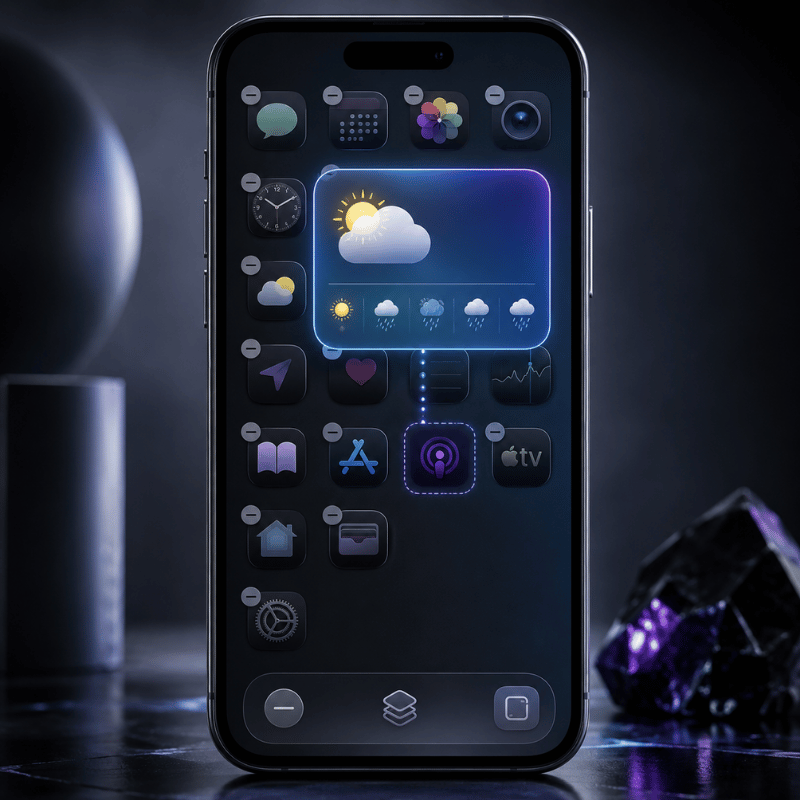
This is the part everyone searches for first, so let’s make it foolproof. The native Weather app already includes Home Screen widgets, so you don’t need to download anything to get started.
- Touch and hold an empty area of your Home Screen until the apps start to jiggle.
- Tap the Edit button (or the +) in the top corner, then tap Add Widget.
- Search for Weather in the widget gallery.
- Swipe through the sizes, then tap Add Widget on the one you want.
- Drag it where you want it and tap Done.
To change the city it show, touch and hold the widget, tap Edit “Weather” (or Edit Stack if it’s in a group), choose My Location or search for a city, then tap outside the widget to finish. Want both your home city and a trip destination? Apple lets you add more than one Weather widget, so you can watch two forecasts side by side.
Drop the Weather widget into a Smart Stack and turn on Smart Rotate and Widget Suggestions. iOS then surfaces the forecast right when you tend to check it (your morning commute, say) and tucks it away the rest of the day.
Weather Widget Sizes Explained: What Each One Shows
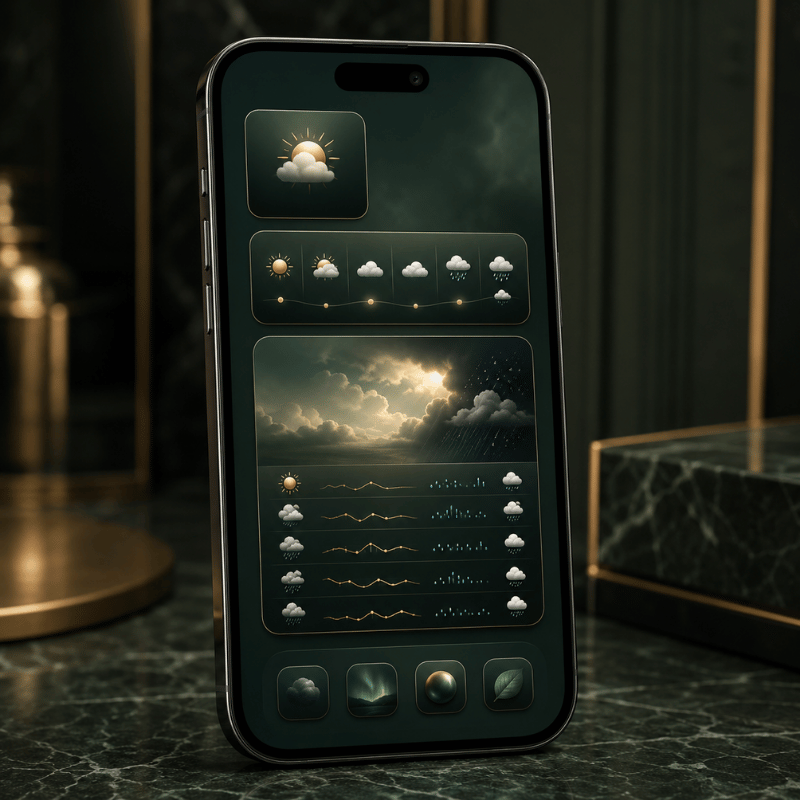
Picking a size is really picking how much information you want without tapping in. Bigger isn’t always better; a small widget you actually read beats a large one that crowds out your apps. Here’s what each native Weather widget surfaces.
| Widget size | What it shows | Best for |
|---|---|---|
| Small (2×2) | Current temperature, conditions, high/low | A clean home screen where weather is one tile among many |
| Medium (4×2) | Current conditions plus an hourly forecast strip | Knowing when rain starts or stops today |
| Large (4×4) | Hourly plus a multi-day outlook, often with precipitation, feels-like, and more detail | Planning the week without opening the app |
| Lock Screen (inline / circular) | Temperature, conditions, or a single metric like UV or air quality | A zero-tap glance every time you wake the phone |
Rule of thumb: if you check weather to decide what to wear, a small or medium widget is plenty. If you check it to decide what to plan, go large. Many third-party apps add extra fields here, wind, humidity, sunrise and sunset, air quality, which is exactly where the “best widget” question gets interesting.
Add Weather to Your Lock Screen and StandBy
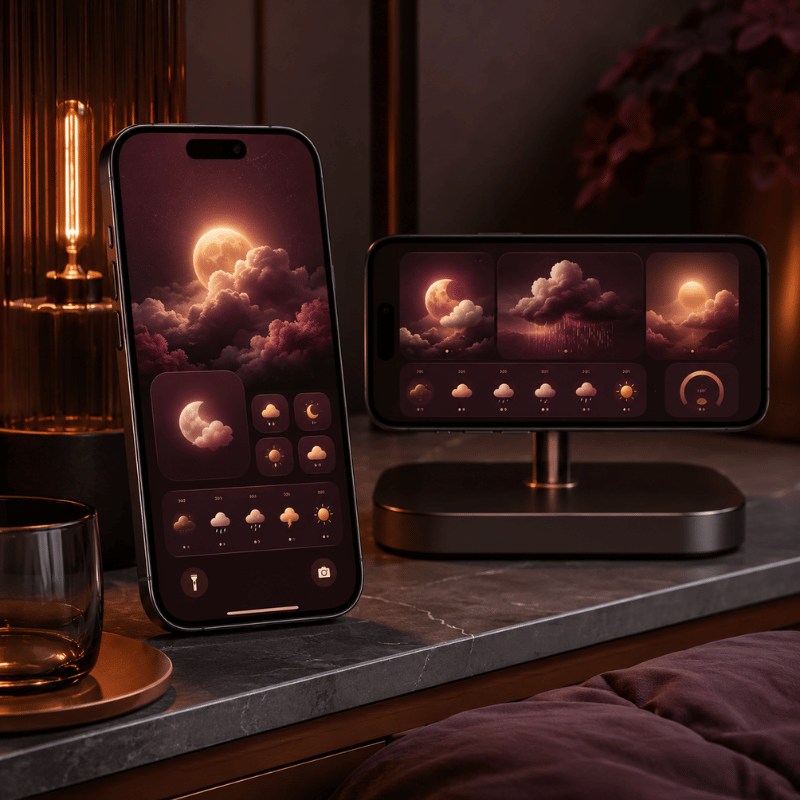
Almost everyone sets up the Home Screen widget. Yet the other two surfaces are where the real payoff live, because you see your iPhone Lock Screen dozens of times a day without ever unlocking.
Lock Screen weather (the zero-tap check)
- Touch and hold your Lock Screen, then tap Customize (tap + to make a new one).
- Tap the widget area beneath the clock.
- Choose Weather and add the temperature, conditions, or a detail like UV index.
- Tap Done.
StandBy weather (the nightstand view)
When you turn your iPhone on its side while it charges, StandBy mode turns it into a small smart display. Swipe to the widget face, touch and hold, and add a Weather widget so the forecast greets you in the morning before you’ve picked up the phone. It’s the most underused weather surface on iOS, and it costs nothing to set up.
All three surfaces pull from the same Location Services permission. If one shows the wrong city or goes blank, the fix is almost always location — more on that below.
The Best Weather Widgets for iPhone in 2026
Apple’s native widget is reliable and free, but it’s deliberately minimal. If you want richer data, smarter layouts, or just more personality, a third-party app is the move. Here’s an honest read on the names that keep coming up among iPhone users.
| App | What it’s good at | Cost |
|---|---|---|
| Apple Weather (native) | A free, accurate starting point, now richer after Apple folded in Dark Sky data. Keep it if you mainly want temperature and rain. | Free |
| CARROT Weather | The power user’s pick: deeply customizable widgets, radar, and a snarky personality you can dial up or off. Reddit’s r/ios crowd keeps calling it “the best by far.” | Free + paid tiers |
| Hello Weather | Clean, calm, and glanceable, with a choice of forecast data sources. A 2025 review crowned its widgets for design. | Freemium |
| The Weather Channel / WeatherBug | Built for severe-weather alerts and radar when storm tracking matters more than aesthetics. | Free (ad-supported) |
“The No. 1 reason Hello Weather tops my list is its clean, concise, glanceable design, whether in-app or through its widgets.”
Yahoo Tech review, 2025
Don’t choose a weather widget on looks alone. Two widgets can look identical and pull from different forecast models, refresh on different schedules, and disagree by several degrees. Check the data source and how often it updates before you commit.
Free vs Paid Weather Widgets: What You Actually Get
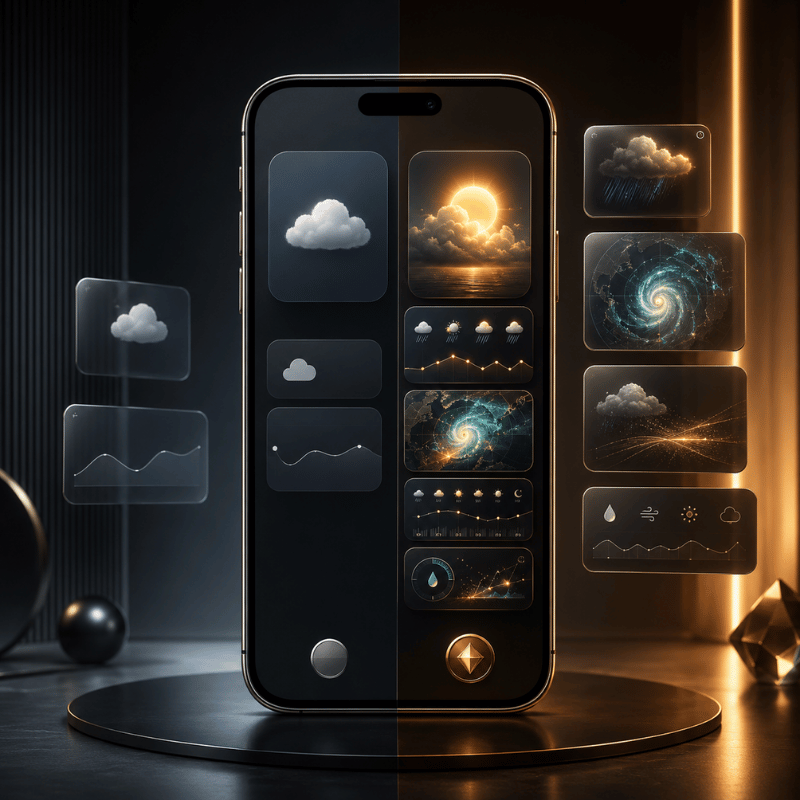
Most of these apps are free to install, then ask for a subscription to unlock the good widgets. Before you pay, it helps to know what the money actually buy, and to clear up a pricing point that confuses a lot of people.
| Feature | Free tier | Paid subscription |
|---|---|---|
| Basic widget sizes | Yes | Yes |
| Extra layouts & customization | Limited | Full |
| Radar, alerts, longer forecasts | Often locked | Unlocked |
| Ads removed | No | Usually yes |
The pricing confusion is worth flagging. CARROT Weather, for example, has more than one paid tier: an entry-level premium plan reported at around $4.99/year by The Sweet Setup, and a higher “ultra” tier that costs roughly ten times that. People who quote “$50 a year” are usually looking at the top plan, not the one most users need. (Prices were accurate as of early 2026 and change often, so confirm in the App Store before subscribing.)
The honest answer: if the free native widget covers your needs, keep it. Pay only when you want a specific thing the free tier won’t give you, better radar, a custom layout, or a look that matches your aesthetic.
How to Make an Aesthetic Custom Weather Widget
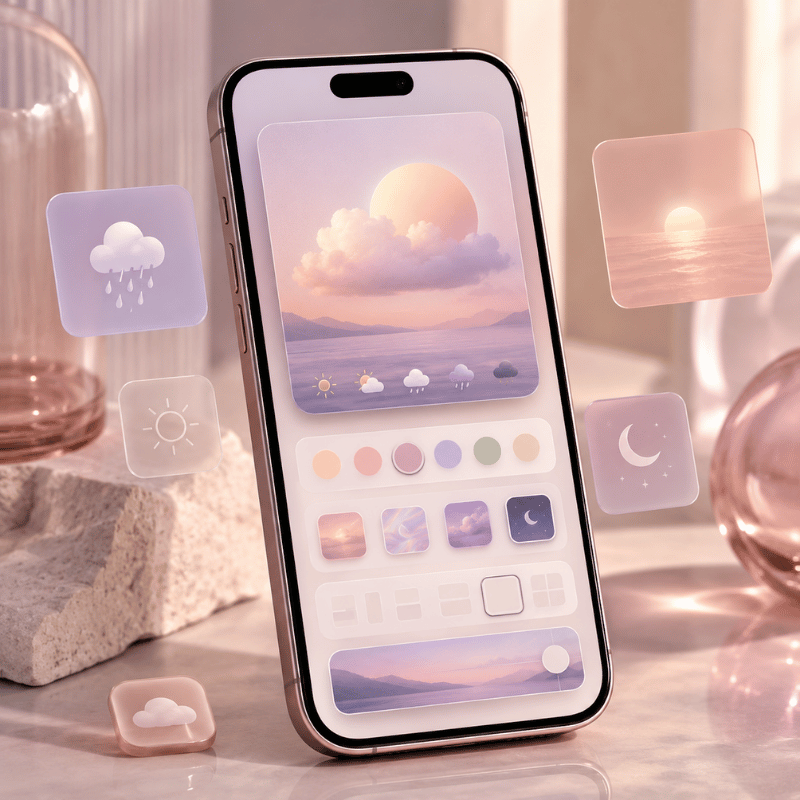
Here’s the gap the big weather apps leave open: they give you their design, not yours. If you’ve built a coordinated theme and the stock weather widget clashes with it, a customization app let you style the widget to match. That’s where custom iPhone widgets come in.
In iScreen’s widget library, an aesthetic weather widget is less about more data and more about fit: you pick the background color, the font, and how minimal the layout is, so the forecast read like part of your wallpaper instead of a sticker on top of it. A few combinations our users reach for again and again:
- ✔Minimal monoa single temperature number on a flat background, paired with a clean wallpaper.
- ✔Pastel matchwidget tint pulled from your wallpaper’s palette so nothing fights for attention.
- ✔Small-and-stackeda tiny weather tile beside a clock or a countdown widget in a tidy two-up layout.
The principle is the same one behind any good home screen ideas: pick one accent color and let the weather widget echo it, rather than introducing a new one. A widget that belongs to your theme always looks more deliberate than the default.
Weather Widget Not Working? Fixes for the “Disappeared” Widget

If your weather widget went blank, froze on yesterday’s forecast, or vanished after an update, take a breath: this is common and almost always fixable in a couple of minutes.
Where Did My Weather Widget Go?
Most of the time, it didn’t get deleted, an iOS update reset it. Major updates can rearrange the Home Screen, clear a widget’s saved location, or pause the permission it need to refresh. So the widget isn’t gone; it’s sitting there without the location access it needs to draw a forecast, which makes it look blank or stuck. That’s why re-adding it or re-granting location usually brings it straight back, no app reinstall required.
- ✔Check Location Services. Settings > Privacy & Security > Location Services > Weather. Set it to While Using the App (or Always) and turn on Precise Location.
- ✔Turn on Background App Refresh. Settings > General > Background App Refresh, so the widget can update when you’re not looking at it.
- ✔Re-add the widget. Remove it, then add it again from the widget gallery to force a fresh start.
- ✔For a blank Lock Screen weather wallpaper: touch and hold the Lock Screen, tap Customize, and re-accept the location prompt. iPhone users report this single step fixes the missing-location look.
- ✔Restart, then update. A quick restart clears most glitches; installing the latest iOS clears the rest.
Work down that list in order and you’ll catch the cause well before the last step. To rebuild the widget exactly how you like it afterward, the same steps you used to customize your iPhone apply.
What iOS 26’s Liquid Glass Means for Your Weather Widget
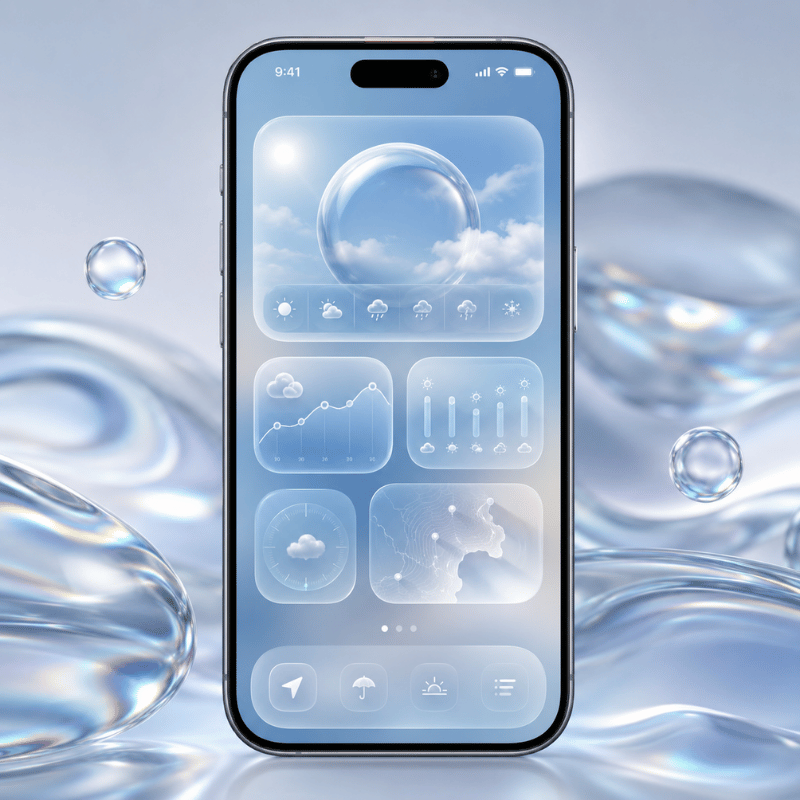
If your weather widget suddenly looks translucent, refracting the wallpaper behind it, that’s Liquid Glassthe headline design change in iOS 26. Widgets, icons, and the Lock Screen now use a glassy material that bends light and adapts to whatever sits behind it. The weather widget is one of the most-cited examples because its background change with conditions.
You’re not stuck with one look. To change how widgets and icons render, touch and hold the Home Screen, tap Edit, and switch the appearance between Default, Clear, and Tinted to suit your wallpaper. And if the glass effect ever hurts readability, you can tone it right down under Settings > Accessibility > Display & Text Size > Reduce Transparency.
The practical takeaway for 2026: a weather widget’s legibility now depends on your wallpaper as much as the widget itself. If yours is hard to read on a busy background, switch to Tinted or turn on Reduce Transparency, and if you want a glass look that still read cleanly, a custom widget with a solid backing plate sidesteps the problem entirely. Liquid Glass made aesthetic widget choices matter more, not less.
Frequently Asked Questions
Q: Does the iPhone have a built-in weather widget?
View Answer
Q: Why is my iPhone weather widget not updating?
View Answer
Q: Can I add a weather widget to my iPhone Lock Screen?
View Answer
Q: What is the best free weather widget for iPhone?
View Answer
Q: How do I get a bigger weather widget on my iPhone?
View Answer
Q: How do I change the location on my weather widget?
View Answer
Why We Wrote This Guide
iScreen builds iPhone customization tools, so we spend our days watching how people set up widgets, including where the weather widget breaks. This guide pull together Apple’s official steps, real fixes iPhone users shared for the “disappeared” widget, and what iOS 26’s Liquid Glass changes, so you can set weather up once across all three surfaces and stop fiddling with it.
Want a weather widget that matches your wallpaper instead of fighting it?
References & Sources
- Use Weather widgets on iPhoneApple Support
- Add, edit, and remove widgets on iPhoneApple Support
- Create a custom Lock Screen on iPhoneApple Support
- How to customize your iPhone Home Screen for iOS 26’s Liquid GlassTechCrunch
- iOS 26 setting to customize the Liquid Glass design (Reduce Transparency)CNET
