
.png)
Aesthetic Clock Widgets for iPhone: Best Designs & How to Set Up
Updated July 2026 · Current iPhone, iOS 26, and iOS 18 guidance
Aesthetic clock widgets for iPhone are visual time displays designed to coordinate with a wallpaper, icon set, and placement surface. They look best when the typeface, color, and amount of information match the wallpaper, not when the clock is simply the most decorative option in the gallery. Start with a minimalist digital clock for a busy background, a flip or pixel clock for a quiet retro layout, or an analog face for a classic screen. Then check that the design is actually available for the Home Screen, Lock Screen, or StandBy surface where you want to use it.
Quick Picks
| Best clean layout | Minimalist digital clock with medium-weight numerals |
| Best retro look | Flip clock or pixel clock on a plain gradient |
| Best classic look | Round analog clock with a simple face |
| Best cute look | Pastel clock paired with a low-detail wallpaper |
| Best transparent effect | Glass-style clock tested in both light and dark appearance |
| Best information-rich option | Time-and-date dashboard with one extra datum, not a crowded mini control panel |
What Makes a Clock Widget Aesthetic and Easy to Read?
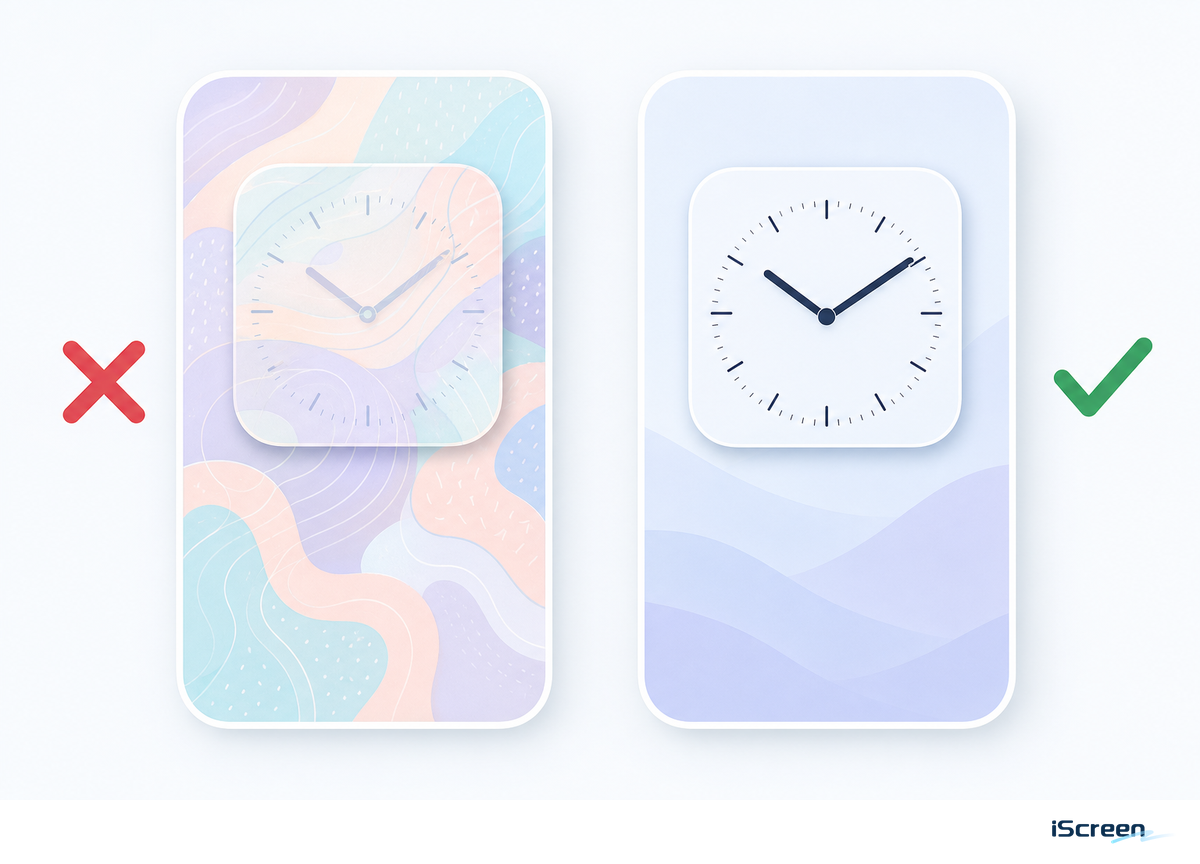
An attractive clock needs four things working together: a numeral shape that suits the mood, enough weight to survive the wallpaper, clear separation between foreground and background, and a sensible amount of information. Thin serif numerals can look elegant in a preview and then vanish over clouds, faces, or bright highlights. Heavy digital numerals stay readable, but they can dominate a soft layout if the widget is too large.
Use the wallpaper’s focal point as your boundary. When the subject sits in the upper half, move the clock lower or choose a compact size. For an already detailed background, use fewer colors and less ornament. Apple provides display controls such as Increase Contrast and Reduce Transparency because appearance and readability don’t always move in the same direction. Apple’s display and text guide is worth checking if a pale, glass, or low-contrast design looks different on your phone than it did in the preview.
Practical rule: a clock should either improve at-a-distance readability, add useful time-and-date context, or deliberately anchor the composition. Without one of those roles, the status-bar time may be the cleaner choice.
Best Aesthetic Clock Widget Designs for iPhone
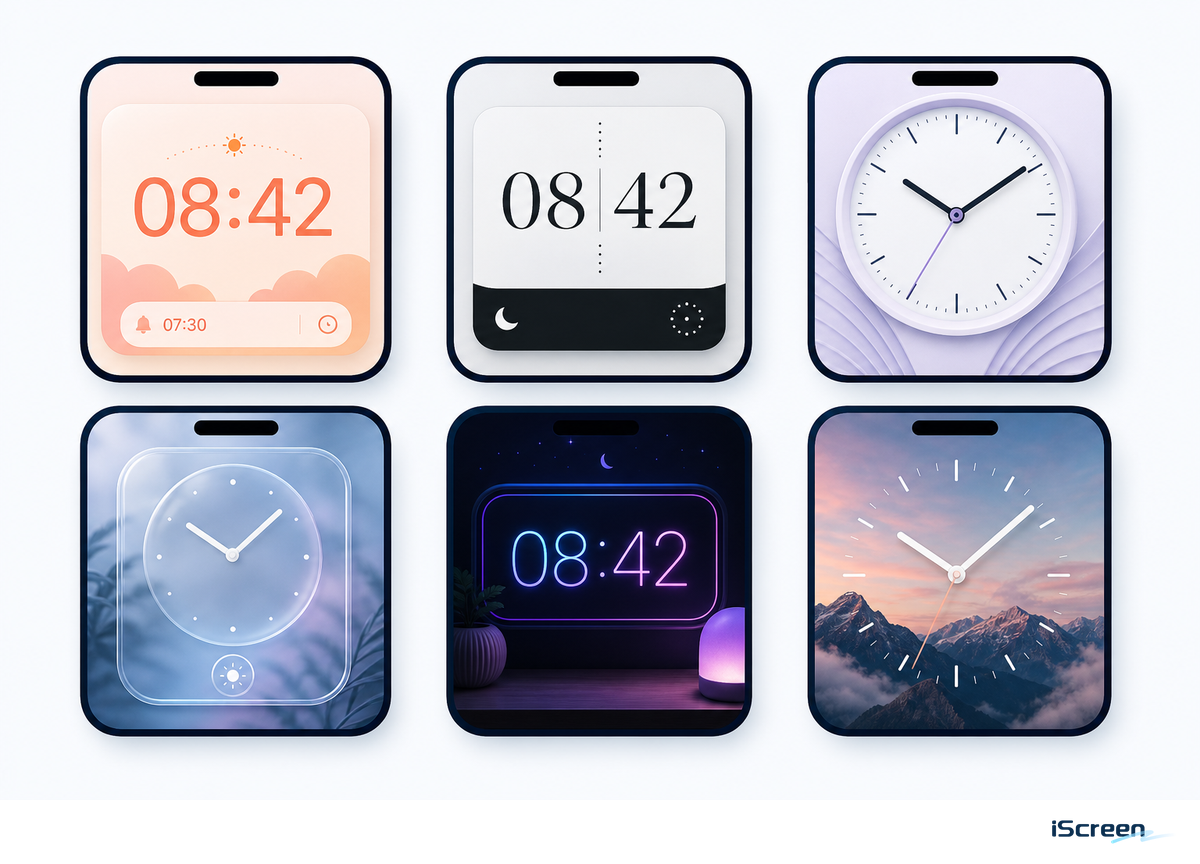
There’s no universal winner. This table treats each clock as part of a full screen, not an isolated product thumbnail. iScreen’s current widget library includes digital and Lock Screen clock options, while the App Store listing shows the wider customization scope, ratings and reviews, version history, in-app purchases, and app privacy information in one place. Review the privacy policy and App Store privacy label for any widget app before you decide that visual style is the only tradeoff.
Before downloading apps like these, check three details: whether the design is completely free or part of an in-app purchase, whether the “What’s New” notes show recent bug fixes, and whether the supported devices match yours. Reviews describing the exact clock and iOS version are more useful than a generic “great app” comment. App Store distribution also doesn’t mean every marketing statement is verified by Apple. This guide focuses on iPhone; some WidgetKit families also work on iPad, but a design shown for iPhone and iPad still may not support every iPhone surface.
| Clock type | Best wallpaper match | Best surface | Useful size | Watch for |
|---|---|---|---|---|
| Minimalist digital | Photos, gradients, or quiet textures | Home Screen | Small or medium | Ultra-thin numerals can disappear |
| Retro flip clock | Solid, film-grain, or muted gradient | Home Screen or StandBy | Medium or full screen | The panels become noisy over busy photos; some listings spell the style “FlipClock” |
| Classic analog clock | Neutral, architectural, or editorial | Home Screen | Small or medium | Tiny hands are harder to read at a glance |
| Transparent or Liquid Glass | Low-detail wallpaper with a stable color field | Home Screen | Medium | Tint, clear mode, and accessibility settings can change the effect |
| Pixel clock | Game, cyber, or monochrome retro art | Home Screen | Small | Mixed icon styles break the illusion quickly |
| Pastel or cute clock | Soft illustration or plain pastel | Home Screen or Lock Screen slot | Small | Low contrast can turn cute into hard to read |
| Information dashboard | Plain dark or light background | Home Screen or StandBy | Medium | A countdown can help you keep track of time, but too many fields compete with the main display |
| World clock | Plain map, travel, or neutral background | Home Screen or StandBy | Medium | Extra zones need clear city labels |
| Timer clock | Minimal work or study layout | Home Screen | Small or medium | A task timer is not the same as a continuously updating wall clock |
Our July 2026 US DataForSEO Google Ads batch recorded 1,600 estimated monthly searches for both “iPhone clock widget” and “clock widget for iPhone,” compared with 30 for “analog clock widget iPhone”; the same batch put “add widgets to iPhone” at 5,400. These are directional search estimates from one current batch, not traffic forecasts. They don’t make analog clocks unattractive; they explain why a digital clock widget is the most useful default and analog appears as a deliberate style choice. For a broader list of screen widgets beyond clocks, see our best widgets for iPhone guide.
A first-party 90-day review of 939 query-by-page rows found established visibility for generic widget, Home Screen, and Lock Screen pages, but no strong clock-specific owner. That is why this guide connects clock design and setup to those broader resources instead of duplicating them.
The 4-Input Clock Style Fit Matrix
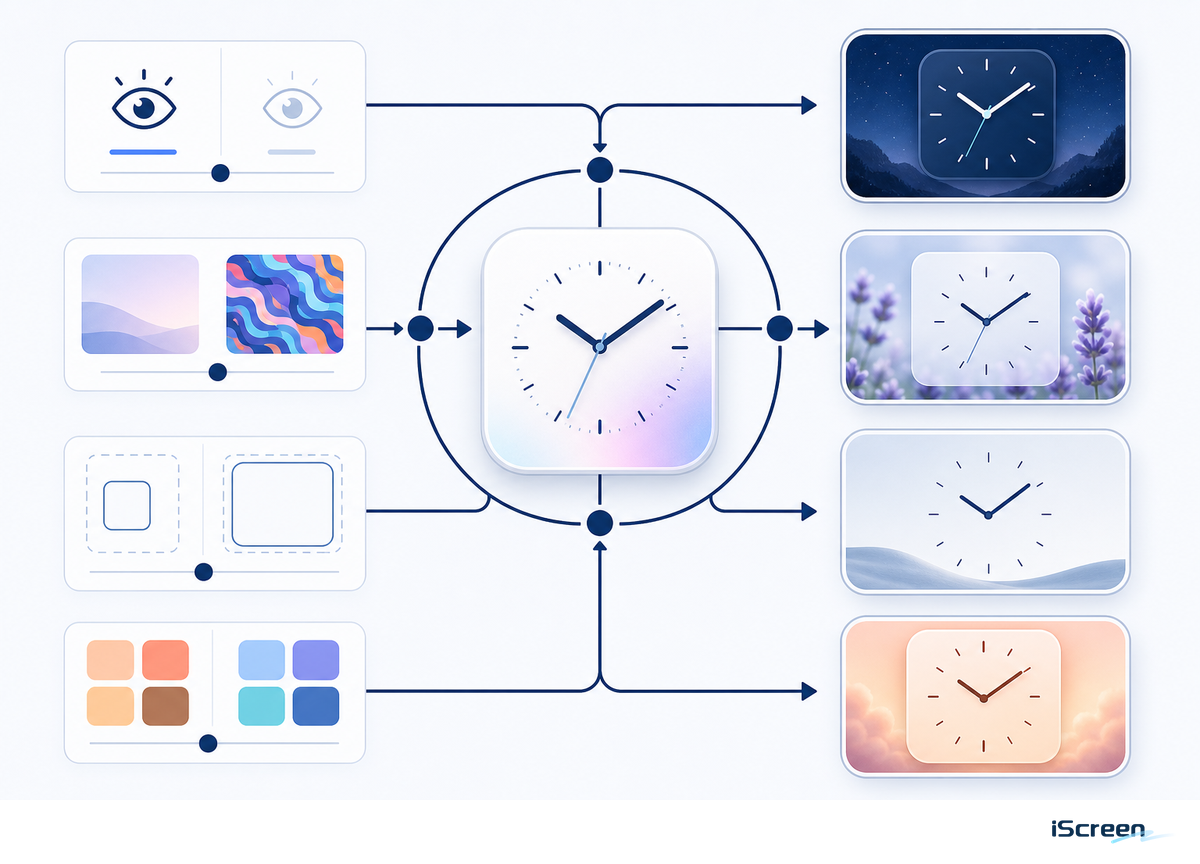
The 4-Input Clock Style Fit Matrix starts with what’s already on the screen: wallpaper complexity, visual goal, information density, and placement surface. It doesn’t guarantee that one custom clock widget is offered in every location: Apple’s WidgetKit guidance distinguishes system widgets from accessory widgets, and the UI rendering can change by context. Apple’s widget-background guidance also explains that the system can remove or alter a widget background in contexts such as StandBy and accessory placements. Choose the desired surface first, then confirm that iScreen offers that design and widget family there. Community user tips can suggest a look, but the availability check belongs inside the app.
| Your screen | Recommended | Avoid first | Availability check |
|---|---|---|---|
| Busy photo + time only + Home Screen | Bold minimalist digital | Transparent glass or detailed analog face | Small or medium system widget |
| Quiet gradient + decorative goal + Home Screen | Flip, pixel, or analog | Dense information dashboard | Matching saved size in iScreen |
| Portrait wallpaper + compact Lock Screen area | Simple accessory clock or date | A design intended only for a medium Home Screen tile | Lock Screen accessory family |
| Nightstand + at-a-distance viewing + StandBy | Large digital or restrained flip clock | Fine analog hands or multi-panel dashboard | StandBy-compatible clock or small widget |
For a cute layout, apply the same logic before choosing illustrations. Our cute aesthetic widgets guide covers full theme pairing; here, the clock-specific rule is simpler: one clear time display, one visual motif, and no competing decorative panel beside it.
The One-Glance Contrast Test
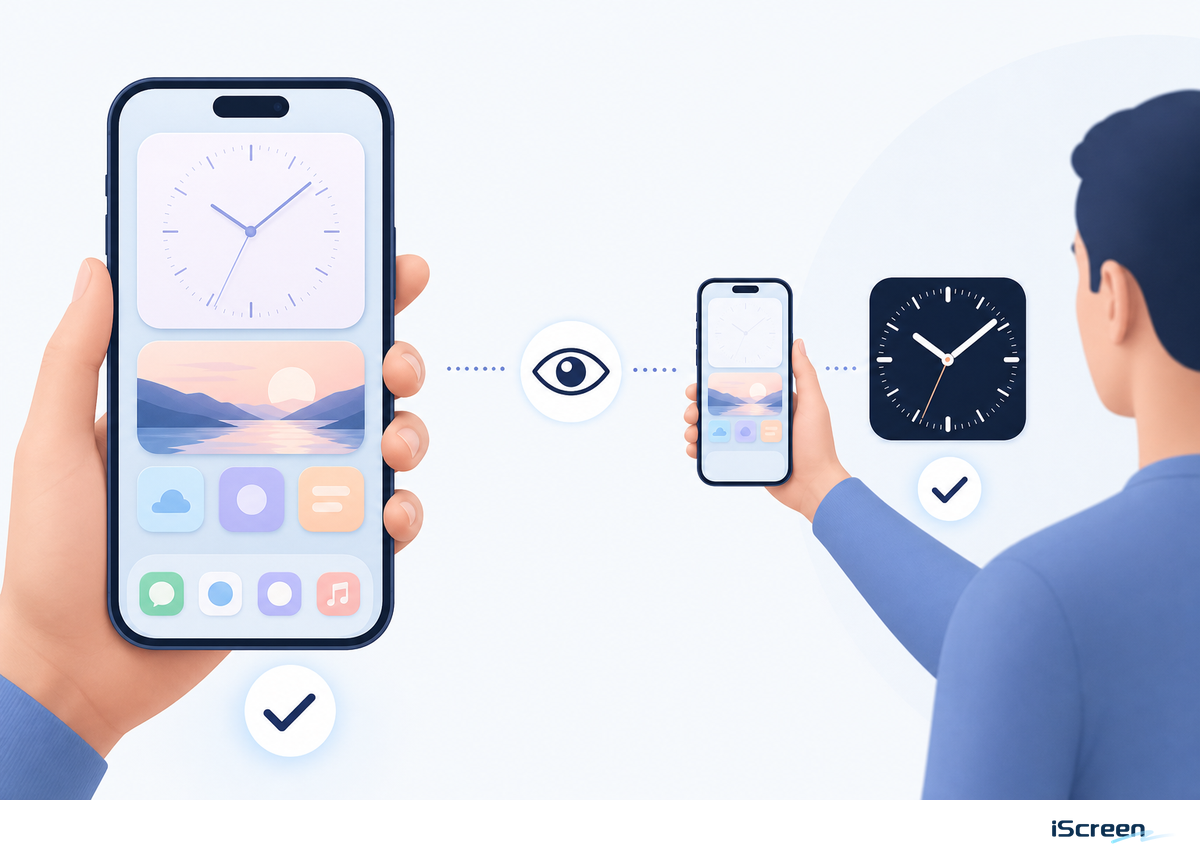
The One-Glance Contrast Test takes less than a minute after you place the widget:
- Hold the phone at arm’s length. Needing longer than a glance to read the time means the numerals are too light, too small, or too close to the wallpaper color.
- Move the widget across the wallpaper’s brightest area. Any design that only works in one dark corner is fragile; decide whether moving it harms the composition.
- Check both light and dark appearance. Also check tint or clear mode and any enabled Increase Contrast, Reduce Transparency, Color Filters, Bold Text, or Display Zoom setting; Apple documents these controls in its display and text settings guide.
Adjust in this order: move the position, change the widget size, add a quiet backdrop, then switch the numeral weight or style. This preserves the chosen aesthetic before replacing it. Transparent clock backgrounds can look integrated in one appearance and mismatched in another, so test the placed widget, not just its in-app preview.
Do not force a large clock into every layout
If the status-bar time is already enough and the clock adds no useful date, time zones, or distance readability, leave the space open. Negative space can make the rest of the Home Screen feel more intentional.
How to Add an iScreen Clock Widget to the Home Screen
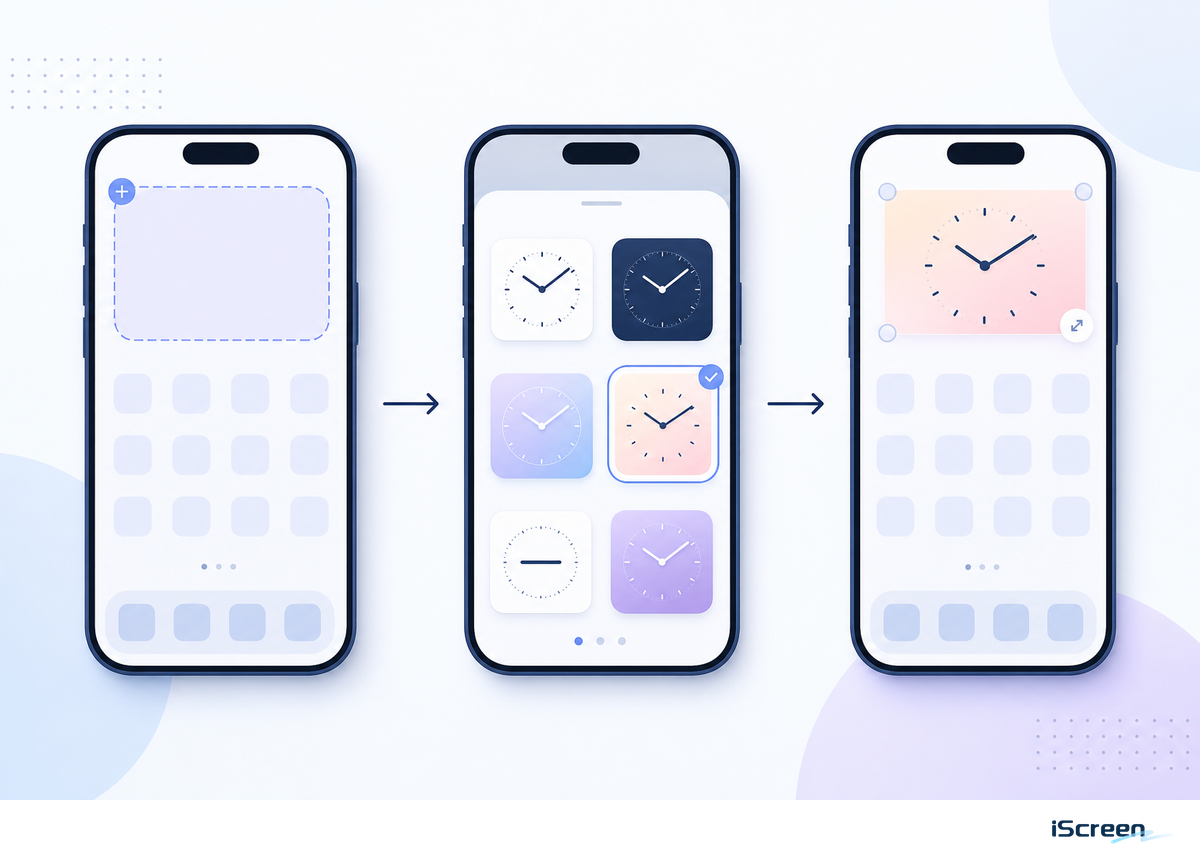
First, open iScreen, browse or search for the clock you want, customize its color or content, and save it to My Widgets. Then follow Apple’s current Home Screen widget flow.
- Touch and hold the Home Screen background until the items begin to move.
- Tap Edit, then Add Widget.
- Search for iScreen and open it.
- Choose the same size as the clock you saved, then tap Add Widget.
- Move the tile into position and tap Done.
- If the wrong saved design appears, touch and hold it, choose Edit Widget, and select the current widget.
iScreen shows the exact assignment step in the full customization guide. When you’re adding several home screen widgets, the broader iPhone widget roundup can help you decide what earns the second slot.
The Three-Zone Clock Layout
Divide the screen into a time zone, an app zone, and breathing room. Put the clock in the quietest zone, keep one supporting widget at most, and let the wallpaper remain visible somewhere.
If the clock needs to stay visible, don’t place it inside a Smart Stack: iOS can rotate the visible widget based on time, location, and activity. Today View is another supported location, but access from a locked phone depends on your Allow Access When Locked settings, so avoid exposing sensitive calendar or location data there.
How to Add or Style a Clock on the Lock Screen
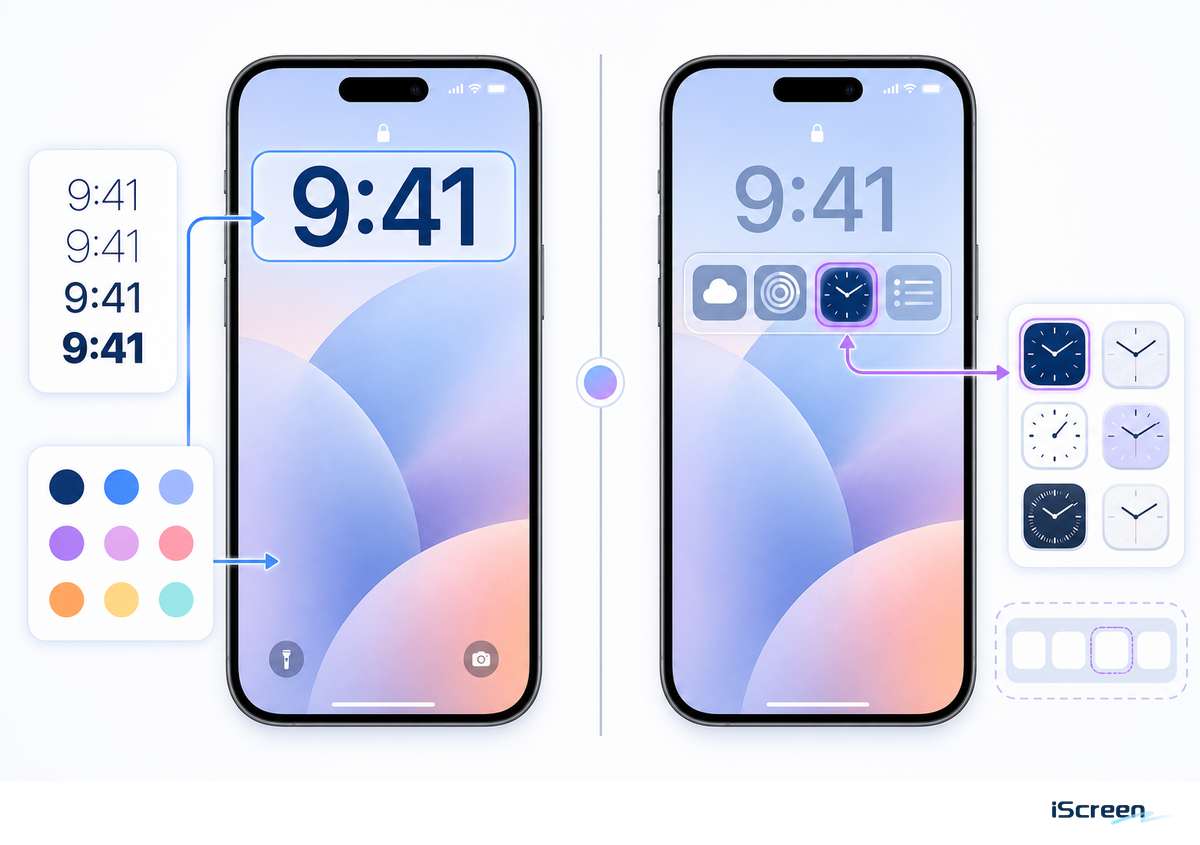
There are two different clocks here. The large built-in Lock Screen clock is part of Apple’s system editor; a third-party Lock Screen widget occupies an available widget area and does not replace that large system clock. That distinction prevents the most common expectation mismatch.
Style Apple’s main clock
- Touch and hold the Lock Screen, then unlock the iPhone if asked.
- Tap Customize, choose the Lock Screen, and tap the clock.
- Adjust the available font, size, color, or transparency controls, then tap Done.
Add an iScreen accessory widget
Save a compatible design in iScreen first. In the Lock Screen editor, tap Add Widgets or the widget area, choose iScreen, then add a supported accessory size. That same Home Screen design may not exist in this smaller format, and iOS can render Lock Screen widgets with a different vibrant treatment. Some listings use “Lockscreen” as one word, but the platform distinction is the same. For more placement options, use our dedicated Lock Screen widgets guide; its cute widget combinations also offer theme ideas.
Use StandBy for a Full-Screen Aesthetic Clock
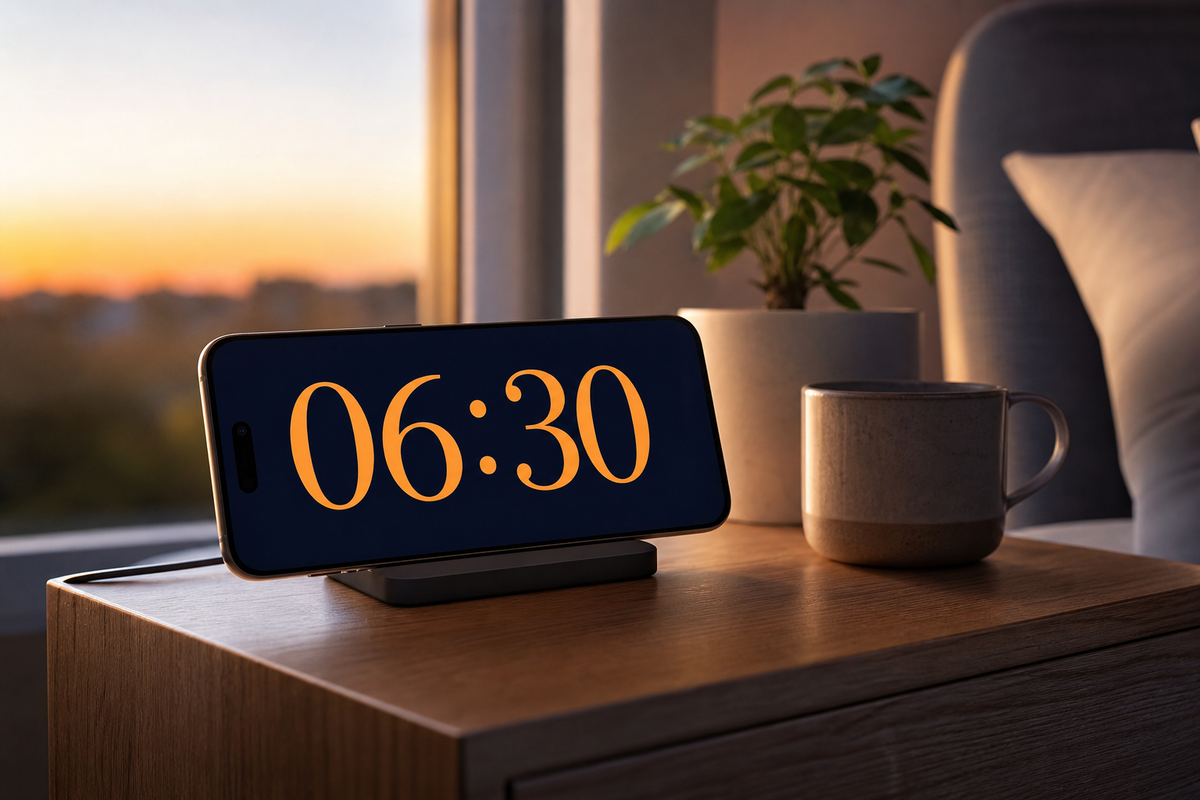
StandBy mode, introduced in iOS 17 and refined since, is the best fit when the clock needs to work as a nightstand display, desk clock, or full-screen screensaver-style view. It’s a system surface, not simply a large copy of every Home Screen clock. Designs advertised for “Home Screen and StandBy” still need the app’s supported-family check.
- Open Settings > StandBy and turn it on.
- Connect the iPhone to a charger, place it on its side, and keep it stationary.
- Press the side button if needed, then swipe between widgets, photos, and clocks.
- Choose a restrained clock for distance viewing and test Night Mode in the room where you’ll use it.
Apple’s current StandBy guide notes that supported Always-On models can keep the view visible. On other iPhones, StandBy can sleep and require a tap, a nudge to the surface, or Siri to wake it, so don’t judge a clock app as broken just because the full-screen view doesn’t remain on. Our complete iPhone StandBy guide covers the deeper settings.
Fix a Clock Widget That Is Missing, Blank, or Not Updating
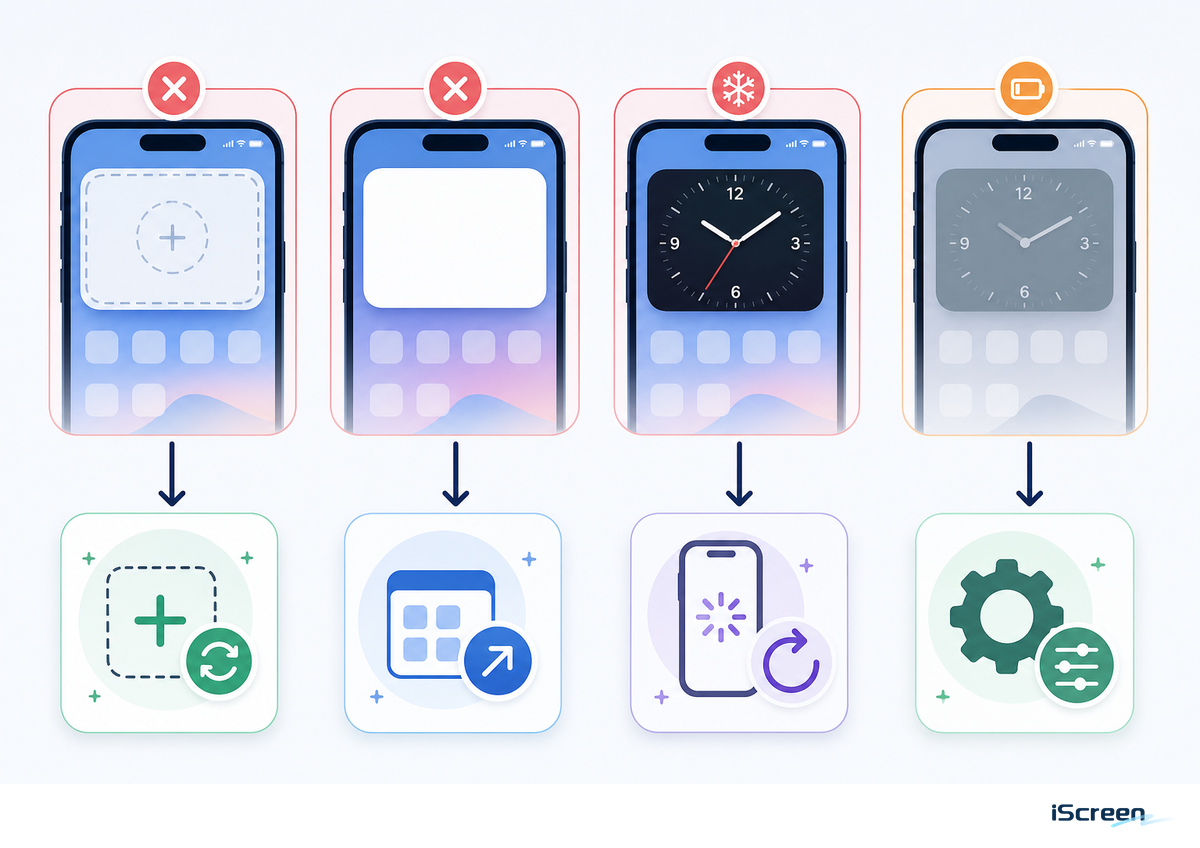
Start with the symptom. Stale time can come from the saved-widget assignment, the widget family’s supported context, iOS scheduling, or an app-specific bug. Apple Developer documentation also shows that supported dynamic date and time views can continue updating while visible even when the widget extension isn’t running, so “iOS refresh delay” isn’t a complete diagnosis.
| Symptom | Check first | Next fix |
|---|---|---|
| iScreen is missing from the gallery | Open iScreen once and confirm the widget was saved | Search again, then restart the iPhone if it remains missing |
| The wrong clock appears | Confirm the placed size matches the saved size | Touch and hold > Edit Widget > choose the saved clock |
| The clock is blank | Open iScreen and verify the design still loads in-app | Remove and re-add the widget; check version history for recent bug fixes |
| The time looks stale | Open the app and check whether that design supports a dynamic time display on this surface | Reassign or re-add it; update iOS and the app before treating it as a defect |
| A transparent clock no longer matches | Check light/dark, tint/clear, and accessibility display settings | Recreate the background or switch to a solid/outlined clock |
The iScreen setup and troubleshooting page covers opening the app to refresh, re-adding a widget, and restarting when an item is missing. No third-party developer should promise that every widget behaves like the Clock app or updates second by second in every context.
Frequently Asked Questions
How do you get aesthetic widgets on iPhone?
Install a widget app, save a design that matches your wallpaper, then add its matching size from the Home Screen editor and place it in a quiet area.
Can you customize the clock widget on an iPhone?
Yes. Customize Apple’s main clock in the Lock Screen editor, or configure a third-party clock in its app before adding a supported widget size to the screen.
How do you add a cute clock widget?
Choose a pastel or illustrated clock, save it in the widget app, add the matching size, and place it over a quiet part of the wallpaper.
Do clock widgets drain battery?
Normal clock widgets use iOS-scheduled updates rather than running continuously, but the specific widget, update behavior, and time the display remains on can still affect battery use.
How do you display different clocks on iPhone?
Save a different design for each placed widget.
Choose the surface before the style
A clock is easiest to live with when it solves the job of its surface: quick glance on the Home Screen, compact context on the Lock Screen, or distance viewing in StandBy. That functional fit decides whether an elaborate design is worth paying for. Use the Fit Matrix, run the One-Glance Test, and then browse iScreen’s clock and widget designs for an option available in the size you need. Dynamic Island is a separate iPhone surface and isn’t a substitute for a clock widget.
For a complete setup walkthrough, continue with how to customize iPhone widgets. When the Lock Screen is your priority, the Lock Screen widget guide goes deeper; for a bedside or desk setup, use the StandBy mode tutorial.
References & Sources
- Add, edit, and remove widgets on iPhone Apple iPhone User Guide.
- Personalize your iPhone Lock Screen Apple iPhone User Guide.
- Use StandBy on iPhone Apple iPhone User Guide.
- Displaying dynamic dates in widgets Apple Developer Documentation.
- Developing a WidgetKit strategy Apple Developer Documentation.
- Displaying the right widget background Apple Developer Documentation.
- Keeping a widget up to date Apple Developer Documentation.
- How to install iScreen desktop widgets iScreen Support.
