Couple Widget Apps: Best Ways to Stay Connected on Your iPhone

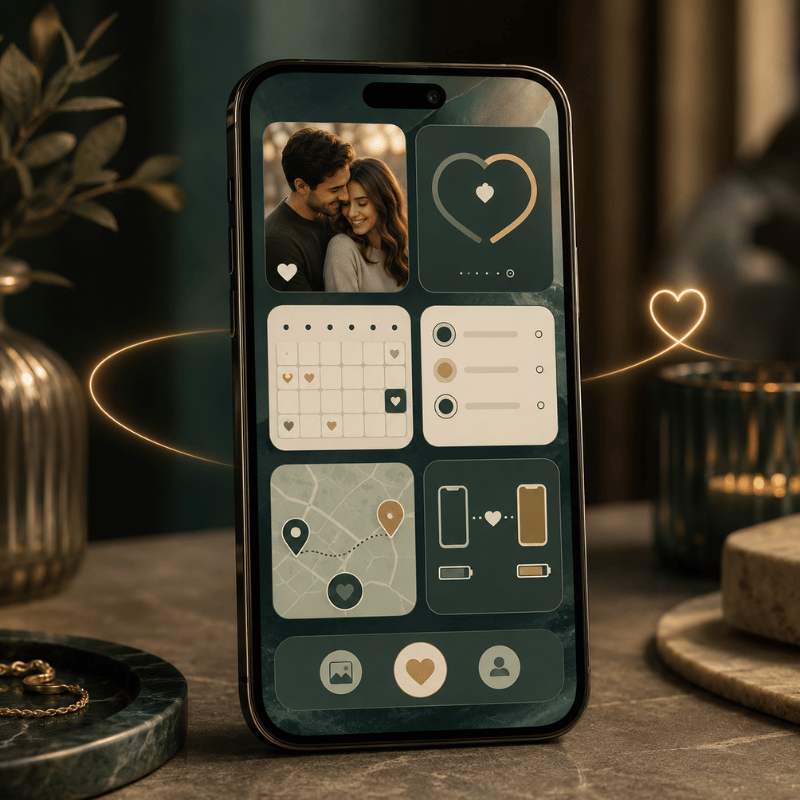
A couple widget app puts a small, shared panel on you and your partner’s iPhone Home Screen or Lock Screen, showing how far apart you’re, how many days you’ve been together, a live photo, or a quick mood. This guide breaks down the four types, names the apps worth downloading, and shows you exactly how to add one (on both phones).

Short answer: A couple widget app is a third-party app, iPhone has no built-in couple widget, that shows shared info like distance, days together, or a photo on both partners’ screens. The best one depend on your situation: distance for long-distance, a days-together counter for milestones, or a photo widget for daily connection.

Key points

  • There’s no native iPhone couple widget, every option need a third-party app, and both partners must install and pair it.
  • Distance widgets refresh on a schedule, not live, and they need Location permission to work.
  • Four widget types cover almost every couple: distance, days-together/countdown, photo/doodle, and status/mood.
  • iOS 26’s redesigned Lock Screen makes a couple widget glanceable without unlocking, a real reason to move it off the Home Screen.

Couple Widget Apps at a Glance

What it shows Distance apart, days together, live photos, or mood/status
Where it lives Home Screen, Lock Screen, StandBy, or Today View
Both partners needed? Yes — install + pair on each phone
Platforms iOS and Android (cross-platform pairing varies by app)
Free tier? Usually yes; premium unlocks extra styles and removes ads

What Is a Couple Widget App?

What Is a Couple Widget App?

A couple widget app is a relationship app whose main feature is a widget, a glanceable tile on your iPhone, that mirrors a piece of shared information between two partners. Instead of opening a chat, you see the thing itself: the miles between you, your running “days together” count, the photo your partner just sent, or a one-tap mood. Apple’s own widgets pull live data from apps onto your iPhone Lock Screen and Home Screen; a couple app simply supplies a widget built for two people who are linked.

The important detail most people miss, and the most common mistake when they start, is that iPhone doesn’t ship with a couple or distance widget. According to Apple’s widget documentation, widgets come from the apps you install, so a couple widget always means downloading a third-party app and connecting it to your partner. The reason that matter is expectation: people search the built-in widget gallery for 10 minutes, find nothing, and assume their phone can’t do it. In practice it can, you just start from the App Store, not from Settings. That’s not a flaw, it’s the model, and it shapes everything below.

The 4 Types of Couple Widgets (and Which Fits Your Relationship)
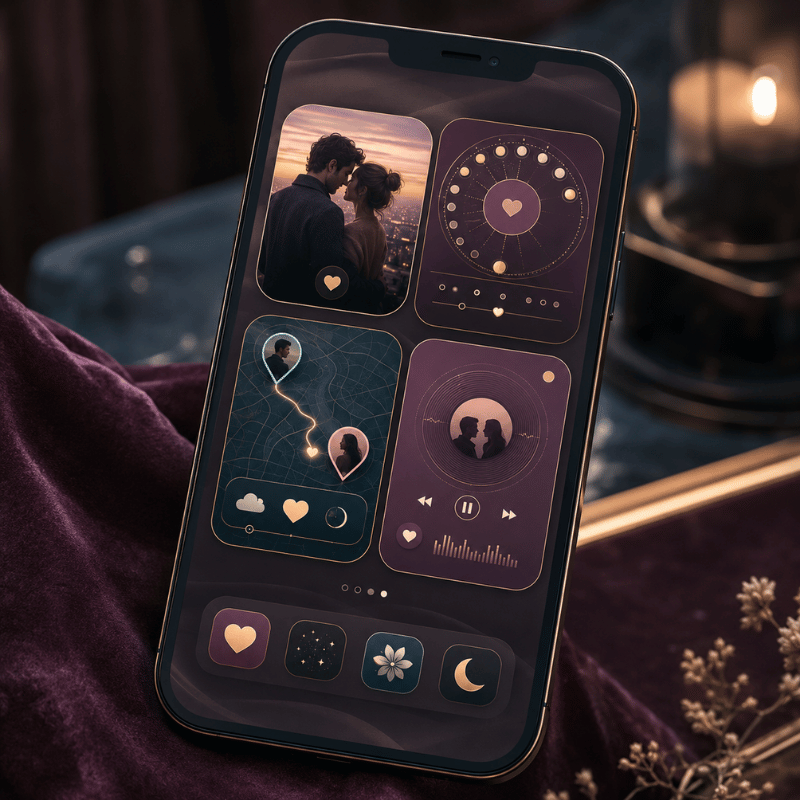
The 4 Types of Couple Widgets (and Which Fits Your Relationship)

Couple widgets look endless in the App Store, but they collapse into four jobs. We call this the 4-Type Couple Widget Matrix: four widget styles, each mapped to a relationship situation. Pick the row that sounds like you, and you’ve narrowed the field before downloading anything.

The 4-Type Couple Widget Matrix: four widget types matched to four couple situations.
Type What it shows Best for Best placement
Distance Miles/km between you, plus each time zone Long-distance couples Lock Screen
Days-Together / Countdown Days as a couple; anniversary countdowns Milestone-trackers Home Screen
Photo / Doodle A live photo or sketch your partner sends Daily-connection couples Home Screen
Status / Mood A mood emoji, a “miss you” note, or a love widget heart At-a-glance reassurance Lock Screen

Widget types compiled from current couple-app feature sets; placement reflects each type’s glance frequency.

The matrix matter because the apps don’t compete head-to-head, they specialize. A long-distance couple want the distance row; a pair tracking their first year wants the days-together row. Many people end up with two widgets: one functional (distance) and one emotional (a photo). If you want all four in a single app, couple widgets in an all-in-one customization app save you from juggling several downloads.

How to Add a Couple Widget on iPhone (Step by Step)
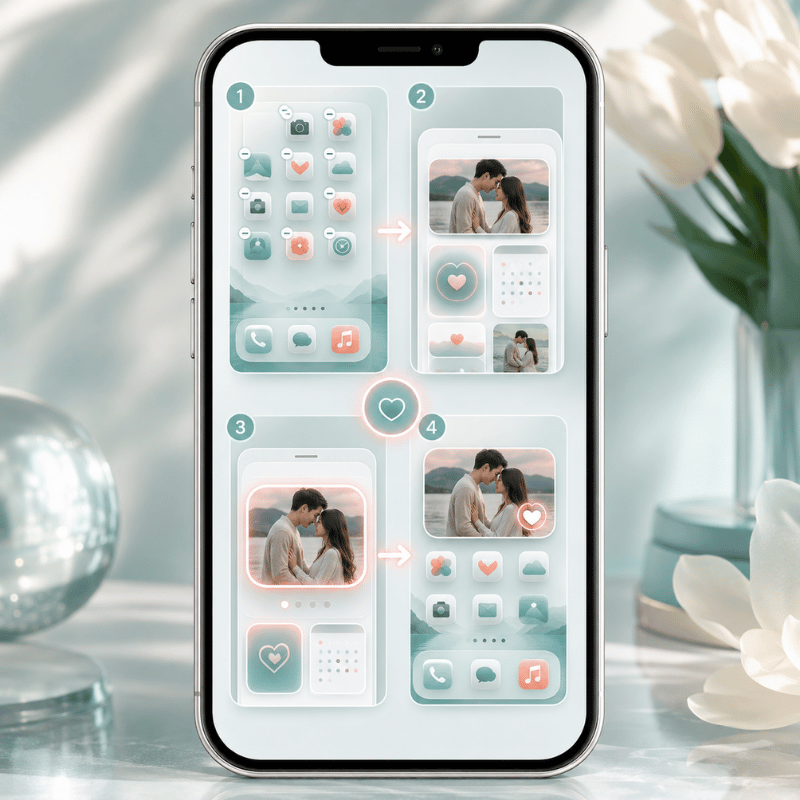
How to Add a Couple Widget on iPhone (Step by Step)

The steps to add a widget are the easy part; getting it to actually show your partner is where people stumble. Here’s the full flow, based on Apple’s official steps for adding and editing widgets.

  1. Both of you download the same couple widget app from the App Store.
  2. In the app, one partner generate a pairing code or invite link; the other enters it. You’re now linked.
  3. Touch and hold an empty area of the Home Screen until the apps jiggle, tap Edit in the upper-left, then tap Add Widget.
  4. Find the couple app, choose a widget size, tap Add Widget, then Done.
  5. To put it on the Lock Screen, touch and hold the Lock Screen, tap Customize, then Add Widgets and pick the couple widget.

📐 Setup Note

Lock Screen widgets arrived in iOS 16 and sit in a single row under the clock. There’s room for a limited set, so a couple widget competes with weather and battery for that space. If it won’t fit, remove one to make room, Apple lets you swap, not stack, Lock Screen widgets.

⚠️ The Two-Phone Rule

A couple widget only works if both partners install and pair the same app, and distance widgets also need Location permission. One person setting it up alone gets a blank tile.

The single most common mistake, repeated across long-distance forums, is one partner setting everything up and wondering why the widget stays empty. It’s empty because the other phone hasn’t joined yet. Treat setup as a two-person, five-minute job done together over a video call.

Is there a widget that shows how long a couple has been together?

Yes. A days-together widget count up automatically from a start date you set once, the day you became official, your first date, whatever you choose. After that it ticks over every day with no input, and most apps layer anniversary reminders on top (100 days, one year). It’s the most “set it and forget it” couple widget, which is why apps like Couple Widget and Paired lead with it. You enter the date during pairing, drop the widget on your Home Screen, and the number take care of itself from then on.

Best Couple Widget Apps in 2026
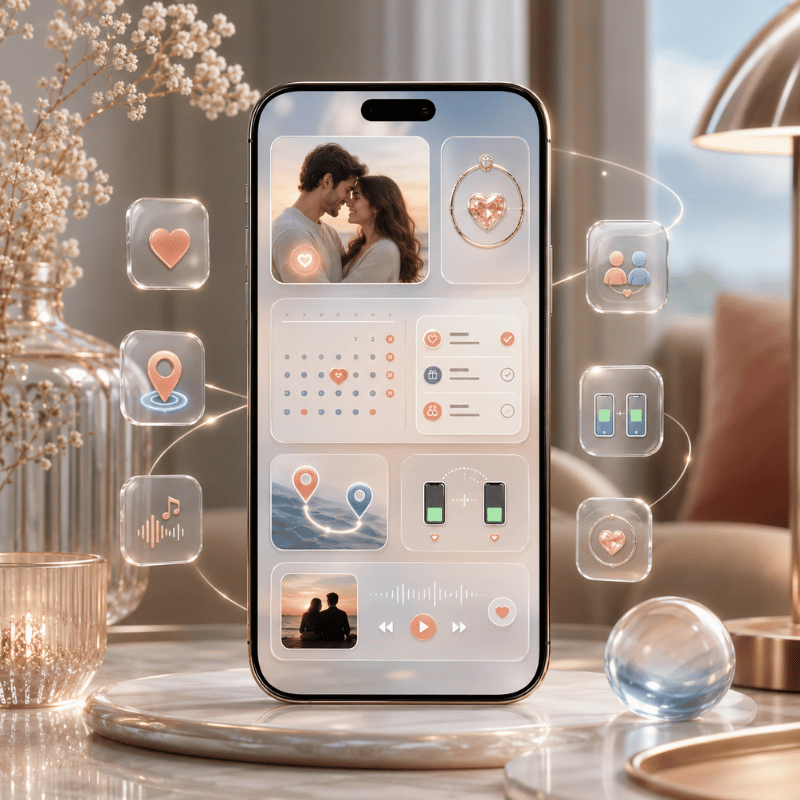
Best Couple Widget Apps in 2026

There’s no single winner, the right app is the one that nails the widget type you want, and the common mistake is grabbing whatever ranks first instead of matching the app to your need. The reason that backfires is mismatch: a photo-only app is useless to a couple who wanted distance, so you uninstall it within a day and start over. Here’s how the most-recommended options actually behave in practice, based on their App Store descriptions and what long-distance couples report using across years of threads.

Best couple widget apps in 2026, sorted by widget type and what each does best.
App Best for Widget types Free tier
iScreen All four types in one app Distance, days-together, photo, mood Yes
Couple Widget: Love Countdown Days together + anniversaries Days-together, countdown Yes
Couple Joy Mood + distance together Status/mood, distance, stickers Yes
Locket Photo sharing (friends & couples) Photo Yes
noteit Live notes/doodles Doodle/note Limited (sub ~$6/yr)
Cozy Couples Notes, mood & distance together Status/mood, distance Yes
Widgetable Cross-platform iPhone + Android Mixed (pet, mood, photo) Yes
Paired Days together + daily questions Days-together Limited (premium)
Between Private shared timeline Photo, days-together Yes

Features per each app’s App Store / Google Play listing; pricing as listed at time of writing and subject to change.

If you only want one job done, a photo on your screen, a focused app like Locket is hard to beat. If you want the distance, the day count, and a daily photo without installing three apps, an all-in-one tool that bundles interactive widgets for couples is the simpler path.

Distance Widgets for Long-Distance Couples
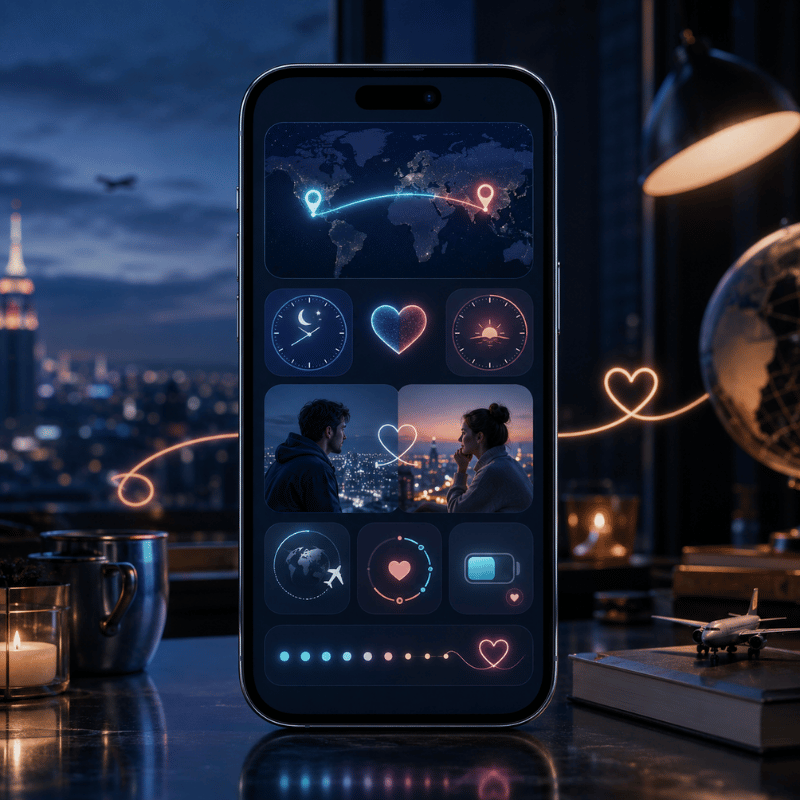
Distance Widgets for Long-Distance Couples

A distance widget is the signature long-distance feature: a tile that show how many miles separate you, often with each partner’s local time. It needs Location sharing permission on both phones, then it calculates the distance between your two locations and refreshes it periodically. That “periodically” matters, widgets update on a schedule the system control, so the number you see is recent, not a live GPS readout. Don’t expect it to move as your partner walks down the street. Some apps pair it with a status widget that adds battery share, so a glance also tell you whether your partner’s phone is about to die mid-conversation.

Picture a couple six time zones apart: she’s in Toronto, he’s studying in Lisbon. Her Lock Screen shows “5,400 km · 4:12 PM there,” so a glance tells her he’s mid-afternoon and probably between classes, useful context before she texts. That small ambient signal is exactly what long-distance couples say helps most, and the reason it work is psychological: university counseling resources on long-distance relationships note that consistent, low-pressure contact beats constant messaging, because it sustains connection without the risk of one partner feeling crowded.

“On average people in long-distance relationships are at least as satisfied, and maybe more satisfied, than couples living close by.”

Charlie Huntington, research psychologist and psychotherapist, writing for Psyche
⚠️ One honest caveat

A distance widget run on constant location sharing, and that’s worth a thought. Huntington cautions couples against permanently sharing locations, because it “opens up the temptation to monitor your partner.” A distance tile is sweet as ambient reassurance; it’s not a tracking tool, and treating it like one can backfire. If either of you feels watched, turn it into a days-together or photo widget instead.

Days-Together & Anniversary Countdown Widgets
Days-Together & Anniversary Countdown Widgets

The days-together widget is the emotional anchor of the category, the love countdown many couples check first. You set a start date, and it counts up forever; pair it with a love countdown to your next anniversary and you get both the history and the horizon on one screen. Match it with a shared couple wallpaper and the whole Lock Screen becomes a small tribute to the relationship. Couple Widget built its whole identity on “Days Together at a glance” with automatic anniversary reminders, and forum regulars mention sticking with apps like Paired for years precisely because the running count become part of the relationship’s story. The common problem this solves is the forgotten anniversary: the reason a counter beats a calendar reminder is that it’s always visible, so a milestone like 100 days or 1 year never sneaks up on you. In practice, couples who set it on day 1 report checking it far more than they expected.

Where you place it changes how it feels. In iScreen, the days-together widget can sit as a big Home Screen counter you scroll past, a small Lock Screen version you glance at before you even unlock, or a StandBy display that turns your charging phone into a bedside countdown. If milestones are your thing, a dedicated countdown widget can sit alongside the couple count for trips and reunions.

Photo & Doodle Widgets (Locket-Style)
Photo & Doodle Widgets (Locket-Style)

Photo widgets turn your Home Screen into a tiny shared frame. Your partner snaps a photo in the app, and it appears on your widget in real-time, no notification to open, just their face waiting there next time you glance down. The reason this one lands emotionally is timing: because the photo arrives on the home screen instead of buried in a chat, you see it within seconds, not whenever you next open a messaging app. A drawing widget work the same way with sketches and short messages: noteit pushes a quick doodle or a “miss you” note straight to your partner’s screen for around $6 a year. The one real risk is over-sending, in practice, a photo every few hours stays special, while a constant stream turn the widget into noise. It’s the most spontaneous couple widget, and the one people describe as feeling closest to a peek into each other’s day. The reason it lands is well-studied: research from the Rochester Relationship Lab finds that intimacy grows when partners share personally meaningful moments, and a photo widget turn that sharing into a low-effort daily habit. In iScreen, the photo widget sits beside the distance and days-together tiles, so a single app cover the spontaneous and the steady at once.

Is the Locket app for couples?

Locket is built for “live photos from your best friends,” so it’s a friends app first, but couples use it constantly, and it’s one of the most-recommended photo widgets on long-distance forums. The difference from a dedicated couple app is focus: Locket is one feed of photos, while a couple-specific app pairs the photo widget with distance, a day count, and moods. If a shared photo on your screen is all you want, Locket nails it; if you want that photo plus the rest of the 4-Type matrix, a couple app cover more ground. Either way, both partners install and add the widget.

Free vs Paid Couple Widget Apps
Free vs Paid Couple Widget Apps

Almost every couple widget app is free to start, with a premium tier that unlocks more widget styles, removes ads, or adds features like extra themes and history. noteit, for example, is free to use with a subscription around $6 a year for its full feature set. The reason the free-versus-paid line matter is a common mistake: couples pay on day 1 for a widget they abandon by week 2, because the novelty fades faster than the subscription. In practice, the free tier is enough to test whether the widget earns a permanent spot, only the risk of a wasted $6 to $30 a year separates trying from committing. Before paying, it’s worth knowing what the free tier actually gives you versus what’s gated.

✔ Free tier usually includes

  • One pairing with your partner
  • The core widget (distance, days, or photo)
  • Basic widget sizes for Home and Lock Screen

⚠ Premium usually gates

  • Extra widget themes and animations
  • Ad removal
  • Multiple widgets or richer customization

For most couples the free tier is genuinely enough, pay only once you know you’ll keep the widget around. If you like customizing more than the widget, browsing the best widgets for iPhone shows how a couple tile fit a wider setup.

Couple Widgets on Android (and Cross-Platform Pairing)
Couple Widgets on Android (and Cross-Platform Pairing)

If one of you is on Android, check cross-platform support before you both commit, because this is where mixed-phone couples most often hit a problem: an iOS-only app leave the Android partner with nothing to pair to. The reason it matter is that roughly half of couples aren’t on matching phones, so the app you pick has to publish on both stores. In practice, apps like iScreen, noteit, and Widgetable explicitly pair an iPhone with an Android phone, and the shared data syncs the same way once you’re linked. The widget mechanics differ, Android places widgets through a long-press on the home screen and its own widget picker, but the risk is only the setup step, not the daily use. The safe move: confirm the app lists both platforms, then have the Android partner install first and send the pairing invite within the first 5 minutes. This matters because cross-device communication is what sustains a relationship across distanceCornell University counseling resources note that consistent contact, not the specific device, is what keeps long-distance couples connected, so a mismatched-phone pair lose nothing as long as the widget syncs both ways.

What iOS 26 Changes for Couple Widgets in 2026
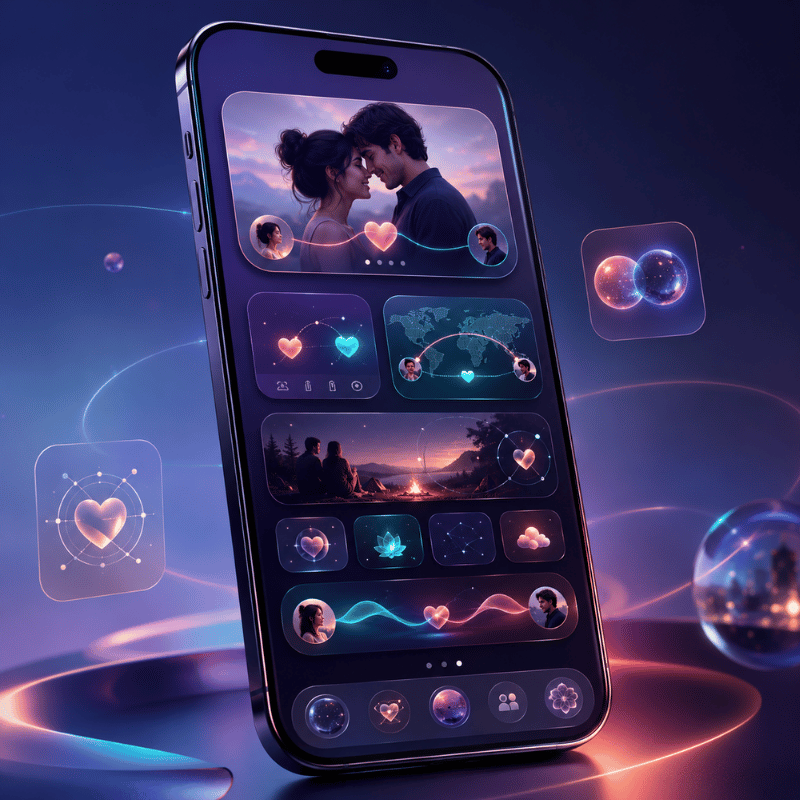
What iOS 26 Changes for Couple Widgets in 2026

The biggest 2026 shift isn’t a new couple feature, it’s where your couple widget belongs. iOS 26’s redesigned, more glanceable Lock Screen (part of Apple’s Liquid Glass update) makes a couple widget readable without unlocking, which is a concrete reason to move a daily-connection widget off the Home Screen and onto the Lock Screen. The reason this matters in practice is a friction problem: because the average person checks their phone around 100 times a day, a widget that’s visible the instant the screen lights up gets noticed far more than one buried behind a passcode, and the risk of an out-of-sight Home Screen widget is that it quietly stop being part of your day. For a long-distance pair, seeing the distance or a day count the moment you wake the phone change how often you notice it.

On the platform side, interactive widgets (introduced through Apple’s WidgetKit) let some tiles respond to a tap, so a “thinking of you” widget can become a button, not just a display. Apple’s Live Activities and the Dynamic Island can also surface a couple app’s real-time updates at the top of the screen. iOS 26, released September 2025, carries that forward alongside the Lock Screen refresh that Apple documents in its iOS 26 feature list and trade coverage detailed at launch. If you’re setting up a couple widget in 2026, build it for the StandBy mode and Lock Screen first, that’s where the platform is heading. (Search interest in couple and distance widgets is seasonal, peaking over the summer when more couples separate for travel or study; treat that as background, not a buying signal.)

Frequently Asked Questions

Do both partners need to install the same couple widget app?

View Answer
Yes. A couple widget shares data between two linked phones, so both of you install the same app and connect through a pairing code or invite. If only one partner sets it up, the widget shows nothing because there’s no second person feeding it. This is the Two-Phone Rule, and it’s the number-one reason a new couple widget appears blank.

Is there a free couple widget app?

View Answer
Yes — most couple widget apps are free to download and use, including iScreen, Couple Widget, Couple Joy, and Locket. The core widget (a distance count, days together, or a shared photo) is typically free; a paid tier unlocks extra themes, removes ads, or adds widget styles. You can run a full couple widget without ever paying.

What is the 2-2-2-2 rule for couples?

View Answer
The 2-2-2-2 rule is a relationship-rhythm idea, not a widget feature: roughly a date every two weeks, a night away every two months, a longer getaway every two years (versions vary). It’s about protecting intentional time together. A couple widget can support it indirectly — a countdown to your next planned trip keeps that rhythm visible — but the rule itself is about your calendar, not your Home Screen.

How accurate is a distance widget?

View Answer
It’s accurate to your general location but refreshes on a schedule, not live — so the number is recent, not second-by-second.

Can couple widgets work between iPhone and Android?

View Answer
Some can. Apps published on both the App Store and Google Play — such as noteit and Widgetable — let an iPhone and an Android phone pair and share a widget. The data syncs across platforms even though each phone adds the widget its own way. Always confirm the app lists both platforms before you both commit to it.

Why isn’t my couple widget updating?

View Answer
Usually your partner hasn’t paired yet, or Location/notification permissions are off. Confirm both, then reopen the app.

Want all four widget types in one app?

iScreen bundles distance, days-together, photo, and mood widgets for couples, free to start, on iOS and Android.

Explore couple widgets →

How We Picked These Couple Widgets

We build couple, distance, and days-together widgets ourselves, so this guide leans on how these widgets actually behave on a paired pair of phones, including the parts that frustrate people, like the Two-Phone Rule and refresh lag. App descriptions and long-distance community reports were cross-checked against Apple’s widget documentation. Reviewed by the iScreen team.

Recent articles

Plain iPhone Wallpaper: Solid Colors for a Cleaner Home Screen

Plain iPhone Wallpaper: Solid Colors for a Cleaner Home Screen

2026/10/29 15:47
A solid color iPhone wallpaper clears up busy photo details. App icons, widgets, and notification badges become clear and easy to read. You can get a flat single-color background directly inside the built-in iOS picker. No external image download is needed. Selecting the Solid style filter in Settings prevents the top gradient fade. White status bar text stays sharp against the flat fill. This guide covers native setup steps, eight tested hex codes (including dock-blending #242424 and #F4F4F4), OLED power benchmarks, and native screen resolutions. How to Set a Solid Color Wallpaper on iPhone in iOS Without Top Fade To set a flat solid color iPhone wallpaper as your home screen background, go to iOS Wallpaper Settings and follow these steps: Add New Wallpaper > Color. Go to the style previews at the bottom of the screen and swipe left until you see the Solid preset. Users setting a flat plain background on a device running iOS 16, iOS 17, iOS 18, or iOS 26 quickly notice a milky wash across the top of the screen. If you’re attempting to set a flat wallpaper on my iPhone for the first time, that milky wash is probably due to the built-in Color picker defaulting to the Vibrant filter, which produces a gradient background instead of a true flat fill. Swipe left past the Vibrant preset, then Tone, Deep, Vapor, and Bright filters to get to the Solid preset. The 3-Cause Top-Fade Triage The top fade comes from the Color picker defaulting to Vibrant instead of Solid. Extend Wallpaper crop padding and Home Screen Blur toggle cause the remaining washout symptoms. Each visual symptom traces back to a different control in the iOS wallpaper editor. The 3-Cause Top-Fade Triage for iOS 16 Through iOS 26 Fade or Blur Symptom Root iOS Trigger Where It Appears Exact Fix in iOS Settings Upper portion of the screen looks lighter or tinted Built-in Color picker defaults to Vibrant, Tone, or Deep filter Both Lock Screen and Home Screen Swipe left in the Color editor until the bottom pill reads Solid Top edge blurs into a soft gradient on an imported image Extend Wallpaper crop padding triggered by pinch-to-zoom out Lock Screen and paired Home Screen Tap the three-dot menu button in the bottom-right corner and uncheck Extend Wallpaper Entire background looks frosted behind app icons Explicit Home Screen Blur toggle left active Home Screen only Tap Customize on the Home Screen preview and tap the Blur button on the far right to turn it off To set a clean background color on your iPhone, do the following: Open Settings, tap Wallpaper, and tap Add New Wallpaper. Select the Color button in the top row of the gallery. Tap the color button to select a swatch, or in the Sliders tab, enter a hex code. Close the palette panel and swipe left across style previews to change the style name from Vibrant to Solid. In the upper right, tap Add. Choose Customize Home Screen and turn off Home Screen Blur, then tap Done. Pairing a flat Home Screen background with a graphic Lock Screen is also an option. In our gallery, you can find lock screen wallpapers and pair them to Focus modes. We have a tutorial on switching between multiple iPhone lock screen pairs to automate daily background changes. Solid Color iPhone Wallpaper Hex Codes for White Labels and Hidden Docks Hex code #242424 in iOS Dark Mode softens the translucent Home Screen dock border when Reduce Transparency and Home Screen Dim are turned off. It delivers a 15.5:1 sRGB luminance contrast ratio (often cited as 15.3:1) against white app icon labels. The contrast ratio for #242424 against white exceeds WCAG 2.1’s 4.5:1 threshold for normal text. The Apple Human Interface Guidelines for Color recommend at least a 4.5:1 contrast ratio for standard text. Small labels benefit from a 7:1 ratio. Raw W3C contrast ratios measure the uncomposited hex background against pure white (#FFFFFF) text. On an actual iPhone Home Screen, icon label rendering and dock visibility depend on Apple’s translucent material compositing, Reduce Transparency being off in Accessibility, and the Home Screen Dim toggle staying disabled. The 8-Shade Legibility & Dock-Blend Matrix Use #242424 for a hidden dock and high contrast white labels, or #F4F4F4 for a soft daylight look. Actual dock and folder blending depends on iOS’s translucent materials, with Reduce Transparency turned off and Home Screen Dim toggled off. The 8-Shade Legibility & Dock-Blend Matrix Shade Type & Name Hex Code RGB Values W3C Contrast vs #FFFFFF Home Screen Dock & Folder Behavior Recommended iOS Appearance When Not to Use OLED Pitch Black #000000 0, 0, 0 21.0:1 (AAA) Dock container stays visible as a dark gray bar Dark Mode Skip if you want the dock bar to blend into the background Dark Mode Dock Charcoal #242424 36, 36, 36 15.5:1 (AAA) Softens the Dark Mode dock border when Reduce Transparency is off (dock-blending hex method) Dark Mode Does not blend the dock if Light Mode or Reduce Transparency is active Deep Midnight Navy #1E293B 30, 41, 59 14.6:1 (AAA) Subtle dark blue dock separation with crisp white text Dark Mode or Auto Avoid pairing with neon yellow or lime app icons Muted Forest Green #1F3A2E 31, 58, 46 12.4:1 (AAA) High white-label contrast with low blue-light glare Dark Mode or Auto Can clash with bright red notification badges Deep Plum Purple #2E1F3A 46, 31, 58 15.4:1 (AAA) Rich dark backdrop for tinted or monochrome icons Dark Mode May look nearly black at very low indoor brightness Crimson Burgundy Red #4A1C24 74, 28, 36 14.2:1 (AAA) Warm dark red tone that keeps white text sharp Dark Mode Red subpixels draw slightly more power than dark gray Warm Taupe Slate #3A3532 58, 53, 50 12.0:1 (AAA) Neutral earthy tone for minimalist wood or beige themes Dark Mode or Light Mode Shows a faint dock outline in both appearance modes Light Mode Dock Gray #F4F4F4 244, 244, 244 1.1:1 vs white (17.4:1 vs dark text) Makes the Light Mode dock and closed folder containers less prominent when Reduce Transparency is off Light Mode only Bright at night; label contrast depends on iOS switching labels to dark text Entering any of these shades in the built-in iOS solid color picker is quick. To change the colors, open the color selector, choose Sliders at the top, and enter the six-character code in the Display P3 Hex Color # field. While customizing your iPhone Home Screen layout, you can set folder and dock tones to match and compare pre-made black, white, and gray iPhone wallpaper packs. Pure Black vs Dark Gray Solid Color Wallpaper on Apple OLED Displays On tested Android OLED smartphone panels, switching from a bright light interface to pure black (#000000) cuts display power draw by 39% to 47% at 100% brightness and 3% to 9% at 30% to 50% indoor auto-brightness. At typical indoor brightness, the display power difference between pure black (#000000) and dark charcoal (#242424) stays below 1% to 2%. Because those measurements were taken on Android OLED phones, not iPhones, they show the general behavior of OLED subpixels rather than a fixed iPhone battery percentage. The Apple Super Retina XDR OLED Displays are able to independently control the intensity of each of the three subpixels (i.e. red, green, and blue) to create a lit pixel. Outdoor viewing up to 2,000 nits peak brightness (1,000 nits typical max and 1,600 nits HDR peak on an iPhone 16 Pro 120 Hz ProMotion display) widens the display power gap between bright and dark backgrounds. As Apple’s Dark Mode Human Interface Guidelines and Nielsen Norman Group’s dark mode usability research suggest, using an elevated dark gray background reduces harsh contrast halation. A solid black background turns off black pixel drive entirely. A low state subpixel charge of dark charcoal (#242424) prevents scroll smearing when swiping between home screen pages. Pure Black (#000000) vs Dark Charcoal (#242424) vs Bright Photo Wallpaper on OLED Comparison Metric Pure Black (#000000) Dark Charcoal (#242424) Bright Stock Photo (#FFFFFF / Multi-Color) OLED Subpixel State Unlit subpixels (no drive current on black pixels) Low-luminance subpixel drive (RGB 36, 36, 36) High-current emission across red, green, and blue subpixels Indoor Auto-Brightness Display Power 3%–9% display power reduction at 30%–50% brightness on tested Android OLED panels Nearly identical to pure black indoors (under 1%–2% display power difference) Higher indoor display power draw across lit pixels Outdoor Peak Brightness Display Power 39%–47% display power reduction at full brightness on tested Android OLED panels Substantial outdoor display power reduction with slightly higher subpixel drive than #000000 Highest outdoor display power draw (up to 2,000 nits on Super Retina XDR) Home Screen Dock Appearance Dock bar remains visible in Dark Mode Dock border softens in Dark Mode when Reduce Transparency is off Frosted translucent dock bar stays visible OLED Scroll Smearing & Halation Can show brief pixel wake-up trails when swiping fast Subpixels stay pre-charged, reducing scroll trails No black smearing, but causes higher night eye glare Worked Example: Luminance Contrast & Pixel Density Verification: Let’s take a look at pure black (#000000) and dark charcoal (#242424) against white app labels (#FFFFFF). Pure black has 0.0 relative luminance, yielding the maximum 21.0:1 W3C contrast ratio against white (luminance 1.0). Dark charcoal (#242424, RGB 36, 36, 36) has a relative luminance of 0.0176, which produces a 15.5:1 contrast ratio against white, still more than double the 7:1 enhanced legibility target while keeping subpixels faintly lit to prevent scroll trails and scrolling artifacts. Does a Pure Black iPhone Wallpaper Prevent or Cause OLED Burn-In? A pure black (#000000) wallpaper turns off OLED subpixel drive for black pixels, but it doesn’t prevent overall panel aging and can increase differential wear around static white status bar icons. Periodically switching between #000000 and a dark gray shade like #242424 helps reduce uneven subpixel exposure across the screen. Free 4K Solid Color Wallpaper Download vs Native iOS Color Picker Paid “4K solid color wallpaper” packs provide no edge sharpness advantage for the uniform color itself over the free, built-in iOS Color Picker or a lossless PNG. A uniform single color background has identical RGB values across all pixels. Native iOS rendering fills your exact screen canvas at full resolution, for free. Online marketplaces list paid digital bundles of plain color wallpaper photos, with pricing that varies by seller and bundle size. Some vendors promote HD, 4K and 8K resolution. On a detailed photograph, higher pixel counts preserve fine textures. Each pixel on a single-color image board stores the same color value. A large file size won’t make a flat color image sharper. Use a lossless PNG when saving a free iPhone background from an image board. Many free stock photos distribute solid backgrounds as compressed JPEG files rather than lossless PNGs. Comparison of Solid Color Wallpaper Sources for iPhone Source Method Cost File Format & Color Depth Banding & Artifact Risk Extend Wallpaper Blur Risk Best Use Case Built-in iOS Color Picker (Solid filter) Free (built into iOS) Procedural system render (Display P3 / sRGB) None (no file compression) None when set to the Solid style filter Any single-color setup or dock-hiding hex code Custom Native-Resolution 24-Bit PNG Free (via Shortcuts or design app) Lossless 24-bit PNG None on flat colors Low when exported at your model’s native pixel dimensions Adding a custom dock-hiding overlay or subtle border Free Image Board / Stock Photo Download Free download Often 8-bit lossy JPEG High risk of compression artifacts on dark tones High if aspect ratio is 16:9 (1080×1920) Avoid for dark solid shades; choose lossless PNG instead Paid Marketplace Minimalist Color Pack Paid per bundle (varies by seller) ZIP bundle of PNG or JPEG files Varies by seller export settings Triggers crop fade if sized for older iPhones Only worthwhile if the bundle includes custom icons or widgets Looking for more than a single flat shade? Check out curated minimalist aesthetic iPhone wallpaper ideas. Those designs use clean geometry and lossless image exports. Why Do Downloaded Dark Solid Wallpapers Show Color Banding on iPhone? Downloaded dark solid wallpapers show visible color banding when websites save them as compressed 8-bit JPEG files. JPEG 4:2:0 reduces chroma resolution, while JPEG quantization and limited tonal precision can make subtle dark shades appear as visible bands. Using the built-in iOS Color picker or exporting an uncompressed 24-bit PNG avoids JPEG compression block artifacts. Pairing a Plain iPhone Color Wallpaper With Widgets and App Icons Hex codes can be adjusted via the color wheel to alter lightness or darkness. A lighter shade of your plain wallpaper can be used on your widget card to achieve a clean, visual hierarchy. You can further achieve this visual hierarchy with an icon pack and iScreen widgets that separate borders without reintroducing visual clutter. It’s instantly noticeable when you switch from a busy photo to a simple solid color wallpaper, thanks to those embarrassing default app icons. The same is true for your white widget boxes. In iOS 18 and 26 Home Screen Customization, you can access the Customize option by long pressing on the Home Screen, selecting Edit, and choosing Customize. From here, you can turn on Large Icons to remove label text, or use Dark or Tinted to change the icons’ appearance. For more advanced features like changing widget backgrounds or app icon sets, you’ll have to look to apps like iScreen. iPhone Home Screen Customization Approaches for Solid Color Setups Customization Method Custom Widget Background Control Coordinated App Icon Support Label & Dock Styling Capabilities Best Fit iScreen App (Widgets, Icons & Themes) Custom hex color picker and transparent widget backgrounds Coordinated aesthetic icon packs with profile installation Matched wallpaper, widget, and Dynamic Island theme sets All-in-one minimalist Home Screen pairing Native iOS 18 / iOS 26 Customize Sheet System tinting applied across standard widgets Built-in Dark, Clear, and Tinted icon appearance modes Large icon mode removes text labels underneath app icons Quick built-in icon tinting and label removal iOS Shortcuts + Built-In Color Picker None (relies on native widget styles) Manual per-app custom icon bookmark creation Automates wallpaper switching across Focus modes Users replacing only a few primary dock icons Custom Native-Resolution PNG + iOS Color Picker Pairs flat or framed PNG backgrounds with native widgets Compatible with both stock iOS icons and Shortcut icons Avoids Extend Wallpaper crop blur when sized to model dimensions Users creating custom color layouts without extra apps The 4-Step Solid Pairing Workflow Minimalists will be happy to know that you can create a minimalist Home Screen in five minutes or less by adjusting just a few settings: Lock the base hex: You can use the Solid style filter to change the color of your solid color wallpaper to #242424 to make your dock’s Dark Mode hidden or to #1E293B for a deep navy color. Offset widget surfaces: Open customizable iPhone Home Screen Widgets in iScreen. Set each widget background slightly lighter (#292929 on #242424) to achieve a subtle elevation effect, or match #242424 for a floating effect. Unify icon chrome: Install coordinated aesthetic app icon sets in monochrome white, matte charcoal, or pastel tones. Matching icon packs stop third-party app logos from clashing with your background color. Choose label visibility: Keep standard icon size to use high-contrast white app labels or use Large Icons to remove text labels. Can You Set Different Solid Colors for the iPhone Lock Screen and Home Screen? Yes, you can place a solid color on your lock screen, and a separate solid color on your home screen. The majority of users like to pair a colorful lockscreen with a dark charcoal home screen to make notifications stand out. After tapping Add on your lock screen color, select Customize Home Screen, tap Color at the bottom, and choose another color. Native iPhone Screen Resolutions for Custom Solid Color Backgrounds You can export a solid-color PNG at your iPhone model’s native pixel dimensions, and avoid pinching or zooming, to minimize Extend Wallpaper crop blur. Use 1320 x 2868 pixels for an iPhone 16 Pro Max, or 1179 x 2556 pixels for an iPhone 16 and 15. Generally, wallpaper generator exports are in the old format of 1080×1920 pixels at 16:9 aspect ratio. The super retina XDR displays on the iPhones range from 6.1 inches (1179×2556) at 460ppi, 6.3 inches (1206×2622) at 460ppi, 6.7 inches (1290×2796) at 460ppi, and 6.9 inches (1320×2868) at 460ppi, as stated in the iPhone 16 Pro specifications and iPhone 16 specifications. Importing a 1080 x 1920 px image on a 1320 x 2868 px display screen leaves a 948 px vertical shortfall and 240 px horizontal shortfall, which forces iOS to scale and pad the top edge when creating a high-quality PNG. Native Pixel Resolutions for Custom iPhone Solid Color PNGs iPhone Model Group Native Resolution (Width x Height in Pixels) Display Size & Pixel Density Aspect Ratio Recommended Export Format iPhone 16 Pro Max 1320 x 2868 px 6.9-inch OLED at 460 ppi 19.5:9 24-bit lossless PNG (Display P3 or sRGB) iPhone 16 Pro 1206 x 2622 px 6.3-inch OLED at 460 ppi 19.5:9 24-bit lossless PNG (Display P3 or sRGB) iPhone 16 Plus, 15 Plus, 15 Pro Max, 14 Pro Max 1290 x 2796 px 6.7-inch OLED at 460 ppi 19.5:9 24-bit lossless PNG (Display P3 or sRGB) iPhone 16, 15, 15 Pro, 14 Pro 1179 x 2556 px 6.1-inch OLED at 460 ppi 19.5:9 24-bit lossless PNG (Display P3 or sRGB) iPhone 14, 13, 13 Pro, 12, 12 Pro 1170 x 2532 px 6.1-inch OLED at 460 ppi 19.5:9 24-bit lossless PNG (Display P3 or sRGB) iPhone 14 Plus & 13 Pro Max / 12 Pro Max 1284 x 2778 px 6.7-inch OLED at 458 ppi 19.5:9 24-bit lossless PNG (Display P3 or sRGB) iPhone 13 mini & 12 mini 1080 x 2340 px 5.4-inch OLED at 476 ppi 19.5:9 24-bit lossless PNG (Display P3 or sRGB) iPhone 11 Pro Max & XS Max 1242 x 2688 px 6.5-inch OLED at 458 ppi 19.5:9 24-bit lossless PNG (Display P3 or sRGB) Solid Color Wallpaper Selection & Pairing Checklist for iOS Home Screens Turn off both Reduce Transparency and Home Screen Dim, and account for True Tone, Night Shift, Dim Flashing Lights and Reduce White Point before taking your wallpaper picture. Turning off these settings stops iOS accessibility or display filters from changing your hex value or exposing the dock border. 6-Point iOS Solid Color Wallpaper Verification Checklist Check Item iOS Menu Location Target Setting Symptom if Misconfigured Immediate Fix 1. Color Style Filter Settings > Wallpaper > Add New Wallpaper > Color Solid filter Upper section of the wallpaper looks lighter than the bottom Swipe left from Vibrant until the bottom label reads Solid 2. Extend Wallpaper Crop Lock Screen Editor > Three-Dot Menu (…) Unchecked (Off) Imported PNG blurs or fades near the status bar clock Tap the three-dot icon and tap Extend Wallpaper to uncheck it when shown 3. Home Screen Blur Wallpaper Pair Preview > Customize Home Screen Blur Off Custom shade turns muted or frosty behind app icons Tap the Blur pill in the bottom-right corner so the checkmark disappears 4. Reduce Transparency Settings > Accessibility > Display & Text Size Off (Disabled) Reduce Transparency and Increase Contrast can change the dock’s appearance; they do not guarantee that a solid wallpaper will hide the Home Screen dock Keep Reduce Transparency and Increase Contrast off when testing #242424 or #F4F4F4 dock blending 5. Dark Mode Dimming Settings > Wallpaper > Customize Home Screen Sun/Dim Icon Off Bright or pastel solid colors look muddy and gray Tap the dimming icon in the corner of the Home Screen editor to restore full brightness 6. True Tone & Night Shift Settings > Display & Brightness Temporarily Off during hex calibration Neutral gray or white wallpaper looks warm yellow or orange Turn off True Tone while picking your hex code, then re-enable if desired Frequently Asked Questions About Solid Color iPhone Wallpapers How do I get a plain black or white screen on my iPhone without downloading an image? Go to Settings > Wallpaper and tap Add New Wallpaper. Choose Color at the top of the gallery and pick either black (#000000) or white (#FFFFFF) in the color picker. Close the picker and swipe left across the previews until it says Solid. Tap Add and select Set as Wallpaper Pair and turn off Home Screen Blur. Why does my solid color iPhone wallpaper look lighter or darker than the hex code I entered? Three things affect the custom Hex code after it’s entered. First, the Color wallpaper picker defaults to Vibrant or Tone, adding a gradient until it’s swiped to Solid. Second, True Tone and Night Shift adjust the white point of the display. Third, reducing white point in Accessibility diminishes the peak luminance of the display. Can I hide folder backgrounds on my iPhone Home Screen using a solid color wallpaper? In Dark Mode, a solid hex wallpaper on its own doesn’t always make iOS folder containers on the home screen fully translucent because iOS renders folder containers with a lighter translucent material compared to the Home Screen dock. In Light Mode, a solid wallpaper may decrease the prominence of the dock and folder containers, but they may still be rendered by iOS as translucent surfaces. Where does iOS keep the built-in solid color wallpaper picker on iPhone? Press and hold your Lock Screen, tap the blue plus button and select Color to add it as a new Wallpaper. You may also go to Settings and select Wallpaper. Do solid color wallpapers work with iOS Depth Effect on the Lock Screen? Flat single-color wallpapers keep the Lock Screen clock fully visible above the background. References & Sources Apple iPhone User Guide: Change the wallpaper on iPhone (iOS Wallpaper Settings & Built-in Color Picker) Apple Developer: Human Interface Guidelines: Dark Mode Apple Developer: Human Interface Guidelines: Color & Contrast Ratios Apple Developer: Human Interface Guidelines: Translucent Materials & Vibrancy World Wide Web Consortium (W3C), WCAG 2.1 Understanding Success Criteria 1.4.3: Contrast (Minimum) Purdue University (ACM MobiSys 2021), Dark mode may not save your phone’s battery life as much as you think Apple Support, About the Super Retina display and Super Retina XDR display on your iPhone Apple Support, iPhone 16 Pro and iPhone 16 Pro Max Technical Specifications (Super Retina XDR OLED) Apple Support, iPhone 16 and iPhone 16 Plus Technical Specifications Nielsen Norman Group, Dark Mode vs Light Mode: Which Is Better? Engadget, How to customize your iPhone Home Screen iDownloadBlog, How to set a solid color wallpaper on iPhone or iPad Digital Minimalist, How to Hide Your iPhone Dock Using Solid Color Hex Codes iOSHacker, Download Solid Color Wallpapers for iPhone (Black, White, and Grey)
2026/10/29 15:47
Gradient Wallpaper iPhone Guide: Six Color Pairings

Gradient Wallpaper iPhone Guide: Six Color Pairings

2026/10/27 16:25
/* Table component reused from the existing iPhone Home Screen Wallpaper article. */ .seo-blog-content table{width:100%;min-width:640px;border-collapse:collapse;margin:0;font-size:15px;line-height:1.6;letter-spacing:normal;border:1px solid #e0e0e0;color:#2d2d2d;font-variant-numeric:tabular-nums;} .seo-blog-content table tr{border:none!important;} .seo-blog-content table th{background:#2d2d2d!important;color:#fff!important;font-weight:600;text-align:left;padding:12px 16px!important;border:none!important;vertical-align:top;} .seo-blog-content table td{padding:11px 16px!important;border:none!important;border-top:1px solid #e0e0e0!important;background:#fff;vertical-align:top;text-align:left;} .seo-blog-content table tbody tr:nth-child(even) td{background:#f5f5f5;} .seo-blog-content table tbody td:first-child{font-weight:600;} .seo-blog-content table caption{caption-side:top;text-align:left;font-weight:600;padding:0 0 12px;color:#2d2d2d;} @media(max-width:767px){.seo-blog-content table{font-size:14px;}.seo-blog-content table th,.seo-blog-content table td{padding:10px 12px!important;}} A blue-to-teal background can look lovely in Photos, then put its brightest patch directly behind your clock. There’s more to choosing the colors than that. The direction of the fade and the crop and text already on your screen determine whether the finished layout feels calm or awkward. Gradient wallpaper for iPhone blends colors across the screen. Start with navy and teal for light text, or cream and lilac for dark text. Place a contrasting area behind the clock, then set the Home Screen separately if its widgets need a quieter background. Before you choose A dark background can still hide dark text. The Lock Screen and Home Screen can use different treatments. Image dimensions and smooth color transitions are separate quality checks. Six gradient wallpaper color pairings for iPhone Start with navy and teal if your clock is pale, or cream and lilac if you prefer dark lettering. Both of these color combinations give you a good place to position text. The six pairs below are starting designs: choose the mood first, then move the lighter or darker area to suit your layout. Six palette recipes Pair Color stops Starting layout Midnight teal Navy #14243B → teal #387F86 Keep navy behind a light clock; let teal gather lower down. Soft lilac Cream #F3EDE2 → lilac #C8B8DE Put dark lettering over the cream area. Peach dusk Peach #F4BEA8 → mauve #875C83 Try a diagonal fade, with pale text over the mauve corner. Blue hour Ink #192A56 → blue #5E8DB8 Keep the upper clock area in ink; use blue near the bottom. Sage mist Ivory #E9E8DC → sage #A5B8A3 Use dark text and a gentle fade behind sparse widgets. Berry night Plum #39233F → berry #8C456D Place light text over plum; keep berry beside the widget column. Hex codes specify the source colors when you make your own file. They aren’t settings you must enter in Apple’s wallpaper picker. A pale pair can feel soft without being washed out; a darker pair can add depth without a bright central glow. For more style directions, browse our aesthetic iPhone wallpaper ideas. Place light and dark areas around your text If your text is light, you should have a darker area behind it; if your text is dark, you should have a lighter area behind it. The relevant area is the one immediately behind the letters, not the average color of the whole photo. A fade that crosses through the clock can change contrast halfway across a word, even when both ends look attractive. Apple’s color guidance makes the underlying problem clear: Avoid using colors that make it hard to perceive content in your app. Apple, Human Interface Guidelines: Color Color-Stop Placement Map Match the fade to what is actually visible What is on screen? Try this placement Change it when… Light clock near the top Dark stop behind the clock A pale edge crosses the digits. Dark clock near the top Light stop behind the clock A dark corner touches the lettering. Light labels across the app grid Broad, darker middle Labels disappear over the bright center. Dark text on a clear widget Paler region under that widget The widget overlaps a dark stop. Widget with its own opaque card Place the accent beside the card The card and wallpaper compete visually. Large colorful app icons Low-contrast fade behind the grid The background draws attention before the icons. Mostly empty lower screen Put the stronger color low down New widgets occupy that space. Crop shifts the fade Reposition before saving The preview moves the contrast boundary. No useful crop fits Choose a wider calm area or solid fill Moving the image fixes one label but hides another. For midnight teal, place the navy region behind the white clock and let teal flow toward the lower right corner. With a black clock, the cream region of soft lilac is probably the better starting point. W3C’s contrast examples use both light-on-dark and dark-on-light arrangements. You can judge the final text, including any outlines and widget backings, in the wallpaper preview. Dark gradient wallpaper or a solid background? A solid background is a good starting point for a crowded Home Screen because its luminance is uniform. A dark gradient wallpaper adds a subdued color fade across most of the Home Screen. A solid background works if text spans the entire width of the screen, and a gradient works if there’s ample space for an accent. Subtle gradient Adds color without a detailed scene. Gives empty space a focal area. Needs care where the fade crosses labels. Solid fill Keeps the background brightness uniform. Leaves attention on apps and widgets. Still needs contrast with the chosen text. An example in dark-on-dark from W3C describes text disappearing into the background. Nor should we rely on battery savings to choose our palette. The Purdue study found brightness-dependent results in Android apps; it didn’t test iPhone gradient wallpapers. Make a simple gradient with iPhone wallpaper settings How do I make a gradient wallpaper on iPhone? You can find the starting point in Settings > Wallpaper > Add New Wallpaper > Color. You can preview different styles. To customize the Home Screen, choose your existing wallpaper, and look for its gradient option. You can save a gradient image to Photos and use it as a photo wallpaper. Open Wallpaper settings. Tap Add New Wallpaper and choose Color for the built-in route, or Photos for a saved design. Adjust the preview. Set the available color and style controls; with a photo, position the fade before saving. Choose the screen treatment. Tap Add, then Set as Wallpaper Pair to use the selection on both screens, or Customize Home Screen for a separate background. Check the actual layout. Return to the Lock Screen and Home Screen to inspect the clock, labels and widgets together. Apple’s wallpaper instructions include Color and the pair-versus-separate choice. The Home Screen Gradient label appears in 9to5Mac’s iOS 16 walkthrough; older screenshots may differ from your menus. For changing the clock and widgets beyond the background, see our Lock Screen customization guide. Save a sharp gradient without paying for a wallpaper app You can start with Apple’s built-in Color choices for free. For a particular blend, use the creator’s original image instead of the preview screenshot. Check the download or export terms and conditions to see if you can browse phone wallpapers or have permission to save a particular design. The two can be separate. An image route without the app gives you a chance to edit individual images. iDownloadBlog’s AR72014 gradient collection provides direct downloads to originals. For a particular image, open its download link, not the gallery’s thumbnails. Most of the images in the collection were made for older iPhones, so you may want to check the image dimensions, and crop for your model. Source-to-Screen Choice Table Choose the shortest route to the finish you want Route What you control Before spending money Native Color Available system colors and styles Try the built-in preview first; no third-party app purchase is needed. Original image File choice and wallpaper crop Check dimensions and personal-use permission at the download source. Wallpaper app The designs and export options it offers Check whether that design needs a subscription, payment or unlock. What ratio should an iPhone wallpaper be? Use your model’s portrait proportions: for iPhone 13, start with a 1170 × 2532 canvas based on Apple’s published display resolution. Allow room to reposition the fade around the clock. Check the dimensions for your particular model before exporting a custom image, especially when you move a design between phones. Crop presets are available in Photos including 9:16 and Wallpaper. Preserve the original before cropping and check the wallpaper preview afterward. Images labeled “4K” can still have a poorly positioned fade or look uneven after compression. Match the background to your widgets Decide which widgets you want to keep and pick a background. Use the Sage pair and place its strongest color next to the calendar card. With small light labels over the wallpaper, start with the darker middle of the Blue hour palette. Keep the app grid fixed while comparing both looks. Our iScreen wallpaper collection is where you can see colors and styles. For a more coordinated layout, our matching phone-theme guide takes a wider perspective. Applying the wallpaper and rearranging widgets are two different steps. A new background doesn’t always mean widgets get recolored. Apple’s Home Screen customization guide is a good resource to learn how to control widgets. However, keep in mind that widget choices differ among apps. If your Home Screen already has a strong, dominant widget, like a photo widget, consider using a simple, lower-contrast fade to create more space and give it a softer look; adding a strong accent makes the layout harder to read. Fix blur, banding and awkward cropping To see if the image edges are soft, compare the image in the Photos app with the Home screen. For visible color steps, try exporting the image with a different compression setting. For the bright patch, try cropping the image slightly differently. Keep the original image open when comparing settings so you can tell if the problem is with the setting or the image. Only the Home Screen looks blurred: check Customize Home Screen. Apple includes a Blur option intended to help apps stand out; turn it off if you want the original finish. The saved image is already soft: return to the source and save the original file instead of a thumbnail or screenshot. The fade has visible steps: try a different original export. Tu and colleagues’ Adaptive Debanding Filter research describes compression-related bands in smooth image regions. A larger pixel count alone doesn’t resolve that mechanism. The bright area moved: reopen the wallpaper preview and adjust the crop. If every useful crop crosses the clock, choose a design with a broader quiet area. Keep one original image while comparing exports. Repeatedly saving a screenshot of a screenshot can make it hard to identify which file showed the problem. Choose your first gradient Try midnight teal with light lettering or soft lilac with dark lettering. Keep your current widgets, apply the background, and change only the fade’s position first. For better app labels, try using a separate Home Screen background. If the clock improves but the app labels get worse, you might need a different background. Place the busiest colors in empty space. Browse more wallpaper styles for a different mood; keep this placement method when you switch from a quiet gradient to a more abstract design. Frequently asked questions Are gradient wallpapers good for iPhone? Yes, gradient wallpapers are a useful choice when you want color without a detailed photograph behind your apps. A gentle fade can leave broad areas for the clock and widgets. Choose a contrasting area for the actual text, and simplify the Home Screen background if the fade crosses too many labels. Are gradient wallpaper downloads safe? A trustworthy creator’s image download is a better starting point than an unfamiliar installer or configuration profile. Save the image through the stated download route and check its personal-use terms. A static wallpaper does not need a configuration profile; leave a page that asks for unrelated permissions or account details. Is gradient wallpaper on iPhone free? You can use the built-in Color wallpaper route without buying a separate wallpaper app. Downloaded designs have their own access and licensing terms, and an app may charge for particular collections or exports. Try the native options first, then check the price of the exact design you want to save. What does a rainbow iPhone wallpaper mean? A rainbow background can be a personal color preference or a deliberate symbol, depending on the design and its creator. The colors alone don’t establish one meaning. Look at the collection’s title and description if that meaning matters to you. Why is my gradient wallpaper not working? Cropping, Home Screen Blur or a linked Focus selecting another Lock Screen may be the cause. Reopen Wallpaper settings and inspect the selected pair to see which screen changed. If the image itself is damaged or missing, choose another saved original before adjusting the layout again. Can I use a gradient wallpaper on iPhone 15? Yes. You can use a saved gradient image as a photo wallpaper on iPhone 15, or start with the Color choices in Wallpaper settings. Inspect the framing around the clock and Dynamic Island, then customize the Home Screen separately if its app layout needs a different finish. How do I remove a gradient wallpaper? Touch and hold the unlocked Lock Screen to open the wallpaper gallery, swipe to the wallpaper you want to remove, then swipe upward on it and tap the trash icon. Confirm the deletion. Apple documents this gallery route; our wallpaper removal guide covers the process in more detail. The examples of placement and color palette recipes were created just for this guide. They’re illustrations of designs, not screenshots of a test device. The menus can look a little different depending on the operating system version. References & Sources Color guidance — Apple Human Interface Guidelines G18: Text and background contrast — World Wide Web Consortium F83: Background-image contrast failure — World Wide Web Consortium Dark mode and battery life — Purdue University, 2021 Change your iPhone wallpaper — Apple Support Separate Home Screen and Lock Screen wallpapers — Benjamin Mayo, 9to5Mac, 2022 iPhone 13 technical specifications — Apple Support Crop, rotate, flip or straighten photos — Apple iPhone User Guide Customize apps and widgets — Apple iPhone User Guide Change the wallpaper — Apple iPhone User Guide Adaptive Debanding Filter — Zhengzhong Tu and colleagues, 2020
2026/10/27 16:25
How to Delete Wallpaper on iPhone Without Losing Your Photo

How to Delete Wallpaper on iPhone Without Losing Your Photo

2026/10/27 09:36
This is how to delete wallpaper iPhone owners no longer want: on iOS 16 and up, touch and hold the Lock Screen, authenticate, swipe up on the unwanted wallpaper preview, tap the trash icon, and confirm. That removes the wallpaper setup. Keep the original image in Photos if you want to use it again. Updated October 2026. This guide follows Apple’s published instructions; it isn’t a hands-on device test. Delete an iPhone wallpaper from the Lock Screen Delete an iPhone wallpaper through the Lock Screen gallery. The upward swipe belongs on the small wallpaper preview after the gallery opens, rather than on the normal full-screen background. Apple’s deletion route applies to iOS 16 and later, so an iPhone running iOS 18 uses this same starting point. Show the Lock Screen. Return to the screen with the clock; use the side button as needed. Open the gallery. Touch and hold the Lock Screen, then authenticate with Face ID, Touch ID or your passcode. Find the unwanted setup. Swipe sideways through the wallpaper options until the correct preview is centered. Reveal the delete button. Swipe upward on that wallpaper preview, then tap the trash icon. Confirm the removal. Tap Delete This Wallpaper after checking the preview again. The Apple wallpaper deletion instructions show the same gesture. A long press opens the gallery; a swipe up reveals the trash control. Starting from an app or the Home Screen leads to a different set of controls. “Swipe up on the wallpaper that you want to delete.” Apple Support, Delete a wallpaper on your iPhone, 2026 A helpful tip when providing tech help: have the owner authenticate and identify the picture before you touch the trash icon. Similar previews can differ only in their clock or widgets. If the real goal is a different image, our guide to changing wallpaper on iPhone covers the replacement route. Keep the original photo: the Keep, Change, Delete map The Keep-Change-Delete map shows three choices: keeping a photo, modifying a background, or removing a setup. Deleting a wallpaper from the gallery is separate from deleting the source photo in Photos. Deleting that image inside the Photos app is a different action and has different consequences for recovery and synchronization. Choose the row that corresponds to what you want to remove before opening a trash control. Keep, Change, Delete map: choose the object before choosing the action. Your goal Use this route Preserve first Remove an old saved background Delete its gallery preview Original photo, if wanted Keep a family photograph Leave the image in Photos A separate backup of the photo Replace the Lock Screen picture Edit the setup or add a new one Desired Home Screen appearance Change only the Home Screen Use Home Screen customization The Lock Screen you want to keep Stop showing one shuffle picture Edit the shuffle selection The other selected pictures Stop using an entire shuffle Remove that gallery setup Any configuration you may recreate Switch backgrounds temporarily Select another saved wallpaper The existing setup in the gallery Remove the original file itself Delete it in Photos Any copy you intend to retain Rebuild an old favorite later Locate its original image first Photo plus a note of its appearance This editorial map combines Apple’s wallpaper customization controls with its separate Photos deletion instructions. With iCloud Photos, deleting a photo on one device removes it on the other devices signed in with the same Apple account. For a holiday background photograph you can’t find in your library, keep that background until you can find the file in an album, backup, or where you downloaded it. Deleting a preview won’t help find an original. A screenshot can record the clock and widget arrangement, but it will also record what’s on the screen and isn’t a replacement for the original photo. Once you find the original, save it in a place you’ll easily identify. This tip is useful when a family member set up the phone for you. Change one screen without discarding the pair Choose the existing wallpaper to change only part of its appearance. A Lock Screen and Home Screen can make a pair with different backgrounds. You can also use Customize Home Screen for a separate background. Deleting the whole saved setup is unnecessary when you want to customize your Home Screen. How do I change the Lock Screen wallpaper? You can edit the Lock Screen by opening the wallpaper gallery, finding the setup of interest, and tapping Customize. For different designs, add a new wallpaper. When saving a selection, you can choose to set it as Wallpaper Pair for matching screens or select Customize Home Screen to set a different background for the Home Screen. Different customization options depend on the wallpaper type. A photo, a color background, and an Apple collection have different controls. For adjusting screens, follow the Apple guide to changing wallpaper. If you can’t replace the picture in that editor, make a new wallpaper and see what its Home Screen looks like before deleting the old one. Check our Home Screen wallpaper guide for more information. Let’s say your Lock Screen uses a nice photo while the Home Screen uses a drab color. You would like a new photo, but are okay with the current color. A good place to start editing is the Lock Screen. When adding a new photo setup, check the Home Screen selection during the save process. You can then make changes to the Home Screen appearance. Return to the two screens before removing the initial preview. That way you’ll have a replacement to compare to, rather than trying to recall what the settings were. We cover design controls in greater detail in our iPhone Lock Screen customization guide. Remove one photo from a Photo Shuffle wallpaper When you want to keep the rest of the wallpaper in a Photo Shuffle and remove an unwanted picture, first understand how the shuffle was generated. Was it manually selected photos, an album, or featured categories? That choice determines where you edit the photos; removing the entire gallery card will remove the setup. How do I delete a photo from photo Shuffle wallpaper? For a manually generated shuffle, open it in the wallpaper gallery, tap Customize, and then use the photo thumbnail in the Lock Screen editor to remove the unwanted photo from the selection. Save that selection. Keep the original photo if you want it removed from the shuffle. Apple’s custom Lock Screen guide explains the thumbnail control to modify Photo Shuffle’s selection. For an album-based shuffle using an album you created, open Photos, select Collections, select Albums, and open that album. To remove the unwanted image, touch and hold it and select Remove from Album. Apple has documented this method in its album editing guide. Choose Remove from Album rather than deleting the image from your library. If you aren’t able to exclude the unwanted image using the editor, create a manually selected shuffle using the images you want. Suggested photos and featured categories offer a different degree of control. Use manual selection when excluding a particular image matters more than automatic suggestions. Shuffle frequency changes when pictures rotate; it doesn’t determine which pictures belong to the set. Apple’s Photo Shuffle instructions outline On Tap, On Lock, Hourly and Daily as frequency options. A simple example is a travel album where one of the images is a boarding pass photo among scenery photos. Keep the scenery in your wallpaper selection, and remove the boarding pass image. There’s no need to delete a travel record from Photos to stop showing it as a background. No trash icon? Check the screen you are editing The lack of a trash icon can mean you’re viewing a different editing screen. Return to the authenticated Lock Screen gallery and swipe up on the saved preview you want to remove. Settings, Home Screen editing, and the wallpaper editor show other controls, so the absence of a delete button doesn’t necessarily mean a setup can’t be removed. Match the visible screen to the next action. What you see What to check Next action App icons start moving You are editing the Home Screen Return to the Lock Screen Wallpaper settings but no trash Settings is not the gallery deletion route Touch and hold the Lock Screen A passcode request The gallery needs authentication Enter the passcode, then hold again if needed Clock and widget editing controls You entered Customize Return to the gallery previews Several small wallpaper previews The gallery is open Swipe up on the unwanted preview The neighboring wallpaper appears You swiped sideways Center the correct card, then swipe upward A different photo keeps appearing The setup may use Photo Shuffle Edit its image selection A background changes with Focus A Lock Screen may be linked to Focus Review its Focus association No modern wallpaper gallery The phone may use iOS 15 or earlier Use Settings to replace the background The remaining instructions pertain to Apple’s deletion guide and Apple’s explanation of linking a Lock Screen to a Focus. A Focus association may provide an alternate explanation to background switching; it doesn’t mean a deleted setup has been restored. Consider the user following a YouTube tutorial while their own phone is in Settings. A preview slides up in the video, and the user’s screen shows a Customize button. More scrolling in Settings won’t show the gallery like in the video. Go to the clock screen, authenticate and hold the background until previews appear. Swipe up on the card you want to remove. Compare the starting screen before deciding whether your phone model needs a different solution. If the phone belongs to the workplace or school and wallpaper controls are restricted, contact the person in charge rather than changing management settings. Older iOS versions: replace the background instead On iOS 15 or earlier, use the Wallpaper setting in Settings to choose a new background. The saved-gallery deletion instructions are for iOS 16 and later. Replacing the background is a good starting point if you want to change your display while keeping the original photograph in your library. Apple separates these versions in its wallpaper removal instructions. Its older-version note also describes deleting an image through Photos. Choose that action only if you’re sure you want to remove the actual image. Someone searching for how to delete wallpaper on iPhone may want to have a neutral background, which doesn’t require removing a personal photo. Apple released the redesigned Lock Screen with the iOS 16 release in 2022. Match an easy-to-follow how-to video or step-by-step guide to your software version. An older iPhone with newer software can show different controls from the same model in an older tutorial. For ideas about what to do after you replace it, see our aesthetic iPhone wallpaper guide. Choose a replacement wallpaper without buying a deletion app You can delete iPhone wallpaper setups using Apple’s built-in controls; no cleanup app purchase is needed. You can find new designs using a wallpaper app or collection after that. Choose that resource for its images and customization features, rather than considering it a shortcut to the delete command. Consult Apple’s wallpaper setup guide to add new wallpaper. Preview the clock over the image and check app-label readability on the Home Screen. A photograph can look very different beside your typical dark mode appearance. If you want to hide a distracting image, perhaps a solid background would work better. Do Save a wanted original before rebuilding its setup. Preview the replacement on both screens. Use native controls for wallpaper removal. Don’t Delete a library photo just to change the background. Assume a wallpaper preview is an image backup. Buy a cleaner solely to remove a saved wallpaper. For wallpapers to match a new color theme, go to the iScreen wallpaper collections. Start with the background color of the widgets and choose a wallpaper in the same color with some space around the text. Preview it with the widgets and save the changes. Keep the chosen image, go to the gallery to remove the unwanted screens, and return to the Lock Screen. Frequently asked questions How can I delete wallpaper on my iPhone 13 Pro? On the iPhone 13 Pro with iOS 16 or later, delete the saved setup in the Lock Screen gallery. To access the preview, touch and hold the Lock Screen, authenticate, find the wallpaper, and swipe up on its preview. Find and tap the trash can icon. Tap Delete This Wallpaper to confirm and remove the setup with its saved changes. The software version matters more than the model name. If the tutorial shows controls and you can’t find them, make sure you’re in the gallery. How do I delete all unwanted wallpapers on my iPhone? Remove unwanted gallery setups one at a time. Apple’s instructions have you choose a wallpaper, reveal its trash can icon, and confirm removal. Repeat that for each saved setup you want to remove. Keep your preferred replacement ready and look through each preview before confirming. This is different from selecting multiple pictures in the Photos app and deleting them, which removes the images from your library. How do I change back to old display on my iPhone? With the wallpaper setup still saved, select the old wallpaper in the gallery to use that saved setup again. If the wallpaper isn’t saved, restore the previous wallpaper from the original picture and the available controls. A change to a different wallpaper can restore the background to the way you want it. However, it doesn’t undo an operating-system update. Identify which part you want to restore: the background picture, the style of the clock, the widgets or the Home Screen color. You can do so by using the corresponding wallpaper editor. Does deleting wallpaper free up much storage? Deleting a saved wallpaper setup doesn’t offer a predictable decrease in storage space. For storage issues, go to Settings > General > iPhone Storage. Deleting a saved background is a separate process from removing its source photo. Do I need to pay for an app to delete wallpaper? No. The wallpaper gallery already has the delete control, so a beginner can remove a saved setup without buying a third party app. Can I recover a wallpaper after deleting it? When an image is still available, recreate a deleted wallpaper setup to use it again. When you delete photos and videos, they move to Recently Deleted, where they stay for 30 days unless permanently deleted sooner. Photos recovered to the library can be used again, but recovery does not recreate the wallpaper’s widgets and other settings. Permanently deleted images can’t be recovered from that album. See Apple’s photo recovery and deletion guidance before removing an original you may need later. References & Sources Delete a wallpaper on your iPhone, Apple Support. Change your iPhone wallpaper, Apple Support. Delete photos on your iPhone or iPad, Apple Support. Create a custom iPhone Lock Screen, Apple iPhone User Guide. Add, delete, and find photos and videos in albums, Apple iPhone User Guide. iOS 16 is available today, Apple Newsroom, 2022.
2026/10/27 09:36
Back to top