Couple Widget Apps: Best Ways to Stay Connected on Your iPhone

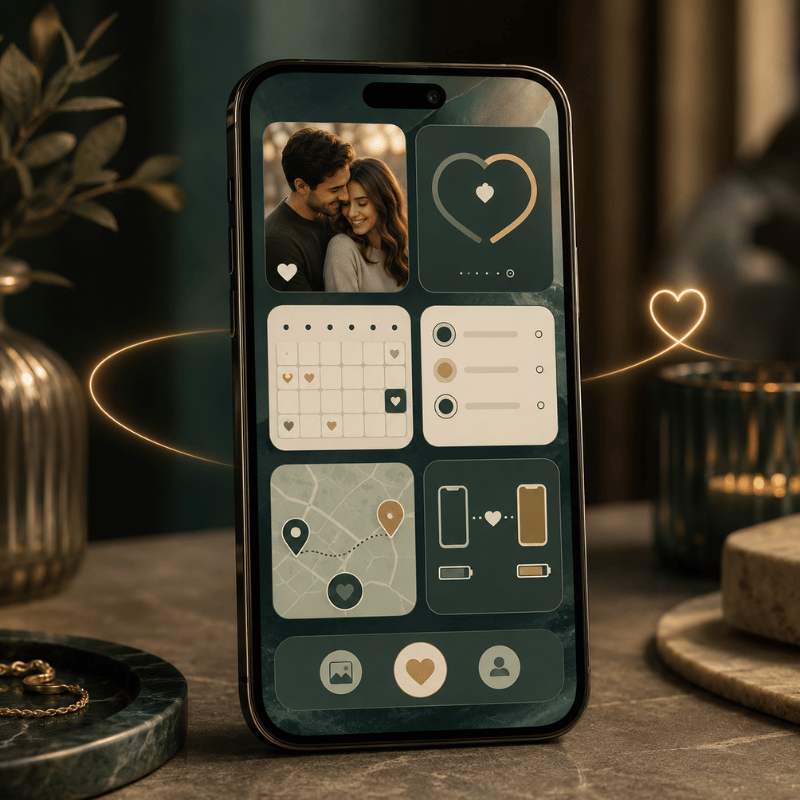
A couple widget app puts a small, shared panel on you and your partner’s iPhone Home Screen or Lock Screen, showing how far apart you’re, how many days you’ve been together, a live photo, or a quick mood. This guide breaks down the four types, names the apps worth downloading, and shows you exactly how to add one (on both phones).

Short answer: A couple widget app is a third-party app, iPhone has no built-in couple widget, that shows shared info like distance, days together, or a photo on both partners’ screens. The best one depend on your situation: distance for long-distance, a days-together counter for milestones, or a photo widget for daily connection.

Key points

  • There’s no native iPhone couple widget, every option need a third-party app, and both partners must install and pair it.
  • Distance widgets refresh on a schedule, not live, and they need Location permission to work.
  • Four widget types cover almost every couple: distance, days-together/countdown, photo/doodle, and status/mood.
  • iOS 26’s redesigned Lock Screen makes a couple widget glanceable without unlocking, a real reason to move it off the Home Screen.

Couple Widget Apps at a Glance

What it shows Distance apart, days together, live photos, or mood/status
Where it lives Home Screen, Lock Screen, StandBy, or Today View
Both partners needed? Yes — install + pair on each phone
Platforms iOS and Android (cross-platform pairing varies by app)
Free tier? Usually yes; premium unlocks extra styles and removes ads

What Is a Couple Widget App?

What Is a Couple Widget App?

A couple widget app is a relationship app whose main feature is a widget, a glanceable tile on your iPhone, that mirrors a piece of shared information between two partners. Instead of opening a chat, you see the thing itself: the miles between you, your running “days together” count, the photo your partner just sent, or a one-tap mood. Apple’s own widgets pull live data from apps onto your iPhone Lock Screen and Home Screen; a couple app simply supplies a widget built for two people who are linked.

The important detail most people miss, and the most common mistake when they start, is that iPhone doesn’t ship with a couple or distance widget. According to Apple’s widget documentation, widgets come from the apps you install, so a couple widget always means downloading a third-party app and connecting it to your partner. The reason that matter is expectation: people search the built-in widget gallery for 10 minutes, find nothing, and assume their phone can’t do it. In practice it can, you just start from the App Store, not from Settings. That’s not a flaw, it’s the model, and it shapes everything below.

The 4 Types of Couple Widgets (and Which Fits Your Relationship)
The 4 Types of Couple Widgets (and Which Fits Your Relationship)

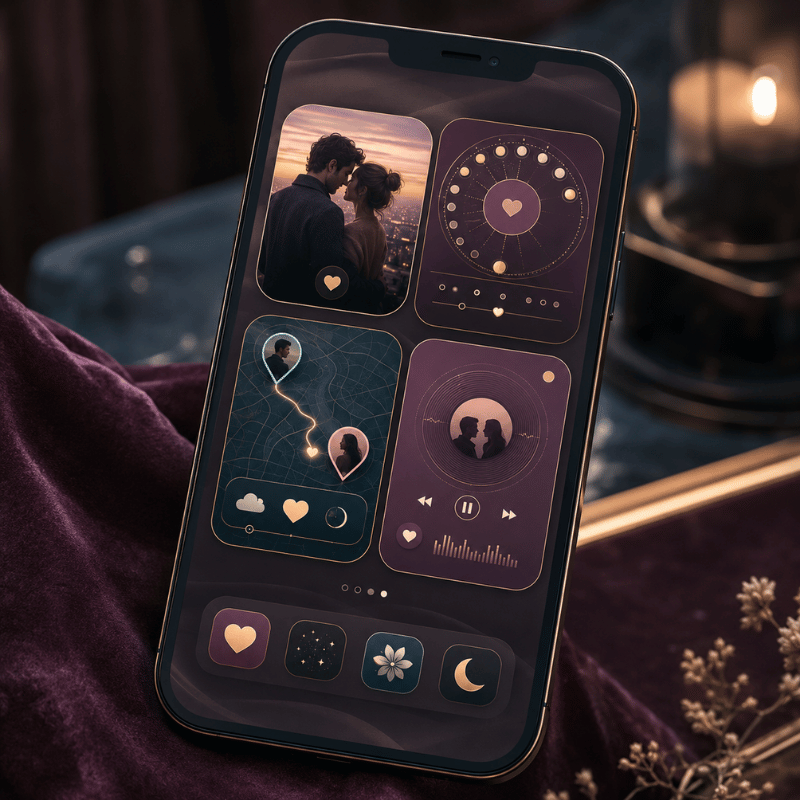
Couple widgets look endless in the App Store, but they collapse into four jobs. We call this the 4-Type Couple Widget Matrix: four widget styles, each mapped to a relationship situation. Pick the row that sounds like you, and you’ve narrowed the field before downloading anything.

The 4-Type Couple Widget Matrix: four widget types matched to four couple situations.
Type What it shows Best for Best placement
Distance Miles/km between you, plus each time zone Long-distance couples Lock Screen
Days-Together / Countdown Days as a couple; anniversary countdowns Milestone-trackers Home Screen
Photo / Doodle A live photo or sketch your partner sends Daily-connection couples Home Screen
Status / Mood A mood emoji, a “miss you” note, or a love widget heart At-a-glance reassurance Lock Screen

Widget types compiled from current couple-app feature sets; placement reflects each type’s glance frequency.

The matrix matter because the apps don’t compete head-to-head, they specialize. A long-distance couple want the distance row; a pair tracking their first year wants the days-together row. Many people end up with two widgets: one functional (distance) and one emotional (a photo). If you want all four in a single app, couple widgets in an all-in-one customization app save you from juggling several downloads.

How to Add a Couple Widget on iPhone (Step by Step)
How to Add a Couple Widget on iPhone (Step by Step)

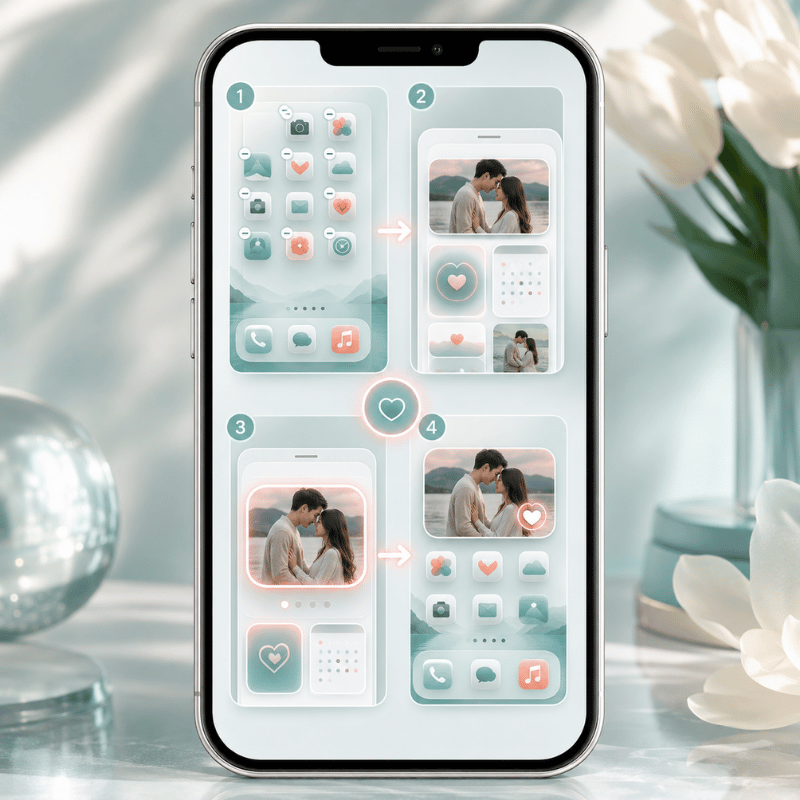
The steps to add a widget are the easy part; getting it to actually show your partner is where people stumble. Here’s the full flow, based on Apple’s official steps for adding and editing widgets.

  1. Both of you download the same couple widget app from the App Store.
  2. In the app, one partner generate a pairing code or invite link; the other enters it. You’re now linked.
  3. Touch and hold an empty area of the Home Screen until the apps jiggle, tap Edit in the upper-left, then tap Add Widget.
  4. Find the couple app, choose a widget size, tap Add Widget, then Done.
  5. To put it on the Lock Screen, touch and hold the Lock Screen, tap Customize, then Add Widgets and pick the couple widget.
📐 Setup Note

Lock Screen widgets arrived in iOS 16 and sit in a single row under the clock. There’s room for a limited set, so a couple widget competes with weather and battery for that space. If it won’t fit, remove one to make room, Apple lets you swap, not stack, Lock Screen widgets.

⚠️ The Two-Phone Rule

A couple widget only works if both partners install and pair the same app, and distance widgets also need Location permission. One person setting it up alone gets a blank tile.

The single most common mistake, repeated across long-distance forums, is one partner setting everything up and wondering why the widget stays empty. It’s empty because the other phone hasn’t joined yet. Treat setup as a two-person, five-minute job done together over a video call.

Is there a widget that shows how long a couple has been together?

Yes. A days-together widget count up automatically from a start date you set once, the day you became official, your first date, whatever you choose. After that it ticks over every day with no input, and most apps layer anniversary reminders on top (100 days, one year). It’s the most “set it and forget it” couple widget, which is why apps like Couple Widget and Paired lead with it. You enter the date during pairing, drop the widget on your Home Screen, and the number take care of itself from then on.

Best Couple Widget Apps in 2026
Best Couple Widget Apps in 2026

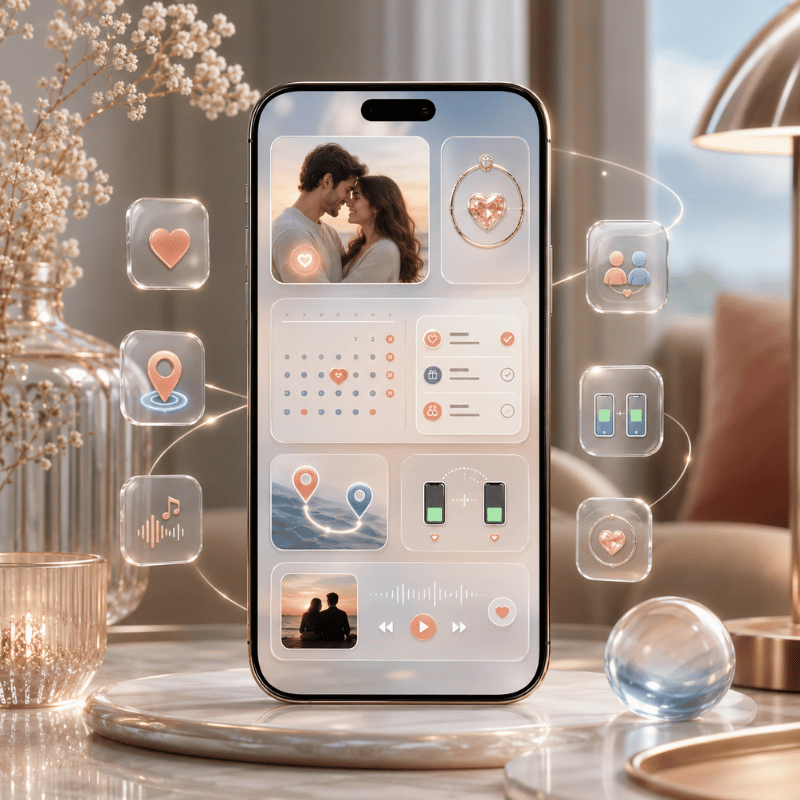
There’s no single winner, the right app is the one that nails the widget type you want, and the common mistake is grabbing whatever ranks first instead of matching the app to your need. The reason that backfires is mismatch: a photo-only app is useless to a couple who wanted distance, so you uninstall it within a day and start over. Here’s how the most-recommended options actually behave in practice, based on their App Store descriptions and what long-distance couples report using across years of threads.

Best couple widget apps in 2026, sorted by widget type and what each does best.
App Best for Widget types Free tier
iScreen All four types in one app Distance, days-together, photo, mood Yes
Couple Widget: Love Countdown Days together + anniversaries Days-together, countdown Yes
Couple Joy Mood + distance together Status/mood, distance, stickers Yes
Locket Photo sharing (friends & couples) Photo Yes
noteit Live notes/doodles Doodle/note Limited (sub ~$6/yr)
Cozy Couples Notes, mood & distance together Status/mood, distance Yes
Widgetable Cross-platform iPhone + Android Mixed (pet, mood, photo) Yes
Paired Days together + daily questions Days-together Limited (premium)
Between Private shared timeline Photo, days-together Yes

Features per each app’s App Store / Google Play listing; pricing as listed at time of writing and subject to change.

If you only want one job done, a photo on your screen, a focused app like Locket is hard to beat. If you want the distance, the day count, and a daily photo without installing three apps, an all-in-one tool that bundles interactive widgets for couples is the simpler path.

Distance Widgets for Long-Distance Couples
Distance Widgets for Long-Distance Couples

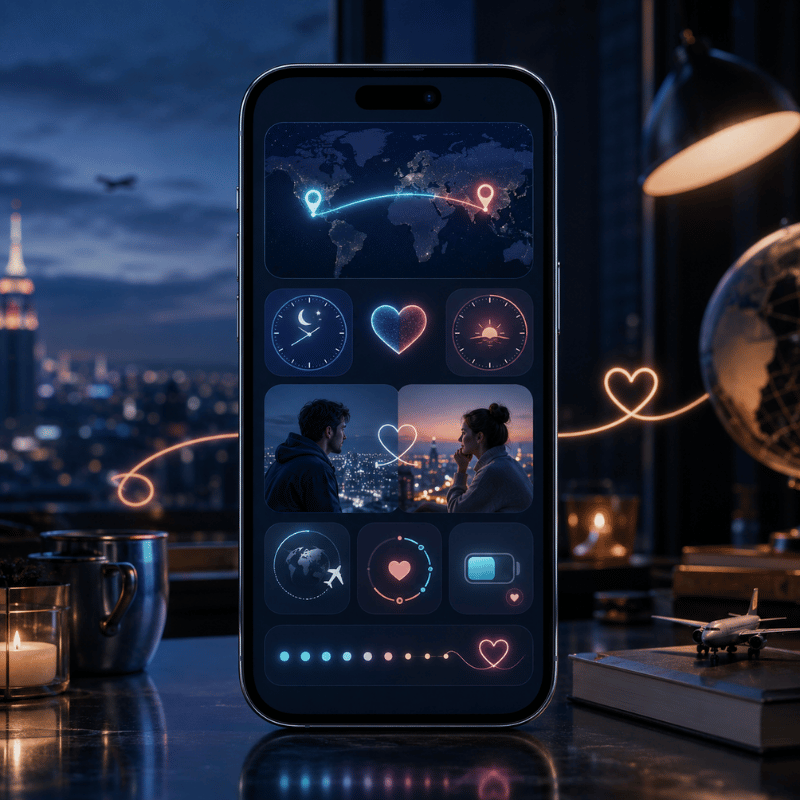
A distance widget is the signature long-distance feature: a tile that show how many miles separate you, often with each partner’s local time. It needs Location sharing permission on both phones, then it calculates the distance between your two locations and refreshes it periodically. That “periodically” matters, widgets update on a schedule the system control, so the number you see is recent, not a live GPS readout. Don’t expect it to move as your partner walks down the street. Some apps pair it with a status widget that adds battery share, so a glance also tell you whether your partner’s phone is about to die mid-conversation.

Picture a couple six time zones apart: she’s in Toronto, he’s studying in Lisbon. Her Lock Screen shows “5,400 km · 4:12 PM there,” so a glance tells her he’s mid-afternoon and probably between classes, useful context before she texts. That small ambient signal is exactly what long-distance couples say helps most, and the reason it work is psychological: university counseling resources on long-distance relationships note that consistent, low-pressure contact beats constant messaging, because it sustains connection without the risk of one partner feeling crowded.

“On average people in long-distance relationships are at least as satisfied, and maybe more satisfied, than couples living close by.”

Charlie Huntington, research psychologist and psychotherapist, writing for Psyche
⚠️ One honest caveat

A distance widget run on constant location sharing, and that’s worth a thought. Huntington cautions couples against permanently sharing locations, because it “opens up the temptation to monitor your partner.” A distance tile is sweet as ambient reassurance; it’s not a tracking tool, and treating it like one can backfire. If either of you feels watched, turn it into a days-together or photo widget instead.

Days-Together & Anniversary Countdown Widgets
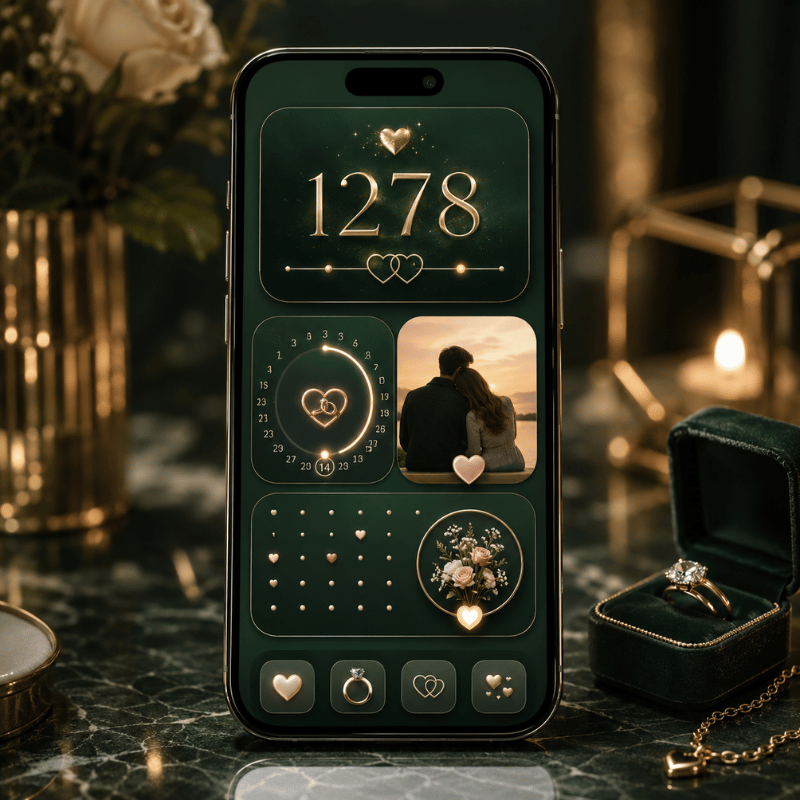
Days-Together & Anniversary Countdown Widgets

The days-together widget is the emotional anchor of the category, the love countdown many couples check first. You set a start date, and it counts up forever; pair it with a love countdown to your next anniversary and you get both the history and the horizon on one screen. Match it with a shared couple wallpaper and the whole Lock Screen becomes a small tribute to the relationship. Couple Widget built its whole identity on “Days Together at a glance” with automatic anniversary reminders, and forum regulars mention sticking with apps like Paired for years precisely because the running count become part of the relationship’s story. The common problem this solves is the forgotten anniversary: the reason a counter beats a calendar reminder is that it’s always visible, so a milestone like 100 days or 1 year never sneaks up on you. In practice, couples who set it on day 1 report checking it far more than they expected.

Where you place it changes how it feels. In iScreen, the days-together widget can sit as a big Home Screen counter you scroll past, a small Lock Screen version you glance at before you even unlock, or a StandBy display that turns your charging phone into a bedside countdown. If milestones are your thing, a dedicated countdown widget can sit alongside the couple count for trips and reunions.

Photo & Doodle Widgets (Locket-Style)
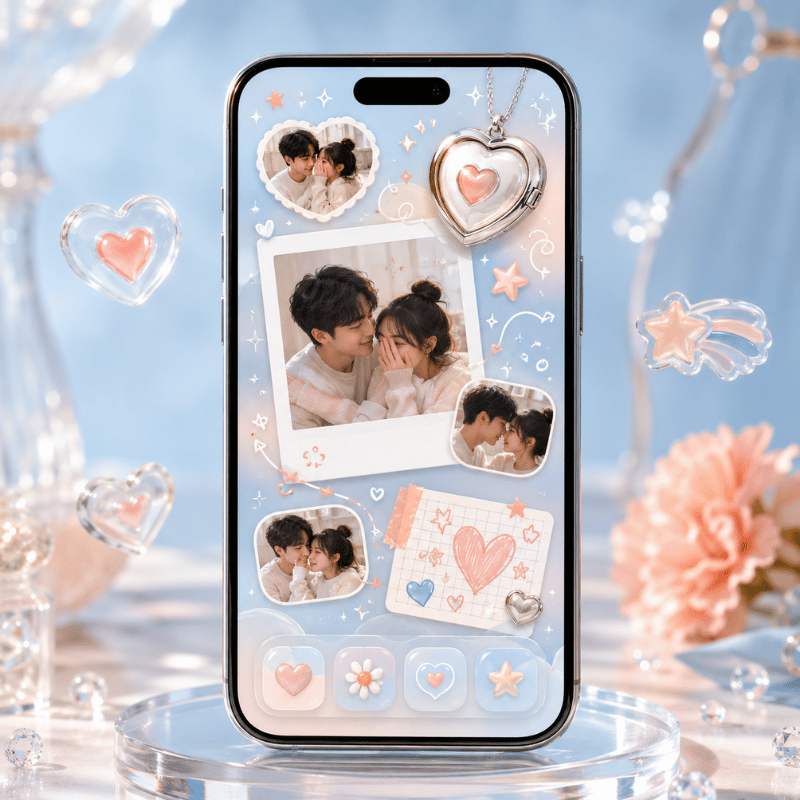
Photo & Doodle Widgets (Locket-Style)

Photo widgets turn your Home Screen into a tiny shared frame. Your partner snaps a photo in the app, and it appears on your widget in real-time, no notification to open, just their face waiting there next time you glance down. The reason this one lands emotionally is timing: because the photo arrives on the home screen instead of buried in a chat, you see it within seconds, not whenever you next open a messaging app. A drawing widget work the same way with sketches and short messages: noteit pushes a quick doodle or a “miss you” note straight to your partner’s screen for around $6 a year. The one real risk is over-sending, in practice, a photo every few hours stays special, while a constant stream turn the widget into noise. It’s the most spontaneous couple widget, and the one people describe as feeling closest to a peek into each other’s day. The reason it lands is well-studied: research from the Rochester Relationship Lab finds that intimacy grows when partners share personally meaningful moments, and a photo widget turn that sharing into a low-effort daily habit. In iScreen, the photo widget sits beside the distance and days-together tiles, so a single app cover the spontaneous and the steady at once.

Is the Locket app for couples?

Locket is built for “live photos from your best friends,” so it’s a friends app first, but couples use it constantly, and it’s one of the most-recommended photo widgets on long-distance forums. The difference from a dedicated couple app is focus: Locket is one feed of photos, while a couple-specific app pairs the photo widget with distance, a day count, and moods. If a shared photo on your screen is all you want, Locket nails it; if you want that photo plus the rest of the 4-Type matrix, a couple app cover more ground. Either way, both partners install and add the widget.

Free vs Paid Couple Widget Apps
Free vs Paid Couple Widget Apps

Almost every couple widget app is free to start, with a premium tier that unlocks more widget styles, removes ads, or adds features like extra themes and history. noteit, for example, is free to use with a subscription around $6 a year for its full feature set. The reason the free-versus-paid line matter is a common mistake: couples pay on day 1 for a widget they abandon by week 2, because the novelty fades faster than the subscription. In practice, the free tier is enough to test whether the widget earns a permanent spot, only the risk of a wasted $6 to $30 a year separates trying from committing. Before paying, it’s worth knowing what the free tier actually gives you versus what’s gated.

✔ Free tier usually includes

  • One pairing with your partner
  • The core widget (distance, days, or photo)
  • Basic widget sizes for Home and Lock Screen
⚠ Premium usually gates

  • Extra widget themes and animations
  • Ad removal
  • Multiple widgets or richer customization

For most couples the free tier is genuinely enough, pay only once you know you’ll keep the widget around. If you like customizing more than the widget, browsing the best widgets for iPhone shows how a couple tile fit a wider setup.

Couple Widgets on Android (and Cross-Platform Pairing)
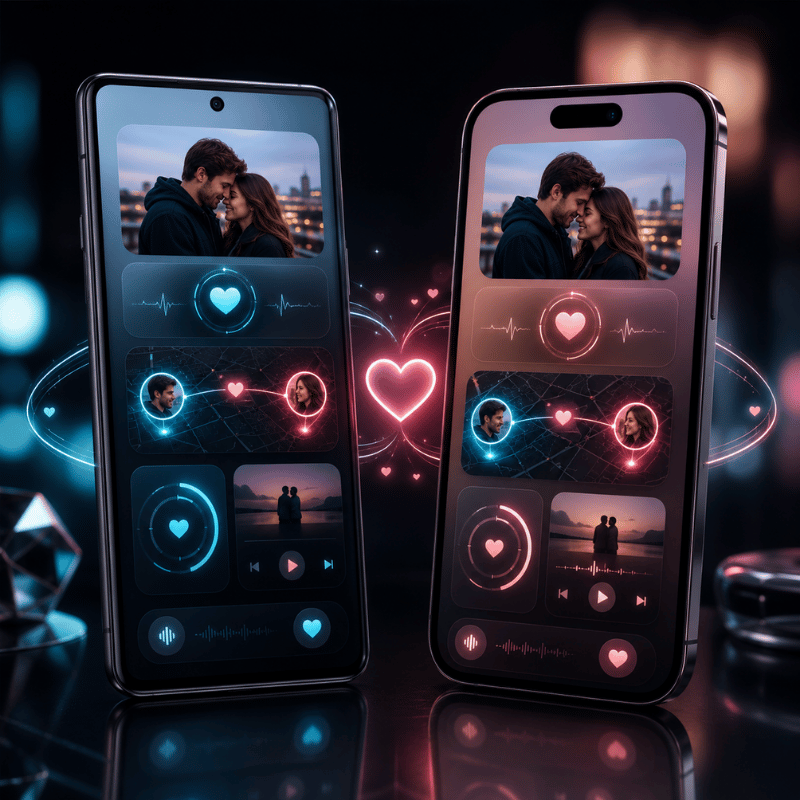
Couple Widgets on Android (and Cross-Platform Pairing)

If one of you is on Android, check cross-platform support before you both commit, because this is where mixed-phone couples most often hit a problem: an iOS-only app leave the Android partner with nothing to pair to. The reason it matter is that roughly half of couples aren’t on matching phones, so the app you pick has to publish on both stores. In practice, apps like iScreen, noteit, and Widgetable explicitly pair an iPhone with an Android phone, and the shared data syncs the same way once you’re linked. The widget mechanics differ, Android places widgets through a long-press on the home screen and its own widget picker, but the risk is only the setup step, not the daily use. The safe move: confirm the app lists both platforms, then have the Android partner install first and send the pairing invite within the first 5 minutes. This matters because cross-device communication is what sustains a relationship across distanceCornell University counseling resources note that consistent contact, not the specific device, is what keeps long-distance couples connected, so a mismatched-phone pair lose nothing as long as the widget syncs both ways.

What iOS 26 Changes for Couple Widgets in 2026
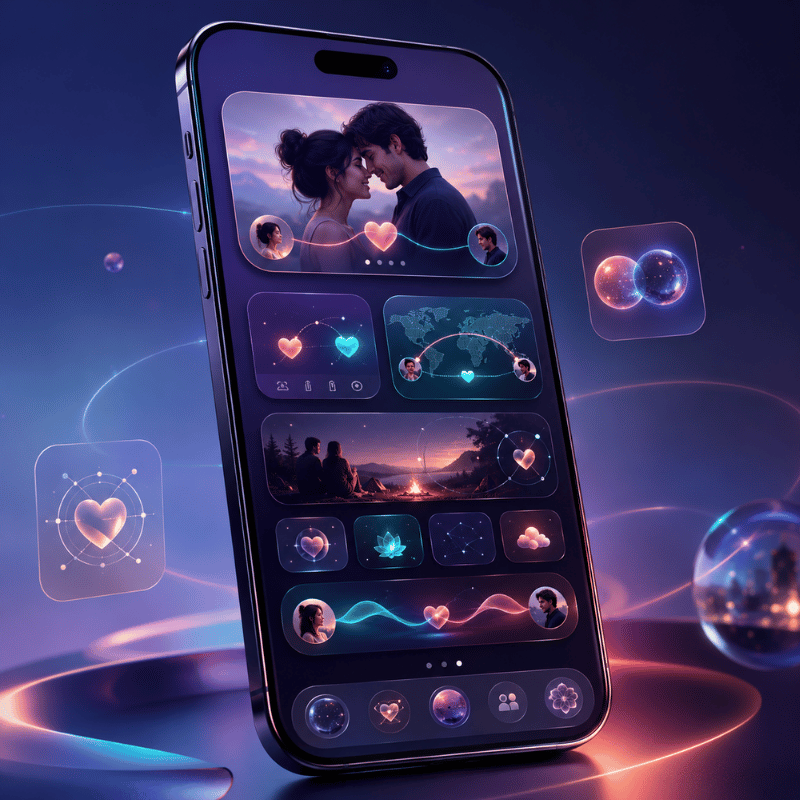
What iOS 26 Changes for Couple Widgets in 2026

The biggest 2026 shift isn’t a new couple feature, it’s where your couple widget belongs. iOS 26’s redesigned, more glanceable Lock Screen (part of Apple’s Liquid Glass update) makes a couple widget readable without unlocking, which is a concrete reason to move a daily-connection widget off the Home Screen and onto the Lock Screen. The reason this matters in practice is a friction problem: because the average person checks their phone around 100 times a day, a widget that’s visible the instant the screen lights up gets noticed far more than one buried behind a passcode, and the risk of an out-of-sight Home Screen widget is that it quietly stop being part of your day. For a long-distance pair, seeing the distance or a day count the moment you wake the phone change how often you notice it.

On the platform side, interactive widgets (introduced through Apple’s WidgetKit) let some tiles respond to a tap, so a “thinking of you” widget can become a button, not just a display. Apple’s Live Activities and the Dynamic Island can also surface a couple app’s real-time updates at the top of the screen. iOS 26, released September 2025, carries that forward alongside the Lock Screen refresh that Apple documents in its iOS 26 feature list and trade coverage detailed at launch. If you’re setting up a couple widget in 2026, build it for the StandBy mode and Lock Screen first, that’s where the platform is heading. (Search interest in couple and distance widgets is seasonal, peaking over the summer when more couples separate for travel or study; treat that as background, not a buying signal.)

Frequently Asked Questions

Do both partners need to install the same couple widget app?

View Answer
Yes. A couple widget shares data between two linked phones, so both of you install the same app and connect through a pairing code or invite. If only one partner sets it up, the widget shows nothing because there’s no second person feeding it. This is the Two-Phone Rule, and it’s the number-one reason a new couple widget appears blank.

Is there a free couple widget app?

View Answer
Yes — most couple widget apps are free to download and use, including iScreen, Couple Widget, Couple Joy, and Locket. The core widget (a distance count, days together, or a shared photo) is typically free; a paid tier unlocks extra themes, removes ads, or adds widget styles. You can run a full couple widget without ever paying.

What is the 2-2-2-2 rule for couples?

View Answer
The 2-2-2-2 rule is a relationship-rhythm idea, not a widget feature: roughly a date every two weeks, a night away every two months, a longer getaway every two years (versions vary). It’s about protecting intentional time together. A couple widget can support it indirectly — a countdown to your next planned trip keeps that rhythm visible — but the rule itself is about your calendar, not your Home Screen.

How accurate is a distance widget?

View Answer
It’s accurate to your general location but refreshes on a schedule, not live — so the number is recent, not second-by-second.

Can couple widgets work between iPhone and Android?

View Answer
Some can. Apps published on both the App Store and Google Play — such as noteit and Widgetable — let an iPhone and an Android phone pair and share a widget. The data syncs across platforms even though each phone adds the widget its own way. Always confirm the app lists both platforms before you both commit to it.

Why isn’t my couple widget updating?

View Answer
Usually your partner hasn’t paired yet, or Location/notification permissions are off. Confirm both, then reopen the app.
Want all four widget types in one app?

iScreen bundles distance, days-together, photo, and mood widgets for couples, free to start, on iOS and Android.

Explore couple widgets →

How We Picked These Couple Widgets

We build couple, distance, and days-together widgets ourselves, so this guide leans on how these widgets actually behave on a paired pair of phones, including the parts that frustrate people, like the Two-Phone Rule and refresh lag. App descriptions and long-distance community reports were cross-checked against Apple’s widget documentation. Reviewed by the iScreen team.

最近の記事

Aesthetic Clock Widgets for iPhone: Best Designs & How to Set Up

Aesthetic Clock Widgets for iPhone: Best Designs & How to Set Up

2026/7/22 12:23
Updated July 2026 · Current iPhone, iOS 26, and iOS 18 guidance Aesthetic clock widgets for iPhone are visual time displays designed to coordinate with a wallpaper, icon set, and placement surface. They look best when the typeface, color, and amount of information match the wallpaper, not when the clock is simply the most decorative option in the gallery. Start with a minimalist digital clock for a busy background, a flip or pixel clock for a quiet retro layout, or an analog face for a classic screen. Then check that the design is actually available for the Home Screen, Lock Screen, or StandBy surface where you want to use it. Quick Picks Best clean layout Minimalist digital clock with medium-weight numerals Best retro look Flip clock or pixel clock on a plain gradient Best classic look Round analog clock with a simple face Best cute look Pastel clock paired with a low-detail wallpaper Best transparent effect Glass-style clock tested in both light and dark appearance Best information-rich option Time-and-date dashboard with one extra datum, not a crowded mini control panel What Makes a Clock Widget Aesthetic and Easy to Read? An attractive clock needs four things working together: a numeral shape that suits the mood, enough weight to survive the wallpaper, clear separation between foreground and background, and a sensible amount of information. Thin serif numerals can look elegant in a preview and then vanish over clouds, faces, or bright highlights. Heavy digital numerals stay readable, but they can dominate a soft layout if the widget is too large. Use the wallpaper’s focal point as your boundary. When the subject sits in the upper half, move the clock lower or choose a compact size. For an already detailed background, use fewer colors and less ornament. Apple provides display controls such as Increase Contrast and Reduce Transparency because appearance and readability don’t always move in the same direction. Apple’s display and text guide is worth checking if a pale, glass, or low-contrast design looks different on your phone than it did in the preview. Practical rule: a clock should either improve at-a-distance readability, add useful time-and-date context, or deliberately anchor the composition. Without one of those roles, the status-bar time may be the cleaner choice. Best Aesthetic Clock Widget Designs for iPhone There’s no universal winner. This table treats each clock as part of a full screen, not an isolated product thumbnail. iScreen’s current widget library includes digital and Lock Screen clock options, while the App Store listing shows the wider customization scope, ratings and reviews, version history, in-app purchases, and app privacy information in one place. Review the privacy policy and App Store privacy label for any widget app before you decide that visual style is the only tradeoff. Before downloading apps like these, check three details: whether the design is completely free or part of an in-app purchase, whether the “What’s New” notes show recent bug fixes, and whether the supported devices match yours. Reviews describing the exact clock and iOS version are more useful than a generic “great app” comment. App Store distribution also doesn’t mean every marketing statement is verified by Apple. This guide focuses on iPhone; some WidgetKit families also work on iPad, but a design shown for iPhone and iPad still may not support every iPhone surface. Nine clock types compared by wallpaper, placement, size, and limitation Clock type Best wallpaper match Best surface Useful size Watch for Minimalist digital Photos, gradients, or quiet textures Home Screen Small or medium Ultra-thin numerals can disappear Retro flip clock Solid, film-grain, or muted gradient Home Screen or StandBy Medium or full screen The panels become noisy over busy photos; some listings spell the style “FlipClock” Classic analog clock Neutral, architectural, or editorial Home Screen Small or medium Tiny hands are harder to read at a glance Transparent or Liquid Glass Low-detail wallpaper with a stable color field Home Screen Medium Tint, clear mode, and accessibility settings can change the effect Pixel clock Game, cyber, or monochrome retro art Home Screen Small Mixed icon styles break the illusion quickly Pastel or cute clock Soft illustration or plain pastel Home Screen or Lock Screen slot Small Low contrast can turn cute into hard to read Information dashboard Plain dark or light background Home Screen or StandBy Medium A countdown can help you keep track of time, but too many fields compete with the main display World clock Plain map, travel, or neutral background Home Screen or StandBy Medium Extra zones need clear city labels Timer clock Minimal work or study layout Home Screen Small or medium A task timer is not the same as a continuously updating wall clock Our July 2026 US DataForSEO Google Ads batch recorded 1,600 estimated monthly searches for both “iPhone clock widget” and “clock widget for iPhone,” compared with 30 for “analog clock widget iPhone”; the same batch put “add widgets to iPhone” at 5,400. These are directional search estimates from one current batch, not traffic forecasts. They don’t make analog clocks unattractive; they explain why a digital clock widget is the most useful default and analog appears as a deliberate style choice. For a broader list of screen widgets beyond clocks, see our best widgets for iPhone guide. A first-party 90-day review of 939 query-by-page rows found established visibility for generic widget, Home Screen, and Lock Screen pages, but no strong clock-specific owner. That is why this guide connects clock design and setup to those broader resources instead of duplicating them. The 4-Input Clock Style Fit Matrix The 4-Input Clock Style Fit Matrix starts with what’s already on the screen: wallpaper complexity, visual goal, information density, and placement surface. It doesn’t guarantee that one custom clock widget is offered in every location: Apple’s WidgetKit guidance distinguishes system widgets from accessory widgets, and the UI rendering can change by context. Apple’s widget-background guidance also explains that the system can remove or alter a widget background in contexts such as StandBy and accessory placements. Choose the desired surface first, then confirm that iScreen offers that design and widget family there. Community user tips can suggest a look, but the availability check belongs inside the app. The Clock Style Fit Matrix, choose by wallpaper, goal, information density, and surface Your screen Recommended Avoid first Availability check Busy photo + time only + Home Screen Bold minimalist digital Transparent glass or detailed analog face Small or medium system widget Quiet gradient + decorative goal + Home Screen Flip, pixel, or analog Dense information dashboard Matching saved size in iScreen Portrait wallpaper + compact Lock Screen area Simple accessory clock or date A design intended only for a medium Home Screen tile Lock Screen accessory family Nightstand + at-a-distance viewing + StandBy Large digital or restrained flip clock Fine analog hands or multi-panel dashboard StandBy-compatible clock or small widget For a cute layout, apply the same logic before choosing illustrations. Our cute aesthetic widgets guide covers full theme pairing; here, the clock-specific rule is simpler: one clear time display, one visual motif, and no competing decorative panel beside it. The One-Glance Contrast Test The One-Glance Contrast Test takes less than a minute after you place the widget: Hold the phone at arm’s length. Needing longer than a glance to read the time means the numerals are too light, too small, or too close to the wallpaper color. Move the widget across the wallpaper’s brightest area. Any design that only works in one dark corner is fragile; decide whether moving it harms the composition. Check both light and dark appearance. Also check tint or clear mode and any enabled Increase Contrast, Reduce Transparency, Color Filters, Bold Text, or Display Zoom setting; Apple documents these controls in its display and text settings guide. Adjust in this order: move the position, change the widget size, add a quiet backdrop, then switch the numeral weight or style. This preserves the chosen aesthetic before replacing it. Transparent clock backgrounds can look integrated in one appearance and mismatched in another, so test the placed widget, not just its in-app preview. Do not force a large clock into every layout If the status-bar time is already enough and the clock adds no useful date, time zones, or distance readability, leave the space open. Negative space can make the rest of the Home Screen feel more intentional. How to Add an iScreen Clock Widget to the Home Screen First, open iScreen, browse or search for the clock you want, customize its color or content, and save it to My Widgets. Then follow Apple’s current Home Screen widget flow. Touch and hold the Home Screen background until the items begin to move. Tap Edit, then Add Widget. Search for iScreen and open it. Choose the same size as the clock you saved, then tap Add Widget. Move the tile into position and tap Done. If the wrong saved design appears, touch and hold it, choose Edit Widget, and select the current widget. iScreen shows the exact assignment step in the full customization guide. When you’re adding several home screen widgets, the broader iPhone widget roundup can help you decide what earns the second slot. The Three-Zone Clock Layout Divide the screen into a time zone, an app zone, and breathing room. Put the clock in the quietest zone, keep one supporting widget at most, and let the wallpaper remain visible somewhere. If the clock needs to stay visible, don’t place it inside a Smart Stack: iOS can rotate the visible widget based on time, location, and activity. Today View is another supported location, but access from a locked phone depends on your Allow Access When Locked settings, so avoid exposing sensitive calendar or location data there. How to Add or Style a Clock on the Lock Screen There are two different clocks here. The large built-in Lock Screen clock is part of Apple’s system editor; a third-party Lock Screen widget occupies an available widget area and does not replace that large system clock. That distinction prevents the most common expectation mismatch. Style Apple’s main clock Touch and hold the Lock Screen, then unlock the iPhone if asked. Tap Customize, choose the Lock Screen, and tap the clock. Adjust the available font, size, color, or transparency controls, then tap Done. Add an iScreen accessory widget Save a compatible design in iScreen first. In the Lock Screen editor, tap Add Widgets or the widget area, choose iScreen, then add a supported accessory size. That same Home Screen design may not exist in this smaller format, and iOS can render Lock Screen widgets with a different vibrant treatment. Some listings use “Lockscreen” as one word, but the platform distinction is the same. For more placement options, use our dedicated Lock Screen widgets guide; its cute widget combinations also offer theme ideas. Use StandBy for a Full-Screen Aesthetic Clock StandBy mode, introduced in iOS 17 and refined since, is the best fit when the clock needs to work as a nightstand display, desk clock, or full-screen screensaver-style view. It’s a system surface, not simply a large copy of every Home Screen clock. Designs advertised for “Home Screen and StandBy” still need the app’s supported-family check. Open Settings > StandBy and turn it on. Connect the iPhone to a charger, place it on its side, and keep it stationary. Press the side button if needed, then swipe between widgets, photos, and clocks. Choose a restrained clock for distance viewing and test Night Mode in the room where you’ll use it. Apple’s current StandBy guide notes that supported Always-On models can keep the view visible. On other iPhones, StandBy can sleep and require a tap, a nudge to the surface, or Siri to wake it, so don’t judge a clock app as broken just because the full-screen view doesn’t remain on. Our complete iPhone StandBy guide covers the deeper settings. Fix a Clock Widget That Is Missing, Blank, or Not Updating Start with the symptom. Stale time can come from the saved-widget assignment, the widget family’s supported context, iOS scheduling, or an app-specific bug. Apple Developer documentation also shows that supported dynamic date and time views can continue updating while visible even when the widget extension isn’t running, so “iOS refresh delay” isn’t a complete diagnosis. Symptom-to-fix guide for iPhone clock widgets Symptom Check first Next fix iScreen is missing from the gallery Open iScreen once and confirm the widget was saved Search again, then restart the iPhone if it remains missing The wrong clock appears Confirm the placed size matches the saved size Touch and hold > Edit Widget > choose the saved clock The clock is blank Open iScreen and verify the design still loads in-app Remove and re-add the widget; check version history for recent bug fixes The time looks stale Open the app and check whether that design supports a dynamic time display on this surface Reassign or re-add it; update iOS and the app before treating it as a defect A transparent clock no longer matches Check light/dark, tint/clear, and accessibility display settings Recreate the background or switch to a solid/outlined clock The iScreen setup and troubleshooting page covers opening the app to refresh, re-adding a widget, and restarting when an item is missing. No third-party developer should promise that every widget behaves like the Clock app or updates second by second in every context. Frequently Asked Questions How do you get aesthetic widgets on iPhone? Install a widget app, save a design that matches your wallpaper, then add its matching size from the Home Screen editor and place it in a quiet area. With iScreen, choose and customize a clock, save it to My Widgets, touch and hold the Home Screen, and select Edit > Add Widget > iScreen. Pick the matching size, place it, and use Edit Widget if the wrong saved design appears. Coordination comes from matching the clock’s visual weight to the wallpaper, icons, and any second widget, not from adding lots of options at once. Can you customize the clock widget on an iPhone? Yes. Customize Apple’s main clock in the Lock Screen editor, or configure a third-party clock in its app before adding a supported widget size to the screen. Apple’s main Lock Screen clock is customized in the Lock Screen editor. Configure a customisable or customizable third-party clock in its source app, then add it as a Home Screen or supported Lock Screen widget. That face may not be available in every size or surface, so customise the saved design only after choosing where it will live. How do you add a cute clock widget? Choose a pastel or illustrated clock, save it in the widget app, add the matching size, and place it over a quiet part of the wallpaper. In iScreen, save the pastel or playful design to My Widgets. Enter Home Screen edit mode, choose Add Widget, select iScreen, and add the matching size. When the wrong design appears, use Edit Widget to select the saved clock. Keep the numerals darker than the lightest wallpaper area, especially with cute illustrated backgrounds. Do clock widgets drain battery? Normal clock widgets use iOS-scheduled updates rather than running continuously, but the specific widget, update behavior, and time the display remains on can still affect battery use. WidgetKit uses timelines and system-controlled updates, while supported dynamic date views can update onscreen without continually running the extension. More often, the relevant battery consideration is how long the display remains active, especially with StandBy or Always-On, not the clock artwork alone. When battery use changes sharply, compare the app and display battery entries instead of assuming every clock widget has the same cost. How do you display different clocks on iPhone? Save a different design for each placed widget. Assign each saved clock through Edit Widget, or use one world clock for multiple time zones. Test every screen after unlocking. Choose the surface before the style A clock is easiest to live with when it solves the job of its surface: quick glance on the Home Screen, compact context on the Lock Screen, or distance viewing in StandBy. That functional fit decides whether an elaborate design is worth paying for. Use the Fit Matrix, run the One-Glance Test, and then browse iScreen’s clock and widget designs for an option available in the size you need. Dynamic Island is a separate iPhone surface and isn’t a substitute for a clock widget. For a complete setup walkthrough, continue with how to customize iPhone widgets. When the Lock Screen is your priority, the Lock Screen widget guide goes deeper; for a bedside or desk setup, use the StandBy mode tutorial. References & Sources Add, edit, and remove widgets on iPhone Apple iPhone User Guide. Personalize your iPhone Lock Screen Apple iPhone User Guide. Use StandBy on iPhone Apple iPhone User Guide. Displaying dynamic dates in widgets Apple Developer Documentation. Developing a WidgetKit strategy Apple Developer Documentation. Displaying the right widget background Apple Developer Documentation. Keeping a widget up to date Apple Developer Documentation. How to install iScreen desktop widgets iScreen Support.
2026/7/22 12:23
iPhone Lock Screen Ideas: Aesthetic Customization Tips for iOS 18

iPhone Lock Screen Ideas: Aesthetic Customization Tips for iOS 18

2026/7/22 12:22
iPhone lock screen ideas are practical visual setups for an iOS Lock Screen: choose wallpaper first, then the clock style, then only the widgets that deserve space. Use them to personalize your Lock Screen without sacrificing readability; aesthetic lock screen ideas should still pass a quick glance test before you tap Customize, add emoji details, try a 3D-style image, or test a newer Spatial Scene effect on supported iOS versions. 2026 Version Note This guide is intentionally scoped to iOS 18 because that’s the search topic. Apple now tells iPhone users to check Settings > General > Software Update for the latest iOS version, and Apple’s own update guide shows iOS 26 as an upgrade option. If your phone is already on a newer iOS release, keep the same wallpaper, contrast, privacy, and widget rules, then check your device for newer Lock Screen effects. Quick Setup Card Start with a clean wallpaper, then add widgets only when they improve the screen. Use an iOS 18-paired color palette between the Lock Screen theme and an iPhone home screen icon tint. Aim for an average widget count: use no more than 2 widgets on visually-focused screens or 3-4 only for more functionally-driven screens. Look through available iPhone lock screen widget settings and then the broader range of personalization options available before completing with iPhone wallpaper for visual cohesion. Quick Answer: The Best iPhone Lock Screen Ideas for iOS 18 Effective iPhone Lock Screen setups are built around a single theme, whether that is minimalist photography, subtle pastels, dramatic dark mode, vibrant anime, practical calendar management, Photo Shuffle, the Depth Effect, or a complete alignment of wallpapers and icons. As Apple’s Lock Screen guide notes, customization extends to wallpaper, cherished photos, clock appearance, widgets, multiple screens, and Focus integration, so the strongest configuration harmonizes all these elements. Simplify with a guideline: the more detailed your wallpaper, the fewer widgets you should include; conversely, a plain background can benefit from one or two widgets for character. Often, a stunning Lock Screen falls apart when every widget clamors for attention. Choose a Lock Screen Style Before Choosing Widgets Many users start with widgets due to their perceived utility. However, a cleaner approach begins by establishing the desired mood and then selecting the minimum number of widgets to support that atmosphere. Apple’s own customization flow starts with the wallpaper and Lock Screen canvas before widget decisions, which supports a visual-first setup for aesthetic screens. Setup Type Wallpaper Choice Widget Rule 10-Second Check Minimal One subject, lots of empty space 0-1 widget Readable after a 10 sec glance Dark aesthetic Low-brightness photo or black gradient Battery or weather only Comfortable for 12 hours of night use Cute pastel Soft illustration, plush, flowers, or sky One photo or memo widget Still clear at 30% brightness Utility Plain color or blurred photo Calendar, weather, reminders Useful in the first 5 sec Photo Shuffle 5-10 photos with the same color tone 0-2 widgets Works for 7 days without feeling random Focus mode Separate work, sleep, and weekend wallpapers 1 practical widget per Focus Reset in under 2 min when routines change 4K wallpaper High-resolution image with a clear subject Skip widgets while cropping No blur at 100% preview size Pattern background Repeating shapes, grid, fabric, or texture Use thicker clock text Readable after 24 hours of normal use Widget-first Solid color, blur, or very simple gradient 3-4 widgets only when utility matters Review every 30 days and remove dead widgets Consider every lock screen choice a draft rather than a final product. Treat a saved Lock Screen as provisional: it should pass a 5 sec glance test, a 20 sec edit check, a review after 24 hours, another after 7 days, and a cleanup after 30 days if widgets stop earning space. Consistent elements can appear sophisticated, but they require greater clock contrast than a simple photograph, and a high-resolution wallpaper needs to be cropped to match the iPhone’s narrower aspect ratio. 10 Aesthetic iPhone Lock Screen Ideas Use these as starting points, then test each one against Apple’s documented options for photos, Photo Shuffle, widgets, Focus linking, and clock styling. A minimal portrait lock screen features a single subject (person, pet, flower) positioned behind the clock, without any widget row. Dark photo: use a black, navy, or charcoal image with white clock text and one compact weather widget. Pastel calendar: combine soft wallpaper, a delicate clock font, and a calendar widget for a tidy and focused workspace. An anime or illustration lock screen places the character clear of the clock and notification areas. Clean gradient: use a smooth, unadorned gradient background with no widgets for a serene daily experience. Photo Shuffle works best when the selected photos share similar color tones. Focus screens allow you to personalize one Lock Screen for work, another for sleep, and a separate one for weekends. Depth Effect: select a clear subject and leave open background around the clock so the subject can overlap the time without covering it. Matching icons: pair the Lock Screen with a compatible theme so the Home Screen does not feel like a different phone. Widget-first functionality: Choose simple wallpaper and use your calendar, battery and reminder widget to do the talking. How to Customize Your iPhone Lock Screen in iOS 18 Apple’s current instructions say to touch and hold the Lock Screen, create a new Lock Screen or customize the current one, then change the wallpaper, clock display, widgets, and related controls. Depending on the wallpaper you choose, some additional controls may also be customizable. Press and hold the Lock Screen, then tap and choose a wallpaper you’ll be able to read with just one glance. Tap on the clock and choose font style, color, and weight so the time remains visible over the image. Add widgets only after the wallpaper and clock look good without them. Save the matched Home Screen, then adjust icon size, spacing, and widget placement for the final design. Best Widget Types for an Aesthetic Lock Screen Apple says Lock Screen widgets can display glanceable information like weather, air quality, battery level, calendar events, and more. Its guide also notes that users may need to remove a widget when there isn’t enough room for a new one. That’s the right way to view Lock Screen widgets: not decorative items, but answers to things you check frequently. For an in-depth list, check out the iScreen Lock Screen Widget Guide. In short, the best Lock Screen widgets for iPhone usually fall into a few useful categories: weather for day planning, calendar for schedule management, battery for Apple devices, and personal photo or memo widgets for a warmer touch. Design Note If the primary subject of your wallpaper happens to land in the same vertical space as the clock, then skip placing widgets. Subjects at the bottom of your frame can typically hold a row of widgets without issues. If your wallpaper has a lot of text, it’s generally better to forgo the widgets altogether or switch to an image with a more muted background. Make the Lock Screen and Home Screen Match iOS 18 Home Screen coverage shows that Home Screen design belongs in the same aesthetic plan, with flexible layout options, customizable icon size, icon tinting, and Lock Screen button swaps. Since Apple’s current Home Screen guide now includes Dark, Clear, and Tinted appearances, newer versions of iOS may display more appearance labels than the initial iOS 18 release. This makes your Lock Screen part of a larger visual pair, not a standalone design choice. A soft pink rose wallpaper will feel unfinished beside a blue icon system on the Home Screen. Instead, aim for a unified aesthetic by using consistent themes, icons, and widgets across both screens. Run the Contrast, Privacy, and Attention Check Before Saving While Wallpaper First is the theme of the day, readability can’t take a back seat. Taking cues from WCAG 2.2 contrast and perceivable-text guidance, the Lock Screen isn’t complete if the clock, date, or widgets disappear into the background image. A lockscreen that fails the 5 sec readability test is not aesthetic yet; it is only a good wallpaper waiting for a better crop. Contrast check: at arm’s length, read the time and next widget within five seconds. If there’s hesitation, consider using a bold font for the clock, a darker image crop, or a background with less distracting detail for your date. Privacy check: On phones that will be used face-up in public, omit any widgets related to your calendar, reminders, Home app, Wallet app, or Messages. Attention check: research on phone notifications has shown that alerts can pull people away from tasks that require concentration even when no one picks up the device. For a work, school, or sleep screen, a setup with fewer widgets plus the Focus feature generally feels less stressful than a full house of icons. Common Mistakes That Make a Lock Screen Look Messy Mistake number one is assuming every customizable slot must be filled. Because Apple’s Lock Screen editor combines the clock, date, widgets, controls, notifications, wallpaper image, and sometimes the Depth Effect, every added element has to earn its place during the first glance. Avoid a busy photo behind a thin clock font. When one widget is useful, there’s no need to include the other four. Keep important wallpaper details away from notification areas. Only use the Depth Effect when the image keeps the time and widgets legible. FAQ How do I make my iPhone Lock Screen aesthetic? Start with one clean wallpaper, choose a readable clock color, then add no more than one or two widgets unless the screen is meant for utility. Aesthetic Lock Screens often work by having a singular subject, color scheme, and purpose. Start with a wallpaper that can be identified despite notifications popping up, adjust clock color, then work on widgets. When the subject matter is very detailed, the need for more widgets is minimal, as the image alone sets the mood. Plain colored, blurred, or gradient wallpapers can accommodate a single calendar, weather, battery, or photo widget without appearing busy, especially if the widget’s color harmonizes with the clock’s. Spend 20 seconds examining the lock screen in its current state; read the time, locate the wallpaper’s subject, and understand the widgets’ functionality without moving the device. Review the setup in 24 hours, then again after a week; the lock screen will survive daily use if it feels serene both times. What are the best widgets for an iPhone Lock Screen? Weather, calendar, battery, reminders, and simple photo or memo widgets are usually best because they give quick value without pulling attention away from the wallpaper. For a sleek look, opt for just one practical and one personalized widget. Productivity Screens can function with the Calendar and Reminders widgets, while Cute and Visual Screens might only need a photo widget. Select a widget that you use frequently enough to justify its inclusion on the screen. iScreen’s lock screen widget guide offers more specific ideas for widgets. Why is Depth Effect not working on my iPhone Lock Screen? Depth Effect often fails when the subject is not clearly separated, the crop does not overlap the clock correctly, or widgets take up the area that the effect needs. Try using a photograph with a clear main element. Crop the image so the subject’s upper edge is positioned near the bottom of the clock, and disable widgets during testing. Depth Effect works best with simple-edged images, not with hair, text, or a complicated backdrop. More visual examples are available in iScreen’s guide to the Depth Effect wallpaper. iScreen Editorial Framing Lock Screen ideas, wallpaper, widgets, and customization for iOS 18 make up the basis of this tutorial because a GSC 28-day pull for https://www.iscreenapp.com/ showed existing clicks around best widgets for iPhone, best iPhone widgets, and home screen idea terms, while direct lock-screen idea coverage was thin. A site inventory also showed iScreen already has /lock-screen, /blog/lock-screen-widgets, and /blog/depth-effect-wallpaper-iphone; all three pages already exist, giving this article a defined support-content role. That role lets the internal link route send style/setup readers to /lock-screen, wallpaper readers to /wallpaper, widget readers to the blog guide, and Depth Effect readers to the dedicated article. Related iScreen Guides iPhone lock screen widgets and customization Aesthetic iPhone wallpapers Best lock screen widgets for iPhone Depth Effect wallpapers Matching iPhone themes References & Sources Create a custom iPhone Lock Screen – Apple Support How to add and edit widgets on your iPhone – Apple Support Customize apps and widgets on the iPhone Home Screen – Apple Support iOS 18: 10 New Home Screen and Lock Screen Features – MacRumors iOS and iPadOS 18 Review – MacStories iOS 18 Home Screen icon color guide – Macworld Update your iPhone or iPad – Apple Support Web Content Accessibility Guidelines 2.2 – W3C The attentional cost of receiving a cell phone notification – PubMed
2026/7/22 12:22
Dynamic Island Pets: How to Add Cute Pets to Your iPhone

Dynamic Island Pets: How to Add Cute Pets to Your iPhone

2026/7/11 13:26
Updated July 2026 Think of your phone’s status bar as a miniature Tamagotchi. Dynamic island pets are the small, cute animated creatures, often cats, dogs, or stranger things like axolotls, that live in your iPhone’s Dynamic Island cut-out and follow you all around the phone, no matter what app you’re in. You get a Dynamic Island pet via a third-party app, not a system toggle, and it takes a couple of minutes to set up. Quick Specs Setup time Under 2 minutes Compatible iPhones 14 Pro / 14 Pro Max and every non-notch iPhone since (15, 16, 17, Air) — the plain iPhone 16e is the one recent exception Cost Free tier available on every app in this guide How it disappears Apple caps it at 8 hours, but three other things can end it sooner — see below What Is a Dynamic Island Pet, Exactly? A dynamic island pet, sometimes called a virtual pet, or just a way to add a digital pet to your iPhone’s home screen and lock screen, is a small animated character that a third-party app places inside your iPhone’s Dynamic Island using Apple’s Live Activities API, not a feature Apple built or ships itself. The idea started as an accident of sorts: iOS developer Christian Selig, best known for the Reddit client Apollo, added a pixel-art cat to the Apollo app as a small Dynamic Island Easter egg on September 16, 2022, the same week the iPhone 14 Pro’s Dynamic Island itself launched. About a month later he spun it into its own free-standing app, Pixel Pals (originally listed as “Dynamic Zoo”), so anyone could download Pixel Pals and keep an adorable pet in their Dynamic Island without needing Apollo at all. Apollo itself shut down in 2023 after Reddit’s API pricing changes, but Pixel Pals kept going as its own product. Let’s set the record straight: this origin story dates to late 2022, not 2025. This trend, however, has shown staying power – Pixel Pals continued to receive iOS 26 compatibility updates in November 2025 and was even highlighted as an “App of the Month” by a tech site in April 2025 – but the concept of the critter, the API it runs on, and its originator all trace back to the inaugural week of the Dynamic Island. Like many iPhone hacks today, many discover dynamic island pets customization through TikTok videos rather than technology websites; one reviewer mentioned downloading a clone after encountering the “most viral” one on TikTok. Which iPhones Support Dynamic Island Pets? To add a pet to your Dynamic Island using any app listed here, you need two things: the iPhone’s physical Dynamic Island cut-out and iOS 16.1 or later, which is the version of the operating system that granted third-party developers access to the Live Activities API on October 24, 2022. One note: all iPhones that have been released since the 14 Pro come equipped with this cut-out, but double-check before downloading any app. Which iPhones have a Dynamic Island — confirmed against Apple’s own current model list, July 2026 Lineup Dynamic Island? Year iPhone 14, 14 Plus No — notch 2022 iPhone 14 Pro, 14 Pro Max Yes — the original 2022 iPhone 15, 15 Plus, 15 Pro, 15 Pro Max Yes — all four models 2023 iPhone 16, 16 Plus, 16 Pro, 16 Pro Max Yes — all four models 2024 iPhone 16e No — kept the notch 2025 iPhone 17, 17 Pro, 17 Pro Max, iPhone Air Yes — all models 2025 Source: Apple’s Dynamic Island models guide and Apple’s live iPhone comparison tool. On a base iPhone 14 or an iPhone 16e, none of the apps listed below will completely fail (many install and run just fine), but only the pet will be visible as a Lock Screen widget; you won’t see it appear inside the Dynamic Island because the necessary cutout just doesn’t exist there. How to Add a Pet to Your Dynamic Island (Step by Step) The underlying mechanisms for each of these apps are surprisingly similar, and they all run on the same Apple API. Here’s the basic process, using the terms each app is inclined to use for the same settings: Setup Steps Install the app of your choice (Pixel Pals, Pixel Pets, or iScreen’s Pet Island – more on them below), and launch it. Select a starting pet. You get at least one option in each of the apps featured in this roundup without paying anything. In the app settings, turn on the “always show” option (Pixel Pals has a setting labeled “Always Show Pixel Pal”). Allow the app permission to use Live Activity when iOS prompts you — this is the key step that actually makes the pet system-wide. Return to your home screen. You should see the pet appear in the Dynamic Island, which will appear slightly larger when it’s active. Per a Digital Trends hands-on walkthrough of this exact setup flow, once the pet is active, its functionality in the Dynamic Island is somewhat limited by the Apple API rather than the app itself. Tapping the Dynamic Island with the pet will open the full app, and touch-and-hold expands the activity view to display the pet’s name and feeding/playing shortcuts — you can’t feed or play with your pet directly within the Island without that expansion action. Pixel Pals vs Pixel Pets vs iScreen: Which App Should You Use? There are three major apps that serve the bulk of demand in this space, and they aren’t interchangeable. Worth being aware of, too, is a wider range of less-reputable options: the app-directory site AppsHunter currently has more than 217 apps listed under the “Pixel Pals” category, and some have been called out in the App Store as being blatant plagiarism or outright scams, with users complaining the promised pets never appeared. One Redditor, in an Apollo/Pixel Pals community discussion, pointed out one cloned app for “stealing the damn names of some of the animals” and charging about $10 for the privilege. Given the potential for scams, it’s wise to stick with a developer you already know or an app you use for other functions. Dynamic island pet apps compared: Pixel Pals charges a subscription, Pixel Pets is one-time, iScreen bundles the feature into a broader customization app App Free tier Premium price Beyond pets Pixel Pals 2 pets (Hugo the cat, Rupert the dog) $1.99/mo or $14.99/yr — unlocks 16 more pets, including Chortley the hedgehog, + 2 pets at once Nothing — single-purpose pet app Pixel Pets 8 pets included $9.99 one-time lifetime unlock (or $4.99/mo) Nothing — single-purpose pet app iScreen (Pet Island) Included as one of iScreen’s Dynamic Island modes Varies by iScreen subscription tier 9 more Island modes, plus wallpapers/icons/widgets in the same app Prices and ratings as of July 2026, live checked from the App Store. Pixel Pals’ Full Pet Roster, by Type Want to know what you’re actually getting for $14.99 per year? Pixel Pals’ listing on the App Store names every single one of the pets, including their respective animal types: Pixel Pals’ 10+ named pets by type — 2 free, the rest behind the $14.99/year premium tier Type Pet Name Tier Dog Rupert Free Cat Hugo Free Hedgehog Chortley Premium Fox Finnegan Premium Axolotl Mochi Premium Otter Nugget Premium Bat Fu-Fu Premium Parrot Kiwi Premium Tiger Herbert Premium 9 more types Including Platypus, Panda, Raccoon, Butterfly, T-Rex, Bunny, Red Panda, Pet Rock, and Penguin — 18 pets total Premium The only decision worth highlighting here is the single-purpose tax: if you solely want to customize your Dynamic Island with a pet and nothing else, an app like Pixel Pals or Pixel Pets is the more minimalist route. If, however, you’re already using an app to manage wallpapers, icons, or widgets, adding yet another single-purpose app for pets would be an extra subscription, an extra icon and yet another competing feature all crammed into the same area — a combined app, then, is much more integrated into existing infrastructure you’re already paying for or already have installed. iScreen’s own app on the Apple App Store is substantially more popular than the other standalone options — 144,000 reviews and ranked #12 in Graphics & Design vs 36,000 reviews and ranked #128 for Pixel Pals — although to be clear, this includes ratings from users who interact with other features like wallpapers, icons, and widgets in iScreen, and isn’t a pet-specific popularity measurement since the app combines many more features with a pet element. Why Your Dynamic Island Pet Disappears (The Live Activity Timeout) Any Live Activity – a pet included – is automatically limited to 8 hours in the Dynamic Island. Once 8 hours pass, the activity is automatically stopped by iOS and immediately cleared from the island, though it will continue to live on your Lock Screen for up to 4 hours more, 12 hours total, before it’s finally removed. Apple’s own developer forum includes a confirmation from an Apple engineer that the Dynamic Island explicitly removes the activity at that 8-hour mark, independently of the longer Lock Screen period. “The Dynamic Island is cleared as soon as the activity ends after a maximum of 8 hours.” — Argun Tekant, DTS Engineer, Core Technologies, Apple, on Apple’s Developer Forums We’ll call it the Live Activity expiration wall because eight hours is only one of three different reasons your pet might mysteriously disappear from view. The 3-Cause Disappearing-Pet Framework The 8-hour system cap. The hard ceiling discussed previously; no changes to settings will affect this. The app-level toggle for Live Activities has been turned off. If you disabled Live Activities from Settings or toggled “Don’t Allow” when the initial prompt came up, the pet won’t be able to start back up on its own. A higher-relevance activity bumped it. Apple’s ActivityKit lets an app assign a relevanceScore to each Live Activity, and that score, not just arrival order, decides which one actually shows in the Dynamic Island when more than one is active. An incoming call, a running timer, or turn-by-turn navigation can all outrank a pet for that real estate, independent of the 8-hour clock. A fourth and altogether different problem sits outside this framework entirely: a bug, rather than a documented Apple behavior, that’s been widely reported across app reviews. One Pixel Pals user described it starkly: a dead battery or device reboot completely wipes the pet’s entire history — food harvested, forms unlocked, even its name — with no possibility of recovery, a problem reported since 2023 with no fix mentioned in any changelog since. That’s data loss, not a Dynamic Island timeout, and the practical takeaway is the same either way: don’t get attached to your pet’s progress if your phone’s battery habitually dies. Free vs Premium Dynamic Island Pets: Is It Worth Paying? Across all apps, you’ll get a single, or a couple of initial pets on the free tier. Premium unlocks the full roster. When Premium Is Actually Worth It You want more than two pet options. All the apps’ paid tiers allow you to unlock most of the available animals in a single purchase. You want the second-pet premium. Specifically, only Pixel Pals’ premium plan allows you to show more than one pet on the Dynamic Island simultaneously, with no alternative way to enable it in the app. You’d rather buy it once than subscribe monthly. Both Pixel Pets ($9.99) and Pixel Pals ($49.99) offer a one-time lifetime unlock instead of a recurring subscription. That last part isn’t a blind guess either. Searching on Reddit for “free or lifetime purchase, no subscription please” received 198 upvotes on a thread about the latest apps featuring dynamic island pets – clear evidence that subscription exhaustion isn’t just a general Reddit problem but is prevalent within this precise buyer demographic. It also lines up with how The Verge tracked Pixel Pals’ own pricing history: it has only gone up over time, not down. If that’s your sole criterion in choosing between Pixel Pals’ $1.99 monthly subscription and Pixel Pets’ $9.99 one-time purchase, you’re looking at the more casual option. Beyond Pets: What Else You Can Put in Your Dynamic Island But if your query of “most-searched for use of Dynamic Island” yielded pets, be aware it’s only one corner. Beyond the native side of the Dynamic Island as outlined in Apple’s own user guide, including recording a voice memo, sending a file over AirDrop, or receiving navigation instructions from Apple Maps, there are numerous third-party apps, such as Uber, Flighty and Carrot Weather, that use the same Live Activities API to display ongoing information for the ride you’re taking, flight status, or incoming weather conditions. Say you tried a pet app, decided the novelty wore off after a week, and deleted it — that’s a common enough pattern, and a lot of people regret stopping there, because it doesn’t mean the Dynamic Island itself was a disappointment. Per Apple’s official developer documentation, the Dynamic Island and Lock Screen widgets share the same underlying Live Activities framework, so the same real estate that showed your pet can just as easily show something you’ll actually use daily. As far as personalization options go, iScreen’s own Dynamic Island page outlines ten “Island” modes beyond Pet Island — Aquarium, Piano, Photo, DIY, Weather, Barrage, Countdown, Illustration, and Panel — plus 100+ Dynamic Island styles and matching home screen and lock screen wallpapers overall, so a pet was never the only reason to install iScreen in the first place. Weather Island keeps a live, glanceable forecast in view without opening a separate weather app; Countdown Island turns the same cutout into a running clock for an event you’re tracking, the same way a $40/year weather subscription app would, minus the subscription. If the pet gimmick was the entry point but ongoing utility is what actually keeps an app installed on your phone, that’s the practical case for exploring iScreen’s broader home screen and lock screen feature set on the same page before writing off the Dynamic Island as a novelty you’ve already tried and outgrown. Frequently Asked Questions Q: How to get pets on Dynamic Island? Download a dynamic island pet app — Pixel Pals, Pixel Pets, or iScreen’s Pet Island — pick a starter pet, then turn on the app’s “always show” or Live Activity toggle so it stays visible system-wide. Installing from the App Store will only display the pet inside the app; you won’t see it on your Dynamic Island until you toggle the app’s persistent-display setting (Pixel Pals calls it “Always Show Pixel Pal”) and acknowledge the Live Activity permission prompt that iOS will offer immediately after. Failure to do so – and not a corrupted installation – is the primary reason that “nothing happened” after installing one of these. Swipe home and the pet should now be loitering at the top of your screen. Q: What cool things can the Dynamic Island do? Beyond pets, the Dynamic Island tracks Voice Memo recordings, AirDrop transfers, and Maps directions natively, plus third-party Live Activities from apps like Uber, Flighty, and Carrot Weather, and ten separate customization modes inside iScreen alone. It’s an all-purpose Live Activities surface, not a pets-specific thing – the way Apple’s own design docs frame the concept is all about glanceable real-time info – like tracking a food order or sports score, and pets are a cool third-party spin on that same API rather than something that was actually built by or officially blessed by Apple. That’s important to understand going in because that means you’re at the mercy of the app’s developer to provide it to you, not Apple. Q: How to get a pet on your iPhone screen? If your iPhone doesn’t have a Dynamic Island (base 14, 16e, or older), the same apps still work as a Lock Screen widget — long-press the Lock Screen, tap Customize, add the app’s widget, and pick your pet. You sacrifice that global, on-screen presence of a proper Dynamic Island, but the pet still updates as normal in the background, present and visible on your Lock Screen just like any other widget. Setup is just about the same, too. Long-press an empty space, tap ‘Customize’, tap the widget slot, select the app, select a large or small size and tap ‘Add’. The free version of the pet is often the default. After adding it, just tap the widget itself if you’ve unlocked others to switch between them. Q: How do you unlock pets? Every app’s premium tier unlocks its full pet roster in one purchase — Pixel Pals at $1.99/month or $49.99 lifetime, Pixel Pets at a single $9.99 payment. Free tier uses the same one or two starter pets for everybody. In this class, you never have to do any grind or complete any achievements inside the game in order to unlock more. Q: Does a dynamic island pet drain your battery? There’s no official measured battery figure from Apple or any developer, and real user reports range from unnoticeable to mildly noticeable. It’s “a little more of a drain than other stuff in some cases, but still pretty good overall,” said one real user. Consider it small and not excessive and don’t put stock in any blog (even this one!) claiming a precise percentage if it doesn’t cite its source because that data just doesn’t exist. Our Perspective While we build our own Dynamic Island features at iScreen, including Pet Island, so we obviously have a horse in this race, the history, compatibility list and vanishing pets described here rely on Apple’s own developer guidelines and independent App Store research, not our own marketing. If any of our initial attempts at a claim stretched too far — like saying an entire app rating represented the performance of a specific feature — we made sure to pull it back. We also checked how AI assistants currently answer this topic: across 6 buyer-style questions we ran through ChatGPT and Perplexity, 0 responses cited a single dedicated guide to dynamic island pets, only App Store listings and a scatter of near-identical clone apps — which is a decent proxy for just how underserved this specific question still is. References & Sources Displaying live data with Live Activities — Apple Developer Documentation Models with a Dynamic Island — Apple Support Live Activities, Human Interface Guidelines — Apple Developer Reddit may have killed Apollo, but the developer’s new Pixel Pals app has hit 50K subscribers — TechCrunch This app put a kitten on my iPhone 14 Pro and I adore it — Digital Trends Pixel Pals’ latest update adds a language-learning widget — The Verge Related Articles iPhone StandBy Mode: The Complete Guide, another always-on customization layer, separate from the Dynamic Island 12 Best Widgets for iPhone, for the Lock Screen pet setup if your iPhone lacks a Dynamic Island Live Wallpapers for iPhone, coordinate your pet with the rest of your home screen iScreen’s Dynamic Island Tools, Pet Island and 9 more customization modes Reviewed by the iScreen technical team.
2026/7/11 13:26
トップに戻る