Cute Aesthetic Widgets for iPhone: Soft, Pastel & Kawaii Designs

Cute aesthetic widgets are small Home Screen and Lock Screen tiles styled to match one chosen vibe, pastel pink, cutecore, coquette, kawaii, or soft beige, instead of Apple’s plain default look. The trick most people miss is that “cute” isn’t about adding more decorations; it’s about three things agreeing with each other: your wallpaper, your widgets, and your app icons. Get that match right and even a single photo widget looks intentional. Get it wrong and ten cute stickers still read as clutter.

Quick Start: A Cute Widget Setup in 5 Moves

  1. Pick one named aesthetic (pastel, cutecore, coquette, kawaii, beige).
  2. Set a matching wallpaper first, it’s the base color.
  3. Add 2–3 widgets in that palette (long-press → +).
  4. Tint or replace app icons to the same colors.
  5. Leave empty space. Stop while it still looks calm.

This guide give you 25+ concrete ideas sorted by style, the widget sizes Apple actually offers, a step-by-step setup with our 60-30-10 Widget Palette rule, the best aesthetic widgets apps, and where cute widgets are heading on iOS 26.

What Makes a Widget “Cute Aesthetic” (Not Just Cute)?
What Makes a Widget "Cute Aesthetic" (Not Just Cute)?

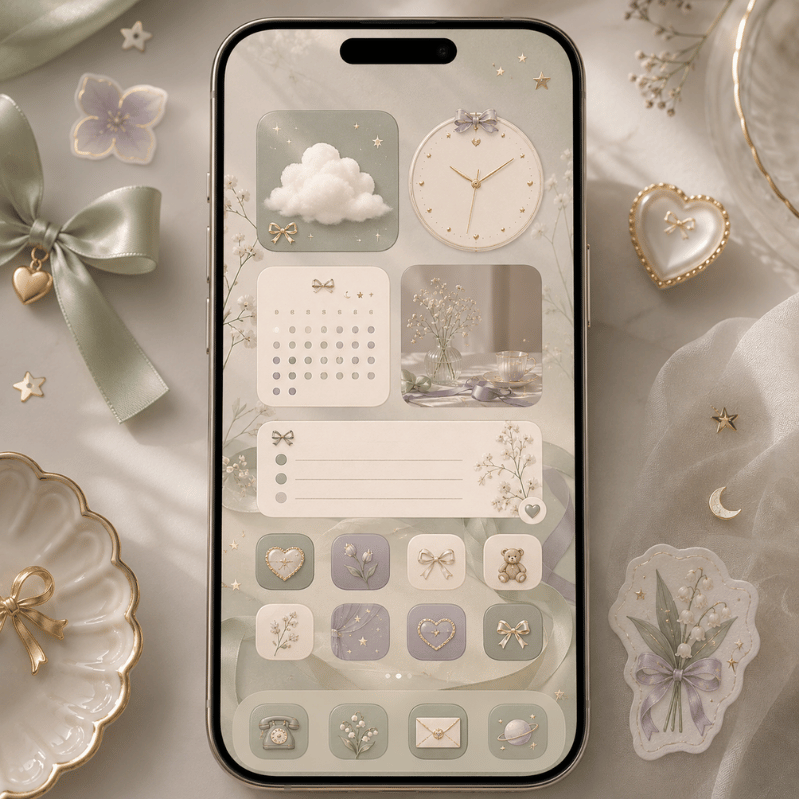
A cute aesthetic widget is one whose colors, font, and imagery belong to a single named look, so it reads as part of a designed screen rather than a random add-on. The word doing the heavy lifting is aesthetic: searchers using this phrase usually have a specific micro-style in mind, not a generic “make it pretty.” That’s why a pastel-pink clock can feel cute while the exact same clock in default blue feels like nothing.

The Cohesion Triangle

A cute screen come from three things sharing one palette: wallpaper + widgets + icons. Miss any corner and the look breaks, that’s the real reason most “cute” attempts fail.

This matters because the most common mistake is treating cuteness as quantity. People stack widget after widget and wonder why it looks busy. In practice the opposite work: iPhone owners refining their setups consistently report that switching to a couple of small widget stacks instead of several large mismatched ones is what finally makes a screen look “done,” and that the stock wallpaper is usually the first thing holding them back. The reason is visual load, every extra color and shape competes for attention, so a screen reads as cute only when a few elements clearly agree. So before you pick a single widget, pick the aesthetic.

Here’s the vocabulary worth knowing, because the named aesthetics are what people actually search for:

  • Pastel / pink: the biggest cute bucket by far, soft pink, lilac, baby blue, butter yellow.
  • Cutecore: maximal childlike cute, bows, hearts, stickers, toy-box colors.
  • Coquette: soft, romantic, ribbon-and-lace pink with a vintage-girly tilt.
  • Kawaii: Japanese-cute characters, bears, cats, blushy faces.
  • Beige / neutral: the “quiet cute” — cream, tan, soft brown for a calmer look.

Pick one and the rest of this guide gets easy. A strong home screen aesthetic is just one of these styles applied consistently across the Cohesion Triangle, a clear aesthetic home screen theme gives you matching widgets, wallpaper, and icons in a single download instead of hunting for pieces.

25 Cute Aesthetic Widget Ideas by Style
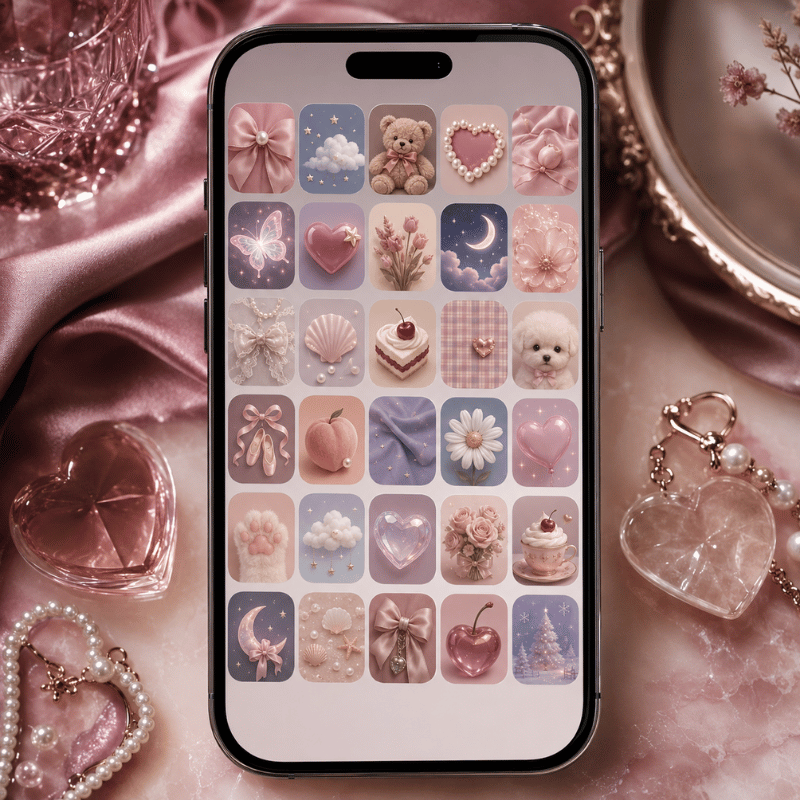
25 Cute Aesthetic Widget Ideas by Style

Below are 25+ ideas grouped by nine cute style types. Each row pairs a palette with the cute widgets that suit it and the wallpaper or icon move that ties it together. Match a row top to bottom and you already have a cohesive screen.

A cute aesthetic widgets cheat sheet: 9 style types, their palettes, and the widgets that fit each.
Style type Palette Best cute widgets Tie it together with
Pastel pink Soft pink, lilac, cream Pink analog clock, photo panel, weather, quote of the day, battery ring Blurred pink wallpaper + pink tinted icons
Cutecore Candy red, sky blue, white Sticker-style date, heart battery, desktop pet, mini game widget, music card Bow/heart wallpaper + playful icon pack
Coquette Blush, ribbon pink, ivory Ribbon clock, soft photo frame, quote widget, calendar, countdown to a date Lace/bow wallpaper + serif-font icons
Kawaii Pastel + bright accents Bear/cat character widget, animated pet, weather with a face, step counter Character wallpaper + matching mascot icons
Beige neutral Cream, tan, soft brown Minimal clock, single-photo frame, simple calendar, to-do list, moon phase Texture wallpaper + beige tinted icons
Cottagecore Sage, butter, dusty rose Floral clock, weather, moon phase, plant-care reminder, photo of nature Meadow wallpaper + hand-drawn icons
Y2K Hot pink, chrome, lime Glossy clock, music card, star/heart battery, sticker date, mini game Chrome/butterfly wallpaper + glossy icons
Preppy Hot pink, green, white Bold clock, calendar, quote widget, weather, bright photo frame Smiley/checkerboard wallpaper + bold icons
Danish pastel Mixed muted pastels Checkerboard clock, photo panel, calendar, weather, simple to-do Pastel-collage wallpaper + soft mixed icons

A few combinations punch above their weight. A rotating photo panel in your palette is the easiest “instant cute” win because it personalizes the screen without adding a new color. A distance widget shared with a partner or best friend, the kind of distance widgets for couples that show how far apart you’re, reads as cute and meaningful. And a single desktop pet that wanders your screen does more charm-per-pixel than any static sticker.

💡 Pro Tip

Build one style per Home Screen page. If you love two aesthetics, give each its own page rather than mixing pastel and cutecore on the same screen.

Which Widget Types Look Cutest? (Photo, Weather, Clock, Calendar, Music)
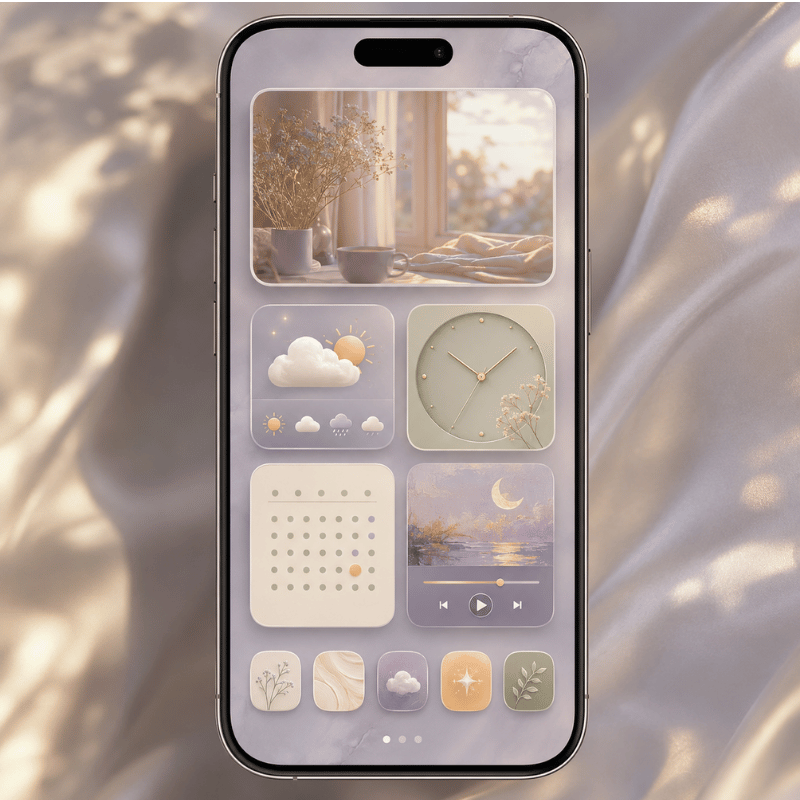
Which Widget Types Look Cutest? (Photo, Weather, Clock, Calendar, Music)

The cutest widgets are the ones you actually glance at, styled to your palette: a photo panel, a clock or date, a weather widget, and a calendar widget carry a look without becoming dead weight. A music card such as a Spotify widget and an animated Dynamic Island pet add personality too, as long as you customize them to the same colors.

Before you place them, it helps to know the canvas, because size decides how much “cute” fits.

On the Home Screen, Apple offers three widget footprints, and the Lock Screen adds its own small slots, per Apple’s guide to adding and editing widgets:

Widget sizes at a glance

  • Small (2×2): one job, a clock, a single photo, a battery ring.
  • Medium (4×2): weather, a few calendar events, a music card.
  • Large (4×4): photo galleries, full month calendars, multi-stat dashboards.
  • Lock Screen: one inline slot above the clock plus a row of small below-time widgets.

What cool things can iOS widgets actually do?

Modern iOS widgets do more than display, many are interactive, meaning you can tap to check off a reminder, start a timer, or play music without opening the app. Apple expanded this with interactive widgets and Live Activities, detailed at WWDC25’s “What’s new in widgets” session.

For a cute setup that means your pretty widgets can also be useful: a pastel to-do widget you tick off, a kawaii music card you tap to skip a track, or a photo widget that rotates through an album on its own. Cute and functional are no longer a trade-off.

⚠️ Common mistake

A cute widget you never look at is just clutter. Run every candidate through one test: would you glance at this on a normal day? If not, it is decoration competing for space — cut it.

Pair this with the right backdrop. A calmer aesthetic wallpaper lets a photo or clock widget stand out; a busy one fights it. Key takeaway: choose widget types by what you check daily, then style those few to your palette.

How to Make Your iPhone Widgets Aesthetic (Step-by-Step)
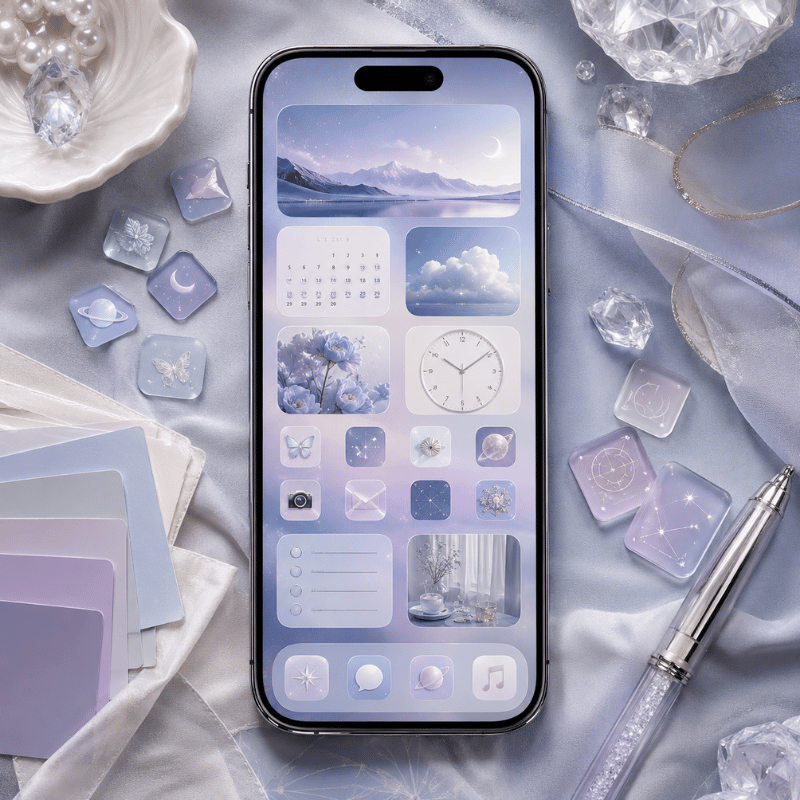
How to Make Your iPhone Widgets Aesthetic (Step-by-Step)

To make your iPhone widgets aesthetic, set a matching wallpaper first, add 2–3 widgets in the same palette, then tint your app icons to match, cohesion, not quantity, is what makes it look designed. Here’s the order that work, and why it’s an order and not a pile.

  1. Choose the aesthetic and palette first, decide pastel, cutecore, coquette, kawaii, or beige before touching anything.
  2. Set the wallpaper next, since it’s the largest color block on screen and sets the rules. Replace the stock wallpaper; it rarely matches a cute look.
  3. Add widgets by long-pressing an empty area, tapping + (or Edit), choosing a widget app, and picking a size. Place 2–3, not eight.
  4. Match the app icons with a custom icon set or iOS 26 tinted icons, so custom app icons share the widget palette.
  5. Arrange and breathe: group related widgets, leave a blank row, and stop while it still looks calm.
The 60-30-10 Widget Palette

Borrowed from interior design and tuned for a Home Screen, this is the simplest rule for a screen that look intentional:

  • 60% base: your wallpaper tone (e.g., soft pink).
  • 30% secondary: your widget backgrounds (e.g., cream or white cards).
  • 10% accent: one pop, a red heart battery, a character pet, a bright icon.

Worked example: a coquette screen runs ~60% blush wallpaper, ~30% ivory widget cards (clock, photo, calendar), and ~10% ribbon-red accent on a single countdown widget. Three colors, one mood, zero clutter.

Picture a student in her dorm rebuilding her Home Screen for a coquette look. She starts with a blush wallpaper (the 60% base), adds three ivory widget cards, a ribbon clock, a photo panel of her friends, and a small calendar (the 30%) — then drops in one ribbon-red countdown to winter break as the 10% accent. Total time: about ten minutes, three colors, zero clutter. A week later she swaps only the wallpaper and the accent widget to refresh it for the holidays, and the rest still matches. That’s the whole point of working in a fixed ratio: the screen stays cohesive even as you change pieces.

Do this once and you can rebuild any screen in minutes. If you want a full walkthrough of the whole layout, not just widgets, our guide to building an aesthetic iPhone home screen covers icons, wallpaper, and spacing together.

Best Apps for Cute Aesthetic Widgets (Free & Paid)
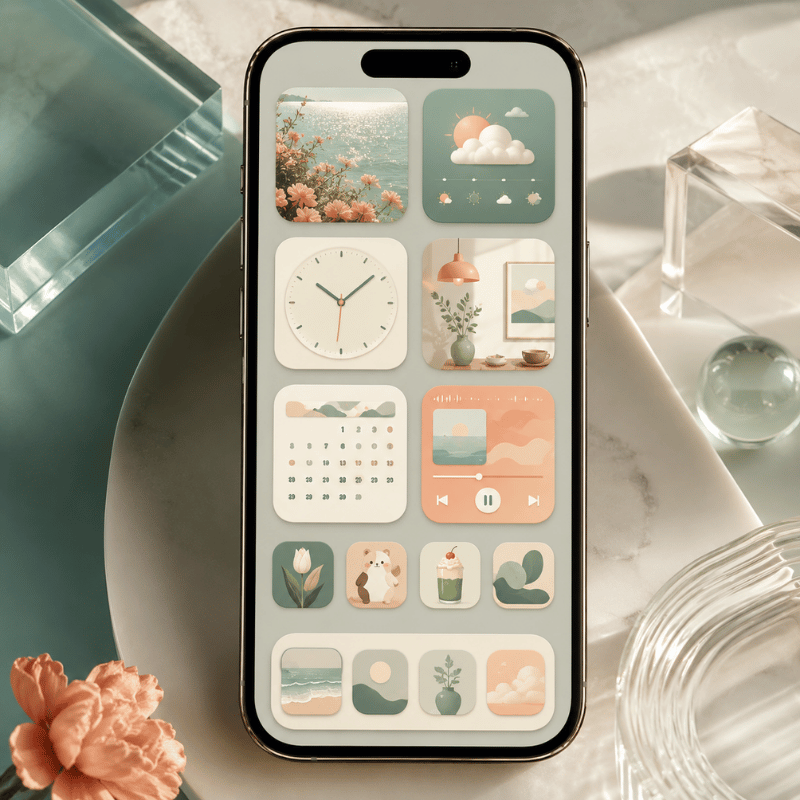
Best Apps for Cute Aesthetic Widgets (Free & Paid)

What apps offer aesthetic widgets?

Several apps offer cute aesthetic widgets, and most have a free tier with a paid upgrade for premium packs, a pattern tech outlets like CNET note in their aesthetic home-screen roundups. The right pick depend on whether you want a huge ready-made cute library or a build-it-yourself editor. The table below compares the common options by what they do best for a cute look.

Cute aesthetic widget apps compared: 4 picks by strength and price.
App Cute strength Free / Paid Standout
iScreen All-in-one: themes + widgets + icons + wallpaper Free with premium 500+ widgets incl. desktop pets, couple widgets, photo panels — one palette across the whole screen
Widgetsmith (builder-style) Custom clock/date/photo widgets Free with paid tier Fine control over fonts and colors if you like to design from scratch
Color-template app Pre-made color packs Free with paid packs Quick if you just want a palette and go
Photo-widget app Shared photo / friend widgets Free with paid tier Good for couple/friend photo widgets specifically

Why does an all-in-one app matter for cute screens? It comes back to the Cohesion Triangle: if your widgets come from one app but your icons and wallpaper come from somewhere else, the palettes drift. iScreen bundles 10,000+ themes, 500+ widgets, and 5,000+ icons so the three corners share one look by default, starting from a matched set of cute aesthetic widgets beats assembling mismatched parts.

“The screens that read as ‘cute’ aren’t the ones with the most widgets, they’re the ones where every element shares a palette. We see the same pattern across thousands of saved themes: restraint plus one strong accent beats a wall of stickers.”

The iScreen design team

Cute Widgets for Your Lock Screen, StandBy & iPad
Cute Widgets for Your Lock Screen, StandBy & iPad

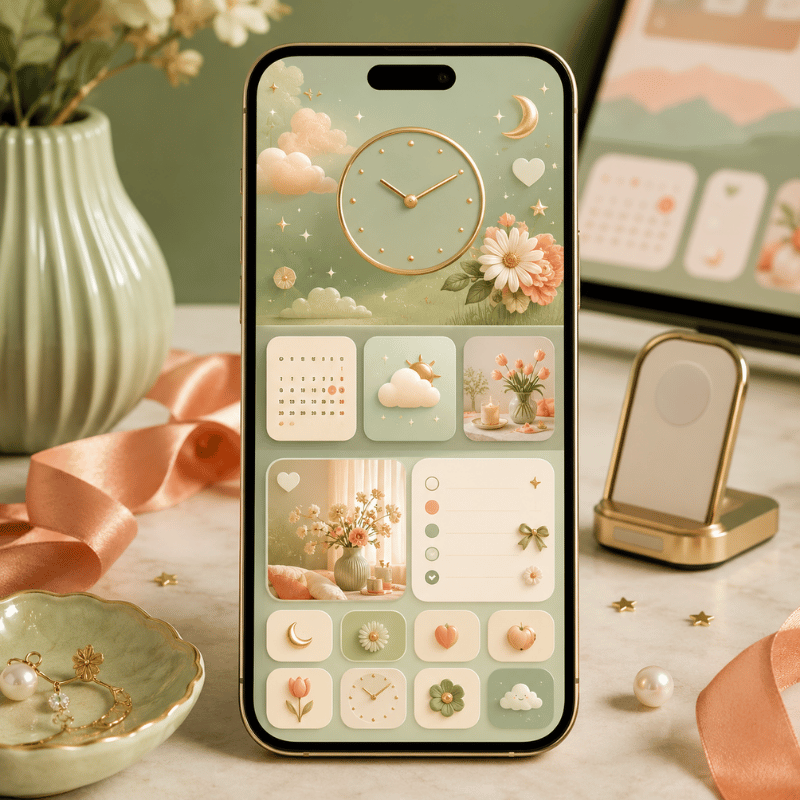
Cute widgets aren’t just a Home Screen thing, the Lock Screen, StandBy, and iPad each have their own slots, and styling all of them is what makes a setup feel complete. Each surface has a different shape, so the cute move change slightly.

On the Lock Screen, you get one inline widget beside the time and a row of small widgets below it. Per Apple’s Lock Screen customization guide, you add them by long-pressing the Lock Screen and tapping the widget area. A cute date, a tiny weather face, or a step ring work well here. One honest expectation: most Lock Screen widgets are glance-and-tap-to-open, not the full interactive type, so treat them as pretty shortcuts, not mini apps. Our deeper walkthrough of Lock Screen widgets covers which ones earn a slot.

Say your phone lives in your bag all day and you mostly see the Lock Screen. A beige-neutral setup work well here: a cream date widget in the inline slot, a tiny moon-phase and a step ring below the time, over a soft tan wallpaper. Three small widgets, one palette, and every glance feel calm rather than busy. Compare that to the common version, six bright mismatched widgets fighting a stock photo, and you can see why restraint reads as cute.

StandBy (your phone charging on its side) turns the screen into a little nightstand display. A cute clock or photo widget shines here because you see it across the room; configure it from the StandBy view. On iPad, the bigger grid means a large photo widget or a full pastel calendar can anchor the whole screen, cute scales up nicely when you’ve the room. Key takeaway: match the same palette across every surface so your phone feels like one designed set.

Seasonal Refreshes & What iOS 26 Changes for Cute Widgets
Seasonal Refreshes & What iOS 26 Changes for Cute Widgets

If you want your cute screen to stay fresh, plan a small seasonal refresh and lean into the two shifts reshaping cute widgets right now: iOS 26’s new look and the move toward named micro-aesthetics. Both change what counts as cute, not just how you arrange it.

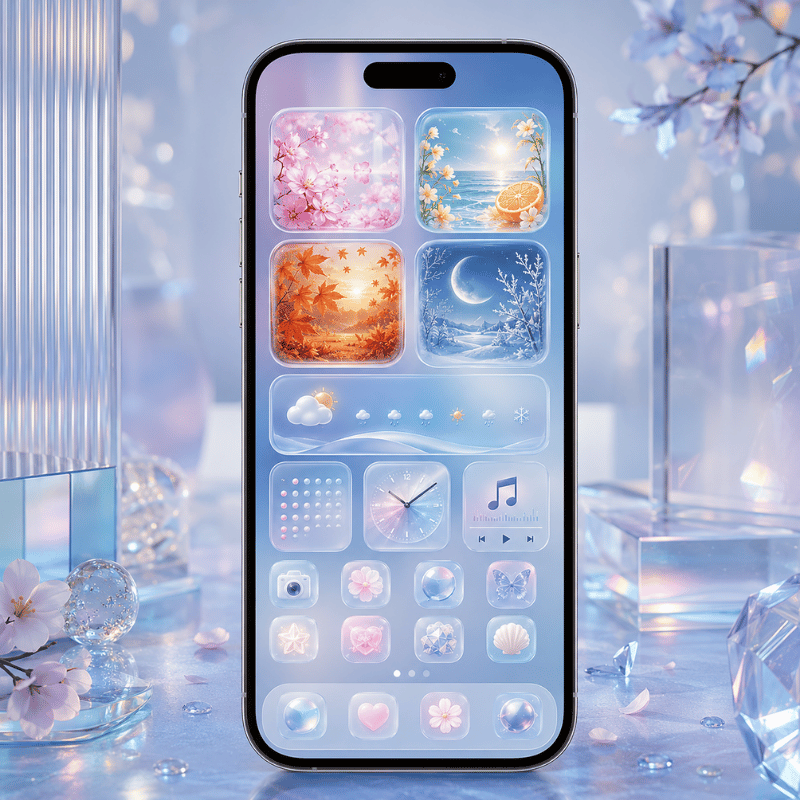
Right now the biggest driver is iOS 26’s Liquid Glass design. Apple’s widget guidance for Liquid Glass describes widgets that turn translucent and pick up the wallpaper behind them, which means a new “glassy pastel” look is now possible, soft, see-through cards instead of solid stickers. For a cute setup that’s a gift: a frosted pink clock floating over a matching wallpaper is the cleanest cohesion you can get. Pair that with interactive widgets and tinted icons (also new this cycle) and your cute screen can be glassy, matched, and tappable at once.

Beyond hardware, a second shift is cultural: people increasingly search for a named aesthetic, cutecore, coquette, pastel, preppy, rather than plain “cute.” Designing to a named look give you a clearer palette and a shareable identity. The practical move: pick the named aesthetic that fits your season.

That’s where seasonal refreshes come in. Cute-widget interest reliably spikes around the holidays, cozy fall palettes, then a wave of Christmas reds and pinks, so a quarterly swap keep your screen feeling current. If you’re planning a 2026 refresh, the easiest cadence is: warm neutrals in fall, festive pinks and reds for the December holidays, soft pastels in spring, and brighter tones for summer. You only need to change the wallpaper and one accent widget; the Cohesion Triangle does the rest.

Frequently Asked Questions

How do I get a cute aesthetic widget on my iPhone?

View Answer
Download a widget app such as iScreen, open it and design or pick a widget in your chosen palette, then go to your Home Screen, long-press an empty area, tap the + (or Edit) button, find the widget app, choose a size, and place it. Set a matching wallpaper first so the new widget blends in rather than standing out awkwardly.

What is the cutecore aesthetic?

View Answer
Cutecore is a maximal, childlike take on cute — think bows, hearts, stickers, toy-box colors, and playful mascots. On a phone it shows up as sticker-style dates, heart-shaped battery widgets, animated pets, and bright candy palettes. It differs from coquette (softer, romantic, ribbon-and-lace) and kawaii (Japanese-cute characters), though the three overlap and are often mixed.

Are cute aesthetic widget apps free?

View Answer
Most cute widget apps, including iScreen, offer a free version with a useful set of widgets, themes, and icons, plus an optional premium subscription that unlocks the full library and advanced widgets like desktop pets or couple widgets. You can build a complete cute screen on the free tier; paying mainly buys variety and removes limits.

How do I make my widgets match my wallpaper and icons?

View Answer
Use the Cohesion Triangle: pick one palette and apply it to all three of wallpaper, widgets, and icons. The fastest method is the 60-30-10 rule — let the wallpaper be ~60% of the color, widget cards ~30%, and a single accent ~10%. Using one all-in-one app for all three keeps the colors from drifting, which is the usual reason a screen looks “off.”

Can I add cute interactive widgets on iOS 26?

View Answer
Yes — iOS 26 supports interactive widgets and the new Liquid Glass look, so a cute widget can also be tappable and translucent.

Why do my cute widgets look messy or cluttered?

View Answer
Almost always one of three reasons. First, too many widgets: a wall of cute tiles reads as noise, so cut down to two or three and use a widget stack if you need more. Second, a mismatched wallpaper — especially the stock one — fighting the widgets; swap it for a simple tone in your palette. Third, more than three competing colors; hold to the 60-30-10 rule with one base, one secondary, and one accent. Fix those and the same widgets suddenly look intentional. Cuteness is cohesion, not quantity.

Want a matched set instead of mismatched parts?

Explore iScreen’s cute aesthetic widgets →

Why We Wrote This

iScreen builds an iPhone customization app with 500+ widgets, 10,000+ themes, and 5,000+ icons, so we see which cute setups people actually keep. This guide reflects that pattern, cohesion over quantity, rather than a list of every widget you could possibly add. Reviewed by the iScreen team.

Related Articles

Artículos recientes

Interactive Widgets on iPhone: What a Tap Actually Does

Interactive Widgets on iPhone: What a Tap Actually Does

2026/8/2 02:32
Updated August 2026 · Fact-checked against Apple’s widget documentation Interactive widgets on iPhone are Home Screen tiles that run an app action in place — ticking off a reminder, playing a podcast, feeding a pixel cat — without opening the app behind them. Everything else on the tile is still a launcher. Apple puts it plainly in its design guidance: “When people interact with your widget in areas that aren’t buttons or toggles, the interaction launches your app.” That one sentence explains most of what confuses people about interactive widgets on the iPhone, including the complaint that tops every forum thread on the subject: you tap the thing, and it just opens the app. This guide covers what a tap does, which iOS release changed what, where the playable widgets — desktop pets, small games, live scores — actually live, and how to decide whether any of it earns a slot on your Home Screen. It’s a narrower promise than most round-ups make, and deliberately so. Plenty of guides will hand you a list of the best interactive widgets, or the best apps that ship them. Very few will tell you why the one you already installed does nothing when you press it, which is the question people are actually asking. Most of what still ranks targeted interactive widgets for iOS 17, and nobody has gone back to it since. One of the top-scoring guides on this query hasn’t been editorially touched in 30 months, which is a long time in this part of the iPhone experience. 40–70 refreshes a day, Apple’s stated budget 2 control types that act in place +164% year-on-year search growth for widget games What Makes a Widget Interactive (and What Only Looks Like It) A widget qualifies as interactive when it contains a button or a toggle wired to an app action. Apple’s developer reference on widget interactivity is exact about the scope: “Include buttons or toggles in a widget or Live Activity to offer app functionality without launching the app.” Those two controls are the whole in-place surface for widgets in iOS. Tap anywhere else on the tile and you’re using a launcher. In practice a widget can complete one small job without opening an app, and that job has to be expressible as a single press. Anything richer than that leaves your iPhone’s home screen and continues inside the app. The reason is architectural rather than cosmetic. A widget isn’t a small running app. Apple describes the rendering model directly: “WidgetKit renders the views on your behalf in a separate process. As a result, your widget extension is not continually active, even if the widget is onscreen.” — Apple, WidgetKit developer reference What you see is a stored picture of your widget, replayed. It can’t run the app’s code while you’re looking at it, which is exactly why buttons and toggles had to be added as a separate mechanism rather than simply falling out of the design. This also explains the widgets that look alive but are not. A countdown timer keeps counting down while nothing is running, because the system draws the changing number itself. Glanceable is not the same as interactive, and neither is animated. The 4 Tap Behaviours: every widget on your Home Screen falls into one of four behaviour types when you touch it, and only one type is real interactivity. Widget example What a tap does Behaviour type Reminders Ticks the task off where you tapped In-widget action Podcasts Starts the episode playing In-widget action Home accessory Flips the light or plug Control toggle Weather widget Opens Weather Deep link only Photo widgets Opens the photo in its app Deep link only Countdown widget Opens the app; the number moves on its own Live refresh, no input Calendar widget Opens the day you tapped Deep link only Live score widget Opens the app; the score updates on a schedule Live refresh, no input Smart Stacks Scrolls between tiles, then behaves like whichever one is showing Container, inherits Any blank area of any widget Opens the app Deep link only Behaviour classification derived from Apple’s Human Interface Guidelines: Widgets and its WidgetKit interactivity reference, read 1 August 2026. What widgets are actually live and interactive? Only the ones whose developer built a button or a toggle into the tile, which is a small minority of what most people have installed. There’s no setting that turns interactivity on, and no iOS version retroactively grants it to widgets that were never built for it. Practically, the reliable ones are Apple’s own Reminders and Apple’s Podcasts widgets, Home accessory controls, and a modest set of third-party to-do, habit and media apps that did the work. Everything else on your iPhone home screen, however modern it looks, is a picture with a link under it. If you want to test one, tap directly on a control-looking element rather than the middle of the tile. If the app opens, there was no control there. Among the third-party names people ask about most: Widgetsmith remains the reference customization app for building tiles from scratch, Todoist and similar to-do list apps expose completion controls, Carrot Weather is a popular widget for the glance case even though weather has nothing to tap, and Pomodoro timer widgets are one of the few categories where a start and stop control genuinely belongs on the tile. Many third-party developers still ship display-only widgets, which isn’t laziness so much as a judgement that their app has nothing worth doing in a two-inch square. Which iOS Version Actually Shipped What Interactive widgets arrived with iOS 17, not with the release you’re running now. Apple’s own sample code makes the boundary unambiguous: the in-widget button in its reference project is wrapped in if #available(iOS 17.0, *), and the accompanying text tells developers to “note how the sample checks for the presence of iOS 17 before adding the button.” Everything since has extended where widgets appear, not what a tap can do. This matters because a lot of current coverage gets it backwards. Video titles and round-ups routinely imply that the newest release introduced interactive widgets. It didn’t. Interactive widgets on iPhone shipped in iOS 17; every release since has changed placement or appearance rather than the interaction model. Release What changed for widgets Does it change what a tap does? iOS 16 Lock screen widgets arrive as glanceable tiles No iOS 17 Buttons and toggles inside widgets; StandBy mode Yes — this is the one iOS 18 Control Centre controls, a parallel surface with its own configuration Not in widgets iOS 26 Clear glass and tinted presentation; widgets reach more places No — appearance only iOS 26.4 Ambient Music promoted from a Control Centre control to a Home Screen widget No iOS 27 (autumn 2026) A fourth size: extra-large, a 4×6 canvas No — more room, same controls Release capabilities from Apple’s WWDC 2025 widgets session and WidgetKit interactivity reference; the iOS 26.4 and iOS 27 rows follow MacRumors and 9to5Mac reporting, read 1 August 2026. Call the current release what it is: The Paint-Job Release. Apple’s own summary of what the iOS 26 cycle brought widgets lists new styling options, tips for using the existing accented rendering mode, new places to put them, and Live Activities reaching CarPlay and Mac. There’s no new interaction model on that list. If you upgraded and your widgets didn’t suddenly become tappable, nothing is broken. To check what you’re running, open Settings, then General, then Software Update. If you want the walkthrough for building the screen itself, we cover that separately in our guide to how to customize your iPhone Home Screen. The Interactive Widgets You Already Own Before installing anything, two built-in widgets already act in place, and Apple names both in the iPhone User Guide: “tap an item in the Reminders widget to check it off, or tap the Play button in the Podcasts widget to play an episode.” Add the Home widget and you can flip a light or a plug from the same screen. Apple’s Podcasts widget is the clearest example of the shape: the play control acts directly from the widget, and everything else about the episode lives in the app. Set expectations at the right level, though. What Apple exposes is a tap, not a dial. There is no slider, no drag, no swipe and no keyboard inside a widget, so a Home widget can switch an accessory on but cannot carry a brightness slider or a colour picker. A media widget can start and stop; anything richer sends you into the app. This is a ceiling on the whole category, not a gap in any one app. How to customize which built-in widget action you get Press and hold a widget and choose Edit Widget. On a configurable widget this is where you pick which list, which accessory or which calendar it points at — and that choice determines what the in-place control does. A Reminders widget aimed at a list you never use will tick off tasks you never see. Editing widgets is the difference between a control that saves you a trip into the app and one that just sits there looking capable. Adding and customizing everything else runs on that same tapping and holding gesture. Adding widgets starts from an empty area of the screen; from there you can drop in a new widget, resize it, or create a Smart Stack by dragging one tile onto another so they share a slot. It’s worth doing this deliberately rather than by accident, because the size you land on decides whether controls are even possible — a point the next-but-one section returns to. Custom app icons are a separate customization layer that sits alongside widgets rather than inside them. Widget Pets: The Companion Widgets People Keep Desktop pets are the most-wanted thing in this category and the least honestly described. Search demand for pet widgets sits an order of magnitude above the demand for the technical term “interactive widgets iphone”, and it’s still climbing. What the apps actually do on your iPhone’s home screen is more modest than the marketing suggests. Take the mechanics the vendors themselves publish. Widgetable’s own community wiki describes a care loop that runs in the app, not in the tile: you hatch an egg from the Pets tab, it takes 24 hours on its own, and “you can add the widget to your phone, and it will clear up 6 hours.” Skip feeding and the pet “will actually run away to find food.” Skip bedtime and it wakes up tired. The widget is where you see the consequence; the app is where you do the caring, and adding the widget functions as a time bonus. Locket, the friend-photo widget, is split down the middle in the same way. Photos your friends send appear on the tile automatically. To send one back, its own instructions say to “tap into the widget, take a pic with the camera, and then hit send” — receiving is in place, sending is a launcher. Vendors do describe pet widgets as interactive, and the tech press has relayed that: TechCrunch’s iOS 17 launch round-up reported that one developer’s set “will be available, including Tamagotchi widgets”, though it was quoting the company and didn’t state which care actions run inside the tile. That’s the honest position: where a vendor documents its own flow, the caring happens in the app. Treat “interactive” on a store listing as a claim about the category, not a promise about the tile. None of which makes them a bad thing to own — it just changes what you’re buying. If you want a creature on your screen, judge it on how good the glance is, because the glance is the part that lives on your Home Screen. Our Dynamic Island pets guide covers the other surface, which runs on a different system entirely, and iScreen’s interactive widget packs include a DIY Button and a Mood Calendar alongside the decorative sets. Widget Games and Live-Score Widgets Playable widgets are real but small by design. A genuine one is built out of button taps and re-renders: TechCrunch’s launch coverage described Widgle as “a puzzle in a widget form”, and that’s about the right shape — turn-based, low-input, one tap at a time. Think tic tac toe rather than a platformer. What you can’t build is anything needing a swipe, a drag, a keyboard or a custom animation, because none of those exist as widget inputs. A “game widget” that needs any of them is a launcher with artwork on it. Live scores run into a different ceiling. Apple caps how often a tile can redraw: “your timeline provider should create timeline entries that are at least about 5 minutes apart”, and the system may bunch reloads across widgets so the exact moment drifts. Server push helps but doesn’t escape it: Apple states that push updates are budgeted in the same way. A widget can tell you a match is happening. It can’t be a ticker. So a puzzle you can genuinely play right on your home screen is possible; a live scoreboard sitting there is not, however much it looks like one. Which is why the genuinely minute-by-minute score experiences you see on the Lock Screen use Live Activities rather than widgets. Same phone, different system, different rules, and Apple limits in-activity buttons to the expanded and Lock Screen presentations. If you want the tile itself to be the thing you look at, a countdown widget or a couple widget app is a better fit than a scoreboard. Why Your Widget Just Opens the App A tap that opens the app instead of acting is the most common complaint about interactive widgets, and it usually has nothing to do with your phone. Of the eight distinct causes below — assembled from Apple’s documentation, not published by Apple as a list — four are decisions only the developer can change, three are yours, and one is nobody’s. Work down the list before assuming anything is broken. Eight reasons a tap opens the app instead of acting, and which three you can actually fix. Cause Who can fix it What to do No control was ever built into the tile Developer Find an app that did build one You tapped a blank area, not a control You Aim at the button, not the tile Your iPhone is locked You Authenticate first — see the next section The widget size you chose cannot hold controls You Switch to a supported size The developer routed the action into the app on purpose Developer Nothing — it is working as configured The toggle flipped, then snapped back Developer A sync failed; check the app for the real state The action ran but the tile redrew before the data landed Developer Wait for the next refresh, then re-check You are tapping an iPhone widget mirrored on a Mac Neither Expect a delay; the tap round-trips to the phone Causes assembled from Apple’s WidgetKit interactivity reference and widget refresh documentation. Apple does not publish this as an eight-item list; the grouping is ours. Two of those deserve expanding, because they’re the ones that make a working widget look faulty. A toggle inside a widget updates its appearance the instant you touch it: Apple’s reference states it “updates its appearance optimistically and indicates its new state immediately, without waiting for the result of the performed action.” If the write then fails, the tile reverts. And the developer can deliberately send the tap into the app; that’s a supported configuration, not a bug, which is why some widgets will never act in place no matter what you try. Quality rule: a widget that visibly changed has not necessarily done anything, and a widget that looks unchanged has not necessarily failed. The tile is a picture of the state, redrawn on a schedule — check the app before you decide which one happened. Why do my widgets just redirect me to the app when I tap them? Because that’s the default behaviour of every part of a widget that isn’t a button or a toggle, and because most of the widgets people actually have installed predate those controls entirely and nobody has gone back to update them since. Before iOS 17 a small widget had exactly one touch target, and it always opened the app, which is why complaints written years ago read identically to complaints written this week. Start by checking whether the widget has anything that looks like a control. If it doesn’t, no amount of restarting, re-adding or toggling Background App Refresh will change the outcome. There’s one genuinely useful fix almost nobody mentions. Apple throttles widgets you never look at: “if a widget is on a Home Screen page that the user rarely visits, WidgetKit may reduce the frequency of reloads for that widget.” If your widget is stale rather than unresponsive, move it to a page you actually swipe to. How to tell before you download You cannot test a widget from a listing, but you can read one better than most people do. An App Store page that promises to transform your home screen is selling the outcome; the screenshots are where the mechanism shows. Look for a picture of the tile with something that reads as a control on it — a plus, a tick, a play button — rather than a beautifully typeset display. Listings for apps like the big customization suites will often show both, and the control shots are the ones that matter. Read the version history too: an app that has not shipped an update since before 2023 predates in-widget controls entirely, so whatever it offers is display only. Two more things worth a glance before you download interactive widgets from anyone. The App Privacy section tells you what a tile that sits permanently on your screen is collecting, which matters more for a widget than for an app you open twice a week — and the developer’s privacy policy is linked from the same place. And if the app charges, check whether the paid tier buys features or just cosmetics, because in this category it is very often the latter. Where a Tap Works: Home Screen, Lock Screen, StandBy and CarPlay The same widget doesn’t behave the same way everywhere you put it, and the lock screen case is the one that catches people out. Apple’s consumer guide says you can interact with widgets on the Lock Screen and the Home Screen to perform tasks. Apple’s developer notes say that “on a locked device, buttons and toggles are inactive and the system doesn’t perform actions unless a person authenticates and unlocks their device.” Both are true, and the missing word is authentication. Lock screen widgets can hold controls, but those controls do nothing for exactly as long as the phone is locked. Glance at your lock screen and tap a toggle without Face ID landing first, and nothing happens — which reads as a broken widget rather than a security boundary. Size matters here too. Apple lists the widget families that may contain buttons and toggles, and the thin inline accessory strip is not among them. If you have parked a control-looking widget in that slot, it can never act. A second lock screen question is worth separating from the first: whether a control fires is not the same as whether the content should be on display at all. Anything on that screen is readable by whoever can see the phone, however locked it is. A shared to-do list or a mood tracker is a different privacy decision from a weather tile. Two more surfaces behave differently again. Today View, reached by swiping right from your Home Screen, holds the same tiles and follows the same rules as the Home Screen itself. Apple Watch complications and macOS are separate builds of the same widget rather than the same widget in another place, which is why a control you rely on may simply not be there. CarPlay is the one surface Apple makes fully deterministic: in a vehicle with a touchscreen, buttons and toggles work; in one without, they don’t, and where an app has no CarPlay integration the system dims the widget so a dead tap is visible before you make it. StandBy is less clear-cut. Apple documents that StandBy reuses the small widget and refreshes it “at a system-defined rate that doesn’t count against its budget”, but says nothing either way about whether its buttons fire, so treat StandBy as a display surface until you’ve tested your particular widget. Our guides to lock screen widgets and StandBy mode cover choosing and arranging them; this section is only about whether the tap lands. How many widgets can you have on an iPhone? Apple publishes no fixed ceiling, and in practice the limit that bites is attention rather than storage. Every extra tile is one more thing to skim past, and every acting widget you add is another allowance the system has to schedule. A screen with three widgets you use beats a screen with nine you scroll past, which is the same conclusion our best widgets for iPhone round-up reaches from the curation side. What an Acting Widget Costs You Widgets aren’t free to run, and Apple says so directly: “reloading widgets consumes system resources and causes battery drain due to additional networking and processing.” What Apple doesn’t publish is a number, and neither does anyone else. We looked, and no credible controlled measurement of iPhone widget battery cost exists in public. Anyone quoting you a percentage is guessing. Rationing is real and documented, though. A frequently viewed widget gets a daily budget of typically 40 to 70 refreshes, spread over a 24 hour window that WidgetKit tunes to your own habits rather than resetting at midnight. Apple glosses that rate as a reload roughly every 15 to 60 minutes, and each widget you place gets its own separate budget. Taps themselves sit outside that accounting: Apple lists performing an app intent among the cases that don’t count against the budget. That’s an accounting exemption rather than a promise that interacting is energy-free, but it does mean the passive waiting, not your tapping, is what the system rations. Then there’s money. Searches for free interactive widgets iphone run well ahead of paid ones, and the pattern behind that is consistent: free at the tile, paid at the feature. Pet apps gate remedies and cosmetics behind a subscription tier, photo-sharing widgets gate the gallery, and score widgets gate the multi-game views. iScreen is free to download with in-app purchases available for additional features, which is the standard shape of the category. The One-Tap Payback Rule: a widget earns its slot only when one tap replaces a multi-step trip into the app that you make at least once a day. Run the arithmetic on a real one. Ticking a task off in the Reminders app takes four moves — unlock, find the app, open the list, tap the circle. Doing it from the widget takes two: unlock, tap. That is two moves saved, and if you tick something off twice a day, over 30 days that is roughly 120 moves saved by one tile. Now run it on a widget you tap once a week and the same arithmetic over 30 days returns about 8 — which is a decoration, and should be judged as one. ✔ Worth a slot A control you use daily A glance that stops you opening an app A pet or photo you genuinely enjoy seeing ⚠ Not worth a slot A control you tap once a week A live figure that updates slower than you check it A duplicate of something already on the screen The Two-Speed Widget Market Something is changing in what people want widgets for, and it’s checkable rather than anecdotal. On 1 August 2026 we queried Google’s own reported keyword volumes for the widget category, via the DataForSEO API — United States, English, every term in a single batch so the figures are directly comparable. The volumes are Google’s, banded as Google reports them; what’s ours is the date, the batch and the comparison. They move in two directions at once. Demand for playable widgets grew up to 164% year on year while demand for setting widgets up fell by as much as 56%, according to Google keyword volumes for the United States retrieved through the DataForSEO API in one batch on 1 August 2026. Search term Monthly searches Year on year widget games 1,300 +164% soccer widgets 590 +126% dino widget 140 +91% widget pet app 320 +86% widget pet 1,900 +85% steve widget game 110 +56% add widgets to iphone 5,400 −18% iphone widgets 2,400 −21% best widgets for iphone 1,000 −32% add widget to lock screen 2,900 −56% Every figure in this table is a United States monthly keyword volume with its year-on-year change, according to Google data retrieved through the DataForSEO keywords API in a single batch on 1 August 2026. Volumes are banded as Google reports them; no figure here is a market forecast or an estimate by us. Falling demand here isn’t a category in decline; it’s a category that has been learned. People stopped searching how to add widgets to iphone because they already know. What they’re searching for now is something to put there that does something back. That’s a shift in what a Home Screen is for, and it’s the reason a pet with a 24 hour hatch timer outdraws the technical term for the feature that makes it possible. The head term itself tells the same story from the other end. According to the same DataForSEO history, covering 53 months, searches for the phrase “interactive widgets iphone” are down 62.5% against their peak, but that peak was the iOS 17 launch, when the capability was news. What faded was the novelty of the term, not the use of the feature, which is exactly why the sub-categories built on top of it are climbing while the label for it drifts down. For the same reason, treat the arrival of the extra-large 4×6 size in iOS 27 as more canvas rather than more capability, and note that at announcement only a handful of Apple’s own widgets supported it, so third-party support will arrive gradually. Controls stay the same two Apple allows inside a widget. What changes is how much you can see around them, which favours exactly the companion and glance-first widgets the demand data is pointing at. Frequently Asked Questions Q: Why do my widgets just open the app instead of doing something? Because everything on a widget except a button or a toggle is a link into the app, and most widgets were shipped without one, so the tap falls through to the launcher. Apple’s design guidance is explicit that interacting with a widget anywhere other than a button or toggle launches the app. Interactivity is opt-in work a developer has to do, so a widget built before iOS 17, or built without controls since, will always behave as a launcher. Check whether the tile has a control-looking element before troubleshooting anything else, and if your iPhone is locked, authenticate first, because controls are inactive until you do. Q: What widgets are actually live and interactive? Only widgets whose developer deliberately built in a button or a toggle. Among Apple’s own, that reliably means Reminders, Podcasts and Home; beyond those it is a modest set of third-party apps. Apple’s user guide names Reminders check-off and Podcasts play by name, and Home accessory controls work the same way. The third-party set is small and skews towards to-do, habit and media apps. Widgets that merely change on their own, like a countdown or a live score, are being redrawn by the system rather than responding to you, which is a different thing from interactivity. Q: How many widgets can I have on my iPhone? Apple publishes no fixed limit, so the real constraint is how many you will genuinely look at. Refresh scheduling is what scales with quantity, because every widget carries its own daily allowance. There is no documented count you can hit. What does scale with quantity is refresh scheduling: each widget you place carries its own daily allowance, and a widget sitting on a page you rarely visit gets deliberately throttled. Practically, a small number on pages you actually swipe to will stay fresher and be more useful than a large number spread thin. Q: Did iOS 26 add interactive widgets? No. Interactivity shipped in iOS 17, Control Centre controls arrived with the iOS 18 cycle, and iOS 26 changed how widgets look rather than what a tap does inside one. This one is worth being precise about because a lot of coverage implies otherwise. Apple’s own reference sample gates the in-widget button behind an iOS 17 availability check, which puts the capability firmly in that release. The iOS 18 cycle added Control Centre controls, which are a parallel surface with their own configuration rather than an upgrade to widgets. Apple’s summary of what the iOS 26 cycle brought widgets lists new styling and new places to put them; a clear glass or tinted presentation is a visual change. If you updated and nothing became tappable, that is the expected outcome, and the fix is finding widgets that were built with controls rather than changing a setting. Q: Are widget pets and widget games free? Usually free to install, with the parts you will actually want gated behind in-app purchases or a subscription tier. Assume the tile costs nothing and the depth behind it does. Widgetable’s own wiki, for instance, limits one of its sleep remedies to subscribers. Assume the tile is free and the depth is not. Q: Do interactive widgets drain the battery? Refreshing them costs power, which is precisely why Apple rations how often a widget may reload. No credible public measurement of the size of that cost exists, so any percentage you see quoted is unsourced. Apple states that reloading widgets causes battery drain through additional networking and processing, and the whole refresh budget exists to protect all-day battery life. It publishes no figure, and we found no controlled public test that isolates widget cost from everything else a phone does. Treat any specific percentage you see quoted as unsourced. Q: Do interactive widgets work on iPad and Mac? Yes, with one caveat worth knowing before you rely on it: an iPhone widget shown on a Mac sends your tap back to the phone, runs the action there, and returns an updated tile. Apple notes that the interaction travels to the iPhone, runs there, and returns an updated tile, so expect visible lag on that route. People searching for interactive widgets Mac are usually looking for exactly this arrangement rather than a separate Mac build. Android is a different platform with its own widget system, so interactive widgets Android behaves by Android’s rules, not these ones — an app can ship on both stores and still offer different controls on each. Where to Start If you take one thing from this, take this: interactivity is a property of the particular widget you installed, not of the iPhone you own or the version it runs. Check what you already have — Reminders, Podcasts, Home — before you go shopping for anything. Then add one thing you’ll actually touch daily, put it on a page you actually visit, and give it 14 days before deciding whether it earned the space. That single habit does more for your mobile experience than any list of installs. Browse cute aesthetic widgets if you’re optimising the look, or the weather widget guide for the classic glance tile that never needed a control in the first place. References & Sources Adding interactivity to widgets and Live Activities — Apple Developer Documentation Keeping a widget up to date — Apple Developer Documentation Human Interface Guidelines: Widgets — Apple Developer Documentation iPhone User Guide: interacting with widgets — Apple Support Adding StandBy and CarPlay support to your widget — Apple Developer Documentation What’s new in widgets, WWDC 2025 session 278 — Apple iOS 27 adds extra large widgets — 9to5Mac, June 2026 These iOS 17 apps bring interactive widgets to your iPhone Home Screen — TechCrunch, September 2023 How We Checked This Every capability claim here was read directly from Apple’s own widget references rather than borrowed from other guides, because most of the pages currently ranking for interactive widgets were written during the iOS 17 cycle and have never been revisited since. The demand figures are Google’s own reported United States keyword volumes, which we queried through the DataForSEO API in one batch on 1 August 2026 so the year-on-year comparisons are like for like; the volumes are banded as Google reports them, and other markets will differ. Where we couldn’t verify something, the battery cost of a widget, and whether controls fire in StandBy, we’ve said so instead of estimating. Published by iScreen.
2026/8/2 02:32
Aesthetic Clock Widgets for iPhone: Best Designs & How to Set Up

Aesthetic Clock Widgets for iPhone: Best Designs & How to Set Up

2026/7/22 12:23
Updated July 2026 · Current iPhone, iOS 26, and iOS 18 guidance Aesthetic clock widgets for iPhone are visual time displays designed to coordinate with a wallpaper, icon set, and placement surface. They look best when the typeface, color, and amount of information match the wallpaper, not when the clock is simply the most decorative option in the gallery. Start with a minimalist digital clock for a busy background, a flip or pixel clock for a quiet retro layout, or an analog face for a classic screen. Then check that the design is actually available for the Home Screen, Lock Screen, or StandBy surface where you want to use it. Quick Picks Best clean layout Minimalist digital clock with medium-weight numerals Best retro look Flip clock or pixel clock on a plain gradient Best classic look Round analog clock with a simple face Best cute look Pastel clock paired with a low-detail wallpaper Best transparent effect Glass-style clock tested in both light and dark appearance Best information-rich option Time-and-date dashboard with one extra datum, not a crowded mini control panel What Makes a Clock Widget Aesthetic and Easy to Read? An attractive clock needs four things working together: a numeral shape that suits the mood, enough weight to survive the wallpaper, clear separation between foreground and background, and a sensible amount of information. Thin serif numerals can look elegant in a preview and then vanish over clouds, faces, or bright highlights. Heavy digital numerals stay readable, but they can dominate a soft layout if the widget is too large. Use the wallpaper’s focal point as your boundary. When the subject sits in the upper half, move the clock lower or choose a compact size. For an already detailed background, use fewer colors and less ornament. Apple provides display controls such as Increase Contrast and Reduce Transparency because appearance and readability don’t always move in the same direction. Apple’s display and text guide is worth checking if a pale, glass, or low-contrast design looks different on your phone than it did in the preview. Practical rule: a clock should either improve at-a-distance readability, add useful time-and-date context, or deliberately anchor the composition. Without one of those roles, the status-bar time may be the cleaner choice. Best Aesthetic Clock Widget Designs for iPhone There’s no universal winner. This table treats each clock as part of a full screen, not an isolated product thumbnail. iScreen’s current widget library includes digital and Lock Screen clock options, while the App Store listing shows the wider customization scope, ratings and reviews, version history, in-app purchases, and app privacy information in one place. Review the privacy policy and App Store privacy label for any widget app before you decide that visual style is the only tradeoff. Before downloading apps like these, check three details: whether the design is completely free or part of an in-app purchase, whether the “What’s New” notes show recent bug fixes, and whether the supported devices match yours. Reviews describing the exact clock and iOS version are more useful than a generic “great app” comment. App Store distribution also doesn’t mean every marketing statement is verified by Apple. This guide focuses on iPhone; some WidgetKit families also work on iPad, but a design shown for iPhone and iPad still may not support every iPhone surface. Nine clock types compared by wallpaper, placement, size, and limitation Clock type Best wallpaper match Best surface Useful size Watch for Minimalist digital Photos, gradients, or quiet textures Home Screen Small or medium Ultra-thin numerals can disappear Retro flip clock Solid, film-grain, or muted gradient Home Screen or StandBy Medium or full screen The panels become noisy over busy photos; some listings spell the style “FlipClock” Classic analog clock Neutral, architectural, or editorial Home Screen Small or medium Tiny hands are harder to read at a glance Transparent or Liquid Glass Low-detail wallpaper with a stable color field Home Screen Medium Tint, clear mode, and accessibility settings can change the effect Pixel clock Game, cyber, or monochrome retro art Home Screen Small Mixed icon styles break the illusion quickly Pastel or cute clock Soft illustration or plain pastel Home Screen or Lock Screen slot Small Low contrast can turn cute into hard to read Information dashboard Plain dark or light background Home Screen or StandBy Medium A countdown can help you keep track of time, but too many fields compete with the main display World clock Plain map, travel, or neutral background Home Screen or StandBy Medium Extra zones need clear city labels Timer clock Minimal work or study layout Home Screen Small or medium A task timer is not the same as a continuously updating wall clock Our July 2026 US DataForSEO Google Ads batch recorded 1,600 estimated monthly searches for both “iPhone clock widget” and “clock widget for iPhone,” compared with 30 for “analog clock widget iPhone”; the same batch put “add widgets to iPhone” at 5,400. These are directional search estimates from one current batch, not traffic forecasts. They don’t make analog clocks unattractive; they explain why a digital clock widget is the most useful default and analog appears as a deliberate style choice. For a broader list of screen widgets beyond clocks, see our best widgets for iPhone guide. A first-party 90-day review of 939 query-by-page rows found established visibility for generic widget, Home Screen, and Lock Screen pages, but no strong clock-specific owner. That is why this guide connects clock design and setup to those broader resources instead of duplicating them. The 4-Input Clock Style Fit Matrix The 4-Input Clock Style Fit Matrix starts with what’s already on the screen: wallpaper complexity, visual goal, information density, and placement surface. It doesn’t guarantee that one custom clock widget is offered in every location: Apple’s WidgetKit guidance distinguishes system widgets from accessory widgets, and the UI rendering can change by context. Apple’s widget-background guidance also explains that the system can remove or alter a widget background in contexts such as StandBy and accessory placements. Choose the desired surface first, then confirm that iScreen offers that design and widget family there. Community user tips can suggest a look, but the availability check belongs inside the app. The Clock Style Fit Matrix, choose by wallpaper, goal, information density, and surface Your screen Recommended Avoid first Availability check Busy photo + time only + Home Screen Bold minimalist digital Transparent glass or detailed analog face Small or medium system widget Quiet gradient + decorative goal + Home Screen Flip, pixel, or analog Dense information dashboard Matching saved size in iScreen Portrait wallpaper + compact Lock Screen area Simple accessory clock or date A design intended only for a medium Home Screen tile Lock Screen accessory family Nightstand + at-a-distance viewing + StandBy Large digital or restrained flip clock Fine analog hands or multi-panel dashboard StandBy-compatible clock or small widget For a cute layout, apply the same logic before choosing illustrations. Our cute aesthetic widgets guide covers full theme pairing; here, the clock-specific rule is simpler: one clear time display, one visual motif, and no competing decorative panel beside it. The One-Glance Contrast Test The One-Glance Contrast Test takes less than a minute after you place the widget: Hold the phone at arm’s length. Needing longer than a glance to read the time means the numerals are too light, too small, or too close to the wallpaper color. Move the widget across the wallpaper’s brightest area. Any design that only works in one dark corner is fragile; decide whether moving it harms the composition. Check both light and dark appearance. Also check tint or clear mode and any enabled Increase Contrast, Reduce Transparency, Color Filters, Bold Text, or Display Zoom setting; Apple documents these controls in its display and text settings guide. Adjust in this order: move the position, change the widget size, add a quiet backdrop, then switch the numeral weight or style. This preserves the chosen aesthetic before replacing it. Transparent clock backgrounds can look integrated in one appearance and mismatched in another, so test the placed widget, not just its in-app preview. Do not force a large clock into every layout If the status-bar time is already enough and the clock adds no useful date, time zones, or distance readability, leave the space open. Negative space can make the rest of the Home Screen feel more intentional. How to Add an iScreen Clock Widget to the Home Screen First, open iScreen, browse or search for the clock you want, customize its color or content, and save it to My Widgets. Then follow Apple’s current Home Screen widget flow. Touch and hold the Home Screen background until the items begin to move. Tap Edit, then Add Widget. Search for iScreen and open it. Choose the same size as the clock you saved, then tap Add Widget. Move the tile into position and tap Done. If the wrong saved design appears, touch and hold it, choose Edit Widget, and select the current widget. iScreen shows the exact assignment step in the full customization guide. When you’re adding several home screen widgets, the broader iPhone widget roundup can help you decide what earns the second slot. The Three-Zone Clock Layout Divide the screen into a time zone, an app zone, and breathing room. Put the clock in the quietest zone, keep one supporting widget at most, and let the wallpaper remain visible somewhere. If the clock needs to stay visible, don’t place it inside a Smart Stack: iOS can rotate the visible widget based on time, location, and activity. Today View is another supported location, but access from a locked phone depends on your Allow Access When Locked settings, so avoid exposing sensitive calendar or location data there. How to Add or Style a Clock on the Lock Screen There are two different clocks here. The large built-in Lock Screen clock is part of Apple’s system editor; a third-party Lock Screen widget occupies an available widget area and does not replace that large system clock. That distinction prevents the most common expectation mismatch. Style Apple’s main clock Touch and hold the Lock Screen, then unlock the iPhone if asked. Tap Customize, choose the Lock Screen, and tap the clock. Adjust the available font, size, color, or transparency controls, then tap Done. Add an iScreen accessory widget Save a compatible design in iScreen first. In the Lock Screen editor, tap Add Widgets or the widget area, choose iScreen, then add a supported accessory size. That same Home Screen design may not exist in this smaller format, and iOS can render Lock Screen widgets with a different vibrant treatment. Some listings use “Lockscreen” as one word, but the platform distinction is the same. For more placement options, use our dedicated Lock Screen widgets guide; its cute widget combinations also offer theme ideas. Use StandBy for a Full-Screen Aesthetic Clock StandBy mode, introduced in iOS 17 and refined since, is the best fit when the clock needs to work as a nightstand display, desk clock, or full-screen screensaver-style view. It’s a system surface, not simply a large copy of every Home Screen clock. Designs advertised for “Home Screen and StandBy” still need the app’s supported-family check. Open Settings > StandBy and turn it on. Connect the iPhone to a charger, place it on its side, and keep it stationary. Press the side button if needed, then swipe between widgets, photos, and clocks. Choose a restrained clock for distance viewing and test Night Mode in the room where you’ll use it. Apple’s current StandBy guide notes that supported Always-On models can keep the view visible. On other iPhones, StandBy can sleep and require a tap, a nudge to the surface, or Siri to wake it, so don’t judge a clock app as broken just because the full-screen view doesn’t remain on. Our complete iPhone StandBy guide covers the deeper settings. Fix a Clock Widget That Is Missing, Blank, or Not Updating Start with the symptom. Stale time can come from the saved-widget assignment, the widget family’s supported context, iOS scheduling, or an app-specific bug. Apple Developer documentation also shows that supported dynamic date and time views can continue updating while visible even when the widget extension isn’t running, so “iOS refresh delay” isn’t a complete diagnosis. Symptom-to-fix guide for iPhone clock widgets Symptom Check first Next fix iScreen is missing from the gallery Open iScreen once and confirm the widget was saved Search again, then restart the iPhone if it remains missing The wrong clock appears Confirm the placed size matches the saved size Touch and hold > Edit Widget > choose the saved clock The clock is blank Open iScreen and verify the design still loads in-app Remove and re-add the widget; check version history for recent bug fixes The time looks stale Open the app and check whether that design supports a dynamic time display on this surface Reassign or re-add it; update iOS and the app before treating it as a defect A transparent clock no longer matches Check light/dark, tint/clear, and accessibility display settings Recreate the background or switch to a solid/outlined clock The iScreen setup and troubleshooting page covers opening the app to refresh, re-adding a widget, and restarting when an item is missing. No third-party developer should promise that every widget behaves like the Clock app or updates second by second in every context. Frequently Asked Questions How do you get aesthetic widgets on iPhone? Install a widget app, save a design that matches your wallpaper, then add its matching size from the Home Screen editor and place it in a quiet area. With iScreen, choose and customize a clock, save it to My Widgets, touch and hold the Home Screen, and select Edit > Add Widget > iScreen. Pick the matching size, place it, and use Edit Widget if the wrong saved design appears. Coordination comes from matching the clock’s visual weight to the wallpaper, icons, and any second widget, not from adding lots of options at once. Can you customize the clock widget on an iPhone? Yes. Customize Apple’s main clock in the Lock Screen editor, or configure a third-party clock in its app before adding a supported widget size to the screen. Apple’s main Lock Screen clock is customized in the Lock Screen editor. Configure a customisable or customizable third-party clock in its source app, then add it as a Home Screen or supported Lock Screen widget. That face may not be available in every size or surface, so customise the saved design only after choosing where it will live. How do you add a cute clock widget? Choose a pastel or illustrated clock, save it in the widget app, add the matching size, and place it over a quiet part of the wallpaper. In iScreen, save the pastel or playful design to My Widgets. Enter Home Screen edit mode, choose Add Widget, select iScreen, and add the matching size. When the wrong design appears, use Edit Widget to select the saved clock. Keep the numerals darker than the lightest wallpaper area, especially with cute illustrated backgrounds. Do clock widgets drain battery? Normal clock widgets use iOS-scheduled updates rather than running continuously, but the specific widget, update behavior, and time the display remains on can still affect battery use. WidgetKit uses timelines and system-controlled updates, while supported dynamic date views can update onscreen without continually running the extension. More often, the relevant battery consideration is how long the display remains active, especially with StandBy or Always-On, not the clock artwork alone. When battery use changes sharply, compare the app and display battery entries instead of assuming every clock widget has the same cost. How do you display different clocks on iPhone? Save a different design for each placed widget. Assign each saved clock through Edit Widget, or use one world clock for multiple time zones. Test every screen after unlocking. Choose the surface before the style A clock is easiest to live with when it solves the job of its surface: quick glance on the Home Screen, compact context on the Lock Screen, or distance viewing in StandBy. That functional fit decides whether an elaborate design is worth paying for. Use the Fit Matrix, run the One-Glance Test, and then browse iScreen’s clock and widget designs for an option available in the size you need. Dynamic Island is a separate iPhone surface and isn’t a substitute for a clock widget. For a complete setup walkthrough, continue with how to customize iPhone widgets. When the Lock Screen is your priority, the Lock Screen widget guide goes deeper; for a bedside or desk setup, use the StandBy mode tutorial. References & Sources Add, edit, and remove widgets on iPhone Apple iPhone User Guide. Personalize your iPhone Lock Screen Apple iPhone User Guide. Use StandBy on iPhone Apple iPhone User Guide. Displaying dynamic dates in widgets Apple Developer Documentation. Developing a WidgetKit strategy Apple Developer Documentation. Displaying the right widget background Apple Developer Documentation. Keeping a widget up to date Apple Developer Documentation. How to install iScreen desktop widgets iScreen Support.
2026/7/22 12:23
iPhone Lock Screen Ideas: Aesthetic Customization Tips for iOS 18

iPhone Lock Screen Ideas: Aesthetic Customization Tips for iOS 18

2026/7/22 12:22
iPhone lock screen ideas are practical visual setups for an iOS Lock Screen: choose wallpaper first, then the clock style, then only the widgets that deserve space. Use them to personalize your Lock Screen without sacrificing readability; aesthetic lock screen ideas should still pass a quick glance test before you tap Customize, add emoji details, try a 3D-style image, or test a newer Spatial Scene effect on supported iOS versions. 2026 Version Note This guide is intentionally scoped to iOS 18 because that’s the search topic. Apple now tells iPhone users to check Settings > General > Software Update for the latest iOS version, and Apple’s own update guide shows iOS 26 as an upgrade option. If your phone is already on a newer iOS release, keep the same wallpaper, contrast, privacy, and widget rules, then check your device for newer Lock Screen effects. Quick Setup Card Start with a clean wallpaper, then add widgets only when they improve the screen. Use an iOS 18-paired color palette between the Lock Screen theme and an iPhone home screen icon tint. Aim for an average widget count: use no more than 2 widgets on visually-focused screens or 3-4 only for more functionally-driven screens. Look through available iPhone lock screen widget settings and then the broader range of personalization options available before completing with iPhone wallpaper for visual cohesion. Quick Answer: The Best iPhone Lock Screen Ideas for iOS 18 Effective iPhone Lock Screen setups are built around a single theme, whether that is minimalist photography, subtle pastels, dramatic dark mode, vibrant anime, practical calendar management, Photo Shuffle, the Depth Effect, or a complete alignment of wallpapers and icons. As Apple’s Lock Screen guide notes, customization extends to wallpaper, cherished photos, clock appearance, widgets, multiple screens, and Focus integration, so the strongest configuration harmonizes all these elements. Simplify with a guideline: the more detailed your wallpaper, the fewer widgets you should include; conversely, a plain background can benefit from one or two widgets for character. Often, a stunning Lock Screen falls apart when every widget clamors for attention. Choose a Lock Screen Style Before Choosing Widgets Many users start with widgets due to their perceived utility. However, a cleaner approach begins by establishing the desired mood and then selecting the minimum number of widgets to support that atmosphere. Apple’s own customization flow starts with the wallpaper and Lock Screen canvas before widget decisions, which supports a visual-first setup for aesthetic screens. Setup Type Wallpaper Choice Widget Rule 10-Second Check Minimal One subject, lots of empty space 0-1 widget Readable after a 10 sec glance Dark aesthetic Low-brightness photo or black gradient Battery or weather only Comfortable for 12 hours of night use Cute pastel Soft illustration, plush, flowers, or sky One photo or memo widget Still clear at 30% brightness Utility Plain color or blurred photo Calendar, weather, reminders Useful in the first 5 sec Photo Shuffle 5-10 photos with the same color tone 0-2 widgets Works for 7 days without feeling random Focus mode Separate work, sleep, and weekend wallpapers 1 practical widget per Focus Reset in under 2 min when routines change 4K wallpaper High-resolution image with a clear subject Skip widgets while cropping No blur at 100% preview size Pattern background Repeating shapes, grid, fabric, or texture Use thicker clock text Readable after 24 hours of normal use Widget-first Solid color, blur, or very simple gradient 3-4 widgets only when utility matters Review every 30 days and remove dead widgets Consider every lock screen choice a draft rather than a final product. Treat a saved Lock Screen as provisional: it should pass a 5 sec glance test, a 20 sec edit check, a review after 24 hours, another after 7 days, and a cleanup after 30 days if widgets stop earning space. Consistent elements can appear sophisticated, but they require greater clock contrast than a simple photograph, and a high-resolution wallpaper needs to be cropped to match the iPhone’s narrower aspect ratio. 10 Aesthetic iPhone Lock Screen Ideas Use these as starting points, then test each one against Apple’s documented options for photos, Photo Shuffle, widgets, Focus linking, and clock styling. A minimal portrait lock screen features a single subject (person, pet, flower) positioned behind the clock, without any widget row. Dark photo: use a black, navy, or charcoal image with white clock text and one compact weather widget. Pastel calendar: combine soft wallpaper, a delicate clock font, and a calendar widget for a tidy and focused workspace. An anime or illustration lock screen places the character clear of the clock and notification areas. Clean gradient: use a smooth, unadorned gradient background with no widgets for a serene daily experience. Photo Shuffle works best when the selected photos share similar color tones. Focus screens allow you to personalize one Lock Screen for work, another for sleep, and a separate one for weekends. Depth Effect: select a clear subject and leave open background around the clock so the subject can overlap the time without covering it. Matching icons: pair the Lock Screen with a compatible theme so the Home Screen does not feel like a different phone. Widget-first functionality: Choose simple wallpaper and use your calendar, battery and reminder widget to do the talking. How to Customize Your iPhone Lock Screen in iOS 18 Apple’s current instructions say to touch and hold the Lock Screen, create a new Lock Screen or customize the current one, then change the wallpaper, clock display, widgets, and related controls. Depending on the wallpaper you choose, some additional controls may also be customizable. Press and hold the Lock Screen, then tap and choose a wallpaper you’ll be able to read with just one glance. Tap on the clock and choose font style, color, and weight so the time remains visible over the image. Add widgets only after the wallpaper and clock look good without them. Save the matched Home Screen, then adjust icon size, spacing, and widget placement for the final design. Best Widget Types for an Aesthetic Lock Screen Apple says Lock Screen widgets can display glanceable information like weather, air quality, battery level, calendar events, and more. Its guide also notes that users may need to remove a widget when there isn’t enough room for a new one. That’s the right way to view Lock Screen widgets: not decorative items, but answers to things you check frequently. For an in-depth list, check out the iScreen Lock Screen Widget Guide. In short, the best Lock Screen widgets for iPhone usually fall into a few useful categories: weather for day planning, calendar for schedule management, battery for Apple devices, and personal photo or memo widgets for a warmer touch. Design Note If the primary subject of your wallpaper happens to land in the same vertical space as the clock, then skip placing widgets. Subjects at the bottom of your frame can typically hold a row of widgets without issues. If your wallpaper has a lot of text, it’s generally better to forgo the widgets altogether or switch to an image with a more muted background. Make the Lock Screen and Home Screen Match iOS 18 Home Screen coverage shows that Home Screen design belongs in the same aesthetic plan, with flexible layout options, customizable icon size, icon tinting, and Lock Screen button swaps. Since Apple’s current Home Screen guide now includes Dark, Clear, and Tinted appearances, newer versions of iOS may display more appearance labels than the initial iOS 18 release. This makes your Lock Screen part of a larger visual pair, not a standalone design choice. A soft pink rose wallpaper will feel unfinished beside a blue icon system on the Home Screen. Instead, aim for a unified aesthetic by using consistent themes, icons, and widgets across both screens. Run the Contrast, Privacy, and Attention Check Before Saving While Wallpaper First is the theme of the day, readability can’t take a back seat. Taking cues from WCAG 2.2 contrast and perceivable-text guidance, the Lock Screen isn’t complete if the clock, date, or widgets disappear into the background image. A lockscreen that fails the 5 sec readability test is not aesthetic yet; it is only a good wallpaper waiting for a better crop. Contrast check: at arm’s length, read the time and next widget within five seconds. If there’s hesitation, consider using a bold font for the clock, a darker image crop, or a background with less distracting detail for your date. Privacy check: On phones that will be used face-up in public, omit any widgets related to your calendar, reminders, Home app, Wallet app, or Messages. Attention check: research on phone notifications has shown that alerts can pull people away from tasks that require concentration even when no one picks up the device. For a work, school, or sleep screen, a setup with fewer widgets plus the Focus feature generally feels less stressful than a full house of icons. Common Mistakes That Make a Lock Screen Look Messy Mistake number one is assuming every customizable slot must be filled. Because Apple’s Lock Screen editor combines the clock, date, widgets, controls, notifications, wallpaper image, and sometimes the Depth Effect, every added element has to earn its place during the first glance. Avoid a busy photo behind a thin clock font. When one widget is useful, there’s no need to include the other four. Keep important wallpaper details away from notification areas. Only use the Depth Effect when the image keeps the time and widgets legible. FAQ How do I make my iPhone Lock Screen aesthetic? Start with one clean wallpaper, choose a readable clock color, then add no more than one or two widgets unless the screen is meant for utility. Aesthetic Lock Screens often work by having a singular subject, color scheme, and purpose. Start with a wallpaper that can be identified despite notifications popping up, adjust clock color, then work on widgets. When the subject matter is very detailed, the need for more widgets is minimal, as the image alone sets the mood. Plain colored, blurred, or gradient wallpapers can accommodate a single calendar, weather, battery, or photo widget without appearing busy, especially if the widget’s color harmonizes with the clock’s. Spend 20 seconds examining the lock screen in its current state; read the time, locate the wallpaper’s subject, and understand the widgets’ functionality without moving the device. Review the setup in 24 hours, then again after a week; the lock screen will survive daily use if it feels serene both times. What are the best widgets for an iPhone Lock Screen? Weather, calendar, battery, reminders, and simple photo or memo widgets are usually best because they give quick value without pulling attention away from the wallpaper. For a sleek look, opt for just one practical and one personalized widget. Productivity Screens can function with the Calendar and Reminders widgets, while Cute and Visual Screens might only need a photo widget. Select a widget that you use frequently enough to justify its inclusion on the screen. iScreen’s lock screen widget guide offers more specific ideas for widgets. Why is Depth Effect not working on my iPhone Lock Screen? Depth Effect often fails when the subject is not clearly separated, the crop does not overlap the clock correctly, or widgets take up the area that the effect needs. Try using a photograph with a clear main element. Crop the image so the subject’s upper edge is positioned near the bottom of the clock, and disable widgets during testing. Depth Effect works best with simple-edged images, not with hair, text, or a complicated backdrop. More visual examples are available in iScreen’s guide to the Depth Effect wallpaper. iScreen Editorial Framing Lock Screen ideas, wallpaper, widgets, and customization for iOS 18 make up the basis of this tutorial because a GSC 28-day pull for https://www.iscreenapp.com/ showed existing clicks around best widgets for iPhone, best iPhone widgets, and home screen idea terms, while direct lock-screen idea coverage was thin. A site inventory also showed iScreen already has /lock-screen, /blog/lock-screen-widgets, and /blog/depth-effect-wallpaper-iphone; all three pages already exist, giving this article a defined support-content role. That role lets the internal link route send style/setup readers to /lock-screen, wallpaper readers to /wallpaper, widget readers to the blog guide, and Depth Effect readers to the dedicated article. Related iScreen Guides iPhone lock screen widgets and customization Aesthetic iPhone wallpapers Best lock screen widgets for iPhone Depth Effect wallpapers Matching iPhone themes References & Sources Create a custom iPhone Lock Screen – Apple Support How to add and edit widgets on your iPhone – Apple Support Customize apps and widgets on the iPhone Home Screen – Apple Support iOS 18: 10 New Home Screen and Lock Screen Features – MacRumors iOS and iPadOS 18 Review – MacStories iOS 18 Home Screen icon color guide – Macworld Update your iPhone or iPad – Apple Support Web Content Accessibility Guidelines 2.2 – W3C The attentional cost of receiving a cell phone notification – PubMed
2026/7/22 12:22
Volver arriba