iPhone Icon Packs: Where to Find and Install (2026 Guide)
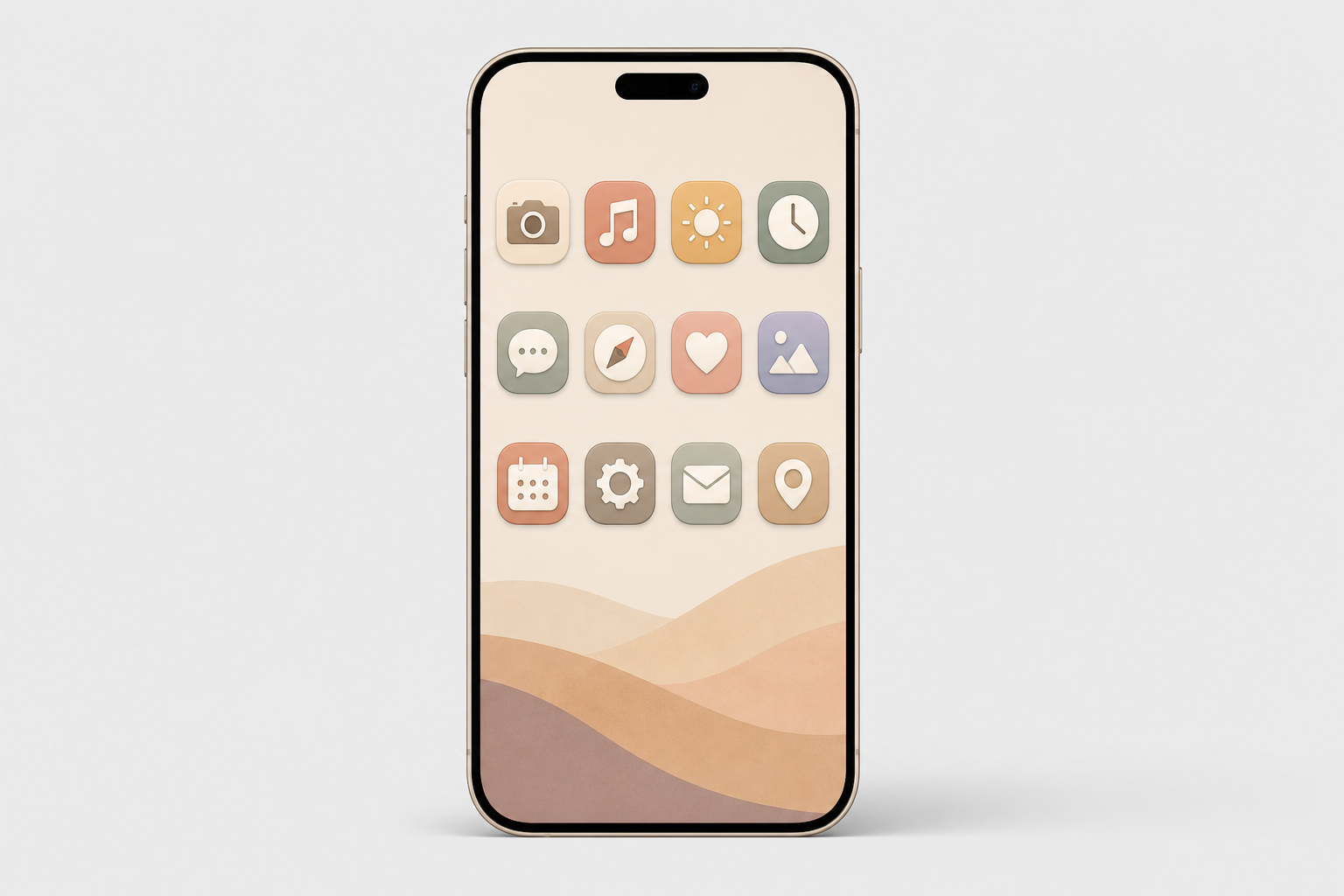
An iPhone home screen with a coordinated custom icon pack theme in a warm beige and pastel aesthetic

Updated July 2026.

iPhone icon packs are matching sets of custom app-icon images you swap onto your Home Screen so every app shares one look. They are how millions of people turn a stock iPhone into something that looks like theirs, and the way you find, install, and live with a pack has changed a lot since the iOS 14 craze of 2020, and in 2026, a few of the “rules” everyone repeats are simply wrong. This guide covers where to find icon packs (free and paid), the two ways to install custom app icons on your iPhone, the one trade-off that makes people quietly revert, and how iOS 18 and iOS 26 quietly changed the whole game.

Quick Specs

Home Screen icon size 180 × 180 px (60 pt @3x)
Design/source size 1024 × 1024 px master (system scales the rest)
Shape Squircle — supply a square, iOS applies the mask
Install methods 2 — Shortcuts app (free) or an icon app
Native option iOS 18 Dark/Tinted, iOS 26 Clear (no app needed)
Works on iPhone + iPad (many apps ship Android too)

What iPhone Icon Packs Actually Are (and Why “Packs” Are Becoming Themes)

An iPhone icon pack is a set of matching custom app-icon images you apply to your Home Screen so every app shares one look. In 2026 it comes in three forms: a downloadable image set you apply one icon at a time, a Shortcuts-applied set, and an app-based theme that installs icons, widgets, and a matching wallpaper together in a couple of taps.

Whether people search for iOS icon packs, iOS icons, or a whole homescreen theme, the goal is the same: one coherent look across every custom iOS app icon on the screen, a color, a shape language, or a mood.

Here’s the shift most tutorials miss: the word “pack” is fading. Across iOS 17, 18, and 26 Apple has folded more recoloring into the system itself, iOS 18 added dark and tinted icons and iOS 26 pushed further with translucent “Clear” icons. According to Apple’s Human Interface Guidelines, the Home Screen can now render icons in six variants, default, dark, clear light, clear dark, tinted light, and tinted dark, and the system generate any variant you don’t provide. You can even hide app labels for an icon-only grid. So the modern goal isn’t a one-off pack; it’s a coherent theme. That’s exactly what an all-in-one app like iScreen’s icon library is built to deliver.

Where to Find iPhone Icon Packs: The 4-Tier Icon Source Ladder

Every source falls onto one of four rungs, and the right rung depend on how much effort you want to spend. Tier 1 is free and native (iOS 18/26 tinting, plus free gallery sites). Tier 2 is marketplaces where independent designers sell packs (Etsy, Gumroad). Tier 3 is icon libraries you pull individual icons from (Icons8, Iconscout, Flaticon). Tier 4 is all-in-one customization apps that apply a whole themed set at once. The table below is the fast way to choose.

Ten places to find iPhone icon packs in 2026, from free iOS 26 tinting to full app themes.
Source Type Price Install Best for
iScreen All-in-one app Free + premium One-tap in app A full themed Home Screen fast
ScreenKit / Themify Icon + widget app Free + premium One-tap in app App-based bulk apply
Widgetsmith Widget-first app Free + premium In app + Shortcuts Widget-led layouts
Etsy shops Marketplace ~$1–$8 / pack Manual (Shortcuts) Unique indie designs
Gumroad creators Marketplace from ~$3 Manual (Shortcuts) Designer premium sets
Icons8 / Flaticon Icon library Free + paid Manual (Shortcuts) Pulling individual icons
Free designer packs Curated free Free Manual (Shortcuts) Minimalist free sets
Canva Design tool Free + Pro Manual (Shortcuts) Designing your own
iOS 18/26 built-in tint Native (Apple) Free Settings, no Shortcuts Keep badges, instant recolor
Pinterest / galleries Inspiration + free Free Manual Ideas and free downloads

Prices are reported ranges as of Q2 2026 and vary by seller. Native app-icon variant support per Apple HIG.

Are icon packs free on iPhone?

Yes, plenty are. iOS 18 and iOS 26 recolor every icon at once for free with no download at all, and libraries like Icons8, Flaticon, and curated designer sets give away free aesthetic app icon packs, typically 35 to 150 icons. Many of the best iOS icon packs are available at no cost.

What you pay for is completeness and convenience: a paid or app-delivered set covers all your apps in a matching style and applies in one tap, while free packs usually leave a few apps unmatched. A common real-world tip from customizers is to run one default pack and keep a second color pack on hand, because a single pack almost never covers every app you own.

How to Install Custom App Icons on iPhone (2 Methods)

Short answer: either build each icon by hand with the free Shortcuts app, or let an icon app apply a whole pack at once. Both are App Store-safe, reversible, and need no jailbreak.

Method 1, The Shortcuts app (free, manual). Per Apple’s Shortcuts guide:

  1. Open Shortcuts, create a new shortcut, and include the Open App action. Choose the app you wish to launch.
  2. Find your shortcut, press its “Options” button, then tap “Add to Home Screen“.
  3. Click on the icon photo, and select “Choose Photo” or “Choose File”. Now, select your custom icon image.
  4. Rename it to match the app, then tap Add.
  5. Long-press on the app to hide it and then select Remove from Home Screen, which won’t remove the app itself, but stash it into your App Library.
⚠️ Common mistake

create one for each app. if you re-use the same one and just change the app, each custom icon will open whichever app you last assigned. i tap kindle, and notes opens.

Method 2, An icon app (one-tap themes). Apps like iScreen skip the per-app grind: pick a themed set, tap apply, and install one profile, your device shows the standard privacy prompt, and your whole Home Screen updates on any modern smartphone in about a minute. It’s the low-effort route, and it’s why app-based packs have largely replaced hand-built ones. Once you land on a look you like, you can share the setup with friends or re-apply it after a reset. For a full step-by-step of every method, see our companion guide on how to customize iPhone app icons.

Do you need the Shortcuts app to change app icons?

No. Shortcuts is the most common route, but it is not the only one. On iOS 18 and iOS 26 you can recolor your icons natively with no Shortcuts at all, which we cover in the next section, and that route keeps your notification badges intact.

There is also a more technical Web Clip method: a small local-HTML file on your device can jump straight to an app’s URL scheme, opening the app quickly without bouncing through the Shortcuts app. And icon apps handle the whole thing for you. So “you must use Shortcuts” is another myth this guide puts to rest.

The Badge Blackout: The Real Cost of Shortcuts-Based Icons
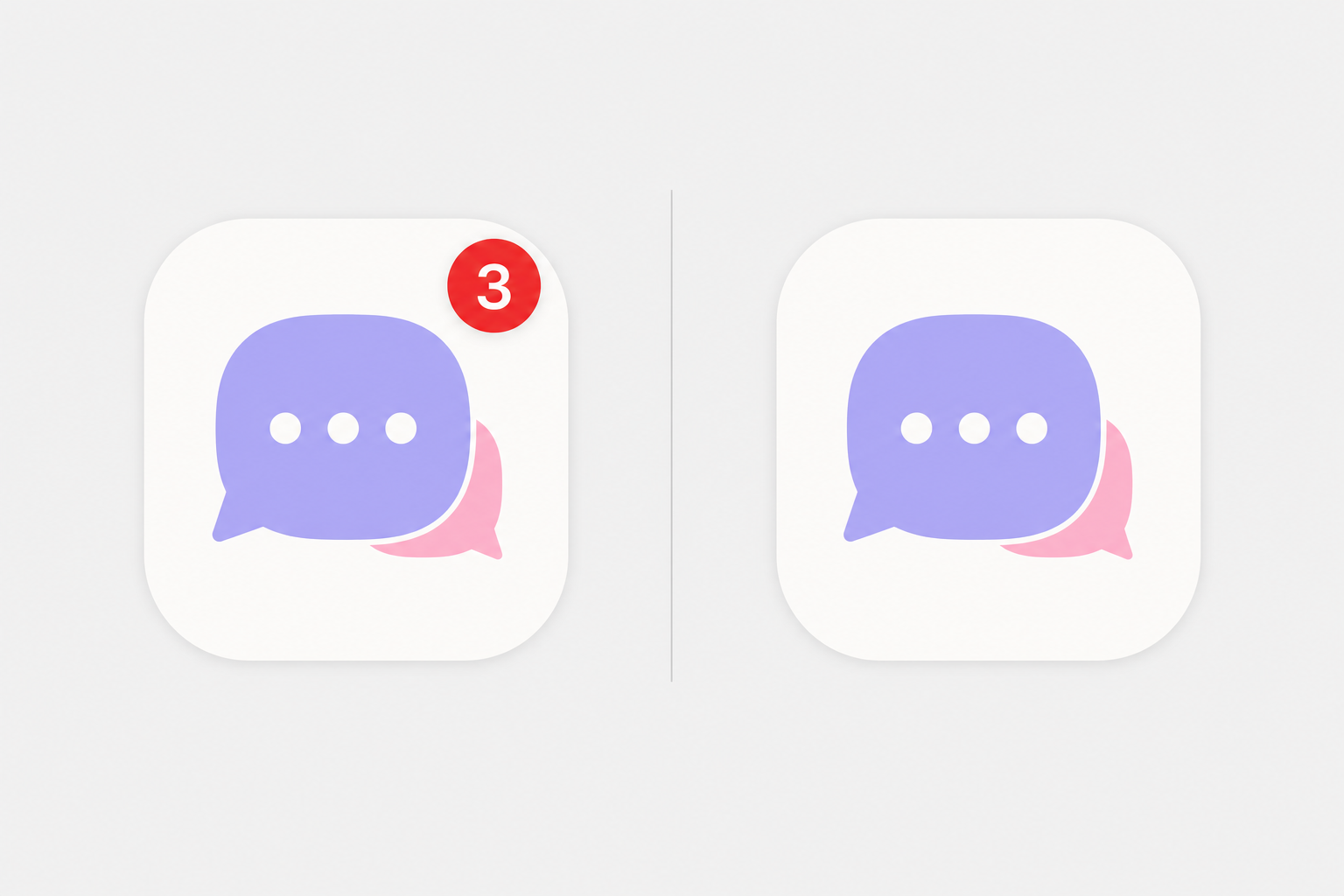
A custom app icon with a red notification badge versus a Shortcuts icon with no badge (the Badge Blackout)
The Badge Blackout: only a real app (left) shows the red notification badge; a Shortcuts custom icon (right) loses it.

This is the almost untold trade-off, the one which causes people to quietly turn back to their original. When you hide an app behind a Shortcuts image icon, you conceal the original app, and only original apps display notification badges. Apple’s own community forum is very clear that you can’t add the red badge to a shortcut icon.

We call this The Badge Blackout, and on r/iOSsetups it’s the most commonly cited reason that people abandon icons. “every time I use custom icons for a few days I go back to the stock icons because of the badges.”

The other half of the old complaint, the launch delay, is mostly history, and this is where the internet is out of date. In iOS 14 (September 2020), tapping a Shortcuts icon opened the Shortcuts app first, adding a second or two. According to MacRumors, iOS 14.3 (December 2020) cut that full redirect, leaving only a brief banner at the top. Contrary to a claim you’ll see every where, iOS 15 did not remove that banner: The Verge confirmed that the iOS 15.4 “notify when run” toggle silences automations only, not custom-icon shortcuts. So in 2026 the residual cost is a small banner plus the permanent Badge Blackout, not a slow phone.

✔ Shortcuts / image icons

  • Any custom picture you want
  • Fully free with the built-in app
  • Reversible anytime
  • ⚠ No notification badges (Badge Blackout)
  • ⚠ Brief banner on tap
✔ Native tint (iOS 18/26)

  • Keeps the real app + its badges
  • No banner, no delay
  • Recolors every icon in ~30 seconds
  • ⚠ Recolor only, no custom pictures
  • ⚠ Complex logos can look flat

A practical rule: if you can’t live without badge counts, use native tinting (or an icon app that keeps the app live); if you want fully custom artwork and can glance at a widget or the Lock Screen for alerts, the Shortcuts route is fine. Apple Community moderators give the same advice, customize the Home Screen natively when badges matter to you.

Choosing an Icon Style: Palettes, Dark, Minimalist & iOS 26 Round
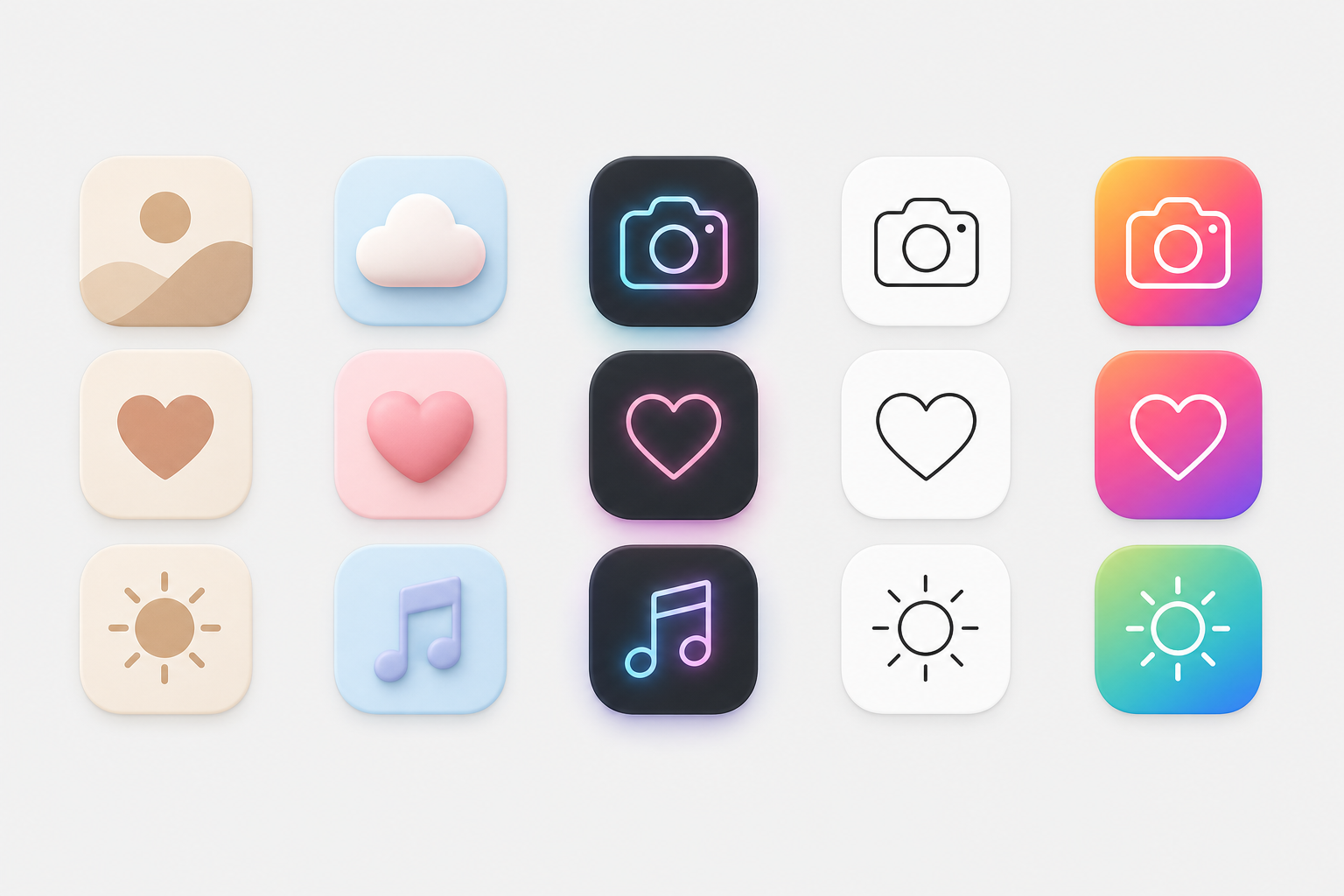
Five iPhone icon styles compared side by side
Popular iPhone icon styles, from warm beige to neon and minimalist line art.

A pack only look good when it agrees with your wallpaper and your Lock Screen. Pick a palette first, then a shape language. The table pairs each popular style with the background that flatters it. If you’re also updating your background, our guides on iPhone wallpaper aesthetics and live wallpapers pair well here, or browse ready-made kits on the iScreen theme gallery.

Ten iPhone icon styles and the wallpaper each pairs with, match your pack to your Home Screen.
Style Look Pairs with When to use
Beige / neutral Warm muted tones Cream / linen wallpaper Calm, minimal look
Pastel Soft pink / blue / lilac Gradient pastel Soft, cute vibe
Dark / black Black icons, dark base Dark / OLED wallpaper Sleek, battery-friendly
Neon Glowing accents Dark city wallpaper Bold, high-contrast
Minimalist line Thin monochrome outlines Solid / simple background Clean, distraction-free
Colorful gradient Vivid multi-color Abstract gradient Playful, energetic
Retro / Y2K Chrome, bubble, pixel Y2K collage Nostalgic
Native tint (iOS 18/26) System recolor of stock Any — auto color-matches Zero effort, keeps badges
Clay / 3D Soft rounded 3D Soft-shadow wallpaper Tactile, modern
Cute / kawaii Characters, sanrio Character wallpaper Fun, expressive

Color is where most people start. Warm neutrals, beige, brown, and muted orange, read calm; a purple, green, or yellow palette feels playful; and a neon icon glow against black looks bold and stylish. Whatever you pick, keep it consistent: a coherent set of aesthetic iOS app icon packs looks far more intentional than a cool-but-random mix. If you want to design your own, no real design skills are needed, a template tool handle the layout, and it’s worth scanning a pack’s screenshots before you commit.

iOS 26 adds a wrinkle worth knowing. Its “Clear” Liquid Glass icons are translucent, and the system can auto-tint every icon to match your iPhone’s color, or even your case color.

“This gets especially fun if you like to swap out cases based on what you’re wearing, as you can quickly get a Home Screen aesthetic that complements your outfit.”

Ryan Christoffel, 9to5Mac

One catch worth setting expectations on: case-color matching only works with Apple’s MagSafe cases and some third-party ones, and packs with busy logos may not separate cleanly from a dark or clear background.

Free vs Paid Icon Packs: What You Actually Pay For

Free packs are genuinely good now, so the honest question is what money buys. Indie digital sets on Etsy run roughly $1 to $8 and typically bundle 20 to 80 icons; premium designer sets on marketplaces have gone for around $6 for 35 icons up to $28 for an 80-icon set with light and dark versions and lifetime updates. App-based packs usually run a small subscription or one-time unlock.

What free really costs you is threefold: time (applying icons one at a time via Shortcuts), completeness (free packs rarely cover every app), and updates (a static free pack won’t add icons for new apps). Paying, especially for an app, buys full coverage, one-tap apply, and ongoing additions. Before you subscribe, check the app’s rating and recent reviews; scale is a decent signal, and the leading customization apps count users in the millions (ScreenKit alone lists ten million). If you just want a quick recolor and nothing custom, stay free with native tinting.

Icon Specs That Matter: Size, Shape, Folders & Consistency
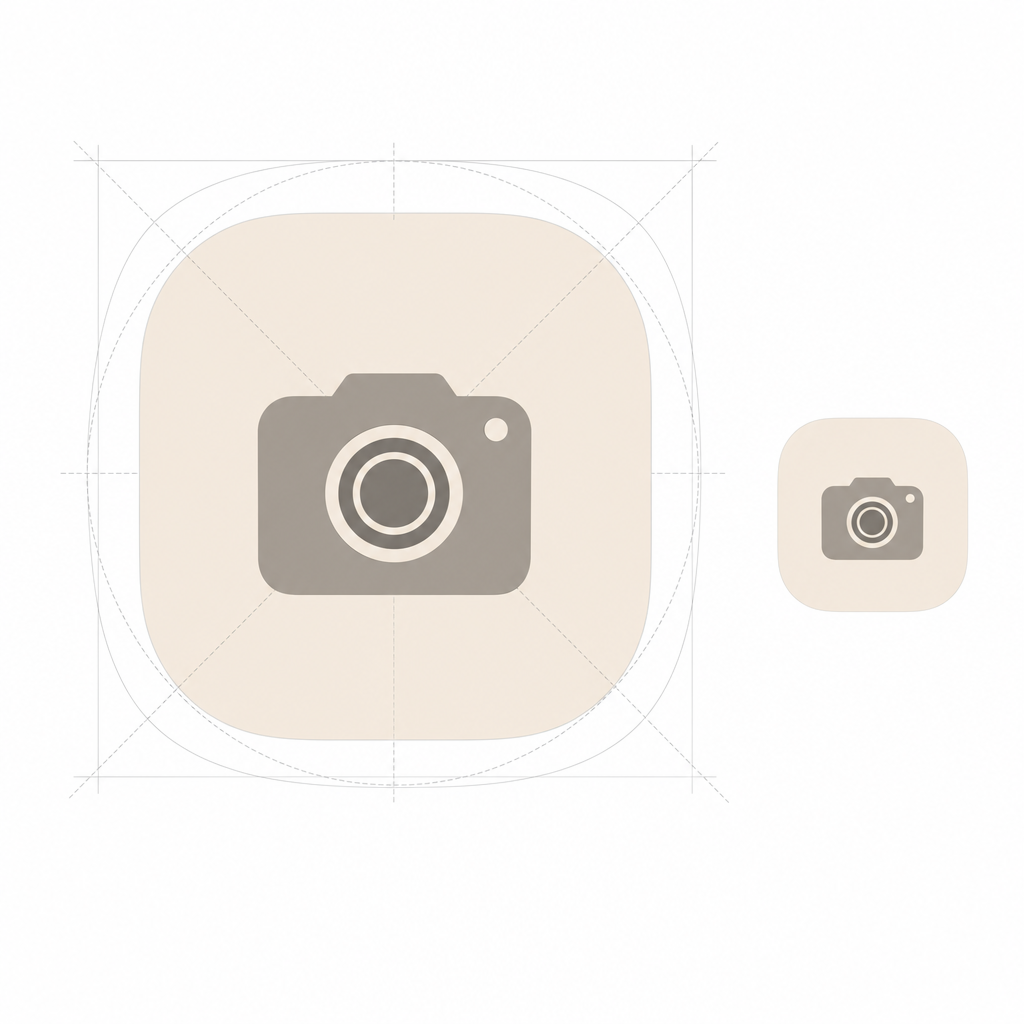
iPhone icon squircle shape and 1024 to 180 pixel scaling
iOS masks a square into a ‘squircle’ — design one 1024×1024 master and let it scale down to 180 px.

Getting the specs right is the difference between crisp icons and a blurry Home Screen. Two numbers matter, and one habit will save you.

📐 Engineering Note

iPhone Home Screen icons render at 60 pt. On a @3x Super Retina display that’s 60 × 3 = 180 px, so your icon shows as 180 × 180 px. But you do not export a 180 px file: per Apple’s guidelines you design one 1024 × 1024 px master and let iOS scale it down to every size it needs, 180, 120, 80, 58 px and so on. Supply a square image and let the system apply the squircle mask; pre-rounding the corners yourself make edges look jagged and breaks the new Liquid Glass highlights. Export as PNG in RGB, not CMYK.

Folders are the one thing you can’t re-skin. iOS has no native option to put a custom picture on a Home Screen folder, so themers who want a fully custom grid skip folders entirely and replace them with Shortcuts tiles, or, on iOS 26, let folders inherit the clear/tinted Liquid Glass look. For a consistent set, decide your palette and icon shape before you download anything, and pull from one source where you can so the style hold together across every app.

Where iPhone Customization Is Headed: The Icon-Pack-to-Theme Migration

The biggest 2026 story isn’t a new pack; it’s that Apple is absorbing the simple version of what packs used to do, and demand is following. As the OS makes recoloring free and system-wide, the reason to hunt down a static “pack” shrinks, and the reason to install a coordinated theme of icons plus widgets plus wallpaper grows.

That shift is concrete. iOS 18 introduced native dark and tinted icons; iOS 26 added translucent Clear icons and automatic color-matching to your phone or case, what 9to5Mac describes as color theming that “carries across hardware and software.”

Our own search-demand data backs up the pivot. Over the trailing twelve months, searches for “icon packs iphone” were down about 61% year over year, whereas “iphone icon themes” were up around 184%, “iphone shortcuts icons” climbed by about 20 times, and “ios round icons” grew by close to three times. In other words, people are still customizing just as much as ever – home-screen personalization has been a mass habit since the iOS 14 boom of 2020, when the top customization apps amassed 13.7 million installs in one week – they’re just searching for “themes” and “how to change icons,” rather than “packs.” The takeaway for 2026: Don’t chase a one-off pack a system update could restyle. Instead, build a reusable theme, and then rely on an app to keep your look coherent as iOS updates underneath you. That’s exactly what iScreen’s icon packs and themes were designed to do.

Skip the per-app Shortcuts grind. Get a matching set of icons, widgets, and a wallpaper in one place.

Explore iScreen Icon Packs →

Frequently Asked Questions

Q: What are the best free iPhone icon packs?

View Answer
The best free options split into two kinds. For zero effort, iOS 18 and iOS 26 recolor every icon natively at no cost and keep your notification badges. For custom artwork, free curated sets from designers and libraries like Icons8 and Flaticon give away packs of roughly 35 to 150 icons, and apps like iScreen offer a free tier before any premium unlock. Expect free packs to leave a few apps unmatched, which is the main reason people upgrade.

Q: How do I change app icons on iPhone without Shortcuts?

View Answer
You’ve two no-Shortcuts routes. The native one: touch and hold the Home Screen, tap Edit, then Customize, and choose Dark, Clear, or Tinted to recolor every icon, no app and no Shortcuts required, and your badges stay. The other route is an icon app that installs a themed set for you. A more technical Web Clip method also exists, but for most people native tinting or an app is simpler and keeps the real apps live.

Q: Do custom app icons slow down your iPhone?

View Answer
Not really, that claim is out of date. In iOS 14 a Shortcuts icon opened the Shortcuts app first, adding a second or two, but iOS 14.3 (December 2020) removed that full redirect. Today the only residual is a brief banner on tap, not a genuine slowdown, and native tinting has no delay at all. The real cost of the Shortcuts method is losing notification badges, not speed.

Q: Why do my custom icons open the Shortcuts app first?

View Answer
You’re on an old iOS version. The full redirect through the Shortcuts app was removed in iOS 14.3; on current iOS a shortcut icon opens the app directly, with at most a small banner. Update your iPhone to stop the bounce.

Q: What size are iPhone app icons?

View Answer
The Home Screen renders icons at 180 × 180 px (60 pt @3x). Design a 1024 × 1024 px master and let iOS scale it; keep the artwork square so the system can apply the squircle mask.

Q: Do custom icons remove notification badges?

View Answer
Shortcuts image icons do, that’s the Badge Blackout. Because you hide the real app, the red badge count disappears, and only real apps can show badges. Native tinting on iOS 18/26 avoids this entirely because it recolors the real app instead of replacing it, so your badges keep working.

Q: How do I keep custom icons after an app updates?

View Answer
A Shortcuts custom icon survives app updates because it points to the app, not to a version of it, an app update won’t reset it. What can change your look is a major iOS update: iOS 26, for example, may restyle icons toward the clear Liquid Glass appearance. If that happens, go to Edit, then Customize, and choose Default to restore your set.

Why We Wrote This Guide

We build iScreen, an iPhone and Android home-screen customization app with a library of 5,000+ app icons, so we spend our days watching how people actually apply icon packs, and where they get stuck. This guide reflects that, plus the real iOS 14.3, iOS 18, and iOS 26 behavior verified against Apple’s own documentation, so you get the trade-offs (like the Badge Blackout) that most icon-pack roundups leave out. Reviewed by the iScreen team.

Artículos recientes

How to Customize App Icons on iPhone: Step-by-Step Guide (2026)

How to Customize App Icons on iPhone: Step-by-Step Guide (2026)

2026/6/23 14:33
Updated June 2026 · A practical, no-jailbreak guide for iOS 26 and iOS 18 To customize iPhone app icons means to change how they appear on your Home Screen — their color, a custom image, or a whole matching set. You can do it three ways, and the right one depends on whether you want a quick recolor or a fully custom picture on each app. Since iOS 18 (and now iOS 26’s Liquid Glass look), Apple finally bakes basic icon styling into the Home Screen itself, but a true themed makeover still means assembling icons yourself with the Shortcuts app or a dedicated icon app. This guide walks through all three, with the trade-offs most tutorials skip. Short answer: To customize iPhone app icons, touch and hold the Home Screen, tap Edit > Customize, and pick Dark, Tinted, or Clear to restyle every icon at once. For a custom image on one app, use the free Shortcuts app; for a whole matching set in a few taps, use an icon-pack app. All three are App Store-safe and need no jailbreak. Key Takeaways There’s still no native one-tap “apply a custom picture to every icon” button, Apple’s menu only recolors; custom artwork is assembled per app. iOS 26 added a Clear (translucent) icon mode on top of iOS 18’s Dark and Tinted styles. The old Shortcuts “launch banner” is mostly gone, but iOS 26 reintroduced a brief load delay when swiping pages of custom icons. Every method here’s free or freemium, reversible, and needs no jailbreak. Quick Specs: iPhone App Icon Customization iOS needed iOS 18+ for Dark/Tinted & Shortcuts icons; iOS 26 for Clear (Liquid Glass) Tools None (built-in) · Shortcuts app (free) · icon-pack app Time per icon Built-in: seconds for all · Shortcuts: 5–8 steps each · Icon app: a few taps per set Reversible Yes — from the same Customize menu or by deleting the shortcut Jailbreak No — all methods are App Store-safe What “Customizing App Icons” Actually Means on iPhone (iOS 18 vs iOS 26) Before you change anything, it helps to know that “customize app icons” covers three different levels of control. First comes recoloring — keeping the real app icon but changing its appearance. Next is replacing an icon with a custom image of your own. Third, applying a whole coordinated icon pack so your Home Screen reads as one theme. Apple’s built-in menu only does the first; the other two need the Shortcuts app or a third-party app. Picking the wrong level is the usual mistake, and it costs time: a quick recolor takes 30 seconds, while a full custom set can take 30 minutes by hand because every app is done separately. This matters because Apple changed the rules recently. In iOS 18, the Home Screen gained a real Customize menu with Dark, Tinted, and larger icon options. In iOS 26, Apple’s Liquid Glass design added a Clear (translucent) look, so icons can sit like frosted glass over your iPhone wallpaper. According to Apple’s 2025 software design announcement, these icons render “in light, dark, tinted, or clear looks.” What Apple still does not give you is a single toggle that swaps every icon for a custom picture, that part you assemble yourself, which is why this guide cover all three methods rather than one. Does iOS 18 have custom icons? Yes and no. iOS 18 introduced native icon styling — you can tint, darken, or enlarge icons from the Home Screen with no third-party apps. But iOS 18 doesn’t let you point an app at any random photo through that menu; for a fully custom icon image you still use the Shortcuts app, exactly as on iOS 16 and 17. iOS 26 keeps the same split: more built-in styles (now including Clear), but custom artwork still goes through Shortcuts or an icon app. So “does iOS 18 have custom icons” depends on whether you mean recoloring (built in) or your own images (Shortcuts). 💡 Pro Tip Decide your goal first. If you only want a cleaner, color-matched Home Screen, the built-in method below is faster and keeps every app behaving normally. If you want a specific picture or a themed set, skip ahead to Method 2 or 3. Pairing icon changes with matching Home Screen widgets ties the whole look together. The 3 Ways to Customize iPhone App Icons (The Icon Method Matrix) There are three real methods to change app icons on iPhone, and picking the wrong one wastes the most time. Apple’s built-in menu restyles everything in seconds but can’t use your own images. Shortcuts gives total image control but adds friction per app. An icon-pack app sit in the middle: less freedom than Shortcuts, far less effort. That table below, call it the Icon Method Matrixcompares all three across the six things that actually decide which one you’ll be happy with a week later. The Icon Method Matrix: 3 ways to customize iPhone app icons, compared across 6 decision factors. Factor 1. Built-in Customize 2. Shortcuts app 3. Icon-pack app Effort Seconds, all icons at once 5–8 steps per app A few taps per set What it changes Color/tint, dark, clear, size Any custom image you choose A coordinated icon pack Launch behavior Normal — real app icons Brief load delay on iOS 26 Same as Shortcuts (uses a profile) Reversible Instantly (Default) Delete the shortcut Remove the profile/shortcut Cost Free Free Free / freemium Best for Fast, tidy recolor One or two custom images A full aesthetic theme Method steps verified against Apple’s Home Screen customization guide; launch-delay behavior from iOS 26 user reports. The 4-Question Icon Method Picker Want to recolor everything in one go? → Built-in Customize (Method 1). Need a specific picture on one or two apps, for free? → Shortcuts (Method 2). Want a whole matching set without 30 manual shortcuts? → an icon-pack app (Method 3). Care most about badges and instant launching? → stay on Method 1; skip custom-image methods for alert-heavy apps. Can you change app icons on iPhone without using Shortcuts? Yes. Two of the three methods skip Shortcuts entirely. The built-in Customize menu restyles real icons with no Shortcuts at all, and icon-pack apps apply custom images through an installed profile rather than a Shortcuts redirect. The only reason to use Shortcuts is when you want your own specific image on a single app for free. If the Shortcuts hassle is what’s putting you off, an icon app is the no-Shortcuts route, see our step-by-step on the iPhone customization walkthrough for a side-by-side. Method 1: Tint, Darken or Clear Icons with iOS 26’s Built-In Customize Menu Apple’s own menu is the fastest way to change app icons, and it restyles every icon at once in about 30 seconds. That speed matter in practice: because these stay real app icons rather than launcher tiles, you avoid the launch delay problem entirely. Touch and hold an empty part of the Home Screen until the icons jiggle, tap Edit at the top, then tap Customize. You’ll see appearance buttons along the bottom. This is the same flow on iOS 18 and iOS 26, with iOS 26 adding the Clear option. Touch and hold the Home Screen background until icons jiggle. Tap Edit → Customize. Default keeps original colors; Dark gives a dark mode icon set (tap Auto to switch dark at night, light by day). Tinted recolors every icon, use the color and saturation sliders, or the eyedropper to pull a color straight from your wallpaper. Clear (iOS 26) makes icons translucent glass; then choose Light, Dark, or Auto. Tap the size button for larger icons (app names disappear at large size), then tap an empty area to finish. Apple’s full reference is the Customize apps and widgets on the iPhone Home Screen guide. Its big advantage is that these stay real app icons, so Mail and Messages badges keep working and apps open instantly. Unlike Android, where a launcher can swap every icon system-wide, your iPhone keeps each change cosmetic and reversible. ⚠️ Common Mistake Clear icons look great in photos but can vanish against a plain or busy wallpaper. If your Settings, Clock, or App Store icons suddenly look hard to read in Clear or Tinted mode, switch that style’s Light/Dark setting, or pick a calmer wallpaper before you commit to the glass look. Method 2: Make Fully Custom App Icons with the Shortcuts App (Free) When you want your own image, a hand-drawn glyph, a monochrome icon pack, or a photo, the free Shortcuts app is the no-cost route. This method create a Home Screen tile that opens the target app, and you give that tile any picture you like. You create a shortcut for the app, choose its icon image, and your new icon appears on the Home Screen. It takes about five to eight steps per app, so it’s ideal for a few key apps rather than all of them, and it’s the same way people personalize icons on iOS today. Open the Shortcuts app and tap + to create a new shortcut. Tap Add Action, search for Open App, and select it. Tap App and choose the app you want this icon to launch. Open the shortcut’s options and tap Add to Home Screen. Tap the placeholder icon image, then pick Choose Photo to pull an image from your Photos app, or Choose File for a saved icon. Rename the shortcut (this becomes the icon label), then tap Add. Long-press the original app and choose Remove from Home Screen so only your custom icon shows, the real app stays in your App Library. Your own PNGs work, and so do exported images from a design tool or icon set you saved from Pinterest. Just standardize shape, padding, and background color first, or a random mix from different packs will look messier than the default Home Screen. How do I change the icon of a specific app? To change just one app’s icon, make a single Shortcut for that app using the steps above, give it your chosen image, and hide the original from the Home Screen. That custom tile launches the real app, so a custom app icon pack from iScreen or your own photo replaces the look without touching the actual app. Repeat per app, there’s no native “change this one icon” button, which is exactly the friction icon-pack apps remove. The Shortcuts Tax: the launch delay nobody mentions Here’s the trade-off thin tutorials skip, call it the Shortcuts Tax. Because a custom icon is a launcher tile, not the real app icon, iOS has historically added friction. On iOS 14 and 15, tapping a custom icon flashed a banner and bounced you through the Shortcuts app first. Around iOS 16 the “Open App” action removed that banner for most users, and apps opened almost directly, the tax nearly disappeared. Then iOS 26 reintroduced a different version: users report a brief load delay when swiping between pages of custom icons, with one iOS 26 thread drawing 154 votes describing icons that “take a long time to load.” That lag is usually only 1 to 2 seconds, but it’s a real trade-off because it repeats every time you open the app. In short, the Shortcuts Tax changed shape across iOS 14 → 16 → 26 but never fully went away. “After switching to iOS 26 my custom app icons have a slight delay when swiping between pages, it ran perfectly before.” iPhone user, r/shortcuts (iOS 26 custom-icon delay thread) So if instant launching and reliable badges matter to you for chat, email, or task apps, leave those on real icons (Method 1) and reserve Shortcuts for the handful of apps where the look matter more than the millisecond. That brief lag is the main downside of custom-image icons, and it’s worth weighing before you convert your whole Home Screen. Method 3: Use an Icon Changer or Theme App for One-Tap Icon Packs An icon-pack app is the answer when you want a whole matching set without building 30 shortcuts by hand, a process that can take 30 minutes or more for a full Home Screen. These apps let you browse coordinated icon packs, pick a style, and apply a 30-icon set in under 2 minutes, far faster than the manual route on your phone. In practice, this is the use case where an app clearly win: the trade-off of doing it by hand is the time, and the risk is an inconsistent result. Under the hood they still rely on a custom-icon mechanism (an installed profile or batch shortcuts), so the launch behavior is similar to Method 2, but you skip nearly all the manual setup, and many apps advertise themselves as needing no Shortcuts steps at all. Some app developers also ship alternate icons inside their own apps, which you switch from the app’s settings, the cleanest option when it’s offered. This is where a customization app earns its place. iScreen, for example, catalogs 5,000+ icons, 10,000+ themes, and 500+ widgets, with coordinated theme kits so your icons, widgets, and wallpaper share one palette in under 1 minute. This works because the pack enforces one palette for you, which is exactly the consistency a hand-built set struggles to hold. A pack’s payoff over one-off swaps is consistency: a curated set keep shape language and color weight uniform, which is the single biggest reason a custom Home Screen looks intentional rather than chaotic. Browse a custom app icon pack set to see how a unified palette read. “A pack of 30 icons that share one palette will always beat 30 great icons from different sets. Consistency of shape and tone is what makes a Home Screen feel designed, not downloaded.” iScreen design team, app icon & theme curation What to check before installing any icon app: confirm it’s free or clearly priced, review what an installed profile can access, and make sure removing it cleanly restores your original icons. Reputable icon and theme apps from the App Store are App Store-safe and reversible, no jailbreak, no risk to the apps themselves. How to Design a Cohesive App Icon Look (Aesthetic) Honestly, the hardest part of an aesthetic Home Screen isn’t the how, it’s the taste. A custom set look polished when three things stay consistent: one style family (all line icons, all glyphs, or all photo tiles, not a mix), a tight palette of 2 to 3 colors, and a background that frames rather than fights the icons. In practice, the most common mistake is mixing packs: the problem is that two near-identical pinks rarely match, and the clash is obvious within seconds. That same palette discipline lets you personalize your lock screen to match, so the whole phone read as one look. Most messy makeovers break the first rule by pulling cute icons from several packs at once. A real example: someone rebuilds a soft pink-and-gray Home Screen, grabs a free pastel set for half the apps, then fills the gaps with leftover icons from an older pack. The shapes don’t match, two pinks clash, and the screen look busier than when they started. That fix is boringly effective, pick one pack, accept that a few apps will use a near-match rather than a perfect one, and let the wallpaper carry the personality. For palette and layout ideas, our roundups of aesthetic iPhone home screen setups and iPhone home screen ideas (linked below) show full themes you can copy. Pulling inspiration from Pinterest or Instagram is fine, just commit to one direction before you start tinting. 💡 Pro Tip Treat icons as one layer of a bigger look. Truly coordinated screens match icons to a full iPhone theme — wallpaper, widgets, and even a matching font on your widget text — so the eye reads one palette instead of four separate decisions. Apps like Widgetsmith pair custom widgets with your icon set for that finished feel. Troubleshooting: Launch Delay, Reverting Icons & Missing Apps Custom icons are cosmetic and fully reversible, so nothing here’s permanent. In practice, the three problems people hit most each have a fix that take under 1 minute, because nothing here touches the actual app or your data, and none require a jailbreak or a factory reset. ✔Custom icons load slowly (iOS 26): this is the Shortcuts Tax. Reduce how many custom-icon pages you swipe through, keep alert-heavy apps on real icons, or revert those apps to default until Apple tunes the animation. ✔“My app disappeared”: it didn’t. When you hide an original app to show a custom icon, the real app moves to the App Library, swipe to the last Home Screen page or search to find it. ✔Undo everything fast: for built-in styles, reopen Edit > Customize and tap Default. For Shortcuts icons, delete the shortcut tile and unhide the original. For an icon app, remove its profile or shortcuts and your default icons return. One reassurance worth stating plainly: you’ve never needed to jailbreak to customize iPhone app icons. That old jailbreak-only era ended years ago, today the native menu, Shortcuts, and App Store icon apps cover every level of customization safely. If you want the whole home screen redone rather than just icons, our guide to iPhone themes walks through assembling the full stack. What’s Changing: iOS 26 Liquid Glass and the Future of iPhone Icons A bigger shift is underway: Apple keeps inching toward a system-wide icon look, but the gap that keep third-party packs relevant isn’t closing. iOS 26’s Liquid Glass design and its Clear, Tinted, Dark, and Light modes are Apple’s closest move yet to a one-tap “theme my icons” switch. Apple even shipped Icon Composer so developers can build icons that adapt to all four looks. Yet the rollout drew real friction: users on r/apple report Liquid Glass making icons look crooked or tilted in Dark, Clear, and Tinted modes against dark backgrounds, and the swipe-load delay above frustrated people who’d built custom layouts. The problem, in practice, is that Apple’s styles still can’t match a specific look, so the trade-off of waiting for a future update is real. What this means for you in 2026 is practical: if you want a specific aesthetic, a particular pastel set, a monochrome work screen, a seasonal makeover, Apple’s built-in styles still can’t deliver it, so an icon-pack app or Shortcuts remains the only route to true art-direction. Designers are pushing the same way, with 2026 icon design trends split between soft 3D and hyper-minimal, plus a rise in AI-generated icon sets. If you’re planning a refresh now, start from the built-in Clear/Tinted look for speed, then layer a coordinated pack on the apps you care about most, that combination ages better than betting on Apple to ship a full theme engine next cycle. 📐 Action for 2026: Recolor everything with iOS 26’s Tinted or Clear mode first (30 seconds), live with it for a day, then commit to a custom icon pack only on your most-used apps. You get an instant refresh now and a true theme where it counts, without the full Shortcuts grind. Want a coordinated icon pack, matching widgets, and wallpaper in one place? Explore iScreen App Icons → Frequently Asked Questions Q: How do I get cute app icons on my iPhone? View Answer For cute app icons, download a coordinated icon pack from an icon-changer app, or save individual icon images you like and apply them through the Shortcuts app. Stick to one style family — all pastel, all line-art, all glyph — and a 2–3 color palette so the set looks intentional. Pinterest and Instagram are good places to find a direction before you start, and a theme app bundles cute icons, widgets, and wallpaper that already match. Q: Can you change app icons on iPhone without Shortcuts? View Answer Yes. Apple’s built-in Customize menu (Edit > Customize) restyles every icon — tint, dark, or clear — with no Shortcuts at all. Icon-pack apps also apply custom images through an installed profile rather than a Shortcuts redirect. You only need the Shortcuts app when you want your own specific image on a single app for free. For most people who just want a tidy, color-matched look, the no-Shortcuts built-in method is the easiest route. Q: Does iOS 18 have custom icons? View Answer iOS 18 added native icon styling — you can tint, darken, or enlarge icons straight from the Home Screen without any third-party app. But iOS 18 does not let you set a custom photo as an icon through that menu; for your own images you still use the free Shortcuts app, the same as on iOS 16 and 17. iOS 26 keeps this split and adds a Clear (translucent) style on top of iOS 18’s options. Q: Why do my custom app icons open slowly? View Answer Because a custom icon is a Shortcuts launcher tile, not the real app icon, iOS adds a brief hand-off. iOS 26 specifically reintroduced a load delay when swiping pages of custom icons. Keep heavily used apps on real icons to avoid it. Q: Are custom app icons free? View Answer The built-in Customize menu and the Shortcuts method are completely free. Icon-pack apps are usually freemium: a free starter set of icons plus optional paid premium packs, so you can theme your whole Home Screen at no cost and pay only for a premium pack if one catches your eye. Q: How do I get my original app icons back? View Answer It depends on the method. For built-in styles, open Edit > Customize and tap Default. For a Shortcuts icon, delete the shortcut tile and unhide the real app from the App Library. For an icon-pack app, remove its profile and your default icons reappear. Why We Tested These Methods Every step here is cross-checked against Apple’s official Home Screen guide and WWDC25 notes, and the Shortcuts launch-delay timeline is drawn from current iOS 26 user reports. Design guidance in the cohesive-look section reflects iScreen’s icon and theme catalog. Reviewed by the iScreen team. References & Sources Customize apps and widgets on the iPhone Home ScreenApple Support Apple introduces a delightful and elegant new software designApple Newsroom (2025) Say hello to the new look of app icons (WWDC25, session 220)Apple Developer Icon design trends 2026 — Envato How to customize your iPhone’s app icons — The Verge Related Articles Aesthetic iPhone Home Screen Setups, full theme ideas iPhone Themes, assemble the whole look Cute Aesthetic Widgets to match your icons 20 Best iPhone Home Screen Ideas
2026/6/23 14:33
iPhone Themes: How to Apply Aesthetic Themes to Your Entire Home Screen

iPhone Themes: How to Apply Aesthetic Themes to Your Entire Home Screen

2026/6/22 09:46
iPhone themes are how you give your whole phone a single, coordinated look, matching wallpaper, app icons, widgets, and accent colors instead of the stock grid everyone else has. Here’s the part most guides skip: iOS has no single “apply theme” button. A theme on iPhone is something you assemble, and once you understand the four layers it’s built from, the whole process stop feeling random. This guide walks through what a theme really is, the three real ways to change it (including what’s built into iOS 26), the best theme apps, the icon and keyboard layers, free options, the jailbreak question, and where Apple is heading next. 💡 The short version An iPhone theme is a coordinated set of four layers — wallpaper, app icons, widgets, and keyboard/accent color. You build it three ways: iOS 26’s built-in icon appearances, free custom icons through the Shortcuts app, or an all-in-one theme app like iScreen. What Is an iPhone Theme? The 4-Layer Theme Stack An iPhone theme, sometimes searched as iOS themes, is a coordinated visual style applied across your Home Screen and Lock Screen, not a single downloadable file. Android phones, Samsung’s One UI launcher especially, had true “theme engines” that swapped the whole UI at once. iPhone doesn’t. According to Apple’s own Home Screen documentation, the built-in tools only recolor and resize icons; and as Engadget notes in its iOS 26 walkthrough, iOS “still doesn’t allow… third-party icon packs without shortcuts,” so the look you want is built from parts rather than toggled on. Once you stop hunting for a magic button, theming gets simple. Every good-looking iPhone is the same four layers working together. We call it the 4-Layer Theme Stack, and it’s the order we use when building any setup: Layer What it sets Effort 1. Wallpaper The base mood and palette everything else borrows from Low 2. App icons The single biggest visual change — tint, dark, clear, or custom Low–Medium 3. Widgets Personality and function — clock, weather, photos, pets Medium 4. Keyboard / accents The finishing layer most people forget — keyboard, Dynamic Island, Lock Screen clock Medium When a Home Screen looks “off,” it’s almost always one layer fighting the others, a soft pastel wallpaper under loud, default-colored icons, for example. Match the layers to one palette and even a few minutes of work reads as a finished theme. In our own theme kits, we bundle the wallpaper, icon pack, and widgets together for exactly this reason, the layers are designed to share one color story instead of being collected piece by piece. “Nine out of ten ‘messy’ Home Screens we see are not missing apps or widgets, they are one layer off-palette. Match the wallpaper to the icons first, and the whole screen snaps into place.” iScreen design team Bottom line: Stop looking for an “apply theme” button. Build the four layers, wallpaper, icons, widgets, keyboard, around one palette. How to Change Your iPhone Theme: 3 Methods There are exactly three ways to change your iPhone theme: use the built-in icon appearances in iOS 26, make free custom icons with the Shortcuts app, or install a theme app. They differ in effort and how much they actually change, so pick by how far you want to go. We rank them as the 3-Method Theme Setup Ladder: Method Effort What it changes Best for Cost iOS 26 icon appearance 2 minutes Tints or darkens every icon at once A fast, clean refresh Free Shortcuts custom icons 20–60 minutes Replaces individual icons with your own art A specific, hand-built look Free Theme app 5–15 minutes Applies a matched icon + widget + wallpaper kit A full coordinated theme, fast Free / premium How do I change my theme on my iPhone? To change your theme the built-in way, touch and hold an empty part of the Home Screen until the icons jiggle, tap Edit in the top corner, then choose Customize. Say you want a calmer screen for the evening: according to Apple’s guide you can tap Dark, and your icons and widgets shift to a darker appearance in seconds. From Apple’s Home Screen customization menu you can resize icons, switch them to Dark, give them a Clear glass look, or add a color Tint with the sliders. For a hand-built theme, you swap individual icons with the Shortcuts app (next section), and for a one-tap coordinated look you apply a kit from a theme app. If you’re brand new to this, our step-by-step customization guide covers each tap with screenshots. In short: Most people start with the free iOS 26 appearance menu, then graduate to Shortcuts or a theme app when they want more control. App Icon Themes: The Biggest Visual Lever App icons are the layer that changes how a theme read more than any other, which is why “icon themes” and “iPhone themes and icons” are searched so often together. You’ve two honest routes: the system appearance options, or fully custom icons. System appearances (free, fast). In the iOS 26 Customize menu, the top row offer Default, Dark, Clear, and Tinted, the four iOS icons looks Apple and its developers support. Tinted applies one color scheme across every supported icon and widget; there’s even an eyedropper to pull a color straight from your wallpaper. It’s the quickest way to make a mismatched grid feel intentional. Custom icons (free, manual). For a specific look, a single pastel set, a retro pack, anime art, you replace icons one by one using the Shortcuts app. Apple’s guides for modifying a shortcut’s icon and adding it to the Home Screen let you point any photo at any app. According to Apple’s Shortcuts documentation, the photo you pick becomes the Home Screen tile, so yes, you can import your own PNG art this way, a lot of people make icon sets in Canva, use AI-generated art, or grab free packs and apply them via the Shortcuts app. The trade-off is time: a full set of custom icons is a real sit-down project, not a two-minute job. If you want the custom-icon look without the manual labor, an icon pack from a dedicated icon library does the matching for you, handy when you’re pairing icons to a wallpaper and want them to share one tone. Key takeaway: Use Tinted for a fast system-wide refresh; use Shortcuts custom icons when you need a very specific set and have the patience. Keyboard Themes: The Most Overlooked Layer The keyboard is the layer almost every theme guide ignores, even though it’s on screen constantly. Here’s the honest answer: iPhone has no built-in keyboard themes the way Android does. There’s no native gallery of keyboard skins, so a fully “themed” keyboard is the one place iOS genuinely limits you. What you can do still helps the overall look. Turn on system Dark Mode (Settings → Display & Brightness) and the stock keyboard go dark to match a dark theme. For colors and custom key art, you install a third-party keyboard app from the App Store and switch to it in Settings → General → Keyboard, then set it as your themed keyboard in the same place you manage other keyboards. It’s worth knowing the limits before you download one: third-party keyboards on iPhone can feel slightly slower to load than the stock keyboard, they may ask for “Full Access,” and some apps still bring you back to the default keyboard in secure fields like passwords. Because the keyboard fights you the most, our advice is to treat it as an accent rather than a centerpiece: a dark keyboard under a dark theme, or a single muted third-party keyboard that matches your palette, looks more cohesive than a loud animated one that clashes with everything else. Worth knowing: There are no native iPhone keyboard themes, use Dark Mode to match, and add a third-party keyboard only if it fits your palette. Dark Themes & True-Black Setups Say you want an all-black look that’s easy on the eyes at night: a dark iPhone theme is one of the most requested look — “dark theme iphone” and “dark background for iphone” together pull tens of thousands of searches a month, and it’s also one of the easiest to get right because every layer has a dark option. Stack them in order: ✔ Turn on system Dark Mode so apps, menus, and the keyboard go dark. ✔ Set a true-black or deep-tone 4K wallpaper that fills the phone screen, black saves a little battery on the OLED screens in modern iPhones. ✔ In the iOS 26 Customize menu, set icons to Dark (or Tinted with a low-saturation cool color). ✔ Keep widgets monochrome, a single accent color reads cleaner than rainbow blocks on black. The most common dark-theme mistake is mixing one or two brightly colored default icons into an otherwise black grid. Either give those apps the Tinted treatment or move them to a second page so the front screen stays uniform. A minimalist, low-contrast dark layout almost always looks more expensive than a busy one. Key takeaway: Dark Mode + a black wallpaper + Dark or Tinted icons + monochrome widgets is the reliable recipe for a true-black setup. Best iPhone Theme Apps in 2026 The best iPhone theme app is the one that matches how much you want to do yourself. Some apps only make widgets, some only make icons, and some give you the full kit, wallpaper, icons, and widgets that already share a palette. For a coordinated theme with the least effort, an all-in-one app save you from collecting parts that don’t match. App type What it does best Pick it when All-in-one theme kit Matched wallpaper + icons + widgets in one tap You want a finished theme fast Widget-only app Deeply customizable single widgets You only need a better clock or weather block Icon-only app Large icon packs to apply via Shortcuts Your wallpaper and widgets are already set What is the best iPhone theme app? We build iScreen as an all-in-one option, with a huge variety of themes and wallpapers, more than 10,000 themes, 5,000 app icons, and 500 widgets, including cute widgets, a countdown, and Lock Screen widgets, all designed as matched sets rather than loose pieces, plus Dynamic Island styles for that last accent layer. There are also strong single-purpose apps: widget-focused tools are great if you only want a better clock or weather block, and icon-pack apps pair well with a wallpaper you already love. Before you commit to any paid theme app, try its free tier and check three things: do the icons, widgets, and wallpaper actually match; how many themes are behind the paywall; and does it support the iOS 26 features you want. For widgets specifically, our roundup of the best iPhone widgets goes deeper than we can here. The upshot: Match the app to your goal, all-in-one for a full theme, widget or icon apps for a single layer, and always test the free tier first. Free iPhone Themes: What You Actually Get Yes, you can theme an iPhone entirely for free, but it helps to know what “free” really means so you aren’t surprised later. Three things cost nothing: the iOS 26 icon appearance options (Dark, Clear, Tinted), custom icons through the Shortcuts app, and the free tiers of most theme apps, including the free iScreen theme library. That combination alone is enough for a genuinely good-looking setup. Say you find a “free theme” board on Pinterest and download it, what you actually get is usually a folder of images. Where people get caught out is the difference between a free image pack and a free theme. Many “free iPhone themes” you find on Pinterest or stock sites are just sets of wallpapers and icon images. They look finished in the preview, but you still have to apply each icon yourself through Shortcuts, the labor is the cost. Inside theme apps, the free tier usually unlocks a sample of themes and widgets, with the larger libraries and premium packs behind a subscription. Neither approach is wrong; just budget your time if you go the fully-free, hand-applied route. Key takeaway: Free theming is real, but a free “theme” is often an image pack you apply manually, time is the hidden price. Do You Still Need to Jailbreak for Themes? No, you don’t need to jailbreak a modern iPhone to theme it, and for almost everyone you shouldn’t. This question is a leftover from an earlier era. Years ago, tools like WinterBoard and Dreamboard let jailbroken iPhones swap entire system themes, which is where the idea that “real” theming requires a jailbreak came from. That era is effectively over. Those theming tools were tied to old iOS versions, according to community reports on forums like Reddit, those tools were battery-draining and prone to lag, and current iPhones are difficult to jailbreak at all. More importantly, you no longer need to: between iOS 26’s icon appearances, free Shortcuts custom icons, widget apps, and theme kits, you can get a deeply personalized look, see our no-jailbreak customization walkthroughwith zero risk to your security, your warranty, or your stability. Jailbreaking today trades all of those away for a capability the App Store has largely replaced. Bottom line: Jailbreak theming is a dead end on modern iPhones, the no-jailbreak toolkit now does the same job safely. iPhone Theme Ideas & Styles to Try If you’ve the method down and just want direction, here are aesthetic themes and styles that hold up well on iOS, each a stylish way to give your grid a fresh feel, with or without a little animation. Pick one palette, say a warm cream and brown, and let the four layers follow it: Six theme directions Minimalist monoone neutral wallpaper, Tinted icons, a single clock widget. True dark, black wallpaper, Dark icons, monochrome widgets. Soft pastelmuted wallpaper with low-saturation Tinted icons. Retro / Y2K, playful custom icon pack plus a chunky photo widget. Anime / charactera hero wallpaper with a matching icon set. Cozy / seasonal, warm tones you refresh a few times a year. If aesthetics are your main interest, we go much deeper into building a look in our guides on the aesthetic iPhone Home Screen and broader Home Screen ideas, both pair naturally with the theme stack here. For matching decorative widgets, our cute aesthetic widgets roundup is a good next stop. Remember: Choose one palette first; the style names matter less than keeping all four layers in the same color story. What iOS 26 Changes for iPhone Themes iOS 26 doesn’t have a one-tap theme gallery, but it’s the closest Apple has come to system-wide theming, the real story for anyone deciding whether to lean on built-in tools or apps. So does iOS 26 have themes? Almost: the appearance menu now recolors your whole grid. The driver here’s simple: Apple keeps absorbing the customization people used to need workarounds for with each set of new features, which means the free, built-in layer of your theme stack, across your Home and Lock Screen, gets stronger every release. Some of these options also tie into Apple’s accessibility settings, so a cleaner homescreen can be an easier-to-read one too. According to Apple’s Newsroom, with its Liquid Glass design, Apple introduced app icons that come in light, dark, clear, and tinted appearances. In practice that gives you a system-wide color wash across icons and widgets, the thing a “theme” mostly means to most people, without any app at all. For users, the takeaway is that the iOS 26 appearance menu now does the heavy lifting on the icon layer, so theme apps are increasingly about the widget, wallpaper, and matched-kit layers rather than basic recoloring. What iOS 26 still won’t do is just as important when you plan a theme: there’s no per-app icon color, no custom icon packs without Shortcuts, and no freeform icon placement off the grid. So the smart 2026 approach is a hybrid, let iOS 26 handle the quick tint, and reach for Shortcuts or a theme app when you want a specific, coordinated look the built-in tools can’t reach. Key takeaway: iOS 26 makes the free icon layer stronger; apps now earn their keep on widgets, wallpapers, and matched kits. Frequently Asked Questions Can you get free themes for iPhone? View Answer Yes. You can theme an iPhone for free using the iOS 26 icon appearance options (Dark, Clear, Tinted), free custom icons made through the Shortcuts app, and the free tiers of most theme apps. The catch is that many “free theme” packs online are really just wallpaper and icon images that you still have to apply one by one, so the real cost is your time rather than money. Do custom app icons open apps slower? View Answer Not anymore, in most cases. This is an outdated worry: early custom icons routed through the Shortcuts app and showed a brief banner first, but Apple changed that in iOS 14.3 so custom icons open the target app directly. A short delay can still appear in edge cases — some users saw one when swiftly swiping pages on early iOS 26 builds — but for everyday tapping, a custom icon now opens its app just like a normal one. Can you import your own PNG images as app icons? View Answer Yes. Using the Shortcuts app, you can choose any photo from your library as a Home Screen icon, which means your own PNG artwork works fine. Many people design icon sets in a tool like Canva or download a free pack, save the images to Photos, and then apply each one through Shortcuts. It is a manual, one-icon-at-a-time process, so set aside time if you are doing a full set. Do iPhone themes drain battery or slow your phone? View Answer Normal theming has little impact, and a true-black wallpaper with Dark icons can even save a small amount of battery on OLED iPhones. Heavy animated widgets are the main thing to watch if battery matters to you. Will my theme survive an iOS update? View Answer Mostly yes. Your wallpaper, custom icons, widgets, and arrangement carry over through a standard iOS update, because they live in your Home Screen settings rather than in a system file that gets replaced. After a big release like iOS 26, you may want to revisit the icon appearance menu, since new options (such as Clear and Tinted) can change how your existing setup looks and give you a chance to refine it. If a theme app added widgets, just reopen the app once after updating so its widgets refresh. Do you need to jailbreak to theme an iPhone? View Answer No. Jailbreaking is no longer needed for theming and is not recommended on modern iPhones. The built-in iOS 26 tools, Shortcuts custom icons, and theme apps cover what old jailbreak themers like WinterBoard once did, without the security and stability risks. Want a matched theme without building all four layers yourself? Browse iScreen Theme Kits → How We Test These Themes This guide is built from hands-on setup work across the iScreen theme library, 10,000+ themes, 5,000+ icons, and 500+ widgets, plus repeated testing of the iOS 26 icon appearance menu and the Shortcuts custom-icon flow we use to make your phone and iPhone feel like yours on current iPhones. Where we describe an Apple feature, we link Apple’s own documentation so you can confirm the steps on your device. Related Articles Aesthetic iPhone Home Screen: 8 Styles + iOS 26 Setup Best Widgets for iPhone: 17 Top Picks Cute Aesthetic Widgets: 25+ iPhone Ideas iPhone Home Screen Ideas References & Sources Customize apps and widgets on the iPhone Home ScreenApple Support Modify shortcut colors and icons on iPhone or iPadApple Support Add a shortcut to the Home Screen on iPhone or iPadApple Support Apple introduces a delightful and elegant new software design (Liquid Glass)Apple Newsroom
2026/6/22 09:46
Couple Widget Apps: Best Ways to Stay Connected on Your iPhone

Couple Widget Apps: Best Ways to Stay Connected on Your iPhone

2026/6/16 10:08
A couple widget app puts a small, shared panel on you and your partner’s iPhone Home Screen or Lock Screen, showing how far apart you’re, how many days you’ve been together, a live photo, or a quick mood. This guide breaks down the four types, names the apps worth downloading, and shows you exactly how to add one (on both phones). Short answer: A couple widget app is a third-party app, iPhone has no built-in couple widget, that shows shared info like distance, days together, or a photo on both partners’ screens. The best one depend on your situation: distance for long-distance, a days-together counter for milestones, or a photo widget for daily connection. Key points There’s no native iPhone couple widget, every option need a third-party app, and both partners must install and pair it. Distance widgets refresh on a schedule, not live, and they need Location permission to work. Four widget types cover almost every couple: distance, days-together/countdown, photo/doodle, and status/mood. iOS 26’s redesigned Lock Screen makes a couple widget glanceable without unlocking, a real reason to move it off the Home Screen. Couple Widget Apps at a Glance What it shows Distance apart, days together, live photos, or mood/status Where it lives Home Screen, Lock Screen, StandBy, or Today View Both partners needed? Yes — install + pair on each phone Platforms iOS and Android (cross-platform pairing varies by app) Free tier? Usually yes; premium unlocks extra styles and removes ads What Is a Couple Widget App? A couple widget app is a relationship app whose main feature is a widget, a glanceable tile on your iPhone, that mirrors a piece of shared information between two partners. Instead of opening a chat, you see the thing itself: the miles between you, your running “days together” count, the photo your partner just sent, or a one-tap mood. Apple’s own widgets pull live data from apps onto your iPhone Lock Screen and Home Screen; a couple app simply supplies a widget built for two people who are linked. The important detail most people miss, and the most common mistake when they start, is that iPhone doesn’t ship with a couple or distance widget. According to Apple’s widget documentation, widgets come from the apps you install, so a couple widget always means downloading a third-party app and connecting it to your partner. The reason that matter is expectation: people search the built-in widget gallery for 10 minutes, find nothing, and assume their phone can’t do it. In practice it can, you just start from the App Store, not from Settings. That’s not a flaw, it’s the model, and it shapes everything below. The 4 Types of Couple Widgets (and Which Fits Your Relationship) Couple widgets look endless in the App Store, but they collapse into four jobs. We call this the 4-Type Couple Widget Matrix: four widget styles, each mapped to a relationship situation. Pick the row that sounds like you, and you’ve narrowed the field before downloading anything. The 4-Type Couple Widget Matrix: four widget types matched to four couple situations. Type What it shows Best for Best placement Distance Miles/km between you, plus each time zone Long-distance couples Lock Screen Days-Together / Countdown Days as a couple; anniversary countdowns Milestone-trackers Home Screen Photo / Doodle A live photo or sketch your partner sends Daily-connection couples Home Screen Status / Mood A mood emoji, a “miss you” note, or a love widget heart At-a-glance reassurance Lock Screen Widget types compiled from current couple-app feature sets; placement reflects each type’s glance frequency. The matrix matter because the apps don’t compete head-to-head, they specialize. A long-distance couple want the distance row; a pair tracking their first year wants the days-together row. Many people end up with two widgets: one functional (distance) and one emotional (a photo). If you want all four in a single app, couple widgets in an all-in-one customization app save you from juggling several downloads. How to Add a Couple Widget on iPhone (Step by Step) The steps to add a widget are the easy part; getting it to actually show your partner is where people stumble. Here’s the full flow, based on Apple’s official steps for adding and editing widgets. Both of you download the same couple widget app from the App Store. In the app, one partner generate a pairing code or invite link; the other enters it. You’re now linked. Touch and hold an empty area of the Home Screen until the apps jiggle, tap Edit in the upper-left, then tap Add Widget. Find the couple app, choose a widget size, tap Add Widget, then Done. To put it on the Lock Screen, touch and hold the Lock Screen, tap Customize, then Add Widgets and pick the couple widget. 📐 Setup Note Lock Screen widgets arrived in iOS 16 and sit in a single row under the clock. There’s room for a limited set, so a couple widget competes with weather and battery for that space. If it won’t fit, remove one to make room, Apple lets you swap, not stack, Lock Screen widgets. ⚠️ The Two-Phone Rule A couple widget only works if both partners install and pair the same app, and distance widgets also need Location permission. One person setting it up alone gets a blank tile. The single most common mistake, repeated across long-distance forums, is one partner setting everything up and wondering why the widget stays empty. It’s empty because the other phone hasn’t joined yet. Treat setup as a two-person, five-minute job done together over a video call. Is there a widget that shows how long a couple has been together? Yes. A days-together widget count up automatically from a start date you set once, the day you became official, your first date, whatever you choose. After that it ticks over every day with no input, and most apps layer anniversary reminders on top (100 days, one year). It’s the most “set it and forget it” couple widget, which is why apps like Couple Widget and Paired lead with it. You enter the date during pairing, drop the widget on your Home Screen, and the number take care of itself from then on. Best Couple Widget Apps in 2026 There’s no single winner, the right app is the one that nails the widget type you want, and the common mistake is grabbing whatever ranks first instead of matching the app to your need. The reason that backfires is mismatch: a photo-only app is useless to a couple who wanted distance, so you uninstall it within a day and start over. Here’s how the most-recommended options actually behave in practice, based on their App Store descriptions and what long-distance couples report using across years of threads. Best couple widget apps in 2026, sorted by widget type and what each does best. App Best for Widget types Free tier iScreen All four types in one app Distance, days-together, photo, mood Yes Couple Widget: Love Countdown Days together + anniversaries Days-together, countdown Yes Couple Joy Mood + distance together Status/mood, distance, stickers Yes Locket Photo sharing (friends & couples) Photo Yes noteit Live notes/doodles Doodle/note Limited (sub ~$6/yr) Cozy Couples Notes, mood & distance together Status/mood, distance Yes Widgetable Cross-platform iPhone + Android Mixed (pet, mood, photo) Yes Paired Days together + daily questions Days-together Limited (premium) Between Private shared timeline Photo, days-together Yes Features per each app’s App Store / Google Play listing; pricing as listed at time of writing and subject to change. If you only want one job done, a photo on your screen, a focused app like Locket is hard to beat. If you want the distance, the day count, and a daily photo without installing three apps, an all-in-one tool that bundles interactive widgets for couples is the simpler path. Distance Widgets for Long-Distance Couples A distance widget is the signature long-distance feature: a tile that show how many miles separate you, often with each partner’s local time. It needs Location sharing permission on both phones, then it calculates the distance between your two locations and refreshes it periodically. That “periodically” matters, widgets update on a schedule the system control, so the number you see is recent, not a live GPS readout. Don’t expect it to move as your partner walks down the street. Some apps pair it with a status widget that adds battery share, so a glance also tell you whether your partner’s phone is about to die mid-conversation. Picture a couple six time zones apart: she’s in Toronto, he’s studying in Lisbon. Her Lock Screen shows “5,400 km · 4:12 PM there,” so a glance tells her he’s mid-afternoon and probably between classes, useful context before she texts. That small ambient signal is exactly what long-distance couples say helps most, and the reason it work is psychological: university counseling resources on long-distance relationships note that consistent, low-pressure contact beats constant messaging, because it sustains connection without the risk of one partner feeling crowded. “On average people in long-distance relationships are at least as satisfied, and maybe more satisfied, than couples living close by.” Charlie Huntington, research psychologist and psychotherapist, writing for Psyche ⚠️ One honest caveat A distance widget run on constant location sharing, and that’s worth a thought. Huntington cautions couples against permanently sharing locations, because it “opens up the temptation to monitor your partner.” A distance tile is sweet as ambient reassurance; it’s not a tracking tool, and treating it like one can backfire. If either of you feels watched, turn it into a days-together or photo widget instead. Days-Together & Anniversary Countdown Widgets The days-together widget is the emotional anchor of the category, the love countdown many couples check first. You set a start date, and it counts up forever; pair it with a love countdown to your next anniversary and you get both the history and the horizon on one screen. Match it with a shared couple wallpaper and the whole Lock Screen becomes a small tribute to the relationship. Couple Widget built its whole identity on “Days Together at a glance” with automatic anniversary reminders, and forum regulars mention sticking with apps like Paired for years precisely because the running count become part of the relationship’s story. The common problem this solves is the forgotten anniversary: the reason a counter beats a calendar reminder is that it’s always visible, so a milestone like 100 days or 1 year never sneaks up on you. In practice, couples who set it on day 1 report checking it far more than they expected. Where you place it changes how it feels. In iScreen, the days-together widget can sit as a big Home Screen counter you scroll past, a small Lock Screen version you glance at before you even unlock, or a StandBy display that turns your charging phone into a bedside countdown. If milestones are your thing, a dedicated countdown widget can sit alongside the couple count for trips and reunions. Photo & Doodle Widgets (Locket-Style) Photo widgets turn your Home Screen into a tiny shared frame. Your partner snaps a photo in the app, and it appears on your widget in real-time, no notification to open, just their face waiting there next time you glance down. The reason this one lands emotionally is timing: because the photo arrives on the home screen instead of buried in a chat, you see it within seconds, not whenever you next open a messaging app. A drawing widget work the same way with sketches and short messages: noteit pushes a quick doodle or a “miss you” note straight to your partner’s screen for around $6 a year. The one real risk is over-sending, in practice, a photo every few hours stays special, while a constant stream turn the widget into noise. It’s the most spontaneous couple widget, and the one people describe as feeling closest to a peek into each other’s day. The reason it lands is well-studied: research from the Rochester Relationship Lab finds that intimacy grows when partners share personally meaningful moments, and a photo widget turn that sharing into a low-effort daily habit. In iScreen, the photo widget sits beside the distance and days-together tiles, so a single app cover the spontaneous and the steady at once. Is the Locket app for couples? Locket is built for “live photos from your best friends,” so it’s a friends app first, but couples use it constantly, and it’s one of the most-recommended photo widgets on long-distance forums. The difference from a dedicated couple app is focus: Locket is one feed of photos, while a couple-specific app pairs the photo widget with distance, a day count, and moods. If a shared photo on your screen is all you want, Locket nails it; if you want that photo plus the rest of the 4-Type matrix, a couple app cover more ground. Either way, both partners install and add the widget. Free vs Paid Couple Widget Apps Almost every couple widget app is free to start, with a premium tier that unlocks more widget styles, removes ads, or adds features like extra themes and history. noteit, for example, is free to use with a subscription around $6 a year for its full feature set. The reason the free-versus-paid line matter is a common mistake: couples pay on day 1 for a widget they abandon by week 2, because the novelty fades faster than the subscription. In practice, the free tier is enough to test whether the widget earns a permanent spot, only the risk of a wasted $6 to $30 a year separates trying from committing. Before paying, it’s worth knowing what the free tier actually gives you versus what’s gated. ✔ Free tier usually includes One pairing with your partner The core widget (distance, days, or photo) Basic widget sizes for Home and Lock Screen ⚠ Premium usually gates Extra widget themes and animations Ad removal Multiple widgets or richer customization For most couples the free tier is genuinely enough, pay only once you know you’ll keep the widget around. If you like customizing more than the widget, browsing the best widgets for iPhone shows how a couple tile fit a wider setup. Couple Widgets on Android (and Cross-Platform Pairing) If one of you is on Android, check cross-platform support before you both commit, because this is where mixed-phone couples most often hit a problem: an iOS-only app leave the Android partner with nothing to pair to. The reason it matter is that roughly half of couples aren’t on matching phones, so the app you pick has to publish on both stores. In practice, apps like iScreen, noteit, and Widgetable explicitly pair an iPhone with an Android phone, and the shared data syncs the same way once you’re linked. The widget mechanics differ, Android places widgets through a long-press on the home screen and its own widget picker, but the risk is only the setup step, not the daily use. The safe move: confirm the app lists both platforms, then have the Android partner install first and send the pairing invite within the first 5 minutes. This matters because cross-device communication is what sustains a relationship across distanceCornell University counseling resources note that consistent contact, not the specific device, is what keeps long-distance couples connected, so a mismatched-phone pair lose nothing as long as the widget syncs both ways. What iOS 26 Changes for Couple Widgets in 2026 The biggest 2026 shift isn’t a new couple feature, it’s where your couple widget belongs. iOS 26’s redesigned, more glanceable Lock Screen (part of Apple’s Liquid Glass update) makes a couple widget readable without unlocking, which is a concrete reason to move a daily-connection widget off the Home Screen and onto the Lock Screen. The reason this matters in practice is a friction problem: because the average person checks their phone around 100 times a day, a widget that’s visible the instant the screen lights up gets noticed far more than one buried behind a passcode, and the risk of an out-of-sight Home Screen widget is that it quietly stop being part of your day. For a long-distance pair, seeing the distance or a day count the moment you wake the phone change how often you notice it. On the platform side, interactive widgets (introduced through Apple’s WidgetKit) let some tiles respond to a tap, so a “thinking of you” widget can become a button, not just a display. Apple’s Live Activities and the Dynamic Island can also surface a couple app’s real-time updates at the top of the screen. iOS 26, released September 2025, carries that forward alongside the Lock Screen refresh that Apple documents in its iOS 26 feature list and trade coverage detailed at launch. If you’re setting up a couple widget in 2026, build it for the StandBy mode and Lock Screen first, that’s where the platform is heading. (Search interest in couple and distance widgets is seasonal, peaking over the summer when more couples separate for travel or study; treat that as background, not a buying signal.) Frequently Asked Questions Do both partners need to install the same couple widget app? View Answer Yes. A couple widget shares data between two linked phones, so both of you install the same app and connect through a pairing code or invite. If only one partner sets it up, the widget shows nothing because there’s no second person feeding it. This is the Two-Phone Rule, and it’s the number-one reason a new couple widget appears blank. Is there a free couple widget app? View Answer Yes — most couple widget apps are free to download and use, including iScreen, Couple Widget, Couple Joy, and Locket. The core widget (a distance count, days together, or a shared photo) is typically free; a paid tier unlocks extra themes, removes ads, or adds widget styles. You can run a full couple widget without ever paying. What is the 2-2-2-2 rule for couples? View Answer The 2-2-2-2 rule is a relationship-rhythm idea, not a widget feature: roughly a date every two weeks, a night away every two months, a longer getaway every two years (versions vary). It’s about protecting intentional time together. A couple widget can support it indirectly — a countdown to your next planned trip keeps that rhythm visible — but the rule itself is about your calendar, not your Home Screen. How accurate is a distance widget? View Answer It’s accurate to your general location but refreshes on a schedule, not live — so the number is recent, not second-by-second. Can couple widgets work between iPhone and Android? View Answer Some can. Apps published on both the App Store and Google Play — such as noteit and Widgetable — let an iPhone and an Android phone pair and share a widget. The data syncs across platforms even though each phone adds the widget its own way. Always confirm the app lists both platforms before you both commit to it. Why isn’t my couple widget updating? View Answer Usually your partner hasn’t paired yet, or Location/notification permissions are off. Confirm both, then reopen the app. Want all four widget types in one app? iScreen bundles distance, days-together, photo, and mood widgets for couples, free to start, on iOS and Android. Explore couple widgets → How We Picked These Couple Widgets We build couple, distance, and days-together widgets ourselves, so this guide leans on how these widgets actually behave on a paired pair of phones, including the parts that frustrate people, like the Two-Phone Rule and refresh lag. App descriptions and long-distance community reports were cross-checked against Apple’s widget documentation. Reviewed by the iScreen team. References & Sources How to add and edit widgets on your iPhoneApple Support Create a custom iPhone Lock ScreenApple Support Use StandBy on iPhoneApple Support New features available with iOS 26Apple Long Distance Romantic RelationshipsCornell University FSAP Research-backed tips for making a long-distance relationship workPsyche (Charlie Huntington) Relationship research on intimacy and sharingUniversity of Rochester Relationship Lab iOS 26 Available Now With These New FeaturesMacRumors Related Articles Best Widgets for iPhone, top picks across every category Lock Screen Widgets, how to add and the best picks Countdown Widget for iPhone, set up an event countdown Aesthetic iPhone Home Screen, style your whole layout How to customize your iPhone, the full walkthrough
2026/6/16 10:08
Volver arriba