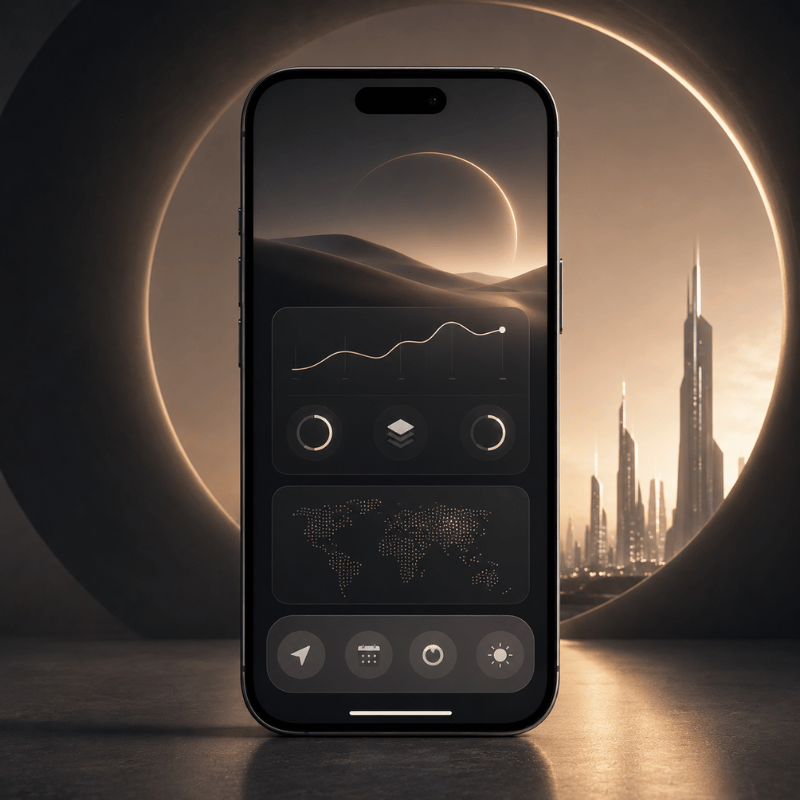
Minimalist iPhone Home Screen: Create a Clean, Distraction-Free Setup

A minimalist iPhone home screen should feel calm when you unlock your phone, but it still has to help you open the right app fast.

Most minimalist setups fail for one of two reasons: they hide everything so well that daily tasks slow down, or they keep adding aesthetic widgets until the screen is busy again. Better path: fewer visible choices, enough contrast to read at a glance, and a layout you can keep for weeks.

Quick Specs

  • Best for: cleaner first page, fewer taps, less visual noise.
  • Core rule: keep the first page to 8-12 visible app, widget, or shortcut slots.
  • Best setup path: native iOS first, then Shortcuts, a launcher, or iScreen if you want themed icons, widgets, and wallpapers.
  • Accessibility check: use readable text/icon contrast before choosing a color theme.
  • Internal companion: browse iScreen’s 500+ home screen ideas when you want more visual examples.

What Makes a Minimalist iPhone Home Screen Work?
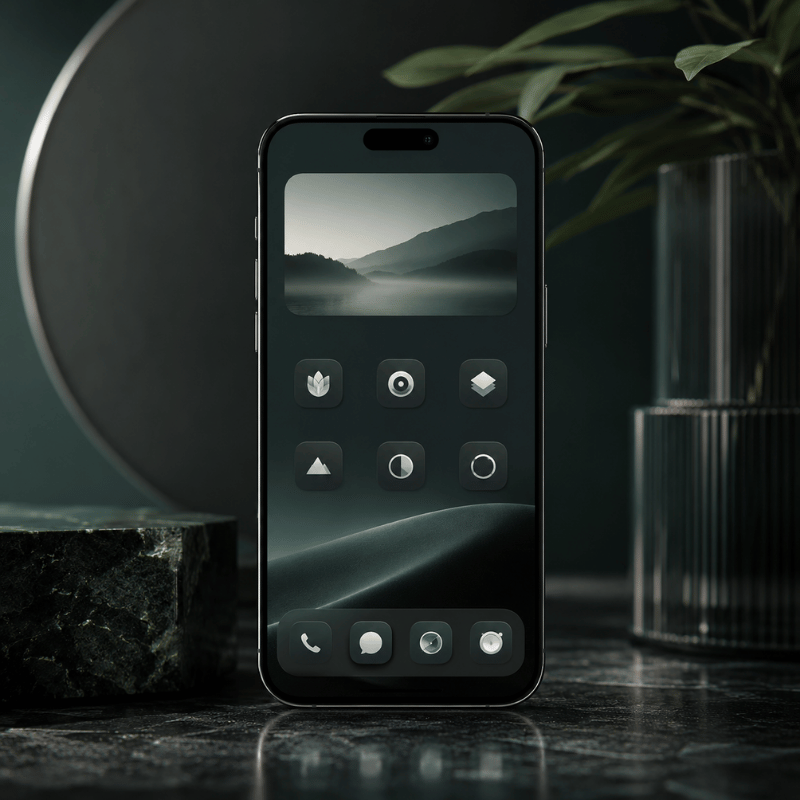
What Makes a Minimalist iPhone Home Screen Work?

Minimalist home screens are not just empty screens. Think of the first page as a small decision surface. When you unlock your iPhone, the first page should answer one question: what is worth doing now?

Research on smartphone use is careful, not absolute. In a 2022 PLOS ONE study, smartphone notification sounds were linked with slower responses in its task, and a 2017 Frontiers in Psychology review connects phone habits with attention, memory, and distractibility limits. That does not prove a clean layout will fix screen time. Safer takeaway: fewer visual triggers and fewer notification cues are practical design goals.

Wilmer, Sherman, and Chein’s useful lesson is restraint: the phone is a capable tool, but the way it is arranged can pull attention before you make a choice. Treat the Home Screen as a filter, not a gallery.

Design the first page for action, not admiration. If a visual element does not help you choose, move it off the first page.

Expert takeaway based on Apple HIG widget and icon guidance.

Strong setups usually have four traits: one clear wallpaper, a limited icon set, 0-2 useful widgets, and a second place for everything else. That second place can be App Library, hidden Home Screen pages, Focus pages, Shortcuts, or a themed tool such as iScreen.

Choose a Layout With the 12-Slot Minimalist Grid
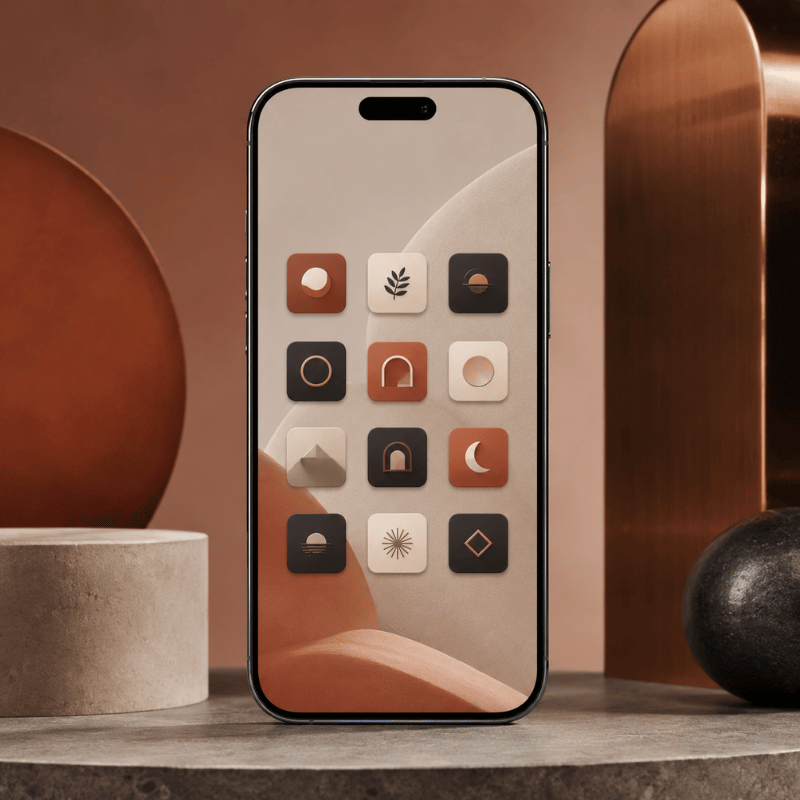
Choose a Layout With the 12-Slot Minimalist Grid

The 12-Slot Minimalist Grid is a simple test: count every visible icon, shortcut, widget, and folder on your first page. If the number is above 12, the screen is no longer minimal in practice, even if the colors are muted.

Apple lets you move apps and widgets around the Home Screen, hide pages, and reset the Home Screen layout if the setup gets messy. Start with one of these nine layouts.

Layout Slots Best use Risk
4-icon dock only 4 Phone, messages, browser, camera Too many hidden taps
Dock plus one row 8 Simple daily phone Can become a dumping row
One medium widget plus dock 6-8 Calendar, weather, battery, or tasks Widget becomes decoration
Two small widgets plus dock 8-10 At-a-glance day planning Crowded top half
Text launcher plus dock 5-9 Users who prefer verbs over app logos Extra app dependency
Focus page 4-12 Work, study, travel, sleep prep Forgotten Focus settings
Single folder hub 5 Neat look with backup access Folder becomes a junk drawer
Wallpaper-first grid 4-8 Visual calm and lock-screen pairing Low contrast icons
Theme set with matching icons 8-12 Aesthetic setup without a manual rebuild Theme looks better than it works

If you want inspiration before you place anything, use iScreen’s home screen ideas as a gallery, then copy only the structure that fits your daily apps.

Use Blank Space Without Breaking Navigation
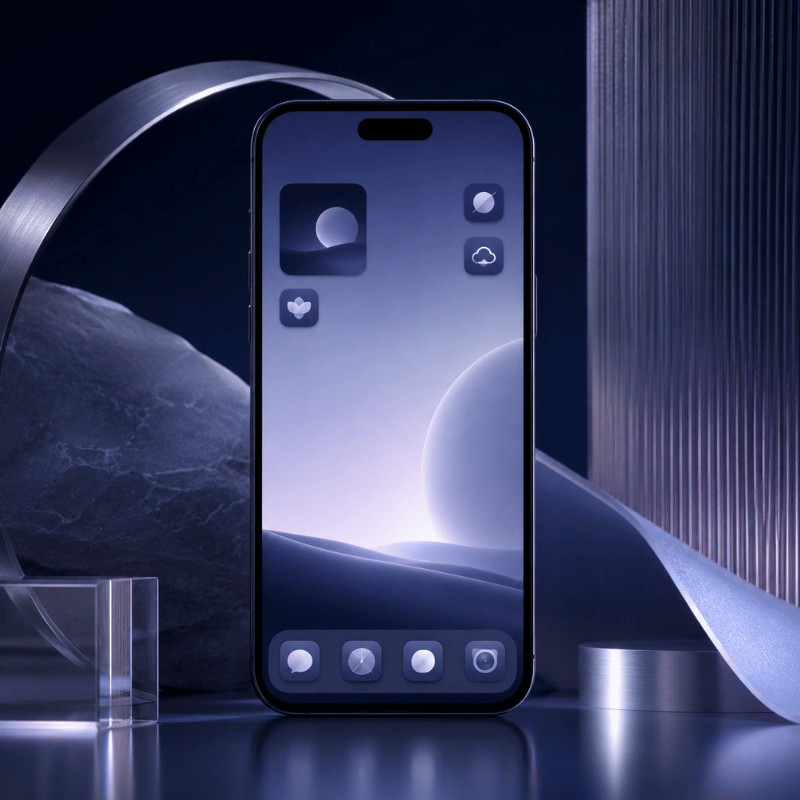
Use Blank Space Without Breaking Navigation

Blank space works when it creates pause. Blank space fails when it turns every normal task into a hunt.

Apple’s App Library organizes apps into categories and can sit closer to the first page when you hide extra Home Screen pages. You can also choose whether new apps land on the Home Screen or go to App Library only. That gives you a clean native pattern: first page for essentials, App Library for the rest.

Use this three-zone rule:

  • Top zone: empty space, one widget, or one visual anchor.
  • Thumb zone: the 4-8 actions you open many times per day.
  • Hidden zone: App Library, Focus page, or search for rare apps.

Scenario: For a student, the thumb zone might hold Calendar, Notes, Camera, and a study playlist. Social apps can stay in App Library so they remain available without sitting in the first unlock view.

Scenario: For a designer, the first page might keep Camera, Photos, Notes, and one inspiration widget, while icon-heavy reference apps sit on a second page tied to a Work Focus.

Scenario: For a parent, a minimalist setup may still need Messages, Maps, Weather, and Photos up front. Minimal does not mean hiding the apps that reduce friction in real life.

Keep Only Widgets That Earn Their Space
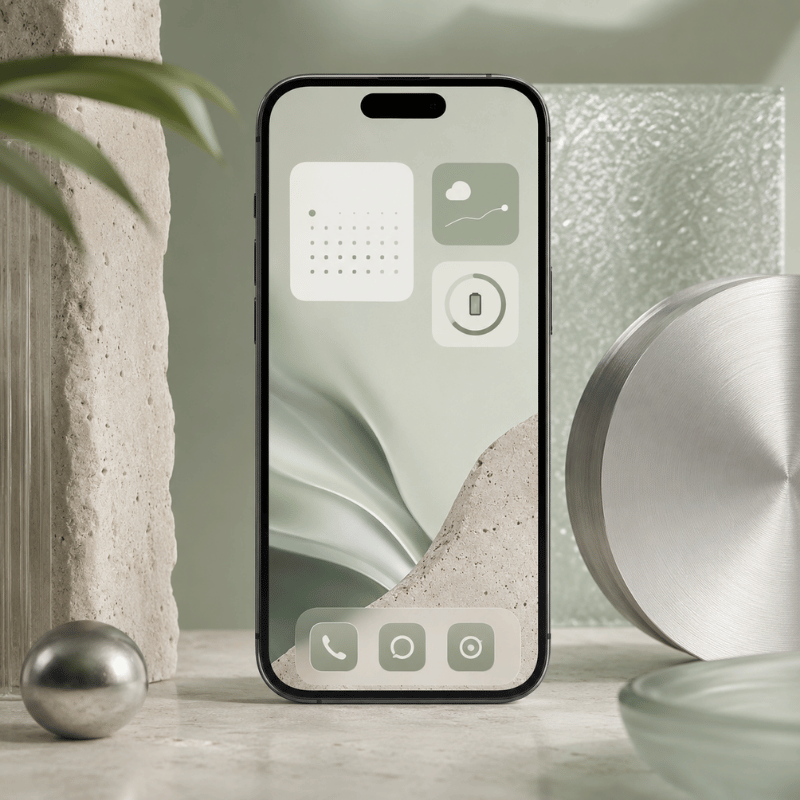
Keep Only Widgets That Earn Their Space

Widgets are the easiest way to ruin a clean screen while believing you made it more useful. Apple describes widgets as a way to show current information and quick focused interactions. Apple HIG widget guidance also says a useful widget should show timely, glanceable content and avoid acting like a duplicate app icon.

For a minimalist iphone setup, every widget needs a job. If the job is only “looks nice,” move it to a Lock Screen, second page, or themed gallery.

Widget type Keep when Remove when
Calendar It changes your next action today. You check Calendar from notifications anyway.
Weather You leave home often and need conditions fast. Only fills a visual gap.
Battery You use AirPods, watch, or other devices daily. You only need phone battery.
Tasks Shows the next 1-3 actions. Shows a long guilt list.
Photo Has emotional value and does not compete with icons. Lowers icon readability.
Launcher Replaces several app icons with clear actions. Duplicates the dock.
Smart Stack It rotates between truly relevant widgets. You swipe it without acting.
Screen Time Seeing screen time stats changes your behavior. Becomes background noise.
Music Audio is a daily control need. Pulls you into browsing.

As a practical rule, use one medium widget or two small widgets. Apple lists many iPhone widget sizes by device, with examples such as small 170 x 170 pt and medium 364 x 170 pt on larger iPhone displays. That is a real budget, not free space.

Browse iScreen widgets when you want themed options, but choose by purpose first: calendar, weather, battery, tasks, or a small launcher.

Match Wallpaper, Icons, and Contrast Before Color
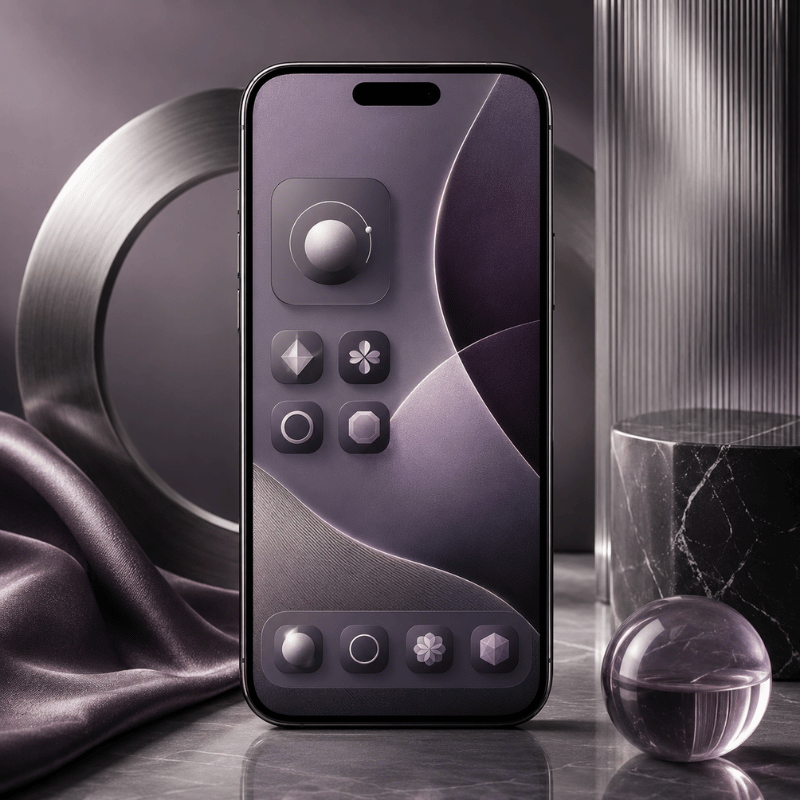
Match Wallpaper, Icons, and Contrast Before Color

Minimalist app icons iphone users often start with color. Start with contrast instead. Pale wallpaper with pale icons may look good in a screenshot and fail in sunlight.

WCAG 2.2 sets a 4.5:1 minimum contrast ratio for normal text and a 7:1 enhanced contrast ratio. W3C’s non-text contrast guidance uses 3:1 for user interface components and graphical objects. Your Home Screen is not a website, but these ratios are a useful guardrail for labels, glyphs, and widget text.

Apple HIG’s app icon guidance also favors simple, recognizable icons and warns that text inside icons is often too small to read. That matters when using grayscale icons or clear icon styles.

Engineering Note: Use 4.5:1 text contrast, 3:1 icon/UI contrast, a 1024 px icon source when making custom icons, and the 170 pt / 364 pt widget examples as hard space budgets. Check the same layout for 7 days before adding new widgets.

Wallpaper Icon style Label style Verdict
White or cream Black line icons Dark labels Safe and readable
White or cream Pastel icons Light labels Usually too soft
Black White icons White labels Strong minimalist look
Black Gray icons Dim labels Test in daylight
Photo Solid icon tiles Default labels Best if photo has quiet areas
Photo Transparent icons Hidden labels Clean but fragile
Gradient Monochrome icons Short labels Works when gradient is subtle
Pattern Large glyph icons No labels or high contrast labels Use carefully
Single color Matching theme pack System labels Fastest to keep neat

iScreen offers 10,000+ aesthetic themes, 5,000+ icons, and 500+ interactive widgets across iOS and Android, so you can test theme families without building every shortcut manually. For this article, the key is to choose fewer assets, not every matching asset.

Try iScreen icons and iScreen wallpapers as paired sets. Then check the first page outside, at night, and in Focus mode before calling the setup done.

Pick the Right Setup Path: Native iOS, Shortcuts, Launcher, or iScreen
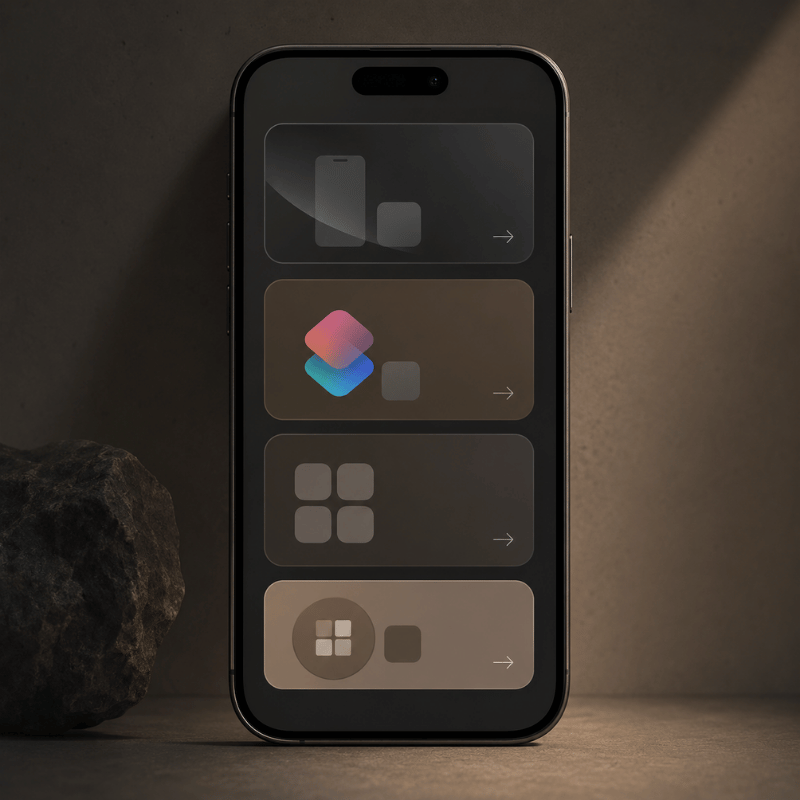
Pick the Right Setup Path: Native iOS, Shortcuts, Launcher, or iScreen

There is no single best way to customize a minimalist iphone home screen. Your right path depends on how much control you want and how much upkeep you can tolerate.

Native iOS handles more than many people expect: App Library, hidden pages, widget editing, Focus pages, and Home Screen placement. Shortcuts add custom Home Screen icons and names from photos or files. Launcher apps can replace icons with text actions. iScreen is the path when you want themes, widgets, icons, and wallpapers from one place.

Path Use when Best feature Watch out for
Native iOS only You want the least upkeep. App Library, hidden pages, Focus pages Limited visual style control
Shortcuts You want custom icons for a few apps. Custom Home Screen name and image Manual setup work
Minimalist launcher You want action labels instead of logos. Text-based launcher behavior Another app to manage
iScreen theme path You want a matching wallpaper, icon, and widget set. Theme, icon, widget, wallpaper library Choosing too many pieces

Start with native iOS, then add one layer only if you know why you need it. If you simply want a clean visual set, browse iScreen themes. If the issue is too many apps, use App Library and the Tap-Value Filter first.

Remove Apps With the Tap-Value Filter
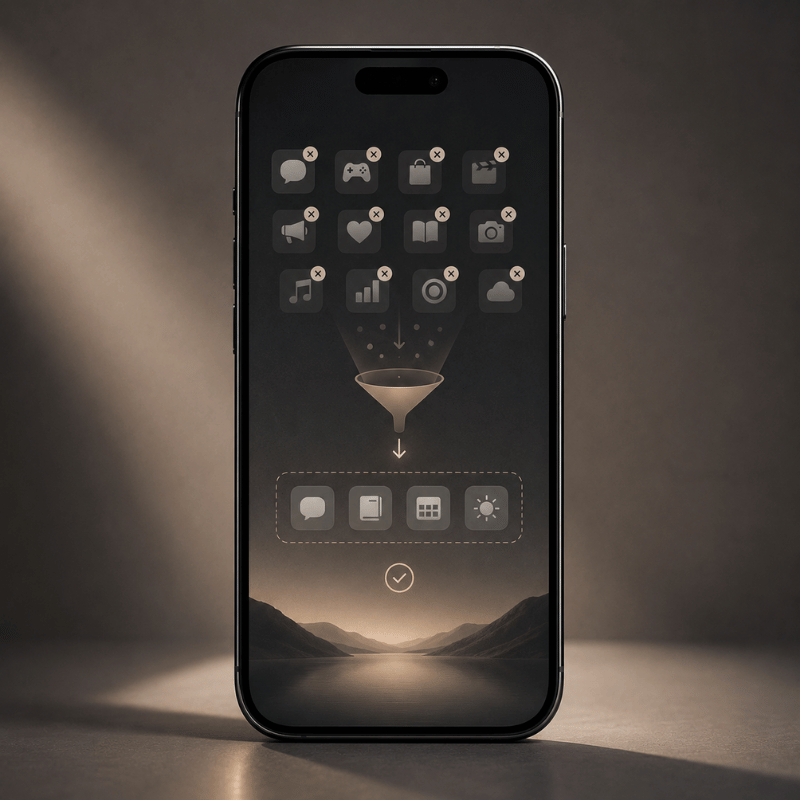
Remove Apps With the Tap-Value Filter

The Tap-Value Filter is a quick way to decide what stays visible. For every icon, widget, shortcut, and folder on page one, ask two questions:

  1. Does this save a tap, reduce a search, or prevent a mistake at least once a day?
  2. Would I still want this visible if the icon were plain gray?

If the answer to both is no, move it off the first page.

This is where screen time goals become concrete. Screen Time widgets can be useful if they change behavior. Placing a social app icon in the thumb zone is often the opposite: it lowers the cost of checking without asking whether you meant to open it.

Apple’s Focus system can show a chosen Home Screen page while that Focus is on, and it can turn on by time, location, or app. Put work apps on a Work Focus page, travel apps on a Travel page, and entertainment apps outside the default unlock view.

Run the Tap-Value Filter as a 7-day test. On day 1, move any app that fails both questions. On day 3, restore only the apps you searched for twice. On day 7, keep the final page unchanged for another week. This gives the layout time to prove whether it reduces friction or only looks cleaner.

For rare apps, trust search and App Library. Clean iPhone home screen design is not a promise that every app disappears. Its real promise is that your first page stops acting like an app store.

Fix the 5 Mistakes That Make Minimalist Setups Annoying
Fix the 5 Mistakes That Make Minimalist Setups Annoying

1. Hiding essential apps too deeply

If an app solves a daily problem, hiding it three gestures away is not minimal. Keep it in the dock, a Focus page, or a reliable launcher.

2. Using low-contrast themes

Grayscale can look calm, but grayscale plus a pale wallpaper can make labels and icons hard to read. Use the contrast matrix before finalizing dark and light wallpapers.

3. Keeping widgets for symmetry

Apple’s widget guidance favors essential, glanceable content. Widgets that only balance the grid are decoration, not function.

4. Copying a screenshot without copying the routine

A setup can look ideal on Pinterest or Reddit and still be wrong for your day. Match the layout to actual unlock moments: commuting, studying, work, errands, sleep prep.

5. Rebuilding too often

Changing your setup every weekend can become another distraction. Choose one layout, use it for seven days, then move only the apps that caused real friction.

FAQ

What is the best minimalist iPhone home screen layout?

Dock plus one row is the best starting point: 4 dock apps and 4 apps above it. This gives you a calm first page, but it still leaves room for the actions most people need many times per day. If eight visible slots feel too tight, add one small widget or one extra row before you try a blank-screen setup.

How many apps should be on a minimalist home screen?

Keep 8-12 visible slots on page one. Count icons, widgets, shortcuts, and folders.

Can I make a minimalist iPhone setup without third-party apps?

Yes. You can use App Library, hidden Home Screen pages, widgets, Focus pages, and Shortcuts. Third-party tools help when you want themed icons, wallpapers, widgets, or a transparent text-based launcher, but the native path is enough for many clean setups.

Are blank home screens useful?

They can be, but only when you still know where key actions live. Blank pages with no navigation plan usually create friction. Blank top zones with a useful dock are easier to keep.

What should I do with distracting apps?

Move them out of the thumb zone first. Then put them in App Library, a folder on a later page, or a Focus-specific page. If that still fails, remove notifications before changing the layout again. Layout changes help most when they raise the effort of checking, not when they only make the icon less colorful.

Build the Setup Faster With iScreen

If you already know the layout you want, iScreen can help you pair the wallpaper, icons, and widgets without starting from scratch. The current iScreen library includes 10,000+ themes, 5,000+ icons, and 500+ widgets, with iOS and Android support.

Browse themes, match icons, or start from 500+ home screen ideas.

Related iScreen Guides

References and Sources

  1. Apple Support: Move apps and widgets on the iPhone Home Screen
  2. Apple Support: Add, edit, and remove widgets
  3. Apple Support: Find and use your apps in App Library
  4. Apple Support: Add a shortcut to the Home Screen
  5. Apple Support: Set up a Focus on iPhone
  6. Apple Human Interface Guidelines: Widgets
  7. Apple Human Interface Guidelines: App icons
  8. W3C WCAG 2.2
  9. W3C Understanding SC 1.4.11: Non-text Contrast
  10. Upshaw et al. 2022: Smartphone notifications and cognitive control
  11. Wilmer, Sherman, and Chein 2017: Smartphones and cognition review
  12. iScreen homepage
  13. iScreen home screen ideas

最新文章

Best Countdown Widget Apps for iPhone: Track Events on Your Home Screen

Best Countdown Widget Apps for iPhone: Track Events on Your Home Screen

2026/6/3 16:39
Want a countdown widget for iPhone that shows the days until a trip, a birthday, or a deadline right on your screen? Here’s the part most guides skip: iOS doesn’t ship a real “days-until” countdown widget of its own. Good news: adding one takes about a minute once you know where to look. This guide show you how to put a countdown on your Home Screen, Lock Screen, and even StandBy mode, which apps are worth installing, what you can get for free, and how to make the whole thing match the rest of your setup. The short version — the 3-Surface Countdown Setup Home Screen, a medium widget you glance at while planning your day. Lock Screen, a small widget under the clock for a no-unlock peek (iOS 16 and later). StandBy, a full-screen countdown on your bedside charger (iOS 17 and later). Pick a countdown app, set your date once, then drop the same event onto whichever of these three surfaces you actually look at. Does the iPhone Have a Built-In Countdown Widget? Not really, and this trips a lot of people up. Apple’s stock Clock app has a Timer, but a timer count down minutes and seconds for a single session, it can’t tell you “42 days until the wedding.” The Calendar widget shows your next few events with their dates, and the Reminders widget lists tasks that are due, yet neither one displays a running day counter on your screen. Apple’s own widget gallery, documented in the iPhone User Guide, simply doesn’t include a “days until” widget. So when people ask why the old standalone “Countdown” idea seems to have vanished, the answer is that it was never a permanent native feature to begin with. The countdown experience on iOS has always lived in third-party apps, and that’s by design, Apple opens the widget system to developers and lets them fill the gaps. That’s why every genuinely good iPhone countdown lives inside an app you install, not in a hidden Settings toggle. 💡 Pro Tip If all you need is the next calendar event, the native Calendar widget is fine. If you want a big “12 days to go” number staring back at you, you need a dedicated countdown app — keep reading. How to Add a Countdown Widget to Your Home Screen (Step by Step) Adding a countdown widget to your iPhone Home Screen works the same way as any other widget. Your only extra step is configuring the event inside the app first, because the widget pulls its date from there. Install a countdown app from the App Store (see the picks below) and open it once. Create your event inside the app, name it, set the target date, and pick a color or photo if the app allow. Long-press an empty spot on the Home Screen until the icons start to jiggle. Tap the + button in the top-left corner to open the widget gallery. Find the app you just installed and tap it. Choose a size, small, medium, or large, then tap Add Widget. Long-press the new widget and tap Edit Widget to pick which countdown it shows. Drag it into place and tap Done. Step 7 is the one people miss. A freshly added widget often shows a blank or default countdown until you open Edit Widget and choose the specific event, without that, it sits there looking broken. That single tap is why a setup someone called “impossible” usually takes ten more seconds to finish. ⚠️ Common Mistake If the widget won’t update, check Low Power Mode. It throttles background refresh, so a day-counter can lag behind by a day until you open the app. Turning Low Power Mode off, or opening the app each morning, fixes it. If you want the cleanest possible result, set up your countdown alongside the rest of your layout. Our walkthrough on building an aesthetic iPhone home screen covers spacing and theming so the counter doesn’t clash with everything around it. How to Add a Countdown Widget to Your Lock Screen Yes, you can put a countdown on your Lock Screen, and it’s genuinely useful because you see it every time you pick up your phone, no unlock required. This needs iOS 16 or later, which is when Apple added Lock Screen customization and widgets. Can I have a countdown on my iPhone Lock Screen? You can. Touch and hold the Lock Screen, tap Customize, then choose Lock Screen. Tap the widget area below the clock (or the slot above it for the inline date row), pick your countdown app from the list, and add its widget. Lock Screen widgets are small by nature, so they show a tight number like “9 days” rather than a full label. Tap Done and the countdown rides along on every wake. One honest caveat from real users: Lock Screen widgets don’t always refresh the instant the day rolls over. On the r/ios forum, people have noted that clock and weather widgets sometimes wait until the next unlock to update. A countdown can behave the same way, so if it looks a day off first thing in the morning, a quick tap to wake-and-unlock usually syncs it. If you want a deeper walkthrough of styling that screen, see our guide to the iPhone Lock Screen widget setup. Countdowns on StandBy and the Dynamic Island This is the surface almost every “best countdown widget” article forgets. StandBy turns your iPhone into a bedside display while it charges on its side, and a countdown is one of the things it can show full-screen. It needs iOS 17 or later. Per Apple’s StandBy guide, you turn it on in Settings, connect a charger, set the phone on its side, and press the side button, then swipe to the widgets view and pick your countdown. Why bother? Because a countdown you’ve to dig for is a countdown you forget. On a nightstand charger, a “5 days until vacation” panel is the last thing you see at night and the first thing in the morning. StandBy even has a Night Mode that tints the screen red in low light so it isn’t glaring at 3 a.m. On iPhones with an Always-On display, the panel just stays put; on other models, a tap or a nudge of the table wakes it. “We tell people to stop thinking of a countdown as one widget and start thinking of it as one event shown on three surfaces. The Home Screen is for planning, the Lock Screen is for a quick glance, and StandBy is for ambient awareness while you charge. Set the date once, place it three times.” The iScreen design team, on building widgets across iOS surfaces Live Activities and the Dynamic Island handle the short-term end of things, an event happening today or in the next few hours can ride in the Dynamic Island. For multi-day or multi-week countdowns, the widget surfaces above are the right home. Best Countdown Widget Apps for iPhone (2026) There are dozens of countdown apps, and most do the basics fine. Where they actually differ is how much you can customize, which surfaces they support, and what hides behind a paywall. Here’s an honest comparison of common picks. App Free tier Surfaces Best for iScreen Yes Home, Lock, StandBy Matching the countdown to a full themed setup Pretty Progress Limited Home, Lock Progress-bar style countdowns Widgetsmith Yes (ads) Home, Lock All-purpose widgets, not just countdowns Countdown Widget & Counter Limited Home, Lock Minimalist single-event counters Pick based on what you actually want: a plain number, a progress bar, or a counter that blends into a designed Home Screen. If aesthetics matter to you, an app that also handle wallpaper, icons, and themes saves you juggling three separate tools. You can see how the pieces fit together with the iScreen iPhone widget app. Are There Free Countdown Widgets? Plenty of countdown widgets are free, and a free one is enough for most people tracking a single event. A trade-off show up when you want more: many apps cap the number of countdowns, lock the nicer fonts and backgrounds, or show ads until you upgrade. None of that stops you from getting a working “days until” widget on your screen at no cost. Usually free vs. usually paid Free: one or two countdowns, basic sizes, a handful of colors, Home and Lock Screen widgets. Paid: unlimited countdowns, custom fonts, photo backgrounds, ad removal, and extras like Apple Watch or StandBy styling. A reasonable plan: start free, live with it for a week, and only pay if you hit a wall, usually that’s wanting a third or fourth countdown, or wanting the widget to match a specific palette. How to Customize a Countdown Widget to Match Your Aesthetic A countdown widget that clashes with your wallpaper looks worse than no widget at all. Fixing that means treating the counter as one element of a single design, not a sticker slapped on top. Most apps let you change four things: the background (solid, gradient, or your own photo), the font, the text color, and what units show (days only, or days plus hours). A simple rule keep it clean: borrow your two main colors from the wallpaper and let the countdown number be the one accent that pops. If your wallpaper is muted, a single bold number reads instantly; if it’s busy, a semi-transparent background behind the number stop it from disappearing. For couples syncing the same date, a trip or an anniversary, paired widgets keep both phones in step; our couple widgets setup is built for exactly that. Once the countdown look right, it’s worth carrying the same palette across your icons and theme. The iScreen customize your iPhone home screen guide and our theme tools handle that part so the whole screen feel intentional. Popular Countdown Types: Vacations, Weddings, Holidays and Exams The way you set up a countdown depend on what you’re counting toward. A few patterns cover most cases: ✔ A vacation is a single one-time event, and the most common reason people search for a countdown widget at all. A photo of the destination as the background makes it hit harder. ✔ Weddings and anniversaries work best set to repeat yearly, so the anniversary version resets on its own after the date passes. ✔ Holidays like Christmas, New Year, and Halloween drive huge seasonal spikes; a recurring holiday countdown saves you re-creating it every year. ✔ Exams and deadlines deserve a stark days-left number on the Lock Screen as a quiet motivator, no app to open, just a reminder every time you reach for your phone. One decision matter most here: one-time versus recurring. Get that wrong and a holiday counter show “−14 days” in January instead of resetting. Most apps put a “repeat yearly” toggle right next to the date field. How to Choose the Right Countdown Widget Setup Instead of asking “which app is best,” ask “where do I actually look, and what am I counting?” Match your answer to the table below. Your situation Surface Widget size Why One big event you obsess over Lock Screen + StandBy Small Maximum glances, zero effort Several events at once Home Screen Medium or large Room to list multiple dates Aesthetic-first home screen Home Screen Medium Blends into a themed layout Bedside / charging routine StandBy Full screen Ambient, last-thing-you-see If you’re not sure, default to the Lock Screen. It costs nothing in Home Screen real estate, you see it constantly, and you can always add the Home Screen or StandBy version later. Need ideas for the rest of the layout? Our iPhone home screen ideas are a good starting point. What iOS 26 Changes for Countdown Widgets iOS 26 shipped in September 2025 with the biggest visual change in years: a translucent “Liquid Glass” design that runs across the Lock Screen, Home Screen, and widgets, described in Apple’s iOS 26 announcement and the official iOS 26 feature list. For countdowns, that means your widget now picks up the same glassy, tinted look as the rest of the system, so the “match your aesthetic” advice above matters more than it used to, because a counter that ignores the new styling stand out for the wrong reasons. Under the hood, Apple’s developer session “What’s new in widgets” from WWDC25 extended WidgetKit and Live Activities to more places, CarPlay, the Mac, watchOS, and visionOS, and improved how widgets push updates. Practically, that points one way: a countdown you set on your iPhone is going to follow you onto more screens, and it’ll refresh more reliably than the older “wait for the next unlock” behavior some Lock Screen widgets still show. If you’re setting up a countdown in 2026, two moves future-proof it. First, choose an app that already support StandBy and Lock Screen widgets, not just the Home Screen, that’s where Apple keeps adding room. Second, lean into the Liquid Glass look rather than fighting it, so your counter ages well as the rest of your screen adopts the same style. Frequently Asked Questions Why was the Countdown app removed? View Answer There was never a permanent native “Countdown” app or widget built into iOS — countdowns have always come from third-party apps. Individual apps do get pulled or renamed in the App Store over time, but the day-counter feature itself was never an Apple stock feature that could be “removed.” So if an app you relied on disappeared, the answer isn’t a missing iOS setting; it’s installing one of the current countdown apps and rebuilding your event there. Your other widgets stay exactly as they were. Does the iPhone Clock app have a countdown widget? View Answer No — its Timer counts down a single session in minutes and seconds, never “days until” a future date. How do I edit or change a countdown widget after adding it? View Answer Long-press the widget on your Home Screen and tap Edit Widget to switch which event it shows or change its style. To change the date itself, open the app and edit the event there — the widget updates automatically. Can I put a countdown widget on Android too? View Answer Yes, Android has its own countdown widgets through Google Play apps, and the long-press-to-add flow is similar. The steps in this guide are specific to iPhone, including the Lock Screen and StandBy parts, which Android handles differently. Do countdown widgets drain iPhone battery? View Answer Barely — a day-counter refreshes once a day, so its battery cost is tiny. Low Power Mode actually slows that refresh, which is why a counter can look a day behind. How many countdowns can I add to one widget? View Answer A small widget usually shows one event, while medium and large sizes can list several at once. Total countdowns you can create is often where free apps draw the line and ask you to upgrade. Build a countdown that matches your whole screen iScreen puts countdown widgets on your Home Screen, Lock Screen, and StandBy, and styles them to match your wallpaper, icons, and theme. Try the iScreen widget app → How We Put This Guide Together The setup steps here were checked against Apple’s own iPhone User Guide for widgets, Lock Screen customization, and StandBy, then cross-referenced with real iPhone owners describing quirks like Lock Screen widgets that don’t refresh until the next unlock. We build iScreen, so we test countdown widgets across Home Screen, Lock Screen, and StandBy on current iOS 26, which is why the “three surfaces” framing runs through the whole article. References & Sources Add, edit, and remove widgets on iPhoneApple Support, iPhone User Guide Customize the iPhone Lock ScreenApple Support, iPhone User Guide Use StandBy on iPhoneApple Support, iPhone User Guide Apple elevates the iPhone experience with iOS 26Apple Newsroom New features available with iOS 26Apple What’s new in widgets (WWDC25)Apple Developer Related Reading iPhone widget app iPhone Lock Screen widgets StandBy mode widgets Aesthetic iPhone home screen ideas Couple widgets for iPhone
2026/6/3 16:39
Aesthetic iPhone Home Screen: The Ultimate Design Guide

Aesthetic iPhone Home Screen: The Ultimate Design Guide

2026/6/3 16:08
An aesthetic iPhone home screen isn’t about adding more stuff. It’s about three things agreeing with each other: the wallpaper, the app icons, and the widgets. Get those three to share one mood and a tight color story, and almost any layout looks intentional. This guide walks you through eight aesthetic styles, shows you how to assemble each one, and then covers the new iOS 26 icon looks that landed in 2026. Most of the “aesthetic home screen” tutorials still floating around were shot on iOS 14 back in 2020. Buttons moved, icon options changed, and Apple now lets you recolor icons without a single workaround. So we rebuilt the whole process for the current iPhone, kept what still works, and flagged the parts that quietly broke. What you’ll set up in this guide A wallpaper that anchors your color palette App icons that match (the native iOS 26 way and the custom-image way) Two or three widgets that look good without crowding the grid A layout with breathing room instead of clutter What Actually Makes a Home Screen Look “Aesthetic”? A home screen reads as aesthetic when every element look like it was chosen by the same person on the same afternoon. There are only four levers you control: the wallpaper (your background), the app icons, the widgets, and the layout. Everything else is noise. So why do some setups look styled and yours looks busy? Usually it’s color. Our eyes read a cohesive palette as “designed” and a rainbow of default icons as “default.” That single insight is doing most of the work in every Pinterest screenshot you’ve ever saved. 💡 The 3-Color Rule Pick no more than three colors for the entire home screen — usually one background tone and two accents. Your wallpaper, icons, and widgets all pull from that set. Once a fourth bright color sneaks in, the screen starts to look cluttered instead of curated. It is the fastest fix for a screen that feels “off” but you can’t say why. Here’s the trap nobody mentions: chasing looks at the expense of use. A popular sentiment in the iPhone setup community sums it up well. “Functionality beats aesthetics. People clutter the home screen with custom icons and widgets, then can’t find the app they actually open twenty times a day.” A widely upvoted post in r/iOSsetups Takeaway: beauty and usability aren’t enemies. Decide your three colors first, keep the apps you use daily on page one, and let the design serve the way you already use your phone. 8 Aesthetic Styles to Choose From (Find Your Vibe) Before you touch a single setting, choose one vibe and commit to it. A minimalist home screen and a Y2K home screen pull from opposite ends of the design world, and mixing them is exactly what makes a screen look unfinished. Explore the eight styles below, each consistently look good on iPhone, with the palette and wallpaper type that defines it. Aesthetic Core palette Wallpaper type Best if you want… Minimalist Off-white, grey, black Solid or soft gradient A calm, clutter-free phone Pastel / soft Cream, blush, sage Gradient or watercolor A cute, gentle look Y2K Hot pink, lime, chrome Glossy, sticker-style A bold, nostalgic 2000s feel Preppy Bright multicolor, white Pattern or collage A fun, energetic grid Dark / moody Charcoal, deep blue, plum Dark photo or solid black An OLED-friendly, sleek look Coquette Pink, ivory, red bows Soft, ribbon motifs A romantic, girly theme Cottagecore / natural Moss, tan, terracotta Nature photo or illustration A warm, earthy mood Cyberpunk / neon Black, neon cyan, magenta Dark city or glow art A high-contrast, techy edge If you can’t decide, default to minimalist. It’s the most forgiving aesthetic on iPhone because a neutral palette hides mismatched icons better than a loud one, and it ages well when the trend cycle move on. Whatever you pick, write your three colors down before the next step, they’re the rule everything else follows. Need more inspiration first? Our roundup of iPhone home screen ideas shows full setups for each of these styles. Start With the Wallpaper (Your Aesthetic Foundation) Pick the wallpaper first, then build everything else to match it. Your background covers the most screen area, so it sets the palette your icons and widgets have to live inside. Choosing icons before the wallpaper is the most common reason a setup feel disjointed halfway through. For a clean, minimalist look, a solid color or a soft gradient keep icons readable and never fights with your widgets. For pastel, Y2K, or coquette, a patterned aesthetic wallpaper carries more of the personality, just keep the busiest part of the image away from the top two rows where your widgets and clock sit. iScreen’s aesthetic iPhone wallpapers are sorted by exactly these styles, including 4K and depth-effect backgrounds. Can you have multiple home screen wallpapers on an iPhone? Yes. Each Lock Screen you create can be paired with its own Home Screen background, and you can switch between them by long-pressing the Lock Screen and swiping. That means you can keep a pastel setup for daytime and a dark, moody one for night, and flip between them in two seconds. On iOS 26, the Lock Screen also moves the clock so it never hides the subject of your photo, and tilting the phone give the image a subtle 3D depth effect. Apple’s Lock Screen guide covers the setup. Customize App Icons to Match App icons are where a home screen go from “nice wallpaper” to “fully themed.” There are two routes, and picking the right one for your style saves a lot of frustration. Route one is native and fast; route two is unlimited but fussier. Route 1, native iOS 26 tinting (fast, no apps). On iOS 26, Apple added a real icon makeover: you can tint every icon a single color, or switch the whole grid to light, dark, or clear. The clear, color-matched icons are the signature 2026 look. To do it, long-press an empty spot to enter edit mode, tap Edit then Customize, and select Light, Dark, Tinted, or Clear. According to Apple’s official guide to customizing apps and widgets, the change apply to your whole layout at once. It’s the cleanest way to get a cohesive grid in under a minute. Route 2, custom image icons (unlimited, via Shortcuts). Here’s the catch most guides skip: iOS 26 tinting recolors Apple’s icons, but it can’t replace them with a custom picture. If you want hand-drawn or themed icons, you still build them through the Shortcuts app, create a shortcut that open the app, then assign your own image. iScreen’s aesthetic app icons packs do this assembly for you so you don’t make each one by hand. ⚠️ Know this before you commit to custom icons Shortcut-based icons come with three real trade-offs that users report constantly: a brief loading flash when you tap one (the screen flickers before the app opens), the loss of red notification badges, and occasional style inconsistency under iOS 26. If badges and instant launching matter to you, the native tinted or clear icons are the safer choice. Can you change the font on an iPhone home screen? Not the app-label font directly, iOS uses the system typeface for icon names and doesn’t expose a font picker for them. What you can change is the font inside your widgets. Widget apps let you choose typefaces for clock, date, and text widgets, so you get a custom-font feel up top even though the labels below stay standard. A common workaround for a true text-free look is to rename Shortcut icons with a single blank space, which hides the label entirely. Add Aesthetic Widgets (Beauty Plus Function) Widgets are the fastest way to make a home screen feel personal, and the easiest way to wreck it if you overdo them. Aim for one or two widgets that earn their space, something useful that also happens to match your palette. A wall of decorative widgets is just clutter with rounded corners. The aesthetic widgets that actually get used tend to fall into a few buckets: a photo widget for a favorite picture, a clock or weather widget styled in your accent color, a Smart Stack that rotates through a few at once to save space. Dedicated widget apps like Widgetsmith and iScreen make these stylish, color-matched widgets without any design skill, and the fun ones, distance widgets for couples or a desktop pet that lives on your screen. iScreen’s custom iPhone widgets include all of these, and the couple distance widgets are a popular starting point. ✔ Match the widget’s accent color to one of your three palette colors. ✔ Use one large widget as a focal point, not three competing for attention. ✔ A Smart Stack lets you keep several widgets in one slot and swipe between them, pin your favorite to the top. Takeaway: aim for a rhythm of sizes, one medium or large widget paired with a tidy grid of icons reads far better than widgets stacked top to bottom. Nail the Layout (Grid, Spacing, and Blank Space) Layout is the difference between “themed apps” and a home screen that actually look designed. It borrows a principle interior designers lean on: empty space is a feature, not wasted room. A few open slots make the icons you do keep feel deliberate. Build it around one idea per page. Page one is your daily drivers, the six to eight apps you open without thinking, plus a widget. Push everything else to a second page or, better, into the App Library by removing it from the home screen (long-press the app, tap Remove from Home Screen, and it stays installed, just hidden). This is the single biggest fix for a cluttered phone, and it directly answers the complaint behind half the “help, my screen is a mess” posts online. ✔ Do Leave a blank row or column for breathing room Keep one aesthetic per page Use the dock for your four most-used apps ✘ Avoid Filling every grid slot More than two widgets per page A fourth accent color sneaking in For more arrangement patterns, split layouts, single-app pages, and dock-only setups, our guide to aesthetic iPhone home screen layout ideas goes deeper on the grid itself. Put It All Together: Step-by-Step Setup Here’s the full sequence from a default iPhone to a finished aesthetic home screen. Following this order matters, each step set up the next, and doing it backward is why so many people give up halfway. How to make your iPhone aesthetic, step by step Pick a vibe from the eight styles above and lock in your three colors. Set the wallpaper that anchors that palette (Settings > Wallpaper, or long-press the Lock Screen). Style the iconstint or clear them in iOS 26, or apply a custom icon pack via Shortcuts. Add one or two widgets in a matching accent color. Clean the layoutdaily apps on page one, the rest to the App Library, a blank row for space. Review at arm’s lengthif anything jumps out as a clashing color, fix that one thing. Done manually, this takes most people thirty to sixty minutes the first time, mostly spent finding and assigning matching icons. The shortcut, if you would rather not build every icon by hand, is a one-tap theme kit. Apps like iScreen package a matching wallpaper, icon set, and widgets as a single theme, so step three through five collapse into one tap. iScreen lists more than 10,000 themes, 5,000 app icons, and 500 widgets across iPhone and iPad, which is what makes the assembled-kit route practical on any device instead of a weekend project. You can browse the full aesthetic iPhone theme library or follow the in-app how to customize your iPhone walkthrough. Skip the manual work, apply a full aesthetic theme in one tap. Download iScreen on the App Store → Get it on Google Play → What’s New and Trending for 2026 (iOS 26 and Beyond) This year’s biggest shift in aesthetic home screens came straight from Apple. the iOS 26 update, released in late 2025, rebuilt how icons look and pushed customization that used to need third-party apps into the operating system itself. If your reference photos are from 2023, they’re already a generation behind. Three iOS 26 changes are driving the 2026 look. First, icon tinting and the new clear, “Liquid Glass” icons, a translucent, color-matched grid is now the most-requested aesthetic, and Pinterest searches for “iOS 26 aesthetic” have climbed into the tens of thousands. Second, the smarter Lock Screen, where the clock repositions itself around your photo’s subject and tilts into a 3D effect. Third, beyond the home screen, the Dynamic Island and StandBy mode have become design surfaces of their own. The trend itself is splitting in two directions. One camp is going ultra-minimal, clear icons, a single solid wallpaper, no widgets at all. The other is going maximalist with animated Dynamic Island pets and a styled StandBy mode nightstand clock. Both are valid; pick the one that matches how you actually use your phone. Engadget’s iOS 26 customization walkthrough is a solid reference for the new icon control. If you’re refreshing your setup in 2026: start with the native iOS 26 clear or tinted icons before reaching for custom packs. It costs nothing, takes a minute, and gives you a current look you can build on later. Frequently Asked Questions How do you get an aesthetic iPhone home screen? View Answer Start by choosing one style and locking in three colors. Set a matching wallpaper, then recolor your icons — tint or clear them in iOS 26, or apply a custom icon pack through Shortcuts. Add one or two widgets in a matching accent color, and finish by cleaning up the layout: keep daily apps on page one and push the rest into the App Library. Cohesion comes from limiting your palette, not from piling on more icons and widgets until the screen looks busy. Can you change the font on an iPhone home screen? View Answer You cannot change the font on app labels — iOS keeps the system typeface there. You can change fonts inside widgets, so a custom clock or date widget gives you that styled-font look at the top of the screen. Do custom icons slow down or drain my iPhone? View Answer Shortcut-based custom icons don’t drain battery in any meaningful way, but they do add a brief loading flash when you tap one, and they hide the red notification badge. Apple’s native iOS 26 tint and clear icons have neither problem, because they restyle Apple’s own icons instead of routing through a shortcut. How do I reset my iPhone home screen? View Answer Open Settings, go to General, then Transfer or Reset iPhone, choose Reset, and tap Reset Home Screen Layout. This returns icons to the default Apple arrangement without deleting any apps or data. It’s the quickest way to start a new aesthetic from a clean slate. How do I add an app back to my home screen? View Answer Swipe left past your last page to open the App Library, find the app, then long-press it and choose Add to Home Screen — or just drag it out of the App Library onto the page you want. Is iScreen free to use? View Answer iScreen has a free tier with themes, icons, wallpapers, and widgets. A premium subscription unlocks the full library and works on both iPhone and Android. Why We Wrote This Guide We rebuilt this aesthetic iPhone home screen walkthrough specifically for iOS 26, because most tutorials still demonstrate the old iOS 14 steps where icon tinting and clear icons didn’t exist yet. Every setting path here was checked against the current iPhone, and the trade-offs of custom icons come from real iScreen users and the wider iPhone setup community, not a sales pitch. References & Sources What’s new in iOS 26Apple Support Customize apps and widgets on the Home ScreenApple Support Create a custom iPhone Lock ScreenApple Support How to customize your iPhone home screen with iOS 26Engadget Related Articles 20 Best iPhone Home Screen Ideas for 2026 Aesthetic iPhone Home Screen Layout Ideas Aesthetic iPhone Wallpaper Picks How to Change Your iPhone Home Screen Browse Aesthetic iPhone Themes
2026/6/3 16:08
20 Best iPhone Home Screen Ideas for 2026 (Aesthetic + Functional)

20 Best iPhone Home Screen Ideas for 2026 (Aesthetic + Functional)

2026/5/29 10:21
Home screen ideas work best when they are visual first and practical second: choose a mood, match the wallpaper, add only the widgets you will check, then place daily apps where your thumb already goes. iScreen keeps this page as a copy-ready gallery, with extra guidance for choosing a look before you start changing icons. Quick Specs: Home Screen Idea Picker Best page type: visual gallery with style filters and short decision copy. Best starting order: wallpaper, widget, icon, layout. Best first-page widget count: 0-3 visible widgets, or 1 Smart Stack when you want more data without crowding the screen. Best reader path: browse aesthetic home screen themes, choose a widget set, then match icons and wallpaper. Primary caution: do not create a second exact-match blog page for this keyword; this URL should stay the ranking target. Gallery-First Advantages The search results favor pictures, templates, videos, and community posts. This gallery lets users compare cute, minimalist, neon, brown, beige, blue, and black and white styles faster than a text-only article. Gallery-First Limits Too many choices can slow the decision. Add short chooser copy, a matrix, and a fix section so users can move from inspiration to a usable homescreen layout. Find a Home Screen Idea by Style The fastest way to choose a look is to start with style rather than app order. Wallpaper sets the mood, but the widget shape and app icon contrast decide whether the design still works after a week of use. iScreen’s live home screen gallery is built around 500+ aesthetic layouts to copy. Use it as the primary visual library, then let this guide narrow the field before you save a theme. Many users first collect aesthetic home screen ideas on Pinterest, then move to an app when they want pieces that actually fit together. Treat Pinterest as the mood-board step: find and save ideas, then return to iScreen for an app icon set, wallpaper, widget collection, and homescreen layout ideas that can be applied as one look. If you want to customize your home screen without starting from a blank grid, choose one saved idea and get creative only with the personal details. Style goal Choose this first Avoid this mismatch Cute Pastel wallpaper, rounded widgets, soft app icons Tiny line icons on a busy photo background Minimal Plain background, one calendar or weather widget, low-color icons Four different widget shapes on page one Y2K or neon High-contrast wallpaper, bright icon set, photo widget Low-contrast text widgets that disappear at night The 4-Layer Home Screen Formula A good iPhone home screen is not just an aesthetic choice. It is a four-layer system: wallpaper controls the color field, widgets control information density, icons control recognition speed, and layout controls muscle memory. This is where aesthetic iOS browsing turns into a real iOS home screen layout. One visual element sets the color, one widget gives daily information, one icon style keeps apps readable, and the App Library or default app drawer holds everything that does not need page-one space. “Choose the background first, then give widgets a job. The setup gets easier to keep when every icon and widget earns its place.” – iScreen Product Content Team, review note for this page Layer Decision Usability test Wallpaper Pick the visual mood before anything else. Can icon labels and widget text still be read? Widgets Add only data you check daily. Does it save an app open at least once per day? Icons Match contrast before matching color. Can you find Messages, Camera, and Phone in under 2 seconds? Layout Place daily apps on page one; move rare apps away. Does the page still feel calm after adding work apps? Engineering Note Apple’s icon guidance favors recognizable, simplified shapes and warns that too much detail can make an icon hard to read. For daily-use icon packs, keep the main symbol clear at small size, use enough background contrast, and limit page-one widgets to 0-3 blocks unless you use a Smart Stack. Apple states a Smart Stack can hold up to 10 widgets, but a first page still works better when only one stack or two single-purpose widgets are visible. 9 Home Screen Layout Ideas You Can Copy Use this matrix when you like too many home screen ideas and need a quick yes-or-no filter. Each row tells you what to pair, how many widgets to allow, and where to start inside iScreen. iScreen lists 10k+ aesthetic themes, 5k+ icons, and 500+ widgets for iOS and Android. That inventory is strongest when paired with a small choice rule, not random browsing. Style Wallpaper type Widget count Icon treatment Best user type Start here Minimal Plain gray or white 0-1 Thin monochrome Low-distraction users minimal wallpaper backgrounds Cute Pastel pattern 2-3 Soft rounded icons Photo and mood-board users cute home screen widgets Black and white Solid or grain texture 1-2 High-contrast glyphs Work phones iPhone app icons Beige or brown Paper, linen, or warm photo 2 Muted fill icons Study and planning users warm aesthetic themes Blue Sky, water, or gradient-free photo 1-3 White or navy icons Calm productivity users customize an iPhone home screen Neon Dark base with bright accents 1 Bold outline icons Music and gaming users Dynamic Island screen details Nostalgic Film, pixel, or retro image 2 Pixel or sticker icons Creative users StandBy-style widgets Couple Shared photo or soft illustration 1-2 Matching paired icons Long-distance partners couple widgets for home screens Lock-screen matched Same image family on both screens 1-2 Icon color pulled from wallpaper Users who change sets monthly lock screen ideas Widget Ideas That Deserve Space on Your First Page Apple describes widgets as glanceable information for the Home Screen, Lock Screen, or Today View. That means a widget should answer one small question without making you open an app: What is next? What changed? What do I want to remember? For a student planning a long class day, a small calendar widget, a medium photo widget, and a battery widget can be enough. Creators may prefer one large mood-board widget and no other blocks. Someone who wants less screen noise can put widgets into one Smart Stack, then keep page one mostly app icons. Widget type Use it when Skip it when Calendar Your schedule changes during the day. You only check dates once in the morning. Photo The page is meant to feel personal. It makes app names hard to read. Battery or weather You check status several times per day. It repeats data already visible elsewhere. How do I customize a home screen? Start with wallpaper, add widgets, then change icons. On iPhone, Apple says you can touch and hold the Home Screen background until items jiggle, then move apps or widgets to a new place or another page. On Android, Google says you can add apps, shortcuts, widgets, folders, and extra Home screens from the launcher. iScreen adds the style layer: browse a theme, save a widget set, and match the icon pack before arranging apps. App Icon and Wallpaper Pairing Rules Wallpaper is the largest color block on the phone. Icons sit on top of it all day. If both are detailed, the screen feels loud; if both are low contrast, apps become hard to find. Apple’s wallpaper guide covers suggested wallpapers, personal photos, filters, widgets, styles, controls, and photo shuffle. It also notes that 3D photo wallpaper needs iPhone 12 or later and an eligible photo. Keep home screen pairings flexible enough that a lock screen change does not break the app page. Pair a detailed photo background with plain icons. Pair a plain background with more expressive icon art. Use the same accent color on widgets and icon badges. Test the Camera, Messages, Phone, and Maps icons before changing every app. For users who change wallpaper often, build around a neutral icon pack from iScreen app icons. For users who care most about mood, start with aesthetic iPhone wallpapers and choose icons second. Can you change the font on an iPhone home screen? You can change the feel of a screen through wallpaper, widgets, icons, and app placement. System app-label font control is limited, so do not plan a full design around custom label type. If a theme needs a different typographic feel, use text inside a widget or a wallpaper design instead of relying on app names. How to Copy a Look in iScreen Copying a look is easier when you treat it as a set, not a pile of separate assets. Pick the theme, confirm the wallpaper, choose matching widgets, then apply the app icon set. Advanced users may mix a custom widget from Widgy with iScreen wallpaper or icons, but most readers should start with one stylish theme set. That leaves room for creative freedom without making every drag and drop decision from scratch. If you want a vibrant screen, choose one bold color and let the rest of the page stay quiet. Open the iScreen theme gallery and save 2-3 looks that match your style. Check whether each theme has the widget shapes you want for page one. Match the wallpaper to your lock screen or choose a separate lock screen from iScreen lock screen ideas. Apply app icons only after checking contrast on your wallpaper. Move daily apps to the lower half of page one and place rarely used apps in folders or the app drawer. iScreen supports iOS and Android. Android launchers vary, so follow the phone’s system steps when adding widgets or shortcuts, then use iScreen for the theme, widget, icon, and wallpaper assets. How to make an iPhone home screen unique? Unique iPhone home screen layouts need one clear personal signal. Use a photo widget, a color pulled from a favorite place, a small custom quote, or a lock screen match. Do not change every layer at once. Change the wallpaper and one widget first; if the page still feels right after a day, add icons. Fix Common Home Screen Problems Most home screen problems come from one of three causes: the setup is too crowded, the icons are hard to recognize, or the phone’s system layout changed after app installs. Fix the friction before changing style again. Problem Likely cause Repair move The page feels busy. Too many widget shapes. Remove one widget or combine data into one stack. Apps are hard to find. Icons are too similar. Keep daily apps in a clearer icon style. The setup breaks after downloads. New apps land in a visible area. Change where new apps go, or rebuild page one after install. Apple says resetting the Home Screen layout removes folders and arranges downloaded apps alphabetically after the apps that came with the iPhone. Use that only when a page is too tangled to repair by moving items. Need the bigger editing path? The home screen customization guide covers the full setup flow, while iScreen comparison notes help you decide whether to build a full theme or just change widgets. How do I get my homepage back to normal on my iPhone? First, remove the widget or icon pack that made the page hard to use. If the layout is still messy, move daily apps back to page one. Only then consider Apple’s reset option, because it removes folders and changes downloaded app order. Resetting is a last step, not the first repair. What Home Screen Styles Are Rising in 2026? Recent search data checked for this page points to two rising style needs: cute home screen ideas and widget home screen ideas. Treat that as a directional signal, not a permanent rule. The stable core is still visual inspiration, but users are asking for softer styles and widget-led layouts. For 2026 refreshes, give cute, pastel, green, yellow, nostalgic, neon, and Y2K styles clear gallery filters. Then pair each with a widget rule. One cute setup with three small widgets feels different from a cute setup with one large photo panel; users should see that difference before installing. The action for iScreen is straightforward: keep the page image-first, but add more chooser copy around style clusters. Users should be able to land on this page, choose between 3 likely styles, open the matching widget collection, and leave with a setup plan in under 5 minutes. FAQ How do I customize a home screen? Short answer Pick a wallpaper, add widgets, change icons, then move apps into a layout you can use daily. In iScreen, start with a theme so the wallpaper, widget, and icon style match. What are good home screen wallpapers? Wallpaper rule Good home screen wallpapers leave readable space behind icons. Plain photos, soft patterns, muted landscapes, and single-color backgrounds are easier to pair than busy collages. If the image has faces, bright highlights, or lots of tiny detail, place widgets in the calmest area or choose a simpler icon pack. Test it in daylight and at night, because contrast that feels fine on a laptop preview may be weak on a phone in dark mode. Can you have multiple home screen wallpapers on an iPhone? Wallpaper sets You can create multiple Lock Screen looks, and Apple also supports wallpaper changes from the Lock Screen. For the Home Screen, keep one matching background per look so the icon set does not clash. How do I add an app back to my iPhone home screen? App Library path Find the app in App Library, press and hold it, then drag it back to a Home Screen page. If you removed a custom icon shortcut rather than the app itself, rebuild the shortcut or reapply the icon pack. Keep daily apps on page one and put rarely used apps on page two or in folders. What is easy homescreen on my Android phone? Android note Android Home Screen steps vary by launcher and version. Google says some steps require Android 14 or later, so check your phone’s version before following a tutorial. Should I use widgets or app icons first? Best order Choose widgets first if your page needs to show time, weather, photos, battery, or calendar data. Choose icons first if your goal is a cleaner visual style and you mostly open apps by memory. For most users, the safe order is wallpaper, widgets, icons, layout. That order prevents a common rework loop: applying a full icon pack, finding that widgets no longer match, and then changing the wallpaper again. Where should I put rare apps? App placement Move rare apps away from page one. Put finance, travel, shopping, and utilities into folders or a later page, unless you use them every day. The first page should carry daily communication, camera, calendar, maps, music, and one or two widgets that save time. Keep the dock for apps you open without thinking. If a folder hides an app you need weekly, move that folder to page two rather than burying it inside another folder. Build the Look in iScreen Browse the gallery, save a theme, and use the 4-layer formula before applying icons. For deeper setup help, use the iPhone home screen layout ideas guide or the change homescreen on iPhone guide. Open iScreen themes Review Note This page refresh uses iScreen’s live theme, icon, widget, and wallpaper claims plus current public support pages from Apple and Google. It avoids unsupported usage claims, keeps the existing `/home-screen-ideas` URL as the ranking target, and treats trend language as directional search demand rather than a fixed prediction. Related Articles iPhone home screen layout ideas How to change your homescreen on iPhone Aesthetic iPhone wallpaper ideas Customize an iPhone background Live wallpapers for iPhone References & Sources Move apps and widgets on the iPhone Home Screen – Apple Support How to add and edit widgets on your iPhone – Apple Support Change your iPhone wallpaper – Apple Support Icons – Apple Human Interface Guidelines Add apps, shortcuts & widgets to your Home screens – Android Help Do You Use It? Widgets See Middling Adoption – TidBITS
2026/5/29 10:21
回到頂部