
.png)
Interactive Widgets on iPhone: What a Tap Actually Does
Updated August 2026 · Fact-checked against Apple’s widget documentation
Interactive widgets on iPhone are Home Screen tiles that run an app action in place — ticking off a reminder, playing a podcast, feeding a pixel cat — without opening the app behind them. Everything else on the tile is still a launcher. Apple puts it plainly in its design guidance: “When people interact with your widget in areas that aren’t buttons or toggles, the interaction launches your app.”
That one sentence explains most of what confuses people about interactive widgets on the iPhone, including the complaint that tops every forum thread on the subject: you tap the thing, and it just opens the app. This guide covers what a tap does, which iOS release changed what, where the playable widgets — desktop pets, small games, live scores — actually live, and how to decide whether any of it earns a slot on your Home Screen.
It’s a narrower promise than most round-ups make, and deliberately so. Plenty of guides will hand you a list of the best interactive widgets, or the best apps that ship them. Very few will tell you why the one you already installed does nothing when you press it, which is the question people are actually asking. Most of what still ranks targeted interactive widgets for iOS 17, and nobody has gone back to it since. One of the top-scoring guides on this query hasn’t been editorially touched in 30 months, which is a long time in this part of the iPhone experience.
What Makes a Widget Interactive (and What Only Looks Like It)
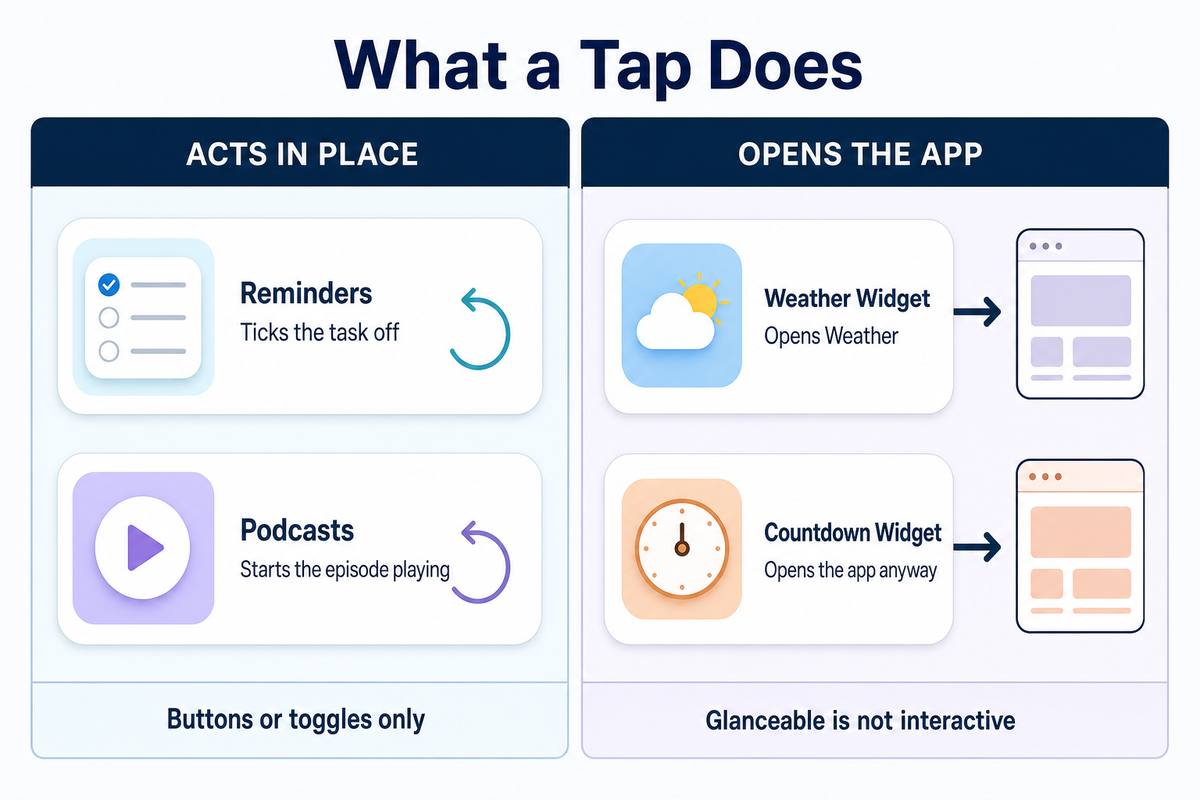
A widget qualifies as interactive when it contains a button or a toggle wired to an app action. Apple’s developer reference on widget interactivity is exact about the scope: “Include buttons or toggles in a widget or Live Activity to offer app functionality without launching the app.” Those two controls are the whole in-place surface for widgets in iOS. Tap anywhere else on the tile and you’re using a launcher.
In practice a widget can complete one small job without opening an app, and that job has to be expressible as a single press. Anything richer than that leaves your iPhone’s home screen and continues inside the app.
The reason is architectural rather than cosmetic. A widget isn’t a small running app. Apple describes the rendering model directly:
“WidgetKit renders the views on your behalf in a separate process. As a result, your widget extension is not continually active, even if the widget is onscreen.”
— Apple, WidgetKit developer reference
What you see is a stored picture of your widget, replayed. It can’t run the app’s code while you’re looking at it, which is exactly why buttons and toggles had to be added as a separate mechanism rather than simply falling out of the design.
This also explains the widgets that look alive but are not. A countdown timer keeps counting down while nothing is running, because the system draws the changing number itself. Glanceable is not the same as interactive, and neither is animated.
| Widget example | What a tap does | Behaviour type |
|---|---|---|
| Reminders | Ticks the task off where you tapped | In-widget action |
| Podcasts | Starts the episode playing | In-widget action |
| Home accessory | Flips the light or plug | Control toggle |
| Weather widget | Opens Weather | Deep link only |
| Photo widgets | Opens the photo in its app | Deep link only |
| Countdown widget | Opens the app; the number moves on its own | Live refresh, no input |
| Calendar widget | Opens the day you tapped | Deep link only |
| Live score widget | Opens the app; the score updates on a schedule | Live refresh, no input |
| Smart Stacks | Scrolls between tiles, then behaves like whichever one is showing | Container, inherits |
| Any blank area of any widget | Opens the app | Deep link only |
Behaviour classification derived from Apple’s Human Interface Guidelines: Widgets and its WidgetKit interactivity reference, read 1 August 2026.
What widgets are actually live and interactive?
Only the ones whose developer built a button or a toggle into the tile, which is a small minority of what most people have installed. There’s no setting that turns interactivity on, and no iOS version retroactively grants it to widgets that were never built for it.
Practically, the reliable ones are Apple’s own Reminders and Apple’s Podcasts widgets, Home accessory controls, and a modest set of third-party to-do, habit and media apps that did the work. Everything else on your iPhone home screen, however modern it looks, is a picture with a link under it. If you want to test one, tap directly on a control-looking element rather than the middle of the tile. If the app opens, there was no control there.
Among the third-party names people ask about most: Widgetsmith remains the reference customization app for building tiles from scratch, Todoist and similar to-do list apps expose completion controls, Carrot Weather is a popular widget for the glance case even though weather has nothing to tap, and Pomodoro timer widgets are one of the few categories where a start and stop control genuinely belongs on the tile. Many third-party developers still ship display-only widgets, which isn’t laziness so much as a judgement that their app has nothing worth doing in a two-inch square.
Which iOS Version Actually Shipped What
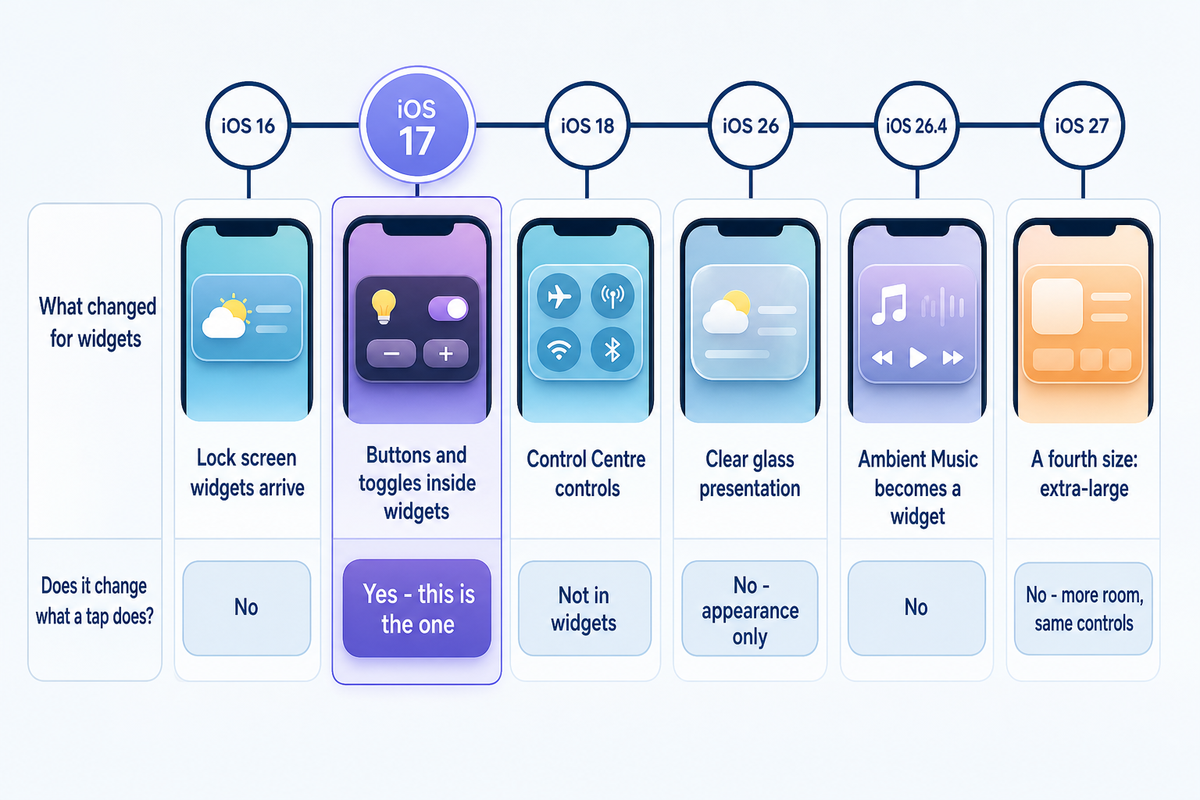
Interactive widgets arrived with iOS 17, not with the release you’re running now. Apple’s own sample code makes the boundary unambiguous: the in-widget button in its reference project is wrapped in if #available(iOS 17.0, *), and the accompanying text tells developers to “note how the sample checks for the presence of iOS 17 before adding the button.” Everything since has extended where widgets appear, not what a tap can do.
This matters because a lot of current coverage gets it backwards. Video titles and round-ups routinely imply that the newest release introduced interactive widgets. It didn’t.
| Release | What changed for widgets | Does it change what a tap does? |
|---|---|---|
| iOS 16 | Lock screen widgets arrive as glanceable tiles | No |
| iOS 17 | Buttons and toggles inside widgets; StandBy mode | Yes — this is the one |
| iOS 18 | Control Centre controls, a parallel surface with its own configuration | Not in widgets |
| iOS 26 | Clear glass and tinted presentation; widgets reach more places | No — appearance only |
| iOS 26.4 | Ambient Music promoted from a Control Centre control to a Home Screen widget | No |
| iOS 27 (autumn 2026) | A fourth size: extra-large, a 4×6 canvas | No — more room, same controls |
Release capabilities from Apple’s WWDC 2025 widgets session and WidgetKit interactivity reference; the iOS 26.4 and iOS 27 rows follow MacRumors and 9to5Mac reporting, read 1 August 2026.
Call the current release what it is: The Paint-Job Release. Apple’s own summary of what the iOS 26 cycle brought widgets lists new styling options, tips for using the existing accented rendering mode, new places to put them, and Live Activities reaching CarPlay and Mac. There’s no new interaction model on that list. If you upgraded and your widgets didn’t suddenly become tappable, nothing is broken. To check what you’re running, open Settings, then General, then Software Update. If you want the walkthrough for building the screen itself, we cover that separately in our guide to how to customize your iPhone Home Screen.
The Interactive Widgets You Already Own
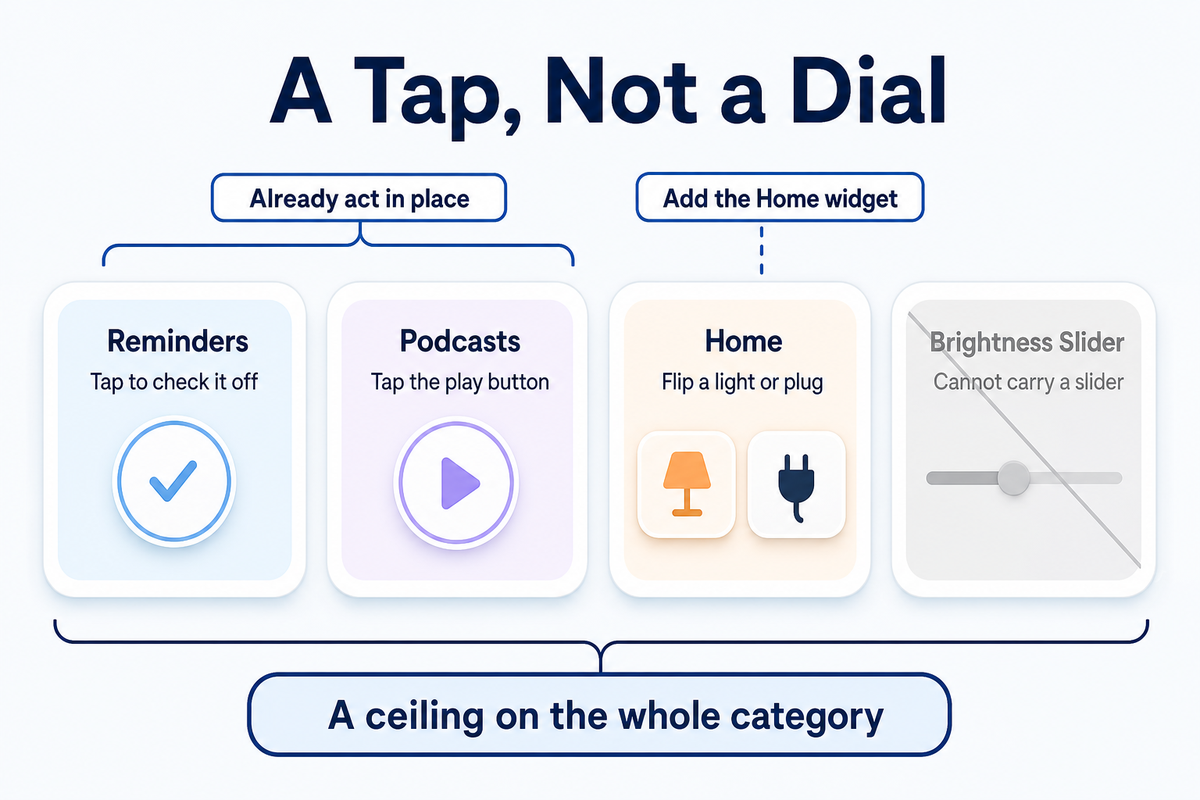
Before installing anything, two built-in widgets already act in place, and Apple names both in the iPhone User Guide: “tap an item in the Reminders widget to check it off, or tap the Play button in the Podcasts widget to play an episode.” Add the Home widget and you can flip a light or a plug from the same screen.
Apple’s Podcasts widget is the clearest example of the shape: the play control acts directly from the widget, and everything else about the episode lives in the app.
Set expectations at the right level, though. What Apple exposes is a tap, not a dial. There is no slider, no drag, no swipe and no keyboard inside a widget, so a Home widget can switch an accessory on but cannot carry a brightness slider or a colour picker. A media widget can start and stop; anything richer sends you into the app. This is a ceiling on the whole category, not a gap in any one app.
How to customize which built-in widget action you get
Press and hold a widget and choose Edit Widget. On a configurable widget this is where you pick which list, which accessory or which calendar it points at — and that choice determines what the in-place control does. A Reminders widget aimed at a list you never use will tick off tasks you never see. Editing widgets is the difference between a control that saves you a trip into the app and one that just sits there looking capable.
Adding and customizing everything else runs on that same tapping and holding gesture. Adding widgets starts from an empty area of the screen; from there you can drop in a new widget, resize it, or create a Smart Stack by dragging one tile onto another so they share a slot. It’s worth doing this deliberately rather than by accident, because the size you land on decides whether controls are even possible — a point the next-but-one section returns to. Custom app icons are a separate customization layer that sits alongside widgets rather than inside them.
Widget Pets: The Companion Widgets People Keep
Desktop pets are the most-wanted thing in this category and the least honestly described. Search demand for pet widgets sits an order of magnitude above the demand for the technical term “interactive widgets iphone”, and it’s still climbing. What the apps actually do on your iPhone’s home screen is more modest than the marketing suggests.
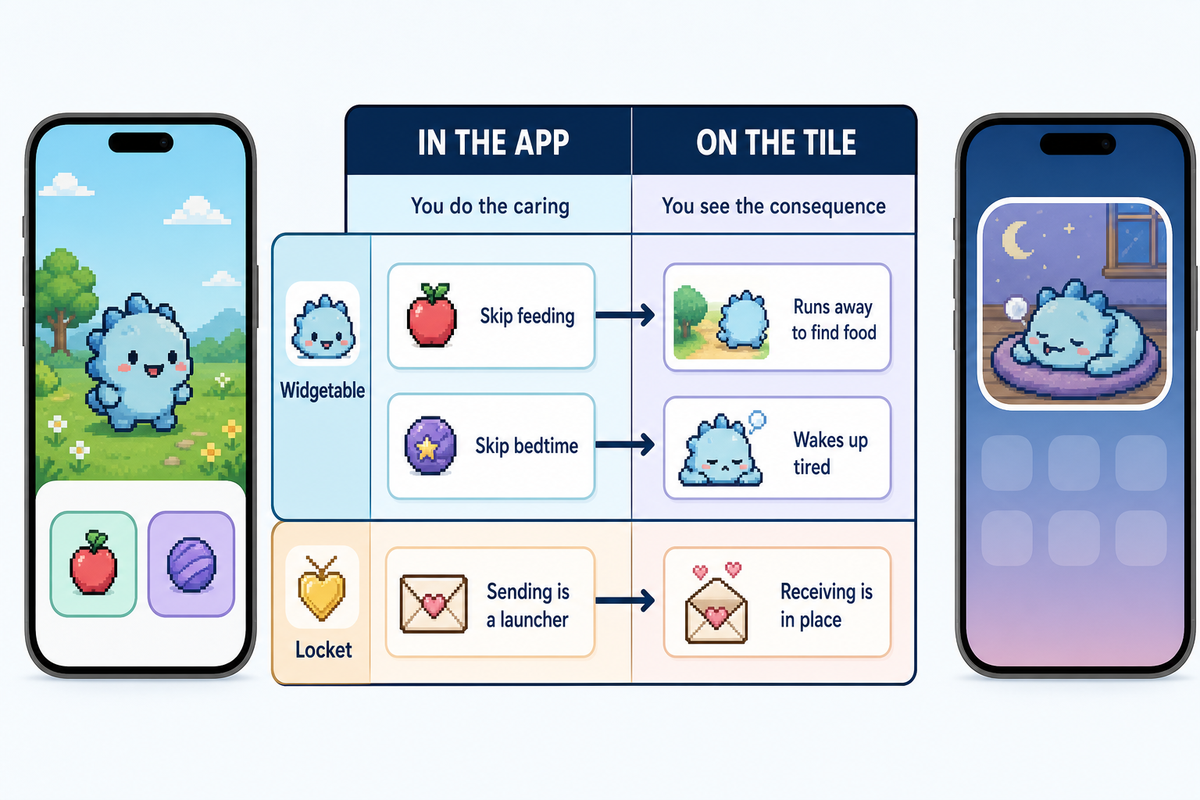
Take the mechanics the vendors themselves publish. Widgetable’s own community wiki describes a care loop that runs in the app, not in the tile: you hatch an egg from the Pets tab, it takes 24 hours on its own, and “you can add the widget to your phone, and it will clear up 6 hours.” Skip feeding and the pet “will actually run away to find food.” Skip bedtime and it wakes up tired. The widget is where you see the consequence; the app is where you do the caring, and adding the widget functions as a time bonus.
Locket, the friend-photo widget, is split down the middle in the same way. Photos your friends send appear on the tile automatically. To send one back, its own instructions say to “tap into the widget, take a pic with the camera, and then hit send” — receiving is in place, sending is a launcher.
Vendors do describe pet widgets as interactive, and the tech press has relayed that: TechCrunch’s iOS 17 launch round-up reported that one developer’s set “will be available, including Tamagotchi widgets”, though it was quoting the company and didn’t state which care actions run inside the tile. That’s the honest position: where a vendor documents its own flow, the caring happens in the app. Treat “interactive” on a store listing as a claim about the category, not a promise about the tile.
None of which makes them a bad thing to own — it just changes what you’re buying. If you want a creature on your screen, judge it on how good the glance is, because the glance is the part that lives on your Home Screen. Our Dynamic Island pets guide covers the other surface, which runs on a different system entirely, and iScreen’s interactive widget packs include a DIY Button and a Mood Calendar alongside the decorative sets.
Widget Games and Live-Score Widgets
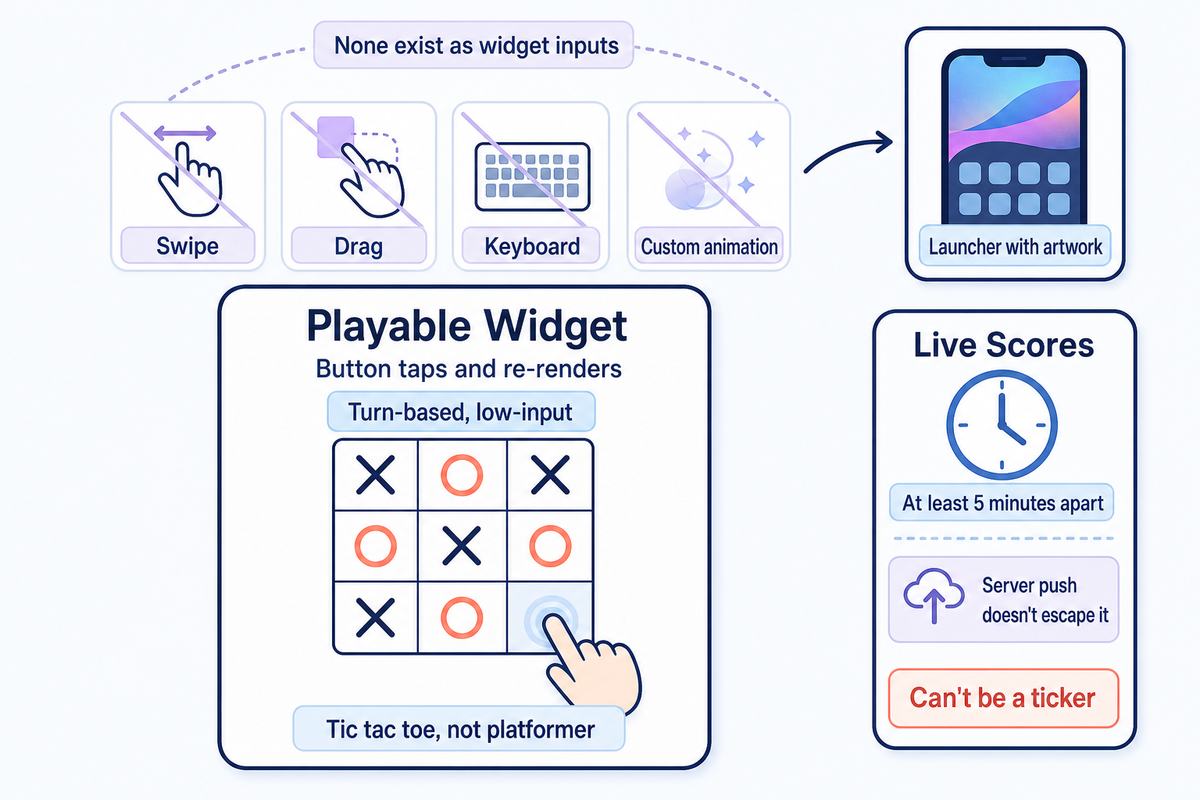
Playable widgets are real but small by design. A genuine one is built out of button taps and re-renders: TechCrunch’s launch coverage described Widgle as “a puzzle in a widget form”, and that’s about the right shape — turn-based, low-input, one tap at a time. Think tic tac toe rather than a platformer. What you can’t build is anything needing a swipe, a drag, a keyboard or a custom animation, because none of those exist as widget inputs. A “game widget” that needs any of them is a launcher with artwork on it.
Live scores run into a different ceiling. Apple caps how often a tile can redraw: “your timeline provider should create timeline entries that are at least about 5 minutes apart”, and the system may bunch reloads across widgets so the exact moment drifts. Server push helps but doesn’t escape it: Apple states that push updates are budgeted in the same way. A widget can tell you a match is happening. It can’t be a ticker.
So a puzzle you can genuinely play right on your home screen is possible; a live scoreboard sitting there is not, however much it looks like one.
Which is why the genuinely minute-by-minute score experiences you see on the Lock Screen use Live Activities rather than widgets. Same phone, different system, different rules, and Apple limits in-activity buttons to the expanded and Lock Screen presentations. If you want the tile itself to be the thing you look at, a countdown widget or a couple widget app is a better fit than a scoreboard.
Why Your Widget Just Opens the App
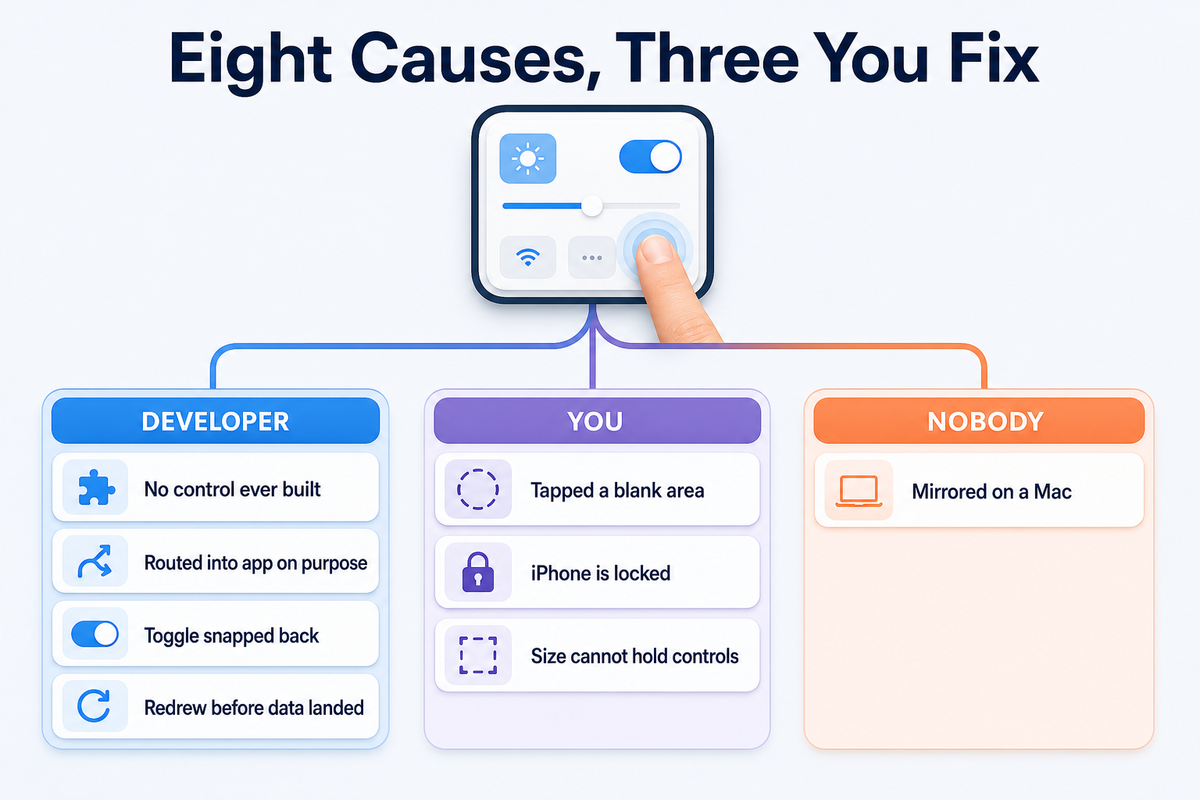
A tap that opens the app instead of acting is the most common complaint about interactive widgets, and it usually has nothing to do with your phone. Of the eight distinct causes below — assembled from Apple’s documentation, not published by Apple as a list — four are decisions only the developer can change, three are yours, and one is nobody’s. Work down the list before assuming anything is broken.
| Cause | Who can fix it | What to do |
|---|---|---|
| No control was ever built into the tile | Developer | Find an app that did build one |
| You tapped a blank area, not a control | You | Aim at the button, not the tile |
| Your iPhone is locked | You | Authenticate first — see the next section |
| The widget size you chose cannot hold controls | You | Switch to a supported size |
| The developer routed the action into the app on purpose | Developer | Nothing — it is working as configured |
| The toggle flipped, then snapped back | Developer | A sync failed; check the app for the real state |
| The action ran but the tile redrew before the data landed | Developer | Wait for the next refresh, then re-check |
| You are tapping an iPhone widget mirrored on a Mac | Neither | Expect a delay; the tap round-trips to the phone |
Causes assembled from Apple’s WidgetKit interactivity reference and widget refresh documentation. Apple does not publish this as an eight-item list; the grouping is ours.
Two of those deserve expanding, because they’re the ones that make a working widget look faulty. A toggle inside a widget updates its appearance the instant you touch it: Apple’s reference states it “updates its appearance optimistically and indicates its new state immediately, without waiting for the result of the performed action.” If the write then fails, the tile reverts. And the developer can deliberately send the tap into the app; that’s a supported configuration, not a bug, which is why some widgets will never act in place no matter what you try.
Why do my widgets just redirect me to the app when I tap them?
Because that’s the default behaviour of every part of a widget that isn’t a button or a toggle, and because most of the widgets people actually have installed predate those controls entirely and nobody has gone back to update them since.
Before iOS 17 a small widget had exactly one touch target, and it always opened the app, which is why complaints written years ago read identically to complaints written this week. Start by checking whether the widget has anything that looks like a control. If it doesn’t, no amount of restarting, re-adding or toggling Background App Refresh will change the outcome.
There’s one genuinely useful fix almost nobody mentions. Apple throttles widgets you never look at: “if a widget is on a Home Screen page that the user rarely visits, WidgetKit may reduce the frequency of reloads for that widget.” If your widget is stale rather than unresponsive, move it to a page you actually swipe to.
How to tell before you download
You cannot test a widget from a listing, but you can read one better than most people do. An App Store page that promises to transform your home screen is selling the outcome; the screenshots are where the mechanism shows. Look for a picture of the tile with something that reads as a control on it — a plus, a tick, a play button — rather than a beautifully typeset display. Listings for apps like the big customization suites will often show both, and the control shots are the ones that matter. Read the version history too: an app that has not shipped an update since before 2023 predates in-widget controls entirely, so whatever it offers is display only.
Two more things worth a glance before you download interactive widgets from anyone. The App Privacy section tells you what a tile that sits permanently on your screen is collecting, which matters more for a widget than for an app you open twice a week — and the developer’s privacy policy is linked from the same place. And if the app charges, check whether the paid tier buys features or just cosmetics, because in this category it is very often the latter.
Where a Tap Works: Home Screen, Lock Screen, StandBy and CarPlay
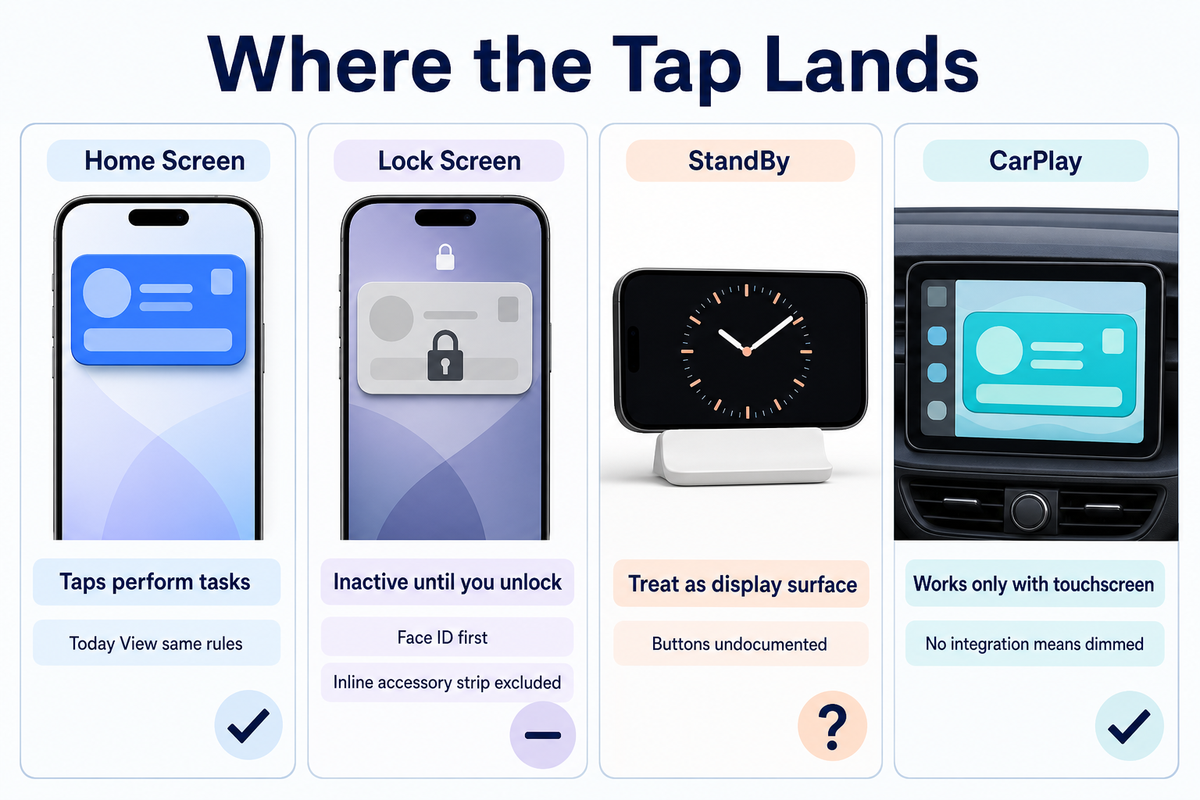
The same widget doesn’t behave the same way everywhere you put it, and the lock screen case is the one that catches people out. Apple’s consumer guide says you can interact with widgets on the Lock Screen and the Home Screen to perform tasks. Apple’s developer notes say that “on a locked device, buttons and toggles are inactive and the system doesn’t perform actions unless a person authenticates and unlocks their device.”
Both are true, and the missing word is authentication. Lock screen widgets can hold controls, but those controls do nothing for exactly as long as the phone is locked. Glance at your lock screen and tap a toggle without Face ID landing first, and nothing happens — which reads as a broken widget rather than a security boundary.
Size matters here too. Apple lists the widget families that may contain buttons and toggles, and the thin inline accessory strip is not among them. If you have parked a control-looking widget in that slot, it can never act.
A second lock screen question is worth separating from the first: whether a control fires is not the same as whether the content should be on display at all. Anything on that screen is readable by whoever can see the phone, however locked it is. A shared to-do list or a mood tracker is a different privacy decision from a weather tile.
Two more surfaces behave differently again. Today View, reached by swiping right from your Home Screen, holds the same tiles and follows the same rules as the Home Screen itself. Apple Watch complications and macOS are separate builds of the same widget rather than the same widget in another place, which is why a control you rely on may simply not be there.
CarPlay is the one surface Apple makes fully deterministic: in a vehicle with a touchscreen, buttons and toggles work; in one without, they don’t, and where an app has no CarPlay integration the system dims the widget so a dead tap is visible before you make it. StandBy is less clear-cut. Apple documents that StandBy reuses the small widget and refreshes it “at a system-defined rate that doesn’t count against its budget”, but says nothing either way about whether its buttons fire, so treat StandBy as a display surface until you’ve tested your particular widget. Our guides to lock screen widgets and StandBy mode cover choosing and arranging them; this section is only about whether the tap lands.
How many widgets can you have on an iPhone?
Apple publishes no fixed ceiling, and in practice the limit that bites is attention rather than storage. Every extra tile is one more thing to skim past, and every acting widget you add is another allowance the system has to schedule. A screen with three widgets you use beats a screen with nine you scroll past, which is the same conclusion our best widgets for iPhone round-up reaches from the curation side.
What an Acting Widget Costs You
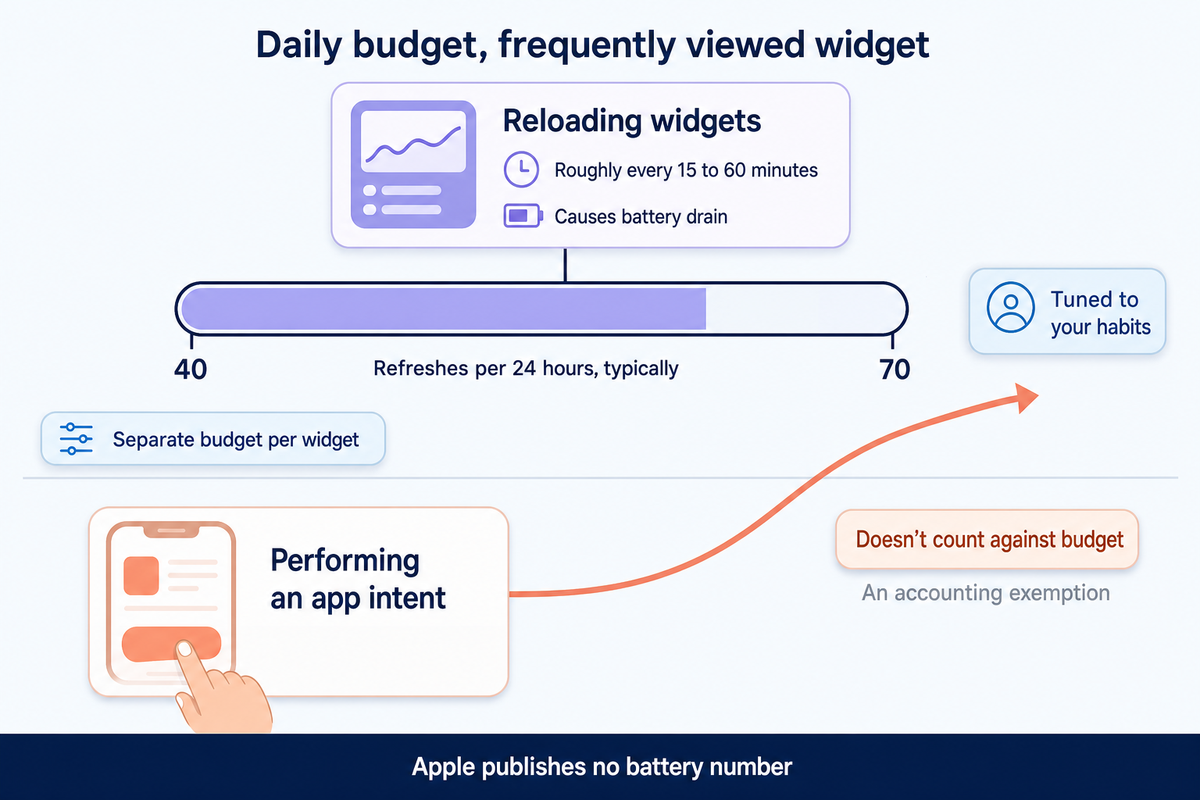
Widgets aren’t free to run, and Apple says so directly: “reloading widgets consumes system resources and causes battery drain due to additional networking and processing.” What Apple doesn’t publish is a number, and neither does anyone else. We looked, and no credible controlled measurement of iPhone widget battery cost exists in public. Anyone quoting you a percentage is guessing.
Rationing is real and documented, though. A frequently viewed widget gets a daily budget of typically 40 to 70 refreshes, spread over a 24 hour window that WidgetKit tunes to your own habits rather than resetting at midnight. Apple glosses that rate as a reload roughly every 15 to 60 minutes, and each widget you place gets its own separate budget. Taps themselves sit outside that accounting: Apple lists performing an app intent among the cases that don’t count against the budget. That’s an accounting exemption rather than a promise that interacting is energy-free, but it does mean the passive waiting, not your tapping, is what the system rations.
Then there’s money. Searches for free interactive widgets iphone run well ahead of paid ones, and the pattern behind that is consistent: free at the tile, paid at the feature. Pet apps gate remedies and cosmetics behind a subscription tier, photo-sharing widgets gate the gallery, and score widgets gate the multi-game views. iScreen is free to download with in-app purchases available for additional features, which is the standard shape of the category.
The One-Tap Payback Rule: a widget earns its slot only when one tap replaces a multi-step trip into the app that you make at least once a day. Run the arithmetic on a real one. Ticking a task off in the Reminders app takes four moves — unlock, find the app, open the list, tap the circle. Doing it from the widget takes two: unlock, tap. That is two moves saved, and if you tick something off twice a day, over 30 days that is roughly 120 moves saved by one tile. Now run it on a widget you tap once a week and the same arithmetic over 30 days returns about 8 — which is a decoration, and should be judged as one.
- A control you use daily
- A glance that stops you opening an app
- A pet or photo you genuinely enjoy seeing
- A control you tap once a week
- A live figure that updates slower than you check it
- A duplicate of something already on the screen
The Two-Speed Widget Market
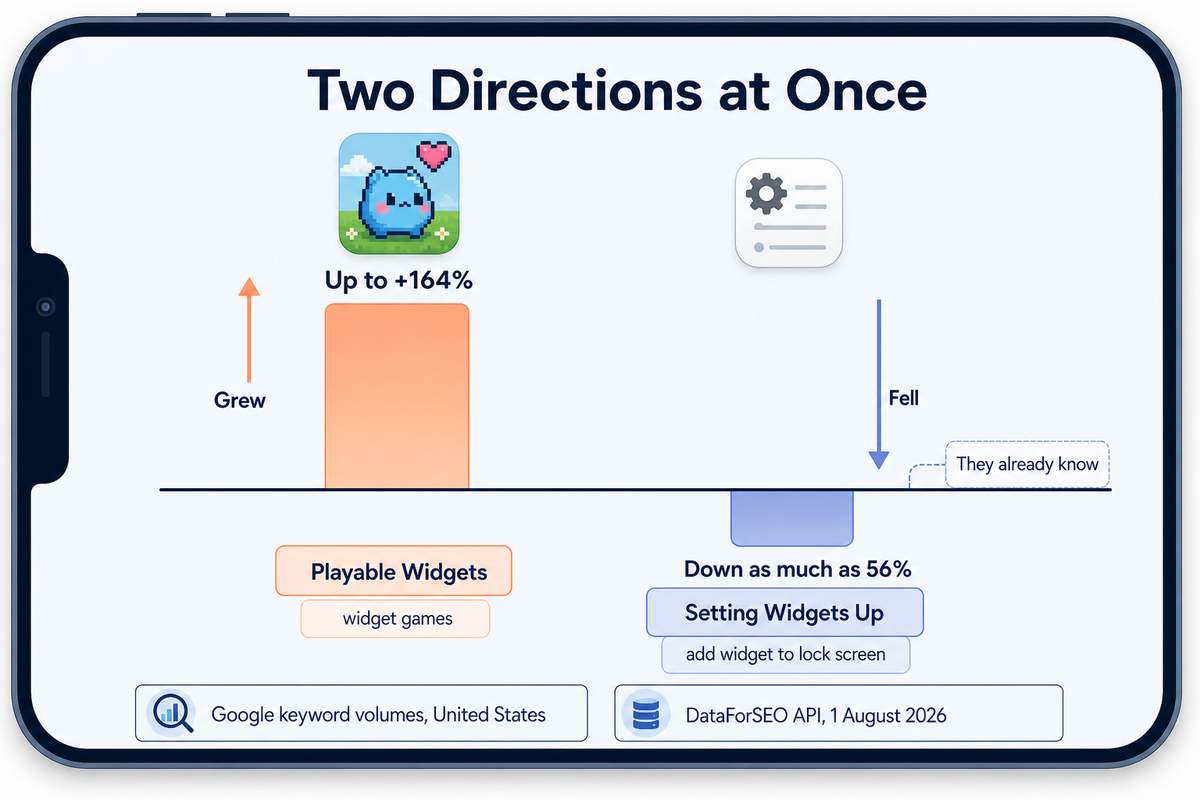
Something is changing in what people want widgets for, and it’s checkable rather than anecdotal. On 1 August 2026 we queried Google’s own reported keyword volumes for the widget category, via the DataForSEO API — United States, English, every term in a single batch so the figures are directly comparable. The volumes are Google’s, banded as Google reports them; what’s ours is the date, the batch and the comparison. They move in two directions at once.
| Search term | Monthly searches | Year on year |
|---|---|---|
| widget games | 1,300 | +164% |
| soccer widgets | 590 | +126% |
| dino widget | 140 | +91% |
| widget pet app | 320 | +86% |
| widget pet | 1,900 | +85% |
| steve widget game | 110 | +56% |
| add widgets to iphone | 5,400 | −18% |
| iphone widgets | 2,400 | −21% |
| best widgets for iphone | 1,000 | −32% |
| add widget to lock screen | 2,900 | −56% |
Every figure in this table is a United States monthly keyword volume with its year-on-year change, according to Google data retrieved through the DataForSEO keywords API in a single batch on 1 August 2026. Volumes are banded as Google reports them; no figure here is a market forecast or an estimate by us.
Falling demand here isn’t a category in decline; it’s a category that has been learned. People stopped searching how to add widgets to iphone because they already know. What they’re searching for now is something to put there that does something back. That’s a shift in what a Home Screen is for, and it’s the reason a pet with a 24 hour hatch timer outdraws the technical term for the feature that makes it possible.
The head term itself tells the same story from the other end. According to the same DataForSEO history, covering 53 months, searches for the phrase “interactive widgets iphone” are down 62.5% against their peak, but that peak was the iOS 17 launch, when the capability was news. What faded was the novelty of the term, not the use of the feature, which is exactly why the sub-categories built on top of it are climbing while the label for it drifts down.
For the same reason, treat the arrival of the extra-large 4×6 size in iOS 27 as more canvas rather than more capability, and note that at announcement only a handful of Apple’s own widgets supported it, so third-party support will arrive gradually. Controls stay the same two Apple allows inside a widget. What changes is how much you can see around them, which favours exactly the companion and glance-first widgets the demand data is pointing at.
Frequently Asked Questions
Q: Why do my widgets just open the app instead of doing something?
Because everything on a widget except a button or a toggle is a link into the app, and most widgets were shipped without one, so the tap falls through to the launcher.
Q: What widgets are actually live and interactive?
Only widgets whose developer deliberately built in a button or a toggle. Among Apple’s own, that reliably means Reminders, Podcasts and Home; beyond those it is a modest set of third-party apps.
Q: How many widgets can I have on my iPhone?
Apple publishes no fixed limit, so the real constraint is how many you will genuinely look at. Refresh scheduling is what scales with quantity, because every widget carries its own daily allowance.
Q: Did iOS 26 add interactive widgets?
No. Interactivity shipped in iOS 17, Control Centre controls arrived with the iOS 18 cycle, and iOS 26 changed how widgets look rather than what a tap does inside one.
Q: Are widget pets and widget games free?
Usually free to install, with the parts you will actually want gated behind in-app purchases or a subscription tier. Assume the tile costs nothing and the depth behind it does.
Q: Do interactive widgets drain the battery?
Refreshing them costs power, which is precisely why Apple rations how often a widget may reload. No credible public measurement of the size of that cost exists, so any percentage you see quoted is unsourced.
Q: Do interactive widgets work on iPad and Mac?
Yes, with one caveat worth knowing before you rely on it: an iPhone widget shown on a Mac sends your tap back to the phone, runs the action there, and returns an updated tile.
Where to Start
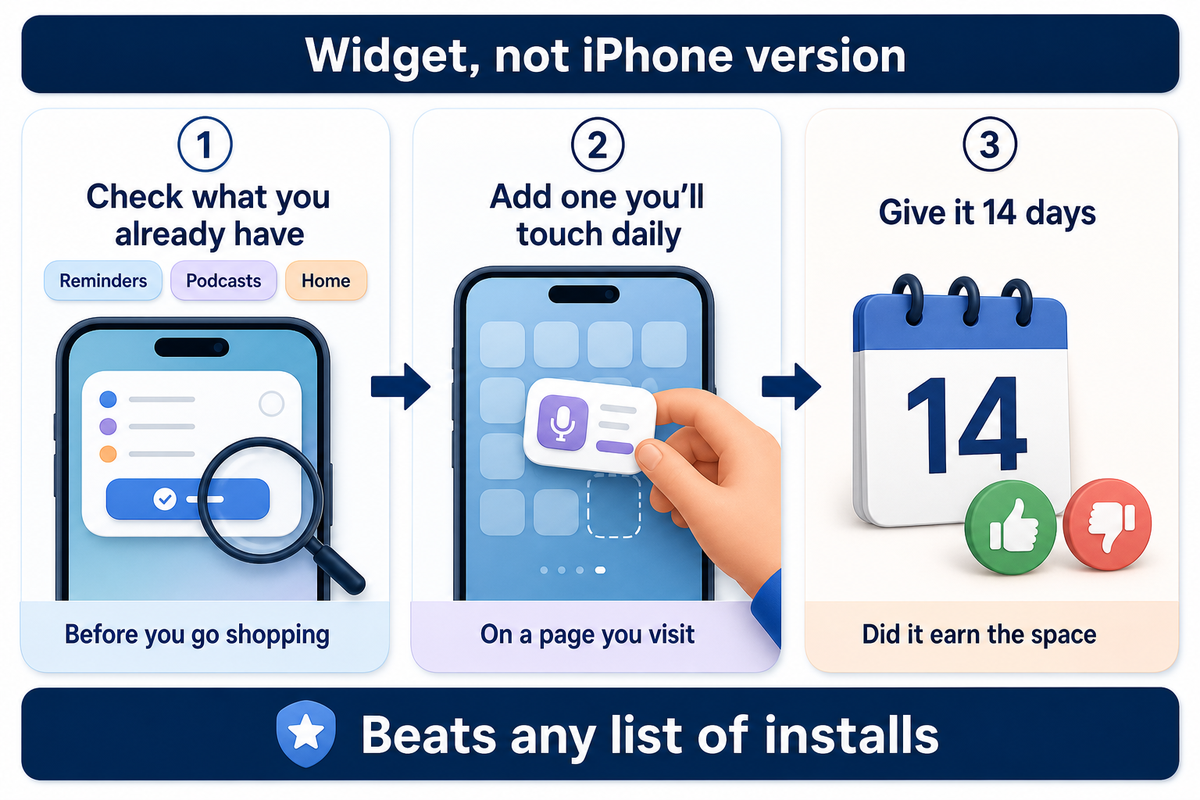
If you take one thing from this, take this: interactivity is a property of the particular widget you installed, not of the iPhone you own or the version it runs. Check what you already have — Reminders, Podcasts, Home — before you go shopping for anything.
Then add one thing you’ll actually touch daily, put it on a page you actually visit, and give it 14 days before deciding whether it earned the space. That single habit does more for your mobile experience than any list of installs. Browse cute aesthetic widgets if you’re optimising the look, or the weather widget guide for the classic glance tile that never needed a control in the first place.
References & Sources
- Adding interactivity to widgets and Live Activities — Apple Developer Documentation
- Keeping a widget up to date — Apple Developer Documentation
- Human Interface Guidelines: Widgets — Apple Developer Documentation
- iPhone User Guide: interacting with widgets — Apple Support
- Adding StandBy and CarPlay support to your widget — Apple Developer Documentation
- What’s new in widgets, WWDC 2025 session 278 — Apple
- iOS 27 adds extra large widgets — 9to5Mac, June 2026
- These iOS 17 apps bring interactive widgets to your iPhone Home Screen — TechCrunch, September 2023
How We Checked This
Every capability claim here was read directly from Apple’s own widget references rather than borrowed from other guides, because most of the pages currently ranking for interactive widgets were written during the iOS 17 cycle and have never been revisited since.
The demand figures are Google’s own reported United States keyword volumes, which we queried through the DataForSEO API in one batch on 1 August 2026 so the year-on-year comparisons are like for like; the volumes are banded as Google reports them, and other markets will differ. Where we couldn’t verify something, the battery cost of a widget, and whether controls fire in StandBy, we’ve said so instead of estimating. Published by iScreen.
